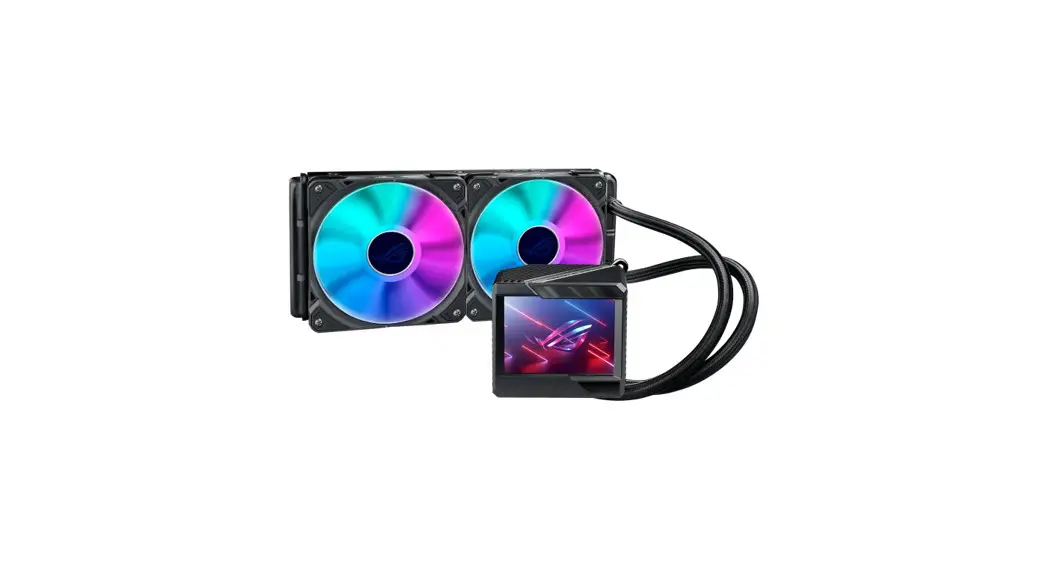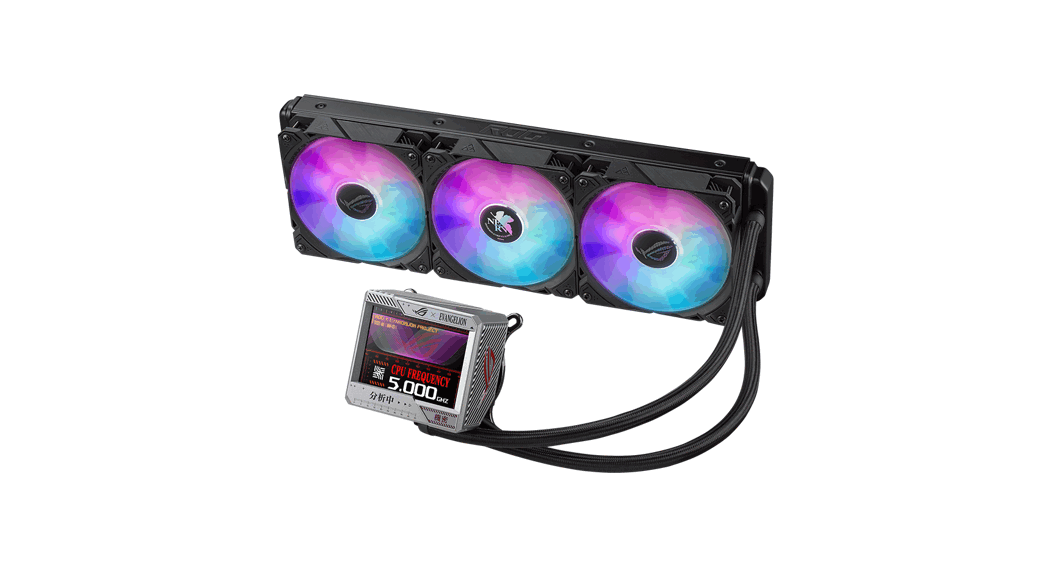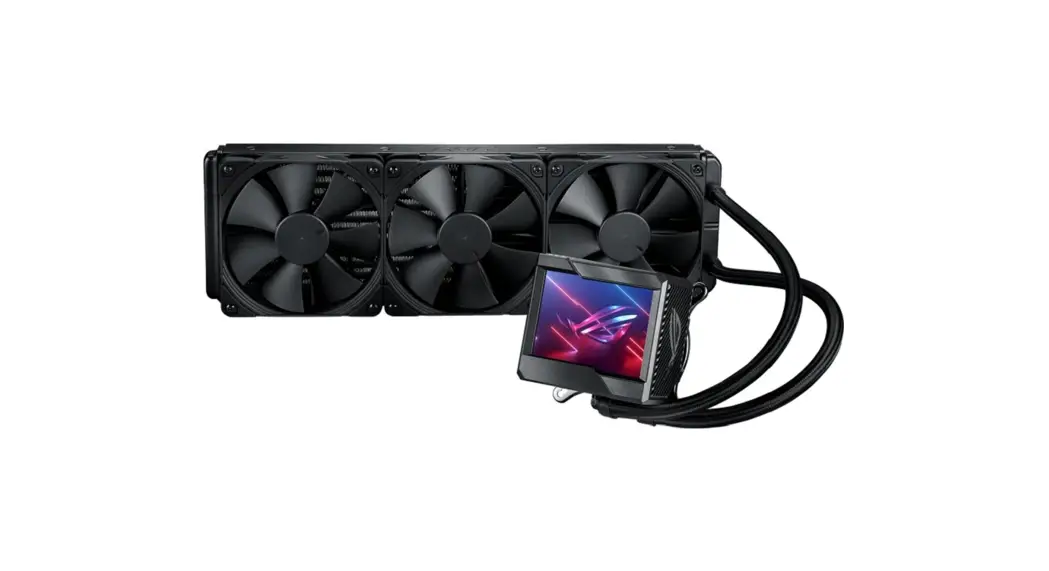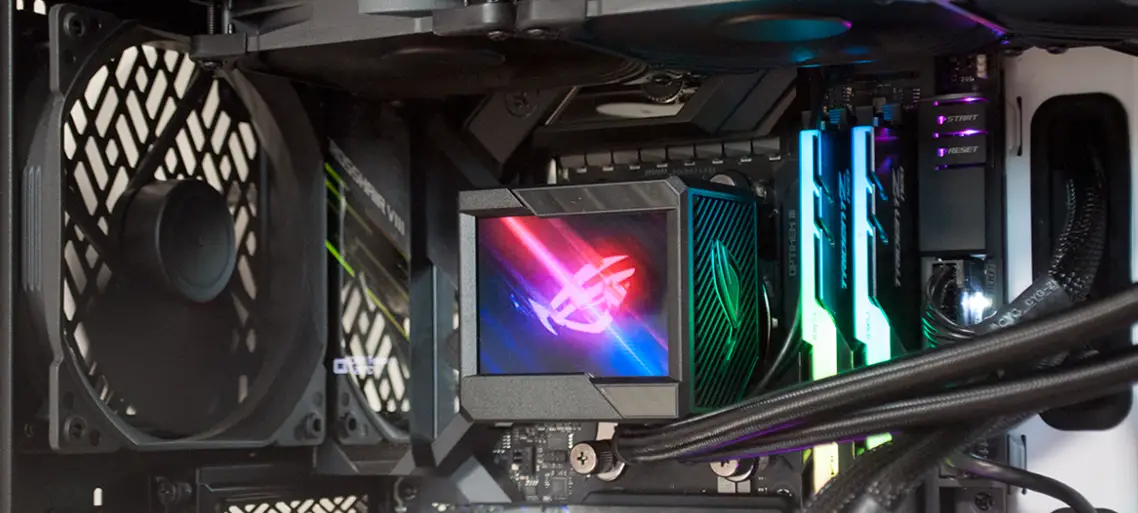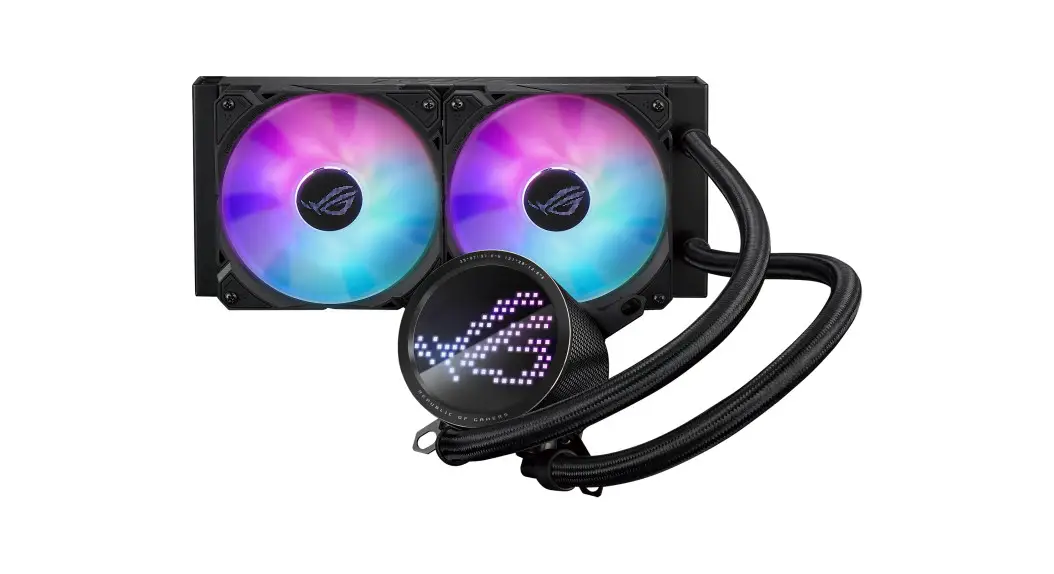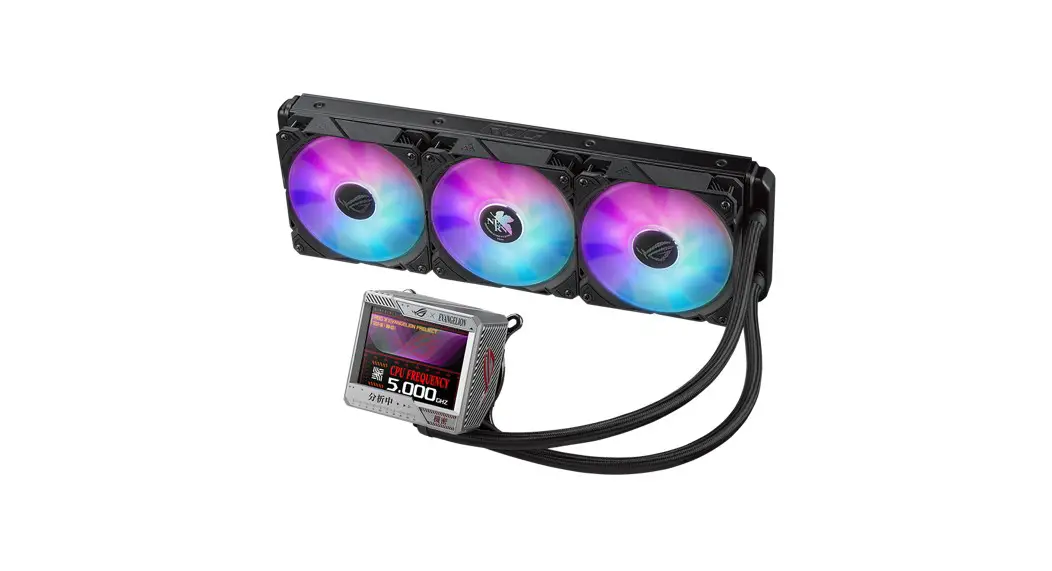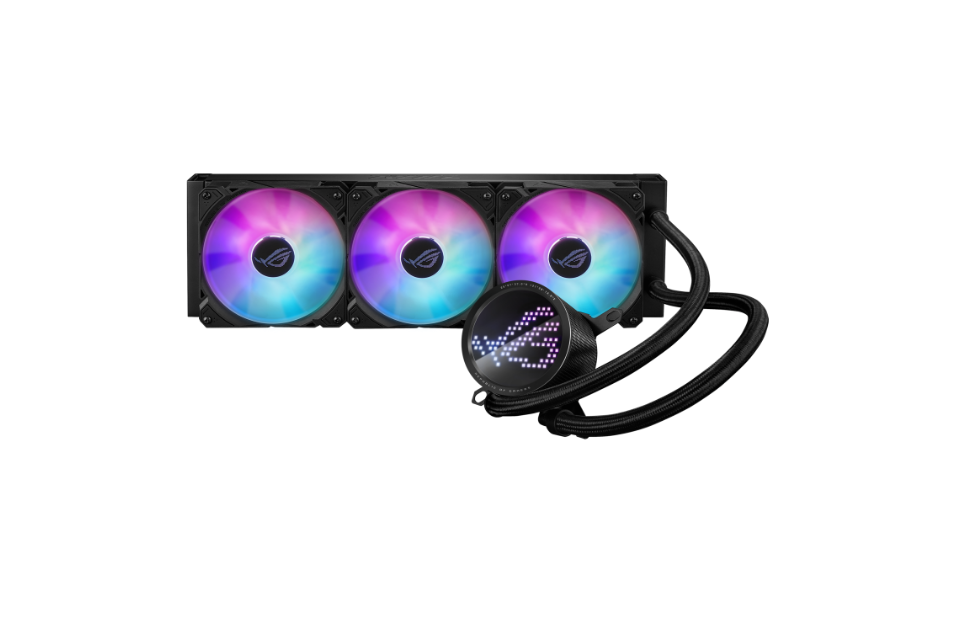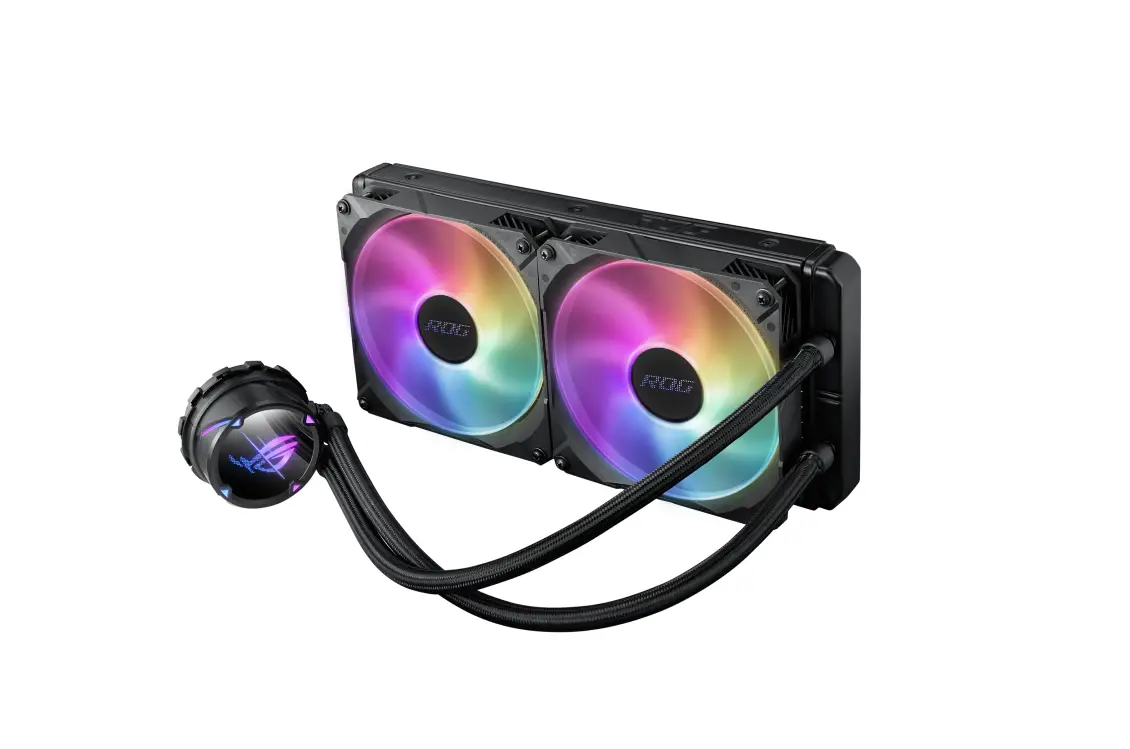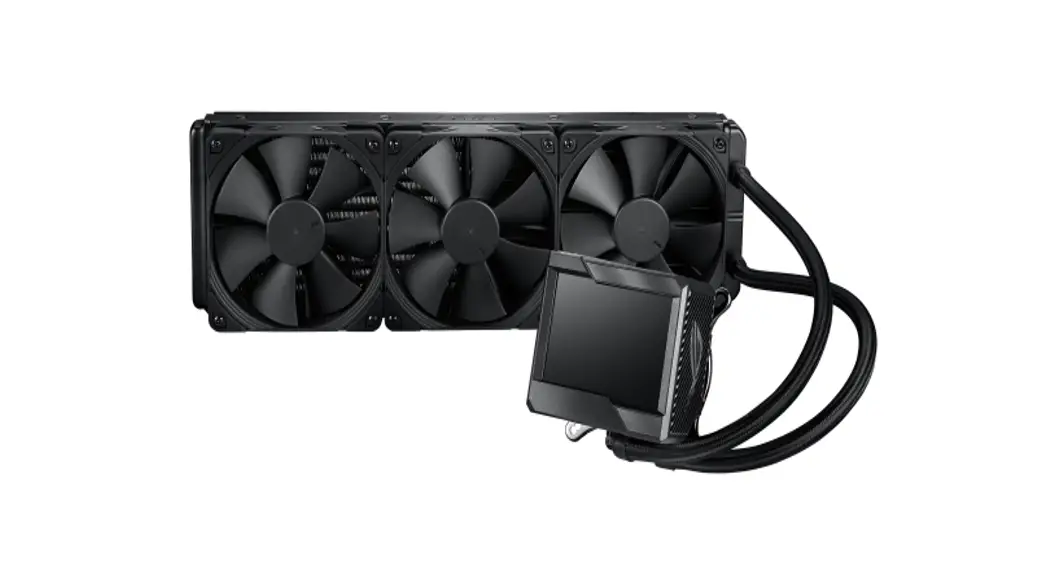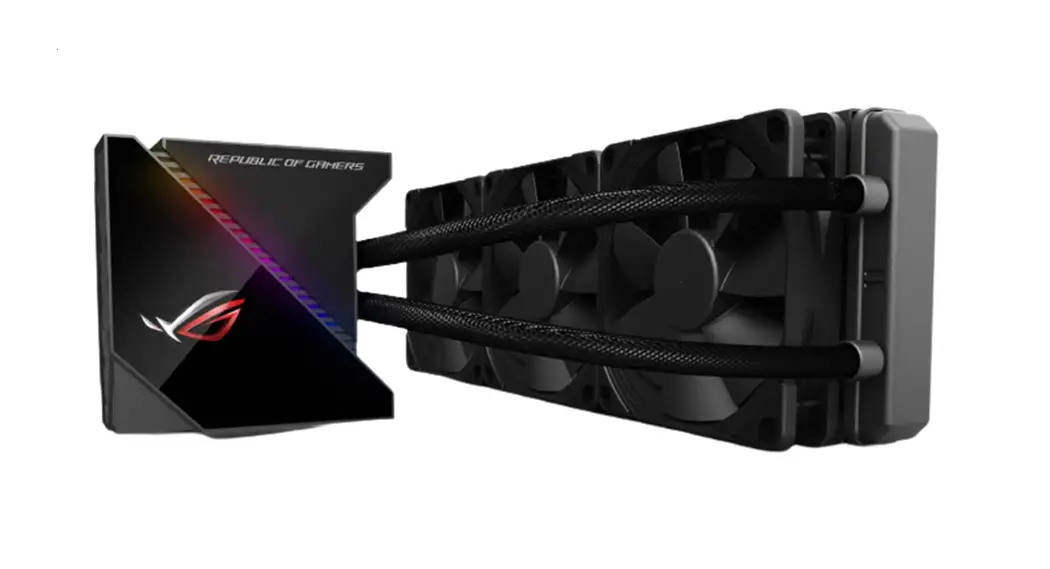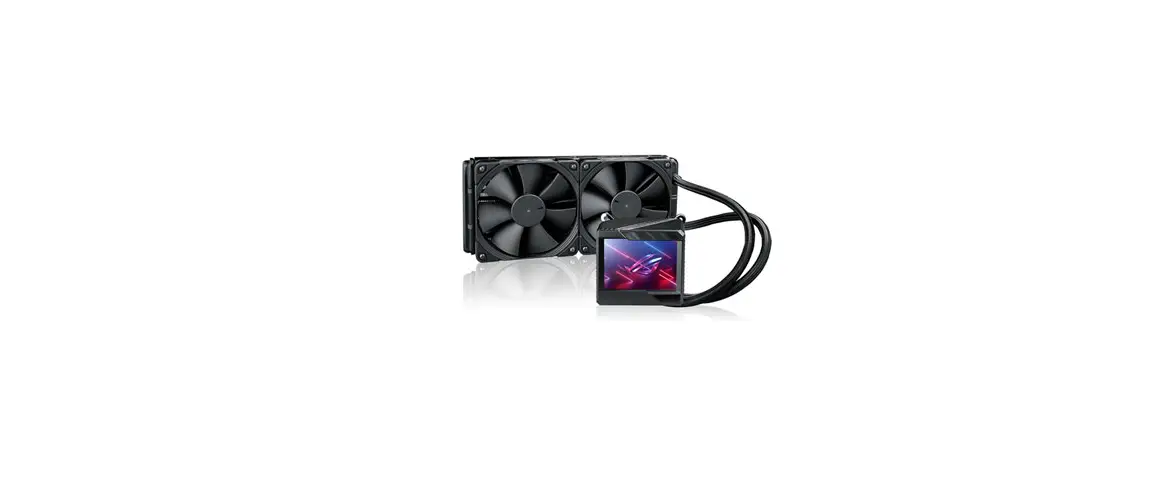

ASUS Rog Ryujin II 360 ARGB Evangel Gaming Cooling
Package contents
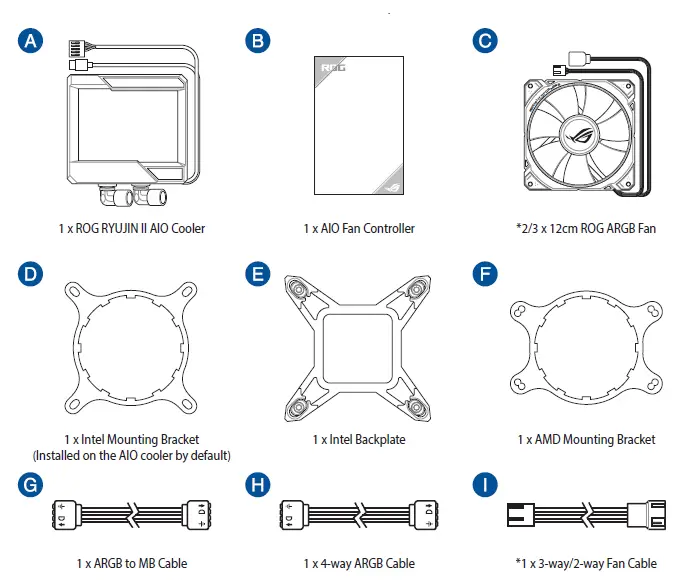
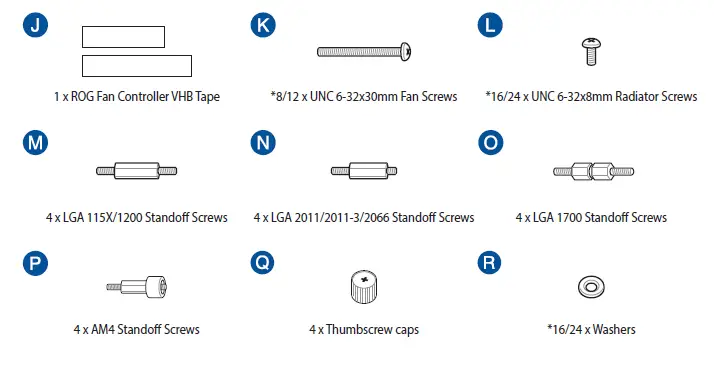
NOTE: The Intel Mounting bracket comes pre-installed on the AIO Cooler.
Installing the AIO cooler
NOTE: The illustrations in this section are for reference only, but the installation steps remain the same.
INTEL
Install the Intel backplate
NOTE: Skip step A for LGA 20XX sockets.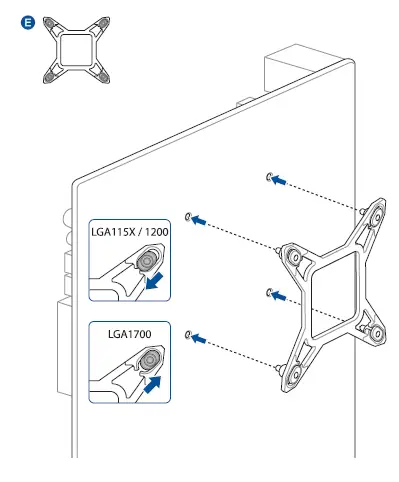
Install the Intel standoff screws
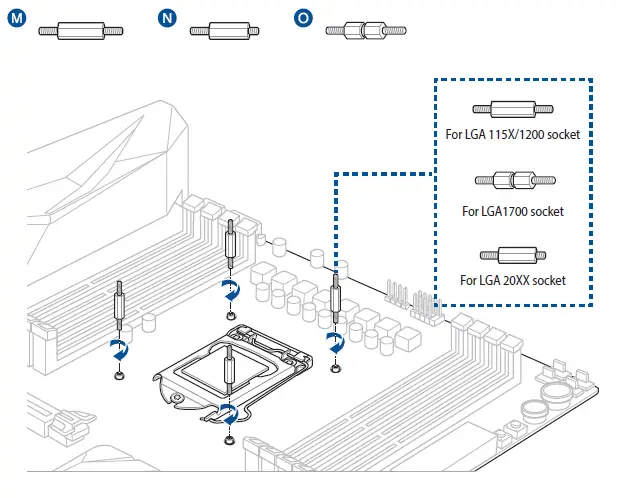
Install the AIO pump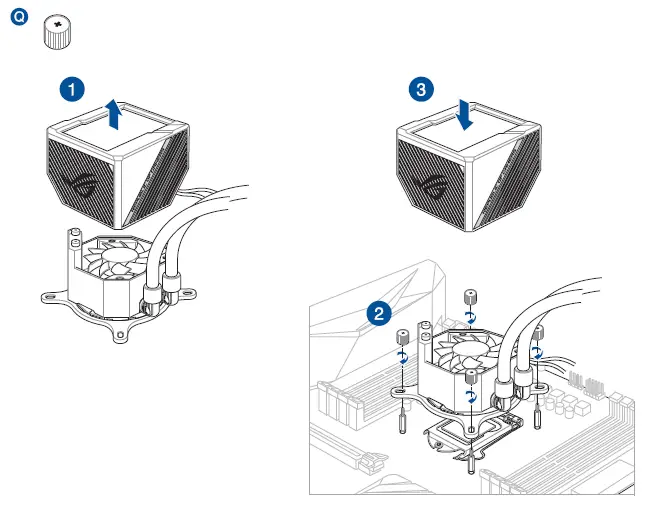
AMD
Remove the Intel Mounting Bracket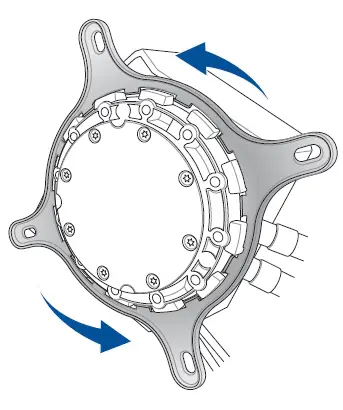
Install the AMD Mounting Bracket
NOTE: Skip step C for TR4 sockets.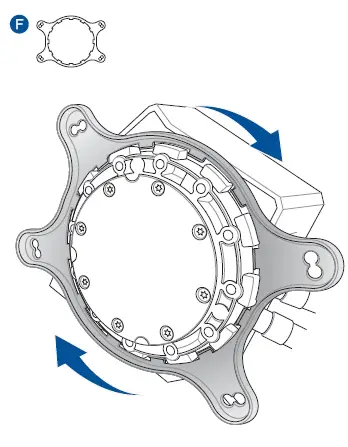
Remove the pre-installed heatsink mount then install the standoff screws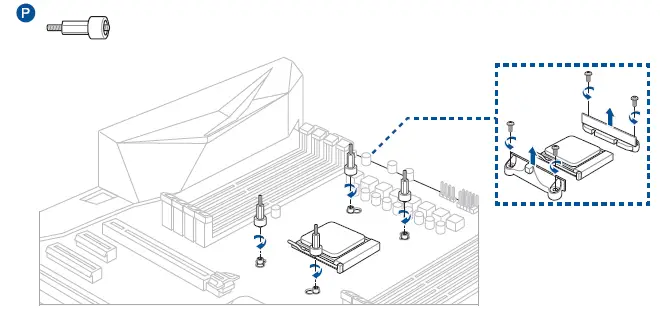
Install the AIO pump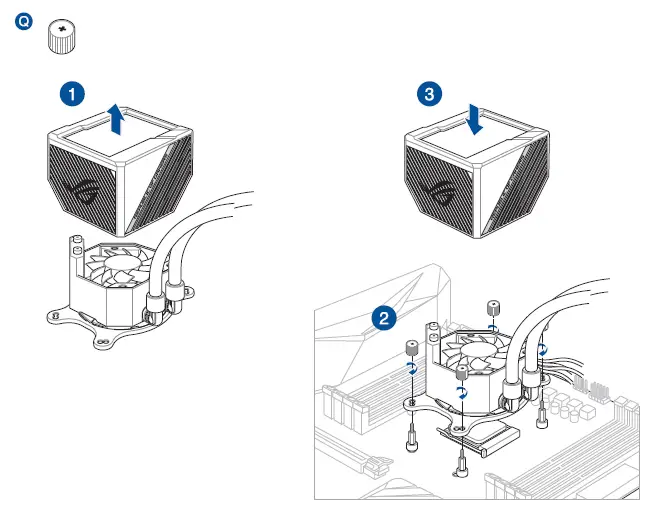
SETUP
Installing the AIO Radiator
IMPORTANT! Ensure to use the washers when installing the fan and radiator combo to your PC chassis.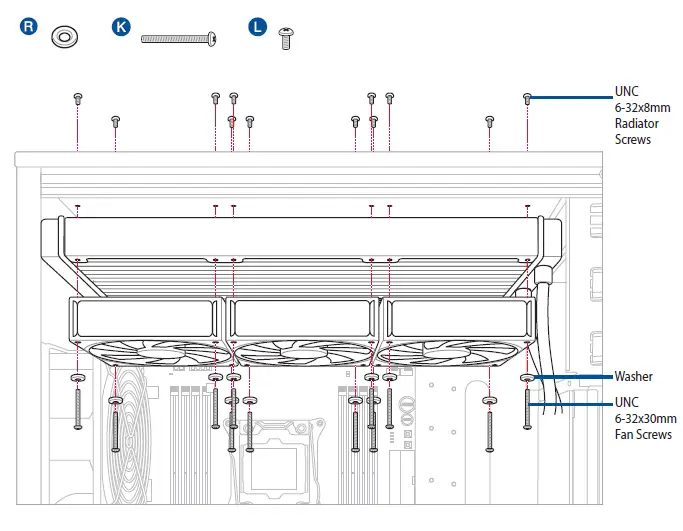
Connect the AIO pump cables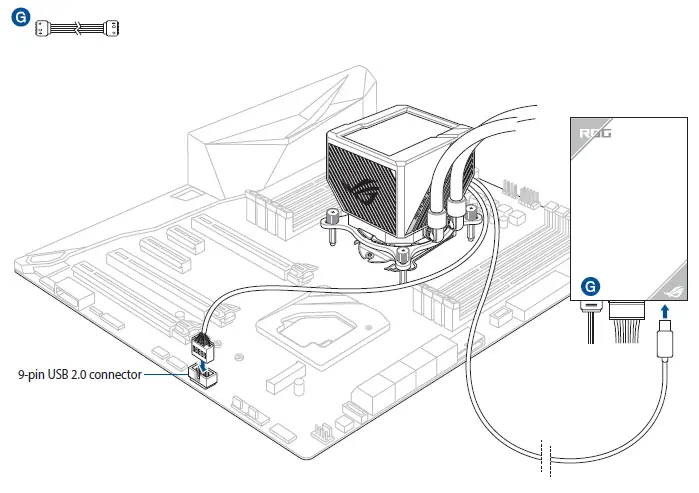
Install the AIO Fan Controller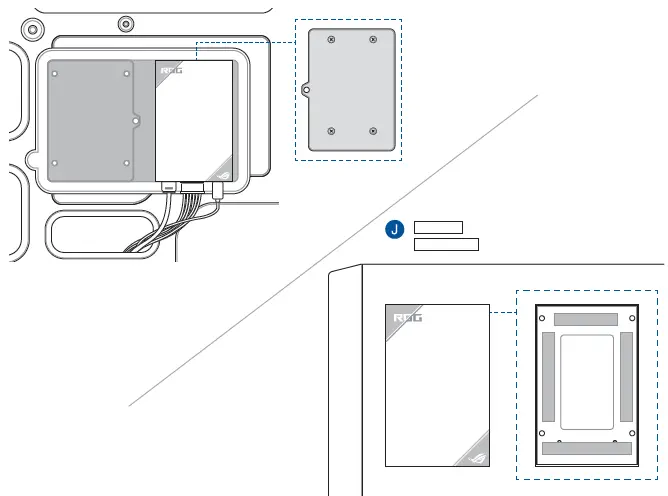
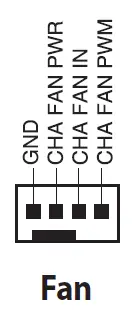
Fan Controller headers
- Fan header allows you to connect fans to cool the system.

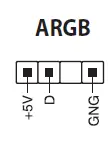
- ARGB header allows you to connect to the addressable connectors of your fans.

Download control software
Please visit the product support page at https://rog.asus.com/ to download and install the control software.
Support and FAQ
- Q: What should I do if a CPU Fan Error error message pops up?
- A: Enter BIOS, then go to Monitor and set CPU FAN Speed to [Ignore].
 ROG - Republic of Gamers|Global | For Those Who Dare