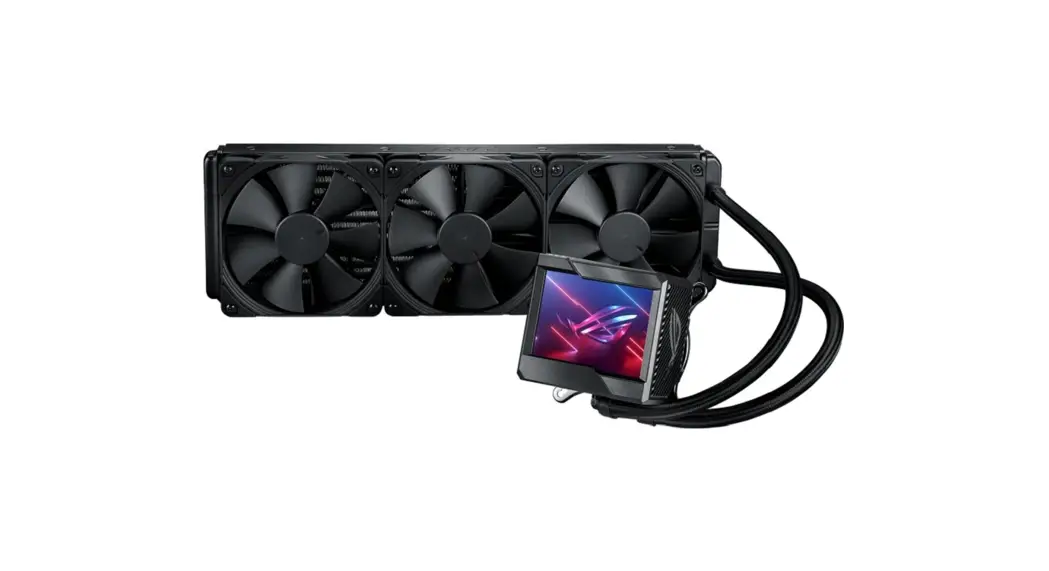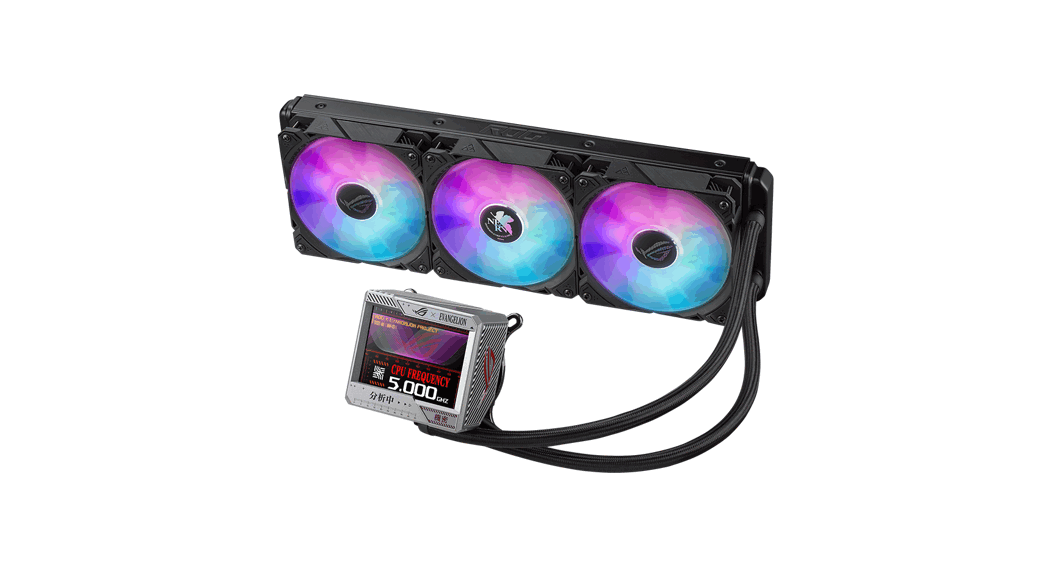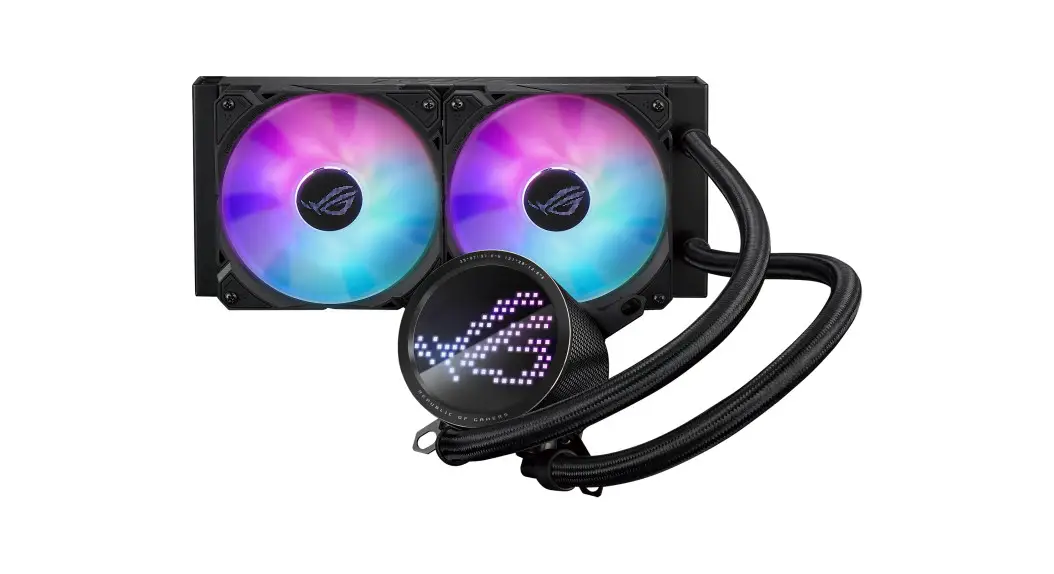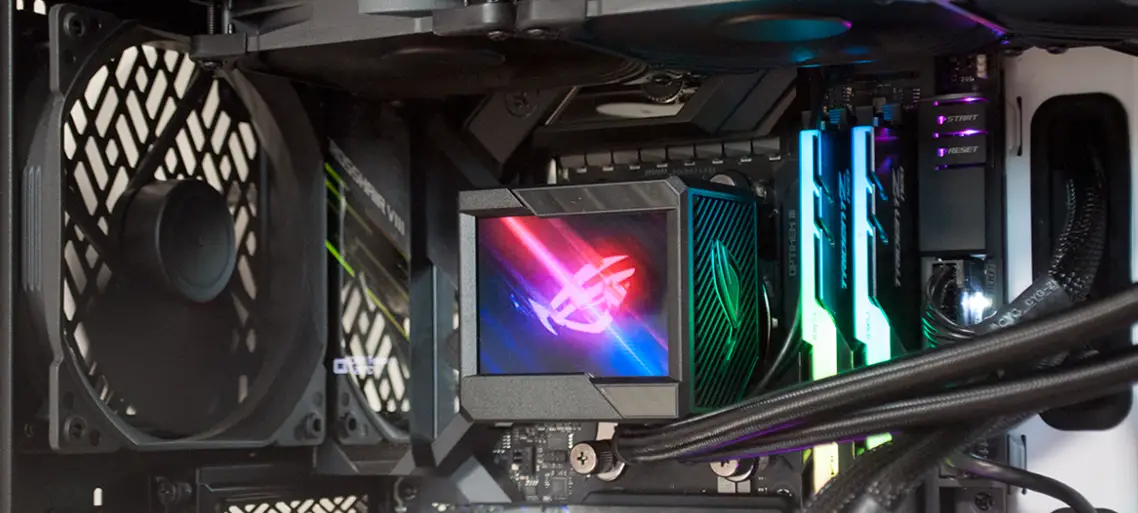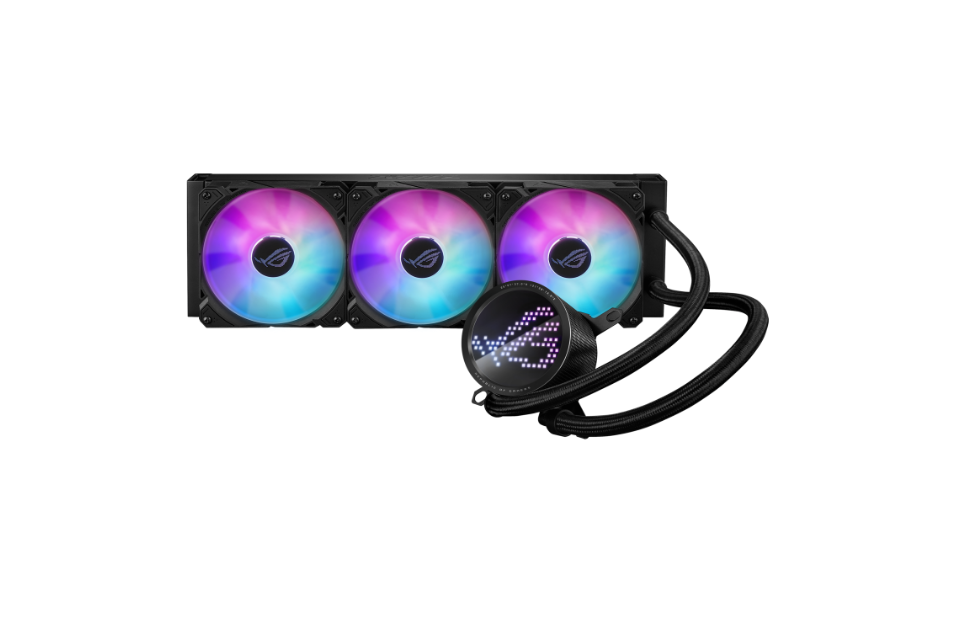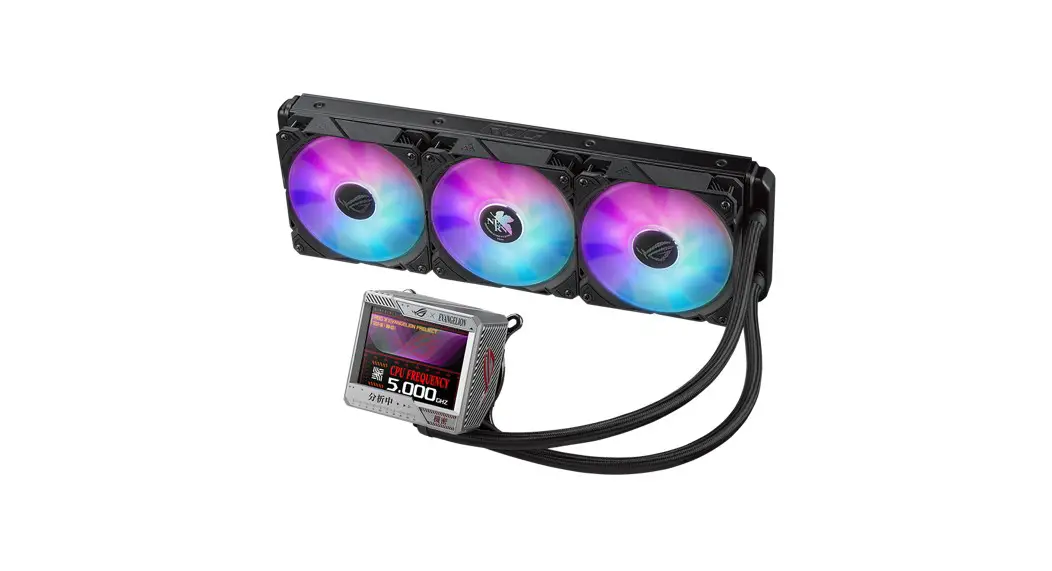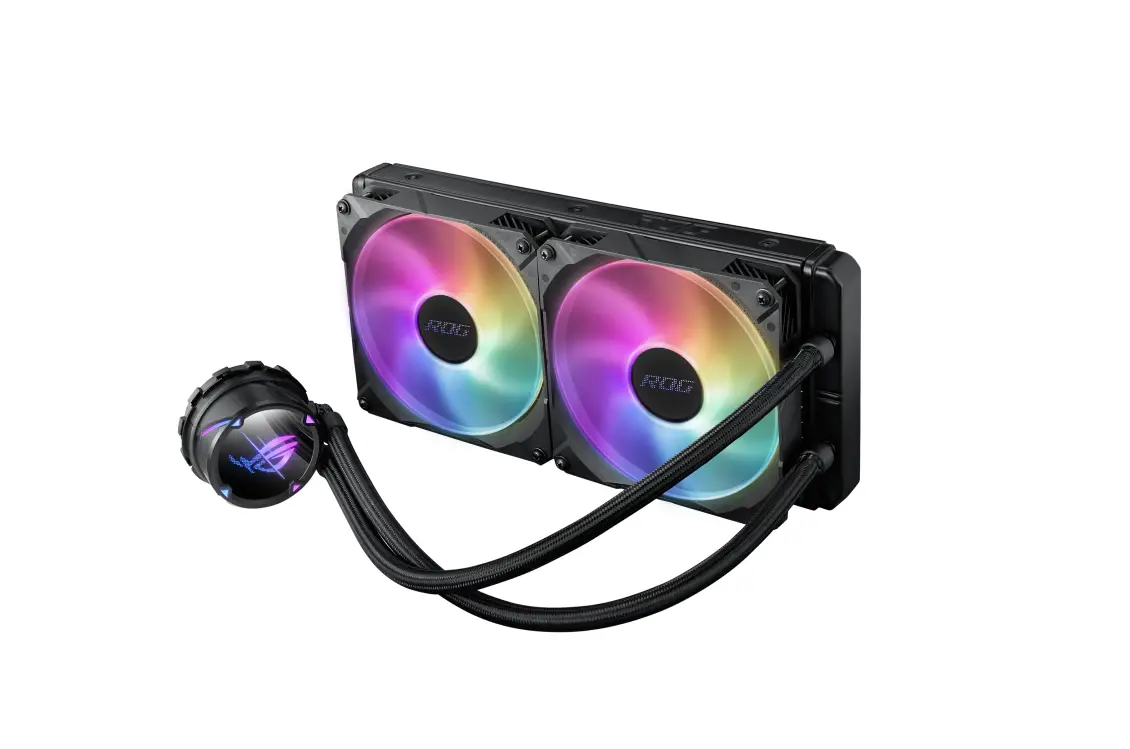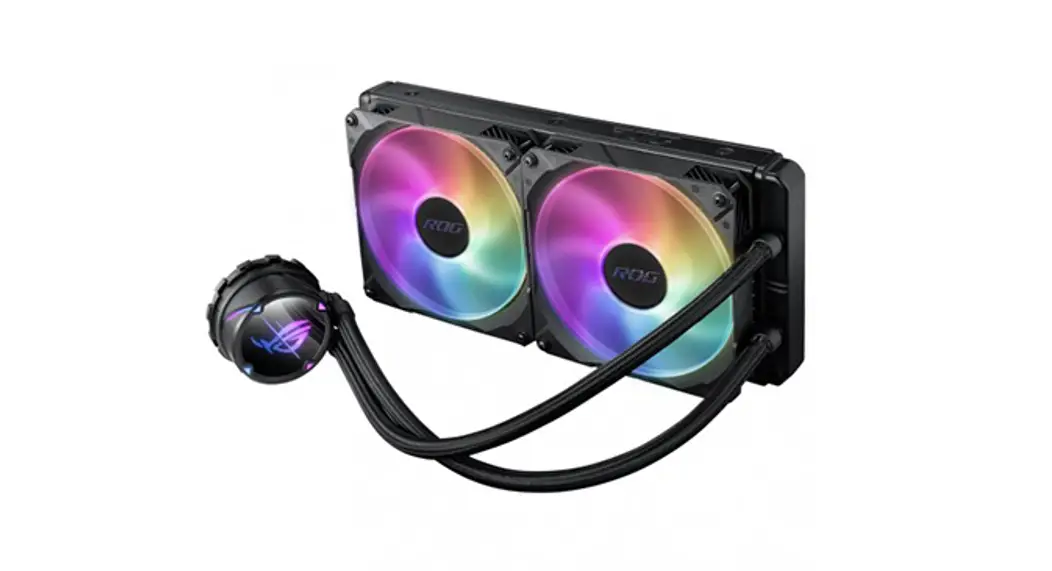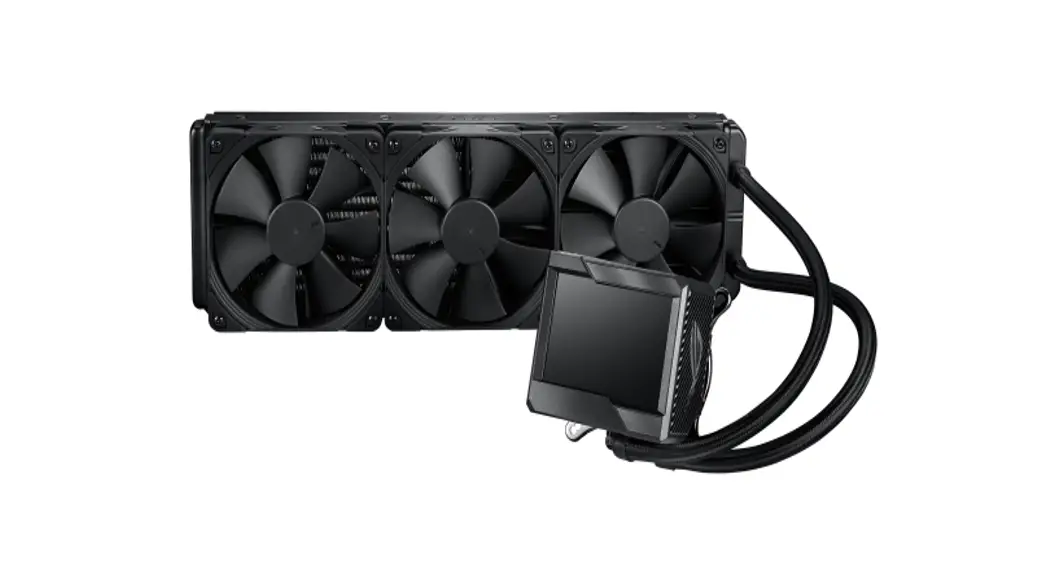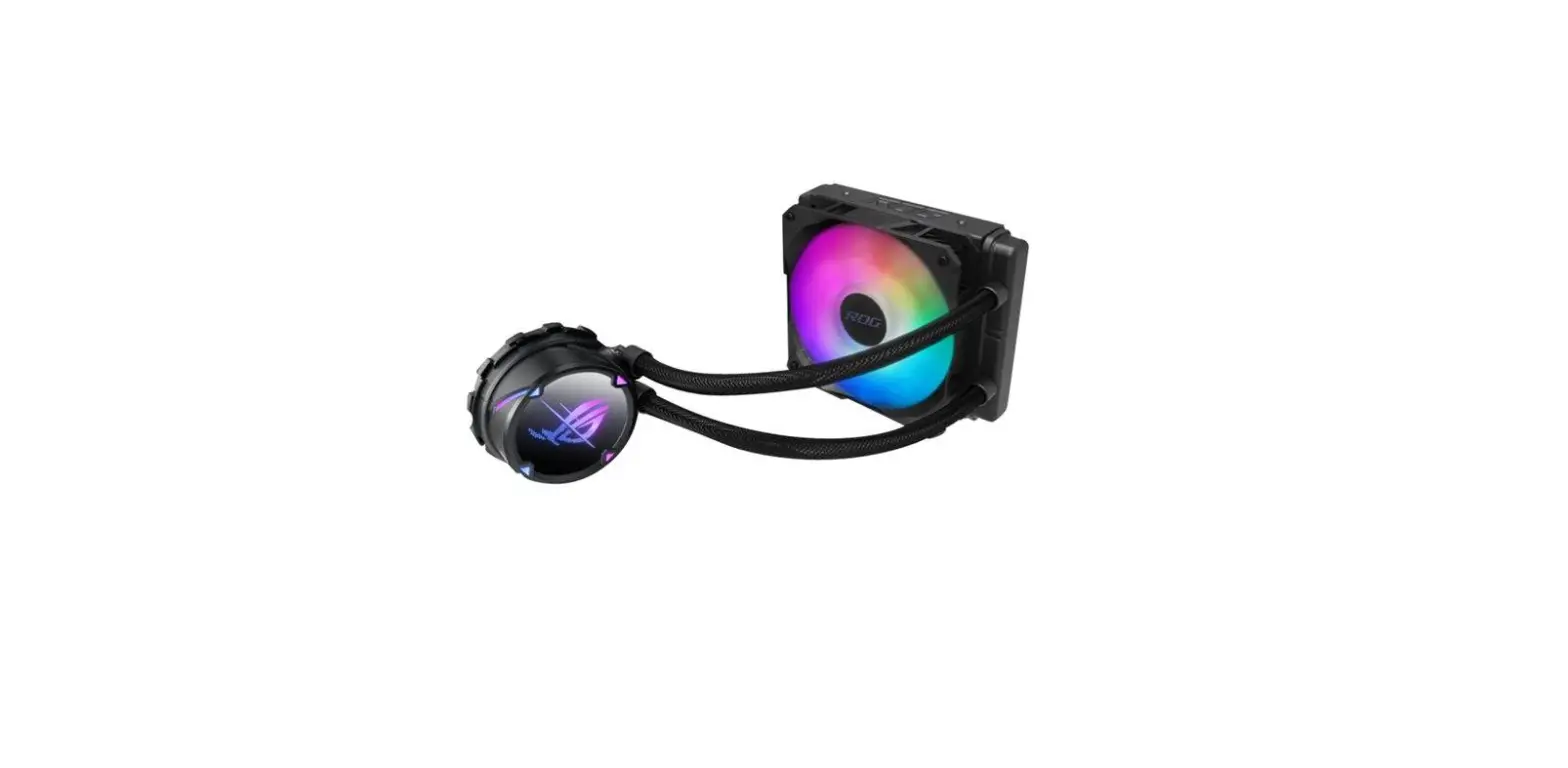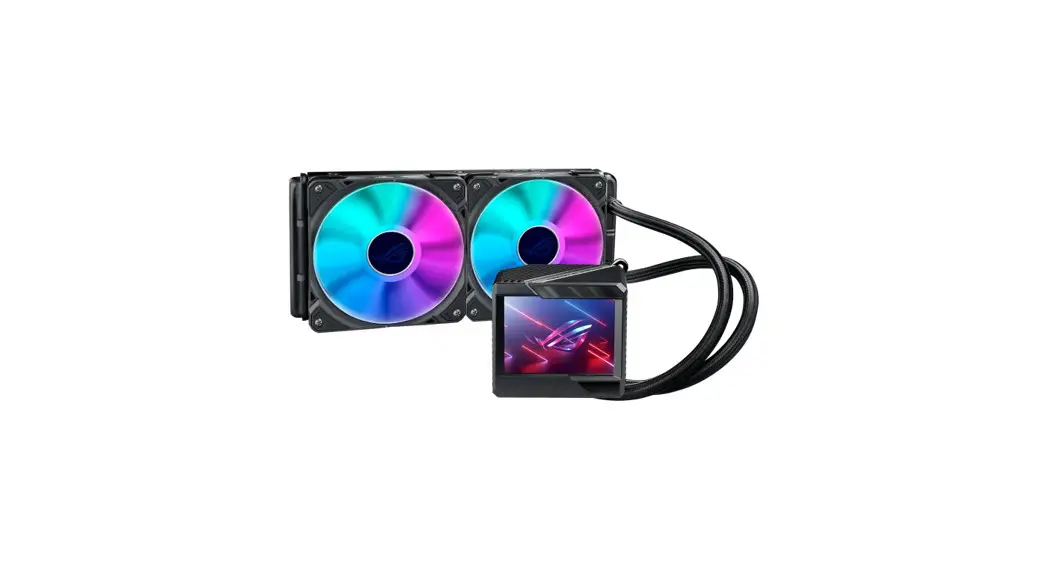

Asus Rog Ryujin Ii Argb Series Cpu Liquid Cooler User Guide

Asus Rog Ryujin Ii Argb Series Cpu Liquid Cooler User Guide

ASUS - logoROG Ryujin II ARGB Series CPU Liquid Cooler
User Guide

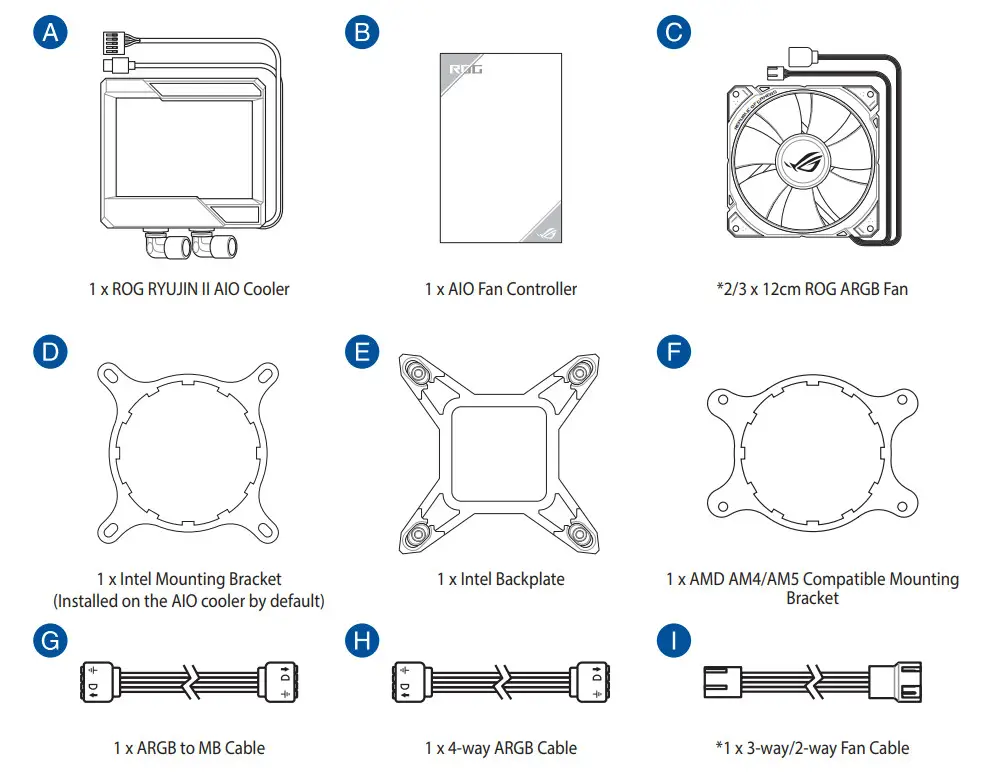
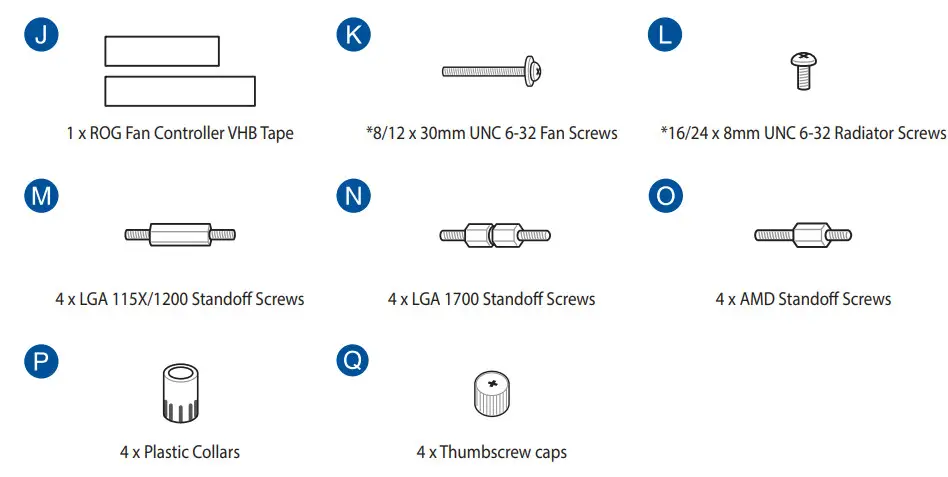
Package contents

ASUS ROG Ryujin II ARGB Series CPU Liquid Cooler - Figure 1ASUS ROG Ryujin II ARGB Series CPU Liquid Cooler - Figure 2

NOTE: The Intel Mounting bracket comes pre-installed on the AIO Cooler.

Installing the AIO cooler

NOTE: The illustrations in this section are for reference only, but the installation steps remain the same.

A. Install the Intel backplateASUS ROG Ryujin II ARGB Series CPU Liquid Cooler - Figure 3
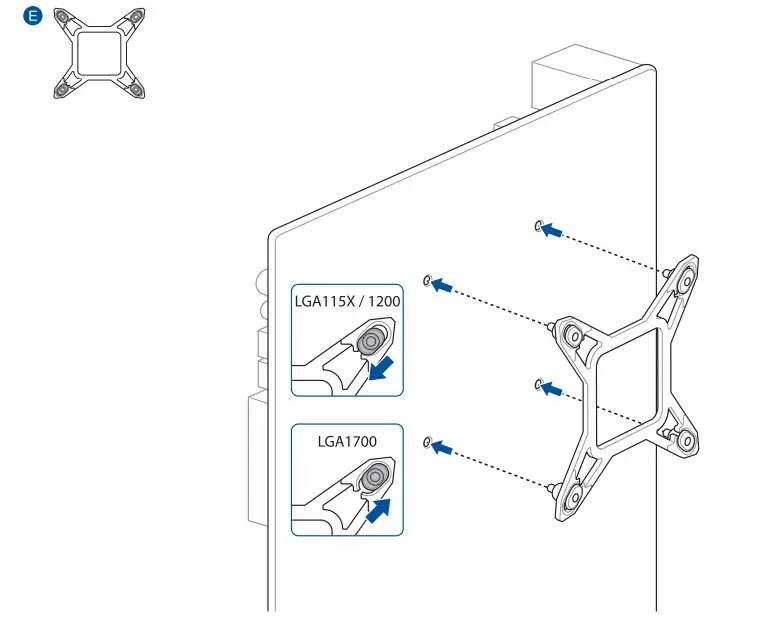
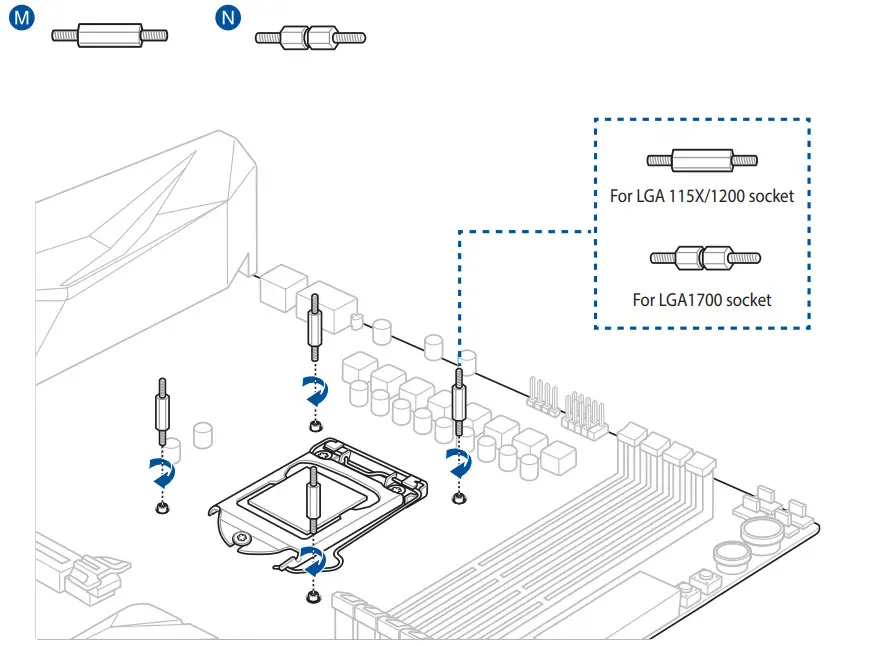
B. Install the Intel standoff screws

ASUS ROG Ryujin II ARGB Series CPU Liquid Cooler - Figure 4

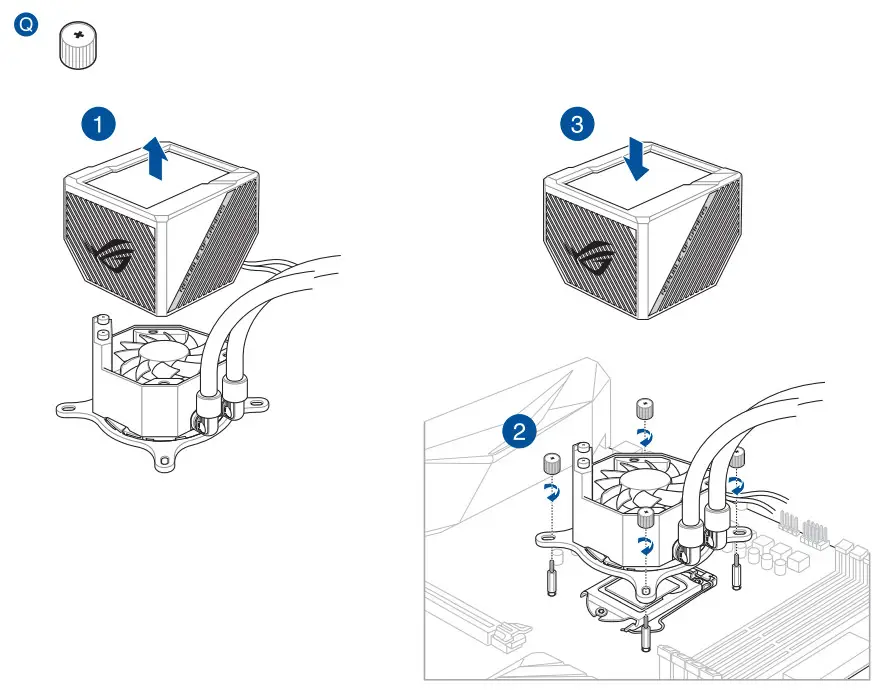
C. Install the pump

ASUS ROG Ryujin II ARGB Series CPU Liquid Cooler - Figure 5

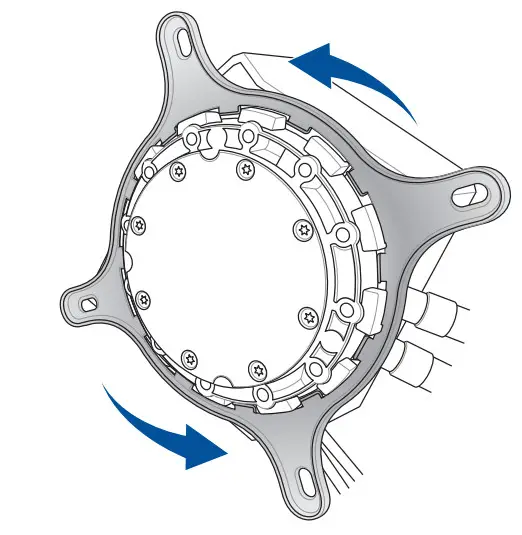
A. Remove the Intel Mounting Bracket

ASUS ROG Ryujin II ARGB Series CPU Liquid Cooler - Figure 6

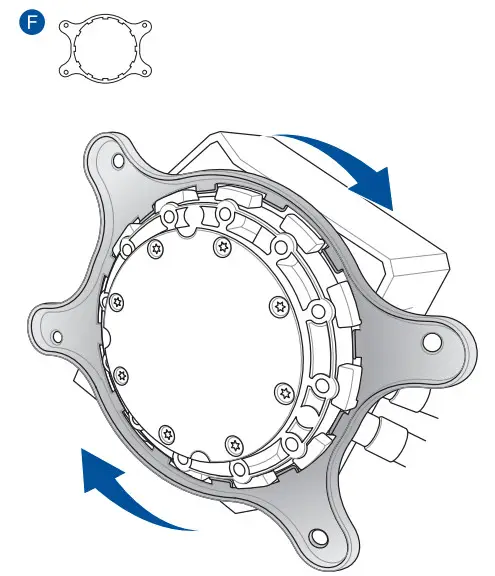
B. Install the AMD Mounting Bracket

ASUS ROG Ryujin II ARGB Series CPU Liquid Cooler - Figure 7

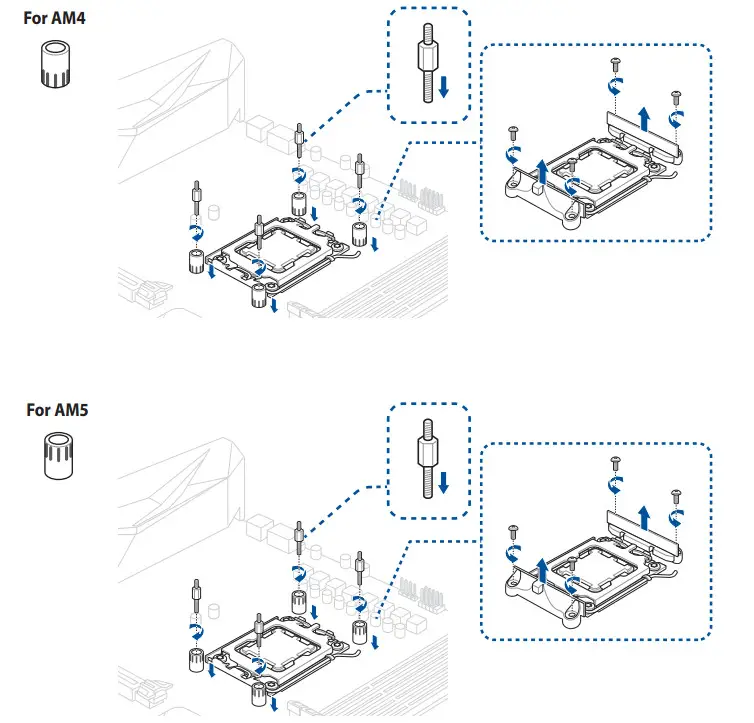
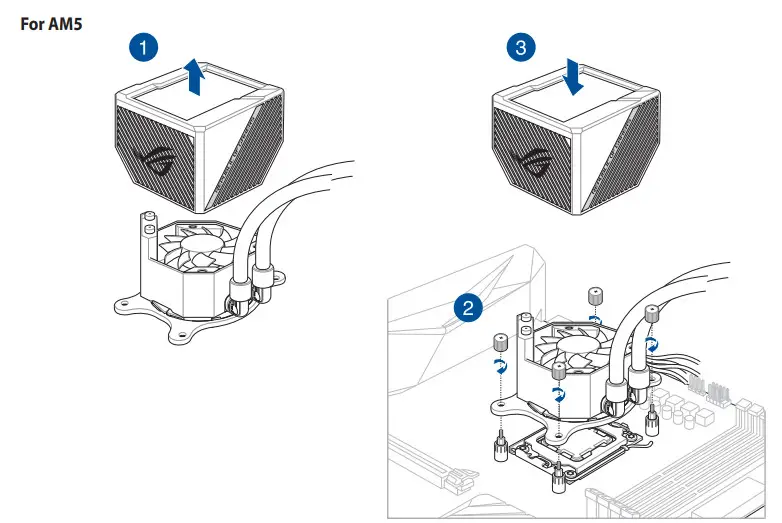
C. Remove the pre-installed heatsink mount then install the plastic collars and standoff screwsASUS ROG Ryujin II ARGB Series CPU Liquid Cooler - Figure 8ASUS ROG Ryujin II ARGB Series CPU Liquid Cooler - Figure 9

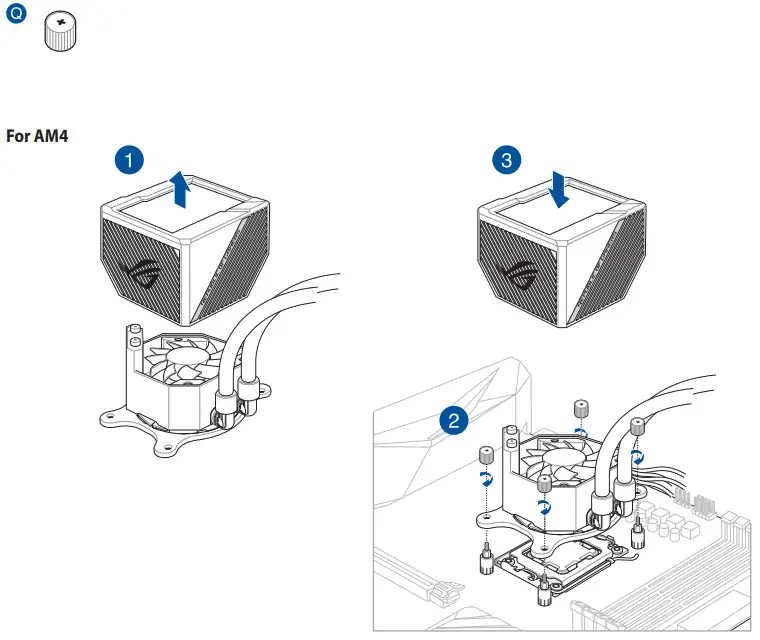
D. Install the pump

ASUS ROG Ryujin II ARGB Series CPU Liquid Cooler - Figure 10ASUS ROG Ryujin II ARGB Series CPU Liquid Cooler - Figure 11

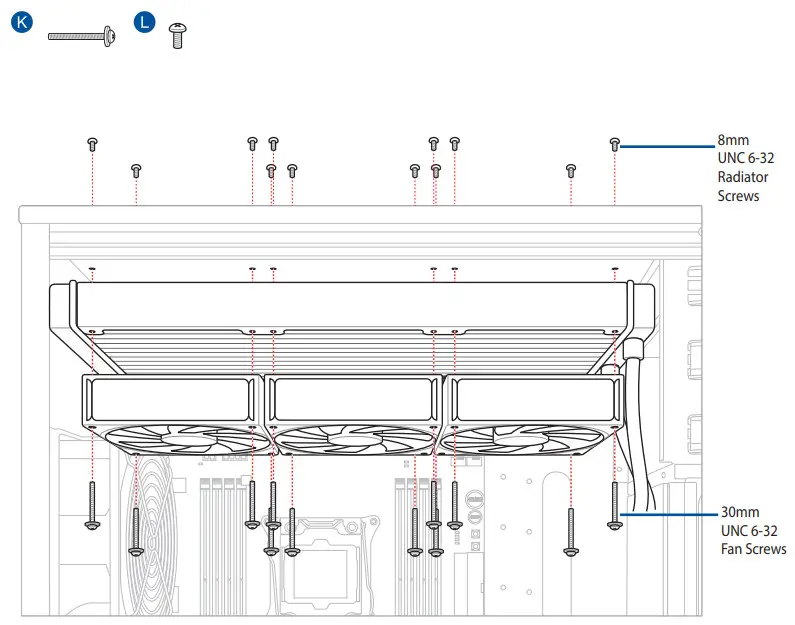
Installing the Radiator

ASUS ROG Ryujin II ARGB Series CPU Liquid Cooler - Figure 12

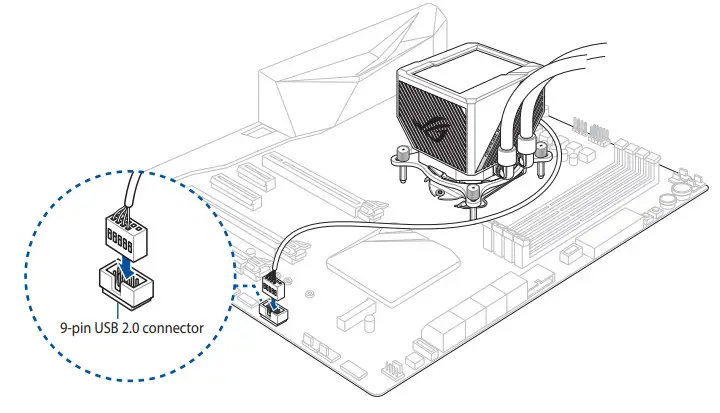
Connect the 9-pin USB 2.0 cable

ASUS ROG Ryujin II ARGB Series CPU Liquid Cooler - Figure 13

Connect the micro USB cable to the AIO Fan Controller
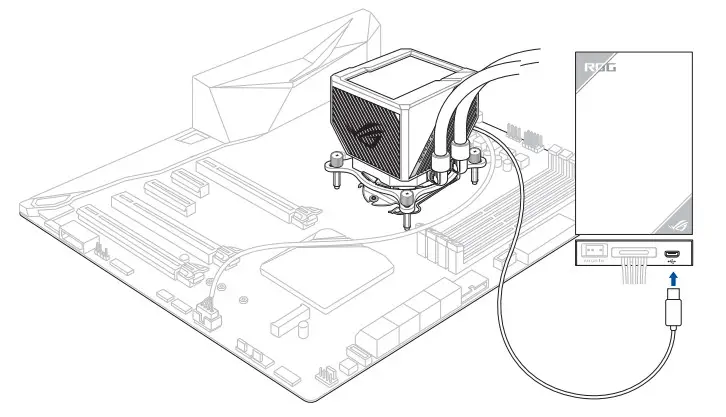
ASUS ROG Ryujin II ARGB Series CPU Liquid Cooler - Figure 14

Connect the ARGB to MB Cable for ARGB Fan lighting
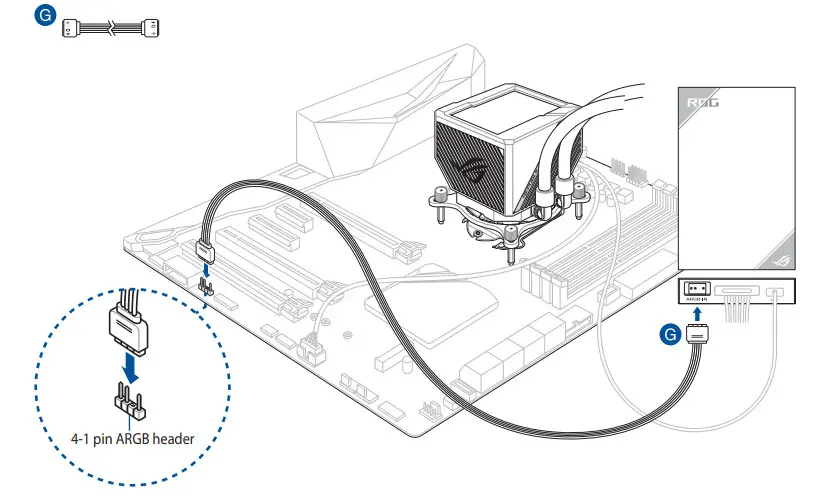
ASUS ROG Ryujin II ARGB Series CPU Liquid Cooler - Figure 15

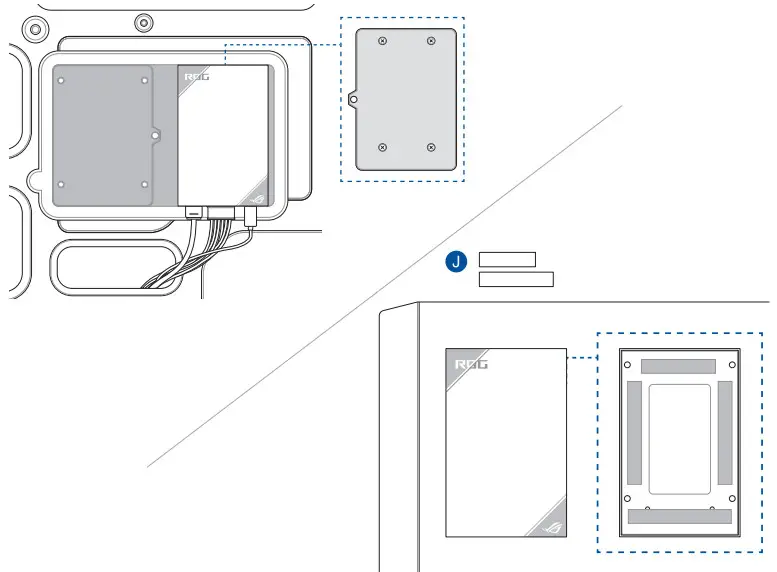
Install the AIO Fan Controller

ASUS ROG Ryujin II ARGB Series CPU Liquid Cooler - Figure 16

Download control software

Please visit the product support page at https://rog.asus.com/ to download and install the control software.

Support and FAQ

Q: What should I do if a CPU Fan Error error message pops up? 

– A: Enter BIOS, then go to Monitor and set CPU FAN Speed to [Ignore].

Documents / Resouces

Download manual
Here you can download full pdf version of manual, it may contain additional safety instructions, warranty information, FCC rules, etc.


Related Manuals