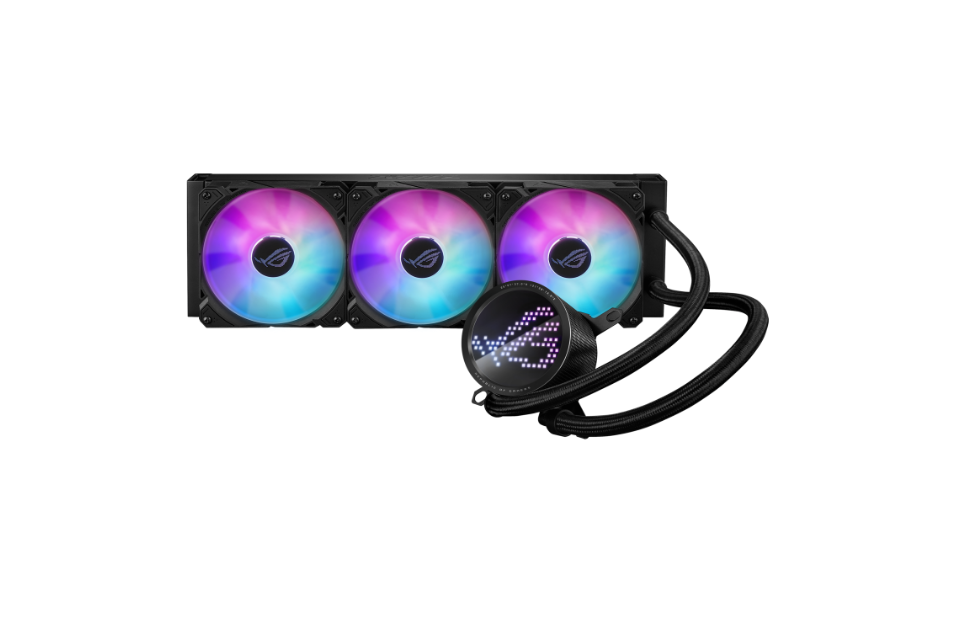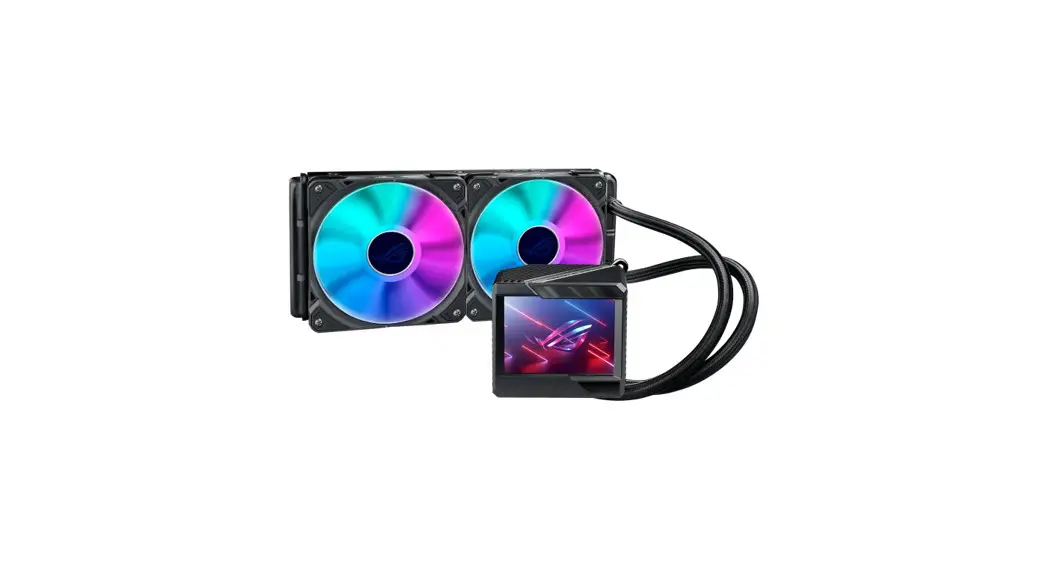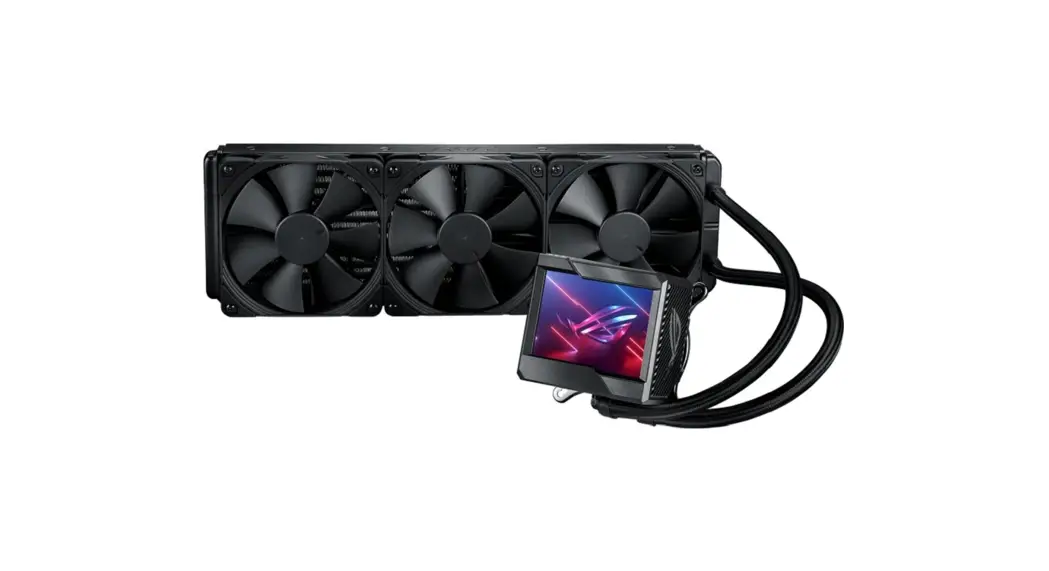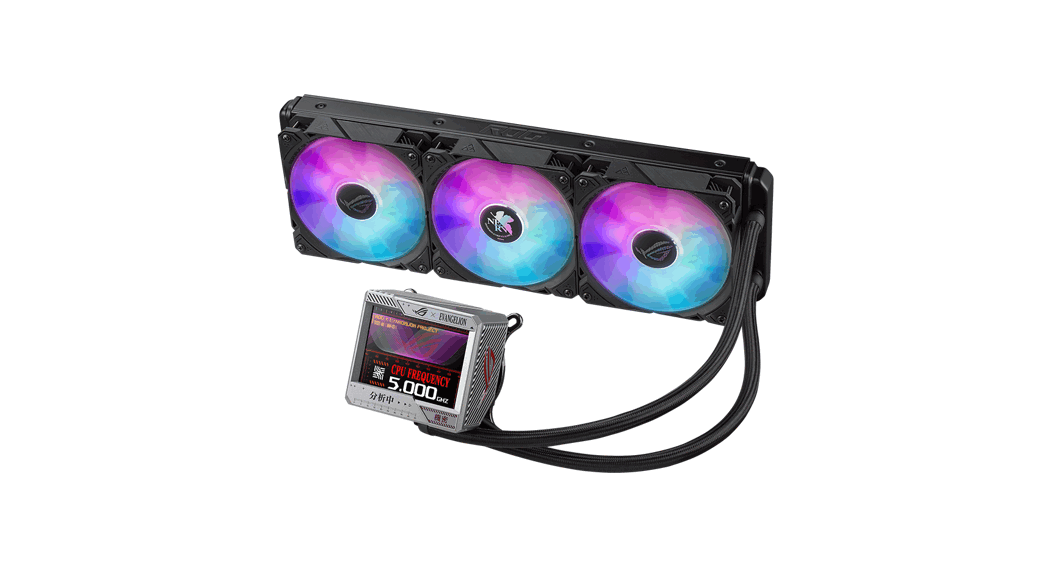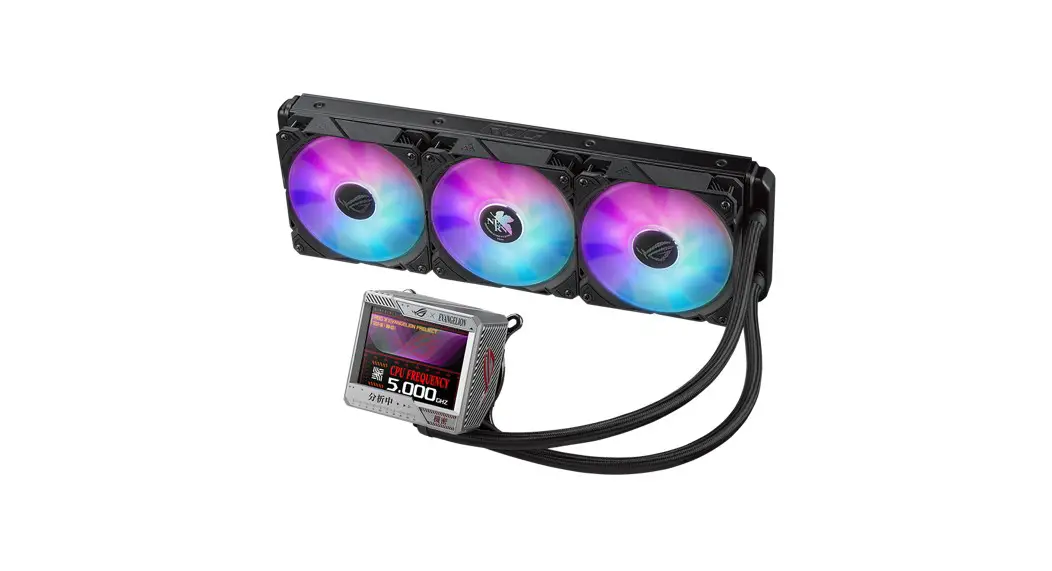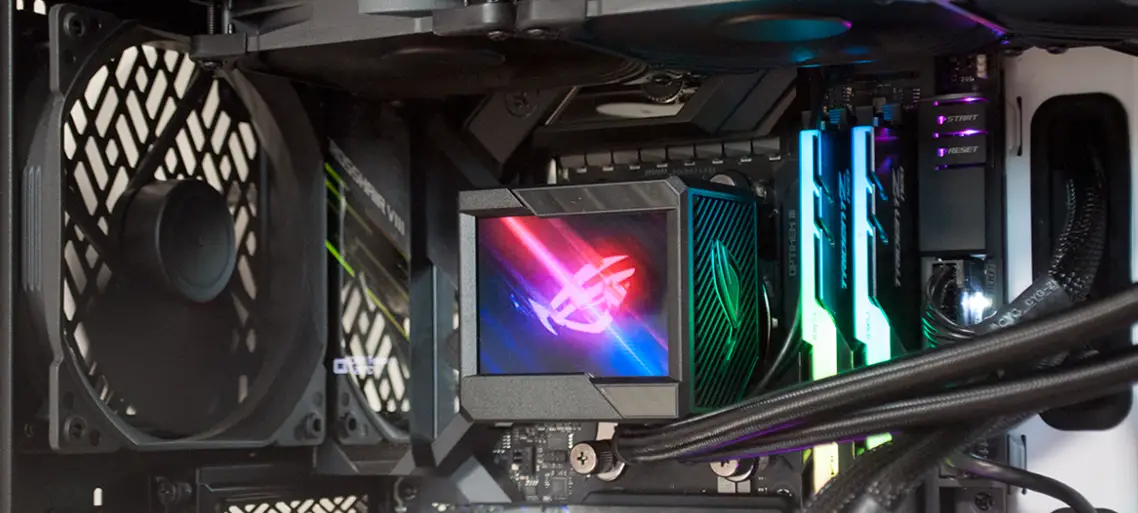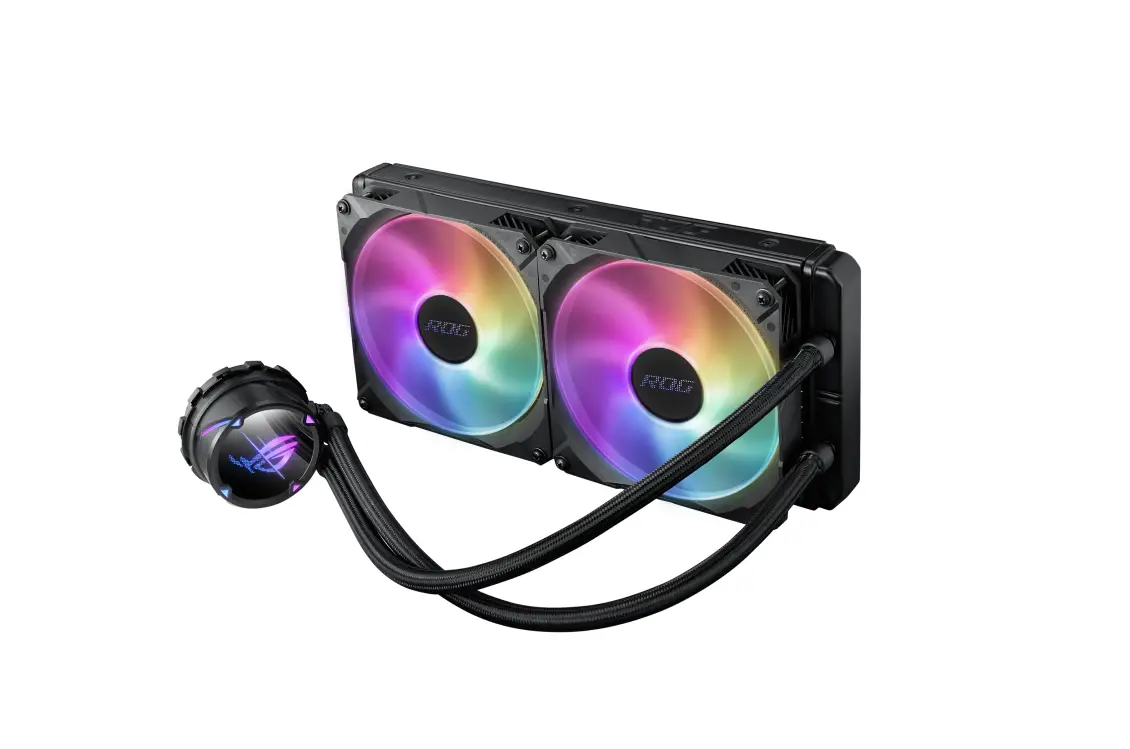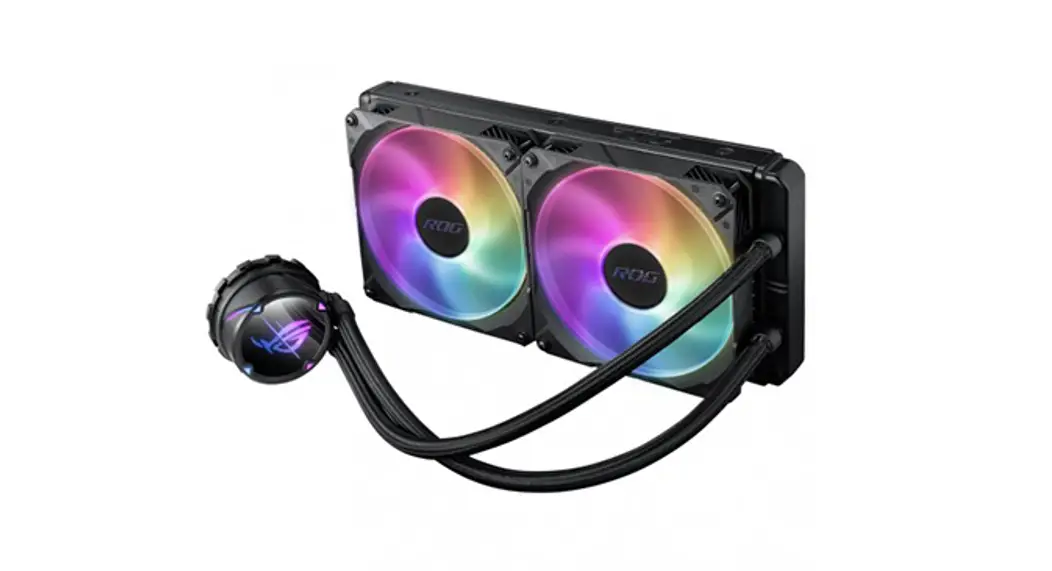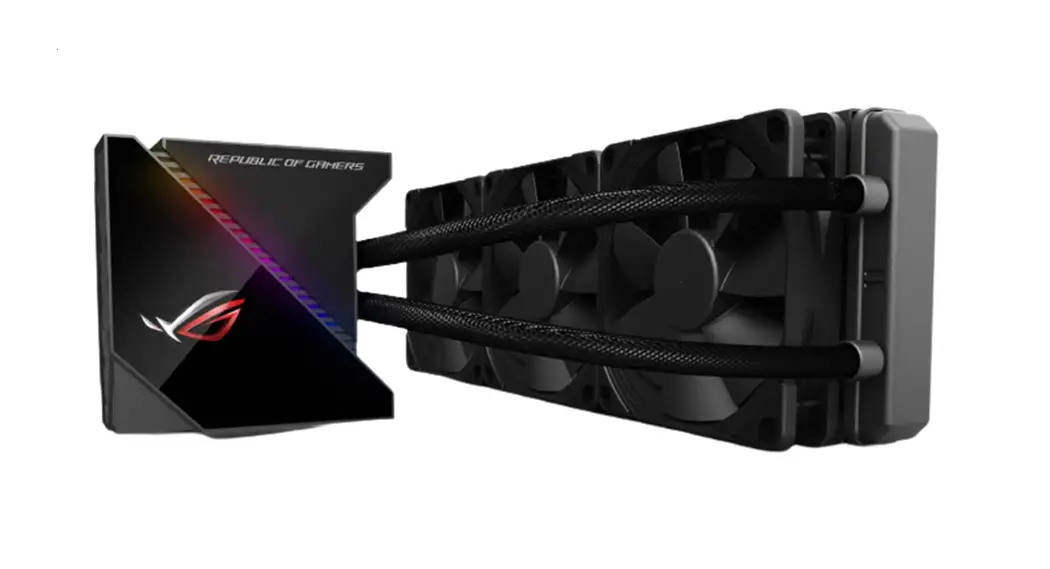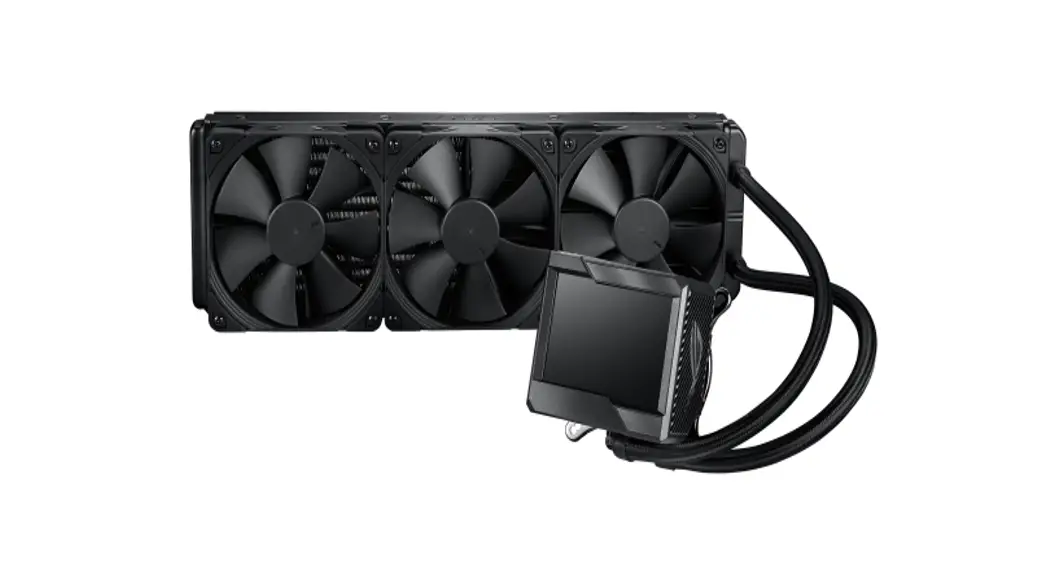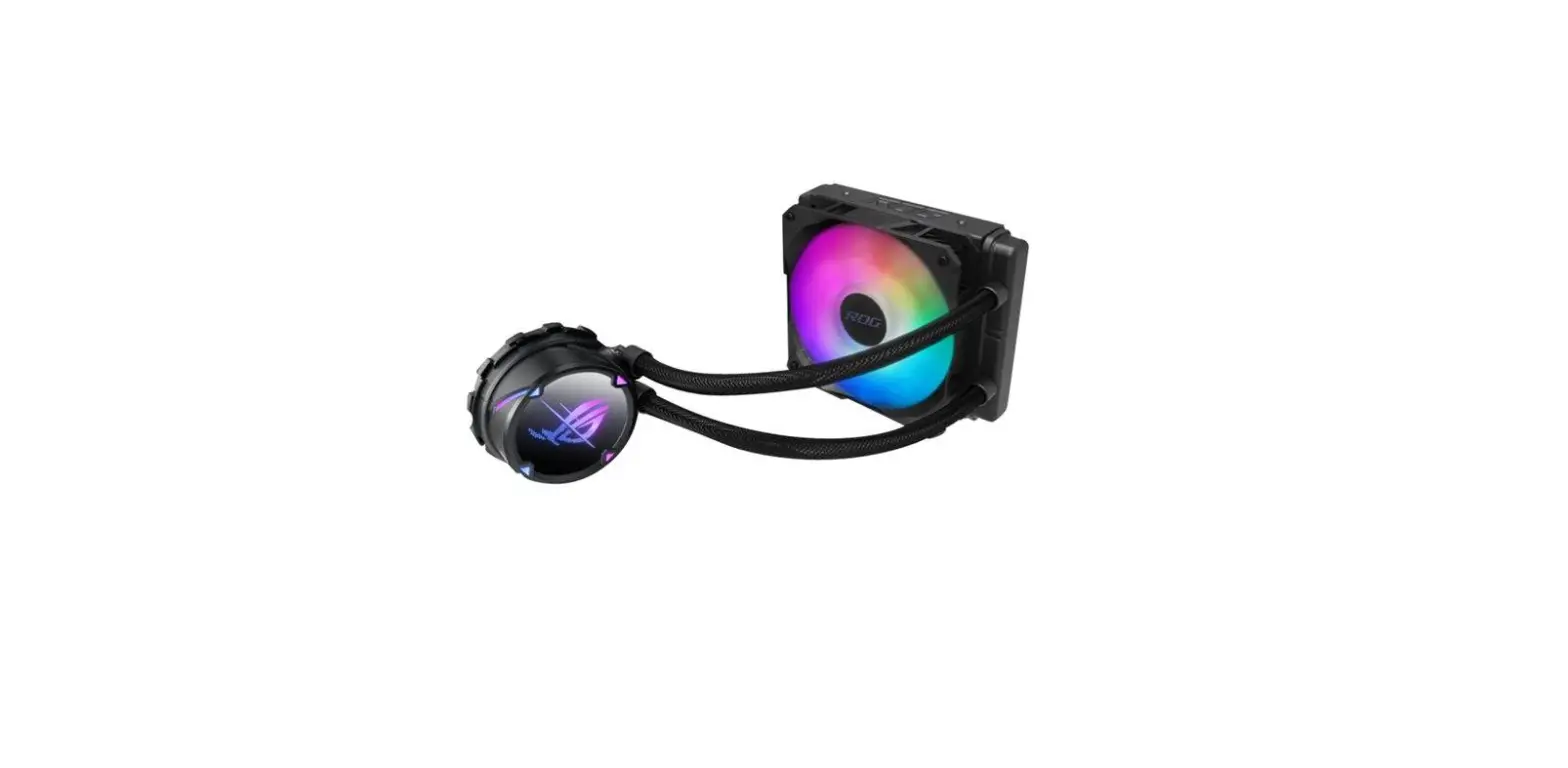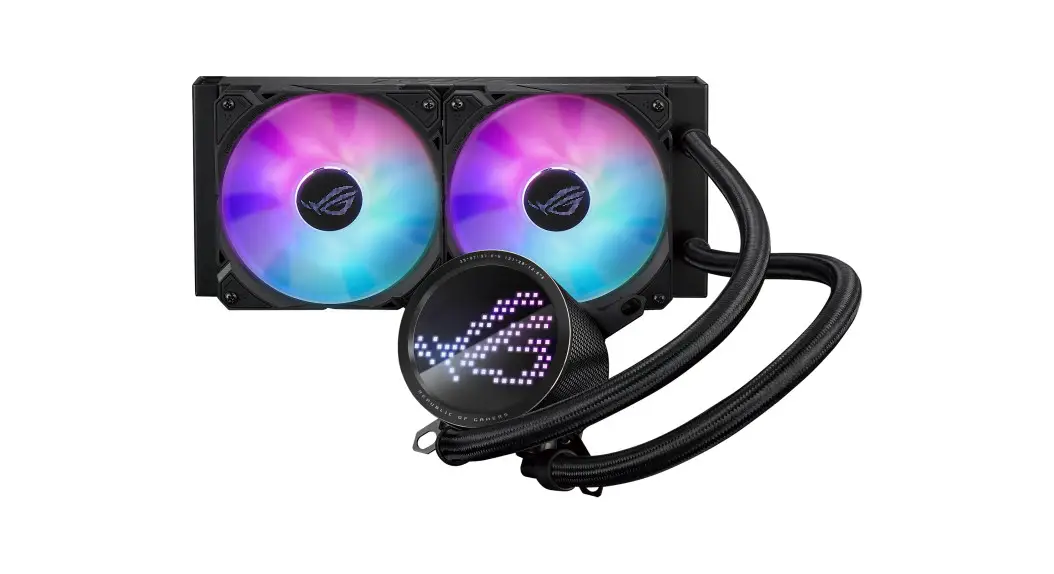


ROG Ryuo III ARGB Series
CPU Liquid Cooler
User Guide
Package contents
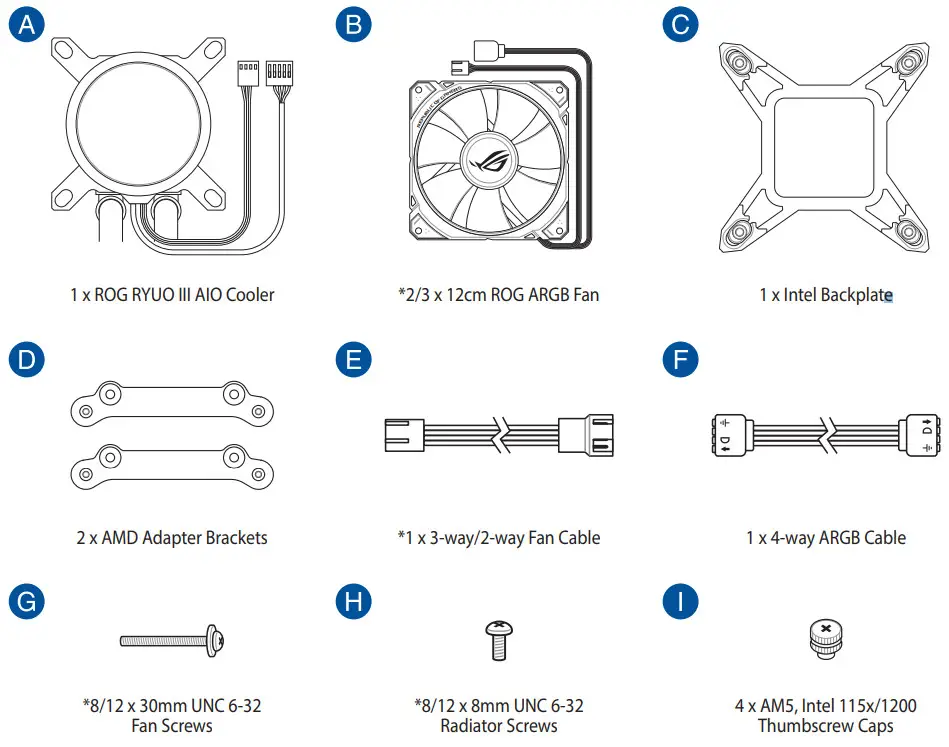
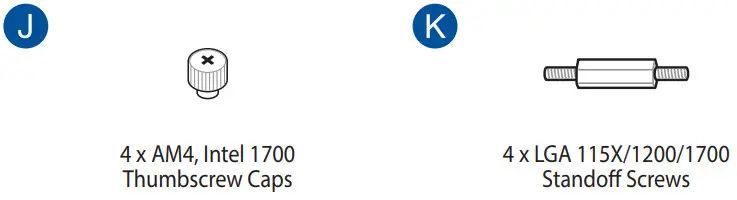
NOTE: The Intel Mounting bracket comes pre-installed on the AIO Cooler.
AIO cooler installation
NOTE: The illustrations in this section are for reference only, but the installation steps remain the same.
INTEL
A. Install the Intel backplate
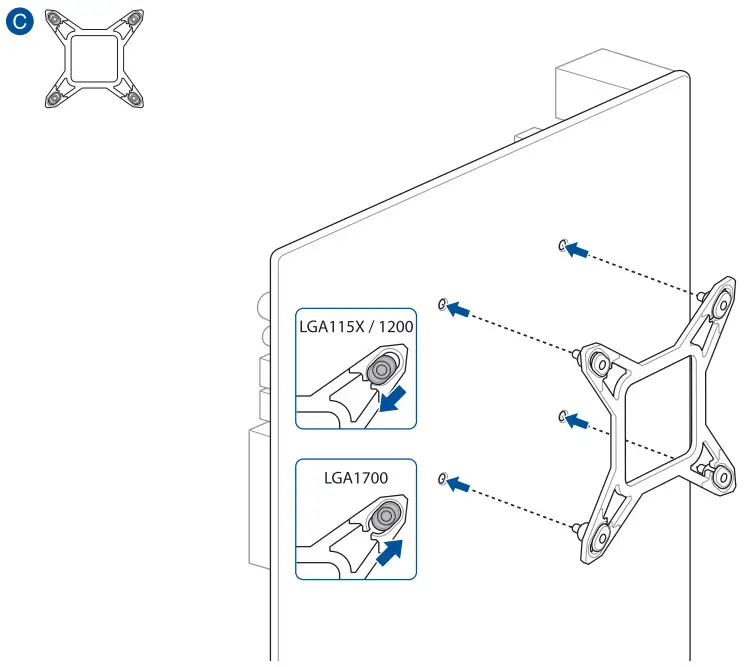
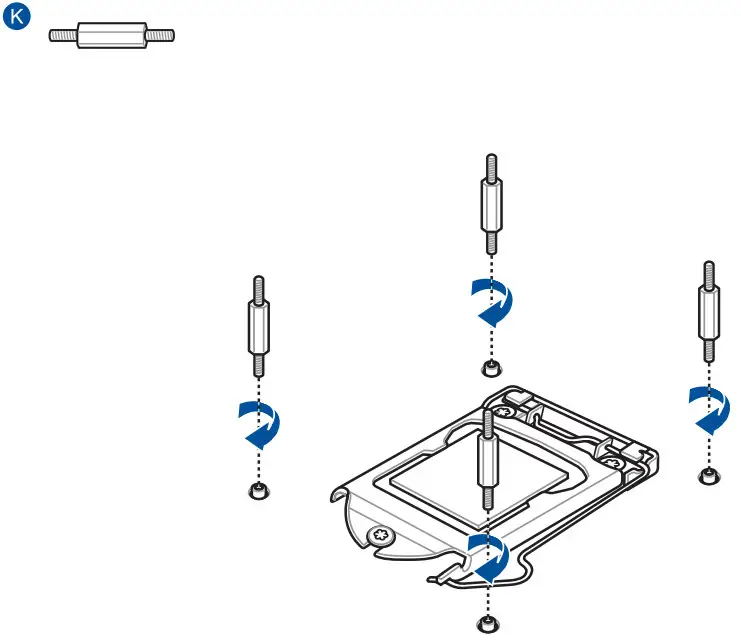
B. Install the Intel standoff screws
C. Install the pumpFor Intel 1700 For Intel 115X/1200 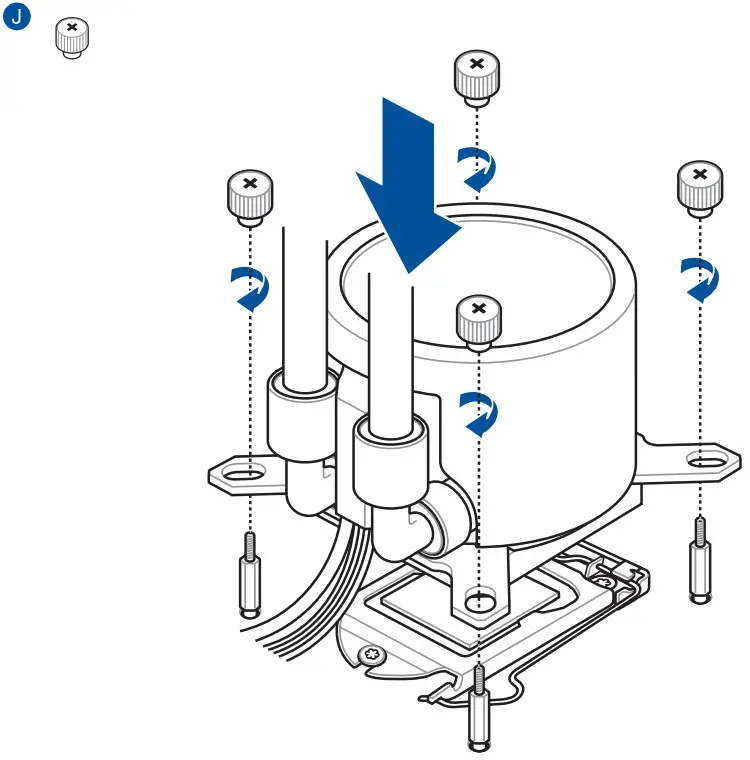
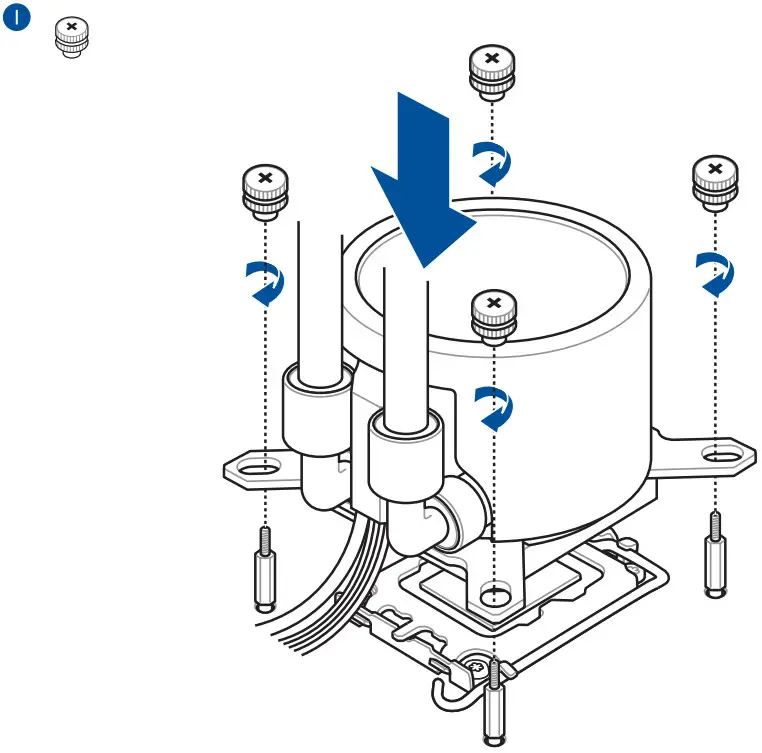
NOTE: We recommend installing the pump so that the water pipes of the pump face towards or away from you for optimal performance (motherboard positioned with rear IO ports on your left).
AMD
A. Remove the pre-installed heatsink mount
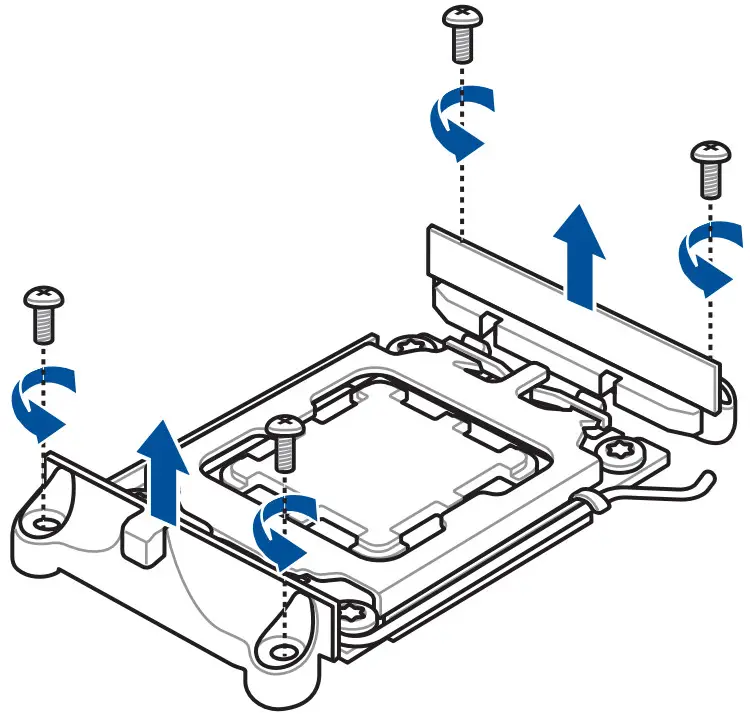
B. Install the AMD mounting bracket
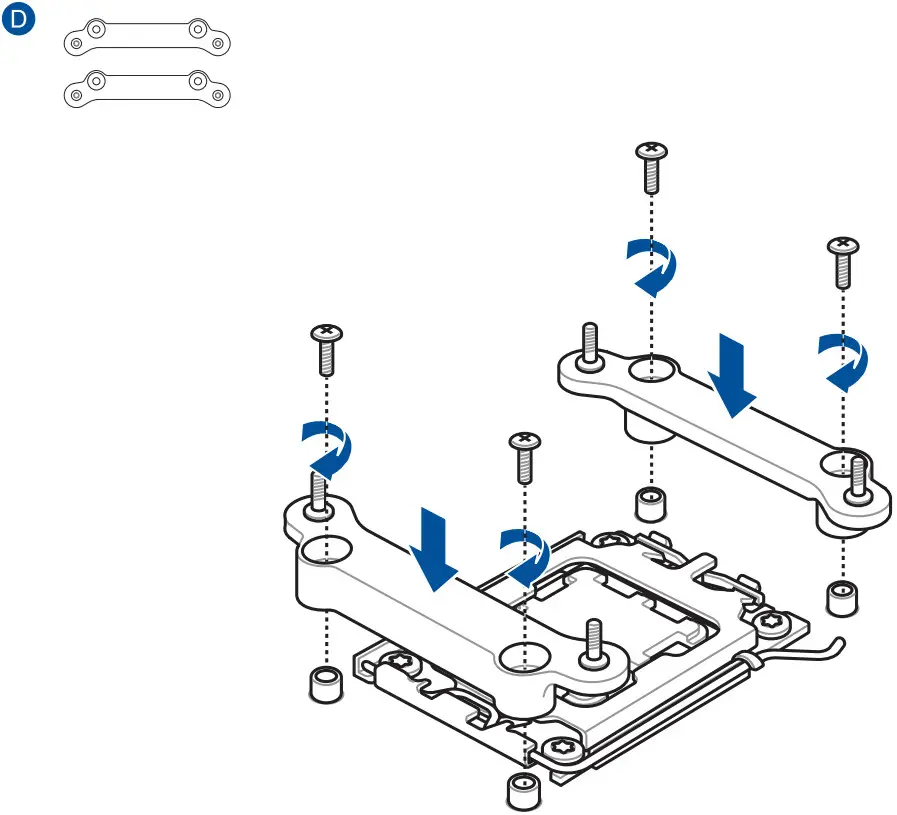
C. Install the pump
| For AMD AM5 | For AMD AM4 |
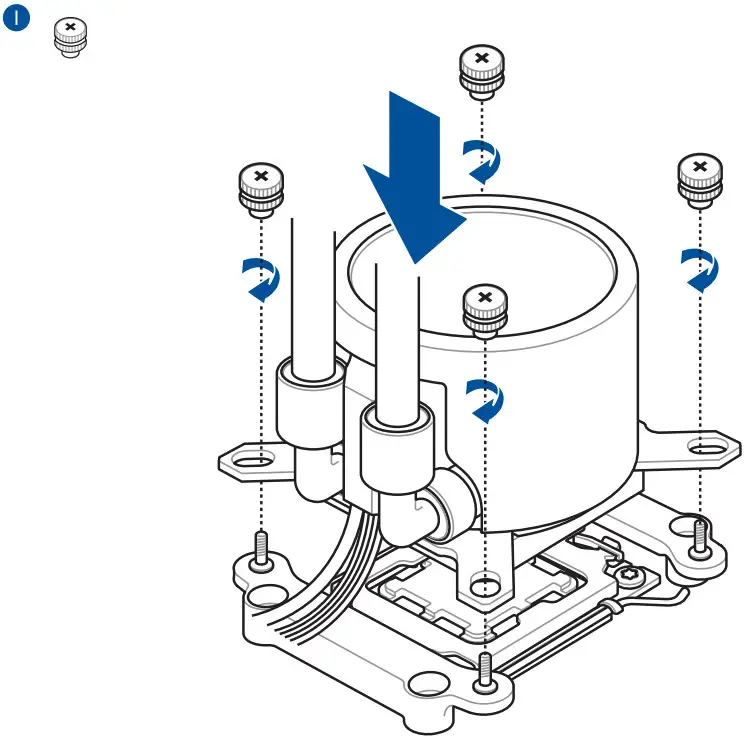 | 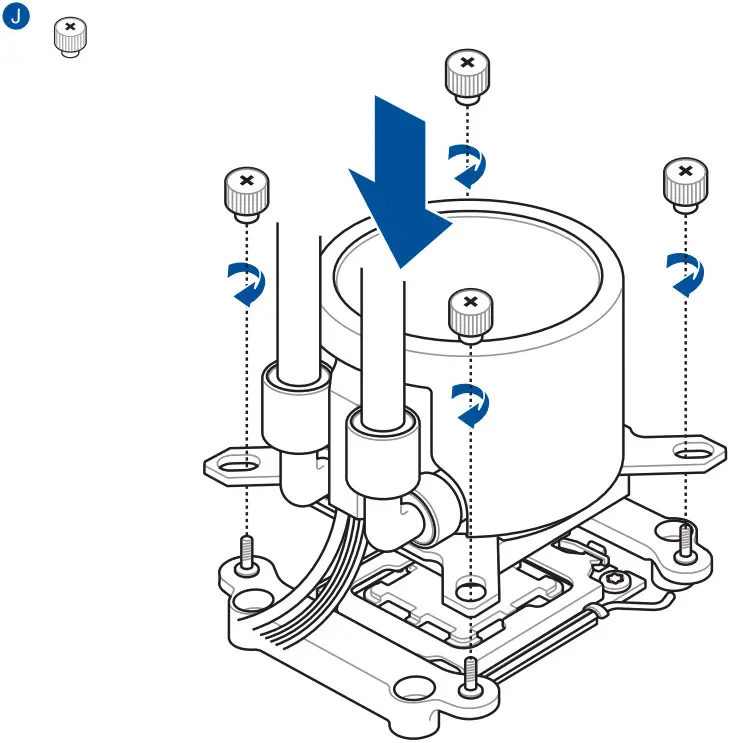 |
NOTE: We recommend installing the pump so that the water pipes of the pump face towards or away from you for optimal performance (motherboard positioned with rear IO ports on your left).
SETUP
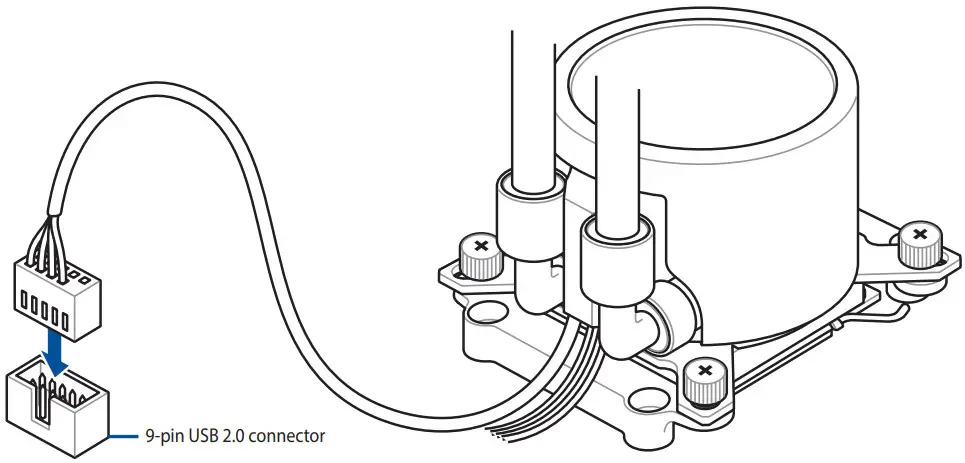
Connect the 9-pin USB 2.0 cable
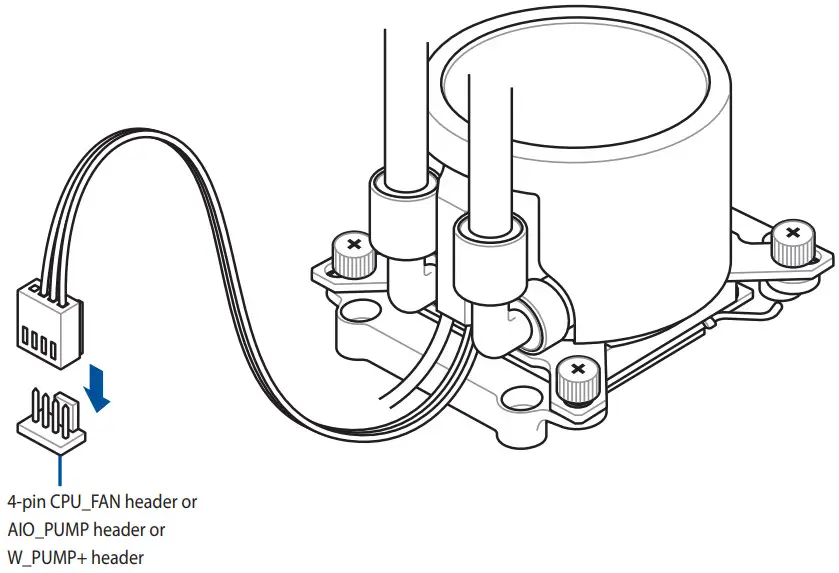
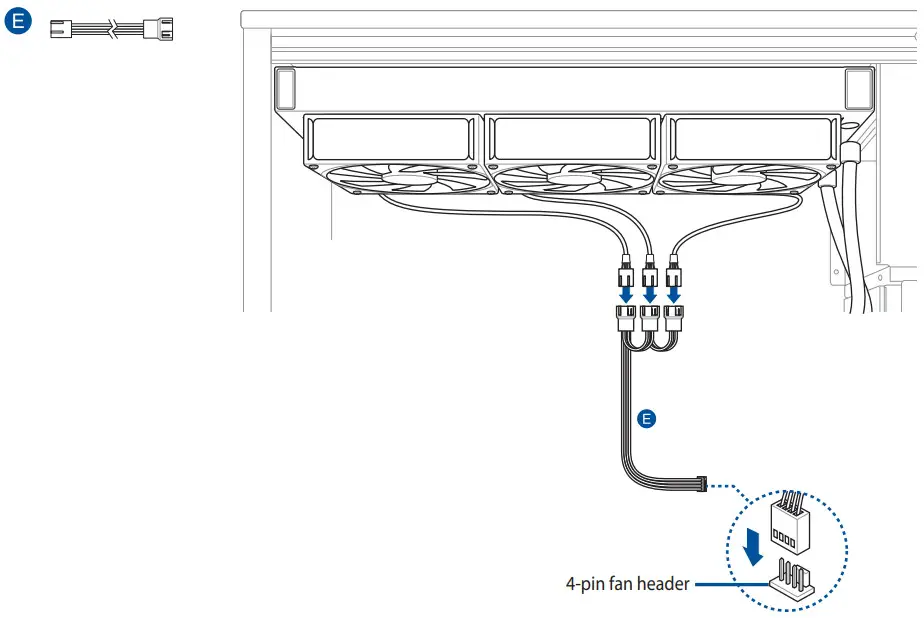
Connect the 4-pin fan cable
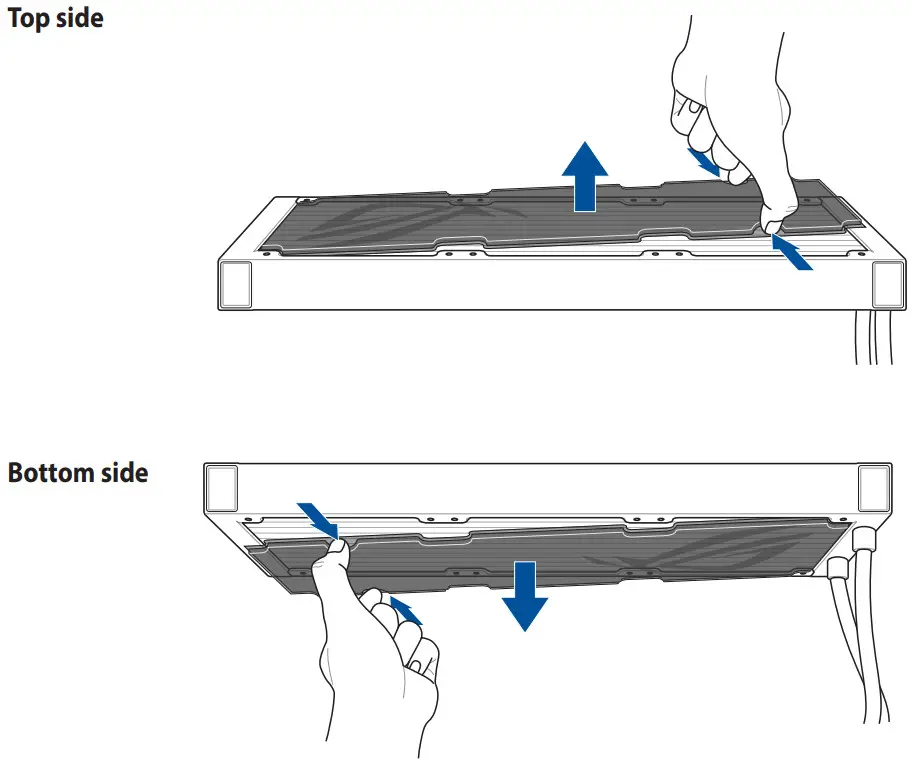
Remove HEX protection caps before installing the radiator
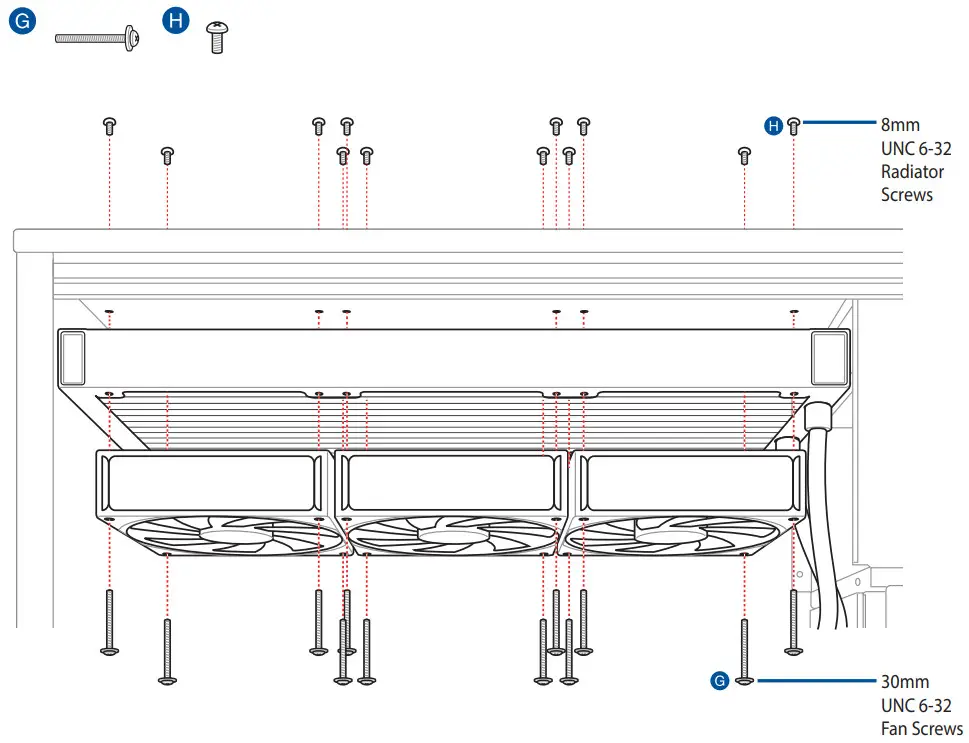
Installing the radiator
Connect the 3-way/2-way fan cable
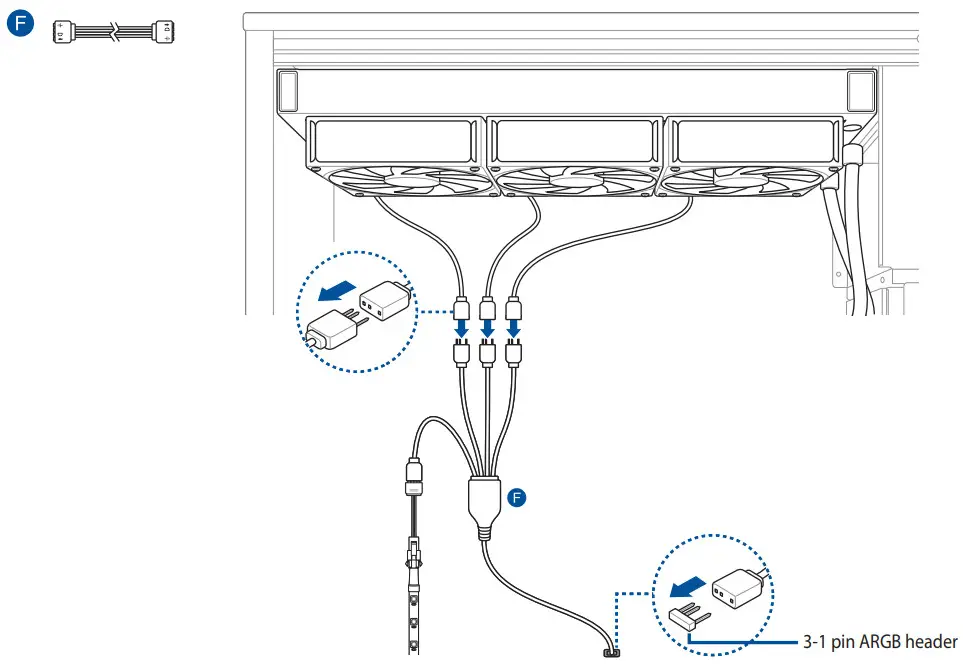
Connect the 4-way ARGB cable
Download control software
Please visit the product support page at https://rog.asus.com/ to download and install the control software.
Support and FAQ
– A: Enter BIOS, then go to Monitor and set CPU FAN Speed to [Ignore].

Q21643
Revised Edition V2
February 2023
 ROG - Republic of Gamers|Global | For Those Who Dare