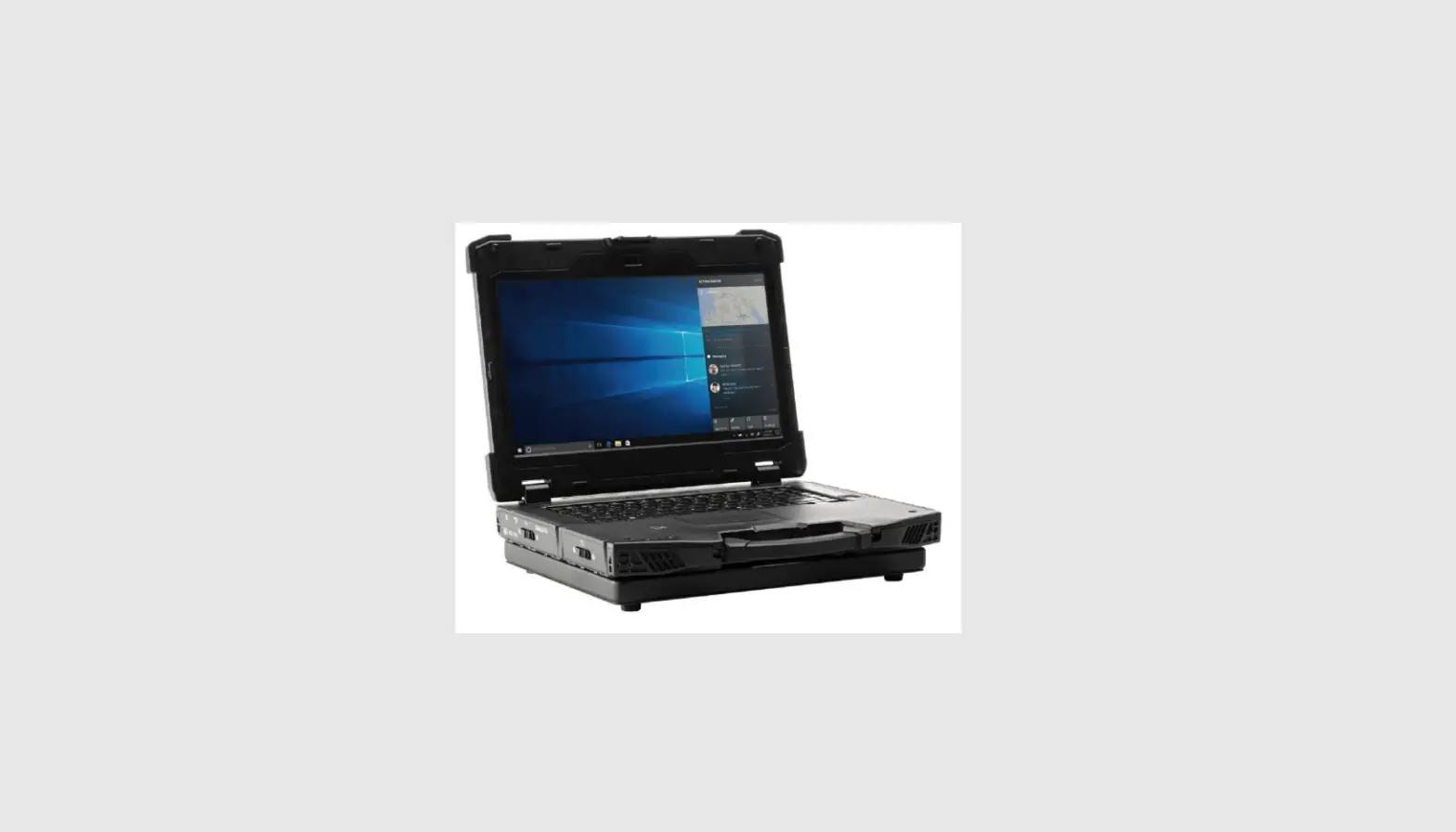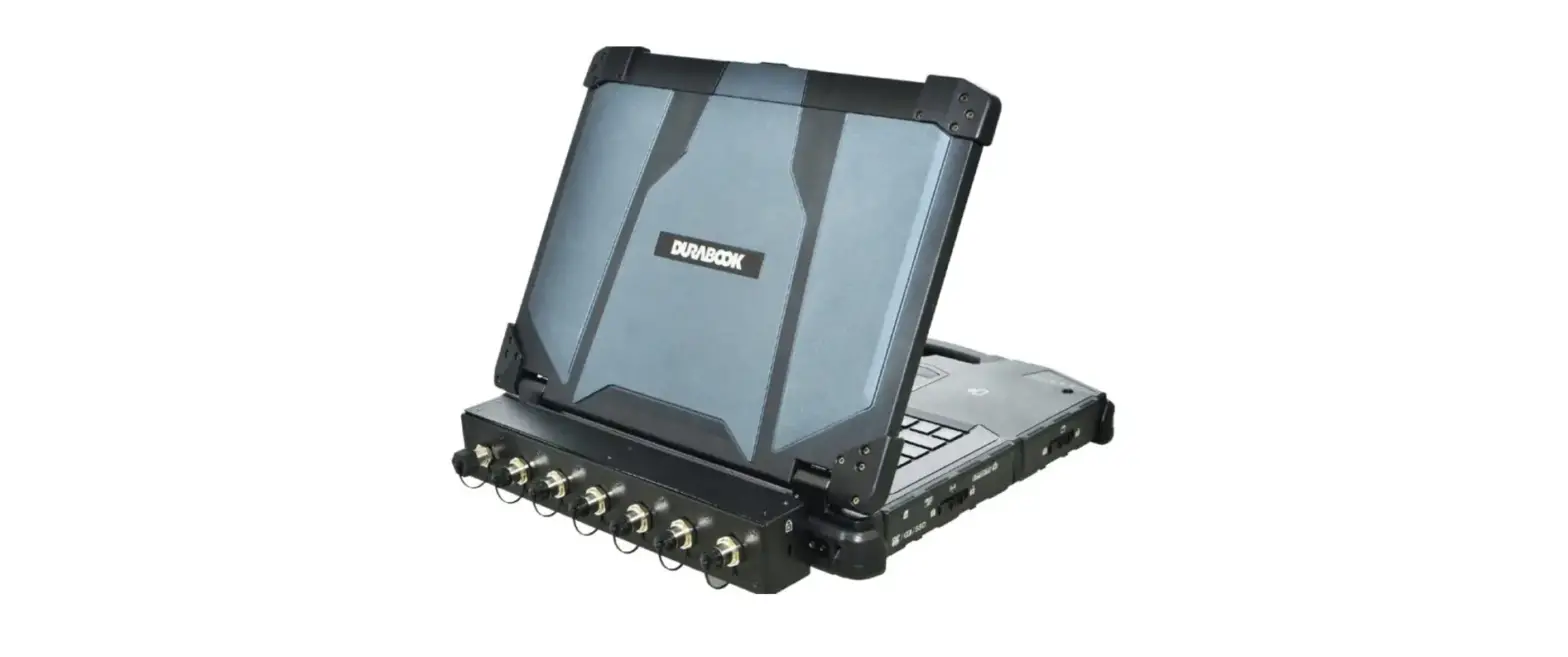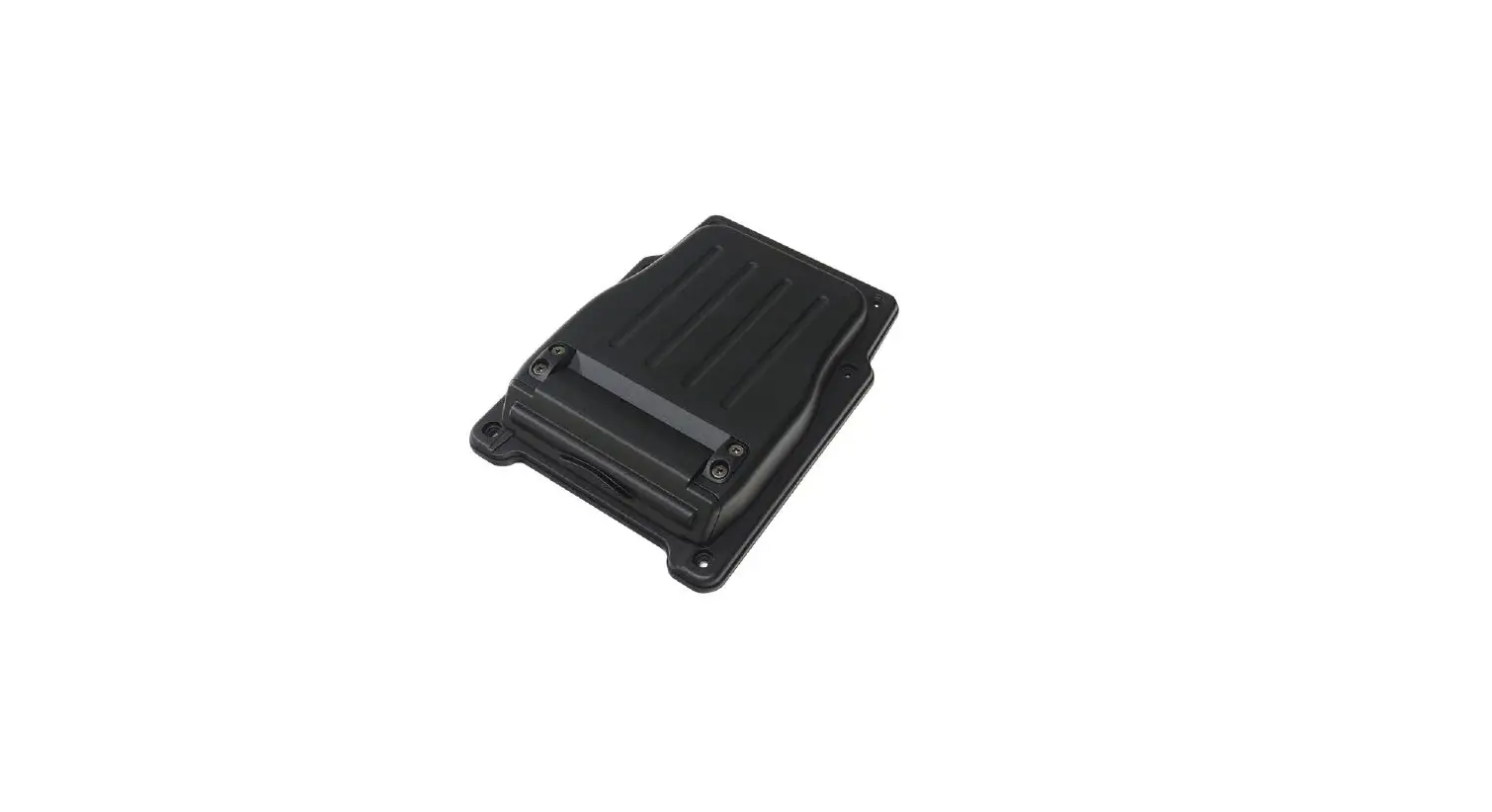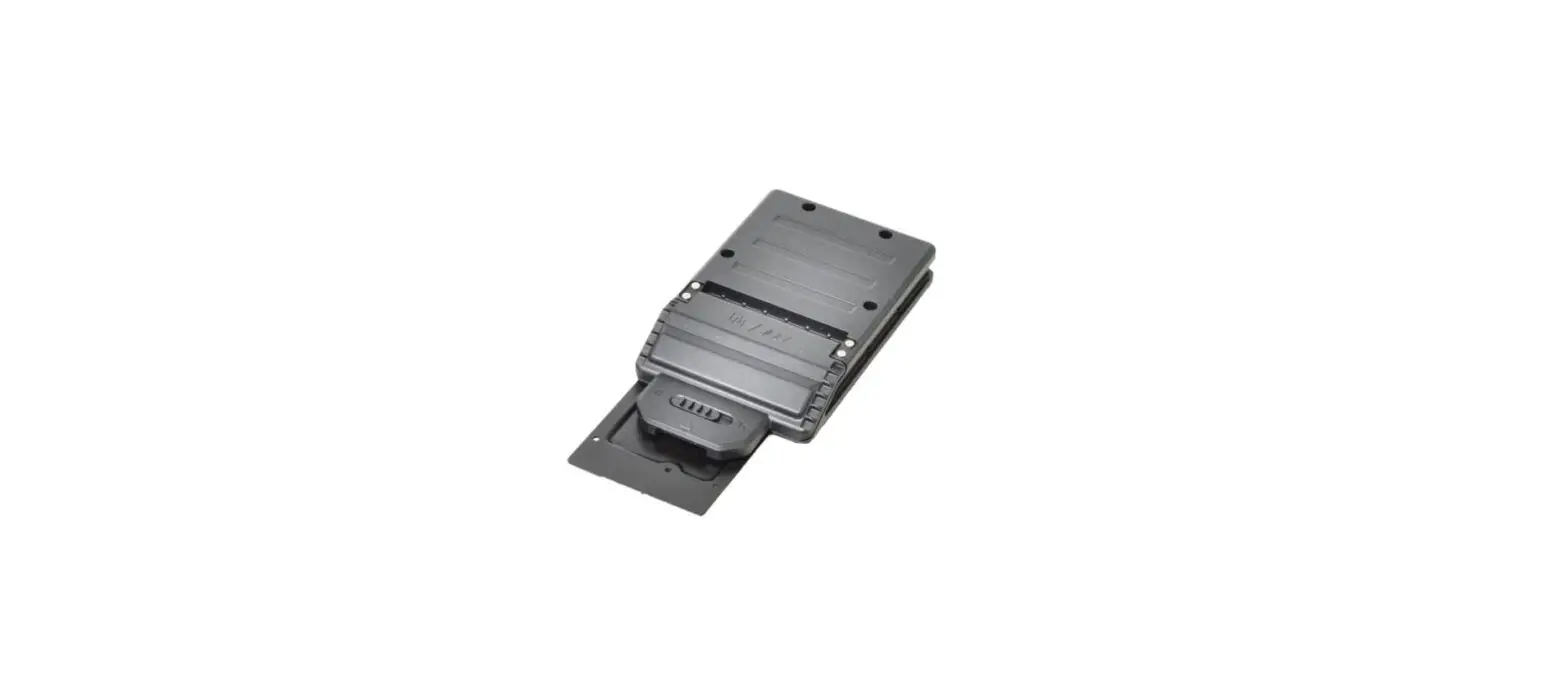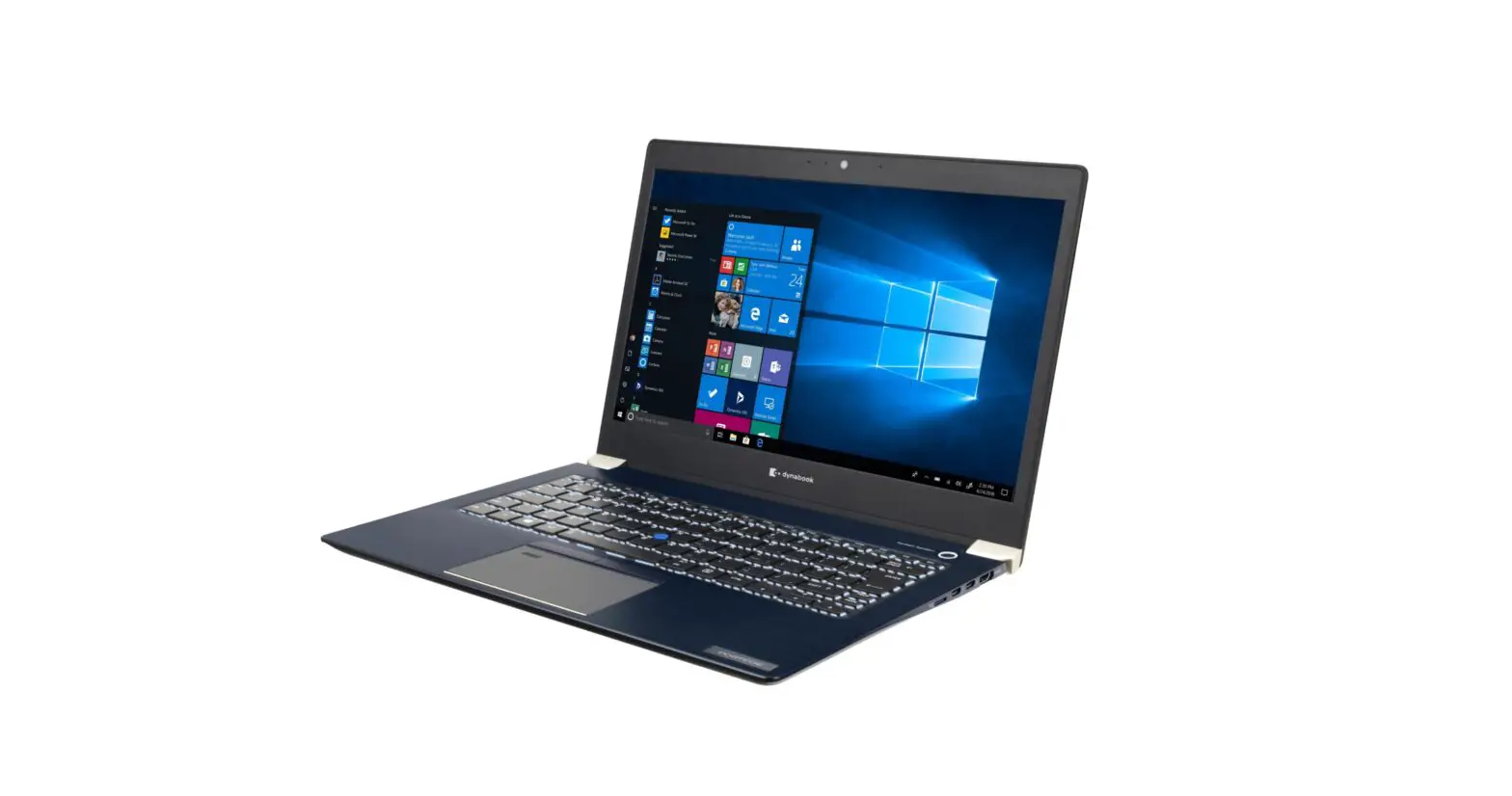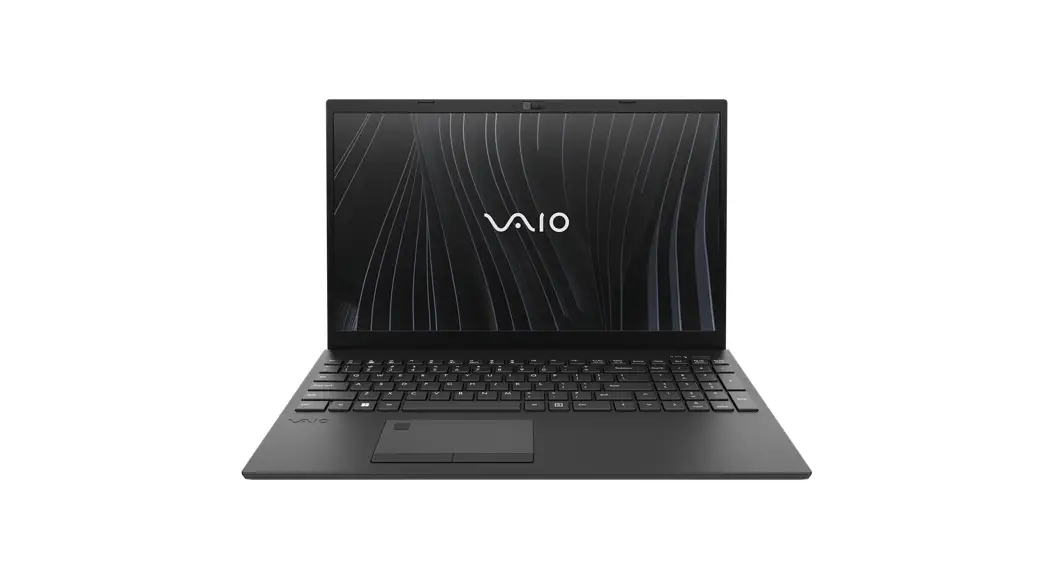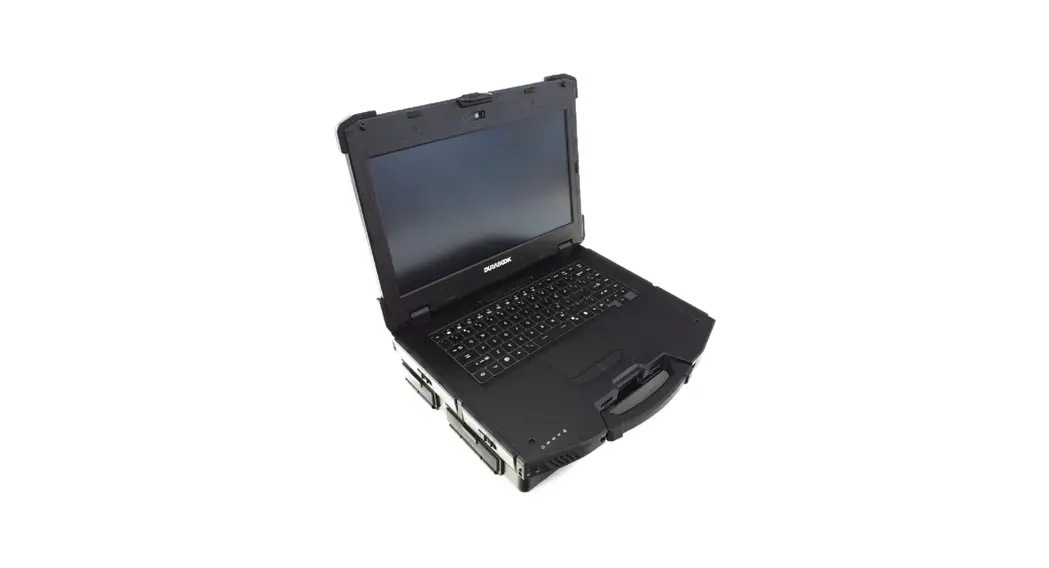
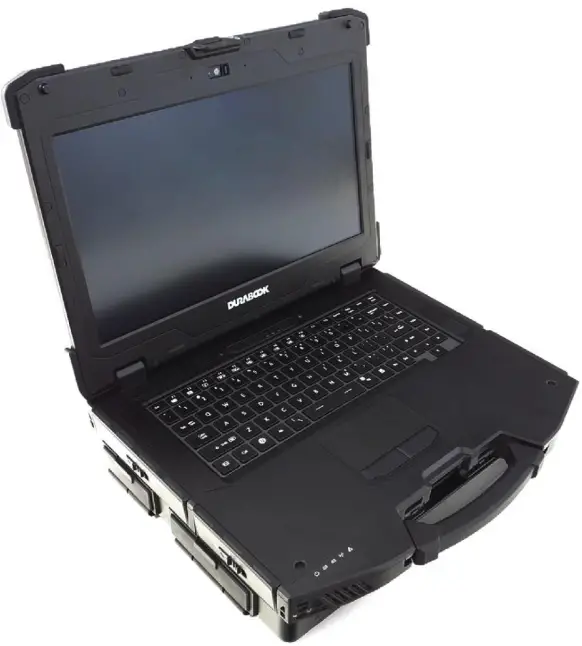
 Z14I Laptop
Expansion Chassis
User’s Manual
 P/N: 62+031000+10
© 2021 Twinhead International Corp and/or its affiliates. All rights reserved.
Package Contents
If any of the following items are damaged, please contact your retailer.
| Adapter | Power code | Expansion module board |
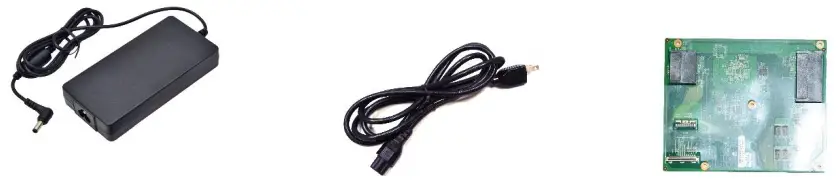 | ||
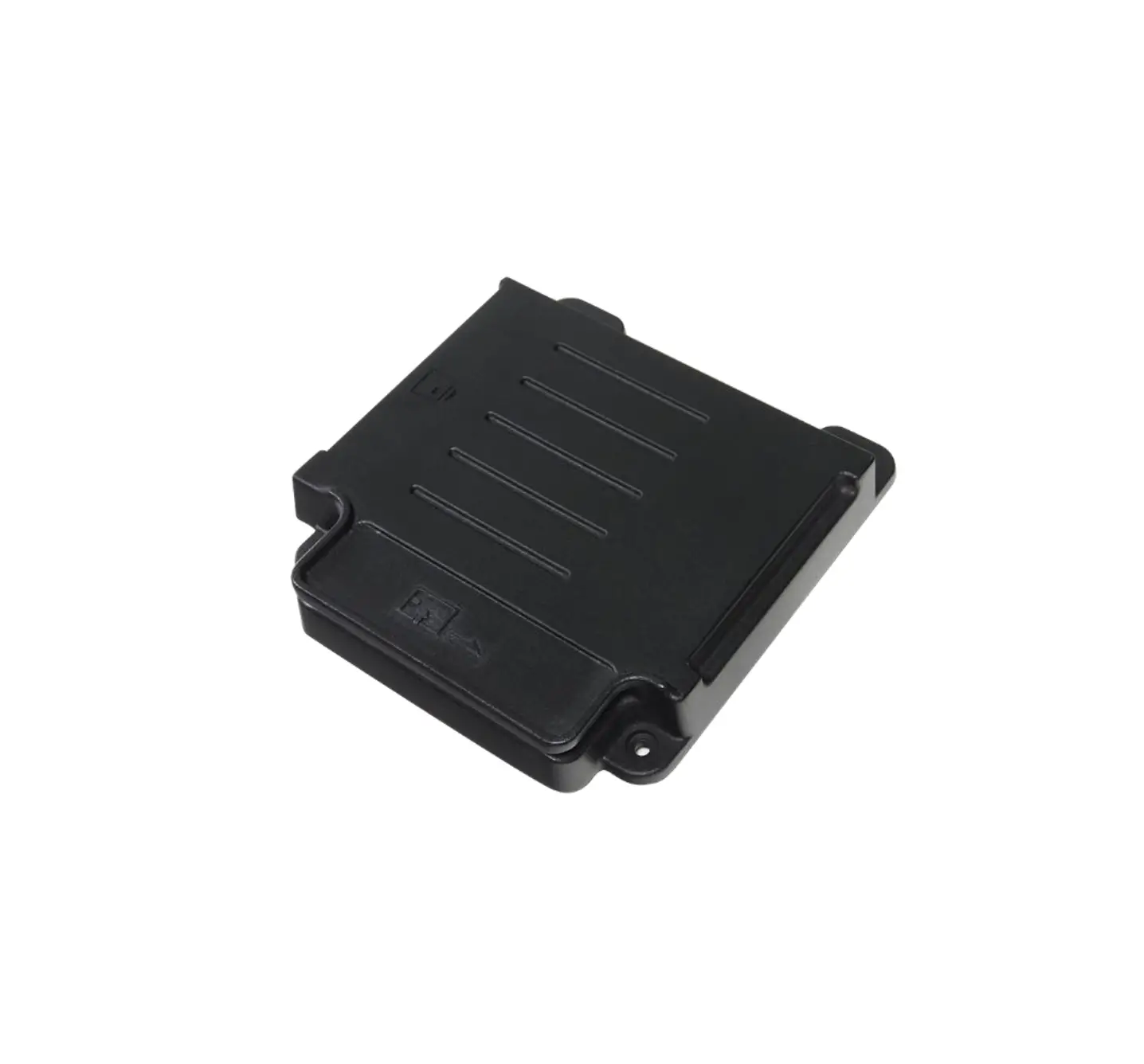
| Expansion chassis with Rubber gasket | Bottom cover | IO doors |
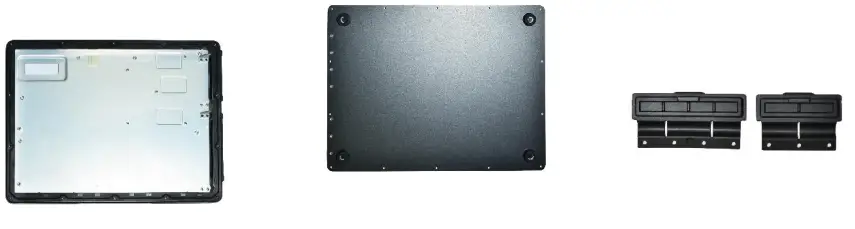 | ||
| Door brackets | Expansion brackets | PCIe cards holders |
 | ||
PCIe cables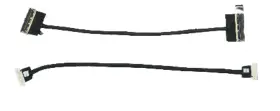
Expansion Chassis Screws
| Screw Name | Screw Type | Quantity |
| ISOT-M3.0X1OL |  | 6 (bumpers) |
| ISOT-M3.0X7L |  | 8 (bumpers) |
| 2 (full-length PCIe card) | ||
| ISOT-M2.6X4L |  | 4 (expansion brackets) |
| 5 (expansion module board) | ||
| 4 (PCIe cards holders) | ||
| 14 (bottom cover) | ||
| 7 (JO doors) | ||
| ISOT-M2.6X8L & 0 RING |  | 6 (expansion chassis) |
| ISOT-M2.6X3L | | 4 (expansion chassis) |
| ISOT-M4.0X6L |  | 2 (PCIe cards holders to PCIe cards brackets) |
 NOTE
NOTE
The pictures are for reference only, actual items may slightly differ.
Installation
This section will guide you on how to install the expansion chassis in your notebook.
Installing the Expansion Chassis
To install the expansion chassis, follow the steps below:
- Remove the 14 screws securing the bumpers.
➢ ISOT-M3.0X10L (marked with an orange-white circle): 6 screws
➢ ISOT-M3.0X7L (marked with a blue-white circle): 8 screws
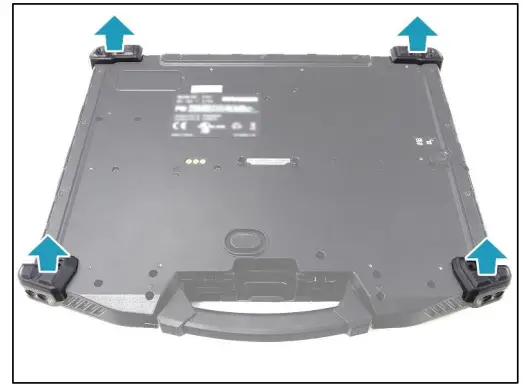
- Remove the bumpers.

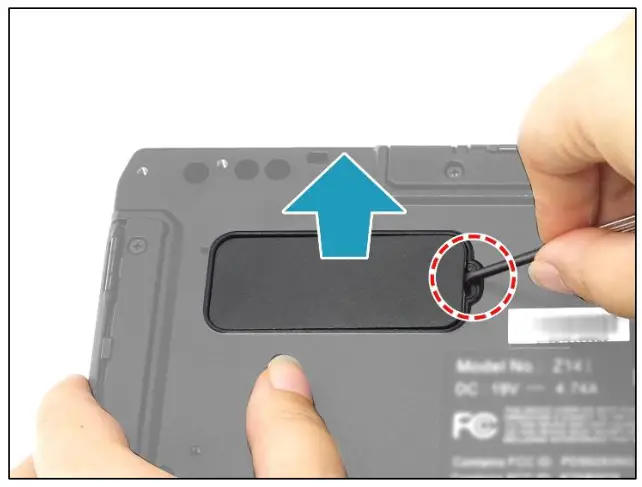
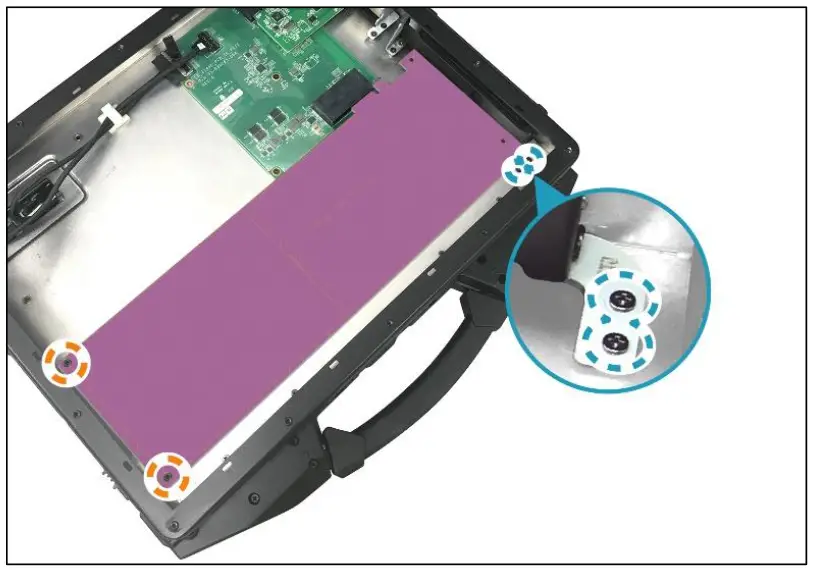
- Pry to remove the mylar from the lower case.

- By aligning with the screw holes, install the expansion brackets onto their respective slots.
 NOTE
NOTE
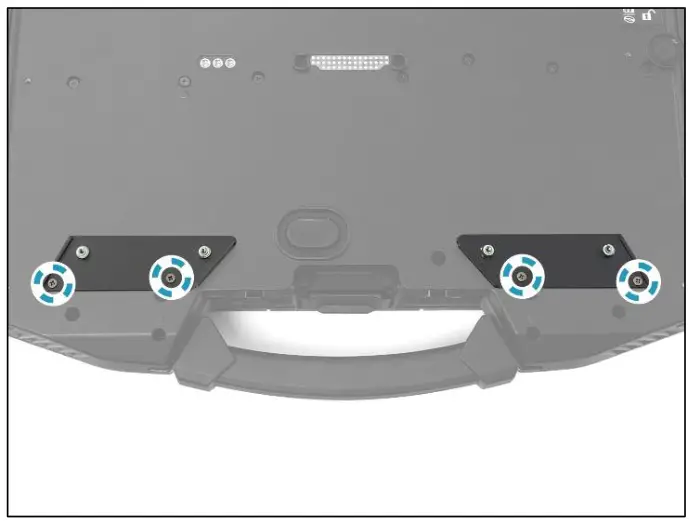
• Ensure that the 4 O-rings ( ) are properly embedded in the upper part of the screw holes (marked with the blue-white circle).
- Attach the 4 screws (ISOT-M2.6X4L) to secure the expansion brackets to the lower case.

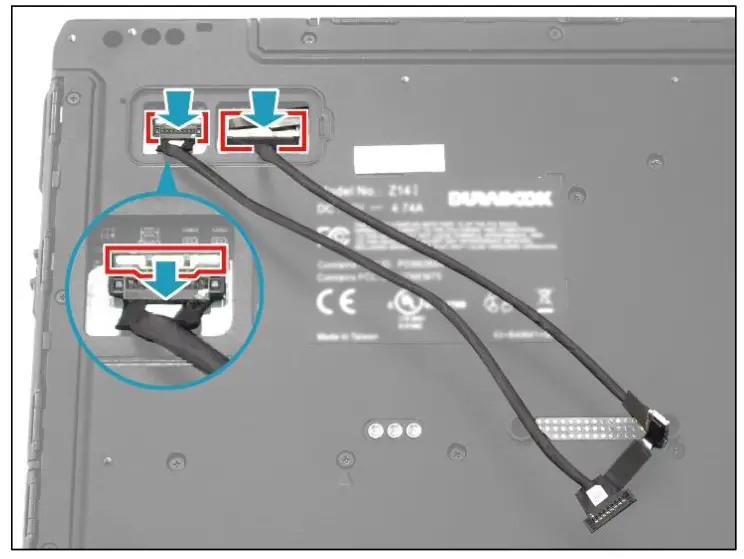
- Connect the PCIe coaxial cable to the mainboard connector. Then connect the PCIe power cable to the mainboard connector and secure the latch.

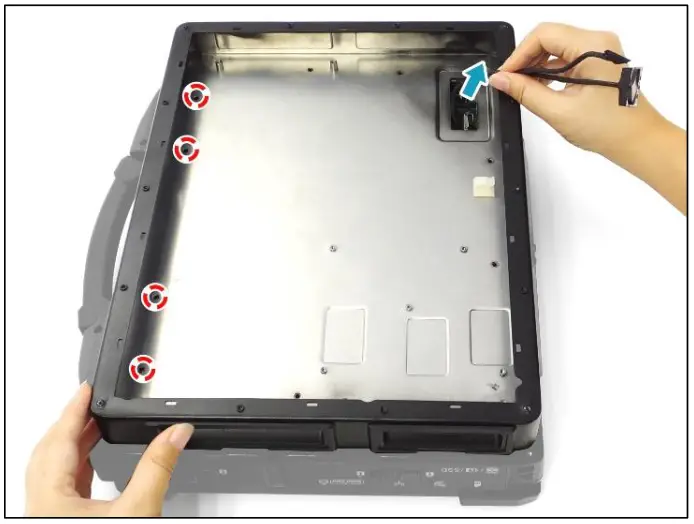
- Route the PCIe power and coaxial cables through the opening on the expansion chassis. Then, place the expansion chassis on top of the lower case. Ensure that the crew holes are properly aligned.
NOTE
• If you have difficulty aligning the screw holes, lift the chassis and loosen the 4 screws securing the expansion brackets (see Step 5). Then place the chassis onto the lower case and re-align the screw holes (marked with
a red-white circle) with the screw holes on the brackets. After verifying the screw holes are properly aligned, lift the chassis again, and then fasten the 4 screws to secure the expansion brackets.
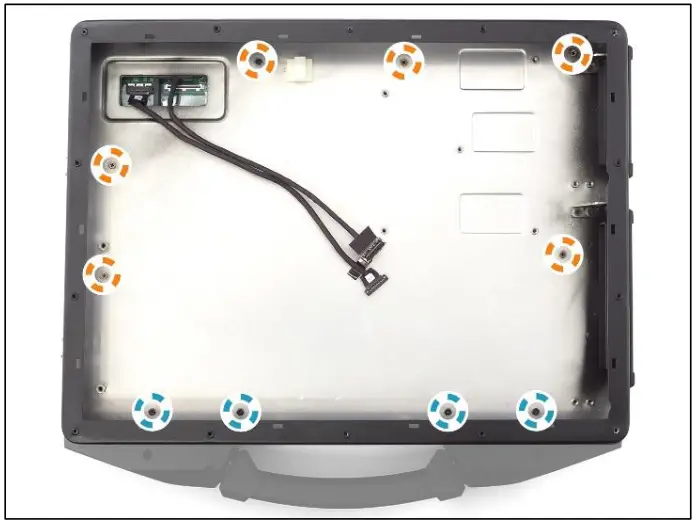
- Attach the 4 screws (ISOT-M2.6X3L) first to secure the expansion chassis to the lower case. Then continue to attach the remaining 6 screws (ISOT-M2.6X8L).
➢ ISOT-M2.6X3L (marked with a blue-white circle): 4 screws
➢ ISOT-M2.6X8L (marked with an orange-white circle): 6 screws NOTE
NOTE
• Ensure that the O-ring is embedded with the ISOT-M2.6X8L screw
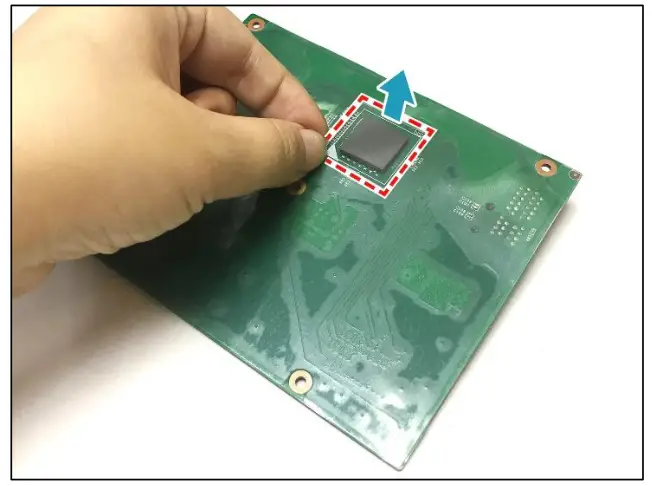
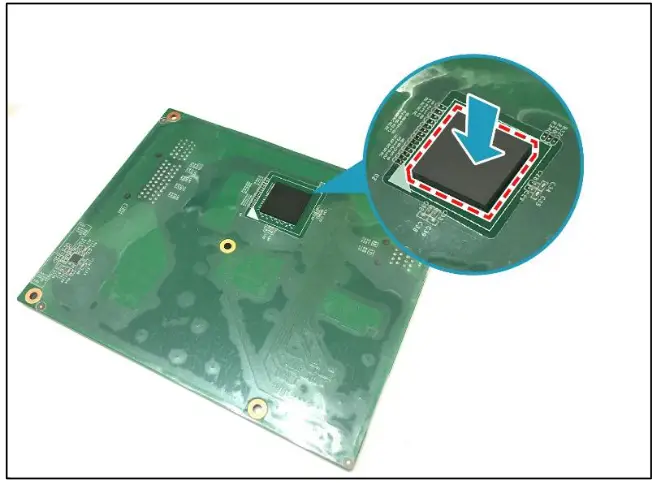
- Flip the expansion module board and peel the protective film off from the thermal pad.
 NOTE
NOTE
• If the thermal pad falls off, make sure to attach it back into place. CAUTION!
Be careful not to touch the thermal grease when handling the thermal pad. - By aligning with the screw holes, install the expansion module board onto its slot.

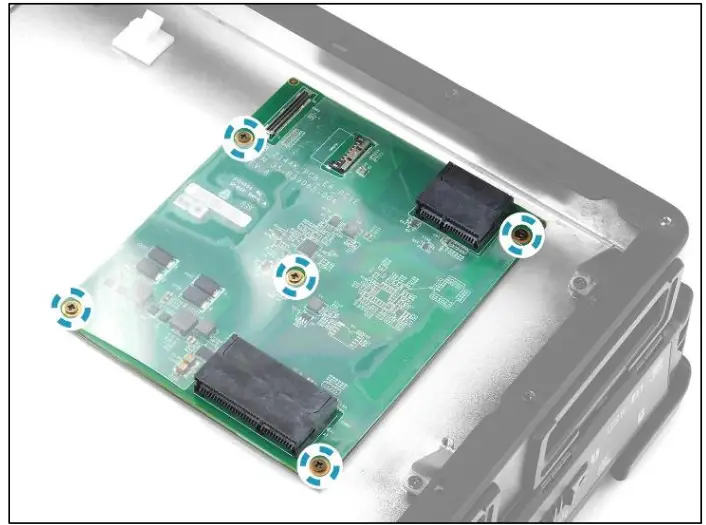
- Attach the 5 screws (ISOT-M2.6X4L) to secure the expansion module board to its chassis.

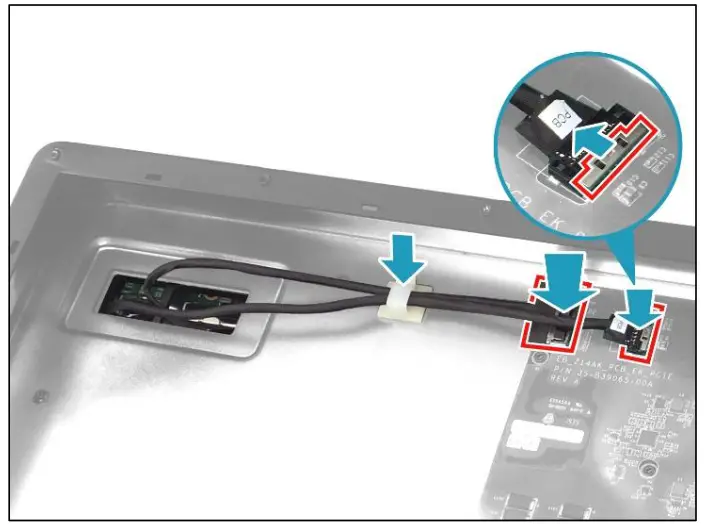
- Connect the other end of the PCIe coaxial cable to the expansion module board connector. Then connect the other end of the PCIe power cable to the expansion module board connector and secure the latch.
- Secure the cables with the cable clip.

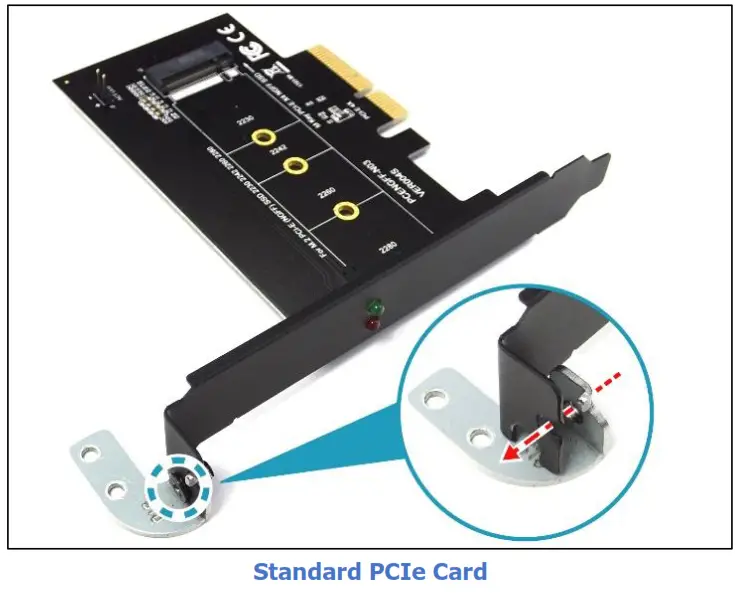
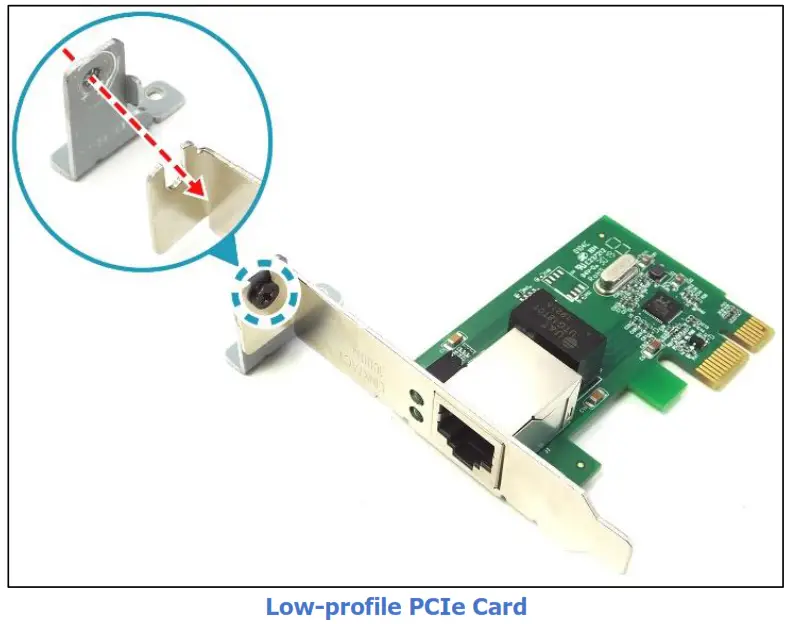
- Assemble the standard PCIe card holder with the standard PCIe card bracket. Then secure the standard PCIe card assembly using the screw (ISOT-M4.0X6L).
Repeat the same procedures to assemble the low-profile PCIe card assembly.
 NOTE
NOTE
• The standard PCIe card and low-profile PCIe card are optional accessories. - Align the standard and low-profile PCIe card assemblies with the expansion module board connectors and slide them in place. Ensure that the PCIe card assemblies are properly seated in place.

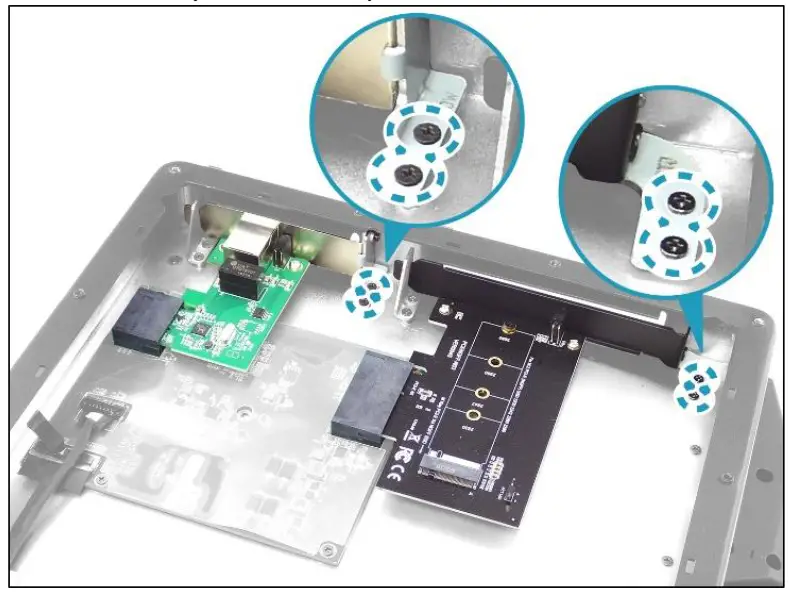
- Attach the 4 screws (ISOT-M2.6X4L) to secure the PCIe card holders.
 NOTE
NOTE
• For the full-length PCIe card, besides securing the PCIe card holder, you will also need to attach another 2 screws (ISOT-M3.0X7L) (marked with an orange-white circle) to ecure the PCIe card to the expansion chassis.
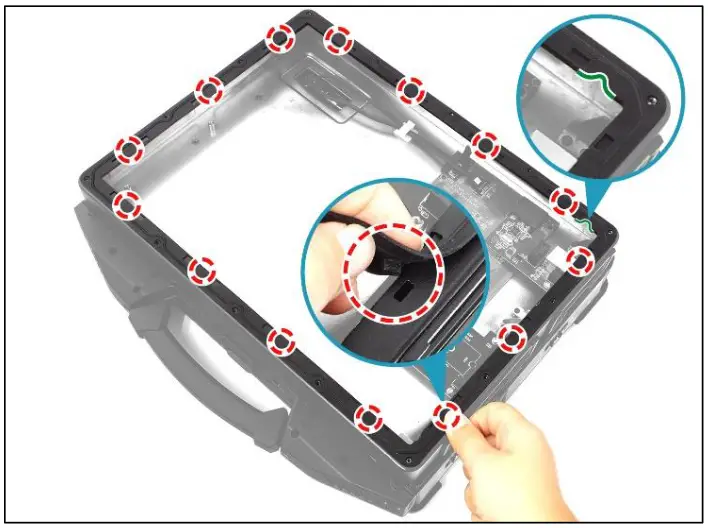
- With the protruding tabs facing down, install the rubber gasket onto its compartment. Press down each tab to ensure that the gasket is properly seated in place.
CAUTION!
To ensure the correct placement and orientation, please observe the printed direction (marked with green line) when installing the rubber gasket.
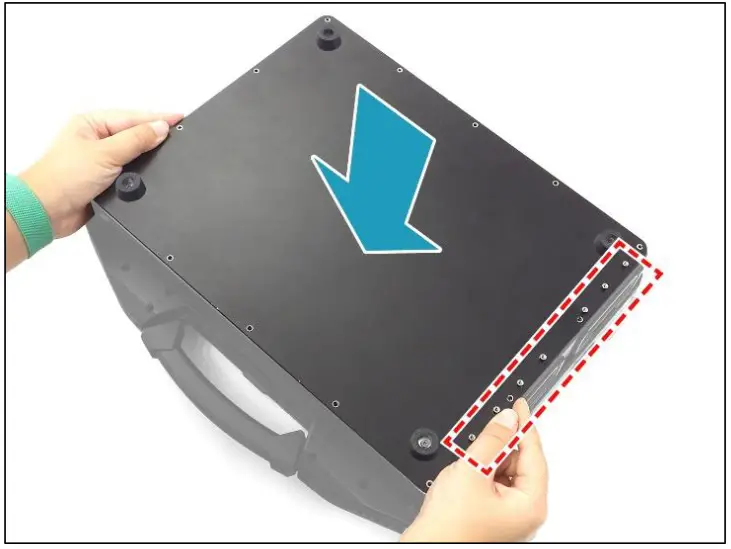
- By aligning with the screw holes, install the bottom cover onto the expansion chassis. NOTE
• Ensure that the protruding parts of the bottom cover (marked with the red-white frame) are properly positioned with the respective location of the IO doors.
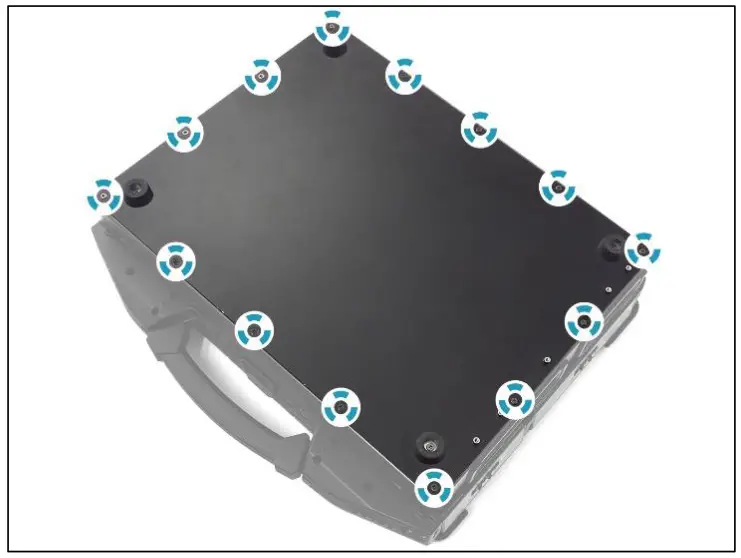
- Attach the 14 screws (ISOT-M2.6X4L) to secure the bottom cover.

- By aligning with the protruding parts of the bottom cover, install the low-profile and standard IO doors onto their respective slots on the bottom cover.

- Place the door brackets onto their respective compartments on the installed IO doors. Ensure that the protruding parts and screw holes are properly aligned.

- Attach the 7 screws (ISOT-M2.6X4L) to secure the IO doors.

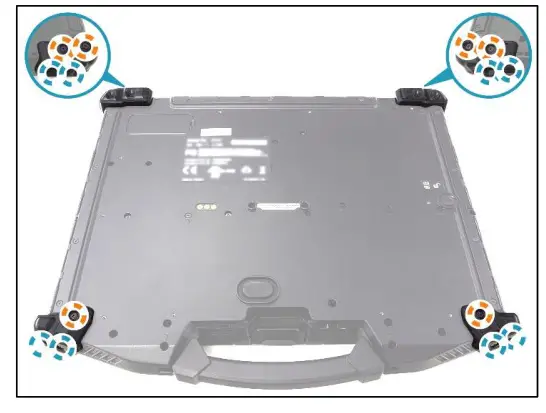
 ) are properly embedded in the upper part of the screw holes (marked with the blue-white circle).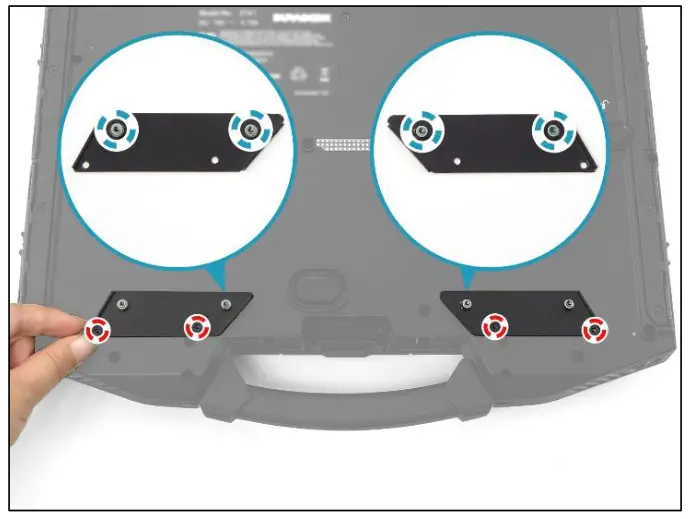
 CAUTION!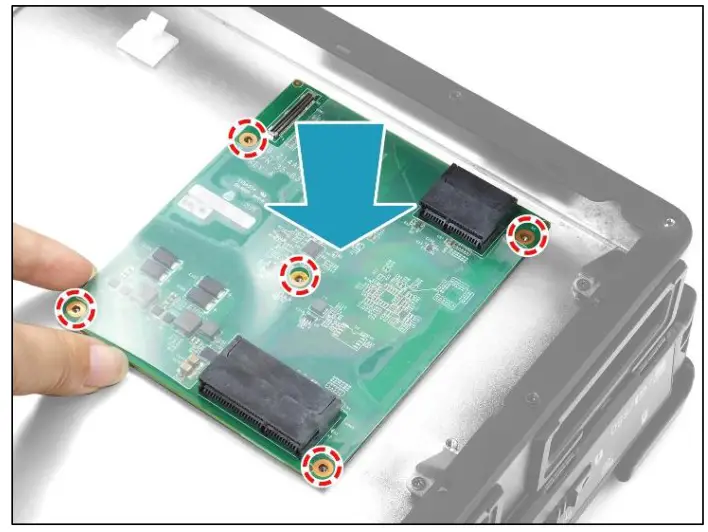
 NOTE
NOTE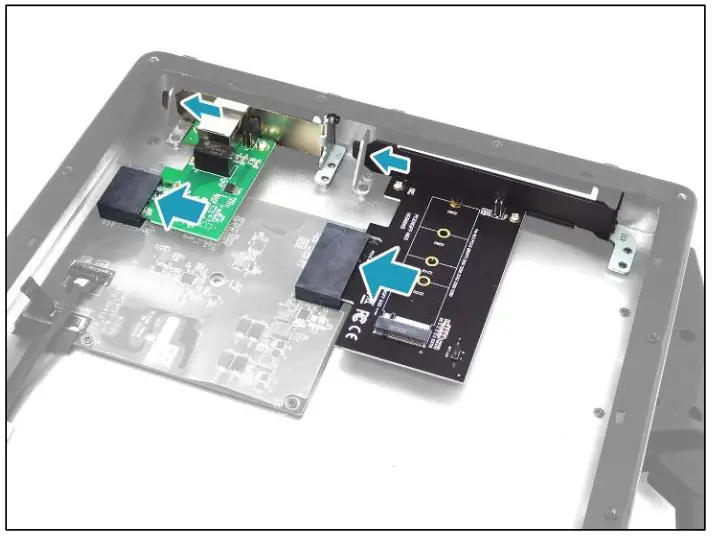
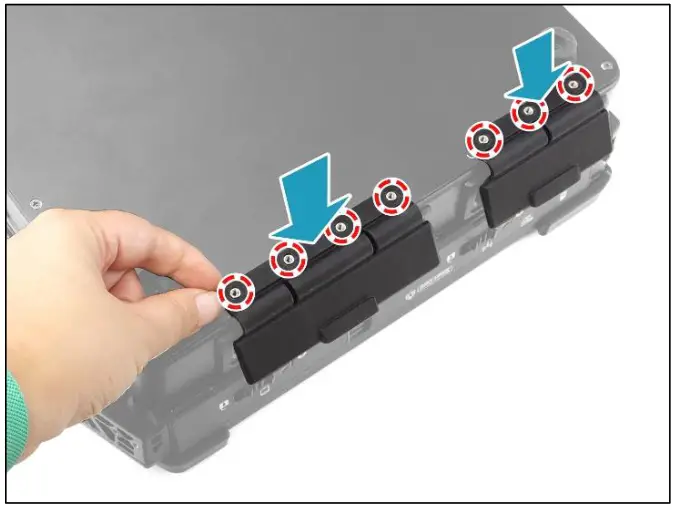
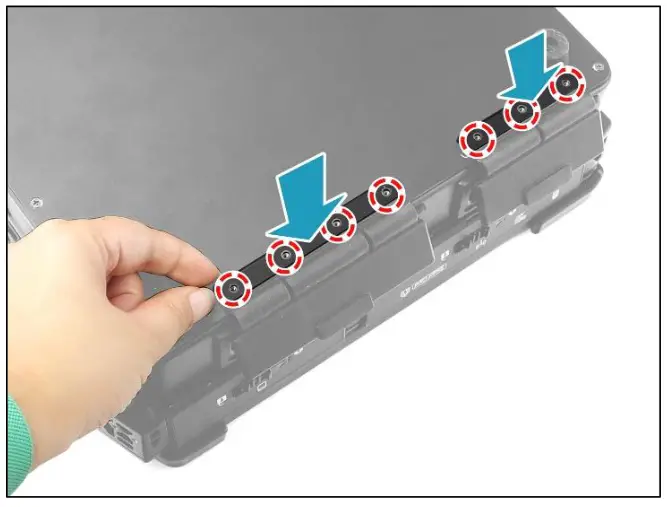
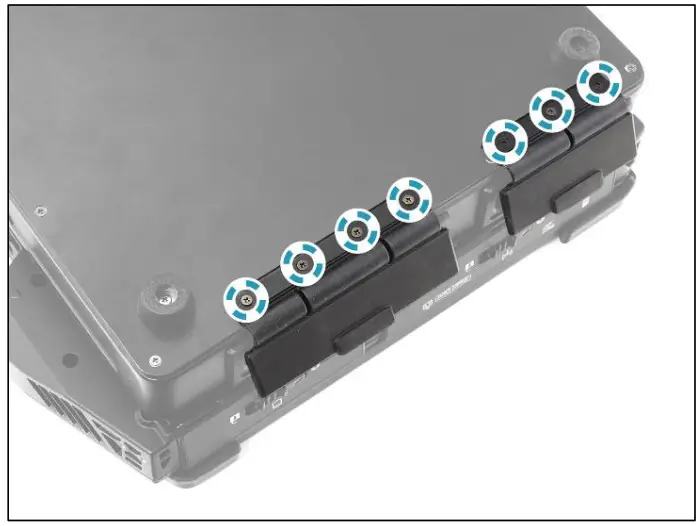
Close the IO doors.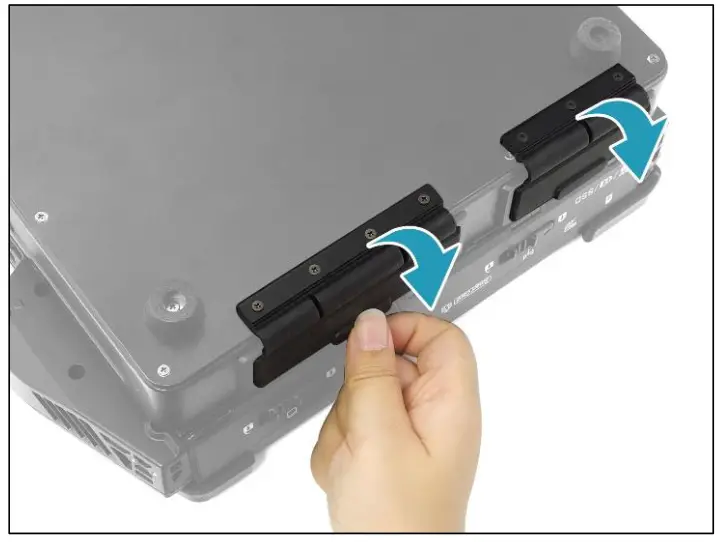
Expansion Chassis Screws
| Screw Name | Screw Type | Quantity | Torque |
| ISOT-M3.0X1OL | | 6 (bumpers) | 2.5 ± 0.3 Kgf-cm |
| ISOT-M3.0X7L | | 8 (bumpers) | 2.5 ± 0.3 Kgf-cm |
| 2 (full-length PCIe card) | 2.5 ± 0.3 Kgf-cm | ||
| ISOT-M2.6X4L | | 4 (expansion brackets) | 2.5 ± 0.3 Kgf-cm |
| 5 (expansion module board) | 2.5 ± 0.3 Kgf-cm | ||
| 4 (PCIe cards holders) | 2.5 ± 0.3 Kgf-cm | ||
| 14 (bottom cover) | 3.5 ± 0.3 Kgf-cm | ||
| 7 (JO doors) | 2.5 ± 0.3 Kgf-cm | ||
| ISOT-M2.6X8L & 0 RING | | 6 (expansion chassis) | 2.5 ± 0.3 Kgf-cm |
| ISOT-M2.6X3L | | 4 (expansion chassis) | 2.5 ± 0.3 Kgf-cm |
| ISOT-M4.0X6L | | 2 (PCIe cards holders to PCIe cards brackets) | 4.0 ± 0.3 Kgf-cm |

Twinhead International Corp.
11F, No.550, Ruiguang Rd., Neihu, Taipei 11492, Taiwan, R.O.C.