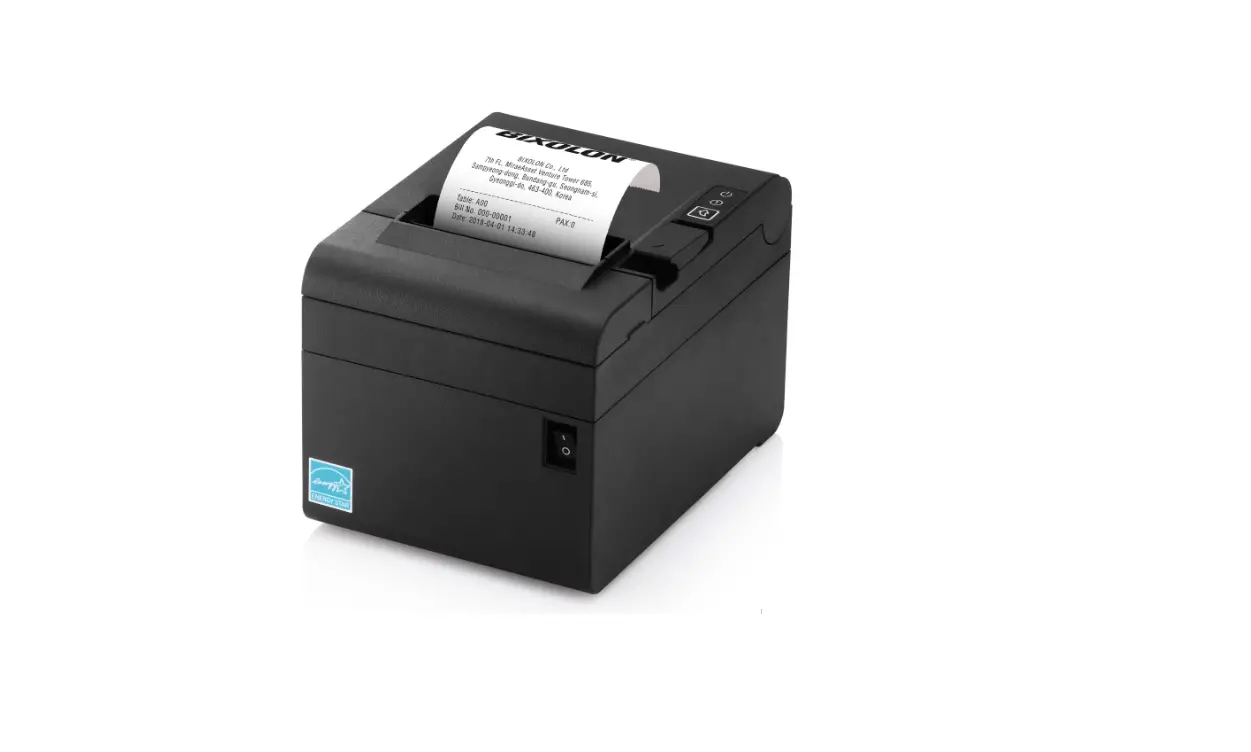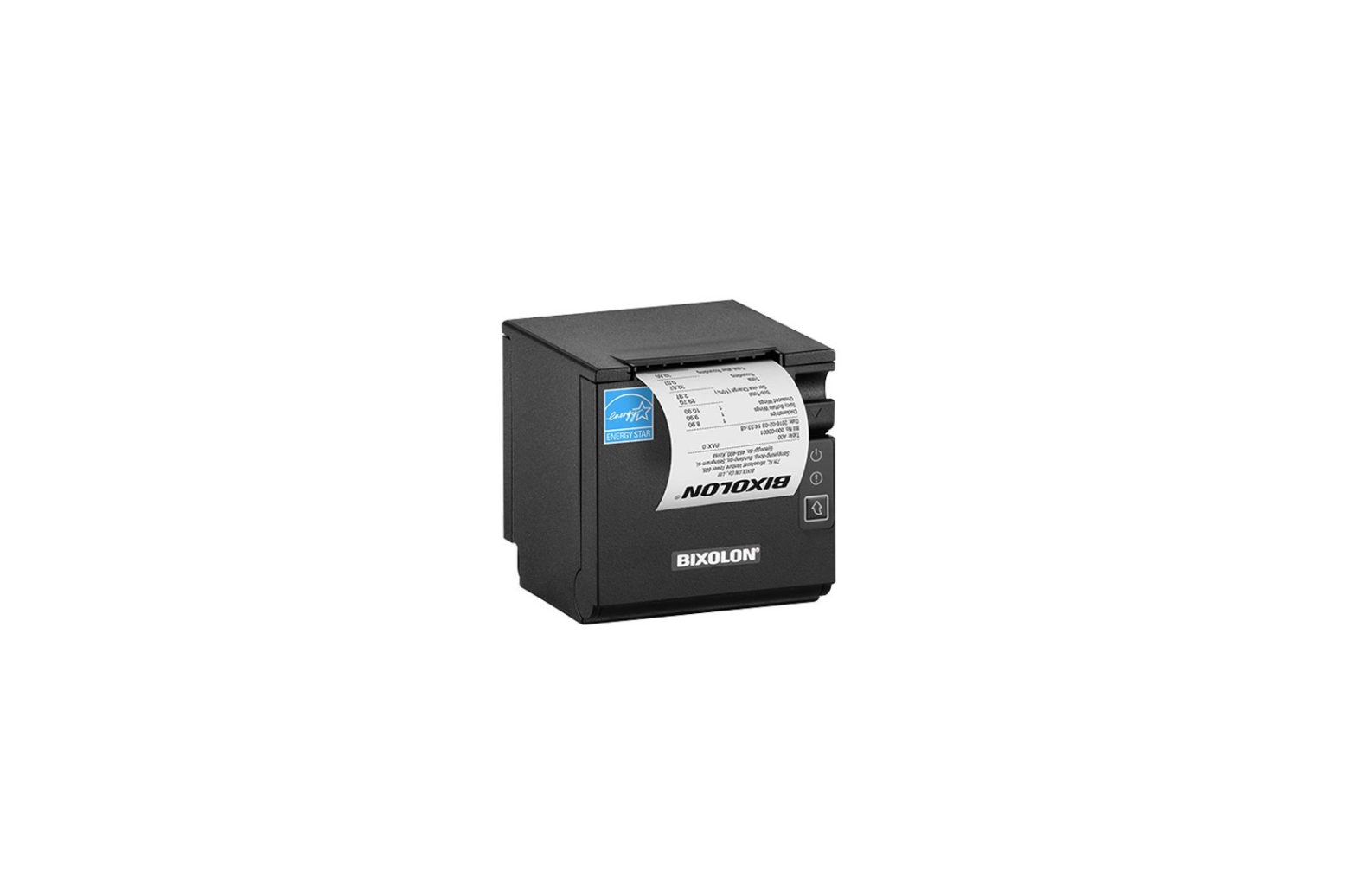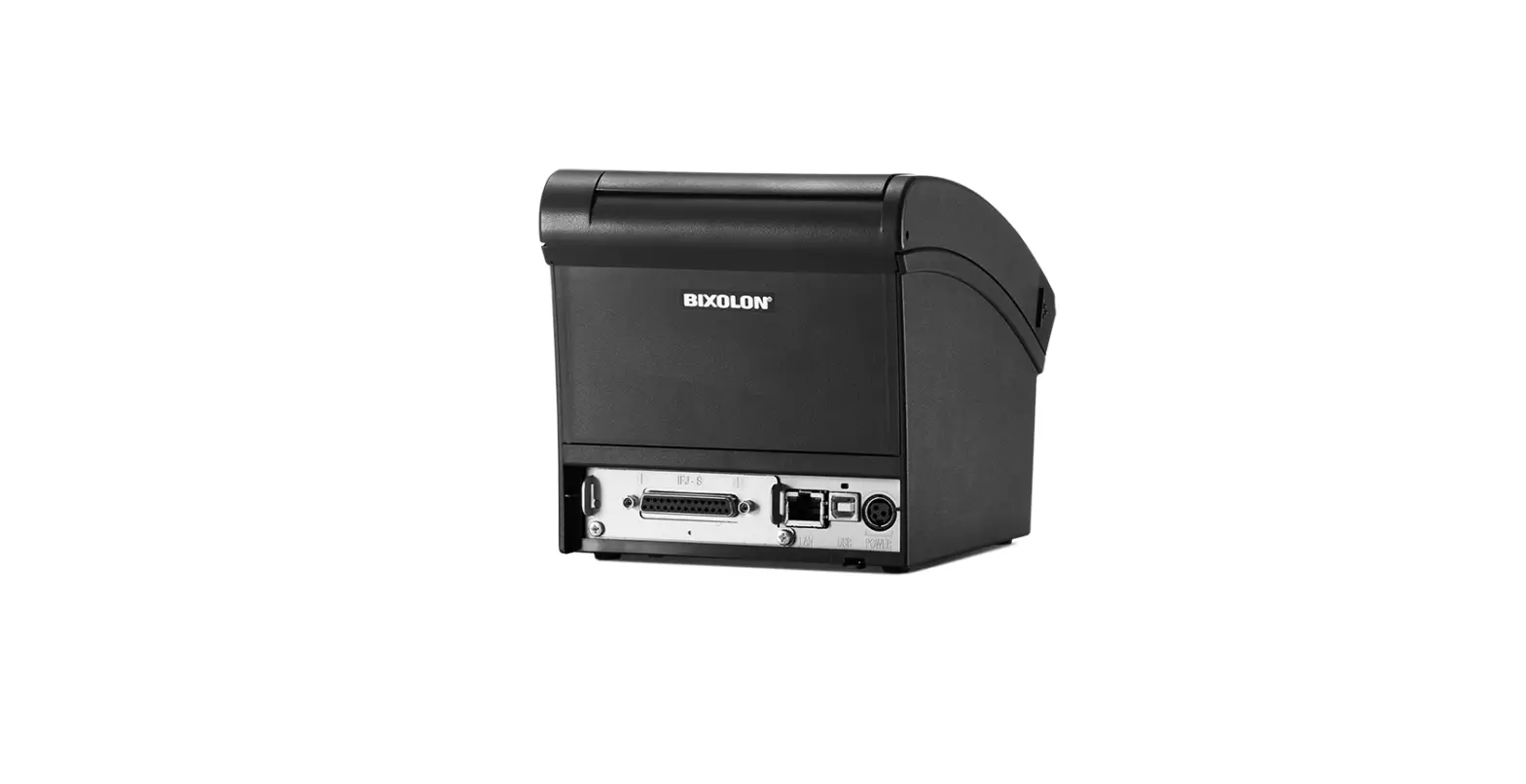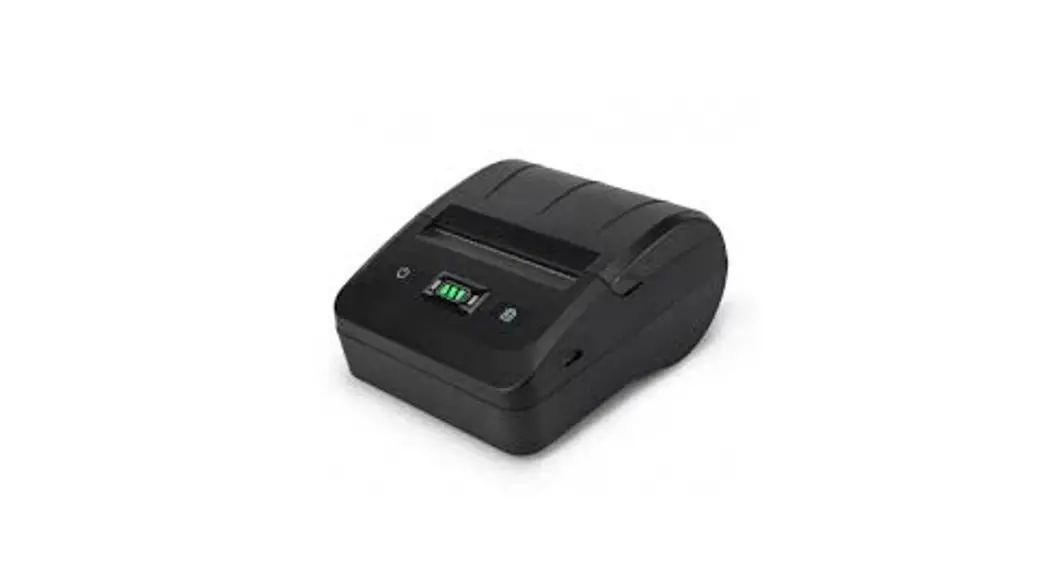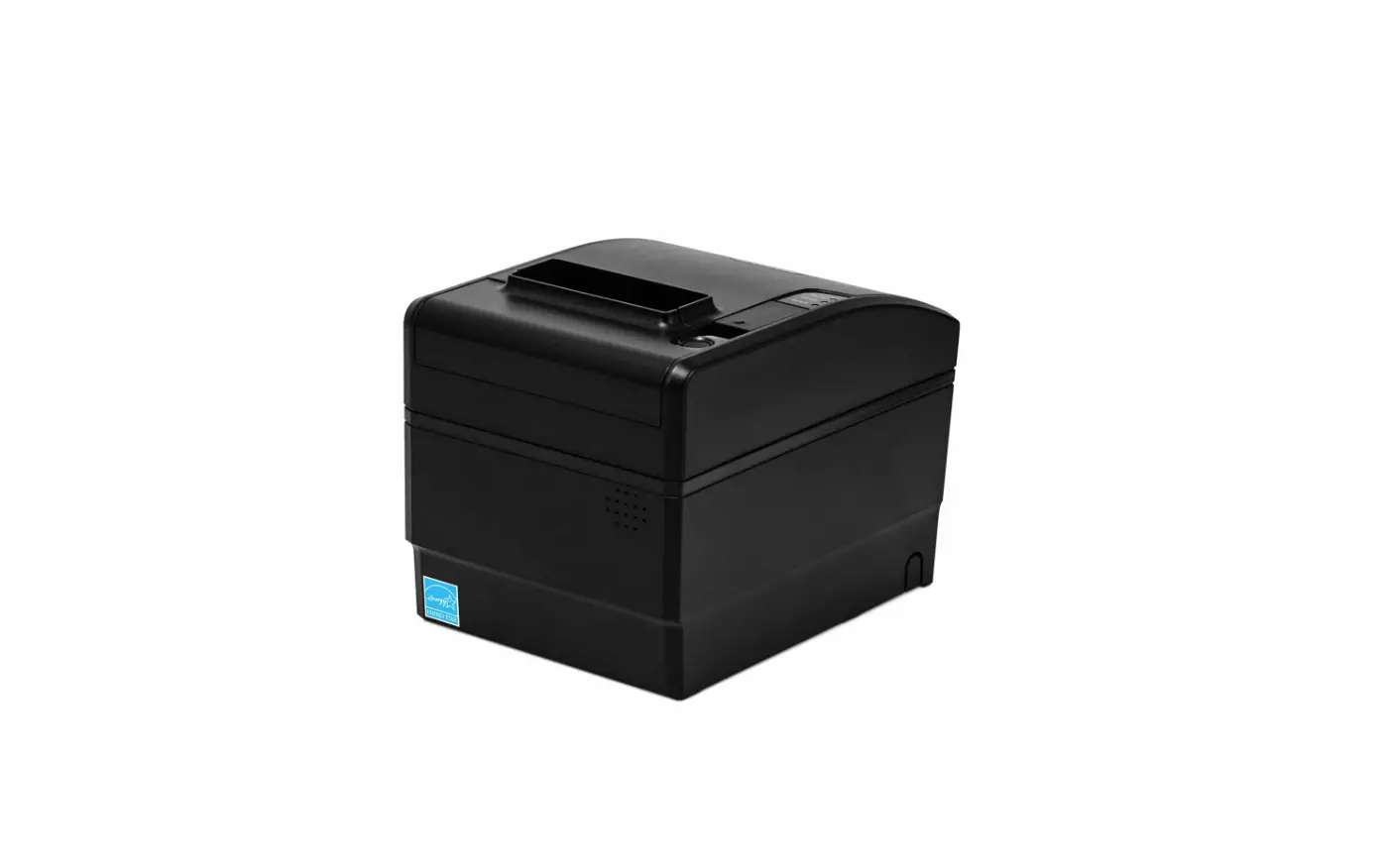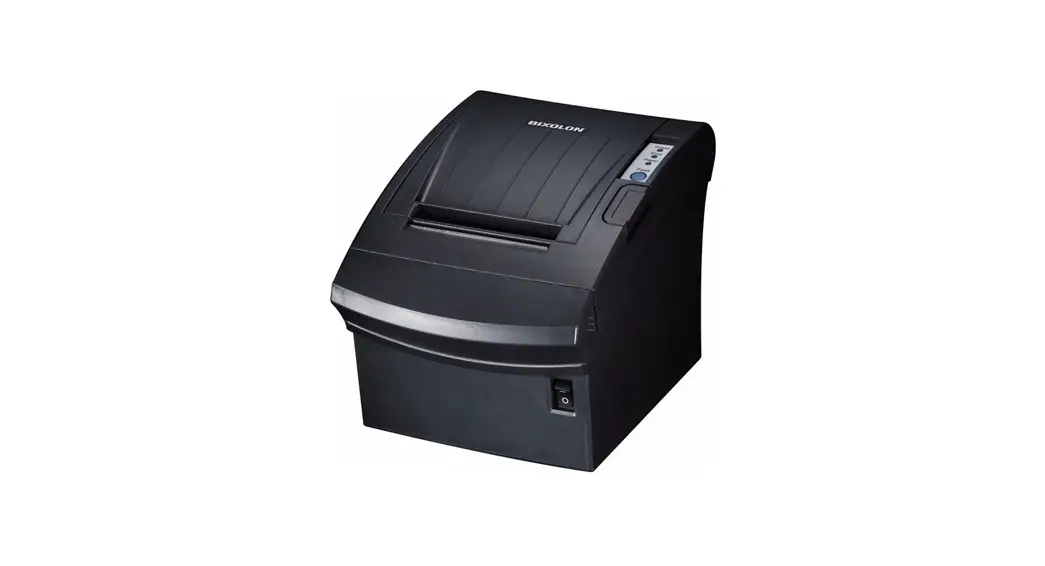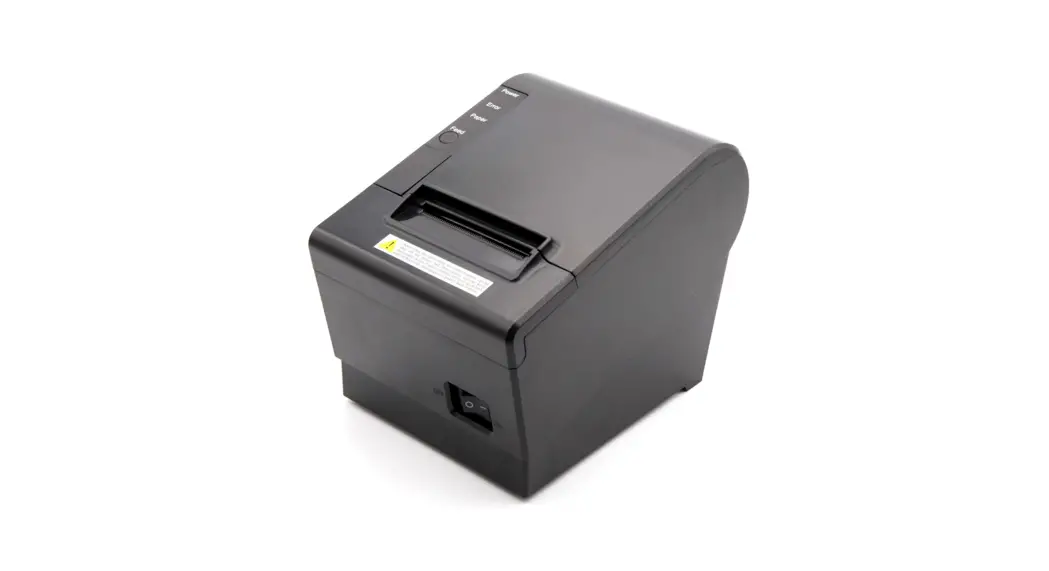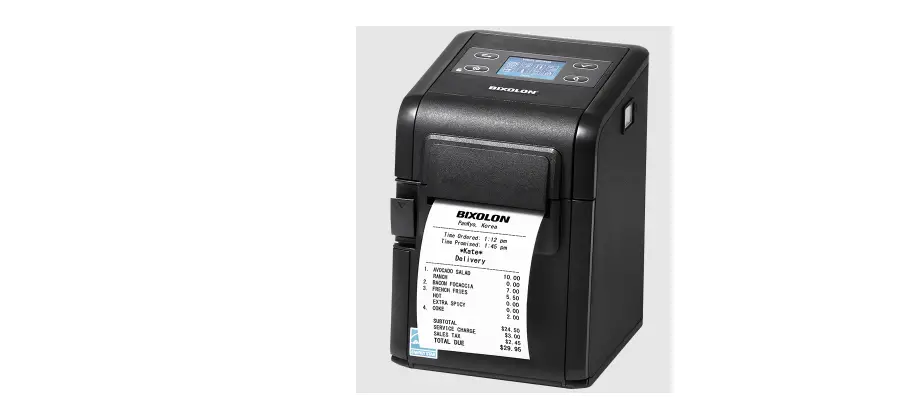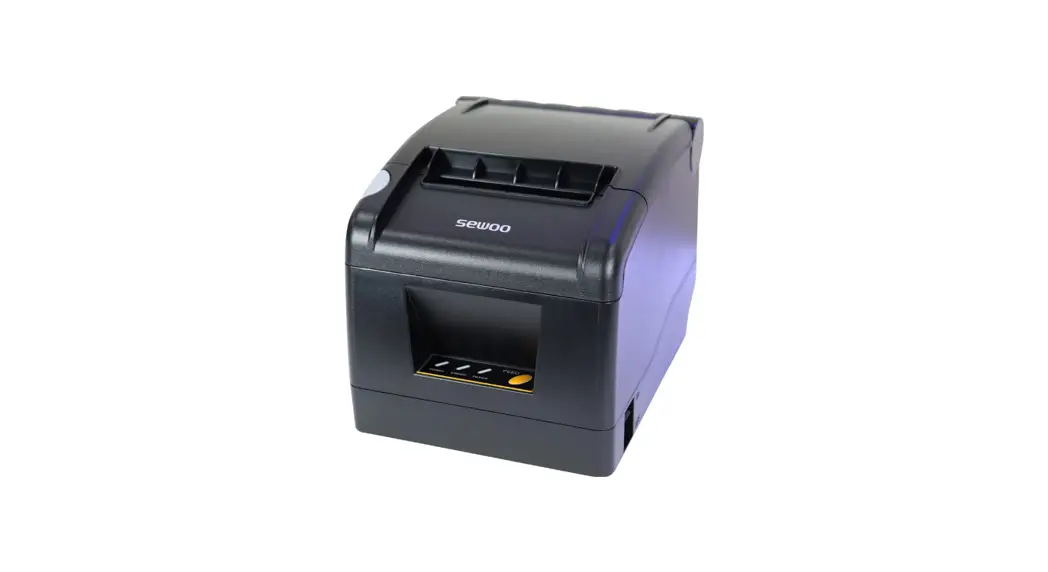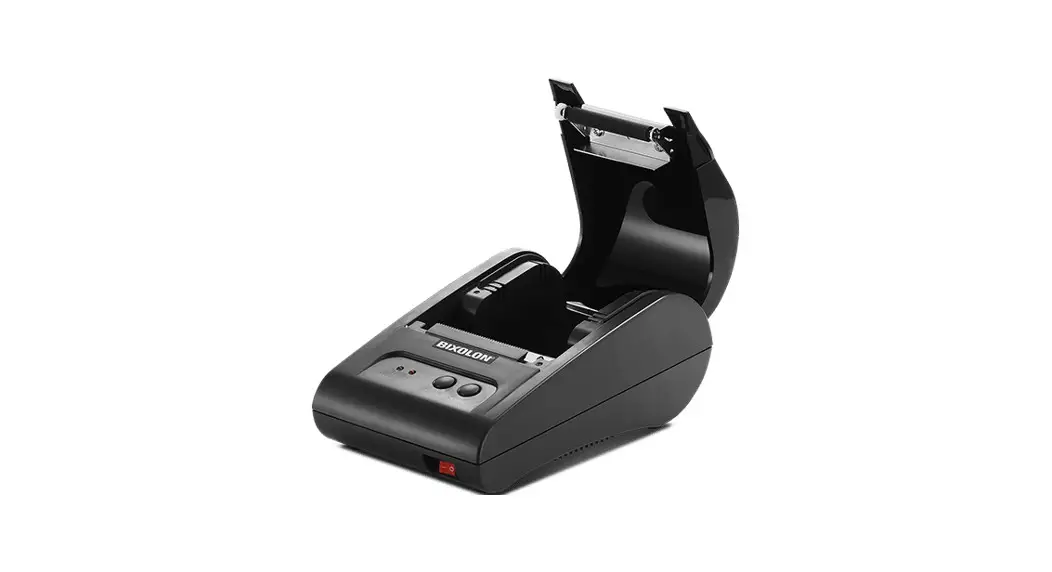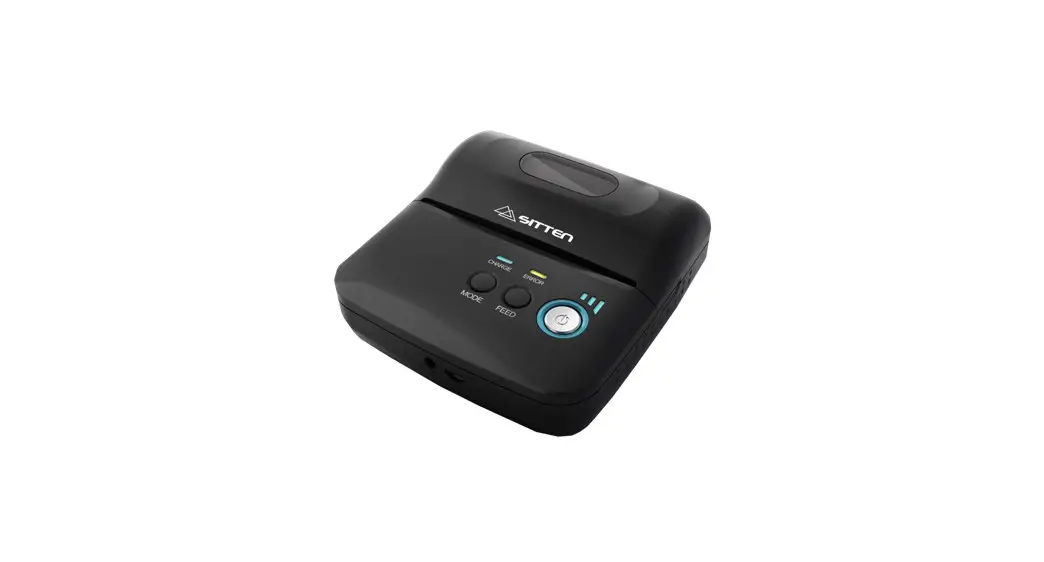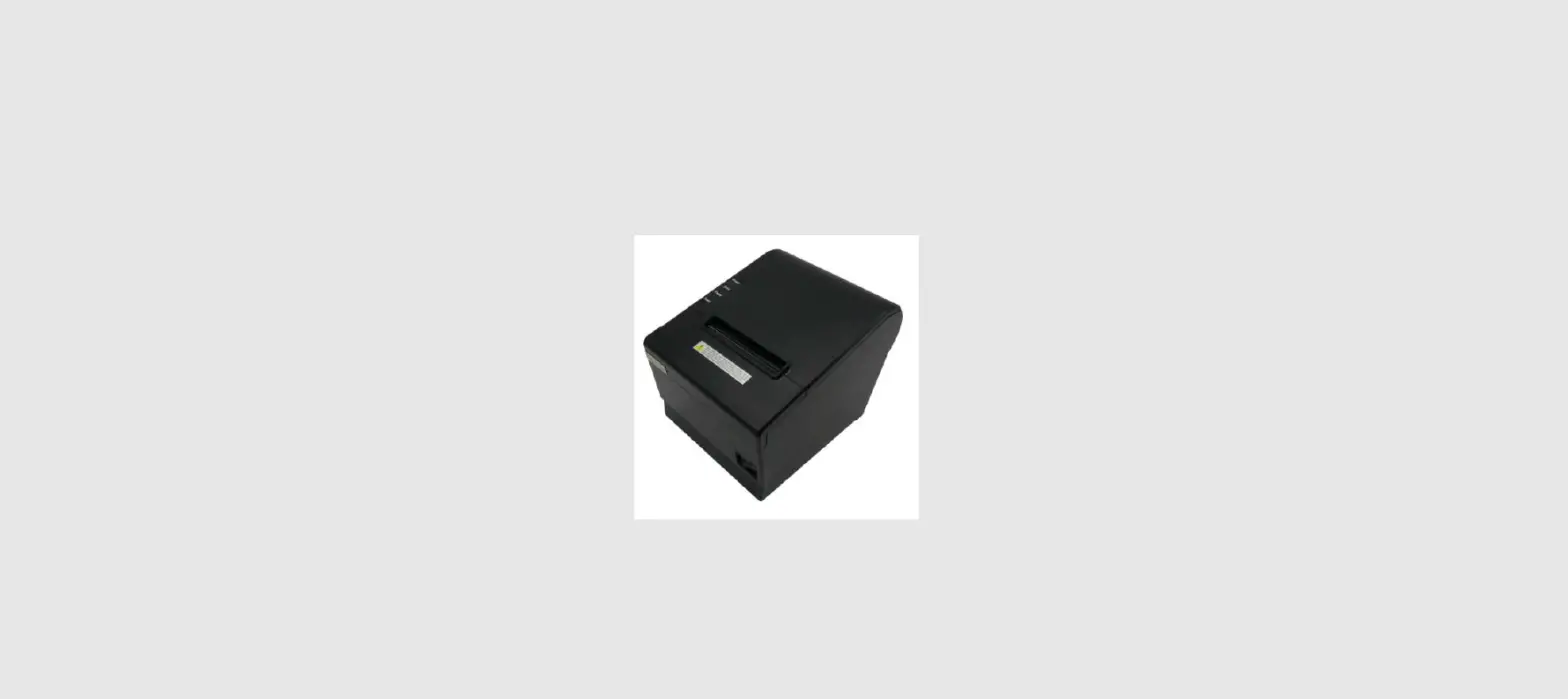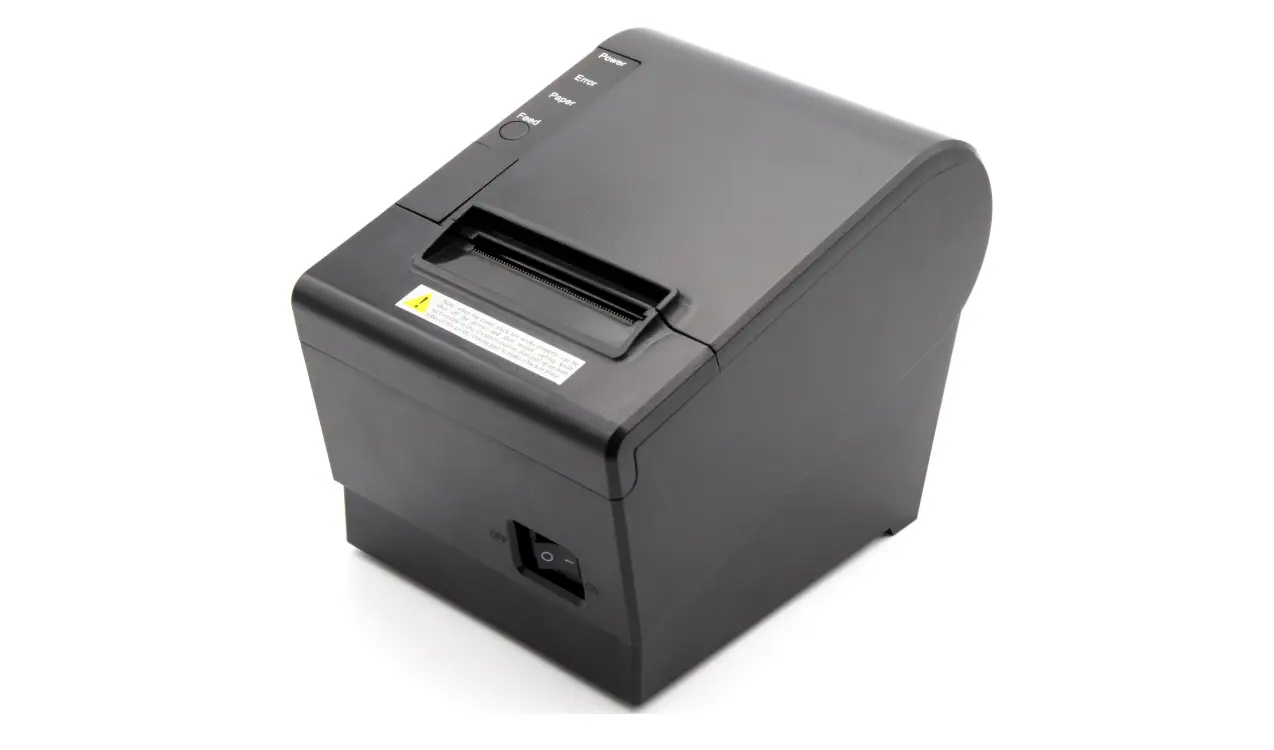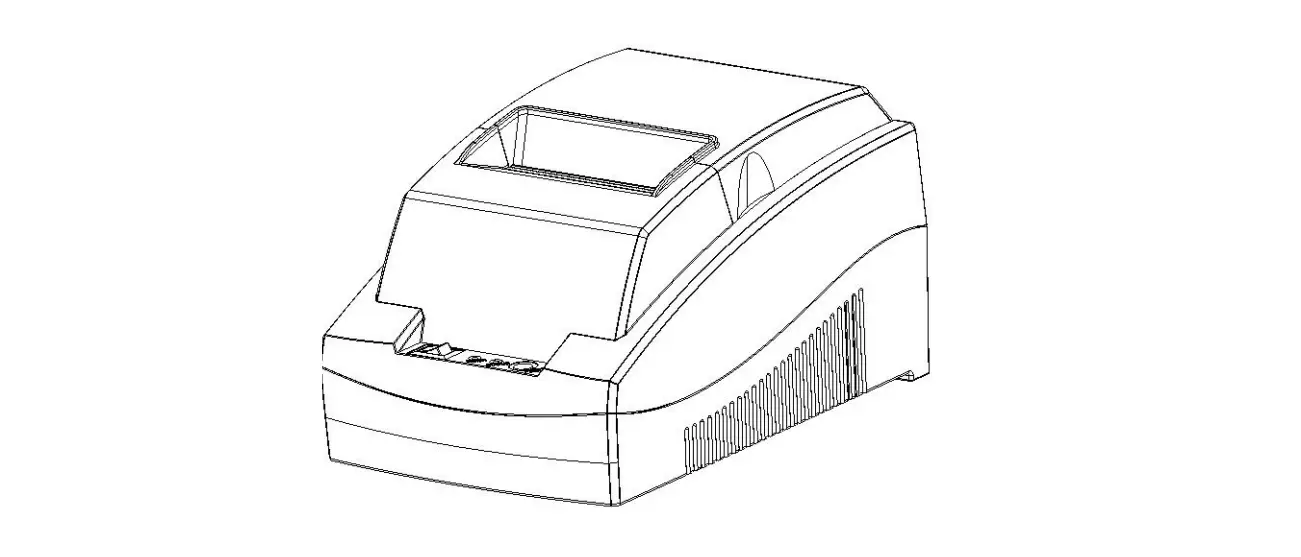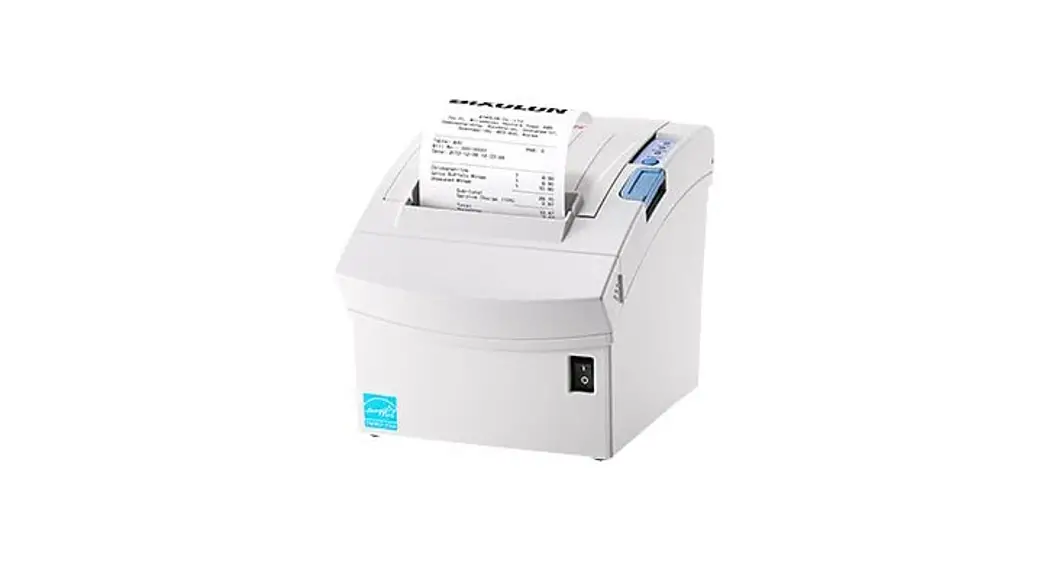
 BGT-102P mop’s Thermal Printer
User Manual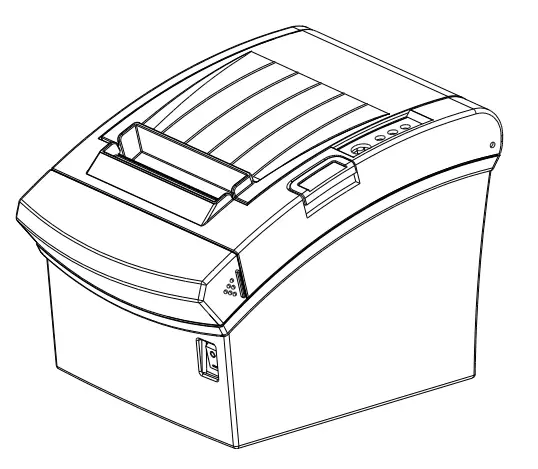
Safety Precautions
In using the present appliance, please keep the following safety regulations in order to prevent a ny hazard or material damage. WARNING
Violating following instructions can cause serious injury or death.
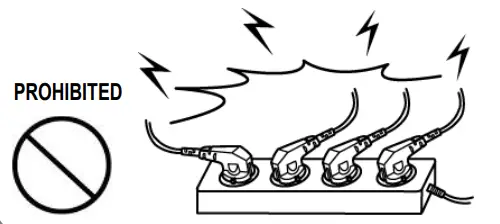
Do not plug several products in one multi-outlet.
- This can provoke over-heating and a fire.
- If the plug is wet or dirty, dry or wipe it before usage.
- If the plug does not fit perfectly with the outlet, do not plug in.
- Be sure to use only standardized multi-outlets.
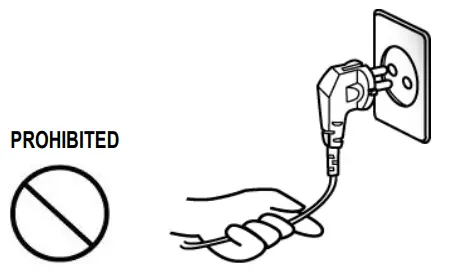
 Do not pull the cable to unplug.
- This can damage the cable, which is the origin of a fire or a breakdown of the printer.
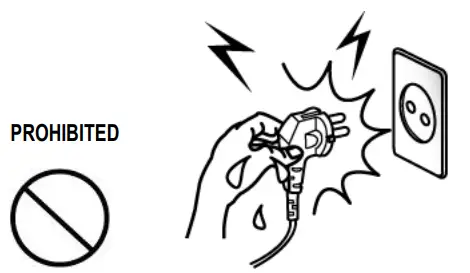
 Do not plug in or unplug with your hands wet.
- You can be electrocuted.
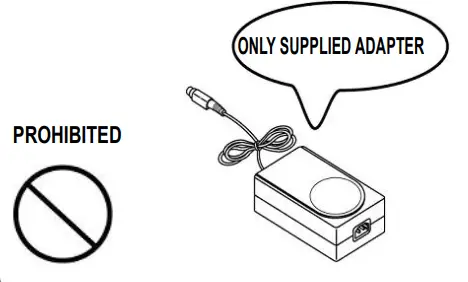
 You must use only the supplied adapter.
- It is dangerous to use other adapters.
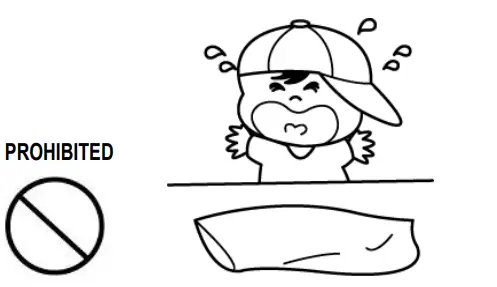
 Keep the plastic bag out of children’s reach.
- If not, a child may put the bag on his head.
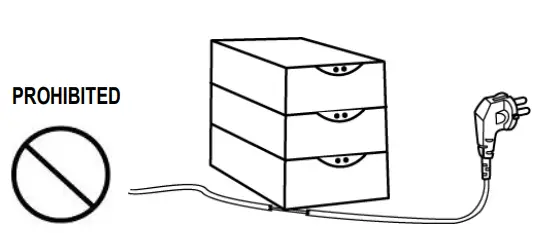
 Do not bend the cable by force or leave it under any heavy object.
- A damaged cable can cause a fire.
 CAUvTION
Violating following instructions can cause slight wound or damage the appliance.
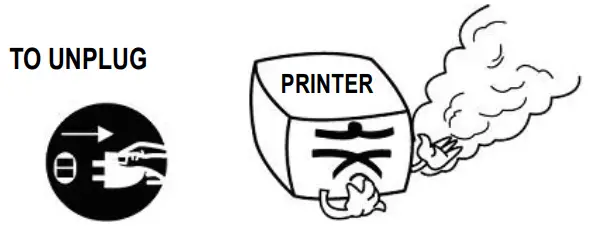
If you observe a strange smoke, odor or noise from the printer, unplug it before taking following measures.
- Switch off the printer and unplug the set from the mains.
- After the disappearance of the smoke, call your dealer to repair it.
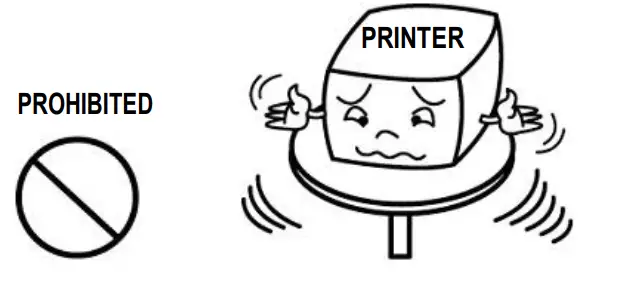
 Install the printer on the stable surface.
- If the printer falls down, it can be broken and you can hurt yourself.
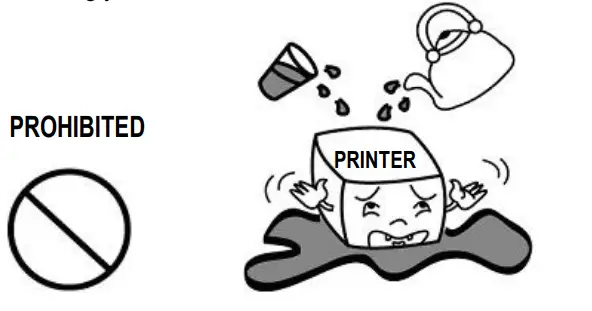
 Do not let water or other foreign objects in the printer.
- If this happened, switch off and unplug the printer before calling your dealer.
 Keep the desiccant out of children’s reach.
- If not, they may eat it.
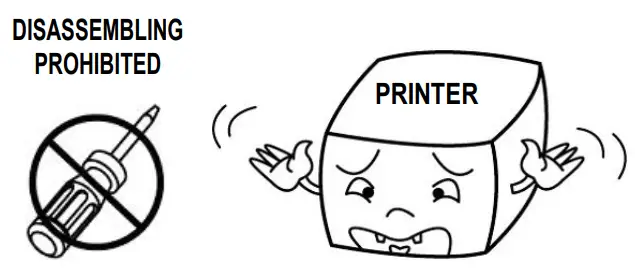
 Use only approved accessories and do not try to disassemble, repair or remodel it for yourself.
- Call your dealer when you need these services.
- Do not touch the blade of auto cutter.
 Do not use the printer when it is out of order. This can cause a fire or an electrocution.
- Switch off and unplug the printer before calling your dealer.
 Warning – U.S.A
i) Class A Digital Device : Wired Device This equipment has been tested and found to comply with the limits for a Class A digital device pursuant to Part 15 of the FCC Rules. These limits are designed to provide reasonable protection against harmful interference when the equipment is operated in a commercial environment. This equipment generates uses, and can radiate radio frequency energy and, if not installed and used in accordance with the instruction manual, may cause harmful interference to radio communications. Operation of this equipment in a residential area is likely to cause harmful interference in which case the user will be required to correct the interference at his own expense.
ii) Class B Digital Device : Wireless Device
This equipment has been tested and found to comply with the limits for a Class B digital device, pursuant to part 15 of the FCC Rules. These limits are designed to provide reasonable protection against harmful interference in a residential installation This equipment generates, uses and can radiate radio frequency energy and, if not installed and used in accordance with the instructions, may cause harmful interference to radio communications, However, there is no guarantee that interference will not occur in a particular installation. If this equipment does cause harmful interference to radio or television reception, which can be determined by turning the equipment off and on, the user is encouraged to try to correct the interference by one or more of the following measures:
- Reorient or relocate the receiving antenna.
- Increase the separation between the equipment and receiver.
- Connect the equipment into an outlet on a circuit different from that to which the receiver is connected.
- Consult the dealer or an experienced radio/TV technician for help.
iii) Changes or modifications not expressly approved by the manufacturer could void the user’s authority to operate the equipment.
iv) Caution: Exposure to Radio Frequency Radiation.
To comply with FCC RF exposure compliance requirements, a separation distance of at least 20 cm must be maintained between the antenna of this device and all persons.
Notice – Canada
i) Class A Digital Device : Wired Device
This Apparatus complies with class “A” limits for radio interference as specified in the Canadian department of communications radio interference regulations.
ii) Class B Digital Device : Wireless Device
This Apparatus complies with class “B” limits for radio interference as specified in the Canadian department of communications radio interference regulations.
Caution
Some semiconductor devices are easily damaged by static electricity. You should turn the printer “OFF”, before you connect or remove the cables on the rear side, in order to guard the printer against the static electricity. If the printer is damaged by the static electricity, you should turn the printer “OFF”.
Waste Electrical and Electric Equipment (WEEE) This marking shown on the product or its literature, indicates that is should not be disposed with other household wastes at the end of its working life, To prevent possible harm to the environment or human health from uncontrolled waste disposal, please separate this from other types of wastes and recycle it responsibly to promote the sustainable reuse of material resources. Household users should contact either the retailer where they purchased this product, or their local government office, for details of where and how they can take this item for environmentally safe recycling. Business users should contact their supplier and check the terms and conditions of the purchase contract. This product should not be mixed with other commercial wastes for disposal.
Rating Label Symbol Information DC (Direct current)
Notice
This device complies with Part 15 of the FCC Rules. Operation is subject to the following two conditions:
- This device may not cause harmful interference, and
- This device must accept any interference received, including interference that may cause undesired operation.
This device does not support Adaptivity of the CE Rules.
Notice – EU
This wireless device is class A that is considered to be used in an industrial environment.
Label Material
- Control Label: PC
- Other Labels: PET
Introduction to Product
BGT-100P/102P have been designed to be connected to various types of electronic devices such as ECR (Electronic Cash Register), POS (Point Of Sales), and computer peripheral devices.
Major features of the printer are as follows.
- Print at a max. speed of 300mm/s(180 dpi)
- Low noise thermal printing
- Support of USB, Ethernet, Bluetooth, WLAN(Dongle Type)
- Built-in data buffer (data can be received and buffered while printing)
- Control of external devices like cash registers through peripheral device drive circuit
- Barcode
- Support of various print density settings (by changing DIP switch settings)
It is advisable to read the contents of this manual carefully before using the printer for the first time.
※ Use only authorized supplies that can be trusted!
- We are not responsible for quality and service for damage caused by the use of unauthorized products (or recycled ones).
- The following Bluetooth mark and QD ID B021701 is only applicable to models with the Bluetooth SIG qualification.
 We at Bidoon Co., Ltd. constantly strive to improve product functions and quality. To do this, the specifications of our product and the contents of the manual may change without prior notice.
Installing Printer and Getting Started
1-1 Unpacking
Check the following contents list and contact your dealer for assistance if any item is missing or incorrect.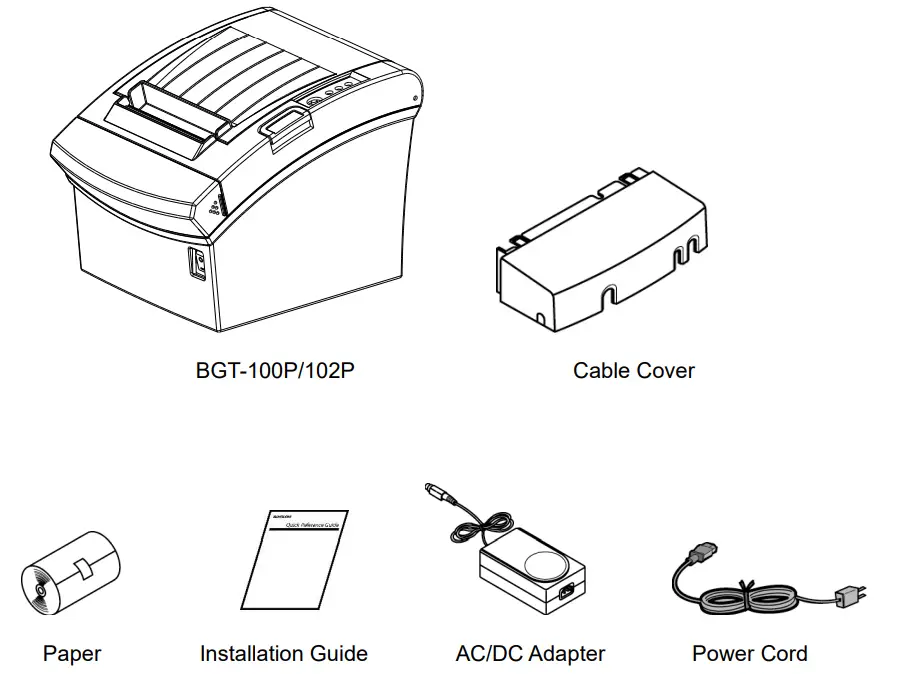 1-2 Interface
Connect the printer to the host computer using the right interface cable that complies with the specifications of the interface. The drawer to be used with the printer should meet the specifications of the printer.
※ CAUTIONS
Before connecting any cables, make sure that both the printer and the host are turned off.
1-2-1 USB Interface(Host Function USB A type connector)
USB Interface can connect to the peripheral devices. (ie. the barcode reader, customer display and WLAN Dongle that is supported by the printer.)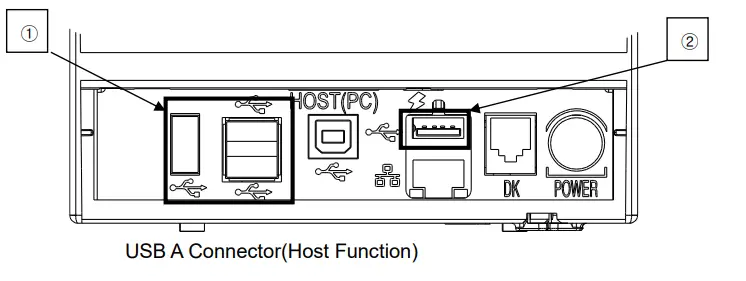
| Pint No. | Signal Name | Designation (Color) | Designation (Color) |
| Shell | Shield | Drain Cable | Drain Cable |
| 1 | VBUS | RED | RED |
| 2 | D- | WHITE | WHITE |
| 3 | D+ | GREEN | GREEN |
| 4 | GND | BLACK | BLACK |
- Do not connect the USB A-A type cable with the Printer and HOST(ex. PC)
- ② USB A-type connector and “HOST (PC)” USB B-type connector cannot be used at the same time. Make sure you use only one of them
- ② USB A type connector can support the charging function and normal USB communication function.
(When using Highspeed Charging function, please set to ON DIP switch pin 5. Normal USB communication is not supported in Highspeed Charging)
1-2-2 USB Interface(Device Function USB B type connector) USB Interface can connect to the Host System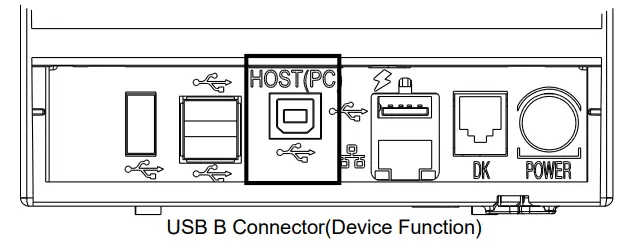
| Pint No. | Signal Name | Designation (Color) | Designation (Color) |
| Shell | Shield | Drain Cable | Drain Cable |
| 1 | VBUS | RED | RED |
| 2 | D- | WHITE | WHITE |
| 3 | D+ | GREEN | GREEN |
| 4 | GND | BLACK | BLACK |
1-2-3 Ethernet and Bluetooth Interface
Use the function key, you can check Ethernet, wireless LAN, Bluetooth information. For more information, please refer to the network documentation in Bixolon homepage.
Ethernet Interface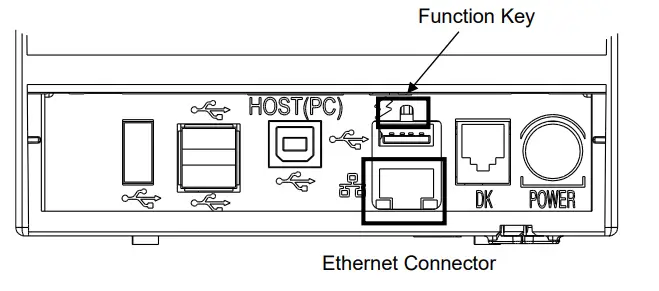
| Pint No. | Signal Name | Color | Function |
| 1 | TD+ | WHITE ORANGE | Transmit + |
| 2 | TD- | ORANGE | Transmit – |
| 3 | RD+ | WHITE GREEN | Receive + |
| 4 | NC | BLUE | Reserved |
| 5 | NC | WHITE BLUE | Reserved |
| 6 | RD- | GREEN | Receive – |
| 7 | NC | WHITE BROWN | Reserved |
| 8 | NC | BROWN | Reserved |
| Item | Specifications |
| Frequency | 2.402 ~ 2.480 GHz |
| Version | 2.1 + EDR |
| Module Type | Class 1 |
- Bluetooth Connection
Printer can be connected to terminal devices with Bluetooth communication capability (PDA, PC, smartphone, tablet PC, etc.) - Refer to the Bluetooth Connection Manual for more detailed instructions about how to establish the connection.
1-3 Drawer Cable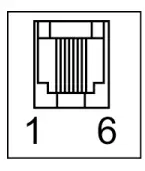 Connect the cash drawer connecting cable to the cash drawer connector located in the back of the printer.
※ WARNING
Use a cash drawer that meets the printer specifications.
Using an improper cash drawer may cause faults in the cash drawer and the printer.
※ CAUTIONS
Do not connect a telephone line to the drawer kick-out connector. Otherwise, the telephone line and the computer may be damaged.
| Pin No. | Signal Name | Direction |
| 1 | Frame Ground | – |
| 2 | Drawer Kick-out Drive Signal 1 | Output |
| 3 | Drawer Open/Close Signal | Input |
| 4 | +24VDC | – |
| 5 | Drawer Kick-out Drive Signal 2 | Output |
| 6 | Signal Ground | – |
1-4 Setting Dip Switches
| Switch (SW1) Function | ON | OFF | Default | |
| 1-1 None | OFF | |||
| 1-2 None | OFF | |||
| 1-3 | Print Density | Refer to the following table *1) | OFF | |
| 1-4 | OFF OFF | |||
| 1-5 Charging Mode | Highspeed Normal Charging Charging | |||
| 1-6 None | OFF | |||
| 1-7 Emergency Download | Deactivated Activated | ON | ||
| 1-8 None | OFF | |||
*1) Print Density(DIP Switch) *2)
| Print Density | 3-Jan | 4-Jan | Default |
| Level 1 (Low) | OFF | OFF | Level 1 |
| Level 2 | OFF | ON | |
| Level 3 | ON | OFF | |
| Level 4 (High) | ON | ON |
※ Print density can be adjusted to 16 levels using the virtual memory switch.
Changing print density will affect the printing speed. Please refer to the following table for details.
Print Density(Virtual Memory Switch)
| Speed | Print Density | Print Density (DIP Switch) | |||
| Low High | |||||
| 4 (High) | 1 | 2 | 3 | 41 | Level 1 |
| 3 | 5 | 6 | 7 | 81 | Level 2 |
| 2 | 9 | 10 | 11 | 121 | Level 3 |
| 1 (Low) | 12 | 13 | 14 | 161 | Level 4 |
The items indicated with “*” refers to the density when DIP Switch is set.
※ It is recommended to select Unified Utility or Self-Test mode to change print density using the virtual memory switch.
※ Attention
The printer must be turned off when changing the DIP switch settings. Failure to turn it off may cause a short circuit and damage the printer.
To change the settings:
- Turn off the printer.
- Open the DIP switch cover located at the back of the printer.
- Set the DIP switch number.
- Close the DIP switch cover after the settings have been completed.
- Position the printer in front and turn it on.
※ Note
Please make sure that the printer is turned off when changing the DIP switch settings. The change is not accepted when the power is on.
1-5 Installing & Replacing Paper
※ CAUTIONS
Only use paper that meets the specifications otherwise the printer cannot recognize that paper is not loaded.
1-5-1 Make sure that the printer is not receiving data; otherwise, data may be lost.
1-5-2 Open the paper roll cover by pressing the Cover-Open button.
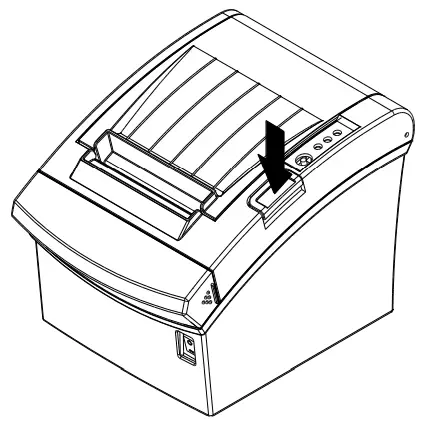 ※ CAUTIONS
Do not open the print cover while the printer is operating, otherwise the printer may be damaged.
1-5-3 Remove any existing used paper roll core when replacing the paper roll
1-5-4 Insert the paper roll as shown in the following picture.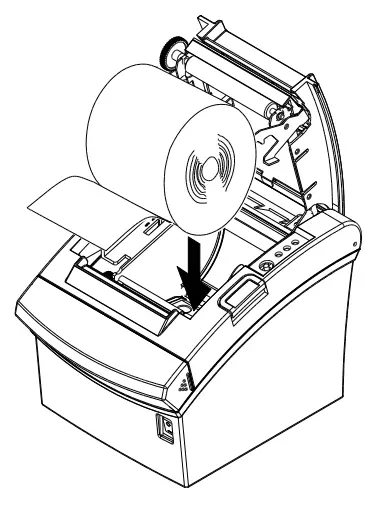 1-5-5 Check the orientation of the roll paper when inserting it into the printer.
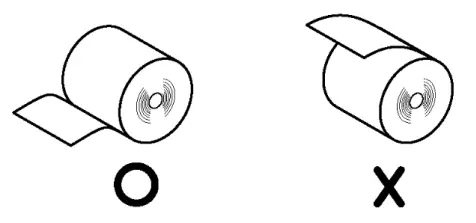 1-5-6 Pull out a small amount of paper as shown in the picture, and close the cover.
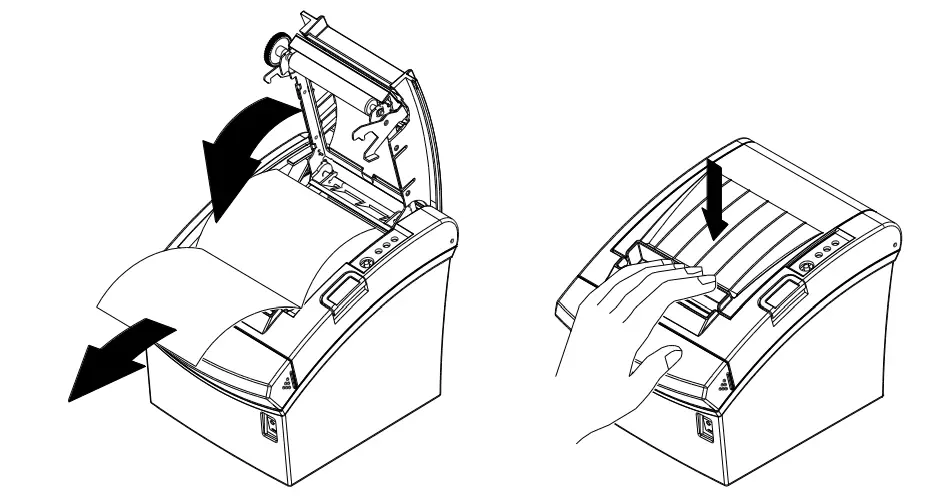 ※ CAUTIONS
When closing the cover, hold down the center of printer cover firmly so that paper roll is loaded correctly.
1-5-7 Cut the paper as shown in the following picture.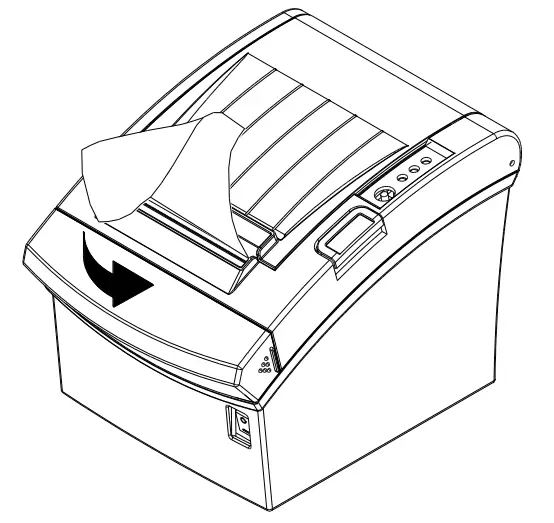 1-6 Recommended Papers
- TF50KS-E (Paper Thickness: 65μm): Nippon Paper Industries Co., Ltd.
- PD 150R (Paper Thickness: 75μm): New Oji Paper Mfg. Co., Ltd.
- PD 160R (Paper Thickness: 75μm): New Oji Paper Mfg. Co., Ltd.
- P350 (Paper Thickness: 62μm): Kanski Specialty Paper, Inc. (USA)
- P220AG (Paper Thickness: 65μm): Mitsubishi Paper Mills Limited
- P220A (Paper Thickness: 65μm): Mitsubishi Paper Mills Limited
- F5041 (Paper Thickness: 65μm): Mitsubishi HitecPaper Flensburg Gumby
- P5047 (Paper Thickness: 60μm): Mitsubishi Paper Mills Limited
※ CAUTIONS
Use of papers other than those recommended above may damage TPH or degrade the printing quality and our company is not responsible for the damage caused by non- recommended papers. If you have to use other products, we recommend that you use papers with a similar level of quality to the recommended ones.
1-7 Structure of 2 inches specification.
※ NOTE
This setting can be changed from VMSM Utility.
※ CAUTIONS
The changes for 2 inches specification should be applied to the following components as well.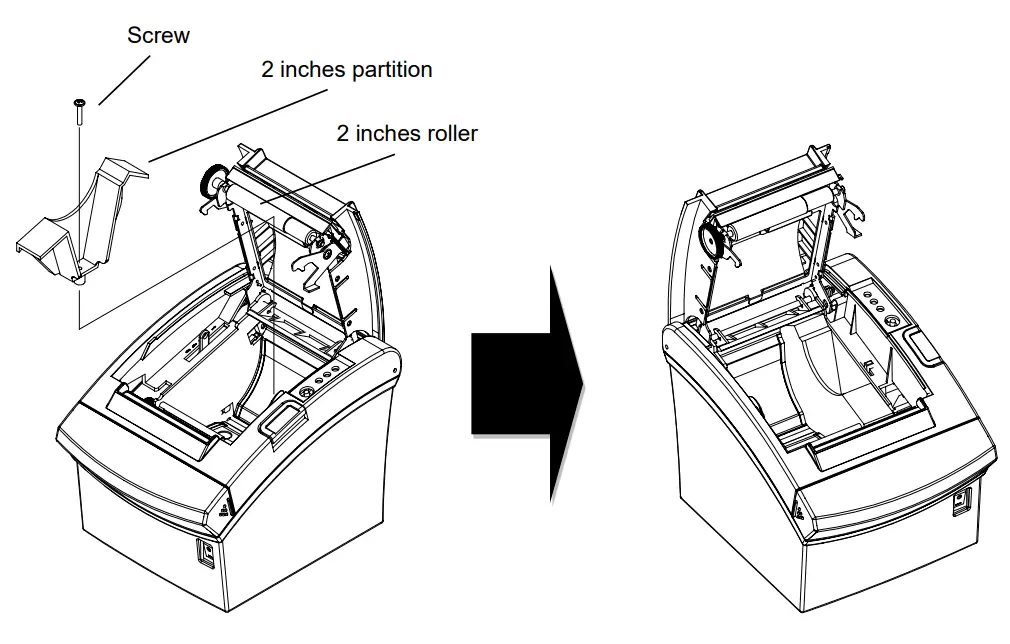 1-8 Removing Paper Jam
1-8-1 When a paper jam occurs, turn the printer OFF and then back ON, open the cover, and remove the jammed paper.
※ In case of a minor jam, it may be possible that the operating blade returns to the original position and cover can be opened simply by turning the printer OFF and then back ON.
Follow the steps shown below if the cover does not open after power cycling.
1-8-2 Turn the printer OFF.
1-8-3 Separate the cover-cutter while pressing down both sides as shown in the following picture.
1-8-4 Turn the knob and insert the blade that sticks out using a cross-head screwdriver as shown below.
1-8-5 Press the Cover-Open button, open the cover, remove the jammed paper, and assemble the separated COVER-CUTTER.
1-8-6 Turn the printer ON and use it.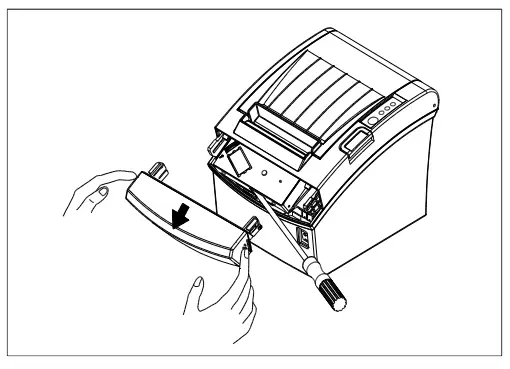 1-9 Using Printer Functions
Control Panel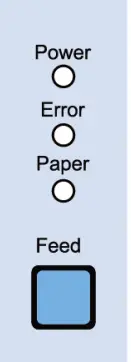
- POWER
Green light will be on when the power is supplied to printer after 10 seconds. - ERROR
Red light will be on in various error conditions (e.g. no paper, cover open, etc.) - PAPER
Red LED will be lit when the paper roll is running low. The LED keeps blinking when the printer is in self-test standby mode or macro execution standby mode. - FEED
Press the FEED button once to feed out extra paper. Hold down the FEED button to feed the paper continuously until the button is released…
※ NOTE
When the printer is powered on, the Error indicator blinks in conjunction with the Paper indicator during the initialization process.
1-10 Connecting a Computer
Use the cable that comes with the printer to connect the printer to computers.
1-10-1 Plug the cable connector securely into the printer’s interface connector located in the back of the printer.
1-11 Connecting Power Supply
※ CAUTIONS
When connecting or disconnecting the power supply to and from the printer, make sure that the power supply adapter is unplugged from the electrical outlet. Otherwise you may damage the power supply or the printer.
If the power supply’s rated voltage and your outlet’s voltage do not match, do not plug in the power cord and contact your dealer for assistance. Otherwise, you may damage the power supply or the printer.
1-11-1 Make sure that the printer’s power switch is turned off, and the power supply’s power cord is unplugged from the electrical outlet.
1-11-2 Check the label on the power supply to make sure that the voltage required by the power supply matches that of your electrical outlet.
1-11-3 Plug in the power supply’s cable as shown below. Notice that the flat side of the plug faces down.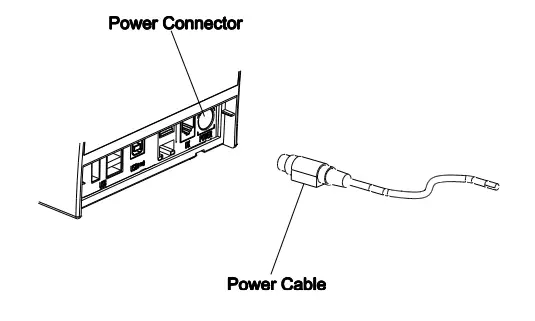 ※ NOTE
If you want to remove the power cord, grab the arrow part of the connector securely and pull it straight out.
Self-Test
The self-test checks whether the printer has any problems. If the printer does not function properly, contact your dealer. The self-test procedure is as follows:
2-1 Make sure paper roll has been installed properly.
2-2 Turn on the power while holding down the FEED button and the self-test begins.
2-3 The self-test prints the current status of the printer including control ROM version and the DIP switch settings.
2-4 After printing the current printer status, the printer wait for the next step after printing the following lines. (The paper signal light keeps blinking.)
SELF-TEST PRINTING. PLEASE PRESS THE FEED BUTTON.
Continuous SELF-TEST : Less than 1 second VMSM Selection : 1 second or more
2-5 Press the FEED button to resume printing or hold down the FEED button for 1 second to set the virtual switch.
2-5-1 Self-Test
2-5-1-1 If you press the FEED button for less than 1 second, the printer will print in the preset character type.
2-5-1-2 The self-test completes automatically and cuts the paper after printing the following line.
*** COMPLETED ***
2-5-1-3 The printer goes into standby mode when the self-test is complete.
2-5-2 Virtual Switch Setting Mode
2-5-2-1 When the printer goes into virtual switch-setting mode, the following lines will be printed:
** VMSM Selection **
0: Exit and reboot printer
- Print current settings
- Set Print Density
- Set Print Speed
- Set Cutting mode
- Set External Buzzer after cutting
- Set Internal Buzzer after cutting
- or more: None
2-5-2-2 Make sure to press the FEED button to perform the above functions.
2-5-2-2-1 Step 1: Press the button to make a selection.
2-5-2-2-2 Step 2: Hold down the button for at least 1 second to apply the selection. If no selection is made in Step 1, the mode setting will be canceled.
2-5-3 After making changes, make sure to hold down the FEED button for at least 1 second to save the changes. The paper will be cut after printing the following line:
(“0: Exit and reboot printer” must be executed to save the settings on the printer.)
*** COMPLETED ***
2-6 The settings will take effect after the printer reboots.
Hexadecimal Dumping
This function allows experienced users to see exactly what data is coming to the printer.
This can be useful in finding software problems. When you turn on the hexadecimal dump function, the printer prints all commands and data in hexadecimal format along with a guide section to help you find specific commands. To use the hexadecimal dump function, follow these steps.
3-1 After making sure that the printer is off, open the cover.
3-2 Turn the printer on, while holding down the FEED button.
3-3 Close the cover, and then the printer enters the hexadecimal dump mode.
3-4 Select the hexadecimal printing function in the mode selection menu to move to the hexadecimal printing mode.
3-5 Run any software program that sends data to the printer.
The printer will print all the codes it receives in a two-column format. The first column contains the hexadecimal codes and the second column gives the ASCII characters that correspond to the codes.
| 1B 21 00 1B 26 02 40 40 40 40 | . ! . . & . @ @ @ @ |
| 02 0D 1B 44 0A 14 1E 28 28 28 | . . . D . . . . ( ( ( |
| 00 01 0A 41 0D 42 0A 43 43 43 | . . . A . B . C C C |
- A period (.) is printed for each code that has no ASCII equivalent.
- During the hex dump, all commands are disabled.
3-6 When the printing finishes, turn off the printer.
3-7 Turn on the printer and then the hexadecimal mode is off.
Specifications
| Printing Method | mPOS Thermal transfer printing | |||
| Dot Density | BGT-100P: 180 dpi (7 dots/mm) | |||
| BGT-102P: 203 dpi 8 dots/mm) | ||||
| Printing Width | 3 inches 72 mm | |||
| 2 inches | 48 mm | |||
| Roll Width | 3 inches | 79.5±0.5 mm | ||
| 2 inches | 57.5±0.5 mm | |||
| No. of Characters per Line (Default Value) | BGT-100P: 42 (Fon A), 56 (Font B), 56 (Font C) BGT-102P: 48 (Fon A), 64 (Font B), 64 (Font C) | |||
| Printing Speed | BGT-100P: Max. 300 mm/sec | |||
| BGT-102P: Max. 270 mm/sec | ||||
| Receiving Buffer Size | 4K bytes | |||
| NOTE Printing speed may become slightly slower depending on the data transmission speed and the combination of commands. | ||||
| Supply Voltage | SMPS Input Voltage | 100-240 VAC | ||
| Frequency | 50/60 Hz | |||
| SMPS Output Voltage | 24 VDC | |||
| Environment Condition | Temperature | Operating: 0 — 40 t Storage: -20 — 60 t | ||
| Humidity | Operating: 10 — 80 % RH Storage: 10 — 90 `)/0 RH Paper excluded | |||
| Life Span MCBF | Printer Head *) | 150 Km | ||
| Auto Cutter | 1,800,000 cuts | |||
| Printer Mechanism *) | 70,000,000 lines | |||
- The specifications were determined based on operation at normal temperature using designated paper on default settings. They are subject to change depending on
temperature or printing level. - The specifications were tested according to standard reliability. If you want to test the product to determine its life cycle, please contact us for more details and comply with the standard reliability for testing.
Appendix
5-1 Cleaning Printer
Paper dust inside the printer may lower the print quality. In this case clean the printer as follows:
5-1-1 Open the printer cover and remove any paper.
5-1-2 Clean the print head with a cotton swab moistened with alcohol solvent.
5-1-3 Clean the paper sensor and paper roller with a cotton swab and a dry cloth.
5-1-4 Insert a paper roll and close the printer cover.
The remaining amount of paper detected by paper near-end sensor varies with the diameter of the paper core. To set the paper near-end sensor, contact your dealer.