
Xiamen CB821 Thermal Printer
1 Introduction
Brief introduction
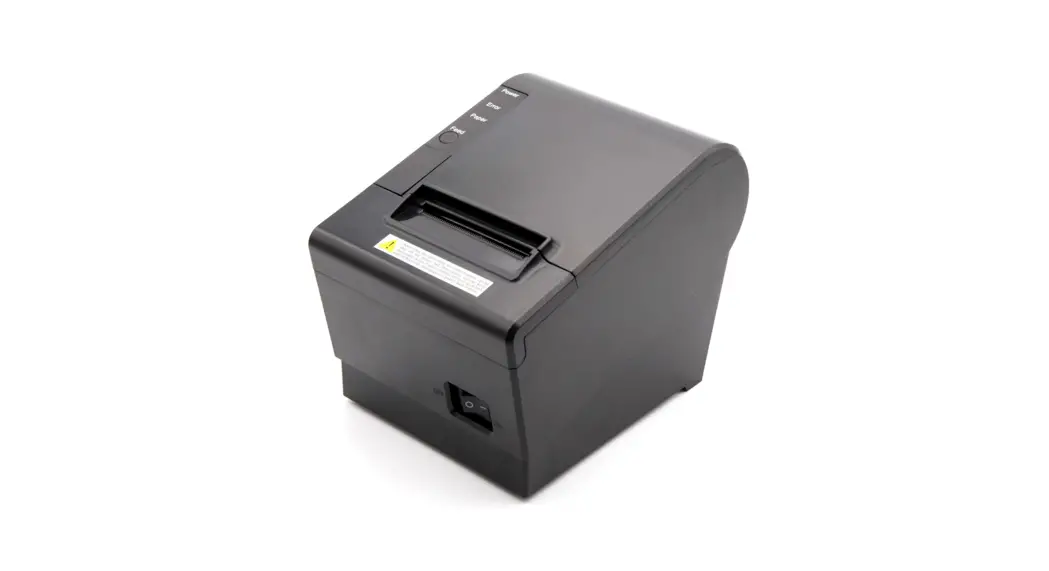
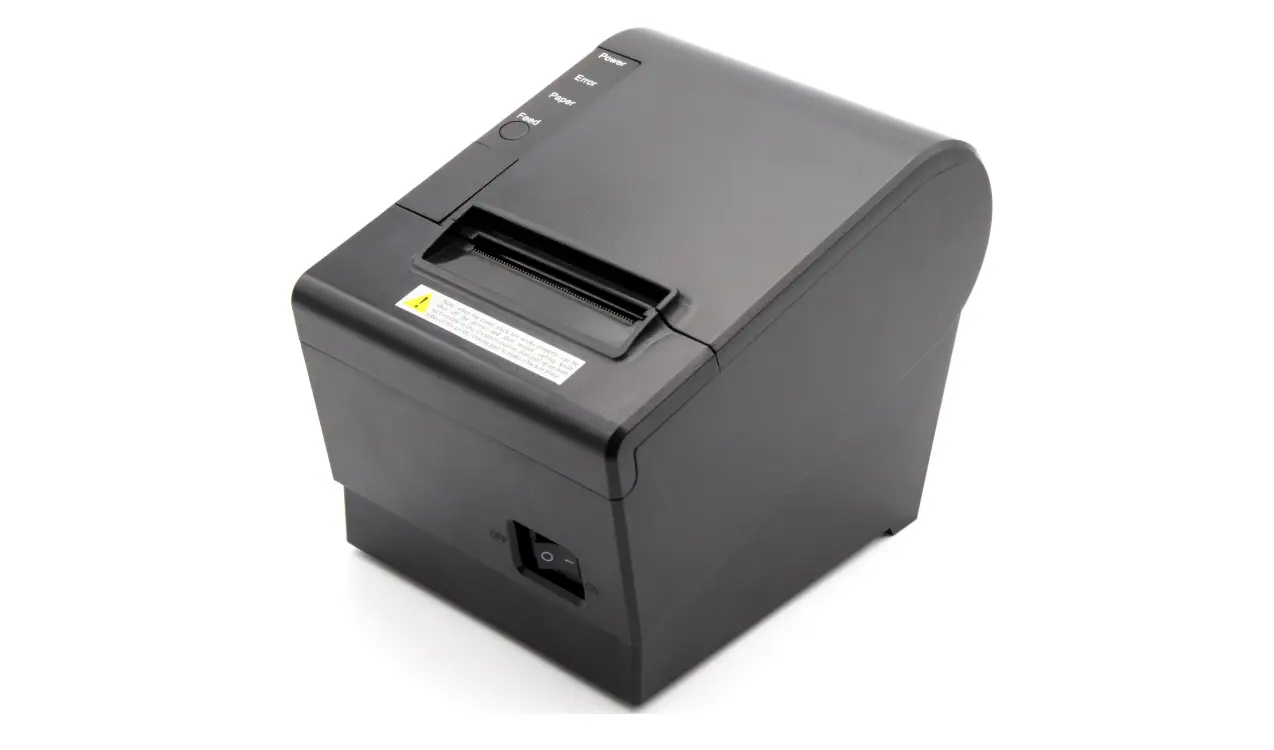
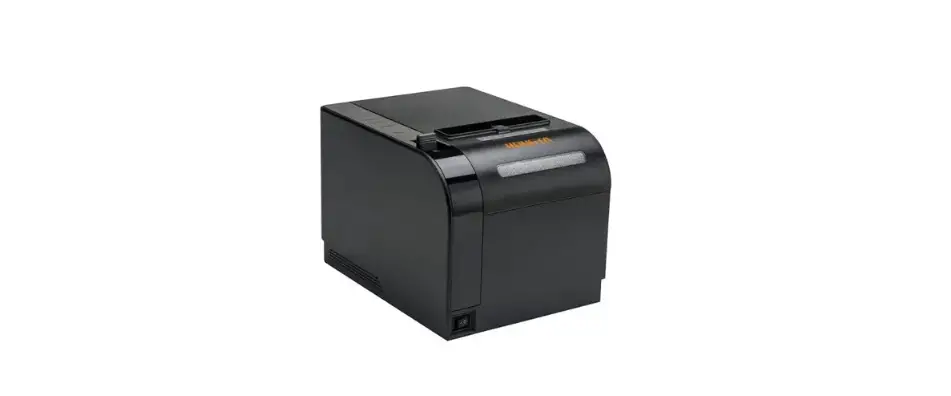
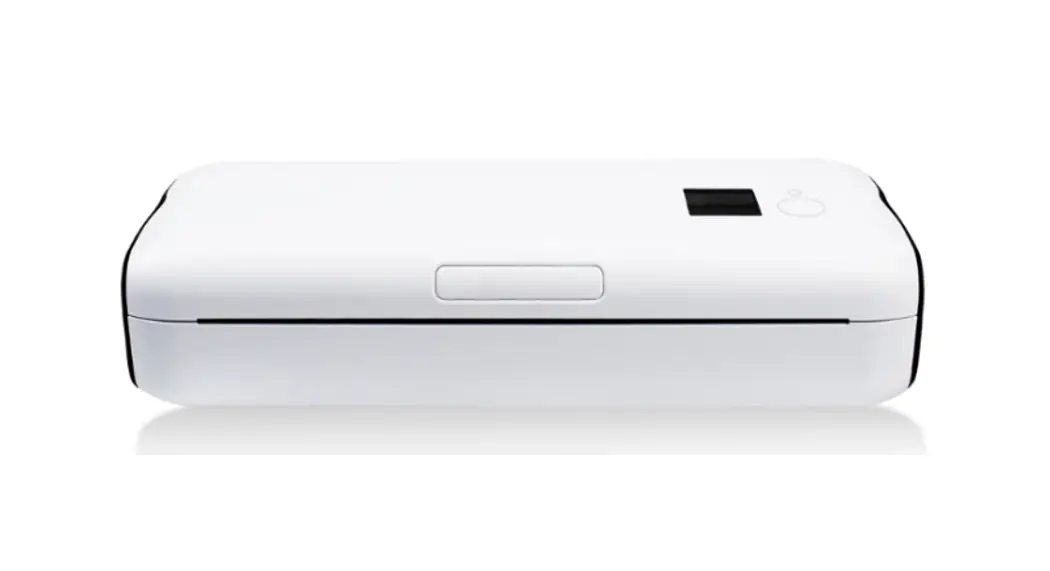
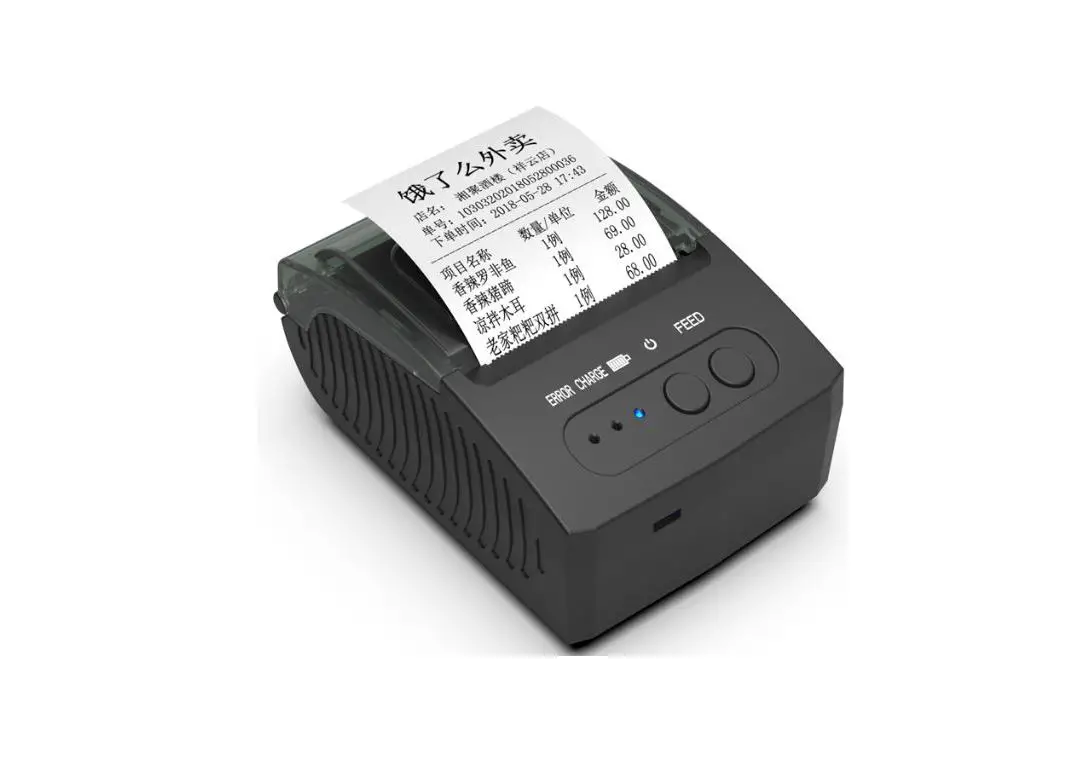
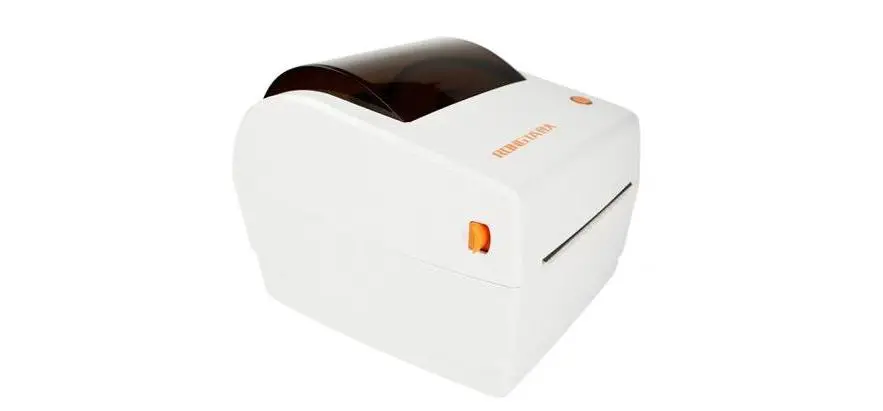
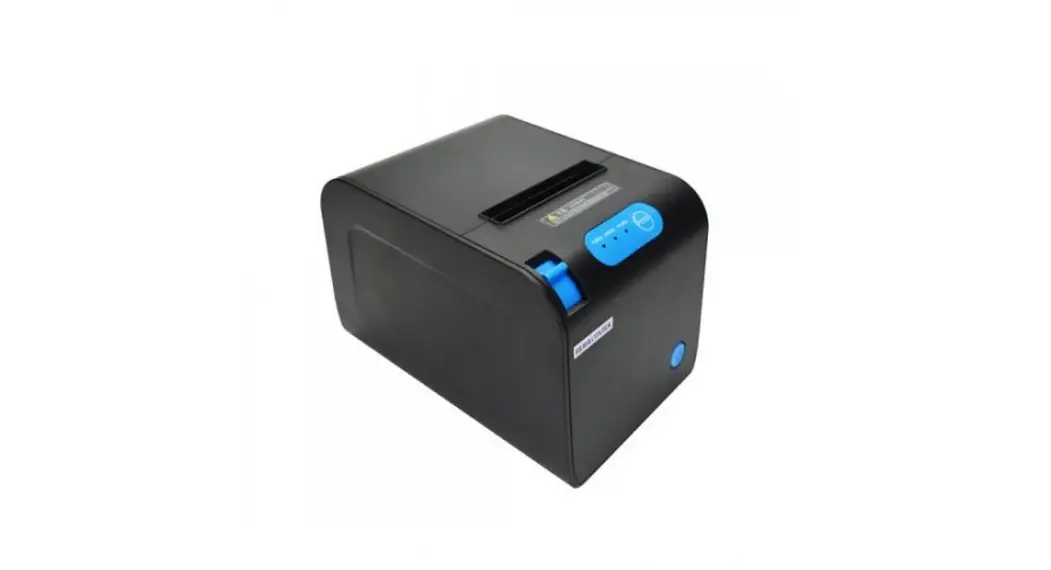
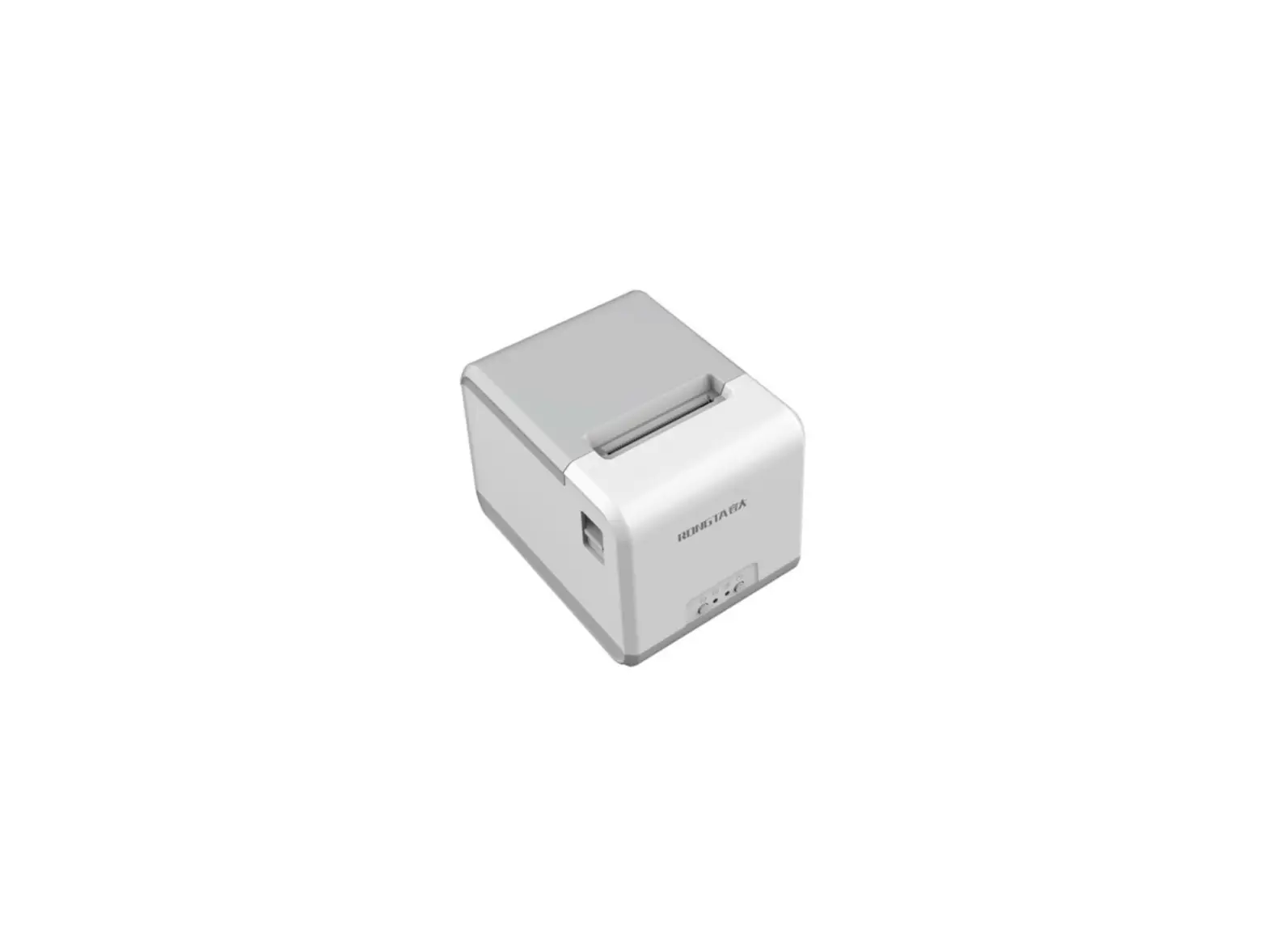
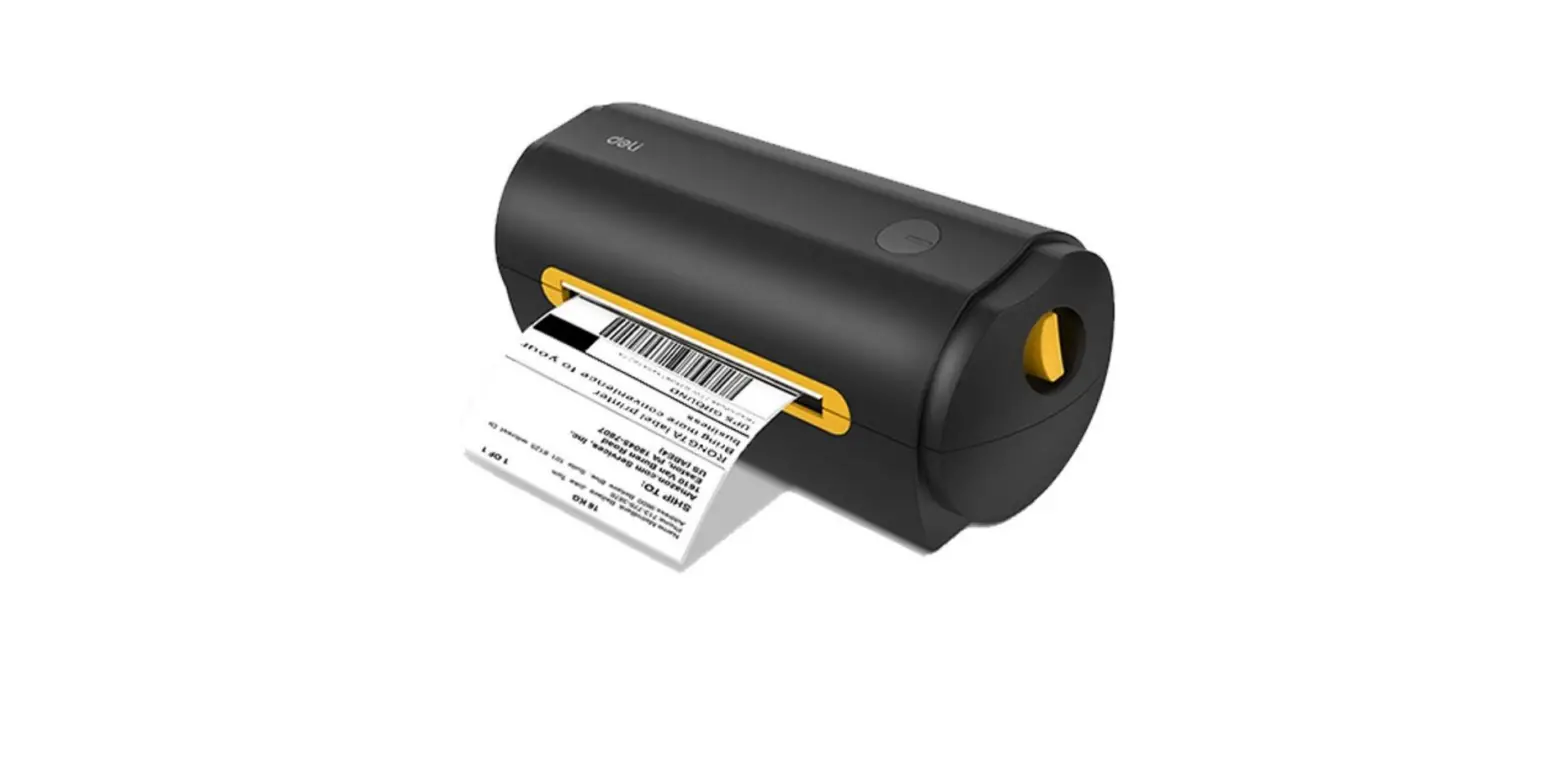
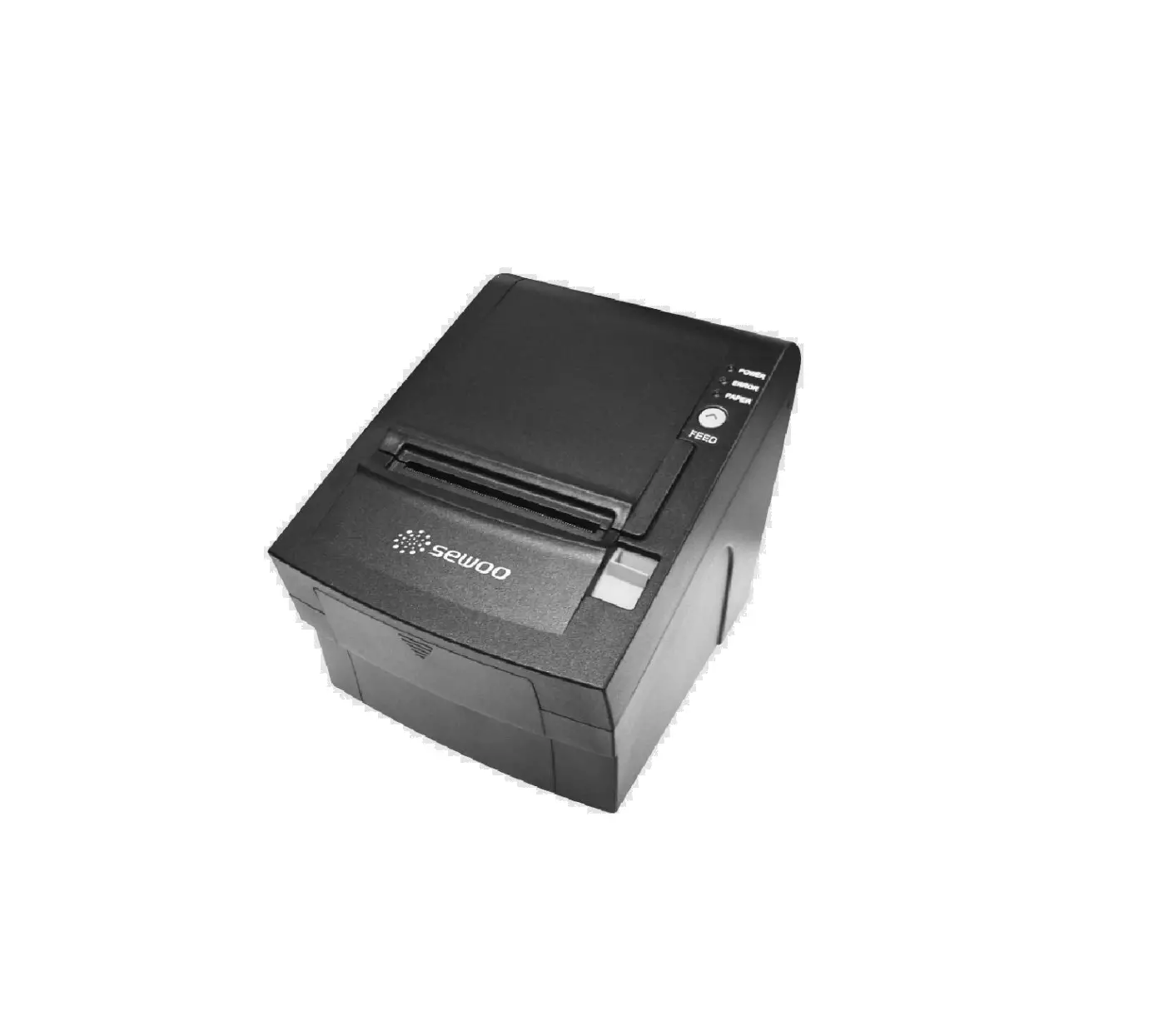
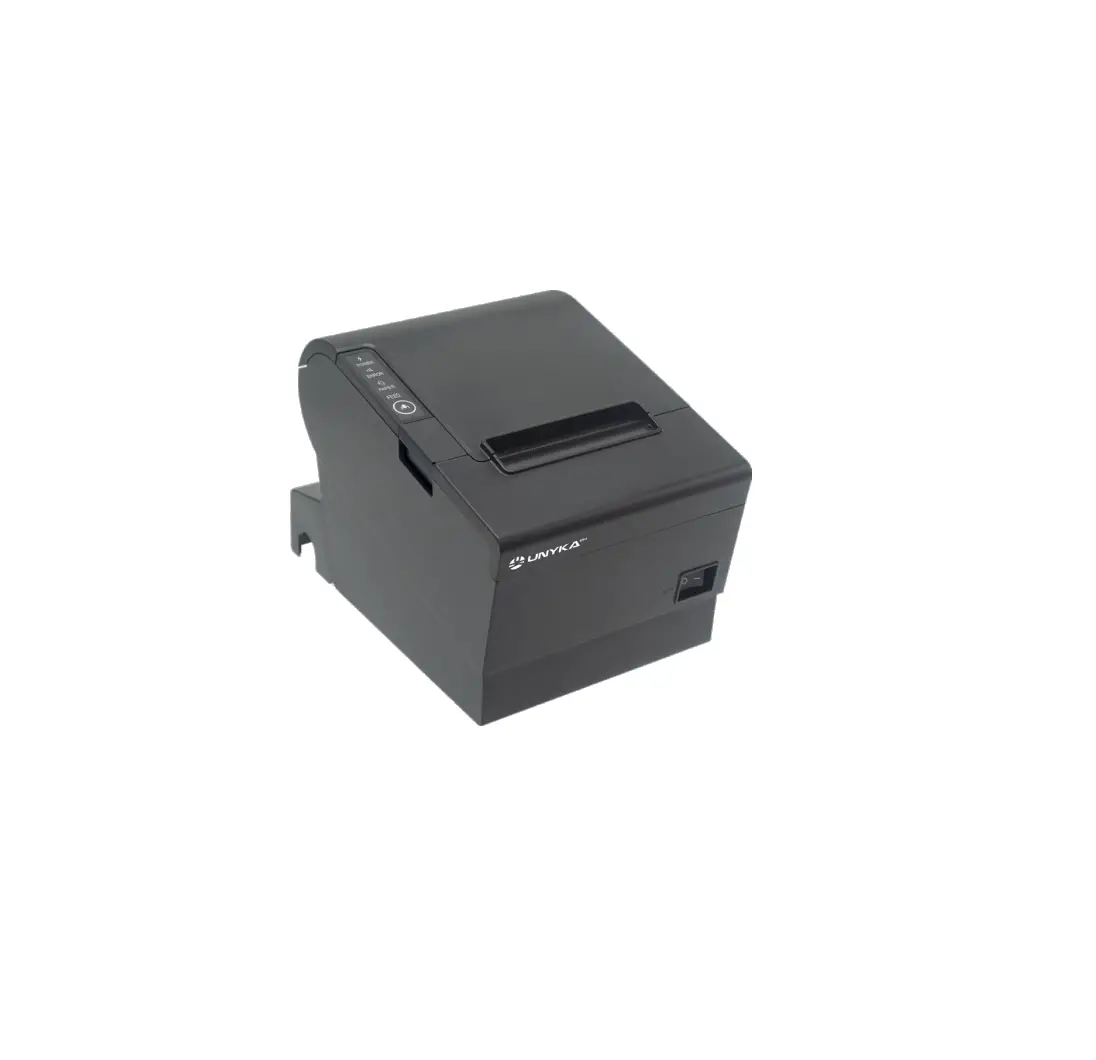
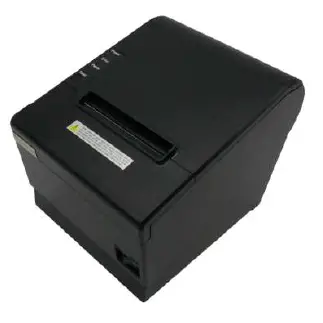
CB821 is a thermal POS printer with auto-cutter. It has good printing quality, high printing speed and high stability, which is widely used in POS system, food service industry and many other fields.
CB821 connects other devices via USB, Serial, Ethernet port. It offers drivers for WINDOWS and LINUX operating systems. The supported operating systems are as below:
- WINDOWS XP
- WINDOWS 7 32/64
- WINDOWS 8
- WINDOWS 10
- UBUNTU 12.04 32/64
- UBUNTU 14.04 32/64
- MAC OS
Main features
- Low noise, high-speed printing, 250mm/s
- With auto-cutter
- With cash drawer interface
- USB, Serial, Ethernet port communication, Bluetooth optional .Long-life, high print quality, durable performance
- Support mark paper and continuous paper printing
- Easy paper loading design, widely used in various industries
Specification
Specification
| Item | Parameter | |
|
Printing parameter | Printing method | Thermal printing |
| Resolution | 203DPI,8 dots/mm | |
| Printing width | 72mm(576 dots) | |
| Printing speed | About 250 mm/s | |
| Interfaces | Standard: cash drawer / USB/ serial/ Ethernet Optional Wireless Communication: Bluetooth | |
| Page mode | / | Support |
| Command set | / | ESC/POS compatible commands |
| Storage | RAM | RAM 8M bytes, receive buffer area 1M bytes |
| FLASH | FLASH 4M bytes, NV bitmap 256K bytes | |
|
characters | Chinese | GB18030 24×24 |
| Words, figures | ASCII 9×17,12×24 | |
| User-defined | Support | |
|
Code pages | Optional international character sets 45 TRADITIONAL CHINESE CHINESE CP437 [U.S.A., Standard Europe] Katakana CP850 [Multilingual] CP860 [Portuguese] CP863 [Canadian-French] CP865 [Nordic] WCP1251 [Cyrillic] CP866 Cyrillic #2 MIK[Cyrillic /Bulgarian] CP755 [East Europe,Latvian 2] Iran CP862 [Hebrew] WCP1252 Latin I WCP1253 [Greek] CP852 [Latina 2] CP858 Multilingual Latin Ⅰ+Euro) Iran II Latvian CP864 [Arabic] ISO-8859-1 [West Europe] CP737 [Greek] WCP1257 [Baltic] Thai CP720[Arabic] | |
| CP855 CP857[Turkish] WCP1250[Central Europe] CP775 WCP1254[Turkish] WCP1255[Hebrew] WCP1256[Arabic] WCP1258[Vietnam] ISO-8859-2[Latin 2] ISO-8859-3[Latin 3] ISO-8859-4[Baltic] ISO-8859-5[Cyrillic] ISO-8859-6[Arabic] ISO-8859-7[Greek] ISO-8859-8[Hebrew] ISO-8859-9[Turkish] ISO-8859-15 [Latin 3] Thai2 CP856 | ||
|
Chart |
/ | Supports different density dots and images printings |
| Supports grating bitmap printing | ||
| Supports download bitmap printing, every bitmap size should less than 256K, and the total capacity of download bitmap is 256K. | ||
| Bar codes | 1D | UPC-A、UPC-E、EAN-8、EAN13、CODE39、ITF、CODEBAR、 CODE128、CODE93 |
| 2D | PDF417、QR Code | |
| Detection function | Sensor | Paper out, cover opened, un-take out printed paper(optional) |
| LED indicator | Power indicator | Green |
| Paper out indicator | Red | |
| Error indicator | Red | |
|
Paper Requirement | Type | Standard thermal receipt paper |
| Width | 79.5±0.5mm | |
| Thickness | 0.056~0.1mm | |
| Diameter | 80mm(Max.) | |
|
Physical characteristics | Paper loading | Easy paper loading |
| Paper cutting | Manual or automatically cut paper | |
| Operating condition | -10℃ ~ 50℃,25% ~ 80%RH | |
| Storage condition | ~40℃ ~ 70℃,≤93%RH(40℃) | |
| Outline dimension | 145mm×195mm×144mm(W×L×H) | |
| Weight | 1.8Kg | |
| Reliability | TPH life | 100km |
| Cutter life | 1,000,000 times | |
| Motor life | 360,000 hours | |
| Software function | Driver procedure | Windows(WIN7/WIN8/WIN10/Vista/XP/2000) Ubuntu 12.04 32/64, Ubuntu 14.04 32/64 MAC OS |
Printing material requirements
Paper parameters
- Paper type: thermal receipt paper/thermal black mark paper
- Paper width:80±0.5 mm
- Paper roll diameter: 80 mm (Max.)
- Paper thickness:0.065 ~ 0.10mm
Mark paper parameters
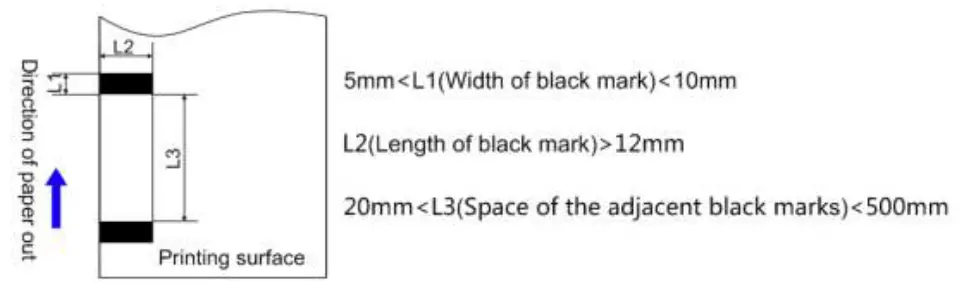
Black mark imprint position is on the front side of the receipt when using mark paper. The black mark reflectivity is no more than15%, the other parts of paper reflectivity should be more than 85%.There are not any patterns in black mark area, such as ad, and the mark size shall be satisfied with requirements as below:
Paper using attention
- Please use good quality paper, otherwise, it will effect printing quality and even reduce printer head life.
- Don’t make the paper stick on axis.
- Paper will be fading out or reduced thermal sensitivity if it is polluted by chemical or oil, which will affect printing effects.
- Don’t use nail or hard things to clash printing paper, otherwise, it will be fade out.
- Paper will be fading out if the environment temperature exceeds 70°C. So please take note the temperature, humidity and illumination effects.
Printing position
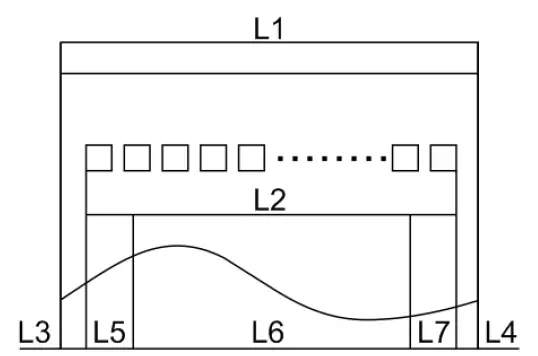
- L1-Paper storehouse’s width: 82±0.5mm
- L2-Effective printing width: 80mm
- L3-Distance between print head to paper storehouse’s left edge (fixed width): 3±0.3mm
- L4-Distance between print head to paper storehouse’s right edge (fixed width): 3±0.3mm
- L5-Left margin: Default is 4mm
- L6-Printing area width: it is set by commands (refer to programming manual). Default is 72mm.
- L7-Right margin: Default is 4mm.
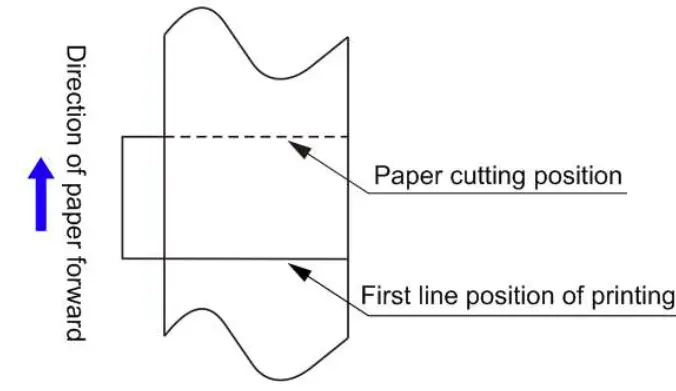
Paper cutting position
Appearance and components
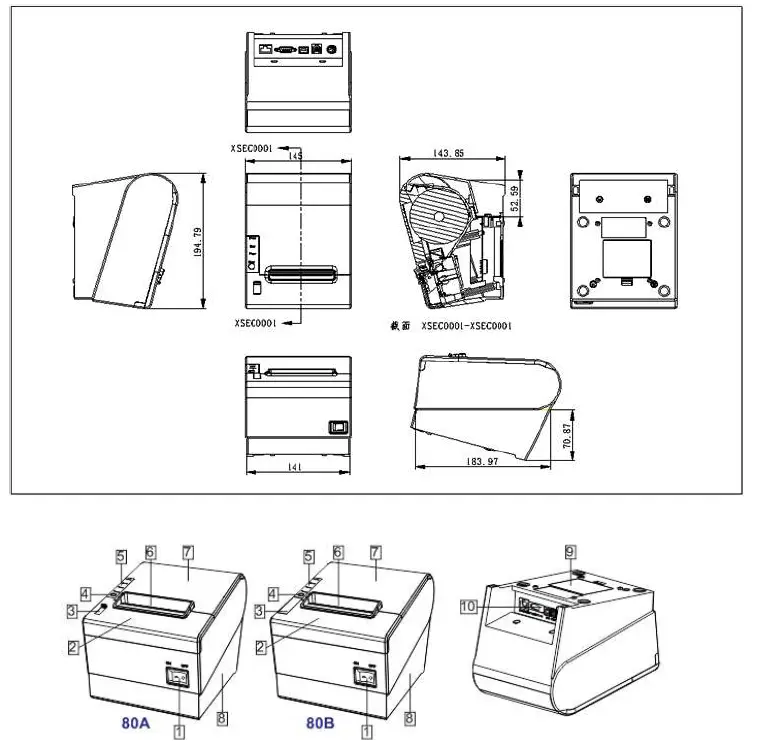
- Power switch
- Cover of Cutter
- Paper cover’s opening button
- Paper feeding button
- Indicators(Power/Error/Paper)
- Mouth of paper out
- Cover of paper warehouse
- Bottom of printer
- Cover of DIP switch
- Power & Communication ports
Function instruction of components
- Power switch
Press “O” side to power off, press “I” side to power on. - Power indicator(green)
The indicator is on when power on, and it is off when power off. - Error indicator (Red)
Error indicator is on when it detects error. Such as: paper out, upper cover is open and cutter is stocked. - Paper indicator(red)
Paper out indicator is on when it detects the paper is out. Please put a new paper roll to printer inside then.
Indicator and buzzer instruction
Function instruction of indicators and buzzer
| Name | Status | Instruction |
| Power indicator (Power) | On | Printer is power on |
| Off | Printer is power off | |
| Error indicator (Error) | On | Printer is in error status |
| Off | Printer is in normal status | |
| Paper out indicator (Paper) | On | Printer is in paper out status |
| Off | Printer is in normal status |
| Description | Power Indicator | Error Indicator | Paper Indicator | Buzzer |
| Open printer cover | On | On | On | It rings 6 times by 1.5s. |
| Paper is enough | On | Off | Off | Silent |
| Paper out | On | On | On | It rings 3 times by 1.5s. |
Note: Printer detects printer head temperature via thermal resistance. It will cut off print head power and stop printing if print head is overheat. The print head protection temperature is 80℃.
Printer installation
Open the package
Please make sure everything is in good status when you open the package. Otherwise, please contact to distributor in time.
Requirements of installation position
- Put the printer on a stably place.
- Let the printer far away from water, fire, and sunlight.
- Avoid to put it on oscillatory and impassive place.
- Make sure to connect printer with ground safety
Connect to power adapter
- Make sure the printer is power off.
- Connect power adapter’s DC output plug to the printer.
- Connect power adapter’s AC input plug to a power outlet.
- Please be careful to operate correctly when plug out the plug of power cord to avoid damage.
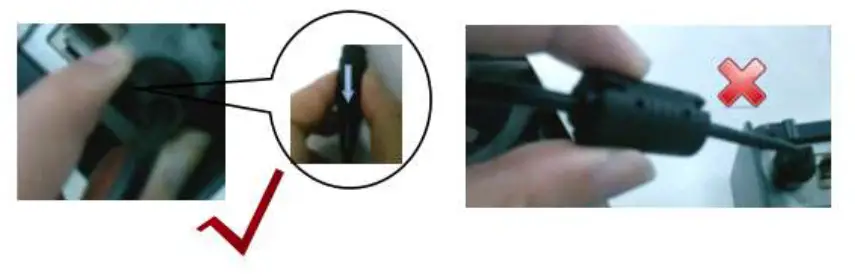
Connect Communication cables
- Make sure the printer is power off.
- Connect communication cable to the printer’s port, and fix it as plug lag spike (or snap spring).
- Connect communication cable to the other side host.
Connect to cash drawer
- Make sure the printer is power off.
- Connect cash drawer to cash drawer port behind the printer.
Warning: The Voltage of cash drawer port is 24V. (It cannot connect to telephone cable.)
Paper roll loading
Printing paper type confirmation
You can load paper roll to print after connecting power adapter and communication cables. Please make sure the printing paper type before printing. The default paper type is continuous thermal receipt paper.
Loading or change paper roll
- Power off the printer.
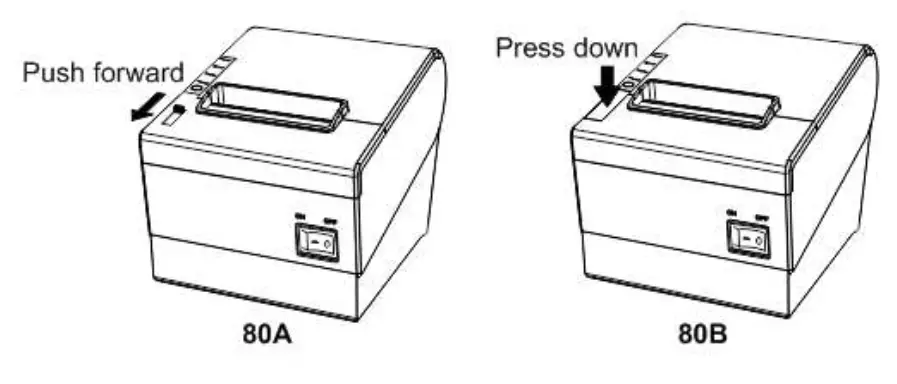
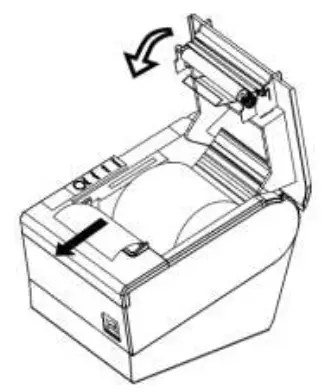
- Slide or press paper roll storehouse button, and then open storehouse cover.

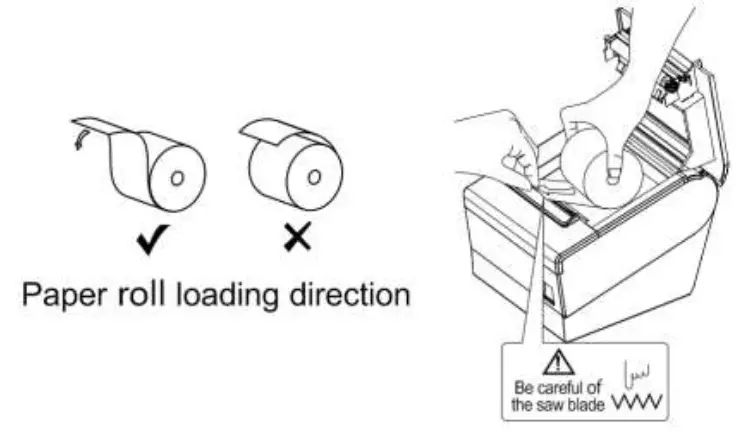
- Draw out paper roll tap, and load paper roll as below.

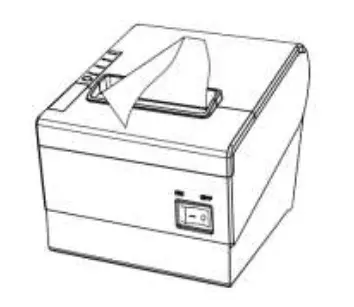
- Draw out a printing paper, and leave some on the paper out month, then close the storehouse cover.

- The status after paper loading

DIP switch setting
DIP switch
| Switch | Function | On | Off | Default |
| 1 | Cutter | Forbidden | Enable | Off |
| 2 | Buzzer | Enable | Forbidden | On |
| 3 | Printing density | Dark | Light | Off |
| 4 | Multi-byte encoding | Single-byte encoding | multi-byte encoding | Off |
| 5 | Max. number of Printing characters in each line | 42 | 48 | Off |
| 6 | Cash drawer | Enable | Forbidden | On |
| 7 | Baud rate options (bps) | Ref. Chart 1 | Off | |
| 8 | Off | |||
Chart 1:Baud rate options
| Baud rate | Switch 7 | Switch 8 | Default |
| 9600 | On | Off |
19200 |
| 19200 | Off | Off | |
| 38400 | On | On | |
| 115200 | Off | on |
Printing self-test page
- Make sure the printer loaded paper roll correctly.
- Press down [FEED] button and hold on, then power on the printer, the printer will print a self-test page.
Set Ethernet port IP Address.
The printer’s Ethernet IP address can be set directly via printer inserted web setting page. The operation steps are as below:
- Connect printer and PC in the same Ethernet LAN.
- Print a printer self-test page to get printer recent IP address (self-test page printing operation method refers to “4.8 printer self-test” instruction): You can find the printer’s IP address is same as 192.168.1.87 in the self-test page“IP address: 192.168.1.87”
- Set network card IP address in PC and printer IP address as different IP address in the same network segment.(Such as 192.168.1.xxx, xxx is a number among 1 to 254);
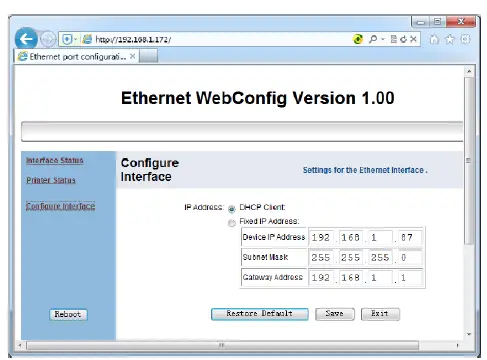
- Please enter the address “http://printer IPaddress” in browse of PC after making sure that printer connects with Ethernet.(e.g.: If printer IP address is “192.168.1.87”, please enter “http://192.168.1.87”), then press Enter key, and open the Ethernet port setting page in the browser as below:

- Click “Configure Interface” link in the left side, then enter the modified target IP and click “save” button to save setting. Click “Reboot” button to reset printer if you want the setting to take effect.
- Enter the new IP address as the above step 4 procedure, and re-open printer Ethernet port setting web page, then click “Printer Status” link in the left side. And click “Printer Test Page” button to print self-test page, and check the IP Address contents in the self-test page is right or not.
Interface pin definitions
The printer has a cash drawer driver interface and many kinds of communication interfaces: parallel, serial (RS-232), USB and Ethernet ports. USB port and cash drawer interfaces are standard interfaces, and it has Ethernet, serial and parallel ports as optional.
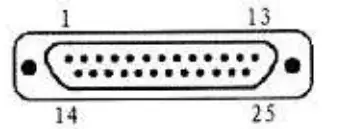
Parallel interface pin definition(DB25M)
| Number | Signal | Function | Number | Signal | Function |
| 1 | /STROBE | Gate. Low level is effective | 10 | /ACK | Confirm. Low level is effective |
| 2 | DATA0 | Data bit is 0 | 11 | BUSY | Busy |
| 3 | DATA1 | Data bit is 1 | 12 | PE | Paper out |
| 4 | DATA2 | Data bit is 2 | 13 | SEL | Choose |
| 5 | DATA3 | Data bit is 3 | 14 | /AUTOFEED | Change line automatically. Low level is effective |
| 6 | DATA4 | Data bit is 4 | 15 | /ERROR | Error. Low level is effective |
| 7 | DATA5 | Data bit is 5 | 16 | /INIT | Initialize. Low level is effective |
| 8 | DATA6 | Data bit is 6 | 17 | /SELIN | Choose input. Low level is effective |
| 9 | DATA7 | Data bit is 7 | 18-25 | GND | Ground wire |
USB interface pin definition(standard B type female base)
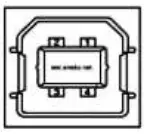
| Pin Number | Signal name | Typical wire color |
| 1 | VBUS | Red |
| 2 | D- | White |
| 3 | D+ | Green |
| 4 | GND | Black |
Power interface pin definition(MPC-3-001B)
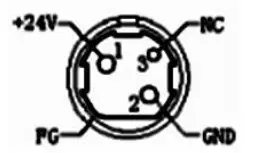
| Pin number | Signal name |
| 1 | +24V |
| 2 | GND |
| 3 | N.C |
| SHELL | F.G |
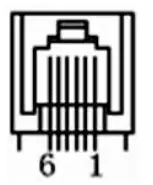
Cash drawer interface pin definition(RJ11-6P6C)
- Electrical specification
- Driver voltage: DC24V
- Driver current: Max. 0.8A (within 510ms)
- Cash drawer status tests signal: “L” = 0~0.5 V ; “H” = 3~5 V
- Cash drawer interface socket uses RJ-11 6P type connector;
- Interface signal definition
| Pin number | Signal | function |
| 1 | FG | Printer cover |
| 2 | DRAWER 1 | Cash drawer 1 driver signal |
| 3 | DRSW | Cash drawer status detection signal |
| 4 | VDR | Cash drawer driver power |
| 5 | DRAWER 2 | Cash drawer 2 driver signal |
| 6 | GND | Common ground circuit |
Notes:
- Prohibit socket with power to pull out communication wire plug.
- Please avoid to parallel with strong power when wring communication cables av
- Communication cables use with shielded cables.
Serial port pin definition(DB9F)
Printer serial port is compatible with RS-232, the interface socket is DB9 female socket. User can check interface setting status via printing setting self-test page. Printer default serial interface is set as: baud rate 19200bps, 8 bit data bits, no parity,1 bit stop bit, and the handshakes method is DTR/DSR。
| Pin number | Definition |
| 1 | CD |
| 2 | TD |
| 3 | RD |
| 4 | DSR |
| 5 | GND |
| 6 | DTR |
| 7 | CTS |
| 8 | RTS |
| 9 | RI |
| Pin number | Definition |
| 1 | TX+ |
| 2 | TX- |
| 3 | RX+ |
| 4 | n/c |
| 5 | n/c |
| 6 | RX- |
| 7 | n/c |
| 8 | n/c |
Faults handling
Please refer to the methods as below when printer can’t work normally. Please contact your supplier directly if it still can’t work normally.
Printer does not work
| Problems | Probably reasons | Solutions |
| The Power indicator is not light. Printer does not work | Printer is not power on. | Power on printer |
| Printer switch is not on. | Press down the “O” side of printer button | |
| PCB is damaged | Contact with agents or factory directly |
| Problems | Probably reasons | Solutions |
| Paper indicator is on constantly Buzzer warns | Paper maybe out | Load a new paper roll |
| Paper out indicator light is on constantly Error indicator is on constantly Buzzer warns | Paper roll warehouse cover maybe lit up | Close paper roll warehouse cover correctly |
| Error indicator is blinking Buzzer warns | Print head is overheated | Power off printer power, and wait that print head temperature returns normal. |
| Voltage is too high | Use assigned voltage to print | |
| Voltage is too low | Use assigned voltage to print |
| Problems | Probably reasons | Solutions |
| Color strips occur on the paper | Paper maybe out | Load a new paper roll. |
| Printing is not clear or have dirty spots | Paper roll loading incorrectly | Check paper roll loading correctly or not |
| Paper can’t meet the requirements | Use the recommended thermal paper | |
| Print head or printer rubber roller is dirty | Clean print head or printer rubber roller | |
| Printing density sets too light | Increase printing density to satisfy the requirements. | |
| Paper can output normally | Paper jam | Open upper cover or check paper feed channel to get to know paper jam. |
| Vertical printing contents get lost | Print head or printer rubber roller is dirty | Clean print head or printer rubber roller |
| Print head error | Contact supplier or factory directly |
| Problems | Probably reasons | Solutions |
| Cutter blocked or cutter does not returned back. | Cutter is worn or cannot cut paper completely | Change cutter |
| Turbine and worm are worn | Change turbine and worm | |
| Motor is burned-out | Change motor | |
| Too many paper scraps | Eliminate scraps between all the spare parts. | |
| Cutting paper is not so good. | Cutter month is worn or paper is too thick | Change cutter |
|
Paper jam | The head piece is overheated | Reduce driver head piece heating power |
| Driver moves too fast | Adjust the printing speed to allowable specification of TPH. | |
| Paper feeds position is not right | Put in the paper channel between rubber covered roller and TPH to Make paper parallel with it |
Paper jam and cutter retraction troubles removal
Please power off if it is paper jam, and eliminate paper jam in correct method.
- Press the paper cover and open it to eliminate paper jam. Then re-install paper roll to power on.
- Please use the method as below if step 1 cannot open paper cover:
Warning: Do not open the paper roll warehouse cover forcibly when you cannot open it normally if it is paper jam, which to avoid damaging the printer.
- Make sure the printer power is off.
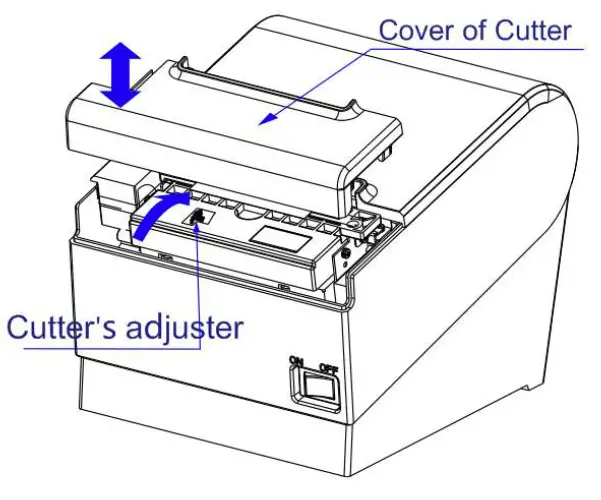
- Take off the cutter adjusting cover in vertical direction as photo.
- Adjust paper-cutter to make the cutter set back to print mechanism completely as photo direction
- Open paper cover and eliminate paper jam.
- Install cutter adjusting cover vertically down.
- Re-loading paper, close the paper cover and then power on.
 FCC Warning
 FCC Warning
Any Changes or modifications not expressly approved by the party responsible for compliance could void the user’s authority to operate the equipment. This device complies with part 15 of the FCC Rules. Operation is subject to the following two conditions: (1) This device may not cause harmful interference, and (2) this device must accept any interference received, including interference that may cause undesired operation.
Note: This equipment has been tested and found to comply with the limits for a Class B digital device, pursuant to part 15 of the FCC Rules. These limits are designed to provide reasonable protection against harmful interference in a residential installation. This equipment generates, uses and can radiate radio frequency energy and, if not installed and used in accordance with the instructions, may cause harmful interference to radio communications. However, there is no guarantee that interference will not occur in a particular installation. If this equipment does cause harmful interference to radio or television reception, which can be determined by turning the equipment off and on, the user is encouraged to try to correct the interference by one or more of the following measures:
- Reorient or relocate the receiving antenna.
- Increase the separation between the equipment and receiver.
- Connect the equipment into an outlet on a circuit different from that to which the receiver is connected.
- Consult the dealer or an experienced radio/TV technician for help.
FCC Radiation Exposure Statement:
This equipment complies with FCC radiation exposure limits set forth for an uncontrolled environment . This transmitter must not be co‐located or operating in conjunction with any other antenna or transmitter. This equipment should be installed and operated with minimum distance 20cm between the radiator &you body.