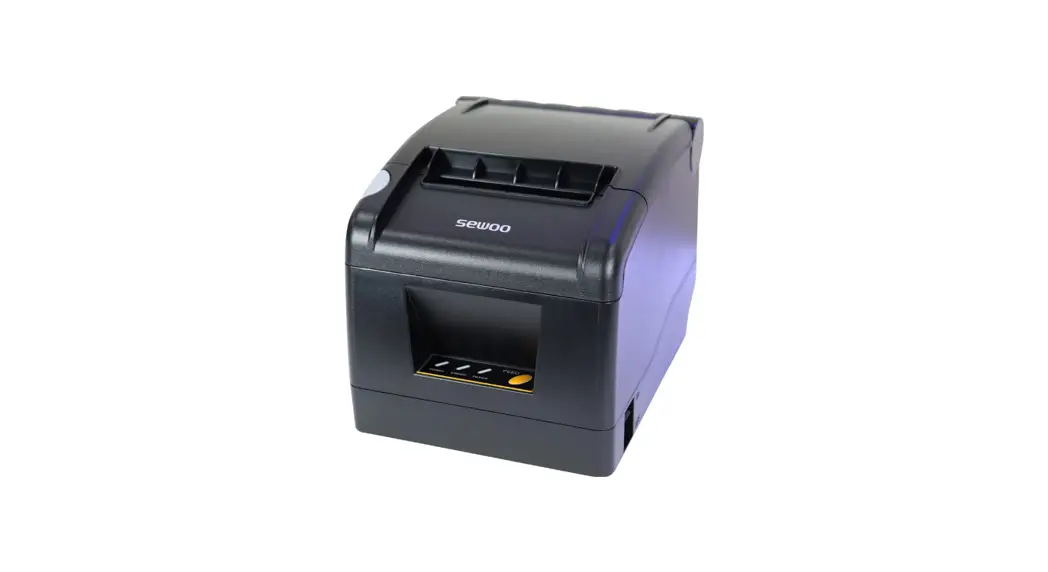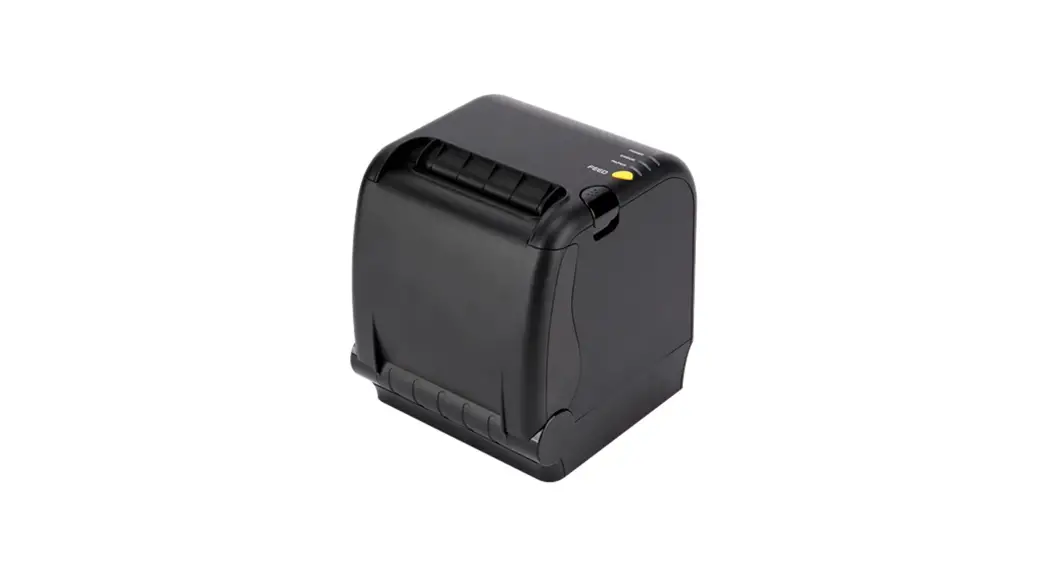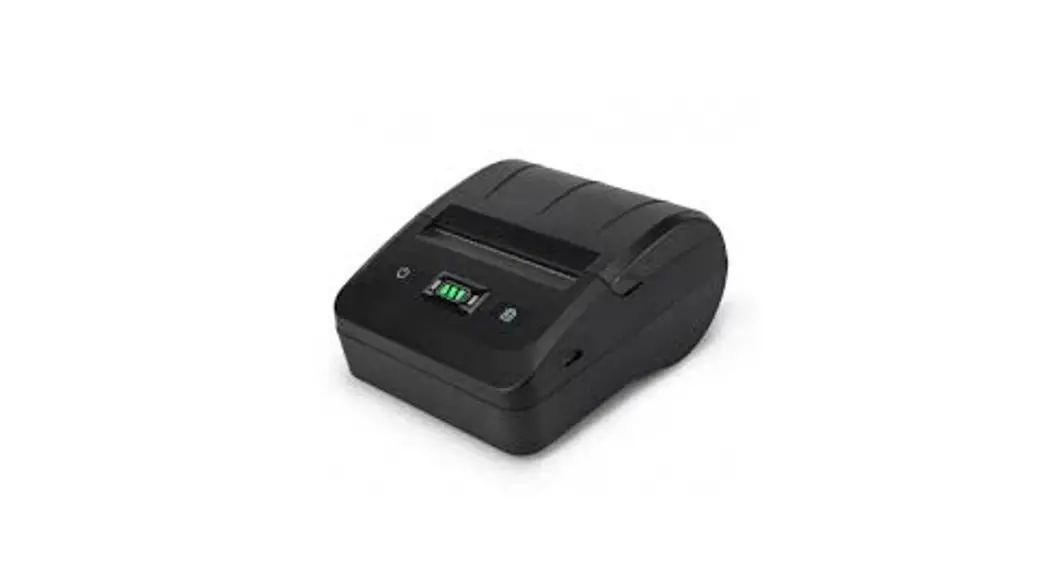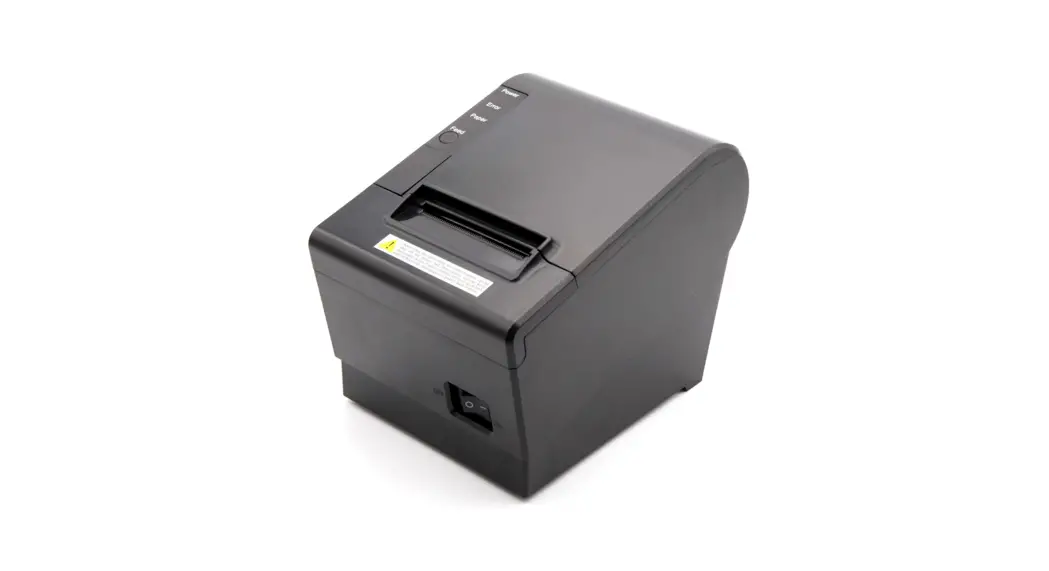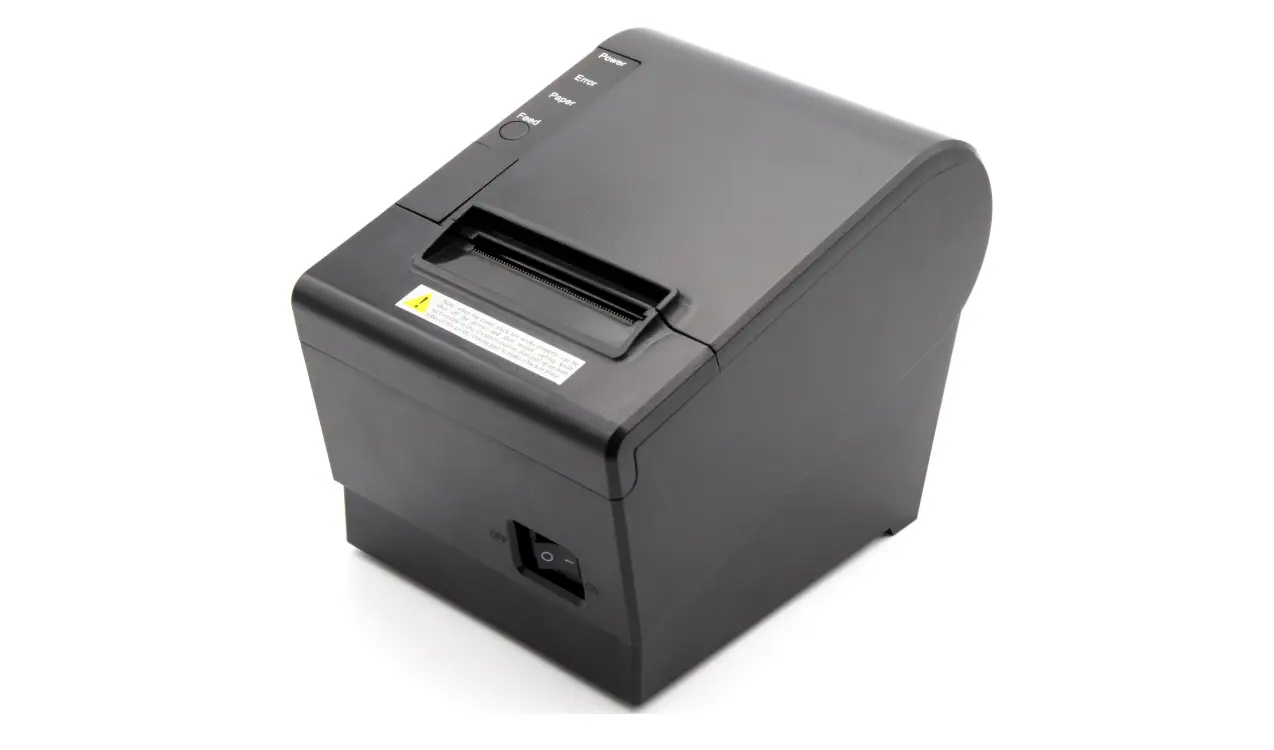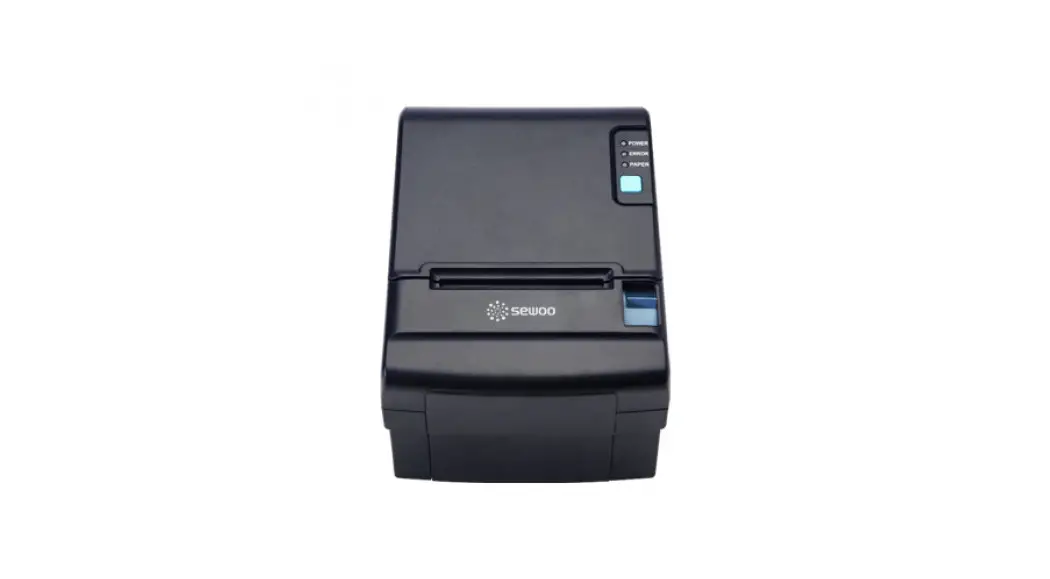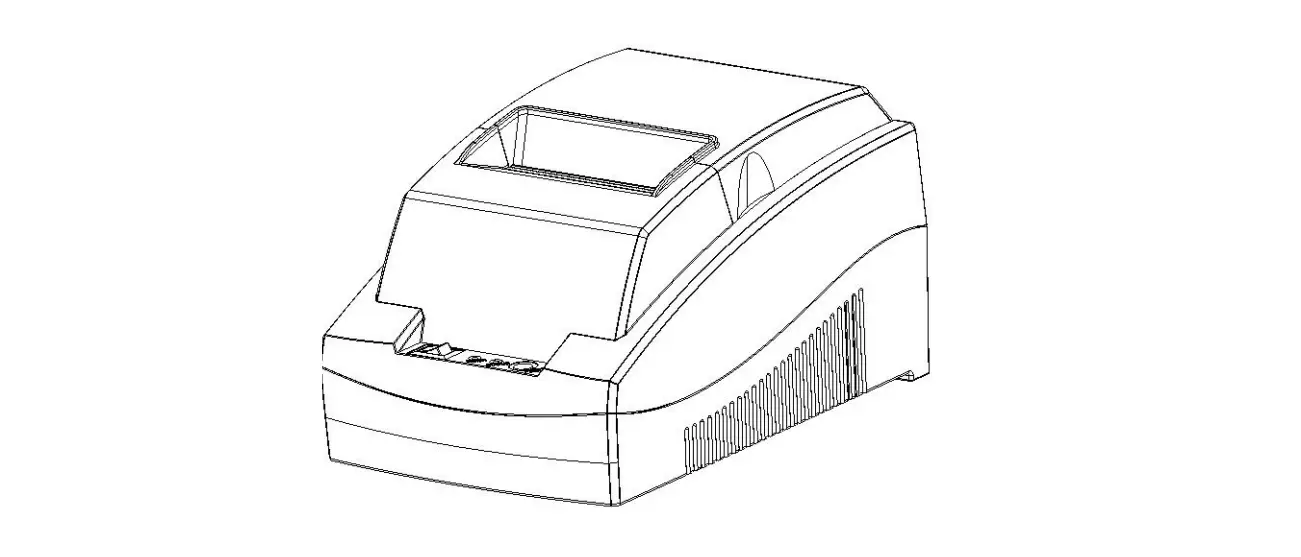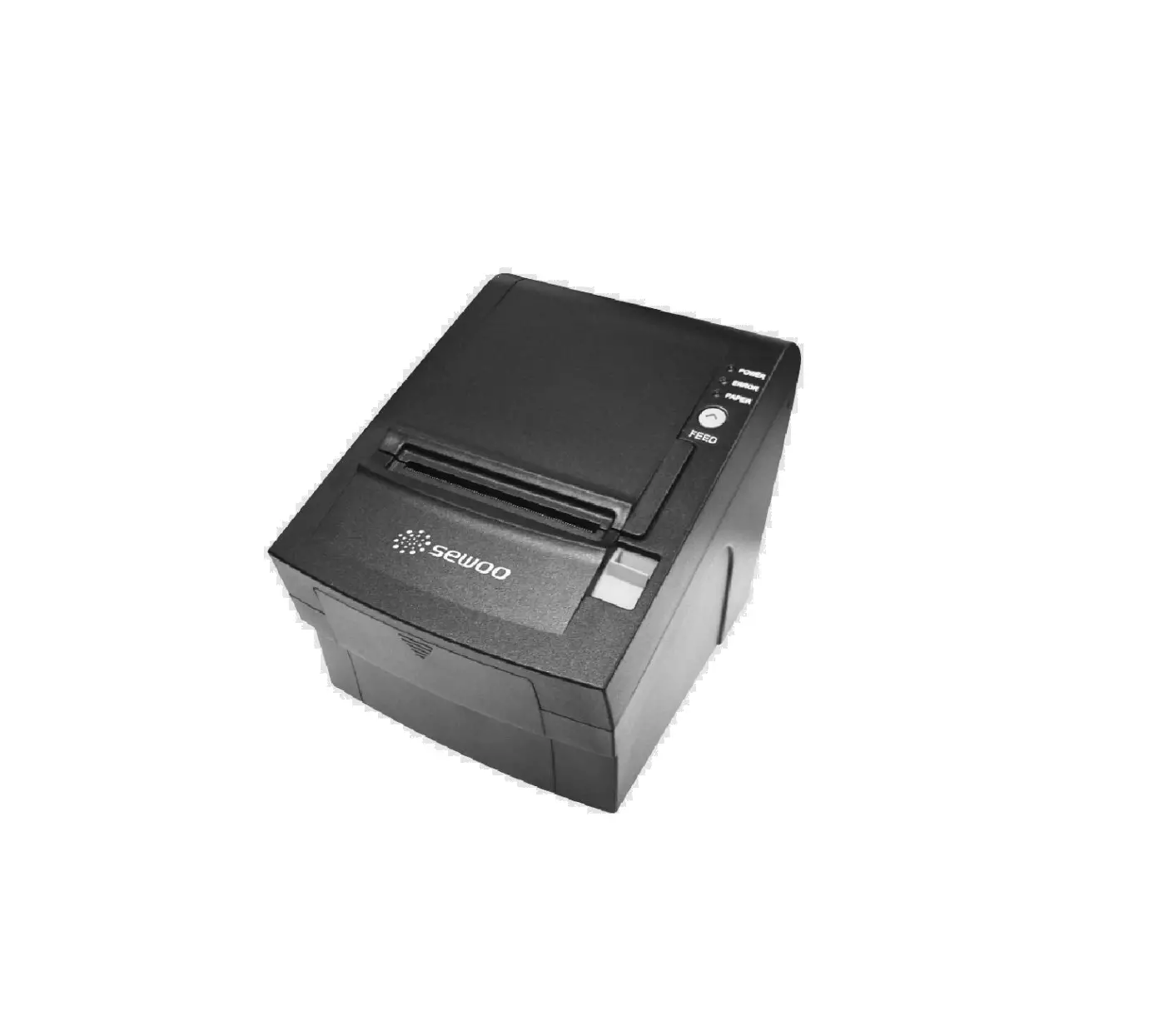
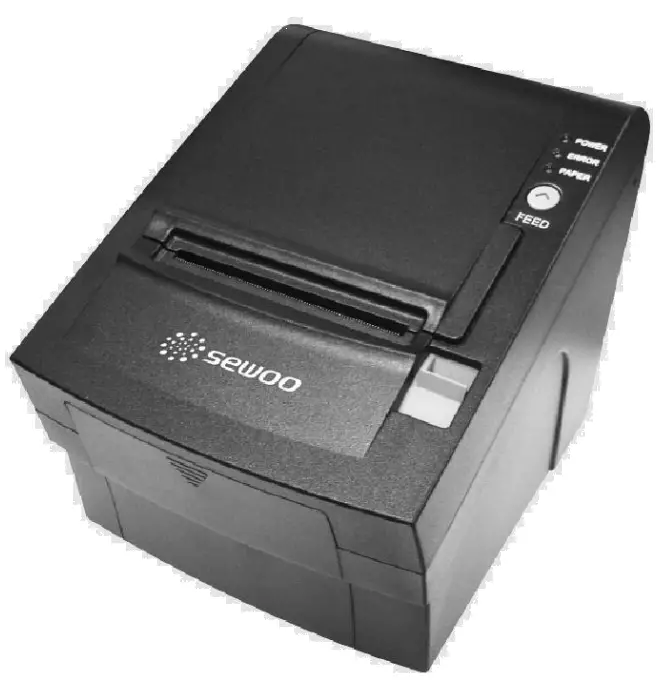
sewoo TE20X Series Thermal Printer
Aroot Co., Ltd.
28-6, Gajangsaneopdong-ro, Osan-si, Gyeonggi- do, 18103, Republic of Korea
TEL : +82-31-8077-5000 / FAX : +82-31-624-5310
http://www.miniprinter.com
This device complies with part 15 of the FCC Rules.
Operation is subject to the following two conditions.
- This device may not cause harmful interference, and
- This device must accept any interference received, including interference that may cause undesired operation
Vic Barczyk
19700 S Vermont Ave Ste 200 Torrance, CA 90502 | USA
[email protected]
Victor Almazan
Paseo de la Reforma No. 265 Piso 2.Oficina SBC. Col.
Cuauhtémoc, C.P. 06500 Ciudad de Mexico | Mexico
[email protected]
Yan xiao rui
Room 902, No. 7, Lane 118, Xiaojishan Road, Sheshan Town,
Songjiang District, Shanghai | China
[email protected]
 Disposal of Old Electrical & Electronic Equipment(Applicable in the European Union and other European countries with separate collection systems)
This symbol on the product or on its packaging indicates that this product shall not be treated as household waste. Instead it shall be handed over to the applicable collection point for the recycling of electrical and electronics equipment. For more detailed information about recycling of this product, please contact your local city office, your household waste disposal service or the shop where you purchased the product.
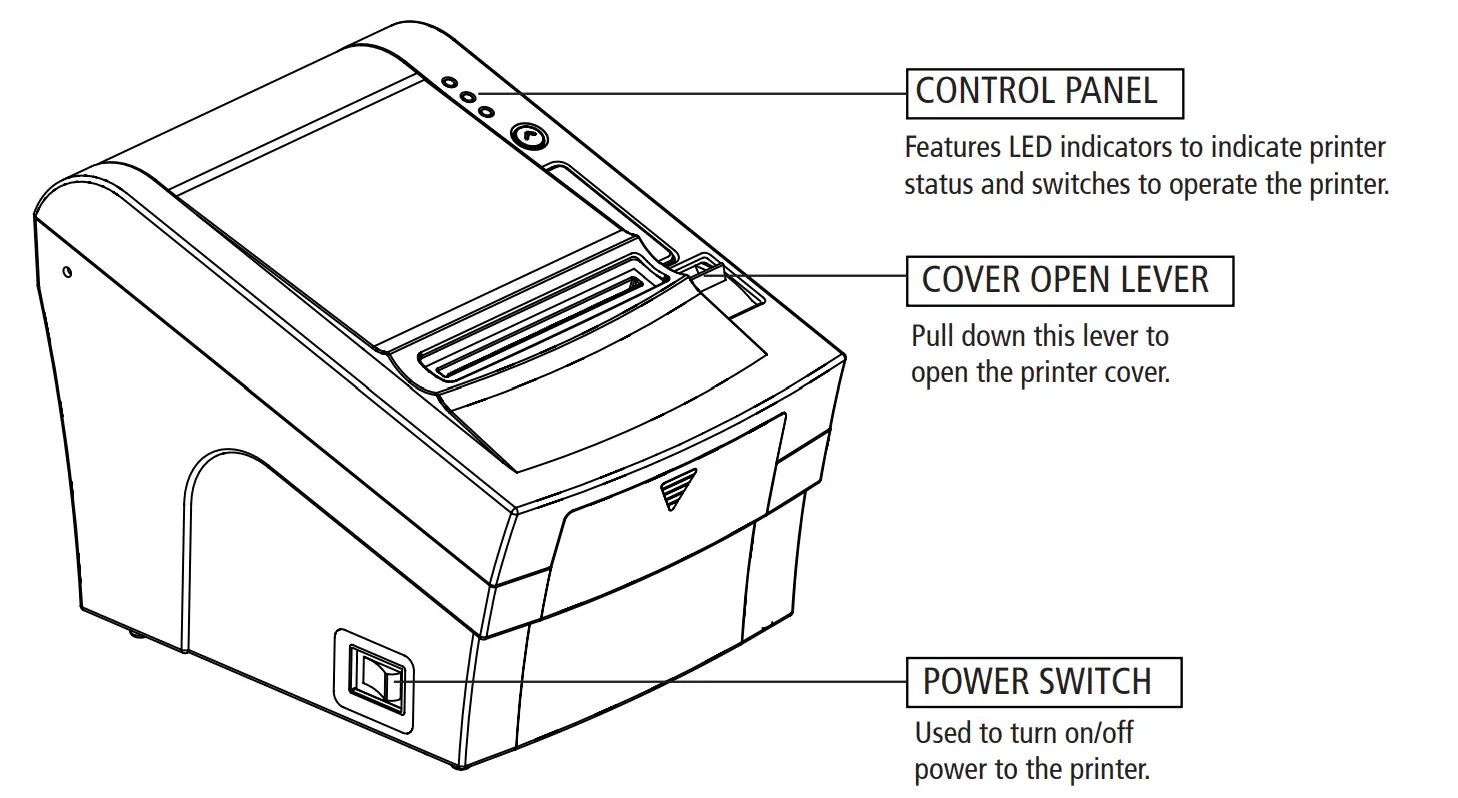
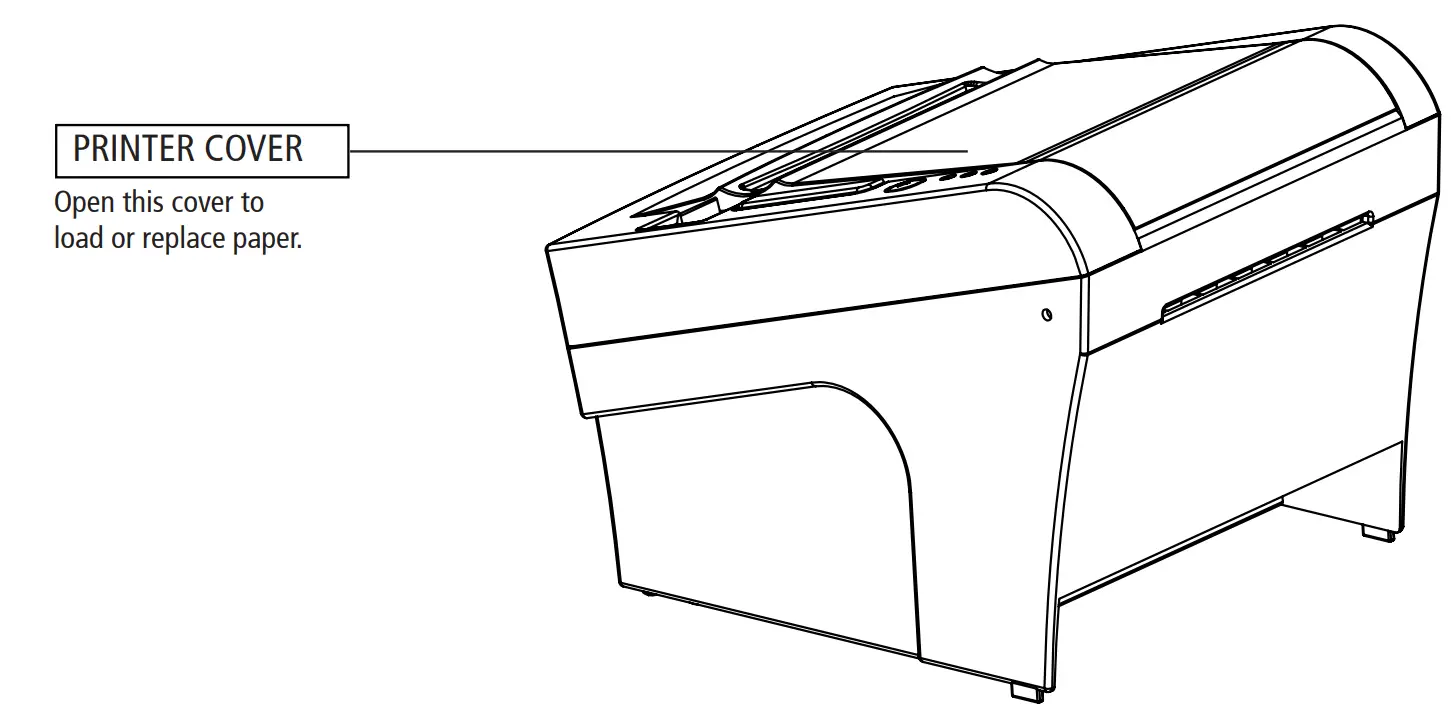
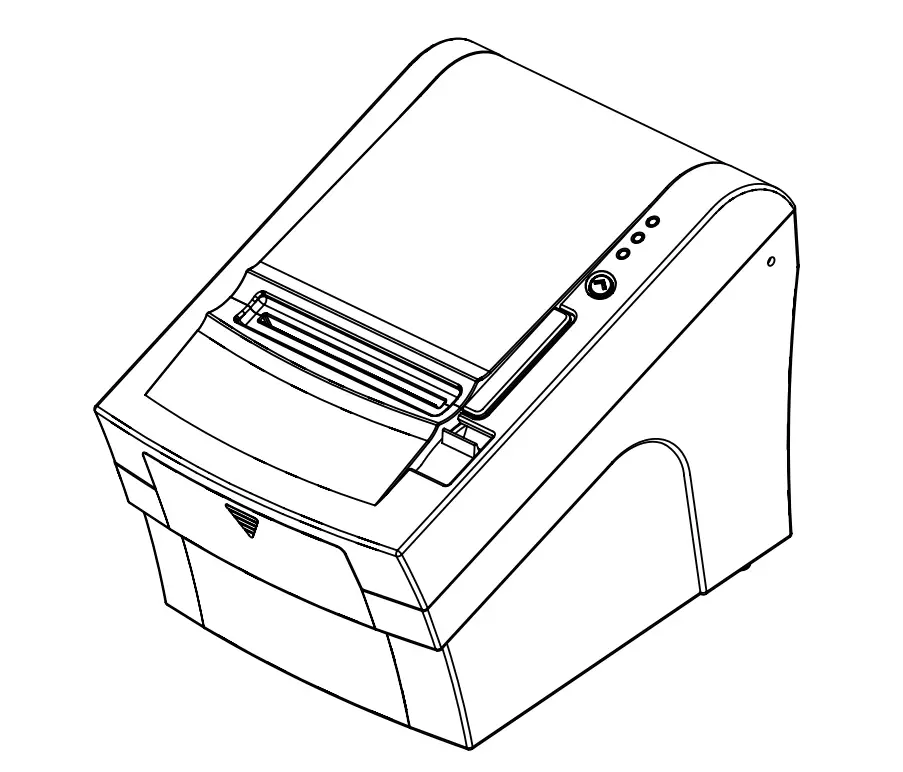
Parts Identifications
Setting Up the Printer
Unpacking
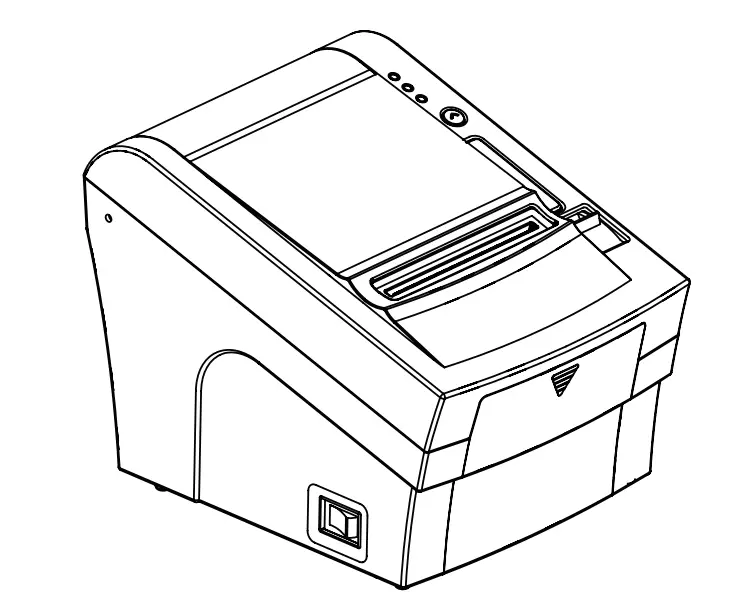
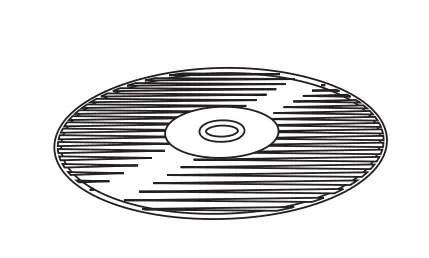
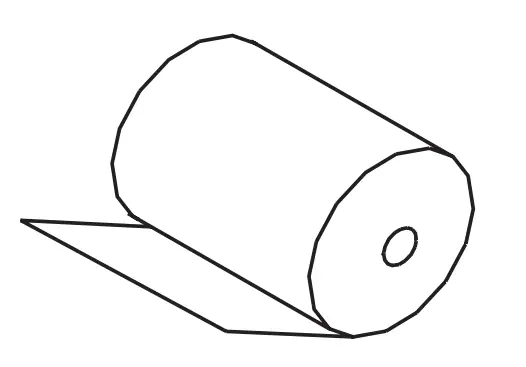
Your printer box should include these items. If any items are damaged or missing, please contact your dealer for assistance.
- The Printer

- CD

- Roll Paper

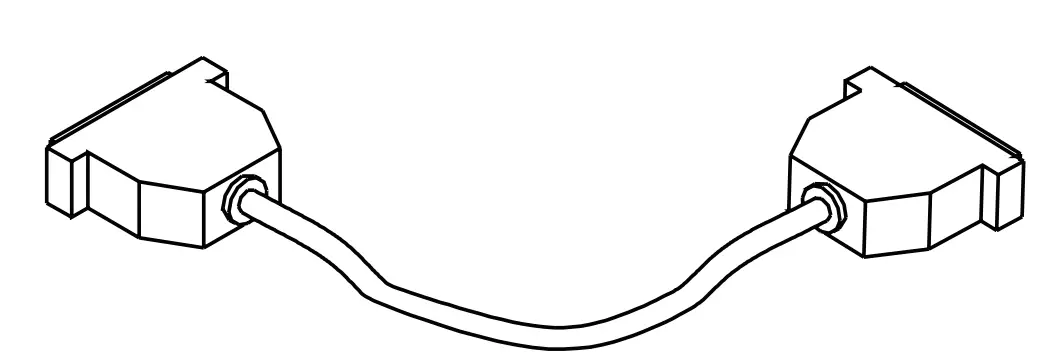
- Interface Cable(optional)

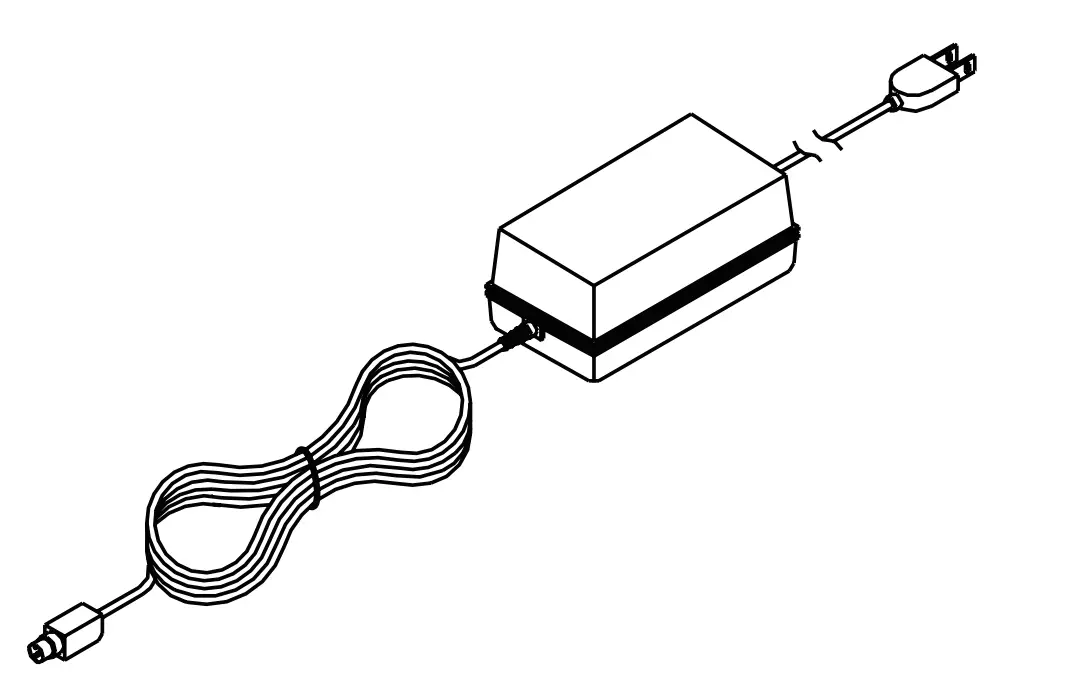
- Adaptor(Optional)

Connecting the Cables
You can connect up the cables required for printing to the printer.
They all connect to the connector panel on the back of the printer, which is shown below :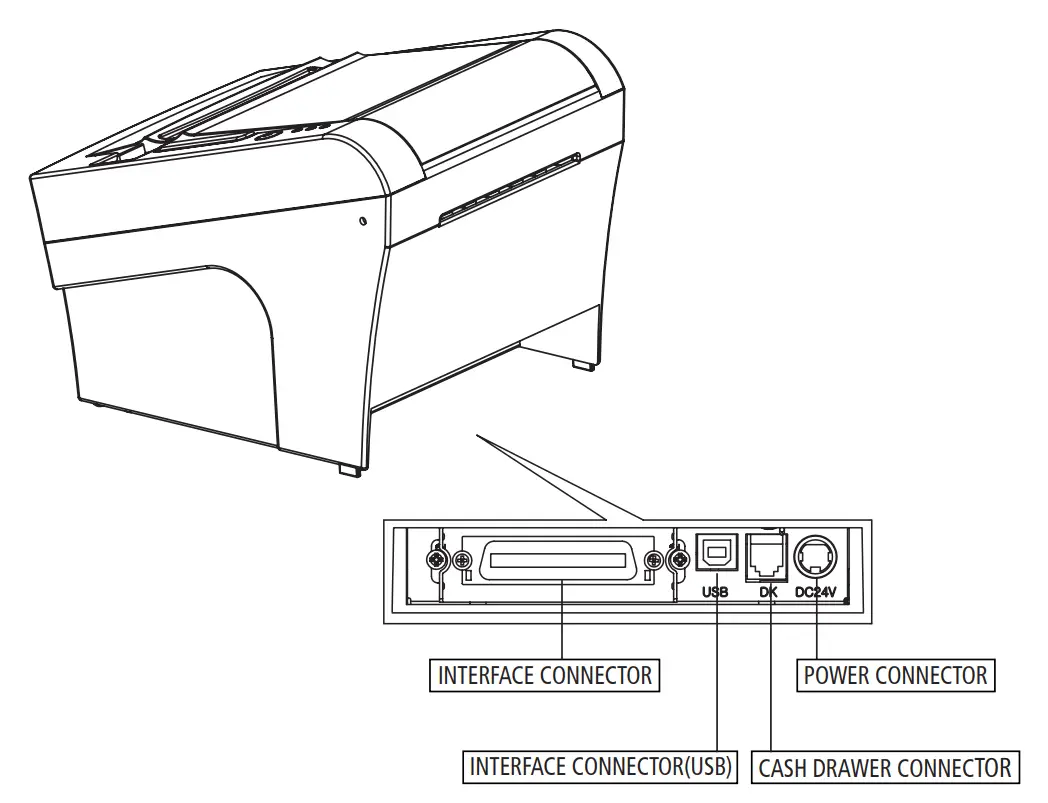
Before connecting any of the cables, make sure that both the printer and the computer are turned off.
Interface Connector
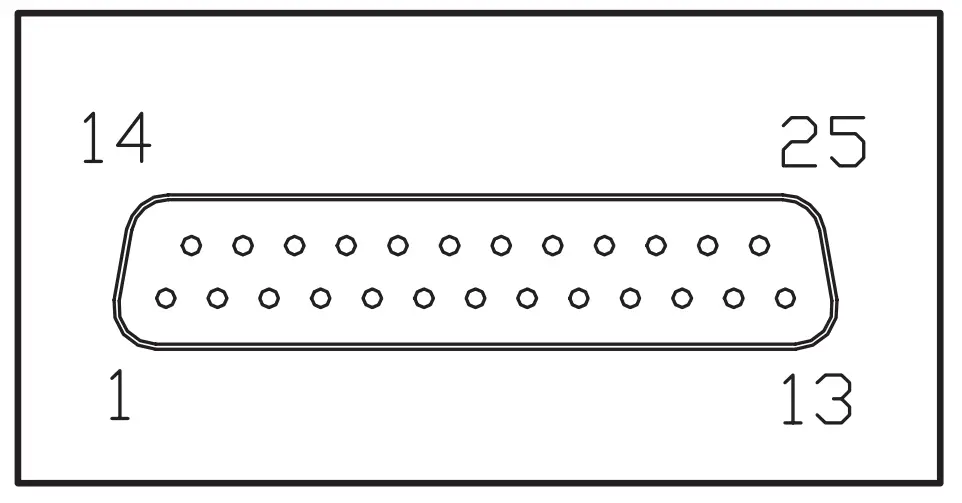
- D-SUB 25 Female Serial

- Centronics Parallel

- USB “B” Type
- Ethernet
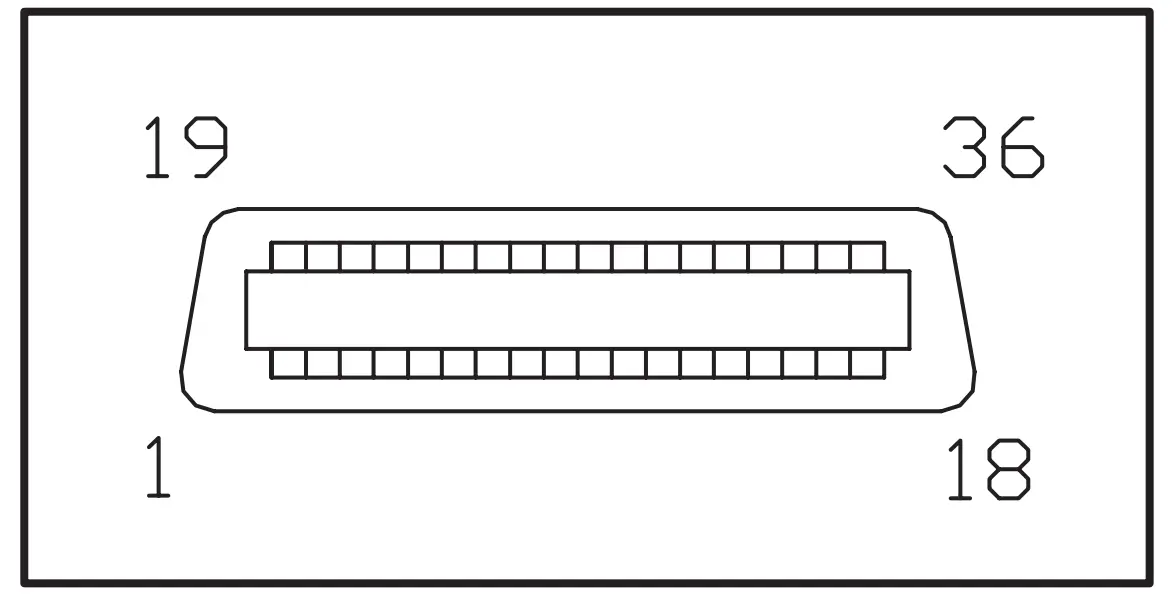
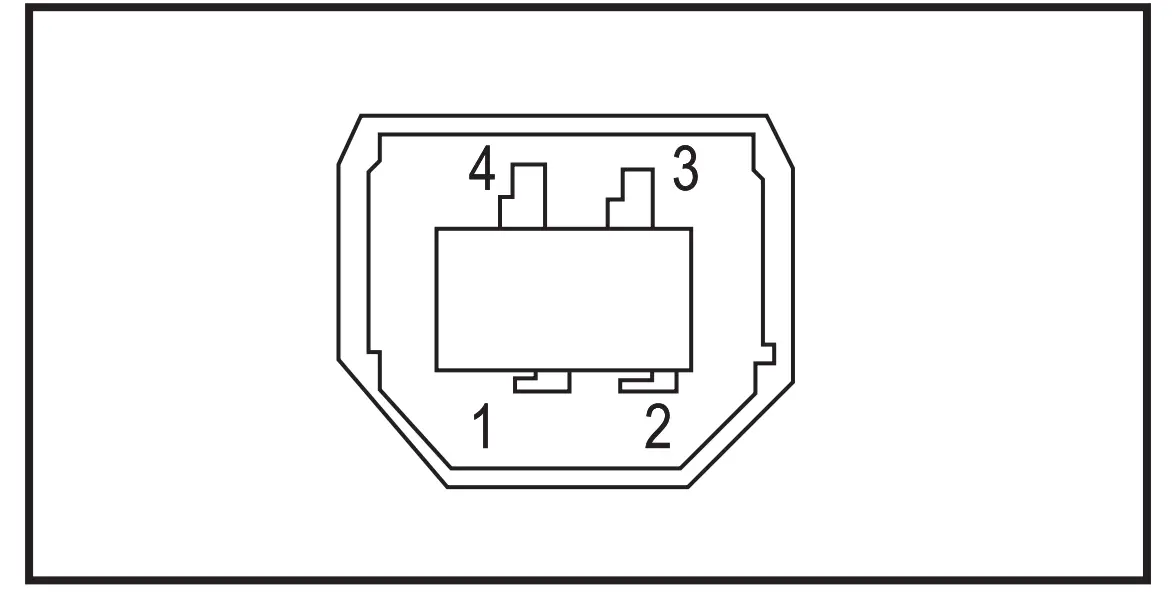
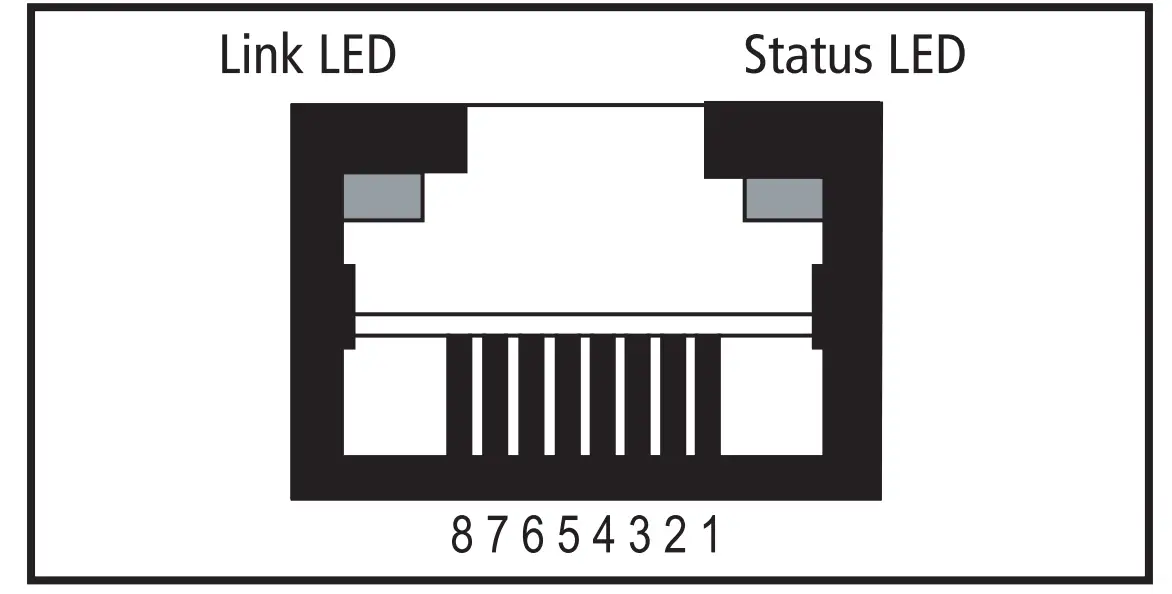
USB Interface
| PIN | SIGNAL | I/O | DESCRIPTION |
| 1 | +5V | – | +5V |
| 2 | DATA- | – | Printer transmit data line |
| 3 | DATA+ | – | Printer transmit data line |
| 4 | GND | – | System Ground |
Serial Interfaced
| PIN | SIGNAL | I/O | DESCRIPTION |
| 2 | TxD | Output | Printer transmit data line RS-232C level |
| 3 | RxD | Input | Printer receive data line RS-232C level |
| 4, 20 | DTR | Output | Printer handshake to host line RS-232C level |
| 6 | DSR | Input | Data Send Ready |
| 1, 7 | GND | – | System Ground |
Centronics Parallel Interface
| PIN | SIGNAL | I/O | DESCRIPTION |
| 1 | STROBE- | Input | Synchronize signal Data received |
| 2~9 | DATA0~7 | Input/ Output | Data bit Transmitted 0~7 |
| 10 | ACK- | Output | Data receiving completed. |
| 11 | BUSY | Output | Impossible to print of data receiving. |
| 12 | PE | Output | Paper empty |
| 13 | SELECT | Output | Printer status for ON/OFF line |
| 14 | AUTO FEED- | Input | Paper auto feed signal |
| 15 | GROUND | – | System ground |
| 16 | GROUND | – | System ground |
| 17 | NC | – | |
| 18 | LOGIC-H | – | +3.3V |
| 19~30 | GROUND | – | System ground |
| 31 | INIT- | Input | Initialize |
| 32 | ERROR- | Output | Printer error |
| 33 | GROUND | – | System ground |
| 34 | NC | – | |
| 35 | NC | – | |
| 36 | SELLECT IN- | Input | Printer select signal |
Ethernet Interface
| PIN | SIGNAL | I/O |
| 1 | Data Out + | Output Data + |
| 2 | Data Out – | Output Data – |
| 3 | Data IN + | Input Data + |
| 4 | N.C | |
| 5 | N.C | |
| 6 | Data IN – | Input Data – |
| 7 | N.C | |
| 8 | N.C |
Cash Drawer Connector
The printer can operate two cash drawers with a 6 pin RJ-11 modular connector.
The driver is capable of supplying a maximum current of 1.0 A for 510ms or less when not printing.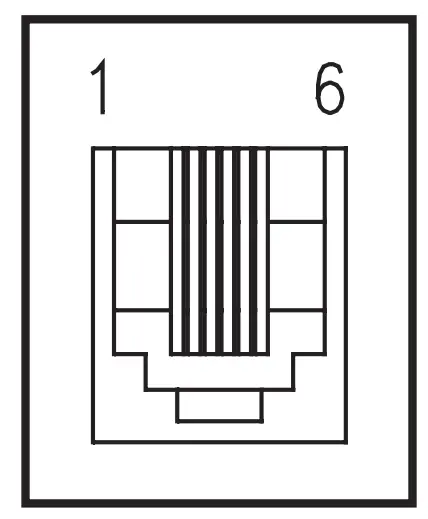
| PIN | SIGNAL | Description |
| 1 | Signal GND | – |
| 2 | Drawer kick-out drive signal 1 | Output |
| 3 | Drawer open/close signal | Input |
| 4 | +24V | – |
| 5 | Drawer kick-out drive signal 2 | Output |
| 6 | Signal GND | – |
Loading the Roll paper
 NOTE
NOTE
Be sure to use paper rolls that meet the specifications. Do not use paper rolls that have the paper glued to the core because the printer cannot detect the paper end correctly. (Turn off power switch)
- Make sure that the printer is not receiving data; Otherwise, data may be lost.
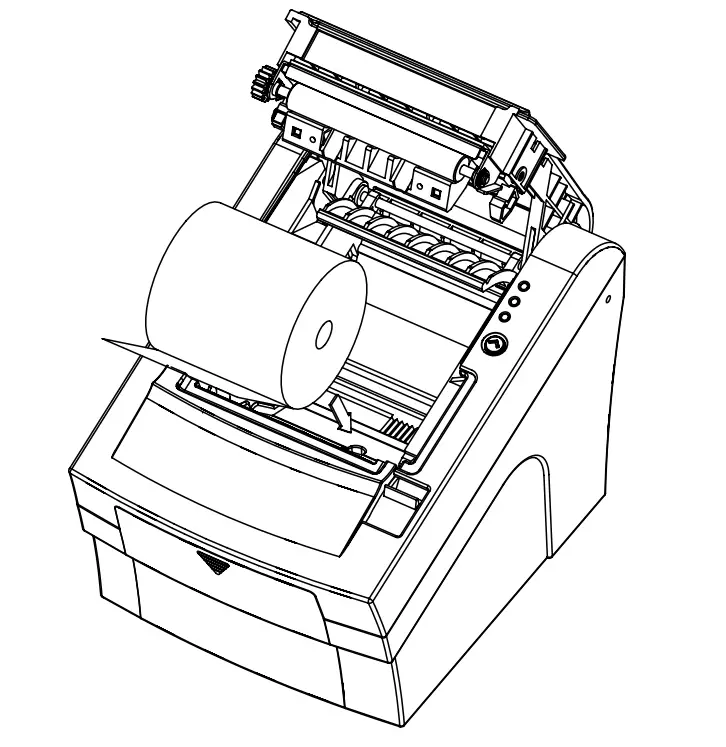
- Open the paper roll cover by pushing down the cover open button.

- Remove the used paper roll core if there is one inside.
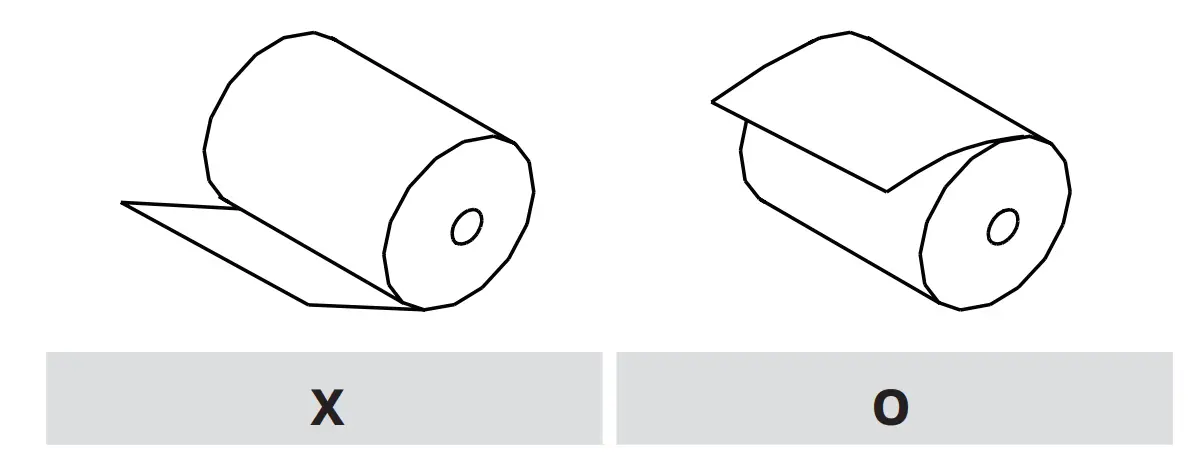
- Insert new paper roll as shown.

- Be sure to note the correct direction that the paper comes off the roll.

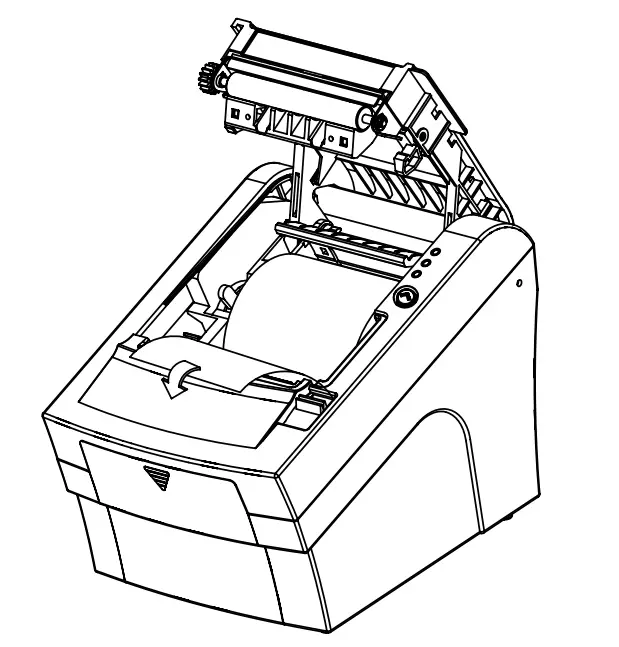
- Pull out a small amount of paper, as shown. Then, close the cover.

- Tear off the paper as shown.

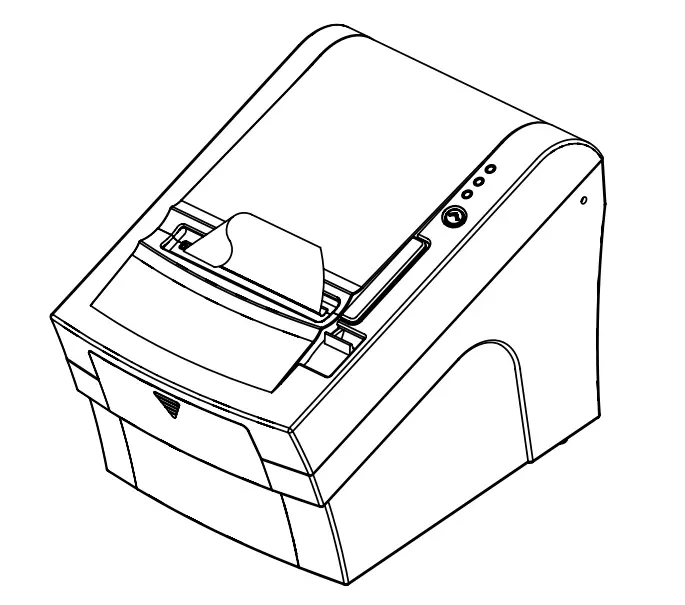
CAUTION:
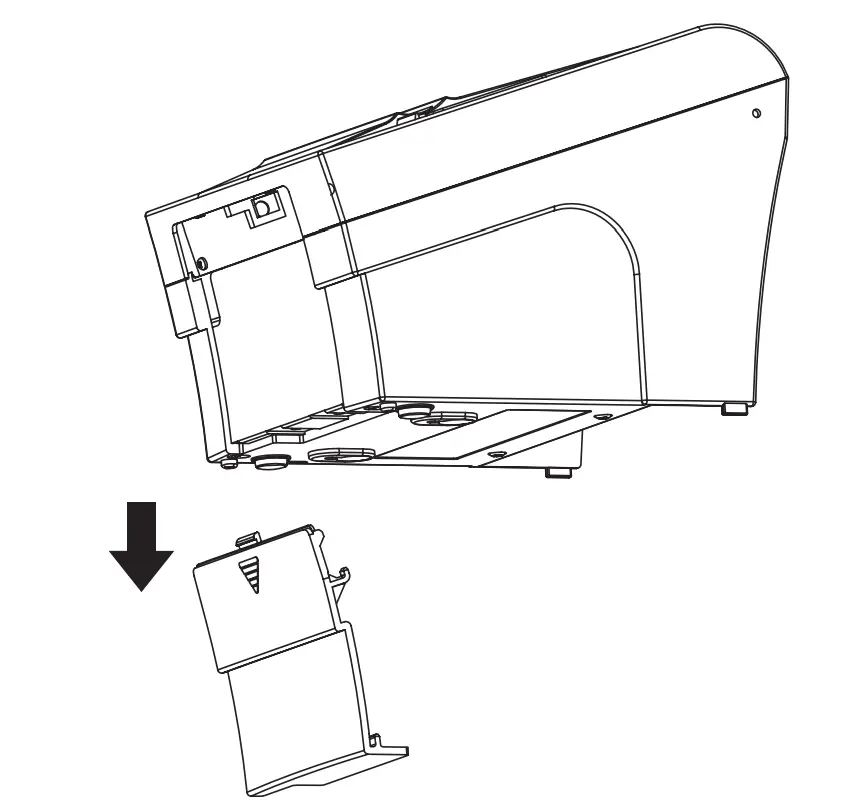
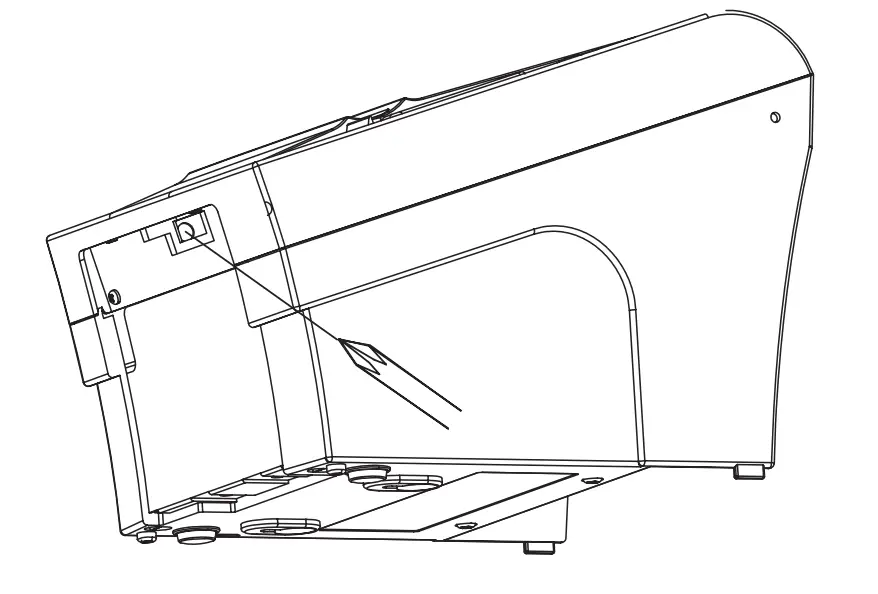
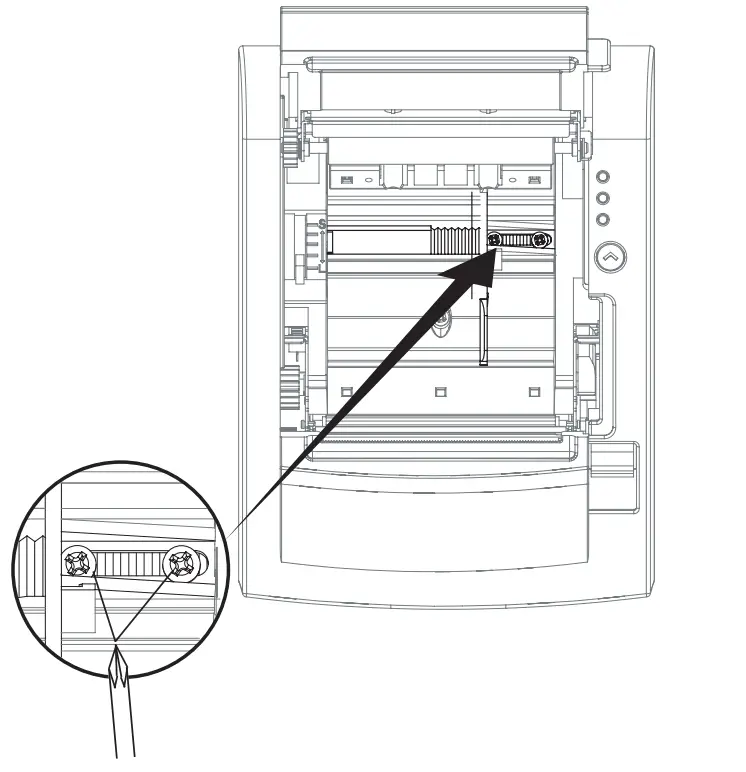
When the paper is jammed with cutter, the top cover might be stuck. In this case, repeat power on and off several times.
If the top cover is still stuck, please follow the steps to release the papers from jamming.
- Make sure the printer is turned off.
- Take out DIP switch cover as shown.

- Turn screw with drivers to a direction until paper is released from the cutter.

Adjustment of paper width
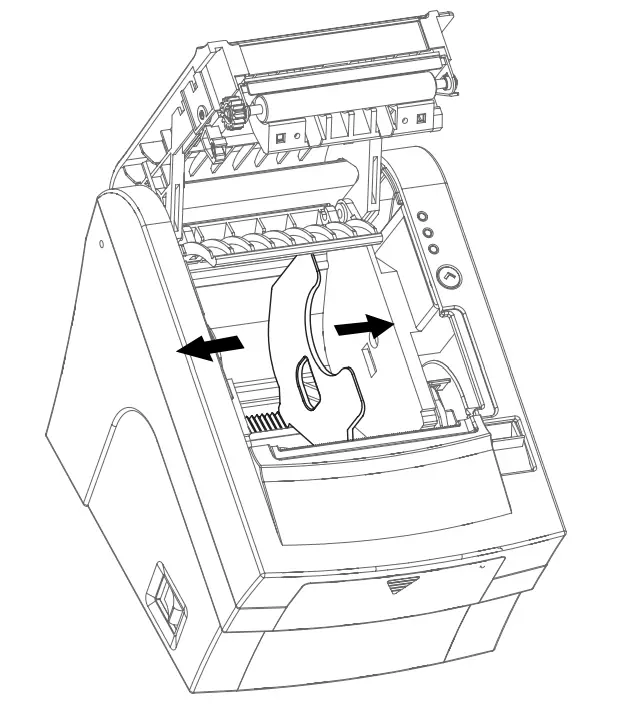
- Please adjust the Paper Guide to fit to the paper width as the direction of arrow

- Tight the screw after adjusting the Paper Guide.

- Pull the edge of paper once the paper roll is installed correctly and close the Paper Cover.
Control panel and other functions
Control panel
You can control the basic paper feeding operations of the printer with the button on the control panel. The indicator lights help you to monitor the printer’s status.
Control Panel
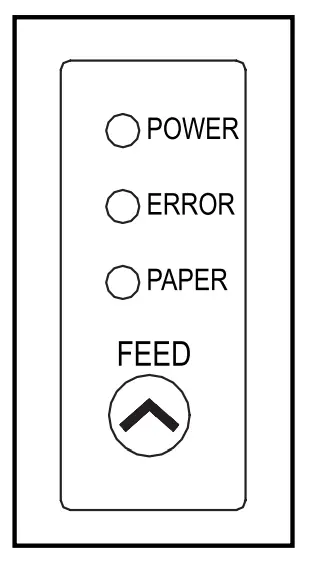
Button
The button can be disabled by the ESC c 5 command.
Press the FEED button once to advance paper one line. You can also hold down the FEED button to feed paper continuously
Error indicators
This section explains the different patterns signaled by the three LED indicators located on the top cover of the printer.
| STATUS Power off | PAPER RED | ERROR RED | POWER GREEN | REMARKS Normal power is not supplied to the printer |
| OFF | OFF | OFF | ||
| Power on | OFF | OFF | ON | Normal power is supplied to the printer |
| On line | OFF | OFF | ON | Normal error-free mode |
| Cover open | OFF | ON | ON | Close cover |
| Paper empty | OFF | ON | ON | Insert new paper roll |
| Paper near end | ON | OFF | ON | Paper is low |
| Test mode | OFF | OFF | ON | Ignored error led |
Self Test
The self-test result indicated whether the printer is operating properly. Also with this, user can check following options or status of the printer.
| Control circuit Printer mechanism |
| Printing quality |
| ROM version |
| Interface setting |
This test is independent of any other equipment or software.
Running the self test
- Make sure the printer is turned off and the printer cover is closed properly before performing the self test.
- Turn the printer on holding the FEED button, then the self-test will start.
The self-test prints the printer setting value and then prints the following, and pauses. (Error LED On)SELECT MODE BY BUTTON 1. ASCII PRINT 2. SELECT BAUDRATE MODE 3. HEXADUMP MODE - Press the FEED button consecutively (1~3)
1. ASCII PRINT (press the FEED button once) Printing test page constructed with ACII code. 2. SELECT BAUDRATE MODE
(press the FEED button twice)Set the speed of Serial Interface (You can set the BAUDRATE in this mode) 3. PRINTER SETTING (press the FEED button triple time) Set the speed of Serial Interface
(You can set the BAUDRATE in this mode)3. HEXADUMP MODE (press the FEED button quad time) Printing the HEX value received from the interface ※ Wait for 5~6 seconds if you want to exit. Printer performs a cutting when exiting this mode
- The printer is ready to receive data after finishing setting.
ASCII Print
ASCII PRINT is printing a test page constructed ASCII code. You can able to check the printer works properly with this The ASCII PRINT test automatically ends and cuts the paper after printing the following:
*** Completed ***
The printer is ready to receive data as soon as it completes the ASCII PRINT.
ECO Mode
After entering the ECO MODE, the list which can select the ECO option will be printed. Similar like Self Test, you can press the FEED button to select a ECO option. Once the input performs properly, the printer shows a result and store.
ECO MODE
- FONT SETTING
- LINE SPACE SETTING
- LINE FEED SETTING
- BARCODE[1D] HEIGHT
- DENSITY SETTING
Font
FONT SETTING menu can be change the Font mapping(FONT A / FONT B).
If you did not want other side font, you can disable that.
- FONT A : 12×24
- FONT B : 9×17
FONT SETTING
- FONT A -> A / FONT B -> B
- FONT A -> B / FONT B -> B
- FONT A -> A / FONT B -> A
- FONT A -> B / FONT B -> A
Paper Redue
Reduce menu (Line space, Line feed, barcode[1D] height) was developed for paper saving.
Line space
”Line space”
means the amount of feed when you intentionally generate newlines.
Line feed
”Line feed”
means the amount of feed when there is an automatic line break.
Barcode Height
”Barcode H eight”
means the height of the barcode when creating a one-dimensional barcode.
LINE SPACE SETTING
- NORMAL
- REDUCE 50%
- REDUCE 75%
- REDUCE 90%
LINE FEED SETTING
- NORMAL
- REDUCE 50%
- REDUCE 75%
- REDUCE 90%
1D BARCODE HEIGHT SETTING
- NORMAL
- REDUCE 50%
- REDUCE 75%
- REDUCE 90%
Paper Redue
Adjust the print density to save the power consumed by the printer.
SELECT DENSITY
- NORMAL
- LOW
- DARK
Printer Setting
Change the printer settings. The options below can also be changed via the Memory Saver.
PRINTER SETTING
- SELECT BAUDRATE
- SELECT CUTTING MODE
- SELECT ERROR BEEP OPTION
- SELECT MELODY OPTION
Baudrate
After entering the BAUDRATE MODE, the list which can select the BPS will be printed.
Similar like Self Test, you can press the FEED button to select a BAUDRATE.
Once the input performs properly, the printer shows a result and store. The printer is ready to receive data as soon as it completes the SELECT BAUDRATEMODE.
SELECT BAUDRATE
- 4800bps
- 9600bps
- 19200bps
- 38400bps
- 57600bps
- 115200bps
Cutter
Set cutter mode.
SELECT CUTTING MODE
- PARTIAL CUT
- FULL CUT
Error Beep
If the cover is open or there is no paper, the error beep function is activated.
This option allows you to enable / disable the error beep.
SELECT CUTTING MODE
- BEEP ON
- BEEP OFF
Melody
To DK Port (Cash), Melody box or external buzzer can be connected.
You can activate it from the Melody Setting menu, and the melody will operate after the cutting operation.
- Melody Box : Melody is fixed and volume can be adjusted.
- External Buzzer : 3 types of melody are output according to the Melody Type setting and volume control is not included
SELECT MELODY OPTION
- MELODY SETTING
- SELECT MELODY TYPE
MELODY SETTING
- MELODY ON AFTER CUTTING
- MELODY OFF
SELECT MELODY TYPE
- MELODY-Ⅰ
- MELODY-Ⅱ
- MELODY-ⅢW
Hexadecimal Dump
This feature allows experienced users to see exactly what data is coming to the printer. This can be useful in finding software problems.
When you go into the hex dump function, the printer prints all commands and other data in hexadecimal format along with a guide section to help you find specific commands.
To use the hex dump feature, follow these steps
- Please turn printer off.
- Please turn printer on while press down “FEED” button.
- Press the FEED button three times when the Self Test printed.
- Now printer had entered into Hexa dump mode.
- Run any software program that sends data to the printer. The printer prints ”Hexadecimal printing mode…” and then all the codes it receives in a two-column format. The first column contains the hecadecimal codes and the second column gives the ASCII characters that correspond to the codes.
Hecadecimal Dump
1B 21 00 1B 26 02 40 40 .!..& . @ @
1B 25 01 1B 63 34 00 1B .%..c4 ..
41 42 43 44 45 46 47 48 ABCDEFGH
A period (.) is printed for each code that has no ASCII equivalent. - Turn off the printer.
- Turn on the printer.
Peripherals Connection
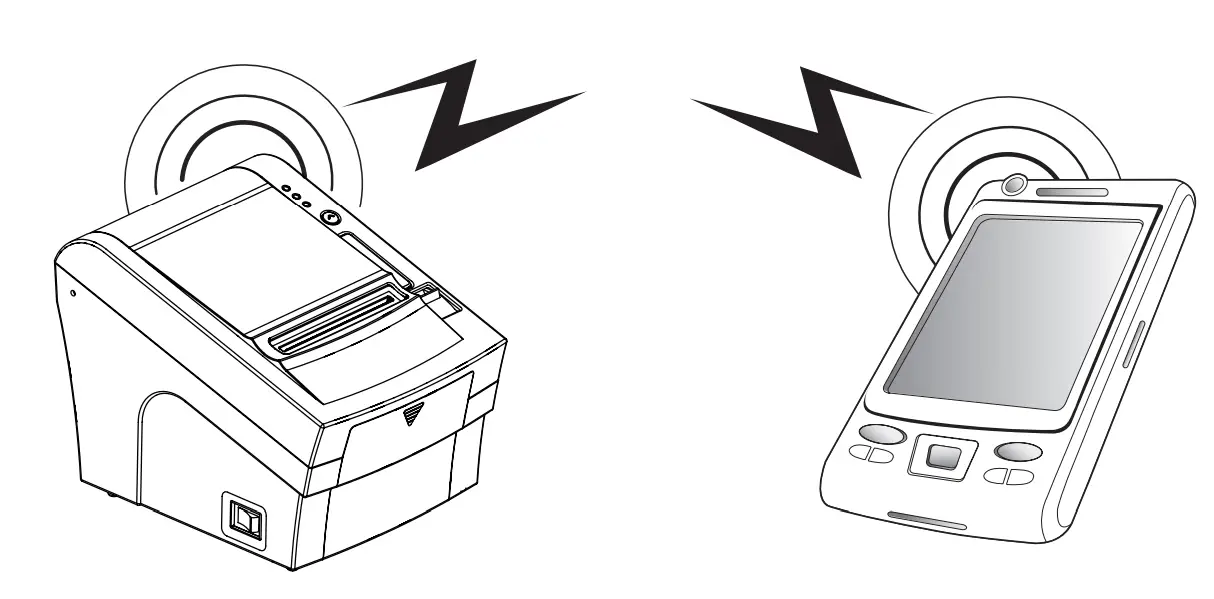
This product can communicate with other devices via Bluetooth or Wi-Fi communication and cable.
Bluetooth Connection (Optional)
- The Printer can be connected to devices equipped with Bluetooth communication capacity (PDAs, PCs, etc.)
- Use the Bluetooth connection function supported by the device to connect to the printer.
Wi-Fi Connection (Optional)
- The Printer can be connected to devices equipped with Wi-Fi communication capacity (PDAs, PCs, etc.)
- Use the Wi-Fi connection function supported by the device to connect to the printer
- NOTE: Please refer to the configuration manual for details.
Printer Cleaning
If the interior of the printer is dusty, printing quality can be lowered.
In this case, follow the instructions below to clean the printer
NOTE
- Make sure to turn the printer power off prior to cleaning
- Regarding print head cleaning, as the print head is very hot during printing, turn off the printer power and wait approximately 10 minute before start.
- When cleaning the print head, take care not to touch the heated part of the print head. The print head subject to be damaged by static electricity.
- Take care not to allow the print head to become scratched and /or damaged in any way.
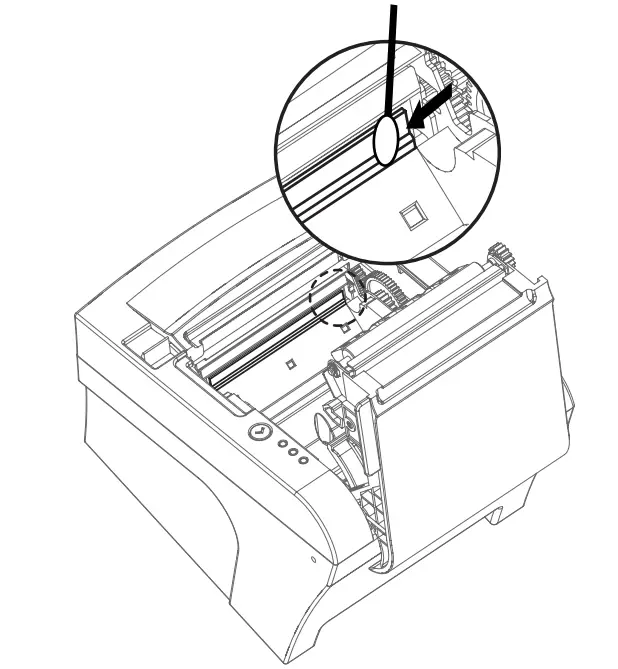
- Use an applicator swab moistened with an alcohol solution to clean the print head and remove any dusts.
- Once the cleaning is completed, insert paper roll into the printer few minutes later and close the printer cover.
Preventing Overheating
To prevent the motor from overheating, continuous operation of the printer should be 1.5 m or less in print length. Set the pause time for 30 seconds or more than it.
Specifications
| Printing Method | Direct Thermal | |
| Printing Speed | TE201 – Max. 160 mm/sec TE202 – Max. 200 mm/sec TE202Ⅱ – Max. 220 mm/sec TE203 – Max. 300 mm/sec | |
| Resolution | 180 DPI / 203 DPI (Optional) | |
| Dot Pitch | 0.141mm x 0.141mm | |
| Printing Width | Max. 72mm | |
| Number of print columns | Font A – 42 columns / Font B – 56 columns | |
| Barcode | 1D | EAN-8, EAN-13, Code 39, Code 93, Code 128, ITF, UPC-A, UPC-E, Codabar |
| 2D | PDF 417, QR code, DATA MATRIX | |
| Emulation | ESC/POS Command compatible | |
| Driver | Windows Driver(10, 2012, 8, 7, 2008, VISTA, 2003, XP, 32bit & 64bit), Window CE & Mobile Driver & SDK(CE 4.2~, Mobile 5.0~), Linux Driver, Mac Driver, OPOS Driver, JavaPOS Driver, iOS SDK, Android(2.1~) SDK, Blackberry SDK, Symbian | |
| Paper | Paper type | Thermal paper / Linerless (Optional) |
| Width | 50 ~ 82.5 ± 0.5mm | |
| Thickness | 0.06 ~ 0.09mm | |
| Roll Max Diameter | Max. 80mm | |
| Roll Core | 12.5mm ± 0.5mm | |
| Sensor | Standard | Paper End, Paper Low, Cover Open |
| Option | Black Mark | |
| Interface | Standard | USB(B type) |
| Option | Serial(RS-232C), Parallel(IEEE1284), Ether- net, Wi-Fi(802.11a/b/g/n), Bluetooth Ver 2.1(iOS) | |
| Cash drawer | 2 circuits(24V, 1A Max.) | |
| Reliability | MCBF | 60 million lines |
| TPH Life | 160Km | |
| Cutter | Type | Guillotine |
| Life | T E321, TE322, TE323 – 1,500,000 cuts TE322Ⅱ- 1,800,000 cuts | |
| Paper Thick- ness | 0.06 ~ 0.09mm | |
| Power | AC | 100 ~ 240Vac 50/60 Hz |
| DC | 24Vdc / 1.75A | |
| Size | 156 × 206 × 155 [W x D x H (mm)] | |
| Weight | 1.7kg | |
| Temperature | Operation | 0 ~ 45℃ |
| Storage | -20 ~ 60℃ | |
| Humidity | Operation | 35 ~ 80% |
| Storage | 10 ~ 90% | |
Command List
| No. | Command | Function | REMARKS |
| 1 | HT | Horizontal tab | |
| 2 | LF | Print and line feed | |
| 3 | CR | Print and carriage return | |
| 4 | FF | Print and return to standard mode(in page mode) | |
| 5 | CAN | Cancel print data in page mode | |
| 6 | DLE EOT | Real-time status transmission | |
| 7 | DLE ENQ | Real-time request to printer | |
| 8 | DLE DC4 | Generate pulse at real-time | |
| 9 | ESC FF | Print data in page mode | |
| 10 | ESC SP | Set right-side character spacing | |
| 11 | ESC ! | Select print mode(s) | |
| 12 | ESC $ | Set absolute print position | |
| 13 | ESC % | Select/cancel user-defined character set | |
| 14 | ESC & | Define user-defined characters | |
| 15 | ESC * | Set bit-image mode | |
| 16 | ESC – | Turn underline mode on/off | |
| 17 | ESC 2 | Select default line spacing | |
| 18 | ESC 3 | Set line spacing | |
| 19 | ESC = | Select peripheral device | |
| 20 | ESC ? | Cancel user-defined characters | |
| 21 | ESC @ | Initialize printer | |
| 22 | ESC D | Set horizontal tab positions | |
| 23 | ESC E | Turn emphasized mode on/off | |
| 24 | ESC G | Turn double-strike mode on/off | |
| 25 | ESC J | Print and feed paper using minimum units | |
| 26 | ESC L | Select page mode | |
| 27 | ESC M | Select character font | |
| 28 | ESC R | Select an international character set | |
| 29 | ESC S | Select standard mode | |
| 30 | ESC T | Select print direction in page mode | |
| 31 | ESC V | Turn 90° clockwise rotation mode on/off | |
| 32 | ESC W | Set printing area in page mode | |
| 33 | ESC \ | Set relative print position | |
| 34 | ESC a | Select justification | |
| 35 | ESC c 3 | Select paper sensor(s) to output paper-end signals | |
| 36 | ESC c 4 | Select paper sensor(s) to stop printing | |
| 37 | ESC c 5 | Enable/disable panel buttons | |
| 38 | ESC d | Print and feed paper n lines | |
| 39 | ESC p | General pulse | |
| 40 | ESC t | Select character code table | |
| 41 | ESC { | Turn upside-down printing mode on/off | |
| 42 | FS p | Print NV bit image | |
| 43 | FS q | Define NV bit image | |
| 44 | GS ! | Select character size | |
| 45 | GS $ | Set absolute vertical print position in page mode | |
| 46 | GS * | Define downloaded bit image | |
| 47 | GS / | Print downloaded bit image | |
| 48 | GS B | Turn white/black reverse printing mode on/off | |
| 49 | GS H | Select printing position of HRI characters | |
| 50 | GS I | Transmit printer ID | |
| 51 | GS L | Set left margin | |
| 52 | GS P | Set horizontal and vertical motion units | |
| 53 | GS V | Select cut mode and cut paper | |
| 54 | GS W | Set printing area width | |
| 55 | GS \ | Set relative vertical print position in page mode | |
| 56 | GS a | Enable/disable Automatic Status Back(ASB) | |
| 57 | GS f | Select font for HRI characters | |
| 58 | GS h | Set bar code height | |
| 59 | GS k | Print bar code | |
| 60 | GS r | Transmit status | |
| 61 | GS v 0 | Print raster bit image | |
| 62 | GS w | Set bar code width | |
| < Add > | |||
| 1 | ESC i | Full cut | |
| 2 | ESC m | Partial cut | |
| 3 | FS ! | Set print mode(s) for Kanji characters | |
| 4 | FS & | Select Kanji character mode | |
| 5 | FS – | Turn underline mode on/off for Kanji character | |
| 6 | FS . | Cancel Kanji character mode | |
| 7 | FS 2 c1 d1…dk | Define user-defined Kanji characters | |
| 8 | FS C | Select Kanji character code system | |
| 9 | FS S 1 2 | Set Kanji character spacing | |
| 10 | FS W | Turn quadruple-size mode on/off for Kanji character |
Utilities
The following utilities and concerned manual can be found on the CD or homepage.
| No. | Name | Description |
| 1 | Memory Saver | This is a utility that allows you to set printers by interface. Detailed settings such as Wi-Fi, Ethernet, and COM ports can be configured. |
| 2 | NV Logo Upload | With NV Logo Upload running on Windows OS, you can upload and remove the bmp file as Logo in the printer’s flash memory, and print test is possible. |
| 3 | Download Tool (F/W) | Printer F/W and Font Download are available, and BT, Wi-Fi module F/W Download is supported as an option. |
| 4 | Android Utility (Sewoo M_Utility) | It is a utility app that prints text, barcodes, images, etc. through Bluetooth and Wi-Fi communication, and able to printer settings. |
S/W
We provides SDK, Driver, etc. as follows to respond to various S/W usage environments.
You can download this S/W from the homepage.
| No. | Name | Description |
| 1 | Windows Driver | This is an install program used to print a POS printer in Windows OS. |
| 2 | Linux Driver | This is the Cups Driver used to print a Thermal printer in the Linux environment. |
| 3 | OPOS Driver | This is a driver that controls POS printers using the OPOS standard. It can be used after initial setting(POS Printer & Cash Drawer) using the setting tool. |
| 4 | JavaPOS Driver | The JavaPOS driver is an interface standard for POS software written in Java. |
| 5 | Mac Driver | This is the Cups Driver used to print a Thermal printer in the Mac OS environment |
| 6 | Android Plugin (Sewoo Print Service Plugin) | This is a print service plug-in that allows you to print documents, images, and web pages without installing additional apps. |
| 7 | Windows SDK | This is library for communication and data output with Thermal printer in Windows OS. Can be used through direct communication and driver. |
| 8 | Android SDK | This is library for communication and data output with Thermal printers in Android OS. |
| 9 | iOS SDK | This is library for communication and data output with Thermal printers in iOS. |
| 10 | Linux SDK | This is library for communication and data output with Thermal printers in Linux. |
PATENT
 miniprinter.com