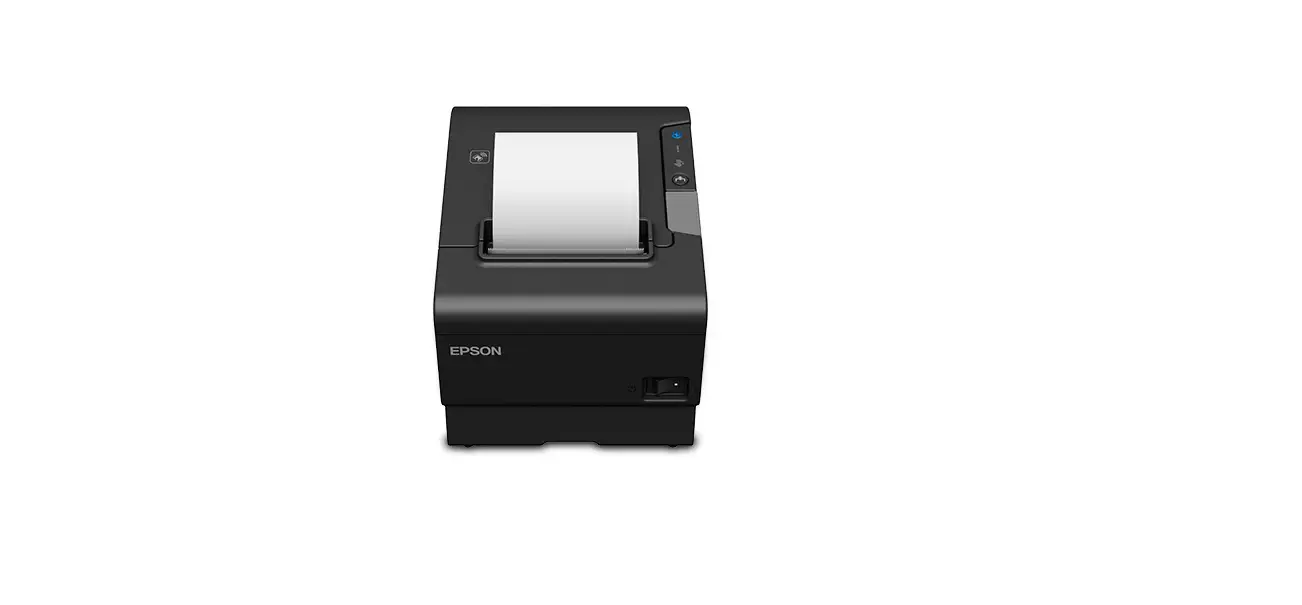
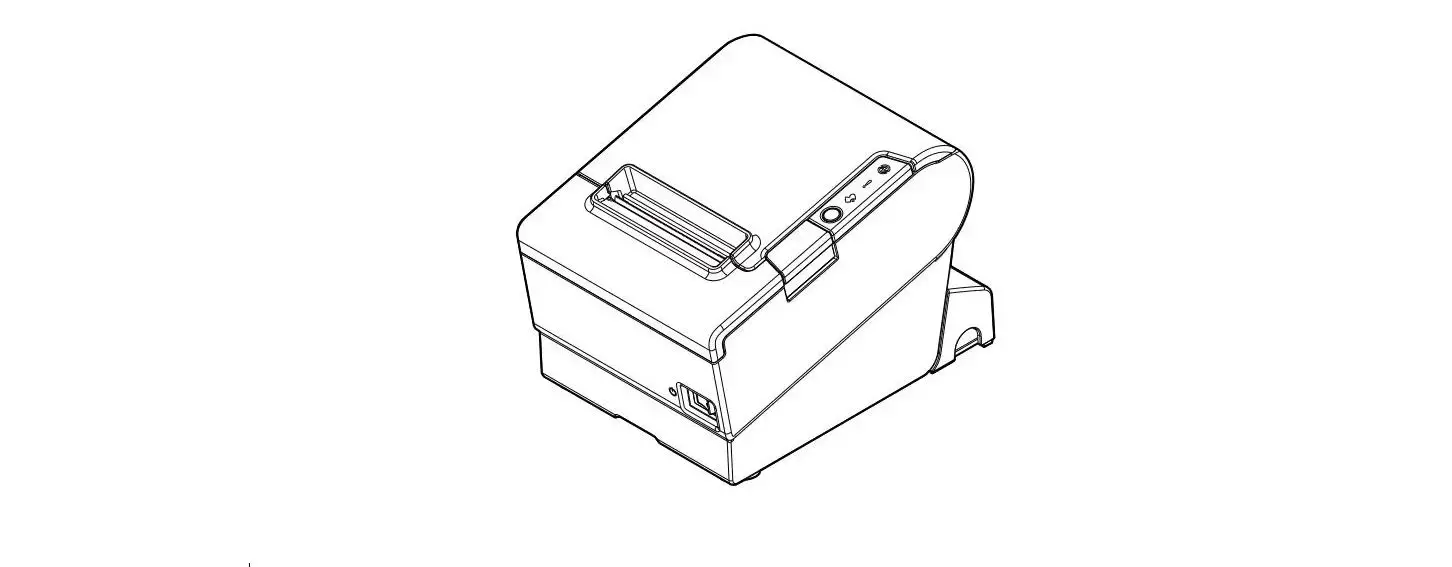
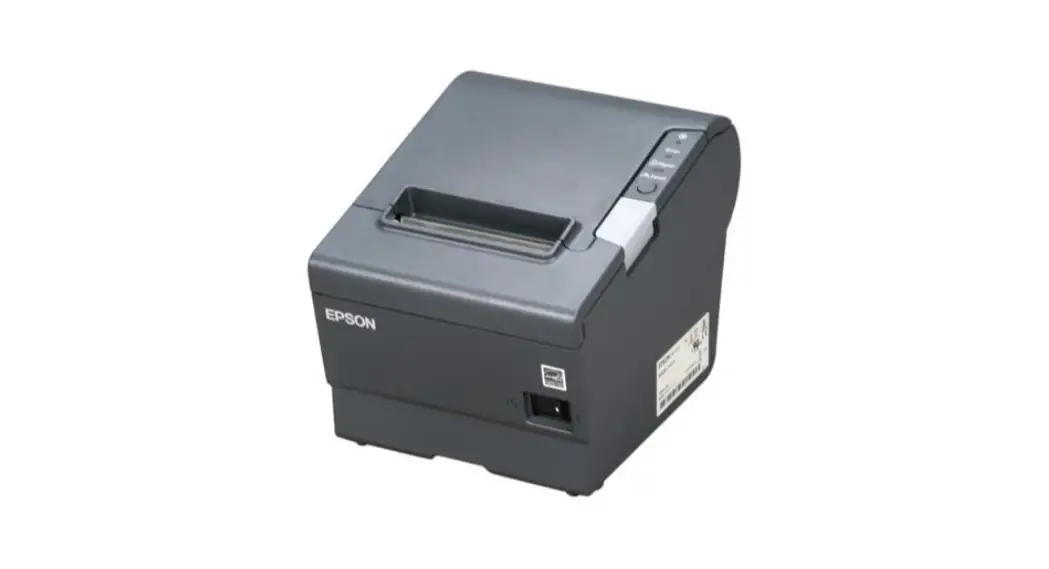
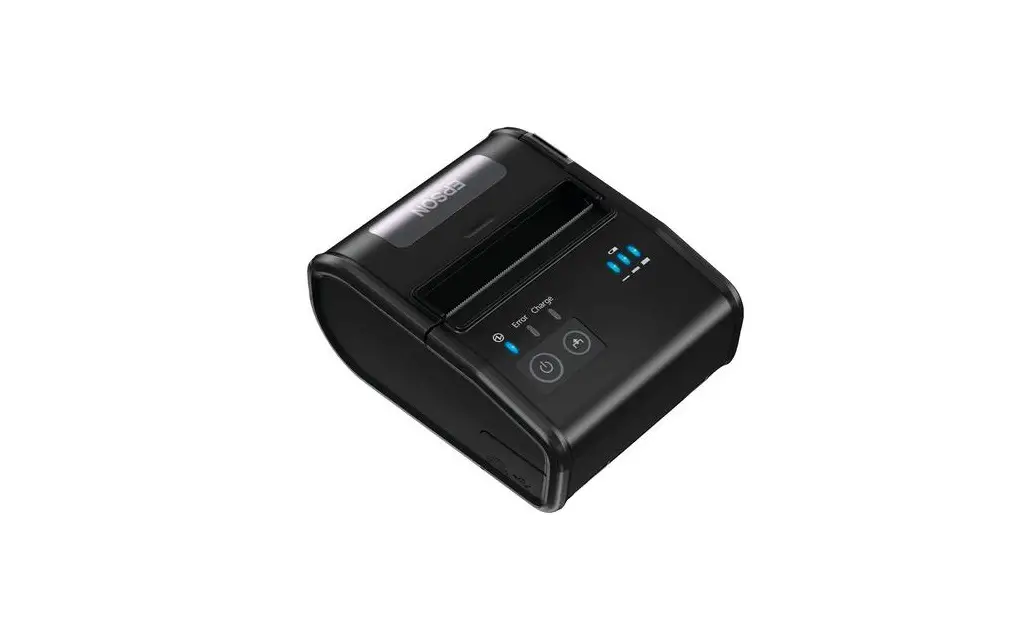
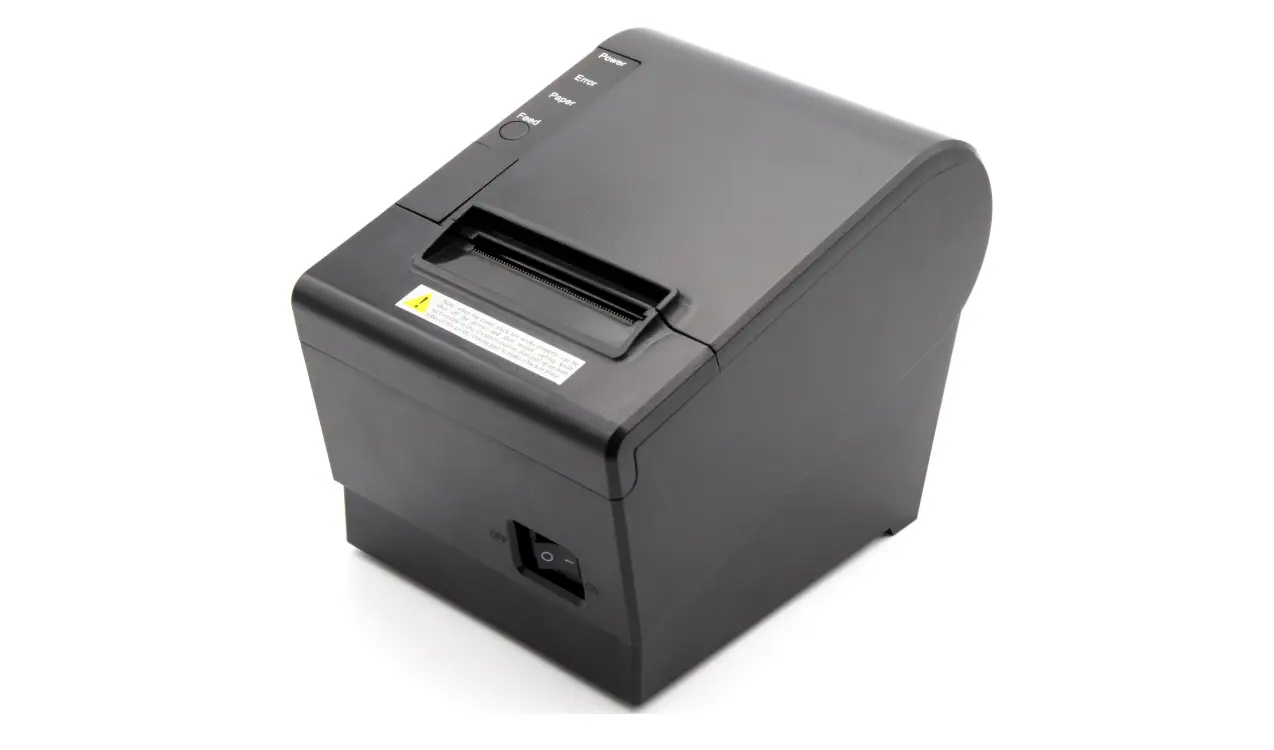
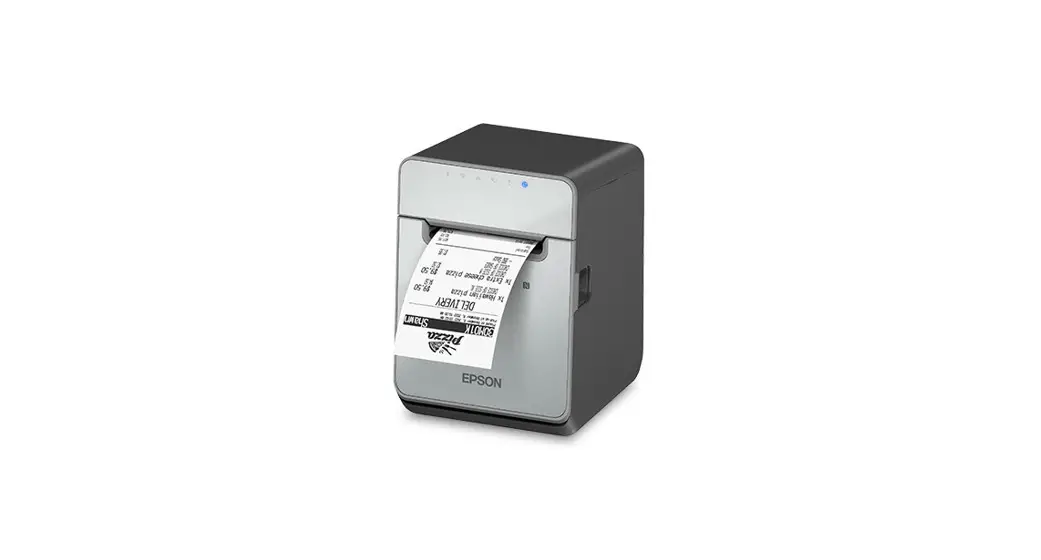
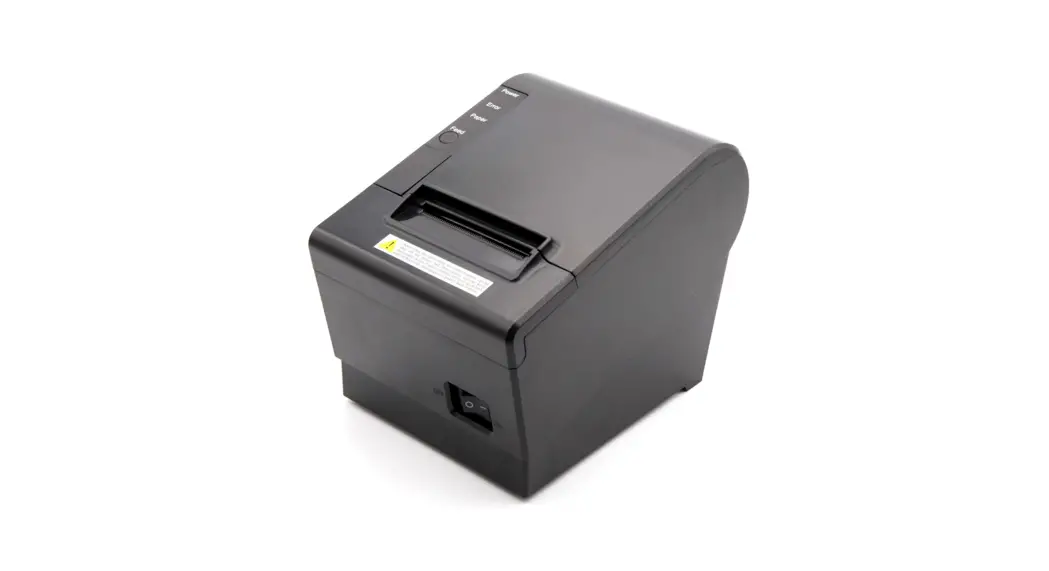
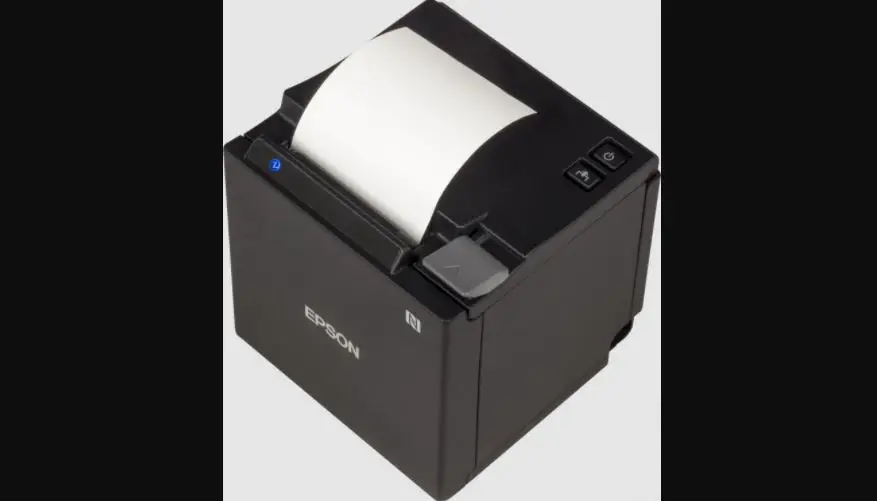
TM-T88V Thermal Printer
Product Information
The TM-T88V is a thermal receipt printer designed for safe and
effective use. It is manufactured by Seiko Epson and comes with
various safety precautions to ensure user safety. The printer is
equipped with a thermal head and a manual cutter for easy paper
cutting. It is important to follow the provided caution labels and
safety instructions for proper usage of the product.
Key Symbols
- WARNING: Warnings must be followed carefully
to avoid serious bodily injury. - CAUTION: Cautions must be observed to avoid
minor injury, equipment damage, or data loss.
Safety Precautions
- Shut down equipment immediately: If the
equipment produces smoke, a strange odor, or unusual noise. Unplug
the equipment and seek advice from your dealer or Seiko Epson
service center. - Do not attempt to repair: Improper repair work
can be dangerous. Contact a professional for repairs. - Do not disassemble or modify: Tampering with
the product may result in injury or fire. - Use specified power source: Connect the
printer to the correct power source to avoid fire hazards. - Avoid foreign matter: Prevent foreign objects
from falling into the equipment as it may lead to fire
hazards. - Spills and liquids: If water or other liquid
spills into the equipment, unplug the power cord immediately and
seek advice from your dealer or Seiko Epson service center. - DIP switch cover: Ensure the cover is closed
and the screw is tightened after adjusting the DIP switch. Using
the product with the cover open may cause fire or electric
shock. - Aerosol sprayers: Do not use aerosol sprayers
containing flammable gas near the product as it may cause fire
hazards. - Drawer kick-out connector: Do not connect a
telephone line to the drawer kick-out connector to prevent damage
to the printer and telephone line. - Proper cable connections: Follow the mentioned
cable connections in the manual to avoid equipment damage and
burning. - Firm and stable surface: Place the printer on
a firm, stable, horizontal surface to prevent breakage and
injury. - Avoid high humidity and dust: Do not use the
printer in locations with high humidity or dust levels to prevent
equipment damage or fire. - Avoid heavy objects and leaning: Do not place
heavy objects on top of the printer and avoid standing or leaning
on it to prevent breakage and injury. - Unplug during extended periods of non-use: To
ensure safety, unplug the product when it is not in use for an
extended period.
Caution Labels
- CAUTION: Do not touch the thermal head and its
frame after printing as it can be very hot. - CAUTION: Be careful while handling the manual
cutter to avoid injury.
Restriction of Use
The TM-T88V printer should be used according to the instructions
provided in the user manual. Failure to comply with the
instructions may result in improper functioning or damage to the
printer.
Product Usage Instructions
- Ensure the printer is placed on a firm, stable, and horizontal
surface. - Connect the printer to the specified power source.
- Do not connect a telephone line to the drawer kick-out
connector. - Follow the mentioned cable connections in the manual for proper
setup. - When adjusting the DIP switch, open the DIP switch cover, make
the necessary adjustments, close the cover, and tighten the screw
securely. - Avoid placing heavy objects on top of the printer or leaning on
it. - Do not touch the thermal head and its frame immediately after
printing as it can be very hot. - Handle the manual cutter with caution to prevent injury.
- If the equipment produces smoke, a strange odor, or unusual
noise, shut it down immediately. Unplug the power cord and seek
advice from your dealer or Seiko Epson service center. - In case of spills or liquid entering the equipment, unplug the
power cord immediately and seek advice from your dealer or Seiko
Epson service center. - Before leaving the printer unused for an extended period,
unplug it for safety.
For any further assistance or troubleshooting, refer to the user
manual or contact your dealer or Seiko Epson service center.
English
User’s Manual
M00023802EN
TM-T88V User’s Manual 1
English
All rights reserved. No part of this publication may be reproduced, stored in a retrieval system, or transmitted in any form or by any means, electronic, mechanical, photocopying, recording, or otherwise, without the prior written permission of Seiko Epson Corporation. No patent liability is assumed with respect to the use of the information contained herein. While every precaution has been taken in the preparation of this book, Seiko Epson Corporation assumes no responsibility for errors or omissions. Neither is any liability assumed for damages resulting from the use of the information contained herein. Neither Seiko Epson Corporation nor its affiliates shall be liable to the purchaser of this product or third parties for damages, losses, costs, or expenses incurred by purchaser or third parties as a result of: accident, misuse, or abuse of this product or unauthorized modifications, repairs, or alterations to this product, or (excluding the U.S.) failure to strictly comply with Seiko Epson Corporation’s operating and maintenance instructions. Seiko Epson Corporation shall not be liable against any damages or problems arising from the use of any options or any consumable products other than those designated as Original Epson Products or Epson Approved Products by Seiko Epson Corporation. EPSON is a registered trademark of Seiko Epson Corporation. Exceed Your Vision is a registered trademark or trademark of Seiko Epson Corporation. All other trademarks are the property of their respective owners and used for identification purpose only. NOTICE: The contents of this manual are subject to change without notice. © Seiko Epson Corporation 2014. All rights reserved.
2 TM-T88V User’s Manual
Important Safety Information
English
This section presents important information intended to ensure safe and effective use of this product. Read this section carefully and store it in an accessible location.
Key to Symbols
The symbols in this manual are identified by their level of importance, as defined below. Read the following carefully before handling the product.
WARNING: Warnings must be followed carefully to avoid serious bodily injury.
CAUTION: Cautions must be observed to avoid minor injury to yourself, damage to your equipment, or loss of data.
Safety Precautions
WARNING: Shut down your equipment immediately if it produces smoke, a strange odor, or unusual noise. Continued use may lead to fire. Immediately unplug the equipment and contact your dealer or a Seiko Epson service center for advice.
Never attempt to repair this product yourself. Improper repair work can be dangerous.
Never disassemble or modify this product. Tampering with this product may result in injury or fire.
Be sure to use the specified power source. Connection to an improper power source may cause fire.
Do not allow foreign matter to fall into the equipment. Penetration by foreign objects may lead to fire.
If water or other liquid spills into this equipment, unplug the power cord immediately, and then contact your dealer or a Seiko Epson service center for advice. Continued usage may lead to fire.
If you open the DIP switch cover, be sure to close the cover and tighten the screw after adjusting the DIP switch. Using this product with the cover open may cause fire or electric shock.
Do not use aerosol sprayers containing flammable gas inside or around this product. Doing so may cause fire.
Do not connect a telephone line to the drawer kick-out connector; otherwise the printer and the telephone line may be damaged.
CAUTION: Do not connect cables in ways other than those mentioned in this manual. Different connections may cause equipment damage and burning.
Be sure to set this equipment on a firm, stable, horizontal surface. The product may break or cause injury if it falls.
Do not use in locations subject to high humidity or dust levels. Excessive humidity and dust may cause equipment damage or fire.
TM-T88V User’s Manual 3
English
Do not place heavy objects on top of this product. Never stand or lean on this product. Equipment may fall or collapse, causing breakage and possible injury.
Take care not to injure your fingers on the manual cutter
· When you remove printed paper · When you perform other operations such as loading/replacing roll
paper To ensure safety, unplug this product before leaving it unused for an extended period.
Caution Labels
The caution labels on the product indicate the following precautions.
CAUTION: Do not touch the thermal head and the frame on its side because it can be very hot after printing.
CAUTION: Touching the manual cutter may cause injury.
Restriction of Use
When this product is used for applications requiring high reliability/safety, such as transportation devices related to aviation, rail, marine, automotive, etc.; disaster prevention devices; various safety devices, etc.; or functional/precision devices, etc.; you should use this product only after giving consideration to including fail-safes and redundancies into your design to maintain safety and total system reliability. Because this product was not intended for use in applications requiring extremely high reliability/safety, such as aerospace equipment, main communication equipment, nuclear power control equipment, or medical equipment related to direct medical care, etc., please make your own judgment on this product’s suitability after a full evaluation.
Unpacking
The following items are included with the standard specification printer. If any item is damaged, contact your dealer.
Printer Connector cover Roll paper guide* Screw*
Roll paper Power switch cover Strips for 58 mm paper width × 2* AC adapter*
AC cable* Setup Guide
Warranty certificate* TM-T88V Software & Documents Disc
* May not be included depending on the printer model.
4 TM-T88V User’s Manual
English
Downloading Drivers, Utilities, and Manuals
The latest versions of drivers, utilities, and manuals can be downloaded from one of the following URLs.
For customers in North America, go to the following web site: http://www.epsonexpert.com/ and follow the on-screen instructions.
For customers in other countries, go to the following web site: http://www.epson-pos.com/
Precautions When Installing the Power Supply Cover
A description of EMI standards is on the bottom of the printer. When the optional power supply cover (OT-BX88V) is installed, it is hard to check it. In such case, uninstall the power supply cover if necessary.
Part Names
Roll paper cover
Control panel
Cutter cover
Power switch
Connector cover Cover open button
Control Panel
(Power) LED This LED is on when the printer is on.
Error LED This indicates an error.
Paper LED On indicates a paper near end or out. Flashing indicates standby.
Feed button This button feeds paper.
TM-T88V User’s Manual 5
English
Installing the Printer Horizontally or Vertically
You can install the printer horizontally on a flat surface (with the paper exit on top) or vertically (with the paper exit at the front) by hanging it on a wall, using the optional WH-10 hanging bracket set.
WARNING: When hanging the printer on the wall with the hanging bracket set, be sure to attach a connector cover to the printer.
Setting Up the Printer
To set up the printer, follow the steps below. 1. Connect the cables. 2. Attach the connector cover. 3. Arrange the cables. 4. Install the roll paper.
Connecting the Cables
CAUTION: For a serial interface, use a null modem cable. For a parallel interface, use an IEEE 1284 cable. For a USB interface, do not turn on the printer before installing the printer driver. 1. Make sure the printer is turned off. 2. Connect the power cord and each interface cable to the connectors on the
printer back. For the shape of each connector, see the illustration below. (Mounted interfaces vary by the printer model.)
RS-232
IEEE1284
DK
10BASE-T/
DC24V
USB
100BASE-TX
3. Connect the interface cable to the computer. 4. Insert the power cord plug into a socket.
6 TM-T88V User’s Manual
English
Attaching the Connector Cover
Follow the steps below to attach the connector cover to protect the cables. 1. Turn over the printer. 2. Position the two hooks on both sides of the connector cover so that they hook
the printer case. 3. Push the connector cover down to click onto the printer case.
Hook
To remove the connector cover, turn the printer over, and push the connector cover down while pushing both sides of the connector cover inward to detach the hooks from the printer case.
TM-T88V User’s Manual 7
English
Arranging the Cables
Pass the cables through cable exits in the connector cover. The connector cover has cable exits on the back and both sides. You can also route the serial, USB, or power cables out the front by passing them through the notch in the printer bottom.
If you want to pass the USB cable through the cable exit on the back, fit the cable under the hook on the printer to prevent the cable from coming off.
Hook
After the cable arrangement, turn over the printer, and make sure the cables are not pinched.
8 TM-T88V User’s Manual
English
Installing Roll Paper
Follow the steps below to install the roll paper. If you want to change the paper width by using the roll paper guide, see “Changing the Paper Width” on page 11. 1. Press the cover open button to open the roll paper cover.
2. Remove the used roll paper core if any, and insert the roll paper. The correct direction of the paper is shown in the illustration below.
3. Pull out some paper, and close the roll paper cover.
TM-T88V User’s Manual 9
English
4. Tear off the paper.
Attaching the Power Switch Cover
The enclosed power switch cover ensures that the power switch is not pressed accidentally. You can turn on and off the power switch by inserting a sharppointed object in the holes in the power switch cover. To detach the cover, use a sharp-pointed object. To use this cover, install it as shown in the illustration below.
WARNING: If an accident occurs with the power switch cover attached, unplug the power cord immediately. Continued use may cause fire or shock.
10 TM-T88V User’s Manual
English
Changing the Paper Width
If a roll paper guide is included with your printer, you can change the paper width from 80 mm to 58 mm by installing the roll paper guide. Follow the steps below to change the paper width.
CAUTION: If you once change the paper width from 80 mm to 58 mm, you cannot change it back to 80 mm. When changing the paper width, be sure to make the setting for the paper width with utility software for the TM-T88V. 1. Open the roll paper cover. 2. Install the roll paper guide so that the projection on its bottom is aligned with
the hole at the right of the roll paper holder.
Hole
3. Tighten the enclosed screw to fix the roll paper guide.
TM-T88V User’s Manual 11
English
4. Paste the enclosed 2 strips along the roll paper guide on the bottom of the roll paper holder. Make sure the space between the top edge of strip and the line of the groove in the roll paper guide (indicated as a in the illustration) is 0.5 mm or less.
a
Strips for 58 mm
paper width
5. Install the roll paper correctly. 6. Close the roll paper cover.
Troubleshooting
No lights on the control panel Check whether the power supply cable is correctly connected to the printer and the socket.
Error LED on with no printing Check whether the roll paper cover is closed. If it is open, close it. If the Paper LED is on, check whether the roll paper is correctly installed and any roll paper remains.
Error LED flashing with no printing Check whether a paper jam has occurred. If paper is jammed, remove the jammed paper referring to the description below and install the roll paper correctly. Printing stops if the head overheats and resumes automatically when it cools. For other cases, turn the printer off, and after 10 seconds, back on.
12 TM-T88V User’s Manual
English
Removing Jammed Paper
When a paper jam occurs, never pull out the paper forcibly. Open the roll paper cover and remove the jammed paper.
CAUTION: Do not touch the thermal head and the frame on its side (indicated in the circle in the illustration below) because it can be very hot after printing.
If the roll paper cover does not open, follow the steps below. 1. Turn off the printer. 2. Slide the cutter cover toward the front to open it.
3. Turn the knob until you see a triangle in the opening. This returns the cutter blade to the normal position. There is a label near the cutter to assist you.
4. Close the cutter cover. 5. Open the roll paper cover and remove the jammed paper.
TM-T88V User’s Manual 13
English
Cleaning
Cleaning the Printer Case
Be sure to turn off the printer, and wipe the dirt off the printer case with a dry cloth or a damp cloth.
CAUTION: Never clean the product with alcohol, benzine, thinner, or other such solvents. Doing so may damage or break the parts made of plastic and rubber.
Cleaning the Thermal Head
CAUTION: After printing, the thermal head and the frame on its side (indicated in the circle in illustration below) can be very hot. Be careful not to touch it and to let it cool before you clean it. Do not damage the thermal head by touching it with your fingers or any hard object. Turn off the printer, open the roll paper cover, and clean the thermal elements of the thermal head with a cotton swab moistened with an alcohol solvent (ethanol or IPA). Epson recommends cleaning the thermal head periodically (generally every 3 months) to maintain receipt print quality.
14 TM-T88V User’s Manual
Setting the DIP Switches
English
CAUTION: Be sure to turn off the printer before removing the cover of the DIP switches. Removing it while the printer is turned on may cause problems such as an electric short, which leads to a malfunction of the printer.
1. Turn off the printer. 2. Turn over the printer. 3. Remove the DIP switch cover by removing the screw. 4. Set the DIP switches using a fine-tipped tool. 5. Replace the DIP switch cover, and fix it by installing the screw.
The new setting becomes effective after the printer is turned on.
DSW2 DSW1
TM-T88V User’s Manual 15
English
DIP Switch Tables
When using Serial Interface
DIP Switch Bank 1
SW Function
ON
1-1 Data receive error
Ignored
1-2 Receive buffer capacity
45 bytes
1-3 Handshaking
XON/XOFF
1-4 Data word length
7 bits
1-5 Parity check
Enabled
1-6 Parity selection
Even
1-7 Transmission speed (See table A.) 1-8
OFF Prints “?” 4KB
DTR/DSR 8 bits Disabled Odd
DIP Switch Bank 2
SW Function
2-1 Handshaking (BUSY condition)
ON
Receive buffer full
OFF
Offline or Receive buffer full
2-2 Do not change settings
Fixed to OFF
2-3 Print density 2-4
See Table B
2-5 Release condition of Releases BUSY Releases BUSY
receive buffer BUSY when remaining when remaining
(If receive buffer receive buffer receive buffer
capacity set to 4KB.) capacity
capacity
reaches
reaches
138 bytes.
256 bytes.
2-6 Do not change setting.
Fixed to OFF
2-7 I/F pin 6 reset 2-8 I/F pin 25 reset
Enabled Enabled
Disabled Disabled
Table A
Transmission speed (bps) bits per second 38400*1 4800 9600 19200
SW1-7 SW1-8 ON ON OFF ON ON OFF OFF OFF
*1: When DIP switches 1-7 and 1-8 are on, the transmission speed can be selected from one of seven speeds: 2400, 4800, 9600, 19200, 38400, 57600, and 115200 bps by control commands.
When using Parallel Interface
DIP Switch Bank 1
SW Function 1-1 Auto line feed
ON
Always enabled
OFF Always disabled
1-2 Receive buffer capacity
45 bytes 4KB
1-3 Select paper sensors Disabled to output paper-end signals (default value of a command) from parallel I/F.
1-4 Error signal output from parallel I/F
Disabled
Roll paper end sensor enabled, Roll paper nearend sensor enabled
Enabled
1-5~ 1-8
Undefined
DIP Switch Bank 2
SW Function
2-1 Handshaking (BUSY condition)
ON
Receive buffer full
OFF
Offline or Receive buffer full
2-2 Do not change settings
Fixed to OFF
2-3 Print density 2-4
See Table B
2-5 Release condition of Releases BUSY Releases BUSY
receive buffer BUSY when remaining when remaining
(If receive buffer receive buffer receive buffer
capacity set to 4KB.) capacity
capacity
reaches
reaches
138 bytes.
256 bytes.
2-6 Do not change 2-7 setting.
2-8 I/F pin 31 reset signal (Do not change setting)
Fixed to OFF Fixed to ON
Table B
Print density/low power Print density “Normal” Print density “Medium” Print density “Dark” Do not set
SW2-3 OFF ON OFF ON
SW2-4 OFF OFF ON ON
16 TM-T88V User’s Manual
English
When using USB/Ethernet/Wireless LAN Interface
DIP Switch Bank 1
DIP Switch Bank 2
SW Function 1-1 Auto line feed
ON
Always enabled
OFF Always disabled
1-2 Receive buffer capacity
1-3~ 1-8*1
45 bytes 4KB Undefined
*1: When using the USB interface on a model with a serial or parallel interface, the function of DIP switch 1-8 is as follows.
SW Function
ON
1-8 Power saving function Disabled for USB
OFF Enabled
SW Function
ON
OFF
2-1 Handshaking (BUSY condition)
Receive buffer Offline or
full
Receive buffer
full
2-2 Do not change settings
Fixed to OFF
2-3 Print density 2-4
See Table B
2-5 Release condition of Releases BUSY Releases BUSY
receive buffer BUSY when remaining when remaining
(If receive buffer receive buffer receive buffer
capacity set to 4KB.) capacity
capacity
reaches
reaches
138 bytes.
256 bytes.
2-6 Do not change 2-7 setting.
Fixed to OFF
2-8 Do not change setting.
*2
*2: Whether DIP switch 2-8 is set to ON or OFF is dependent on the printer model.
Table B
Print density/low power Print density “Normal”
SW2-3 OFF
Print density “Medium”
ON
Print density “Dark”
OFF
Do not set
ON
SW2-4 OFF OFF ON ON
Specifications
80 mm paper width
58 mm paper width*1
Printing method
Thermal line printing
Dot density
180 dpi ×180 dpi [dots per 25.4 mm {1″}]
Printing direction
Unidirectional with friction feed
Printing width
72 mm {2.83″}, 512 dot positions
50.8 mm {2.0″}, 360 dot positions
Characters per line Font A: 42; Font B: 56 (default)
Font A: 30; Font B: 40
Character spacing (default)
Font A: 0.28 mm {.01″} (2 dots), Font B: 0.28 mm {.01″} (2 dots)
Character size
Standard/Double-height/Double-width/Double-width and Double-height Font A: 1.41 × 3.39/1.41 × 6.77/2.82 × 3.39/2.82 × 6.77 mm Font B: 0.99 × 2.40/0.99 × 4.80/1.98 × 2.40/1.98 × 4.80 mm
Character structure Font A (default): 12 × 24; Font B: 9 × 17 (including 2-dot horizontal spacing)
Number of characters Alphanumeric characters: 95; International character sets: 18 sets Extended graphics: 128 × 43 pages (including user-defined page)
Printing speed
300 mm/s {11.8″/s} max.; 70.9 lps (4.23 mm {1/6″} feed) Ladder bar code and 2D code: 100 mm/s {2.4″/s}
The above speed values are approximate. The values are when the printer prints with density “Normal” at 24 V and 25°C {77°F} Speed is adjusted automatically depending on the voltage applied and head temperature.
TM-T88V User’s Manual 17
English
80 mm paper width
58 mm paper width*1
Paper feed speed
Approx. 200 mm/s {approx. 7.9″/s} (continuous paper feed with the Feed button.)
Line spacing (default) 4.23 mm {1/6″}
Roll paper Width 79.5 mm ± 0.5 mm {3.13″ ± 0.02″} 57.5 mm ± 0.5 mm {2.26″ ± 0.02″} (single-ply) Diameter Maximum outside diameter: 83 mm {3.27″}
Spool Spool diameter: Inside: 12 mm {0.47″}; Outside: 18 mm {0.71″}
Thermal paper type NTP080-80
NTP058-80
Interface (compatible)
Serial (RS-232)/Parallel (IEEE1284)/Ethernet (10BASE-T/100BASE-TX)/ Wireless LAN (IEEE802.11b)/USB [Compliance: USB 2.0, Communication speed: Full-speed (12 Mbps)]/USB Plus Power [Communication speed: Full-speed (12 Mbps)]
Receive buffer
4KB/45 bytes
Cash drawer function 2 drives
Supply voltage*2
DC + 24 V ± 7%
Current consumption Mean: Approx. 1.8A
Temperature
Operating: 5 to 45°C {41 to 113°F}
Storage:
10 to 50°C {14 to 122°F}, except for paper
Humidity
Operating: 10 to 90% RH
Storage:
10 to 90% RH, except for paper
Overall dimensions 148 × 145 × 195 mm {5.83 × 5.71 × 7.68″} (H × W × D)
Weight (mass)
Approx. 1.6 kg {3.5 lb}
lps: lines per second dpi: dots per 25.4 mm (dots per inch)
*1: The values are those when the paper width is changed to 58 mm by installing the roll paper guide and making the paper width setting with utility software for the TM-T88V. The roll paper guide may not be included depending on the printer model.
*2: Be sure to use a safety-standards-applied power source that meets the following specifications. Rated output: 24 V/2.0 A or more, Maximum output: 240 VA or less
18 TM-T88V User’s Manual
 epson-biz.com - EPSON
 Point of Sale Receipt Printer Solutions | Epson US