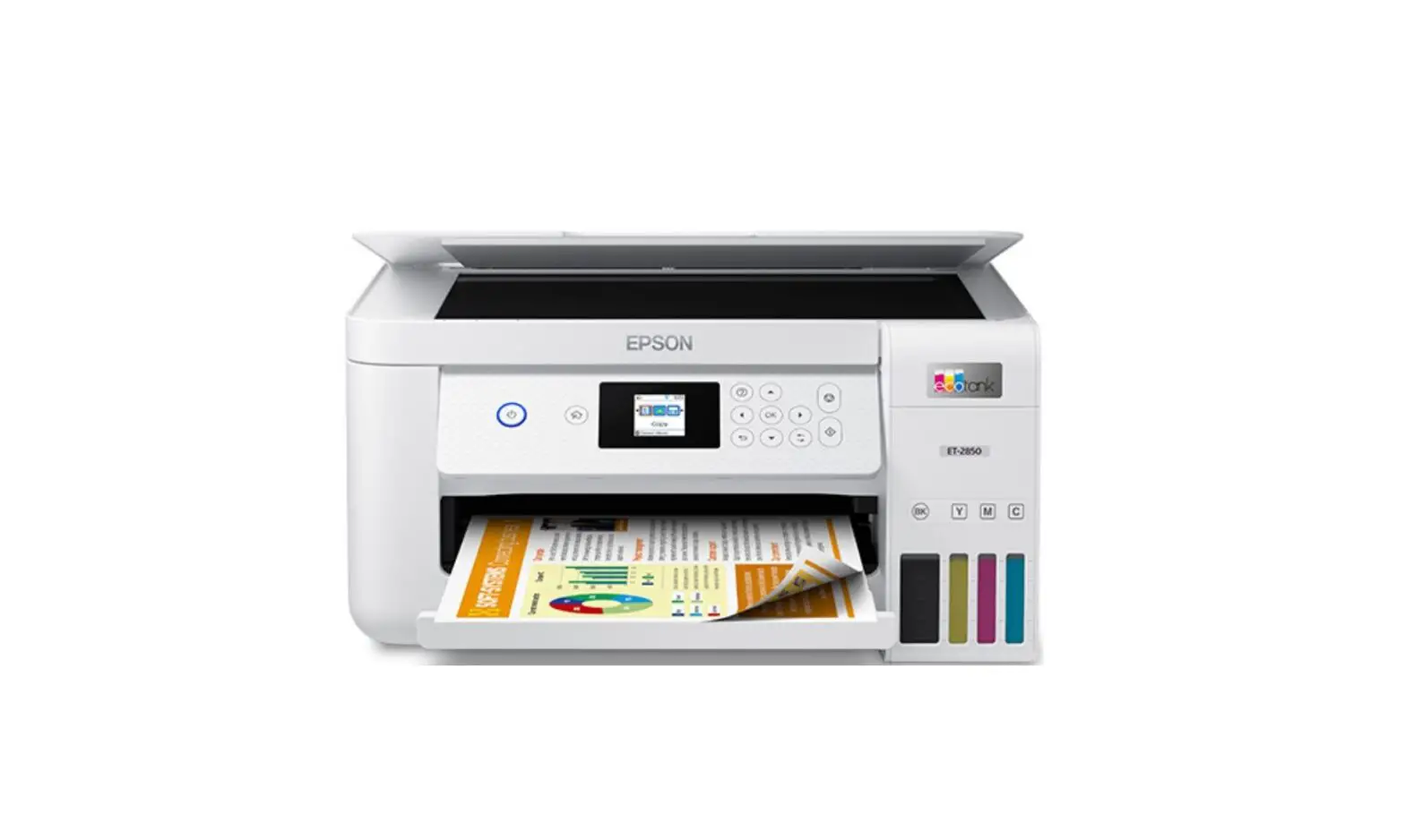
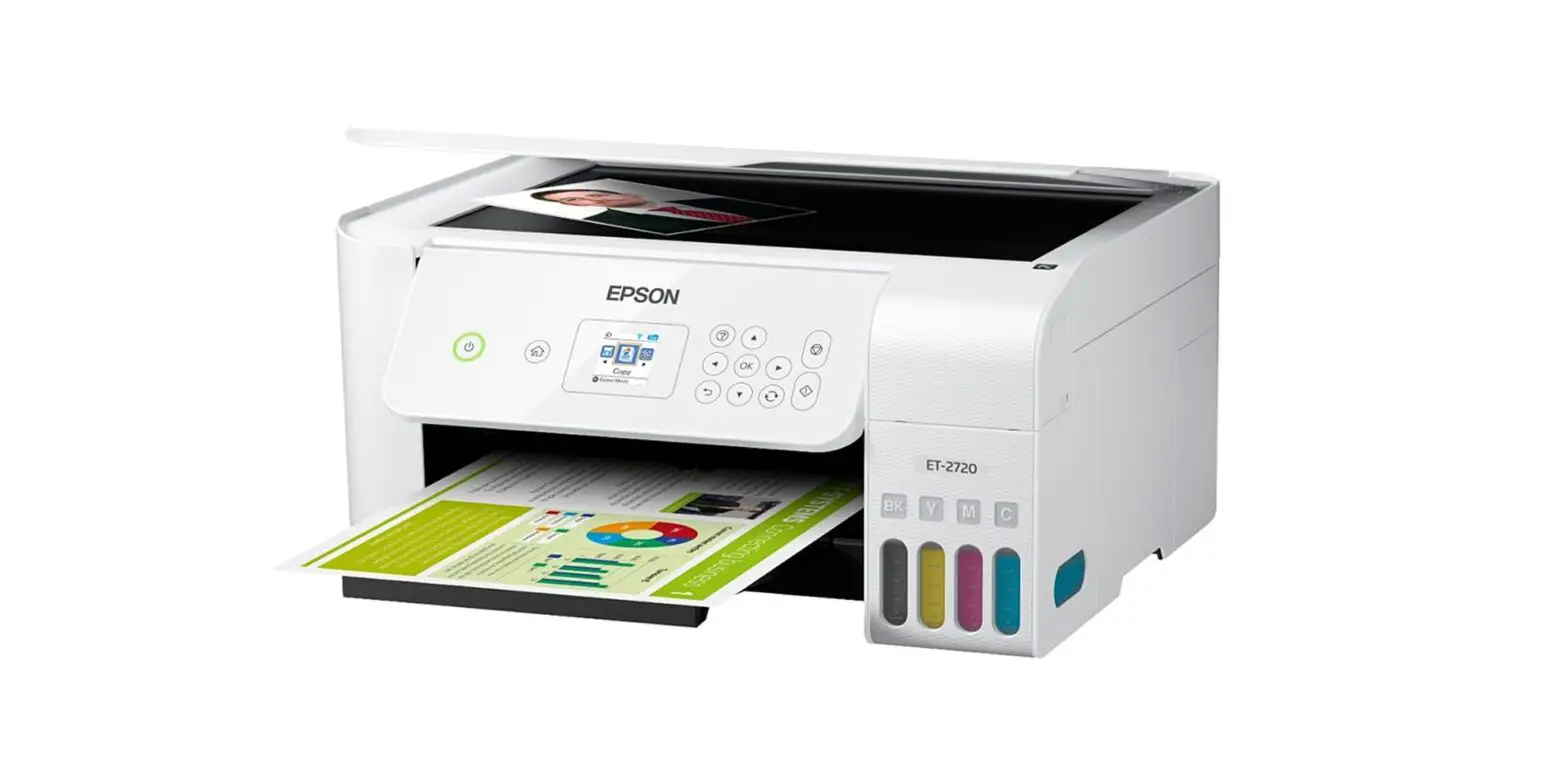
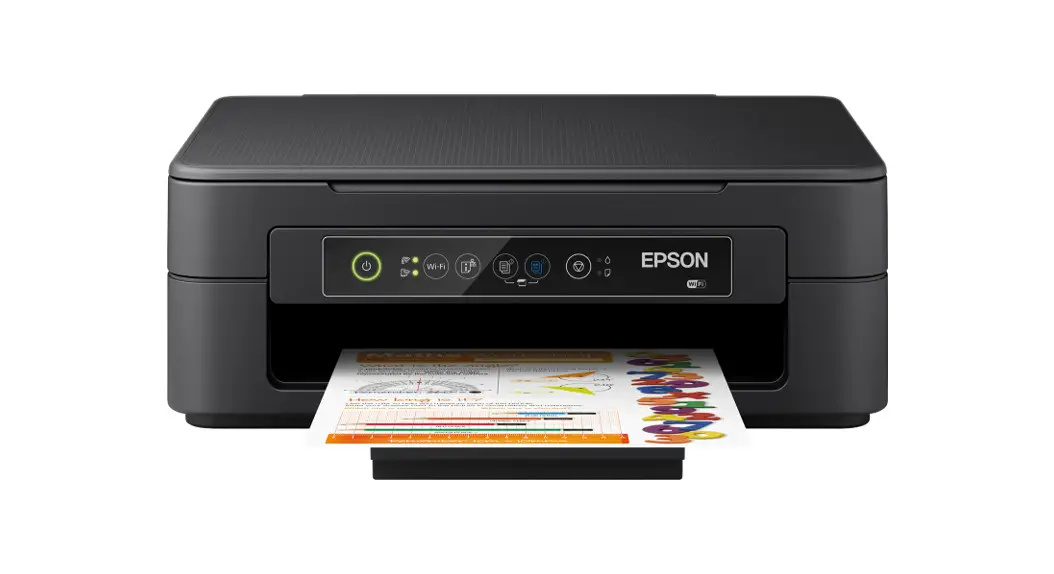
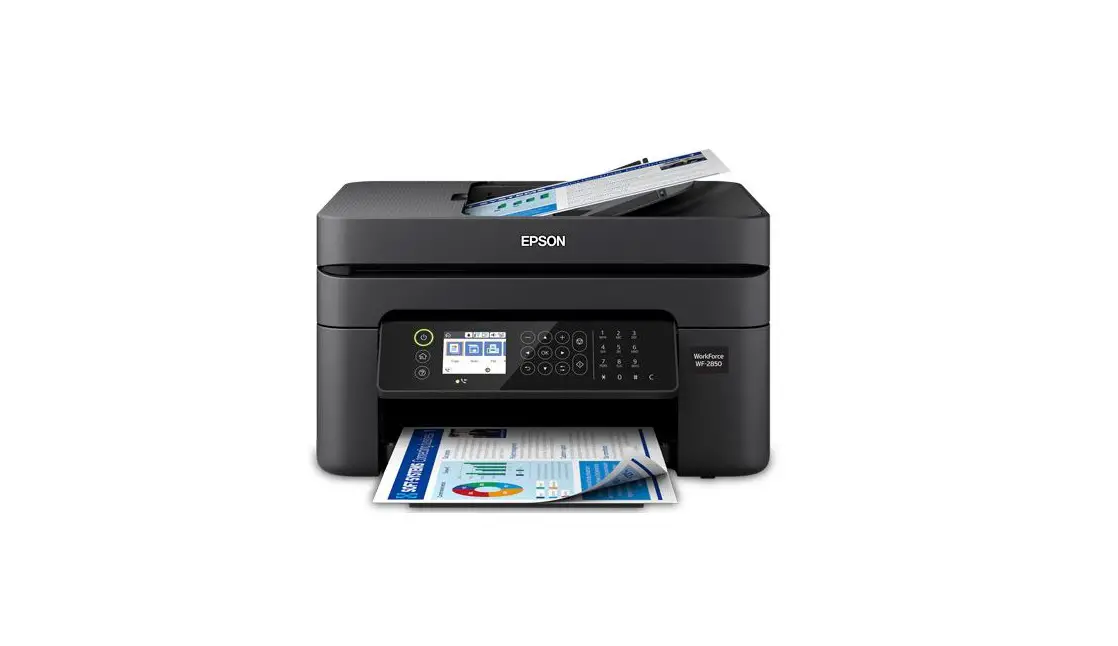
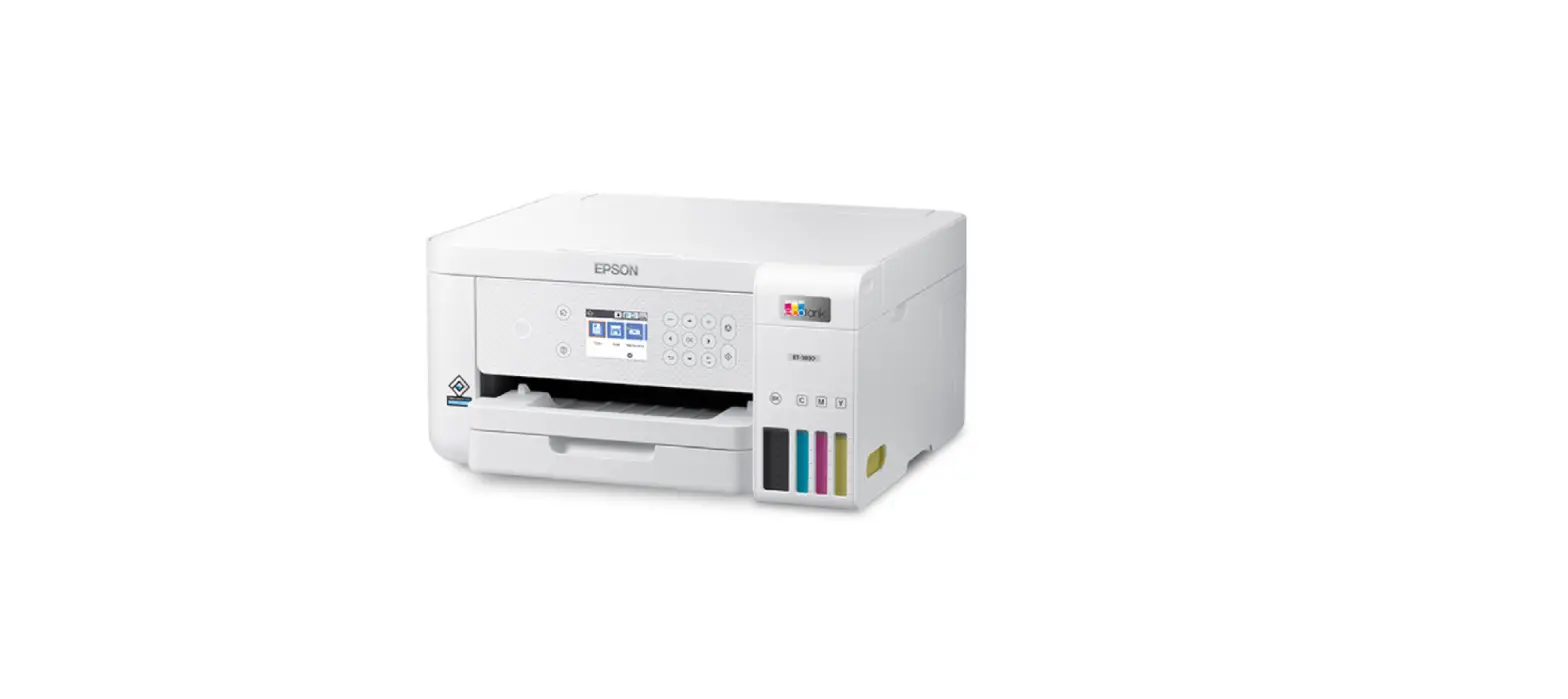
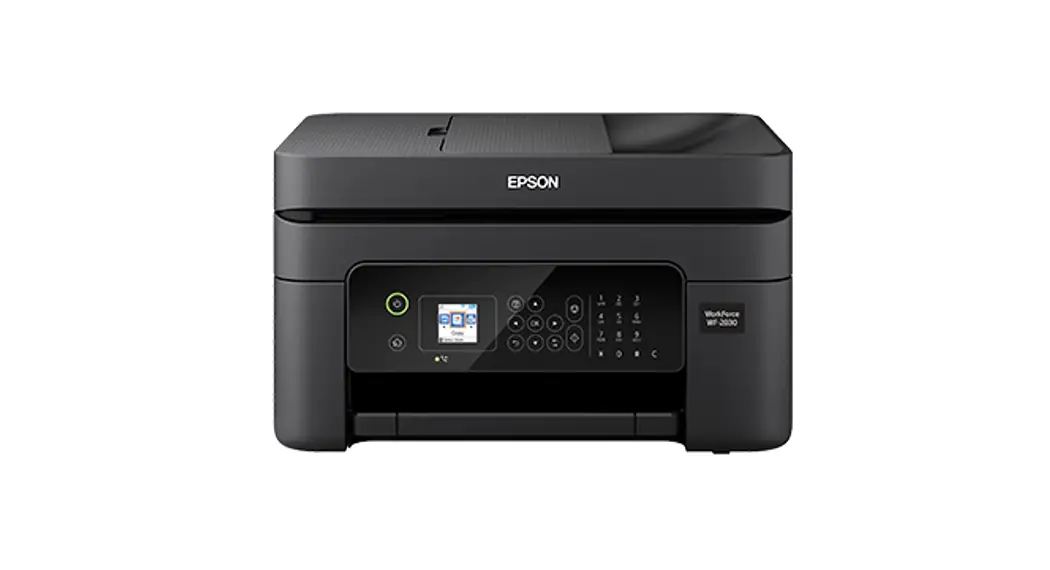
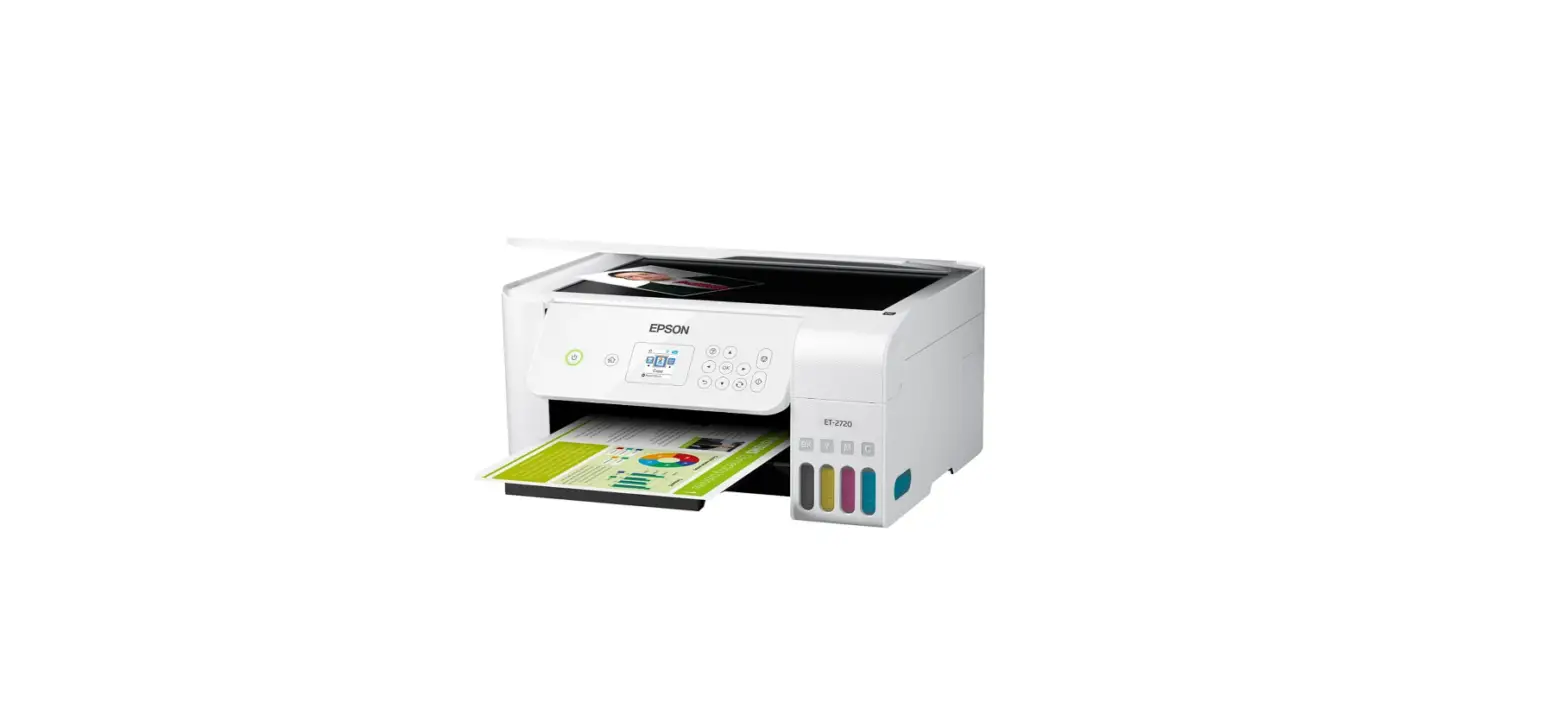
ET-3830 Inkjet Printer
Product Information:
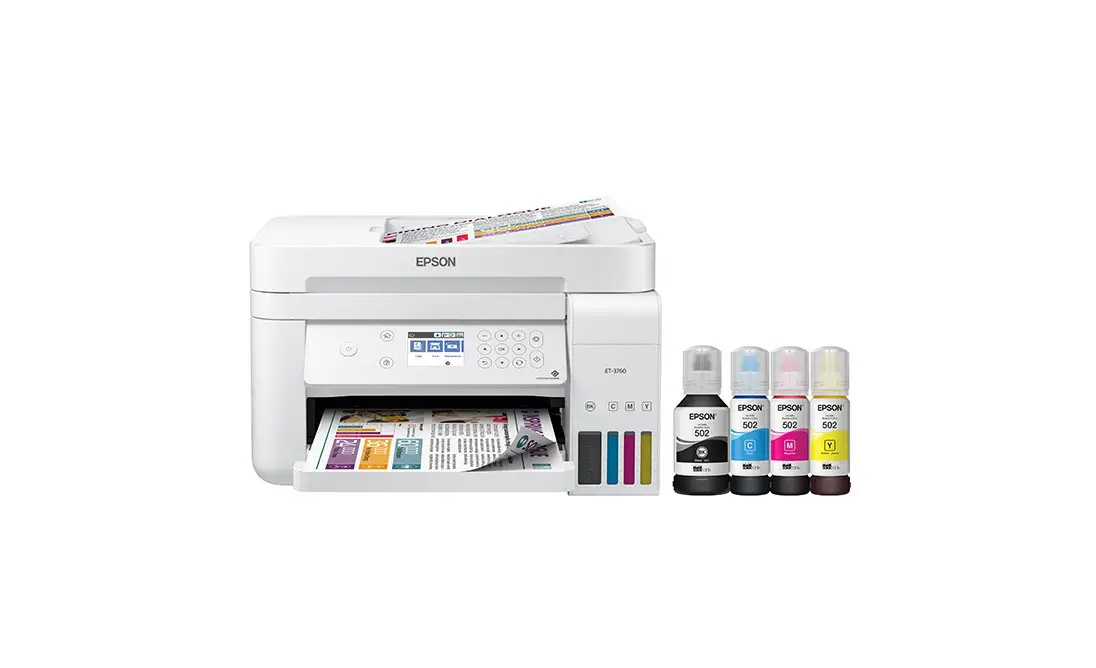
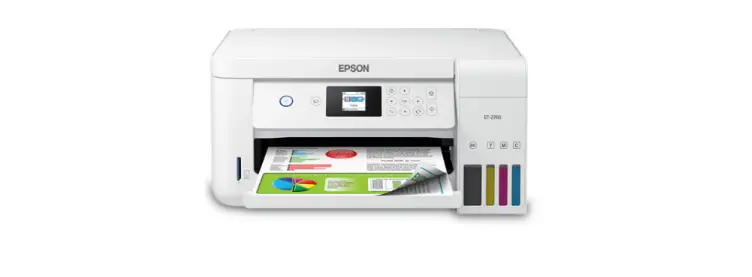
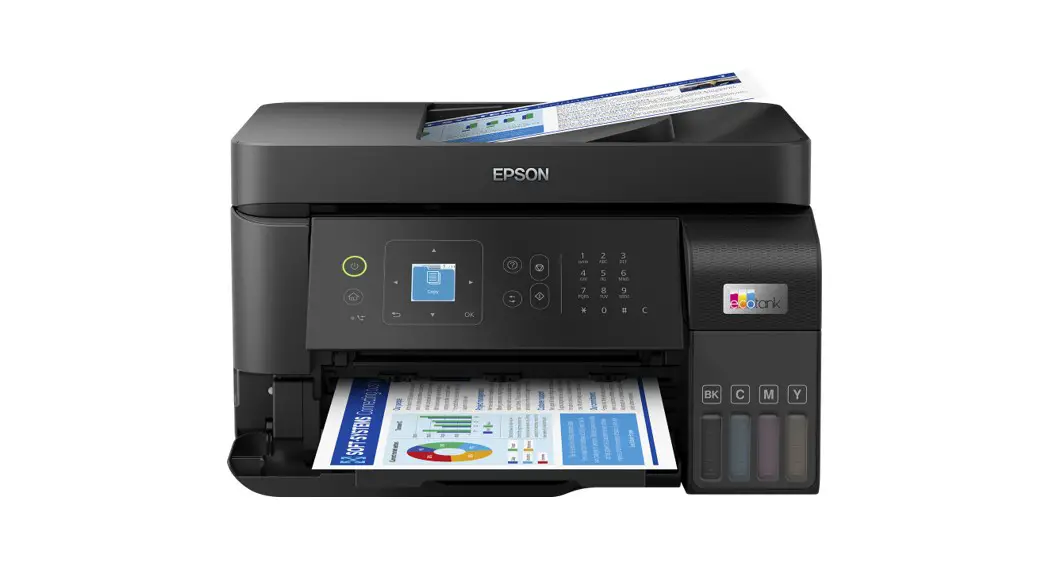
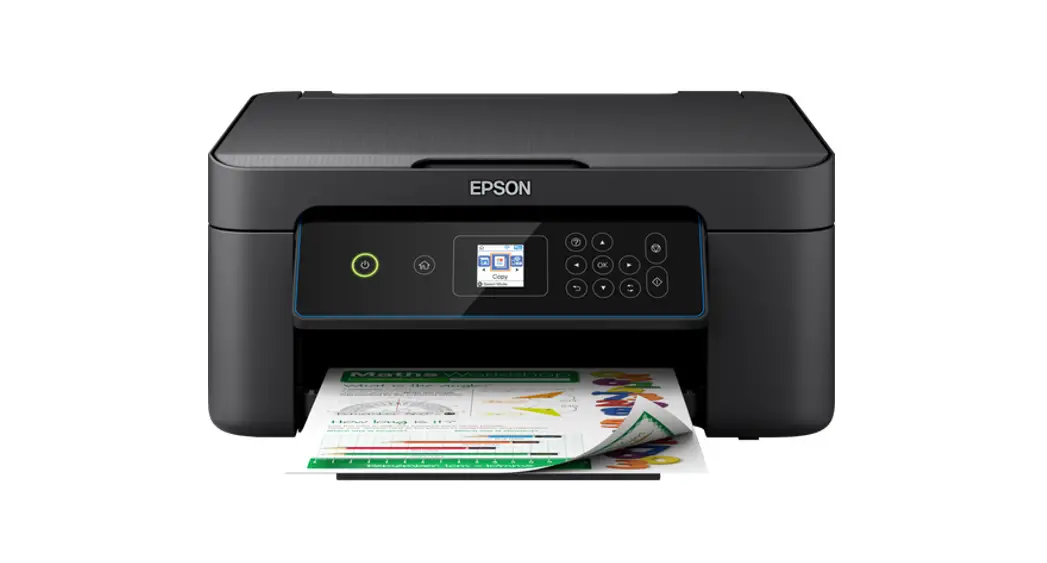
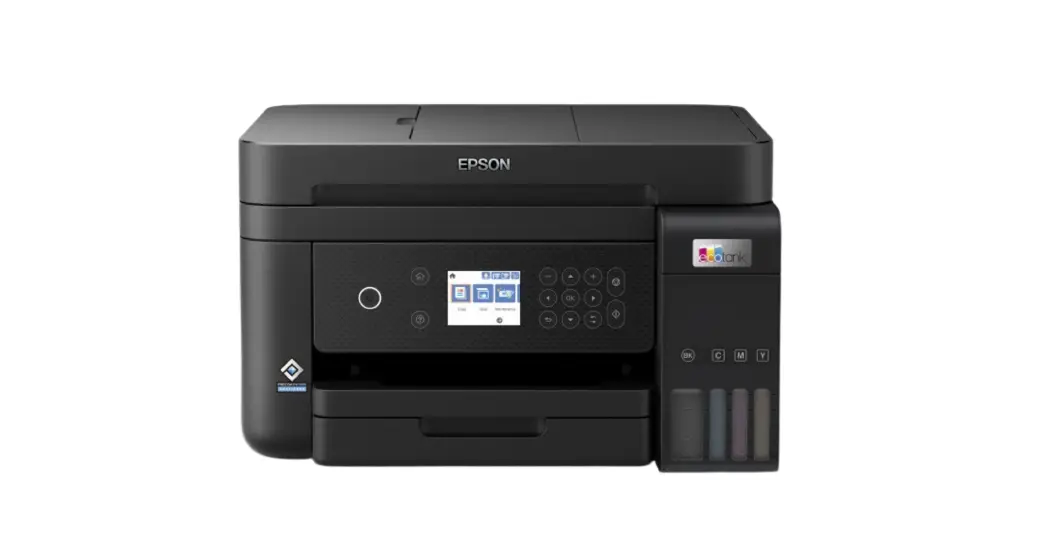
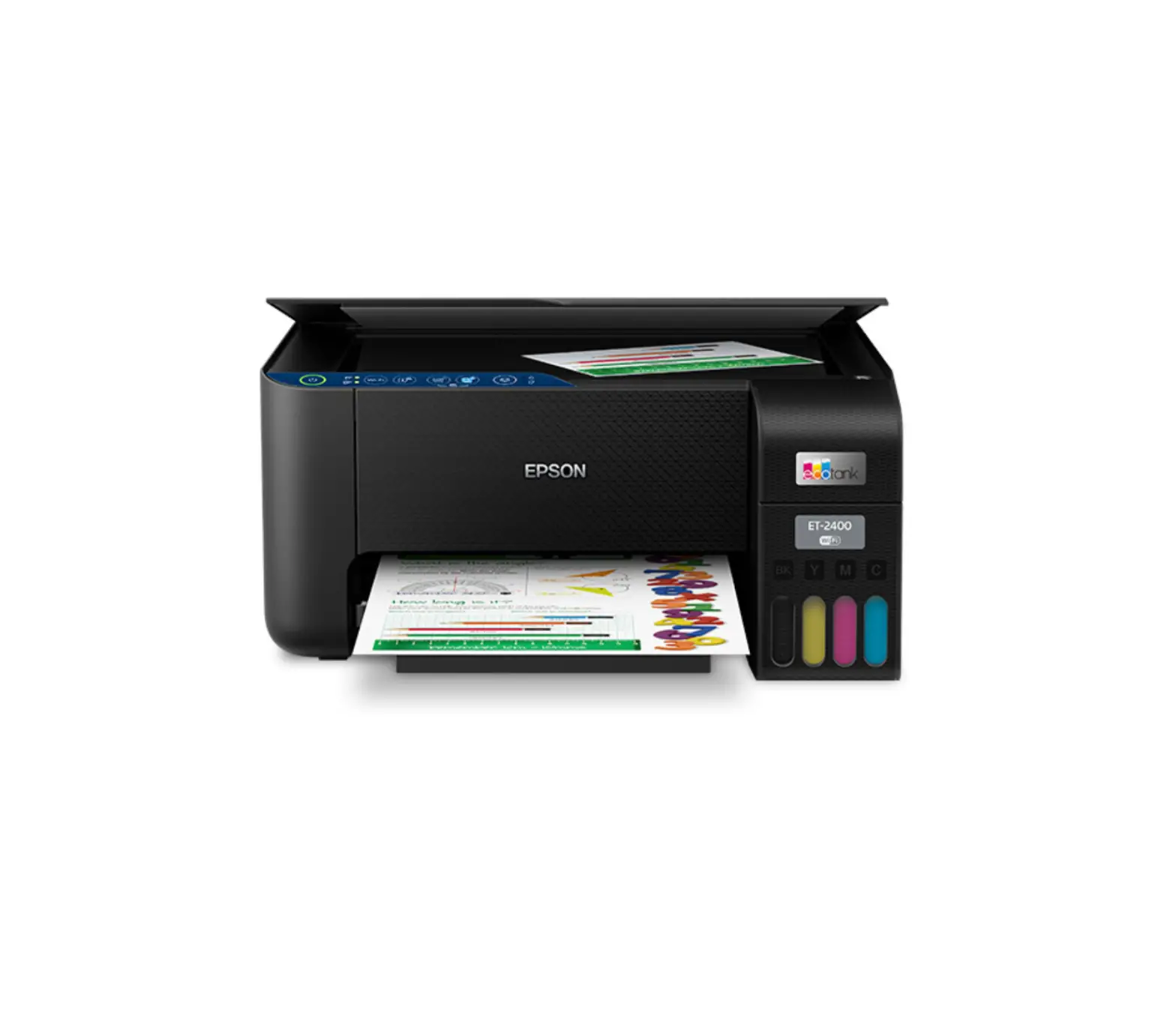
The ET-3830/ET-3850/ET-4850 is a multi-function printer
manufactured by Epson. It is equipped with advanced printing
technology and features a built-in ink tank system that eliminates
the need for traditional ink cartridges. This printer offers
high-quality printing, scanning, and copying capabilities, making
it suitable for both home and office use.
Important Safety Instructions:
- Before using the product, it is essential to read the provided
instructions and safety guidelines in the online User’s Guide. - When using telephone equipment, always follow basic safety
precautions to reduce the risk of fire, electric shock, and
personal injury. - Use only a No. 26 AWG or larger telecommunication line cord to
reduce the risk of fire.
Setup Method:
To set up the printer, you have two options:
- Mobile Device Setup:
- Download the Epson Smart Panel app from your device’s app
store. Do not launch the app yet. - Press the power button on the printer to turn it on.
- Launch the app and follow its instructions to complete the
setup process.
- If you do not want to use a mobile device for setup, skip to
the next section. - Unpack the printer and remove all protective materials.
- Connect the power cord to the back of the printer and plug it
into an electrical outlet. Do not connect the printer to your
computer yet. - Refer to the back of the instruction sheet for additional setup
information, such as setting up fax, connecting to a computer,
using voice-activated printing, troubleshooting, and contacting
Epson support.
Ink Tank Filling:
Before using the printer, it is necessary to fill the ink tanks.
Follow the steps below:
- Open the scanner unit to access the ink tank cover.
- For each color (starting with black), follow these
sub-steps:
- Open the cap for the respective ink tank.
- Unpack the ink bottle and remove the bottle cap.
- Insert the ink bottle into the filling port. Make sure not to
force it and ensure it is properly aligned. - Wait for the ink to fill the tank. Avoid squeezing the bottle
or letting it touch any other surface. - Once the tank is filled to the upper line, remove the ink
bottle and securely close it with the bottle cap. If there is any
remaining ink, store the bottle for later use. - Securely close the ink tank cap.
the printer. The power light will start flashing.
settings. You can change these settings later using the product’s
control panel. Refer to the online User’s Guide for more
information.
Once the setup and ink tank filling process is complete, your
printer is ready for use.
ET-3830/ET-3850/ET-4850
Start Here
IMPORTANT: Before using this product, make sure you read these instructions and the safety instructions in the online User’s Guide.
Important Safety Instructions: When using telephone equipment, you should always follow basic safety precautions to reduce the risk of fire, electric shock, and personal injury, including the following:
· Do not use the Epson® product near water. · Always keep this guide handy. · Avoid using a telephone during an electrical storm. There may be a
remote risk of electric shock from lightning. · Do not use a telephone to report a gas leak in the vicinity of the leak.
Caution: To reduce the risk of fire, use only a No. 26 AWG or larger telecommunication line cord.
The illustrations show the ET-4850, but the steps are the same for the ET-3830 and ET-3850, unless otherwise specified.
2 Choose a setup method
The Epson Smart Panel® app can help you set up your printer through an interactive, step-by-step process using your smartphone or tablet.
or
To use your mobile device for setup, continue to step 1.
If you do not want to use a mobile device for setup, skip to the “Fill ink tanks” section below.
1 Download the Epson Smart Panel app
from your device’s app store. Do not launch the app yet.
2 Press the power button to turn on the product.
1 Unpack
Note: · Do not open the ink bottles until you are ready to fill the ink tanks.
The ink bottles are vacuum packed to maintain reliability. · Some products may not include a CD.
1 Remove all protective materials from the product.
Caution: Do not touch the flat white cable or the ink tubes and their translucent cover.
2 Connect the power cord to the back of the product and to
an electrical outlet.
Note: Do not connect your product to your computer yet.
3 Launch the app and follow its instructions to set up your
product.
For information on setting up the fax (ET-4850), connecting your product to a computer, using voice-activated printing, or solving problems, or for details on reaching Epson support, see the sections on the back of this sheet.
3 Fill ink tanks
Warning: Keep the ink bottles out of the reach of children and do not drink the ink.
Caution: This product requires careful handling of ink. If ink spills, wipe it off immediately with a damp towel to avoid permanent stains. If ink gets on your clothes or belongings, it may not come off. Note: · Epson cannot guarantee the quality or reliability of third-party ink. · Use the ink bottles included with the printer to set up the product.
Part of the ink will be used to charge the print head. These bottles may print fewer pages compared with replacement ink bottles. · Epson strongly recommends the use of genuine ink to ensure optimal print quality and performance.
1 With the scanner unit raised, open the ink tank cover, then
open the cap for the black (BK) ink tank.
2 Unpack the black (BK) ink bottle. Hold the ink bottle
upright and slowly turn the bottle cap to remove it.
Caution: Do not shake or squeeze the ink bottle. Do not touch the top of the ink bottle after its cap is removed.
3 Insert the ink bottle into the filling port.
Note: Do not force the bottle into position; each bottle is keyed for each color.
4 Wait for the ink to fill the tank.
Do not squeeze the bottle or allow it to contact any other surface. Note: Ink flows into the tank and stops automatically when the ink tank is filled to the upper line. If ink does not flow from the bottle, lift and reinsert the bottle.
5 When the ink tank is full, remove the ink bottle and
securely close it with the bottle cap. If any ink remains in the bottle, close the bottle and store it for later use.
Note: Do not leave the ink bottle inserted; otherwise the bottle may be damaged or ink may leak.
6 Securely close the black ink tank cap.
7 Repeat the previous steps for the other colors.
8 Close the ink tank cover, then close the scanner unit.
9 Raise the control panel, then press the power button to
turn on the product. The power light flashes.
Note: If an error code appears, turn off the product and check that no protective material has been left inside the product.
10 ET-3830/ET-3850: Select your language.
ET-4850: Select your language, country, date, and time settings. Note: You can change these settings later using the product’s control panel. For more information, see the online User’s Guide.
11 When an Epson Smart Panel setup message appears on
the LCD screen, select the option to continue setup.
12 When the message to see the Start Here sheet appears
on the LCD screen, press and hold the help button for 5 seconds.
13 Follow the on-screen instructions to start ink charging. Ink
charging takes about 10 minutes. Note: When the power light stops flashing, ink charging is complete. Once initial setup of the printer is complete, you can top off the ink tanks with any remaining ink. See the online User’s Guide for instructions. Caution: Do not unplug or turn off the product, or raise the scanner unit while the product is charging or you’ll waste ink.
Note: After some ink is used for charging, the rest is available for printing.
14 ET-3830/ET-3850: Press the OK button to proceed with
initial setup. ET-4850: Select To adjustment to proceed with initial setup.
Caution: Do not connect to your computer yet.
Note: Refer to the color-coded sticker to identify the color of each tank.
15 Follow the on-screen instructions to adjust the print
quality of your product. Note: · You need to load paper before you can adjust the print quality.
See “Load paper” on this sheet for details. · Select Adjust Later if you want to adjust the print quality later.
For more information, see the online User’s Guide. Caution: After setup, periodically inspect the ink levels to ensure they do not fall below the lowest lines on the tanks. Prolonged use when ink is below the lowest line could damage the product. See the online User’s Guide for refilling instructions.
4 Load paper
See the online User’s Guide for information about loading capacity, available paper types and sizes, using the ADF (ET-3850/ET-4850), and loading envelopes.
1 Make sure the product is not charging ink, and then open
the front of the paper cassette and pull out the paper cassette.
2 Slide the side edge guides all the way out.
3 Insert paper with the glossy or printable side down.
Note: Make sure the paper is loaded against the front edge guide and not sticking out from the end of the cassette.
4 Slide the side edge guides against the paper, but not too
tightly. Close the front of the cassette.
5 Keep the cassette flat as you insert it all the way. 6 Pull out the output tray.
7 Select the paper settings on the product’s control panel.
5 Connect the fax line
(ET-4850)
1 Connect a phone cord to a telephone wall jack and to the
LINE port on your product. See the online User’s Guide for more information.
2 Select Proceed on the LCD screen to set up the fax, or
select Set Up Later to set it up later.
6 Install software
Note: · If your product did not include a CD, if you are using a Mac,
or if your computer does not have a CD/DVD drive, an Internet connection is required to obtain the product software. · To print from a ChromebookTM, go to www.epson.com/support/chromebookprint (U.S.) or www.epson.ca/support/chromebookprint (Canada) for instructions.
1 Make sure the product is NOT CONNECTED to your
computer. Windows®: If you see a Found New Hardware screen, click Cancel and disconnect the USB cable.
2 Insert the product CD (Windows only) or download and
run your product’s software package. For the latest software, visit www.epson.com/support (U.S.) or www.epson.ca/support (Canada) and search for your product.
3 Follow the instructions on the computer screen to run the
setup program.
4 When you see the Select Your Connection screen, select
one of the following and follow the on-screen instructions:
· Wireless connection In most cases, the software installer automatically attempts to set up your wireless connection. If setup is unsuccessful, you may need to enter your network name (SSID) and password.
· Direct USB connection Make sure you have a USB cable (not included).
· Wired network connection Make sure you have an Ethernet cable (not included).
Mobile and voice-activated printing
· Print directly from your AndroidTM (v4.4 or later) device*. Simply connect your printer and device to the same network and tap the menu icon to select the print option.
· Turn your mobile device into an intuitive, easy-to-use printing and scanning control center with Epson Smart Panel. Download the app from your mobile device’s app store.
· Print from wherever you are, next to your printer or remotely, with Epson ConnectTM. Learn more at www.epson.com/connect (U.S.) or www.epson.ca/connect (Canada).
· Use voice-activated assistants to print a variety of creative and everyday items from your Epson product. Simply add your product to an Epson Connect account, then link the account to a voice-activated assistant. See www.epson.com/voice (U.S.) or www.epson.ca/voice (Canada) for more information.
* May require the Epson Print Enabler or Mopria Print Service app from Google PlayTM.
Any problems?
Network setup was unsuccessful. · Make sure you select the right network name (SSID). · Restart your router (turn it off and then on), then try to
connect to it again. · If you see a firewall alert message, click Unblock or Allow
to let setup continue. · If your network has security enabled, make sure you enter
your network password (WEP key or WPA passphrase) correctly. Be sure to enter your password in the correct case. · Print a network connection report to identify network problems and solutions. See your online User’s Guide for instructions.
There are lines or incorrect colors in my printouts. Run a nozzle check to see if there are any gaps in the printout. Then clean the print head, if necessary. See the online User’s Guide for more information.
The product’s screen is dark. Make sure your product is turned on, and press any button (ET-3830/ET-3850) or touch the screen (ET-4850) to wake it from sleep mode.
Setup is unable to find my product after connecting it with a USB cable. Make sure your product is on and the USB cable is securely connected.
Any questions?
User’s Guide
Windows: Click the icon on your desktop or Apps screen to access the online User’s Guide.
Mac: Click the icon in Applications/Epson Software/Guide to access the online User’s Guide. If you don’t have a User’s Guide icon, go to the Epson website, as described in “Technical support.”
Technical support
Visit www.epson.com/support (U.S.) or www.epson.ca/support (Canada) and search for your product to download drivers, view videos and manuals, get FAQs, or contact Epson.
Call (562) 276-4382 (U.S.) or (905) 709-3839 (Canada), 6 am to 8 pm, Pacific Time, Monday through Friday, and 7 am to 4 pm, Pacific Time, Saturday. Days and hours of support are subject to change without notice. Toll or long distance charges may apply.
Recycling
Epson offers a recycling program for end-of-life hardware and ink bottles. Please go to www.epson.com/recycle (U.S.) or www.epson.ca/recycle (Canada) for information on how to return your products for proper disposal.
Need paper and ink?
Ensure brilliant results with Epson specialty and plain papers, engineered specifically for Epson printers. Find Epson papers and Epson Genuine Ink at www.epson.com (U.S. sales) or www.epson.ca (Canadian sales) and at Epson authorized resellers. Call 800-GO-EPSON (800-463-7766).
ET-3830/ET-3850/ET-4850 replacement inks
Black 502120
Cyan 502220
Magenta 502320
Yellow 502420
EPSON and Epson Smart Panel are registered trademarks, EPSON Exceed Your Vision is a registered logomark, and Epson Connect is a trademark of Seiko Epson Corporation.
Designed for Excellence is a trademark of Epson America, Inc.
Windows is a registered trademark of Microsoft Corporation in the United States and/or other countries.
Mac is a trademark of Apple Inc., registered in the U.S. and other countries.
Android, Chromebook, and Google Play are trademarks of Google LLC.
General Notice: Other product names used herein are for identification purposes only and may be trademarks of their respective owners. Epson disclaims any and all rights in those marks.
This information is subject to change without notice.
© 2021 Epson America, Inc., 2/21
Printed in XXXXXX
CPD-60031
References
 Epson Canada | Homepage
-
Mobile Printing and Scanning Solutions | Epson Canada
-
Recycling Program - For Printers, Hardware, Ink Cartridges | Epson Canada
-
Epson® Official Support
-
SPT_CHROMEBOOKPRINT | Chromebook Support for Epson Printers | Mobile and Cloud Solutions | Other Products | Support | Epson Canada
-
Alexa and Siri | Voice-activated Printing | Epson Canada
-
Epson Global Portal
-
Mobile Printing and Scanning Solutions | Epson US
-
Recycling Program - For Printers, Hardware, Ink Cartridges | Epson US
-
Epson® Official Support
-
SPT_CHROMEBOOKPRINT | Chromebook Support for Epson Printers | Mobile and Cloud Solutions | Printers | Support | Epson US
-
Alexa and Siri | Voice-activated Printing | Epson US
 Epson Canada | Homepage
 Epson Global Portal