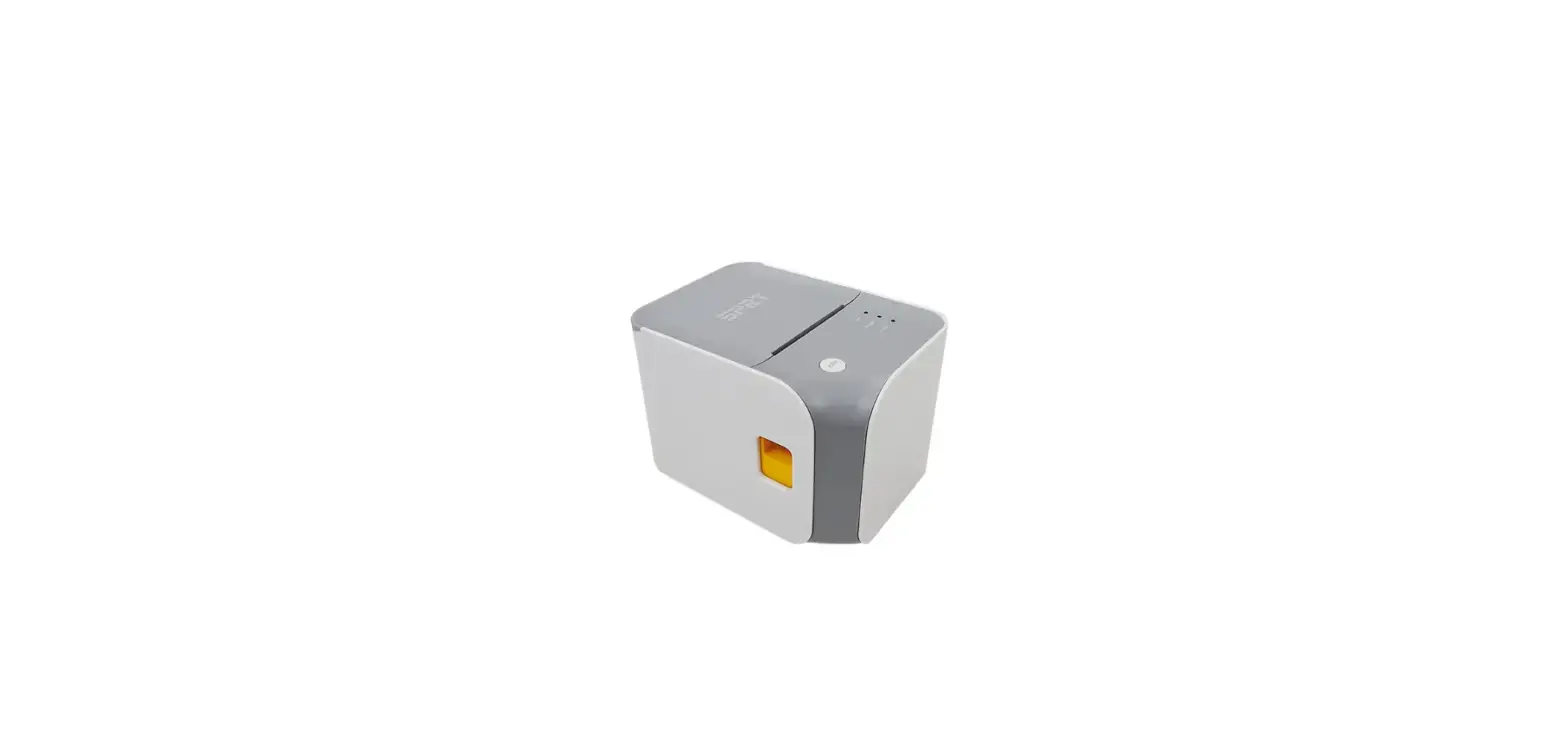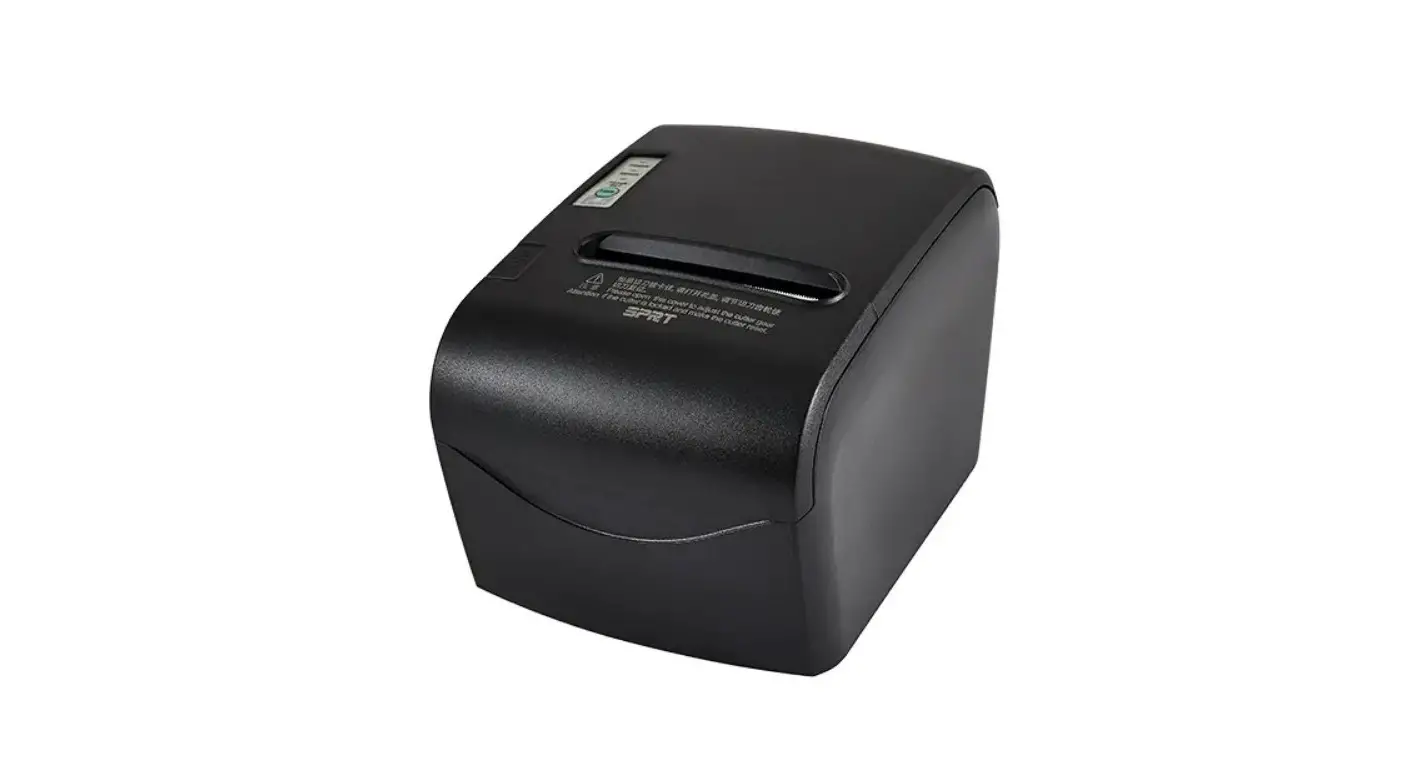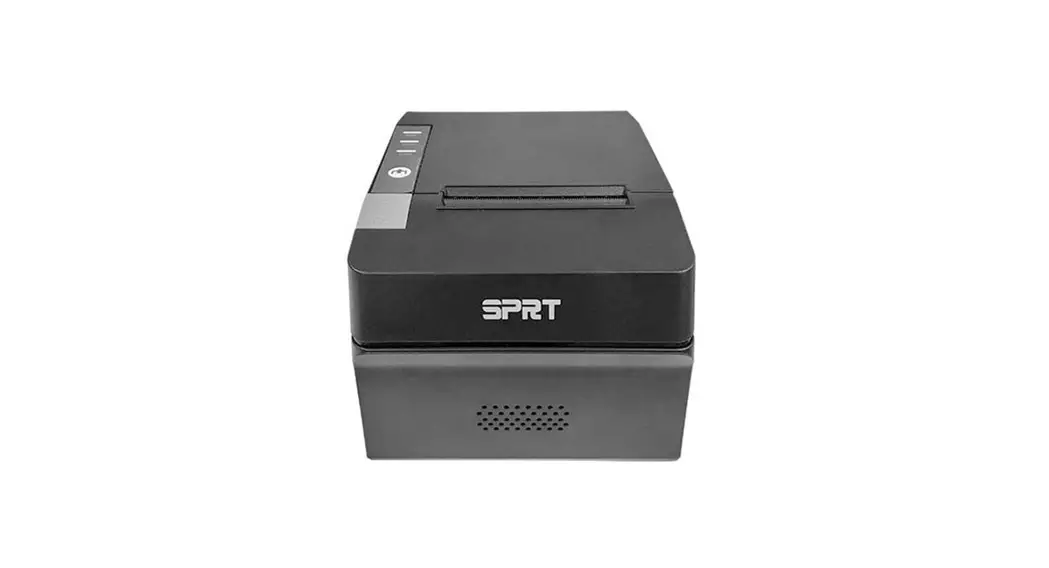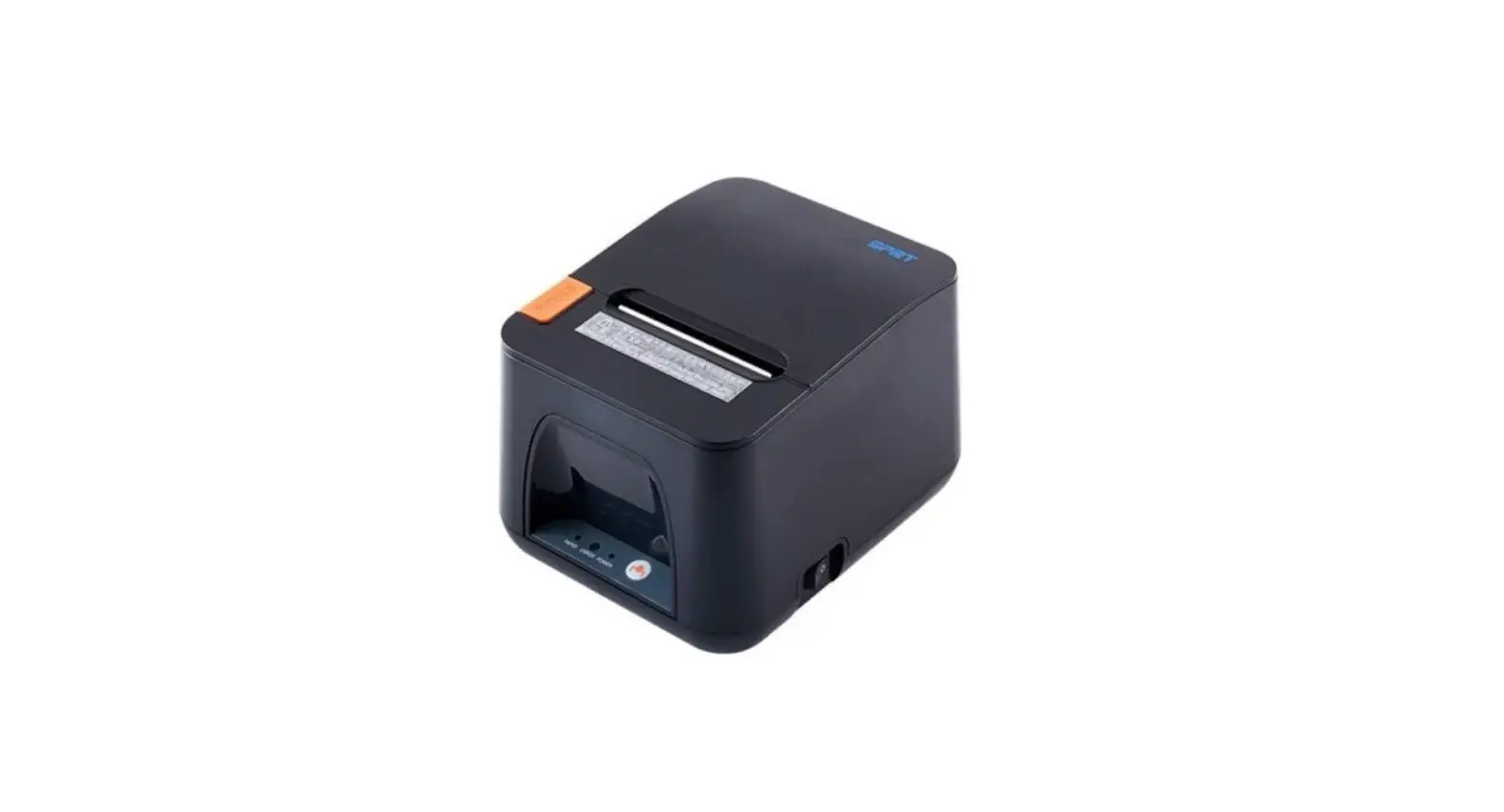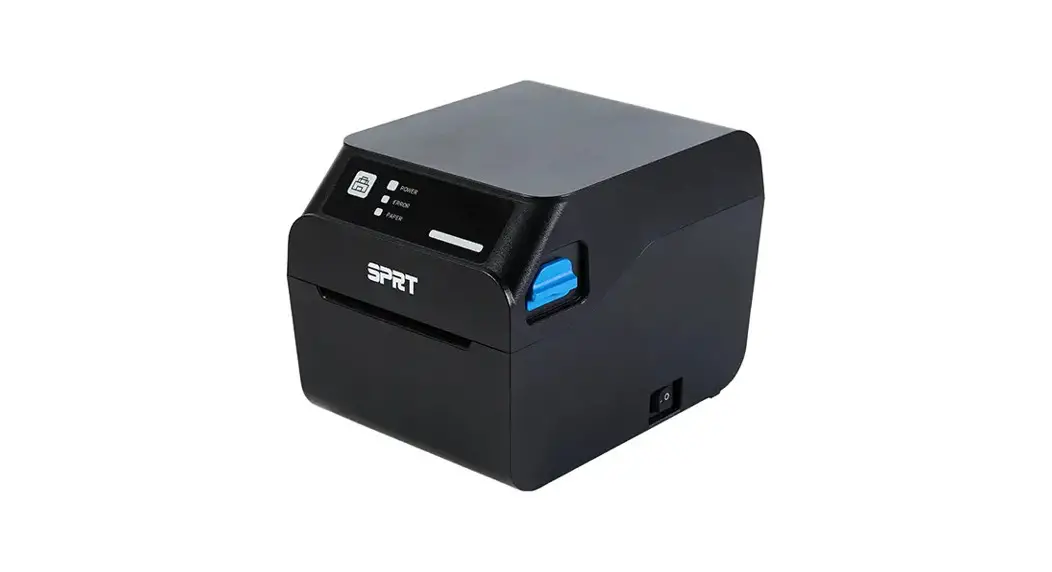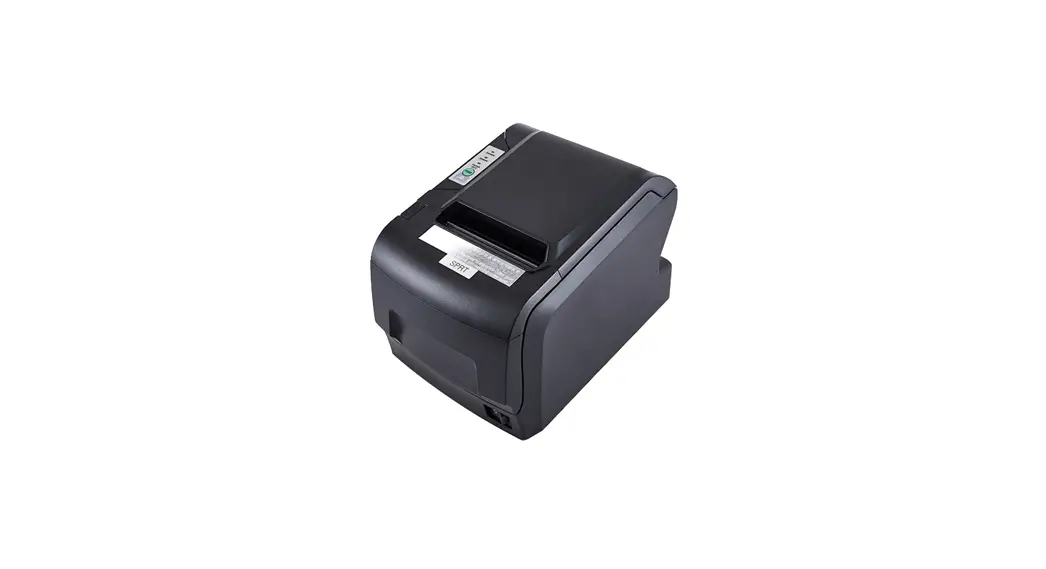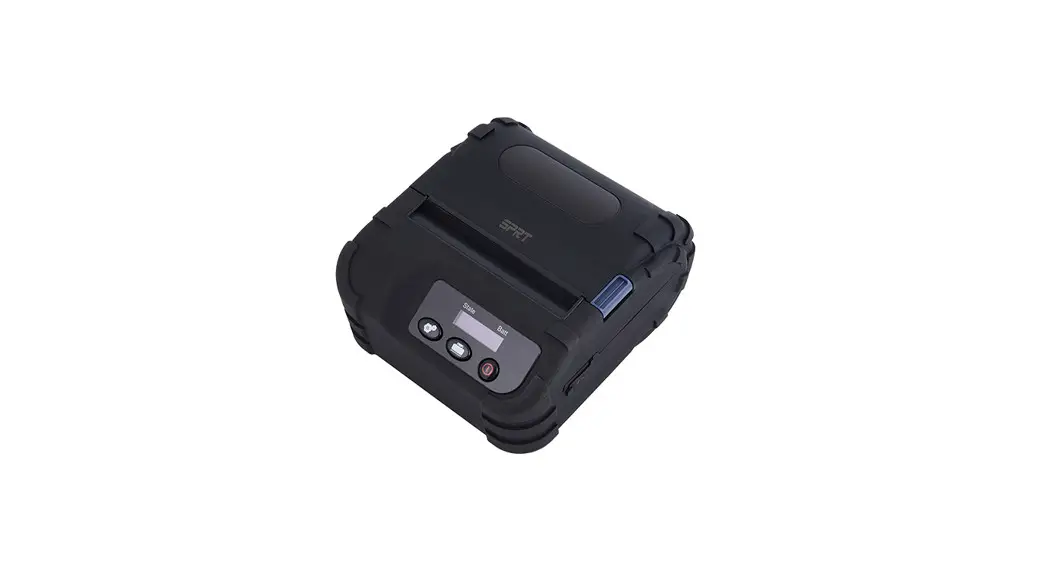

SPRT SP-POS5810 Thermal Printer
Introduction
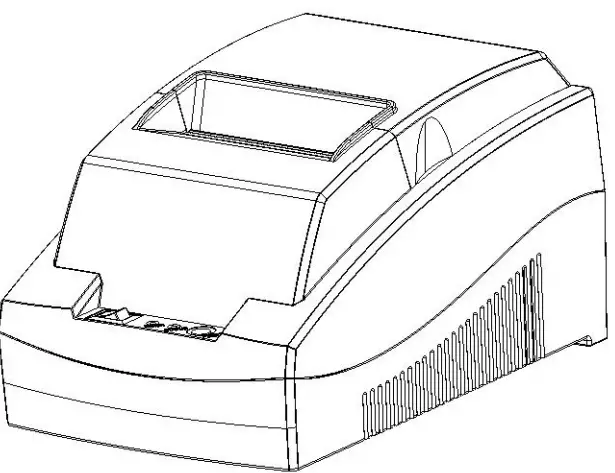
SP-POS5810 is a new type thermal line printer. It features in fast printing speed, low noise, good reliability, high quality. And the ribbon is needless, this will avoid the vexation of regular maintenance.
SP-POS5810 printer is widely used in many fields because of its small size and simple operation, especially suitable for commercial cash register, PC-POS, bank POS and various receipts printing.
Characteristics and Specification
Printing specification
- Printing method: direct thermal
- Printing paper width: 57.5±0.5mm
- Printing density: 8 dots/mm, 384 dots/line
- Printing speed: approx. 60mm/s (valid content per line isn’t over 25%)
- Reliability:
- Printing head life span:50km
- Operating Conditions:
- Print 12 × 24 ASCII characters, 50 lines every time, intermittent and repeated
- Each dot-line printing at the same time should not exceed 25%, for each character-line’s one dot, vertical and repeated printing can not exceed 11 times
- Use specified thermal paper
- Effective printing width: 48mm
Printing Paper
- Paper Type: General Thermal Paper 57.5xΦ60 mm(MAX)
- Paper Thickness ---0.06-0.08mm
- Paper Installation: Drop-in Easy Loading
- Paper Cutting Method: Manual
Printing Font
- ANK Character set:
12×24 dots, 1.5(W)× 3.00(H)mm; - GB2312-80(Chinese):
24×24 dots, 3.00(W)× 3.00(H)mm.
Interface
- USB interface: Standard B type USB interface (Female).
- Cash drawer control
DC12V, 1A, 6-pin RJ-11 socket
Printing Control Command
- Character print command: supports double width and double height printing of ANK characters, user-defined characters and Chinese characters, the space between character lines is adjustable.
- Bitmap print command: supports the printing of bit map with different densities.
- GS bar code print command: supports UPC-A, UPC-E, EAN-13, EAN-8, CODE39, ITF25, CODABAR, CODE93, CODE128.
Power Supply
110VAC ~220VAC 50Hz,1A
Operation Environment
- Operation environment temperature: 0~50℃Relative humidity: 10~80%
- Storage temperature: -20~60℃
Relative humidity: 10~90%
Dimension and Weight
- Dimension: 175 (L) X 117 (W) X 99 (H) mm
- Weight: 460g (roll paper is not included)
Installation and Operation
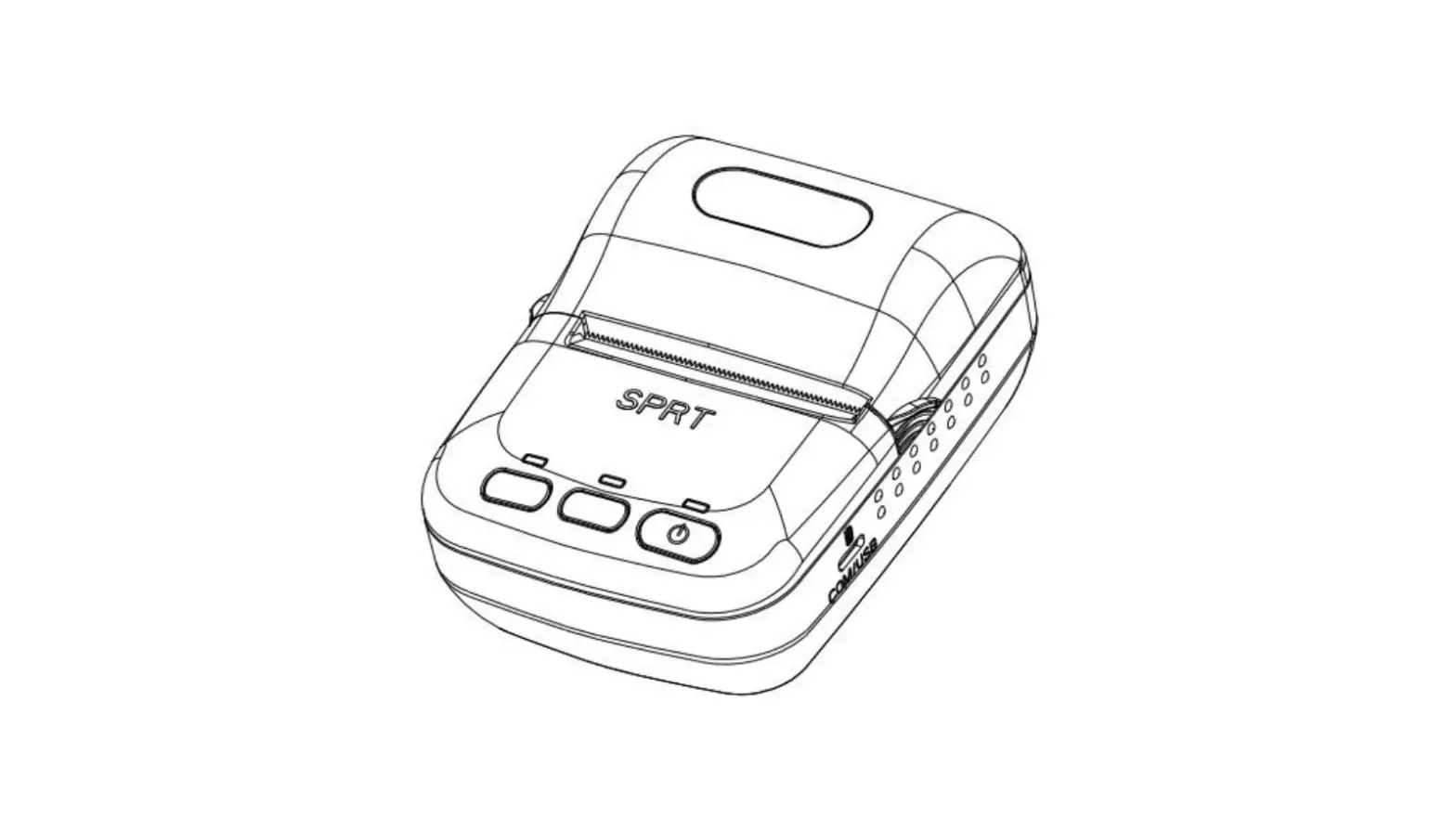
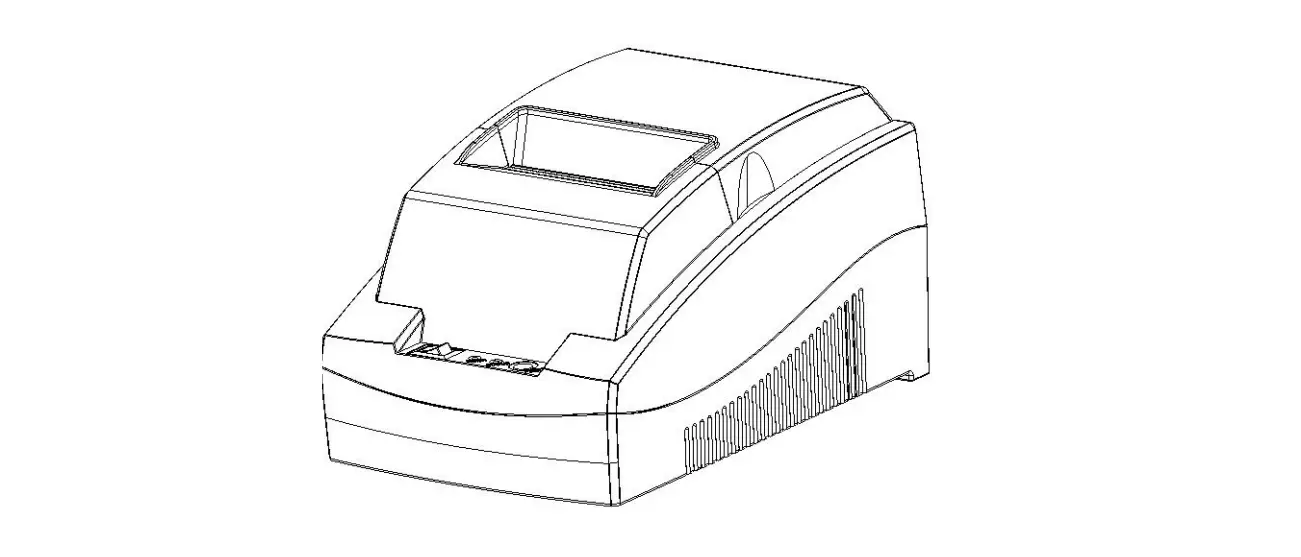
Printer Appearance
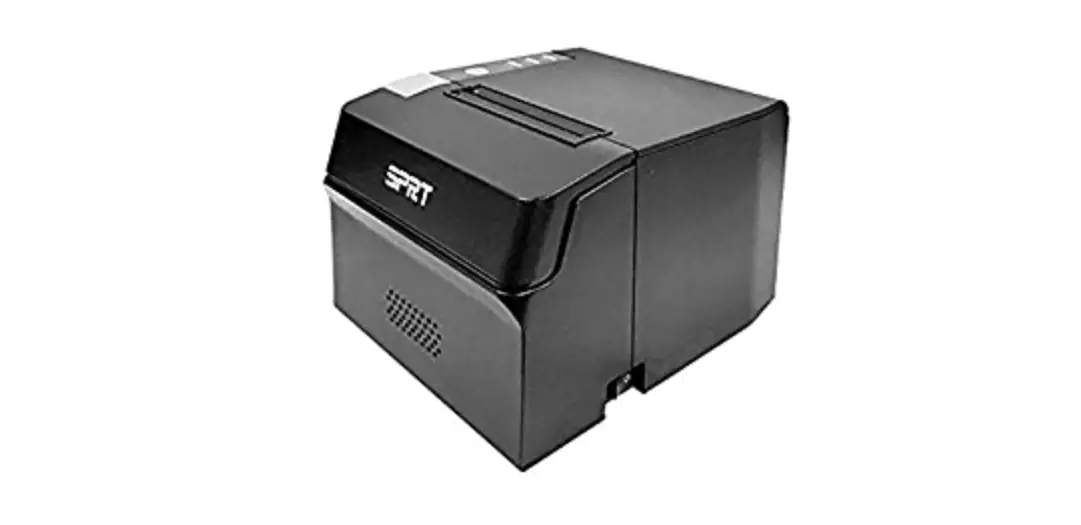
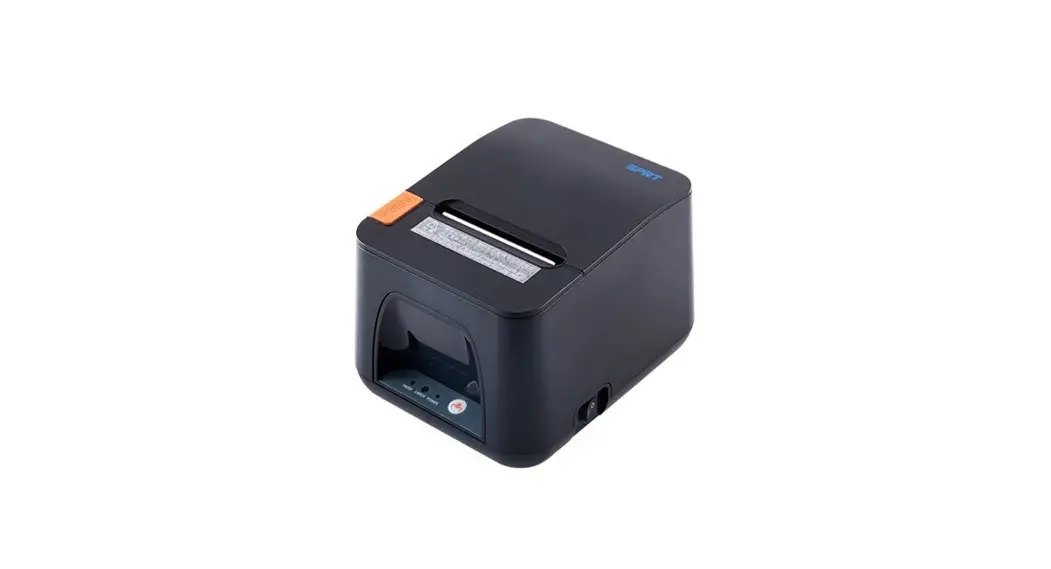
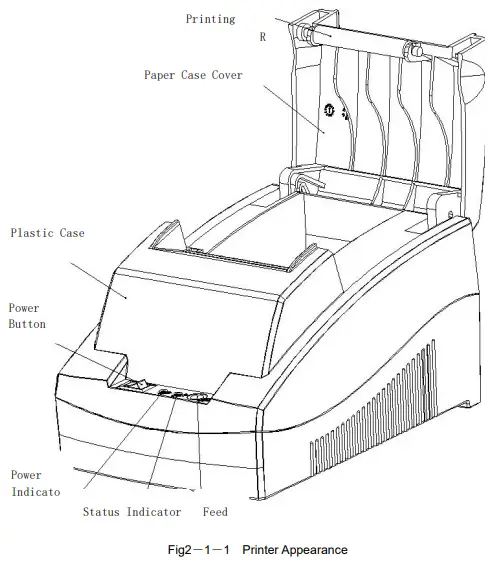
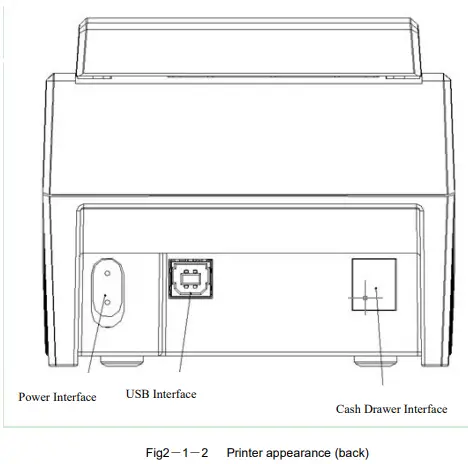
Printer appearance like below Fig 2-1-1,Fig 2-1-2.
Paper Installation
SP-POS5810 adopts 58mm width thermal paper. The installation steps are as below:
- When there is no paper, pls don’t press【FEED】button to avoid affecting the printing head life span. Press open button to open the case cover and put paper.
- After paper case cover is closed, pls don’t draw the paper forwards or insert paper backwards by hand.
Interface Connection
USB interface
Standard B type USB interface(Female)
Cash Drawer Interface
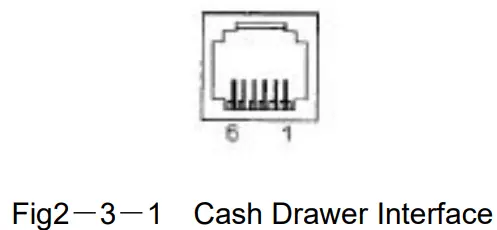
The cash drawer interface of SP-POS5810 is RJ-11, 6pin socket, as below,
| Pin No. | Signal | Direction |
| 1 | Chassis Ground | — |
| 2 | Cash drawer driver signal | Out |
| 3 | Cash drawer on/off status signal | In |
| 4 | +12V DC | Out |
| 5 | N.C | — |
| 6 | Cash drawer on/off status signal ground | — |
Power Connection
SP-POS5810 uses external power supply as 110VAC~220VAC, 50Hz, 1A,
Power switch
ON/OFF status of power. is off . Press “-”is on.
Feed Button
【FEED】is the feed button. Print command can allow or forbid 【FEED】on/off status . Under allowance status, hold down【FEED】to start paper feeding, release the button to stop.
Open Upper Cover Button
Hold the paper case cover and pull up to open it.
Power indicator light (Green)
Status of the Power indicator light: If the power is on, the indicator light will be on.
Status Indicator light (Red) and Buzzer
The indicator light will alarm for error status.Under normal working, red STATUS light is off. If abnormal working status happens, the light will flicker to alarm error.
Buzzer can also alarm the abnormal working status by parameter setting. Its error status type is same with STATUS indicator light.
When error indicator light flickers, the buzzer alarms (under the buzzer on status), that means error occurs on the printer. Different flickering ways represent different errors.
Error status indicating method
| Light status | Buzzer status | Printer Working status |
| Off | Off | Normal |
| Flicker 1 time and stay 1s off | Alarm 1 time and stay 1s off | Paper out and waiting for loading paper |
| Flicker 2 times and stay 1s off | Alarm 2 times and stay 1s off | Print head is overheated and just wait a while when it gets back to normal temperature. |
| Flicker 3 times and stay 1s off | Alarm 3 times and stay 1s off | Thermal print head is damaged, needs repairing. |
Self-test
The self-test can check the condition of printer. In the self-test, software version, interface type, characters, etc will be printed in order. If the self-test receipt can be printed out correctly, it means the printer works normally except the interface with host. Otherwise, it needs to be repaired.
Method of printing self-test: Press【FEED】button and turn on the power, then the red indicator light will flicker at 1 time/s. Release the button within 3 times of flicker, self-test begins automatically.
Hexadecimal Dump
Press 【FEED】 button and turn on the power, the red indicator light will flicker at 1 time/s, after 3 times then release the button, the red light will go on flickering 3 times, then the printer will print out 3 lines message as bellow: Hexadecimal Dump To terminate hexadecimal dump, Press FEED button three times.
Under this mode, all the input content will be printed out as Hexadecimal data. Press the 【FEED】 button to feed one line each time. Press 3 times, *** Completed ***will be printed out.
The Hexadecimal Dump print mode will be exit.
Upgrade Mode
Press 【FEED】button and turn on the power, the red indicator light will flicker at 1 time per second, after flickering 3 times then release the button. At this moment, the printer enters into Mode Option Status. Then press 【 FEED 】 button 5 times continuously and the press time interval must be within 3s. The indicator will flicker at 1s on and 1s off status.That means the printer has entered into Upgrade Mode successfully.
Printing Driver Installation
Printing driver for SP-POS5810 can be downloaded from our official website (www.sprt-printer.com). The detailed path: Home page– Service-Download-Driver-Windows driver receipt printer series. After downloading, the driver name is SP-DRV2148. During the driver installation, choose printer model as “58 thermal series”. For more operation details, pls refer to the manual.
Appendix 1 Performance Index
| Performance Index | ||
|
Printing Characte ristics | Printing method | Thermal line |
| Resolution | 8dots/mm, 384dots/line | |
| Printing speed | Max:60mm/s(25% Printing Density) | |
| Effective Printing Width | 48mm | |
| Paper Width | 57.5 mm±0.5mm | |
|
Printing support | Self-defined Character | Yes |
| Image | Support Bitmap with Different Densities and Downloaded Bitmap Printing | |
| Chinese | GB18030(Chinese):24×24 | |
| ASCII | ASCII:9×17,12×24 | |
| Bar code | UPC-A;UPC-E;EAN-13;EAN-8;CODE39; CODE93; CODABAR;ITF25; CODE128 | |
| Interface | USB | |
| Function Support | Paper end Sensor, Black Mark Recognition, Overheat Protection, Buzzer Alarm | |
| Cash Drawer control | DC12V,1A,6 lineRJ-11 Socket | |
| Power supply | AC power | 110V AC~220V AC , 1A |
|
Paper Spec | Paper type | Thermal paper 57×Ø 60mm |
| Paper thickness | 0.06mm~0.08mm | |
| Paper Supply Method | Drop-in easy loading | |
| Paper Cutting Method | Manual | |
| Physical | Dimension | 175mm×117mm×99mm (L×W×H) |
| Weight | 475 g (Without roll paper) | |
|
Environ ment | Operation Temp/Humidity | 0~50℃(Operation Temp)/10~80%(Relative Humidity) |
| Storage Temp/Humidity | -20~60℃(Storage Temp)/10~90% (Relative Humidity) | |
| Life/Reli ability | TPH | 50km |
Warning
This is a class A product. It may cause radio interference in the application environment. In this case, the practical measures may be taken by users to resist this interference
 Printer Thermal, Thermal Receipt Printer, Label Printer Machine - Spirit