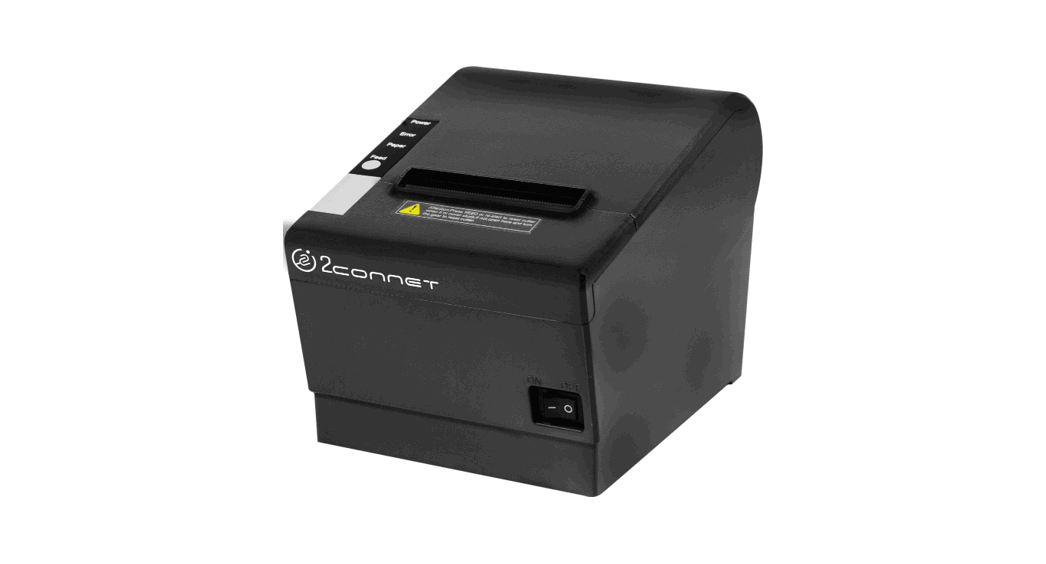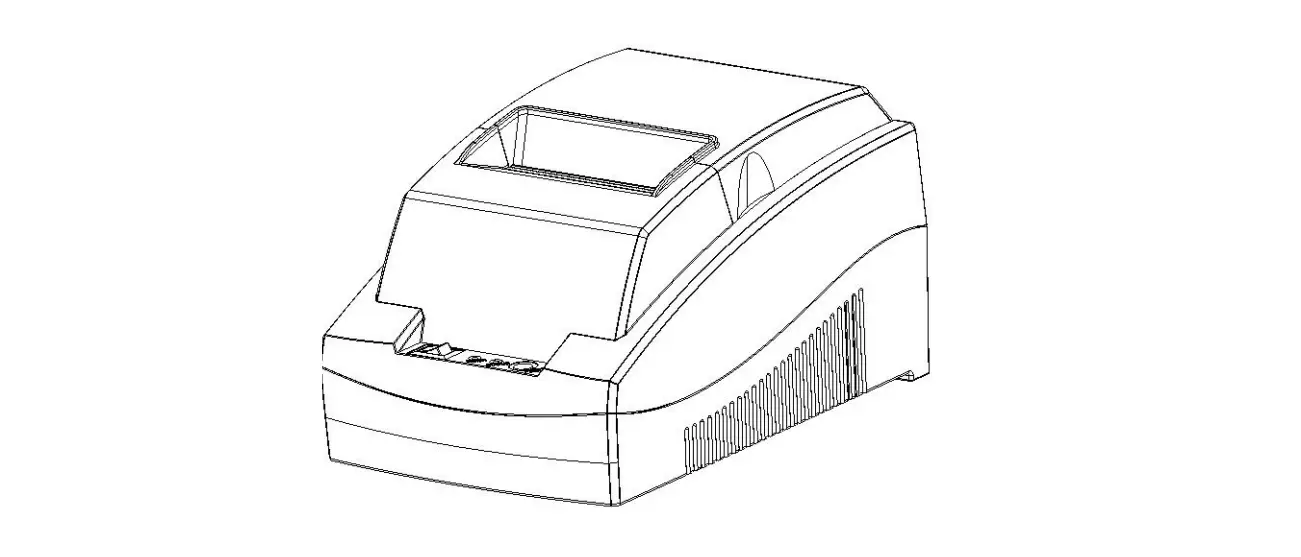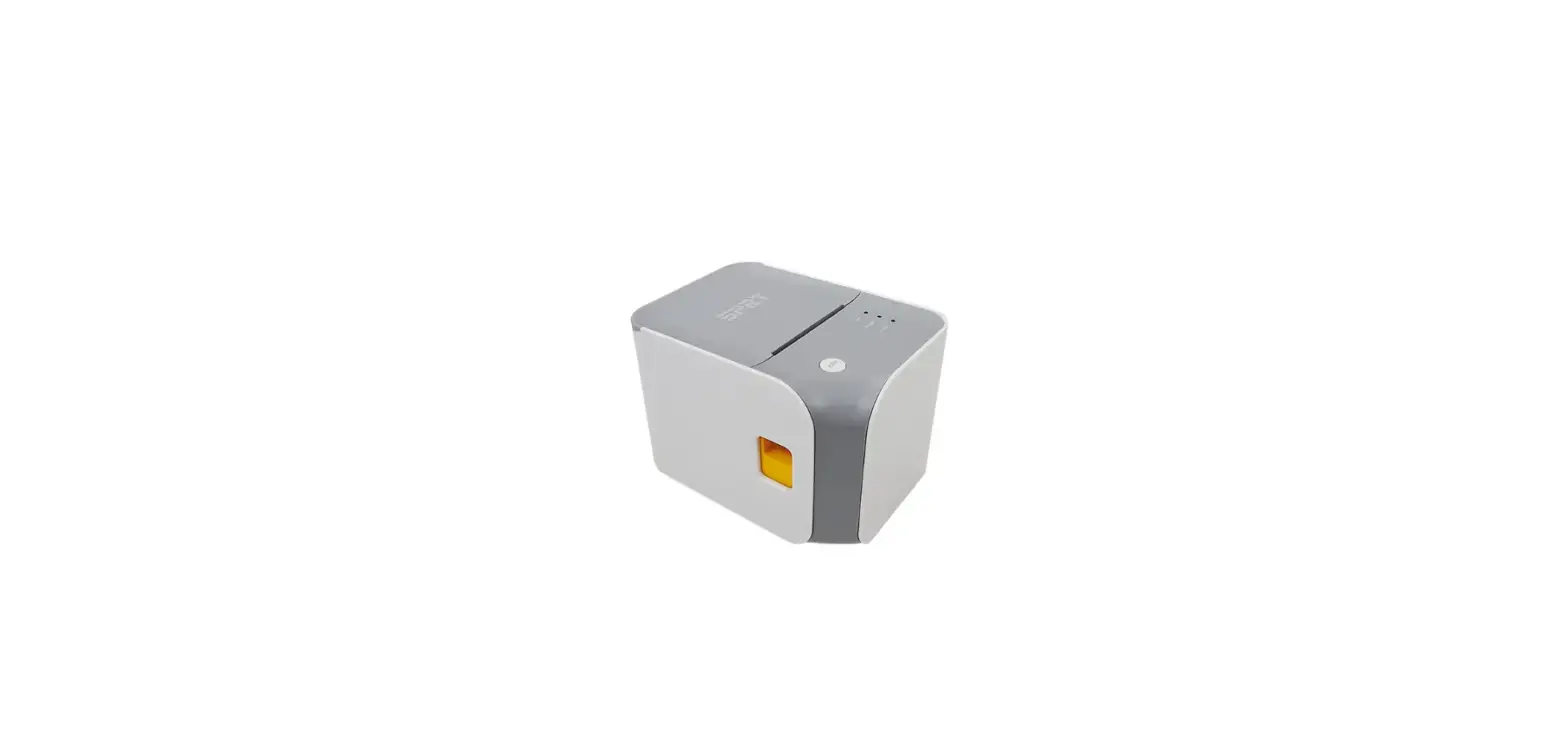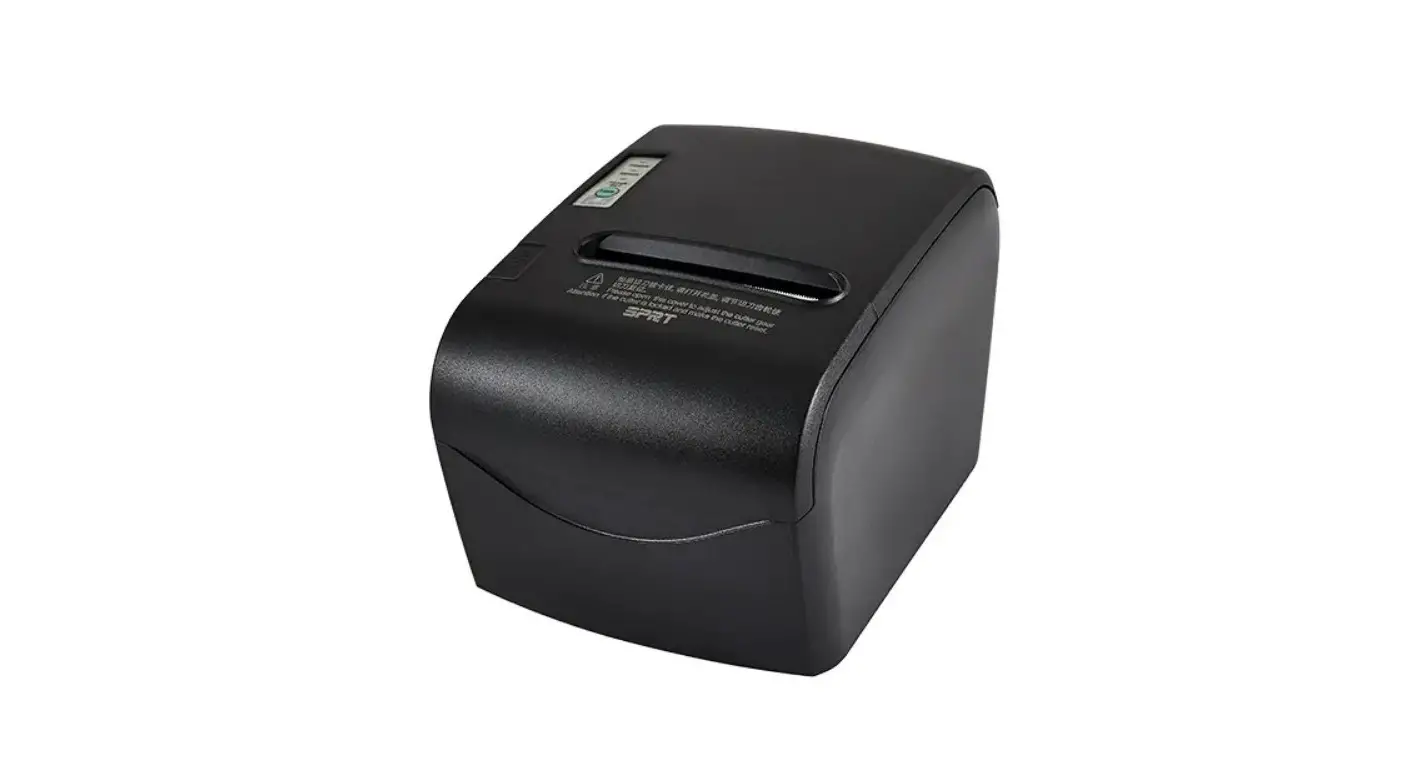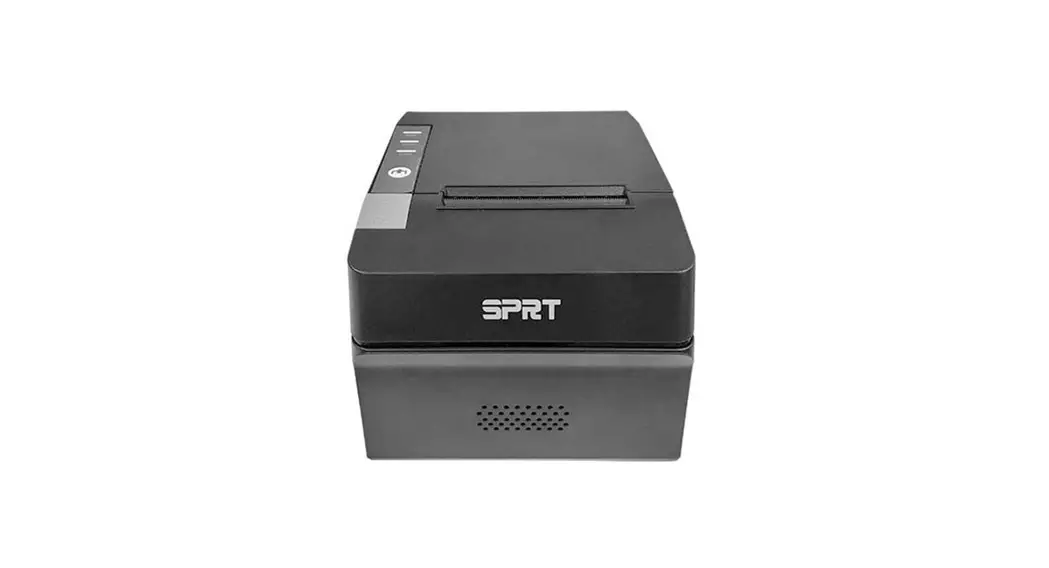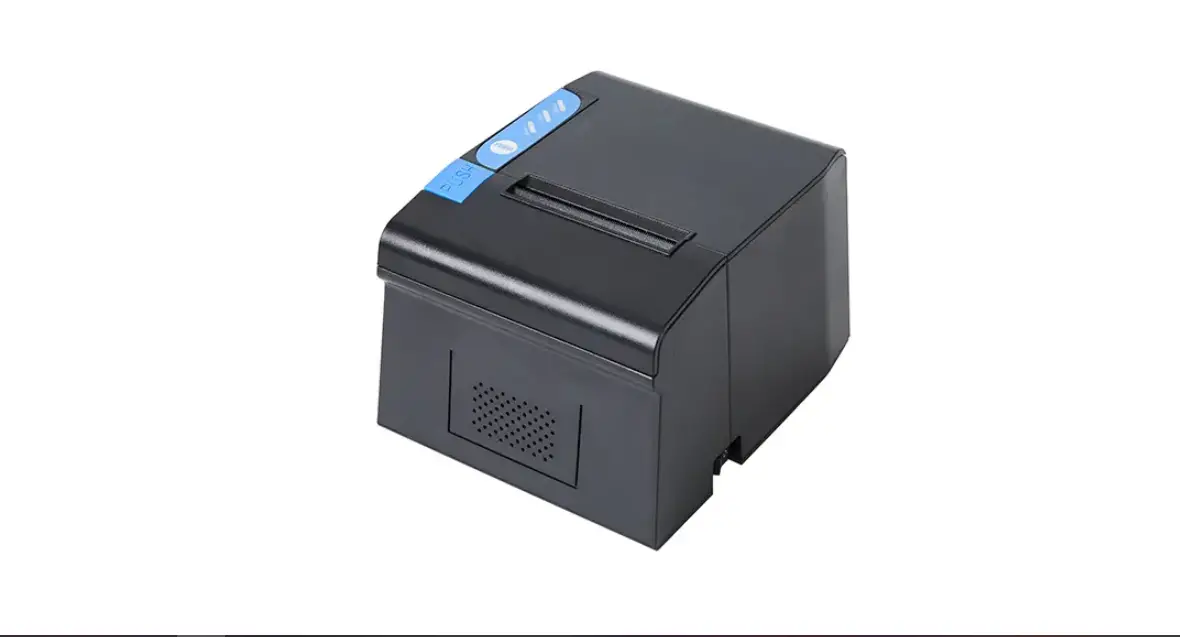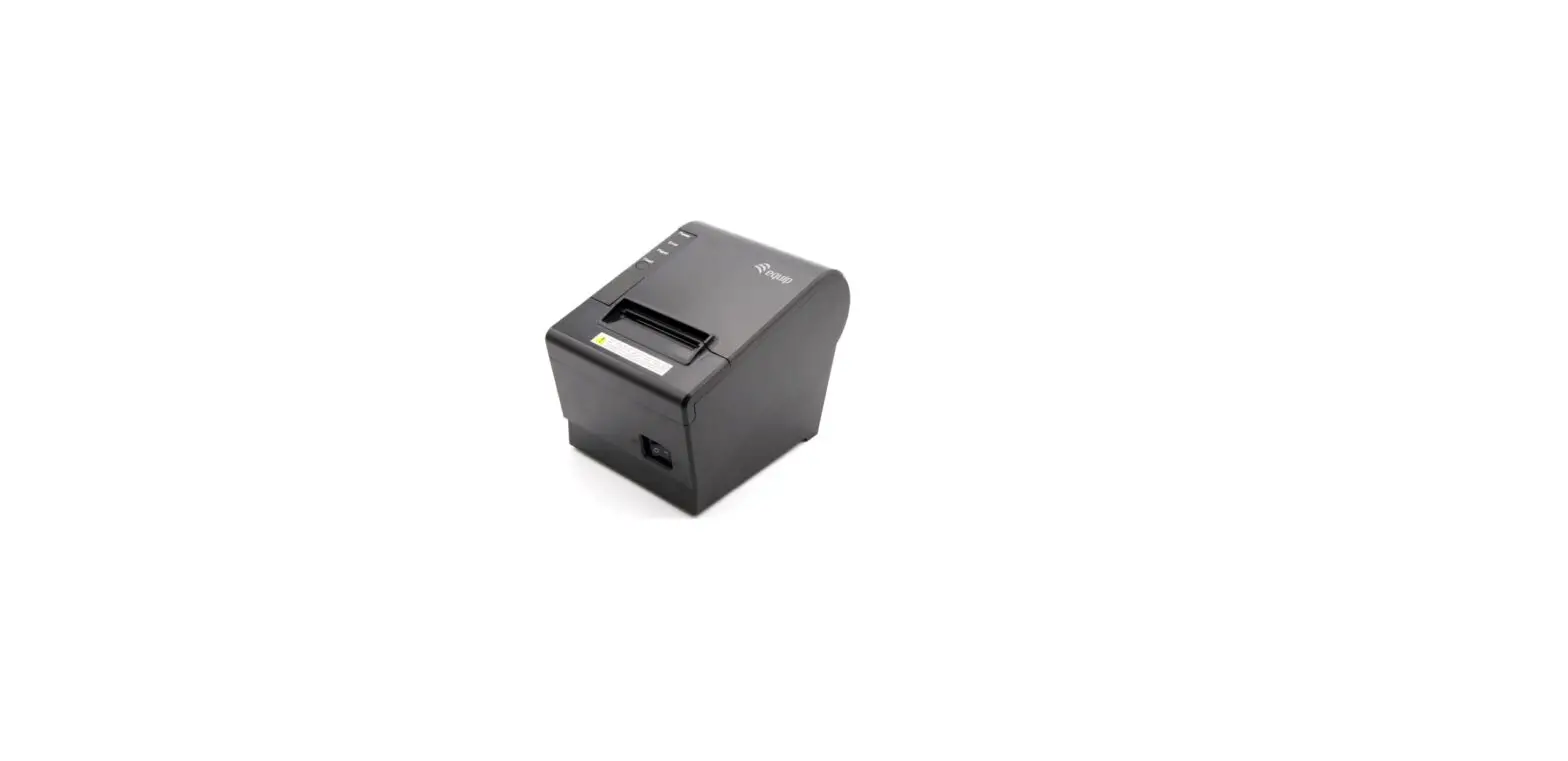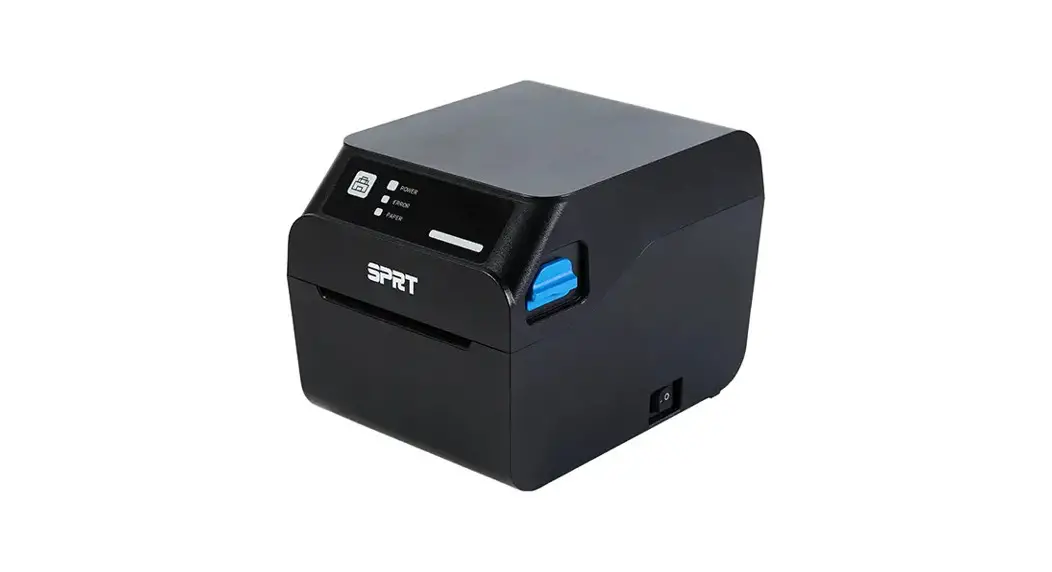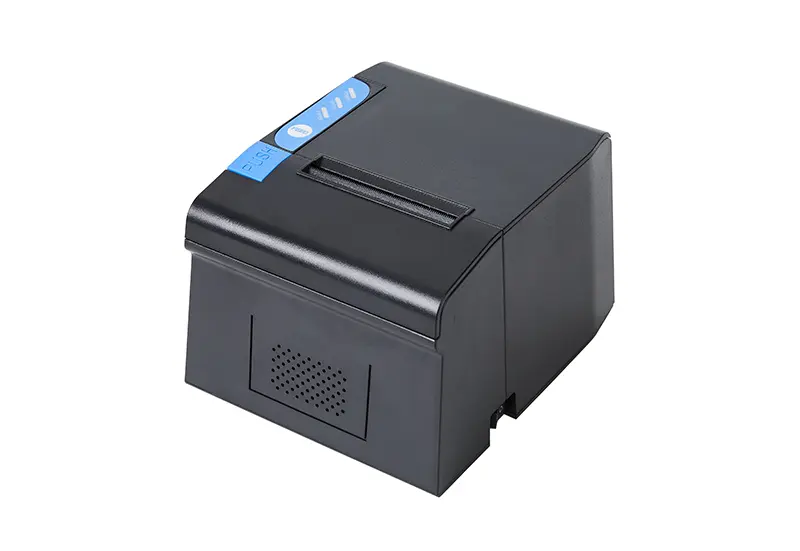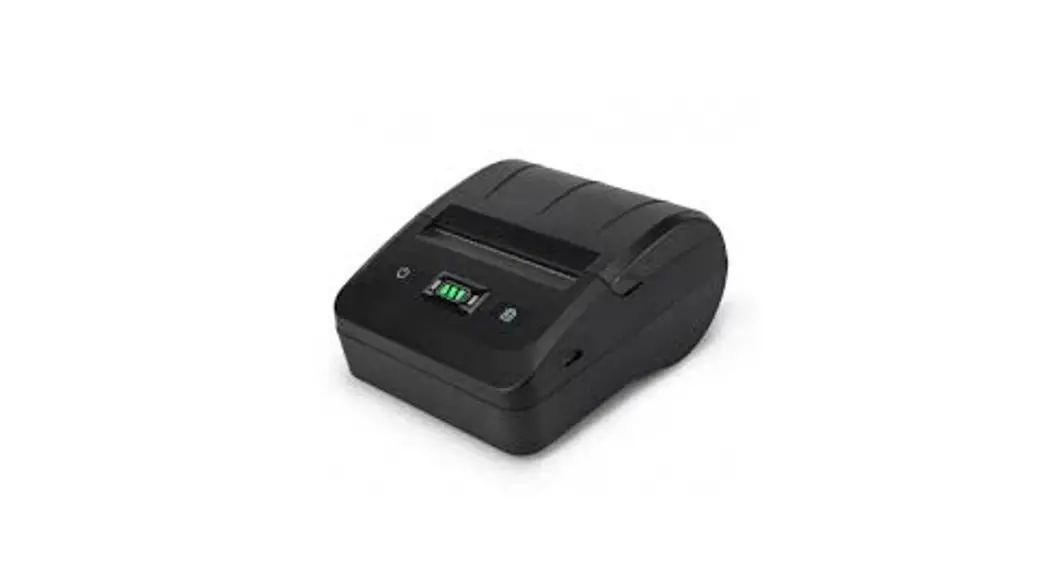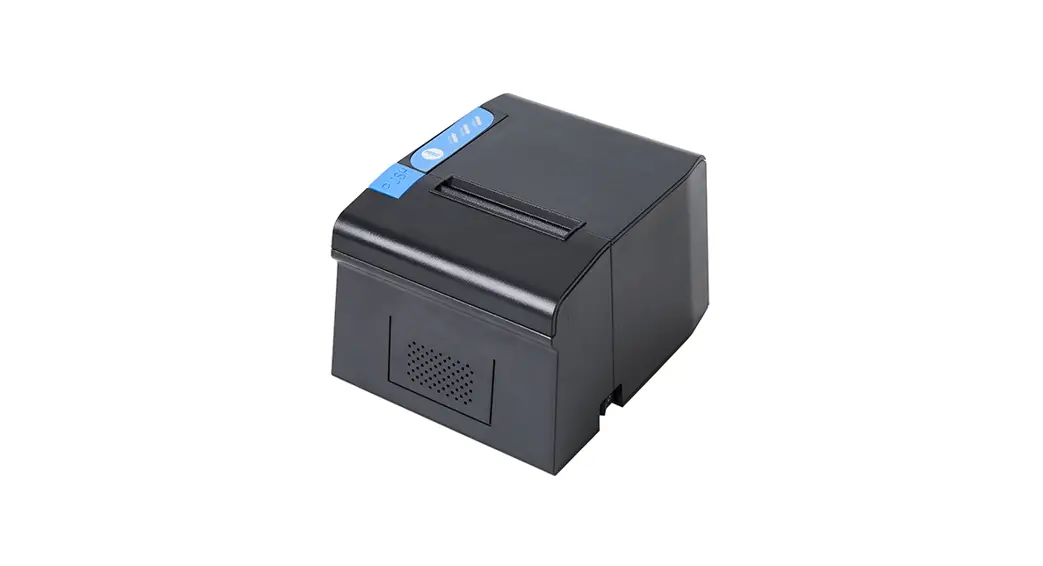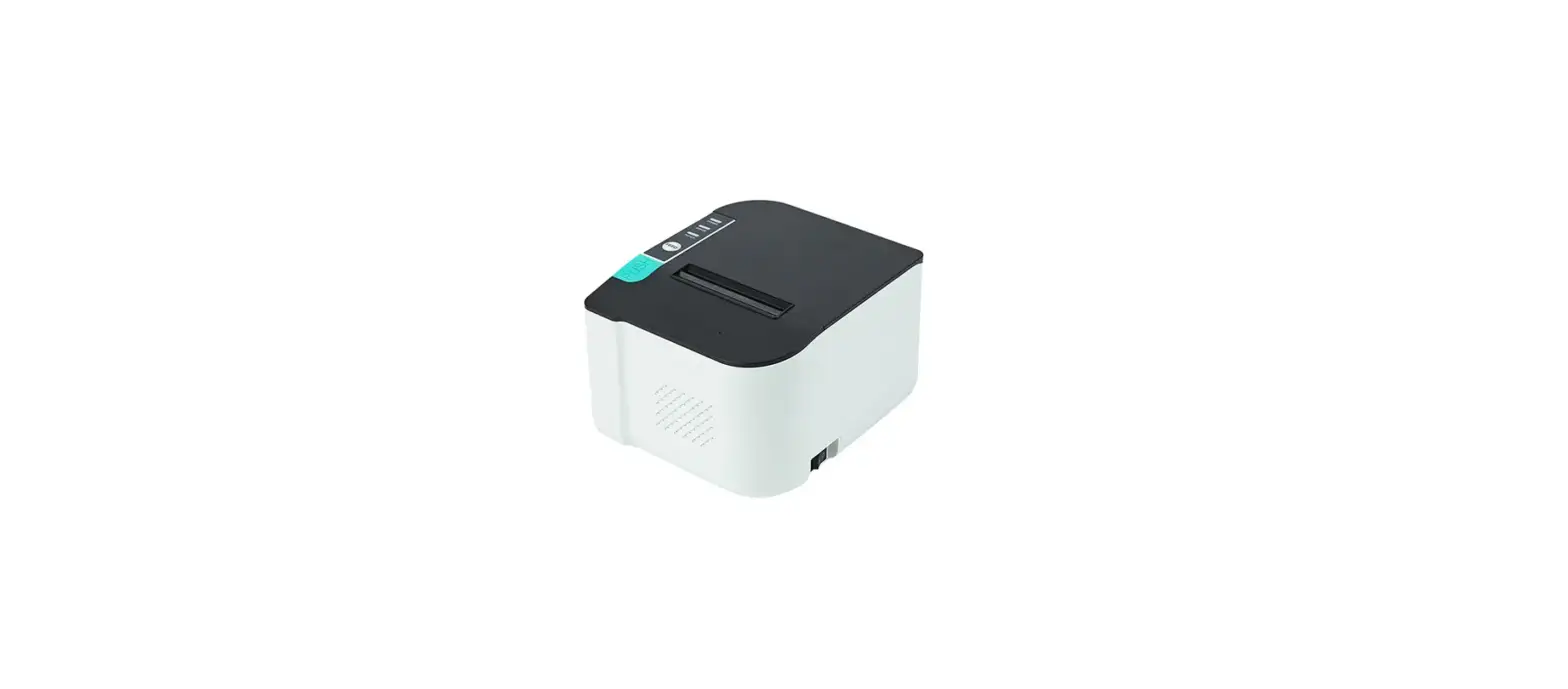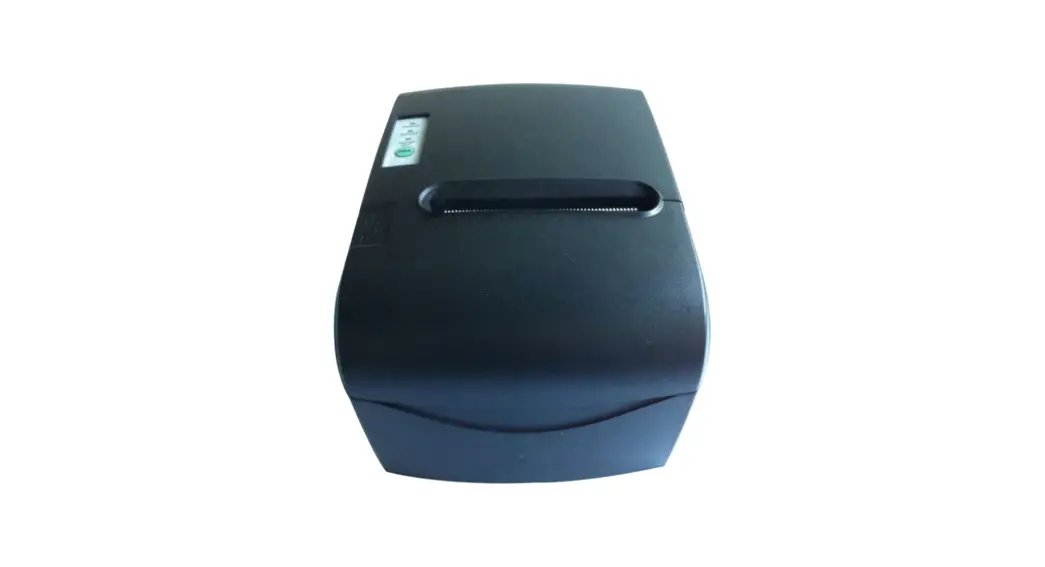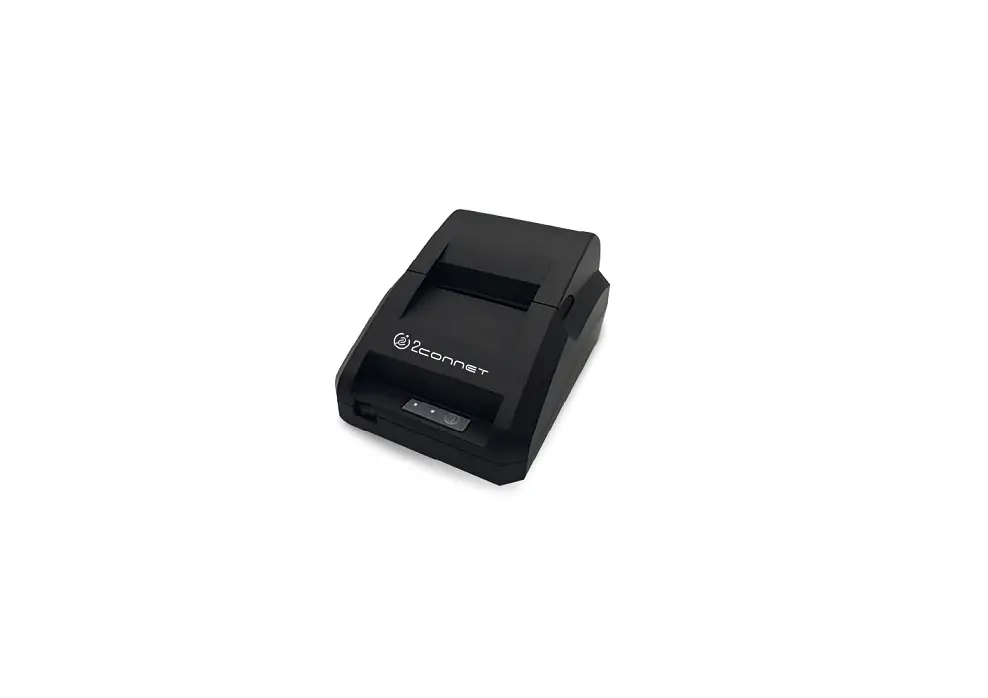
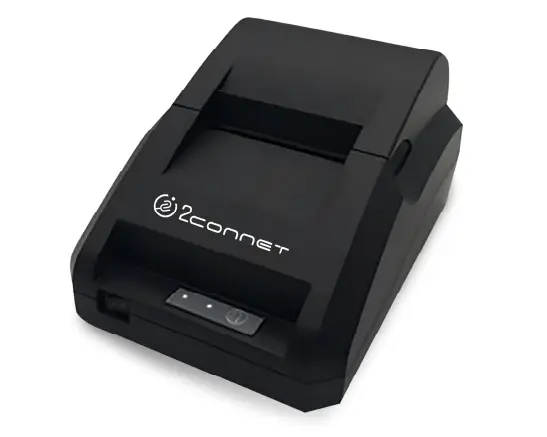
2connet 2C-POS58-BU Thermal Printer User Manual

1.Introduction
1.1 Brief introduction
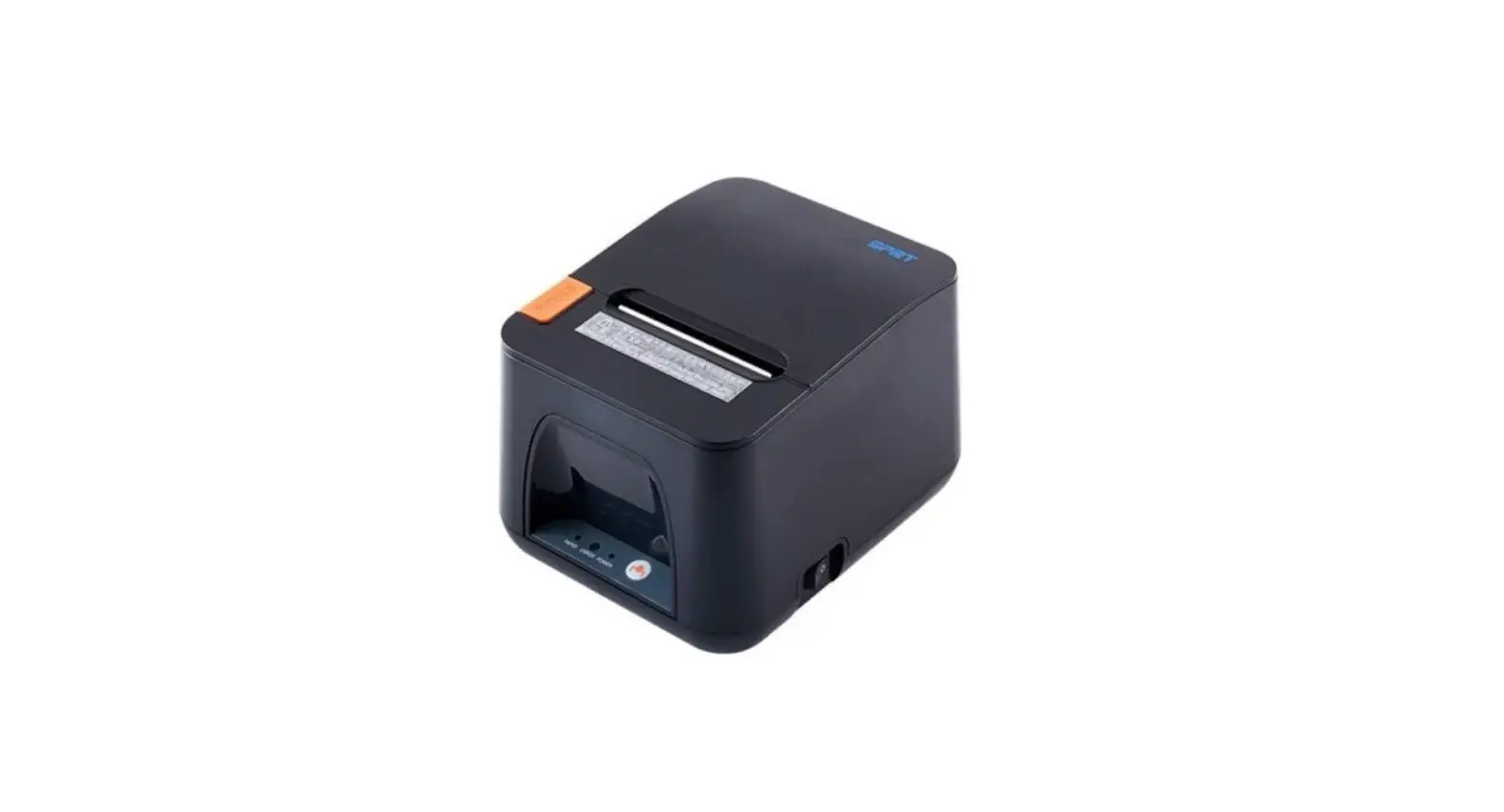
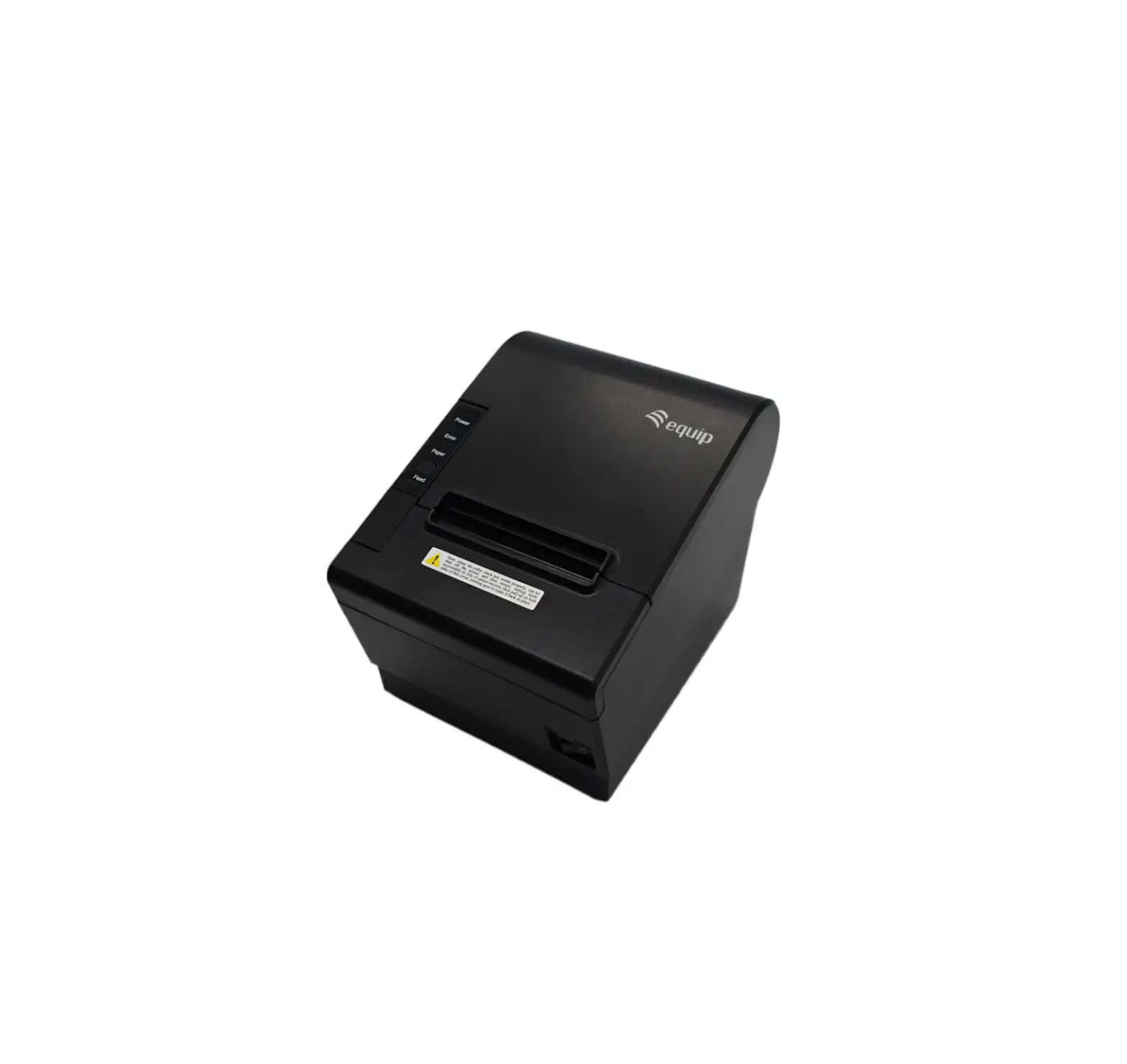
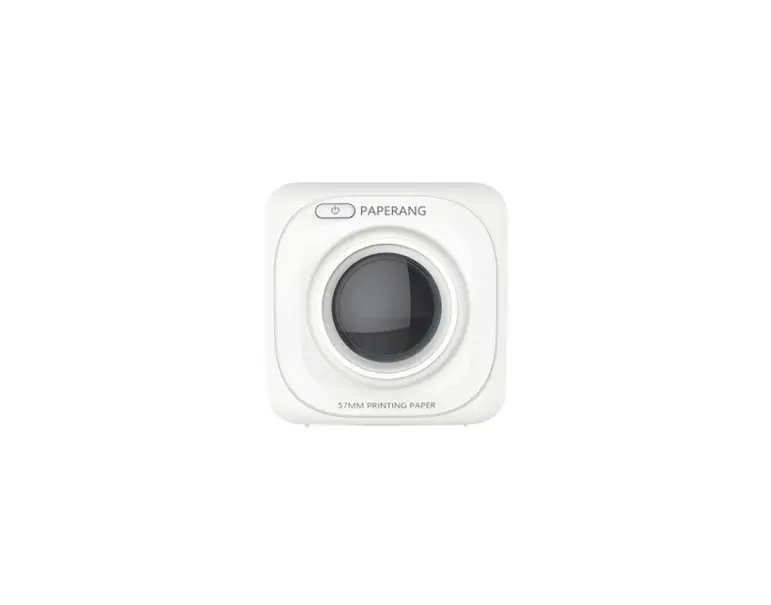
KP206B is a thermal POS printer. It has good printing quality and high stability, which is widely used in POS system, food service industry and many other fields.
KP206B connects other devices via USB port, optional Bluetooth. It offers drivers for WINDOWS, ANDROID and LINUX operating systems.
The supported operating systems are as below: WINDOWS XP
WINDOWS 7 32/64
WINDOWS 8
WINDOWS 10
UBUNTU 12.04 32/64
UBUNTU 14.04 32/64 ANDROID (4.0~6.0)
1.2 Main features
- Optional communication interfaces(USB and Bluetooth)
- With cash drawer interface
- Low noise and high stability
- Good printing quality
- Easy paper loading
- Easily use and maintain
- Support continuous paper printing
2.Specification
2.1 Specification
| Item | Parameter | |
|
Printing parameter | Printing method | Thermal printing |
| Resolution | 203DPI,8 dots/mm | |
| Printing width | 48mm(384 dots) | |
| Printing speed | 90mm/s | |
| Interfaces and printer types | Bluetooth:KP206B-UB USB: KP206B-U Parallel:KP206B-P | |
| Page mode | / | No support |
| Command set | / | ESC/POS compatible commands |
| FLASH | FLASH 4M bytes, NV bitmap 64K bytes | |
|
characters | Chinese | GB18030 24×24 |
| Words, figures | ASCII 9×17,12×24 | |
| User-defined | Support | |
|
Code pages | Optional international character sets 45 TRADITIONAL CHINESE CHINESE CP437 [U.S.A., Standard Europe] Katakana CP850 [Multilingual] CP860 [Portuguese] CP863 [Canadian-French] CP865 [Nordic] WCP1251 [Cyrillic] CP866 Cyrillic #2 MIK[Cyrillic /Bulgarian] CP755 [East Europe,Latvian 2] Iran CP862 [Hebrew] WCP1252 Latin I WCP1253 [Greek] CP852 [Latina 2] CP858 Multilingual Latin Ⅰ+Euro) Iran II Latvian CP864 [Arabic] ISO-8859-1 [West Europe] CP737 [Greek] WCP1257 [Baltic] Thai CP720[Arabic] CP855 CP857[Turkish] WCP1250[Central Europe] | |
| CP775 WCP1254[Turkish] WCP1255[Hebrew] WCP1256[Arabic] WCP1258[Vietnam] ISO-8859-2[Latin 2] ISO-8859-3[Latin 3] ISO-8859-4[Baltic] ISO-8859-5[Cyrillic] ISO-8859-6[Arabic] ISO-8859-7[Greek] ISO-8859-8[Hebrew] ISO-8859-9[Turkish] ISO-8859-15 [Latin 3] Thai2 CP856 | ||
|
Chart |
/ | Supports different density dots and images printings |
| Supports grating bitmap printing | ||
| Supports download bitmap printing, every bitmap size should less than 256K, and the total capacity of download bitmap is 256K. | ||
| Bar codes | 1D | UPC-A、UPC-E、EAN-8、EAN13、CODE39、ITF、CODEBAR、 CODE128、CODE93 |
| 2D | QR Code | |
| Detection function | Sensor | Paper out |
| LED indicator | Statue indicator | Blue |
| Paper out indicator | Red | |
|
Paper Requirement | Type | Standard thermal receipt paper |
| Width | 57.5±0.5mm | |
| Thickness | 0.056~0.1mm | |
| Diameter | 50mm(Max.) | |
|
Physical characteristics | Paper loading | Easy paper loading |
| Operating condition | -10℃ ~ 50℃,25% ~ 80%RH | |
| Storage condition | ~40℃ ~ 70℃,≤93%RH(40℃) | |
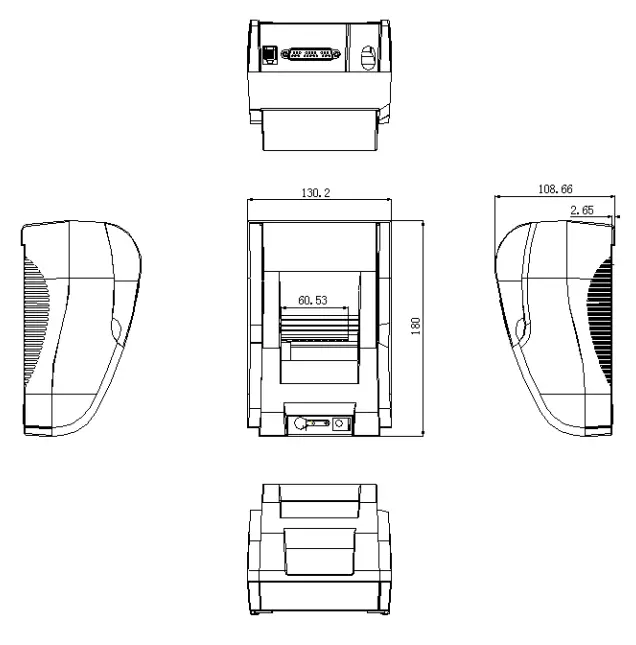
| Outline dimension | 177mm×130.5mm×107mm(W×L×H) | |
| Weight | 0.5Kg | |
| Reliability | TPH life | 50km |
| Motor life | 360,000 hours | |
| Software function | Driver procedure | Windows(WIN7/WIN8/Vista/XP/2000) Ubuntu 12.04 32/64, Ubuntu 14.04 32/64 |
2.2 Printing material requirements
2.2.1 Paper parameters
- Paper type: thermal receipt paper/thermal black mark paper
- Paper width:58±0.5 mm
- Paper roll diameter: 50 mm (Max.)
- Paper thickness:0.065 ~ 10mm
2.2.3 Printing paper using attention
Note:
- Please use good quality paper, otherwise, it will effect printing quality and even reduce printer head
- Don’t make the paper stick on
- Paper will be fading out or reduced thermal sensitivity if it is polluted by chemical or oil, which will affect printing
- Don’t use nail or hard things to clash printing paper, otherwise, it will be fade
- Paper will be fading out if the environment temperature exceeds 70°C. So please take note the temperature, humidity and illumination effects.
2.3Printing and paper cutting position
2.3.1 Printing position
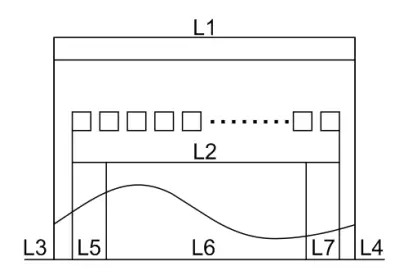
L1-Paper storehouse’s width:58±0.5mm L2-Effective printing width: 57mm
L3-Distance between print head to paper storehouse’s left edge (fixed width): 3±0.3mm
L4-Distance between print head to paper storehouse’s right edge (fixed width): 3±0.3mm
L5-Left margin: Default is 4mm
L6-Printing area width: it is set by commands (refer to programming manual). Default is 48mm.
L7-Right margin: Default is 4mm.1 Appearance and components
3. Appearance and components
3.1 Appearance and components
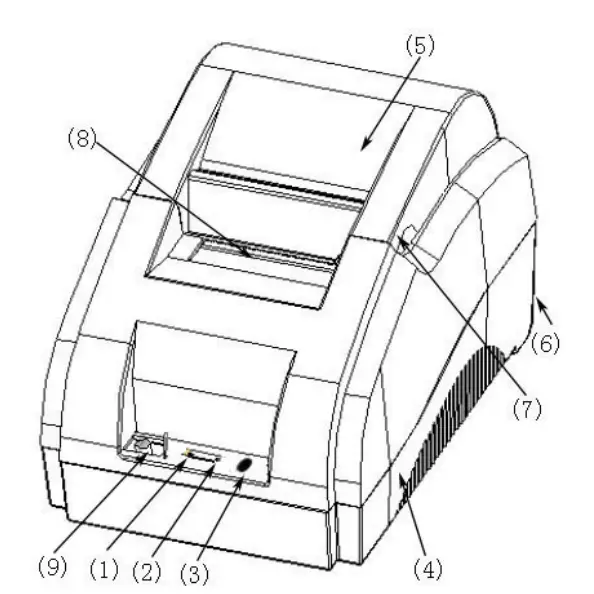
- Power indicator
- Power port
- Bluetooth indicator
- Open lid notch
- FEED button
- Paper tearing port
- Under cover of printer
- ON-OFF button
- Cover of paper warehouse
Function instruction of components
- Power switch
Press “O” side to power off, press “I” side to power on.
- statue indicator(blue)
The indicator is on when power on, and statue of printer.
- Blue indicator (Red)
Blue indicator is on when Bluetooth connected. .Flashing indication disconnected.
1.1 Indicator instruction
1)Function instruction of indicators and buzzer
| Name | Status | Instruction |
| Statue indicator (Power) | Bright | Printer is in normal status |
| flashing | Printer is out of paper or open paper warehouse | |
| Bright off | Printer is power off | |
| Bluetooth indicator (Paper) | Bright | Bluetooth is connected |
| Bright off | Bluetooth is disconnected |
| Description | Statue Indicator | Bluetooth Indicator |
| Open paper warehouse | Flashing | Bright off |
| Paper is enough | Bright | Bright off |
| Paper out | Flashing | Bright off |
| Bluetooth is connected | Bright | Bright |
Note: Printer detects printer head temperature via thermal resistance. It will cut off print head power and stop printing if print head is overheat. The print head protection temperature is 80℃.
2 Printer installation
2.1 Open the package
Please make sure everything is in good status when you open the package. Otherwise, please contact to distributor in time.
2.2 Requirements of installation position
- Put the printer on a stably
- Let the printer far away from water, fire, and
- Avoid to put it on oscillatory and impassive
- Make sure to connect printer with ground safety
2.3Connect to power adapter
- Make sure the printer is power
- Connect power adapter’s DC output plug to the
- Connect power adapter’s AC input plug to a power outlet.
- Please be careful to operate correctly when plug out the plug of power cord to avoid
4.4Connect Communication cables
- Make sure the printer is power
- Connect communication cable to the printer’s port, and fix it as plug lag spike (or snap spring).
- Connect communication cable to the other side
4.2 Connect to cash drawer
- Make sure the printer is power
- Connect cash drawer to cash drawer port behind the
Warning: The Voltage of cash drawer port is 12V. (It cannot connect to telephone cable.)
5.3 Paper roll loading
4.6.1 Printing paper type confirmation
You can load paper roll to print after connecting power adapter and communication cables. Please make sure the printing paper type before printing. The default paper type is continuous thermal receipt paper
4.6.2 Loading or change paper roll
- Power off the
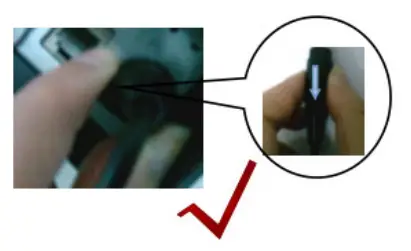
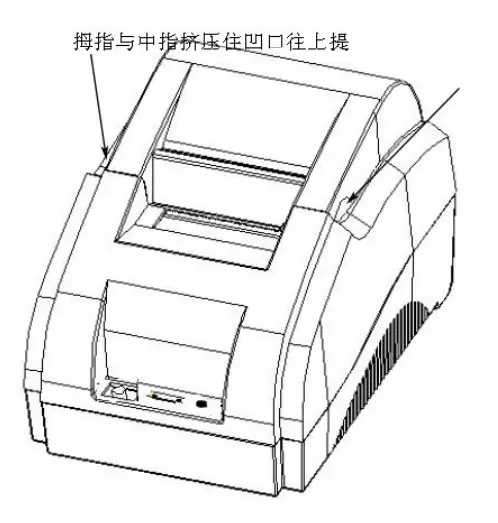
- Slide or press paper roll storehouse button, and then open storehouse
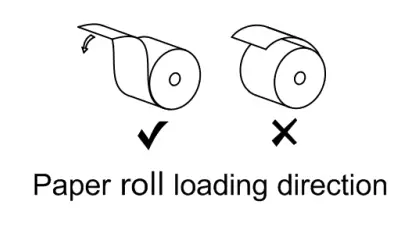
3. Draw out paper roll tap, and load paper roll as
4.Draw out a printing paper, and leave some on the paper out month, then close the storehouse
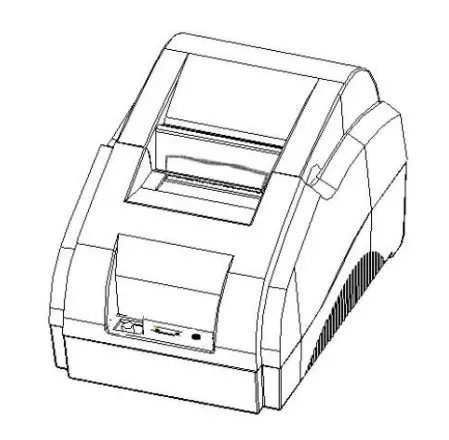
Warning: Please make sure the paper roll in tense status, if not, it maybe cause paper jam or other problems.5.
5.The status after paper loading
8 .1 Printing self-test page
- Make sure the printer loaded paper roll
- Press down [FEED] button and hold on, then power on the printer, the printer will print a self-tes
8.2 WINDOWS driver installation
The printer CD has WINDOWS driver procedure ,the position is :Drivers\Windows file.
4.8.1 USB/parallel port driver installation
- Right click “InstallMFC.exe”,and run as administrator.(Double click to run in XP system,and it needs
administrator to run in WIN7/WIN8)
- Choose language as “Simplified Chinese”,and choose printer to connect PC port.

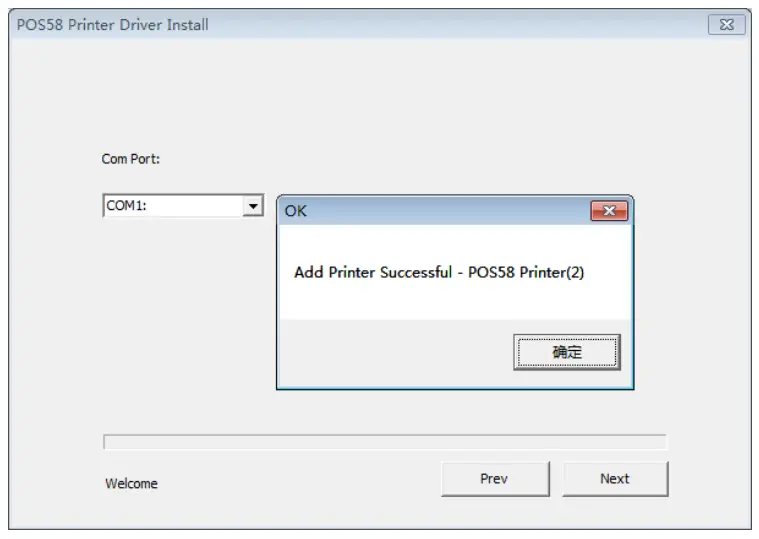
- Choose the port and model what you need(USBxxx corresponds USB port,COMx correspondS serial port,LPTx corresponds parallel port),and click to install.

- Then it will show “Add Printer successfully”

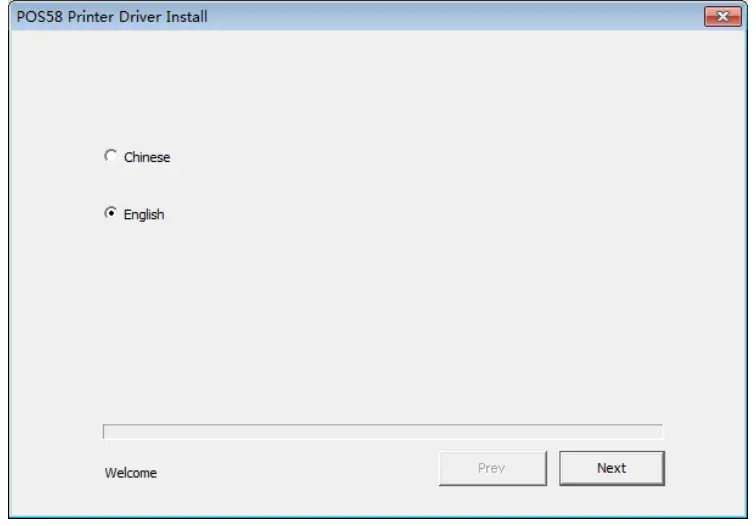
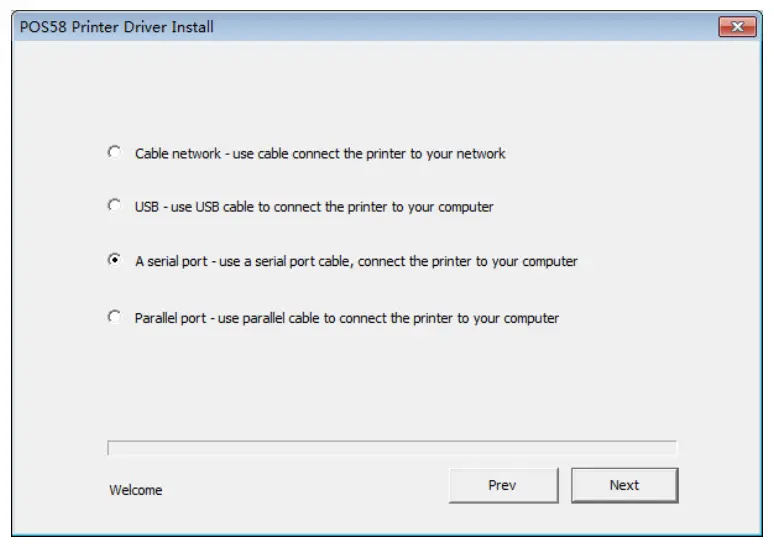
2C-POS58-BU Thermal POS printer
4.9 LINUX driver installation
USB port driver installation
- Copy commandtokc,rastertokc,texttokc in the catalogue to the filter catalogue of cups.This catalogue normally is /usr/lib/cups/filter/.
The installation procedure has been written in shell for installing expediently.Pls run shell script in terminal,the run command is :sudo ./install.sh. If script can not run permission,pls run :sudo chmod a+rwx install.sh in terminal,and add permission for it.
- Click system setting after installing filter

- Click printer

- Add printer
Serial port printer chooses serial port #1,or serial port #n.It is permission denied if it does not show serial port.Please modify serial port device file access right as all people can read and write,or input command in the terminal:sudo chmod a+rw /dev/ttyS0;com1 in windows corresponds /dev/ttyS0 in Linux;com2corresponds s/dev/ttyS1;by parity of reasoning.Wait for a few minutes after modifying permission,you will find serial port in “Add printer”.Choose baud rate the same as printer’s baud rate,no parity,data bit 8, flow control hardware(RTS,DTR are okay)
- USB printer needs to connect PC first,and then click “add printer”.You will find there is a extra Unknown in choice devices.It describes a printer connects to USB port.This is the USB printer what it just connected.

- Choose Printer58.ppd in the catalogue

- Click “Forward” button

- . Click “apply” button.

- Print self-test page

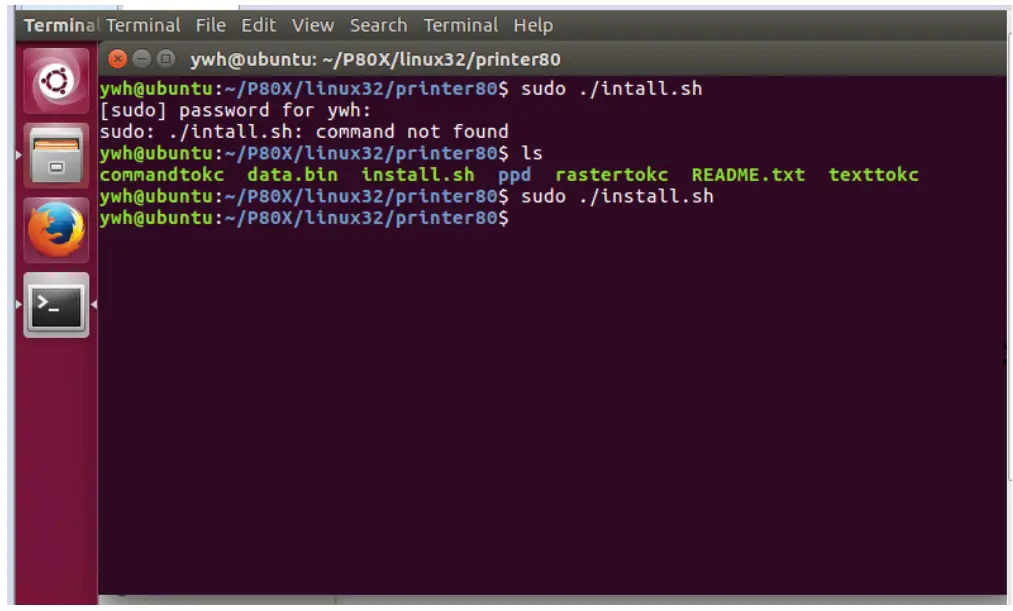
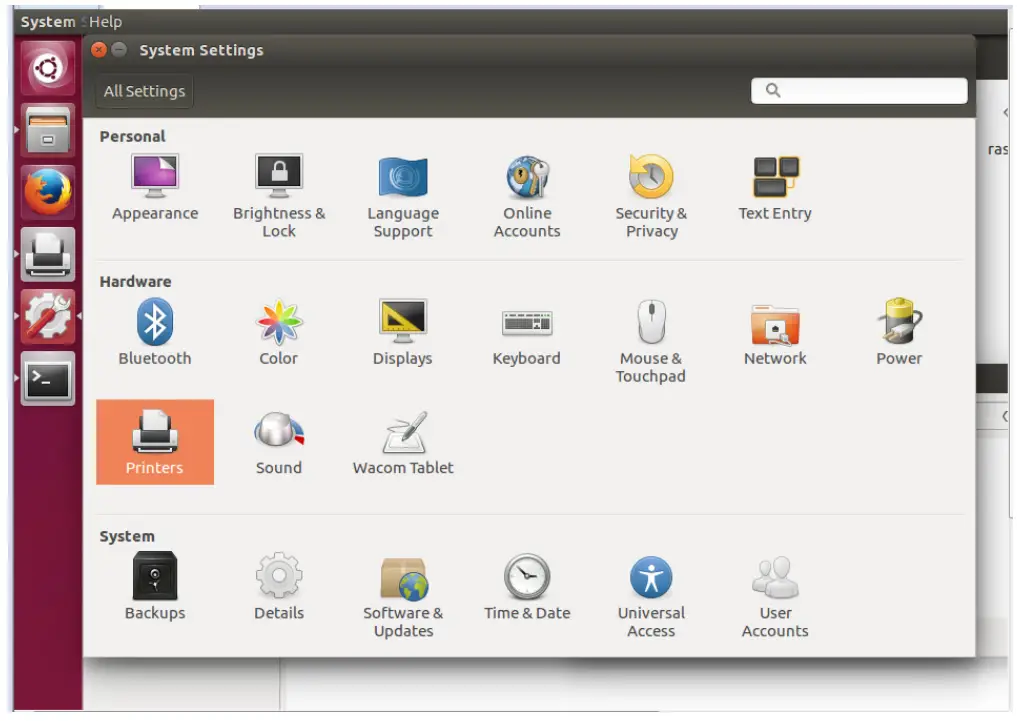
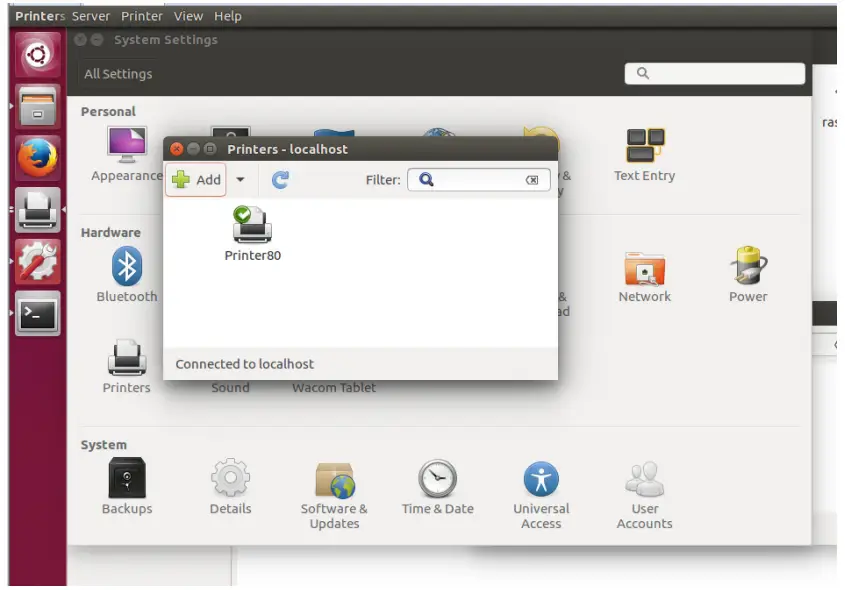
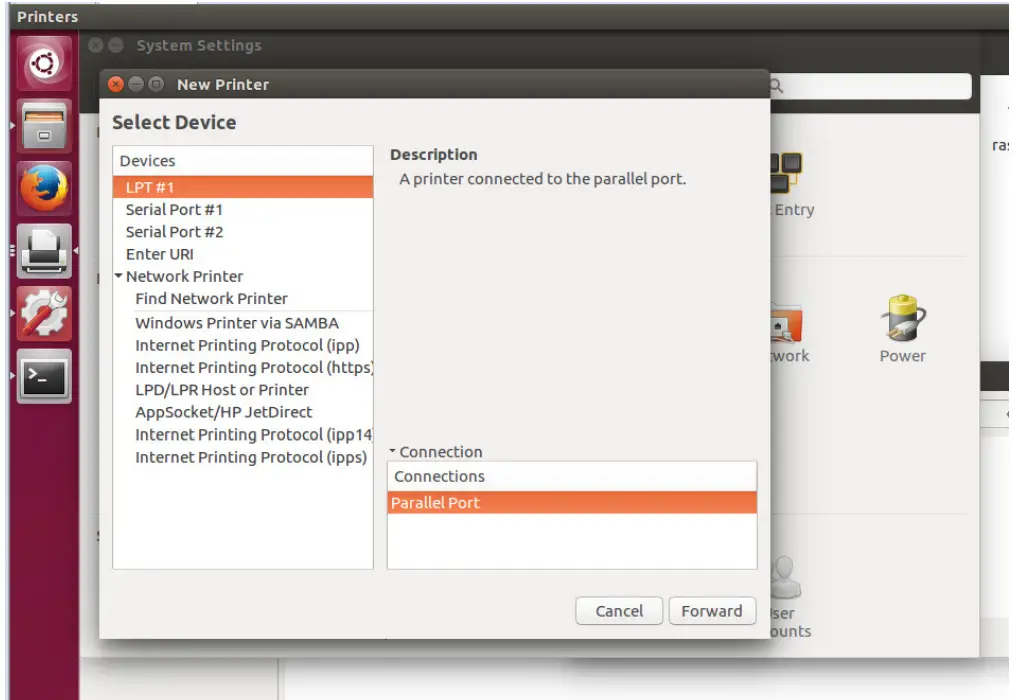
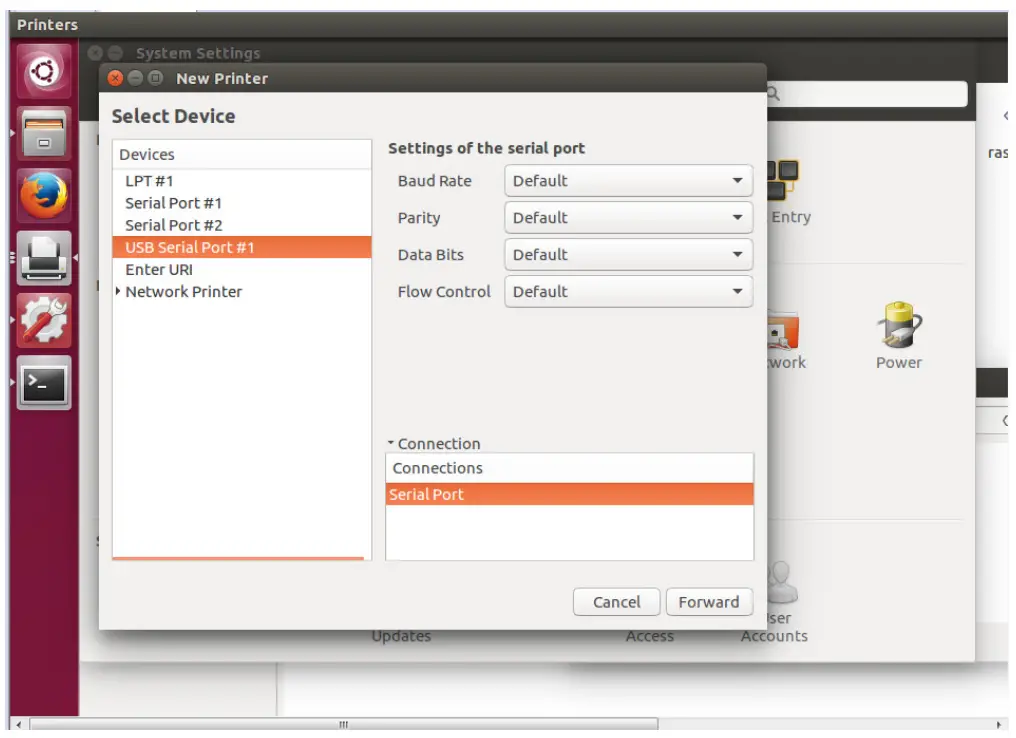
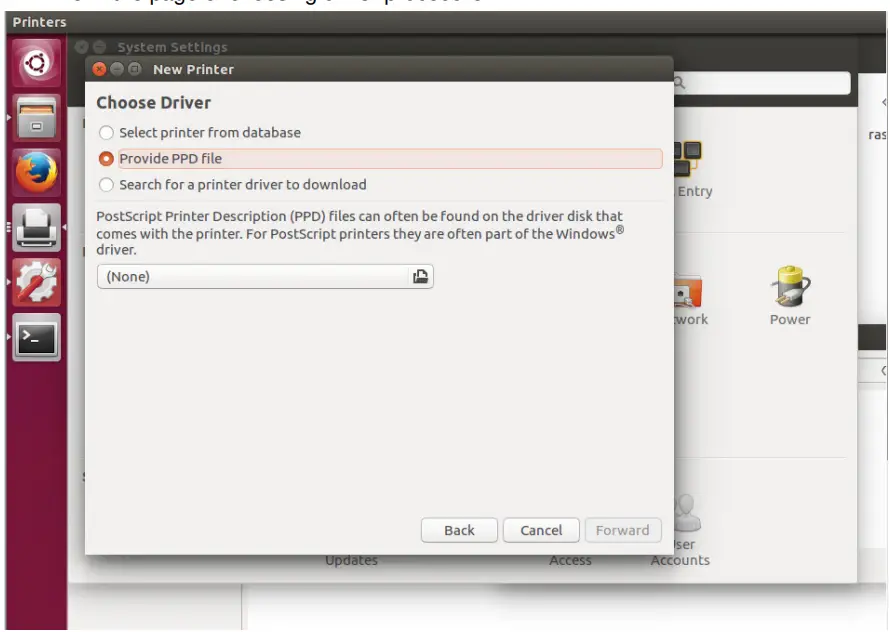
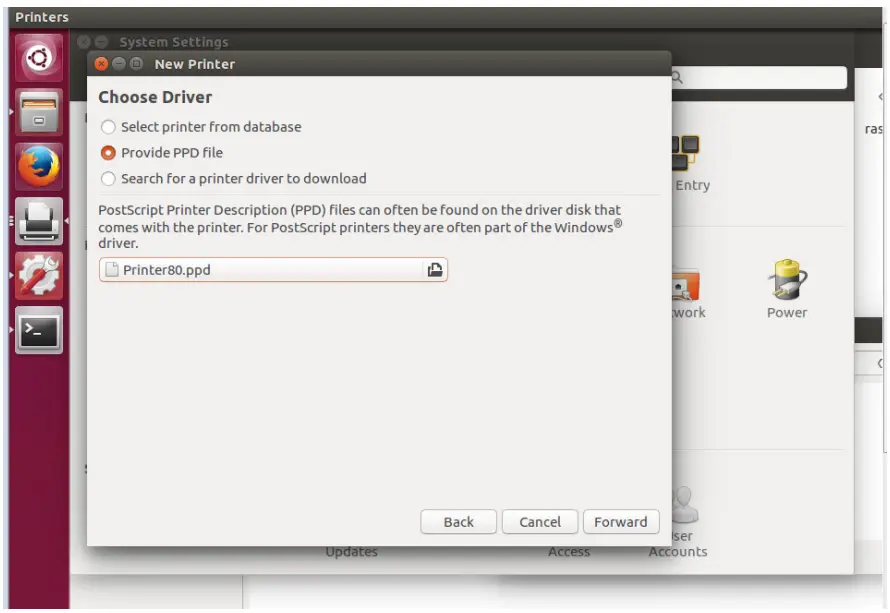
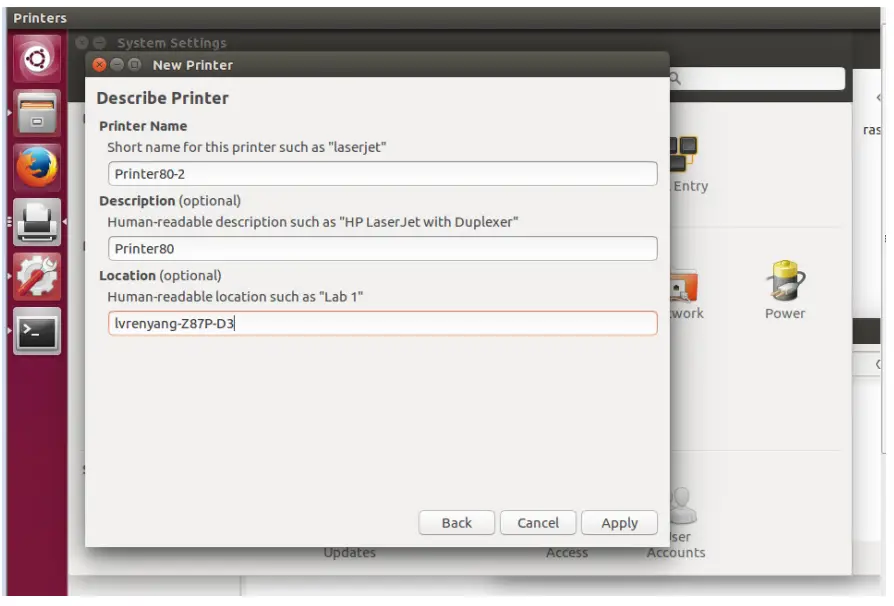
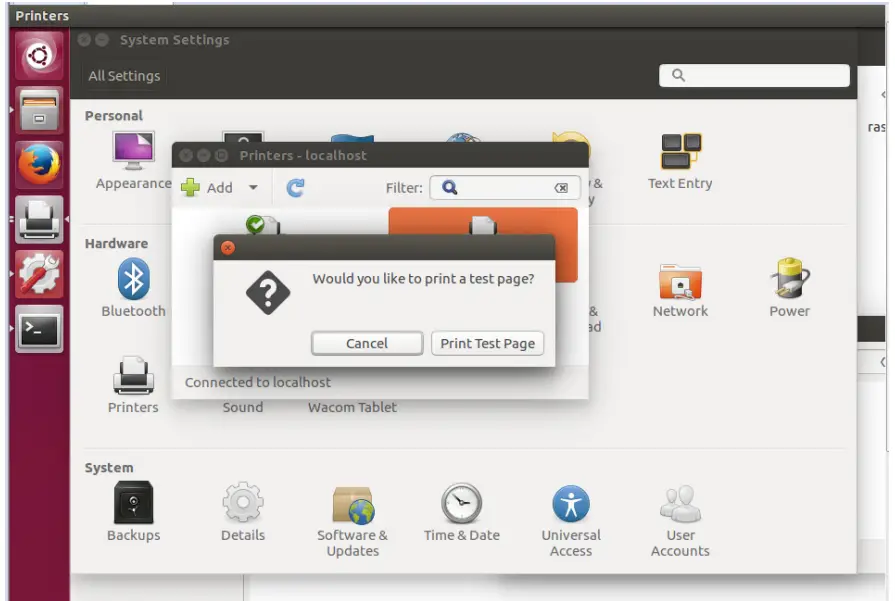
The driver installs correctly if it can print self-test page
5 Interface pin definitions
The printer has a cash drawer driver interface and many kinds of communication interfaces: parallel and
USB . USB port and cash drawer interfaces are standard interfaces, and it has USB and parallel ports as optional.
5.1 Parallel interface pin definition(DB25M)
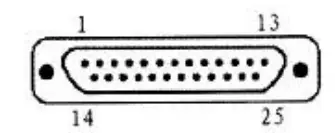
| Number | Signal | Function | Number | Signal | Function |
| 1 | /STROBE | Gate. Low level is effective | 10 | /ACK | Confirm. Low level is effective |
| 2 | DATA0 | Data bit is 0 | 11 | BUSY | Busy |
| 3 | DATA1 | Data bit is 1 | 12 | PE | Paper out |
| 4 | DATA2 | Data bit is 2 | 13 | SEL | Choose |
| 5 | DATA3 | Data bit is 3 | 14 | /AUTOFEED | Change line automatically. Low level is effective |
| 6 | DATA4 | Data bit is 4 | 15 | /ERROR | Error. Low level is effective |
| 7 | DATA5 | Data bit is 5 | 16 | /INIT | Initialize. Low level is effective |
| 8 | DATA6 | Data bit is 6 | 17 | /SELIN | Choose input. Low level is effective |
| 9 | DATA7 | Data bit is 7 | 18-25 | GND | Ground wire |
5.2 USB interface pin definition(standard B type female base)
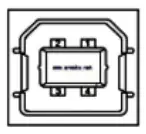
1) Pin definition
| Pin Number | Signal name | Typical wire color |
| 1 | VBUS | Red |
| 2 | D- | White |
| 3 | D+ | Green |
| 4 | GND | Black |
5.3 Power interface pin definition(MPC-3-001B)
1)Pin definition
| Pin number | Signal name |
| 1 | +12V |
| 2 | GND |
| 3 | GND |
5.4 Cash drawer interface pin definition(RJ11-6P6C)
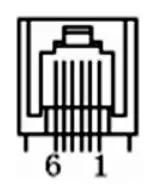
- Electrical specification Driver voltage: DC12V
Driver current: Max. 0.8A (within 510ms)
Cash drawer status tests signal: “L” = 0~0.5 V ; “H” = 3~5 V - Cash drawer interface socket uses RJ-11 6P type connector;
- Interface signal definition
| Pin number | Signal | function |
| 1 | FG | Printer cover |
| 2 | DRAWER 1 | Cash drawer 1 driver signal |
| 3 | DRSW | Cash drawer status detection signal |
| 4 | VDR | Cash drawer driver power |
| 5 | DRAWER 2 | Cash drawer 2 driver signal |
| 6 | GND | Common ground circuit |
Notes:
- Prohibit socket with power to pull out communication wire plug.
- Please avoid to parallel with strong power when wring communication cables.
- Communication cables use with shielded cables.
6 Faults handling
Please refer to the methods as below when printer can’t work normally. Please contact your supplier directly if it still can’t work normally.
6.1 Printer does not work
| Problems | Probably reasons | Solutions |
| The Power indicator is not light. Printer does not work | Printer is not power on. | Power on printer |
| Printer switch is not on. | Press down the “O” side of printer button | |
| PCB is damaged | Contact with agents or factory directly |
6.2 Indicator error
| Problems | Probably reasons | Solutions |
| Paper indicator is on constantly | Paper maybe out | Load a new paper roll |
| Paper out indicator light is on constantly Error indicator is on constantly | Paper roll warehouse cover maybe lit up | Close paper roll warehouse cover correctly |
| Error indicator is blinking | Print head is overheated | Power off printer power, and wait that print head temperature returns normal. |
| Voltage is too high | Use assigned voltage to print | |
| Voltage is too low | Use assigned voltage to print |
6.3 Problems when it is printing
| Problems | Probably reasons | Solutions |
| Color strips occur on the paper | Paper maybe out | Load a new paper roll. |
| Printing is not clear or have dirty spots | Paper roll loading incorrectly | Check paper roll loading correctly or not |
| Paper can’t meet the requirements | Use the recommended thermal paper | |
| Print head or printer rubber roller is dirty | Clean print head or printer rubber roller | |
| Printing density sets too light | Increase printing density to satisfy the requirements. | |
| Paper can output normally | Paper jam | Open upper cover or check paper feed channel to get to know paper jam. |
| Vertical printing contents get lost | Print head or printer rubber roller is dirty | Clean print head or printer rubber roller |
| Print head error | Contact supplier or factory directly |
 Welcome to install.sh