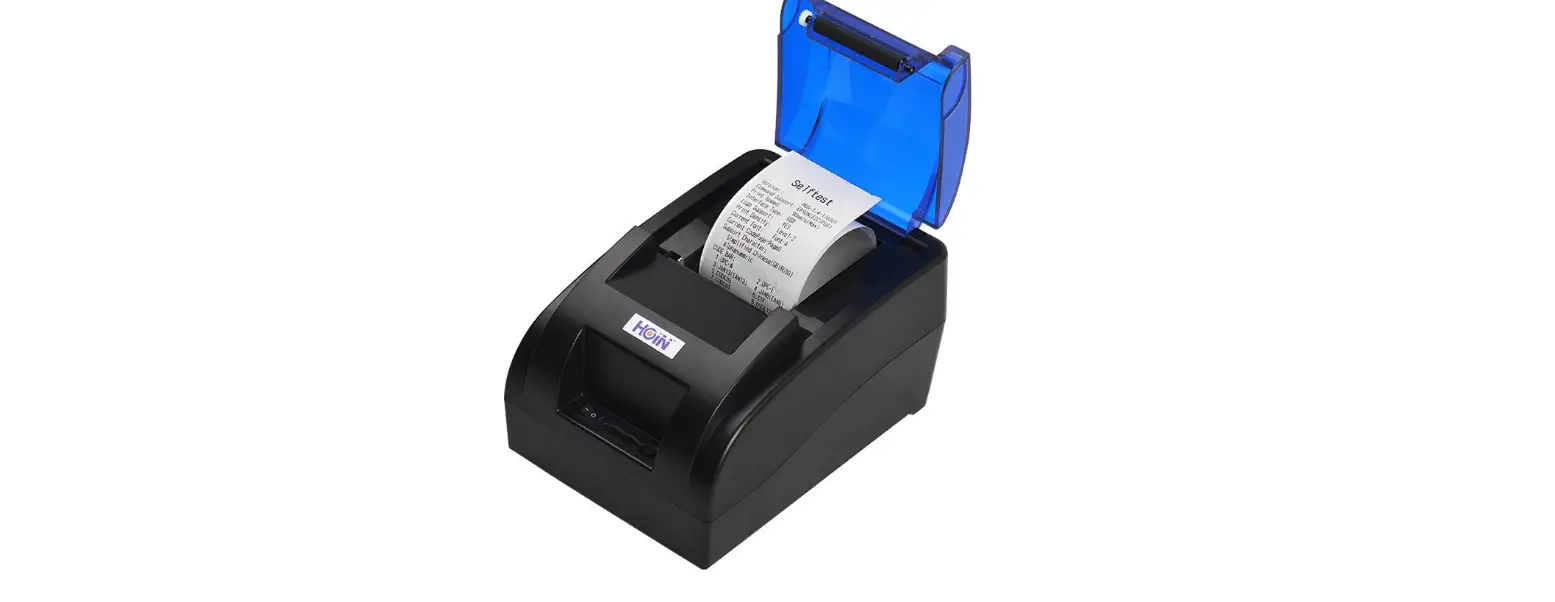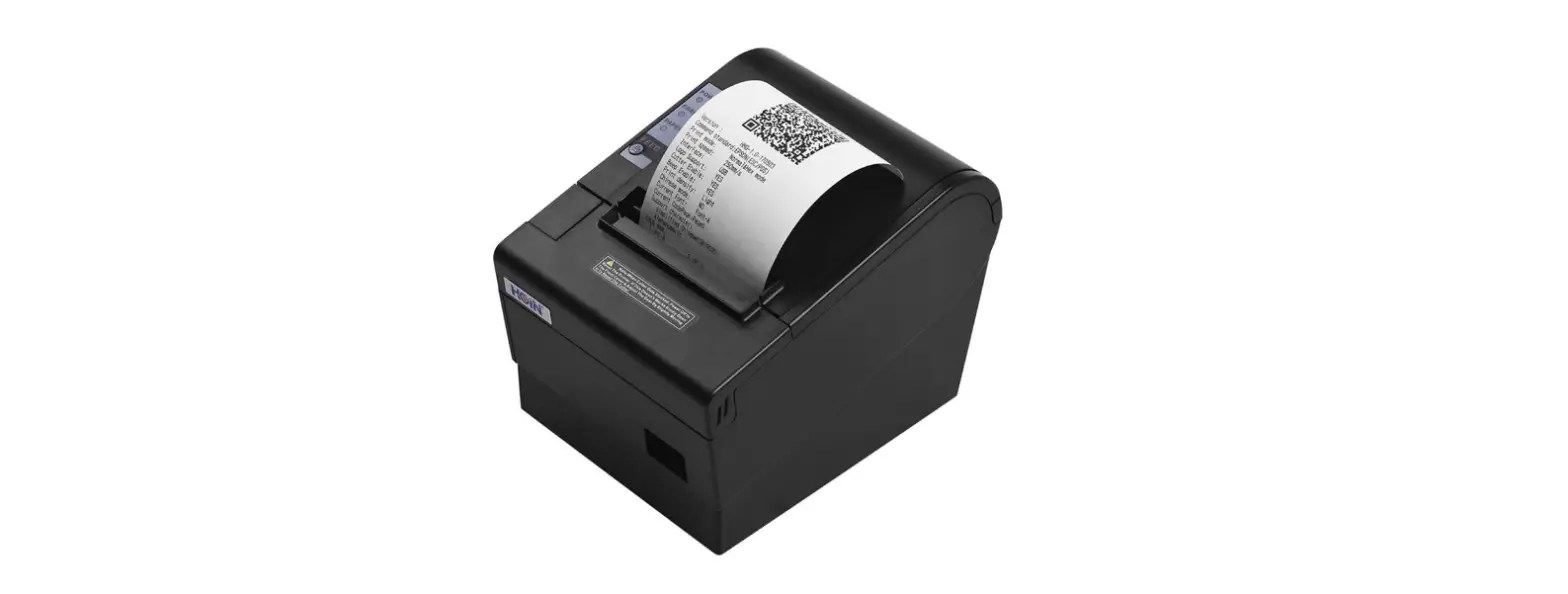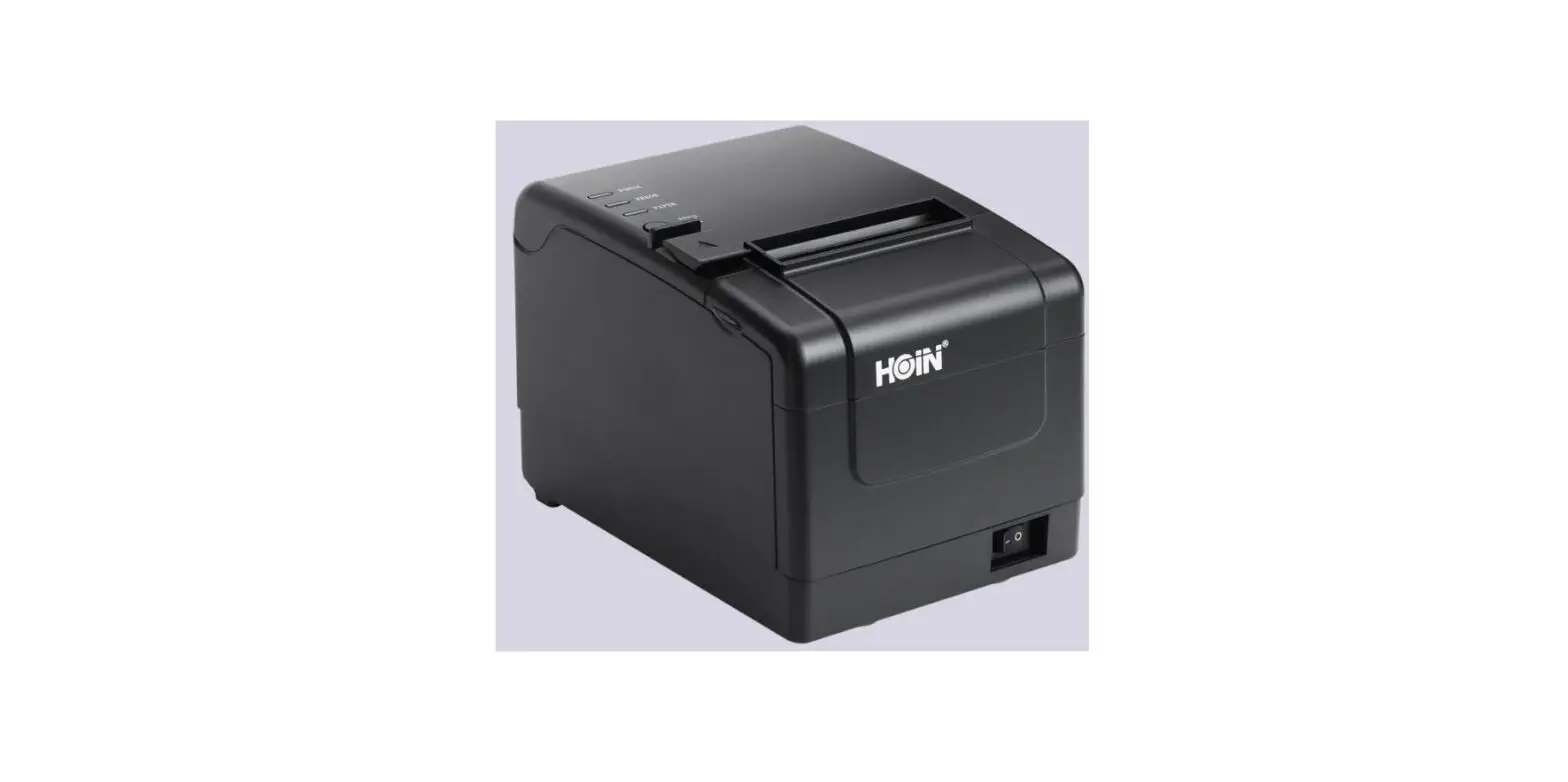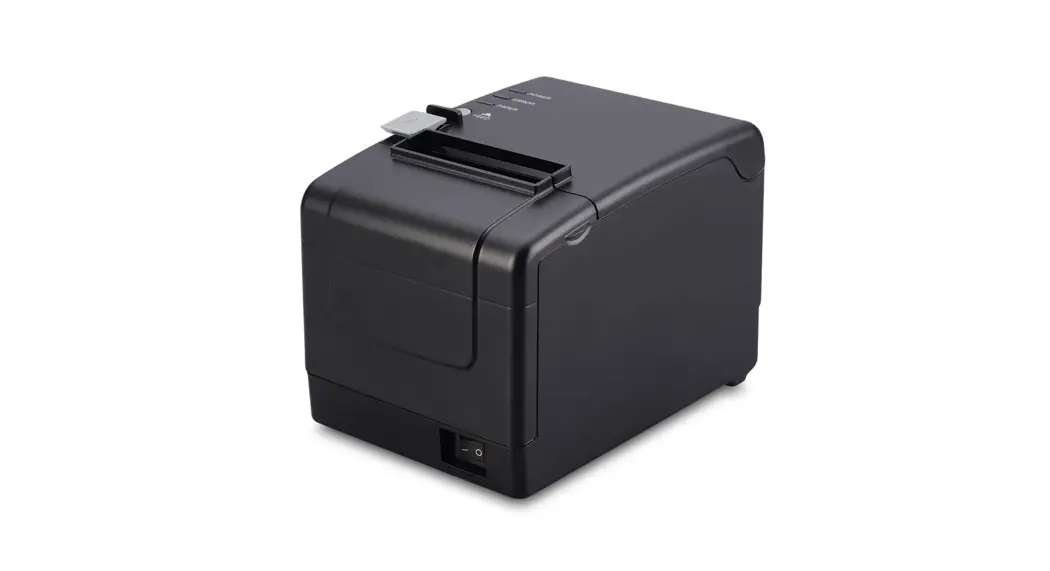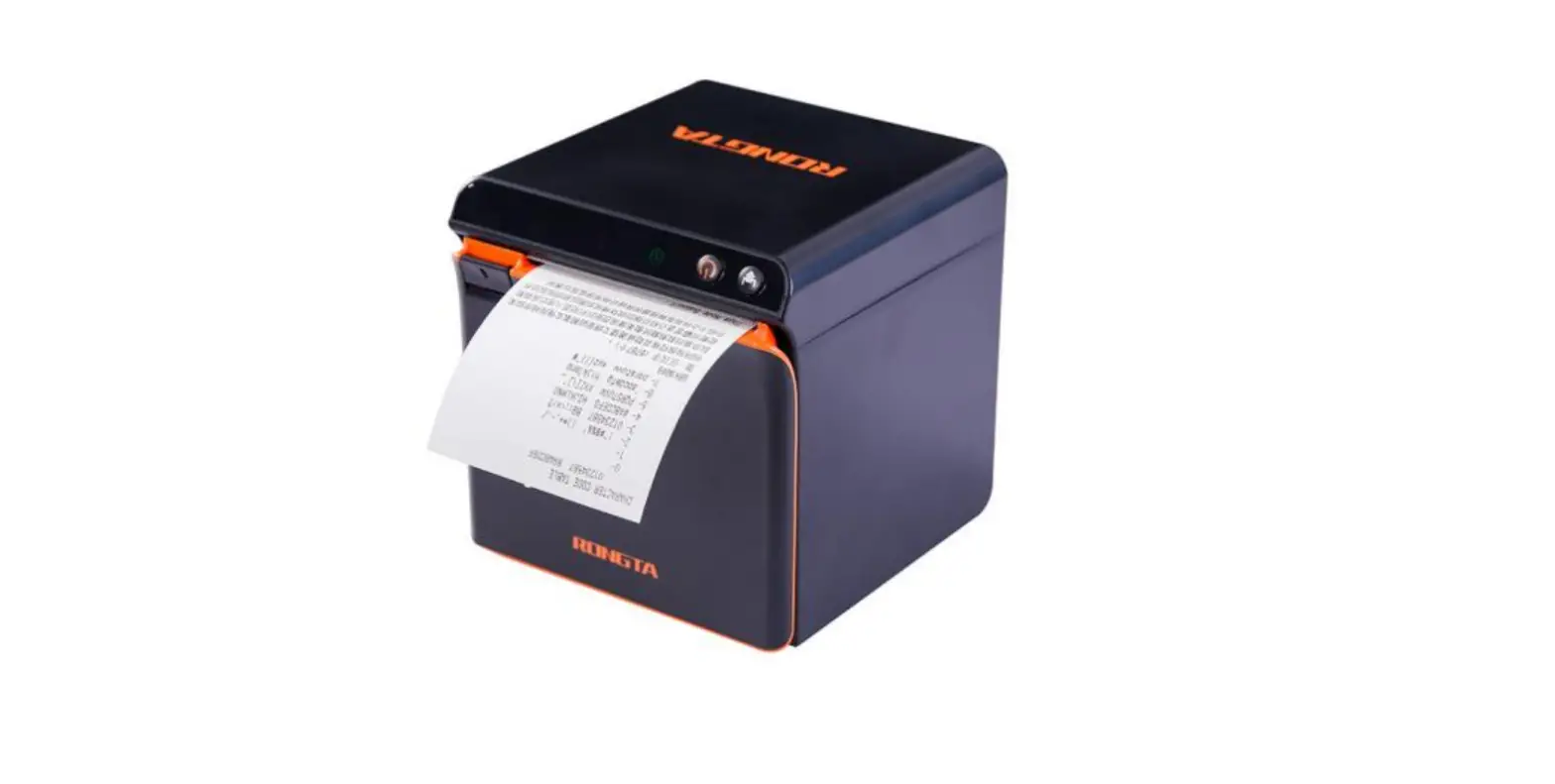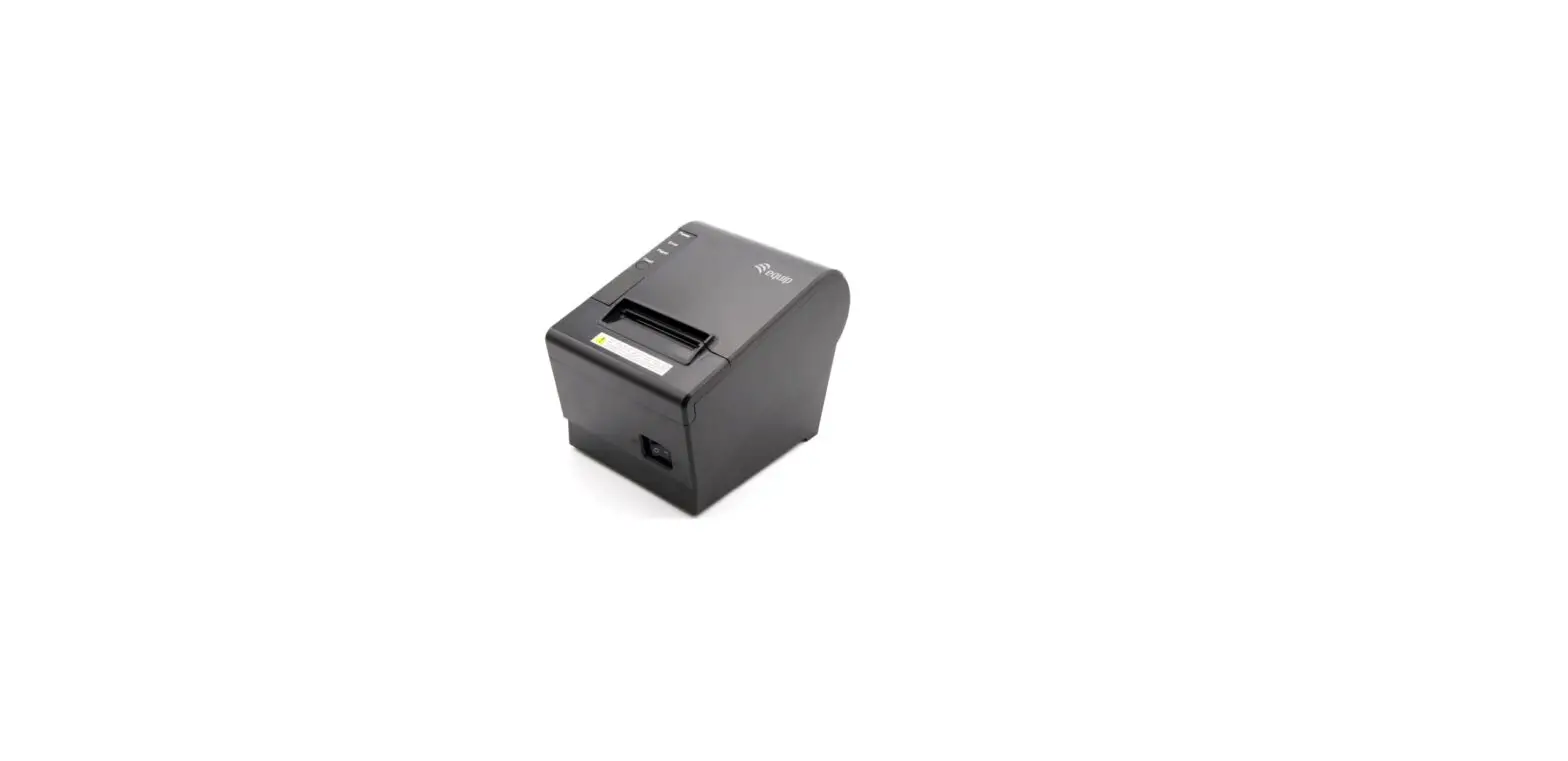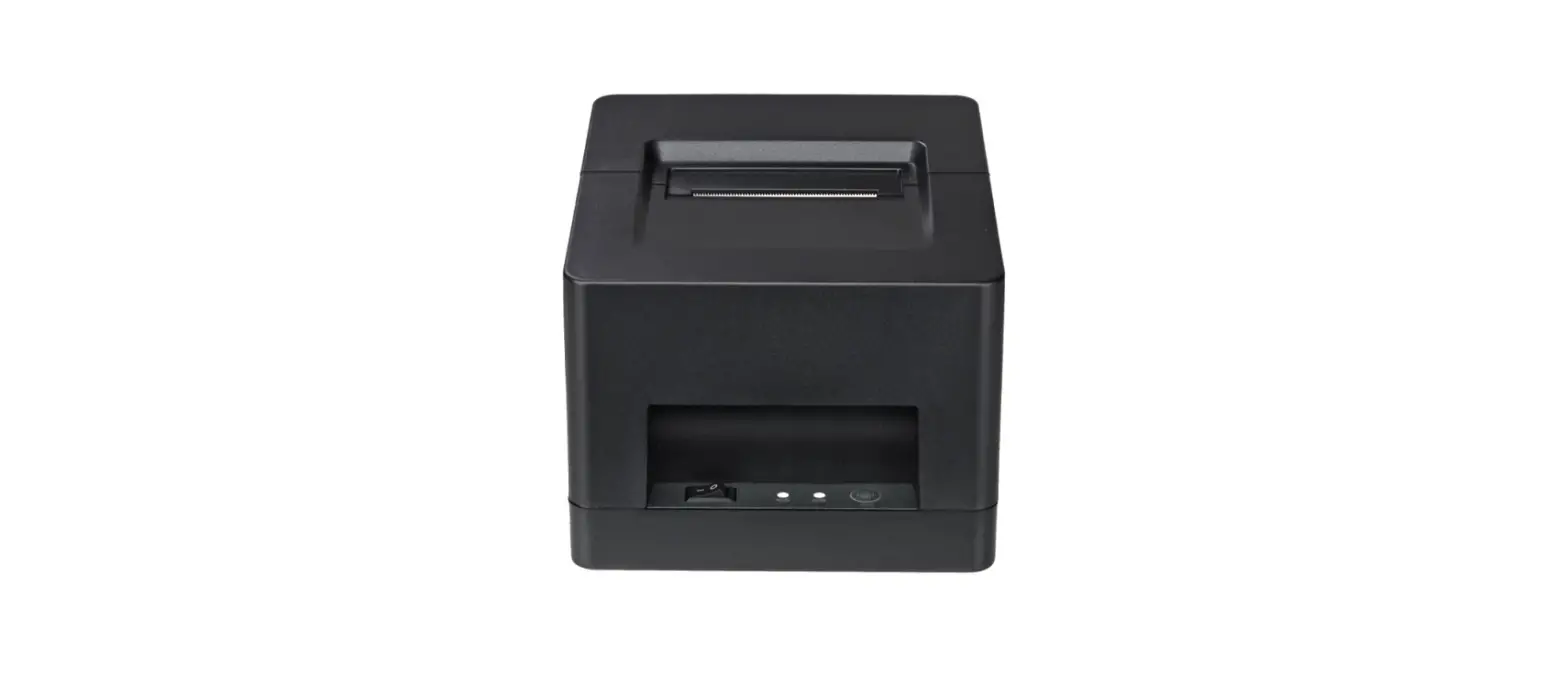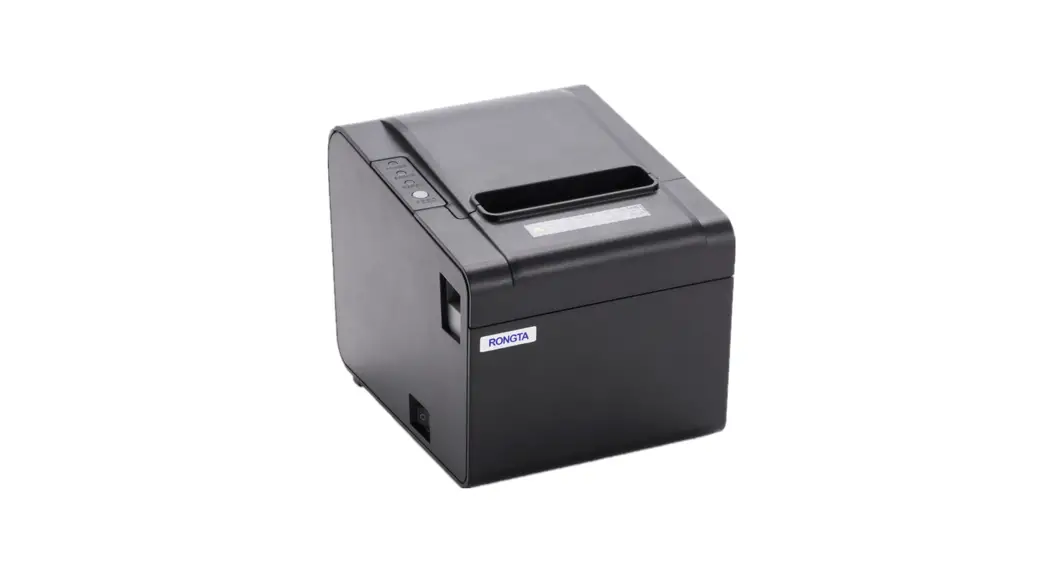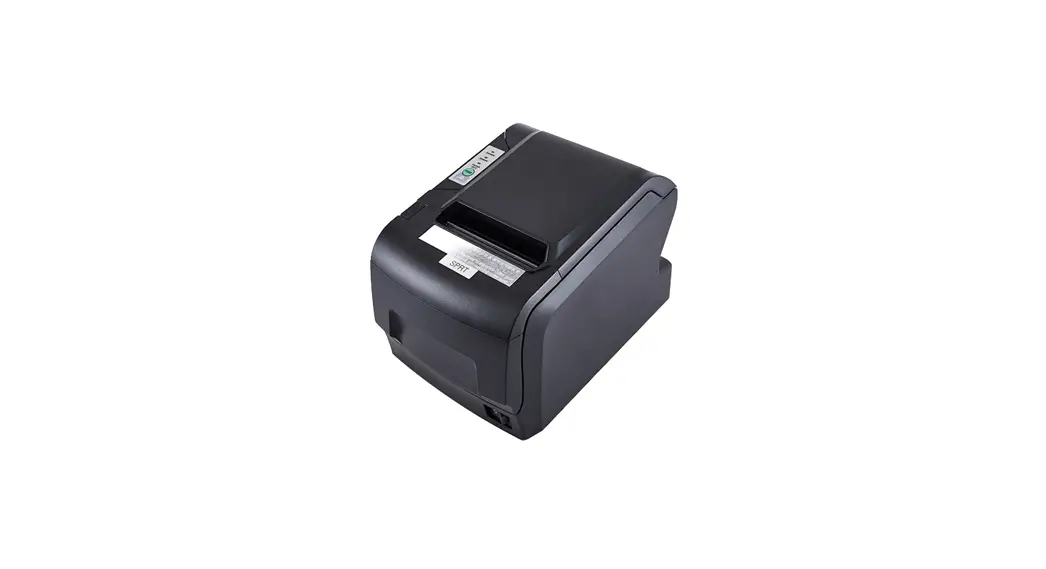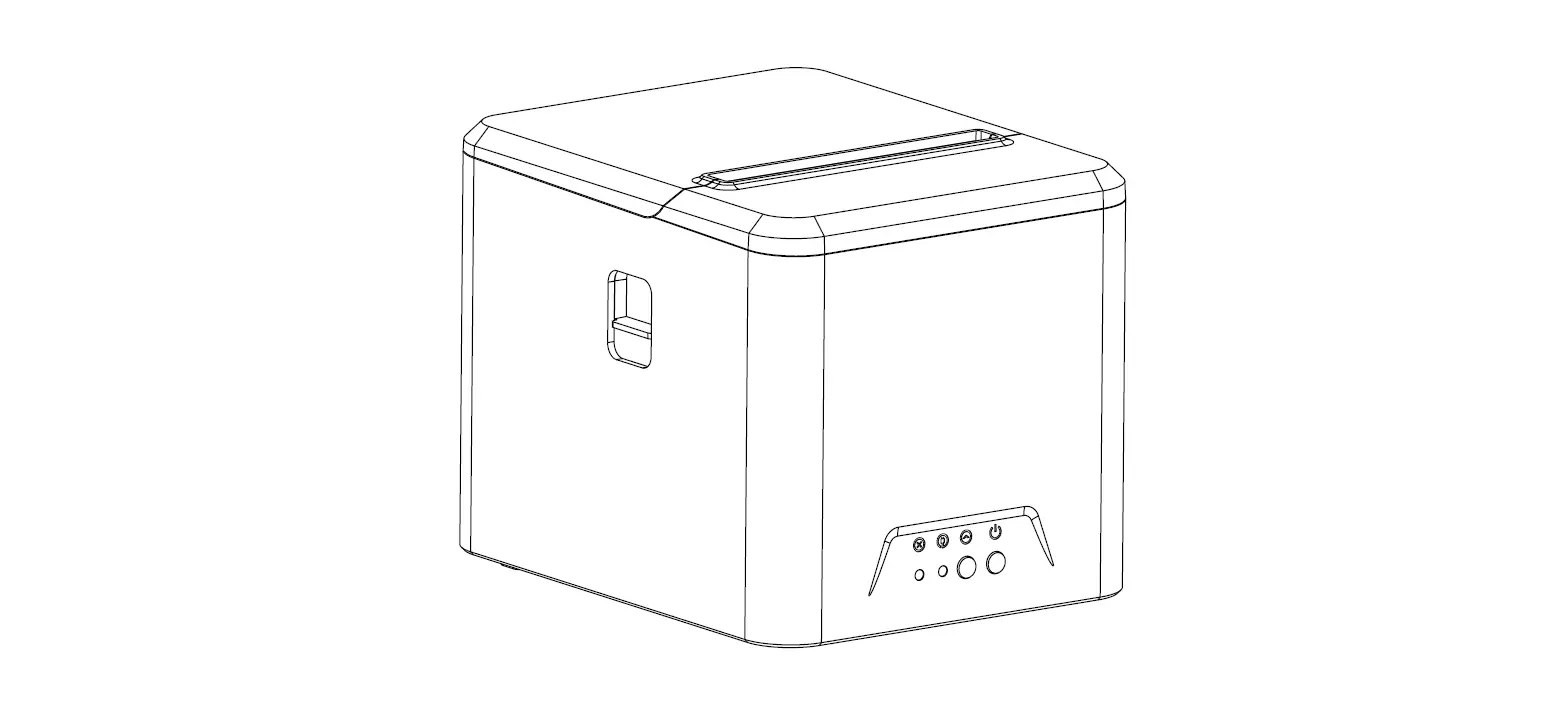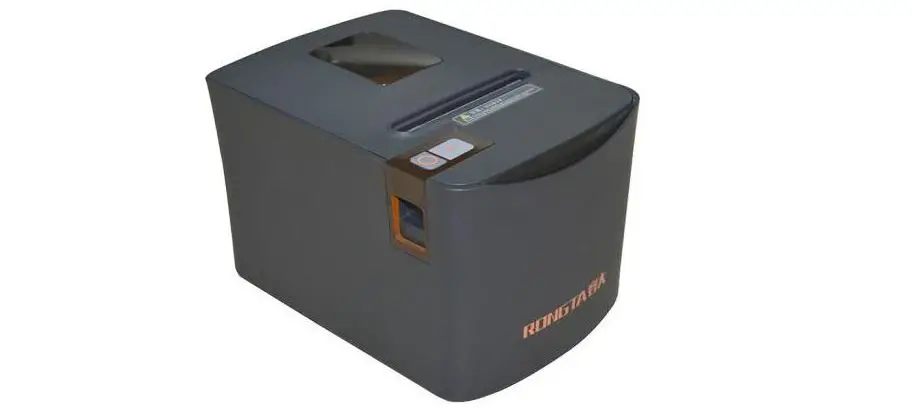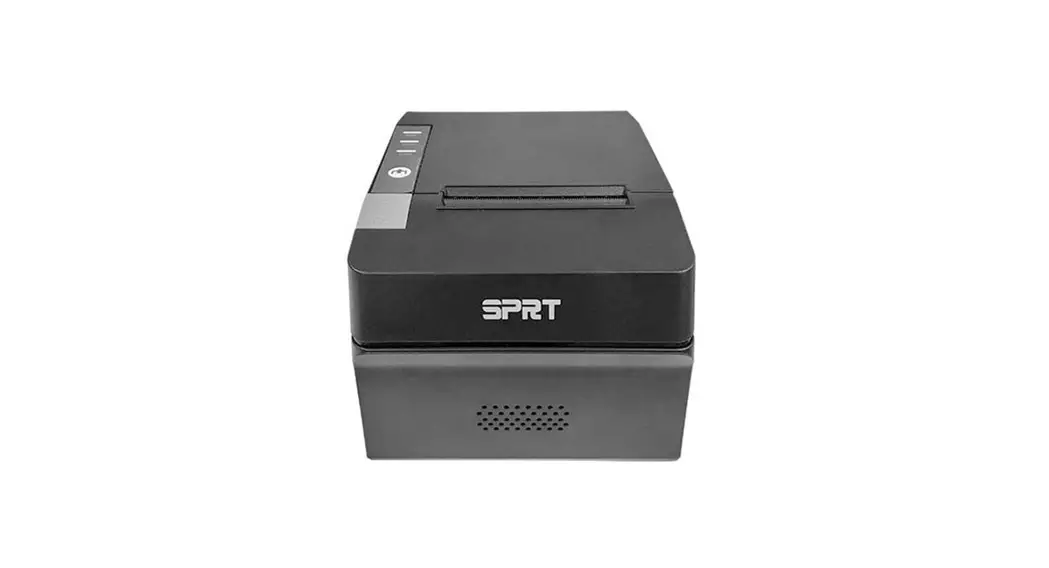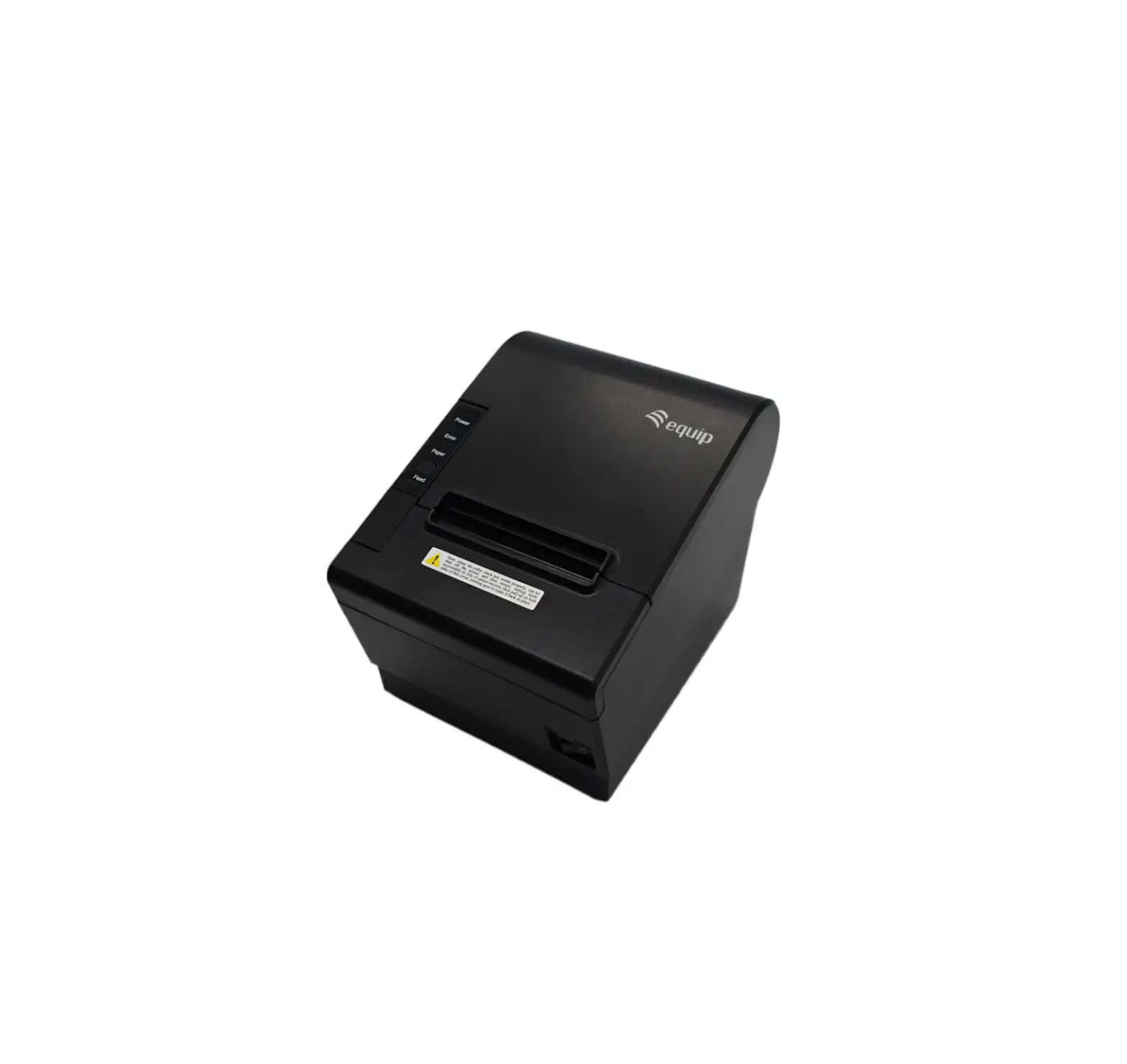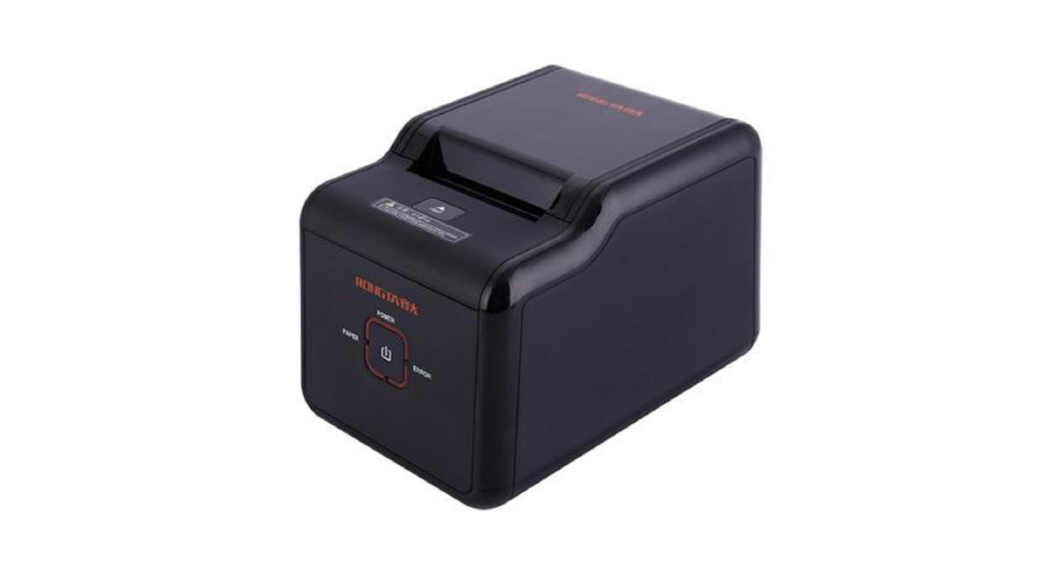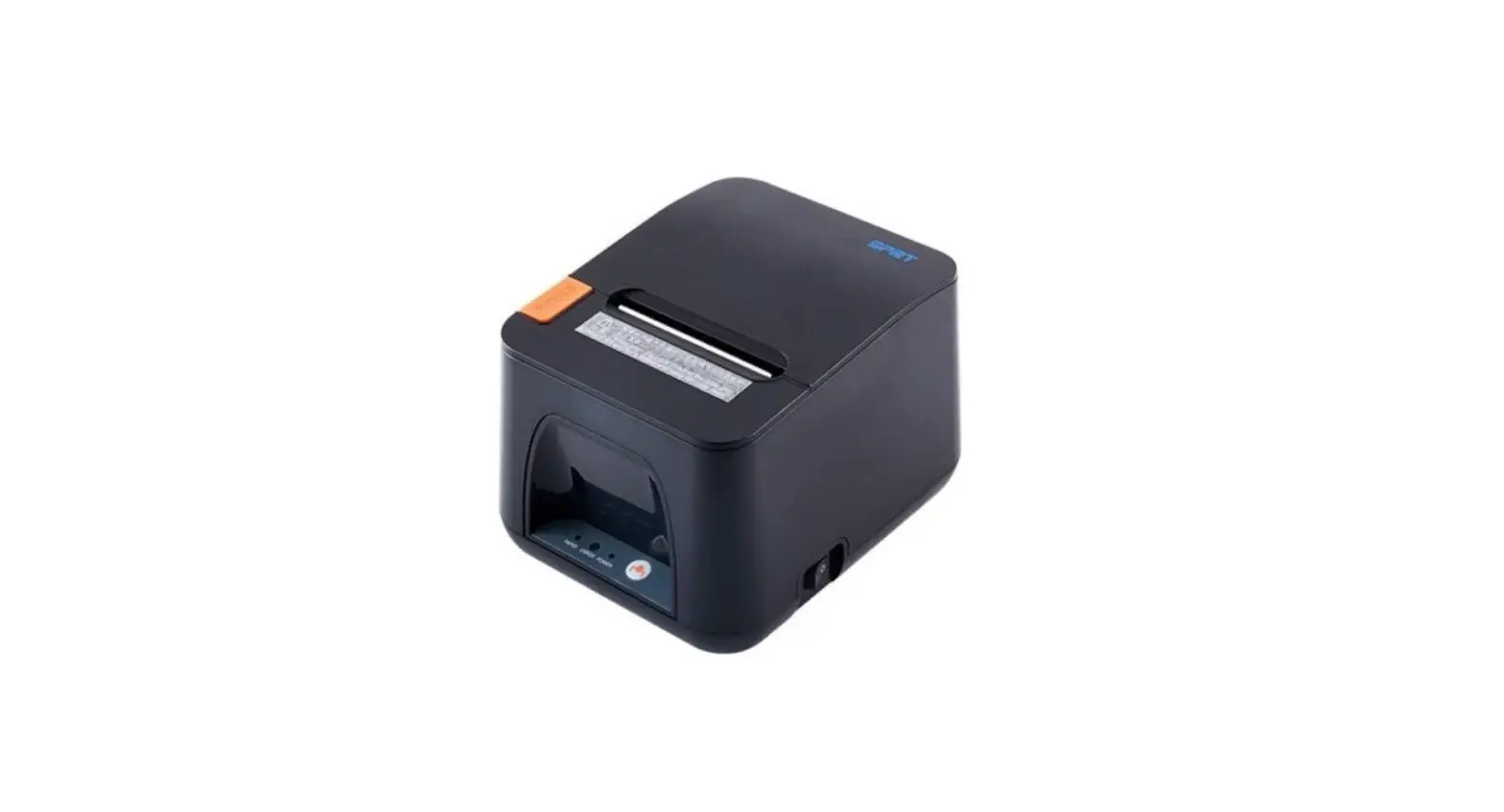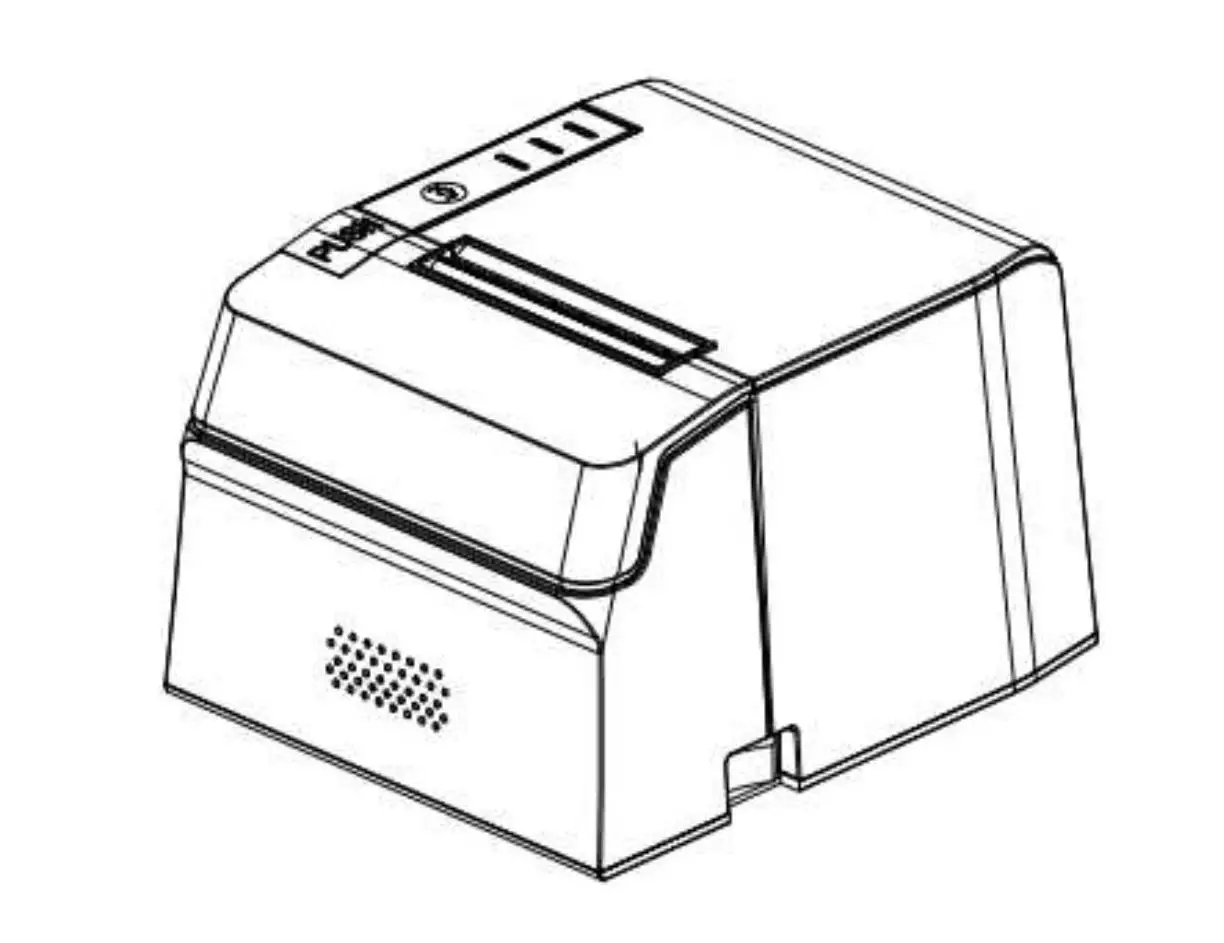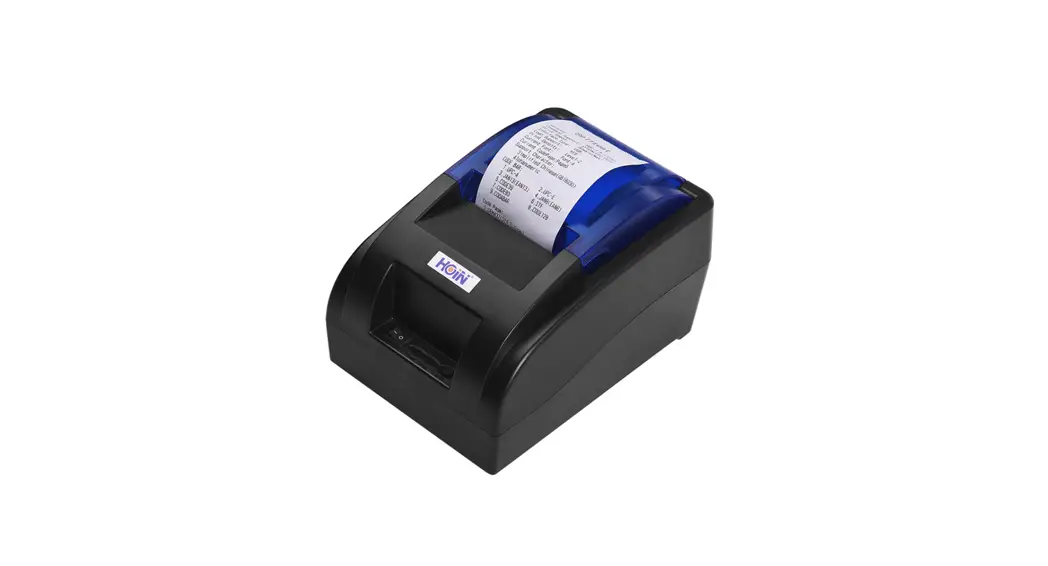
 58MM Thermal Receipt Printer
User Manual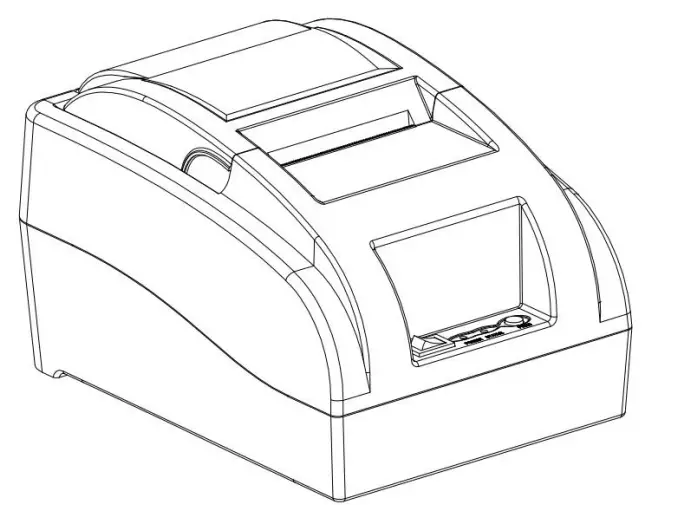
Windows driver or other software Download Link: http://www.hoinprinter.com/en/download/39.html
IOS test app: you can search “Hoin Printer” from Appstore,and install it,you can use this software test the printer is support iOS or not and check the printer’s Bluetooth or wife is working or not.
Android test app.
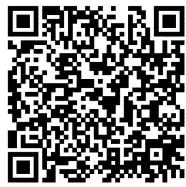
http://www.hoinprinter.com/upload/article/20220415/63a4ec198aab049b2710381938eb1e13.apk
Please read this manual carefully before using it, and keep it for future reference
About this manual
Thank you for your purchase of our company’s 58MM thermal printer. This manual can help you learn to use this product. Please read this manual before use, and safekeeping, so that all the use of this product can read it.
Safety tips:
- Do not disassemble the printer personally, pls read this manual before use.
- The printer should be installed in a solid place to avoid vibration or impact damage to the printer.
- Do not store and use the printer in the environment of high temperature, high humidity, and heavy pollution.
- When plug connection line, please make sure the printer power is closed.
- In order to ensure the quality of printing and the life of the product, please use the normal manufacturers’ thermal paper.
- After printing, print head is still at high temperature, pls do not touch, to avoid burn.
- Pls do not use dissolved substances, such as: benzene, thinner or alcohol wipe to clean the printer casing. At the same time, please do not use corrosive chemicals and detergent to contact printer. To avoid damage to the printer.
- The printer can’t print in a paperless state, otherwise it will seriously damage the printing roller and thermal print head.
Application Area:
- Electronic cash register POS system printing
- Electronic transfer system printing
- Sports, postal, civil aviation bill printing
- Query, service system bill printing
- Tax bill printing
Package:
- Printer 1PC
- Adaptor Power line 1 PC
- Paper roll 1 ROLL
- USB Data cable 1PC
- Use manual 1PC
- Driver CD 1PC
Product Features :
- Print quality is high, low cost
- Low noise, high speed printing
- Support raster bitmap printing
- Easy paper install structure,simple and convenient to operate
- Built-in power supply design, to save space and more convenient to configure;
- Support GB18030 big font, easy to print uncommon characters
- Support multi language print, suitable for users all over the world;
- Support download and print LOGO&graphics ;
- Support Windows, Linux, Android and IOS system printing
- Built in data buffer, print and receive data at the same time;
- Support character zoom, rotation, adjustable line spacing printing character;
- The power consumption is small, and without ribbon cartridge, low use cost;
- Compatible with ESC/POS instruction set;
- With USB interface, bluetooth interface optional;
Parameters :
| Items | Parameters | |
| Print parameters | Printing Method | Thermal Line |
| Printing Method | 48MM | |
| Resolution | 384dots/Line ( 8dots/mm. 203dpi ) | |
| Printing Speed | 90mm/Second(MAX) | |
| Interface Type | USB,Bluetooth(optional) | |
| Line Spacing | 3.75 mm ( Can adjust line spacing by command ) | |
| Line No. | Font A:32 character /Line Font B:42 character/Line Simple,traditional Chinese-16 lines | |
| Character | Standard GB18030 simplified/traditional Chinese Fonts | |
| Character Size | ANKcharacter. Font A: 1.5×3.0mm( 12x24Dots ) Font B: 1.1×2.1mm ( 9x17Dots) Simplified/Traditional Chinese: 3.0×3.0mm(24×24 Dots ) | |
| Bar code &Character | Extended character set | PC437/Katakana/PC850/PC860/PC863/PC865/ West Europe/Greek/Hebrew/East Europe/Iran NV PC1252/PC866/PC852/PC858/Iran11/Latvian/AR abiciPT151,1251/PC737/WPC/1257/Thai Vietnam /PC864/PC1001/(Latvian)/(PC1001)/(PT151,1 251)/(WPC1257)/(PC864)/(Vietnam)/(Thai) |
| Bar code | UPC-A/UPC-E/JAN13(EAN13)/JAN8(EAN8)C0 DE39/ITF/CODABAR/CODE93/CODE128 | |
| Graphics printing | Graphics printing | Supports bitmap download and print |
| Paper | Type | Thermal Roll |
| Width | 57.5±0.5mm | |
| Diameter | 560mm | |
| Feed Method | Easy feed(Clameshell feed) | |
| Commands | Commands | ESC/POS |
| Power | Power Adaptor | Input: AC 100V-240V,50-60Hz Output: DC 12V/3A |
| Casher Drawer output | DC 12V/1A | |
| Buffer | Input Buffer | 32K bytes |
| NV Flash | 40K bytes | |
| physicacha racteristics | Weight | 590g |
| Dimension | 185’130’112(MM) | |
| Environme nt | Working | Temp: 5 – 45°C ,Humidity: 10 – 80% |
| Storage | Temp: -10 – 50°C,Humidity: 10 – 90%( No dew) | |
| Reliability parameter | Print Head Life | 50KM ( print densit012.5 ) |
| Software | Driver | Android,IOS,Linux,Windows |
Printer connection:
- connect the power adapter cable to the printer power supply interface.
- connect the USB data cable to the printer’s interface.
- the cashier drawer cable connected with printer interface .
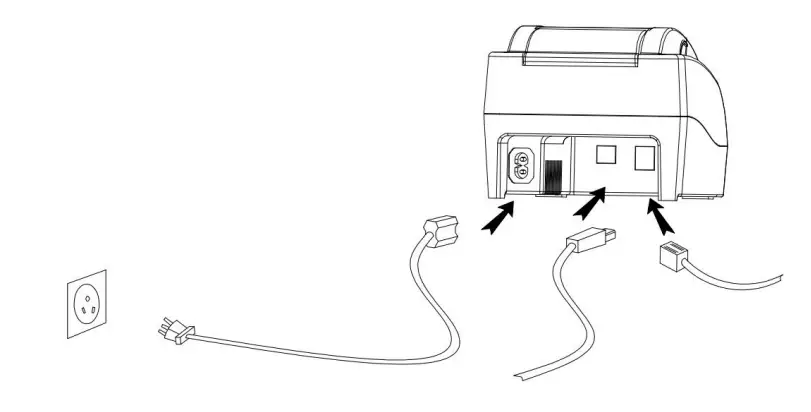 Install the print paper
58MM series thermal printer using 58MM thermal paper, using easy paper structure, convenient to install paper.
- thumb and forefinger pinch the flip cover front place , pull up to open the printer’s flip cover.
- Put thermal print paper in the paper holder according to the pic below.
- Press down the flip cover
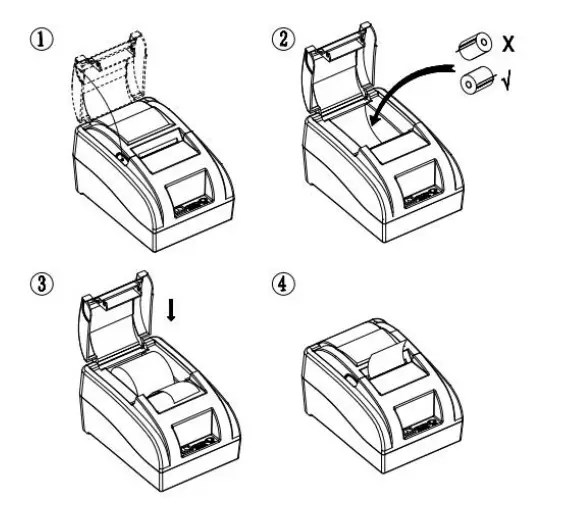 Note: take care of the roll direction, if reverse direction, the content won’t be print out.
Switch, key name, indicator and function:
- POWER switch
The switch can turned on and off the printer power supply. - (FEED) key
Press the button can feed, - (STATUS) light
STATUS light long off indicates the printer is in the normal working state, STATUS light flashing indicates that the printer is short of paper, print head overheating or error and other abnormal conditions. - (POWER) lamp
The indicator light on indicates that the printer is connected to the power supply, this light off indicates that the printer power is off.
Self test:
Printer self-test method are as follows: when the printer connected to the power adapter, press (feed) key and open the printer power at the same time, released the button after approximately 2 seconds, printers will print out current printer status and settings.
Hex number system:
When the printer connected to the power adapter, press (feed) key and open the printer power at the same time, released the button after approximately 6 seconds. The printer print out the words “Dump Hexadecimal”.
Printer restore factory settings:
When the printer connected to the power adapter, ppress (feed) key and open the printer power at the same time, released the button after approximately 10 seconds, printer is restored to factory settings.
Printer connection :
- Windows driver installation
Our driver is very convenient to isntall and use, click on the driver file, the next step directly… then can be used when installation success, no need to configure the USB port.
Printer Repair and maintenance:
- printer external and warehouse cleaning: please use a wet cloth gently wipe the printer surface and internal paper warehouse.
- Printer core clean: printer core must be clean on time, especially the quality of printing is decline, cleaning methods are as follows: put cotton dipped in anhydrous alcohol and gently wipe the printer core ceramic parts as shown in the picture below until clean enough.
- If find water inside printer, please immediately disconnect the printer power, and dry the printer naturally. Failure Analysis:
| Failure phenomenon | Failure cause | Solution |
| Printer status indicator flashing | 1.Printer lack of paper 2.The printer head is too hot 3.The flip not closed well | 1.Install paper correctly 2.Open the cover and dissipate heat fully then go on printing. 3. Cover the flip well |
| When the printer prints only paper run but not print | Print paper install reverse | Pls install the print paper for a opposite direction |
| The printer print fuzzy | The print head not clean for a long time | Put cotton dipped in anhydrous alcohol and gently wipe the printer core ceramic parts until clean enough |
| There is no response of printer | The power adaptor not connected | Pls check power adaptor is connected well or not, power switch is turn on or not |
| Printer can self test, but can not print online | Driver port selection error | Pls select the correct print driver port based on the actual connection port |
 Hoin Thermal Printer, Custom Thermal Receipt Printer Supplier & Manufacturer