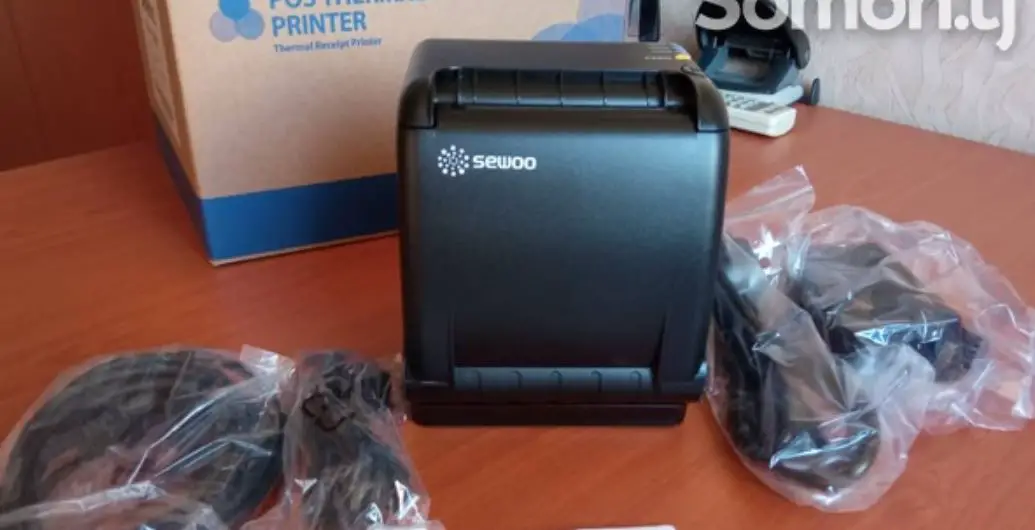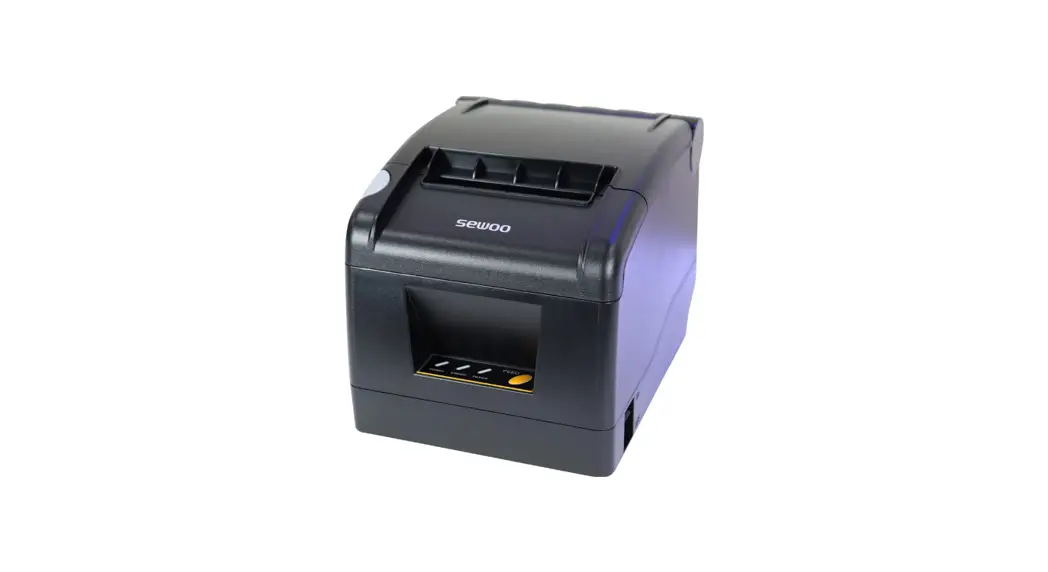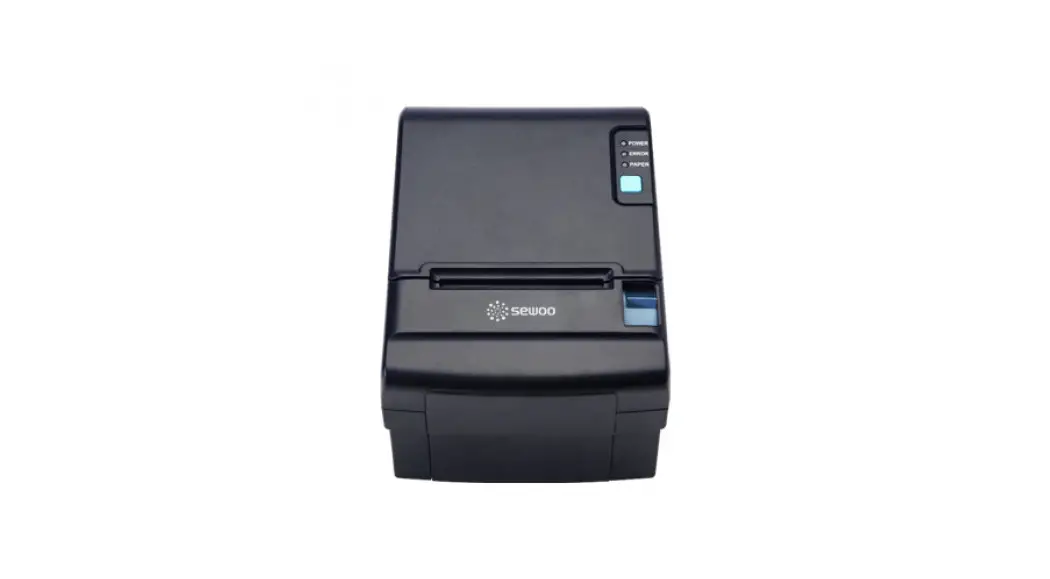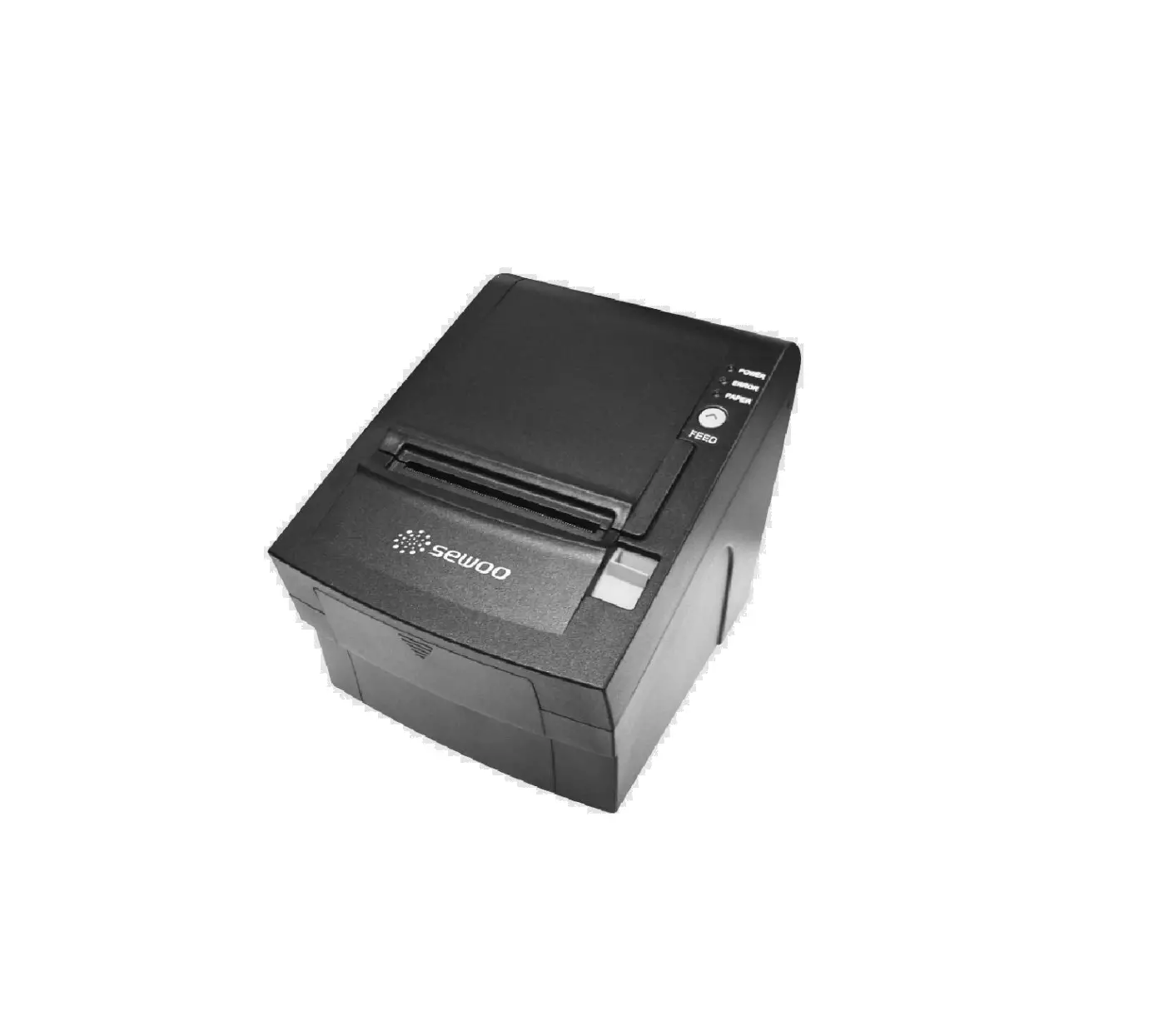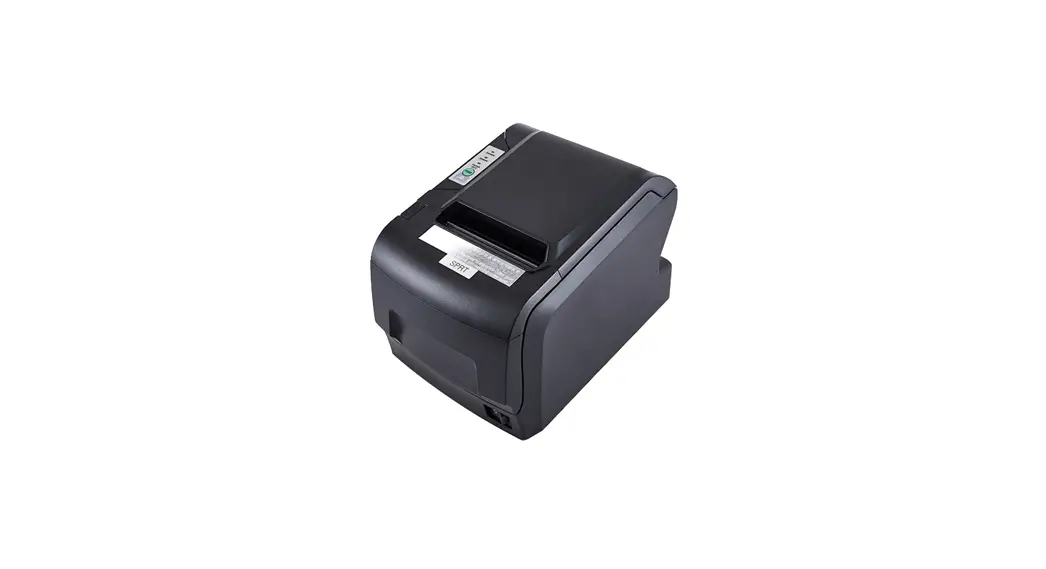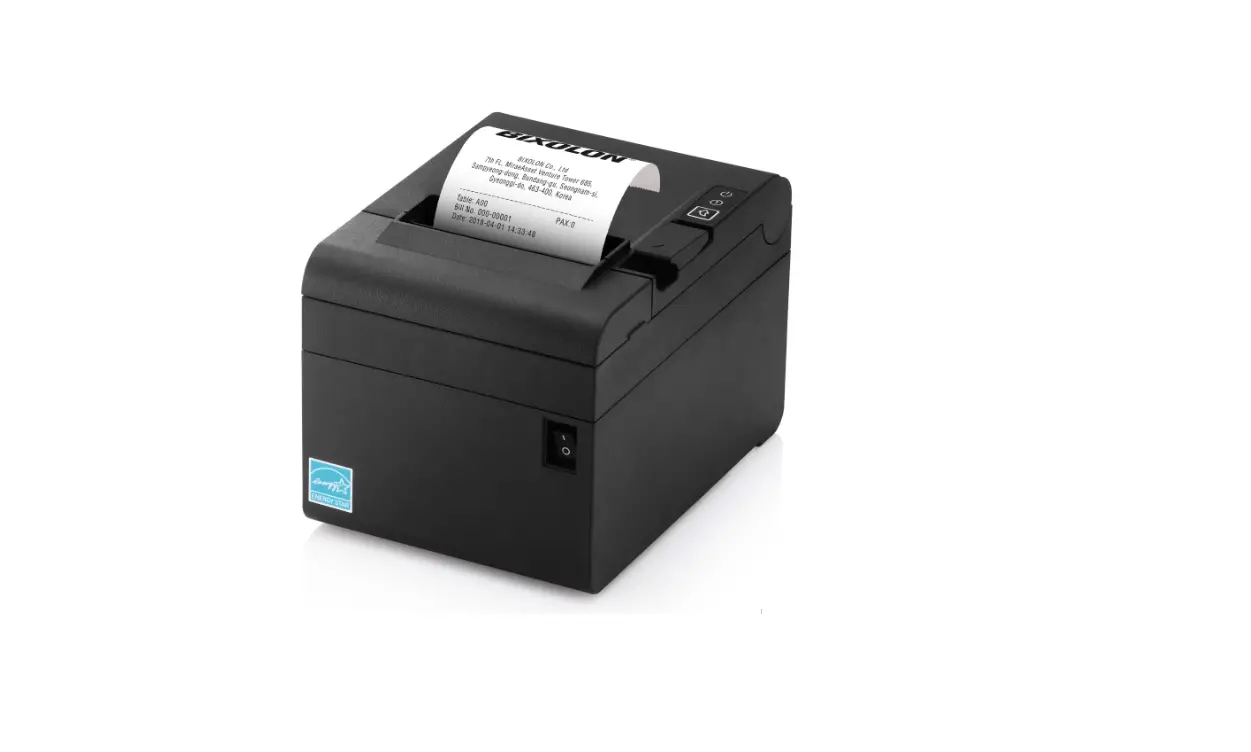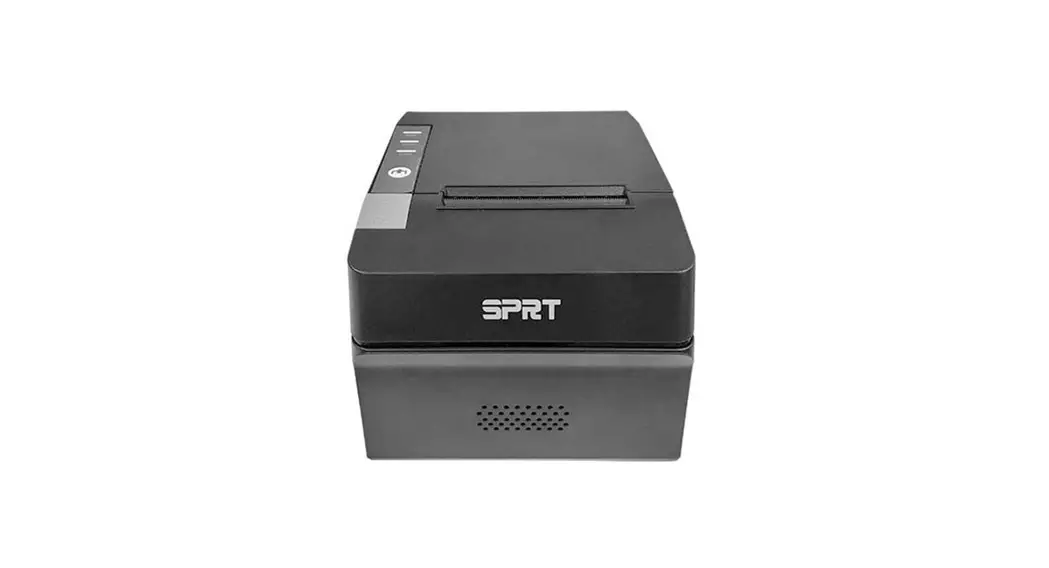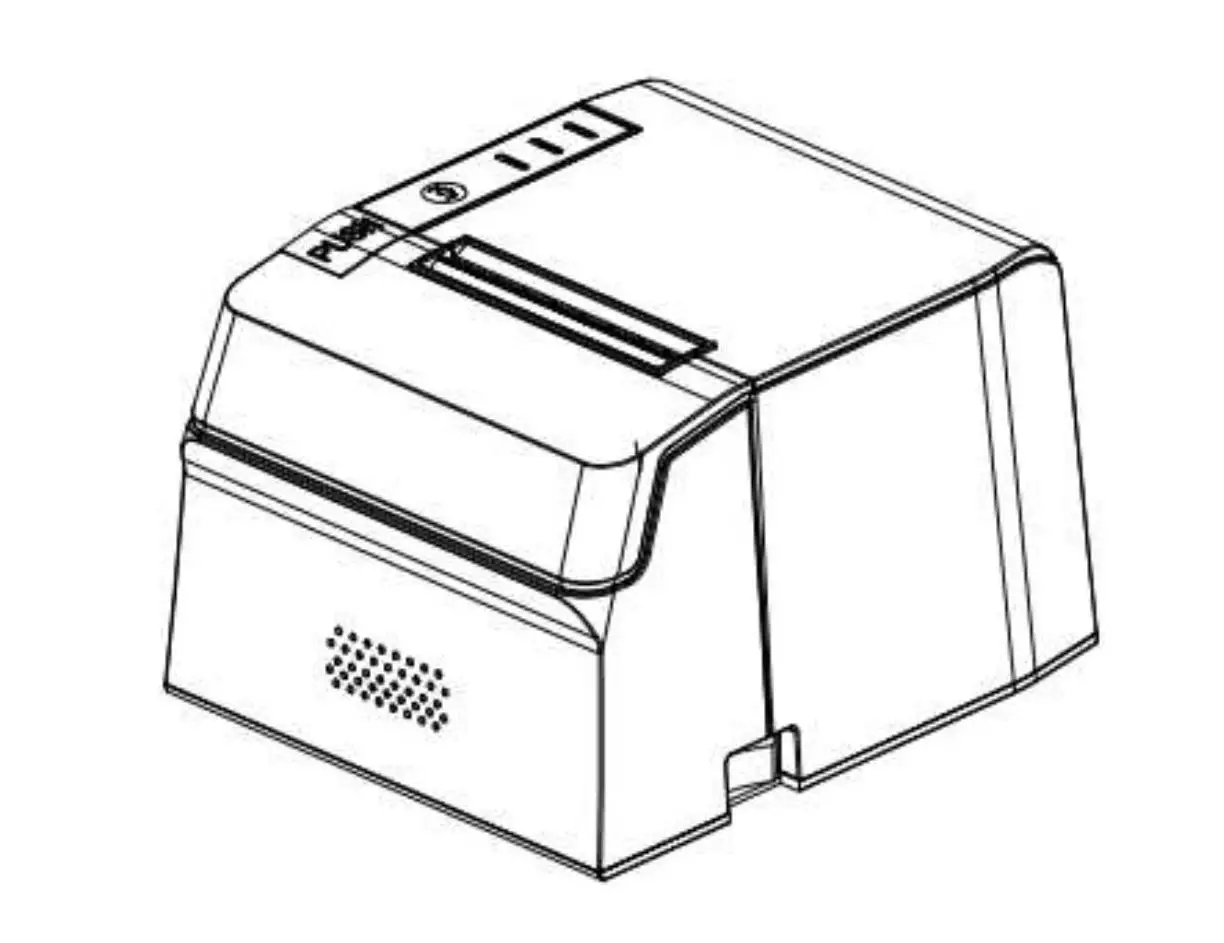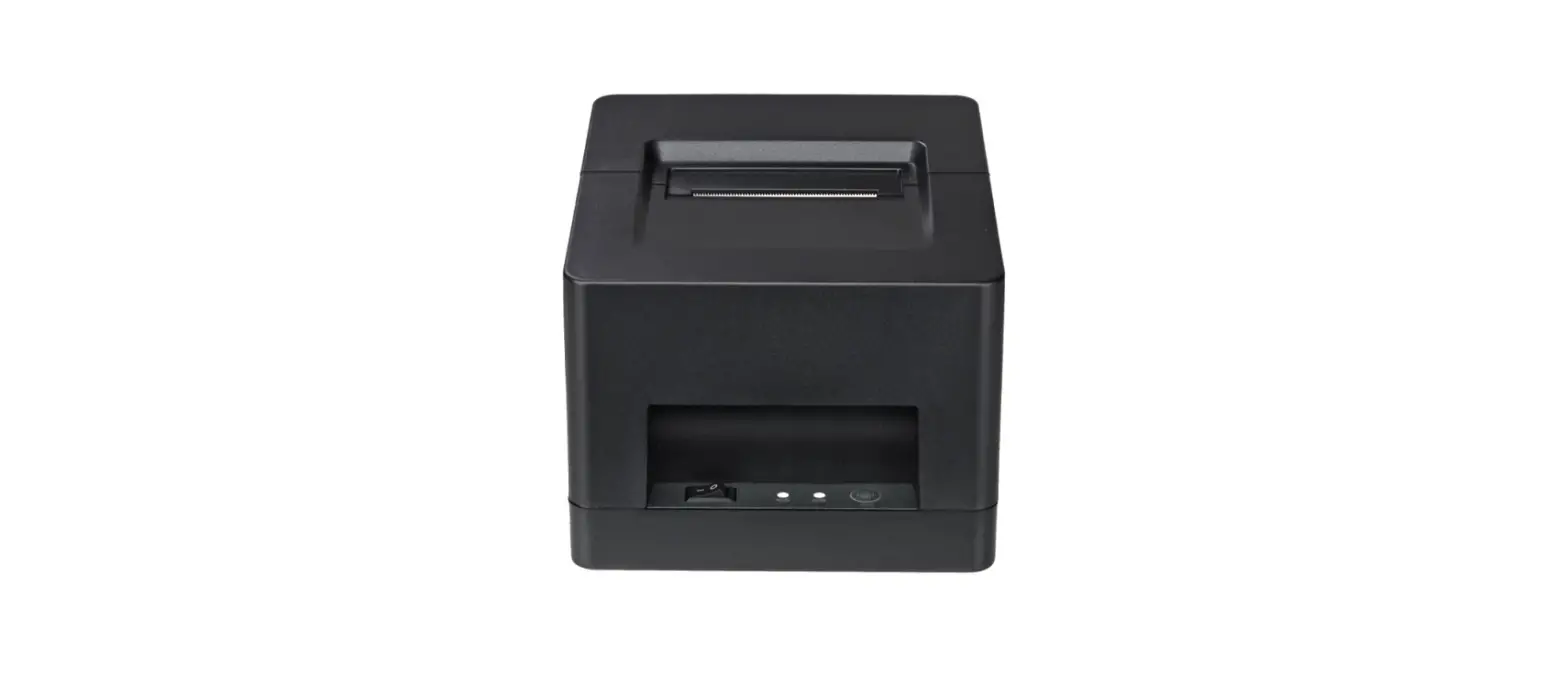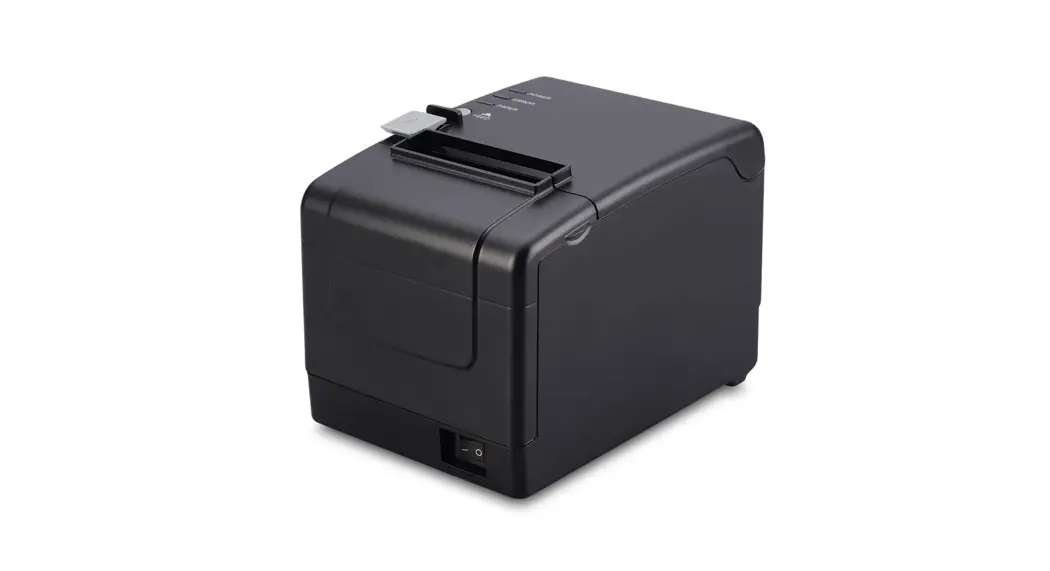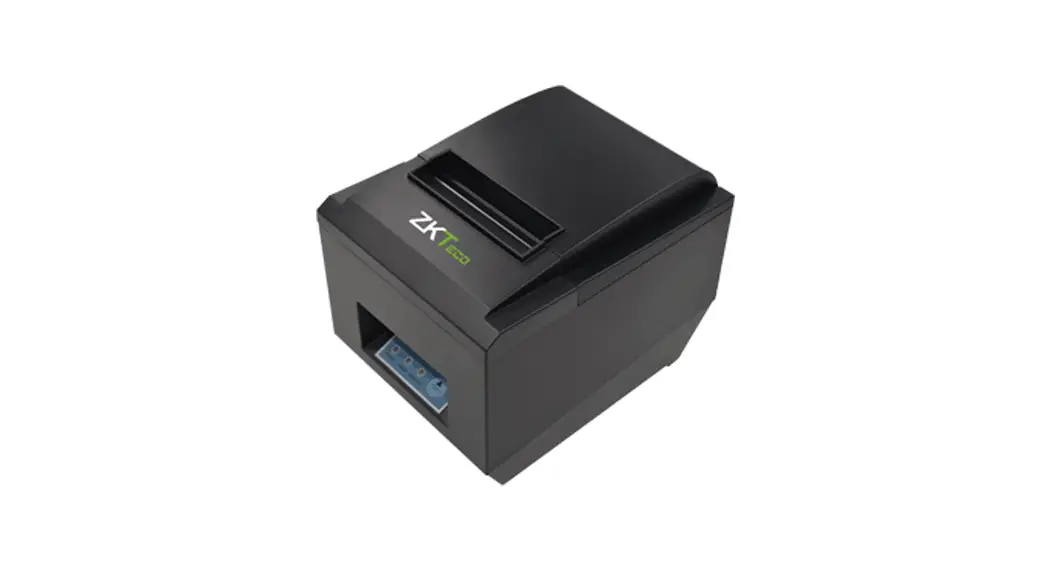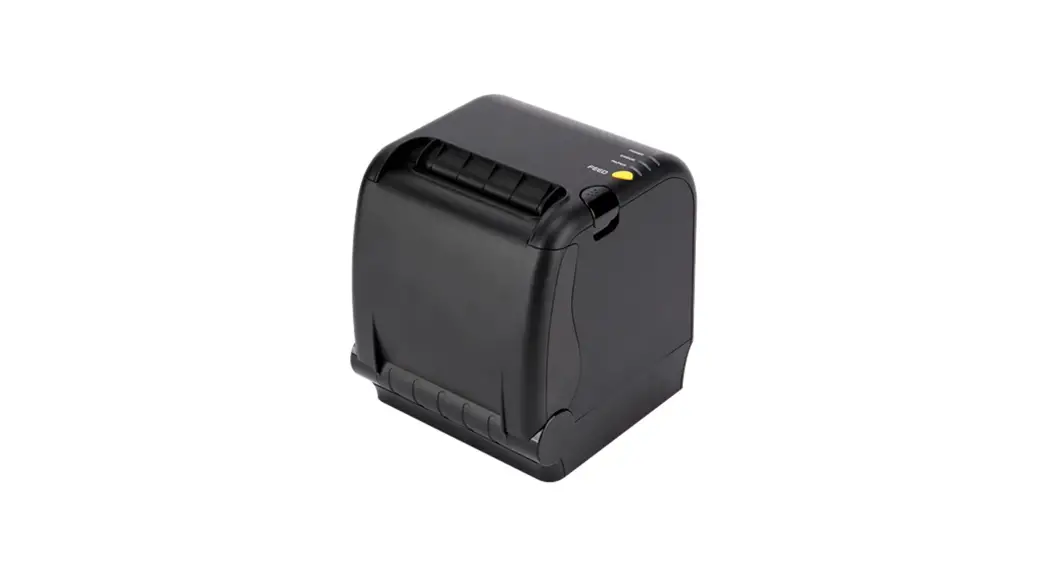
 MODEL: SLK-TS400
Receipt Printer User’s Manual
Instruction Manual
All specifications are subject to change without notice
Disposal of Old Electrical&Electronic Equipment(Applicable in the European Union and other European countries with separate collection systems) This symbol on the product or on its packaging indicates that this product shall not be treated as household waste. Instead, it shall be handed over to the applicable collection point for the recycling of electrical and electronic equipment. For more detailed information about recycling this product, please contact your local city office, your household waste disposal service, or the shop where you purchased the product.
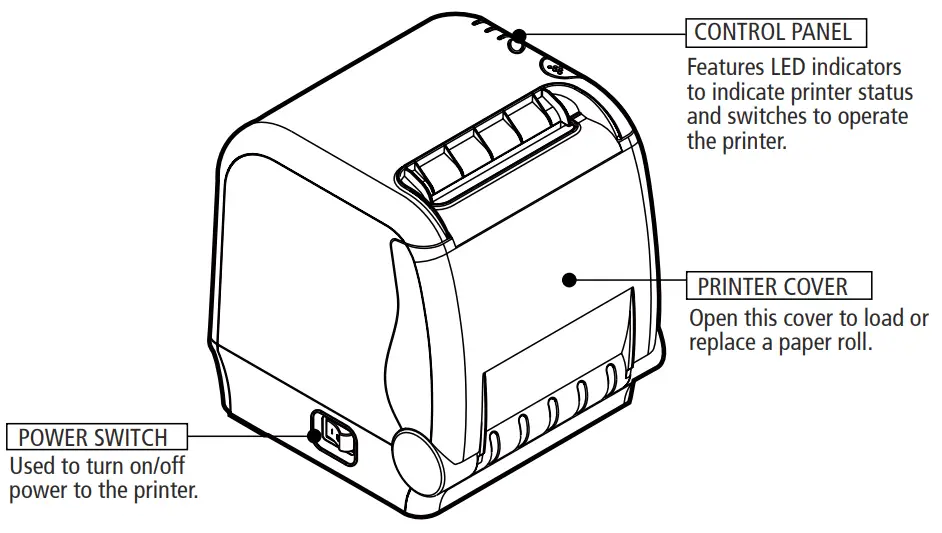
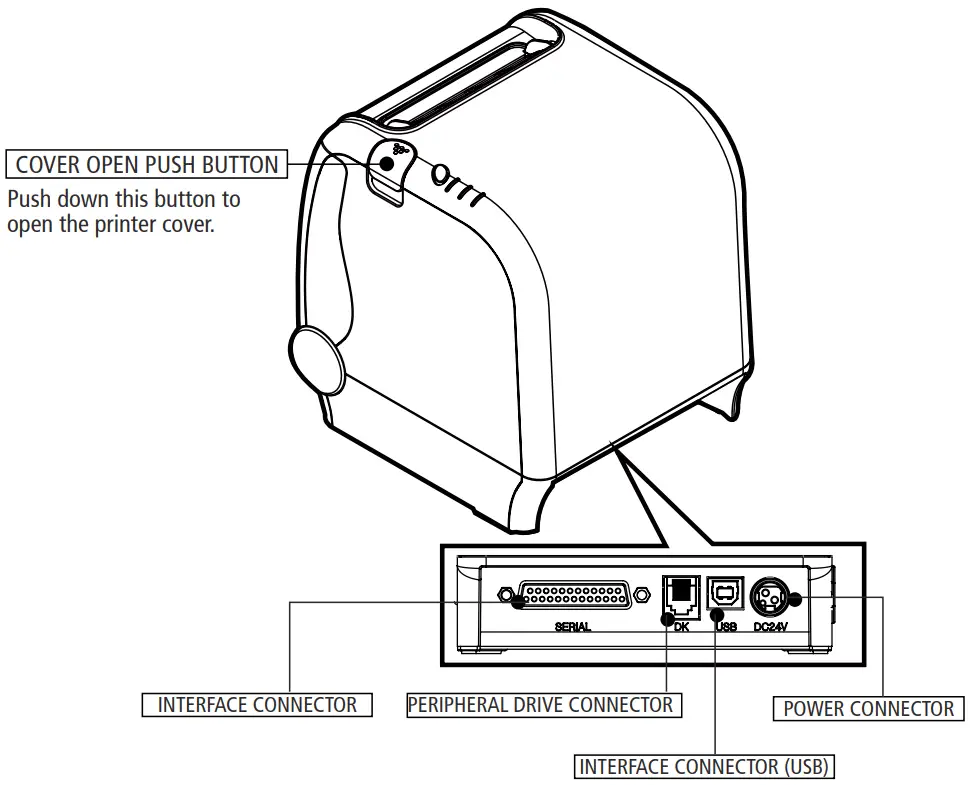
Parts Identifications
Setting Up the Printer
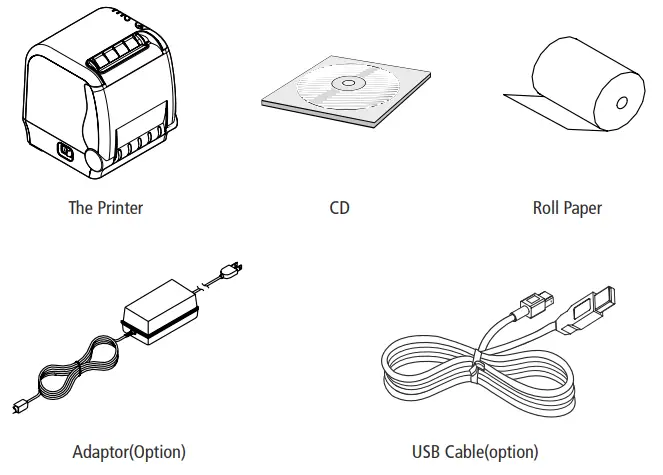
2-1. Unpacking
Your printer box should include these items. If any items are damaged or missing, please contact your dealer for assistance.
2-2. Connecting the Cables
All cables connect to the connector panel on the back of the printer which is shown below:
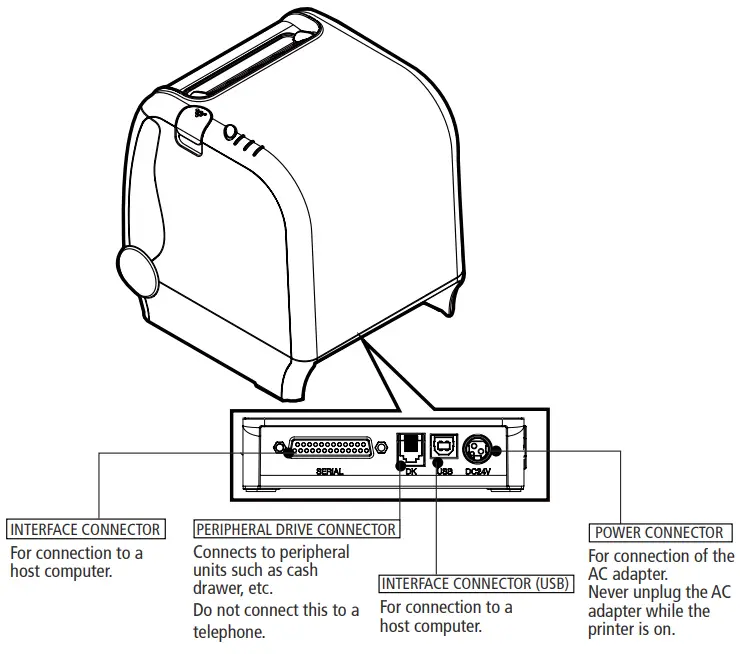
Before connecting any of the cables, make sure that both the printer and the computer are turned off.
2-2-1. Interface Connector
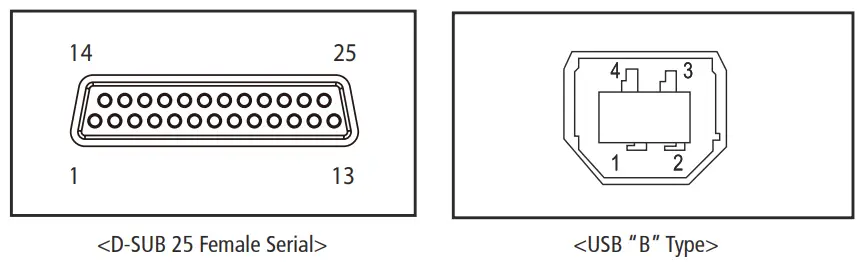
25Pin Serial Interface
| Pin | Signal | I/O | Description |
| 2 | TxD | Output | Printer transmits data line RS-232C level |
| 3 | RDX | Input | The printer receives data line RS-232C level |
| 4, 20 | DR | Output | Printer handshake to host line RS-232C level |
| 6 | DSR | Input | Data Send Ready |
| 1,7 | GND | – | System Ground |
USB Interface
| Pin | Signal | I/O | Description |
| 1 | +5V | – | +5V |
| 2 | DATA- | – | Printer transmits data line |
| 3 | DATA+ | – | Printer transmits data line |
| 4 | GND | – | System Ground |
2-2-2. Cash Drawer Connector
The printer can operate two cash drawers with a 6-pin RJ-11 modular connector.
The driver is capable of supplying a maximum current of 1.0A for 510ms or less when not printing.
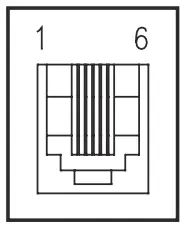
| PIN | SIGNAL | DESCRIPTION |
| 1 | Signal GND | – |
| 2 | Drawer kick-out drive signal 1 | Output |
| 3 | Drawer open/close signal | Input |
| 4 | +24V | – |
| 5 | Drawer kick-out drive signal 2 | Output |
| 6 | Signal GND | – |
♣ NOTE:
Cash drawers 1 and 2 are connected to each other inside the printer.
As it is not able to distinguish between Cash drawers 1 and 2, we recommend you use only one cash drawer.
2-3. Loading the Roll Paper
Notes: Be sure to use paper rolls that meet the specifications. Do not use paper rolls that have the paper glued to the core because the printer cannot detect the paper end correctly.
♣ Turn off the power switch.
- Make sure that the printer is not receiving data; Otherwise, data may be lost.
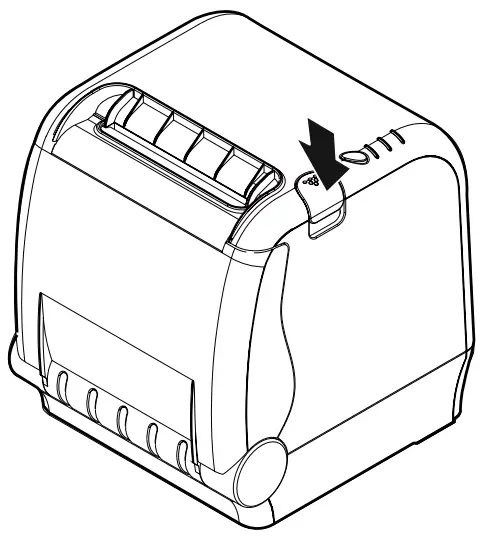
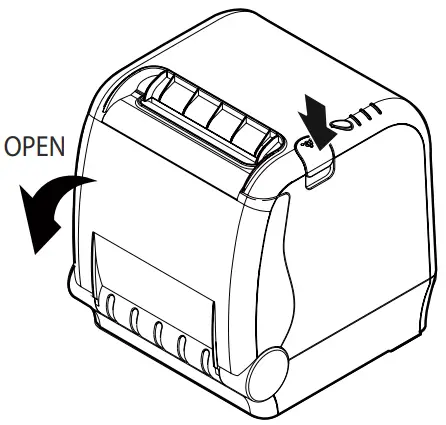
- Open the printer cover by pushing down the cover open push button.

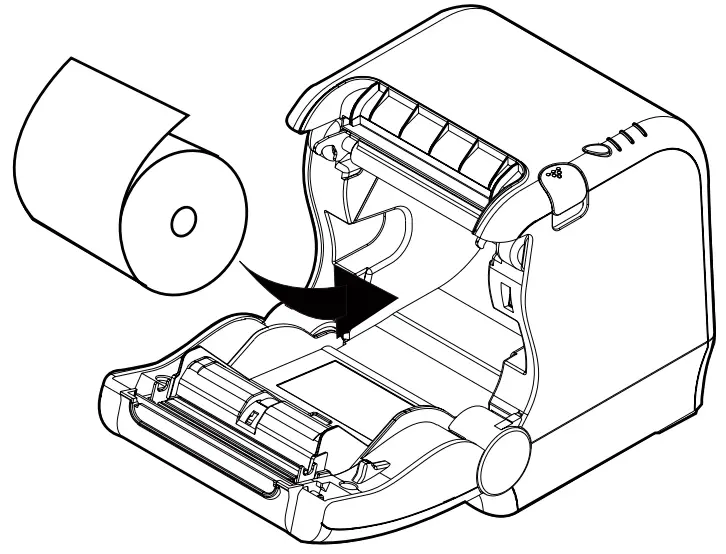
- Remove the used paper roll core if there is one inside.
- Insert new paper roll as shown.

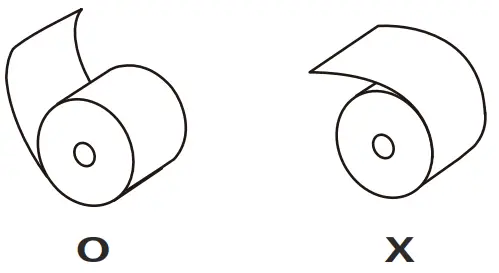
- Note the correct direction that the paper comes off the roll:

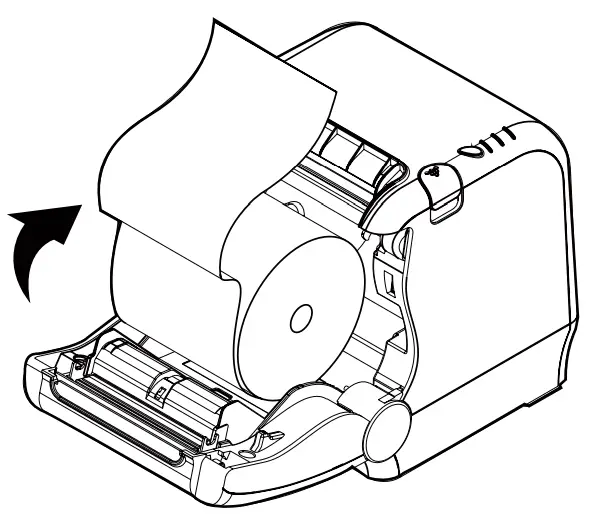
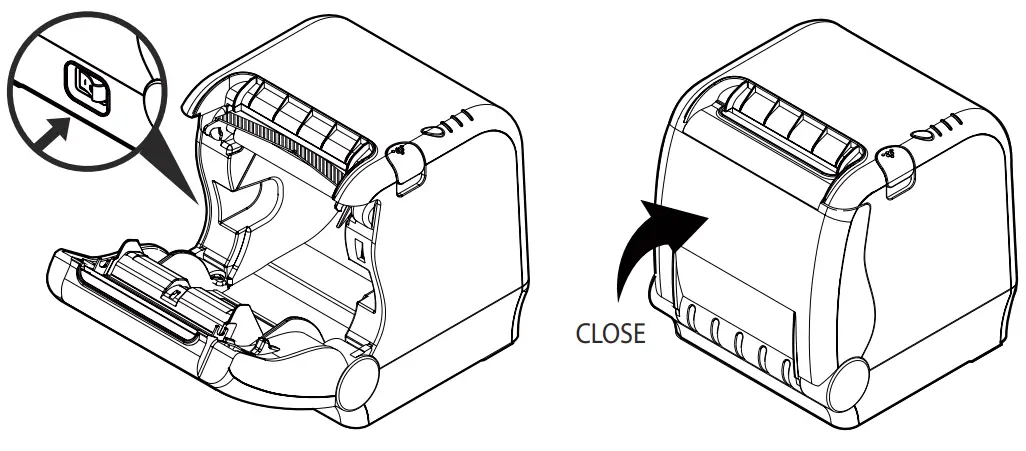
- Pull out a small amount of paper roll as shown. Then, close the cover.

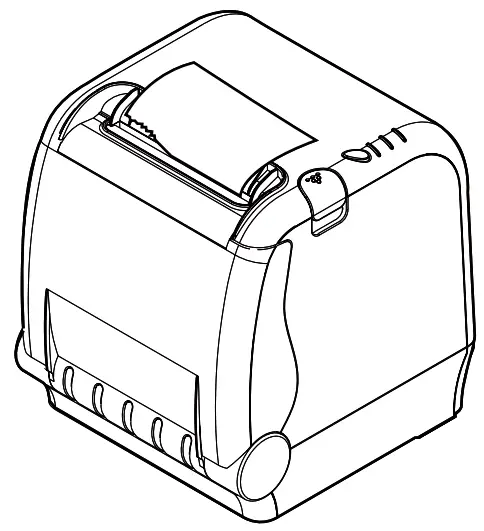
- Tear off the paper as shown.
♣ CAUTION:
When the cutter is jammed, please follow the steps below.
- Turn off the power.
- Press the cover open button and open the cover.
: Be careful of the cutter blade because the cutter blade might become out.
- Turn on the power, the cutter will automatically reset.
- Close the cover.

Control panel and other functions
3-1. Control panel
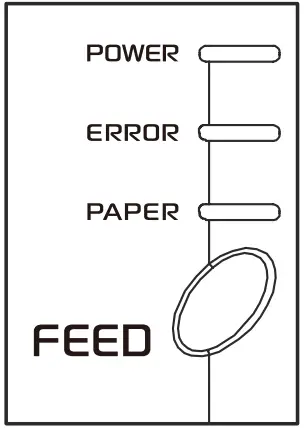
You can control the basic paper feeding operations of the printer with the button on the control panel.
The indicator lights let you monitor the printer’s status.
Control Panel
Button
The button can be disabled by the ESC c 5 commands.
Press the FEED button once to advance the paper one line. You can also hold down the FEED button to feed the paper continuously.
3-2. Error indicators
This section explains the different patterns signaled by the two LED indicators located on the top cover of the printer.
| STATUS | PAPER | ERROR | POWER | REMARKS |
| RED | RED | GREEN | ||
| Power off | OFF | OFF | OFF | Normal power is not supplied to the printer |
| Power on | OFF | OFF | ON | Normal power is supplied to the printer |
| On line | OFF | OFF | ON | Normal error-free mode |
| Cover open | OFF | ON | ON | Close cover |
| Paper empty | ON | ON | ON | Insert a new paper roll |
| Test mode | OFF | OFF | ON | Ignored error led |
Self Test
The self-test result indicated whether the printer is operating properly. Also with this, the user can check the following options or the status of the printer.
- Control circuit
- Printer mechanism
- Printing quality
- ROM version
- Interface setting
This test is independent of any other equipment or software.
Running the self-test
- Make sure the printer is turned off and the printer cover is closed properly before performing the self-test
- Turn the printer on holding the FEED button, then the self-test will start. The self-test prints the printer setting value and then prints the following, and pauses. (Error LED On)
SELECT MODE BY BUTTON
1. ASCII PRINT
2. SELECT BAUDRATE MODE
3. HEXADUMP MODE
4. SELECT ERROR BEEP MODE - Press the FEED button consecutively (1~4)
1. ASCII PRINT
(press the FEED button once)Printing test page constructed with ASCII code. 2. SELECT BAUDRATE MODE
(press the FEED button twice)Set the speed of the Serial Interface
(You can set the baud rate in this mode)3. HEXADUMP MODE
(press the FEED button triple times)Printing the HEX value received from the interface 4. SELECT ERROR BEEP MODE Select Printer Error Beep On/Off ♣ Wait for 5~6 seconds if you want to exit. The printer performs a cutting when exiting this mode
- The printer is ready to receive data after finishing the setting.
ASCII Print
ASCII PRINT is printing a test page constructed ASCII code. You can able to check the printer works properly with this
The ASCII PRINT test automatically ends and cuts the paper after printing the following:
*** Completed ***
The printer is ready to receive data as soon as it completes the ASCII PRINT.
Select Baudrate Mode
After entering the BAUDRATE MODE, the list which can select the BPS will be printed. Similar to Self Test, you can press the FEED button to select a baud rate.
Once the input performs properly, the printer shows a result and stores it.
The printer is ready to receive data as soon as it completes the SELECT BAUDRATEMODE.
SELECT BAUDRATE BY BUTTON
- 9600bps
- 19200bps
- 38400bps
- 115200bps
Hexadecimal Dump
This feature allows experienced users to see exactly what data is coming to the printer. This can be useful in finding software problems.
When you go into the hex dump function, the printer prints all commands and other data in hexadecimal format along with a guide section to help you find specific commands.
To use the hex dump feature, follow these steps
- Please turn the printer off.
- Please turn the printer on while pressing the “Feed” button.
- Press the FEED button three times when the Self Test is printed.
- Now printer had entered into Hexa dump mode.
- Run any software program that sends data to the printer. The printer prints ”Hexadecimal printing mode…” and then all the codes it receives in a two-column format. The first column contains the hexadecimal codes and the second column gives the ASCII characters that correspond to the codes.
Hexadecimal Dump
1B 21 00 1B 26 02 40 40 .!..& . @ @
1B 25 01 1B 63 34 00 1B .%..c4 ..
41 42 43 44 45 46 47 48 ABCDEFGH
□ A period (.) is printed for each code that has no ASCII equivalent. - Turn off the printer.
- Turn on the printer.
Select Error Beep Mode
This function is to select the ON/OFF status of the buzzer mode when a printer makes errors such as a lack of paper, cover open, etc.
Under this mode, you see the set-up menu printed like the down below.
Press the button once or twice to set up the ON/OFF mode.
SELECT ERROR BEEP MODE BY BUTTON
- BEEP MODE ON
- BEEP MODE OFF
Peripherals Connection
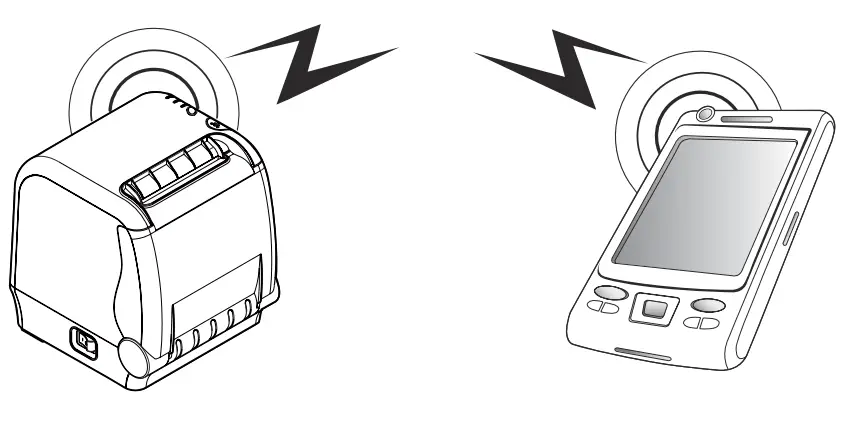
This product can communicate with other devices via Bluetooth or Wi-Fi(802.11a/b/g/n) communication and cable.
9-1. Bluetooth Connection Optional
- The Printer can be connected to devices equipped with Bluetooth communication capacity (PDAs, PCs, etc.)
- Use the Bluetooth connection function supported by the device to connect to the printer.
♣ NOTE
Refer to the Bluetooth Manual for more details on connection.
9-2. Wi-Fi(802.11a/b/g/n) Connection Optional
- The Printer can be connected to devices equipped with Wi-Fi(802.11a/b/g/n) communication capacity (PDAs, PCs, etc.)
- Use the Wi-Fi(802.11a/b/g/n) connection function supported by the device to
♣ NOTE
Refer to the Wi-Fi(802.11a/b/g/n) Manual for more details on connection.
Printer cleaning
If the interior of the printer is dusty, printing quality can be lowered.
In this case, follow the instructions below to clean the printer.
♣ Note :
- Make sure to turn the printer power off prior to cleaning
- Regarding print head cleaning, as the print head is very hot during printing, turn off the printer power and wait approximately 10 minutes before starting.
- When cleaning the print head, take care not to touch the heated part of the print head.
The print head is subject to be damaged by static electricity. - Take care not to allow the print head to become scratched and /or damaged in any way.
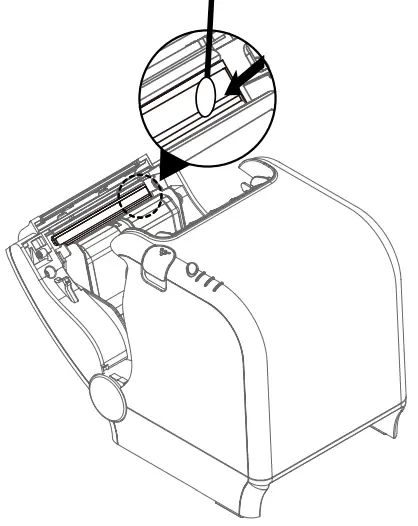
- Use an applicator swab moistened with an alcohol solution to clean the print head and remove any dust.
- Once the cleaning is completed, insert the paper roll into the printer a few minutes later and close the printer cover.
♣ Preventing Overheating
To prevent the motor from overheating, continuous operation of the printer should be 1.5 m or less in print length. Set the pause time for 30 seconds or more than it.
Specifications
♣ Important!
When connecting or disconnecting the power supply from the printer, be sure that the following cautions are observed.
Use a power supply (Limited Power Supply) of DC 24V±10% and more than 1.75A.
Be careful about installing the printer in an area where there is electrical noise.
Take the appropriate measure to protect against electrostatic AC line noise, etc.
11-1. General Specifications
| (1) Printing Method | Direct line thermal printing. |
| (2) Print speed | 220mm/sec |
| (3) Dot density (Hor / Ver) | 180 DPI X 180 DPI |
| (4) Dot Pitch | 0.141mm X 0.141mm |
| (5) Printing Width | Max 72mm (512 dots/Line) |
(6) Number of print columns.
| Font “A” | Font “B” |
| 42 columns | 56 columns |
| (7) Roll paper | Refer to chapter 2 for details on the recommended roll Paper. Paper width : Default 79.5 ±0.5mm Roll diameter: Max. ø83mm |
| (8) Weight | 1.7 Kg |
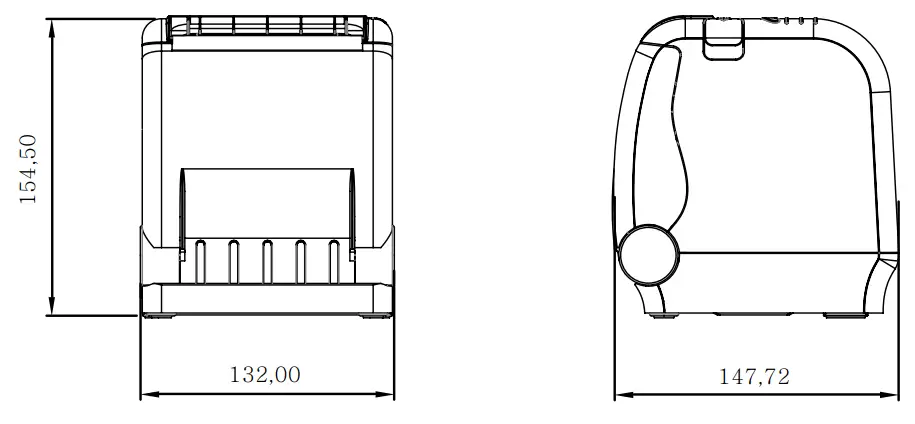
(8) Overall dimension
11-2. Auto Cutter Specifications
| (1) Cutting Frequency | Max. 30 cuts per minute |
| (2) Thickness of paper | 0.06 ~ 0.08 mm |
| (3) Cutter Life | 1.5 million cuttings (if the paper thickness is between 65 and 80µm) |
11-3. Communications
USB (B type) + Serial Built-in / OPTION: Bluetooth 4.2 or Wi-Fi(a/b/g/n) 2.4/5GHz
11-4. Electrical Characteristics
| (1) Input Voltage | DC 24V ± 10% |
| (2) Current Consumption | Operating: Approx. 1.5 A (at ASC∥ printing) Peak: Approx. 10 A (at print duty 100%, For 10 seconds or less) Stand-by: Approx. 0.03 A |
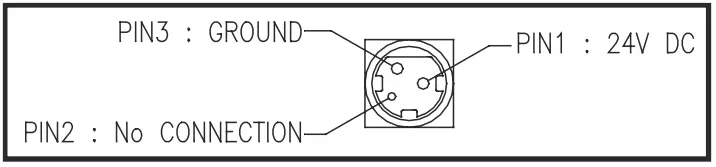
(3) Power Connector
11-5. Environmental Requirements
(1) Operating
| Temperature | 0°C to 45°C |
| Humidity | 10% to 90% RH (without condensation) |
(2) Transport/Storage (except paper)
| Temperature | -20°C to 60°C |
| Humidity | 10% to 90% RH (without condensation) |
11-6. Reliability
| (1) MCBF | 70 million lines |
| (2) Head Life | 100 million pulses, 150Km |
| (3) Cutter Life | 1.5 million cuttings (if the paper thickness is between 65 and 80µm) |
11-7. Certification
- FCC PART15 CLASS A
- UL/cUL (UL 60950-1)
- KC
- CE-EMCD Class B
- ENERGY STAR
This equipment is for indoor use and all the communication wirings are limited to the inside of the building.
Command-List
| No. | Command | Function | REMARKS |
| 1 | HT | Horizontal tab | |
| 2 | LF | Print and line feed | |
| 3 | CR | Print and carriage return | |
| 4 | F | Print and return to standard mode(in page mode) | |
| 5 | CAN | Cancel print data in page mode | |
| 6 | DLE NOT | Real-time status transmission | |
| 7 | DLE EN | Real-time request to the printer | |
| 8 | DLE DC4 | Generate pulse in real-time | |
| 9 | ESC FF | Print data in page mode | |
| 10 | ESC SP | Set right-side character spacing | |
| 11 | ESC! | Select print mode(s) | |
| 12 | ESC $ | Set absolute print position | |
| 13 | ESC % | Select/cancel user-defined character set | |
| 14 | ESC & | Define user-defined characters | |
| 15 | ESC * | Set bit-image mode | |
| 16 | ESC – | Turn underline mode on/off | |
| 17 | ESC 2 | Select default line spacing | |
| 18 | ESC 3 | Set line spacing | |
| 19 | ESC = | Select peripheral device | |
| 20 | ESC? | Cancel user-defined characters | |
| 21 | ESC @ | Initialize printer | |
| 22 | ESC D | Set horizontal tab positions | |
| 23 | ESC E | Turn emphasized mode on/off | |
| 24 | ESC G | Turn double-strike mode on/off | |
| 25 | ESC J | Print and feed paper using minimum units | |
| 26 | ESC L | Select page mode | |
| 27 | ESC M | Select character font | |
| 28 | ESC R | Select an international character set | |
| 29 | ESC S | Select standard mode | |
| 30 | ESC T | The select print direction in page mode | |
| 31 | ESC V | Turn 90° clockwise rotation mode on/off | |
| 32 | ESC W | Set printing area in page mode | |
| 33 | ESC \ | Set relative print position | |
| 34 | ESC a | Select justification | |
| 35 | ESC c 3 | Select paper sensor(s) to output paper-end signals | |
| 36 | ESC c 4 | Select paper sensor(s) to stop printing | |
| 37 | ESC c 5 | Enable/disable panel buttons | |
| 38 | ESC d | Print and feed paper n lines | |
| 39 | ESC p | General pulse | |
| 40 | ESC t | The select character code table | |
| 41 | ESC { | Turn upside-down printing mode on/off | |
| 42 | FS p | Print NV bit image | |
| 43 | FS | Define NV bit image | |
| 44 | GS! | Select character size | |
| 45 | GS $ | Set absolute vertical print position in page mode | |
| 46 | GS * | Define downloaded bit image | |
| 47 | GS / | Print downloaded bit image | |
| 48 | GS B | Turn white/black reverse printing mode on/off | |
| 49 | GS H | Select printing position of HRI characters | |
| 50 | GS I | Transmit printer ID | |
| 51 | GS L | Set left margin | |
| 52 | GS P | Set horizontal and vertical motion units | |
| 53 | GS V | Select cut mode and cut paper | |
| 54 | GS W | Set printing area width | |
| 55 | GS \ | Set relative vertical print position in page mode | |
| 56 | GS a | Enable/disable Automatic Status Back(ASB) | |
| 57 | GS f | Select font for HRI characters | |
| 58 | GS h | Set bar code height | |
| 59 | GS k | Print bar code | |
| 60 | GS r | Transmit status | |
| 61 | GS v 0 | Print raster bit image | |
| 62 | GS w | Set bar code width | |
| < Add > | |||
| 1 | ESC i | Full cut | |
| 2 | ESC m | Partial cut | |
| 3 | FS! | Set print mode(s) for Kanji characters | |
| 4 | FS & | Select Kanji character mode | |
| 5 | FS – | Turn to underline mode on/off for Kanji character | |
| 6 | FS. | Cancel Kanji character mode | |
| 7 | FS 2 c1 d1…DK | Define user-defined Kanji characters | |
| 8 | FS C | Select Kanji character code system | |
| 9 | FS S 1 2 | Set Kanji character spacing | |
| 10 | FS W | Turn quadruple-size mode on/off for Kanji character | |
All specifications are subject to change without notice