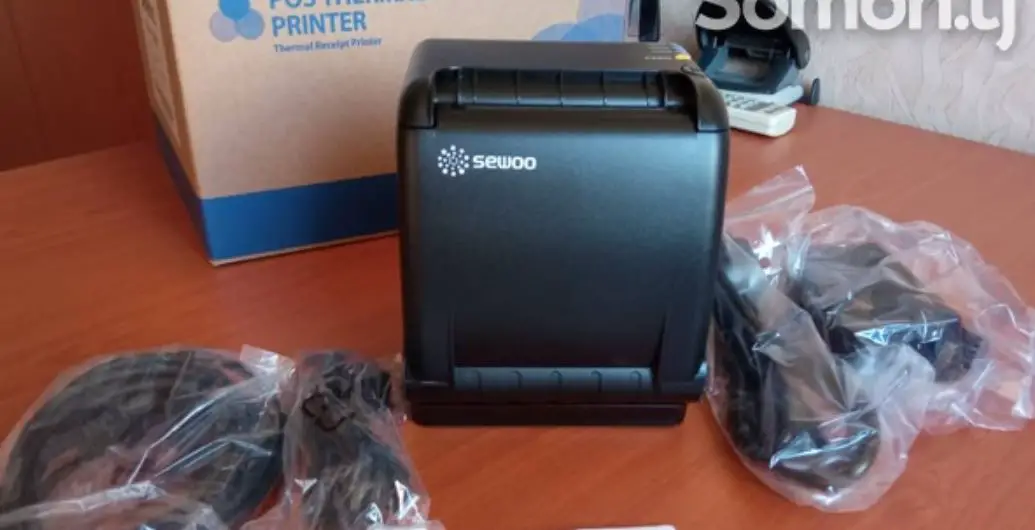
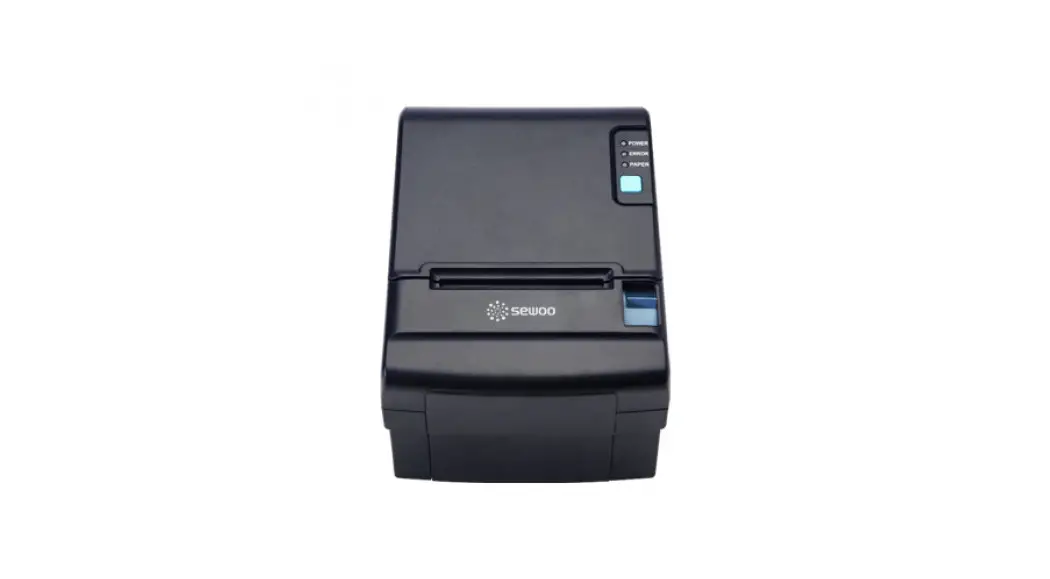
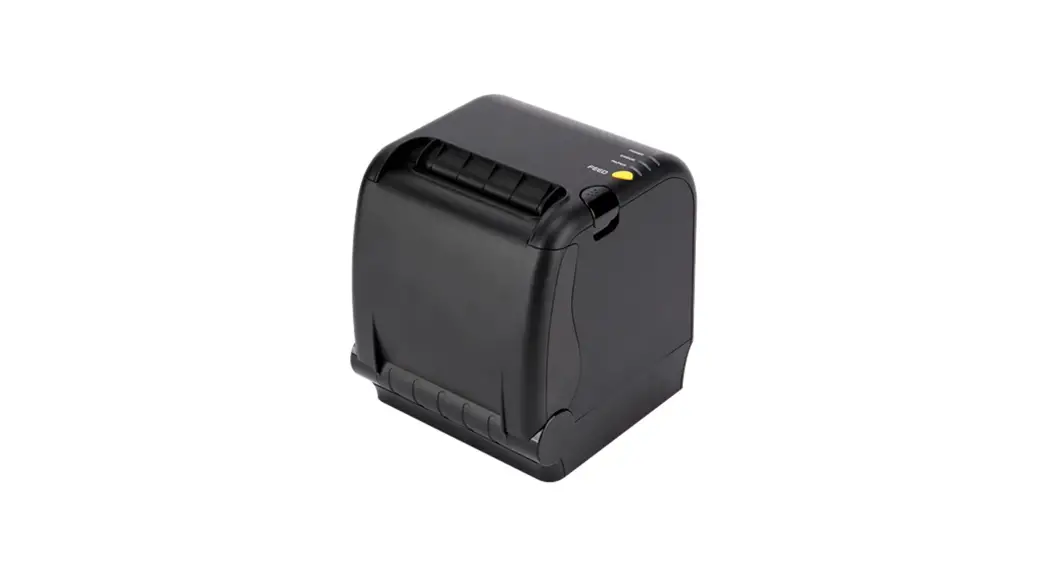
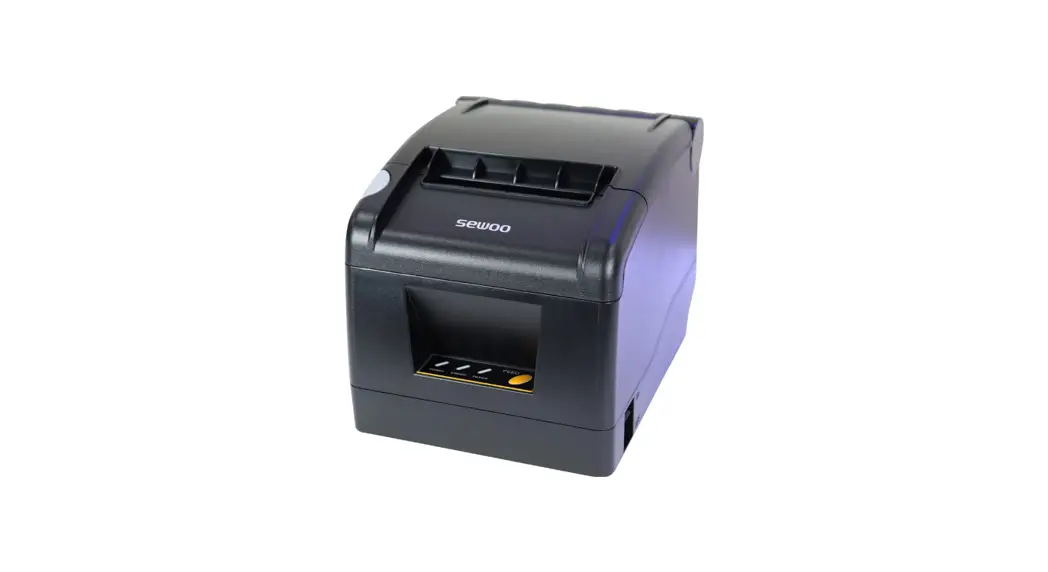
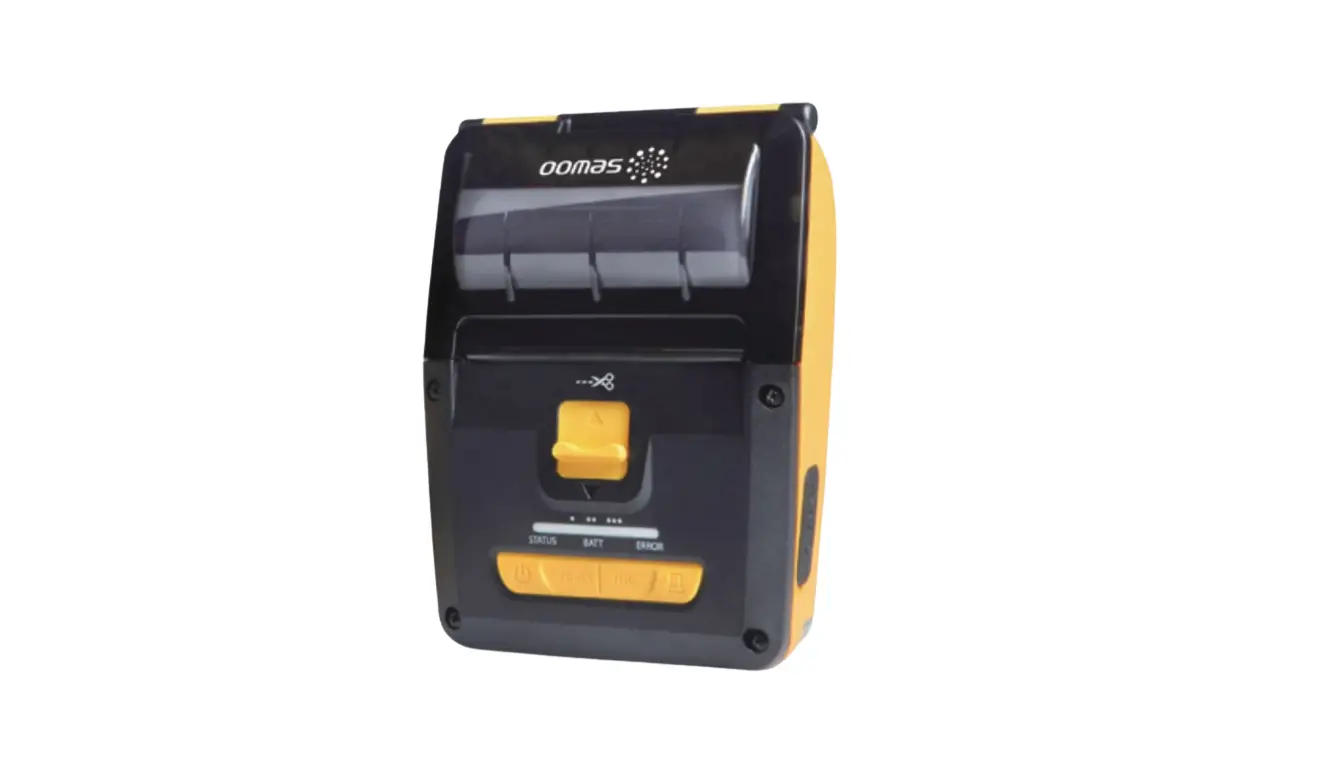
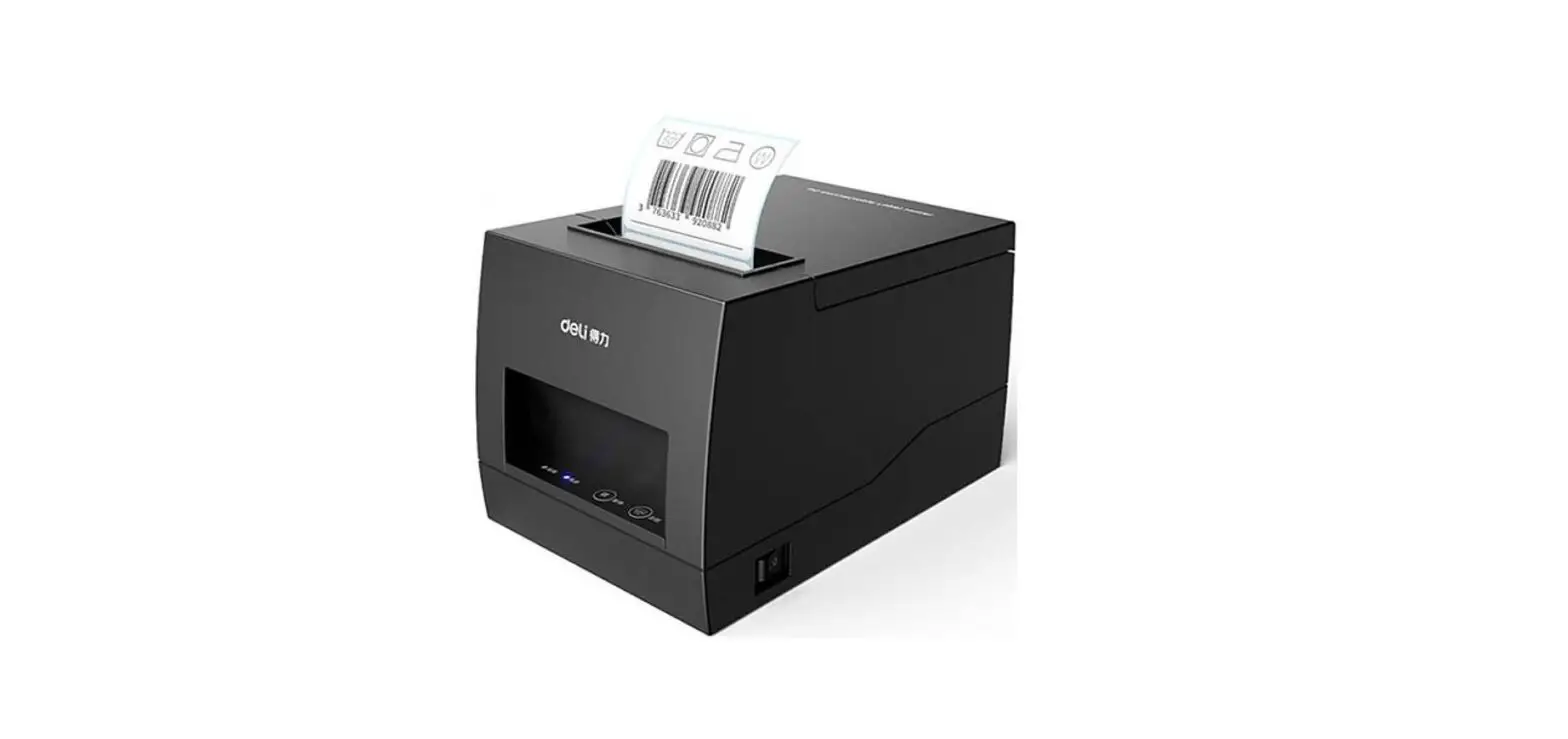
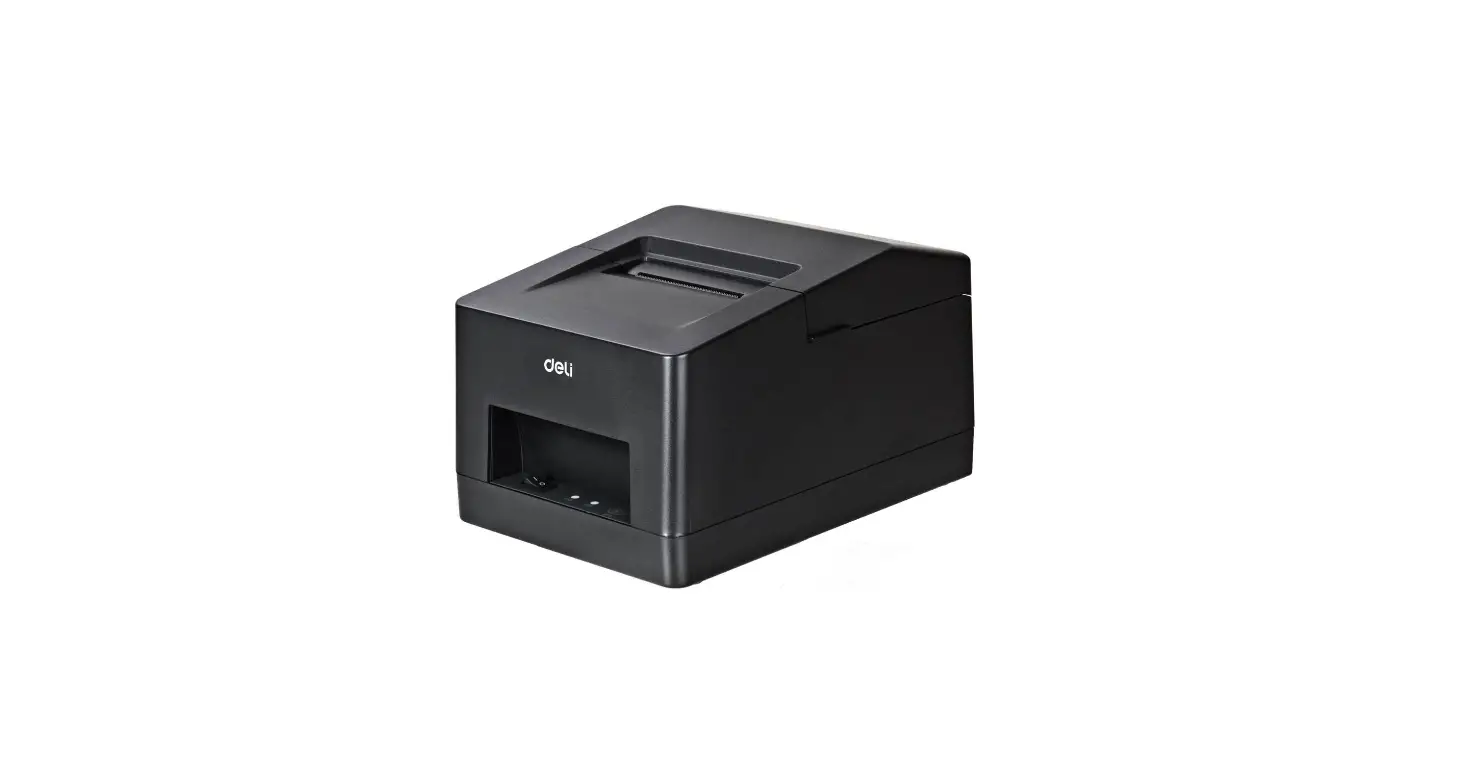
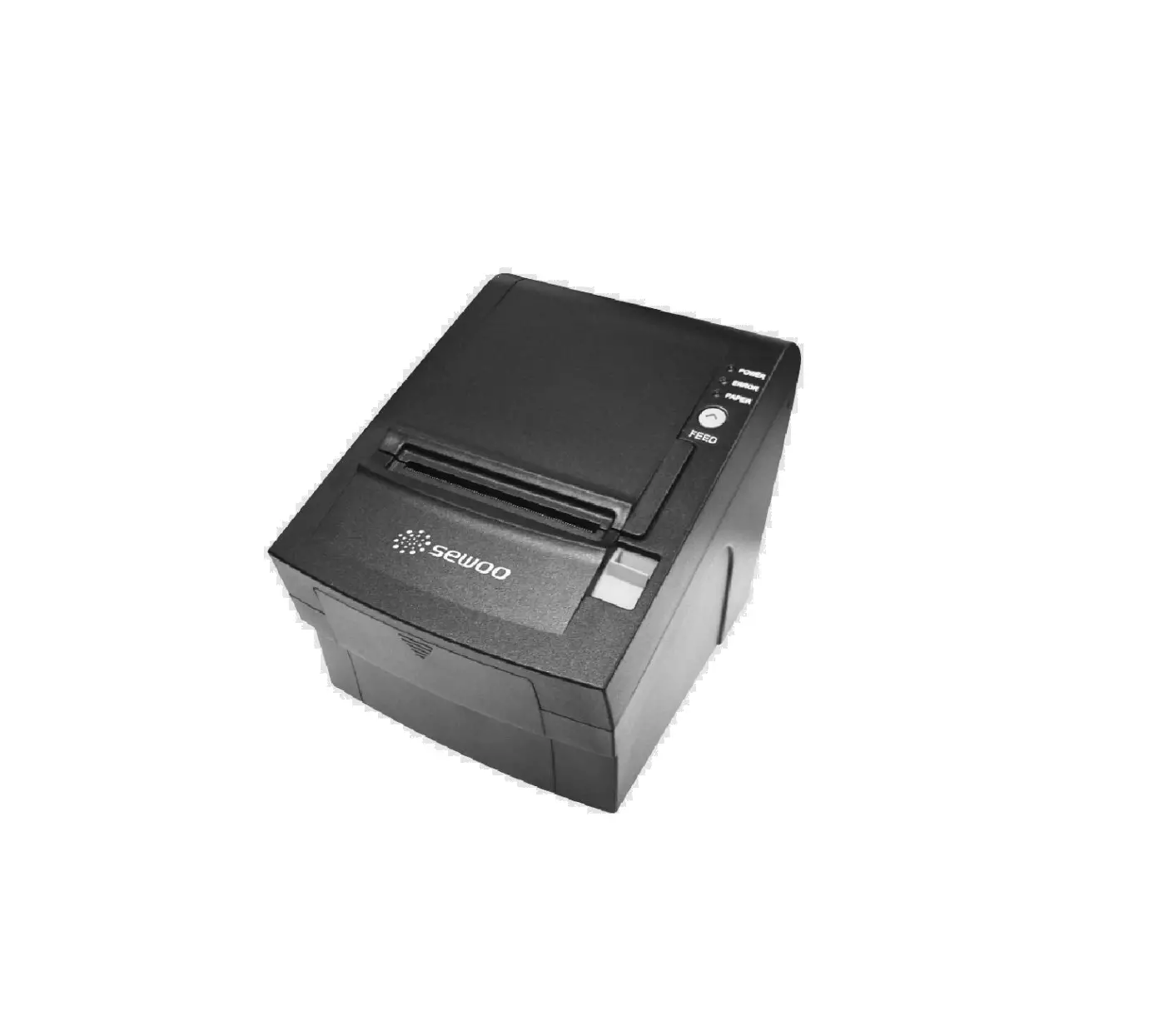
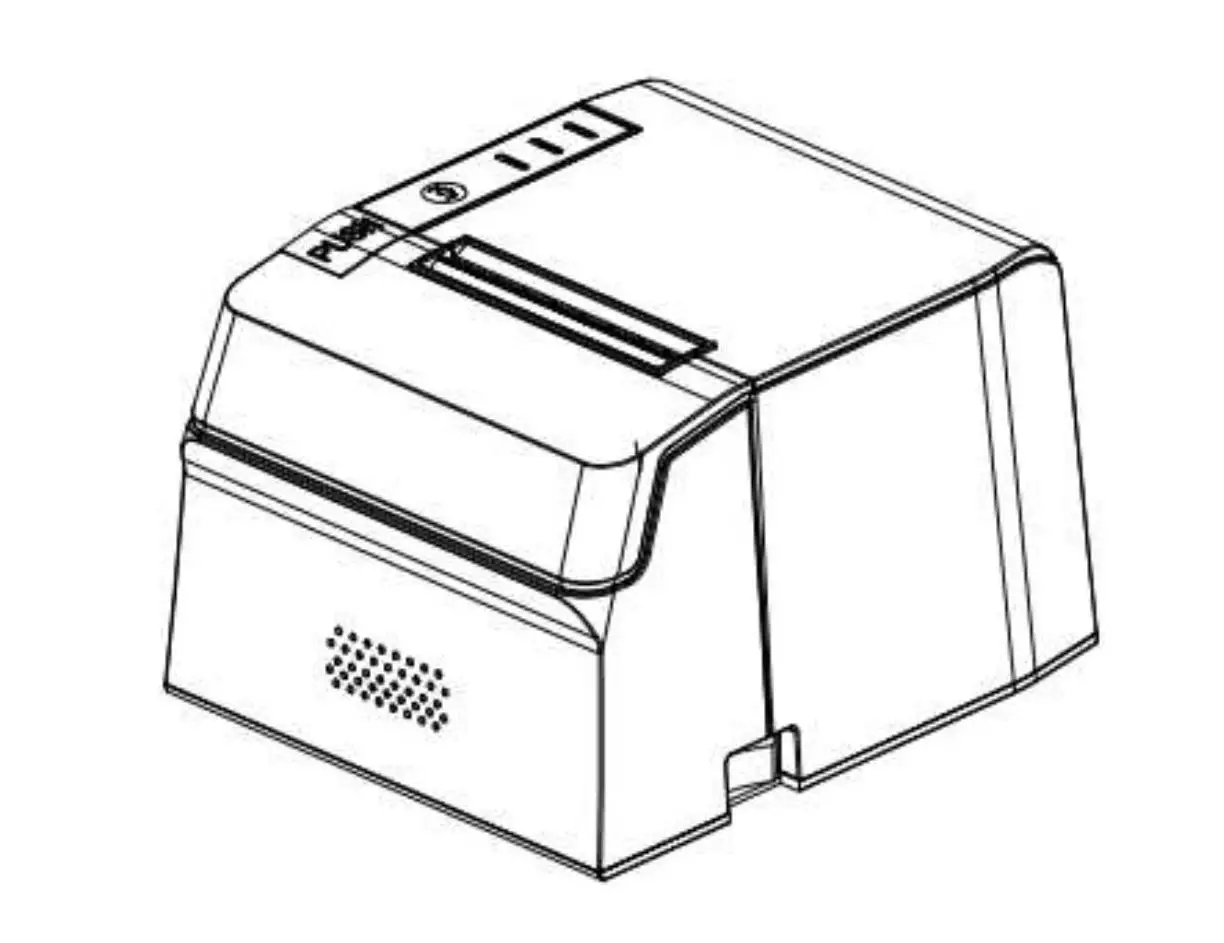
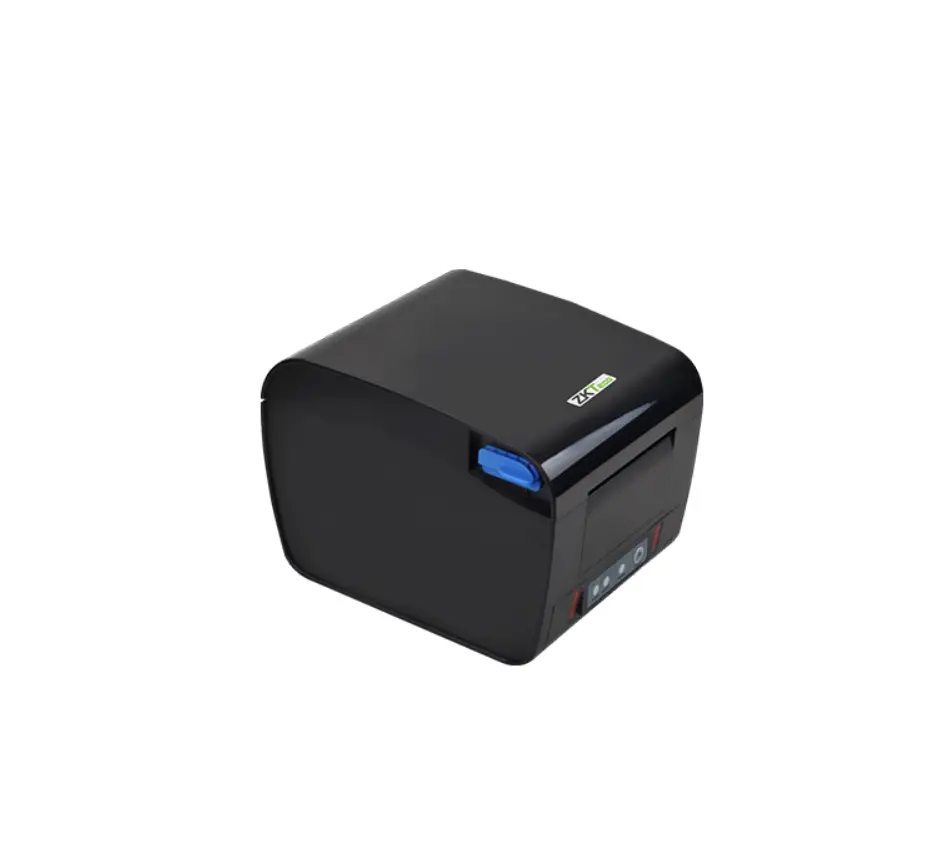
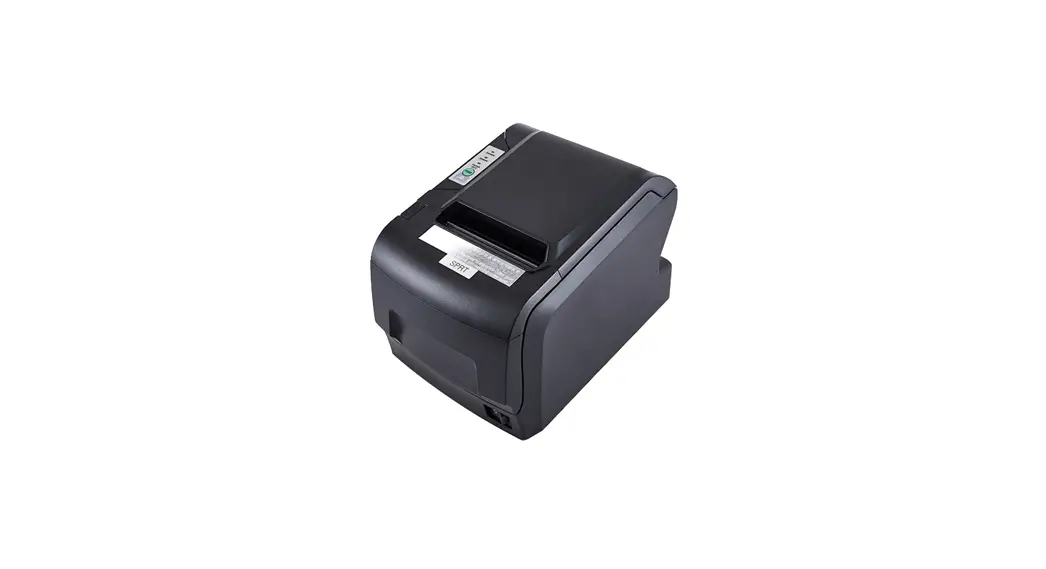
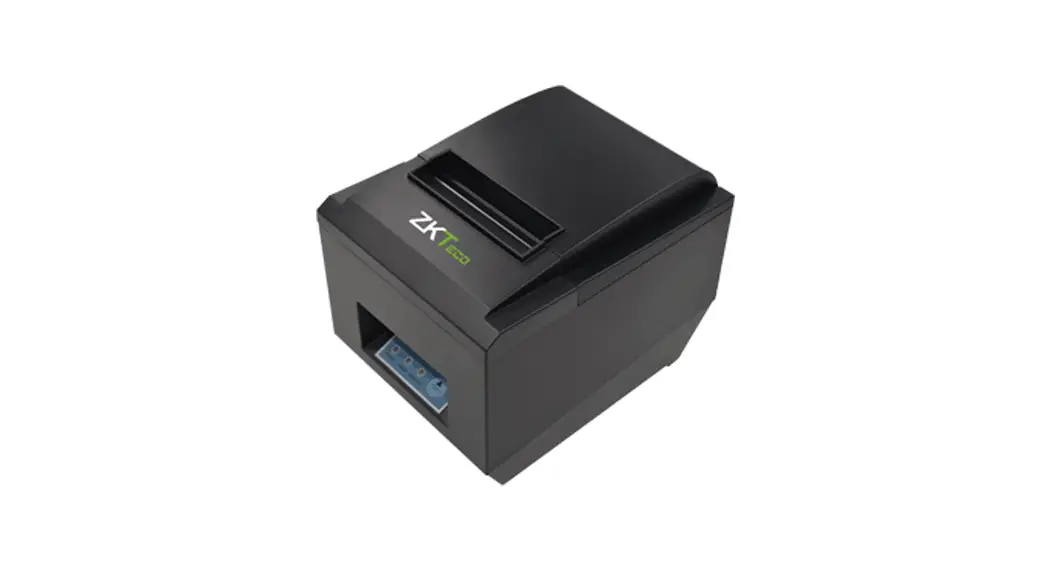
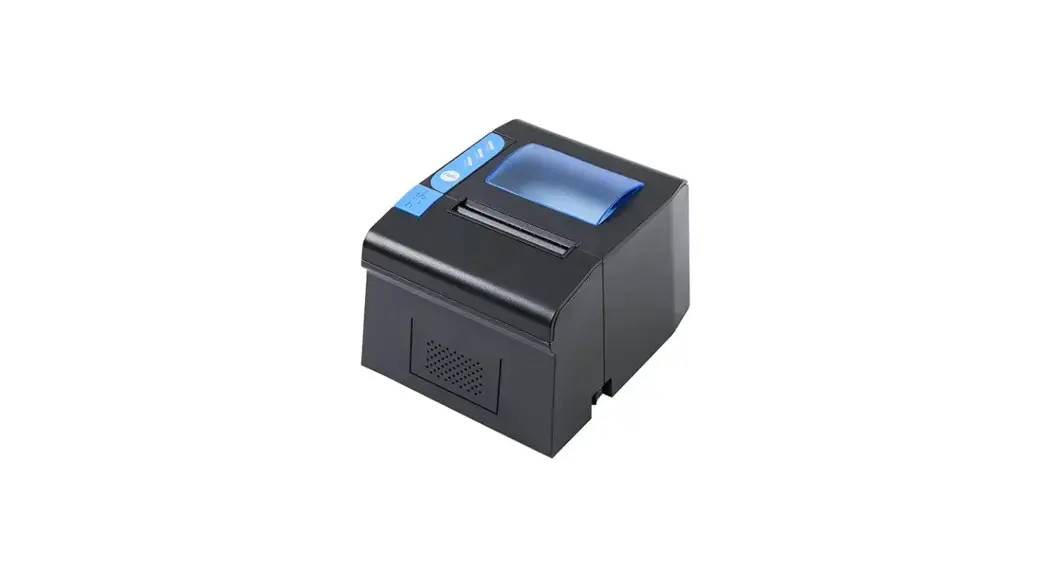
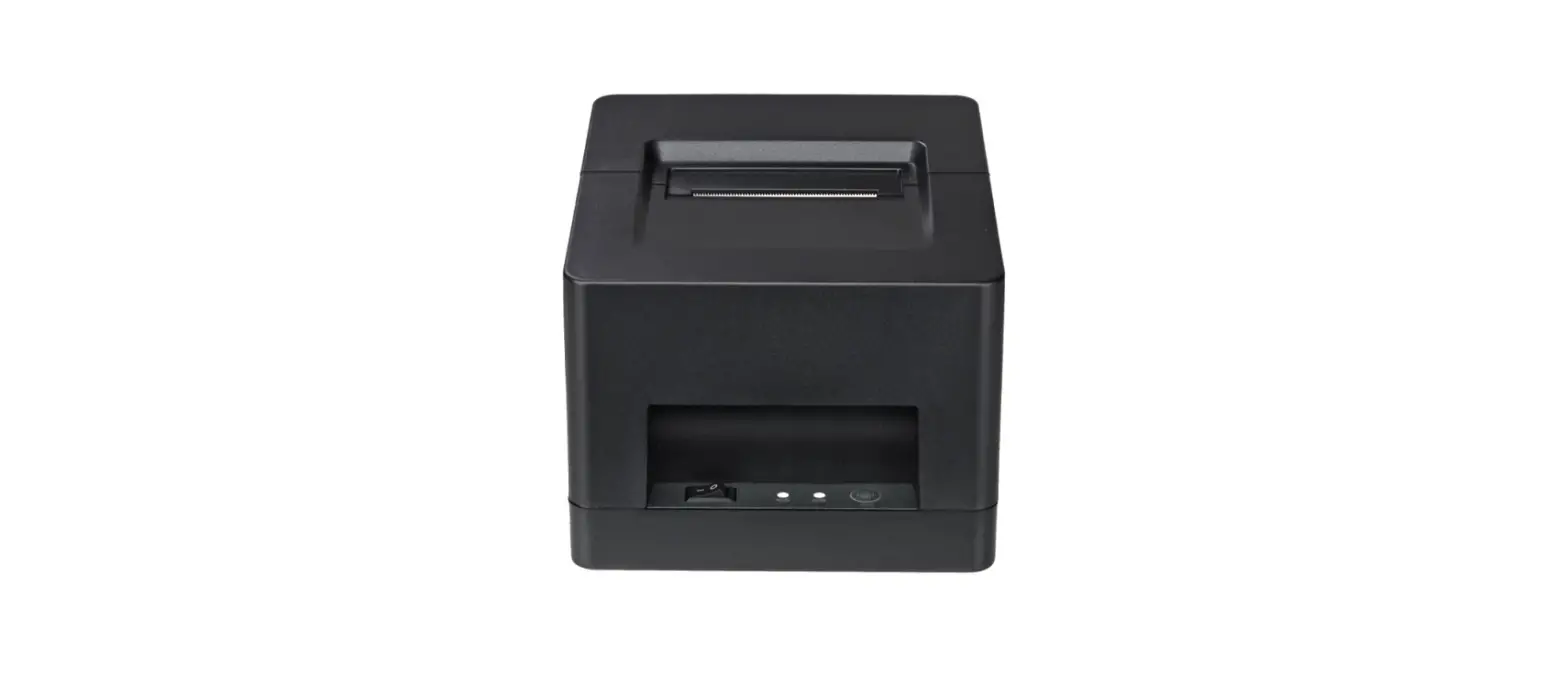
SLK-TS100 Receipt Printer
Product Information
| Manufacturer | Aroot Co., Ltd. |
|---|---|
| Model | SLK-TS100 |
| Printing Method | Direct Thermal |
| Printing Speed | 220mm/s |
| Resolution | 203dpi |
| Interface | USB+Serial+Ethernet |
| Paper Width | 72mm (adjustable by commands) |
| Printable Area | Not specified, adjustable by commands |
| Maximum Paper Diameter | 80mm |
| Paper Thickness | 0.06~0.08mm |
| Column Capacity | 576 dots/line |
| Line Space Commands | 3.75mm (Changeable by commands) |
| Compatible Commands | ESC/POS |
| Drivers | Win 9X/Win 2000~2003/Win XP/Win 7~8/ Win 10/Linux |
| Bar Code | UPC-A, UPC-E, JAN13(EAN13), JAN8(EAN8), CODE39, ITF, CODABAR, CODE93, CODE128, QR CODE, PDF417 |
| Code Page | PC437(Std.Europe)a(Katakana)naPC850(Multilingual) a PC860(Portugal)aPC863(Canadian)aPC865(Nordic)a(West Europe)a (Greek)a(Hebrew)a(East Europe)a(Iran) a(WPC1252)a PC866(Cyrillic#2)aPC852(Latin2)a(PC858) a(IranII)a(Latvian)a (Arabic)a(PT1511251) |
| Cutter | Partial |
| Cutter Life | 1.5 million cuts |
| Print Head Life | 100 KM |
| Mechanism Life | 100 KM |
| Input Buffer | 64 Kbytes |
| NV Flash | 256 Kbytes |
| Black Mark | Support |
| Network Monitoring Support | Yes |
| Adaptor Input Voltage | AC110V/220V, 50~60Hz |
| Power Supply | DC 24V/2.5A |
| Printer Input Voltage | DC 24V/2.5A |
| Dimension | Not specified |
| Gross Weight | 1.025 kg |
Product Usage: Connecting the Printer
To connect the printer, follow these steps:
- Connect the AC power cord to power and the DC power cord to the
printer. - Connect the printer to the computer or device.
- Connect the cash drawer.
Product Usage: Paper Roll Installation
To install the roll paper, follow these steps:
- Press the COVER OPEN button to open the top cover.
- Insert the roll paper per the illustrations provided in the
manual. - Pull out a small amount of paper and close the cover.
- The printer will automatically feed the paper and cut.
Product Usage: Driver Installation
To install the printer driver, follow these steps:
- Double click on the POS Printer Driver Setup V7.17 driver.
- Select “I accept the agreement”.
- Create a shortcut on the desktop.
- Select the correct interface port.
- Select the proper printer series and click “Install Now”.
- Choose the detected USB001 and click apply.
- Select the General tab and then print a test page.
Product Usage: Troubleshooting Guide
To troubleshoot the printer, refer to the following guide:
- Self-Test Instructions: Make sure the printer
is connected to power and turned off. While pressing the FEED
button, turn on the power. Release the FEED button after both the
ERROR and PAPER LEDs blink twice. The printer will automatically
print out a self-test which includes the printer’s firmware
version, status, and configuration. - Cutter Paper Jams: To resolve cutter paper
jams, cycle the power to the unit or turn the printer off, open the
top cover, and remove any jammed paper.
Aroot Co., Ltd.
Rev. Apr 2023
Do not use or store in locations subject to high temperature, humidity or pollution levels. Connect the power adapter into a properly grounded outlet. Do not share the same plug socket with electrical motors or other equipment which may cause the power supply voltage fluctuations. Avoid water or conductive materials like metal, from getting inside the printer. If this happens, immediately unplug the AC power cord. Do not attempt to print without paper. Unplug power supply from the printer if it will be unused for an extended period. Only use power adapter supplied with printer. Only use approved accessories. Never disassemble or modify the printer for repair or reconstruction. Be sure to use the original specified power source. High quality paper is recommended for best print quality and to extend the life of the printer. Be sure to turn the power switch to OFF before plugging and unplugging the power supply. Do not use this printer above 5,000 meters (16,000ft) above-sea-level in tropical climates or in high humidity conditions.
Fast printing speed of up to 220mm/s. Large paper roll capacity: up to 120mm diameter. High speed text and graphic printing: Excellent printing quality and reliable performance even at maximum speed. Supports printer status monitoring function offering remote user visibility at any time. Printer “announces” when the receipt is being printed resulting in orders being expedited and processed more quickly. High speed download and logo printing mode. Supports Windows, plus Linux operating systems. Supports black mark detection for form printing. 256k Bytes NV Flash RAM for store and print of logo’s. Standard with serial + USB + Ethernet interfaces. Supports network printing; perfect for kitchen applications. Mechanism life can reach to 100km and Auto cutter life with 100 million cuts. Supports 2D barcodes: QR Code & PDF417. Supports multiple international fonts (as options) . Chinese GB18030 code page as an option; Simplified/traditional Chinese are convertible. Built-in web page allows for setup of printer directly through IE port. 58MM/80MM paper roll can be optional.
Specifications
Model Printing method
SLK-TS100 Direct thermal
Printing speed
220mm/s
Resolution
203dpi
Interface
USB+Serial+Ethernet
Paper width
79.5±0.5mm
Printable area
72mm(adjustable by commands)
Maximum paper diameter 80 mm
Paper thickness
0.06~0.08mm
Column capacity
576 dots/line
Line space Commands
3.75mm(Changeable by commands) Compatible with ESC/POS
Drivers
Win 9X/Win 2000~2003/Win XP/Win 7~8/ Win 10/Linux
Bar code
UPC-A, UPC-E, JAN13(EAN13), JAN8(EAN8), CODE39, ITF,
Code page
CODABAR, CODE93, CODE128, QR CODE, PDF417
PC437(Std.Europe)a(Katakana)naPC850(Multilingual) a PC860(Portugal)aPC863(Canadian)aPC865(Nordic)a(West Europe)a (Greek)a(Hebrew)a(East Europe)a(Iran) a(WPC1252)a PC866(Cyrillic#2)aPC852(Latin2)a(PC858) a(IranII)a(Latvian)a (Arabic)a(PT1511251)
Cutter
Partial
Cutter life Print head life
1.5 million cuts 100 KM
Mechanism life
100 KM
Input buffer
64 Kbytes
NV Flash
256 Kbytes
Black mark
Support
Network monitoring Support
Adaptor input voltage AC110V/220V, 50~60Hz
Power supply
DC 24V/2.5A
Printer input voltage DC 24V/2.5A
Cash drawer control DC 24V/1A Working environment Temperature: 0~45°C , humidity: 10~80RH%
Storage environment Temperature: -10~60°C, humidity: 10~90RH%
Dimension
185×142×136 mm (D×W×H)
Gross weight
1.025 kg
CONNECTING THE PRINTER
A. Connect AC power cord to power, DC power cord to printer. B. Connect printer to computer or device. C. Connect cash drawer.
A
Power cord Power adaptor
B
C
PAPER ROLL INSTALLATION
An 80mm wide thermal paper roll is recommended for 80mm series printers. Follow the steps below to install the roll paper: 1. Open the top cover by pressing the COVER OPEN button.
2.Insert the roll paper per the following illustrations:
3.Pull out a small amount of paper, and close the cover 4.Printer will automatically feed the paper and cut
03
04
FUNCTION OVERVIEW: Get to know your printer
– POWER LED: Indicates when printer is powered on – ERROR LED: ON or BLINKING indicates error condition (see Troubleshooting Chart below) – PAPER LED: ON or BLINKING indicates error condition (see Troubleshooting Chart below) – FEED button: Press to feed paper. Hold to feed paper continuously – COVER OPEN button: Press to open the top cover, to insert paper roll
DRIVER INSTALLATION Two methods to print receipts: 1) Printing directly through the port
2) Using the printer driver. 1) Printing directly through the port a. There is no need to install the printer driver. Just select the correct port (i.e., USB, LAN, Serial, Parallel) in the application software.
2) Install driver under WINDOWS OS (Steps as below):
1. Double click
POS Printer
Driver Setup V7.17
driver.
2. Select: “I accept the agreement” 3. Create a shortcut on the desktop: 4. Setup Completed:
05
06
5.Select the correct interface port:
7. Click “Yes” to configure the port.
6. Select the proper printer series and click “Install Now”
8. Choose the detected USB001, click apply, shown as below:
07
08
9. Select the “General” tab and then “Print Test Page”:
(5) How to resolve cutter paper jams – Method 1 : Cycle the power to the unit. – Method 2 : A. Turn the printer off.
B. Open the top cover.
TROUBLESHOOTING GUIDE
(1) Self-Test instructions: Make sure the printer is connected to power and turned off. While pressing the FEED button, turn on the power. Release the FEED button after both the ERROR and PAPER LEDs blink twice. The printer will automatically print out a self-test which includes the printer’s firmware version, status and configuration.
(2) Config Mode You can set serial communication speed,print density and melody type by using feed button. You can select an item by pressing feed button as many times as the number of the item you want to set.
(3) How to enter hexadecimal mode Make sure the printer is connected to power and turned off. While pressing the FEED button, turn on the power and keep it pressed, waiting for both the ERROR and PAPER LEDs to blink twice simultaneously, and then for the ERROR LED to stay on. At this point, release the FEED button and the printer will enter hexadecimal mode. Pressing the FEED button twice will cause the printer to print “Hexadecimal Dump” on the first line of the paper indicating that it is now in hexadecimal mode. To exit Hexadecimal Dump mode and return back into normal print mode, press the FEED button three times, or cycle the power.
(4) 09
Resetting to Factory (default) Settings Make sure the printer is connected to power and turned off. While pressing the FEED button, turn on the power, waiting for both the ERROR and PAPER LEDs to blink twice simultaneously, then for the ERROR LED to turn on, and then for both the ERROR and PAPER LEDs to blink twice more. Release the FEED button when the buzzer alarms, confirming that the unit has been reset to factory default settings.
C. Turn the white gear on the cutter, and take jammed paper out.
D. Only when the cutter is turned back to the initial (home) position, can the cover be opened.
10
LED TROUBLESHOOTING CHART
LED INDICATOR
POWER
ERROR PAPER
OPERATING CONDITION
OFF ON
OFF OFF
OFF OFF
Power off
Normal mode Ready to print
ON
OFF BLINKING Out of paper
ON
ON
ON
ON
BLINKING ON
ON
BLINKING OFF
ON
BLINKING OFF
Top Cover open Out of paper Paper Inserted
Top Cover Open
Cutter Jam
Thermal Head Overheated
REMEDY
1) Plug in AC adapter 2) Turn on power
None required
1) Open Top Cover 2) Insert paper roll 3) Close Top Cover 1) Insert paper roll 2) Close Top Cover
1) Close Top Cover
1) Cycle the power on the unit
1) Power down printer 2) Open Top Cover 3) Wait 10 min to cool down
CLEANING THE THERMAL PRINTHEAD and ROLLER Clean the thermal printhead on a routine basis, or if one of the below conditions occurs: (1) Blurred printing. (2) “White” vertical streaks on printed receipt. (3) Noise during paper movement.
Follow these steps to clean the printhead and roller:
(1) Power off the printer and open the roll paper cover. Remove the roll paper, if any. (2) If the thermal printhead is hot, wait for it to cool before cleaning. (3) Clean the elements of the thermal printhead with a printhead cleaning pen or cleaning swipe made specifically for thermal printhead, or with a cotton swab moistened with an alcohol (isopropyl alcohol) solvent. (4) Clean the rubber roller with the solvent (5) Wait till the solvent completely evaporates or dries before inserting the paper roll and closing the top cover. Print self-test page and repeat if necessary as it may take a few cleaning cycles to remove all debris from printhead. If problem persists, contact the party you had purchased the product from, to request service.
QR Code function
1. QR Code: Set unit size [Command Code] ASCII: GS (0 g n Decimal: 29 40 107 48 103 n 11
Hex: 1D 28 6B 30 67 n Function Description: Set the unit size of QR Code into “n” Parameter Range: 1 n 16 Default n = 3 Note: n = Unit width in dots = Unit height in dots
The ESC @ command setup failed when printer is powered off and reset.
2. QR Code: Set up error correction level
[Command Code]ASCII: GS (0 i n
Decimal: 29 40 107 48 105 n
Hex: 1D 28 6B 30 69 n
Function Description: Set up QR Code error correcting grade,
The value for “n” is as below:
n
Level
Correct proportion (%)
48
Grade L
7
49
Grade M
15
50
Grade Q
25
51
Grade H
30
Parameter Range: 48 n 51
Default: n = 48
Note: QR Code uses RS error correction algorithm and the command setting will reset when printer is
reset or powered off.
QR Code: Data transmission to code cache
[Command Code] ASCII: GS (0 nL nH d1…dk Decimal: 29 40 107 48 103 nL nH d1…dk Hex: 1D 28 6B 30 80 nL nH d1…dk Function Description: Setting QR Code data transmission to code cache Parameter Range: 4 (nL + nH×256) 2710
32 d 255 Default: None Note: After receiving, the data will be kept in the cache until next reset K byte d1…dk be regarded as coded data d1….dk must only contain data in the following table:
Characters Numeric Alpha, Numeric and special characters Chinese Character 8 bits data
Including the below character in the table “0”~”9″ “0”~”9″, “A”~”Z”, SP, $, %, *, +, -, b, a,: GB18030-2000, Shift-JIS, JISX0208 standard 00H~FFH
The ESC @ command setup failed when printer is powered off and reset.
12
QR Code: Printing QR Code of code cache [Command Code] ASCII: GS ( 0 ? Decimal: 29 40 107 48 129 Hex: 1D 28 6B 30 81 Function Description: Printing the encoded data in the code cache Parameter Range: None Default: None Note: If the QR code size is outside printing area, the QR code will not be printed
If the code cache data is empty, the QR code will not be printed USB port and Virtual Com Port exchange command set [Command code] ASCII: US ESC ………………………. Decimal: 31 27 31 184 19 20 N Hex: 1F 1B 1F B8 13 14 N Description: Select Real USB port or Virtual Com Port Range: N=0 USB; N=1 Virtual Com Port. To use this command, the printer must be connected as follows:
13