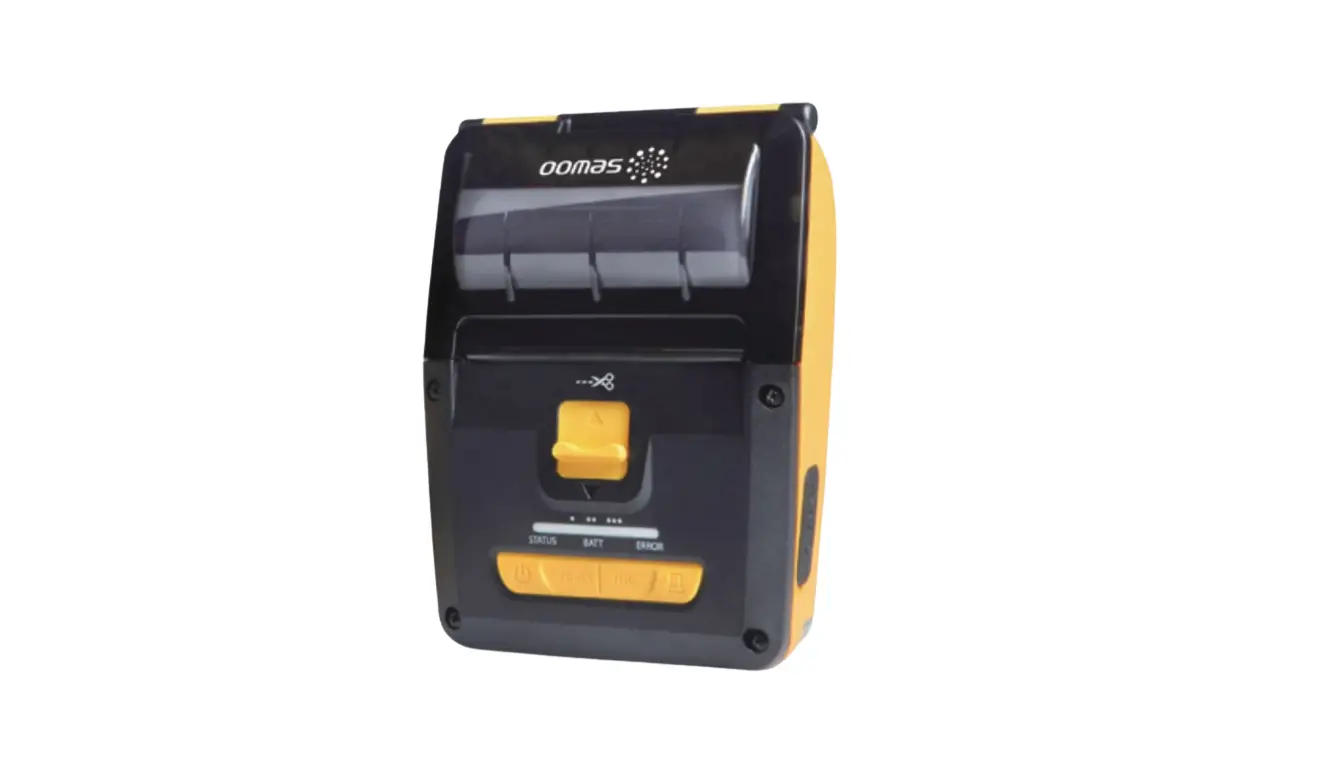
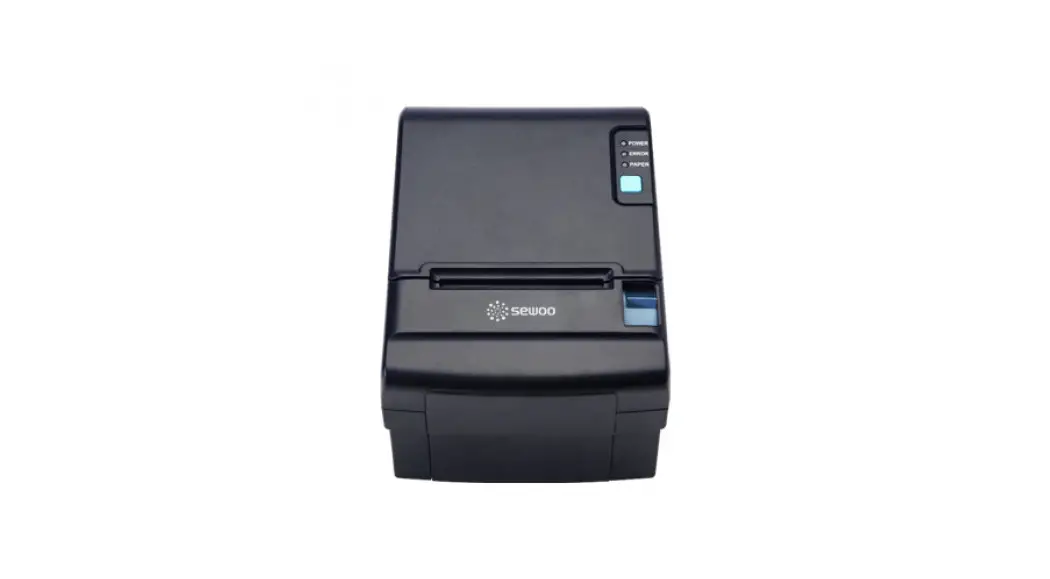
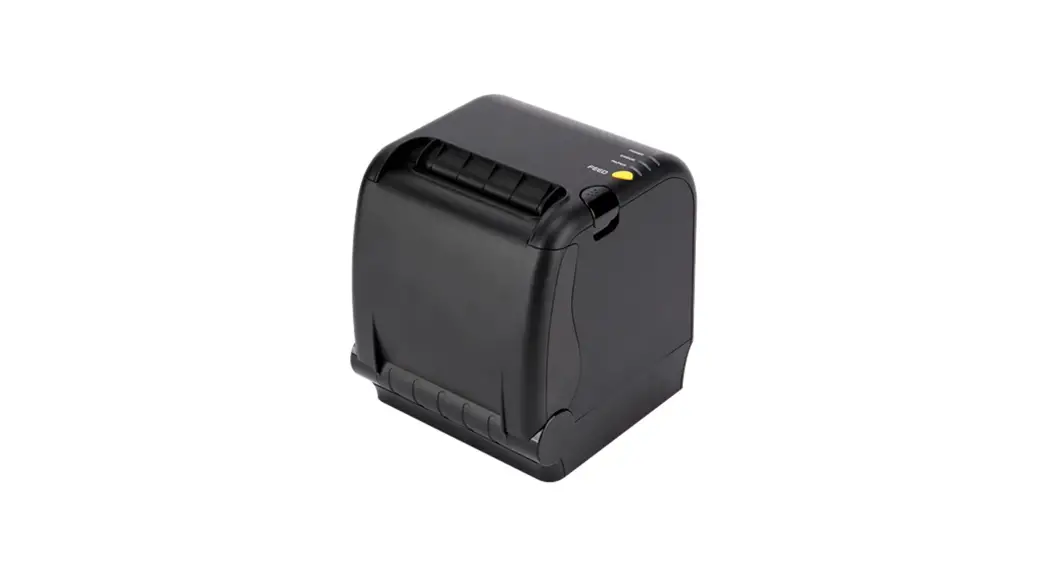
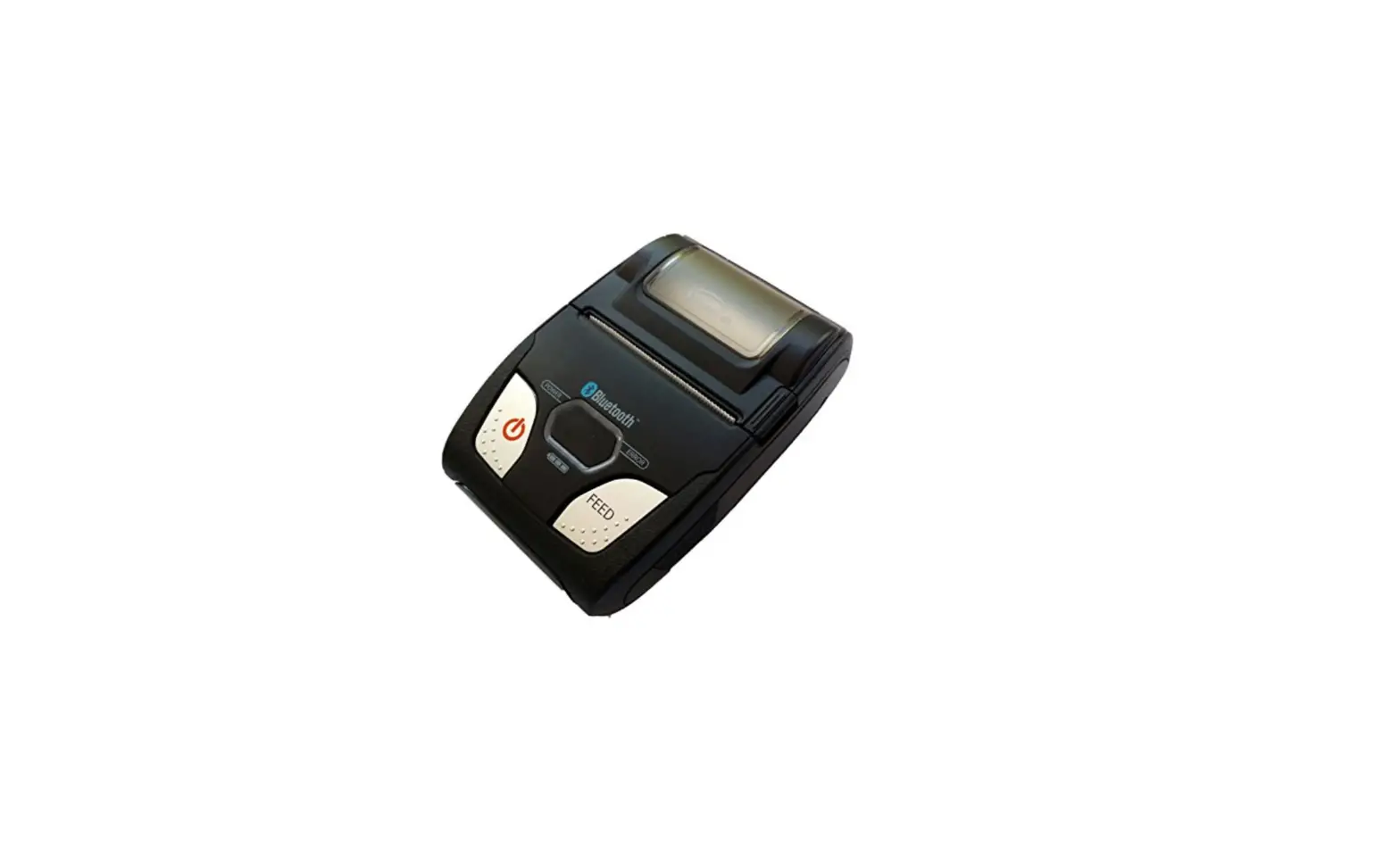
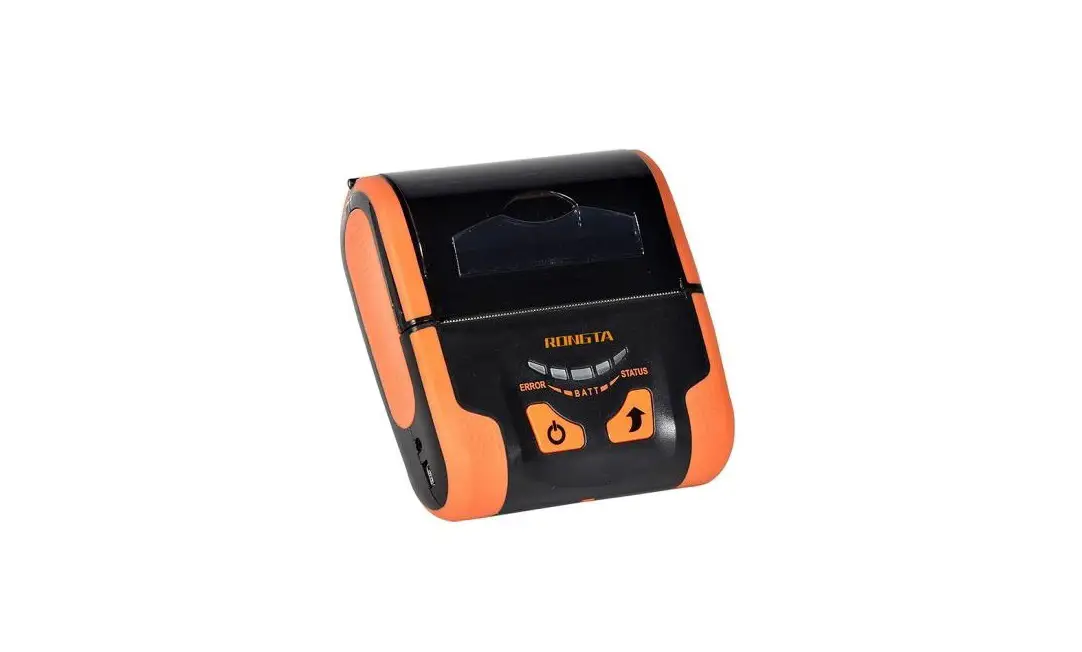
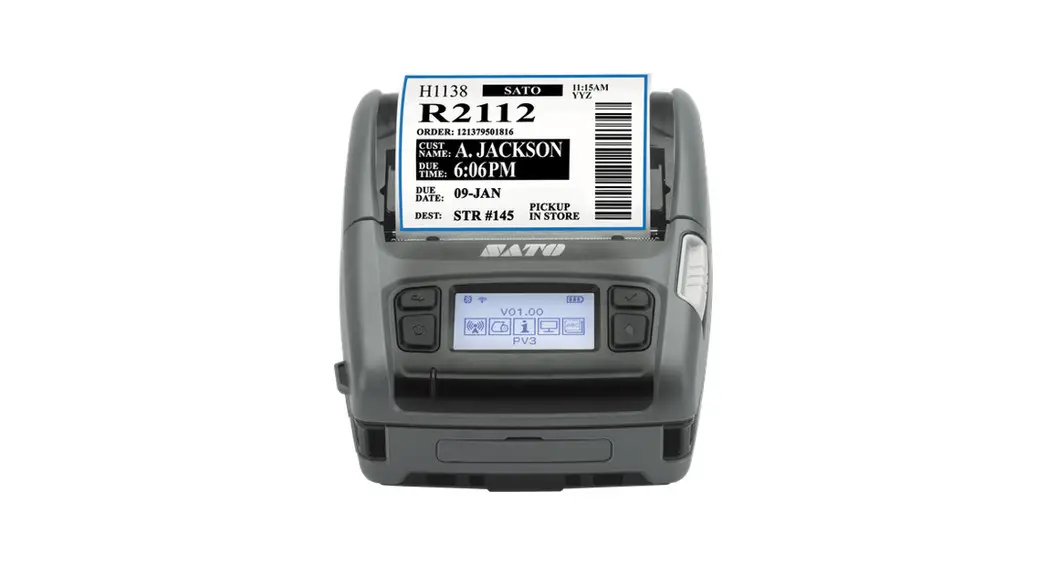
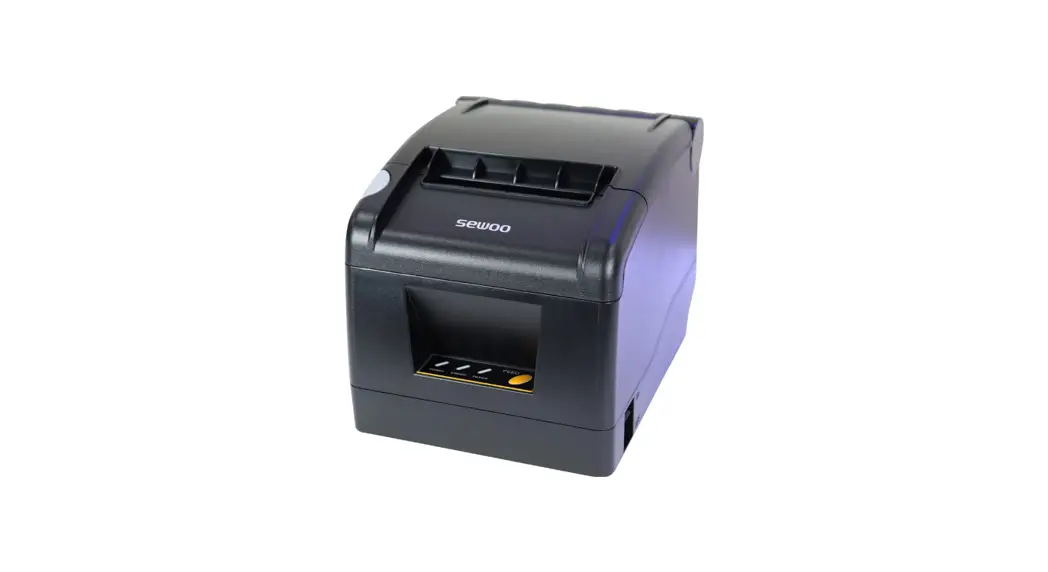
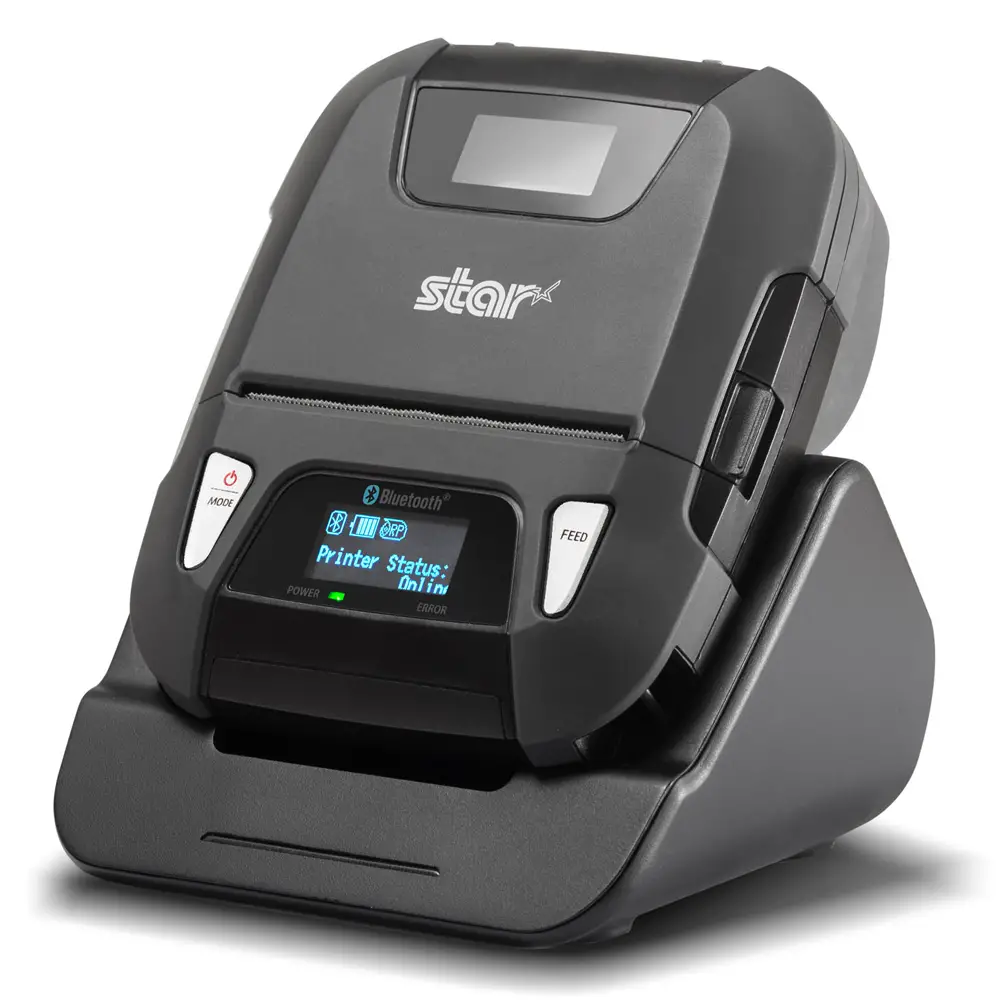
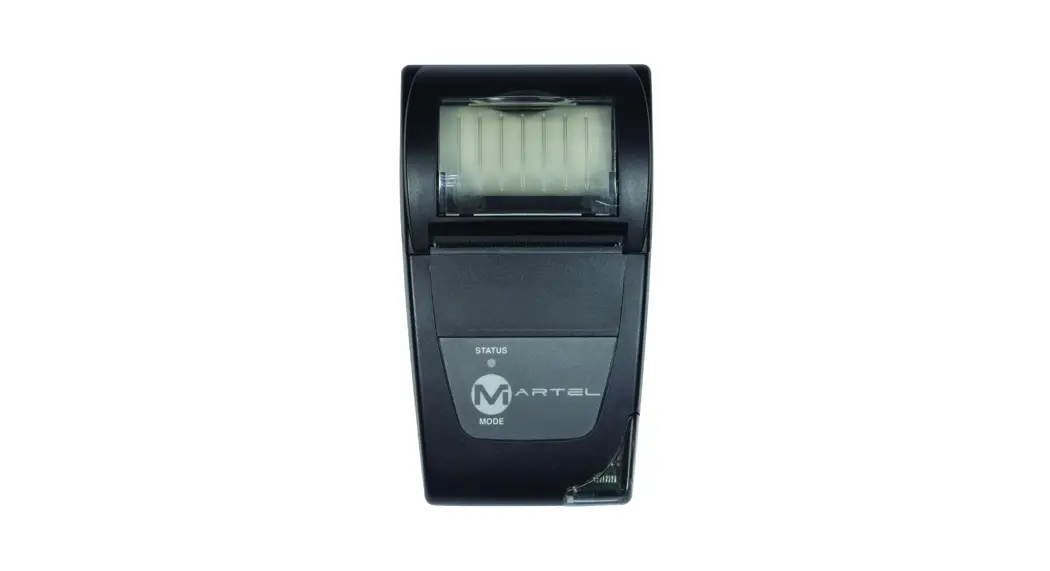
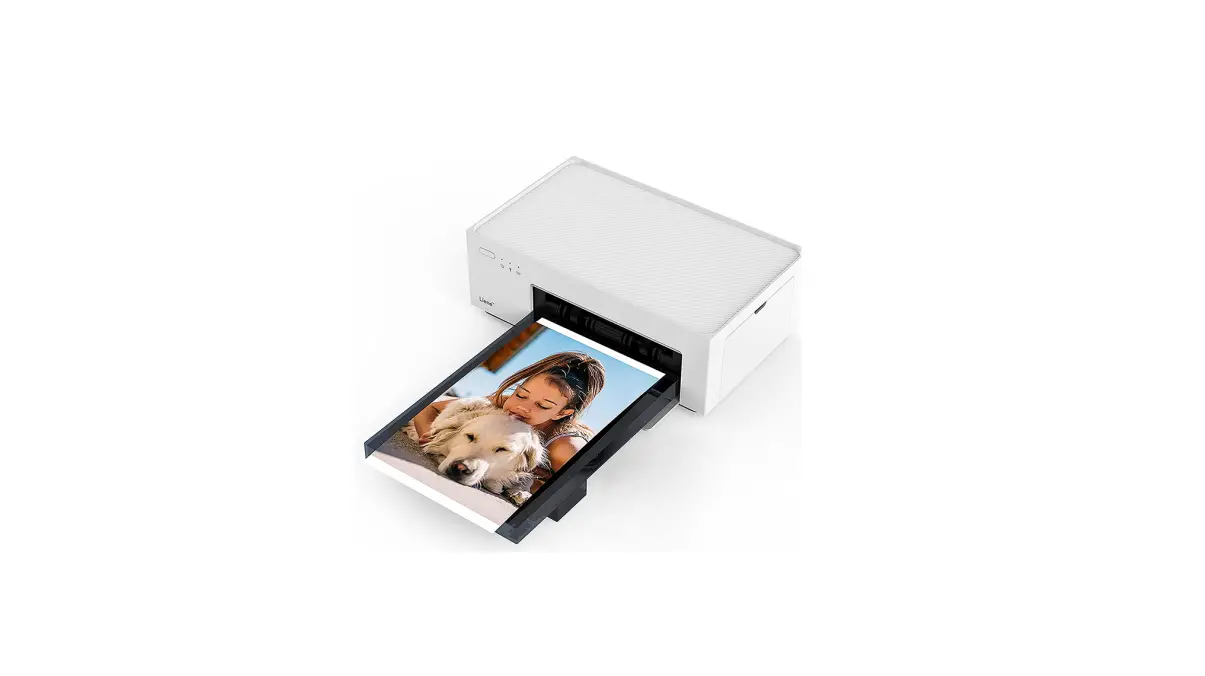
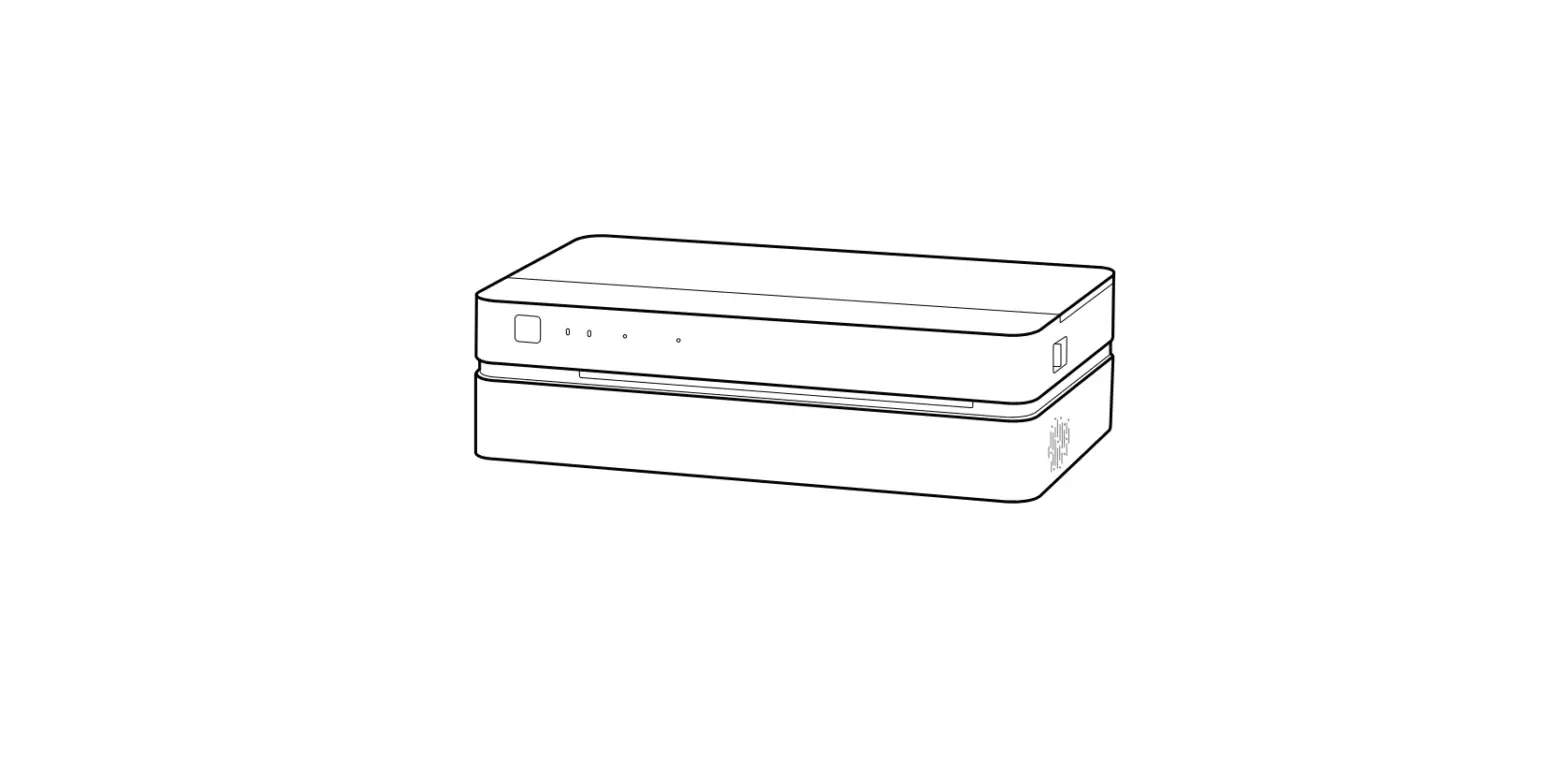
LK-P400 Mobile Printer
Product Information
Model: LK-P400
Manufacturer: Aroot Co., Ltd.
Address: 28-6, Gajangsaneopdong-ro, Osan-si, Gyeonggi-do, 18103,
Republic of Korea
Website: www.miniprinter.com
Contact: TEL +82-31-8077-5000 / FAX +82-31-624-5310
Mobile Printer with Wi-Fi & Bluetooth capabilities
Product Usage Instructions
Caution: Any changes or modifications not
expressly approved by Aroot Co., Ltd. may void the user’s authority
to operate the equipment.
If this equipment causes harmful interference to radio or
television reception, try the following measures to correct the
interference:
- Reorient or relocate the receiving antenna.
- Increase the separation between the equipment and
receiver. - Connect the equipment into an outlet on a different circuit
from the receiver. - Consult the dealer or an experienced radio/TV technician for
assistance.
Responsible Party:
The responsible party for Supplier’s Declaration of Conformity
must be located within the United States. Please refer to the
following information:
Company Name: Aroot Co., Ltd. (Manager: Vic Barczyk)
Address: 19700 S. Vermont Ave. STE 200, Torrance, CA 90502,
USA
TEL / FAX No: (TEL) +310-561-8030 / (FAX) +82-31-459-8880
Website: www.miniprinter.com
Made for Apple Certification:
The use of the Made for Apple badge indicates that the accessory
has been designed to connect specifically to Apple products and
meets Apple performance standards. Apple is not responsible for the
operation or compliance of this device with safety and regulatory
standards.
FCC Compliance:
This device complies with part 15 of the FCC Rules. Operation is
subject to the following conditions:
- This device may not cause harmful interference.
- This device must accept any interference received, including
interference that may cause undesired operation.
Risk of Explosion:
Do not replace the battery with an incorrect type, dispose of it
improperly, subject it to extreme temperatures, or expose it to low
air pressure. These actions can result in an explosion or leakage
of flammable liquid or gas.
Safety Precautions:
- Read and follow the instructions carefully before operating the
product. - Adhere to all precautionary measures for better safety and
reliability.
Aroot Co., Ltd.
28-6, Gajangsaneopdong-ro, Osan-si, Gyeonggi-do ,18103, Republic of Korea TEL +82-31-8077-5000 / FAX +82-31-624-5310 / http://www.miniprinter.com
P400 ENG Rev. C 03/2023
MODEL : LK-P400
MOBILE PRINTER(Wi-Fi & Bluetooth)
All specifications are subject to change without notice
Information to User;
Caution: the user that changes or modifications not expressly approved by the Aroot Co., Ltd. responsible for compliance could void the user’s authority to operate the equipment.
NOTE: This equipment has been tested and found to comply with the limits for a Class B digital device, pursuant to part 15 of the FCC Rules. These limits are designed to provide reasonable protection against harmful interference in a residential installation. This equipment generates, uses and can radiate radio frequency energy and, if not installed and used in accordance with the instructions, may cause harmful interference to radio communications. However, there is no guarantee that interference will not occur in a particular installation.
If this equipment does cause harmful interference to radio or television reception, which can be determined by turning the equipment off and on, the user is encouraged to try to correct the interference by one or more of the following measures:
– Reorient or relocate the receiving antenna. – Increase the separation between the equipment and receiver. – Connect the equipment into an outlet on a circuit different from that to which the receiver is
connected. – Consult the dealer or an experienced radio/TV technician for help.
Responsible Party; The responsible party for Supplier’s Declaration of Conformity must be located within the United States, so you have to include following information in manual.
Company name : Aroot Co., Ltd. (Manager : Vic Barczyk) Address : 19700 S. Vermont Ave. STE 200, Torrance, CA 90502 | USA TEL / FAX No : (TEL) +310-561-8030 / (FAX) +82-31-459-8880 Homepage : http://www.miniprinter.com
Use of the Made for Apple badge means that an accessory has been designed to connect specifically to the Apple product(s) identified in the badge, and has been certified by the developer to meet Apple performance standards. Apple is not responsible for the operation of this device or its compliance with safety and regulatory standards.
This device complies with part 15 of the FCC Rules. Operation is subject to the following two conditions.
1) This device may not cause harmful interference, and 2) This device must accept any interference received, including interference that may
cause undesired operation.
The operation of this equipment is subject to the following two conditions: (1) this equipment or device may not cause harmful interference and (2) this equipment or device must accept any interference, including that which may cause its unwanted operation.
Risk of explosion if battery is replaced by an incorrectly type. Dispose of used battery according to the local disposal instructions.
– replacement of a battery with anincorrect type that can defeat a safeguard (for example, in the case of same lithium battery types)
– disposal ofa battery into fire or a hot oven, ormechanically crushing or cutting of a battery, that can result in an explosion;
– leaving a battery in an extremely high temperature surrounding environment that can result in an explosion or the leakage of flammable liquid or gas ; and
– a battery subjected to extrmely low air pressure that may result in an explosion or the leakage of flammable liquid or gas.
Risque d’explosion si la batterie est remplacée par un type incorrect. Jetez la batterie usée selon les instructions locales.
– remplacement d’une batterie par un type incorrect qui peut faire échouer une sauvegarde (par exemple, dans le cas des mêmes types de batteries au lithium)
– la mise au rebut d’une batterie dans un feu ou un four chaud, ou l’écrasement ou la coupure mécanique d’une batterie, qui peut provoquer une explosion;
– laisser une batterie dans un environnement environnant à température extrêmement élevée pouvant entraîner une explosion ou une fuite de liquide ou de gaz inflammable; et
– une batterie soumise à une pression d’air extrêmement basse qui peut provoquer une explosion ou une fuite de liquide ou de gaz inflammable.
Disposal of Old Electrical&Electronic Equipment(Applicable in the European Union and other European countries with separate collection systems) This symbol on the product or on its packaging indicates that this product shall not be treated as household waste. Instead it shall be handed over to the applicable collection point for the recycling of electrical and electronics equipment. For more detailed information about recycling of this product, please contact your local city office, your household waste disposal service or the shop where you purchased the product.
Safety Precautions
For better safety and reliability, adhere to the following precautionary measures. Read and follow the instructions carefully before operation of the product.
Indication
Prohibition
Do not disassemble Grounding to prevent electric shock
Must follow
Unplug the power from the outlet
Do not handle the product with wet hands
WARNING
Failure to follow these instructions could result in fire, electric shock, other injuries, or property damage.
Do not pull or touch the power plug with wet hands.
Potential risk of electric shock or fire
Do not bend the wire and do not allow the wire to be pinched or crushed by heavy objects.
Potential risk of electric shock or fire
Do not overload an electrical outlet.
Potential risk of electric shock or fire
If a power plug is broken or a plug is cut or worn, do not use it.
Potential risk of electric shock or fire
WARNING
Failure to follow these instructions could result in fire, electric shock, other injuries, or property damage.
Do not unplug the power cable to turn off the product.
Turn off the power using the power button
Do not disassemble, repair or modify the product.
Potential risk of malfunction, electric shock, or fire. When the product needs to be repaired, please contact your reseller
CAUTION
Failure to follow these instructions could result in fire, electric shock, other injuries, or property damage.
Do not install the product on an unstable or inclined surface.
May cause damage or injury
Dealer
If the product needs to be repaired, please contact your reseller.
Potential risk of fire or unit malfunction
Keep product away from the water and other material.
Potential risk of fire or unit malfunction
Avoid excessive shock or drops.
Potential risk of fire or property damage
Table of Contents
Product Overview
Maintenance
1. Unpacking
2
9. Cleaning the Printer
16
2. Product overview
3
9-1. Print-Head Cleaning
16
3. Control Panel Usage
4
9-2. Platen Roller Cleaning
17
Set Up
10. JAM Error
18
4. Paper Installation
5
Spectification
5. Battery
6
11. Black Mark
19
5-1. Battery Installation
6
12. Gap
20
5-2. Battery Removal
7
13. Printer Specification
21
5-3. Battery Charging
8
14. Utilities
23
5-4. Charging Cradle(optioanl)
9
15. S/W
24
6. Belt Strap
10
7. Self Test
11
Peripheral Connection
8. Peripheral Connection
13
8-1. Bluetooth Connection
13
8-2. Wi-Fi Connection
13
8-3. NFC Connection
14
8-4. Interface Cable Connection
15
1. Unpacking
Standard
Printer
Battery
Charger
USB Cable
Quick Manual CD (Manual)
Roll Paper
Belt Strap Cleaning Pen
Optional
Large Battery
Car Charger
2
Charging Cradle Shoulder Strap
2. Product overview
Front
COVER OPEN Button
POWER Button
Paper FEED Button
Rear
Strap Bracket Battery
USB DC POWER
3
3. Control Panel Usage
Button
Name
Power Button
Function
– This button is used to turn the printer on and off. – When the printer is off, press this button for approximately 3 seconds and the printer will power on. – When you press this button while the printer is powered on, the printer will turn off.
Up Button – Selects the highlighted menu option.
Menu Enter Button
Paper Feed Button
– Moves up through menu options.
– This button can be used to manually feed the paper. – Additionally, this button is also used to initiate self-tests and Hexadecimal Dumping. Refer to 11 – Use ENTER to enter the menu.
4
4. Paper Installation
CAUTION Make sure to be careful of the HOT head
COVER OPEN button
Paper guide
Press the COVER OPEN button up to open the Place the paper roll as shown. Make sure
Paper cover. You can set the width of paper the paper is placed in the right direction.
guide by turning the knob with your finger. 1 2
CAUTION
34
CAUTION
Please make sure you hear the
If the cover is not shut down completely,
closing sound of the upper cover.
the printer may not work properly.
Pull a short length of paper out of the printer and close the cover.
Please tear the paper down.
5
5. Battery
5-1. Battery Installation
Please make sure you hear the closing sound of the upper cover.
5-2. Battery Removal
REMOVE
HOOK 1 Align battery hook as shown in the picture. 2 Push the battery into the printer until it locks in place.
NOTE As the battery is not charged at the time of your purchase, charge the battery prior to using the printer.
6
Remove the battery as shown. 1 Press up on the battery handle and lift it up. 2 Remove the battery.
7
5-3. Battery Charging
Lamp
1 Make sure the printer is turned off. 2 After opening the DC JACK cover, connect the DC JACK to the printer. 3 Plug the power cord into the electrical outlet.
NOTE 01 If the charger provided by the manufacturer is not used, the printer can be
damaged, and the manufacturer is not liable for the consequential damage. 02 Before removing the battery, make sure that power is turned off. 03 The printer does not work when only connected to the charger. 04 While charging, do not turn on the power. 05 Do not operate the printer while charging the battery.
8
5-4. Charging Cradle Optional
Lamp
1 Insert the battery into the battery charger as shown above. 2 Connect the DC JACK to the electrical outlet. 3 Plug the power cord into the electrical outlet. 4 Once the charging is completed, remove the battery from the charger.
The charging status LED Status
Charging Lamp
charging Red
charging complete Green
NOTE
In the case the battery is not inserted properly, the red LED will blink. Remove and reinsert the battery.
9
6. Belt Strap
7. Self Test
Prepare the belt strap.
Put the strap into the strap bracket hole as shown.
12 34
Turn the strap and printer over and put the strap into the hook as shown.
Adjust the strap length for the user’s convenience.
10
Turn off the power by pressing the power button for approximately 3 seconds.
While you are holding the FEED button, press the power button.
12 3
NOTE
01 To enter hex dump mode, press the FEED button once more.
02 If the FEED button is not pressed, the self-test will automatically finish after 3 seconds.
The self-test will print.
11
Self-Test Printout Sample
F/W Version: v2.74_STD GAP(Adj) : 80(-10,270) BM Lower(Adj) : 320(127,240) BM Lower Label Length : 0,0mm BM Upper(Adj) : 320(159,330) BM Upper Label Length : 558,69mm Battery : 8.0v [30 C] Sleep Timeout : 1 min Deep Sleep Timeout : 2 min Power off Timeout : 0 min H/W Version : v1,00
Emulation: ESC/POS codepage 437 Print Density: Normal(0) Print Speed: 5[IPS] Liner less: Disabled Passesword: Disabled
Version 2.0 Full speed compliant Product String: LK-P400
Version : v1.0 Device Name : SW_0A9B Mode : SPP_IAP_MODE Numberic comparison : Disabled BT scan : Enabled Auto connection : Enabled BLE : Disabled Address : 40:19:20:50:0a:9b
401920111725
SSID : LK_P400_P2P MAC : 42:19:20:50:8a:9a Operating Mode : SoftAP IP : 192.168.100.1 SUBNET : 255.255.255.0 GATEWAY : 192.168.100.1 Host name : MobilePrinter DHCP : Enabled
000000000000
******************
******************
Upon initial installation or for troubleshooting, you can run the diagnostic test to get information about: – Firmware version, emulation,
codepage, sensor settings, interface settings, etc.
If no issues are found with the diagnostic test, examine other devices and software. The diagnostic test is working independently of devices and software.
Motor protection from being overheated To prevent the motor from overheating, stop the printer for at least 30 seconds after continuously printing 1.5 meters.
12
8. Peripheral Connection
This product can communicate with other devices via Bluetooth, Wi-Fi, or a communication cable.
8-1. Bluetooth Connection
1 The Printer can be connected to devices equipped with Bluetooth communication capabilities (PDAs, PCs, etc.).
2 Use the Bluetooth connection function supported by your device to connect to the printer. NOTE
– This model supports NUMERIC COMPARISON function. – Please refer to the configuration manual for details.
8-2. Wi-Fi Connection
1 The Printer can be connected to devices equipped with Wi-Fi communication capabilities (PDAs, PCs, etc.).
2 Use the Wi-Fi connection function supported by the device to connect to the printer. NOTE
– Please refer to the CONFIGURATION MANUAL for details.
13
8-3. NFC Connection
The printer can be connected to devices equipped with NFC communication capabilities.
Use the NFC connection function supported by the device to connect to the printer. NOTE
– Please refer to the CONFIGURATION MANUAL for details. – NFC is only compatible with Bluetooth.
8-4. Interface Cable Connection
Cover USB 1 Flip over the connector cover and connect USB cable to the printer connector. NOTE Only use cables included with the printer. (USB) 2 Connect the interface cable to the USB port of the device (PDA, PC, etc.).
14
15
9. Cleaning the Printer
If the interior of the printer is dusty, printing quality can be reduced. In this case, follow the instructions below to clean the printer.
NOTE 01 Make sure to turn the printer power off prior to cleaning. 02 Regarding printhead cleaning, as the printhead gets very hot during printing,
turn off the printer power and wait approximately 10 minutes before cleaning. 03 When cleaning the printhead, take care not to touch the heated portion of the
printhead. The printhead can be damaged by static electricity. 04 Take care not to allow the printhead to become scratched and /
or damaged in any way. 05 When using a linerless paper, clean regularly at least once after using 4~5 rolls
or a week (Cleaning cycle may vary depending on usage.)
9-1. Print-Head Cleaning
HEAD
9-2. Platen Roller Cleaning
1 Use a cleaning pen to clean the rollers. 2 Turn the platen roller with your finger to clean the entire surface. 3 When using a linerless paper, wipe the surrounding parts that touch the surface
of the paper.
Platen Roller
Frame Roller
Paper Housing
1 Use the cleaning pen to clean the head of the printer. 2 Once the cleaning is completed, wait a few minutes before inserting the paper
roll into the printer.
16
17
10. JAM Error
CAUTION Make sure to be careful of the HOT head.
11. Black Mark
When you face with a paper jam error, Please remove the paper.
please press the button up to open the
PRINTER COVER. 12 3
NOTE
NOTE
Please make sure you hear the
If the cover is not shut down completely,
closing sound of the upper cover.
the printer may not work properly.
After removing, close the cover. The printer will work normally.
18
19
12. Gap 20
13. Printer Specification
Printing Method Printing Speed Resolution
Character
ESC/POS
Barcode
CPCL
ZPL Emulation Driver / SDK Sensor
Direct Thermal
Max. 127 mm/s
203 DPI
Font A(12×24), Font B(9×17), Asian Font(KOR,JPN,CHN-GB2312,CHNBig5), Font0/1/2/4/5/6/7, Resident TTF, Downloadable TTF, FontA~H, FontGS, Residnt TTF(Font0), Font 1~8
– 1D : EAN-8, EAN-13, Code39, ITF, UPC-A, UPC-E, Codabar, Code93, Code128 – 2D : QR, PDF417
– 1D : LUPC-A(+2,+5), UPC-E(+2, +5), EAN13(+2, +5), EAN8(+2,+5), Code39 etc. (CPCL) – 2D : QR, PDF417, MicroPDF417, Maxicode, Datamatrix, Aztec, TLC39, RSS14
– 1D : Code11, ITF, Code39, Planet, EAN-8, UPC-E, Code93, Code128 etc. (ZPLII) – 2D : QR, PDF417, MicroPDF417, Maxicode, Datamatrix, Aztec, TLC39, RSS14
ESC/POS, CPCL, ZPL Command compatible
Windows Driver(10, 2012, 8, 7, 2008, VISTA, 2003, XP, 32bit & 64bit), Window CE & Mobile Driver & SDK(CE 4.2~, Mobile 5.0~7.0), Linux Driver, Mac Driver, OPOS Driver, JavaPOS Driver, iOS SDK, Android(2.1~) SDK, Cordova SDK / Xamarin SDK
Black mark, Paper end, Gap, Cover open
21
Type
Thermal Receipt / Label / Linerless
Paper
Roll Max Diameter
Max. 57.5 m
Roll Core
12.5 mm
Interface
Standard Option
USB
Wi-Fi(802.11a/b/g/n/ac), Bluetooth Smart ready combo(Bluetooth 4.2+BLE)
Battery Charger
Input Output
AC 100 ~ 240V, 50/60Hz 8.4 V, 800 ~ 1400 mA
Type
Li-ion
Battery
Output
7.2 V, 2500 mAh
Charging time 3Hrs
Size(W x H x D)
155 x 157 x 67 mm
IP
IP54
Drop
2m (set only)
Weight
0.81 kg (with Battery)
Operation Temperature
Storage
-20 ~ 55 -30 ~ 65
Humidity
Operation Storage
10 ~ 90% 10 ~ 90%
22
14. Utilities
The following utilities and concerned manual can be found on the CD or homepage.
No.
Name
Description
This is a utility that allows you to set printers by interface. 1 Configuration Tool Detailed settings such as Wi-Fi, Ethernet, and COM ports can be configured.
Printer F/W and Font Download are available, and BT, Wi-Fi module F/W Download is supported.
– P22, 20II can download ICR F/W. 2 Download Tool(F/W) – BT/Wi-Fi Download function is not supported for
P400, P21, P25.
– P400 supports SD Card Download function instead of Font Download.
With NVUpload running on Windows OS, you can 3 NVUpload (ESC/POS) upload and remove the bmp file as Logo in the
printer’s flash memory, and print test is possible.
4
Bitmap Font Download(CPCL)
It is a utility that allows you to change Windows Fonts stored on your PC into Bitmap Fonts for use on the printer.
5
LabelMaker(CPCL)
This program is for label form design and designed label printing.
Android Utility It is a utility app that prints text, barcodes, images,
6 (Sewoo M_Utility) etc. through Bluetooth and Wi-Fi communication,
(ESC/POS)
and able to printer settings.
23
15. S/W
We provides SDK, Driver, etc. as follows to respond to various S/W usage environments.
You can download this S/W from the homepage.
No
Name
Description
1
Windows Driver
This is an install program used to print a Mobile printer in Windows OS.
2
Linux Driver
This is the Cups Driver used to print a Mobile printer in the Linux environment.
This is a driver that controls Mobile printers using the
3
OPOS Driver (ESC/POS)
OPOS standard. It can be used after initial setting(Mobile Printer&MSR)
using the setting tool.
4
JavaPOS Driver (ESC/POS)
JavaPOS driver is an interface standard for POS software written in Java, and can be used in Mobile Printer when printing a receipt.
5
Mac Driver
This is the Cups Driver used to print a Mobile printer in the Mac OS environment.
Android Plugin This is a print service plug-in that allows you to print 6 (Sewoo Print Service documents, images, and web pages without installing
Plugin) (ESC/POS) additional apps.
7
Windows SDK
This is library for communication and data output with Mobile printer in Windows OS.
8
Android SDK
This is library for communication and data output with Mobile printers in Android OS.
9
iOS SDK
This is library for communication and data output with Mobile printers in iOS.
24
 miniprinter.com