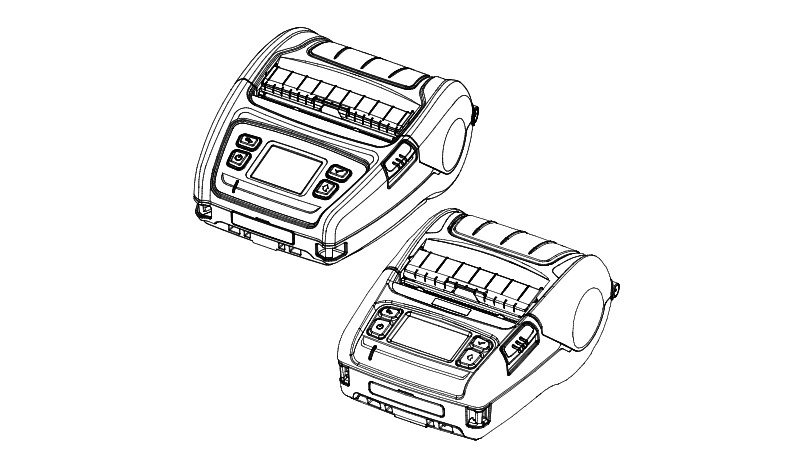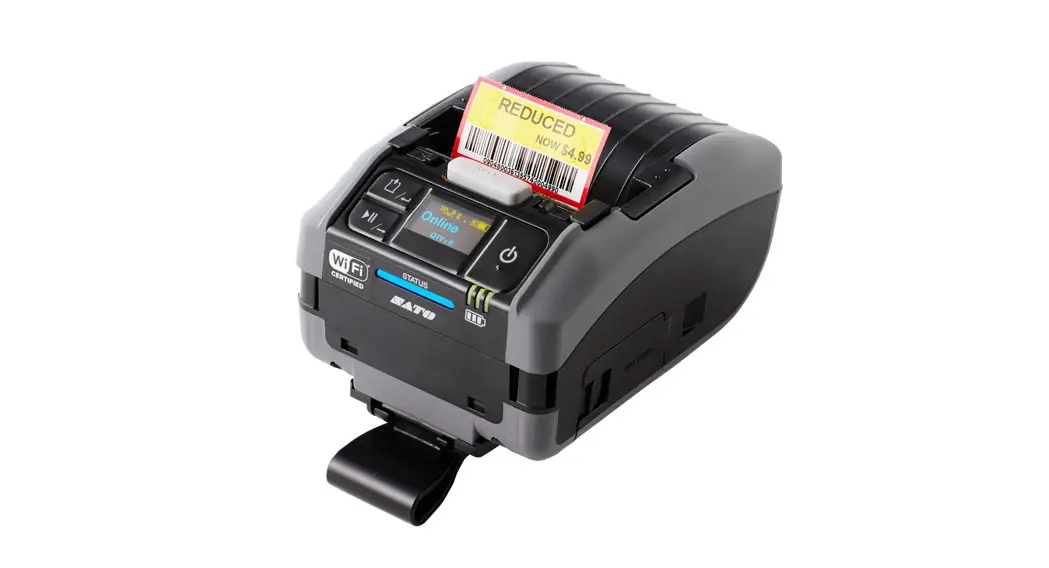
 Wireless LAN Connection Manual
BARCODE PRINTER
Rev. 1.00
PV3
Manual Information
This Wireless LAN manual provides information on the connection of a wireless network with the mobile printer.
We at SATO maintain ongoing efforts to enhance and upgrade the functions and quality of all our products. The following product specifications and/or user manual content may be changed without prior notice.
Precautions
2-1 The printer has to be within 100m (Outdoors) from AP (Access point) to connect to a Wireless LAN. Although up to 35m is possible to communicate indoors, Wireless LAN performance could be affected by environmental conditions, such as cement walls, and impede signal strength performance. The printer’s LCD shows the connection status of the Wireless LAN: – Indicates that the Wireless LAN is connected normally
 – Indicates that the Wireless LAN password is wrong
 – Indicates that the AP of the set SSID is not nearby
2-2 If a device (such as a microwave oven, wireless LAN, etc.) that uses the same frequency is present, the transmission may be interrupted. Separate the printer and Bluetooth- enabled device from such interrupting devices by a distance of at least 5m.
How to Connect
Wireless LAN can be configured through the printer’s Wireless LAN interface. Likewise, Wireless LAN can also be configured through the printer’s Serial/USB interfaces.
(1) Connecting Printer
- Serial / USB cable
Connect Serial/USB cable to Printer, PC device.
When Serial cable is used, the baud rate between Device and printer should be the same. - Wireless LAN
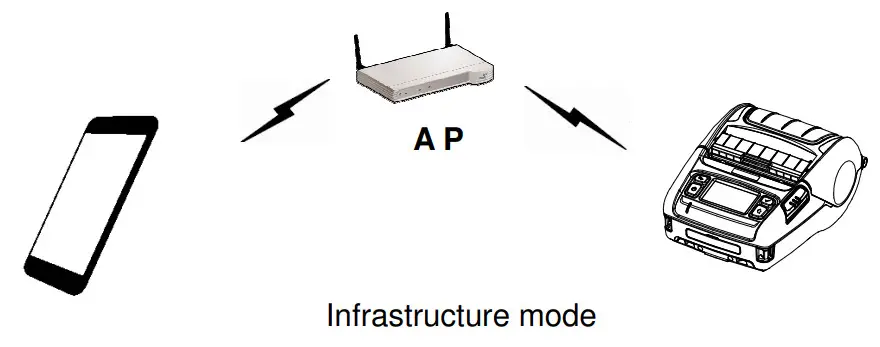
Connect to the AP (Access Point) configured in Infrastructure mode in order to connect to the LAN/wireless network
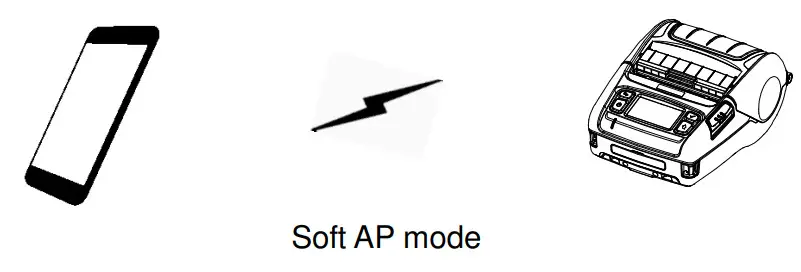
In order to configure the network between the wireless host device and the printer, set the printer to Soft AP Mode.
(2) Checking Network Setting
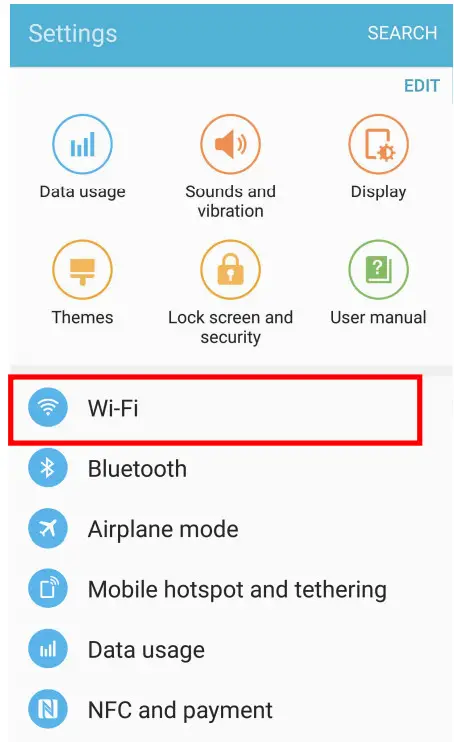
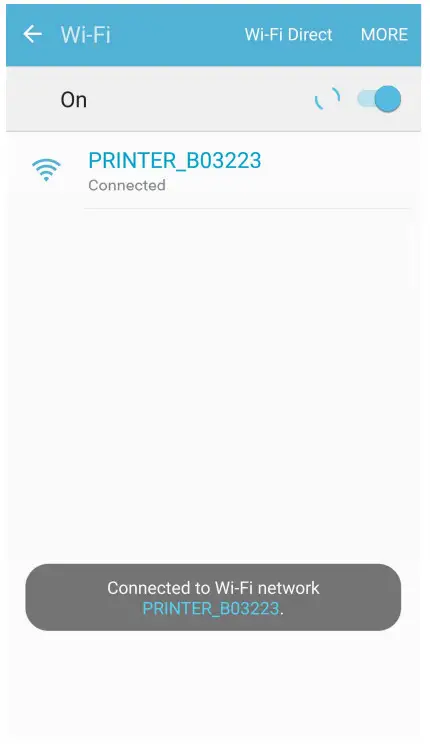
- Select “Wi-Fi”.

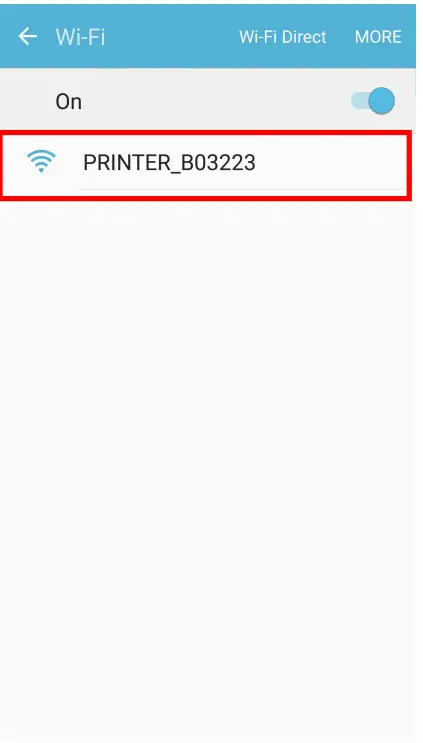
- Select the printer to connect

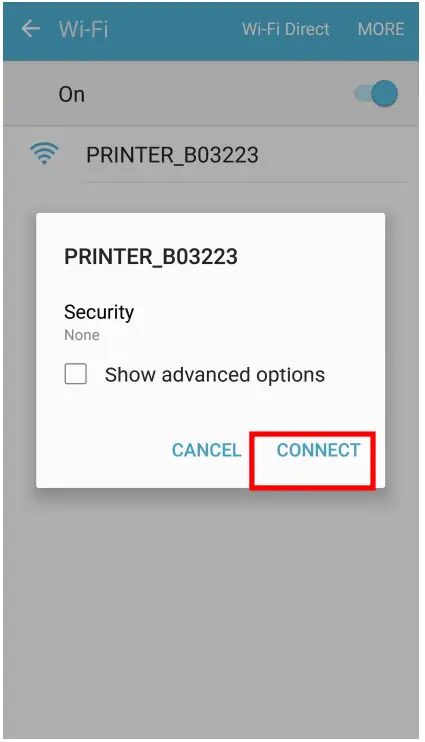
- Select “CONNECT”.

- Wi-Fi communication is available.

3-2 iOS Soft AP mode (default)
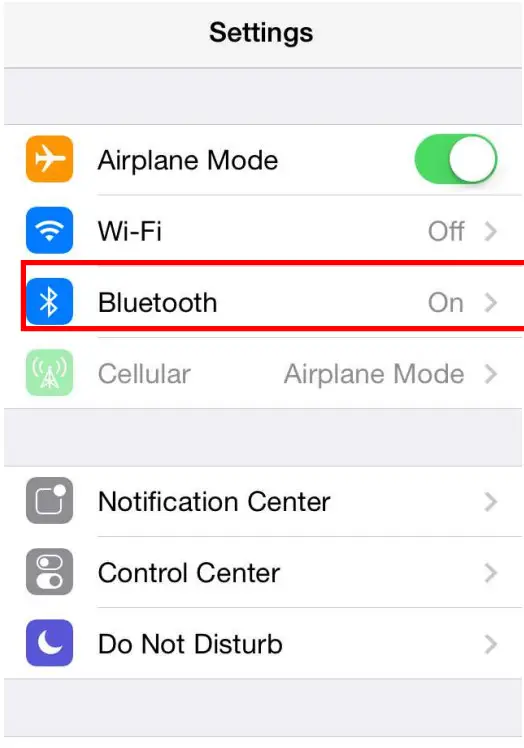
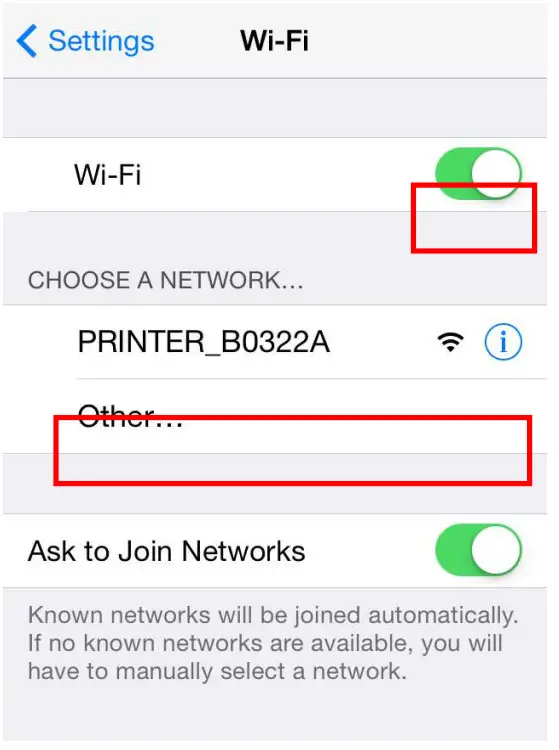
- Select “Wi-Fi”.

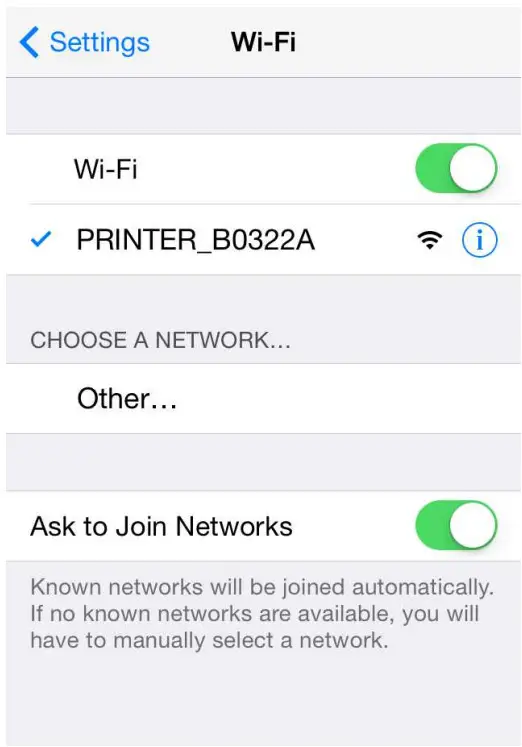
- Wi-Fi ON and Select the printer to connect

- Wi-Fi communication is available

3-3 How to change infrastructure mode
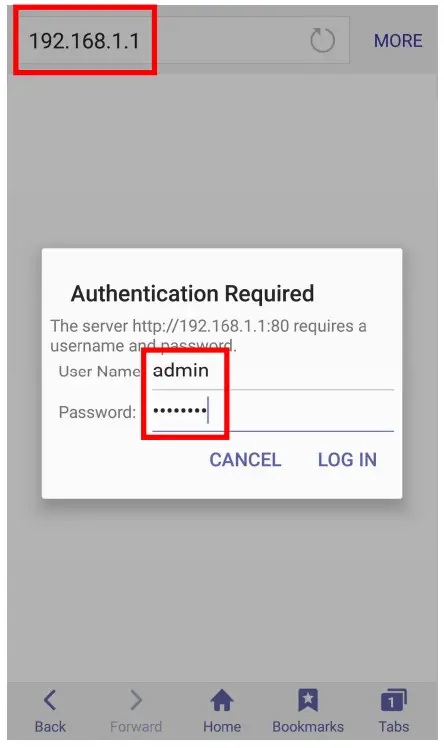
- Enter the IP address of the printer in the address bar, and the following login window will pop up. Enter the ID and Password set for the printer, and then click [login] Default User Name: admin, Password: password)

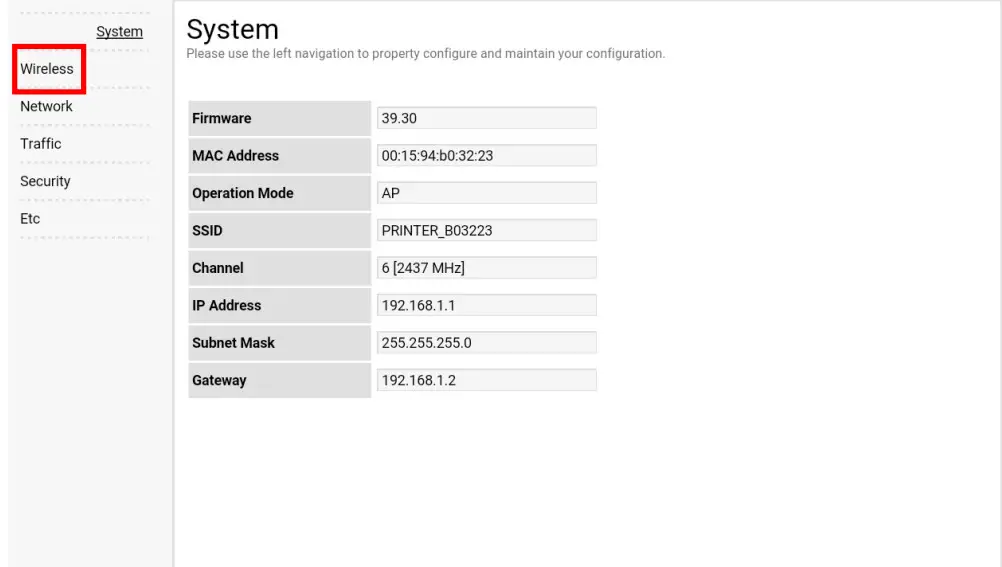
- Select “Wireless” to change the Wireless LAN mode.

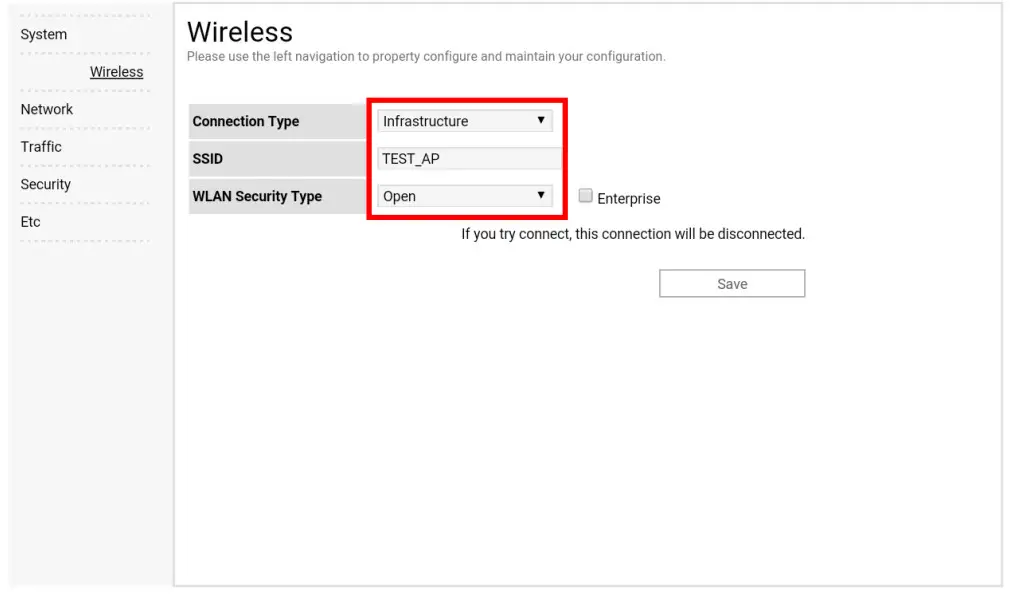
- Select “infrastructure”, and set SSID, WLAN Security Type.

- Reboot the Printer.
Factory Reset
This function changes the Wireless LAN settings of the printer to the initial factory settings.
Method
Select the wireless interface on the printer’s LCD screen.
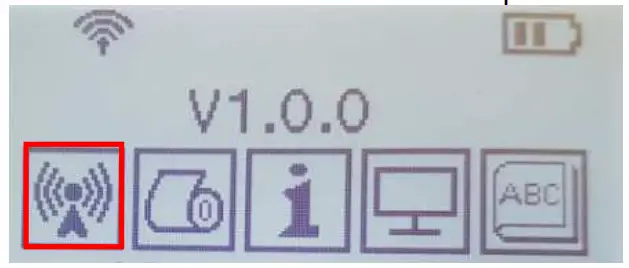
Wireless LAN Factory reset is available in WLAN> ON / OFF> Factory Reset When the printer is turned off, the Wireless LAN setting is applied as the factory default
Factory Reset Values
| System | Printer Name | *Printer model |
| Printer Port Num | 9100 | |
| User ID | admin | |
| User Password | password | |
| Enc / Auth | Encryption | None/Open |
| Network | Network Mode | Soft AP mode |
| SSID | PRINTERJMAC address} | |
| Inactivity time | 10 | |
| IP Assignment Method | Manual (DHCP server) | |
| IP, Subnet, Gateway | IP: 192.168.1.1 Subnet : 255.255.255.0 Gateway : 192.168.1.2 |
Specification
| Feature | Implementation |
| Operation Mode | Infrastructure, Soft AP, Ad-hoc, Wi-Fi Direct |
| Wireless Standard | IEEE 802.11b/g/n, IEEE 802.11a/b/g/n |
| Range | Up to 100m free space (Outdoor) |
| Security | WEP64/128 |
| WPA1/2 — PSK | |
| WPA 1/2 – Enterprise (EAP-TLS, EAP-TTLS, PEAP, LEAP, EAP-FAST) | |
| Management | Net Configuration tool, HTTP, Smart connection APP |