 Printer Installation Guide
KNO4-00096A (Rev.1.2)
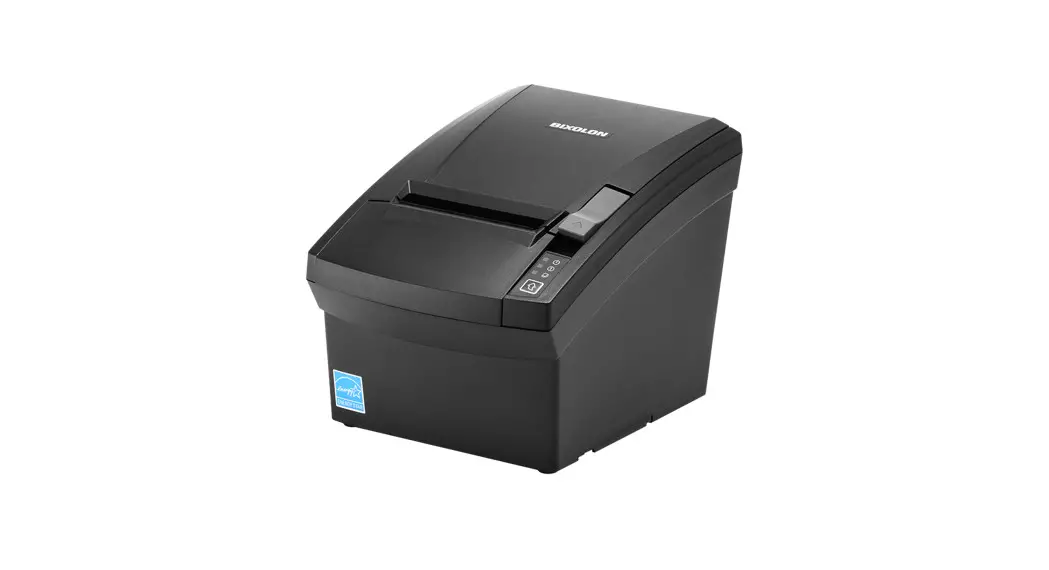
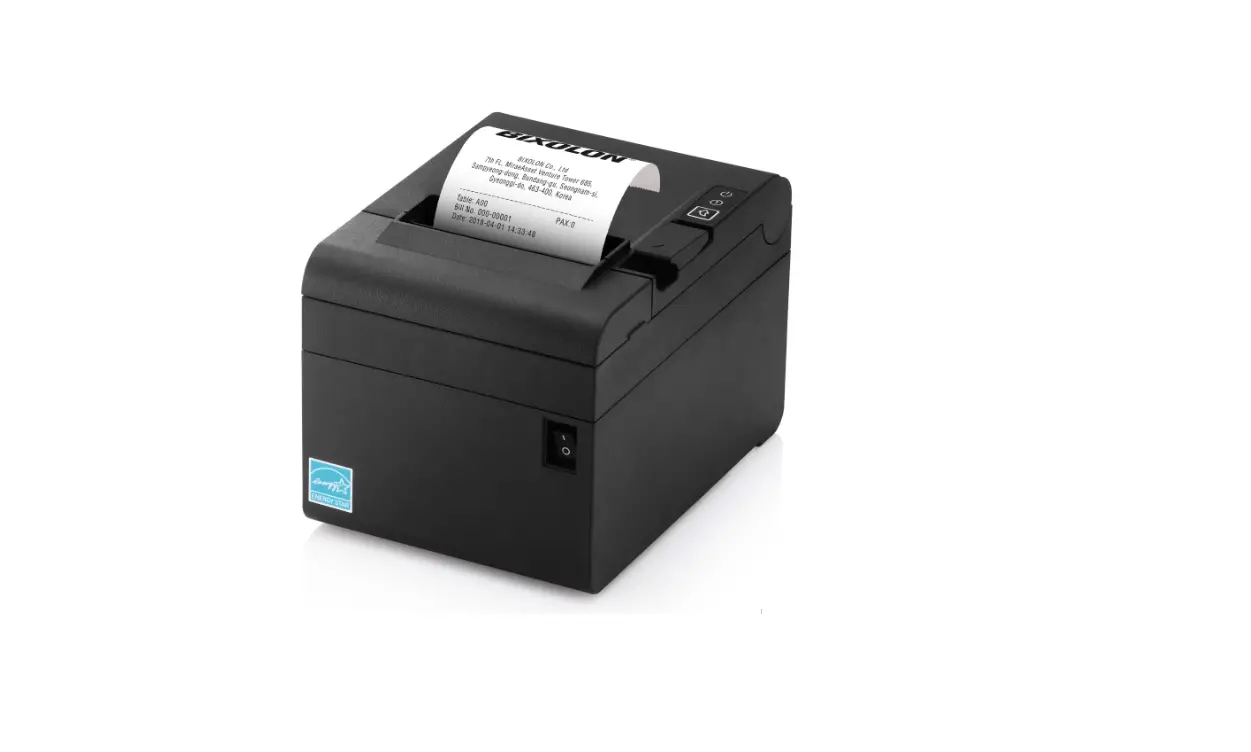
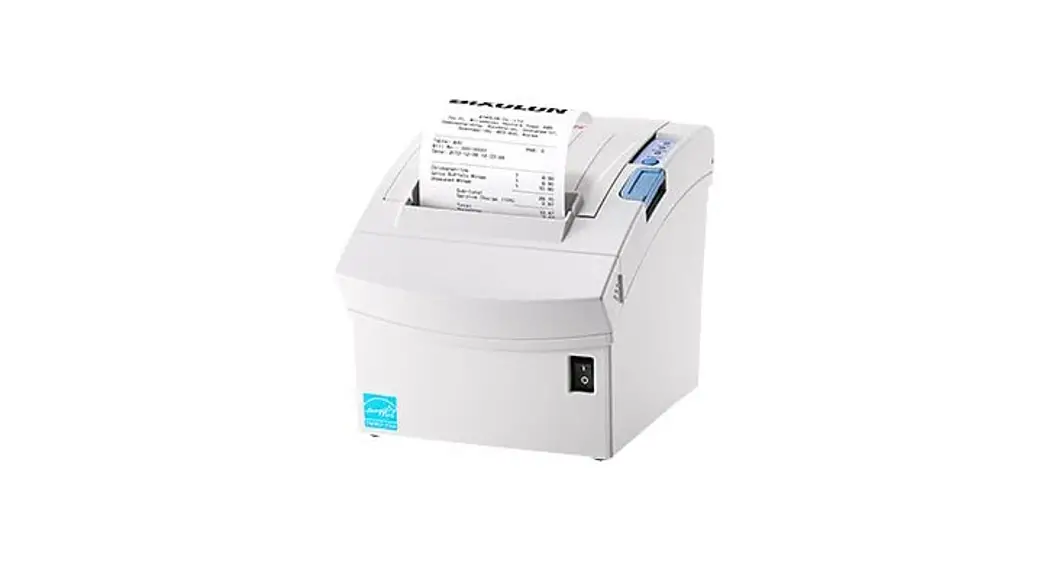
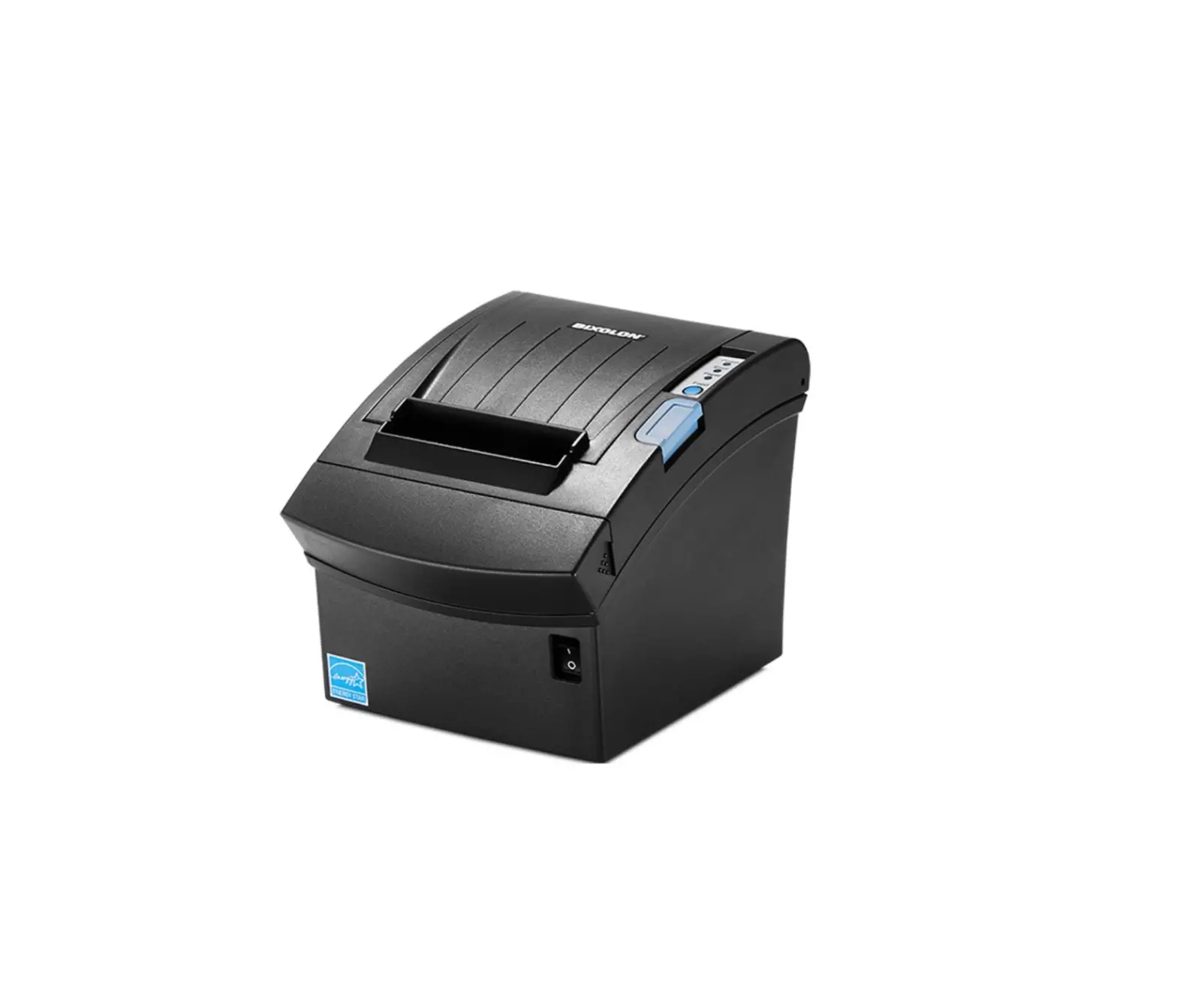
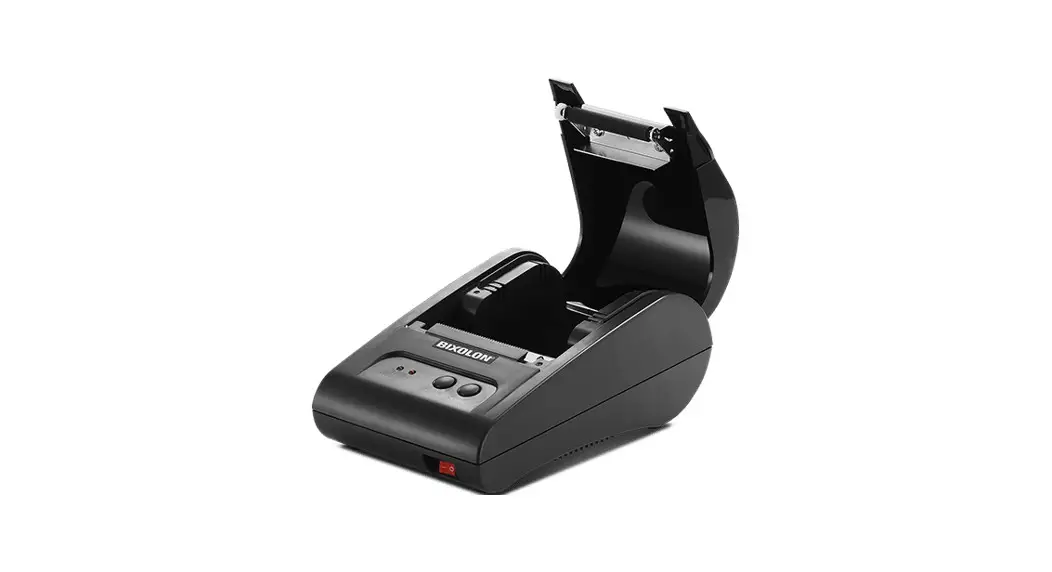
Thermal printer STP-103Ill
Information
This Installation Guide includes a brief outline of information necessary for product installation. For more detailed installation information, please refer to the user manual in the enclosed CD. The contents of the CD include the following.
1. Manual: User Manual, Code Chart, Control Commands
2. Drivers: Windows Drivers, OPOS Drivers
3. Utilities: a logo download tool
We at BIXOLON maintain ongoing efforts to enhance and upgrade the functions and quality of all our products. In following, product specifications and/or user manual content may be changed without prior notice. Please refer to the BIXOLON website for the addresses and phone numbers of the company’s headquarters and branch offices. (http://www.bixolon.com)
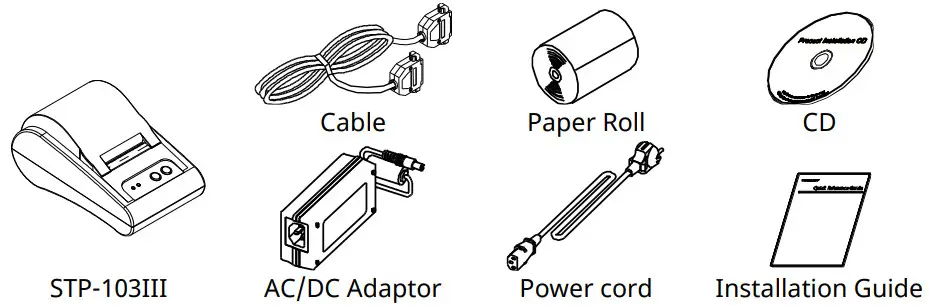
Components
Connecting the cables.
1. Turn off the printer and the host ECR (host computer).
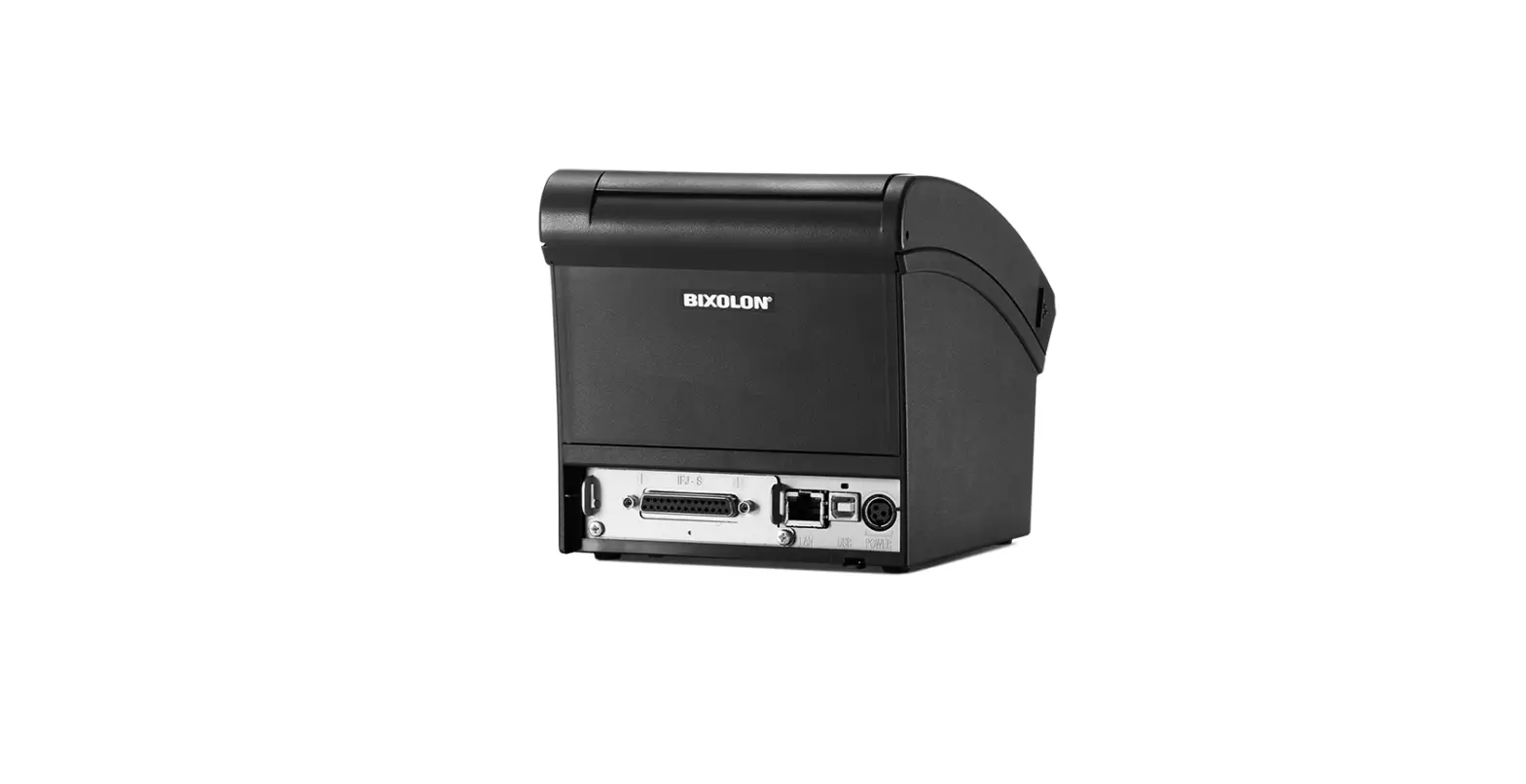
2. Plug the power cord into the Adaptor, and then plug the Adaptor into the power connector of the printer.
3. Plug the cable into the interface connector. (USB/Serial/ Parallel) ) Note: Use the STP-103III exclusive interface cable only. (Serial/ Parallel) )Do not use an adapter that was not supplied with the printer.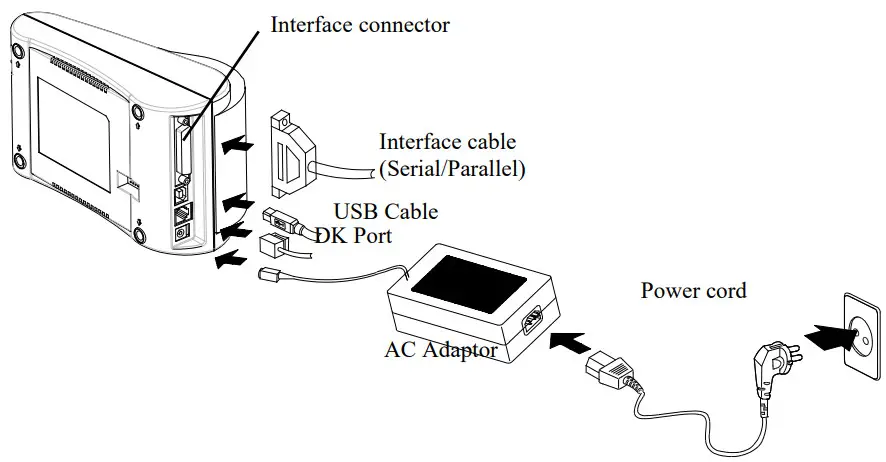
Using the Operation Panel
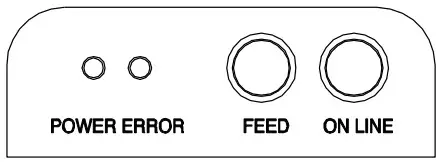
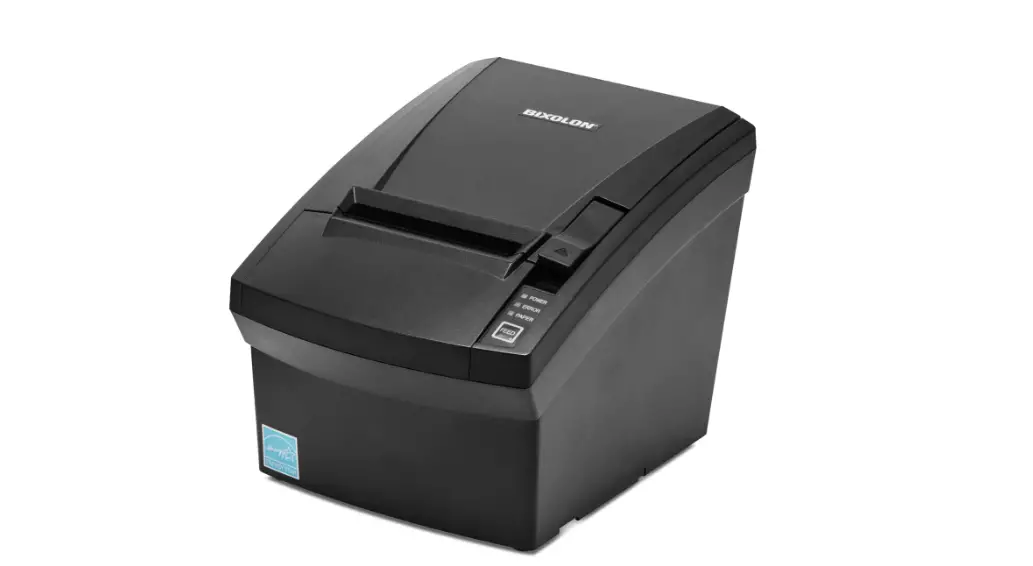
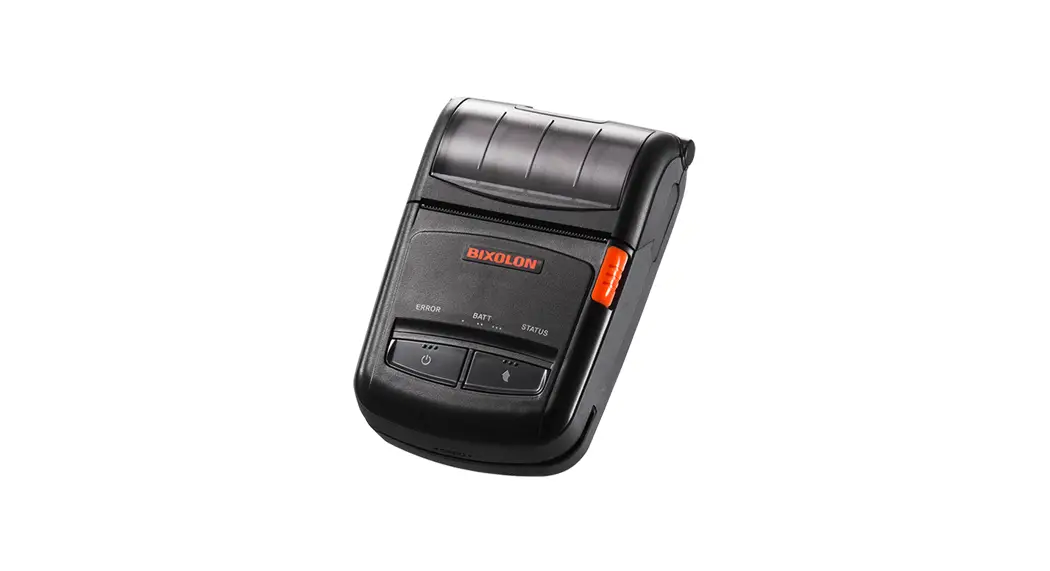
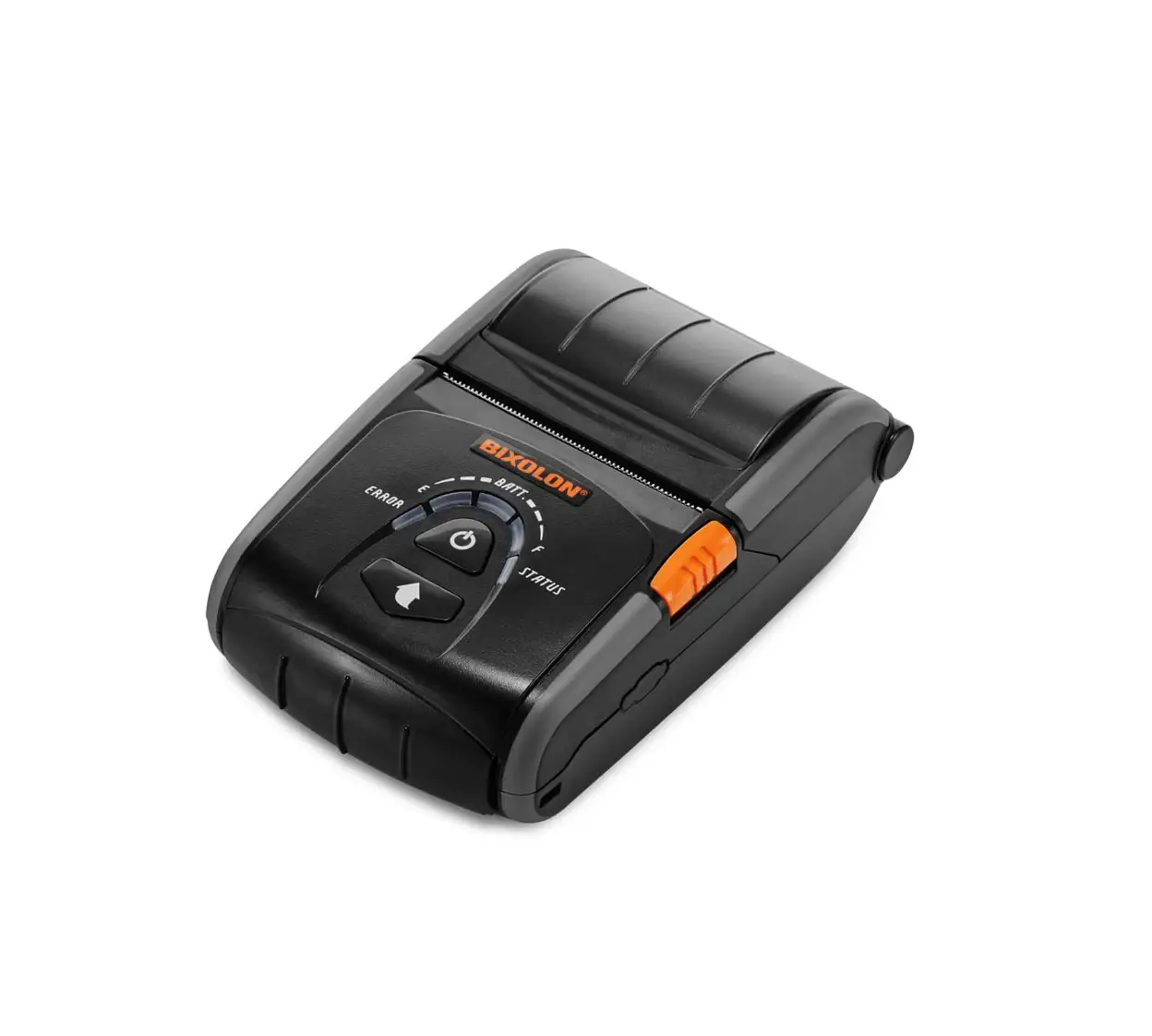
- POWER (LED, GREEN)
When turning on the power, a green LED will be lit. - ERROR (LED, RED)
When the paper is running low, a red LED blinks. - FEED (Button)
Press the FEED button once to discharge extra paper. Holding down the FEED button will discharge paper continuously until the button is released. The FEED button can be used when the ON-LINE button is turned off. - ON LINE (Button)
To use the FEED button, first press the ON-LINE button once.
Installing the Paper Roll
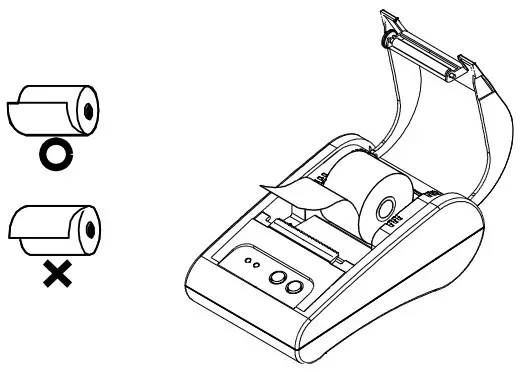
- Insert a new paper roll, making sure to align it properly.
- Pull out a small amount of paper, and close the cover.
Note Printing quality may not be optimum if recommended paper is not used. (Refer to the User’s Manual.)
Setting the DIP switches
Changing Dip Switch settings must be done when the printer is off. Any changes done while the printer is on will not be processed.
Setting the DIP switch
| SW | Function | ON | OFF | Default |
| SW 1-1 | Baud Rate Selection | * Refer to the Following Table 1 | OFF | |
| SW 1-2 | OFF | |||
| SW 1-3 | ON | |||
| SW 1-4 | Density | Dark | Normal | OFF |
| SW 1-5 | Handshaking | Xon / Xoff | DTR/DSR | OFF |
| SW 1-6 | Character per Line (Font A) | 24 CPL | 32 CPL | OFF |
| SW 1-7 | Font Select | * Refer to the Following Table 2 | OFF | |
| SW 1-8 | OFF | |||
[Table 1] Baud Rate Selection
| Transmission Speed | SW 1-1 | SW 1-2 | SW 1-3 | Remark |
| 2400 Baud | ON | OFF | OFF | |
| 4800 Baud | OFF | ON | OFF | |
| 9600 Baud | OFF | OFF | ON | Default |
| 19200 Baud | ON | OFF | ON | |
| 38400 Baud | ON | ON | OFF | |
| 57600 Baud | OFF | ON | ON | |
| 115200 Baud | ON | ON | ON |
[Table 2] Font Select
| Font size | SW 1-7 | SW 1-8 | Remark |
| Font A (12×24) | OFF | OFF | Default |
| Font B (9×17) | ON | OFF | |
| Font C (9×24) | OFF | ON | |
| Reserved | ON | ON |
Self-Test
- Make sure the paper roll has been installed properly.
- Turn on the power while holding down the FEED button. The self-test begins.
- The self-test prints the current printer status, providing the control ROM version and the DIP switch setting.
- After printing the current printer status, self-test printing will print the following, and pause. (The Error LED light blinks.)
SELF-TEST PRINTING. PLEASE PRESS THE FEED BUTTON - Press the FEED button to continue printing. The printer prints a pattern using the built-in character set.
- The self-test automatically ends and cuts the paper after printing the following.
*** COMPLETED *** - After the self-test is complete, the printer returns to normal on-line status.
Note The self-test lets you know if your printer is operating properly. It checks the print quality, ROM version, and DIP switch settings.
Specifications
| Item | Details | ||
| Printer | Printing Method | Thermal Line Printing | |
| Dot Density | 203 Dpi (8 dot/mm) | ||
| Printing Width | 48mm | ||
| Characters per line | 32 (Font A : 12×24) 42 (Font B : 9×17 / Font C : 9×24) | ||
| Printing Speed *1) | Approximately 3.15 inches/sec 80 mm/sec at 25℃/printing duty 12.5% | ||
| Receive Buffer Size | 64K bytes | ||
| SMPS Input Voltage | 100 ~ 240 VAC | ||
| Environmental Conditions | Temperature | 0 ~ 45℃ (Operating) -20 ~ 60℃ (Storage) | |
| Humidity | 10 ~ 80% RH (Operating) 10 ~ 90% RH (Storage) | ||
| MCBF *2) | Mechanism | 30,000,000 line | |
| Head | 50km | ||
| Paper | Paper Width | 57.5±0.5mm | |
| Paper Thickness | Paper thickness : 0.062 ~ 0.075 mm | ||
| Roll Diameter | Ø60 mm | ||
| Paper Tube | Inner : Ø12mm (0.47”) Outer : Ø18mm (0.71”) | ||
※ Note
*1) Printing speed may be slower depending on the data transmission speed and the combination of control commands.
*2) This value is measured for a given condition such as standard temperature, specified paper, and standard printing density, and it may change depending on the temperature or printing level.
Serial(RS-232C) Fixed Interface Model Windows Driver Installation
- Launch Software STP-103III Windows Driver Vx.x.x.exe.
- Click the Next button in the opening installation window.
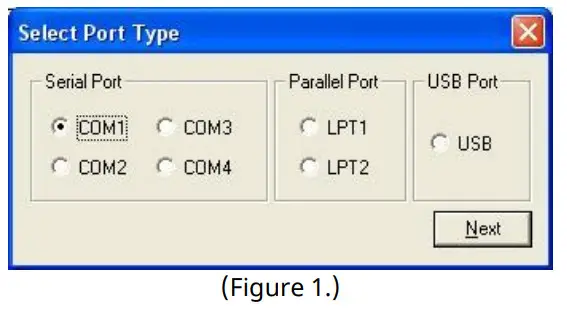
- Select a corn port in Serial Port box in the Port Type dialog box, and click the Next button.

- Select Yes and the computer will reboot.
- After the computer has restarted, open the Printer Properties window
 2003 Server or XP: Control Panel> Printers and Faxes Vista or later versions: Control Panel> Hardware and Sound> Devices and Printers
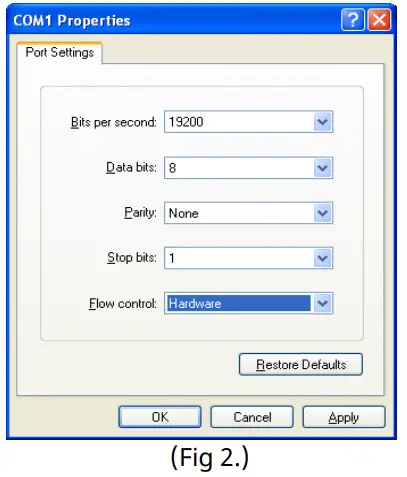
 - In the Properties window, select the Port tab and click on the Port Settings. Verify that the information which the results of the completed after installing self-tests correspond to and click “OK”

- Select the General tab in the properties window and click the Print Test Page button to make sure printer is set up
Parallel (IEEE1284) Fixed Interface Model IIL Windows Driver Installation
- Launch Software STP-103III Windows Driver Vx.x.x.exe.
- Select the Next button in the opening installation window.
- Select Parallel Port from the Port Type window and click the Next button.
- Click the Yes button and reboot the computer.
- After rebooting, open the Printer Properties window provided by the operating system. XP or Server 2003: Control Panel – Printers and Faxes Vista or later version: Control Panel – Hardware and Sound – Devices and Printers
- Select the General tab in the properties window and click the Print Test Page button to make sure printer is set up correctly.
USB Fixed Interface Model IL Windows Driver Installation
- Launch Software STP-103III Windows Driver Vx.x.x.exe.
- Select the Next button in the opening installation window.
- Select USB in the Port Type window and click the Next button.
- 4-1. If using Windows Vista, Server 2008, 7, 8, Server 2012: Turn off the printer and turn it on again then the Windows driver will be installed automatically.
4-2. If using Windows XP/Server 2003: Turn off the printer and turn it on again then “Found New Hardware Wizard” will pop up. Click the Next button to install the Windows driver.Note: If a warning message box pops up while Windows Driver Installation, click the Continue Anyway or Install button. - After rebooting, open the Printer Properties window provided by the operating
※ XP or Server 2003: Control Panel – Printers and Faxes
※ Vista or later version: Control Panel – Hardware and Sound – Devices and Printers
WEEE (Waste Electrical and Electric Equipment)
 This marking shown on the product or its literature, indicates that is should not be disposed with other household wastes at the end of its working life, To prevent possible harm to the environment or human health from uncontrolled waste disposal, please separate this from other types of wastes and recycle it responsibly to promote the sustainable reuse of material resources. Household users should contact either the retailer where they purchased this product, or their local government office, for details of where and how they can take this item for environmentally safe recycling. Business users should contact their supplier and check the terms and conditions of the purchase contract. This product should not be mixed with other commercial wastes for disposal.