
User’s Manual
XD5-40t Series
THERMAL TRANSFER LABEL PRINTER Ver. 1.00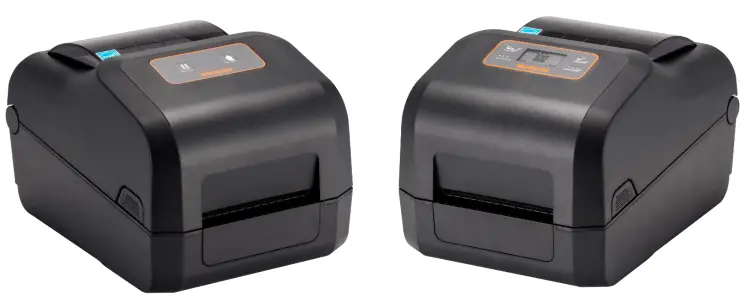
XD5-40t Series
Introduction
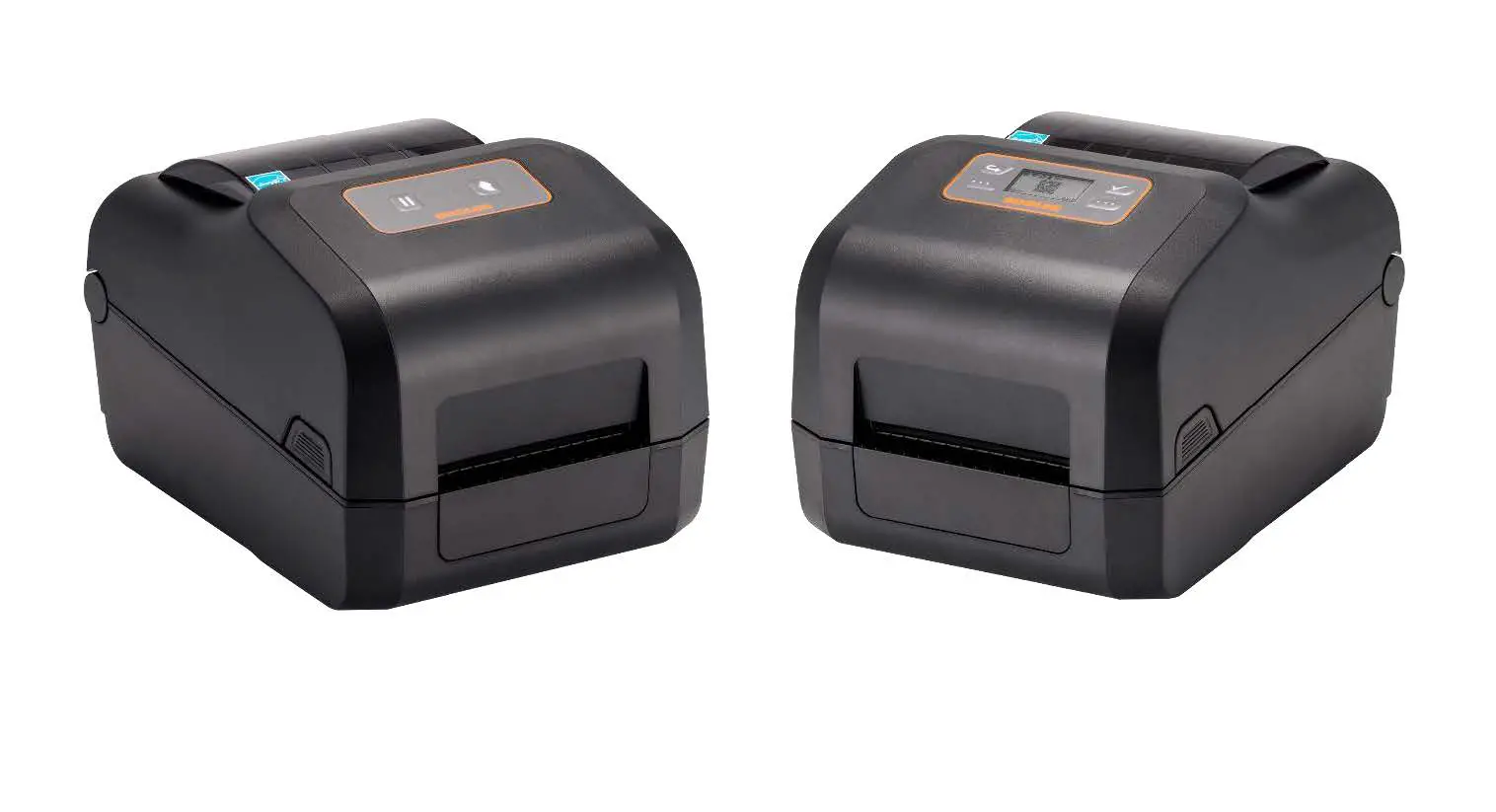
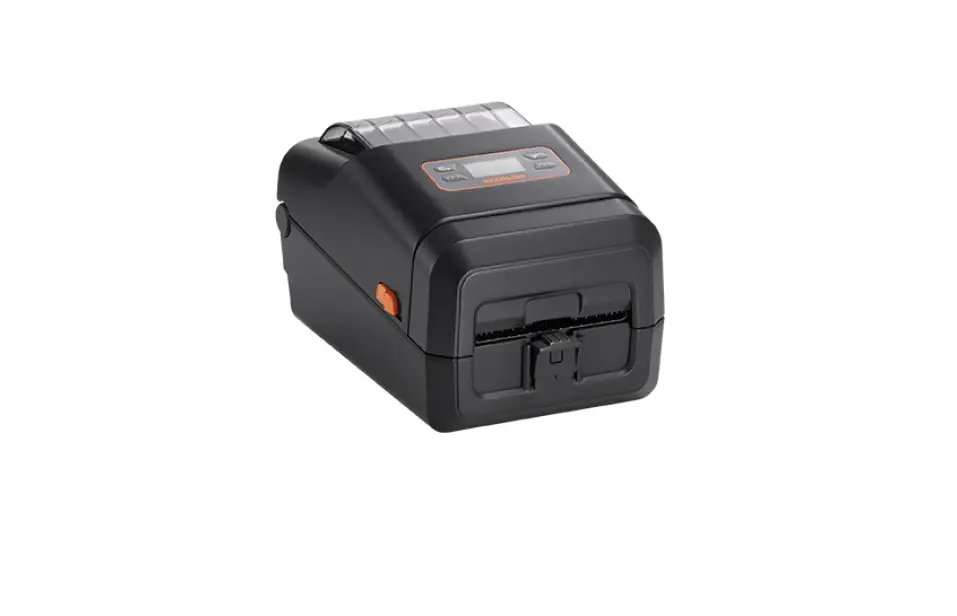
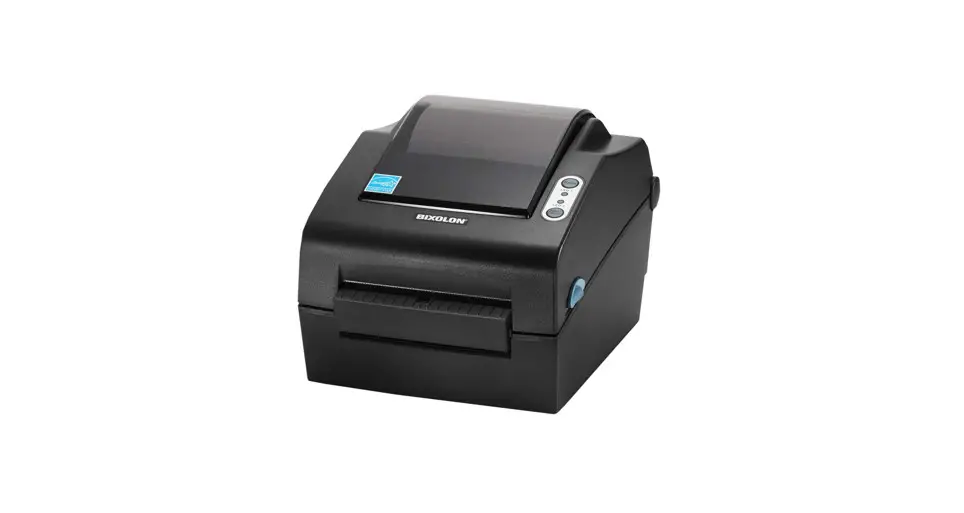
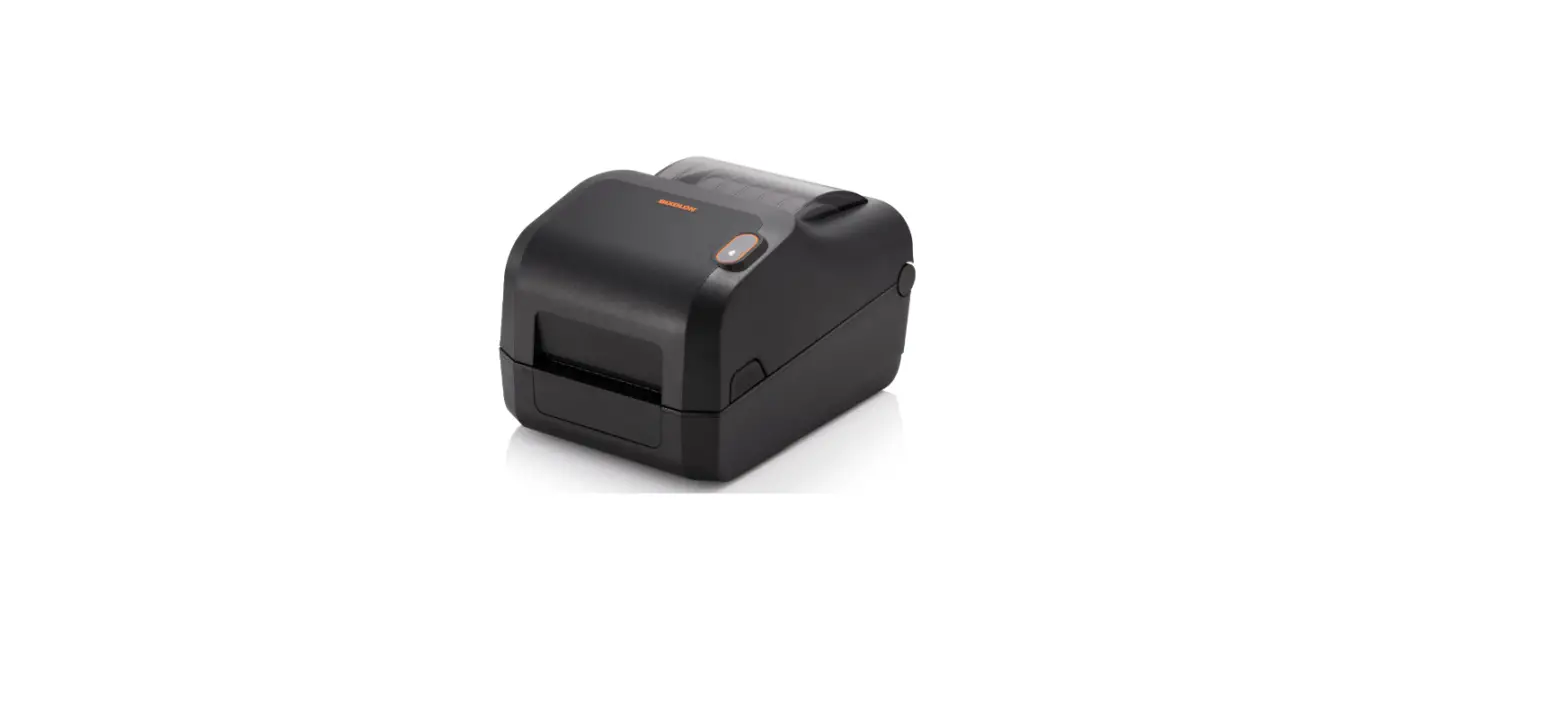
XD5-40t series printers have been designed to be connected to various types of electronic devices such as computer peripheral devices.
% The main features of the printer are as follows
- XD5-40t : Maximum 152mm/s(Max 6ips) printing speed XD5-43t : Maximum 102mm/s(Max 4ips) printing speed
- 4inch THERMAL TRANSFER LABEL PRINTER
- 211 x 285 x 188 (WxDxH)
- Support for multiple interfaces
– Standard(Wire): USB & USB HOST
– Option(Wire): USB & USB HOST & Serial & Ethernet
– Option(Wireless): Bluetooth, WLAN - Easy media loading
- Can print a range of barcodes
- Option : Peeler, Auto Cutter
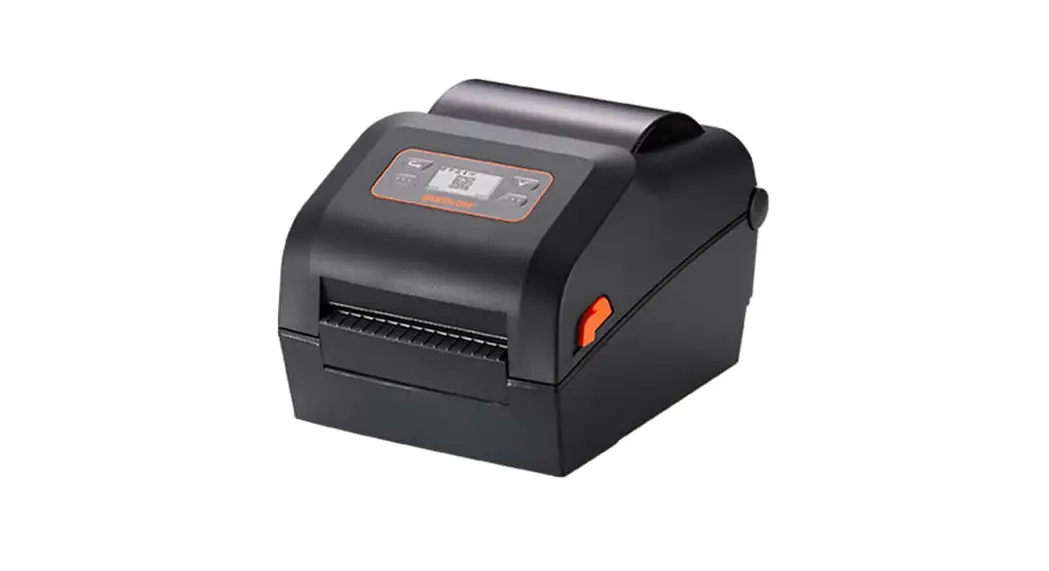
- Option : LCD
It is advisable to read the contents of this manual carefully before using the printer for the first time.
% Use only authorized supplies that can be trusted!
– We are not responsible for quality and service for damage caused by the use of unauthorized products (or recycled ones).
Safety Information
Warning: Warnings must be heeded carefully in order to prevent serious physical harm.
Caution: Cautions must be heeded in order to prevent minor injuries, equipment damage, or data loss.
Symbol Information
| DC (Direct current) |
| Warning, Caution |
| USB |
| Ethernet |



Manual Information
This user’s guide contains basic information for product usage as well as for emergency measures that may be required.
% The following separate manuals provide more detailed content on various technical issues and areas.
- Windows Driver Manual
This manual provides information on the installation instructions and main functions of the windows driver. - Unified Label Utility-I] Manual
This manual provides information on the usage of software for function selection of this product, operating condition modification, etc. - Programming(SLCS) Manual
This manual provides information on label printer commands. - True Font Downloader Manual
This manual provides information on the usage of the font downloader that can download true type fonts and facilitate their usage as device fonts. - Network Connection Manual
This manual provides information on the configuration and usage of the network interface. - Bluetooth Connection Manual
This manual provides information on connection instructions the Bluetooth interface. - Label Design Program Manual
This manual provides information on the usage of the Windows PC program that can make labels by adding text, graphics, or barcodes at desired positions.
Safety Precautions
In using the present appliance, please keep the following safety regulations in order to prevent any hazard or material damage.
 WARNING
Warnings must be heeded carefully in order to prevent serious physical harm.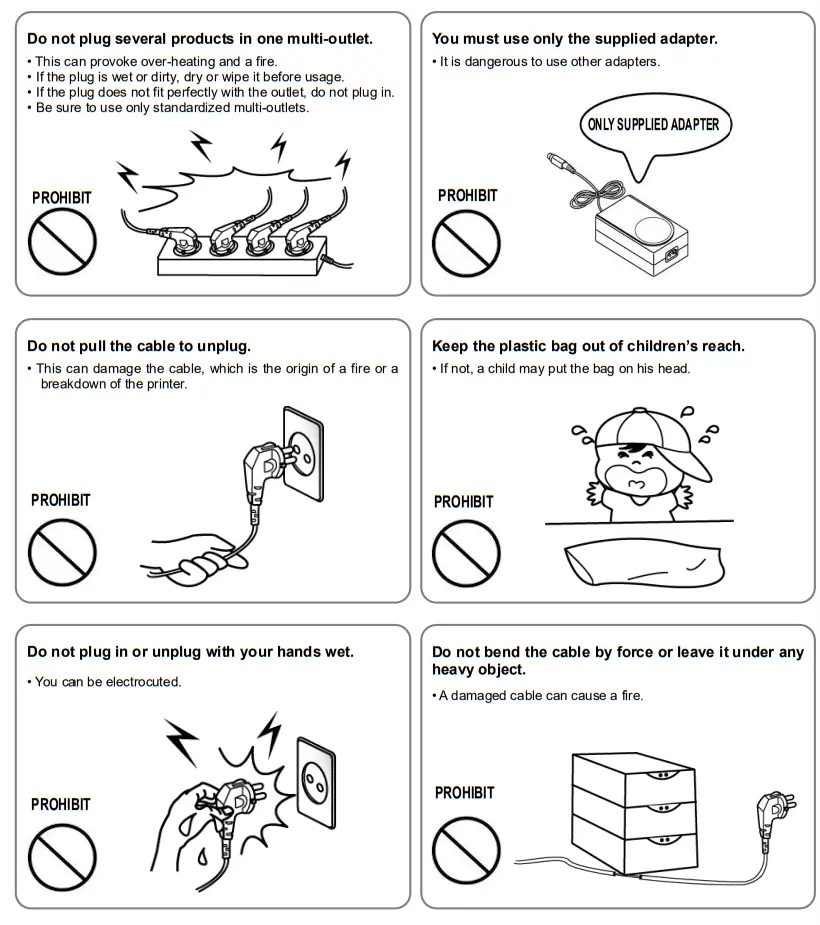
CAUTION
Cautions must be heeded in order to prevent minor injuries, equipment damage, or data loss.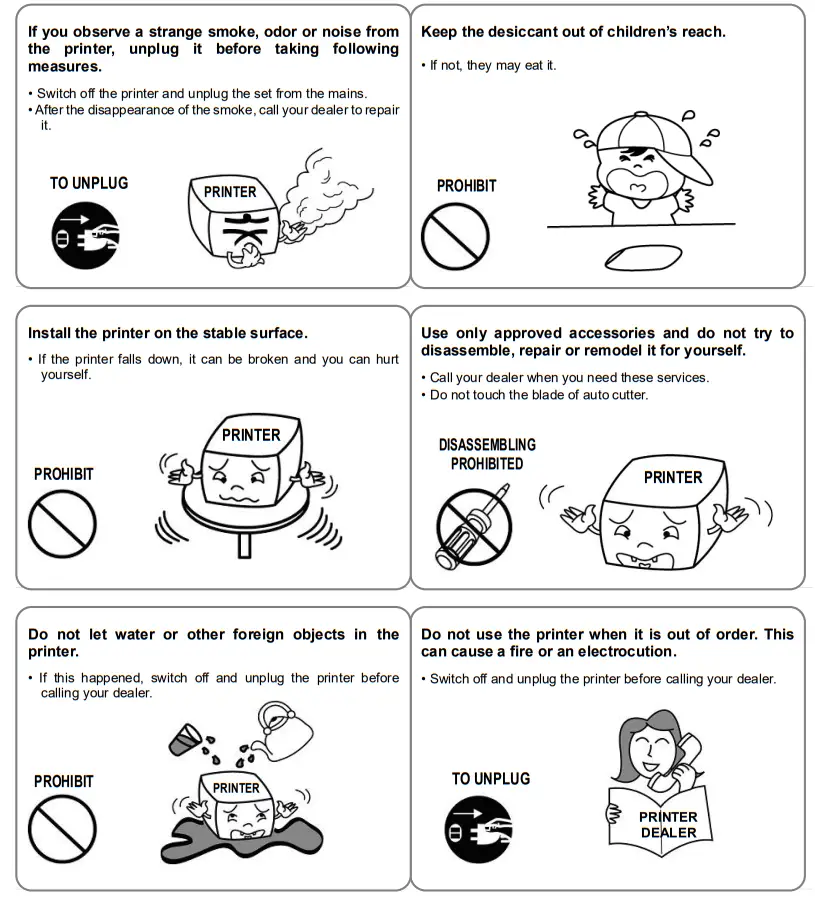
1. Content Confirmation
The following items should all be contained in the printer package.
Contact the dealer from which the purchase was made if any item is damaged or missing.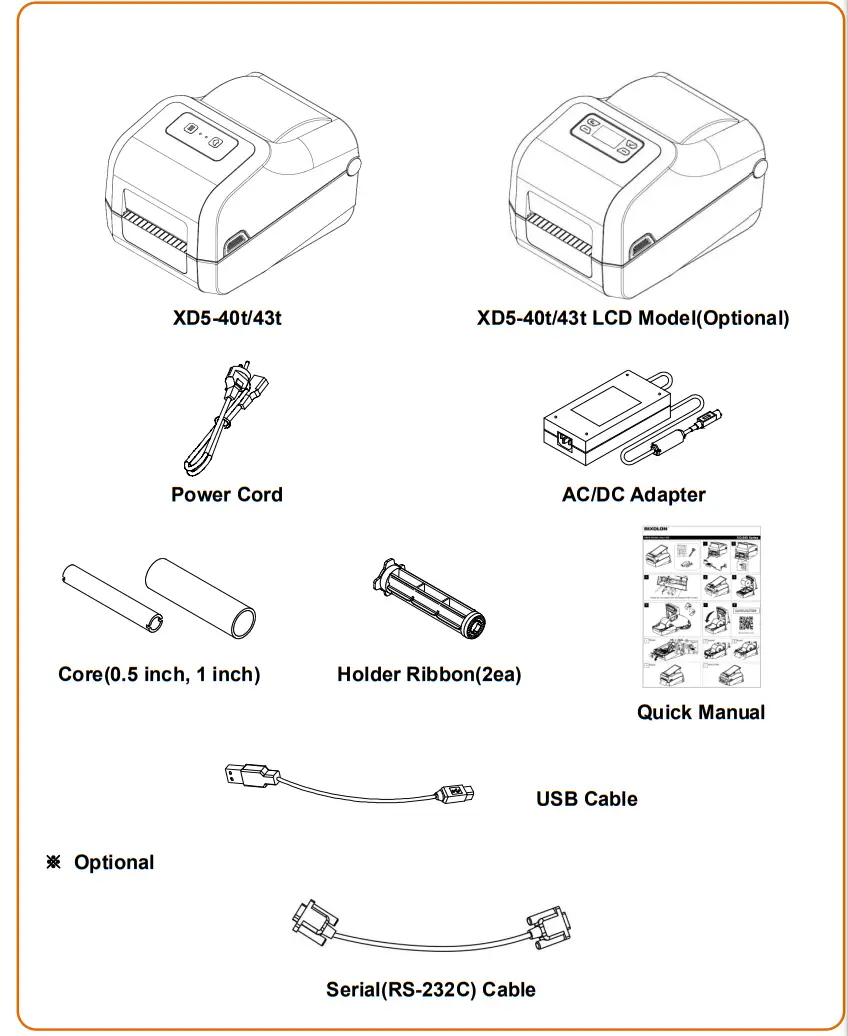
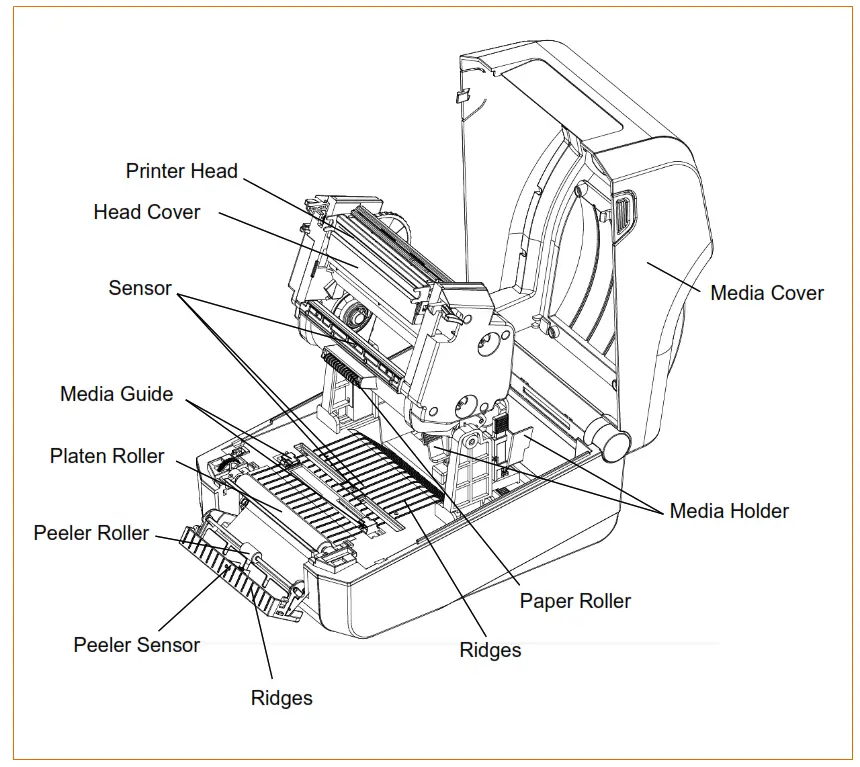
2. Product Part Names
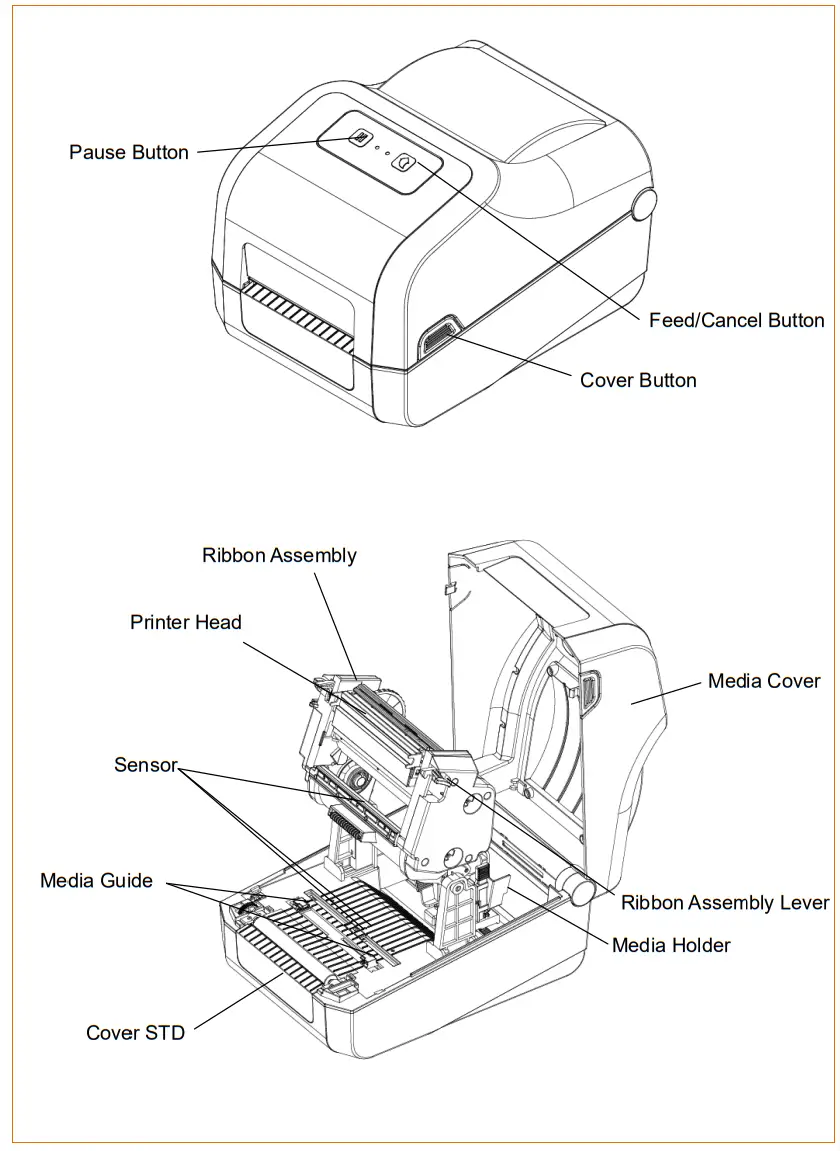 | 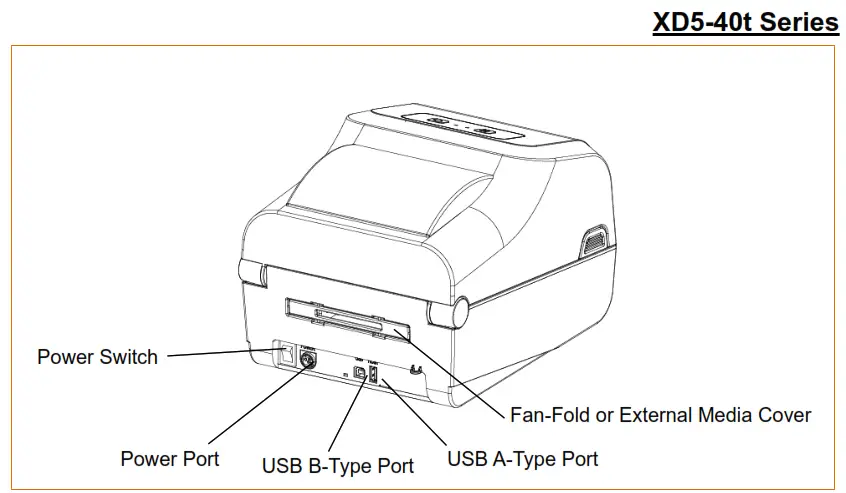 |
3-1 Printer Installation Placings
« Install the printer in a location that meets the following conditions.
– Allow sufficient space around the printer for proper ventilation.
– Install the printer on a flat and level surface.
– Avoid a humid environments.
3-2 Power Connection
* Connect power to the printer as shown below.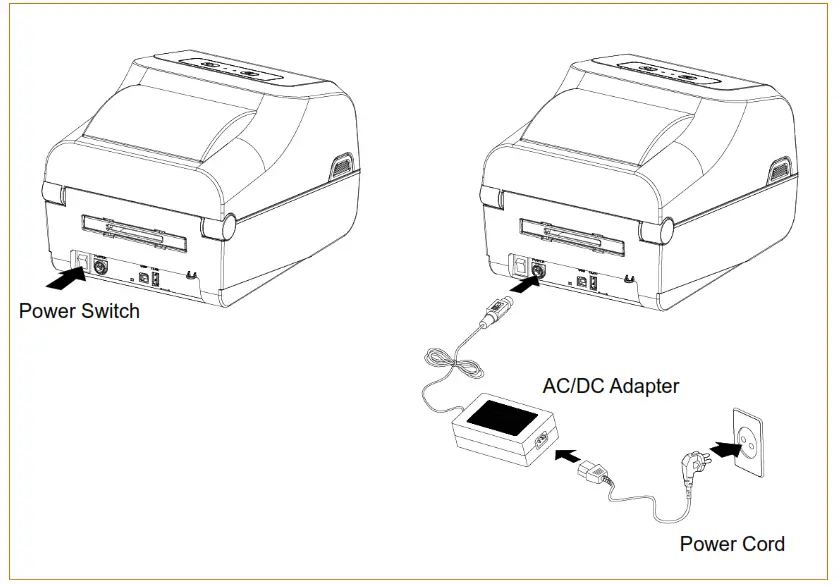
- Turn off the printer power switch.
- Check to see that the AC/DC adapter voltage matches that of the power source.
- Connect the AC/DC adapter jack to the printer power port.
- Connect the power cord to the AC/DC adapter.
- Connect the power cord to a power source/outlet.
| Caution | – Only use a power supply provided by BIXOLON. BIXOLON shall bear no responsibility for damage caused by using a third-party power supply. – Check the power supply’s label to check its electronic specs. – For the safety of people and equipment, please use the appropriate power cord for your country or region. – When removing the power supply, make sure you have a firm grasp of power connector and the printer, then pull horizontally. – Pay attention to the direction in which you insert the power cable. 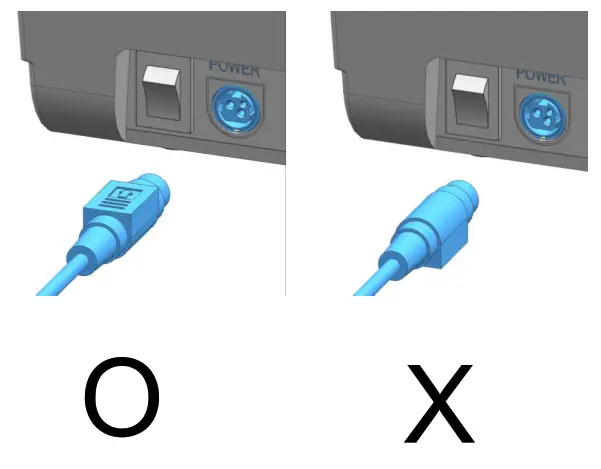 |
| Warning | – Be sure to turn off the printer before connecting the power connector to the printer. This can cause serious electrical damage and bodily injury. – Do not operate the printer and power supply in a humid environment. This can cause serious electrical damage and bodily injury. – Do not connect an input voltage beyond the specifications of the power supply. This may result in product damage and fire. |
3-3Interface
|
| Shielded cables must be used to prevent radiation and reception of electrical noise. Use the shortest possible communication cable to minimize the detection of electrical noise in the cable. – Serial(RS-232C) Cable (1.8m or less recommended) – USB B-Type Cable (1.8m or less recommended) – LAN(Ethernet) Cable (3m or less, CAT-5 or higher UTP Cable) |
| Caution | – Connecting unshielded communication cables is in violation of EMC standards. Use the cable approved by us. – Do not bundle the communication cable with objects that may cause electrical noise and interference. The printer may be damaged. – Be aware that the product’s electronic components may be damaged due to discharging of electrostatic energy that accumulates on the surface of the body or other objects. |
| Warning | After turning off the power switch of the printer, connect and disconnect the communication cable. This can cause serious electrical damage and bodily injury. |
3-3-1 Standard Interface (USB & USB HOST)
Connect the interface cable as shown below.
This printer(standard) supports the following interfaces.
– USB B-Type Cable
– USB A-Type (storage)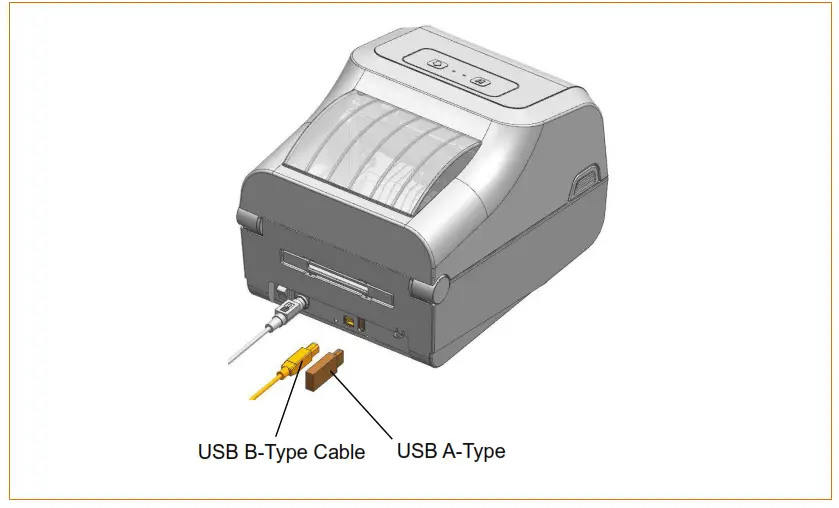
- Turn off the power switch.
- Connect the communication cable to the printer communication port to be used.
– Connect USB B-Type cable to the USB port.
Be aware that the product’s electronic components may be damaged - Caution due to discharging of electrostatic energy that accumulates on the surface of the body or other objects.
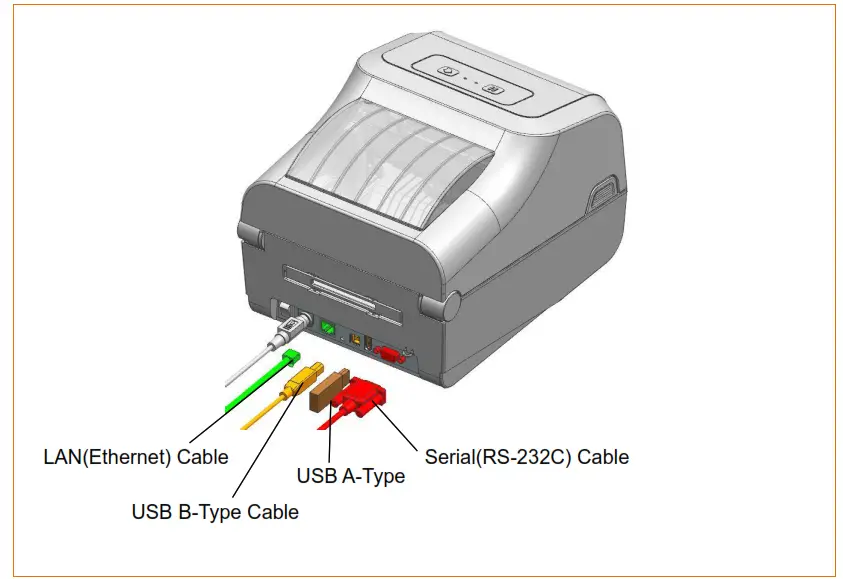
33-2 Optional Interface (USB & USB HOST & Serial & Ethernet)
Connect the interface cable as shown below.
This printer(optional) supports the following interfaces.
– Serial(RS-232C) Cable
– LAN(Ethernet} Cable
– USB B-Type Cable
– USB A-Type (storage)
1.Turn off the power switch. - Connect the communication cable to the printer communication port to be used.
– Connect the serial(RS-232C} cable to the serial port and tighten the screw on both sides.
– Connect the LAN(Ethernet) cable to the Ethernet port.
– Connect USB B-Type cable to the USB port. Caution Be aware that the product’s electronic components may be damaged due to discharging of electrostatic energy that accumulates on the surface of the body or other objects.
3-4 Media Installation
- Open the media cover as push the media cover.

- Spread the media holder and insert the cover button on both sides of the media as shown.

- Pull the ribbon assembly lever on both sides of the ribbon assembly and open the ribbon assembly.

- Pull the media out to the front of the printer.
Adjust the media guides to the width of the media.
* Whether the media is rolled outside or inside, the printing side must be faced up.
- If you use a black mark or notch media roll, please lift up the media and match the sensor position to the black mark or notch.

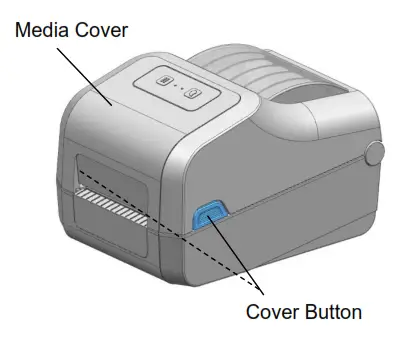
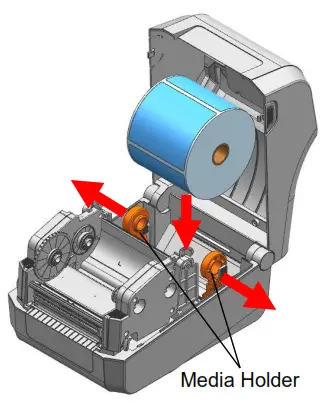
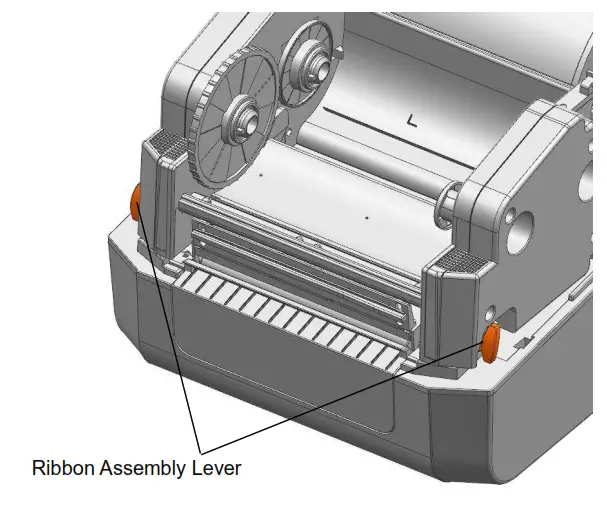
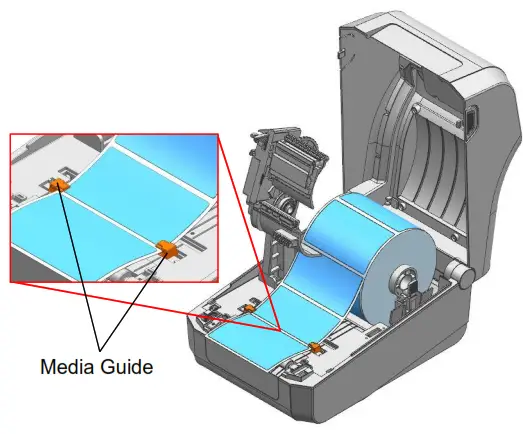
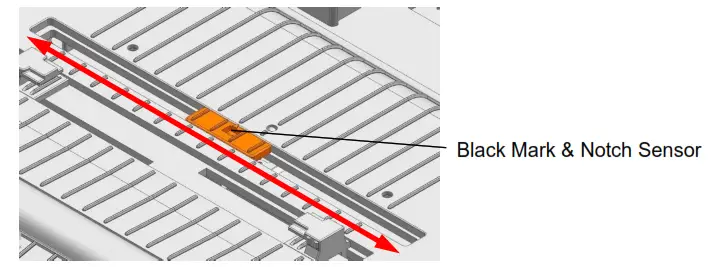
Caution The printer may be damaged.
When opening or closing the cover, be careful not to pinch your fingers.
– Do not open the print head levers while the printer is printing.
– Change the media when the printer is not receiving data, or data may be lost. WarinigThe print head gets extremely hot while printing or after the Warming printing, this can cause serious burns.
Do not touch the print head.
3-5 Ribbon Installation
3-5-1 Type of Ribbon
- Type by Film Coating Location
– This printer supports ribbons facing outward only. Note Follow the procedure described below to determine the coating surface of the ribbon.
* Ribbon test using an adhesive material
– Perform a contact test in order to determine which side is coated if there are useable labels.
* Complete the following steps to carry out the contact test
– Remove the liner from the label
– Put a piece of the adhesive surface of the label on the outer/inner surface of the ribbon, and apply pressure.
– Remove the label from the ribbon
– Check whether the adhesive surface of the label is stained by black ink ribbon. - Type by Roll Core
– This printer can be used to 1-inch or 0.5-inch core ribbons.
– For a 1-inch core, a roll core must be used.
– The holder ribbon and roll core of the fully used ribbon must be reused. Do not discard.
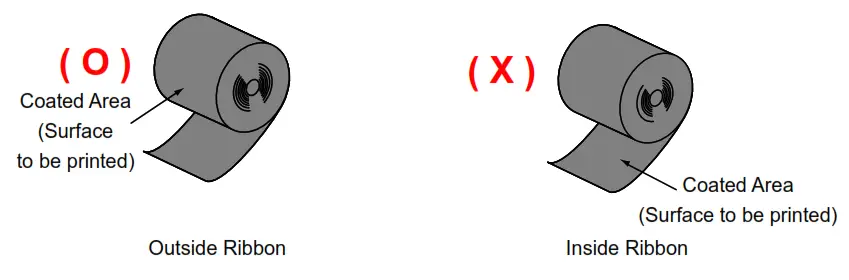 Note Follow the procedure described below to determine the coating surface of the ribbon.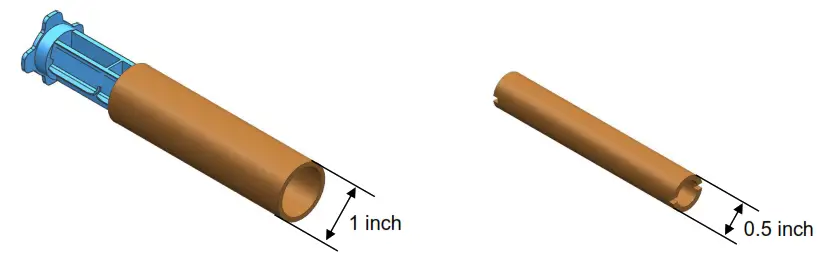
3-5-2 Inserting a 1 Inch Core Ribbon
- Insert the Holder Ribbon into the core and ribbon. (keep note of ribbon printing direction)

- Open the ribbon assembly and insert

- Apply tape to the core of the ribbon. the ribbon and core by pushing to the right.

- Close the ribbon assembly.
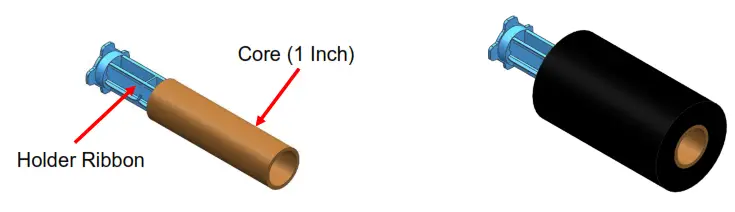
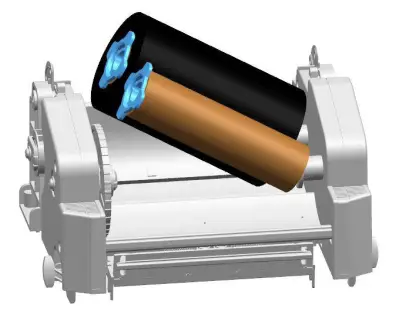
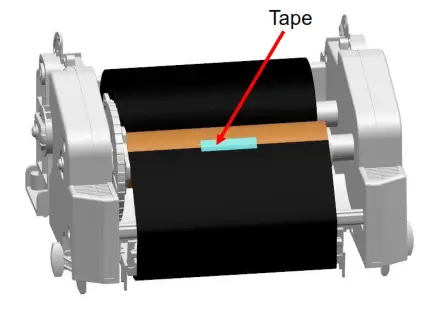
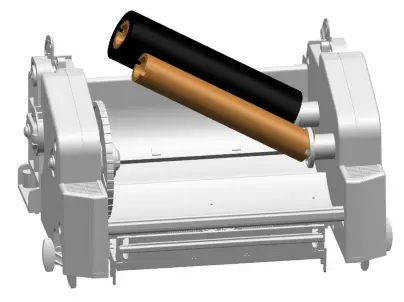
3-5-3 Inserting a 0.5 Inch Core Ribbon
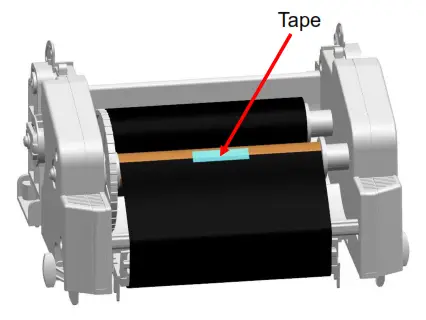
- Open the ribbon assembly and insert the ribbon and core by pushing to the right. (keep the attention of ribbon printing direction)

- Apply tape to the core of the ribbon.
3-5-4 Knob Adjust Method According to Ribbon Type
Use printer after adjusting knob correctly, according to ribbon length and width.
PUSH-UP state of knob to which being inward is the factory default specification and you can push or pull the knob.
Please note that push or pull operation affects print quality and operation.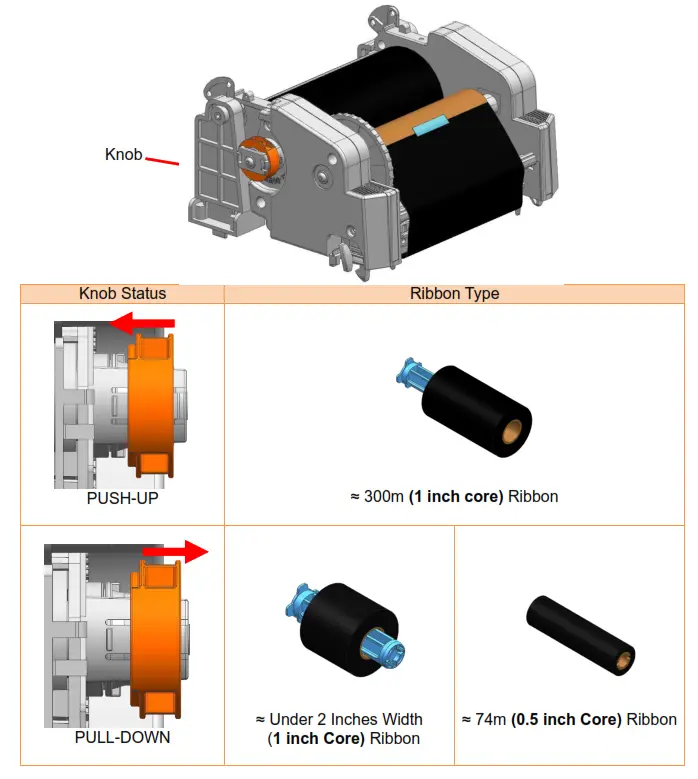 3-5-5 Narrow Ribbon Installation
When using ribbons of widths of 110mm or lower, install in a centered position on the holder ribbon.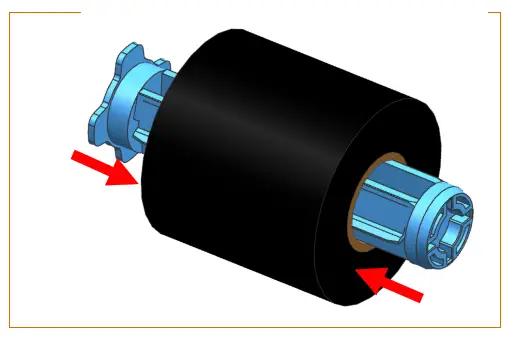 35-6 Ribbon Removal
- Cut the ribbon.
- Open the ribbon assembly and remove the ribbon and core by pushing to the right.
- Remove the holder ribbon from the ribbon and core.

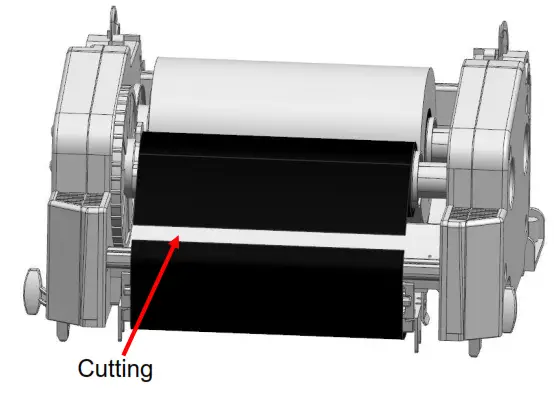
3-5-7 Ribbon Sensor Activation
Check the settings related to the ribbon detection sensor if printing does not stop when the printer is out of ribbon or the ribbon is broken.
* Ribbon detection sensor can be enabled by command control. And default setting can be changed by Unified Label Utility-II.
– Caution discard as its use is required.
When replacing a ribbon, keep affixed the core of the fully used ribbon to the ribbon coiling portion on the other side and do not discard as it use is required.
– As the ribbon holder is required for continuous use, make sure not to misplace it.
3-6 How to Use the Ribbon Guide
Wrinkles can be improved by adjusting on the ribbon guides.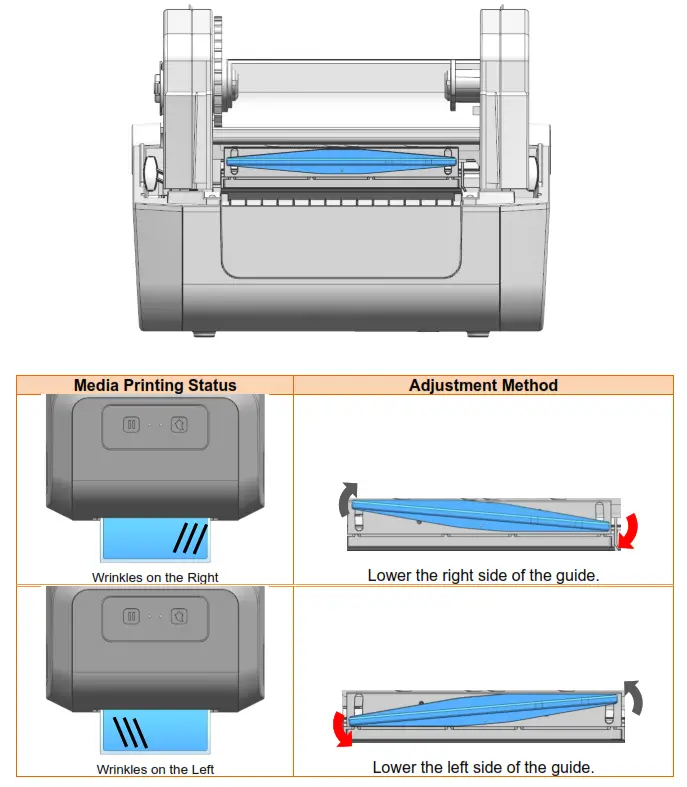
Caution A . Do not adjust ribbon guide while the printer is printing.
The printer may be damaged.
3-7 Button & LED (Standard Model)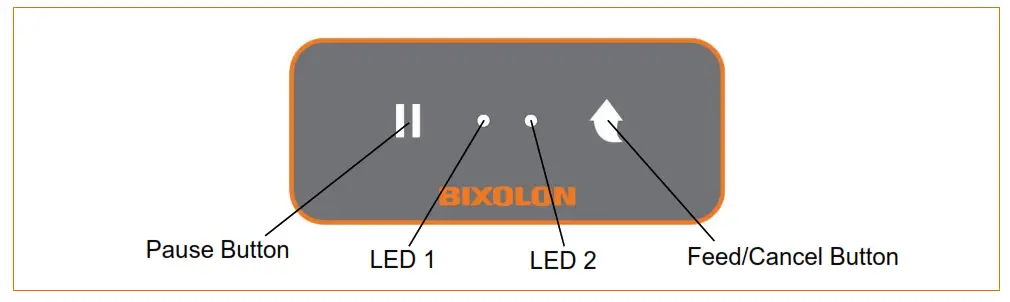 3-7-1 Button Operations
| Printer state before operation | Button | Operation procedure | Printer operation mode | |
| Feed/ Cancel | Pause | |||
| Power OFF | Press | – | Apply power while pressing the button (Hold the button until the printer starts self-test printing) | Self-test Printing Mode. |
| Print Standby | Press | – | Press the button | Feed Mode |
| Print Standby | – | Press | Press the button for two seconds | Stand-alone Configuration Mode |
| During Printing | – | Press | Press the button for two Seconds | Print Pause Mode |
| During Printing | Press | – | Press the button for two Seconds | Print Cancel Mode |
| Print Pause Mode | Press | – | Press the button | Print Cancel Mode |
3-7–2LED Indicator For Various Printer Statuses
| LED 1 | LED 2 | Printer Operation Status | |||
| Color | Status | Color | Color | ||
| Green | On | Green | On | Print Ready Mode | Ready Mode |
| Green | On | Red | Blink | Print Cancel Mode | Wait For Button Input |
| Green | Blink | Red | On | Print Is Paused Temporarily | Wait For Button Input |
| Green | Blink | Green | Blink | Print Standby Mode | Wait For Button Input |
| Orange | On | Orange | On | Mode Switching | Mode Switching Notification |
| Red | On | Orange | On | Error Mode | Media Jam (gap/black mark is not recognized) |
| Red | On | Green | Blink | Error Mode | Printer Head Overheating |
| Red | On | Orange | Blink | Error Mode | No Media |
| Red | On | Red | Blink | Error Mode | Media Cover Open |
| Red | On | – | Off | Error Mode | Media Calibration Failure |
| Red | Blink | Red | Blink | Error Mode | Auto-Cutter Error |
3-8 Button & LCD (LCD Model)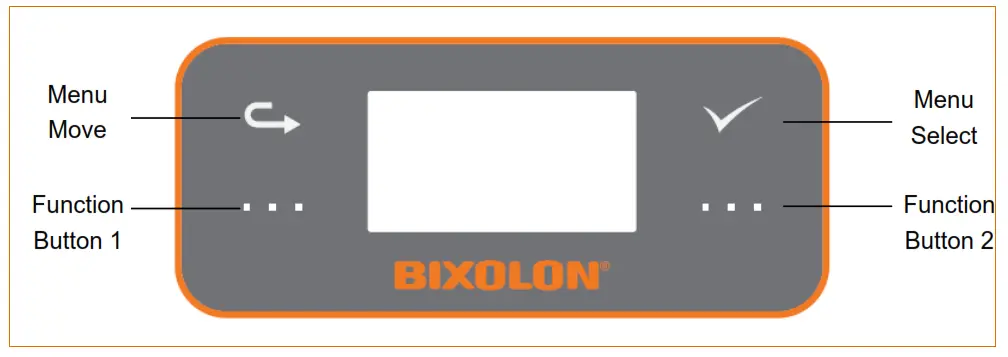
3-8-1 Button Operation
| Printer state before operation | Button | Explanation |
| Print Ready |  Menu Move Menu Move | Move to the next menu (The menu moves from the top left to the bottom right) |
| Print Ready |  Menu Select Menu Select | Select menu or change value |
| In Menu or Print Ready |  Function Button 1 Function Button 1 | Pause , Print, Save, Main screen display |
| In Menu or Print Ready |  Function Button 2 Function Button 2 | Feed, Cancel, Previous screen display |
3-8-2 Interface Status Icon
User can check the status and setting information through the LCD.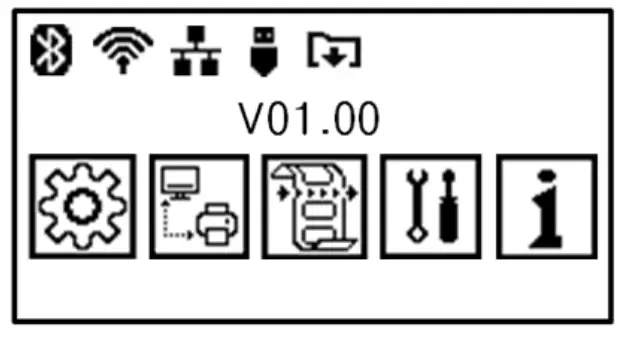
Icon | Explanation |
 | Bluetooth is not connected to the host |
 | Bluetooth is connected to the host |
 | Authentication is failed |
 | Not connected to AP |
 | Connected to AP, Strength: 4 |
 | Connected to AP, Strength: 3 |
 | Connected to AP, Strength: 2 |
 | Connected to AP, Strength: 1 |
 | Ethernet is connected |
 | USB storage is connected |
 | Receiving data, Printing |
3-8-3 Menu Composition
Setting | Sub menu |
 | Width (Print Width) |
| Length (Print Length) | |
| Direct (Print Direction) | |
| Speed (Print Speed) | |
| Density (Print Density) | |
| Method (Print Method) | |
| Type (Media Type) | |
| Tear off (Tear Off) | |
| Offset (Print Offset) | |
| Mode (Print Mode) | |
| Pwr act (Power Up Action) | |
| Head cls (Print Head Close) |
| Interface | Sub menu | |||
 | Serial | Baud Rate | ||
| Data Bit | ||||
| Parity | ||||
| Stop Bit | ||||
| Handshk (Host Handshake) | ||||
| Ethernet | IP Protocol | |||
| IP Address | ||||
| Subnet Mask | ||||
| Gateway | ||||
| MAC Address | ||||
| WLAN | Channel | |||
| Network | ||||
| ESSID (AP ID) | ||||
| Auth (Authentication) | ||||
| Encrypt (Encryption) | ||||
| WEP Password | ||||
| PSK Password | ||||
| IP Protocol | ||||
| IP address | ||||
| Subnet Mask | ||||
| Gateway | ||||
| Smart Connect Act (Smart Connect Active) | ||||
| Bluetooth | Device Name | |||
| Pairing | Pincode | |||
| SSP (Secure Simple Pairing) | ||||
| MAC Address | ||||
| Mode | BLE (Bluetooth Low Energy) | |||
| STD (Standard Mode) | Connect Mode | |||
| Auth&Enc (Authentication & Encryption) | ||||
Sensor | Sub menu |
 | Gap Cal (Gap Calibration) |
| Black Mark Cal (Black Mark Calibration) |
Tools | Sub menu | ||
 | Self prt (Self-Test) | ||
| Reset (Factory Reset) | |||
| Dump (Data Dump Mode) | |||
| Head Chk (Printer Head Check) | |||
| USB Num (USB Serial Number) | |||
| Demo prt (Demo Print) | |||
| Files | Saved (Saved File) | Template | |
| Image | |||
| Fonts (Download Fonts) | |||
| E Drive (Flash Memory) | |||
| A Drive (USB Storage) | |||
| Twin (Twin Function) | PRT Set (Printer Setting) | ||
| Template | |||
| Image | |||
| Fonts (Download Fonts) | |||
| F/W Update | |||
Information | Sub menu |
 | Info (Printer Info) |
| Support |
3-8-4 setting Menu explanation
| Menu | Explanation |
| Width (Print Width) | Explanation Setting media width[dots] Function to adjust image buffer size according to print width Default Value – 203dpi : 864 dots (108mm) – 300dpi : 1,248 dots (105.7mm) Maximum Value – 203dpi : 864 dots (108mm) – 300dpi : 1,248 dots (105.7mm) |
| Length (Print Length) | Explanation Setting media length[dots] Function to adjust image buffer size according to print length Default Value 203dpi : 1,225 dots (153mm) 300dpi : 1,811 dots (153mm) Maximum Value – 203dpi : 8,000 dots (1,000mm) – 300dpi : 11,820 dots (1,000mm) |
| Direct (Print Direction) | Explanation Setting print direction Top to bottom: Printing from top to bottom Bottom to Top: Printing from bottom to top Default Value Bottom to Top Variable Value Bottom to Top, Top to Bottom Printing Direction 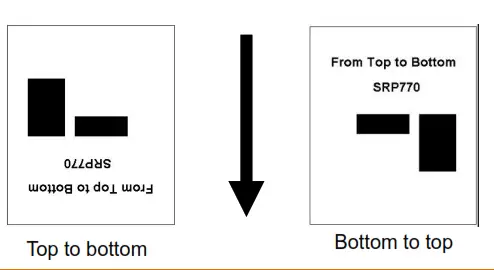 |
| Speed (Print Speed) | Explanation Setting print speed[ips] Default Value 203dpi : 5ips 300dpi : 3ips Variable Value – 203dpi : 3~6ips – 300dpi : 2~4ips |
| Density (Print Density) | Explanation Setting print density Default Value 203dpi : 20 300dpi : 20 Variable Value 0~30 |
| Method (Print Method) | Explanation Setting print method Default Value Trans(Thermal Transfer) Variable Value Direct (Direct Thermal), Trans(Thermal Transfer) |
| Type (Media Type) | Explanation Setting media type Default Value Gap Variable Value – Gap – Black Mark – Continuous |
| Tear off | Explanation Setting media position[dots] for tear off after printing or feed Default Value Variable Value -100 ~ 100 |
| Offset (Print Offset) | Explanation Setting top print position[dots] Default Value Variable Value-100 ~ 100 |
| Mode (Print Mode) | Explanation Setting print mode suitable to the printer option Default Value 0 Tear off Variable Value Tear off, Cutter |
| Pwr act (Power Up Action) | Explanation Setting the action for the printer after the power-up sequence. Default Value NO FEED Variable Value NO FEED, FEED, CAL LENGTH (Media Calibration), LABEL LENGTH (Setting Media Length) |
| Head cls (Print Head Close) | Explanation Setting the action for the printer when you close the printer cover. Default Value 0 STANDBY Variable Value STANDBY, NO FEED, FEED, CAL LENGTH (Media Calibration), LABEL LENGTH (Setting Media Length) |
3-8-5 Interface Menu Explanation
3-7-5-1 Serial
| List | Explanation |
| Baud Rate | Explanation Setting the baud rate Default Value 115200 Variable Value 9600, 19200, 38400, 57600, 115200 |
| Data Bit | Explanation Setting the data bit Default Value 8 Variable Value 7, 8 |
| Parity | Explanation Setting the parity Default Value None Variable Value Even, Odd, None |
| Stop Bit | Explanation Setting the stop bit Default Value 1BIT Variable Value 1BIT, 2BIT |
| Handshake (Handshake) | Explanation Setting the handshake Default Value RTS_CTS Variable Value RTS_CTS, DTR_DSR, XON_XOFF |
3-8-5-2 Ethernet
| List | Explanation |
| IP Protocol | Explanation Setting IP assignment method Default Value DHCP Variable Value DHCP, Static IP |
| IP Address | Explanation Setting IP Address method Default Value Static IP: 192.168.192.123 DHCP: 0.0.0.0 Variable Value 0 ~ 255 |
| Subnet Mask | Explanation Setting subnet mask Default Value Static IP: 255.255.255.0 DHCP: 0.0.0.0 Variable Value 0 ~ 255 |
| Gateway | Explanation Setting gateway Default Value Static IP: 192.168.192.254 DHCP: 0.0.0.0 Variable Value 0 ~ 255 |
| MAC Address | Explanation Indicating MAC address |
3-8-5-3WLAN
| List | Explanation |
| Channel | Explanation Setting channel when creating Adhoc network Default Value 6 Variable Value 1 ~ 14 |
| Network | Explanation Setting WLAN operation mode Default Value SoftAP Variable Value SoftAP, Infra(Infra structure), Adhoc, P2P |
| ESSID (AP ID) | Explanation Setting the ID of AP to be accessed |
| Auth (Authentication) | Explanation Setting WLAN authentication method Default Value Open Variable Value Open, Shared Key, WPA1PSK, WPA2PSK, WPA1EAP, WPA2EAP |
| Encrypt (Encryption) | Explanation Setting WLAN encryption method Default Value None Variable Value None, WEP64/128, TKIP, AES, AES+TKIP |
| WEP Password | Explanation Setting WEP password |
| PSK Password | Explanation Setting PSK password |
| IP Protocol | Explanation Setting IP assignment method Default Value DHCP Variable Value DHCP, Static IP |
| IP address | Explanation Setting IP address Default Value Static IP: 192.168.1.1 DHCP: 0.0.0.0 Variable Value 0 ~ 255 |
| Subnet Mask | Explanation Setting subnet mask Default Value Static IP: 255.255.255.0 DHCP: 0.0.0.0 Variable Value 0 ~ 255 |
| Gateway | Explanation Setting gateway Default Value Static IP: 192.168.1.254 DHCP: 0.0.0.0| Variable Value 0 ~ 255 |
| Smart Connect Act (Smart Connect Activate) | Explanation After searching a Smart Connection Act Enabled printer with the smart phone app, enable or disable the function synchronizing Wi- Fi login information connected to the smartphone. Default Value Disable Variable Value Disable, Enable |
3-8-5-4Bluetooth
| List | Explanation | ||
| Device Name | Explanation Name of Device | ||
| Pairing | Pincode | Explanation Changes required pin code to connect | |
| Explanation Secure simple pairing | |||
| SSP (Secure simple pairing) | Default Value Disable | ||
| Variable Value Disable, Just Works, Numeric Comparison, Passkey Entry | |||
MAC Address | Explanation Bluetooth device MAC address | ||
| Mode | BLE (Bluetooth Low Energy) | Explanation Bluetooth Low Energy | |
| Default Value Disable | |||
| Variable Value Disable, Enable | |||
| Explanation Setting Bluetooth connection mode | |||
| STD (Standard Mode) | Connect Mode | Default Value Mode2 | |
| Variable Value Mode1, Mode2, Mode3 | |||
| Explanation Setting Bluetooth authentication and encryption function | |||
| Auth&Enc (Authentication &Encryption) | Default Value Enable | ||
| Variable Value Enable, Disable | |||
3-8-6 Sensor Menu Explanation
| List | Explanation |
| Gap Cal (Gap Calibration) | Explanation Detect media gap automatically. |
| Black Mark Cal (Black Mark Calibration) | Explanation Detect media black mark automatically. |
3-8-7 Tools Menu Explanation
| List | Explanation | ||
| Self prt (Print Self-Test) | Explanation Prints for self-test | ||
| Reset (Factory Reset) | Explanation Initializes the printer settings to factory default | ||
| Dump (Data Dump Mode) | Explanation The received data check when the printer does not work properly. Default Value Disable Variable Value Disable, Enable | ||
| Head Chk (Print Head Check) | Explanation Dot-out check of head through printing | ||
| USB Num (USB Serial Number) | Explanation Checks USB serial number | ||
| Demo prt (Demo Print) | Explanation Demo format printing function | ||
| Files | Saved (Saved File) | Template | Refer 3-6-7-1 Saved File |
| Image | |||
| Fonts (Download Fonts) | |||
| E Drive (Flash Memory) | |||
| A Drive (USB Storage) | |||
| Twin (Twin Function) | PRT Set (Printer Setting) | Refer 3-6-7-2 Twin Function | |
| Template | |||
| Image | |||
| Fonts (Download Fonts) | |||
| F/W Update | Refer 3-6-7-3 F/W Update | ||
3-8-7-1 Saved File
Displays the list of object files stored in the printer.
| List | Explanation |
| Template | Template list stored in the printer |
| Image | Image list stored in the printer (*.pcx) |
| Fonts (Download Fonts) | Download font list stored in the printer |
| E Drive (Flash memory) | Saved object files in E drive |
| A Drive (USB memory) | Saved object files in A drive |
3-8-7-2 Twin Function
Saves the current printer settings, save files (templates, images, download fonts) to another printer using USB, or loads the settings of another printer.
| List | Explanation |
| PRT Set (Printer Setting) | Explanation Save printer settings to a USB storage device, or load the print settings from USB storage. loading is completed, USB loading completion(Load Ok) message is displayed. – Check the changes of the printer’s settings. |
| Template | Explanation Save template files to a USB storage device, or load the templates from USB storage. |
| Image | Explanation Save image files to a USB storage device, or load the images from USB storage (*.pcx) File path F:\ USER_AREA_PCXImages • Save Function Explanation – Connect a USB storage to the printer. – Select Save on the menu using the move button( ) and select button( ).– Image files are stored in the USER_AREA_PCXImages folder of USB storage device. (USER_AREA_PCXImages folder is automatically created) • Load Function Explanation – Check whether the image files exist in the USER_AREA_PCXImages folder of the USB storage device. – Connect the USB storage to the printer. – Select Load on the menu using the move button( ) and select button ).– Loading message(Loading…) is displayed while loading, and when loading is completed, USB loading completion(Load Ok) message is displayed. – Go to Save File menu then, check the image files are saved to the printer. |
| Fonts (Download Fonts) | Explanation Save download font files to a USB storage device, or load the download font from USB storage. |
3-8-7-3 F/W Update
Firmware can be updated through USB storage.
| F/W Update | Explanation Printer firmware update available using the USB storage directly without any communication. File path F:\ FW_DOWNLOAD File name “XD5-4xt_Vxx.xx_STD_mmddyy.fls” in F:\ FW_ DOWNLOAD folder. • Download process explanation – Check firmware file(*.fls) is in FW_ DOWNLOAD folder of USB storage. – Connect USB storage to the printer. – Select “F/W Update” from the “Files” menu. – Select “Start” from the “F/W Update” menu using the function button 1 ( ).– If the message “F/W Update” is displayed, the firmware download has started normally. – After firmware update is completed successfully, the printer will be rebooted automatically. |
3-8-8 Information Menu Explanation
| List | Explanation |
| Info | Explanation Checking the printer usage information |
| Support | Explanation Site linking(QR code) for technical support. |
Self-test
- This function is supported on the standard model(without LCD) only. The self-test checks whether the printer has any problems. The self-test checks the following;
1) Make sure that the media has been installed properly.
2) Turn on the power while holding down the Feed/Cancel button( The self-test begins. (It takes about 10 seconds before starting the self-test)
3) The self-test prints the current printer configuration information.
4) After the self-test results are printed, a printer enters into print-ready mode.Caution If the printer does not function properly, contact an authorized dealer.
 The self-test begins. (It takes about 10 seconds before starting the self-test)
Detailed Features
5-1 Stand-alone Configuration Mode
- This function is supported on the standard model(without LCD) only.
5-1-1 Start Stand-alone Configuration Mode and execute each function
1) The Pause button( ) is pressed for two seconds while in Print Ready Mode.
2) Both LEDs will change to orange color, then release the Pause button(a) The printer will be set to Stand-alone configuration mode.
3) When the printer enters into this mode, the status of LED 1 and LED 2 are changed sequentially.
4) When the Feed/Cancel button() is pressed at a specific LED color combination, the corresponding printer operation will be executed.
 ) is pressed for two seconds while in Print Ready Mode.
5-1-2 Function List Of Stand-alone Configuration Mode
| Sequence Number | LED 1 | LED 2 | Printer Operation | ||
| Color | Status | Color | Status | ||
| 1 | Green | On | Green | Blink4 times | Self Test |
| 2 | Orange | Blink4 times | Print File List | ||
| 3 | Red | Blink4 times | Factory Reset | ||
| 4 | Orange | On | Green | Blink4 times | Gap Calibration |
| 5 | Orange | Blink4 times | Black Mark Calibration | ||
| 6 | Red | Blink4 times | Data Dump Mode | ||
| 7 | Red | On | Green | Blink4 times | Demo Mode |
| 8 | Orange | Blink4 times | Reserved | ||
| 9 | Red | Blink4 times | Delete Downloaded Items | ||
* This information can be printed out by printer self-test. Caution Contact the customer center if the printer does not enter stand-alone configuration mode.
5-2 Pause/Cancel
- During multiple-page print jobs, the Pause([), Feed/Cancel button(, Function button 1(
 ) and Function button 2(
 ) can be used to pause printing and cancel the print job altogether, respectively.
5-2-1 Pause/Resume Function
- Standard Model
 1) When printing, press the Pause button ()
2) The printer will pause after finishing the current media printing and the status of LED will be as follows.
– LED 1: Green Blink
– LED 2: Red On
3) While the print job is paused, press the Pause button again to resume printing. - LCD Model
 1) When printing, press the Function button1
2) The printer will pause after finishing the current media printing and the status of LCD will be as follows.
– LCD Display: PAUSE While the print job is paused, press the Function button, again to resume printing.
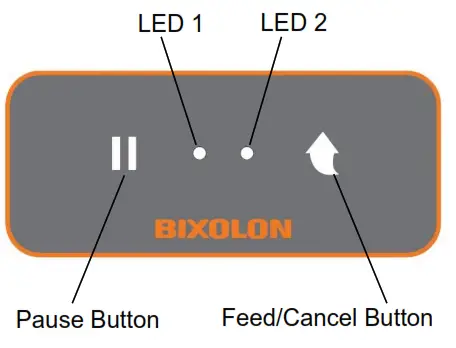 1) When printing, press the Pause button (
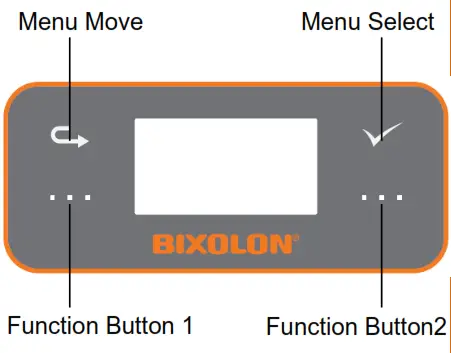 1) When printing, press the Function button1
5-2-2 Print Cancellation
The following processes occur in the print cancellation mode.
– All label printing cancelled
– All data received in the printer communications buffer deleted.
– All received data deleted.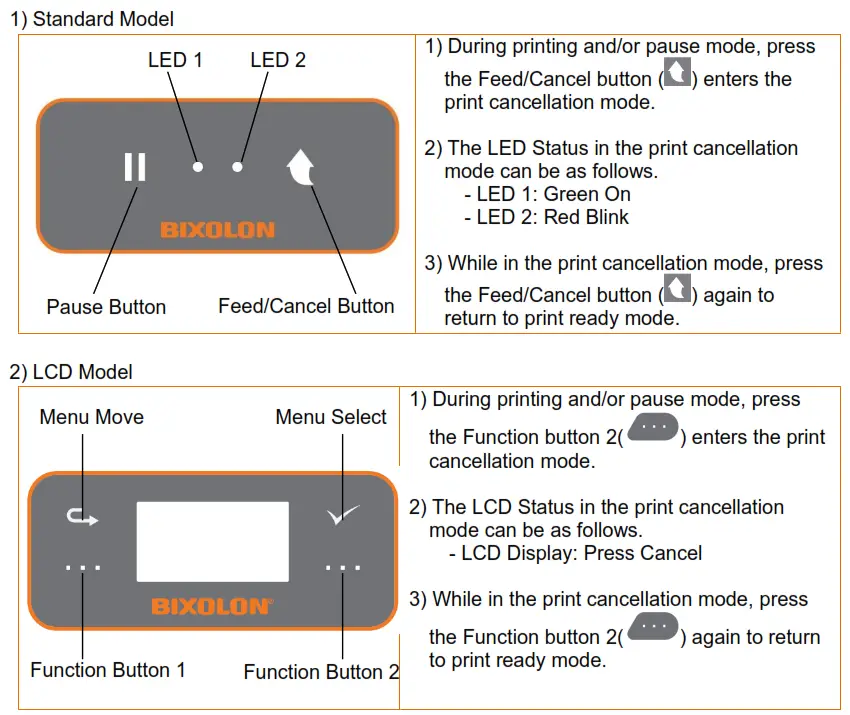
Caution Contact the authorized dealer if the printer does not execute the pause/resume function.
5-3 Smart Media Detection
- Media with gaps and black marks can be identified without additional settings.
- 3~5 pages of media will be used depending on the types of media.
- The smart Media Detection function is executed in the followings cases
– When the printer is installed the first time, it is executed by pressing the Feed/Cancel button{) for the LED model, press Function button 2( ) for the LCD model.
– If the printer is installed first time, the printer command will execute Smart Media Detection.
– When a change of media length or type is detected during feeding or printing.
– When the different media type command is entered from the configured media type.
– After factory reset.
Caution If smart media detection fails, please proceed with gap or B/M sensor auto-calibration accordingly
5-4 Gap Sensor Auto Calibration Mode
- Gap sensor auto-calibration mode is used when the printer does not detect a gap on the media correctly.
Generally, a printer is set to detect most types of gaps but sometimes it fails to detect and keep feeding the media without a stop when special media is used. In such case, use gap sensor auto-calibration mode function for proper detection.
1) Make sure that the media roll has been installed properly.
2) Standard Model
Using stand-alone configuration mode, press the Feed/Cancel button)at sequence number 4 gap sensor auto-calibration mode (refer to 5-1).
3) LCD Model In print-ready mode the setting menu and move to Sensor -> Gap Cal(Gap Calibration) and press the Function button () fo process gap sensor auto-calibration * Please refer to Tools Menu Explanation (3-6) for more information. Contact the customer center if the printer does not execute the Caution gap sensor auto-calibration mode function.
5-5 BAM Sensor Auto Calibration Mode
- Black mark sensor auto-calibration mode is used when the printer does not detect a black mark on the media correctly.
Generally, a printer is set to detect most types of black marks but sometimes it fails to detect and keep feeding the media without a stop when special media is used. In such a case, use the black mark sensor auto-calibration mode function for proper detection.
- Make sure that the media roll has been installed properly.
- Standard Model
Using stand-alone configuration mode, press the Feed/Cancel button&)at sequence number 5 black mark sensor auto-calibration (refer to 5-1). - LCD Model In print-ready mode the setting menu and move to Sensor-> Black Mark Cal(Black Mark Calibration) and press Function button 1( ) to process black mark sensor auto-calibration
* Please refer to Tools Menu Explanation (3-6) for more information.
Caution Contact the customer center if the printer does not execute the black mark sensor auto-calibration mode function.
5-6 Media Sensor Manual-Calibration
- Manual calibration of media detection can be used when the printer cannot detect a media gap (or black mark) even after auto-calibration has been executed.
Users can calibrate sensor parameters in detail by using the Unified Label Utility-II program provided by the manufacturer.
The Unified Label Utility-II can be downloaded from the Internet via the BIXOLON website. (www.krw.bixolon.com)
Please make sure the printer is connected and execute the Unified Label Utility-II program.
Please the Calibration Setting Manager Button after setting the interface type.
 Select the sensing type and input the label length by millimeter and click ‘Check Sensing Value’ button. Then printer starts calibration.
- The printer will print the scanned values after calibration and the values will appear on the Screen.
- Optimal sensing values will appear in black bold letters on the left of the utility screen and select one of the values and click on ‘Save Calibration’
- 1f chosen value does not work properly. please try the other values among the black bold letters.
- To go back to the initial value. please click on “Cancel Calibration Caution Contact the customer center if the printer does not enter media sensor manual calibration mode.
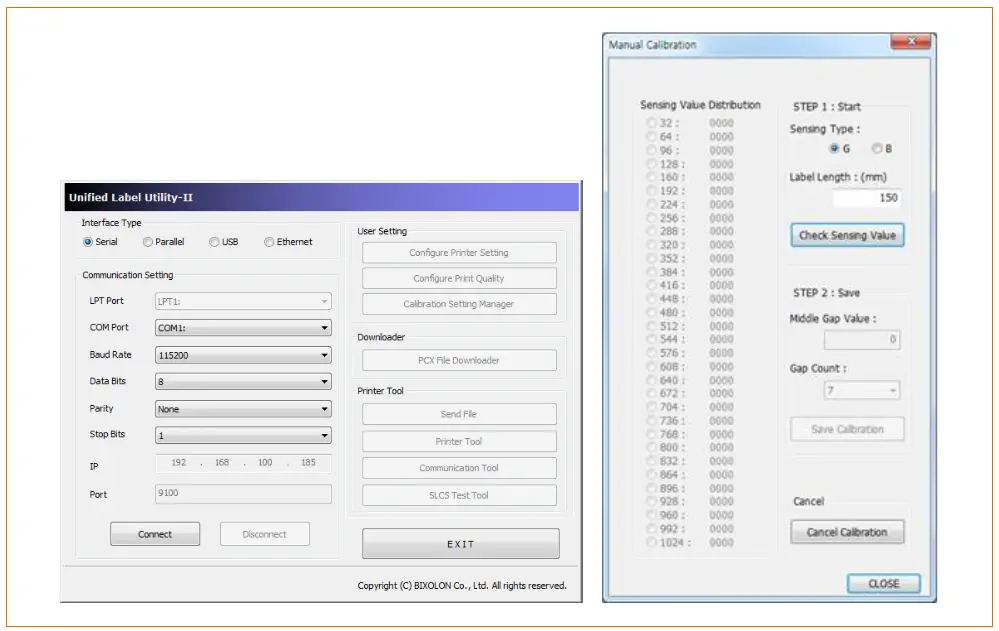 Select the sensing type and input the label length by millimeter and click ‘Check Sensing Value’ button. Then printer starts calibration.
5-7 Data Dump Mode
- This function can be used to diagnose communication issues when the printer does not work properly.
In this mode, the received data are not analyzed and printed, instead, they are dumped in hex format without processing.
Turn the printer off and on to recover to the print-ready mode.
1) Standard Model
Using stand-alone configuration mode, press the Feed/Cancel button () at sequence number 6 data dump mode (refer to 5-1).
2) LCD Model In print-ready mode the setting menu and move to Tools -> Dump -> Dump Enable and press Function button 1( ) to run dump mode Please refer to Tools Menu Explanation () for more information. Caution Contact the customer center if the printer does not enter data dump mode.
5-8 Factory Reset
- This function is used to factory reset the printer settings.
1) Make sure that media roll has been installed properly.
(1) Standard Model Use Auto Calibration Mode(depends on the media type) for Factory Reset. Please refer to Tools Menu Explanation (5-1) for more information. The printer will be rebooted automatically.
(2) LCD Model In print-ready mode the setting menu and move to Tools -> Reset and press Function button 1( ) to reset the printer to Factory default. Please refer to Tools Menu Explanation (3-6) for more information. The printer will be rebooted automatically. Caution Contact the customer center if the printer does not enter the factory reset function.
5-9 Print Standby Mode
5-9-1 About Print Standby Mode
The printed area may become out of range of media if the media is not in the accurate printing position when the cover is opened and closed. The printer is put into print standby mode instead of print-ready mode when the cover is closed in order to prevent this problem, and it waits for additional user input.
- Standard Model The LED status in the print standby mode can be as follows.
– LED 1: Green Blink – LED 2: Green Blink - LCD Model The LCD status in the print standby mode can be as follows.
– LCD Display: STANDBY
The data received during print standby mode will be printed after the printer recovers to print-ready mode.
5-9-2 How to switch the printer from Standby Mode to Print Ready Mode
- Standard Model – Press the Pause button () to switch to print-ready mode without feeding any media.
– Press the Feed/Cancel button () to feed one page to align the media position and switch to the print-ready mode. - LCD Model
– Press “Function button 1()’ to switch to print-ready mode without feeding any media.
– Press ‘Function button 2 apr to feed one page to align the media position and switch to the print-ready mode.
Caution
Contact the customer center if the printer does not execute print standby mode function.
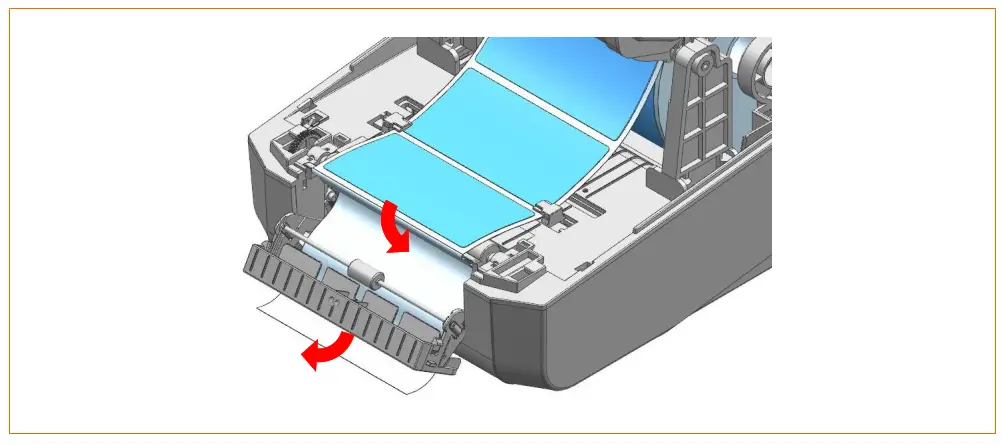
5-10 Media Installation Method of Peeler (Option) Model
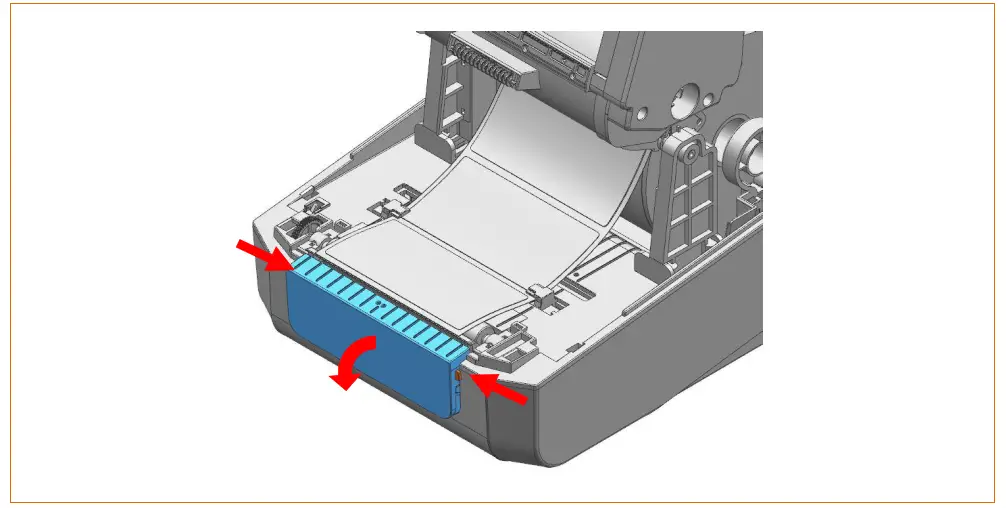
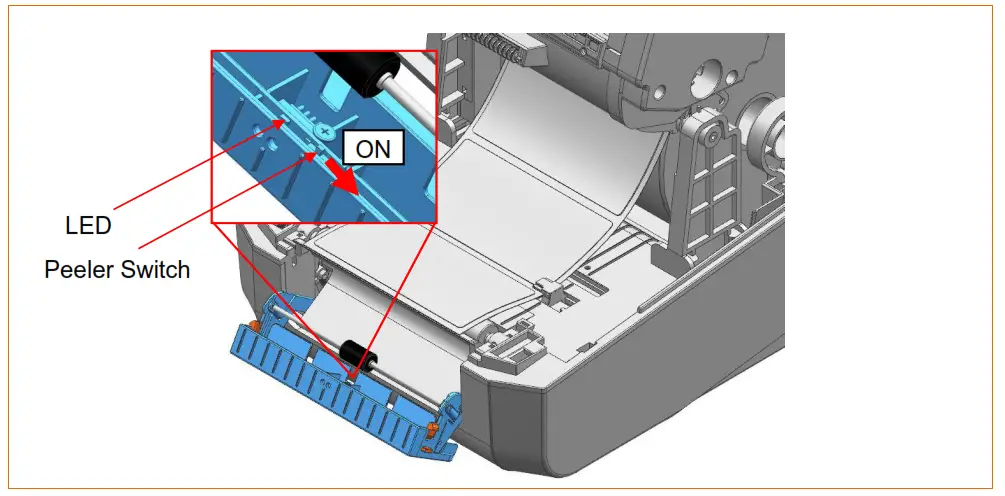
• Use a peeler to separate the printed media from the liner automatically. To use peeler, install media in the following ways:
- Open the media cover.
- Open the peeler cover.

- Set the peeler switch ‘ON’ position and checit to LED has turned on.

- Remove the media and insert the media through the slot.

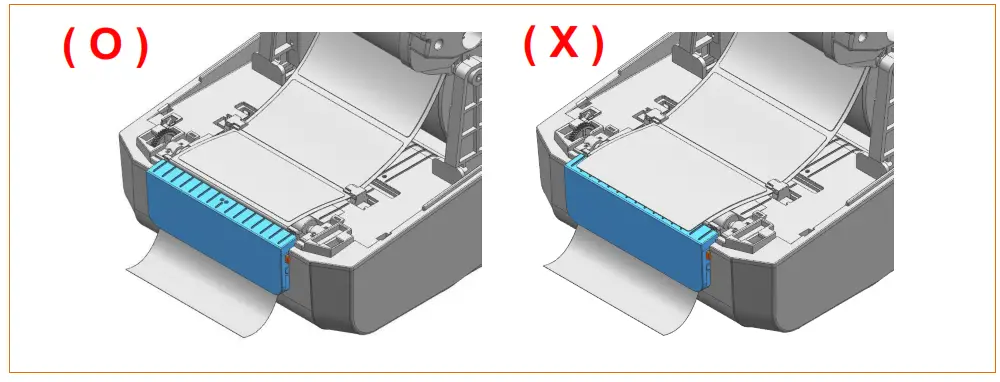
- Close the peeler cover until a dick sound is heard.

- Close the ribbon assembly and media cover until a click sound is heard. Caution- When opening or closing the cover, be careful not to pinch your fingers. – The peeler function is only available for Gap media. – When the peeler is switched on, the next label will not be printed unless the printed label is removed from the peeler. – When the peeler is switched off, the peeler does not work. Warning
The print head gets extremly hot while printing or after the printing, this can cause serious burns. Do not touch the print head.
5-11 Using Fan-Fold or External Media
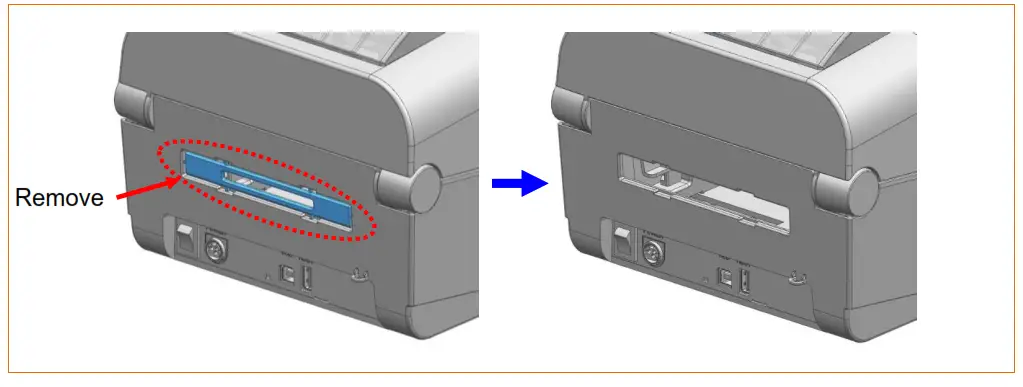
- Supplying media to the printer externally is done as follows.
- Remove the rear media supply cover on the back side of the printer with a cutting instrument.
 Caution
Take care not to injure the hands and/or any other part of the body when performing this step
5-11-1 When using Fan-Fold media
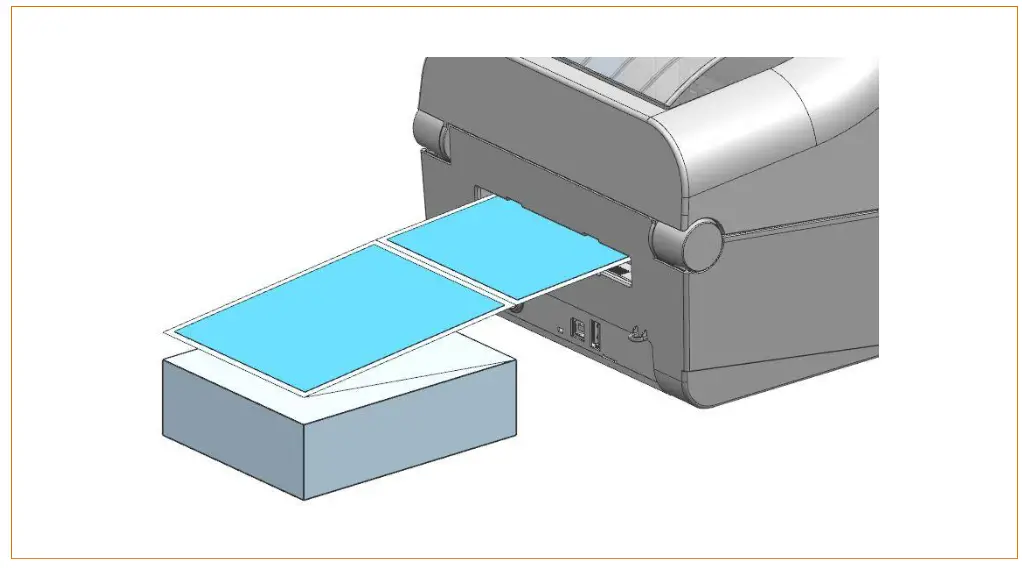
Supplying fan-fold media to the printer externally is done as follows.
- Insert the media to at the rear of the printer as shown below.

- Adjust media holders to the media width by using the fix tool
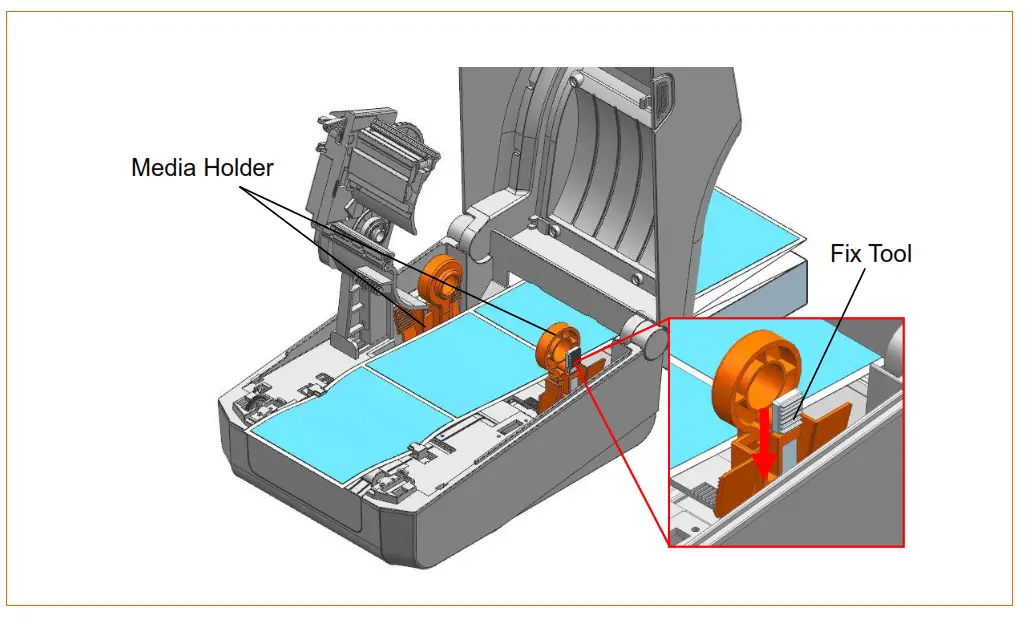
5-11-2 When using Large media roll (Optional)
Install the external media supplier(LES-400G) as shown below and adjust media holders to the media with Fix Tool.
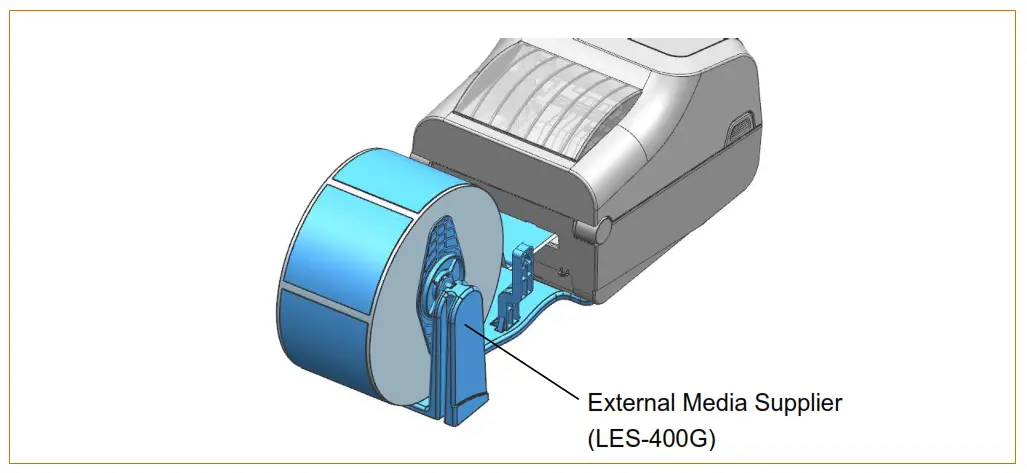 Caution
– Do not open the print cover while the printer is operating, otherwise, the printer may be damaged.
– To prevent data loss, replace media only when the printer is not receiving any data.
– Be aware of physical damage caused by external media when operating the printer
5-12 Auto Cutter (Optional)
- For auto media cutting, products equipped with auto cutters are available.
Auto-Cutter can be controlled by command or Unified Label Utility-II.
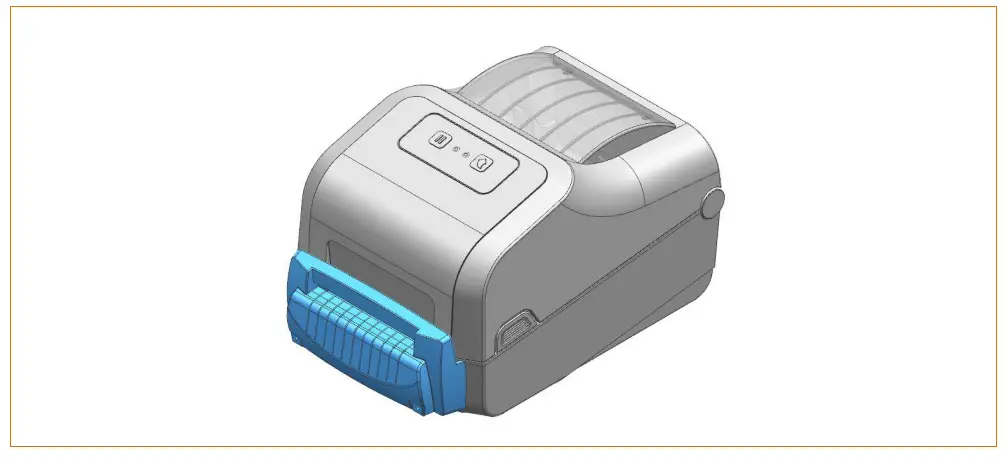
 Note
Note
Please refer CUT(Atrto-cutter Enable/Disable) of Programming (SLCS) Manual or Unified Label Utility-II Manual for more information. Caution- When opening or closing the cover, be careful not to pinch your fingers. – Do not open the media cover while the printer is operating. The printer may be damaged. – Change the media when the printer is not receiving data, or data may be lost. Warning – Never Insert objects or fingers while performing the cutting function. This can cause serious bodily injury. – Be careful not to touch the cutter blade with your hand. There may be a risk of personal Injury. – The print head gets extremely hot while printing or after the printing, this can cause serious bums. Do not touch the print head.
Printer Maintenance
Printing quality might be degraded by dust. a foreign substance, adhesive substance, or other pollution materials stuck in the printer head or inside the printer. When dirty, clean the print head as follows 64 Cleaning Printer Head
- Be sure to turn the printer off.
1) Open the media cover and then remove adhesive foreign substances or other pollution materials with the cloth or cotton swab soaked in alcohol for medical.
2) After cleaning the head, do not use the printer until the alcohol used for cleaning evaporates completely. (1-2 min) Note Perform the cleaning process each time the media roll is replaced to prevent print quality deterioration. Caution – Be sure to clean after turning the printer off. – Be careful not to leave scratches in the print head. The printer may be damaged. – The print head gets extremely hot while printing or after the printing, this can cause serious burns. Do not touch the print head.Warning Do not touch the heated area of the print head when cleaning. personal injury may result from static electricity, etc.
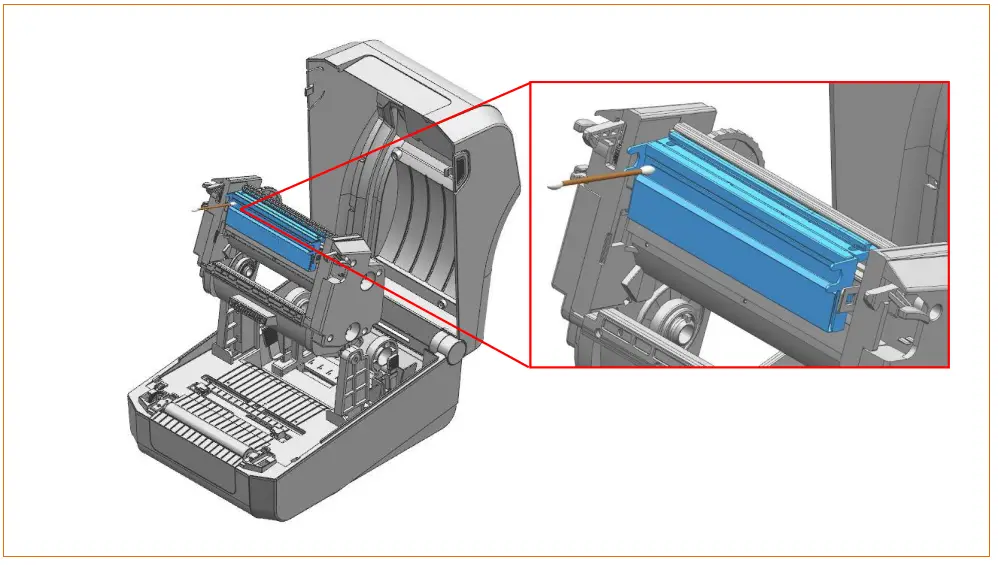
6-2 Cleaning Sensors, Roller or/and media Path
Be sure to turn the printer off.
- Open the media cover and remove the media.
- Remove any dust or foreign substance using dry cloth or cotton swab.
- Soak the cloth or cotton swab in alcohol for medical use and use it to remove adhesive foreign substances or other pollution materials.
 Caution
– Clean the parts when there is a degradation of performance in printing quality or media detection. – After cleaning the parts, do not use the printer until the alcohol evaporates completely (1-2 min) and the winter has completely dried. – Be sure to use medical alcohol only. If not, it may cause printer damage.
64 Replacing Roller
• Be sure to turn the printer off.
- Open the media cover and remove the media.
- Pull the roller holders and separate the roller assembly.

- Assemble new roller assembly in reverse order.
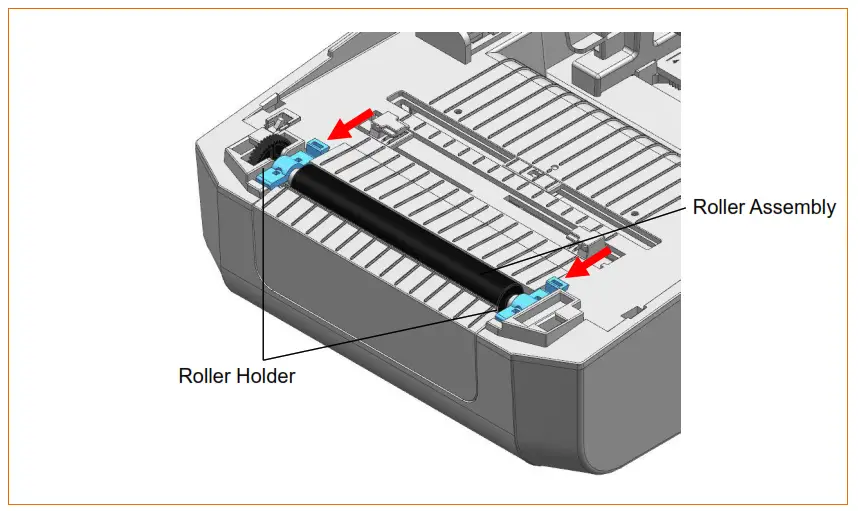
Caution Make sure to turn the printer power oft prior to cleaning.Warning The print head gets extremely hot while printing or after the printing, this can cause serious burns. Do not touch the print head.
| Item | Description | |
| Printer | Printing Method | Thermal Transfer Printing |
| Dot Density | XD5-40t: 203 dpi (8 dot/mm) XD5-43t: 300 dpi (11.8 dot/mm) | |
| Printing Width | XD5-40t: Max. 108 mm (Max. 4.25”) XD5-43t: Max. 105.7 mm (Max. 4.16”) | |
| Printing Speed | XD5-40t: Max. 152 mm/sec (Max. 6ips) XD5-43t: Max. 102 mm/sec (Max. 4ips) | |
| Printing Length | Up to 1,000mm | |
| Media | Roll Width | 15 ~ 118 mm (0.59 ~ 4.64”) |
| Roll | Max. 127 mm (Max. 5”) | |
| Core | 25.4 ~ 38.1 mm (1” ~ 1.5”) | |
| Thickness | 0.06 ~ 0.20mm | |
| Ribbon | Length / Width | Max 300m / 33 ~ 110mm(1.3~4.3”) |
| Type(Outside) | Wax, Wax/Resin, Resin | |
| Core | 0.5” / 1” | |
| AC Adapter | SMPS Input Voltage | AC 100 – 240V |
| Frequency | 50/60 Hz | |
| SMPS Output Voltage | DC 24V ±5% | |
| SMPS Output Current | 2.5A | |
| Usage Conditions | Temperature | 0 ~ 40 ℃ (Operating) -20 ~ 60 ℃ (Storage) |
| Humidity (except for media) | 10 ~ 80 % RH (Operating) 10 ~ 90 % RH (Storage) | |
Note Print speed may vary depending on the data transfer speed and the combination of commands. Warning – In case of danger, turn off the power to cut the connection.
– The power cord must be grounded to ensure safety and reduce electromagnetic interference
7-2 Label Types
- The label types used with this printer are as follows.
- Control Labels: PET
- Other Labels: PET
Copyright
© BIXOLON Co., Ltd. All rights reserved.
This user manual and all property of the product are protected under copyright law.
It is strictly prohibited to copy, store, and transmit the whole or any part of the manual and any property of the product without the prior written approval of BIXOLON Co., Ltd. The information contained herein is designed only for use with this BIXOLON product. BIXOLON is not responsible for any direct or indirect damages, arising from or related to use of this information.
* The BIXOLON logo is the registered trademark of BIXOLON Co., Ltd.
« All other brand or product names are trademarks of their respective companies or organizations.
BIXOLON Co., Ltd. maintains ongoing efforts to enhance and upgrade the functions and quality of all our products.
In the following, product specifications and/or user manual content may be changed without prior notice.
Notice – EU
This wireless device is class A that is considered to be used in an industrial environment.
Caution
Some semiconductor devices are easily damaged by static electricity. You should turn the printer “OFF”, before you connect or remove the cables on the rear side, in order to guard the printer against static electricity. If the printer is damaged by the static electricity, you should turn the printer “OFF”.
Compliance information
This device complies with Part 15 of the FCC Rules. Operation is subject to the following two conditions: (1} This device may not cause harmful interference, and (2) This device must accept any interference received, including interference that may cause undesired operation. This equipment has been tested and found to comply with the limits for a Class A digital device Pursuant to Part 15 of the FCC Rules. These limits are designed to provide reasonable Protection against harmful interference when the equipment is operated in a commercial environment. This equipment generates uses, and can radiate radio frequency energy and, if not installed and used in accordance with the instruction manual, may cause harmful interference to radio communications. Operation of this equipment in a residential area is likely to cause harmful interference in which case the user will be required to correct the interference at his own expense.
Caution: Exposure to Radio Frequency Radiation.
To comply with FCC RF exposure compliance requirements, a separation distance of at least 20 cm must be maintained between the antenna of this device and ail persons.
Caution: Any Changes or modifications not expressly approved by the manufacturer could void the user’s authority to operate the equipment.
Class A Digital Device: Wired Device
This Apparatus complies with class “A” limits for radio interference as specified in the Canadian department of communications radio interference regulations.
This Class A digital apparatus complies with Canadian ICES-003.
Appareil numérique de classe A: appareil filaire Get appareil est conforme aux normes class “A” d’interference radio tel que specifier par ministre canadien des communications dans les reglements d’interference radio. Cet appareil numérique de la classe A est conform a la norme NMB-003 du Canada.
Waste Electrical and Electric Equipment (WEEE)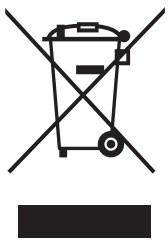 This marking shown on the product or its literature, indicates that is should not be disposed of with other household wastes at the end of its working life, To prevent possible harm to the environment or human health from uncontrolled waste disposal, Wag =séPlease separate this from other types of wastes and recycle it responsibly to promote the sustainable reuse of material resources. Household users should contact either the retailer where they purchased this product, or their local government office, for details of where and how they can take this item for environmentally safe recycling. Business users should contact their suppliers and check the terms and conditions of the purchase contract. This Product should not be mixed with other commercial wastes for disposal.
Revision History
| Ver. | Date | Page | Description |
| 1.00 | 17.03.20 | – | New |
http://www.bixolon.com
Ver.1.00
 BIXOLON | pos printer, mobile printer, label printer