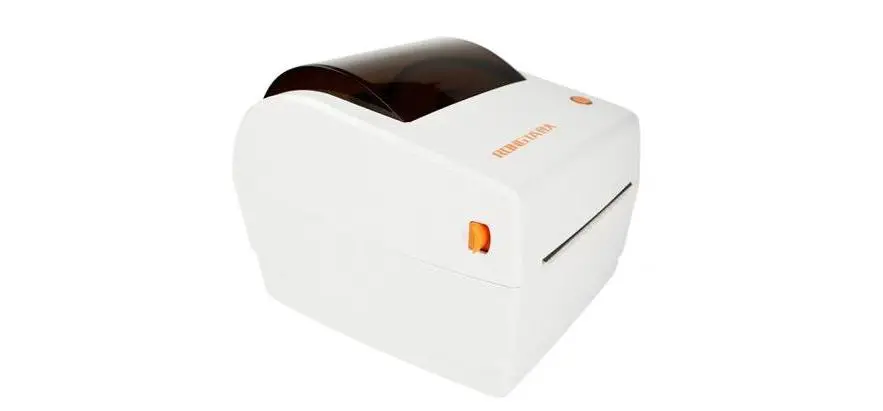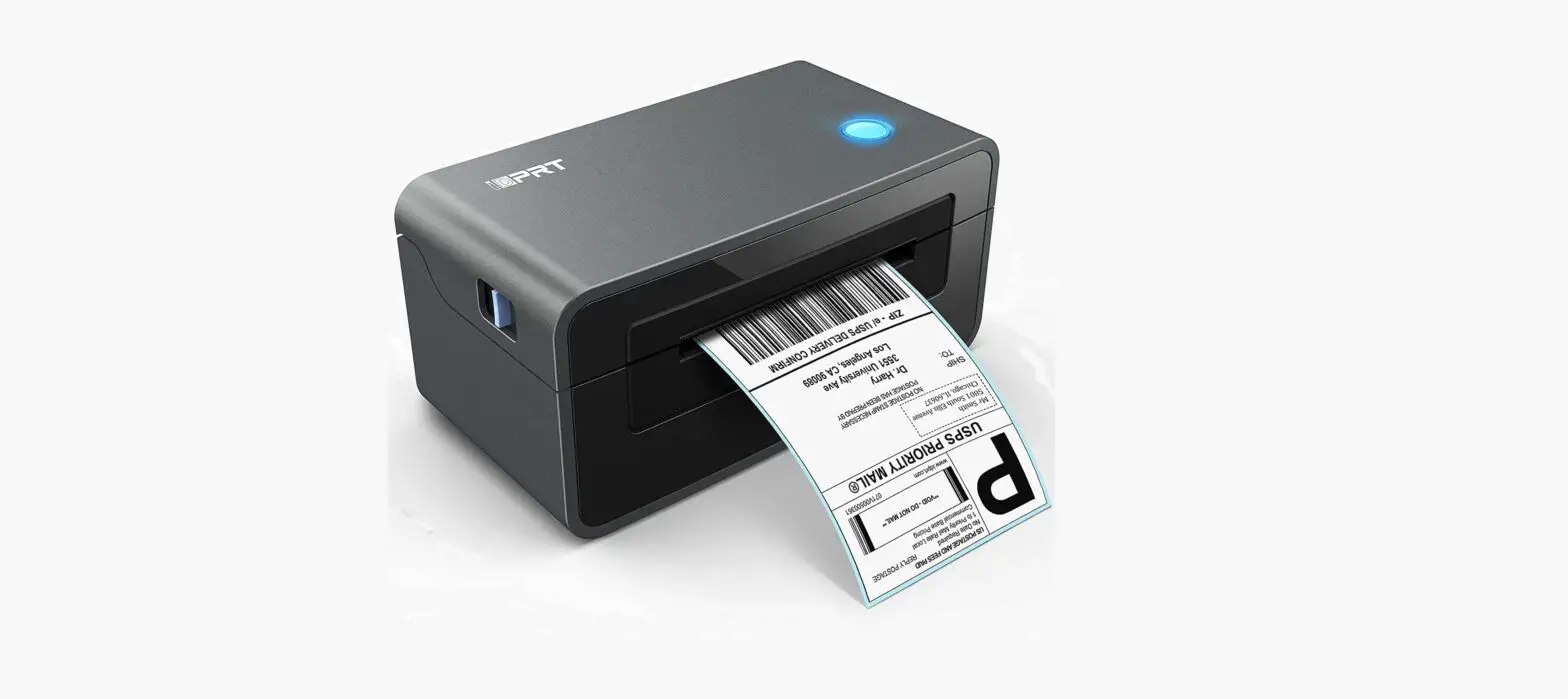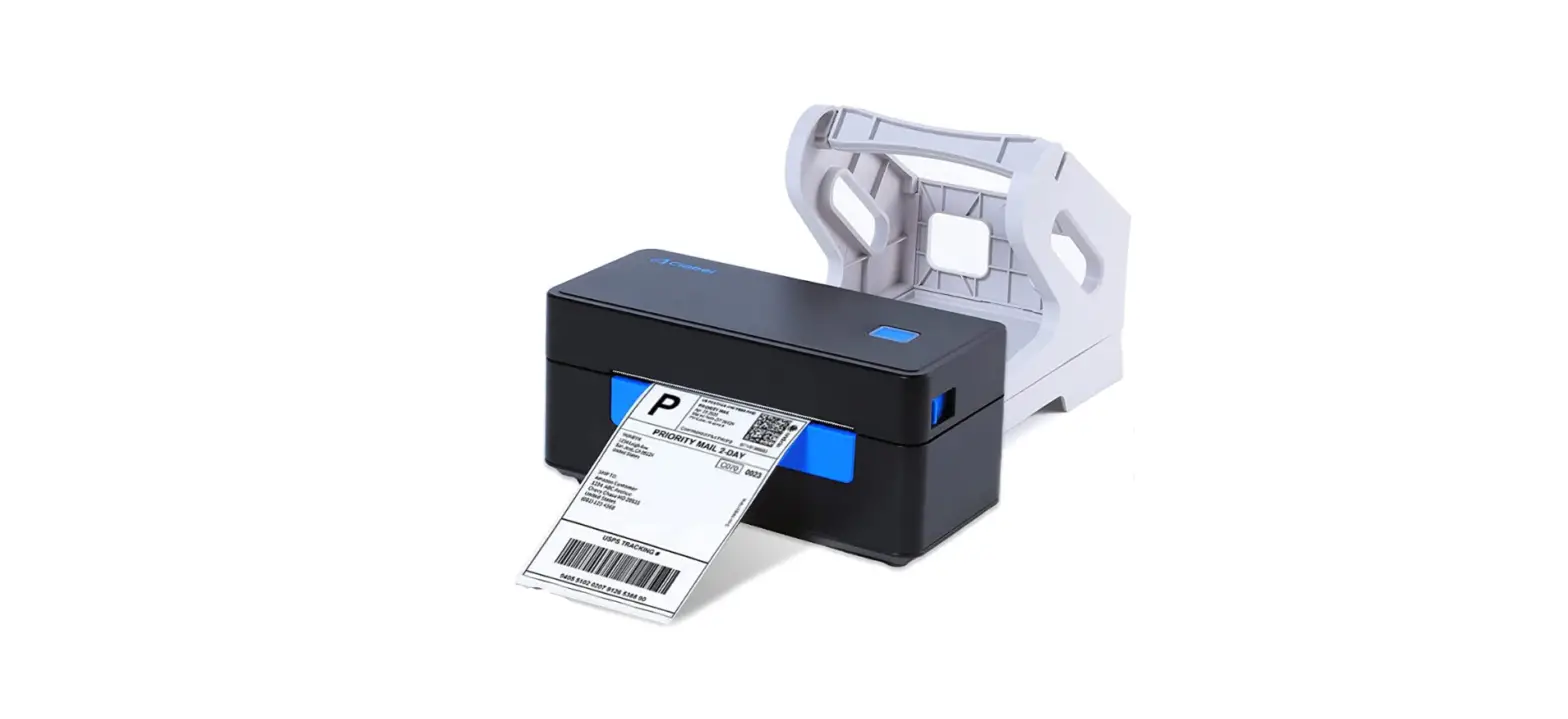

CLABEL BRINGS YOU SIMPLICITY AND INTELLIGENCE
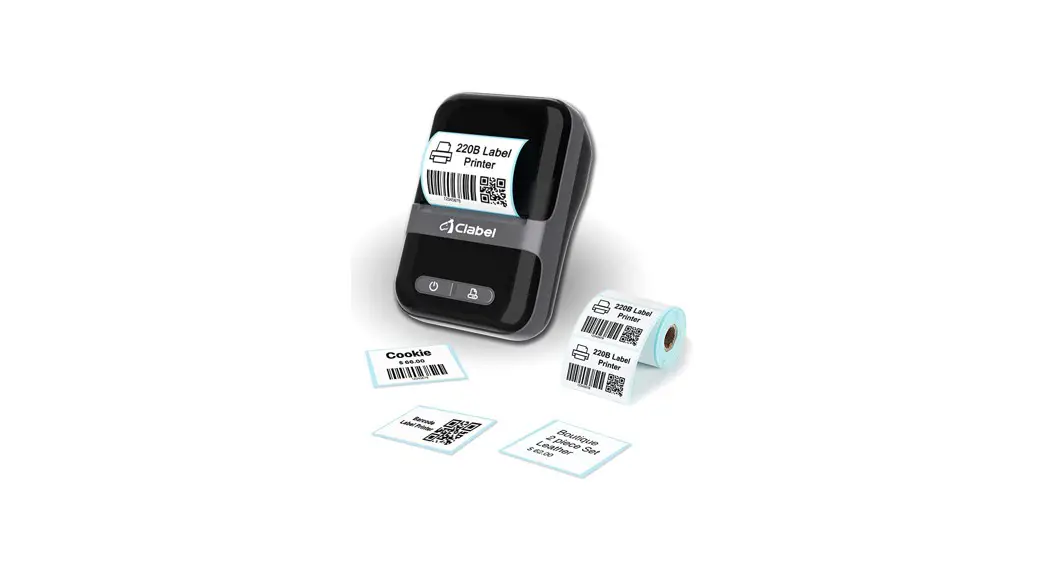
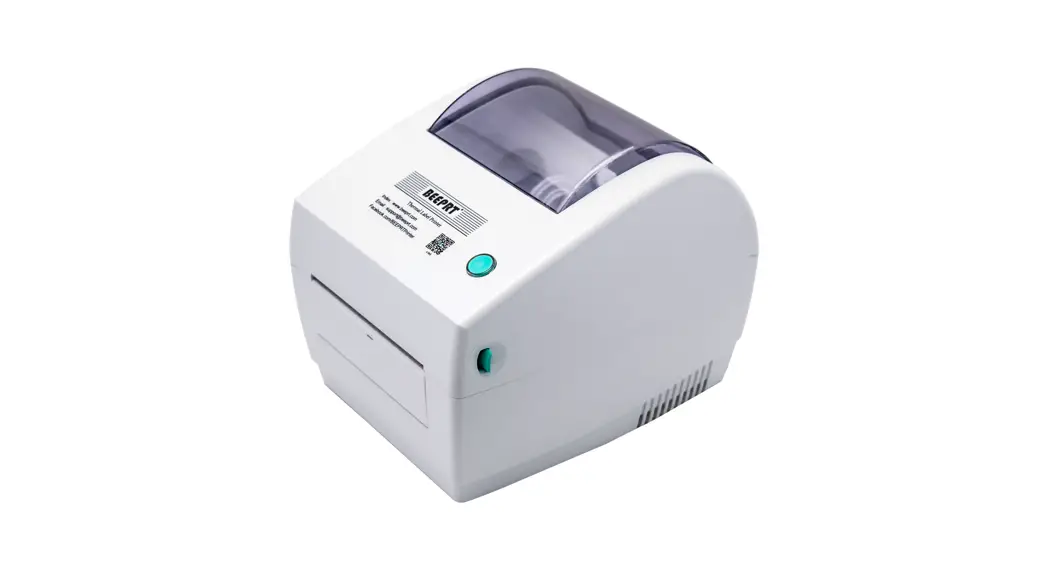
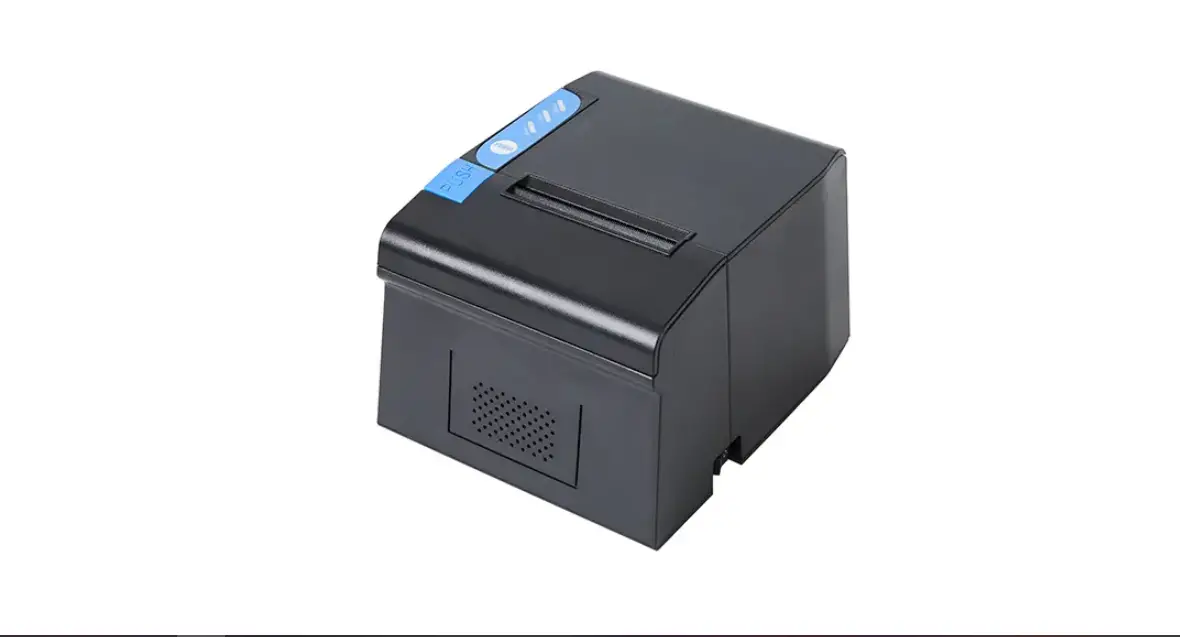
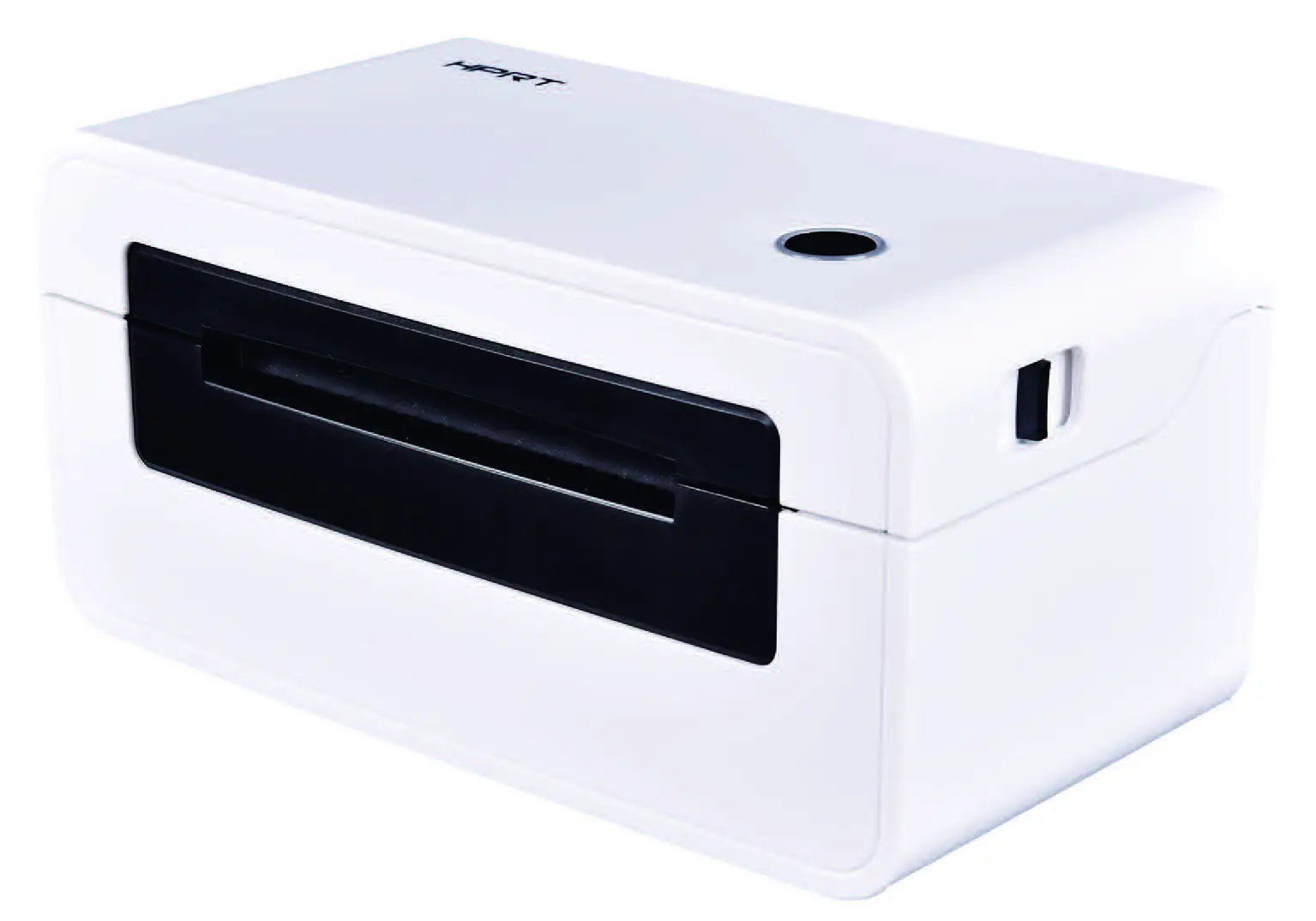
Portable Thermal Label printer
Shenzhen Dudian Technology., Ltd.
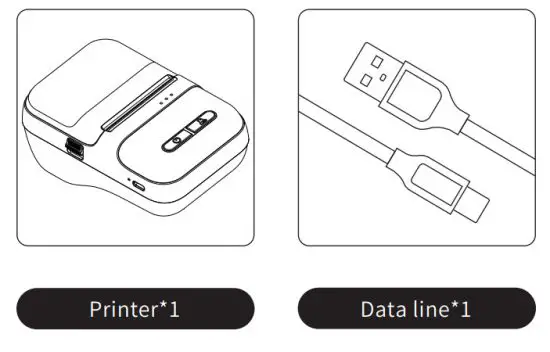
PACKING LIST
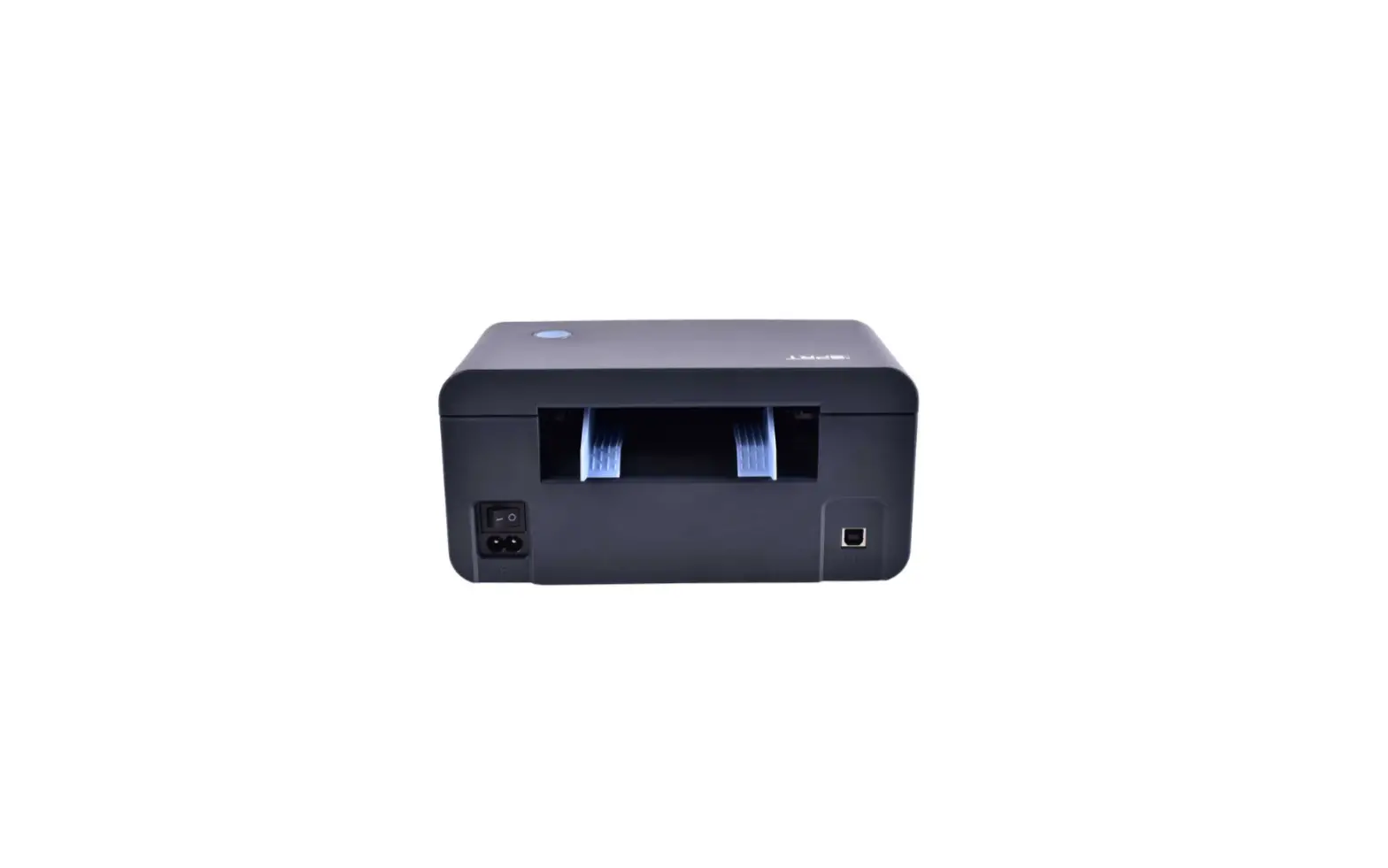
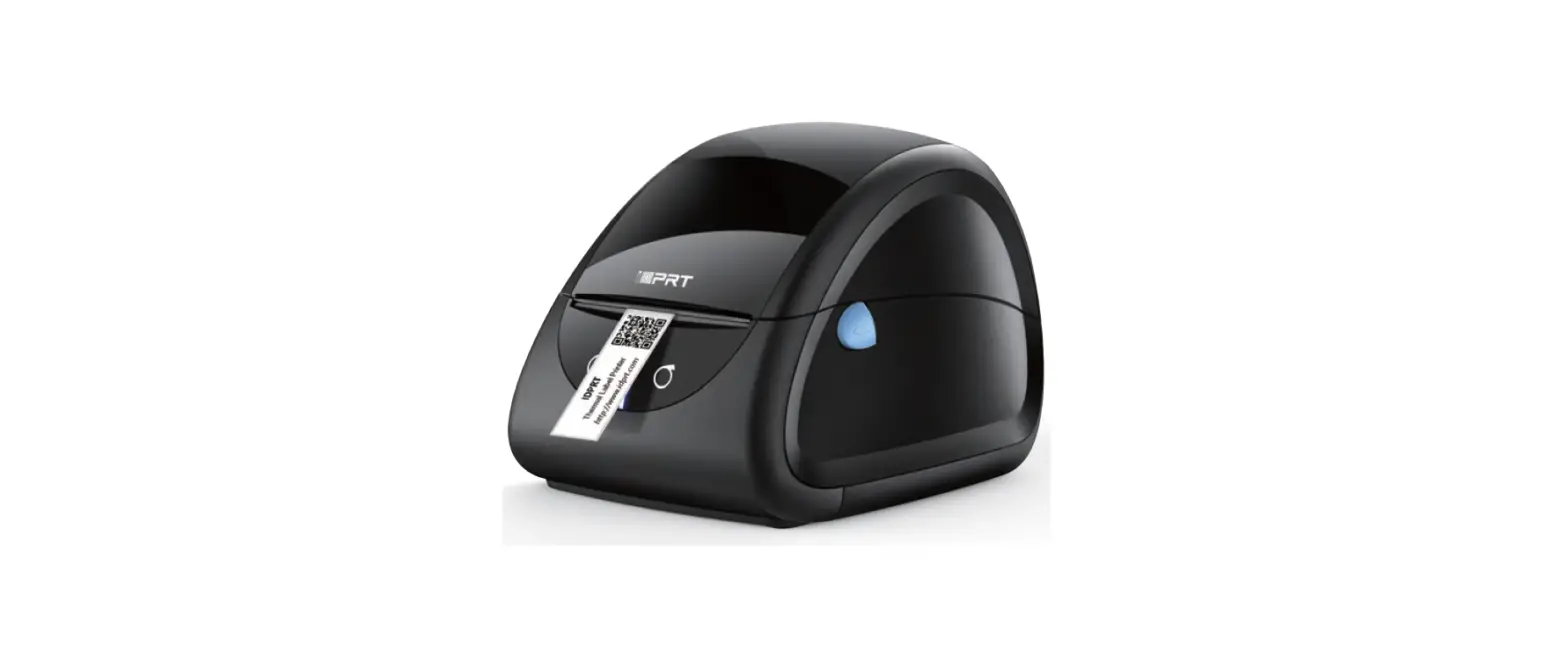
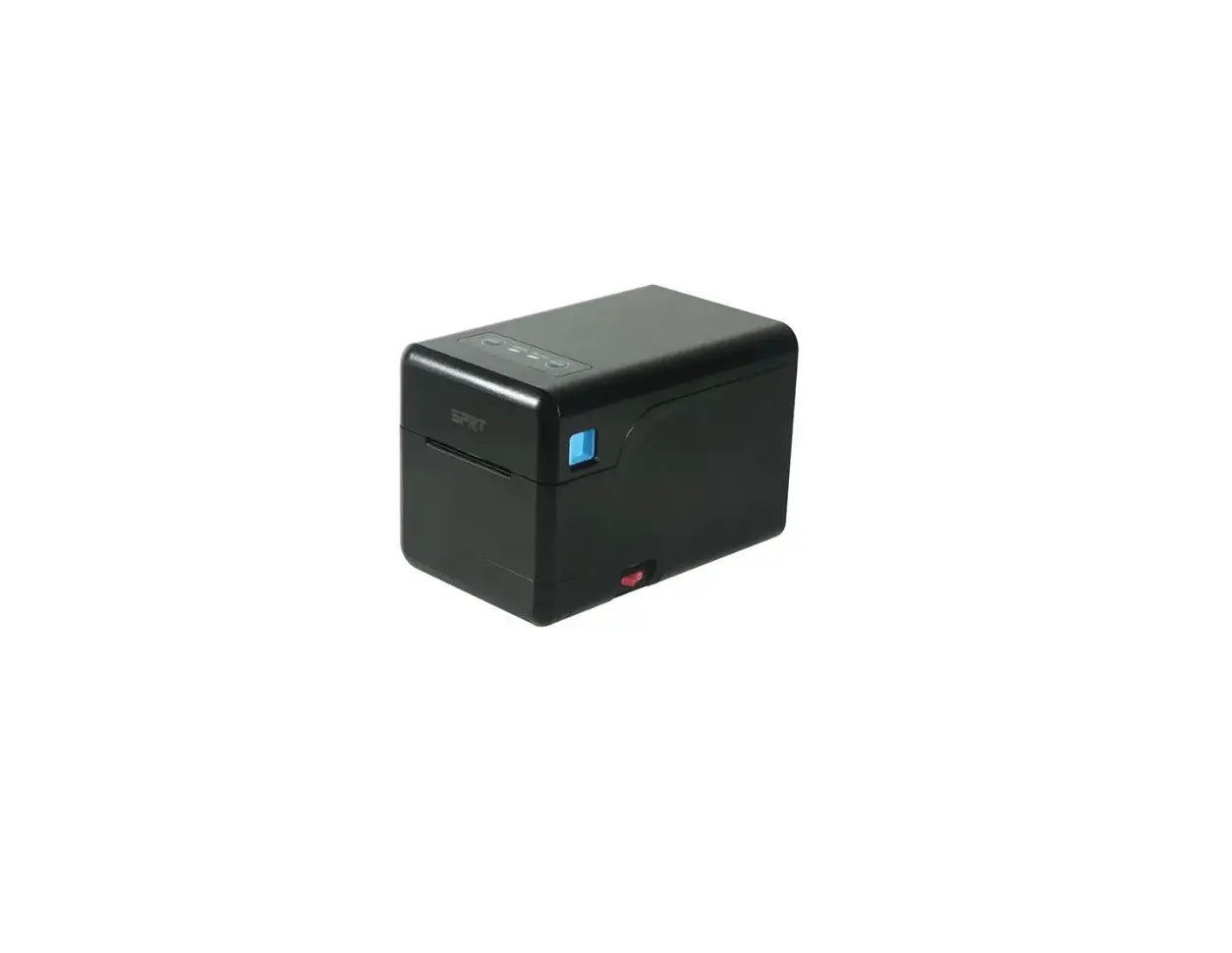
PRODUCT OVERVIEW
Foresight
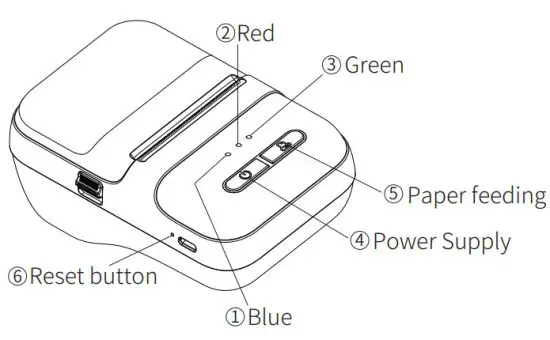
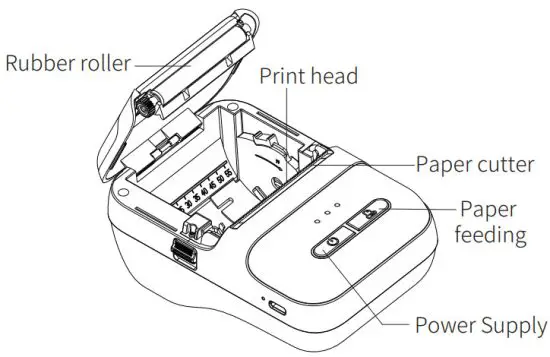
Open the cover
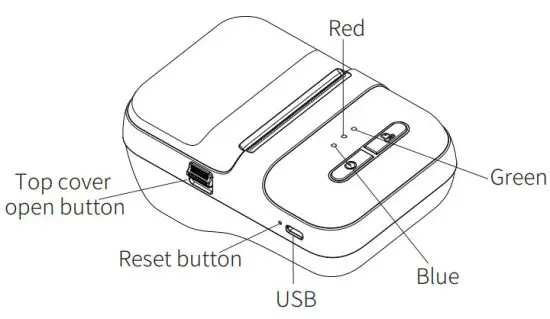
- Blue slow flash: Bluetooth is not connected.
Blue always on: Bluetooth connected.
Fast flashing: over-temperature / low power. - Red light: charging.
- Greenlight: Battery is fully charged.
- Long press for 2S: power on / off.
Double click: print self-test page.
Label mode: - Click: run one sheet/memory print. Long press for 2 seconds: test paper.
Receipt mode:
Click: fixed paper feed 10mm.
Long press: keep walking the paper and stop when you let go.
Press simultaneously to switch modes.
Click the reset button: restart the printer.
PREPARATION BEFORE PRINTING
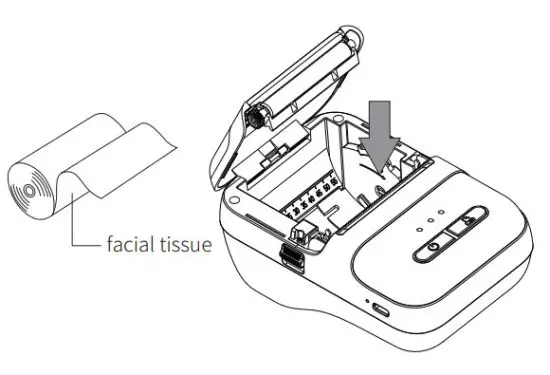
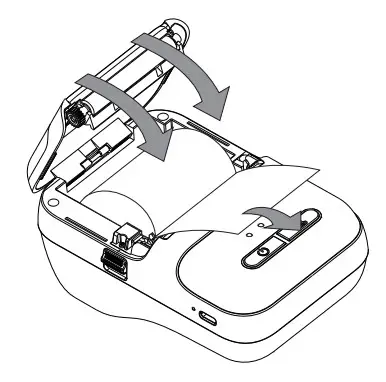
- Press the top covers open button, and then open the top cover.
- Install the paper roll as shown in the figure below.
- Pull out part of the paper roll and close the top cover, making sure both sides of the top cover are closed.
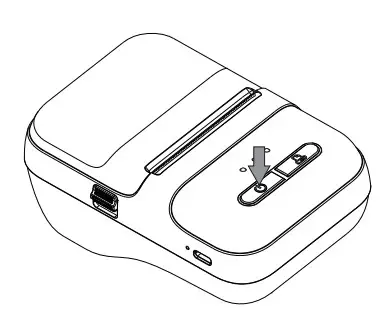
- Press and hold the power key for 2s to turn on the printer.
Mobile phone Printing Instruction
- Download and install.PPA” dart legal“ eh

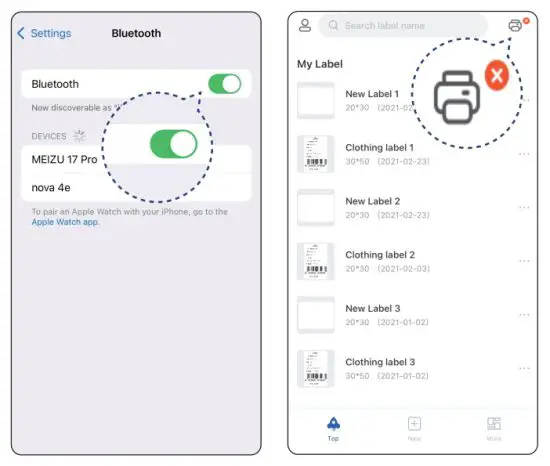
- Enter the mobile phone system settings and set Bluetooth to on.

- Enter the label trade editing software and click the “connect printer” button.
- Click the Bluetooth name at the beginning of ct220b to connect.

- Click the new tab.
- Enter label name, width, height Click New after.

- Add the print content, and then click [icon] in the upper right corner.

- After entering the number of copies to be printed, click Print.


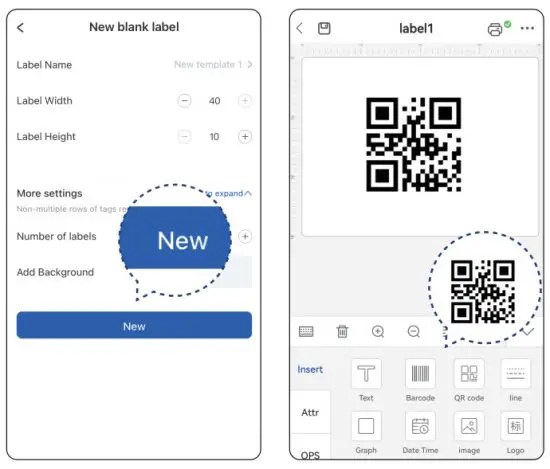
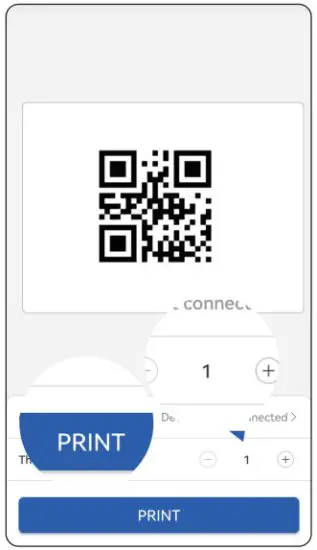
Computer Printing Instruction
- Computer login: https://ga.ctaiot.com
- Follow the prompts to complete the installation
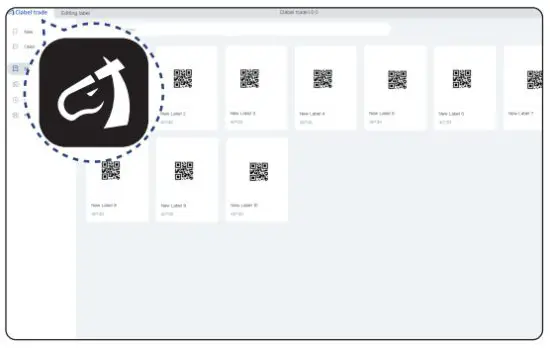
- Open the downloaded label tradeEditing software
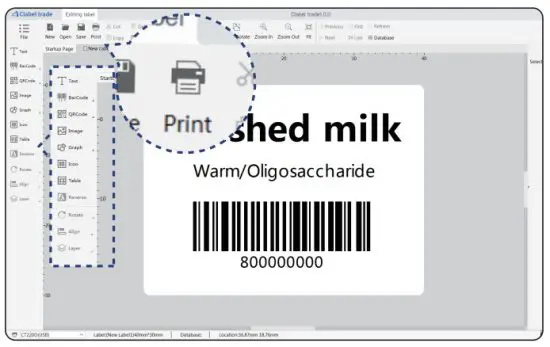
- Click new, enter the label width, and label height, and then click OK

- Add the printed content to the editing area and click Print

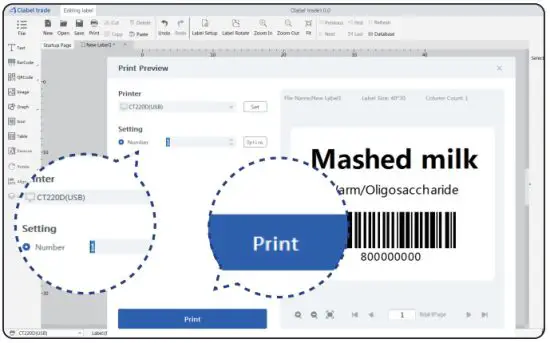
- Select the driver, enter the print quantity, and click Print to finish printing
Project | Parameters |
| Product model | CT220B |
| Printing method | Thermal |
| Printing accuracy | 203DPI |
| Printing speed | 50-90mm/s |
| Label width | 20-57mm |
| Effective printing width | 48mm |
| Paper bindia meter | 50mm |
| Interface | Bluetooth/USB cash drawer/ Network port |
| Battery capacity | 2200mAh |
| Charging interface | Type-c |
| Machine size | 128’84’61mm |
| Machine weight | 290g |
Shenzhen Dudian Technology Co., Ltd.
Add.: Room 1101, Building 3, COFCO Chuangzhi Factory Area,
District 67, Xingdong Community, Xin’an Street, Baoan District, Shenzhen
Made in China
FCC Warning Statement
Changes or modifications not expressly approved by the party responsible for compliance could void the user’s authority to operate the equipment.
This equipment has been tested and found to comply with the limits for a Class B digital device, pursuant to Part 15 of the FCC Rules. These limits are designed to provide reasonable protection against harmful interference in a residential installation. This equipment generates uses and can radiate radio frequency energy and, if not installed and used in accordance with the instructions, may cause harmful interference to radio communications. However, there is no guarantee that interference will not occur in a particular installation. If this equipment does cause harmful interference to radio or television reception, which can be determined by turning the equipment off and on, the user is encouraged to try to correct the interference by one or more of the following measures:
‐‐ Reorient or relocate the receiving antenna.
‐‐ Increase the separation between the equipment and receiver.
‐‐Connect the equipment into an outlet on a circuit different from that to which the receiver is connected.
‐‐ Consult the dealer or an experienced radio/TV technician for help.
This device complies with part 15 of the FCC Rules. Operation is subject to the following two conditions: (1) This device may not cause harmful interference, and (2) this device must accept any interference received, including interference that may cause undesired operation.
The device has been evaluated to meet general RF exposure requirements.
 ga.ctaiot.com