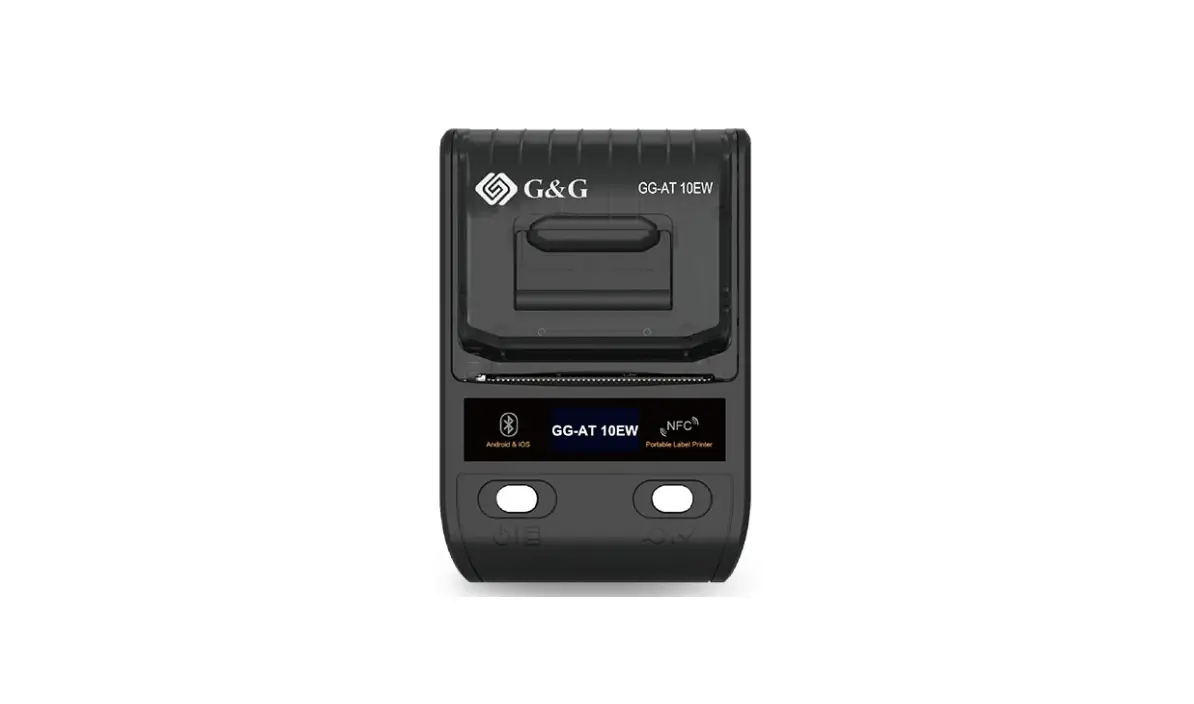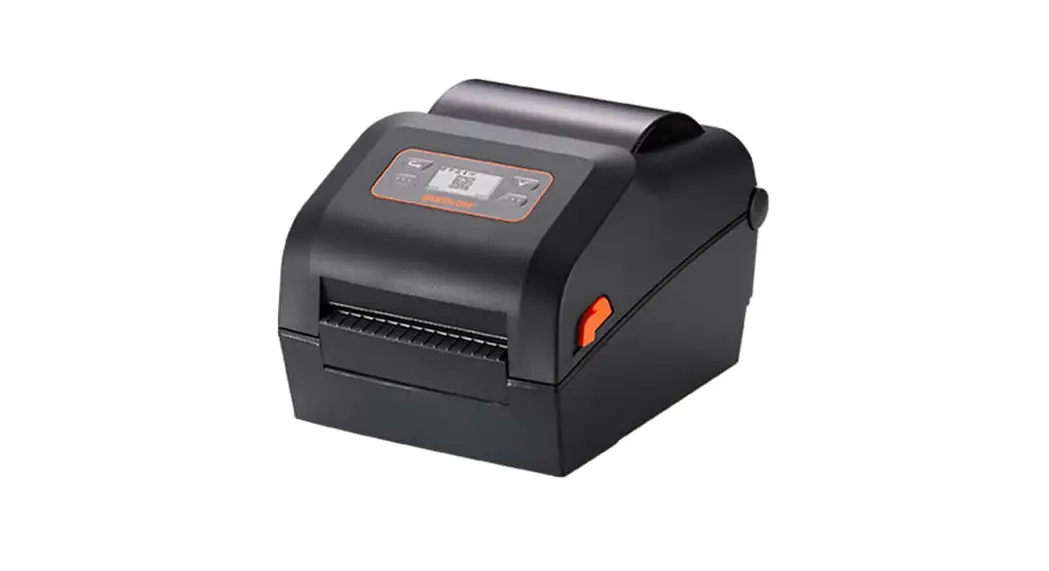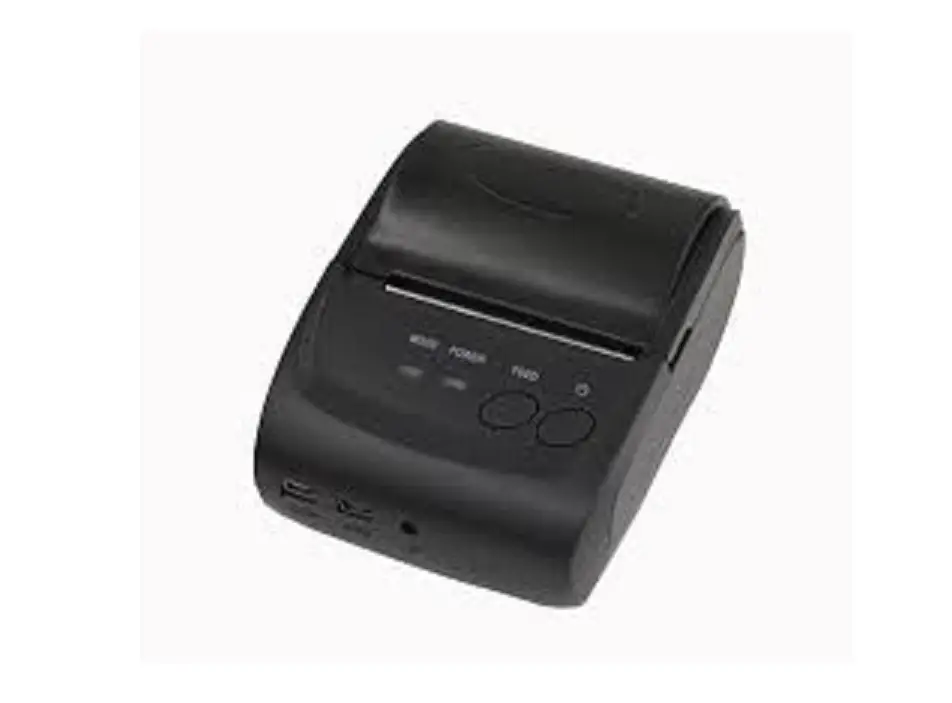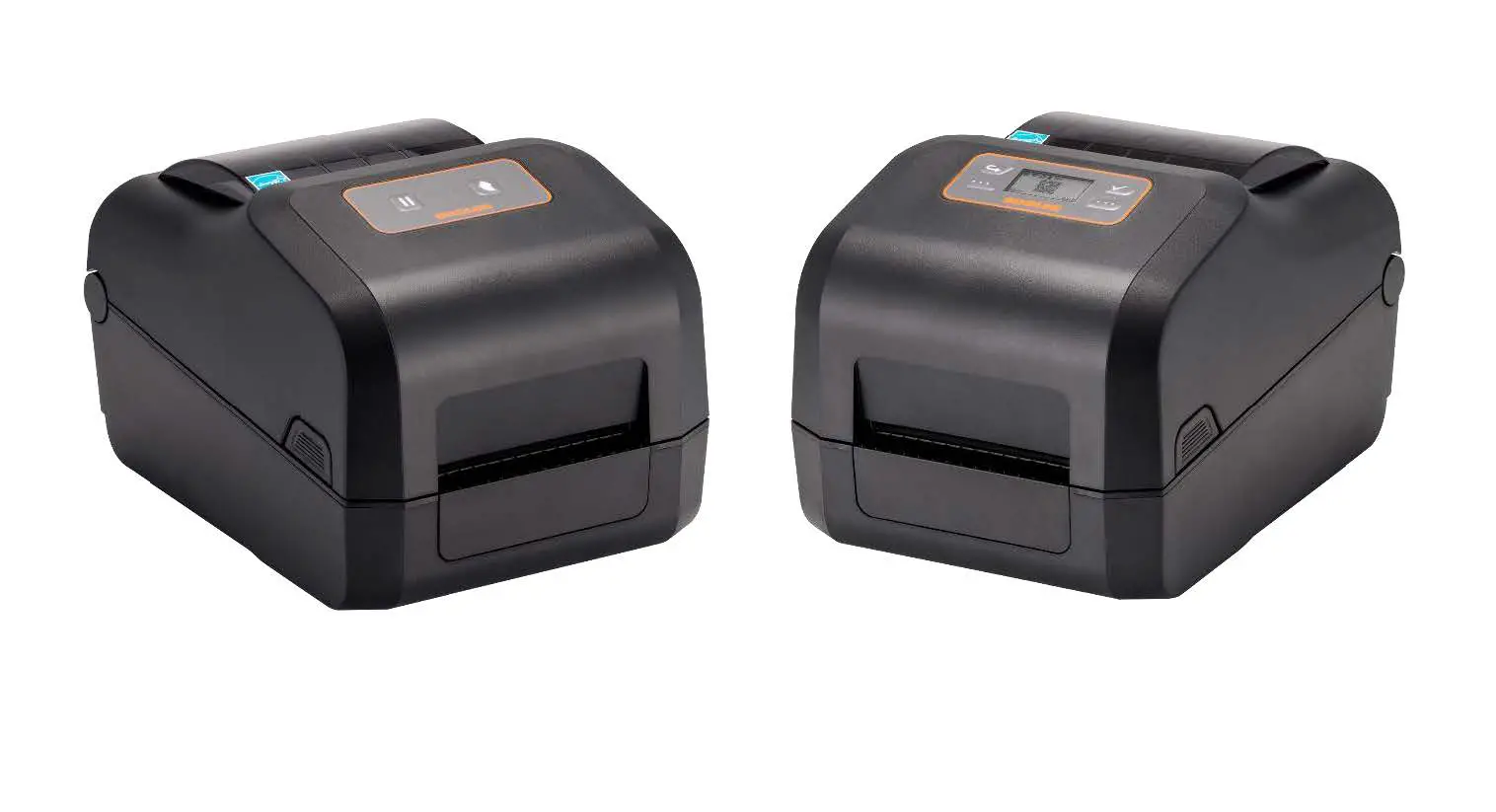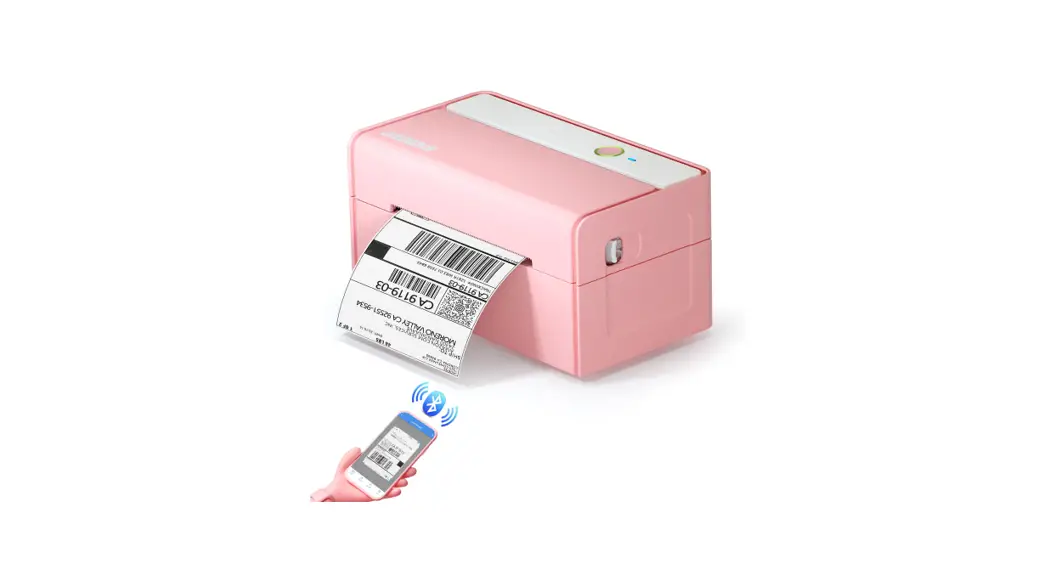

Ninestar DT60S Portable Thermal Transfer Label Printer
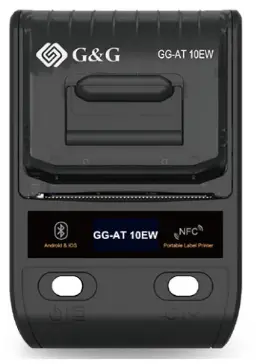
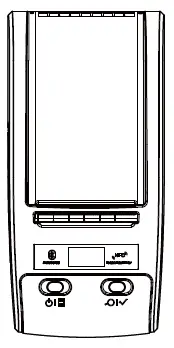
Printer Parts
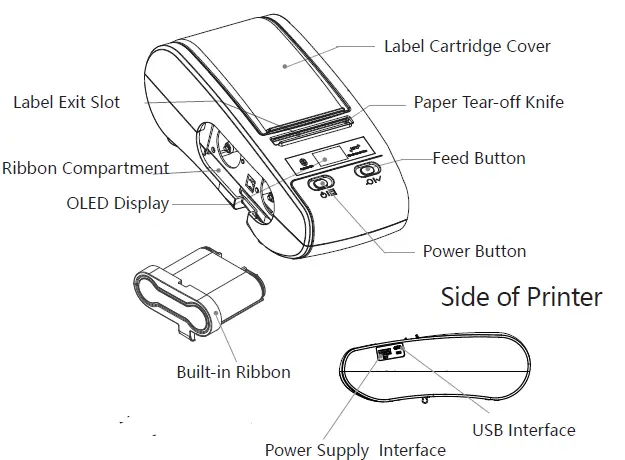
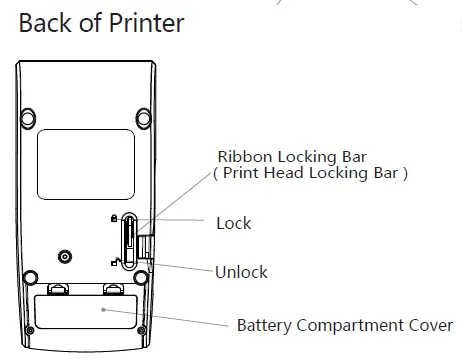
Basic Operation
- Ribbon installation
Take out Ribbon: Pull ribbon locking bar to unlock, take the ribbon out.
Install Ribbon: Pull ribbon locking bar to unlock, insert ribbon to the bottom of ribbon compartment, hold it by hand and pull ribbon locking bar to lock. - Power on the printer
Press power button for 1.5s to turn the printer on. - Label roll installtion
Label size: Label printing side outward, diameter of label roll is less than 65mm ( must not more than 67mm ), label width 12~54mm, maximum width 54mm ( including base paper ). Install paper: Put label roll into the cartridge. Please make sure the label printing side face down, move label adjusting plate to appropriate position according to label’s width, insert front end of label into label guiding slot , press feed bottom simultaneously to locate position. - Feed Label
Label paper: short press feed button to feed one label to the beginning of next label; long press feed button to feed label continuously, release the feed button to stop at the beginning of next label.
Continuous paper: press feed button to start feeding label, release feed button to stop feeding. - Auto shutdown
Printer will shut down automatically if no use it for a long period. Time of automatic shutdown can be set by setting button, the default time is 15 minutes. - Set up printer
Short press power button, printer enters setting status when the icon appears on the top left corner of display, then press feed button to make corresponding options. - Secondry function
Printer can provide 5V ( 500mA ) power for external devices via power supply interface, like phone, Pad, etc.
Connect with Printer
- Install editing application
Scan QR Code on the right side, download label editing App WeiDa Label (Android, iOS)
- Connect with Bluetooth
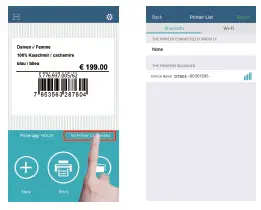
Turn on printer-turn on mobile phone Bluetooth-open label editing App, click “No Printer Connected”. Then you can edit your label and print it.
If the printer hasn’t paired before, click search button, then the unpaired printer will be listed. Select unpaired printer, WeiDa will pair with it automatically, enter password and connect with printer.
- Use cloud catalogue
Please consult your supplier for account password of cloud catalogue.
Log in your account to choose template you need from cloud catalogue, click it to use, modify then save the template. In this case, you can choose and print it directly from the cloud catalogue next time.

FCC STATEMENT
This device complies with Part 15 of the FCC Rules. Operation is subject to the following two conditions:
- This device may not cause harmful interference, and
- This device must accept any interference received, including interference that may cause undesired operation.
Warning: Changes or modifications not expressly approved by the party responsible for compliance could void the user’s authority to operate the equipment.
NOTE: This equipment has been tested and found to comply with the limits for a Class B digital device, pursuant to Part 15 of the FCC Rules. These limits are designed to provide reasonable protection against harmful interference in a residential installation. This equipment generates uses and can radiate radio frequency energy and, if not installed and used in accordance with the instructions, may cause harmful interference to radio communications. However, there is no guarantee that interference will not occur in a particular installation. If this equipment does cause harmful interference to radio or television reception, which can be determined by turning the equipment off and on, the user is encouraged to try to correct the interference by one or more of the following measures:
- Reorient or relocate the receiving antenna.
- Increase the separation between the equipment and receiver. Connect the equipment into an outlet on a circuit different from that to which the receiver is connected.
- Consult the dealer or an experienced radio/TV technician for help. RF warning statement:
- The device has been evaluated to meet general RF exposure requirement. The device can be used in portable exposure condition without restriction.
Specifications
| Display time | OLED display |
| print Method | Thermal transfer line |
| print color | Black and white |
| resolution | 203 DPI/300 DPI (optional) |
| dot per line | 384 dots/line |
| speed | 15 ~ 50 mm/s |
| battery | 150 ~ 180 m (12.5% print darkness) |
| standby time | About 5 years (power off) |
| battery capacity | 2600 mAh |
| charge Mode | 5V USB |
| charge time | 6 ~ 7 h |
| power bank | Support |
| paper type | Self-adhesive paper |
| paper size | Roll paper |
| paper form | 54(W) × dia.65 mm |
| paper width | 48 mm |
| paper thickness | 0.05 ~ 0.15 mm |
| dimension | 205 (L) × 106 (W) × 78 (H)mm |
| weight | 725 g |
| stand | Power adapter, battery, ribbon, USB cable |
| ip address | IP54 |
| operation temperature | 0℃ ~ 45℃ |
| interface | Micro USB, Bluetooth (Android, iOS), 2.4G WiFi (optional) |
| command set | LPAPI ®,CPCL, ESC/POS compatible with instruction sets |
| location Mode | Reflection-Type, Correlation (optional) |
| self-check | Cover open, paper out, low battery, overtemperature |
| print content | Text, picture, line, graphics 1D Barcode: CODE-39, CODE-128, EAN, UPC, other common ones 2D Barcode: QR Code, PDF417, DataMatrix |
| rfid print | UHF RFID900MHz,compatible with ISO18000-6C / EPC Gen2 (optional) HF RFID 13.56MHz,14443-A / 15693 / NFC (optional) |
Safety Notices
Please compliance with following notices during operation
- NOTE Do not disassemble the printer by yourself. Please read this manual carefully before use.
- WARNING Turn off the power immediately ifa malfunction occurs. When the printer or charger emits smoke or smelliness, please remove the charger and battery immediately, be aware of getting scalded.
- WARNING Do not use the printer near petrol station, fuel depot or other inflammables.
- NOTE The print head is still heated, do not touch it after the printing process.
- NOTE Please choose the original label papers, or poor printing effect and printer platen roller damage can result.
- NOTE Please recharge the printer regularly if it is not used for a long time to protect battery life.
- NOTE Before replacing the battery, please make sure the printer turns off, or power supply is disconnected if you use a charge.
Maintenance
- Cleaning for exterior and label cartridge: Wipe exterior of printer and interior of label cartridge softly, with water-dampened cloth.
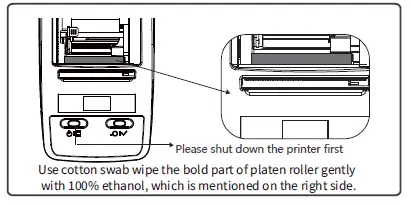
- Cleaning print head: Clean the print head regularly, especially when the printing quality declines, the cleaning method is as following:
Portable Thermal Transfer Label Printer
Portable Printer