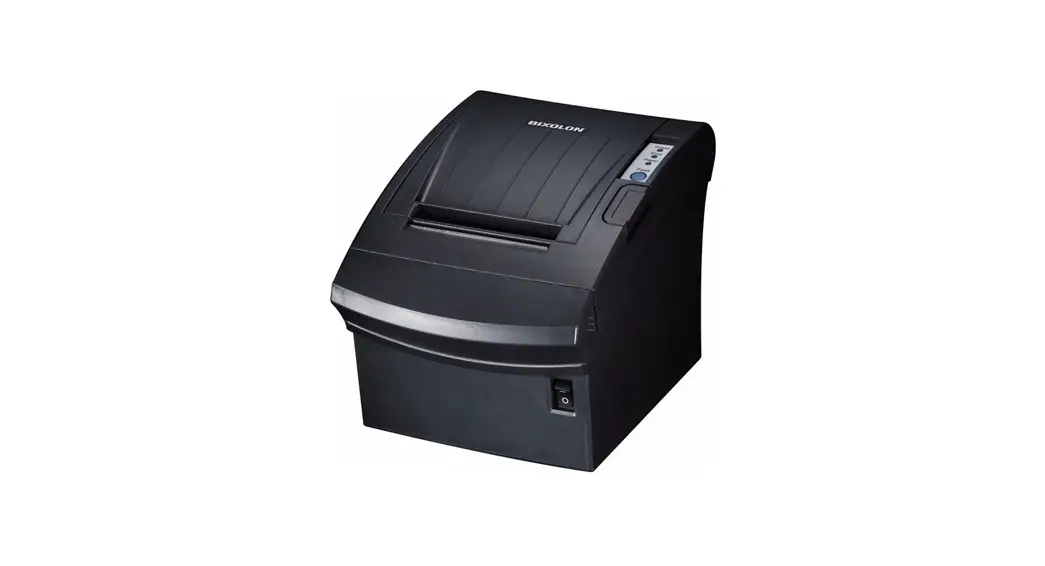
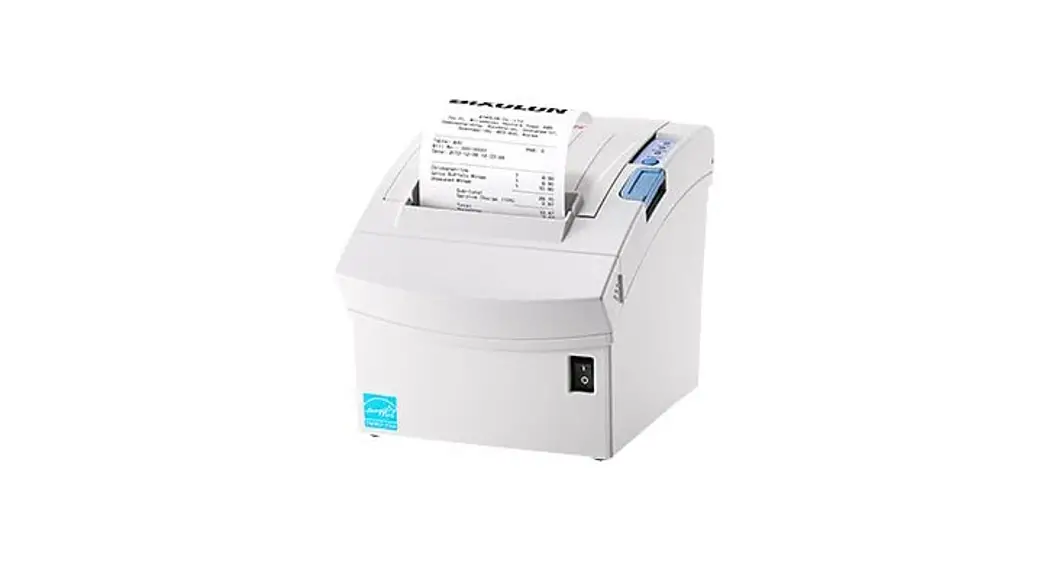
KN04-00240A Thermal Printer
Product Information
Printer Installation Guide & Safety Guide
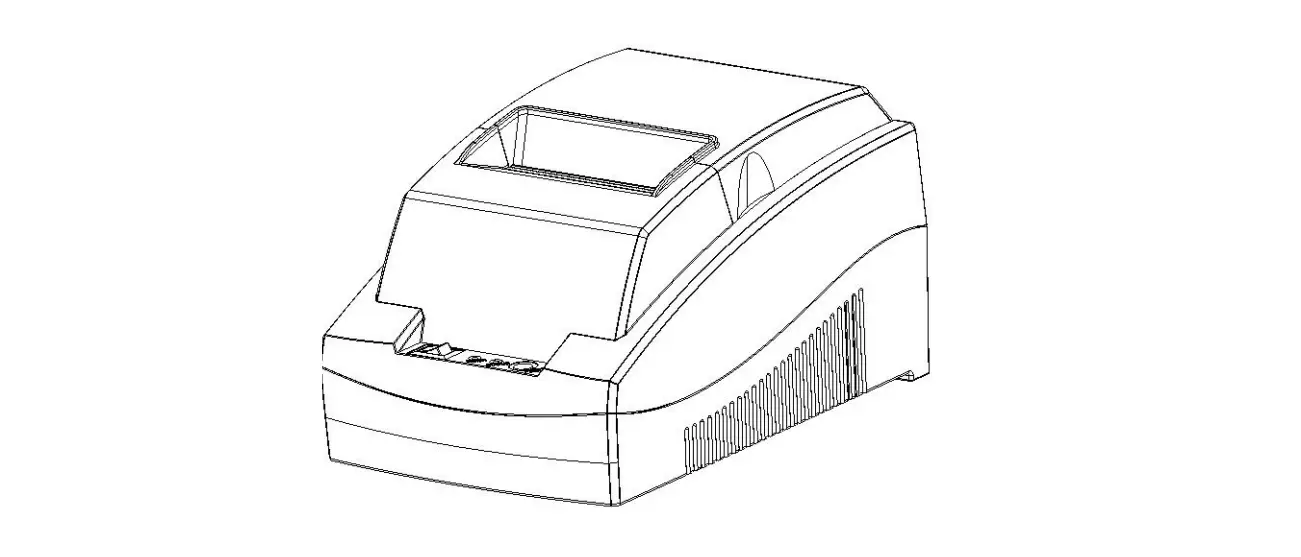
Model: THERMAL PRINTER SRP-350/352V
Manual: User’s Manual, Code Table, Control Commands, Software
manuals
Driver: Windows, OPOS, CUPS (Linux, Mac), VCOM (USB,
Ethernet)
SDK: UPOS SDK (iOs, Android)
Utility: Unified POS Utility, Net Configuration Tool, Android
Utility, iOS Utility
BIXOLON maintains an ongoing effort to enhance and upgrade the
functions and quality of all its products. In following, product
specifications and/or user manual content may be changed without
prior notice. Please refer to the BIXOLON website for the addresses
and phone numbers of the company’s headquarters and branch
offices.
Components
- Cable Cover
- USB A-B Cable
- AC/DC Adapter
- Power Cord
- Paper
Cable Connection
- Turn off the printer and peripheral devices.
- Connect the power cord to the adapter and connect the adapter
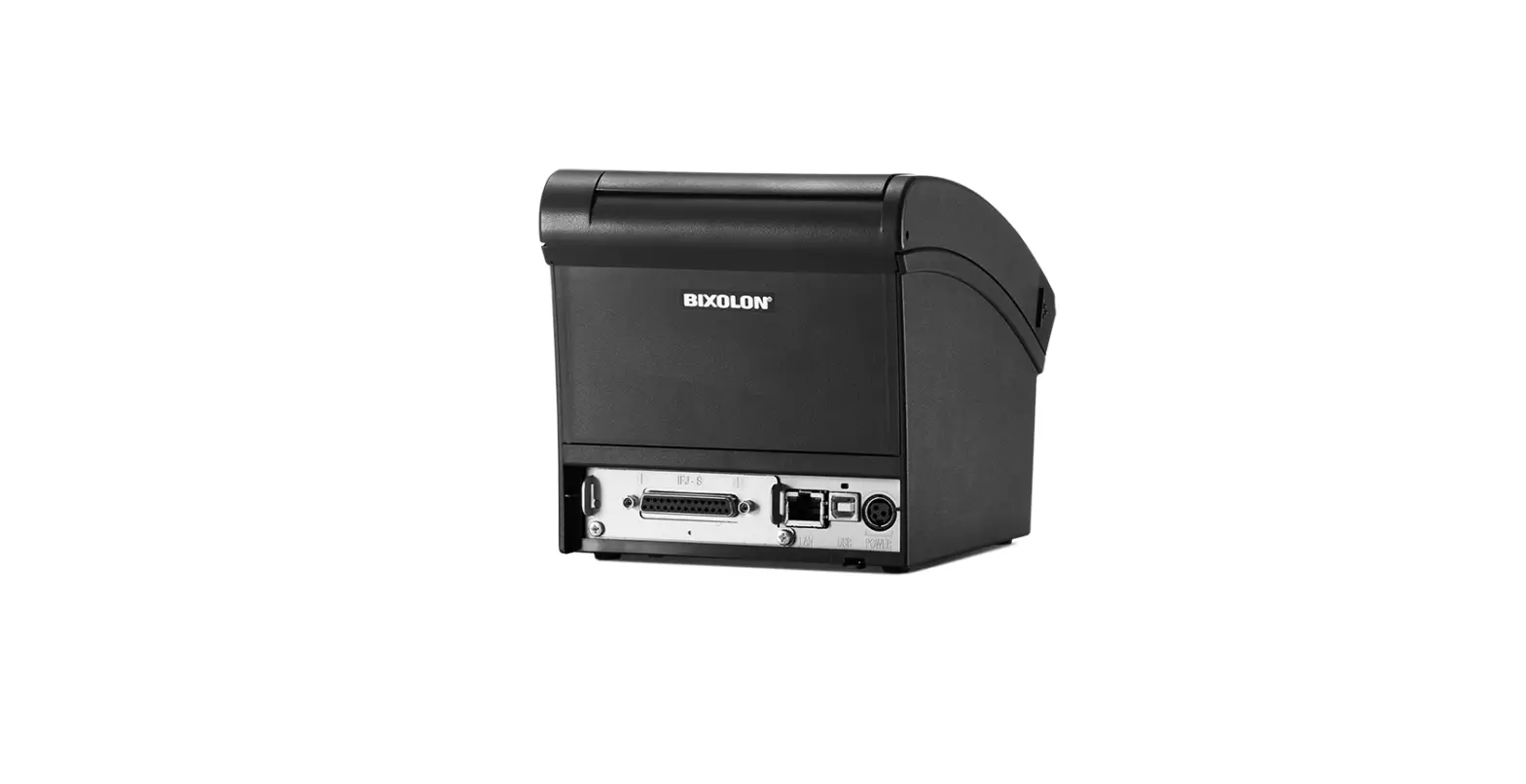
to the power port connector of the printer. - Check the type of the interfaces at the back of the printer
(USB, Serial, Parallel, and Ethernet) and connect the interface
cable. - Connect the drawer kick-out cable to the drawer kick-out port
of the printer.
Note: Do not use an adapter that was not
supplied with the printer.
Installing Paper Roll
- Push the Cover Open Button to open the Printer Cover.
- Insert new roll paper in the correct direction.
- Pull the paper out slightly and close the Printer Cover.
Note: When closing the Printer cover, press
down on the center of the cover to ensure that the paper is in
contact with the roller. Printing quality may not be optimum if
recommended paper is not used.
Using Control Panel
Self-Test
The printer’s functionality can be checked through the
self-test. Printing quality, ROM version, and memory switch
settings can be checked through the self-test function.
- Check whether paper is inserted correctly.
- Turn on the power while holding down the Feed button and the
self-test procedure will begin. - The printer will print out details of its current status
including which version of ROM. - After printing out its current status of printer, the printer
will print following lines and wait for the next step (paper light
will keep blinking). - Hold down the Feed button for at least 1 second to save the
changes. The following line will be printed before cutting the
paper: *** COMPLETED *** - The new settings will be automatically applied when printer
resets.
Recommended Papers
The use of papers other than those recommended may cause damage
to the printer’s TPH or degrade the printing quality. BIXOLON is
not responsible for the damage caused by non-recommended
papers.
Printer Installation Guide & Safety Guide
KN04-00240A (V1.1)
THERMAL PRINTER SRP-350/352V
Information
This installation guide contains essential information required for product installation. Please refer to the Software on the Download section of the BIXOLON website (http://www.bixolon.com) for further information.
1. Manual: User’s Manual, Code Table, Control Commands, Software manuals 2. Driver: Windows, OPOS, CUPS (Linux, Mac), VCOM (USB, Ethernet) 3. SDK: UPOS SDK (iOs, Android) 4. Utility: Unified POS Utility, Net Configuration Tool, Android Utility, iOS Utility
BIXOLON maintains an ongoing effort to enhance and upgrade the functions and quality of all its products. In following, product specifications and/or user manual content may be changed without prior notice. Please refer to the BIXOLON website for the addresses and phone numbers of the company’s headquarters and branch offices.
Components
Cable Cover
USB A-B Cable Installation Guide
SRP-350/352V
AC/DC Adapter
Power Cord
Paper
Cable Connection
1. Turn off the printer and peripheral devices. 2. Connect the power cord to the adapter and connect the adapter to the power
port connector of the printer. 3. Check the type of the interfaces at the back of the printer (USB, Serial,
Parallel and Ethernet) and connect the interface cable. 4. Connect the drawer kick-out cable to the drawer kick-out port of the printer.
Do not use an adapter that was not supplied with the printer.
USB Port Drawer Kick-out Port Power Port
Power Cable
Adapter
Interface Port
Interface Cable (Serial/Parallel)
USB Cable
Drawer Kick-out Cable
Power Cord
Installing Paper Roll
1. Push the Cover Open Button to open the Printer Cover.
2. Insert new roll paper in the correct direction.
3. Pull the paper out slightly and close the Printer Cover.
When closing the Printer cover, press down on the center of the cover to ensure that the paper is in contact with the roller. Printing quality may not be optimum if recommended paper is not used.
Using Control Panel
· Power (LED) The Power LED is on whenever the printer is on. · Error (LED) Red light will be on in various error conditions such as out of paper, cover open, etc. · Paper (LED) Red LED will be lit when the paper roll is running low. The LED keeps blinking when the printer is in self-test standby mode or macro execution standby mode. · Feed (Button) Press this button to feed the paper out. Hold down this button to feed out the paper continuously.
Self-Test
The printer’s functionality can be checked through the self-test. Printing quality, ROM version, and memory switch settings can be checked through the self-test function.
1. Check whether paper is inserted correctly. 2. Turn on the power while holding down the Feed button and the self-test
procedure will begin. 3. The printer will print out details of its current status including which version
of ROM. 4. After printing out its current status of printer, the printer will print following
lines and wait for the next step (paper light will keep blinking). SELECT MODES BY PRESSING FEED BUTTON. Continuous SELF-TEST: Less than 1 second VMSM Selection : 1 second or more
5. Press the Feed button to resume printing or hold down the button for at least one second to change the VMSM settings. 5-1 If “Continuous Self-Test” is selected (1) Press the Feed button for less than one second to print the preset page. (2) The self-test ends automatically as it prints the following line and cuts the paper. *** COMPLETED *** (3) The printer goes into normal print mode upon completion of the self test. 5-2 If “VMSM Selection” is selected (1) The following lines will be printed when the VMSM opens. ** VMSM Selection ** 0 : Exit and reboot printer 1 : Print current settings 2 : Set Print Density 3 : Set Print Speed 4 : Set Cutting mode 5 : Buzzer Setting 6 : Set Serial Setting (2) Press the Feed button to run the above function. Step 1 (Select Options): press the button a number of times as shown by each menu. Step 2 (Enter Options): hold down the button for at least one second to apply each item selected. If a selected item is not listed above, the list of “VMSM Selection” will be printed again. Setting the mode will be canceled if no item is selected in Step 1. If “0: Exit and reboot printer” is not executed, the new settings will not be saved.
(3) Hold down the Feed button for at least 1 second to save the changes. The following line will be printed before cutting the paper.
*** COMPLETED ***
6. The new settings will be automatically applied when printer resets.
Recommended Papers
– TF50KS-E (Paper Thickness: 65m): Nippon Paper Industries Co., Ltd. – PD 150R (Paper Thickness: 75m): New Oji Paper Mfg, Co., Ltd. – PD 160R (Paper Thickness: 75m): New Oji Paper Mfg, Co., Ltd. – P350 (Paper Thickness: 62m): Kansaki Specialty Paper, Inc. (USA) – P220AG (Paper Thickness: 65m): Mitsubishi Paper Mills Limited – P220A (Paper Thickness: 65m): Mitsubishi Paper Mills Limited – F5041 (Paper Thickness: 65m): Mitsubishi HitecPaper Flensburg Gmbh – P5047 (Paper Thickness: 60m): Mitsubishi Paper Mills Limited
The use of papers other than those recommended above may cause damage to the printer’s TPH or degrade the printing quality. BIXOLON is not responsible for the damage caused by non-recommended papers.
WEEE(Waste Electrical and Electric Equipment)
This marking shown on the product or its literature, indicates that is should not be disposed with other household wastes at the end of its working life, To prevent possible harm to the environment or human health from uncontrolled waste disposal, please separate this item from other types of wastes and recycle it responsibly to promote the sustainable reuse of material resources. Household users should contact either the retailer where they purchased this product, or their local government office, for details of where and how they can take this item for environmentally safe recycling. Business users should contact their supplier and check the terms and conditions of the purchase contract. This product should not be mixed with other commercial wastes for disposal.
Safety Precautions
WARNING & CAUTION
Is described as death, physical injuries, serious financial losses, and damage to data etc. that can be caused to the user.
Do not connect multiple products to a single or faulty power outlet. Use only grounded power outlets that meet the industry standard. Noncompliance may cause electric shock or fire.
Only use authentic products from BIXOLON. The company will not provide post-sale support for damaged or other quality issues that any fake (or refurbished) products may incur.
Do not excessively bend or strain the power cord. Securely push the power cord all the way into the power outlet lest it remain loose. Make sure to hold the cord tight when separating it from the power outlet. Do not remove the power cord while the product is in use. Noncompliance may cause electric shock or fire.
Keep small accessories or other packaging materials away from young children. Beware: choking hazard. Mishandling the product may incur injuries which may require seeking urgent medical attention.
Keep excessive liquids away from the power cord and outlet. If matter is smeared onto the power cords, wipe with a dry cloth. Noncompliance may cause electric shock or fire.
Do not allow the product to be damaged by heavy objects. Noncompliance may cause electric shock or fire.
If the product emits a strange sound, burning smell, or smoke, turn off the power immediately and unplug the power cord. If the product is dropped or its exterior is damaged, turn off the power immediately and unplug the power cord. Do not subject the product to shock. It may start a fire. It may damage the product.
Install the product in a well-ventilated area by keeping it a certain distance from the wall. The product installed in certain places such as where a lot of fine dust is generated, where the temperature is too high or too low, where there is a lot of moisture or water, and at airports or stations that are used continuously for a long time may suffer serious quality problems due to the influence of the surrounding environment. An increase in internal temperature may start a fire. Be sure to contact the place of purchase before installing the product.
Install the product in a fixed place preventing it from tipping over. When moving the product, turn off the power and disconnect all connected cables, including the power cord. It may damage the product.
Never independently disassemble, repair, or modify the product as the warranty will become invalid. When repair is necessary, contact the original place of purchase.
Do not let any foreign substances enter the product. Do not place heavy objects, liquids, or metals on the product. This could cause damage to the product or a fire.
If there is a problem with the product, please contact the original place of purchase or through BIXOLON website’s product repair page (http://www.bixolon.com).
&
. (http://www.bixolon.com) Software Document .
1. : , , , 2. (Driver): Windows, OPOS, JavaPOS, CUPS(Linux, Mac), (USB Ethernet ) 3. (SDK): UPOS SDK(iOS, Android) 4. (Utility): POS (Unified POS Utility), (Net Configuration
Tool), (Android Utility), iOS (iOS Utility)
() . . () .
USB A-B
SRP-350/352V
AC/DC
1. . 2. , . 3. (USB, , , ) ,
. 4. ( ) ( ) .
.
USB
(/)
USB
1. . 2. . 3. , .
SRP-350/352V
· (LED) LED . · (LED) , LED . · (LED) LED . LED . · () . 3 .
. , ROM , .
1. . 2. . . 3. ROM . 4. , . ( .)
SELF-TEST PRINTING. . : :
5. (VMSM) 1 . 5-1 ” ” (1) 1 . (2) . *** COMPLETED *** (3) . 5-2 ” ” (1) . ** ** 0 : 1 : 2 : 3 : 4 : 5 : 6 : (2) . 1( ): . 2( ): 1 .
” ” . 1 . “0: ” .
(3) 1 . . *** ***
6. .
. .
– TF50KS-E (Paper Thickness: 65m): Nippon Paper Industries Co., Ltd. – PD 150R (Paper Thickness: 75m): New Oji Paper Mfg, Co., Ltd. – PD 160R (Paper Thickness: 75m): New Oji Paper Mfg, Co., Ltd. – P350 (Paper Thickness: 62m): Kansaki Specialty Paper, Inc. (USA) – P220AG (Paper Thickness: 65m): Mitsubishi Paper Mills Limited – P220A (Paper Thickness: 65m): Mitsubishi Paper Mills Limited – F5041 (Paper Thickness: 65m): Mitsubishi HitecPaper Flensburg Gmbh – P5047 (Paper Thickness: 60m): Mitsubishi Paper Mills Limited
– , TPH
.
– .
&
, , .
. . . . .
. () A/S .
. . . . .
. . . .
. . .
. .
, , . . . . .
. , , , . . .
. . . .
, , . .
. . . .
. , (http://www.bixolon.co.kr) .
Printer Installation Guide & Safety Guide
THERMAL PRINTER SRP-350/352V
Information
This installation guide contains essential information required for product installation. Please refer to the Software on the Download section of the BIXOLON website (http://www.bixolon.com) for further information.
1. Manual: User’s Manual, Code Table, Control Commands, Software manuals 2. Driver: Windows, OPOS, CUPS (Linux, Mac), VCOM (USB, Ethernet) 3. SDK: UPOS SDK (iOs, Android) 4. Utility: Unified POS Utility, Net Configuration Tool, Android Utility, iOS Utility
BIXOLON maintains an ongoing effort to enhance and upgrade the functions and quality of all its products. In following, product specifications and/or user manual content may be changed without prior notice. Please refer to the BIXOLON website for the addresses and phone numbers of the company’s headquarters and branch offices.
Components
Cable Cover
USB A-B Cable Installation Guide
SRP-350/352V
AC/DC Adapter
Power Cord
Paper
Cable Connection
1. Turn off the printer and peripheral devices. 2. Connect the power cord to the adapter and connect the adapter to the power
port connector of the printer. 3. Check the type of the interfaces at the back of the printer (USB, Serial,
Parallel and Ethernet) and connect the interface cable. 4. Connect the drawer kick-out cable to the drawer kick-out port of the printer.
Do not use an adapter that was not supplied with the printer.
USB Port Drawer Kick-out Port Power Port
Power Cable
Adapter
Interface Port
Interface Cable (Serial/Parallel)
USB Cable
Drawer Kick-out Cable
Power Cord
Installing Paper Roll
1. Push the Cover Open Button to open the Printer Cover.
2. Insert new roll paper in the correct direction.
3. Pull the paper out slightly and close the Printer Cover.
When closing the Printer cover, press down on the center of the cover to ensure that the paper is in contact with the roller. Printing quality may not be optimum if recommended paper is not used.
Using Control Panel
· Power (LED) The Power LED is on whenever the printer is on. · Error (LED) Red light will be on in various error conditions such as out of paper, cover open, etc. · Paper (LED) Red LED will be lit when the paper roll is running low. The LED keeps blinking when the printer is in self-test standby mode or macro execution standby mode. · Feed (Button) Press this button to feed the paper out. Hold down this button to feed out the paper continuously.
Self-Test
The printer’s functionality can be checked through the self-test. Printing quality, ROM version, and memory switch settings can be checked through the self-test function.
1. Check whether paper is inserted correctly. 2. Turn on the power while holding down the Feed button and the self-test
procedure will begin. 3. The printer will print out details of its current status including which version
of ROM. 4. After printing out its current status of printer, the printer will print following
lines and wait for the next step (paper light will keep blinking). SELECT MODES BY PRESSING FEED BUTTON. Continuous SELF-TEST: Less than 1 second VMSM Selection : 1 second or more
5. Press the Feed button to resume printing or hold down the button for at least one second to change the VMSM settings. 5-1 If “Continuous Self-Test” is selected (1) Press the Feed button for less than one second to print the preset page. (2) The self-test ends automatically as it prints the following line and cuts the paper. *** COMPLETED *** (3) The printer goes into normal print mode upon completion of the self test. 5-2 If “VMSM Selection” is selected (1) The following lines will be printed when the VMSM opens. ** VMSM Selection ** 0 : Exit and reboot printer 1 : Print current settings 2 : Set Print Density 3 : Set Print Speed 4 : Set Cutting mode 5 : Buzzer Setting 6 : Set Serial Setting (2) Press the Feed button to run the above function. Step 1 (Select Options): press the button a number of times as shown by each menu. Step 2 (Enter Options): hold down the button for at least one second to apply each item selected. If a selected item is not listed above, the list of “VMSM Selection” will be printed again. Setting the mode will be canceled if no item is selected in Step 1. If “0: Exit and reboot printer” is not executed, the new settings will not be saved.
(3) Hold down the Feed button for at least 1 second to save the changes. The following line will be printed before cutting the paper.
*** COMPLETED ***
6. The new settings will be automatically applied when printer resets.
Recommended Papers
– TF50KS-E (Paper Thickness: 65m): Nippon Paper Industries Co., Ltd. – PD 150R (Paper Thickness: 75m): New Oji Paper Mfg, Co., Ltd. – PD 160R (Paper Thickness: 75m): New Oji Paper Mfg, Co., Ltd. – P350 (Paper Thickness: 62m): Kansaki Specialty Paper, Inc. (USA) – P220AG (Paper Thickness: 65m): Mitsubishi Paper Mills Limited – P220A (Paper Thickness: 65m): Mitsubishi Paper Mills Limited – F5041 (Paper Thickness: 65m): Mitsubishi HitecPaper Flensburg Gmbh – P5047 (Paper Thickness: 60m): Mitsubishi Paper Mills Limited
The use of papers other than those recommended above may cause damage to the printer’s TPH or degrade the printing quality. BIXOLON is not responsible for the damage caused by non-recommended papers.
WEEE(Waste Electrical and Electric Equipment)
This marking shown on the product or its literature, indicates that is should not be disposed with other household wastes at the end of its working life, To prevent possible harm to the environment or human health from uncontrolled waste disposal, please separate this item from other types of wastes and recycle it responsibly to promote the sustainable reuse of material resources. Household users should contact either the retailer where they purchased this product, or their local government office, for details of where and how they can take this item for environmentally safe recycling. Business users should contact their supplier and check the terms and conditions of the purchase contract. This product should not be mixed with other commercial wastes for disposal.
Safety Precautions
WARNING & CAUTION
Is described as death, physical injuries, serious financial losses, and damage to data etc. that can be caused to the user.
Do not connect multiple products to a single or faulty power outlet. Use only grounded power outlets that meet the industry standard. Noncompliance may cause electric shock or fire.
Only use authentic products from BIXOLON. The company will not provide post-sale support for damaged or other quality issues that any fake (or refurbished) products may incur.
Do not excessively bend or strain the power cord. Securely push the power cord all the way into the power outlet lest it remain loose. Make sure to hold the cord tight when separating it from the power outlet. Do not remove the power cord while the product is in use. Noncompliance may cause electric shock or fire.
Keep small accessories or other packaging materials away from young children. Beware: choking hazard. Mishandling the product may incur injuries which may require seeking urgent medical attention.
Keep excessive liquids away from the power cord and outlet. If matter is smeared onto the power cords, wipe with a dry cloth. Noncompliance may cause electric shock or fire.
Do not allow the product to be damaged by heavy objects. Noncompliance may cause electric shock or fire.
If the product emits a strange sound, burning smell, or smoke, turn off the power immediately and unplug the power cord. If the product is dropped or its exterior is damaged, turn off the power immediately and unplug the power cord. Do not subject the product to shock. It may start a fire. It may damage the product.
Install the product in a well-ventilated area by keeping it a certain distance from the wall. The product installed in certain places such as where a lot of fine dust is generated, where the temperature is too high or too low, where there is a lot of moisture or water, and at airports or stations that are used continuously for a long time may suffer serious quality problems due to the influence of the surrounding environment. An increase in internal temperature may start a fire. Be sure to contact the place of purchase before installing the product.
Install the product in a fixed place preventing it from tipping over. When moving the product, turn off the power and disconnect all connected cables, including the power cord. It may damage the product.
Never independently disassemble, repair, or modify the product as the warranty will become invalid. When repair is necessary, contact the original place of purchase.
Do not let any foreign substances enter the product. Do not place heavy objects, liquids, or metals on the product. This could cause damage to the product or a fire.
If there is a problem with the product, please contact the original place of purchase or through BIXOLON website’s product repair page (http://www.bixolon.com).
SRP-350/352V
. .(http://www.bixolon.com) BIXOLON “” “”
: .1 ( ,Windows, OPOS, CUPS (Linux, Mac), VCOM (USB : .2
SDK: UPOS SDK (iOs, Android) .3 iOS POS : .4
. BIXOLON . /
BIXOLON .
( ) · .
( ) · .
( ) · .
. () ·
. .
. . ROM
USB A-B
/
SRP-350/352V
. .1 . .2 . ( USB) .3
. .4
.
USB
. .1
. .2 .ROM .3
) .4 .(
. :
: VMSM .VMSM .5
” ” 1-5 . (1)
(2) . *** ***
(3) .
“VMSM ” 2-5
VMSM. (1) VMSM** **
: 0 : 1 : 2 : 3 : 4 : 5 : 6 . (2)
🙁 ) 1
.
🙁 ) 2
.
. “VMSM ” .1
. ” :0″
( /)
. (3) .
*** ***
. .1 .2 .
. .3
. .
. .6
USB
. 🙁 65 : ) TF50KS-E New Oji Paper Mfg 🙁 75 : ) PD 150R New Oji Paper Mfg 🙁 75 : ) PD 160R –
( ) 🙁 62 : ) P350 –
Mitsubishi Paper Mills 🙁 65 : ) P220AG –
Mitsubishi Paper Mills 🙁 65 : ) P220A –
Mitsubishi HitecPaper Flensburg Gmbh 🙁 65 : ) F5041 –
Mitsubishi Paper Mills 🙁 60 : ) – P5047
(TPH) . BIXOLON .
(WEEE)
. .
. .
.
.BIXOLON
.( )
. . .
. . :
.
.
. .
. .
.
.
. .
.
.
.
. .
.
. . . .
.
.
.
. .
BIXOLON
.(http://www.bixolon.com)
.
.
.
 BIXOLON
 BIXOLON | pos printer, mobile printer, label printer