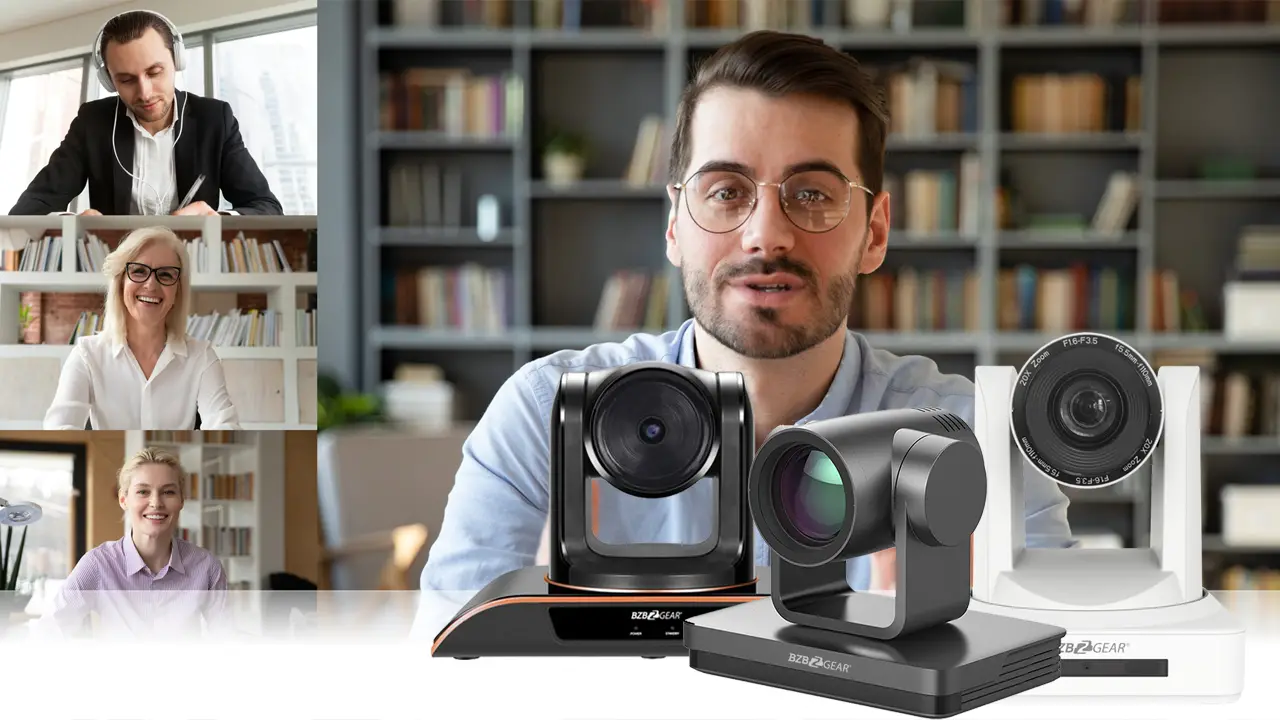

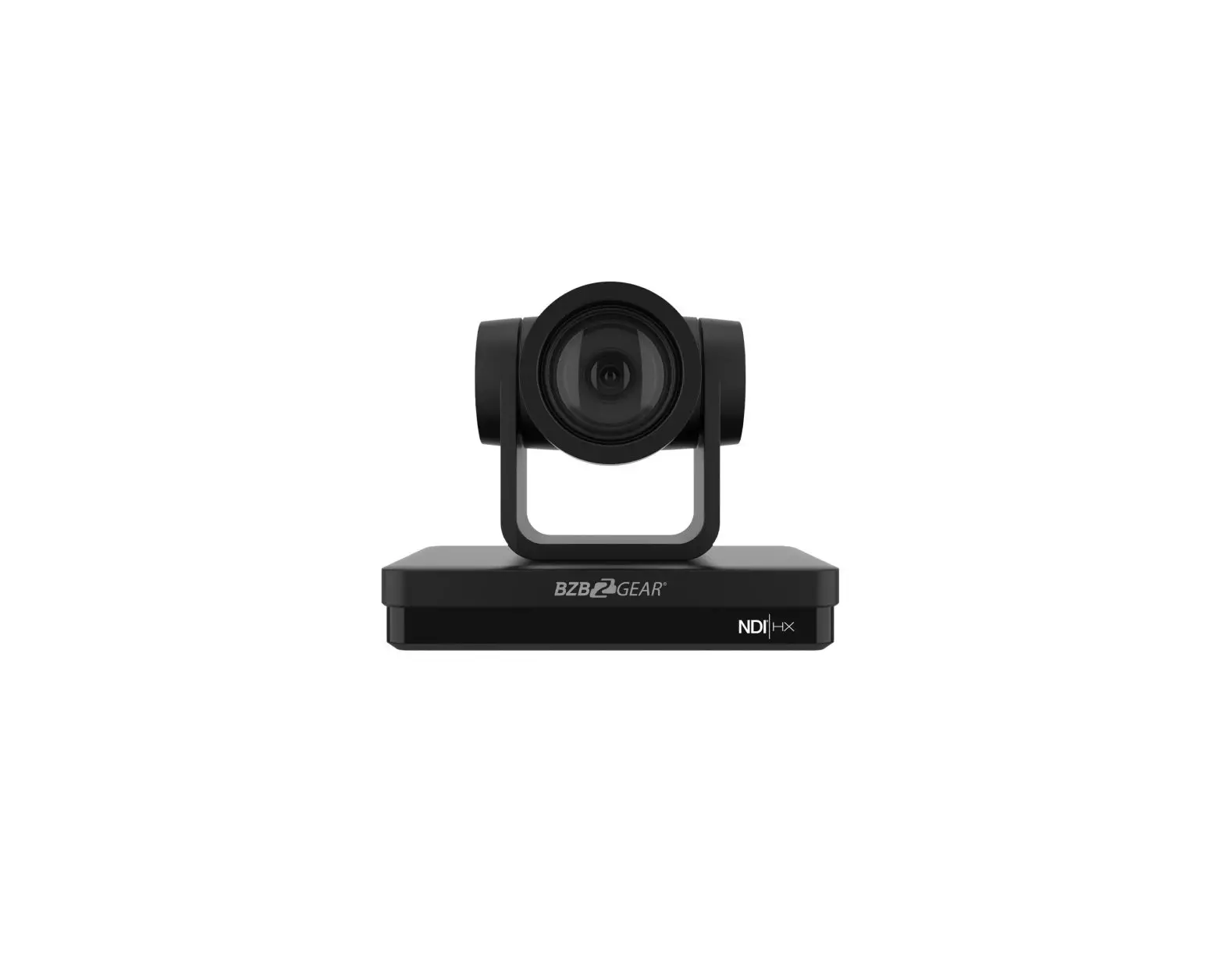
BZBGEAR BG-VPTZ Series Live Streaming PTZ Camera
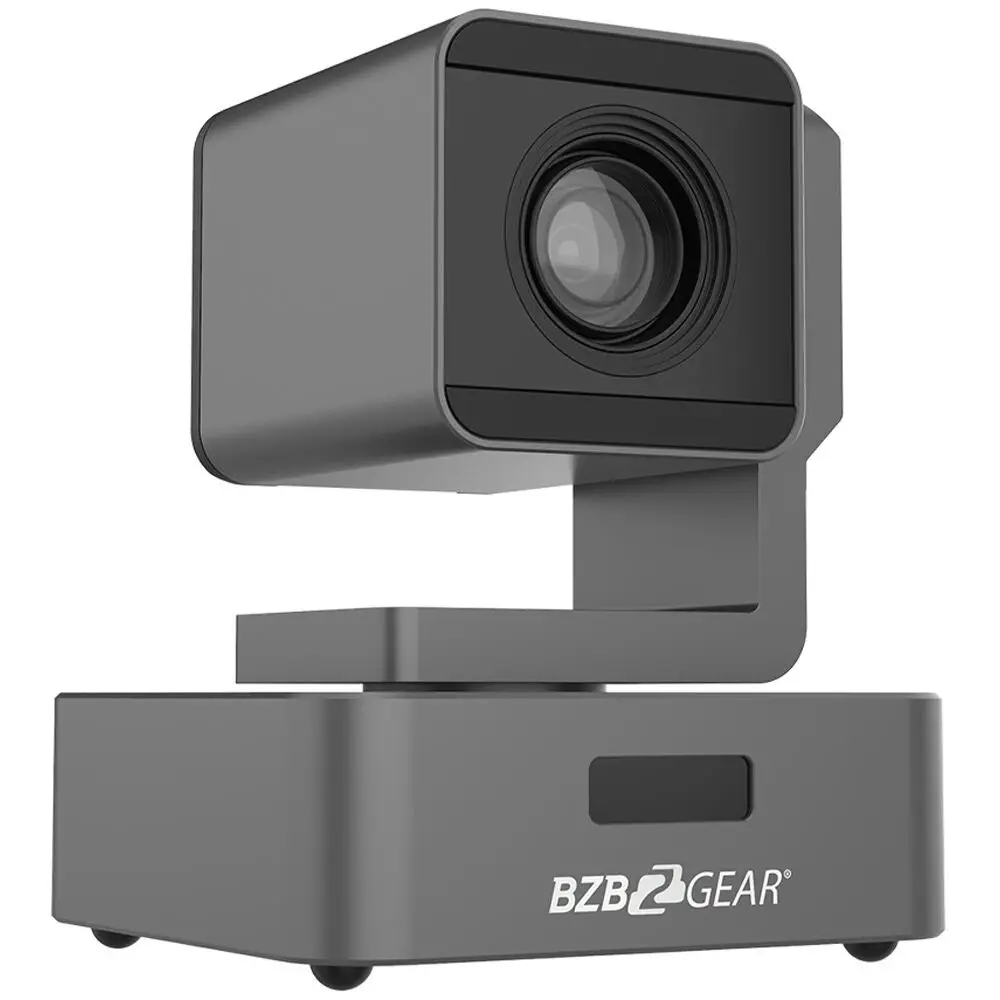
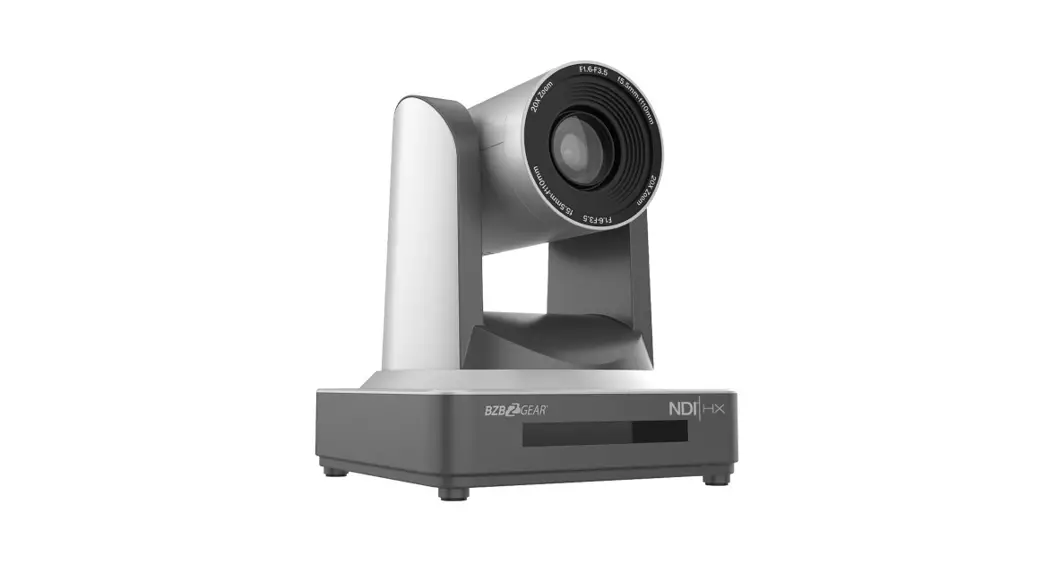
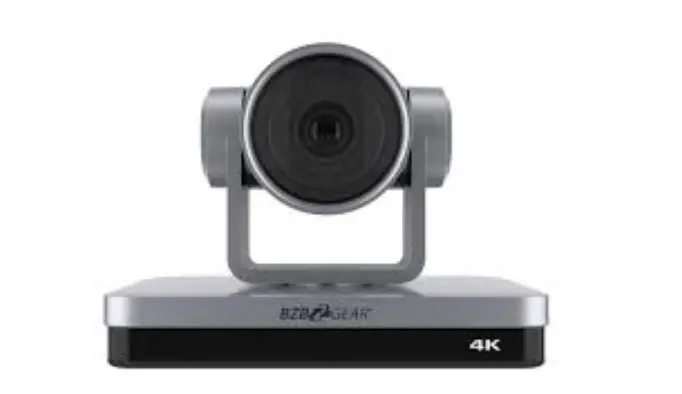
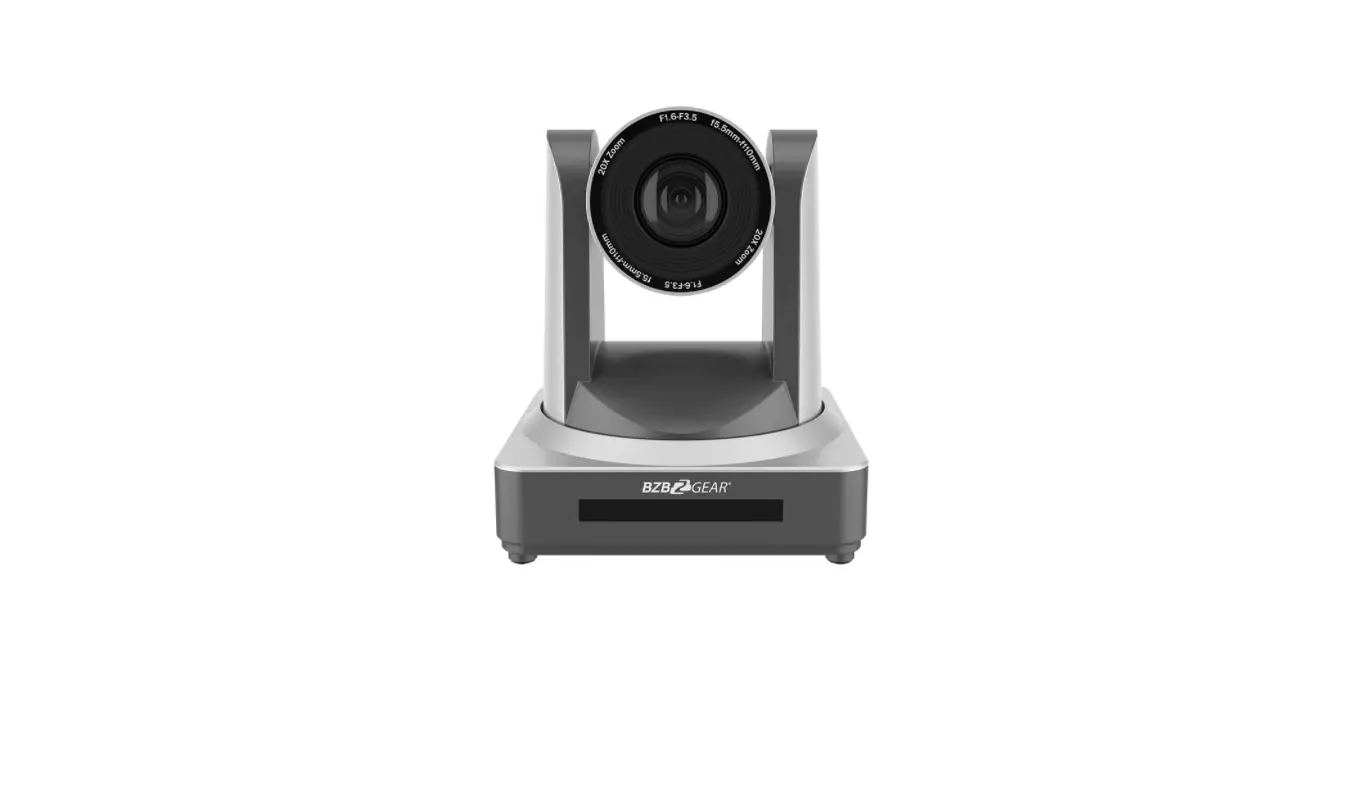
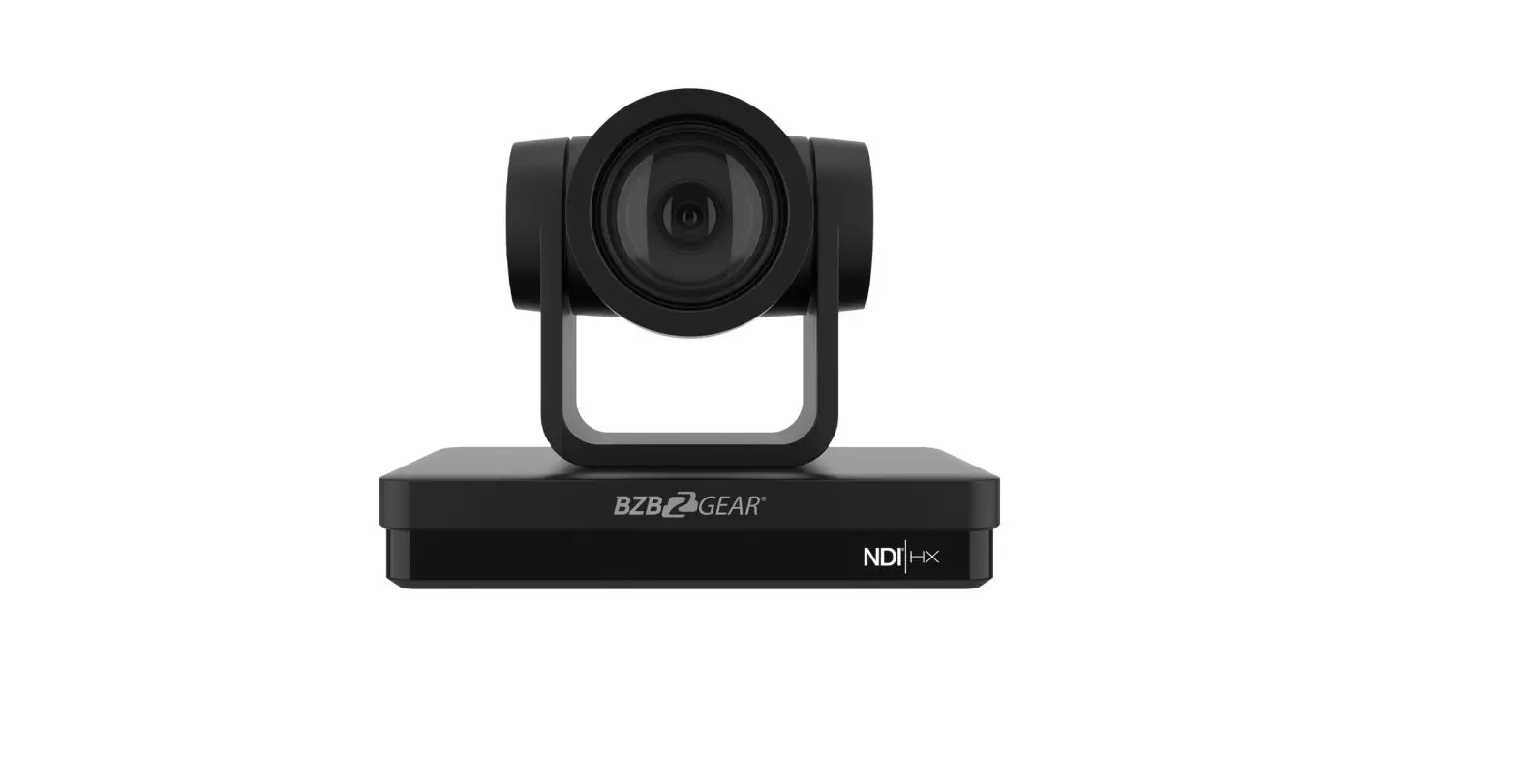
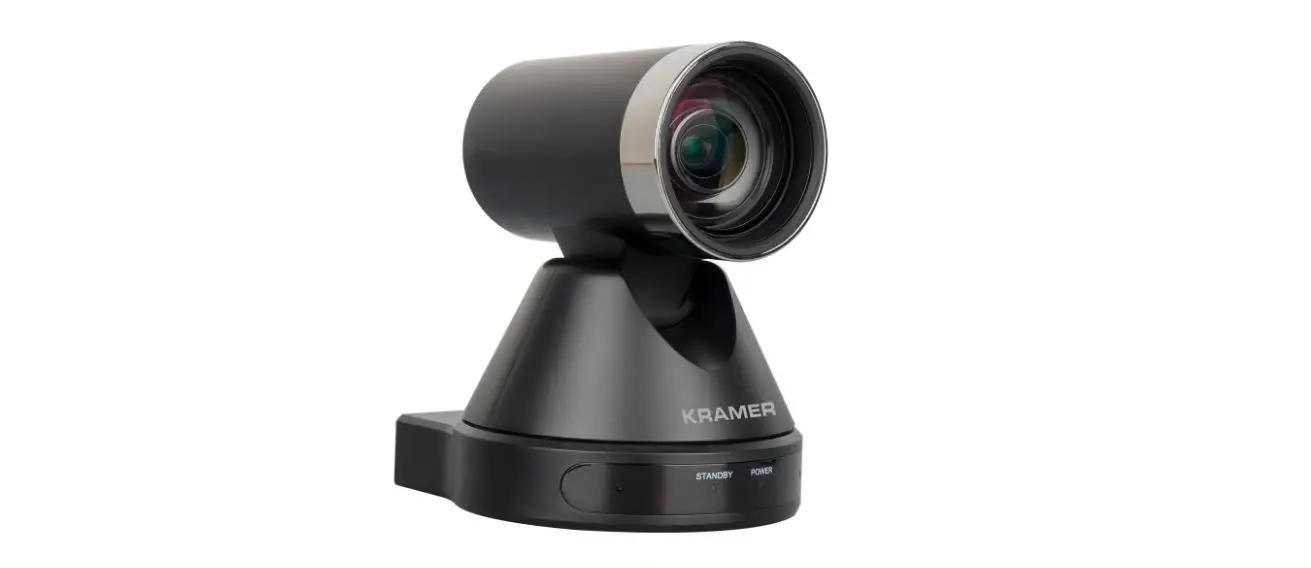
The BG-VPTZ-HSU3 is a broadcast-quality PTZ camera with a price that won’t stretch your budget. It features a Full HD CMOS Sensor with a max resolution of 1080P60, accurate color reproduction, and simultaneous USB 3.0, 3G-SDI, HDMI, IP Streaming video outputs. An integrated 3.5MM Audio input makes this camera ideal for live streaming and recording. Advanced ISP algorithms ensure fast, accurate, and stable auto-focusing. When you combine the long list of features, outstanding image quality, and competitive price, it’s no surprise that this is one of our most popular cameras. This is the perfectcamera for any indoor environment from Houses of Worship, Schools, and Venues to Offices and Conference Rooms.
Package Contents
1 x BG-VPTZ 1 x RS232 to mini-DIN adapter
1 x 12V/2.0A Power Supply 1 x Mini-DIN to RS-485 adapter
1 x User Manual 1 x IR Remote Control
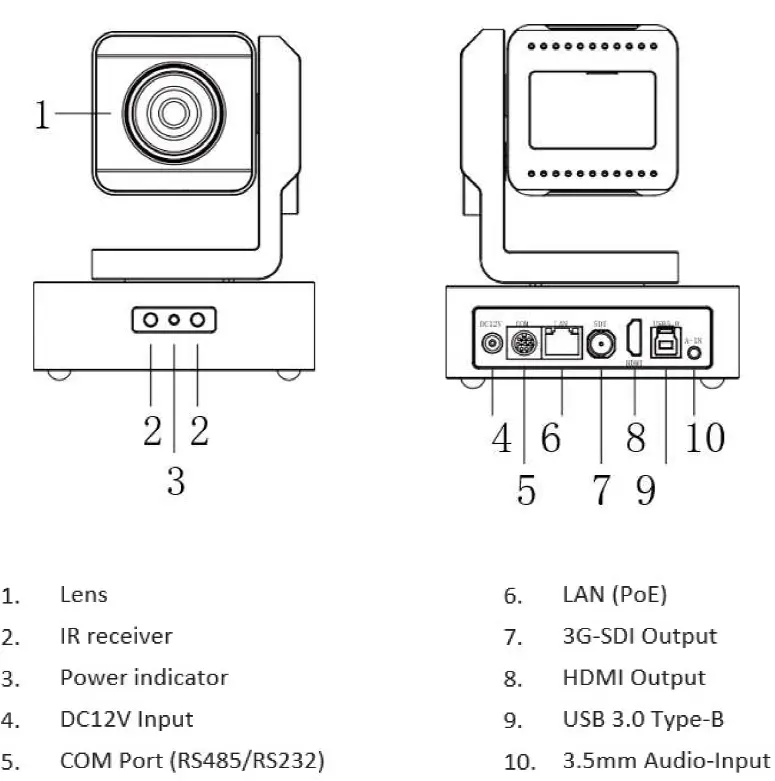
Parts list
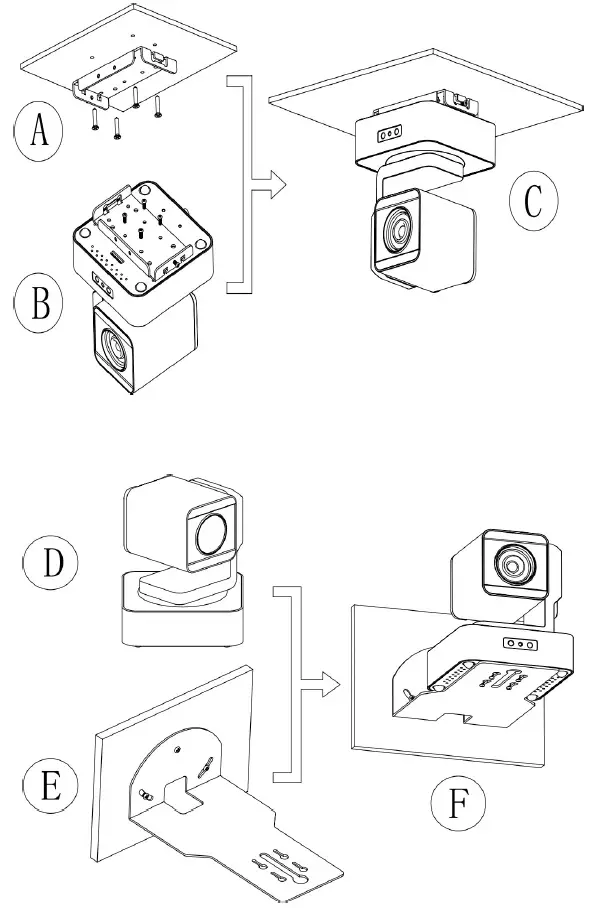
Mounting Instructions
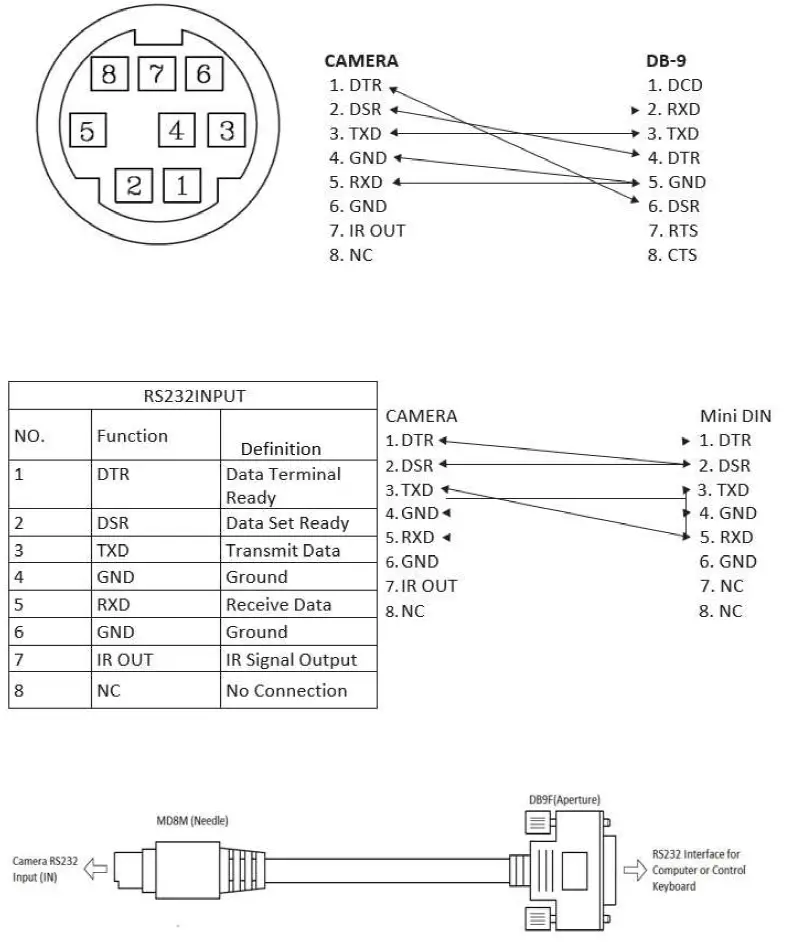
RS-232 Interface
The BG-UPTZ camera includes a built-in WebGUI allowing for control and management of advanced features. Use the following instructions to access the WebGUI.
- Launch a web browser and enter the IP address of the unit (default 192.168.1.162).
- The BZBGEAR login page will appear.
- Enter your login information (by default Username = admin Password = admin).
- Select the Login button.
Problems connecting to your camera?
Check out our Knowledge Base at https://bzbgear.com/knowledge-base/ for more information and stepby- step guide.
| My camera has no picture | Power switch is off, bad connection, incompatible resolution, camera lens is obstructed |
| |
| My IR remote control doesn’t | The camera’s IR sensor is | | Ensure you have a clear |
| work | blocked, batteries are dead, | line of sight from the | |
| sunlight is interfering with the IR | remote to the front of | ||
| signal | the camera base | ||
| | Replace the batteries | ||
| | Ensure the camera is out | ||
| of direct sunlight | |||
| I cannot access the camera’s | The camera is not connected to | | Check connections |
| WebGUI | the network | | Verify your camera’s IP |
| address using an IP | |||
| scanning tool | |||
| | Ensure your computer is | ||
| connected to the same | |||
| network as the camera | |||
| I have no image from my USB | Your USB device is not being | | Make sure you’re using a |
| connection | discovered | USB 3.0 cable | |
| | Replace the cable with a | ||
| shorter one (6 feet or | |||
| less) | |||
| | Try a different USB port | ||
| on your computer | |||
https://bzbgear.com/support/ | 1.888.499.9906 | [email protected] BG-VPTZ Series



![Ptzoptics 20x 3g-sdi Gen 2 Live Streaming Ptz Camera User Manual [pt20x-sdi-gy-g2 Pt20x-sdi-wh-g2]](https://static-data1.manualsee.com/1/img/440/60714/2021/02/PTZOptics-20x-3G-SDI-GEN-2-Live-Streaming-PTZ-Camera-User-Manual-PT20X-SDI-GY-G2-PT20X-SDI-WH-G2.jpg "Ptzoptics 20x 3g-sdi Gen 2 Live Streaming Ptz Camera User Manual [pt20x-sdi-gy-g2 Pt20x-sdi-wh-g2]")