 Quick Start Guide
BG-4KND Series
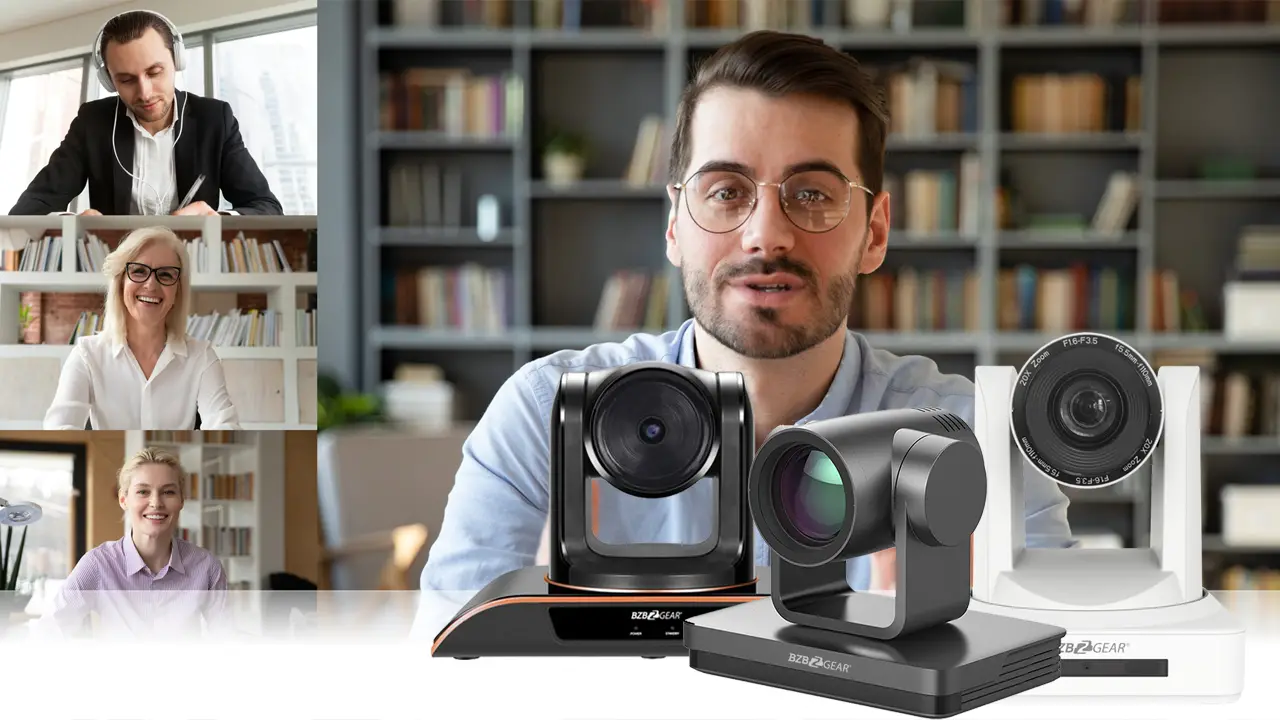
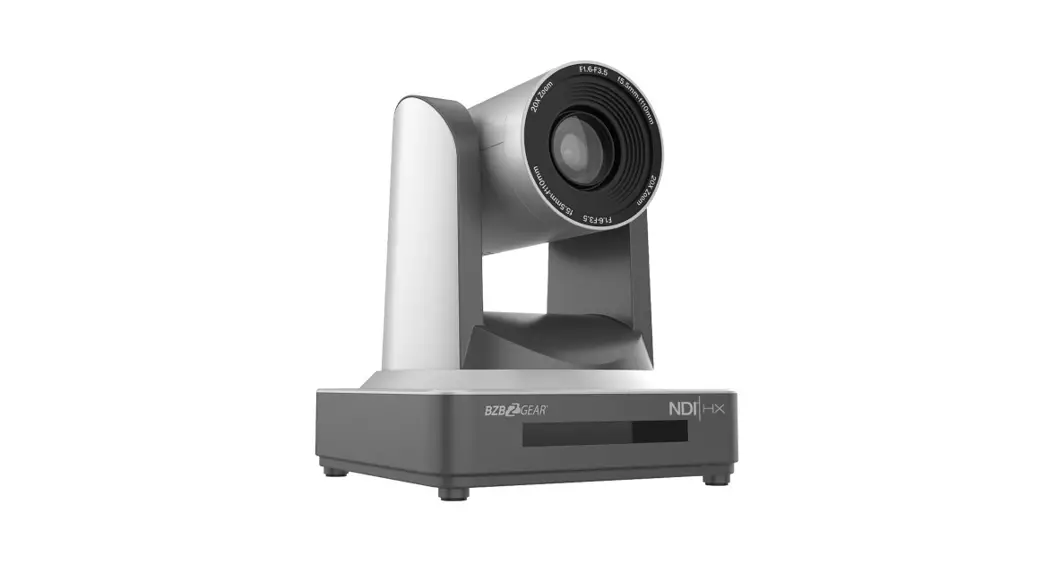
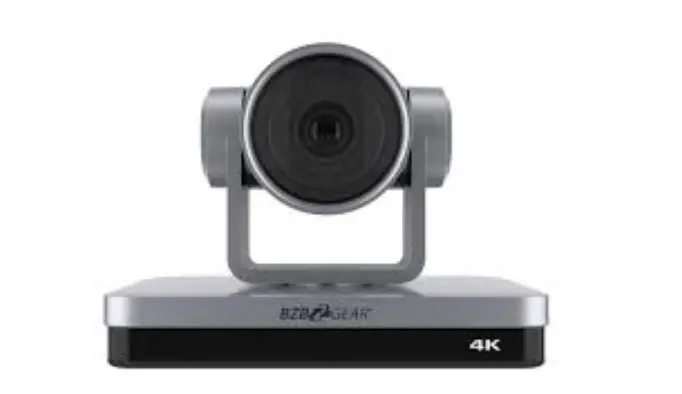
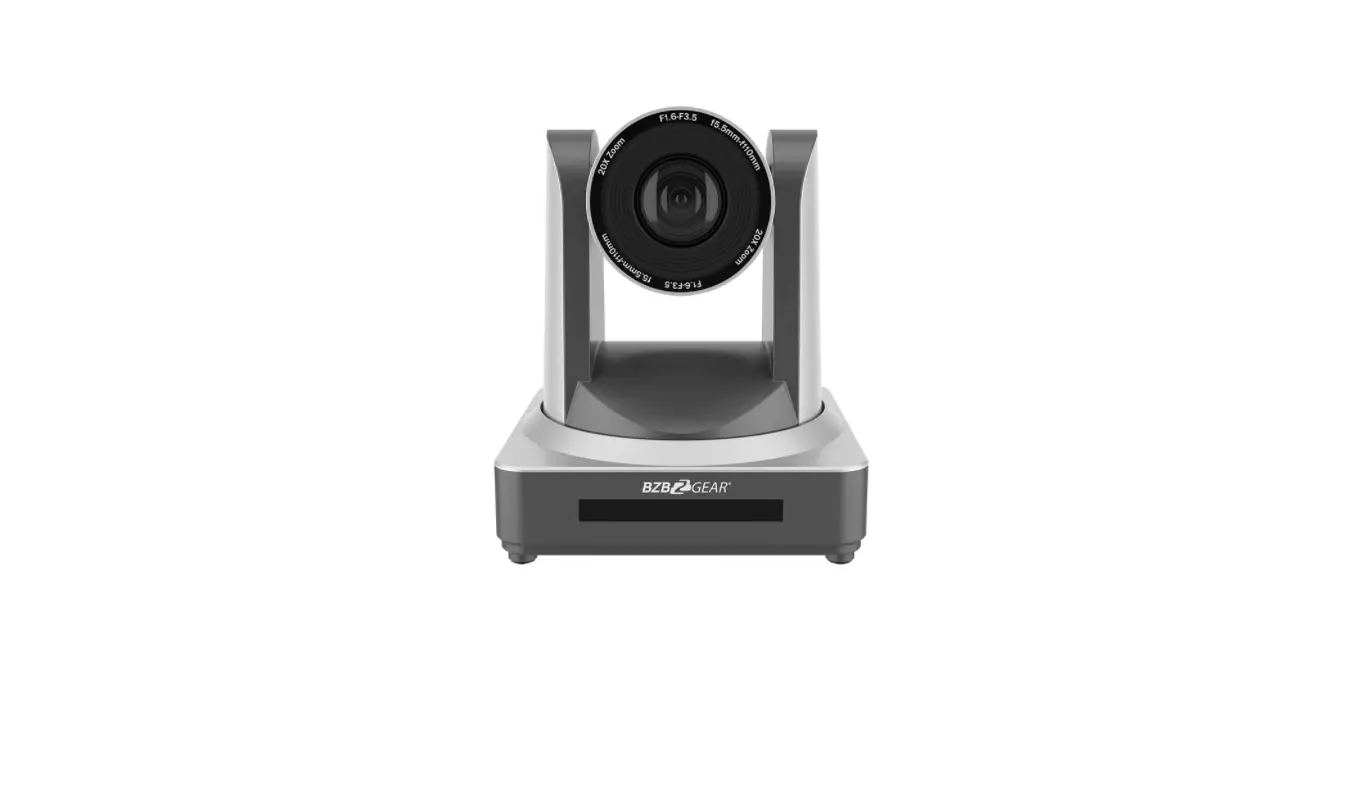
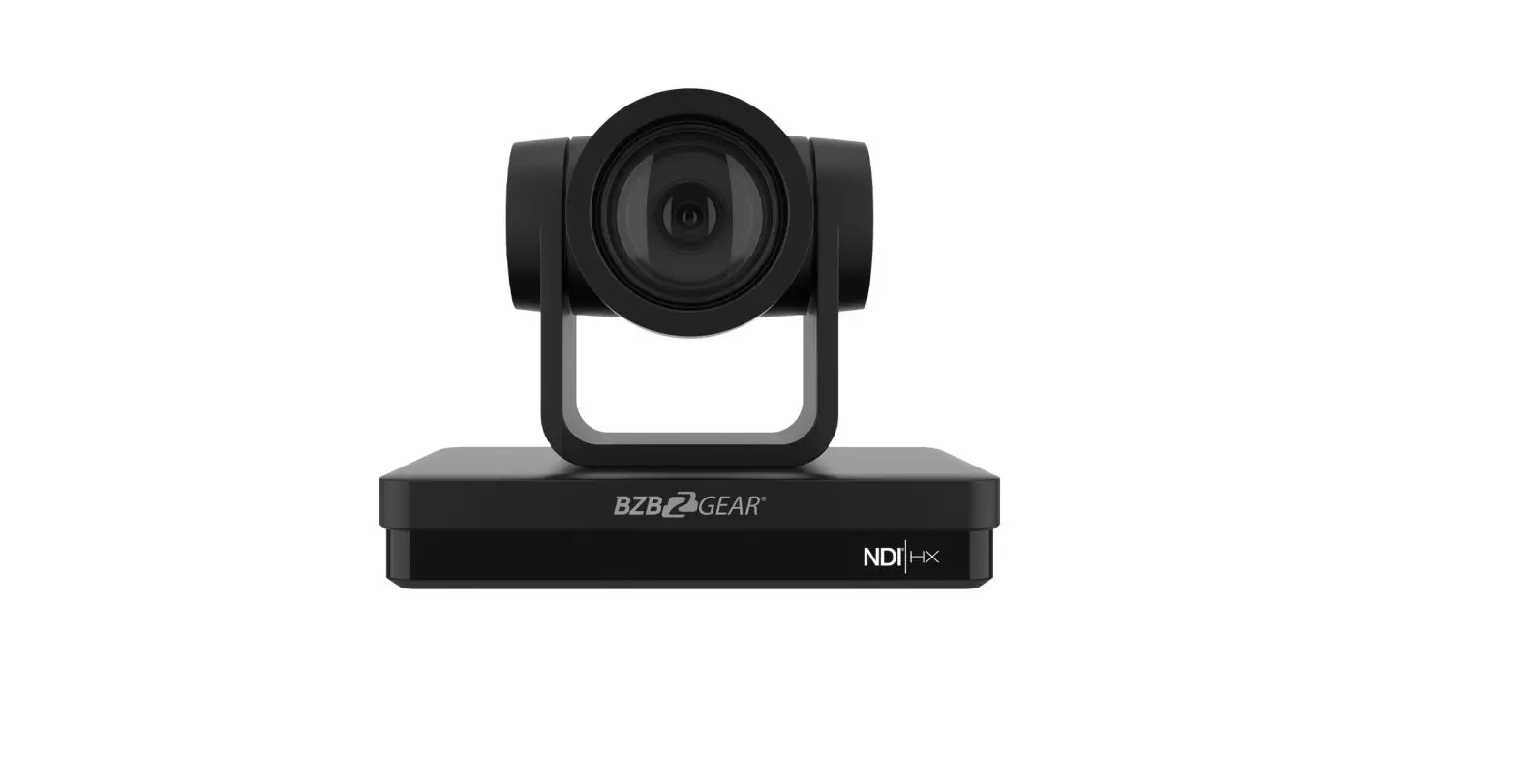
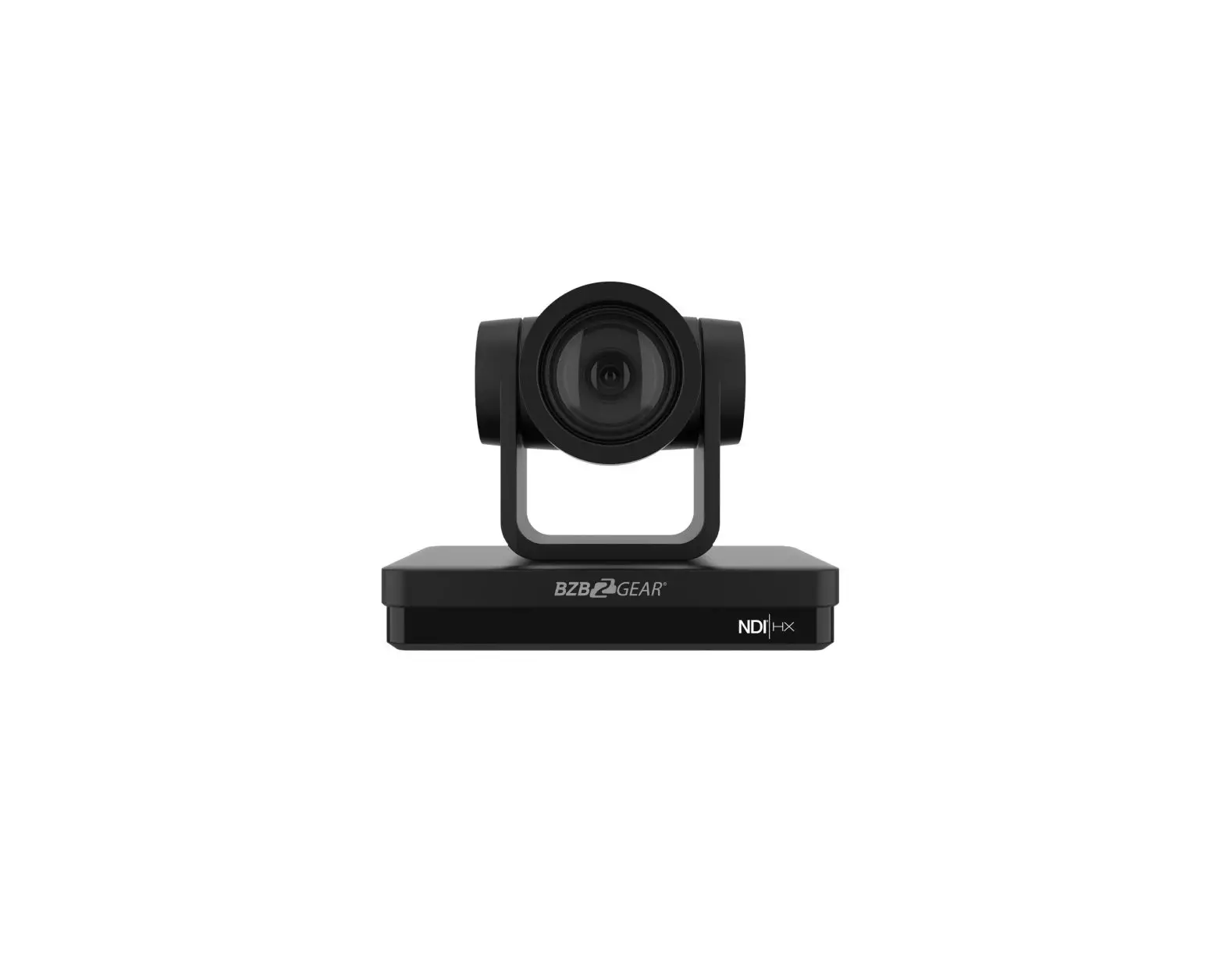
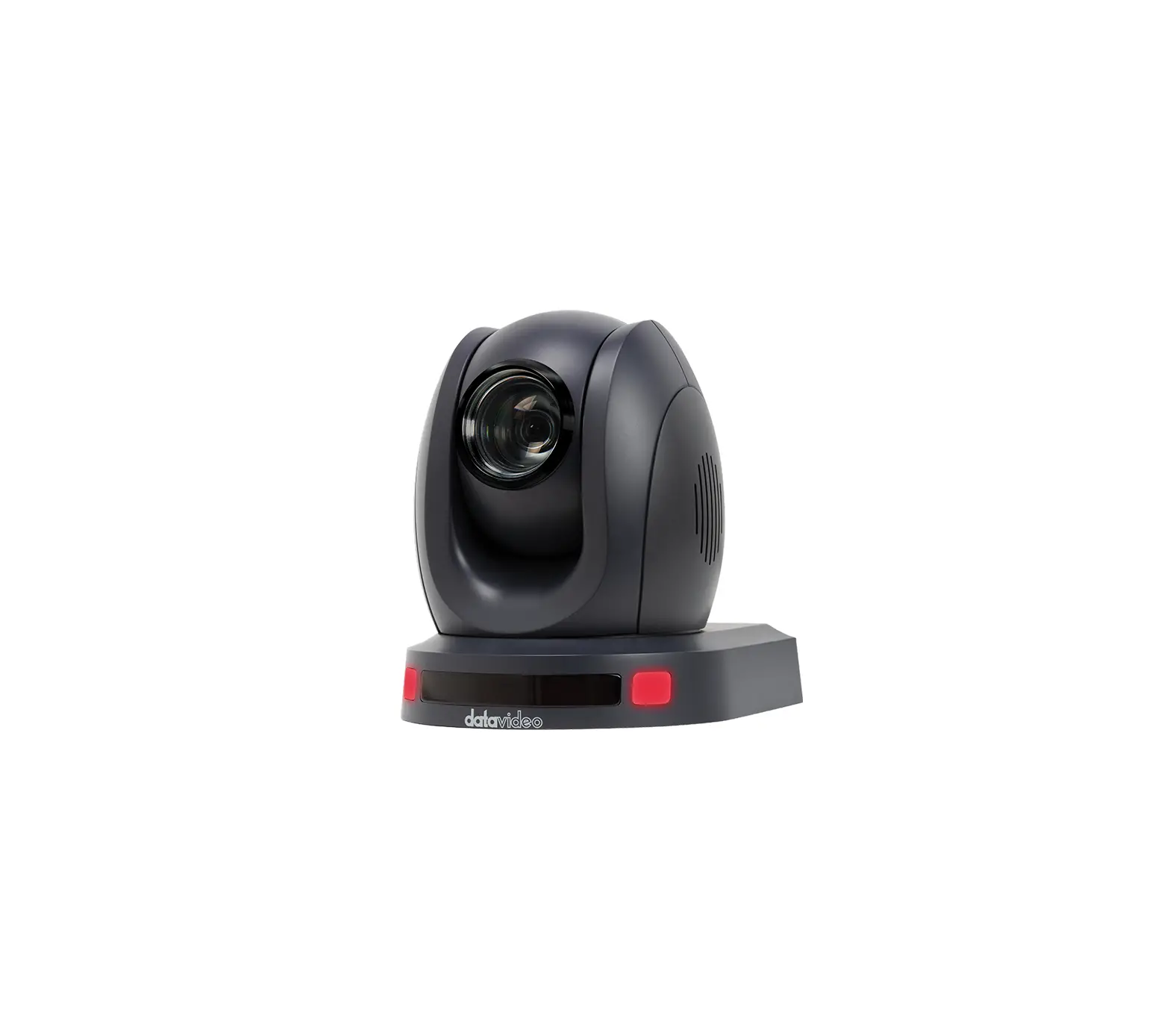
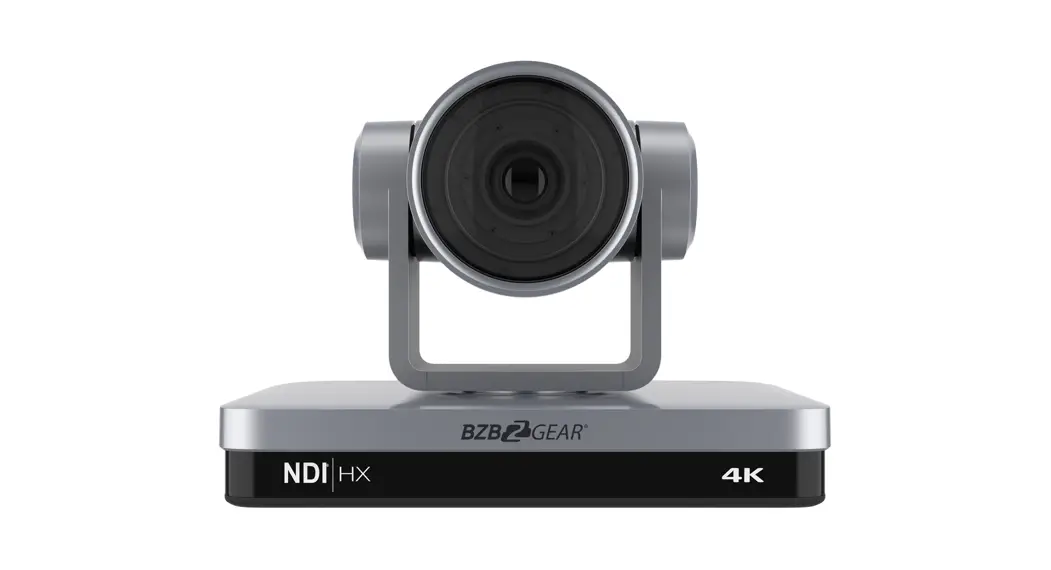
With its stunning 4K image delivered courtesy of a Sony CMOS sensor, the BG-4KND-12XUHP NDI|HX has few rivals in the marketplace. This multi-function PTZ IP NDI|HX camera delivers amazing detail even at full zoom. It was designed with simultaneous USB 3.0, HDMI, and IP NDI|HX streaming outputs for maximum flexibility. With this camera, you can stream directly to popular social media platforms like YouTube and Facebook with no additional equipment needed.
The implementation of the NDI|HX protocol allows for easy distribution of your video stream throughout your network to any NDI-enabled device. When combined with PoE functionality it helps to eliminate costly and troublesome cable runs, allowing for simple installation of a single category cable to the camera position. It supports multiple control methods including IR Remote, WebGUI, or RS232/485, making it easy for you to get the perfect shot every time.
Package Contents
| 1 x BG-4KND 1 x 12V/1.5A Power Supply 1 x User Manual | 1 x RS232 Control Cable 1 x IR Remote Control |
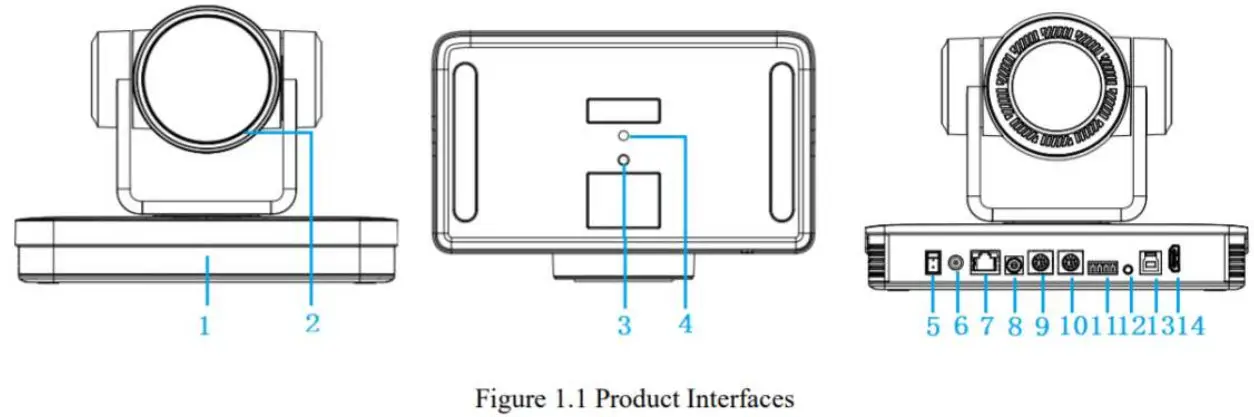
| 1. Remote Control Receiving Indicator 2. Camera Lens 3. Tripod Screw Hole 4. Tripod Screw Hole 5. Power Switch 6. DC12V Input Power Supply Socket 7. LAN Port | 8. Rotary DIP Switch 9. RS232 Control Input 10. RS232 Control Output 11. RS422/RS485 Input 12. Audio Input Interface 13. USB 3.0 Interface 14. HDMI Output Interface |
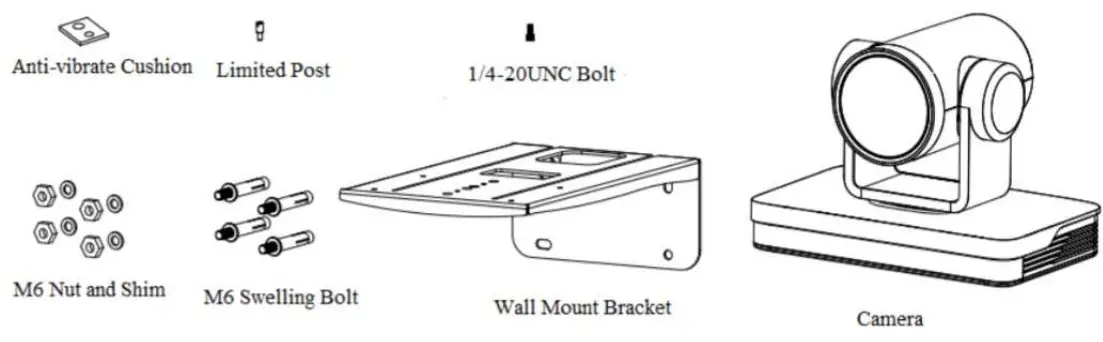
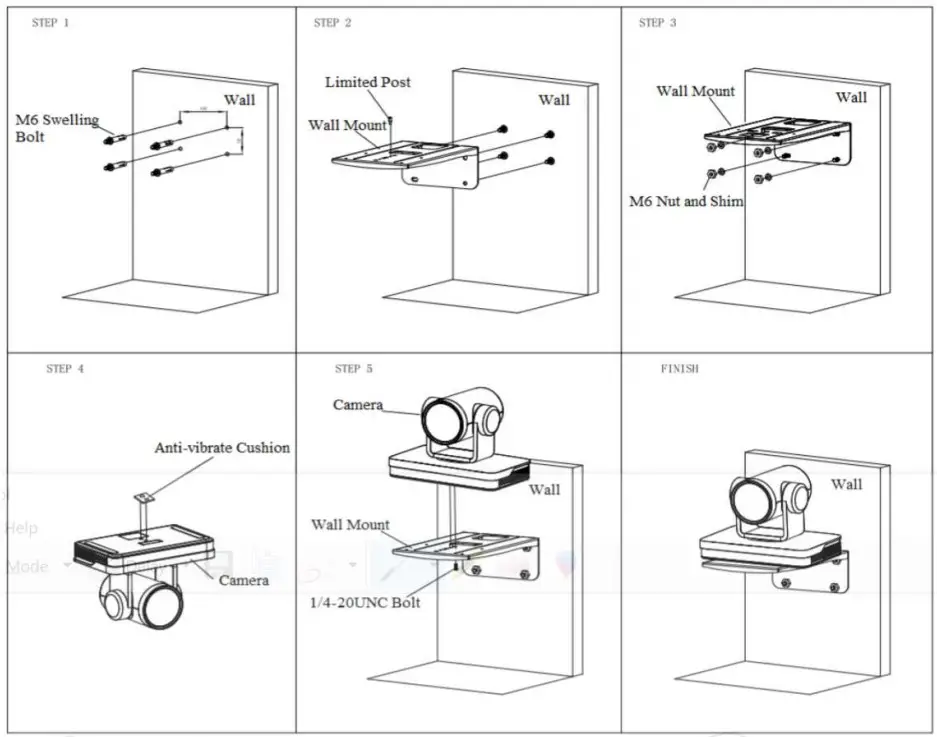
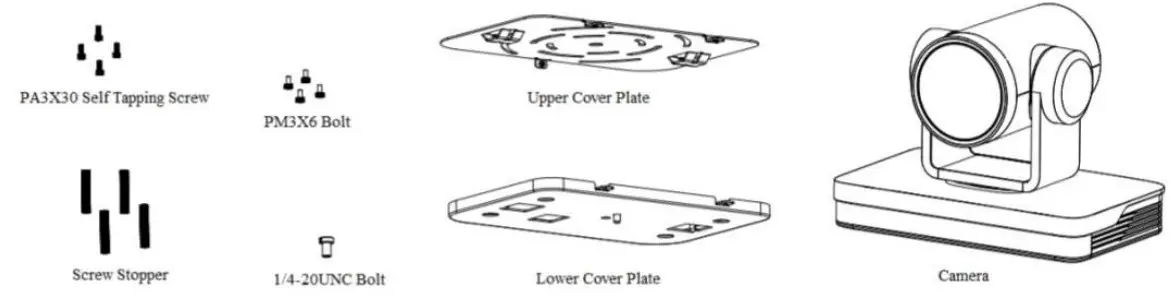
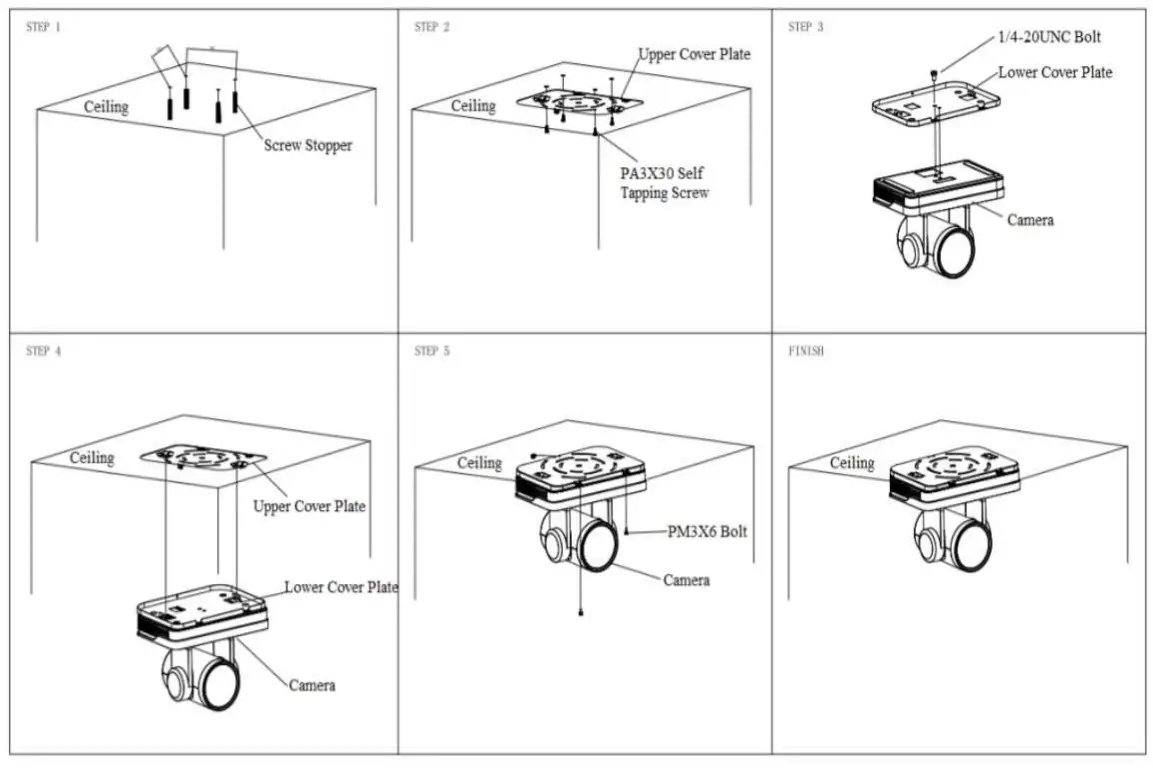
Mounting Instructions
- Wall Mounting


- Ceiling Mounting


RS-232 Interface
1.) RS-232 Interface Description
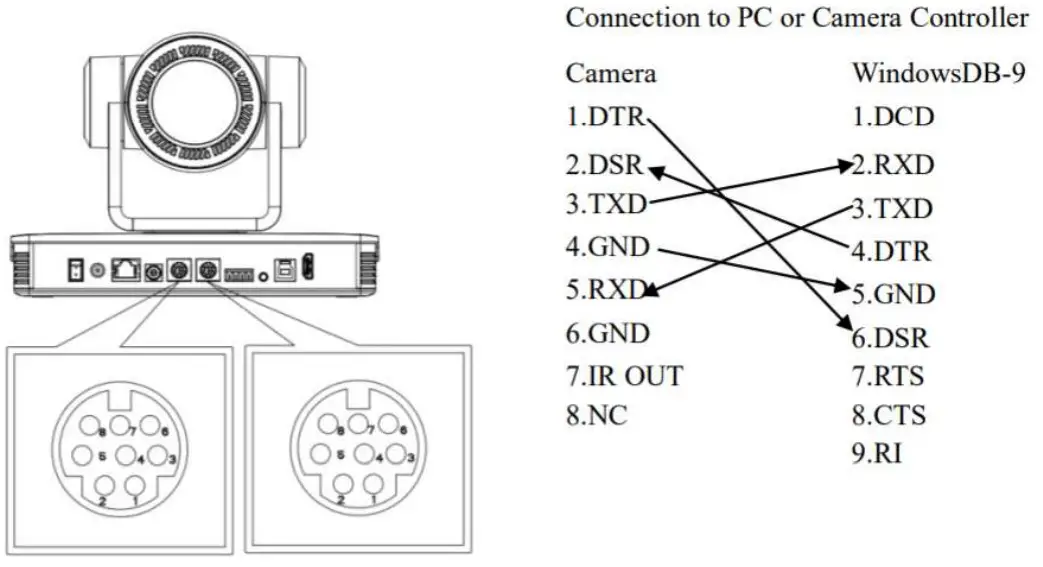

WebGUI
The BG-ND camera includes a built-in WebGUI allowing for control and management of advanced features. Use the following instructions to access the WebGUI.
- Launch a web browser and enter the IP address of the unit (default 192.168.5.163).
- The BZBGEAR login page will appear.
- Enter your login information (by default Username = admin Password = admin).
- Select the Login button.
Problems connecting to your camera?
Check out our Knowledge Base at https://bzbgear.com/knowledge-base/ for more information and a step-by-step guide.
| My camera has no picture | Power is off, bad connection, incompatible resolution, the camera lens is obstructed | • Check the power connection on the back of the camera • Check connections/replace cables with new ones • Use IR remote or WebGUI to change to a resolution that is compatible with your display • Check computer and program settings to ensure USB is discovered |
| My IR remote control doesn’t work | The camera’s IR sensor is blocked, batteries are dead, sunlight is interfering with the IR signal | • Ensure you have a clear line of sight from the remote to the front of the camera base| • Replace the batteries • Ensure the camera is out of direct sunlight |
| I cannot access the camera’s WebGUI | The camera is not connected to the network | • Check connections • Verify your camera’s IP address using an IP scanning tool • Ensure your computer is connected to the same network as the camera |
| I have no image from my USB connection | Your USB device is not being discovered | • Make sure you’re using a USB 3.0 cable • Try a different USB 3.0 cable (6 feet or less) Try a different USB port on your computer or a different computer |
https://bzbgear.com/support/ | 1.888.499.9906 | [email protected]