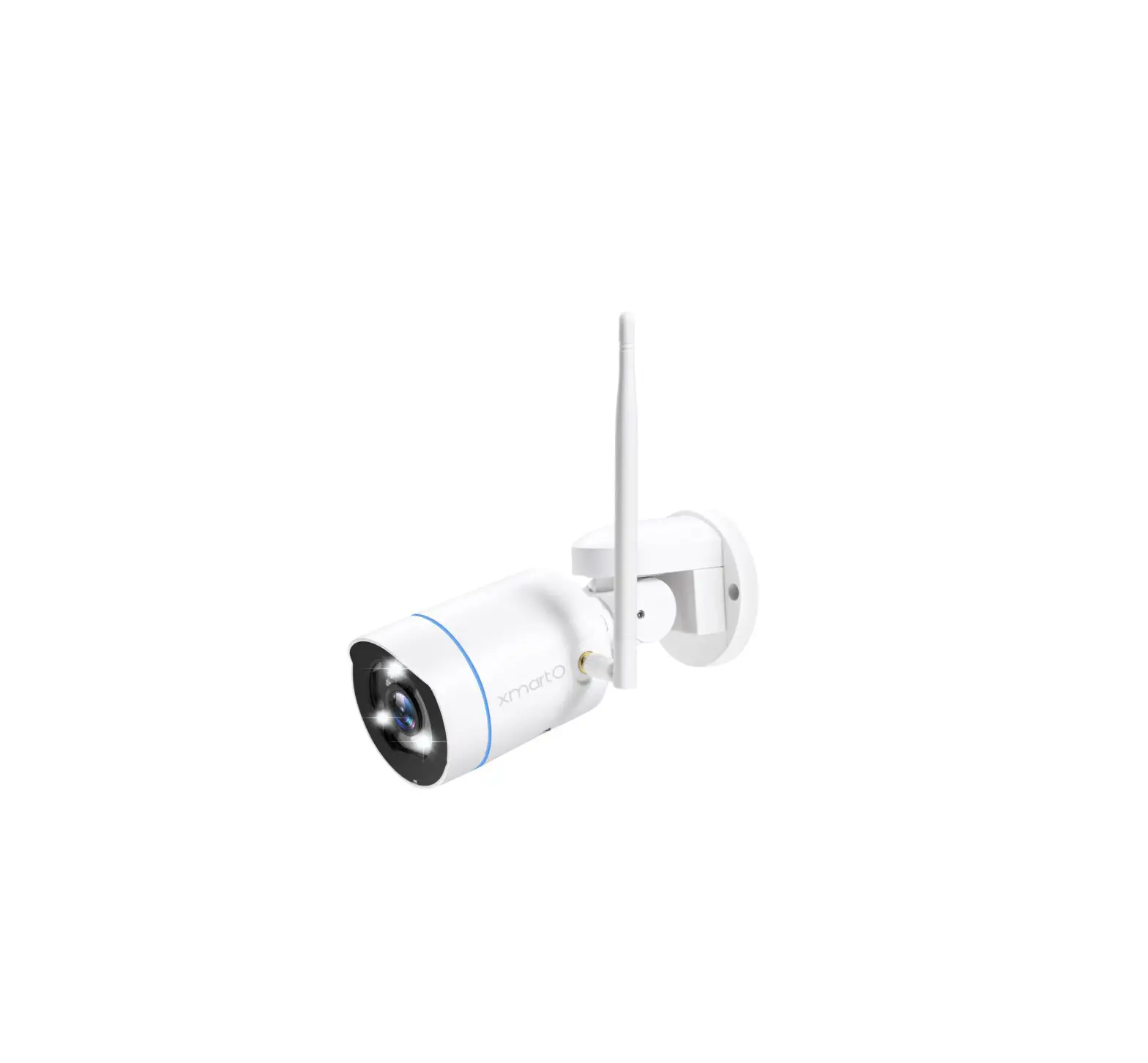
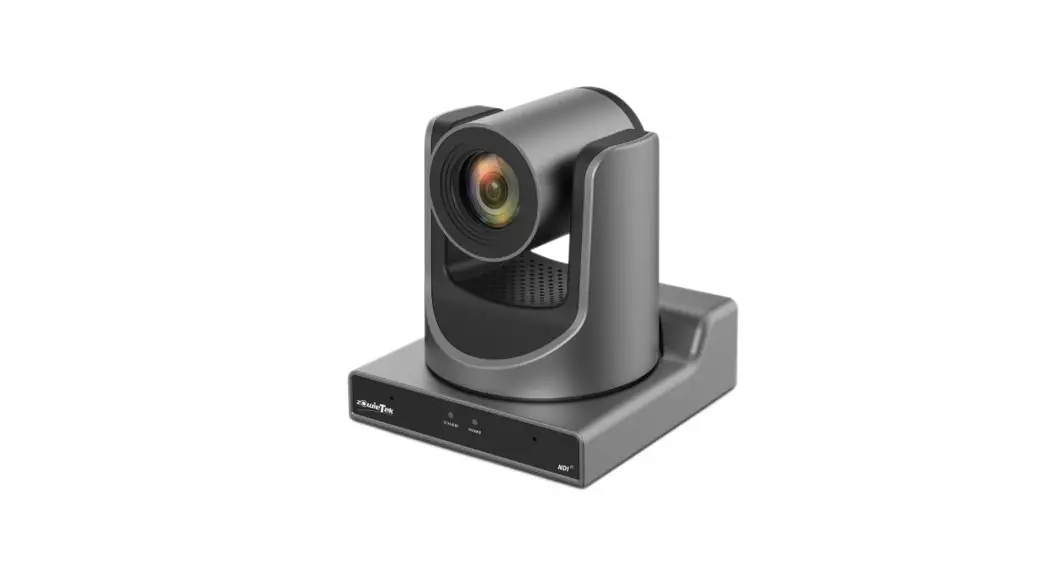
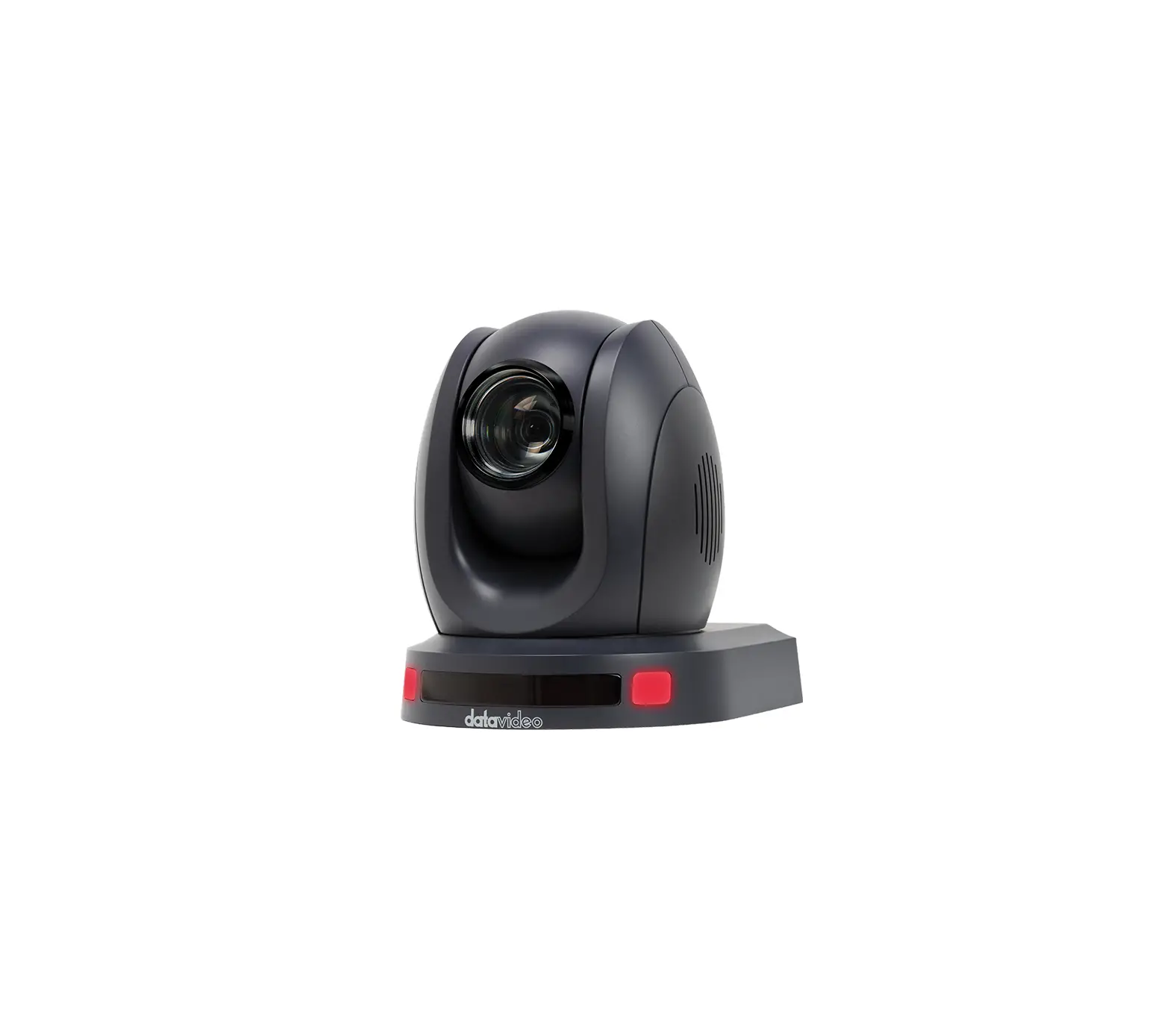
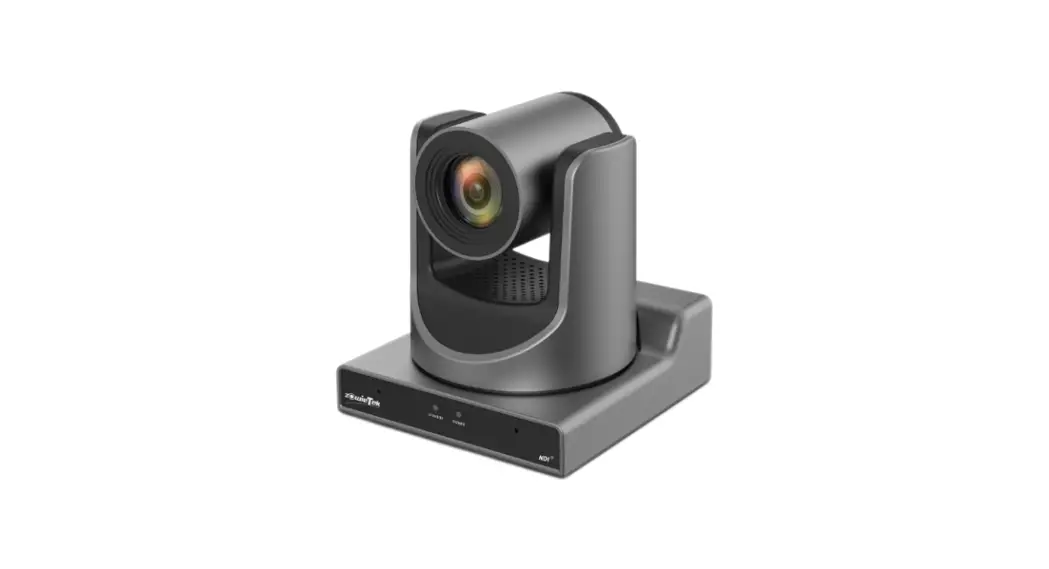
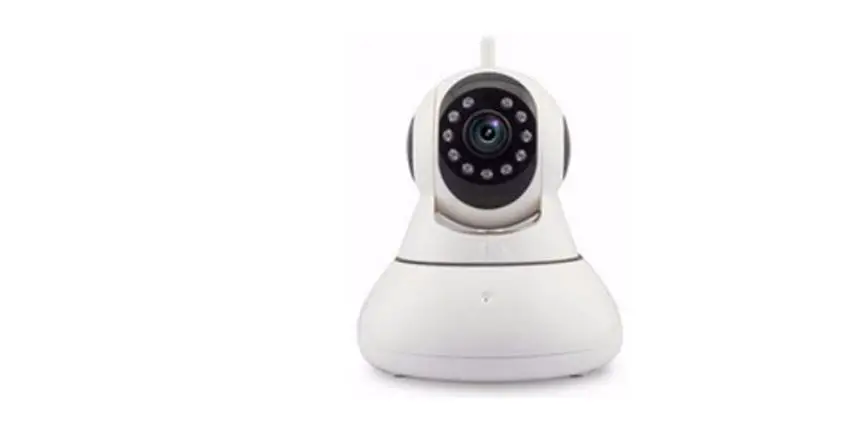
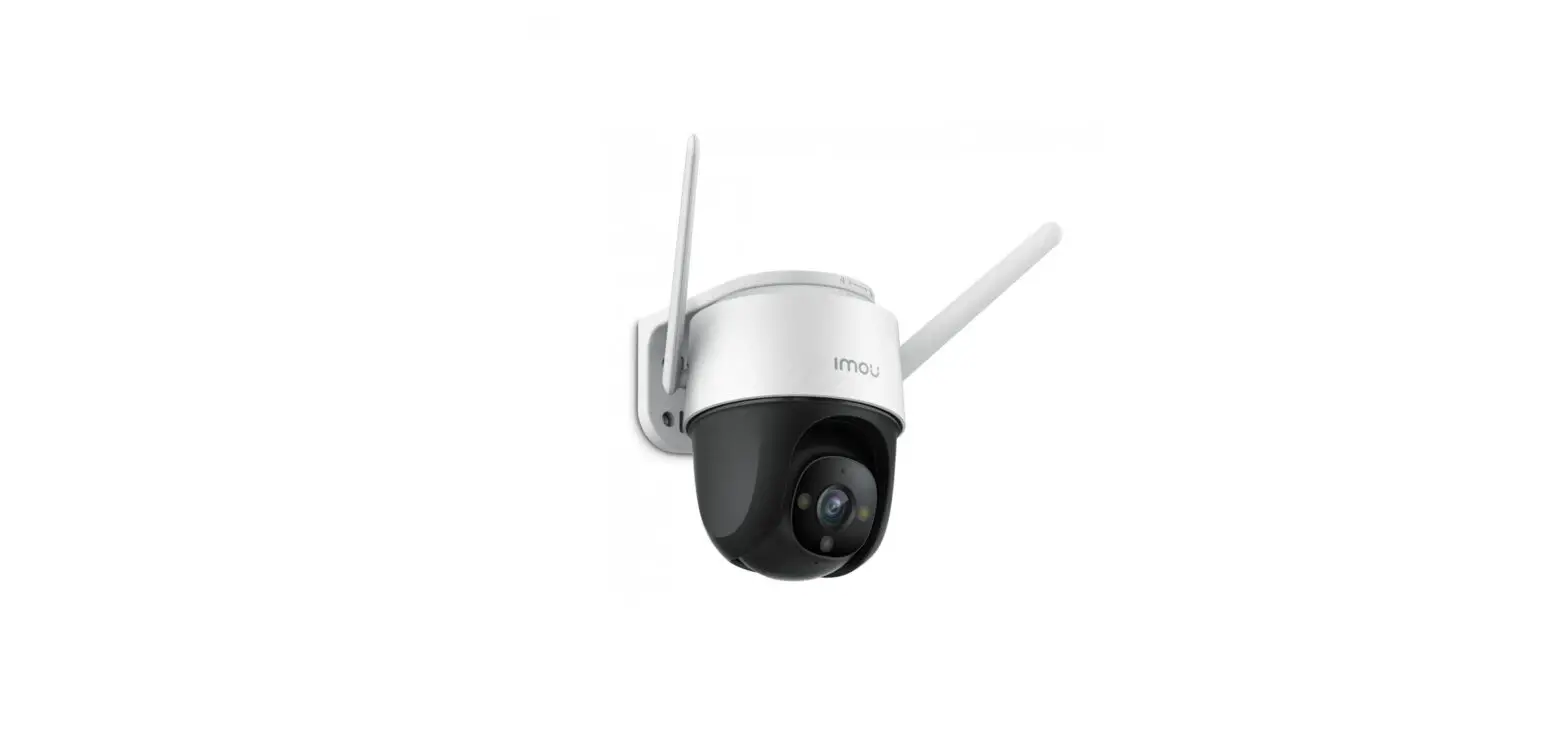
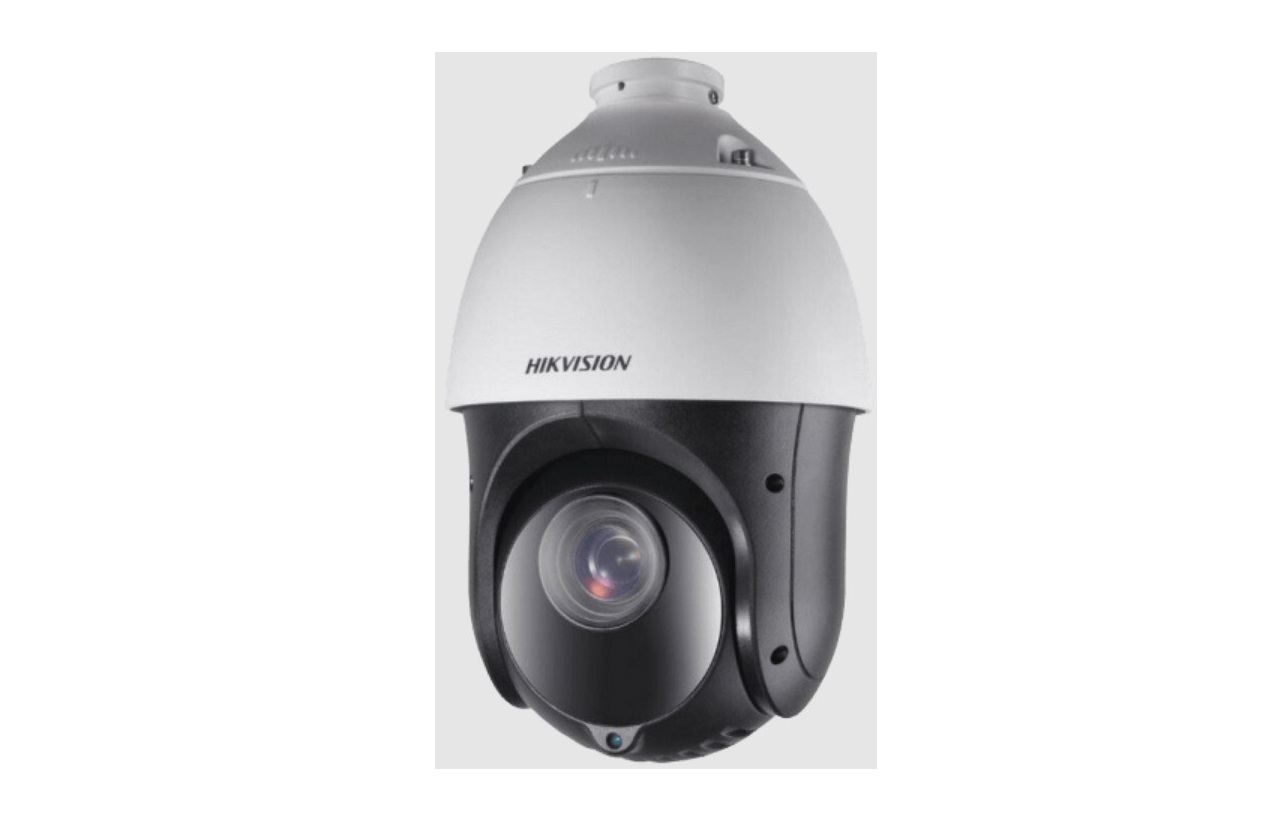
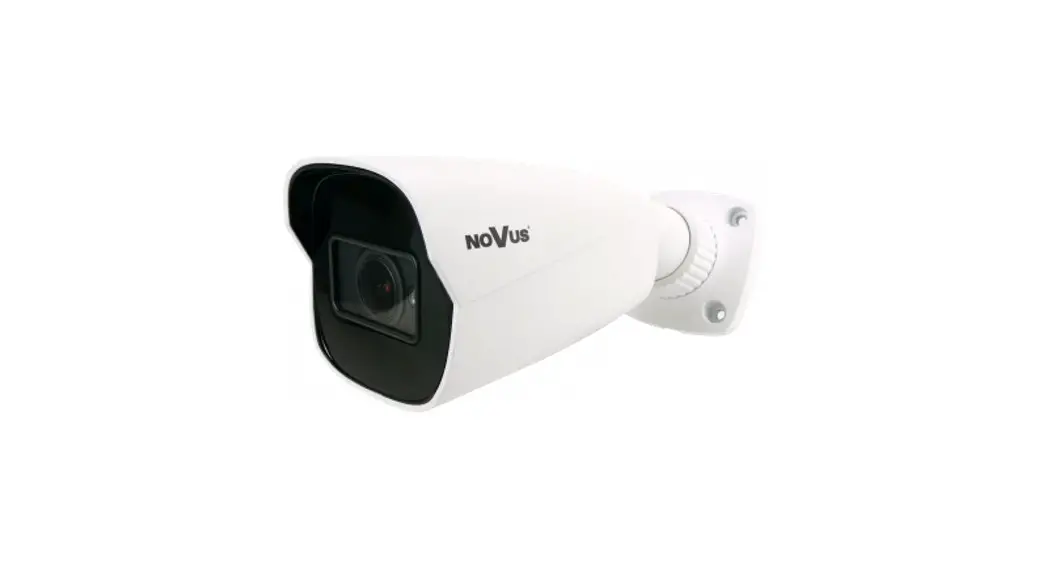
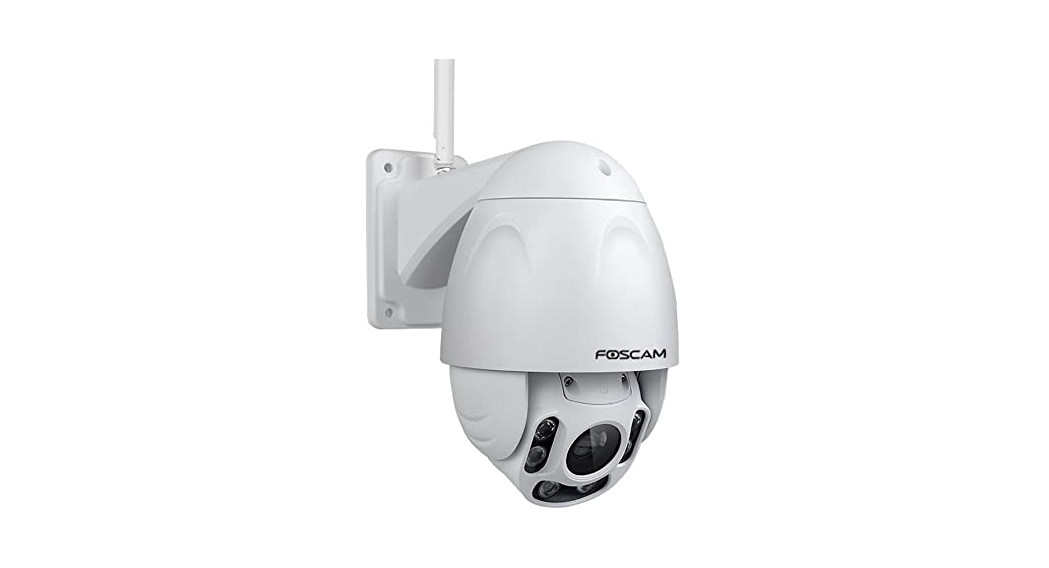
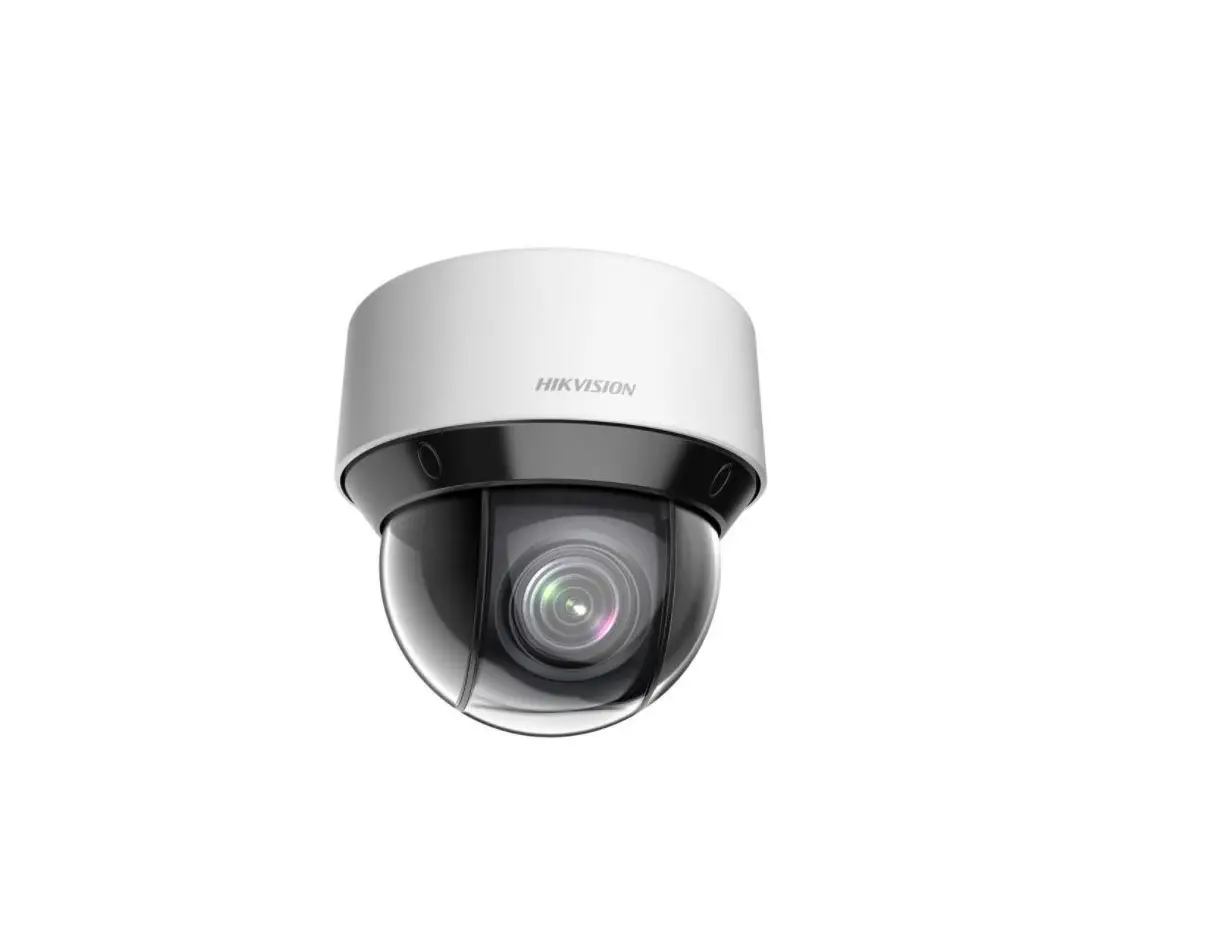
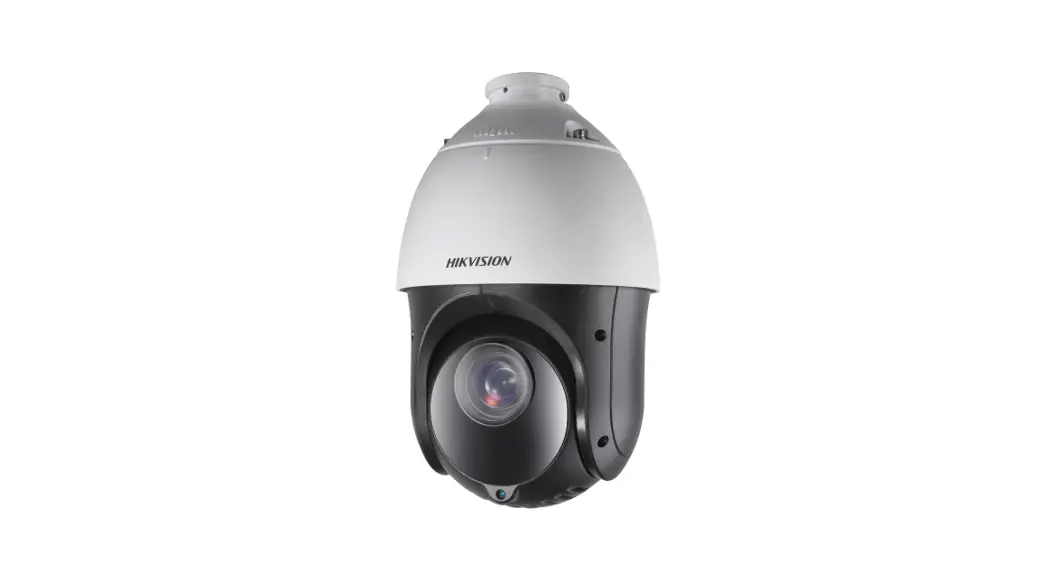
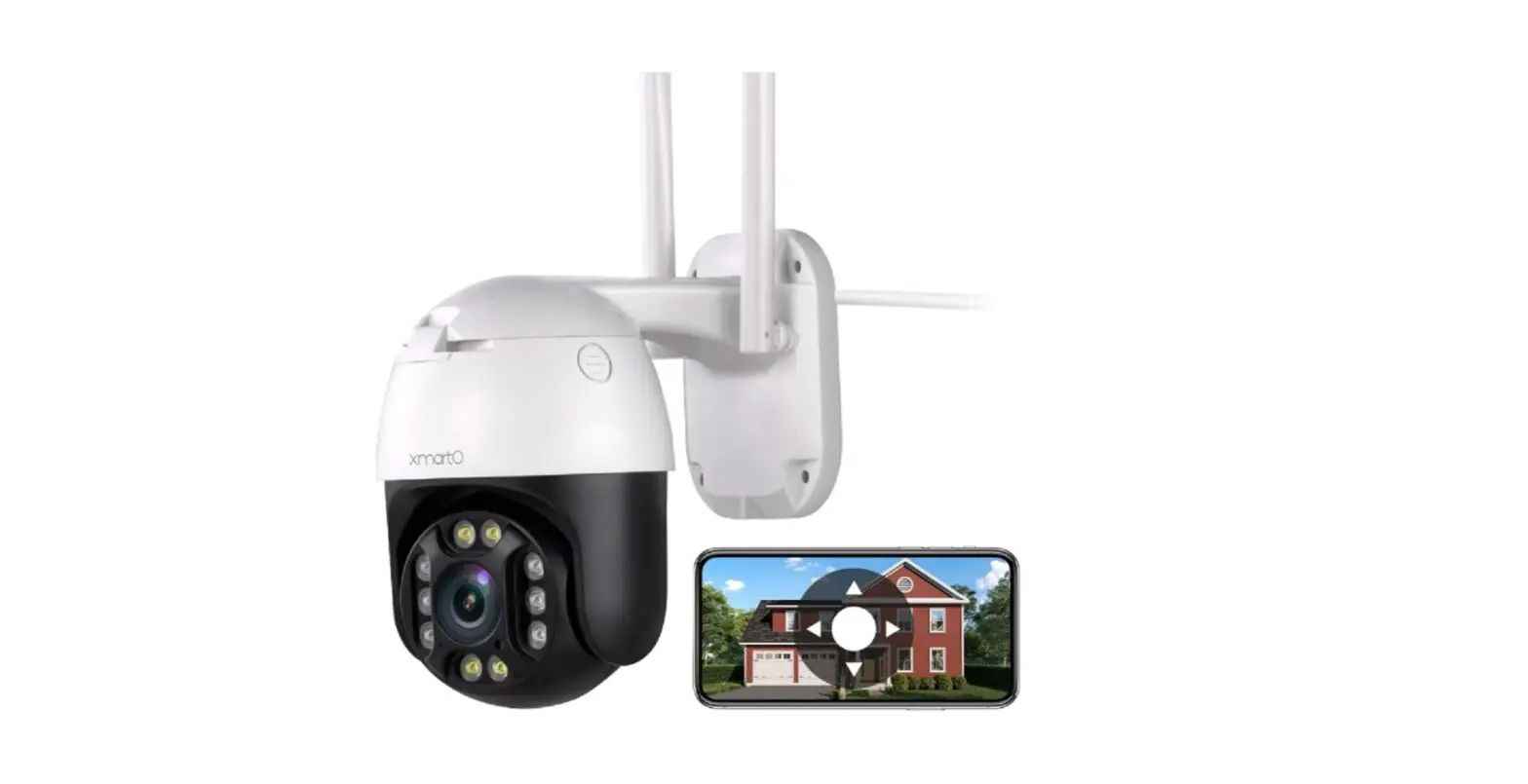
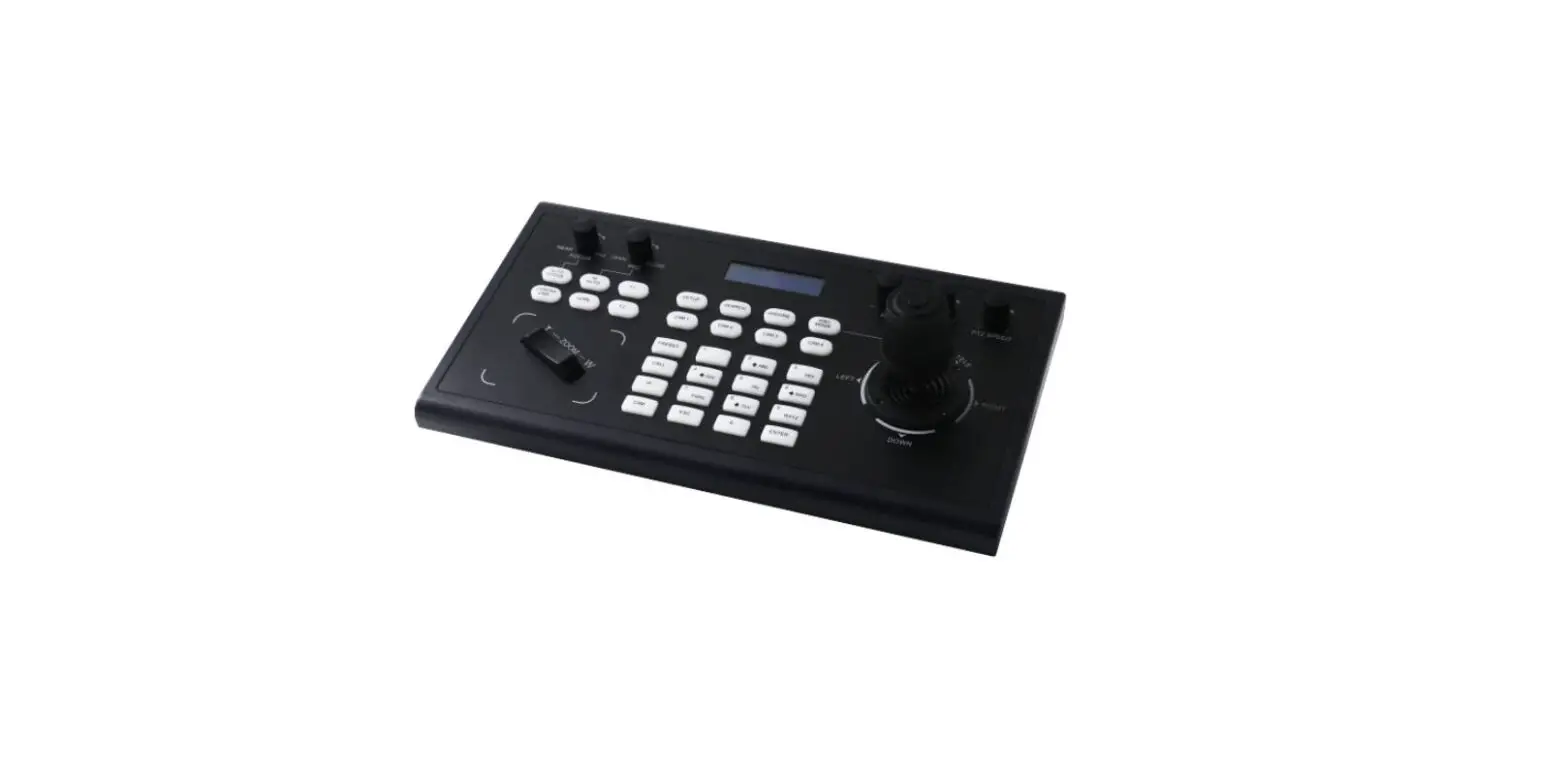
PTZ-001 Tracking PTZ IP Camera
Tracking PTZ IP Camera Quick Start Guide
Part 1: P6sLite Mobile App Quick Start Guide
1. Mobile Phone App (P6sLite) Installation and Login:
- Scan the QR code above to enter the download page.
- Select the corresponding download option to download the mobile
phone app and manual. You can also download the PC software,
currently only supports Windows OS software download. - Download the app and install it.
Users can use their e-mail to register an account level. You can
also log in to the app system directly using a Twitter account or
use Locallogin.
2. Account Registration and Server Selection:
The user registration is as shown in Figure. Click on the first
step in the figure, select the second step of the lnternational,
and then select.The third step to register. As shown in Figure, the
user can select the region according to the actual geographical
location. Select area (Foreign users can only register by
email).
3. Add Device:
- AP Configuration: The camera only needs to connect 12V power
(for WIFI wireless camera) - Go to app home page and click + for add camera. Select Add
device Connect as shown in Figure 4. According to the prompt until
screen from Figure 5 to 8, select the AP at the beginning of ZWAP
in Figure 11. If no WiFi hotspot is displayed, wait for the hotspot
to start. - Enter the hotspot password 01234567 as shown in Figure 12. Then
click Join. - Click P6SLite on the back button app of the mobile device to
show that it is connected as shown in Figure 14. (Note: If the
configuration fails in the interface of Figure 9, it will return to
the interface of Figure 11; this is the wifi hotspot connection! !
!) - If the hotspot connection is successful, it will enter the wifi
configuration mode. Select your wifi of your home wireless router
as shown in Figure 16. And input password of your home wireless
router. Follow the prompts to complete the addition of the
camera.
4. QR Code Added (The Camera Has Been Wired to Your Router):
- Open app home page, click the icon in the upper right corner,
select the QR code (you can also click on the sweep) as shown in
Figure 2-8. - The two-dimensional code recognition will enter the Add Device
interface as shown in Figure 21. - Add a successful app will return to the device home page
interface, click the home page list to show the connected device.
Will enter the camera preview interface as shown in Figure
2-10.
6. Manually Add:
Open app home page, click + the icon in the upper right corner
and select Add manually as shown in Figure 31. As shown in Figure
32, the name can be entered according to your needs; the DID number
can be found on the airframe or the outer package. Note the case
when entering the UID. User name and password are the default for
the first time. Complete the operation of 33. Click I Know. Added
successfully. App will return to the device’s home page.
7. Home Page Interface, Real-Time Preview and Function
Description:
- Home icon uses as shown in Figure 3-1.
- The function of the playback interface is shown in Figure
3-3.
1. Set and Call Preset:
Instructions for setting and calling preset can be found in the
user manual.
Product Usage Instructions:
To use the Tracking PTZ IP Camera, follow the steps provided in
the Quick Start Guide for Part 1 to install and register the
P6sLite mobile app. Once installed, follow the steps to add the
camera to the app either through AP configuration, QR code, or
manual add. Once added, you can access the camera’s real-time
preview and playback functions through the app’s home page
interface. Refer to the user manual for instructions on setting and
calling preset.
Tracking PTZ IP Camera Quick Start Guide
Part 1P6sLite mobile APP Quick Start Guide
1, Mobile phone APP (P6sLite) installation and login: Scan the QR code above to enter the download page
1), select the corresponding download option to download the mobile phone APP and manual, of course, can also download the PC software, currently only supports Windows OS software download. 2), download the APP and install it, as shown below:
Users can use your e-mail to register an account level. You can also log in to the APP system directly using a Twitter account or use “Local”login 2, Account registration and server selection;
The user registration is as shown in Figure. Click on the first step in the figure, select the second step of the lnternational, and then select.The third step to register. As shown in Figure, the user can select the region according to the actual geographical location. Select area (Foreign users can only register by email) 3, Add device 1),AP configuration: the camera only need to connect 12V power (for WIFI wireless camera)
1
2),Go to APP Home page and click + for add camera. Select “Add device” Connect as shown in Figure 4. According to the prompt until screen from Figure 5 to 8, select the AP at the beginning of ZWAP in Figure 11. If no WiFi hotspot is displayed, wait for the hotspot to start. ) Enter the hotspot password 01234567 as shown in Figure 12.Then click”Join”
3), Click”P6SLite” on the back button APP of the mobile device to show that it is connected as shown in Figure 14.(Note: If the configuration fails in the interface of Figure 9, it will return to the interface of Figure 11; this is the wifi hotspot connection! ! !) 4), If the hotspot connection is successful, it will enter the wifi configuration mode. Select your wifi of your home wireless router as
shown in Figure 16. And input password of your home wireless router. Follow the prompts to complete the addition of the camera.
2
4QR code added(The camera has been wired to your router) 1),Open APP Home page, click the icon in the upper right corner, select the QR code (you can also click on the sweep) as shown in Figure 2-8. The two-dimensional code recognition will enter the Add Device interface as shown in Figure 21. 2), Add a successful APP will return to the device home page interface, click the home page list to show the connected device. Will enter the camera preview interface as shown in Figure 2-10.
5. Add LAN device(The camera has been connected to the wide area network) The camera must be connected with 12V power supply and network cable (Note: The camera has enabled the DHCP function by default. Please ensure that your network is normal, and the device to be added by the APP must be in the same network environment. If it cannot be added, please check Your network is not a product quality issue) 1), Open APP Home page, click the + in the upper right corner, and select Add Device as shown in Figure24. 2), Click to search for the device as shown in Figure 26. Tthe password is empty. click “Add to”
6, manually add Open APP Home page, click + the icon in the upper right corner and select “Add manually” as shown in Figure 31.As shown in Figure 32, the name can be entered according to your needs; the DID number can be found on the airframe or the outer package. Note the case when entering the UID. User name and password are the default for the first time.
3
Complete the operation of 33. Click “I Know”. Added successfully .APP will return to the device’s home page. 7, Home page interface, real-time preview and function description
1), home icon uses as shown in Figure 3-1
34
35
3),The function of the playback interface is shown in Figure 3-3.
4
1,Set and Call preset:
Part 2APP Quick button function introduction
Click the “PTZ”on the APP interface, Go the preset position setting keyboard, please select “advanced preset position” and the APP will
pop up Numeric keypad button. You can use this numeric keypad to set presets, call presets and turn on some special features.If we need
to set the 1 th preset , we need to Click 1 on the keyboard, then click the
button to set 1th preset successfully.
6,How control PTZ
Click
Image pan/tilt direction button in the video box. Please follow these
direction buttons to operate the direction of rotation of the gimbal
Part 4 Function Operation and Description
Professional name explanation;
Set:set preset, Call:Call preset
[N]+[set]=Enter N first and then click SET.
“+”=Then
1.Commnuication settings Default PELCO-D/115200) 2.Control the speed dome up ,down and left right rotation
Users can control the speed dome up and down movement by NVR & client soft-ware & mobile app P2P & keyboard Joystick’s movement can control the speed dome’s action. when the joystick turn right, the speed dome also turn right. So the speed dome’s movement agree with joystick’s movement. 3. Preset settings
Rotate the camera to the position you want, then set this position to “N” preset [N] +[SET] ,N is preset point, 1-255 number can be optional (But the command Preset isn’t include). Set= set preset 4.Call preset( need set the corresponding preset point) : [N]+[CALL] N for preset point, 1-255 number can be optional, camera can move to preset point after call, Zoom, focus and aperture lens will automatically change to preset parameters , camera preset display on the monitor. 5.Delete all preset point: [93] +[Set] ,Call No.93 preset, clear the all preset :[9]+[3]+[Set] . 6.Auto scan(Horizontal rotation)
[120]+[CALL], call No.120 ,the lever of 360 /355 degree clockwise automatic scanning Modify speed of Auto scan : [120]+[Set] +[N]+[Set]; (N=1-100; N represents scan speed, default is 10°/s) 7.Automatic cruise Remark: Auto cruise is a function of multiple preset points, so preset points should be set first [115]+[CALL] Turn on the cruise scan function; Operate any function to stop scanning. Modify the stay time of the Cruise: [116] +[Set] + [N]+[Set]; (N=1-250; N represents the dwell time ,default is 5 seconds) Modify speed of the Cruise:[115]+[Set] + [N]+[Set]; (N=1-100; N represents Cruising speed ,default is 10°/s) 8. Left and right limit scan settings The users can set left and right limit point in the range of the rotation, the speed dome can return scan in setting range [110]+[SET]: left limit; [111]+[SET]: right limit, [112]+[Set]:Save right and left limit scan; [112]+[CALL]: start right and left limit scan Modify the speed of right and left limit scan: [110]+[Call]+[N] +[Call]; (N=1-100; N represents Cruising speed ,default is 10°/s) 9. Set pattern scan [134]+[Call] enter the pattern scanning mode, user moves the pan/tilt and lens zoom as needed, Camera automatic record keeping, When the record needs to be terminated, [134]+[Call] Camera again to automatically save and exit. [130]+[Call]:Start pattern scan
5
10. Boot action set [126]+[Set]+Set the preset NO. of the function you want, For example: Cruise 115, [126]+[Set]+[115]+[Set] [126]+[Call]:Clear boot action
11. Idle action set:The camera performs a certain function in standby mode [124]+[Call]: Open Idle position Set; [124]+[set]:OFF Idle position set Idle position setting:[125]+[Call]+[N]+[Call], N=Function preset;When N=115, the camera Automatic cruise. Setting method:[125]+[Call]+ [115]+[CALL] Set the time when the idle action start: [125]+[set]+[N]+[SET]; (N=1-250; N represents Idle time,default is 5 seconds)
12. Restore factory settings [93]+[Call] for restore PTZ speed dome to factory setting; Setting method:[93]+[Call]
13. IR light settings [150]+[Set]:Infrared light always on [149]+[Call]:Infrared light always off [149]+[Set]:Infrared light automatic mode,Automatically controlled by outside light [150]+[Call]:Infrared light timing mode, Open and close regularly. The default is 18:00-6:00
[101]+ [Call]: user can arbitrarily set the switch position between the near light and the far light(Change to Zoom+ [101]+ [Call]) [102]+ [Call]: user can arbitrarily set the switch position of the near and far lights(Change to Zoom + [102]+ [Call])
14. Start/Stop tracking (Default Stop) Tracking mode is divided into: fixed point tracking and cruise tracking
1) Fixed point tracking: Before turning on the track function, you need to set the return position (return position) after the end of the track. Then turn on
tracing. In the case of no tracking action, the camera is waiting at the return position, The camera is turned on when the person is detected. After tracking is completed, the camera automatically returns to the return position and continues to wait for the next tracking.The return position is 88th preset.please set 88th preset Call 98 for Turn on tracking, Setting method: [98]+[Call]; set 96 for turn off tracking, Setting method: [96]+[Set]
Click 88,then click “setting” for set 88th Return position
How to turn on/off tracking:
Click 98 ,then click Call for turn on auto tracking How to turn off tracking Click 96,then click setting for turn off auto tracking
2)Cruise tracking:
Before turning on tracking, you need to set the camera’s cruise point in advance. These cruise points are the few locations you want to monitor. The camera will cruise back and forth between these locations to find a tracking target. Really made a camera monitors multiple angles of demand. Turn on cruise trackingfunction,The camera will cycle moving through the preset cruise points. When the person is detected, the camera will turn on the tracking. After the tracking is completed, the camera automatically resumes the cruise until the next time the person is detected, the tracking is turned on again
Set 1,2,3,4….preset position,Then call 99th preset camera will auto turn on cruise tracking Setting method: [99]+[Call] for turn on cruise
6