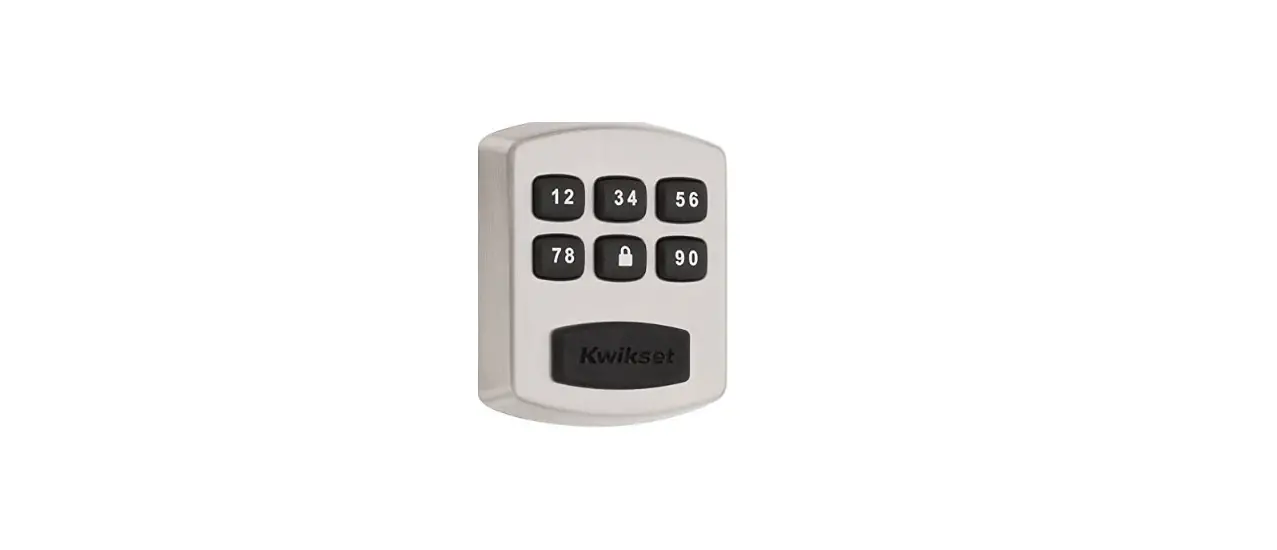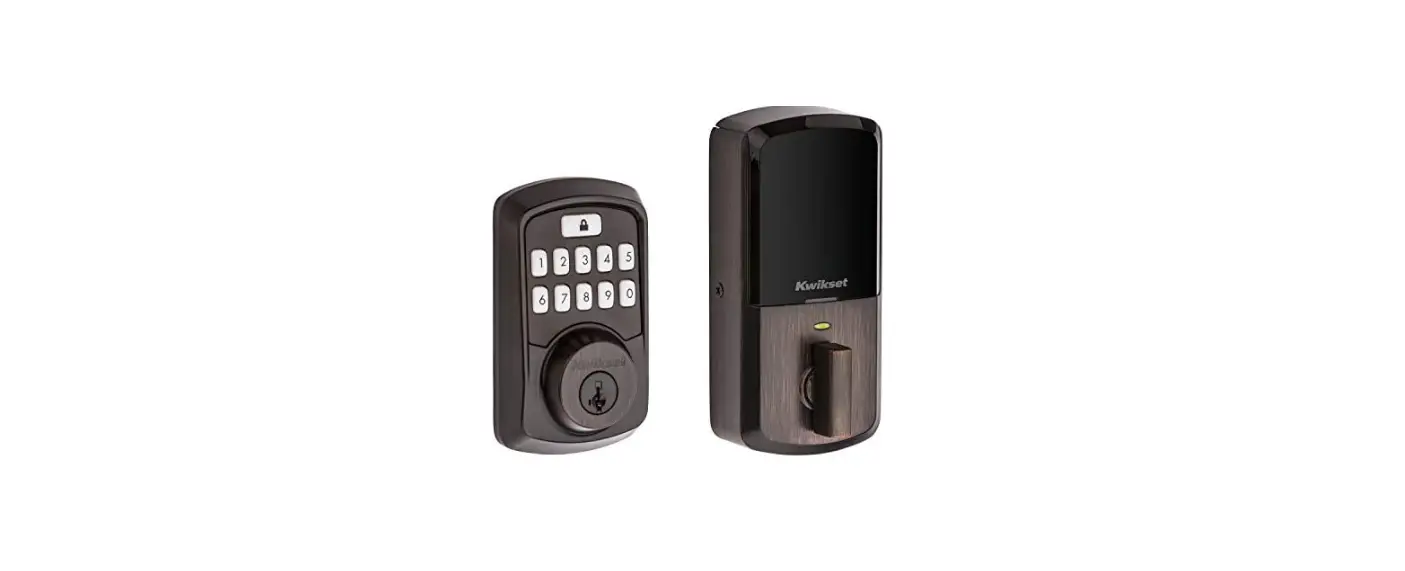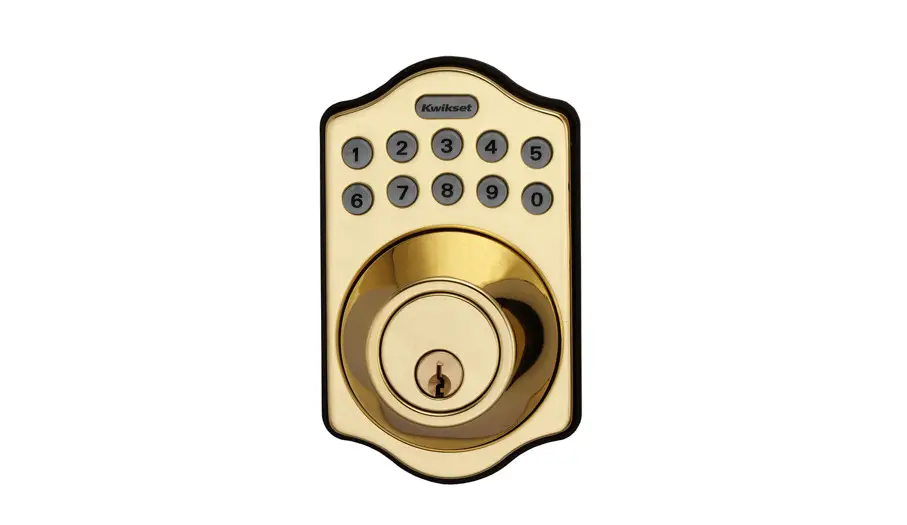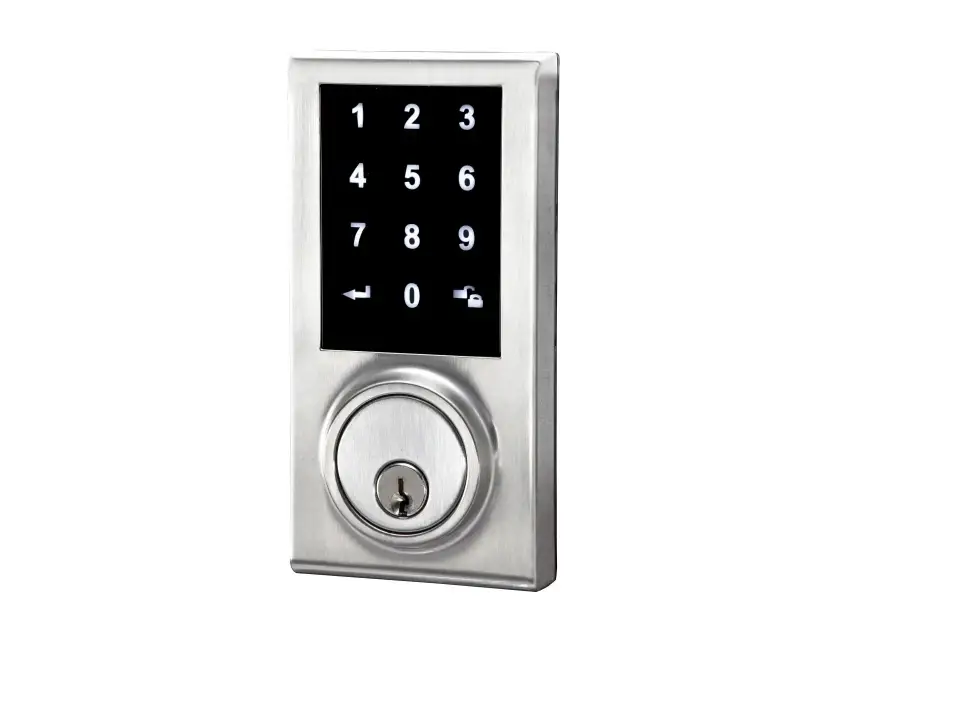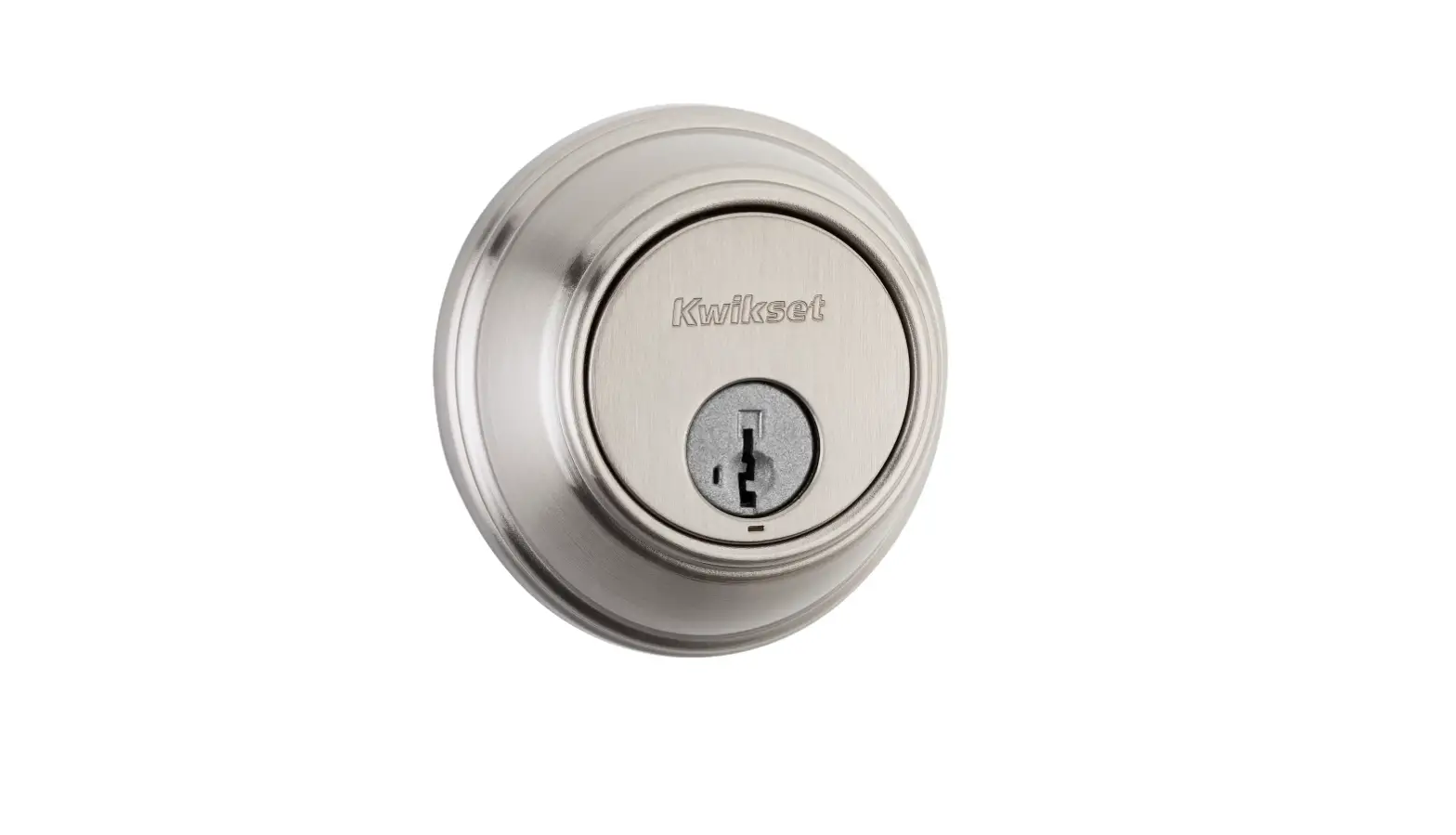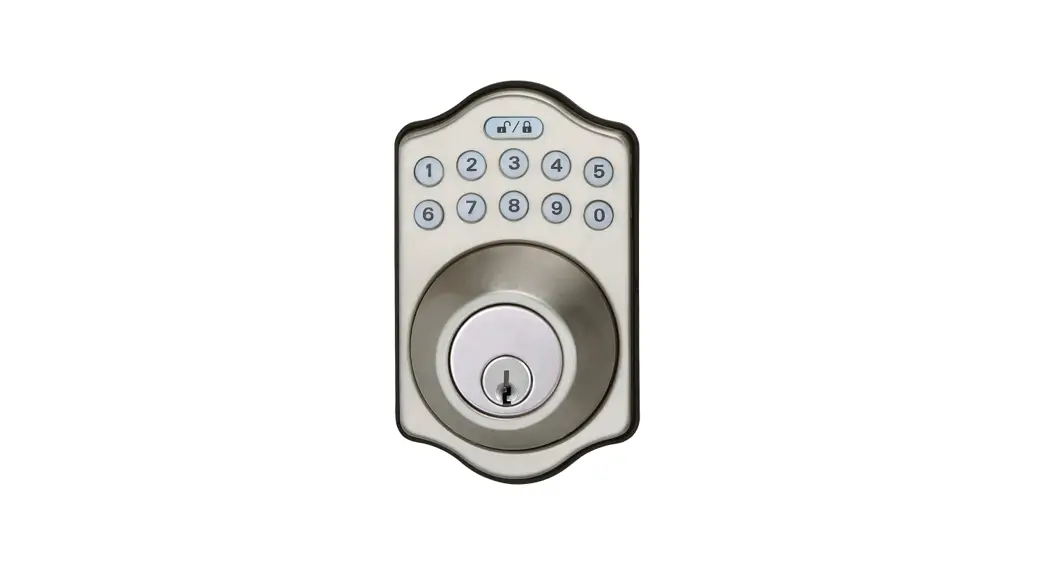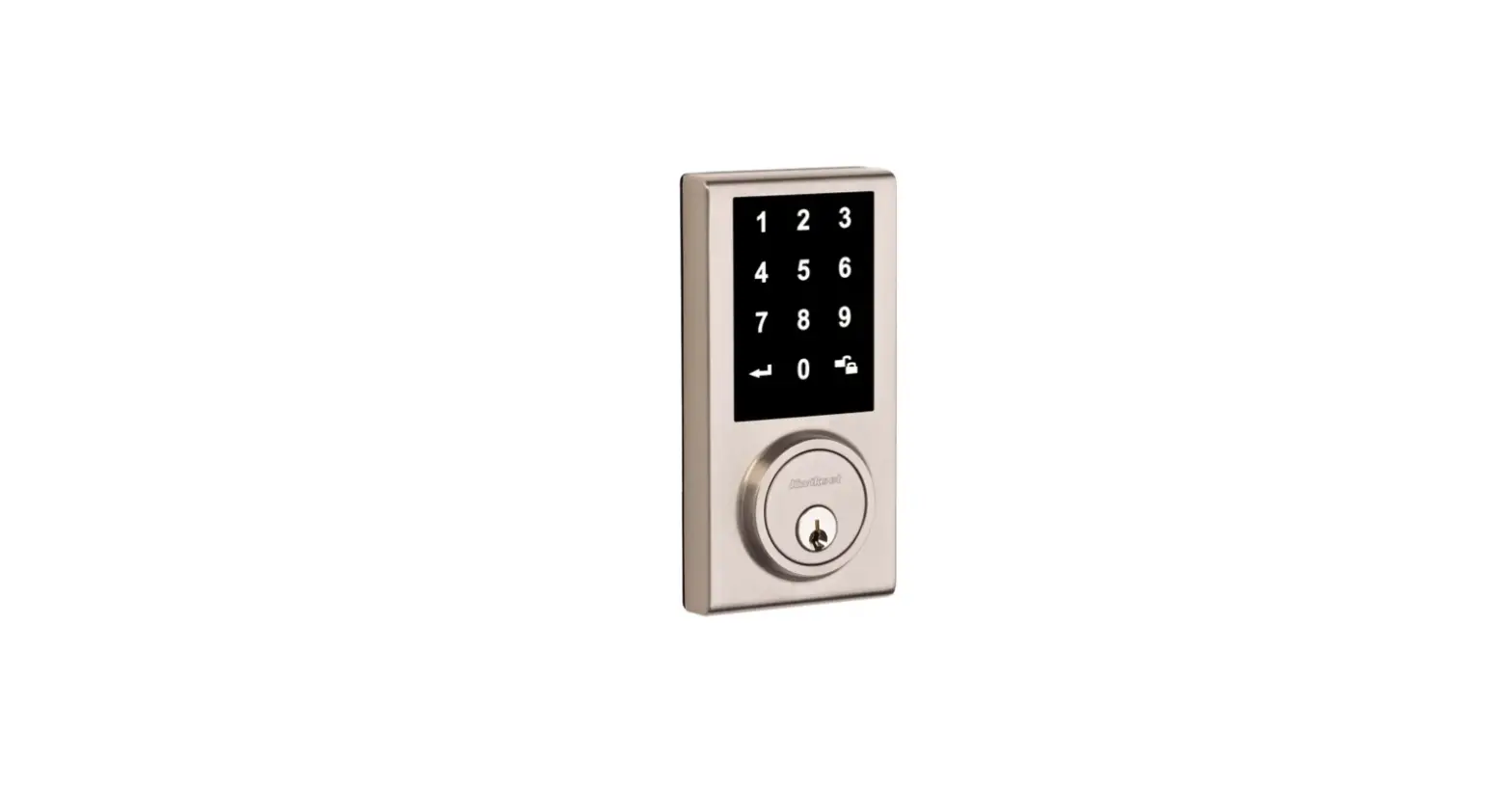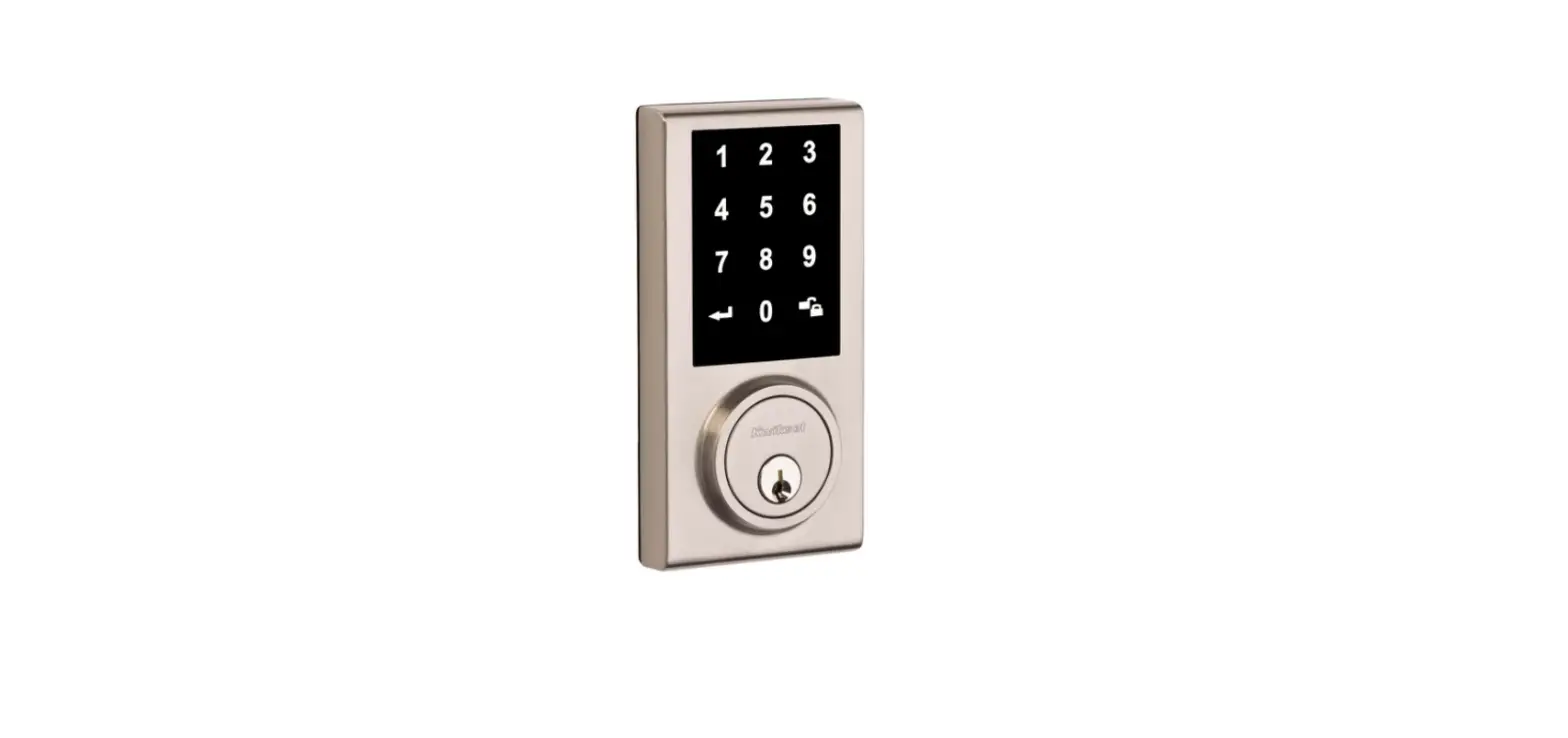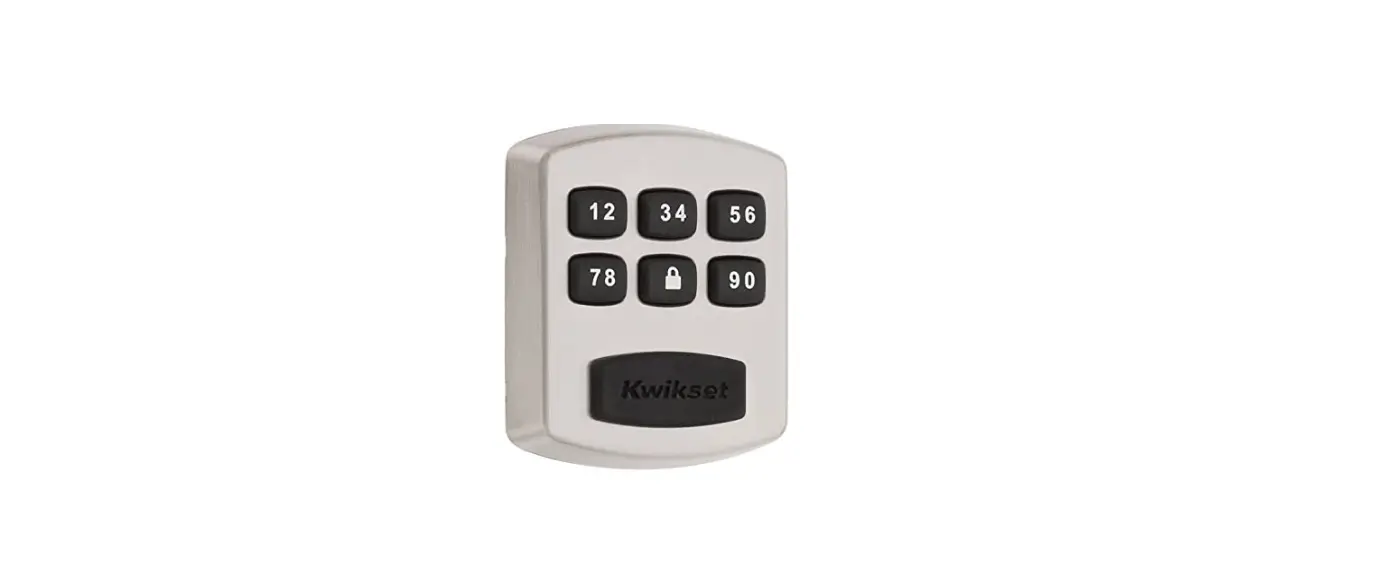

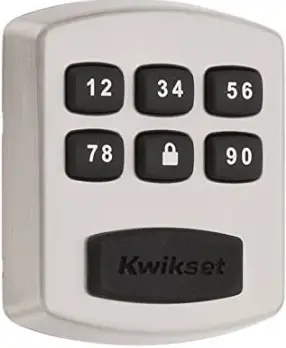
Kwikset 99050-003 Smart Lock Electronic Deadbolt
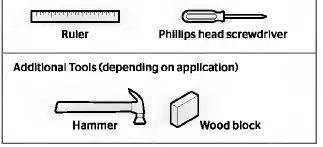
Required tools
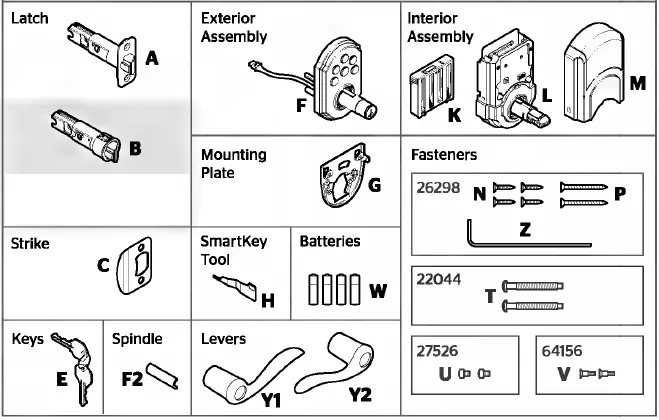
Parts in the box
INSTRUCTION
Prepare the door and check the dimensions
- Measure to confirm that the hole in the door is 2-1/8″ (54 mm).
- Measure to confirm that the backset is either 2-3/8″ or 2-3/4″ (60 or 70 mm
- Measure to confirm that the hole in the door edge is 1″ (25 mm).
- Measure to confirm that the door is between 1-3/8″ and 1-3/4″ (35 mm and 44 mm) thick

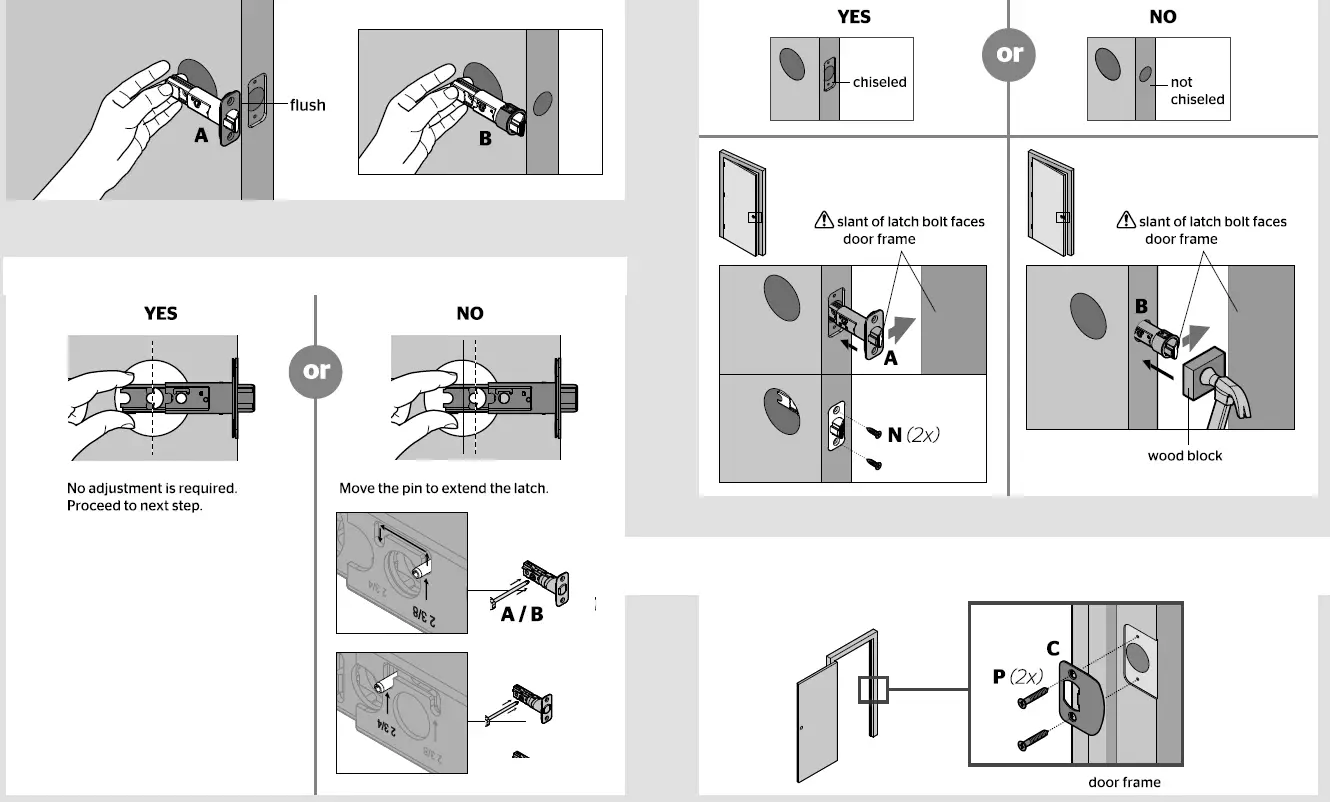
Install the latch and strike
- Hold the latch in front of the door hole, with the latch face flush against the door edge
- Is the semi-circular hole of the latch centered in the door hole?
- Is the door edge chiseled?
- Install strike on the door frame.

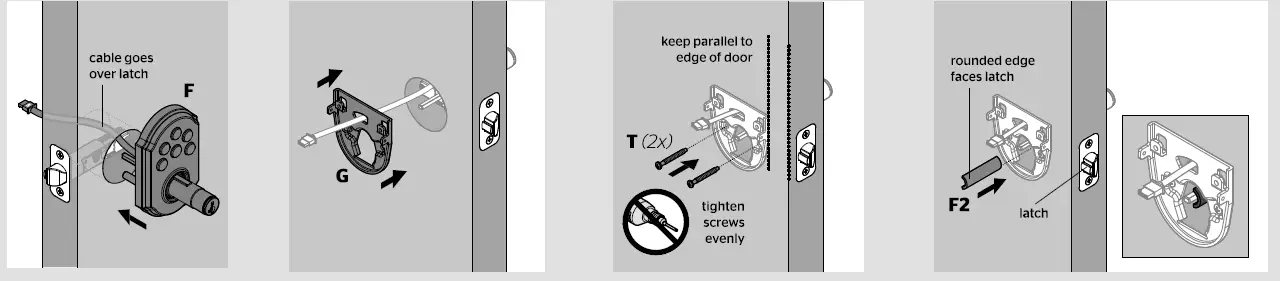
Install the exterior keypad, mounting plate, and spindle actual
- Install exterior keypad
- Route cable through mounting plate
- Secure mounting plate with supplied screws
- Install spindle.

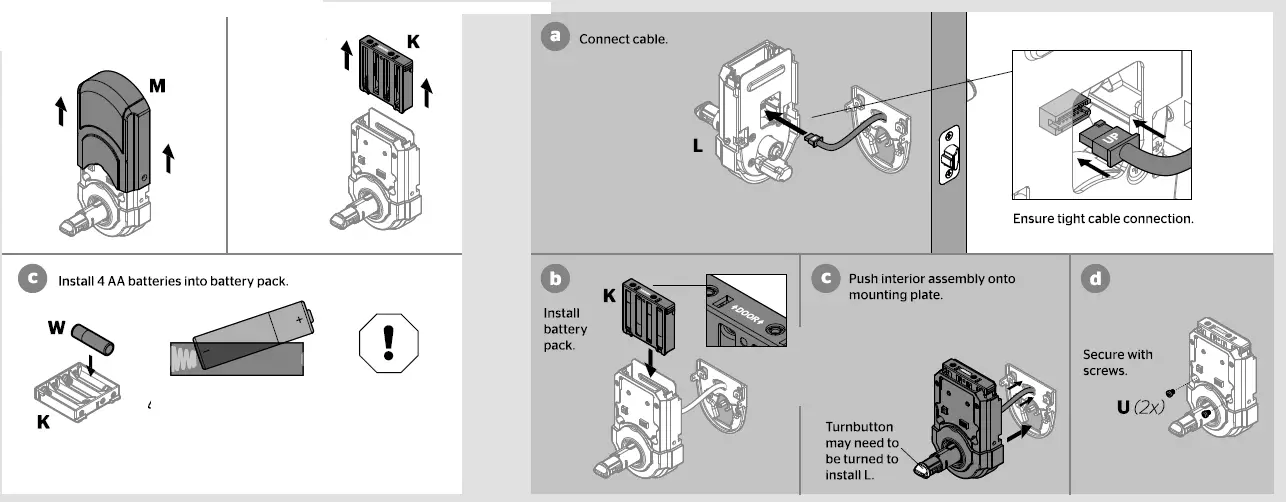
Install interior assembly
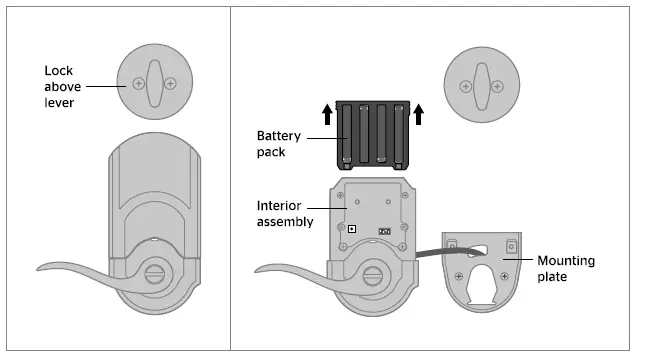
- Remove battery cover and battery pack from interior assembly.
- Install interior assembly onto mounting plate.

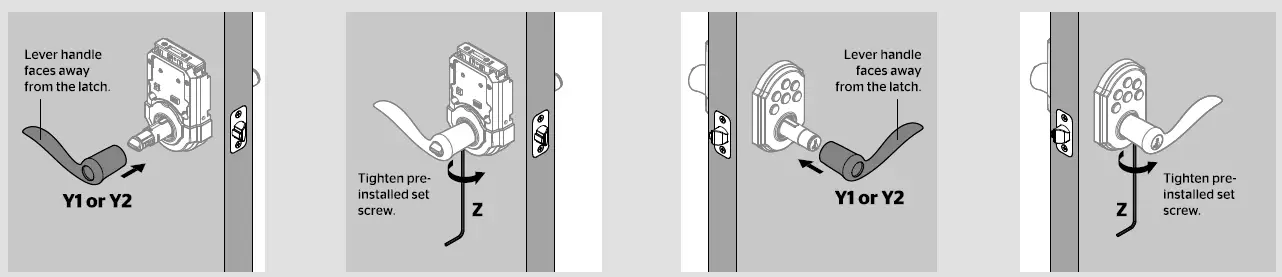
Install levers
- Install Interior lever.
- Secure Interior lever.
- Install exterior lever.
- Secure exterior lever

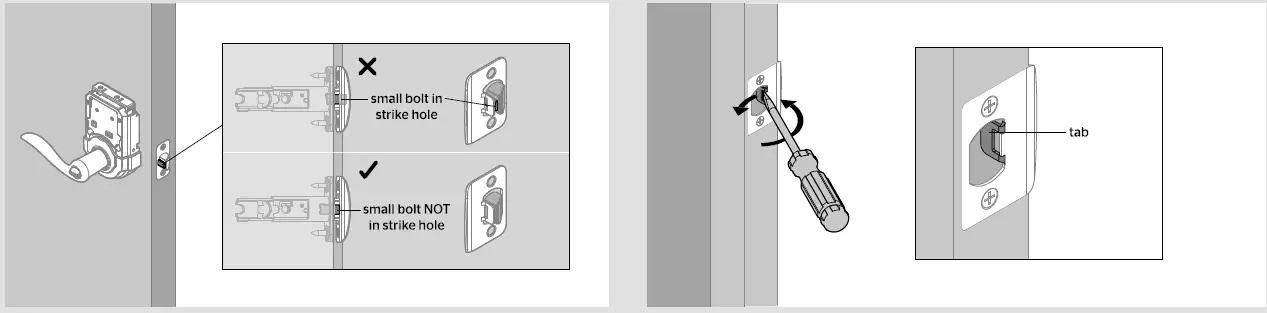
Test latch operation
- The small bolt of the latch should not enter the strike hole. If It enters the strike hole, reposition strike.
- If latch is loose in the strike, adjust the strike tab so It grips the latch bolt better when the door is closed

Add the lock to your smart home system
- Initiate the process to add the lock to your system at your smart home controller.
- Refer to your smart home system instructions for more information.
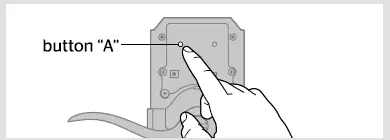
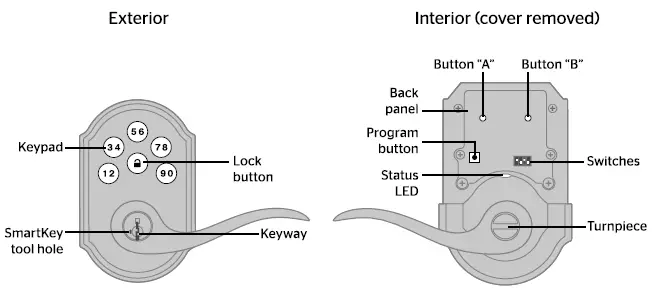
- When prompted by your smart home system to add the lock, press button “A” on the lock interior one time. The red LED will illuminate when the lock enters Add Mode.
- If successful, re-name the lock in your system (if applicable).

- If unsuccessful, follow your system’s instructions to remove the lock from the controller and any other network, then press button “A” on the lock one time. Perform steps 7A-7C again.
- If still unsuccessful, consult the Programming and Troubleshooting Guide on the SmartCode 912 page at www.kwikset.com.
Add user codes (30 max)
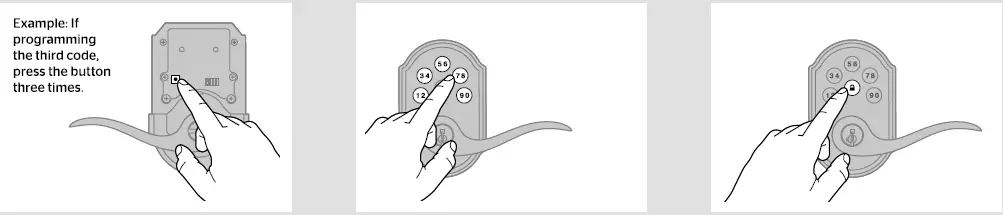
- Make sure the door is open. Press the Program button the number of times that corresponds to the user code position being programmed.
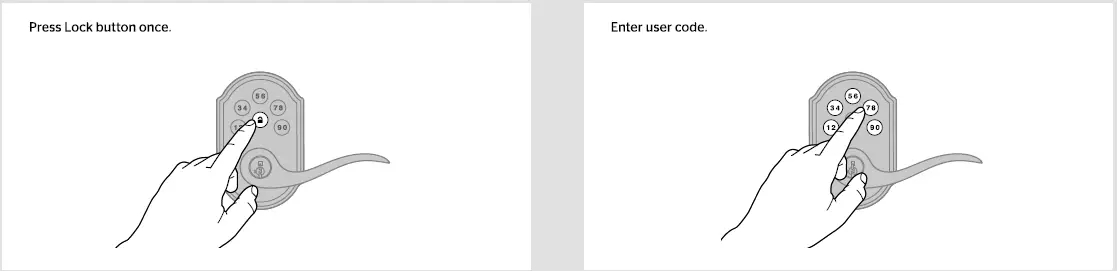
- Enter user code. A total of 30 user codes may be programmed.
- Press Lock button once.

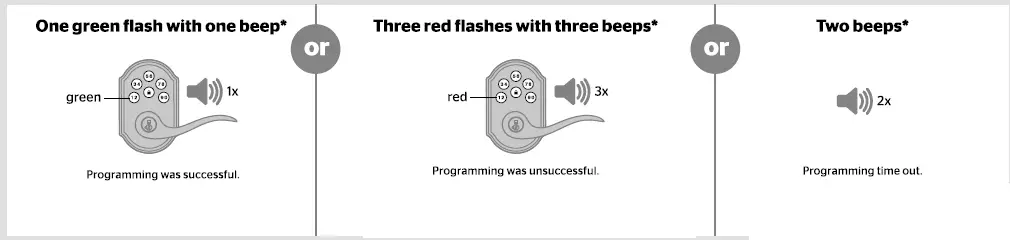
- What lights and sounds does the lock produce?
 Test the lock (review normal operation)
- Locking the Door
- Unlocking the Door

Re-key the lock (If needed) and Install the battery cover
- Re-key the lock (if needed).
- Install the battery cover.


SmartCode at a Glance
System Alerts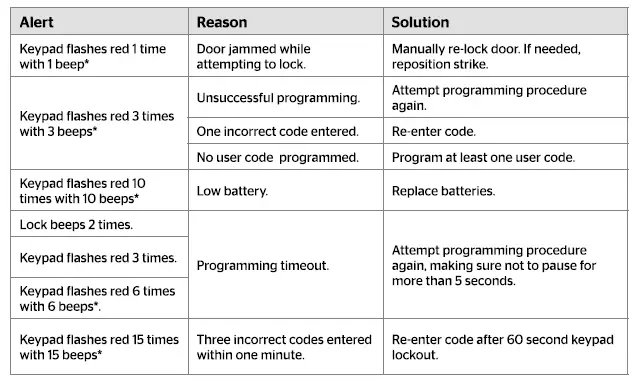
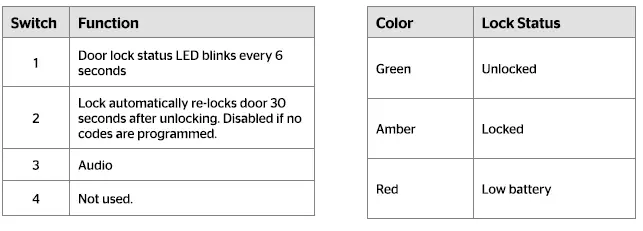
Switches and Status LED colors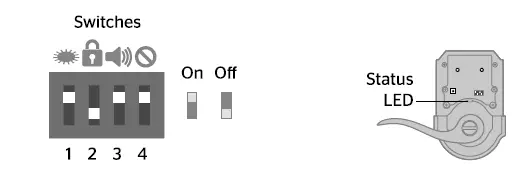
Deleting a user code
- In order to delete a user code, you must override the code by adding a different user code in the same position. For example, if you want to delete the third code, add a different user code in position three.
- Test the old user code to make sure it can no longer unlock the door.
If you cannot remember the user code position, you may wish to perform a factory reset to delete all codes associated with the lock.
Troubleshooting
A complete Programming and Troubleshooting Guide is available on the SmartCode 912 page at www.kwikset.com
Battery Replacement
Network Information
Removing the lock from the network Follow your smart home system’s instructions to remove the lock from the network. When prompted by the system, press button A” on the lock interior once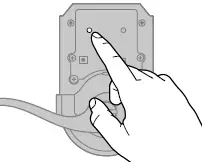
Z-Wave System Notes
This product is a security enabled 2-wave Plus product and must be used with a Security Enabled Z-Wave controller to be fully utilized. Z-Wave is a “Wireless mesh network,” and results may vary based on building construction and communication path. To assure interoperability, each Z-Wave product must pass a stringent conformance test to assure that it meets the Z-Wave standard for complete compliance with all other devices and controls. The Z-Wave identity mark assures consumers, integrators, dealers and manufacturers that their products will reliably perform with any other Z-Wave device. And, regardless of the vendor, always powered nodes may act as a repeater for Kwikset/Weiser/Baldwin products. Z-Wave Configuration and Association Parameters are available on the SmartCode 912 page at www.kwikset.com
FAQS
What does red light mean on Kwikset lock?
Amber flashes mean it is locked, while green flashes mean it is unlocked, and red means low battery.
How long does a smart lock last?
Several factors play into how long your batteries will last, including environment, temperature, and weather stripping. Typically, battery life ranges from 6 months to 1 year.
Do smart locks run out of battery?
Electronic keyless locks are extremely reliable, but like any other battery-powered device, there will eventually come a time when the battery’s power will run out
Any technology that connects to the internet has the potential to be hacked
Your Smart Lock will give you low-battery warnings for multiple weeks before it loses power.
Why is my Kwikset Smart Lock not working?
Test each button on the keypad (one at a time), and listen for a beep as each button is pressed. If beeping is not heard on all buttons, replace the batteries.
Why is my Kwikset lock not unlocking?
Make sure the User Code is correct and that the Kwikset button is pushed after entering the User Code
What is the master code for Kwikset?
The default Mastercode is 0-0-0-0. It is recommended that you change it to a code of your own. 1. Make sure the lock is unlocked and the door is open
How do I check the battery on my Kwikset lock?
There are two low battery indicators on the unit. The LED light on the interior side of the lock will flash red when the batteries are low.
Why did my Smart Lock stop working?
There’s a chance that your phone simply hasn’t updated its location status in a while.
Where is the reset button on Kwikset lock?
Ensure the door with the Kwikset 888 SmartCode deadbolt with Z-Wave or 913/914 SmartCode is open and unlocked.
How long do the batteries last in a Kwikset lock?
Replace batteries with new ones to ensure that lock is properly powered
Why is my deadbolt not unlocking?
Sometimes the lock is stuck because the parts inside it have disengaged
What if I forgot my master code for my lock door?
You can visit a Master Lock Distributor / Retailer or submit a Lost Combination form. Bring your lock to the retailer.
How many codes can a Kwikset lock have?
The SmartCode 917 supports up to 30 user code between 4-8 digits