Contents hide

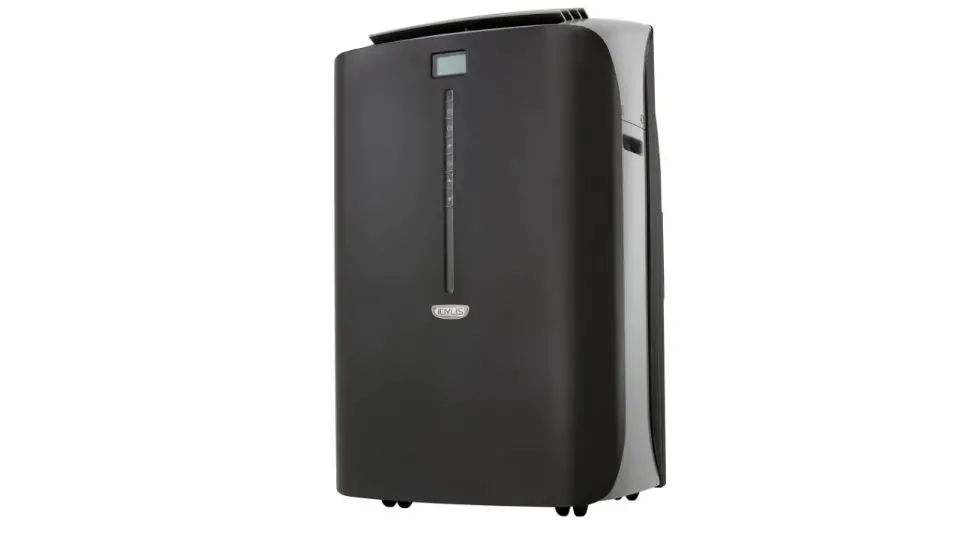
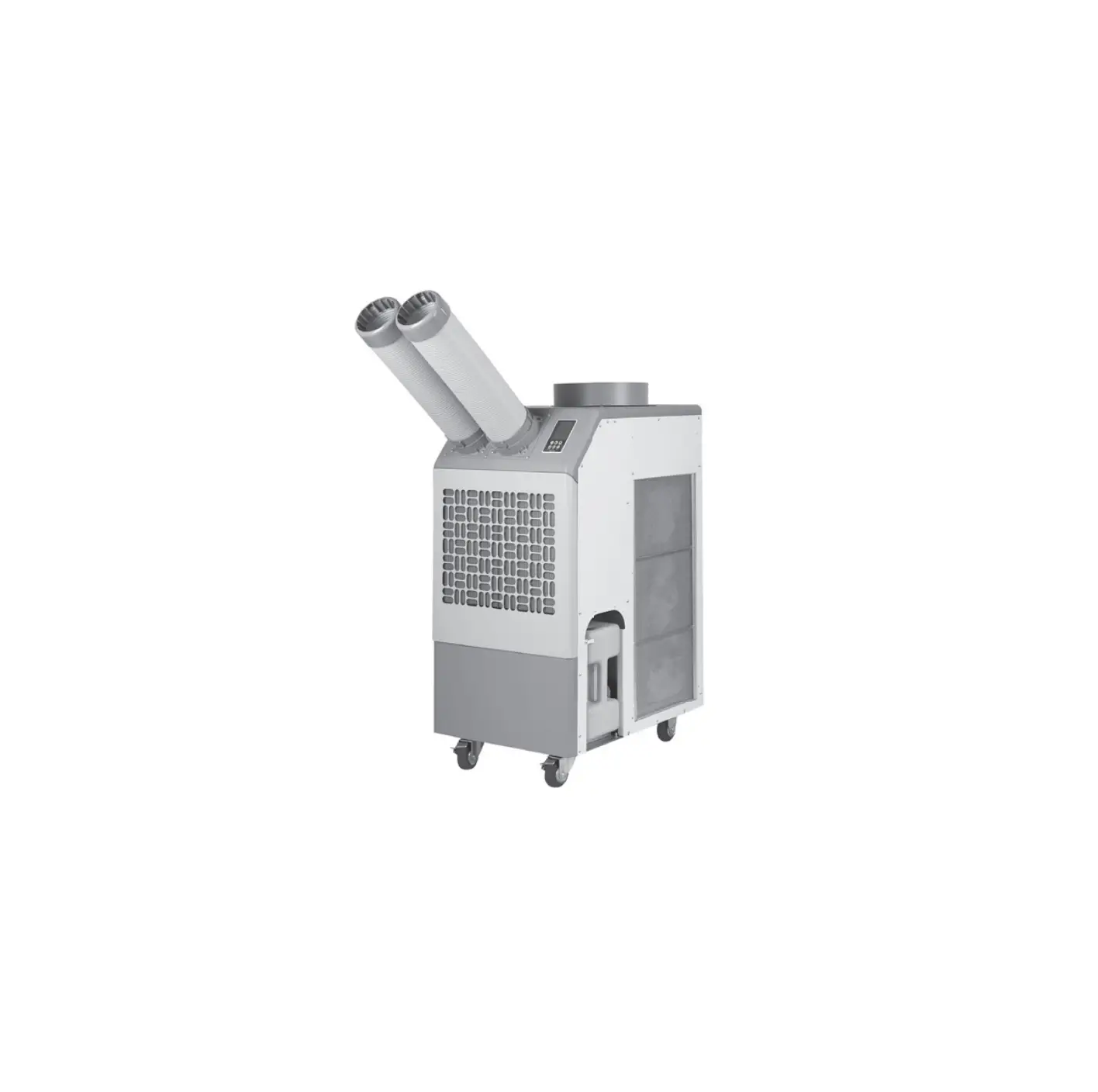
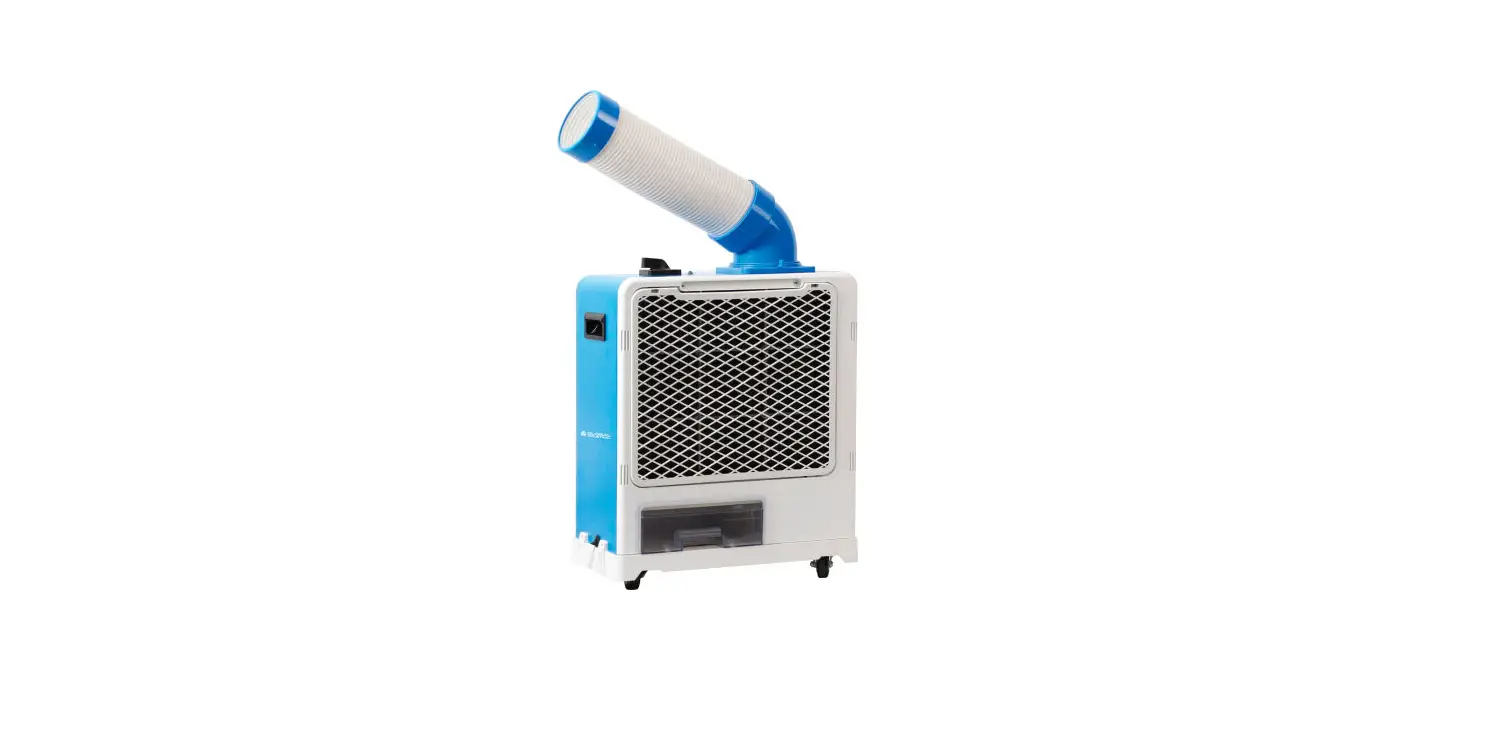
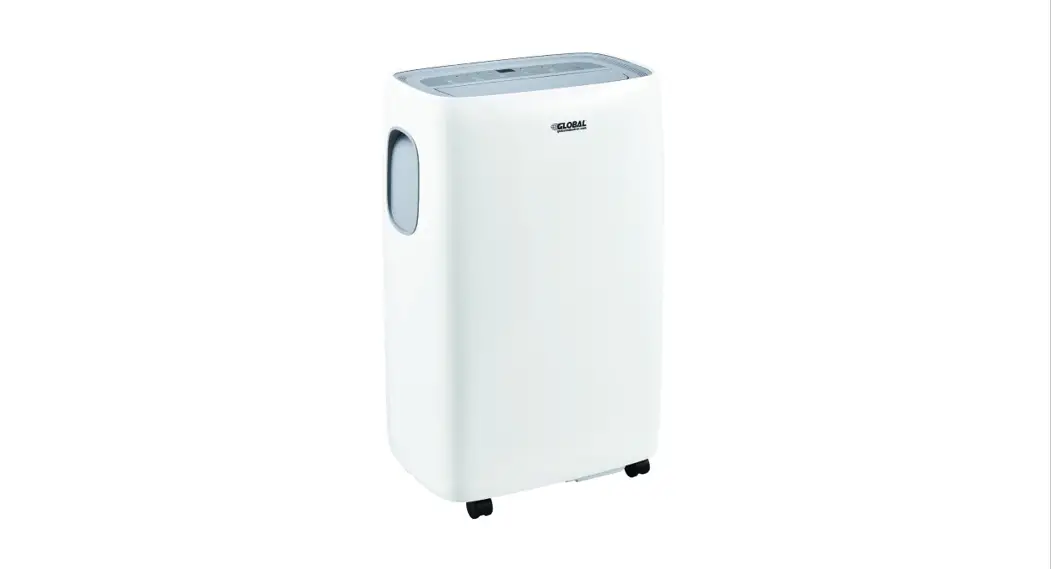
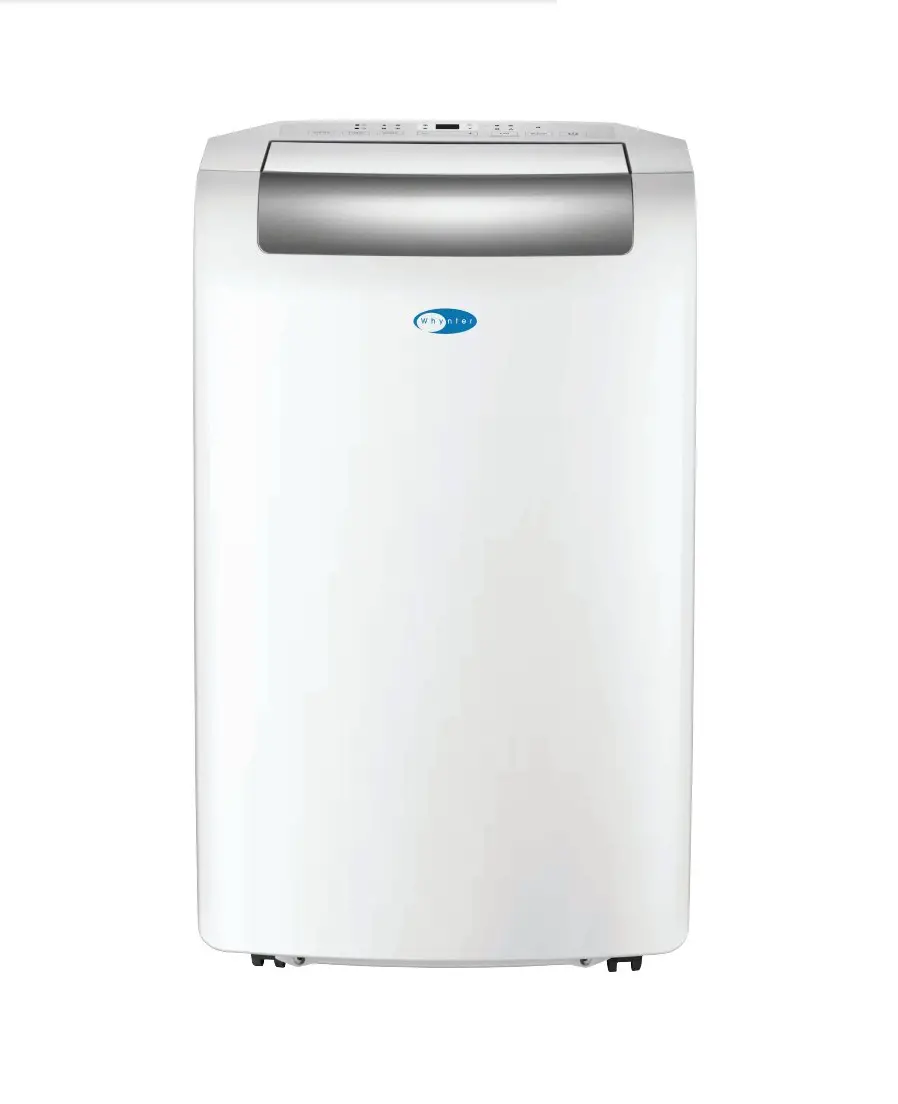
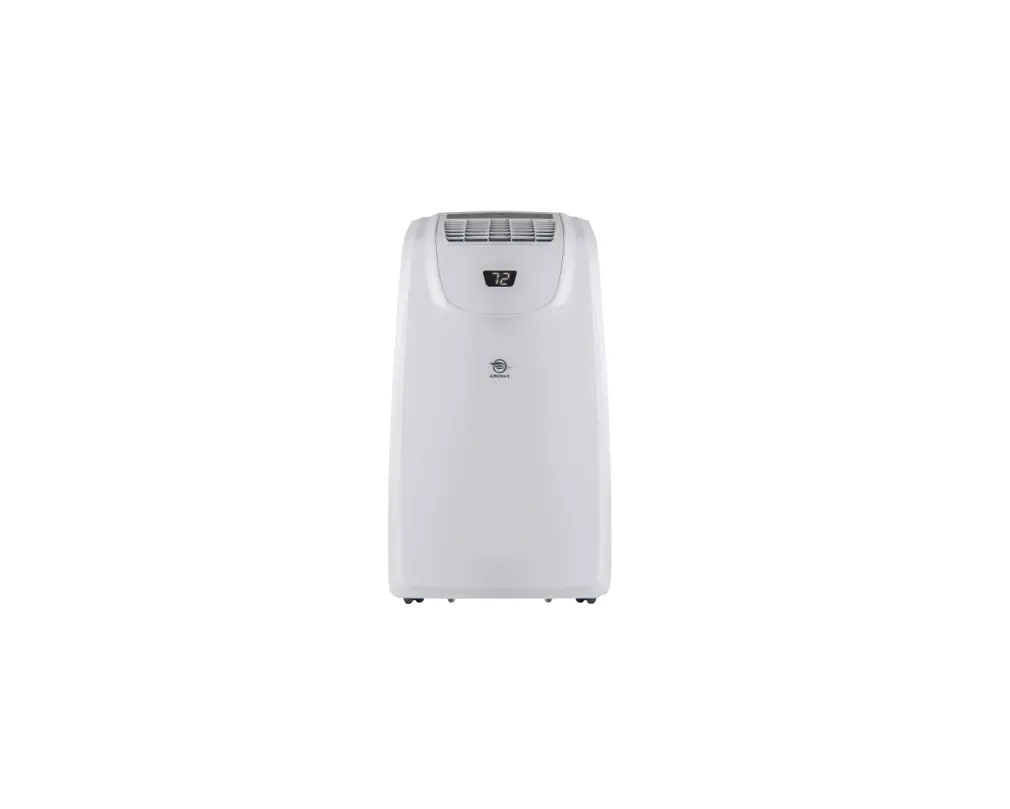
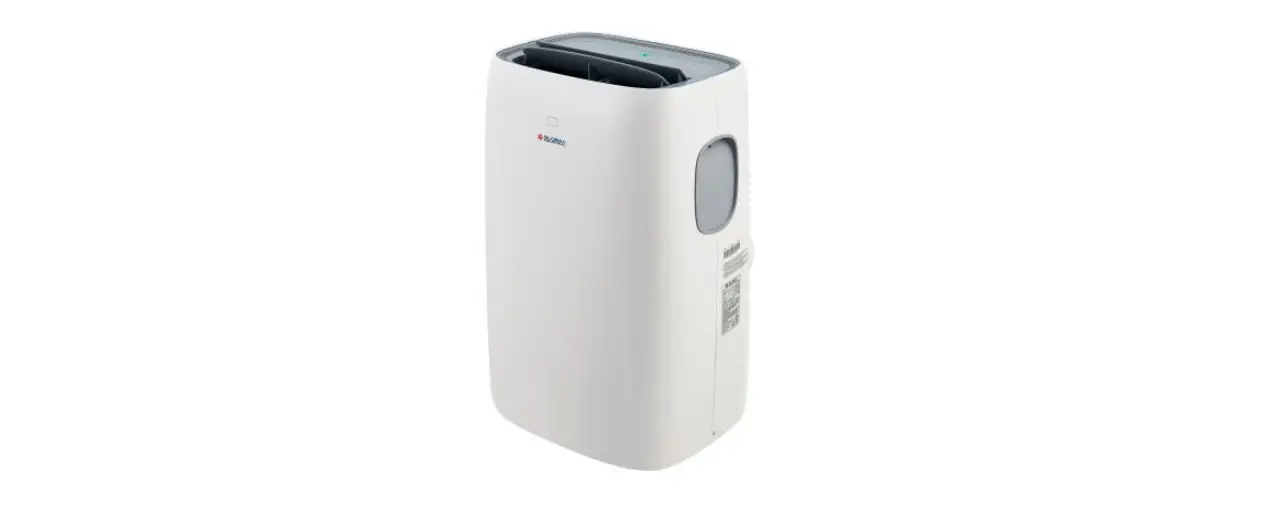
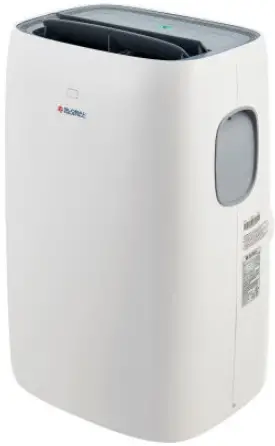
GLOBAL INDUSTRIAL 293136 Portable Air Conditioner with Heat
Please scan the QR code to download the latest App software.
The latest App software integrated air conditioner, dehumidifier and Portable air conditioner

SERVICE CONDITION
- Thank you for choosing our air conditioner.
- This manual apply to the air conditioners which has WiFi function.
- Please read the manual carefully before using the product and keep it properly for further review.
- Please do not unplug the WIFI module by yourself.
- For technical update, there may be deviation of the actual items from the manual. We express our apologies. Please refer to your actual product.
INSTALL THE APP
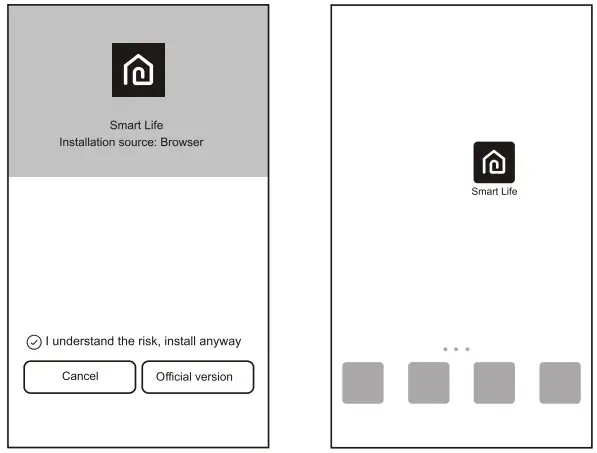
- When download the APP software, you can install it in your smart phone.
- After installation, you can find the “Smart Life” icon on your phone desk.

ACTIVATE QR CODE
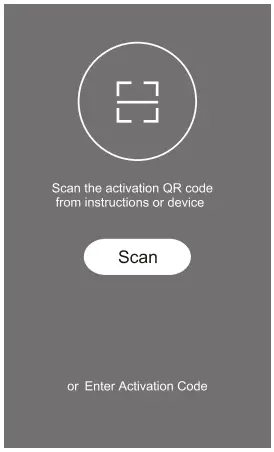
- When you first time enter the App, it will display activation interface, you can select scan activation
QR code (click “Scan” button and scan the activation QR code in below page) or input “activation code” words (in be- low page), click”activate” button to active it.
- Air conditioner activation QR code

- Air conditioner activation code WORDS:



REGISTER USER ACCOUNT
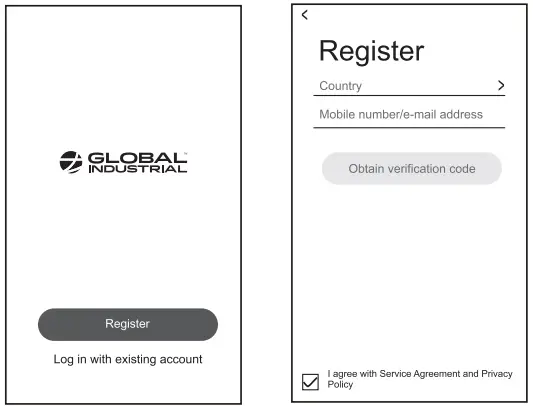
When you first time use the App, you need to register an account. Click “Register” button to enter to the register interface. You can register with email or”Register with Mobile number”.
LOGIN USER ACCOUNT
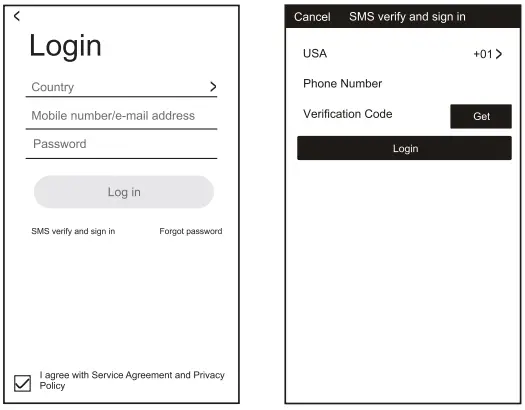
- Register account login, fulfill the registered email or phone number account and password, press “Login” button.
- Phone number login, press”Sign in with SMS” button to enter the next page, fulfill the phone number and press “get” button to receive the confirm code, and fill in, then press “Login” button.

FORGET PASSWORD
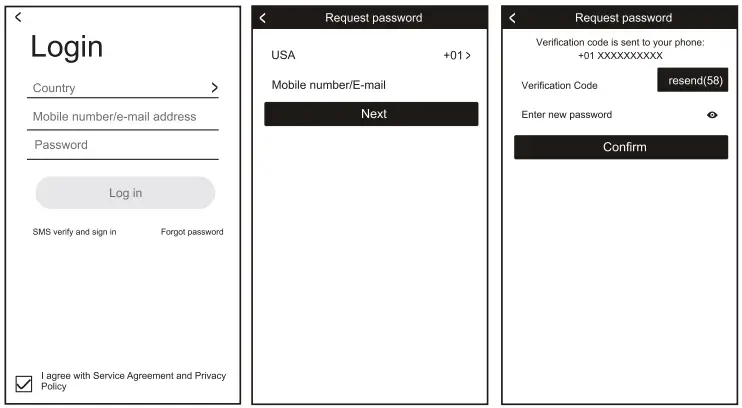
- Press the “Forgot password’ button to the next page.
- Fulfill the registered phone number or email account, press “Next” button to the next page.
- You will receive the verification code, fulfill it, and set the new password, press “confirm” button.

ADD THE DEVICE
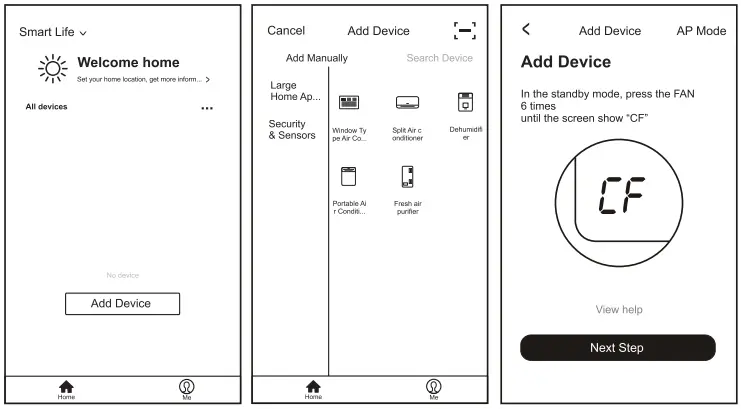
- Press “Add Device” button to next page, select the product type.
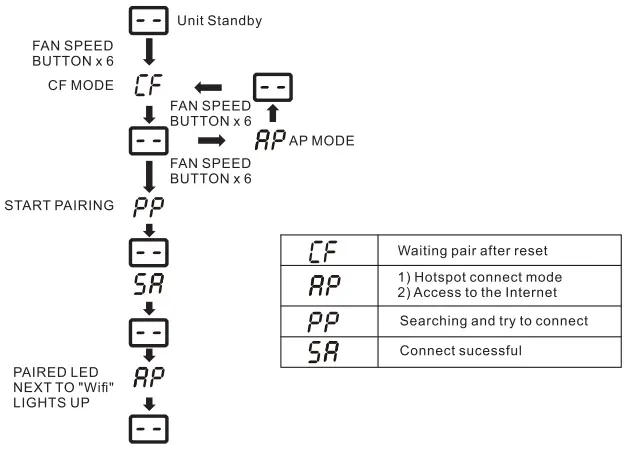
- There are two methods to do the device match, “CF” or “AP mode” You can choose by the different button

ADD THE DEVICE (CF MODE)
- The system defaults to CF mode at first, Press “Next Step”to continue.
- Select the home router, and fulfill the password of router, press “Next” to continue.
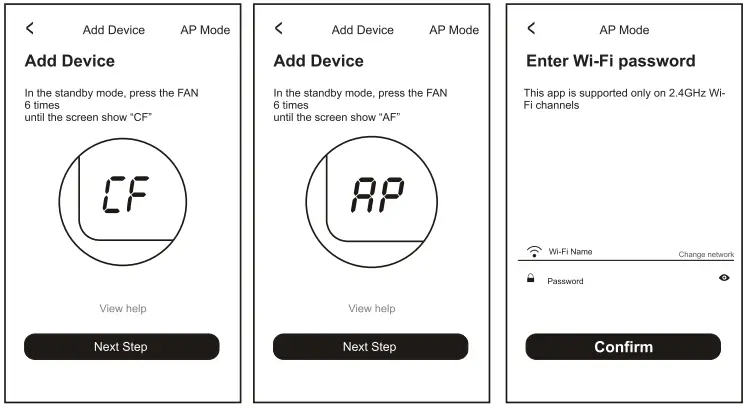
- ln standby, press the “FAN” key on the control panel (or remote control) 6 times within 4 seconds until the LCD screen show “CF” or “AP”, which can make WIFI reset, there will be switch beween “CF” and “AP” if press many times.

- The APP software will automatically to do the device match.
- After match successfully, the page will display the prompt as below.
- You can “Rename”the device name as you like, or share with family, or press “Done”to start to control the device

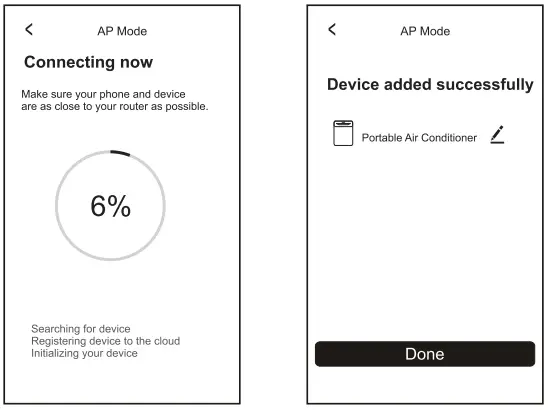
ADD THE DEVICE (AP MODE)
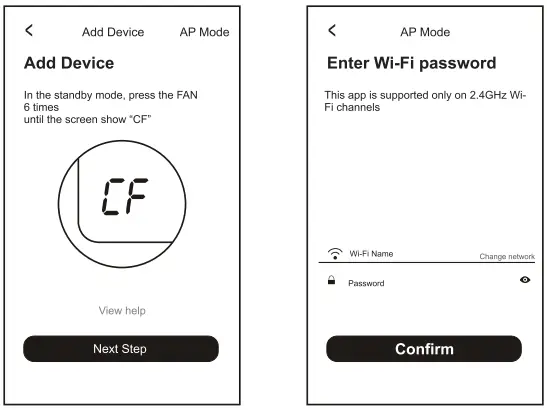
- Click the “AP Mode”to the “AP” page. Press “Next Step” to continue.
- Select the home router, fulfill the password, press “Next”to continue
- ln standby, press the “FAN” key on the control panel (or remote control) 6 times within 4 seconds until the LCD screen show “CF” or “AP”, which can make WIFI reset, there will be switch beween “CF” and “AP” if press many times.

- Select the AC Device as name “Smartlife-XXX” at the WLA N setting, then back to the APP interface.
The APP will automatically do match
- After match successfully, the page will display the prompt as below.
- If match failed, the APP will mention it, and press “Retry”to try again.

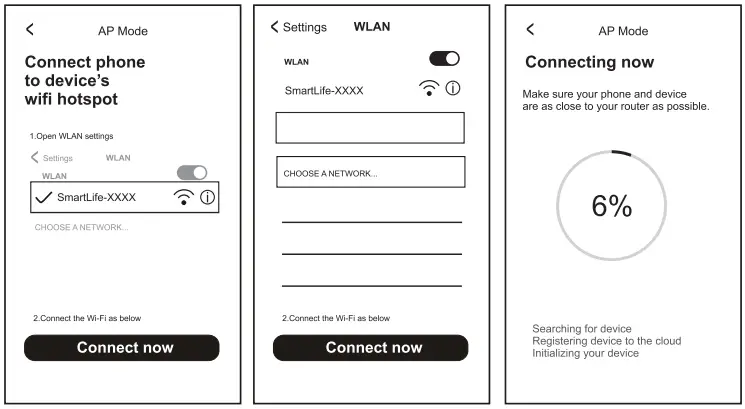
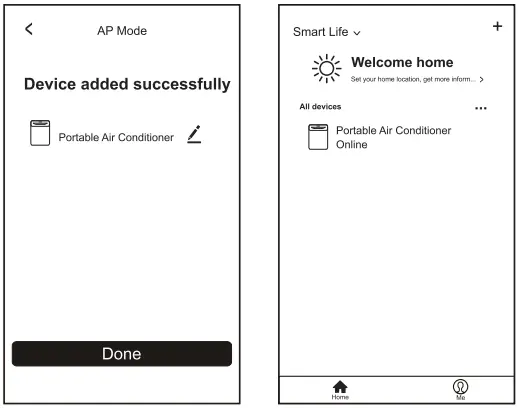
PAIRING PROCESS
AIR CONDITIONER CONTROL
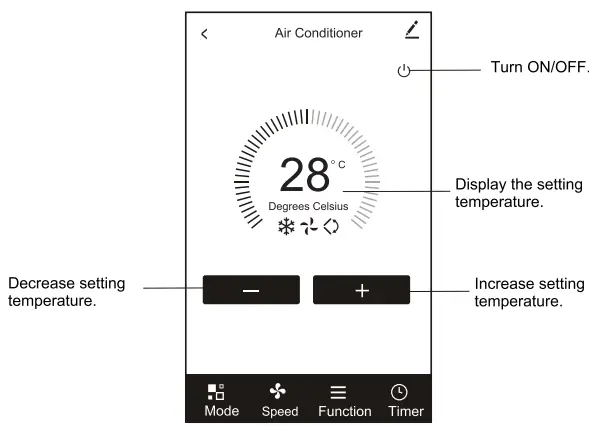
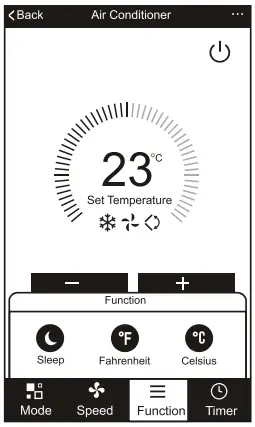
- Click the air conditioner name to enter the controlinterface. Turn ON/OFF. Adjust the setting temperature.

*For App update, there maybe deviation of the actual items from what is on the manual without prior notice.
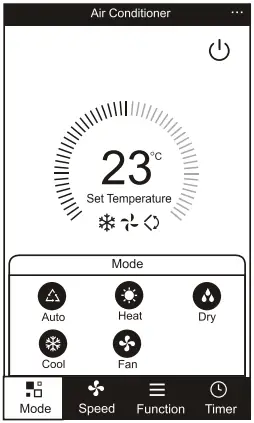
We express our apologies. - Adjust the different operating mode, Cool, Heat, Dry, Fan, Auto mode.
Click the “Mode” button, and choose different running mode as you like.
For some cooling only unit, the heat mode is no useful.
For Dry mode, at the first 3 minutes, the APP temperature display may be little different from the unit display, caused by the unit temperature fast changing.
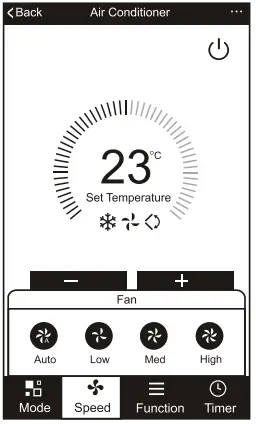
- Click the “Fan” button, choose different fan speed, Low, Med, High, Auto.

- Other function control can by selected by”Function” button, Sleep . When Sleep mode, the fan speed will be fixed to low speed.

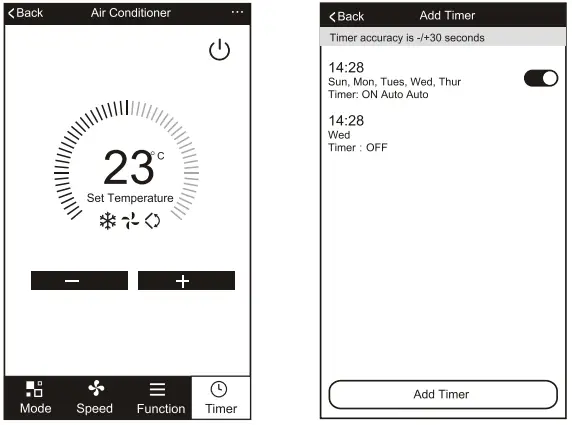
- Setting Timer function. Click the “Timer” button, the APP will enter to timer setting interface. It will display the task scheduler set before. You can longterm press to edit or build a new scheduler by”Add Timer” button.

- Click”ON”or”OFF”button to set Timer ON or Timer OFF.
You can set Hour, Minute, operate Mode, operate Fan Speed, operate Temperature, also the weekly Timer. After finish the setting, click the button to cancel or confirm.
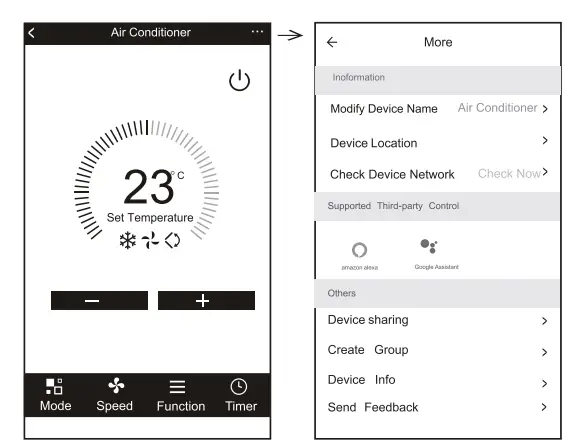
- More setting. From the right-up corner, you can do more function setting, as Modify Device Name, Device Sharing, Device information, Feedback, Check for firmware update, Remove Device, Restore Manufacture setting.

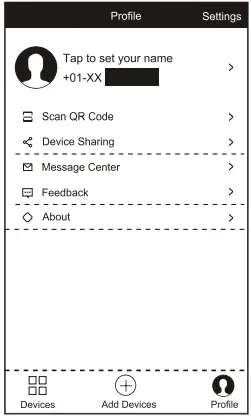
- Profile. You can manage your personal information. It includes:
- Account information.
- Scan QR code: Developers could preview the control interface.
- Share Device: Display user s device sharing information.
- Message Centre: Displays all messages that system sent to users.
- Feedback: Where users could submit feedback on line.
- About: Displays the current App version information.

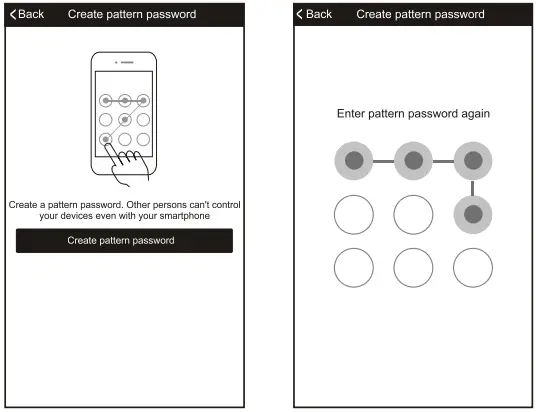
- Pattern unlock. Tap “Pattern unlock” to set up your App unlock pattern. After it is enabled, you need to draw the pattern to unlock the App.


TROUBLESHOOTING