 Installation Procedure
for EcoStruxure
Control Expert 15.0, SP1
Installation Guide
Overview
There have been reports of customers having integrity check issues when running Control Expert after installing version 15.0, SP1. The purpose of this document is to provide instructions on how to properly install and troubleshoot any integrity check errors encountered.
Installation procedure for Control Expert 15.0, SP1.
The following steps must be used to install Control Expert 15.0, SP1. This requires the uninstallation of Control Expert version 15.0.
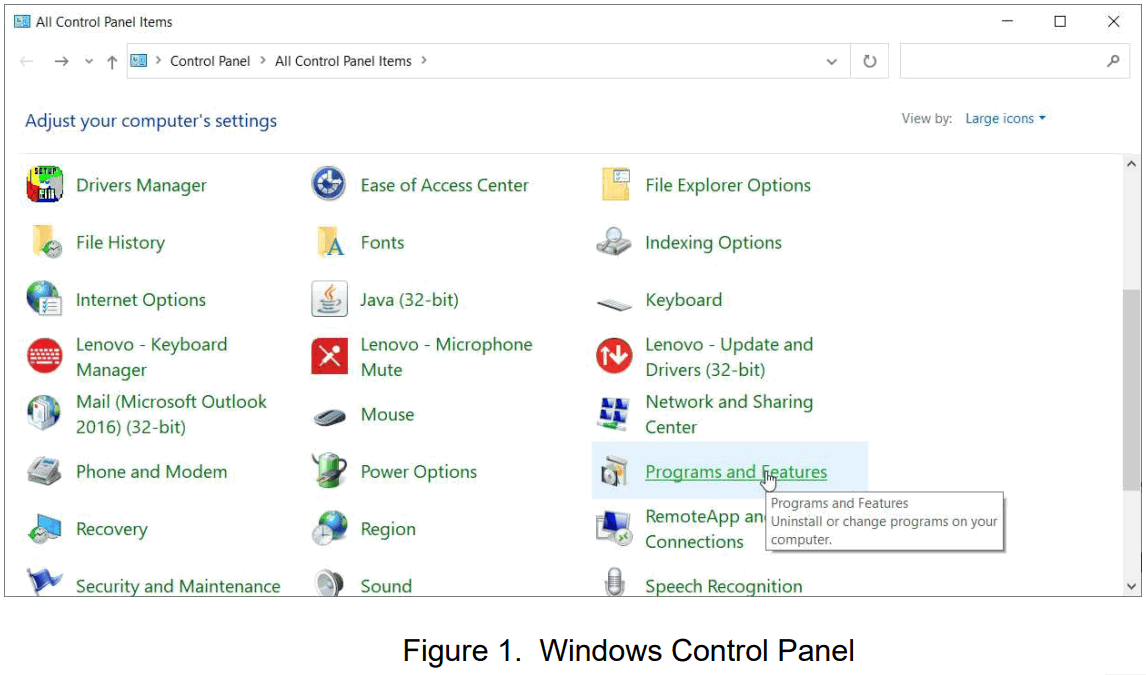
- Open the Control Panel (See Figure 1).
- Click on Programs and Features

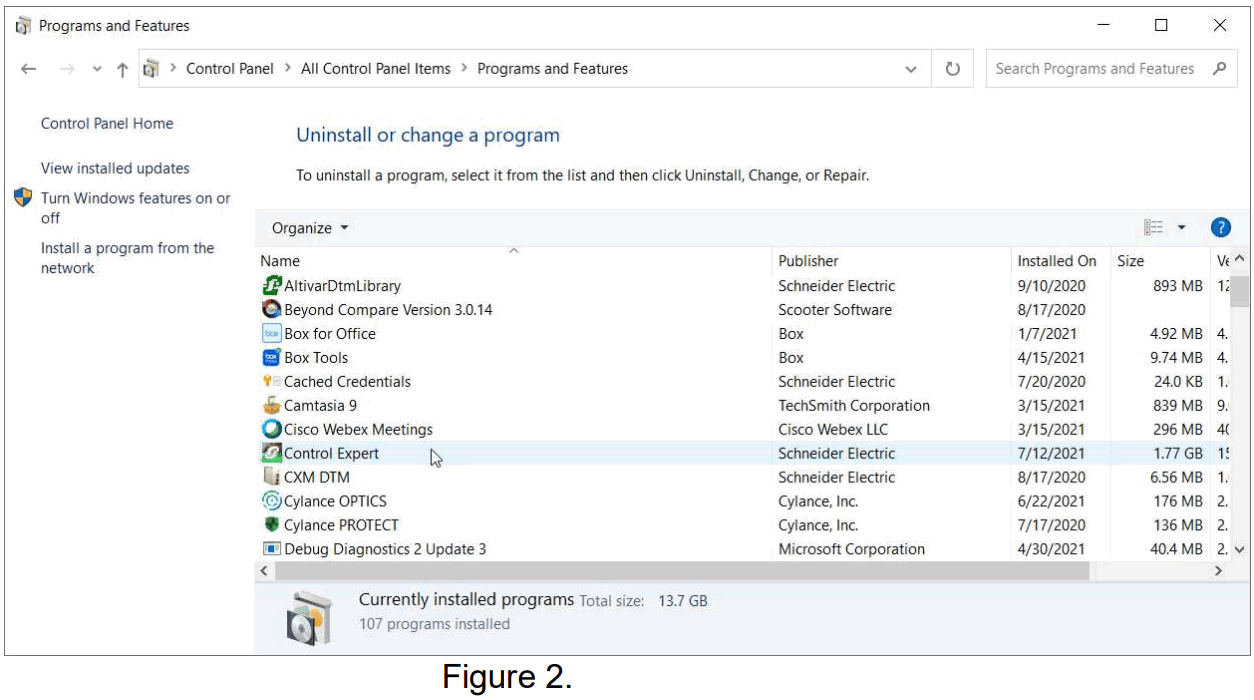
- Scroll down the list and locate ‘Control Expert’ (See Figure 2).

- Double click on ‘Control Expert’ to uninstall it.
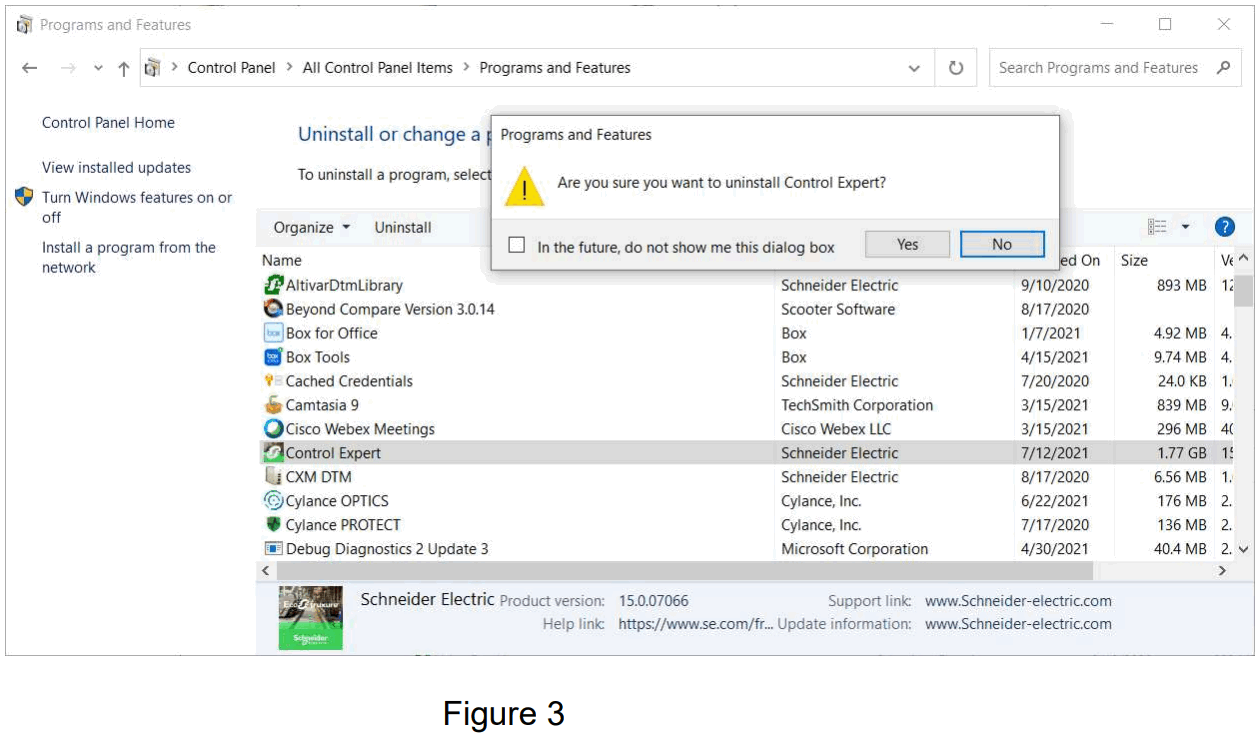
- Click on Yes (See Figure 3.) to start the uninstall.

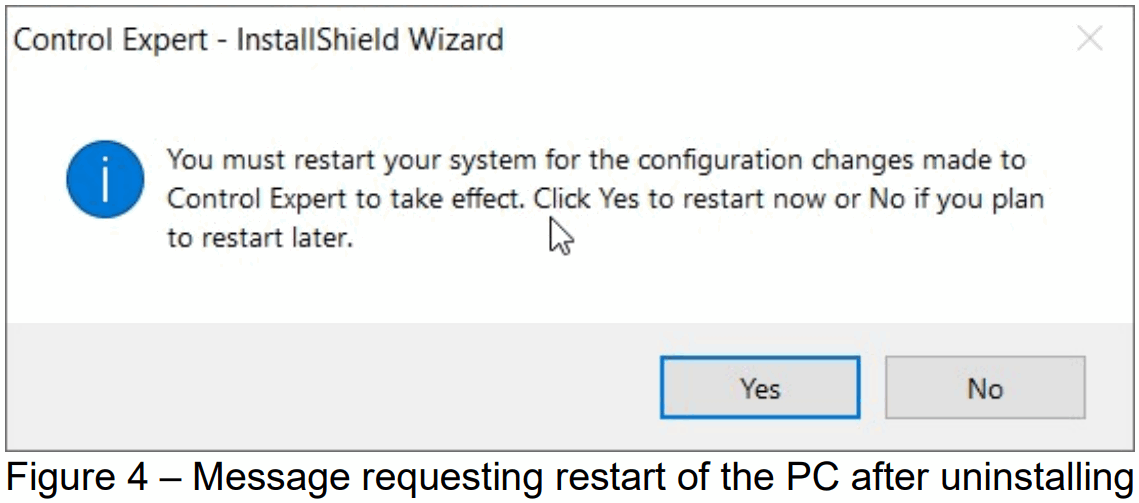
- After the uninstall is completed, the user must reboot the PC. This step is mandatory to allow completion of the uninstall process.

Note: There is no need to uninstall any DTM’s. Any installed DTM’s will be properly detected by Control Expert upon the first run after the installation.
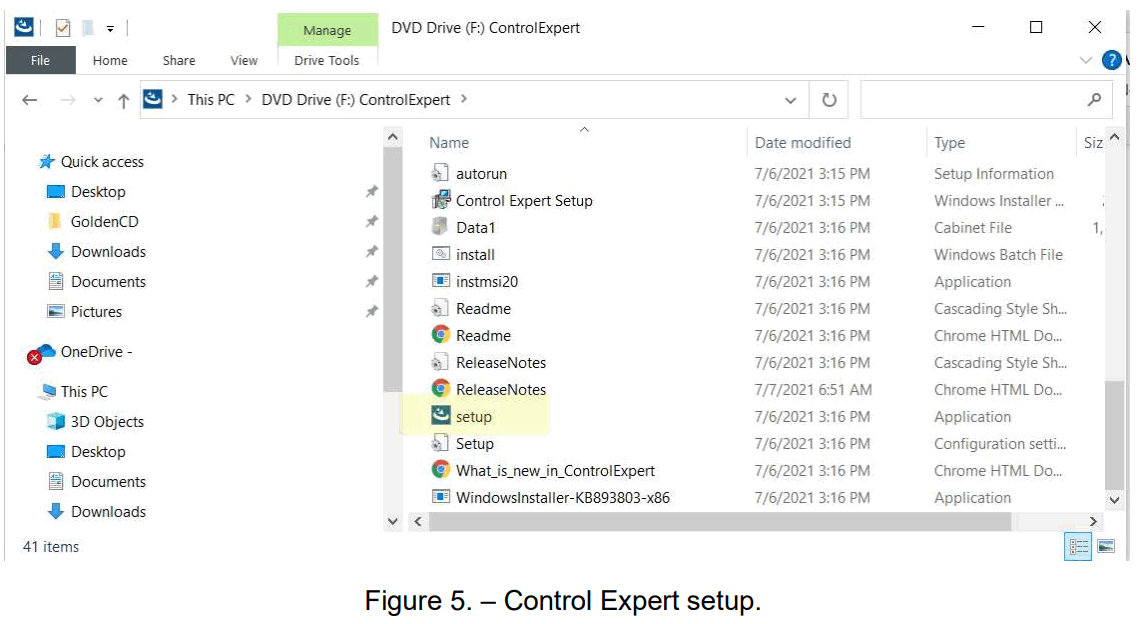
- Install Control Expert 15.0, SP1 by double clicking on Setup (See Figure 5.).

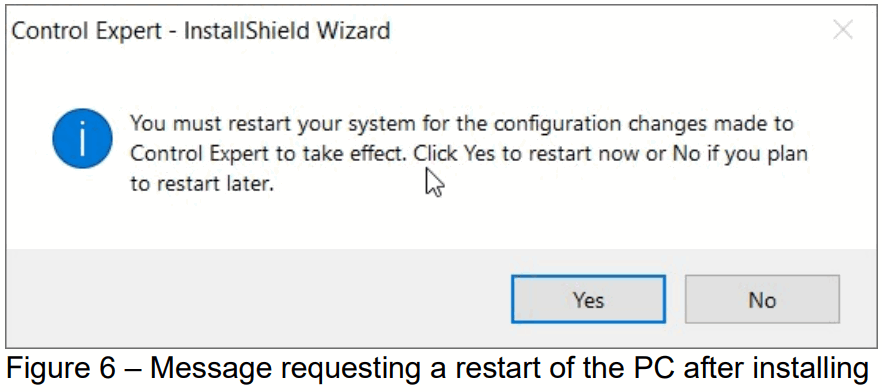
- After the install is completed, the user must reboot the PC. This step is mandatory to allow completion of the install process.

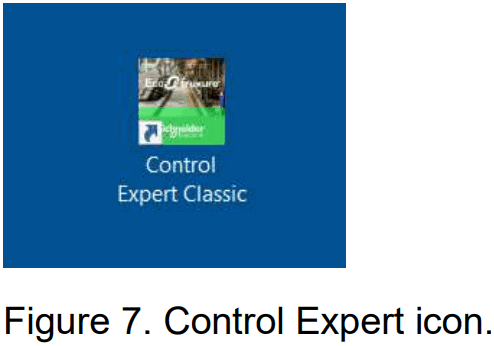
- Start Control Expert by clicking on the desktop icon (See figure 7.).

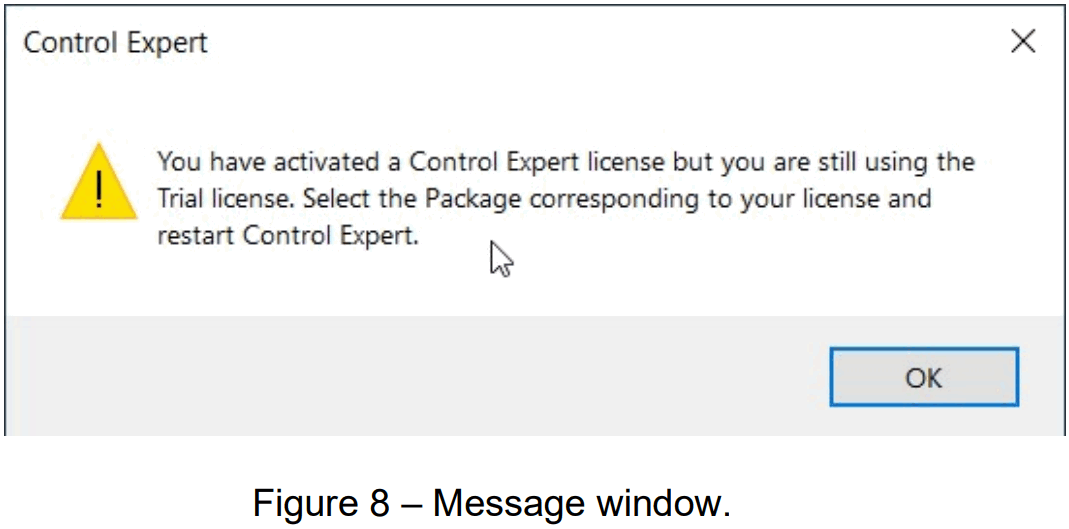
- Click on OK in the message window that appears (See Figure 8.).

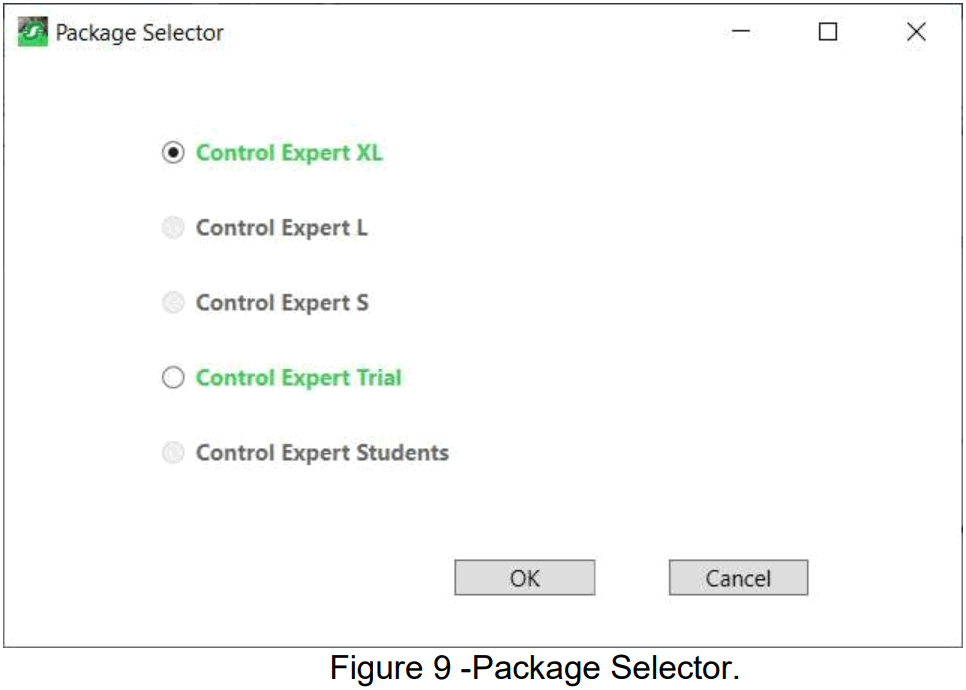
- Select the purchased Control Expert size version (See Figure 9) in the Package Selector window.
- Click on OK.

- Restart Control Expert.
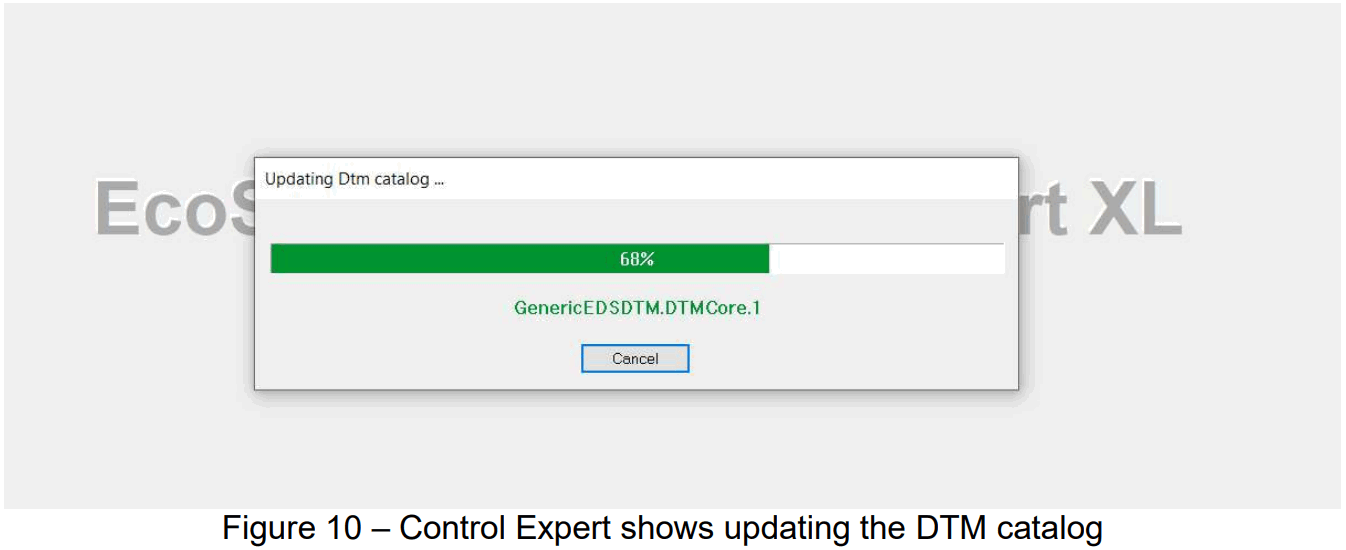
- Upon starting, Control Expert will detect DTM’s that are installed on the PC and perform a DTM catalog update (See Figure 10).
- This confirms that Control Expert is working.

If an integrity check error is returned (See Figure 11), perform the following steps to resolve the issue: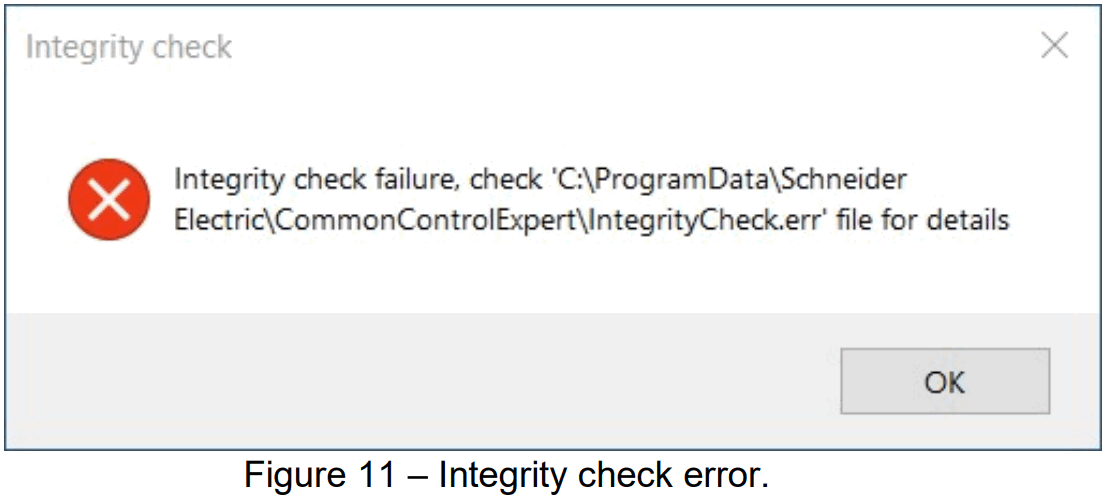
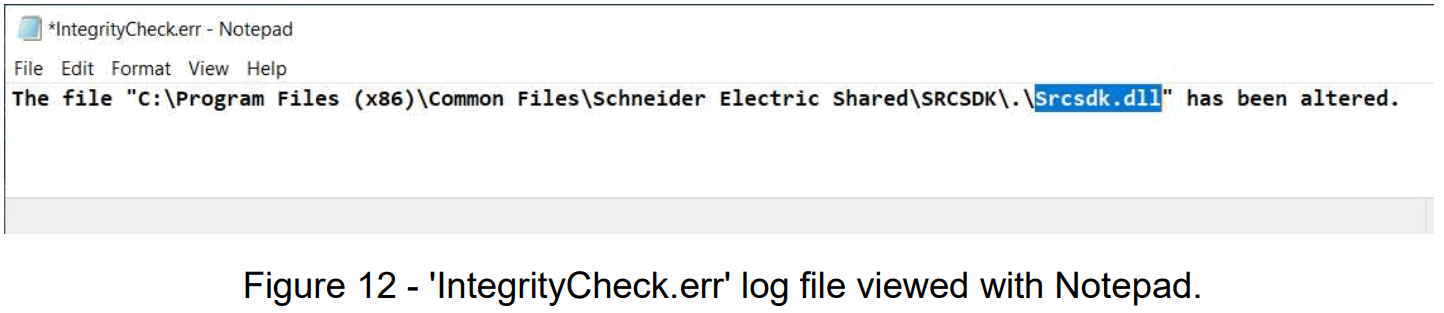
- Open the log file named ”IntegrityCheck.err” from the path described in the error window.
- Examine the log (See Figure 12.) to determine what file is causing the integrity check error.

- If the log file makes a reference ‘Srcsdk.dll’,
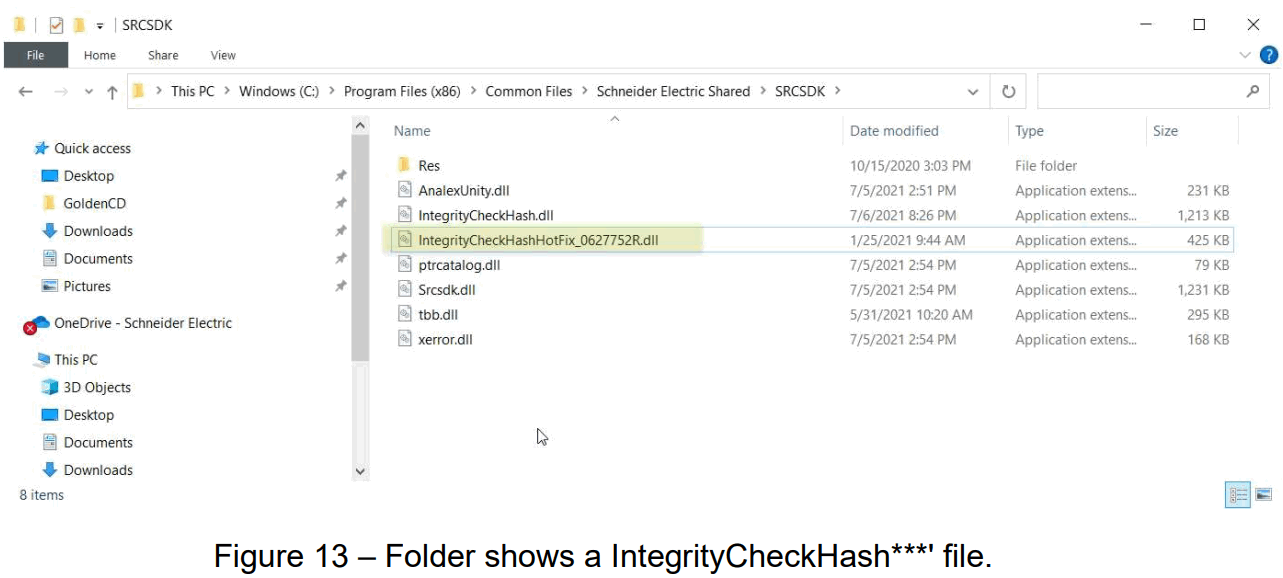
- Open the folder named
‘C:\Program Files (x86)\Common Files\Schneider Electric Shared\SRCSDK’. - Search for any files with the name in the form of ‘IntegrityCheckHashHotfix****.dll’
(i.e., IntegrityCheckHashHotfix_0627752R.dll, etc.). - Delete any files found with the name in the form of ‘IntegrityCheckHashHotfix****.dll’ (See Figure 13.).

- Leave only the file with the name ‘IntegrityCheckHash.dll’.
- Do not delete any other files.
- Reboot the PC
- Restart Control Expert.
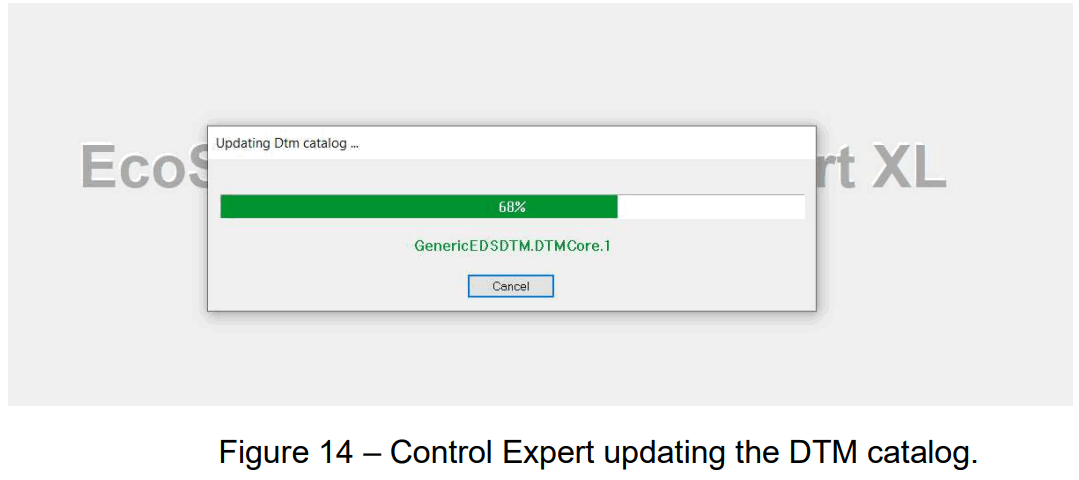
- If you see a message window indicating ‘Updating DTM Catalog’, this confirms that Control Expert is running (See Figure 14.).

If the ‘IntegrityCheck.err’ makes reference to any other file (See Figure 15.).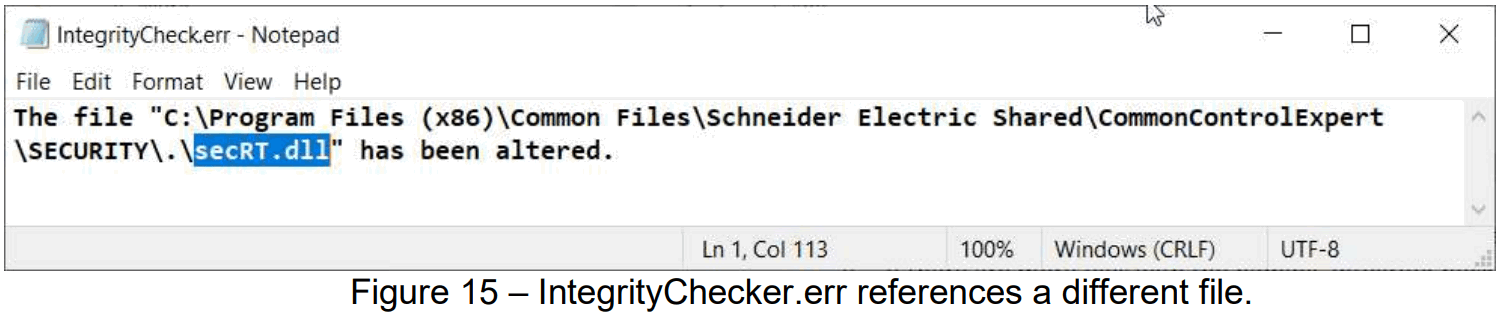
- Open the referenced folder (i.e., C:\Program Files (x86)\Common Files\Schneider Electric Shared\CommonControlExpert\SECURITY).
- Search for any files with the name ‘IntegrityCheckHashHotfix****.dll’.
- If there are any files found with the name in the form of ‘IntegrityCheckHashHotfix****.dll’ , delete the extra files.
- Leave only the file with the name ‘IntegrityCheckHash.dll’.
- Do not delete any other files.
- Reboot the PC
- Restart Control Expert.
- If you see a message window indicating ‘Updating DTM Catalog’, this confirms that Control Expert is running.
Note:
- Ensure that any Control Expert version 15.0 projects have been either archived (‘.sta’ file format) or exported (‘.zef’ file format) before updating to Control Expert 15.0, SP1. control Expert version 15.0, SP1 will not be able to open the saved project that is in the ‘ stu’ file format.
- Do not attempt to resolve the issue by manually uninstalling Control Expert through deleting any folders or registry keys.
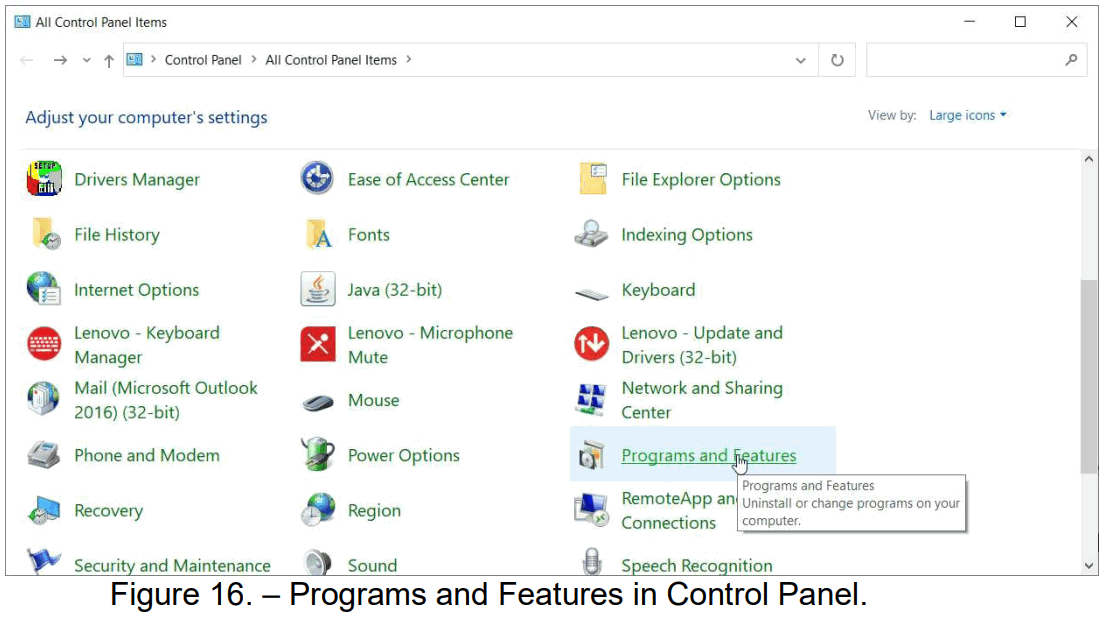
- The correct method to uninstall is to use the Programs and Features or Add/Remove Programs via the Control Panel (See figure 16.).

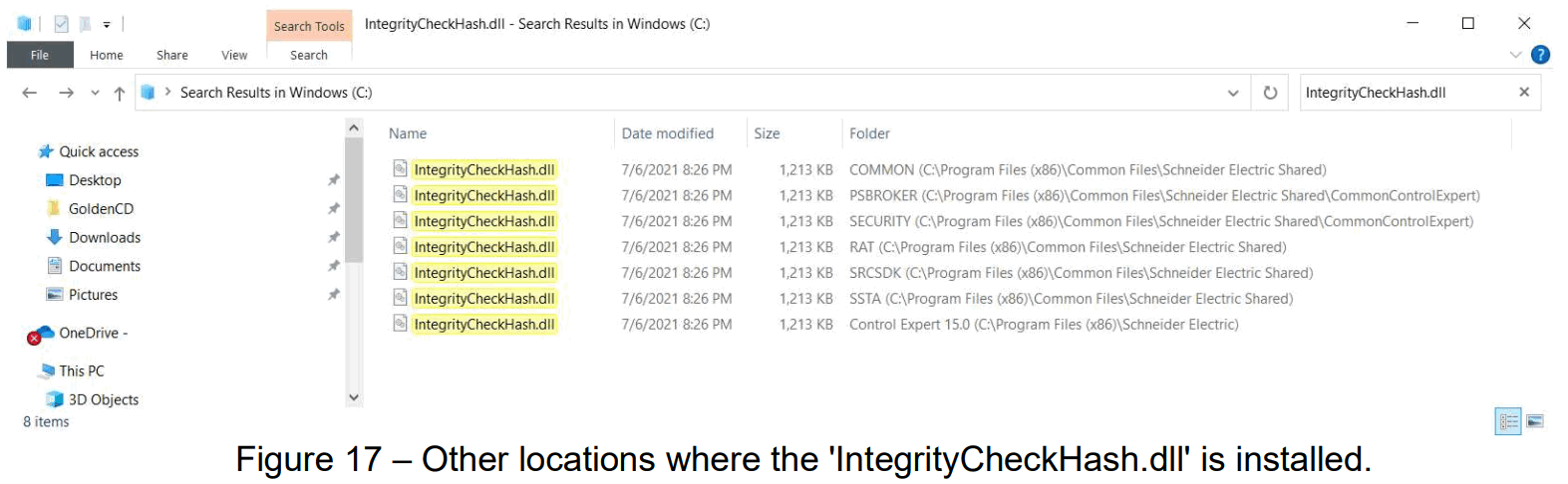
- Control Expert installs the ‘IntegrityCheckHash.dll’ in multiple locations (See Figure 17). If an integrity check error occurs, the log file will show where to look for the faulted file.

Verification
To ensure that this procedure is performed correctly, restart Control Expert and verify that no Integrity Check error appears.