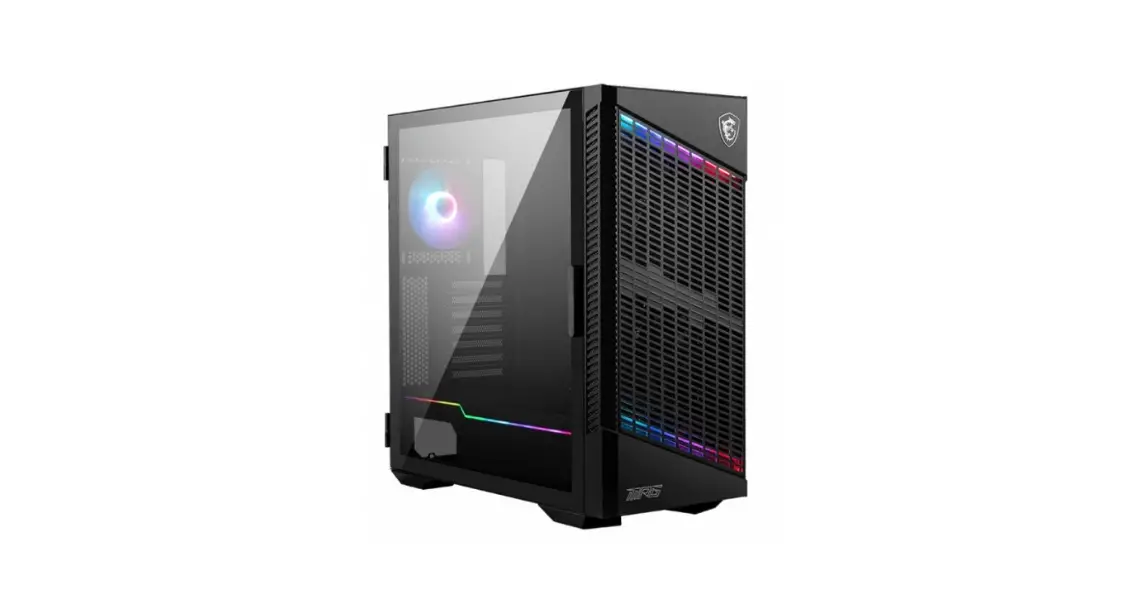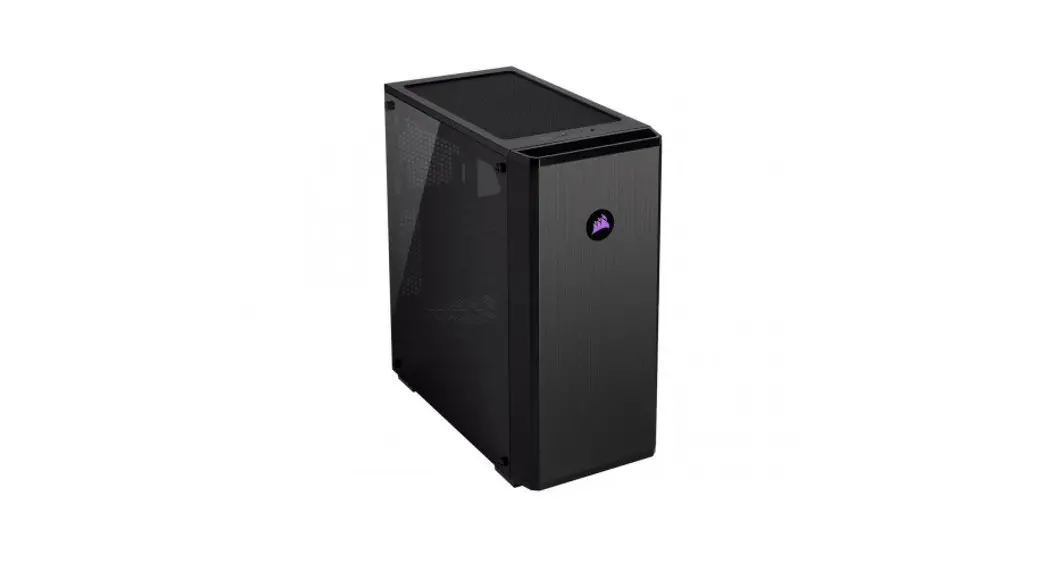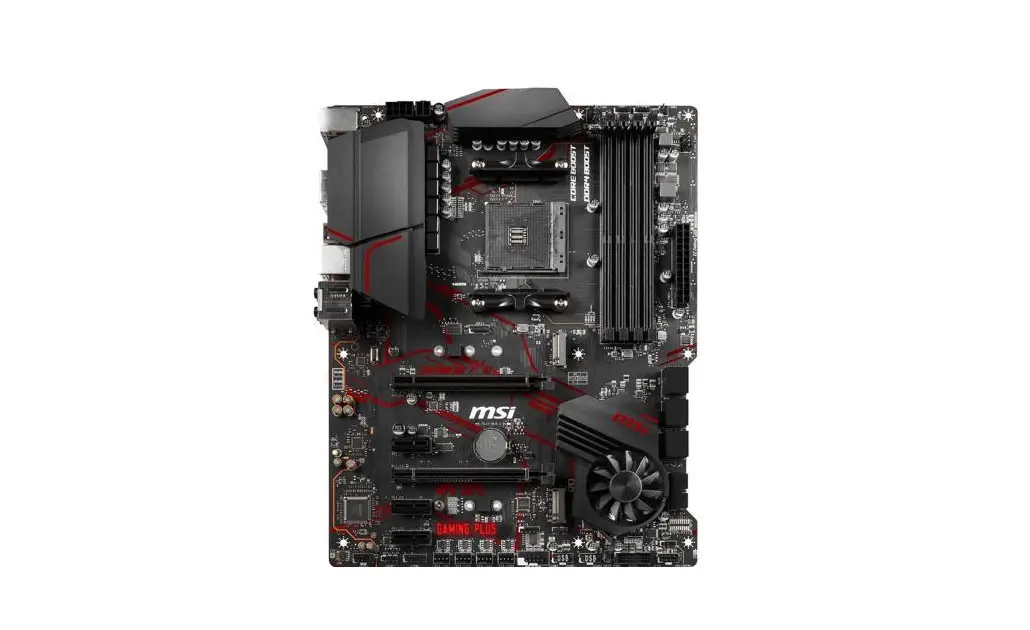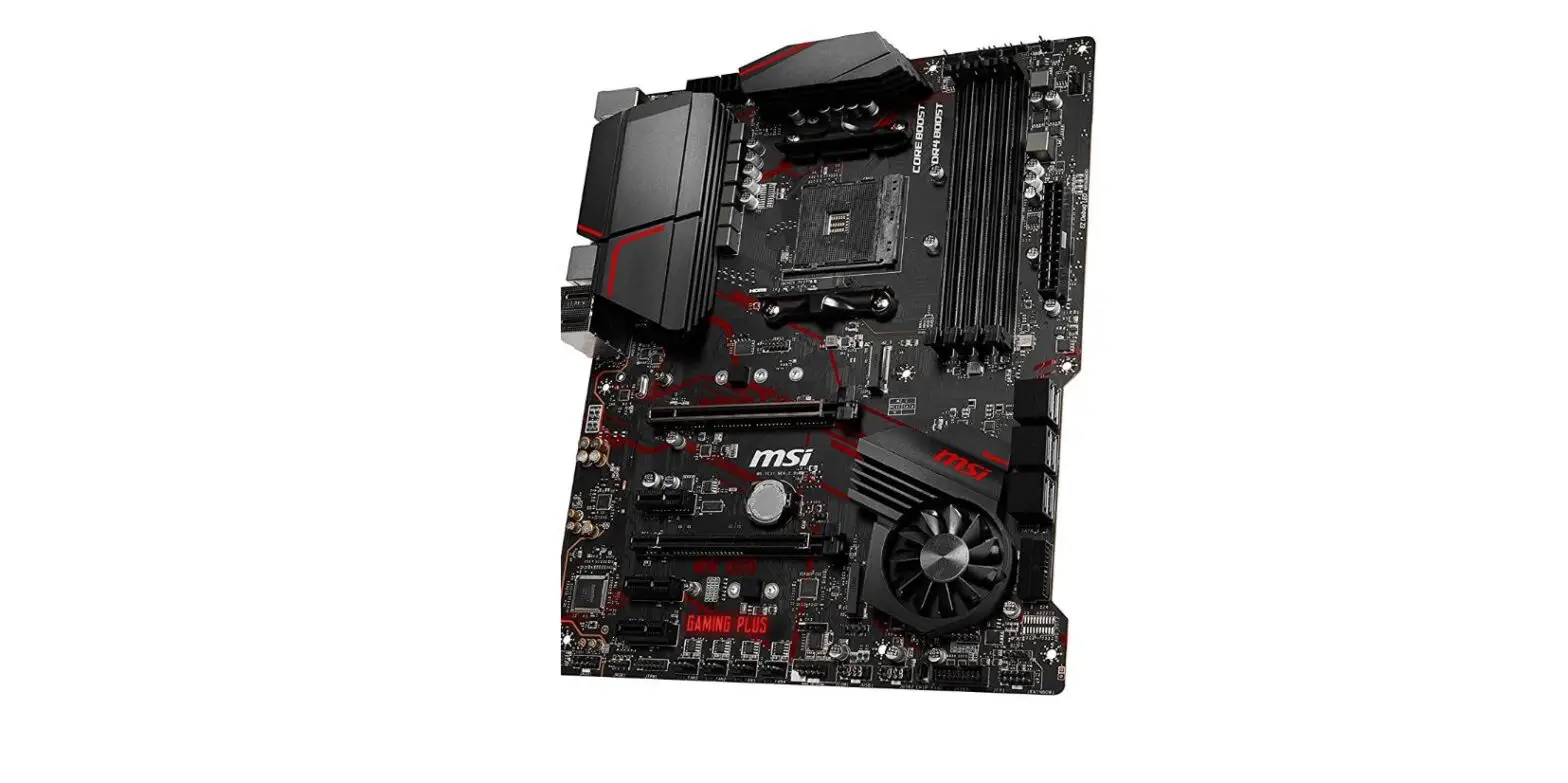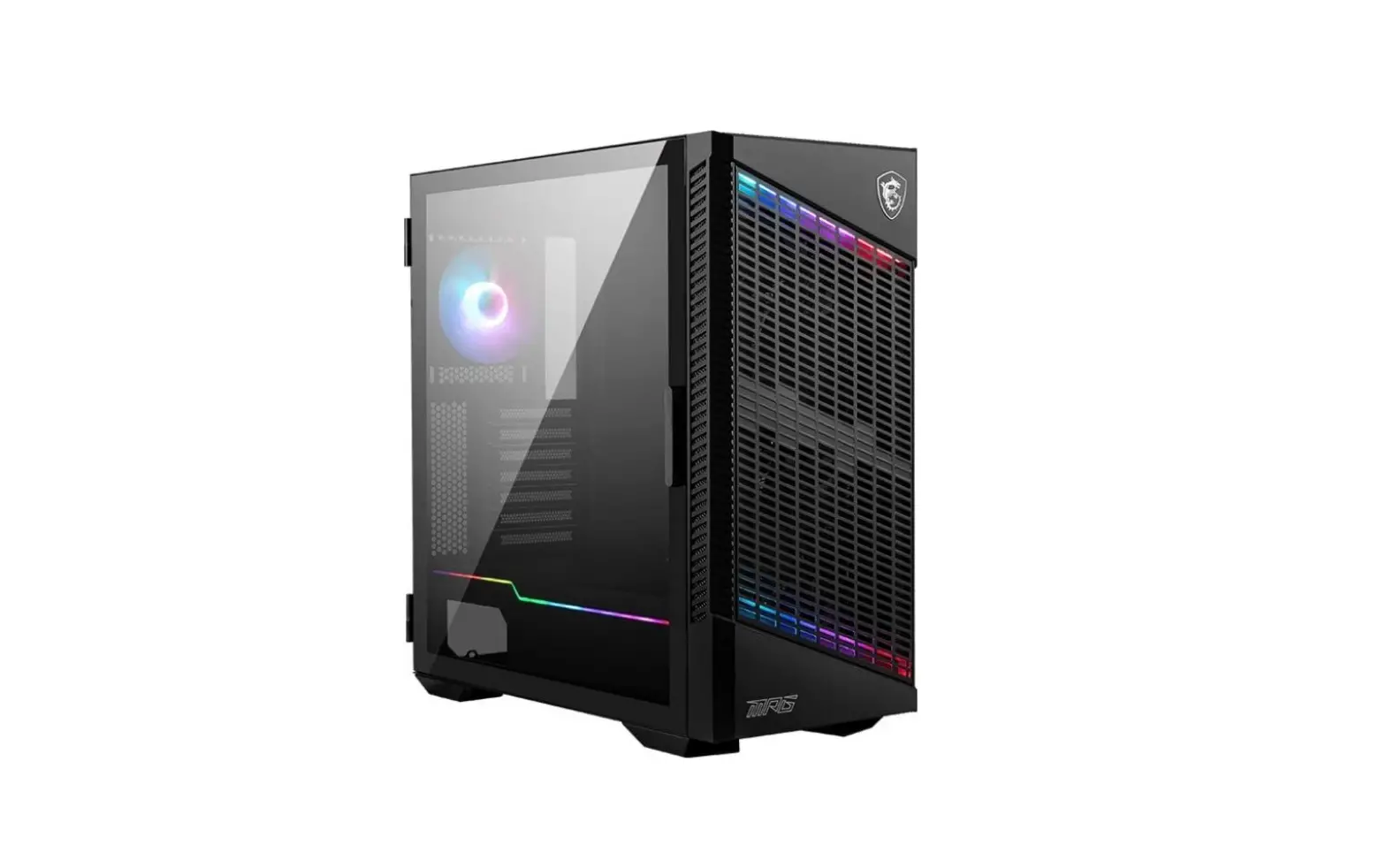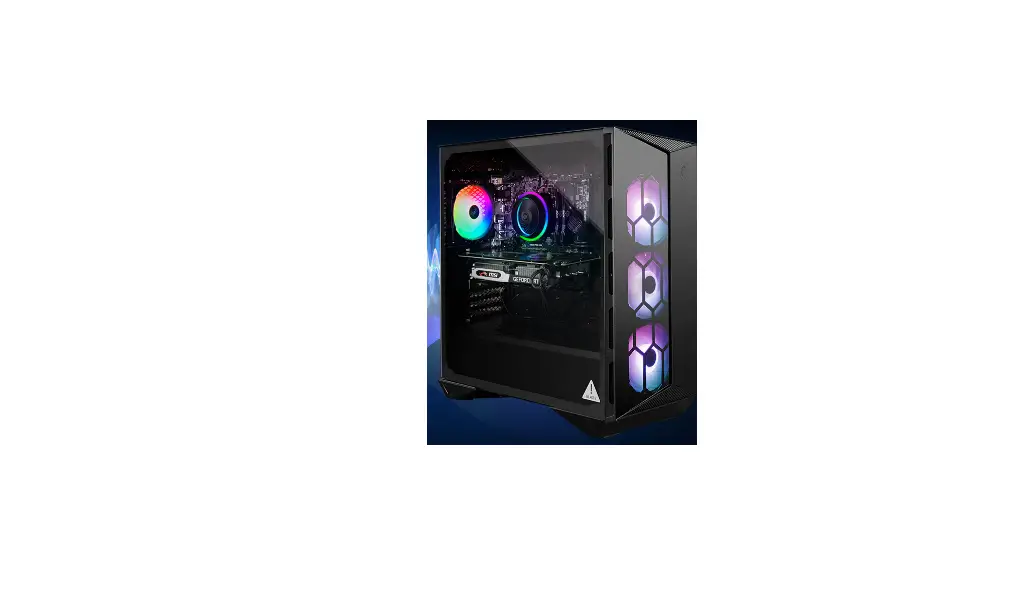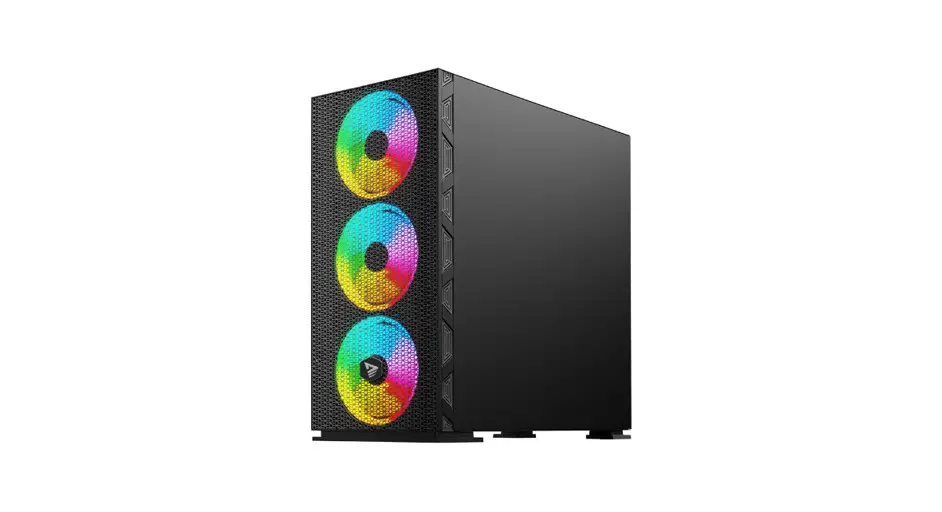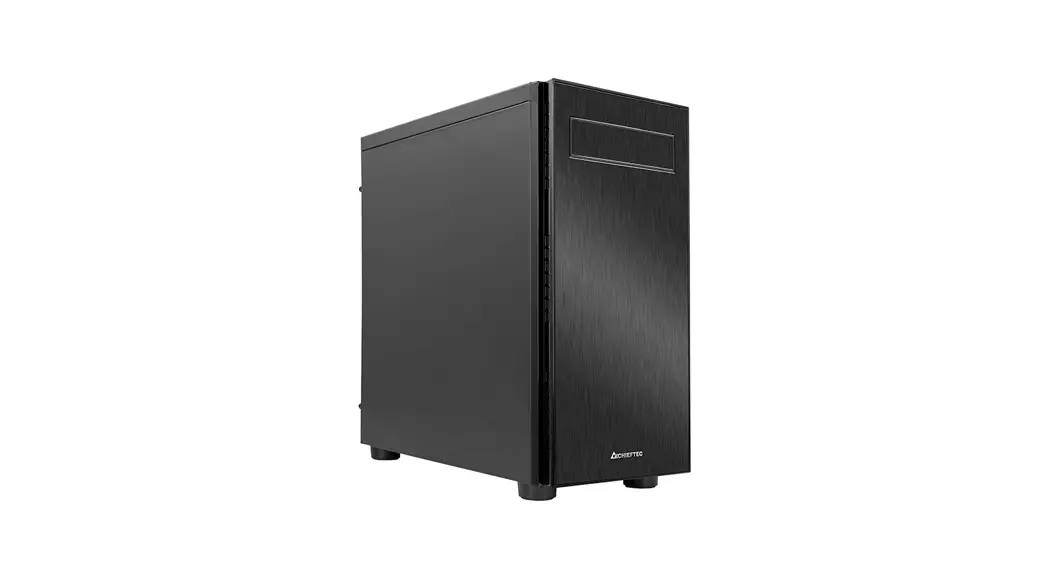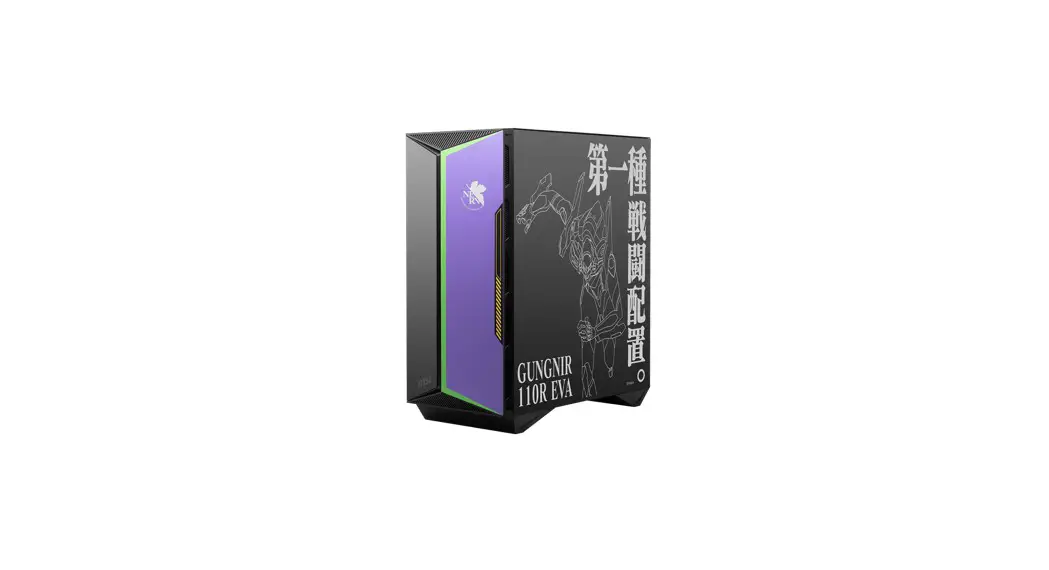

 GUNGNIR 110R
EVA e-PROJECT
User Guide
Accessories
| Item | Name / Q’ty | Used for |
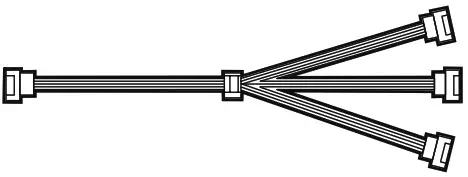 | 1 to 3 fan splitter cable x1 | Connect fans |
 | Cable ties x6 | Cable management |
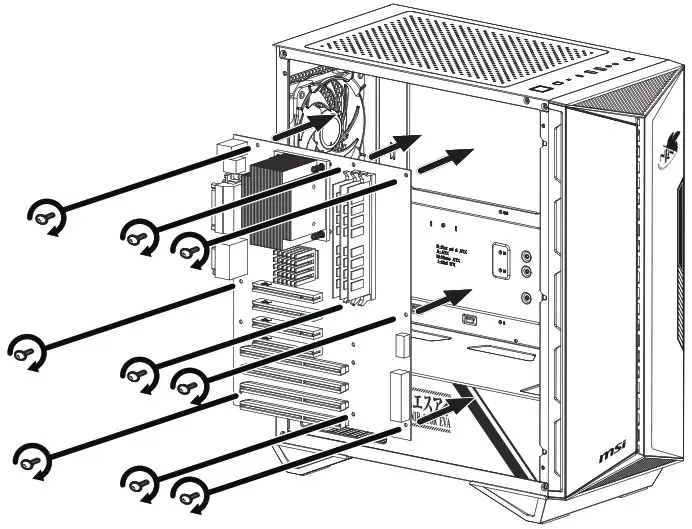
 | Screw M3 5mm x17 | Motherboard / SSD |
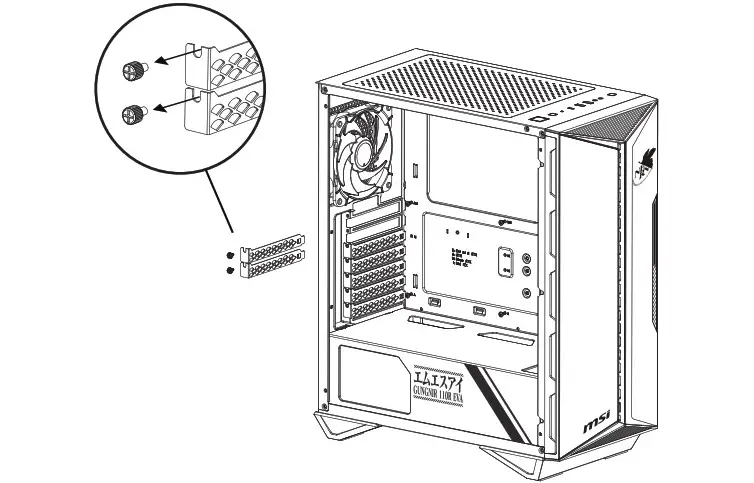
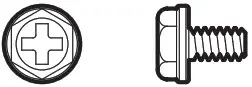 | Screw #6-32 6mm x6 | PSU / PCIe Card |
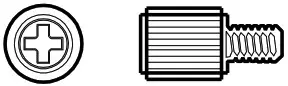 | Screw #6-32 6mm x2 | HDD |
Specification
| Fan LED Controller | 1 to 6 ARGB (3 pin) Control Board |
| Pre-Installed Fan | Front: 120 mm ARGB fans x3 Rear: 120 mm ARGB fan x1 |
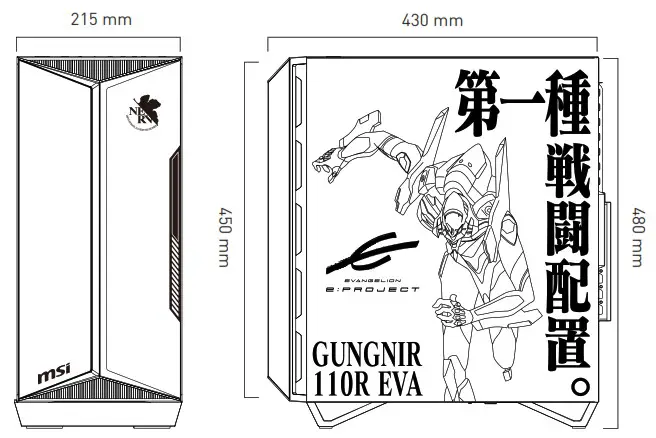
| Case Dimensions | 430(D) x 215(W) x 450(H) 16.92(D) x 8.46(W) x 17.71(H) inch |
| Motherboard Support | ATX / M-ATX / Mini-ITX |
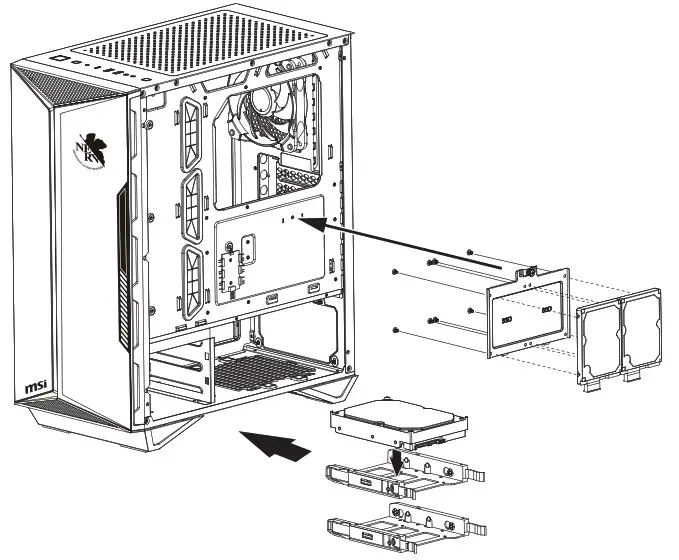
| Drive Bays | 2x 3.5″ / 2.5″ combo trays 2x 2.5″ SSD trays |
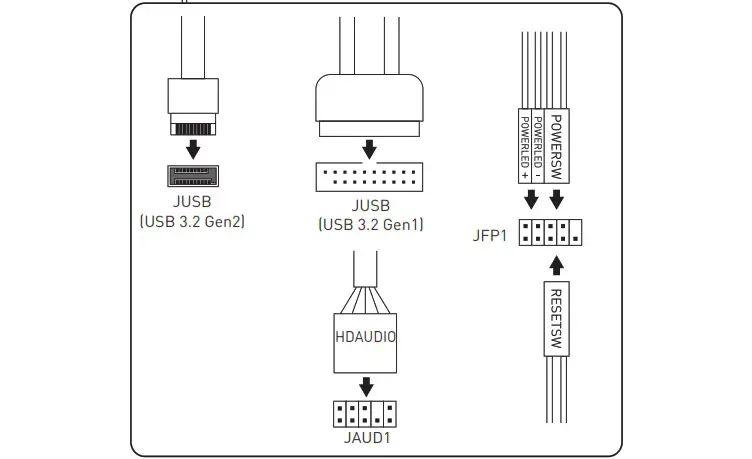
| IO Panel | 1x Power button 1x LED switch button 1x Reset button 1x Mic in jack 1x Audio out jack 2x USB 3.2 Gen1 Type A ports 1x USB 3.2 Gen2 Type C port |
| Fan Support | Top: 120 mm x2 / 140 mm x2 Front: 120mm x 3 / 140mm x 2 Rear: 120 mm x1 |
| Radiator Support | Top: 120 /240 mm Front: 120 / 140 / 240 / 280 / 360 mm Rear: 120 mm |
| Clearance | CPU Cooler Height: Max 170 mm / 6.69 inch Graphics Card Length: Max 340 mm / 13.38 inch PSU Length: Max 250 mm / 9.84 inch |
| Material | Left Side: Tempered glass Right Side: Metal Top: Metal Front: Glass + Metal |
Case Features
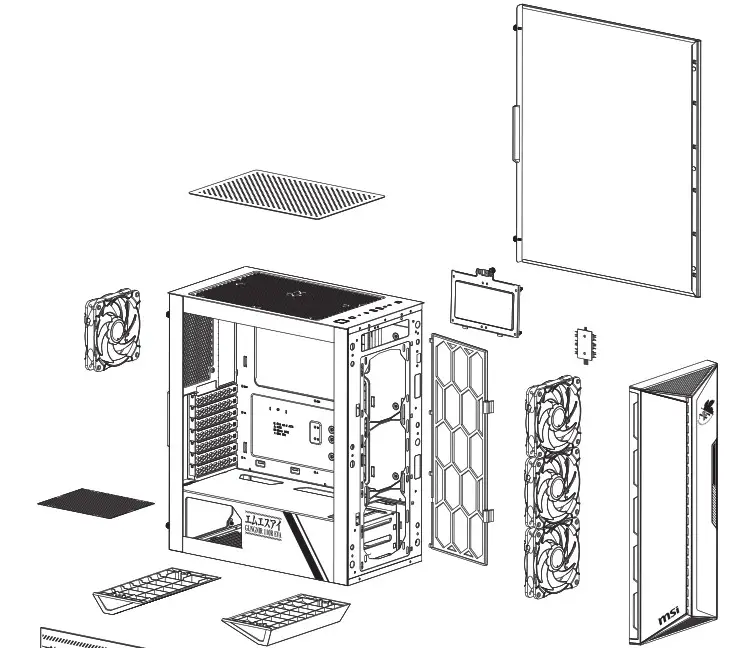

Side & Front View
IO Panel
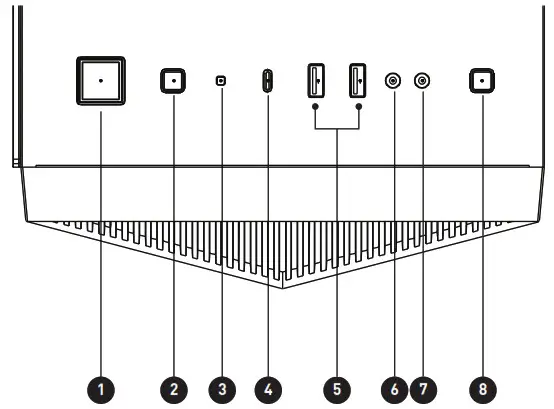
| 1. Power button 2. Reset button 3. Power LED 4. USB 3.2 Gen2 Type C | 5. USB 3.2 Gen1 Type A 6. Mic in 7. Audio out 8. LED switch button |
LED effects:
Short press the LED switch button to change up to 27 modes.
Press and hold the LED switch for 3 seconds the LED flash white light once, and then into the MSI motherboard Mystic Light synchronization mode. Short press once to back to the Hub control mode.
Press and hold the LED switch for 6 seconds to turn off the LED.
SSD & HDD Installation
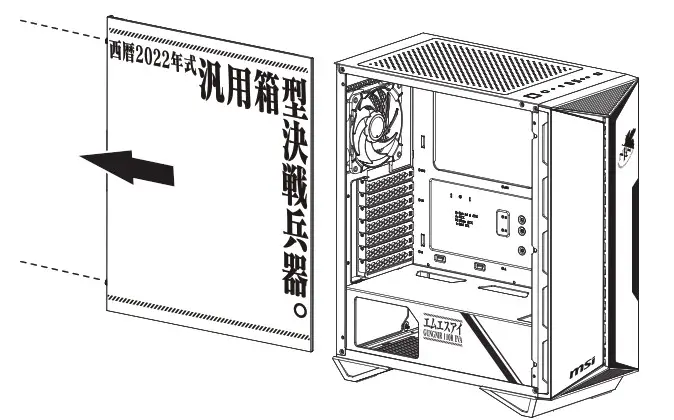
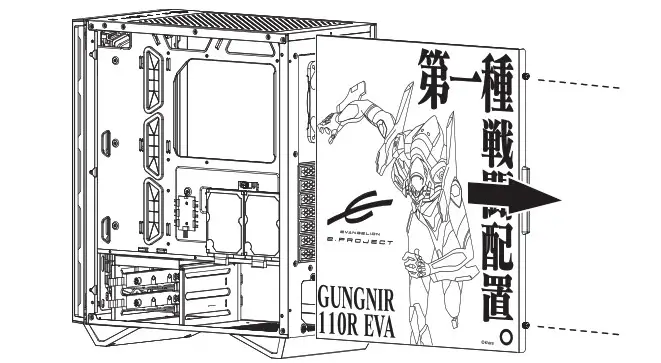
Opening the Left & Right Side Cover
Motherboard Installation
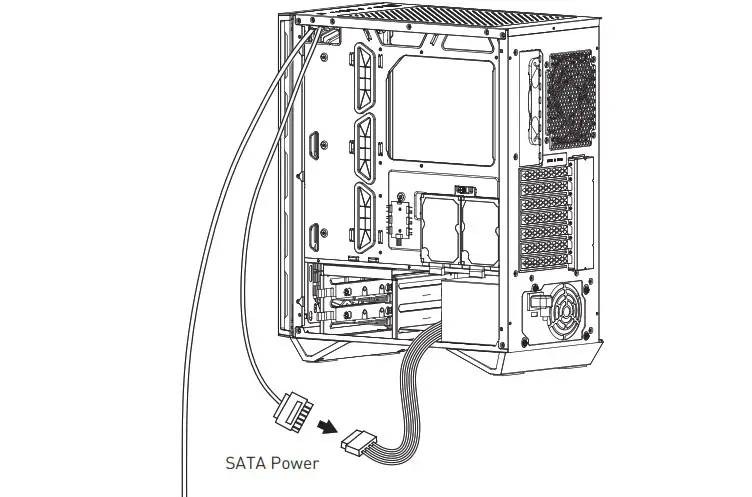
Cables Connection
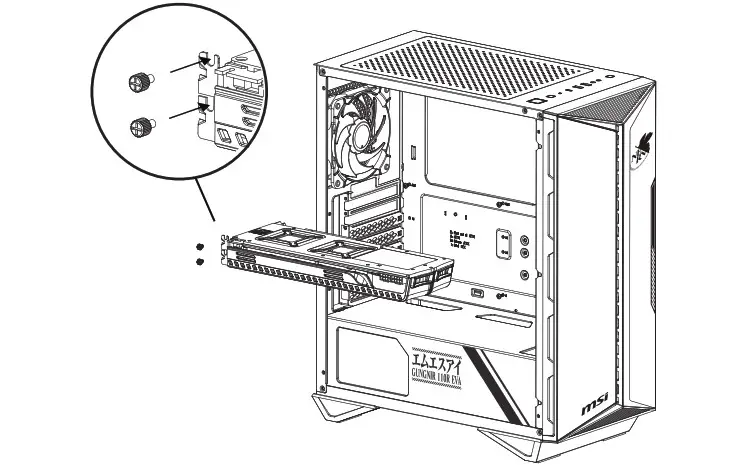
Graphics Card Installation
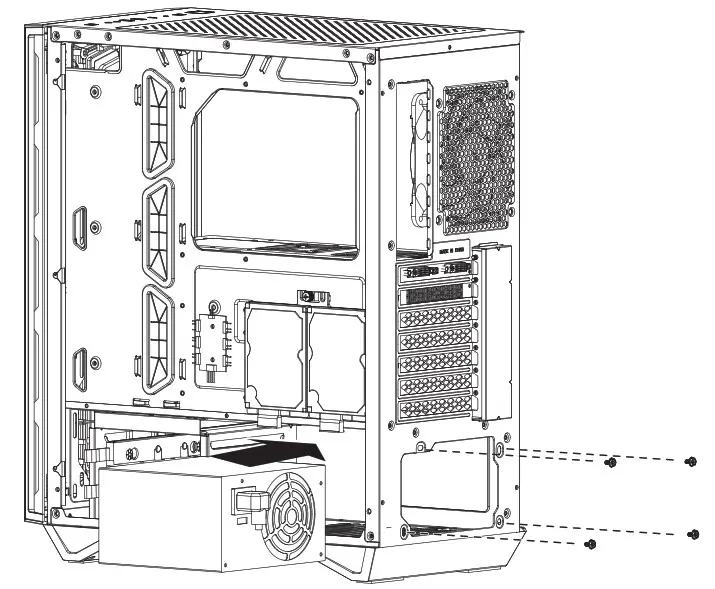
PSU Installation