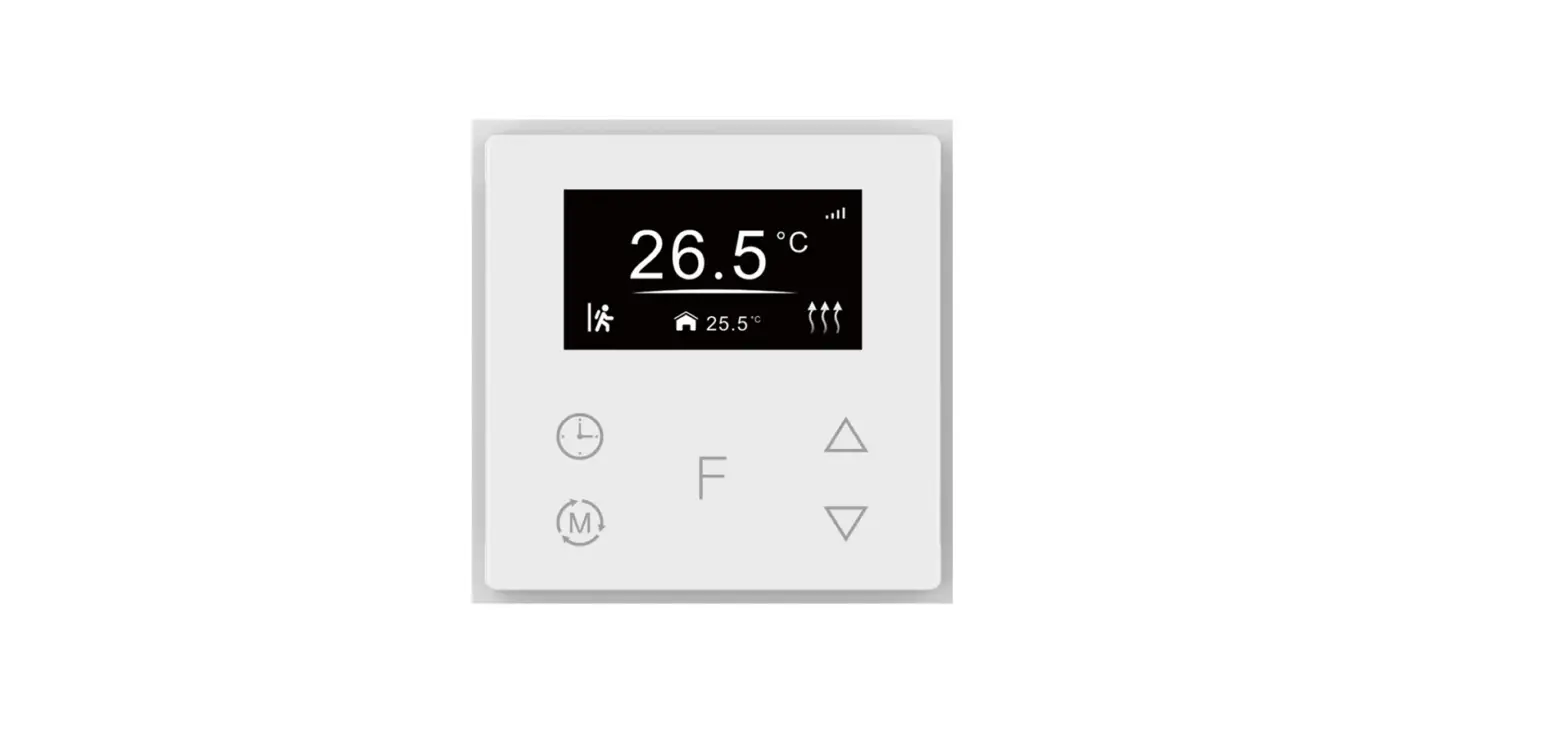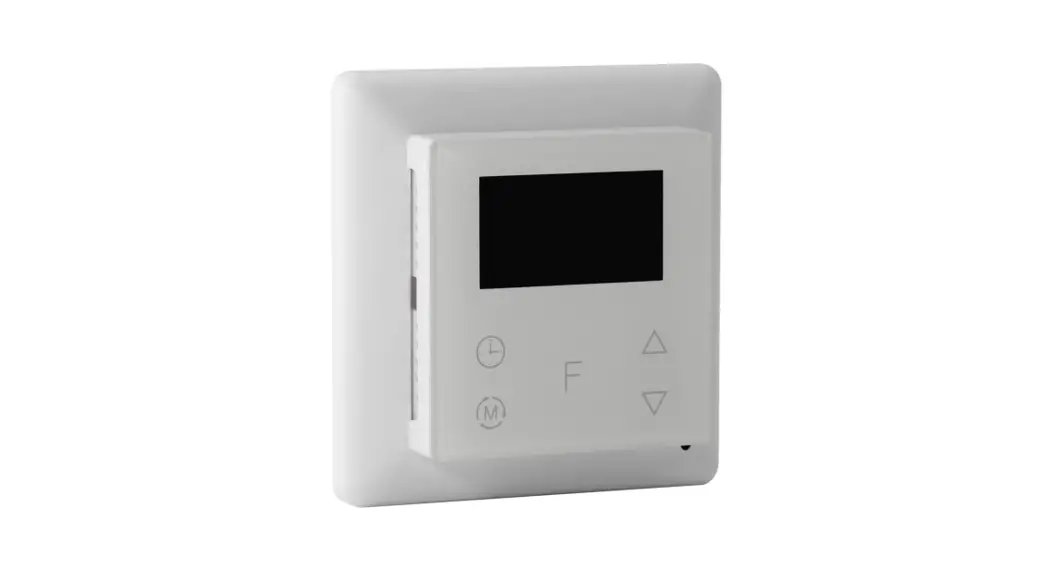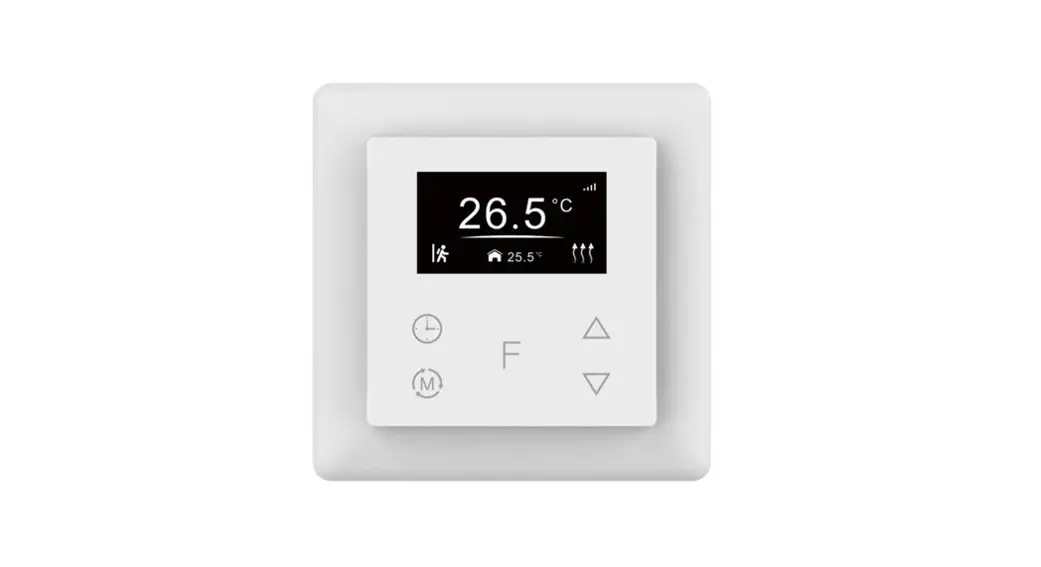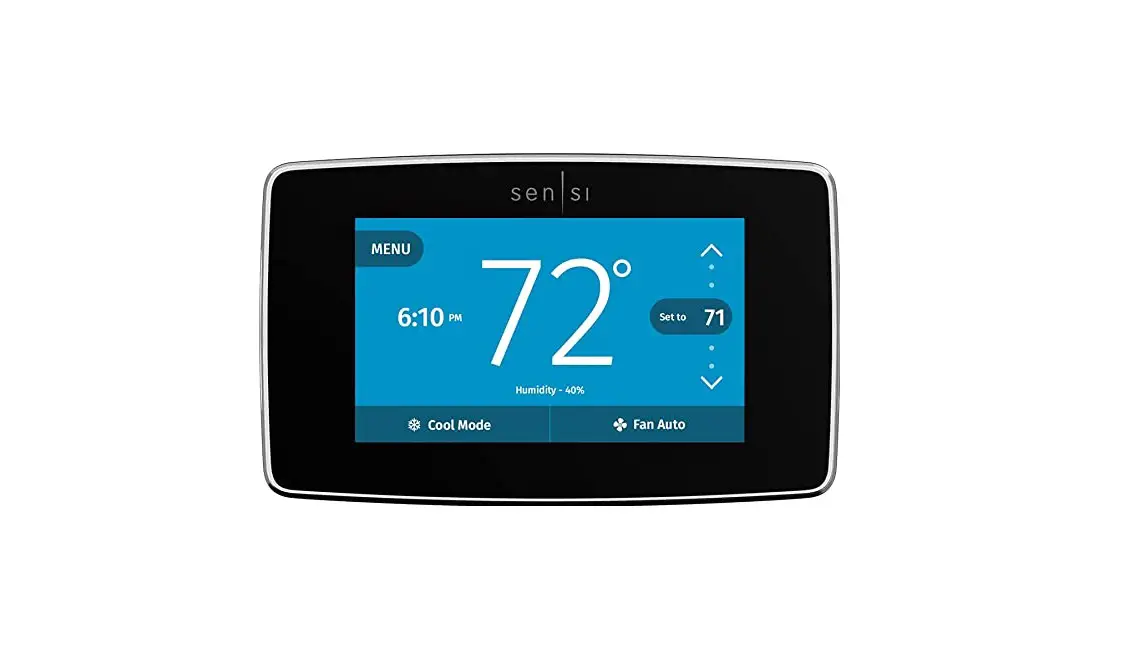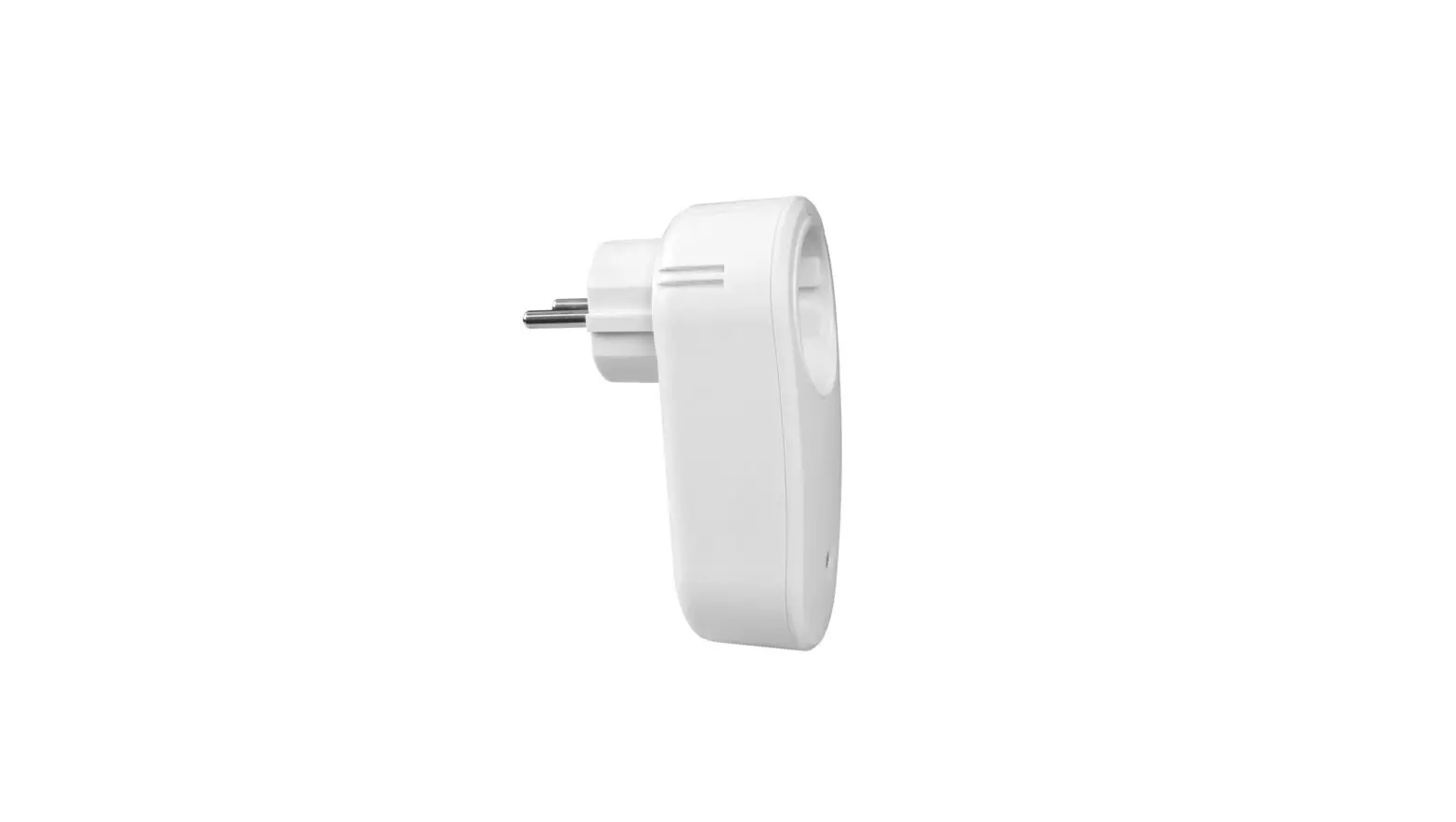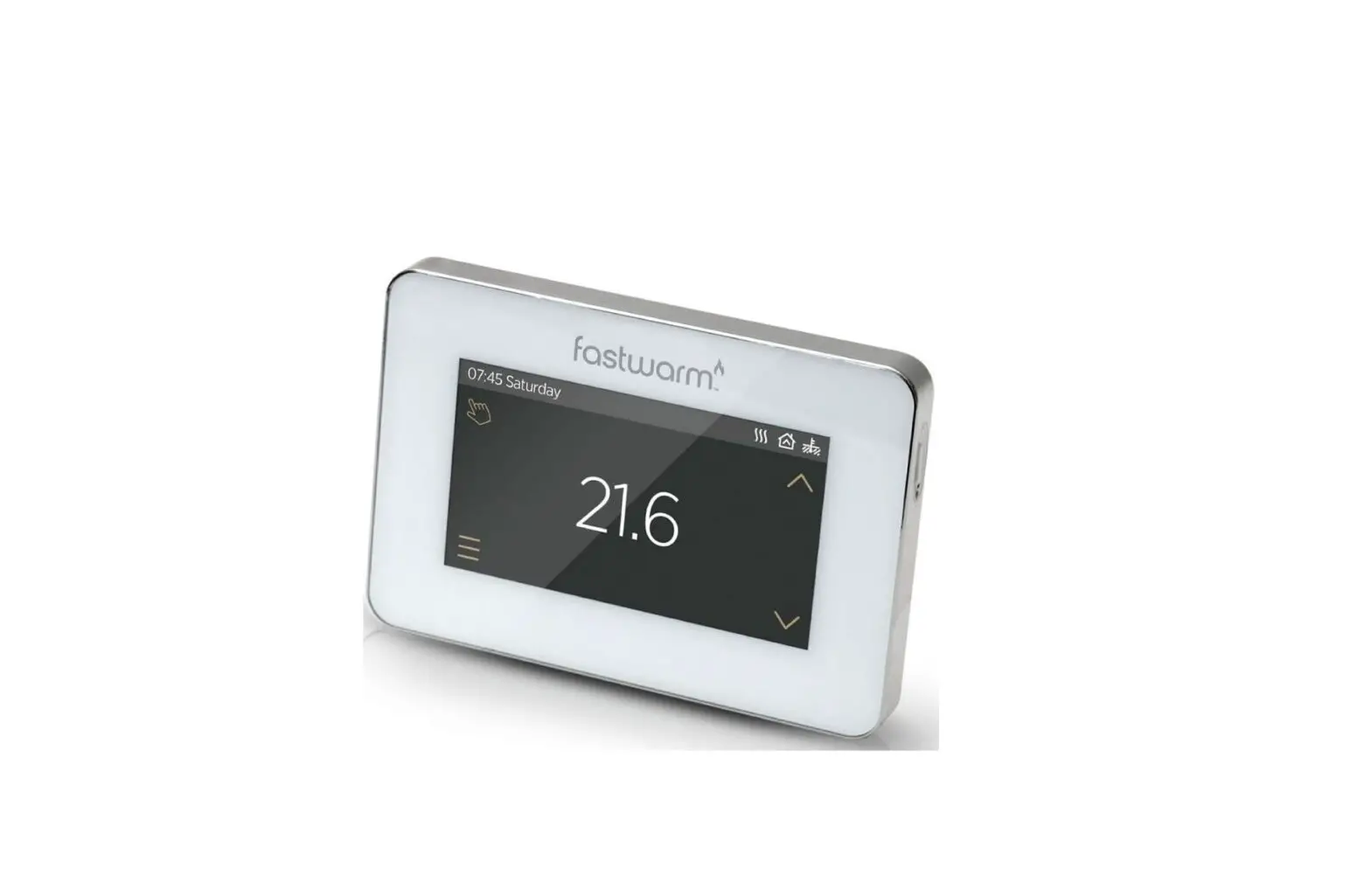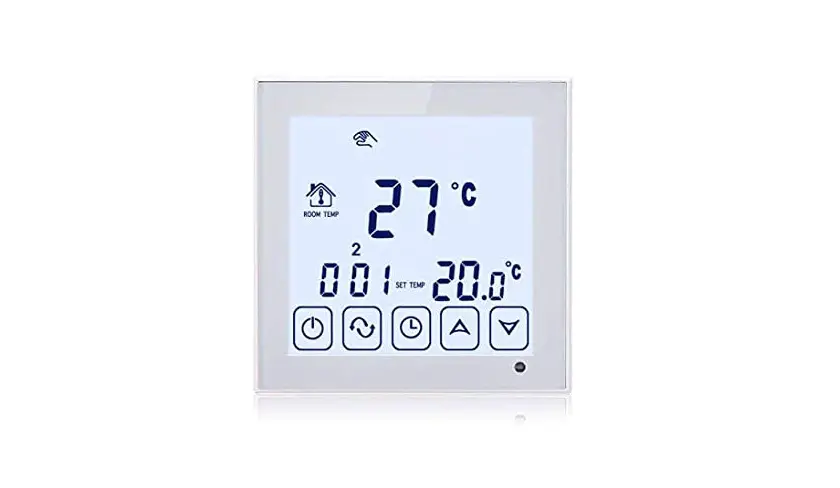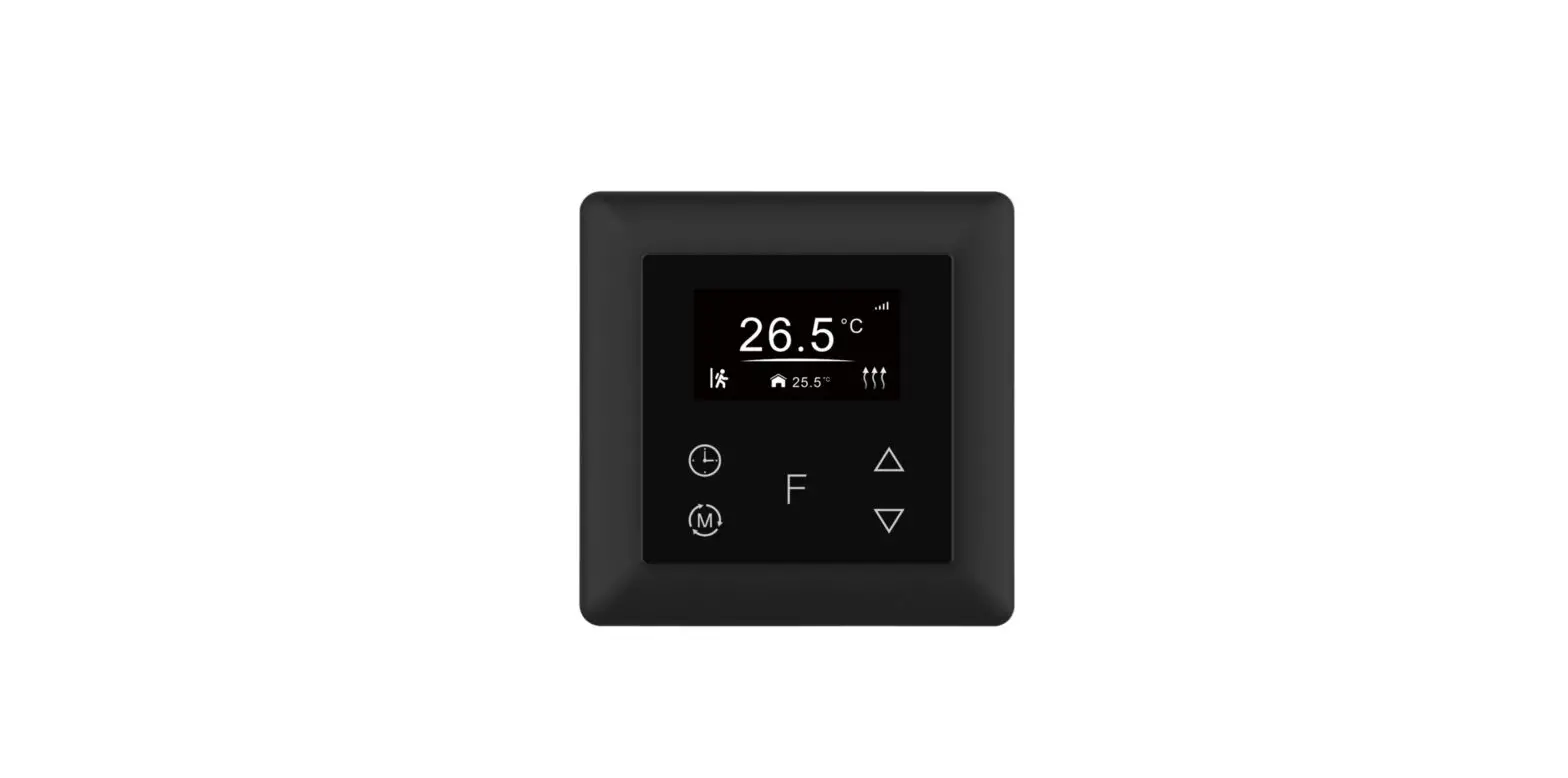

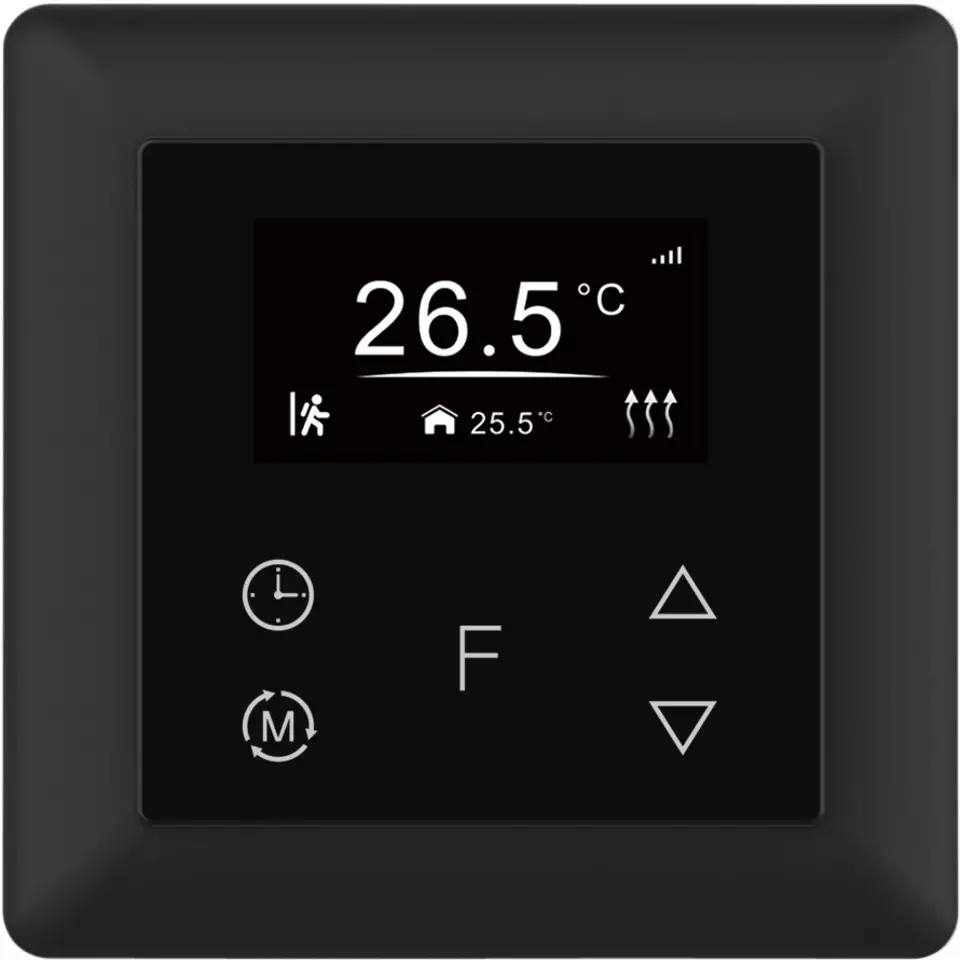
namron 4512738 Touch Zigbee 16A Thermostat
Dimension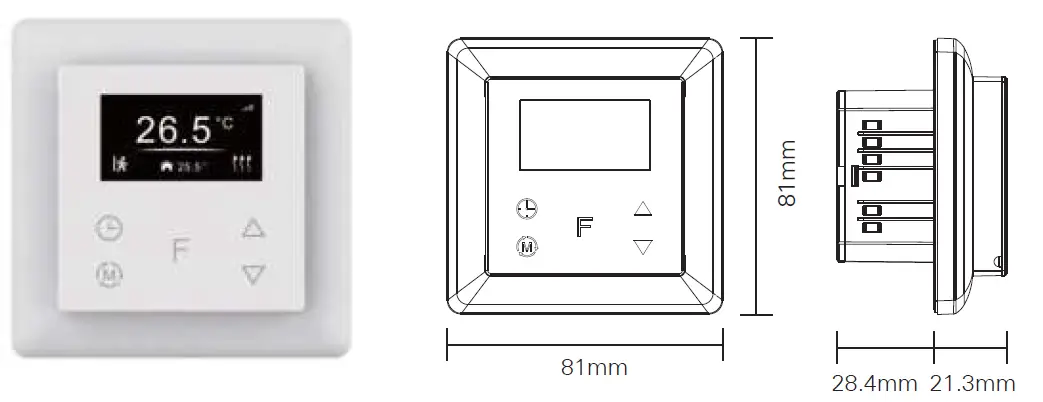
Technical data
- ZigBee Frequency
- 2.4GHz
- Operation voltage
- 220-240V~50/60Hz
- Maximum load
- 16A
- Power consumption
- <2W
- Ambient temperature
- 0°C to 40°C (during operation)
- Temperature range
- 0°C to 40°C
- Hysteresis
- 0.5°C to 2°C (default 0.5°C)
- Floor sensor
- NTC R25=10K±1%@25°C, B25/50=3950K±1%, (3m included)
- Floor sensors supported
- NTC R25=10K±1%@25°C, B25/50=3950K±1% (factory setting)
- NTC R25=12K±1%@25°C,B25/50=3950K±1%)
- NTC R25=15K±1%@25°C, B25/50=3950K±1%
- NTC R25=50K±1%@25°C, B25/50=3950K±1%
- NTC R25=100K±1%@25°C, B25/50=3950K±1%
- Control modes
- 1. Away 2. Auto 3. Manual 4. Drying 5. Off
- Control types
- Room sensor (factory default)
- Floor sensor
- Room + floor sensor
- This parameter can also be configured through advance config parameter 10
- IP rating
- IP21
- Relative humidity
- 8% to 80%
- Standard
- EN 60730-1:2016;A1, EN IEC 60730-2-9:2019;A1
- EN IEC 61000-3-2:2019, EN 61000-3-3:2013+A1:2019,
- EN 60730-1:2016+A1:2019,
- EN 60730-2-19:2019+A1:2019+A2:2020,
- EN 50663:2017;ETSI EN 301 489-1V2.2.3,
- ETSI EN301 489-3V2.1.1 ETSI EN300 220-1 v3.1.1.,
- ETSI EN300 220-2 V3.2.1
- RED:2014/53/EU
- Certificate
- ZigBee 3.0, CE, RED
Installation
- Installation must be done by a qualified electrician.
- Power supply must be turned off during installation.
Wiring diagram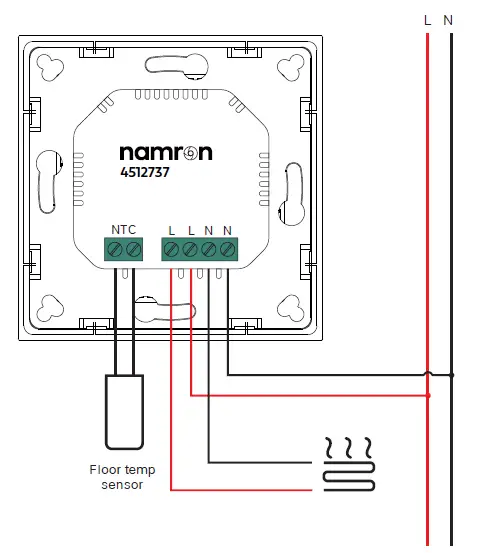 Mounting
- Remove the display unit and front cover by using a small screwdriver.
- Insert the wires to the correct terminals as presented in the wiring diagram above. Suggested
wire-stripping length is 8-10mm. - Fix the thermostat into the connection box by tightening the screws. Make sure that the thermostat is fixed without deformation. Suggested torque is 0.2-0.4Nm (2.0-4.1kgf.cm).

Symbol overview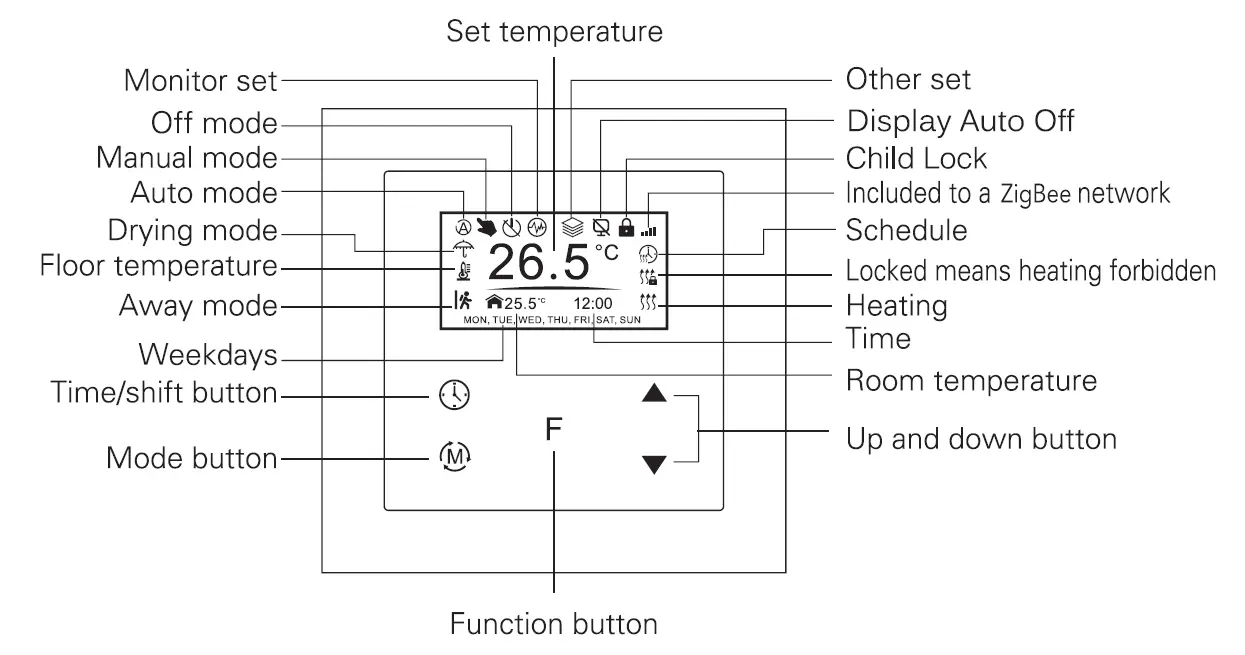
How to enter settings menu:
- Under Home Interface, meanwhile the device is at OFF mode
 , press and hold up and down buttons at the same time for over 5 seconds to enter Settings Menu.
 - Short press move up and down button to select a settings item, then short press button F to enter selected item.
- Settings menu include, Preview menu, Zigbee settings, Schedule, Monitor settings, Time/Date settings, Other settings.
Time Setting
Select TIME/DATE on Home Interface to enter into TIME/DATE SET interface as follow: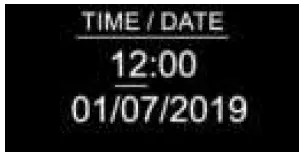
Short press button to select the item would like to modify, then short press move up and move down buttons
  to modify value of selected item, then short press button
  to save and quit, short pressing button
  only quits without saving.
The device Time Cluster is client, if the bound device supports local time of Time Cluster, the device will acquire local time from the bound device spontaneously under 3 situations: acquire after this device is added to a network, acquire when the device already added to a network and power is reset, acquire every 24 hours .
Standby Interface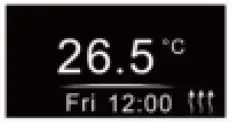
If the device operation mode is set to any other mode except OFF Mode, and there is no operation within 2 minutes, the device will go to this standby interface.
Once the device goes to standby interface, if Display Auto Off function is enabled and there is no operation within 30 seconds, the display will go off automatically.
If the device operation mode is set to OFF Mode, and there is no operation within 2 minutes, the display will go off automatically.
Preview interface
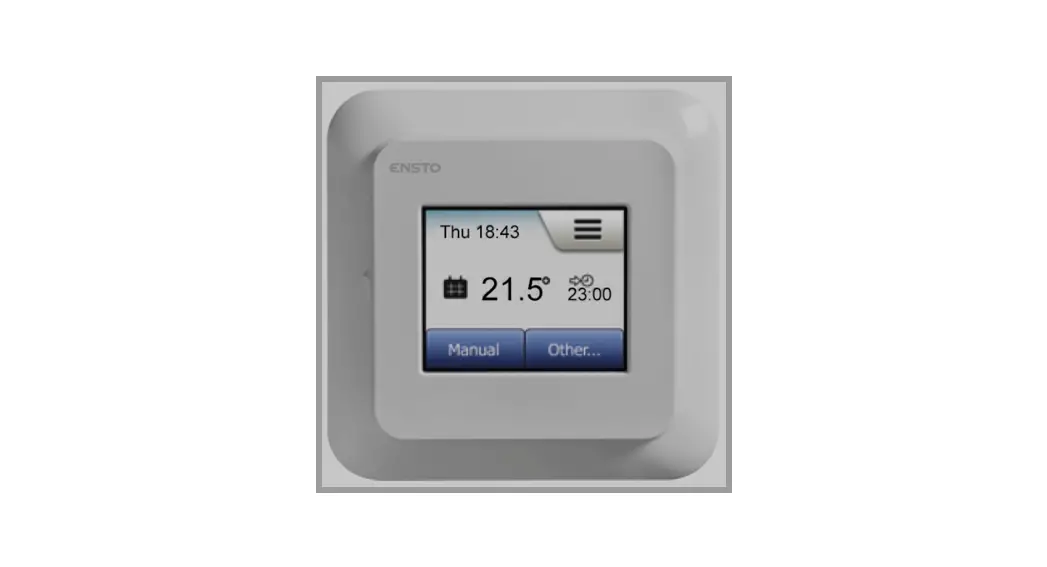
On Home Interface, user can enter into the PREVIEW  interface, the interface will display some basic configurations, energy consumption, date, floor temperature etc.
Control Mode
Short press button on Home Interface to switch operation modes: the icons of Away, Auto, Manual, Drying, Off modes will be displayed alternatively for 3 seconds and last displayed mode will be selected, or just short press F button to select a desired mode when the modes’ icon displayed alternatively. Press and hold button on Home interface for over 3 seconds to select Away mode directly, then Press and hold button for 3 seconds to quit Away mode.
Away Mode Schedule
User can set time to leave home and time to go home according to their requirements of themselves, and set how the device will control the temperature during this period.
- If away mode has already been activated, the end time for away mode is valid, the device will execute Away Mode Temperature Schedule before the end time.
- If away mode has already been activated, the values of end time for away mode are set as 0, the device will always execute current set temperature with no time limitation. The device will consider the mode as antifreeze mode, the recommended temperature setting is 4-10℃, and factory default setting is 6℃.
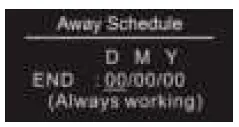
D means date, M means month, Y means year (2019-2099).
Start and end mean away time.
To enter into the setting interface and setting method, please refer to the 1.4 Auto Mode (Energy Save Mode) Schedule.
Auto Mode Schedule
When Auto Mode Schedule is valid, the device will control according to the set temperature of the schedule. For instance, if user would like to keep room temperature at 18 degree Celsius during 18:00-23:00 on every Monday, and keep room temperature at 20 degree Celsius after 22:30 on every Monday, then user can set the schedule by himself.
Schedule setting method 1: user can enters into  schedule on System Setting Interface, the schedule interface is as follows: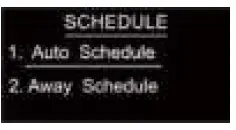
Short press button to select “Auto Schedule”, then short press button to enter into Auto Mode Schedule weekly setting interface.Schedule setting method 2: on System Setting Interface, meanwhile the device is under Auto Mode , short press button
  to enter into Auto Mode Schedule weekly setting interface quickly:
On Auto Mode Schedule weekly setting interface, use buttons and F to enter into schedule setting of a certain week as follows:
On Auto Day Schedule interface, short press button to select the time or temperature that you would like to modify, then short press move up and move down buttonsto modify value, then short press button to save and quit, short pressing button only quits without saving.
For each schedule, the latter time should be later than the former time, otherwise saving will fail with the error remind “Time setting error!!!”. The default time schedules are as follows:
| Monday-Friday | 7:30,24C-12:00,20C | Saturday-Sunday | 7:30,24C-12:00,20C |
| 18:00,16C-22:30,18C | 18:00,18C-22:30,18C |
Manual Mode: the device will control the heating system according to current set temperature. The temperature can be set by move up and move down button on the Home interface, or configured by Zigbee gateway.
Dry Mode Schedule
For example, in order to quickly dry the water on the floor of the bathroom, the device can be set to quickly heat in a short time to dry the floor. Enter the configuration interface as follows:
Duration: set how long the dry mode lasts, can be configured through the proprietary attribute DryTime (0x1006) of Thermostat Cluster (0x0201), the configurable range is 5-100 minutes.
After Mode: set the mode after the drying mode ends, can be configured through the proprietary attribute ModeAfter-Dry (0x1007) of Thermostat Cluster (0x0201).
Remain: shows the remaining time of the drying mode
For configuration method and modification, please refer to Automatic Mode (Energy Save Mode) Schedule: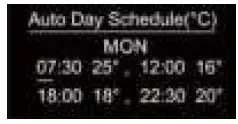
Off Mode
This mode means that the device is under idle status.
Window Open Detect (disabled by default)
Once the device is powered on and stable, referring to the room temperature sensor, if the temperature decreases to the threshold of this setting, the window open mark will be enabled, the relay will be forced to turn off to save energy, then the icon will appear.
After window open mark is enabled, if the temperature increases to the threshold of this setting in 3 minutes, the window open mark will be disabled.
Once the window open mark is enabled, it will be disabled after 10 minutes, and the device will keep current working mode.
This value can also be configured through the proprietary attribute WindowOpenCheck (0x1009) of Thermostat Cluster (0x0201), 0 means this function is disabled.
Note: this function will work better when the device is installed beside the window or door.
| Monitor Set |
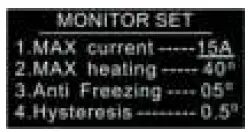
| The function of monitor set is real time monitor of over current, over heat and freezing. On Home Interface, short press MONITOR SET to enter into monitor set interface a s follows: Short press button to select the item would like to modify, then short press move up and down buttons to modify value of selected item, then short press F button to save and quit, short pressing button only quits without saving. |
|
Over-current Alarm |
16A by default | If current is over the set value, the relay will be forced to off by the device, and the state will be reported to the gateway. The over current alarm function can be disabled, which can be set directly through the device. Or can be configured through the ACAlarmsMask and ACCurrentOverload of Electrical Measurement (0X0B04), for details please refer to the configuration value .
Note: When over current alarm is triggered, the beeper will beep, to cancel the alarm, just press and hold button for over 3 seconds or reset power of the device. After cancel manually, the relay will show heating forbidden icon within 120 seconds, but other operations are allowed. |
| Max floor temp |
27°C by default
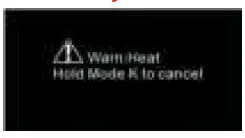
| This function is similar to the function of “Internal Over Heat Protection” described in chapter 4.9. When the control type is configured as “Room+Floor sensor”, this function will be valid: The alarm will be triggered when the floor sensor temperature > Max floor temp, the relay will be forced to off by the device, and the state will be reported to the gateway. The following indication figure will prompt on the display. After the floor sensor temperature < (Max floor temp – Hysteresis), the alarm will be cancelled automatically and the device will restore to previous operation mode. To cancel the alarm manually, just press and hold button for over 3 seconds, but the relay will show heating forbidden icon within 120 seconds and the alarm will not be triggered again, after 120 seconds expire, the device will restore to previous operation mode and continue to detect alarm temperature. This function can be disabled, which can be configured directly through the device, or can be configured through the attribute Max floor temp (0x2001) of Thermostat Cluster (0x0201), when this value is set as 0, this function is disabled. |
|
Hysterersis |
0.5°C by default | To prevent the undulation of sensor temperature when the sensor temperature is approaching the set temperature, which will cause that the controller may keep switching on/off the relay. Here hysterersis enables the controller to control the relay only when the sensor temperature is lower than the set temperature minus the hysteresis value , this value can be set. For instance, when hysterersis is set as 0.5 degree, then only when current sensor temperature < (the set temperature – 0.5 degree), will the controller heat. This value can also be configured through the proprietary attribute Hysterersis (0x100A) of Thermostat Cluster (0x0201). |
|
Key Vibration Set |
OFF by default | Set the level of vibration sensor under the buttons or buzzer level. OFF: vibration or buzzer off Low Level, High Level: low vibration or buzzer level, high vibration or buzzer level. This level can also be configured through the proprietary attribute ButtonVibrationLevel (0x1001) of Thermostat Cluster (0x0201). |
|
Display Brightness Set |
Mid Level by default | The OLED display brightness when operate the device. High Level, Mid Level, Low Level. This brightness can also be configured through the proprietary attribute OperateDisplayLcdBrightness (0x1000) of Thermostat Cluster (0x0201). |
|
Display Auto Off | On the Home Interface, press and hold both Fand buttons for over 10S, during the process, the icon will flash slowly, the Display Auto OFF function can be enabled or disabled, when the function is enabled, the icon will be displayed, otherwise the icon will not be displayed. This Display Auto Off can also be configured through the propri- etary attribute 0x100B of Thermostat Cluster (0x0201). | |
|
Display Temperature Set |
Home Temp by default | This parameter defines which sensor temperature will be displayed on Home page. Floor Temp: floor temperature (external sensor) . Home Temp: indoor air temperature. This status can also be configured through the proprietary attribute TemperatureDisplay (0x1008) of Thermostat Cluster (0x0201). |
| Other Set | 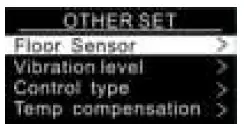 | Select OTHER SET on Home Interface to enter into OTHER SET interface as follow: OTHER SET on Home Interface to enter into OTHER SET interface as follow:Short press button to select the item you would like to modify, then short press move up and down buttons to modify value of selected item, then short press button F to save and quit, short pressing button only quits without saving. |
|
Temperature Compensation |
0 by default | The displayed temperature may has big tolerance caused by the sensor or other factors, so it is necessary to do temp compensation to room sensor and floor sensor. Compensation range is -5 ~ +5°C, stepping is 0.5°C. This value can also be configured through the attribute Local TemperatureCalibration (0x0010) of Thermostat Cluster (0x0201), and through the proprietary attribute FloorSensorCalibration (0x1005) of Thermostat Cluster (0x0201). |
|
Re-power Status |
last status by default | Device state after reset power of the device. If set as “last status”, device will go to the status before power failure after power on again. If set as “default”, device will go to default mode after power on again. This status can also be configured through the proprietary attribute PowerUpStatus (0x1004) of Thermostat Cluster (0x0201). |
|
Internal Over Heat Protection | To ensure the safety of the device, if the internal temperature of the device (not displayed on the interface) is over a certain value during heating process, the device will execute a short temporary action to turn off the relay, and the icon will appear on the interface, after the temperature decreases to a certain value, the device will recover to work. | |
|
Child Lock | On the Home Interface, press and hold both Fand buttons for over 10S, the Child Lock can be enabled or disabled, when the Child Lock is enabled, the icon will appear at the upper right corner, otherwise the icon will not appear. This Child Lock can also be configured through the attribute KeypadLockout (0x0001) of Thermostat Cluster (0x0201). |
Zigbee Configuration Introduction
Select Network Set on Home Interface to enter into Zigbee network management interface as follow: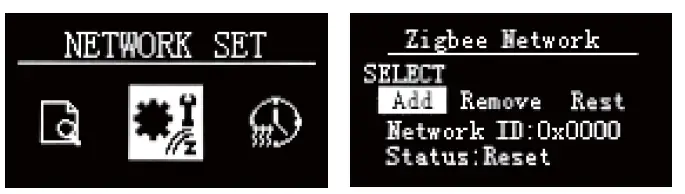
Adding to a Zigbee Network
Operate your Zigbee gateway to add device, select “Add”, then short press button F , the device will search network and try to join, “Status” will show “Inclusion…”. If there is no response from a gateway, or adding failed, “Status” will show “Fail”. If added successfully, “Status” will show “Inclusion OK” and device ID.
Removing from a Zigbee Network
Operate your Zigbee gateway to remove device, Select “Remove”, then short press button F , the device will send out removing request, “Status” will show “Exclusion…”. If there is no response from a gateway, or removing failed, “Status” will show “Fail”. If removed successfully, “Status” will show “Exclusion OK” and device ID will be showed as 0. The device will be removed from the network and all parameters will be restored to factory default setting, all bindings will be cleared.
Factory Reset (Reset)
Factory resetting will remove the device from Zigbee network and all parameters will be restored to factory default setting, all bindings will be cleared.
Select “Reset”, then short press button F , the device will start reset, “Status” will show “Reset OK”. If exclusion failed,
“Status” will show “Fail”. If reset successfully, “Status” will show “Reset OK”.
Configure Device Operation Mode through Zigbee
Since Zigbee does not have away mode, the attribute Occupancy (occupied or unoccupied) of Thermostat (0x0201) and attribute Occupancy of received OccupancySensing (0x0406) are required to judge whether it is away mode.
- if the device receives other devices’ or the gateway’s report: the Bit 0 of the value of attribute Occupancy (0x0000) of OccupancySensing Cluster (0x0406) is 1, which means occupied, then the operation mode of the thermostat, the attribute SystemMode(0x001c)=0x04(heat) of Thermostat (0x0201), meanwhile the value of attribute Occupancy
(0x0002) of Thermostat (0x0201) is 0. It means the Away Mode is activated, and the thermostat UI will display. - if the gateway send command to modify the attribute SystemMode(0x001c) of Thermostat (0x0201), the thermostat will quit Away Mode. Meanwhile the value of attribute Occupancy (0x0002) of Thermostat (0x0201) is 1.
- The proprietary attribute 0x2002(Manufacturer Code=0x1224) of the cluster 0x0201 can be modified to configure whether it is away mode or at home.
Note: Away Mode uses attribute UnOccupiedHeatingSetpoint to set temperature.
Other modes uses attribute OccupiedHeatingSetpoint to set temperature.
Zigbee Interface
The thermostat provides 3 zigbee application endpoints:
| Endpoint | Profile | Application |
| 0(0x00) | 0x0000(ZDP) | ZigBee Device Object (ZDO) – standard management features |
| 1(0x01) | 0x0104(HA) | Device ID is 0x0301(Thermostat ). |
| 2(0x02) | 0x0104(HA) | Device ID is 0x0007(OTA). |
| 242(0xF2) | 0xA1E0(GP) | Device ID is 0x0021(GreenPower). |
Application Endpoint #0 –ZigBee Device Object
- Application profile Id 0x0000
- Application device Id 0x0000
- Supports all mandatory clusters
Application Endpoint #1 –Thermostat
| Cluster | supported | Description |
|
0x0000 |
server | Basic Provides basic information about the device, such as the manufacturer ID, vendor and model name, stack profile, ZCL version, production date, hardware revision etc. Allows a factory reset of attributes, without the device leaving the network. |
| 0x0003 | server | Identify Allows to put the endpoint into identify mode. Useful for identifying/locating devices and required for Finding & Binding. |
|
0x0004 |
server | Groups Allows adding this endpoint to one or more groups. Afterwards the endpoint can be addressed using the group address. This is also a prerequisite for scenes. You may also query group membership and delete group associations. |
|
0x0005 |
server | Scenes Allows storing one or more scenes per group, where each scene consists of a pre-set on/off state value. You may either store the current values as a scene, or provide scene settings when adding a scene, or delete scenes. |
| 0x0201 | server | Thermostat |
| 0x0702 | server | Simple Meter |
| 0x0b04 | server | Electrical Measurement Measuring power, voltage, current |
| 0x0009 | server | Alarm Device related alarm |
| 0x0406 | client | Occupancy Sensing |
| 0x000a | Server | Time |
| 0x0204 | server | Thermostat User Interface Configuration |
Basic -0x0000 (Server)
Attributes supported:
| Attribute | Type | Description |
| 0x0000 | INT8U, read-only | ZCLVersion 0x03 |
| 0x0001 | INT8U , read-only | ApplicationVersion This is the firmware version number of the application |
| 0x0002 | INT8U , read-only | StackVersion |
| 0x0003 | INT8U , read-only | HWVersion Hardware version 1 |
| 0x0004 | string, read-only | ManufacturerName “NAMRON AS” |
| 0x0005 | string, read-only | ModelIdentifier “4512737 & 4512738” |
| 0x0006 | string, read-only | DateCode NULL |
| 0x0007 | ENUM8, read-only | PowerSource Device power supply, fixed value 0x01 Mains (single phase) |
| 0x0008 | ENUM8, read-only | GenericDevice-Class 0XFF |
| 0x0009 | ENUM8, read-only | GenericDevice-Type 0XFF |
| 0x000A | octstr read-only | ProductCode 00 |
| 0x000B | string, read-only | ProductURL NULL |
| 0x4000 | string, read-only | Sw build id 6.9.1.0_r4 |
Command supported:
| Command | Description |
|
0x00 | Reset to Factory Defaults Command On receipt of this command, the device resets all the attributes of all its clusters to their factory defaults. Note that networking functionality, bindings, groups, or other persistent data are not affected by this command. |
Scenes 0x0005 (Server)
Attributes supported:
| Attribute | Type | Description |
| 0x0000 | int8u, read-only | SceneCount Holds the total number of scenes (across all groups) currently stored on the device. |
| 0x0001 | int8u, read-only | CurrentScene If the SceneValid attribute is true, this attribute, together with the CurrentGroup attribute,indicates the currently active scene. |
| 0x0002 | int16u, read-only | CurrentGroup If the SceneValid attribute is true, this attribute, together with the CurrentScene attribute,indicates the currently active scene. |
| 0x0003 | bool, read-only | SceneValid If true, the scene identified by CurrentGroup and CurrentScene is currently active, i.e. all device attribute values match the values in the scene field set. |
| 0x0004 | bitmap8 , read-only | NameSupport |
Command supported:
| Command | Description |
| 0x00 | Add Scene Adds a scene with or without a scene field set |
| 0x01 | View Scene Returns the scene field set, name and transition times for a scene. |
| 0x02 | Remove Scene Removes a scene from the scene table. |
| 0x03 | Remove All Scenes Removes all scenes that belong to a particular group. |
| 0x04 | Store Scene Stores the device’s current state as a scene or updates a previously stored scene accordingly |
| 0x05 | Recall Scene Reverts the device’s current state using the values from the previously stored field set. |
Groups-0x0004 (Server)
Attributes supported:
| Attribute | Type | Description |
| 0x0000 | bitmap8, read-only | NameSupport 0, not supported |
Command supported:
| Command | Description |
| 0x00 | Add Group Adds the endpoint to a group. |
| 0x01 | View Group Determines whether the device belongs to a group and returns the group name, if supported |
| 0x03 | Remove Group Removes this endpoint from the specified group. Also removes all scenes that refer to this group. |
| 0x04 | Remove All Groups Removes this endpoint from all groups. Also removes all scenes that refer to any of the existing groups. |
| 0x05 | Add Group if Identifying Adds this endpoint to the group, if the endpoint is identifying. |
Thermostat-0x0201(Server)
Attributes supported:
| Attribute | Type | Description |
| 0x0000 | int16S , read-only | reportable LocalTemperature Attribute This is room temperature, the maximum resolution this format allows is 0.01 ºC. |
| 0x0001 | int16S , read-only | reportable OutdoorTemperature This is floor temperature, the maximum resolution this format allows is 0.01 ºC. |
|
0x0002 | bitmap8 , read-only | Occupancy When this flag is set as 1, it means occupied, OccupiedHeatingSetpoint will be used, otherwise UnoccupiedHeatingSetpoint will be used. |
| 0x0010 | Int8S , reportable | LocalTemperatureCalibration Room temperature calibration, range is -30-30, the maximum resolution this format allows 0.1°C. Default value: 0 |
| 0x0011 | int16S , reportable | OccupiedCoolingSetpoint This system is not invalid. |
|
0x0012 | int16S , reportable | OccupiedHeatingSetpoint Range is 0-4000,the maximum resolution this format allows is 0.01 ºC. Default is 0xbb8(30.00ºC) |
| 0x0014 | int16S , reportable | UnoccupiedHeatingSetpoint Range is 0-4000,the maximum resolution this format allows is 0.01 ºC. Default is 0x258(6.00ºC) |
| 0x001B | Enum8, reportable | ControlSequenceOfOperation Set device supported operation type, here only supports Heating Only(0x02) |
| 0x0029 | Map16, read-only, reportable | HVAC relay state/ ThermostatRunningState Indicates the relay on/off status, here only supports bit0( Heat State) |
Proprietary Attributes
| Attribute | Type | Manufacturer code | Description |
|
0x1000 |
ENUM8, reportable |
0x1224 | OperateDisplayLcdBrightnesss OLED brightness when operate the buttons: Value=0 : Low Level Value=1 : Mid Level(default) Value=2 : High Level |
|
0x1001 |
ENUM8 reportable |
0x1224 | ButtonVibrationLevel Key beep volume & vibration level: Value=0 : off(default) Value=1 : Low Level Value=2 : High Level |
|
0x1002 |
ENUM8 reportable |
0x1224 | FloorSenserType Select external (Floor) sensor type: Value=5 : NTC 12K/25 Value=4 : NTC 100K/25 Value=3 : NTC 50K/25 Value=2 : NTC 15K/25 Value=1 : NTC 10K/25 (Default) |
|
0x1003 |
ENUM8 reportable |
0x1224 | ControlType The referring sensor for heat control: Value=0 : Room sensor(Default) Value=1 : floor sensor Value=2 : Room+floor sensor |
|
0x1004 | ENUM8 reportable |
0x1224 | PowerUpStatus The mode after reset power of the device: Value=0 : default mode Value=1 : last status before power off (Default) |
| 0x1005 | INT8S, reportable | 0x1224 | FloorSenserCalibration The temp compensation for the external (floor) sensor, range is -30-30, unit is 0.1°C. default value 0 |
| 0x1006 | INT8U reportable | 0x1224 | DryTime The duration of Dry Mode, range is 5-100, unit is min. Default value is 5. |
|
0x1007 |
ENUM8 reportable |
0x1224 | ModeAfterDry The mode after Dry Mode: Value=0 : OFF Value=1 : Manual mode Value=2 : Auto mode –schedule (default) Value=3 : Away mode |
| 0x1008 | ENUM8 reportable | 0x1224 | TemperatureDisplay : Value=0 : Room Temp (Default) Value=1 : Floor Temp |
|
0x1009 | INT8U reportable |
0x1224 | WindowOpenCheck The threshold to detect open window, range is 0.3-8, unit is 0.5ºC, 0 means disabled, default is 0 |
| 0x100A | INT8U reportable | 0x1224 | Hysterersis Hysterersis setting, range is 5-50, unit is 0.1ºC, default value is 5 |
| 0x100B | ENUM8 reportable | 0x1224 | DisplayAutoOffEnable 0, disable Display Auto Off function 1, enable Display Auto Off function |
| 0x2001 | INT8U, reportable | 0x1224 | Max floor temp Floor temperature over heating threshold, range is 0-35, unit is 1ºC, 0 means this function is disabled, default value is 27. |
| 0x2002 | ENUM8 reportable | 0x1224 | Away Mode Set: Value=0: not away (default) Value=1: away |
Command supported:
| Command | Description |
| 0x0000 | Setpoint Raise/Lower Increase or decrease the set temperature according to current mode, unit is 0.1ºC |
Simple Meter-0x0702 (Server)
Attributes supported:
| Attribute | Type | Description |
| 0x0000 | unsigned48 , read-only, reportable | CurrentSummationDelivered Indicates the current amount of electrical energy delivered to the load. |
| 0x0200 | bitmap8 , read-only | Status Flags indicating current device status, always is 0x00 |
| 0x0300 | enum8 , read-only | UnitOfMeasure The unit of metering data, this is always kWh(0x00) |
| 0x0303 | map8 , read-only | SummationFormatting The decimal point on the left and right sides of the data, this is always 0x00 |
| 0x0306 | bitmap8, read-only | MeteringDeviceType Metering data type, this is always Electric Metering (0x00) |
Electrical Measurement-0x0b04(Server)
Attributes supported:
| Attribute | Type | Description |
| 0x0000 | bitmap32 , read-only | MeasurementType Indicates the physical entities that this devices is able to measure. Supports only bit0: Active measurement (AC) |
| 0x0505 | int16U , read-only, reportable | RMSVoltage Single phase valid voltage, unit is V |
| 0x0508 | int16U , reportable, read-only | RMSCurrent Single phase valid current, unit is A |
| 0x050B | int16S , reportable read-only | ActivePower Single phase valid power, unit is W |
| 0x0600 | int16U, read-only | ACVoltageMultiplier |
| ACVoltageDivisor | ||
| 0x0601 | int16U, read-only | Used together with above attributes, the real displayed voltage = RMSVoltage* ACVoltageMultiplier |
| / ACVoltageDivisor | ||
| 0x0602 | int16U, read-only | ACCurrentMultiplier |
| ACCurrentDivisor | ||
| 0x0603 | int16U, read-only | Used together with above attributes, the real displayed current = RMSCurrent * ACCurrentMultiplier |
| / ACCurrentDivisor | ||
| 0x0604 | int16U, read-only | ACPowerMultiplier 0x01 |
| ACPowerDivisor | ||
| 0x0605 | int16U, read-only | 0x01 Used together with above attributes, the real displayed power = Active Power * |
| ACPowerMultiplie / ACPowerDivisor | ||
|
0x0800 |
int16U, | ACAlarmsMask Specifies which configurable alarms may be generated, only Bit1: Current Overload is set, if set=0, then ACCurrentOverload=0, over current will not be detected |
| 0x0802 | int16S , reportable read-only | ACCurrentOverload Alarms when the current is over a certain value, 0, 10-16, unit is A, for the unit please refer to RMSCurrent, ACCurrentMultiplier, ACCurrent Divisor |
Proprietary Attributes
| Attribute | Type | Manufacturer code | Description |
| OverCurrent | |||
| 0x0000 | Int8u, reportable | 0x1224 | Over current value set by the user, range is 0, 10-16, ACCurrentOverload will change spontaneously if this |
| value is modified. |
Alarm-0x0009(Server)
Please set a valid value for ACAlarmsMask of Electrical Measurement. The Alarm Server cluster can generate the following commands
| CmdID | Description |
| 0x00 | Alarm: |
The alarm code of Electrical Measurement is 0, Proprietary command, Manufacturer code=0x1224
| CmdID | Description |
| 0x00 | Room air temperature over heat, not alarm code |
Time-0x000A(server)
The Time cluster is a general cluster for time it is based on a UTC time in seconds since 0 hrs 0 mins 0 sec on 1st January 2000. Refer to [Z2] for ZigBee specification of the time cluster.
The metering device will use this clusters as a client – provided that a suitable Time Server is available on the network (most likely on the Gateway/concentrator)
If the device has bound TIME cluster, then the device will acquire the value of Local Time (0x0007) spontaneously.
OccupancySensing-0x0406(client)
The attributes that can be received:
| Attribute | Type | Description |
|
0x0000 |
bitmap8 , | Occupancy Bit 0 specifies the sensed occupancy as follows: 1 = occupied, 0 = unoccupied. This flag bit will affect the Occupancy attribute of HVAC cluster, and the operation mode. |
Thermostat User Interface Configuration-0x0204(Server)
Attributes supported:
| Attribute | Type | Description |
| 0x0000 | Enum8, reportable | TemperatureDisplayMode 0x00 Temperature in , only support |
| 0x0001 | Enum8, reportable | KeypadLockout 0x00 No Lockout 0x01 – 0x05 lockout |
Application Endpoint #2–OTA
| Cluster | supported | Description |
| 0x0000 | server | Basic |
| 0x0003 | server | Identify |
|
0x0019 |
Client | OTA Upgrade Pull-oriented firmware upgrade. Searches the network for mating servers and allows the server to control all stages of the upgrade process, including which image to download, when to download, at what rate and when to install the downloaded image. |
Ota complies to standard Zigbee protocol.
Norway
[email protected]