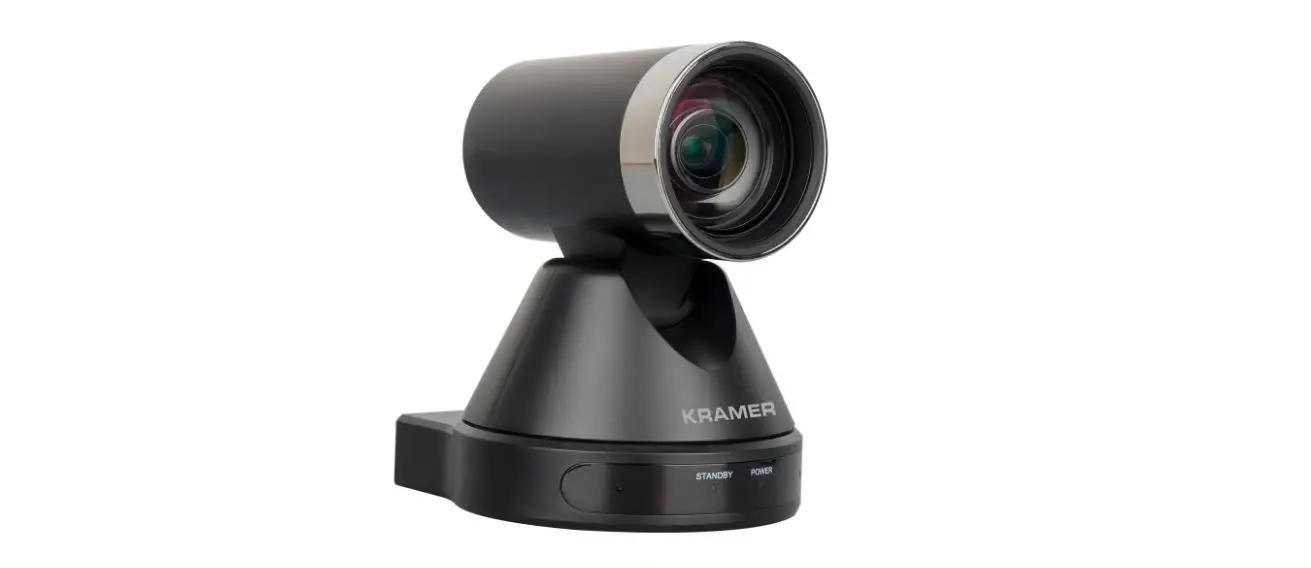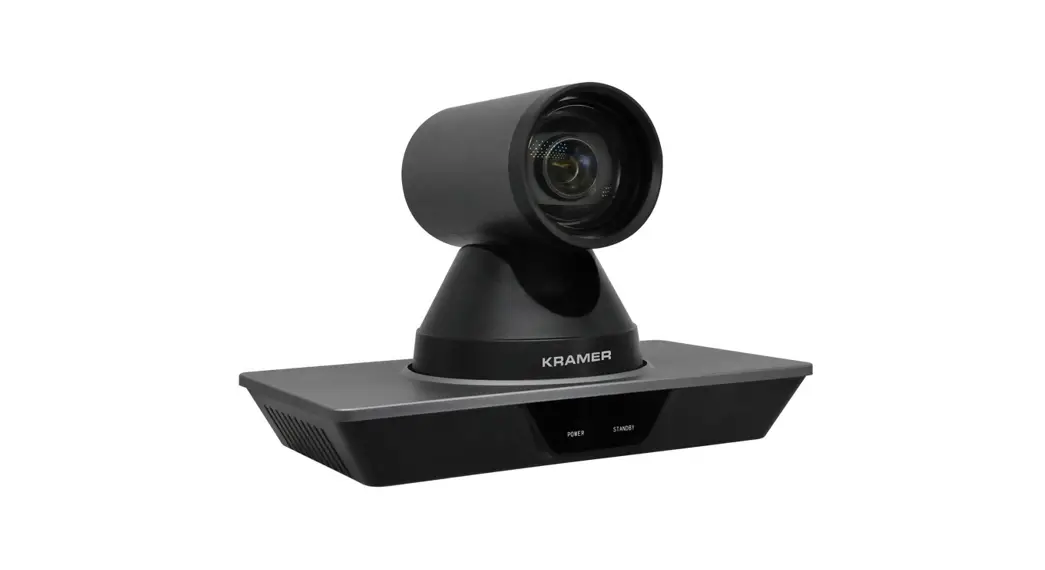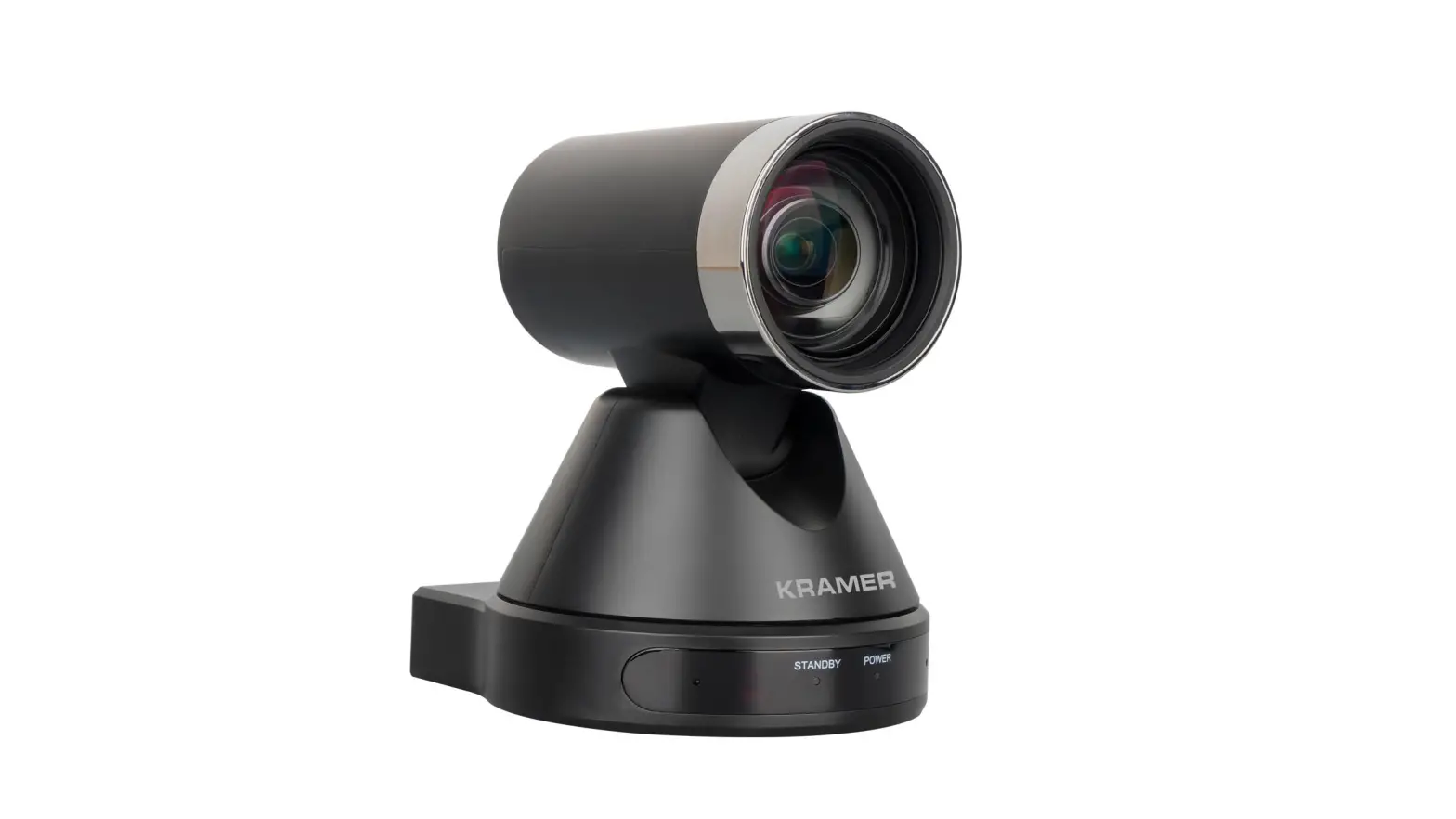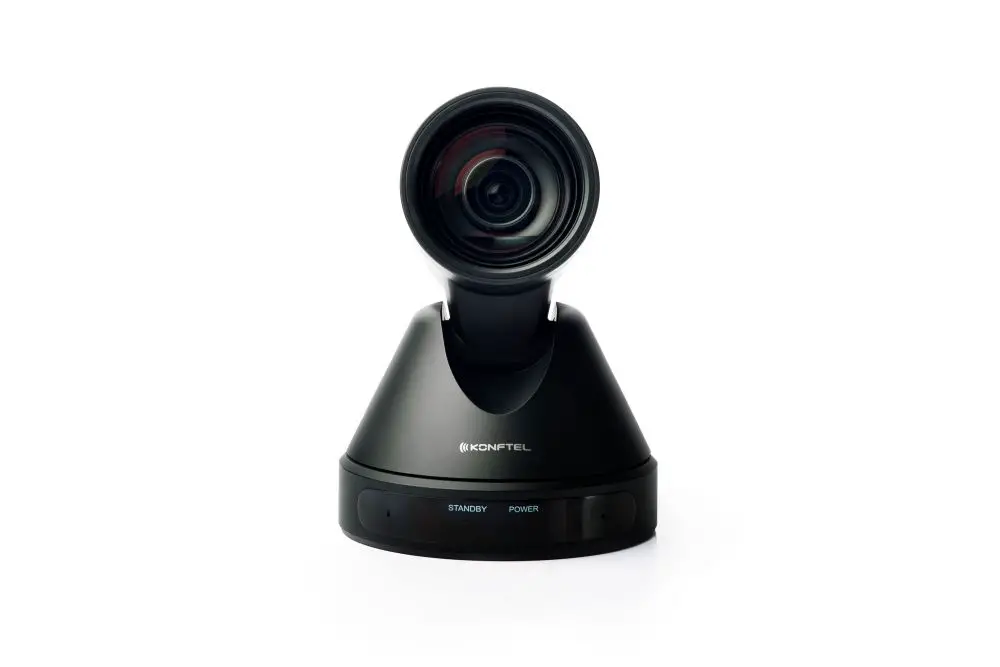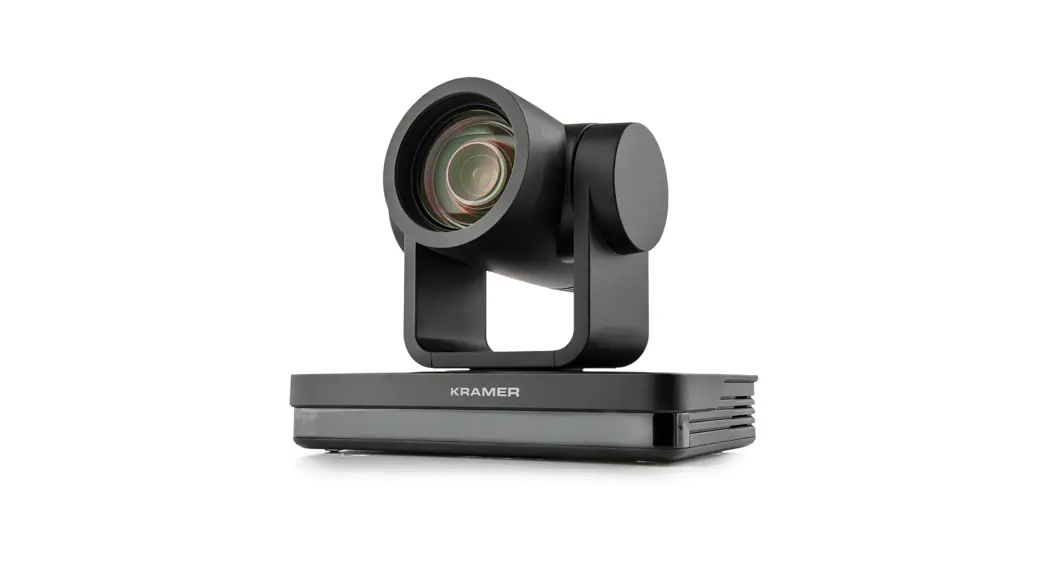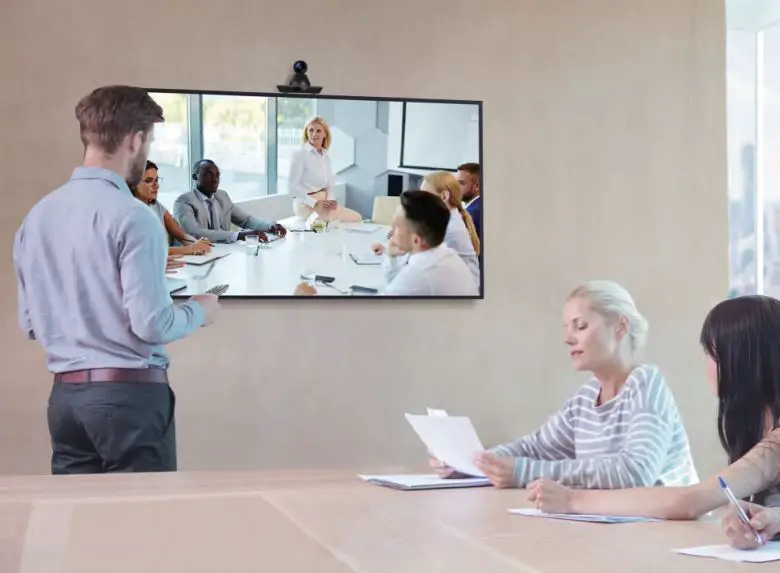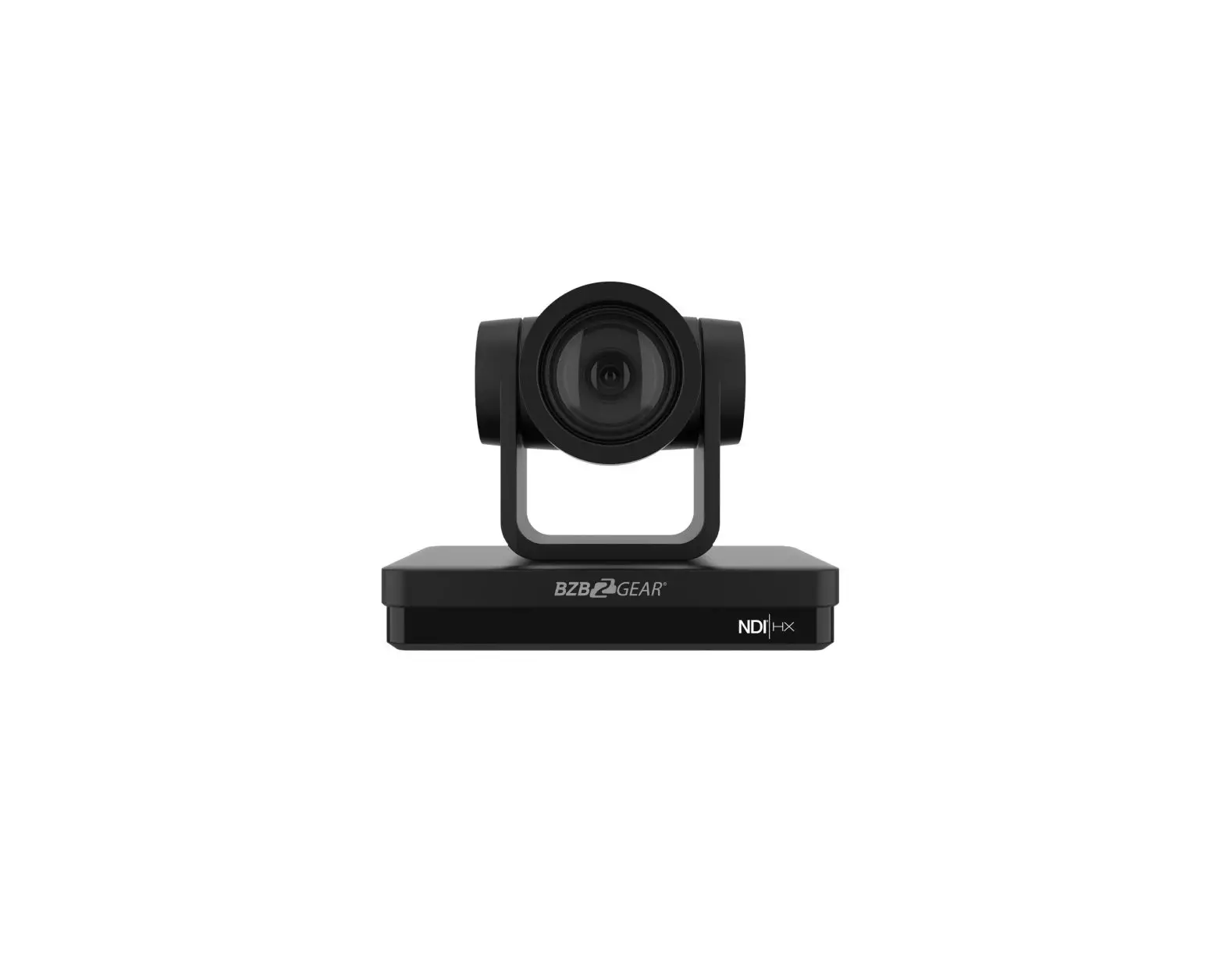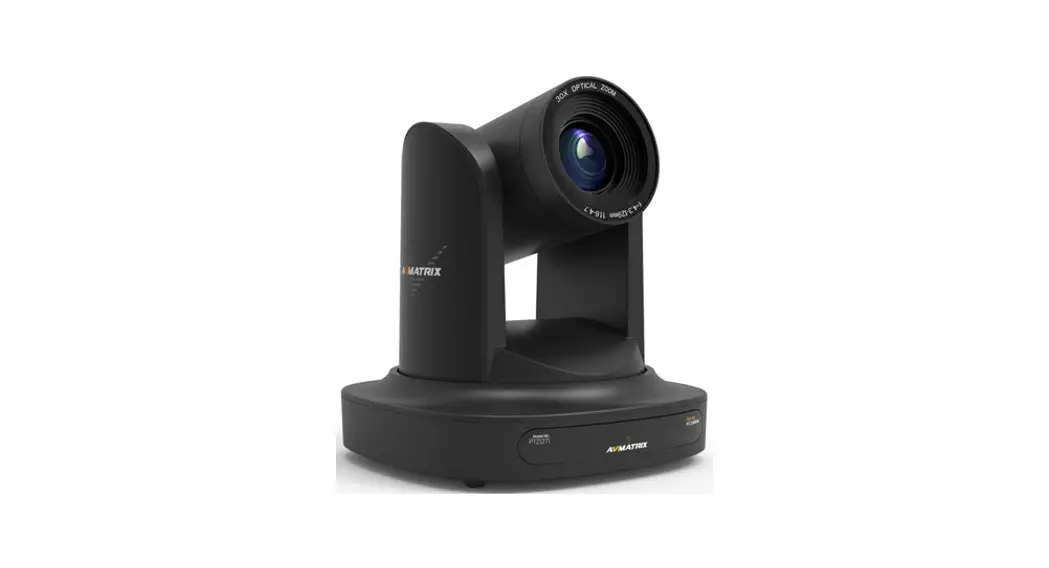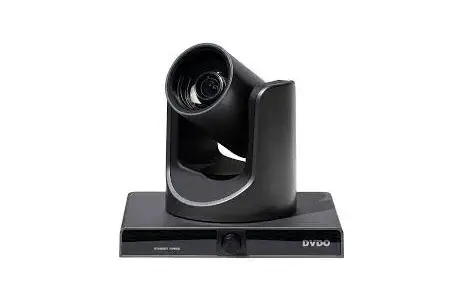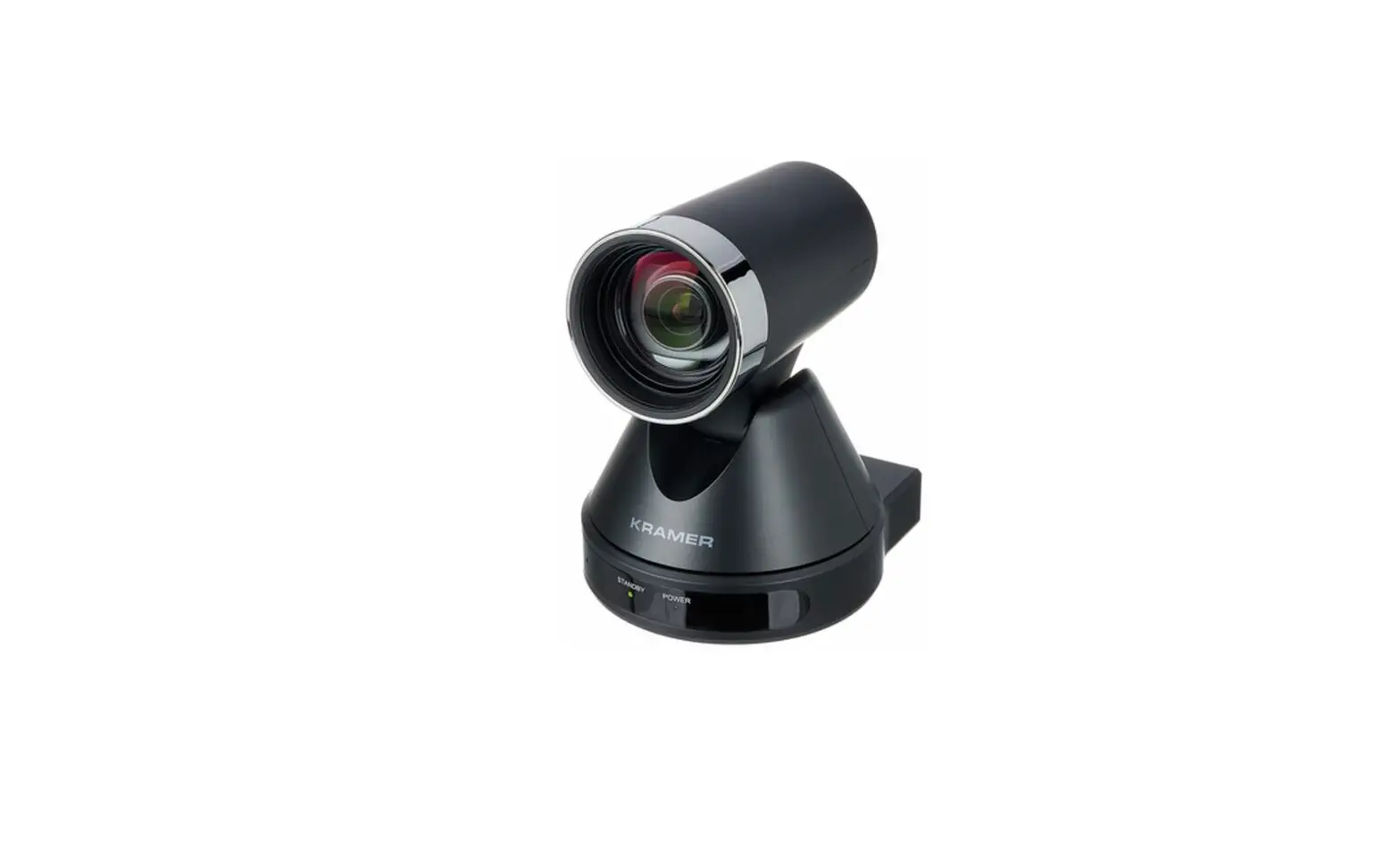
KRAMER 539206 K-CamHD 1080P HD PTZ Camera with 12x Optical Zoom User Guide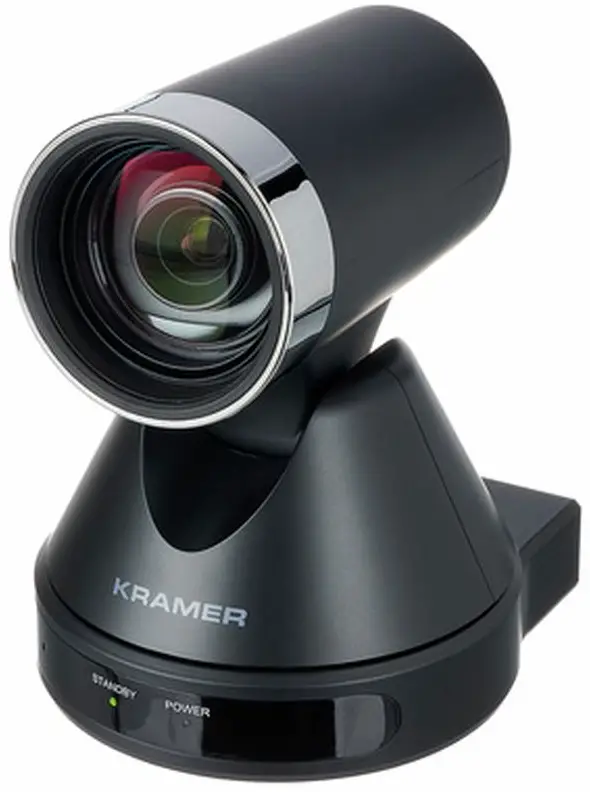
What’s in the box
- K-CamHD PTZ Camera
- Remote control transmitter with batteries
- Power adapter and cord
- Lens cover
- Wall bracket
- Screws set
- 1 USB 3.0 cable
- 1 Quick start guide
Get to know your K-CamHD
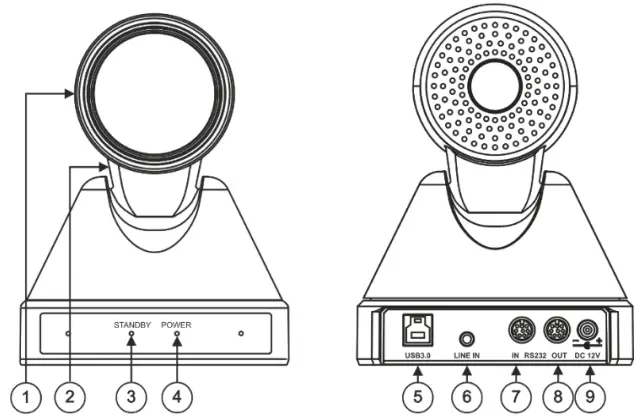
| # | Feature | Function | |
| 1 | Camera | High quality Camera. | |
| 2 | Tilting Mechanism | Can be set to any of 255 preset positions. | |
| 3 | STANDBY LED | Lights green when the camera is in standby mode. | |
| 4 | POWER LED | Lights blue when the power is on. | |
| 5 | USB 3 Type B Port | Connect to a PC. | |
| 6 | LINE IN | Connect to a microphone. | |
| 7 | RS-232 8- pin DIN Connectors | IN | Connect to a device with an RS-232 port (for example, a system controller). |
| 8 | OUT | Connect to a device with an RS-232 port (for example, a camera). | |
| 9 | 12V DC Power Connector | Press and hold to toggle the locking/release of the front panel buttons. When storing or recalling presets, press to store or recall the preset. | |
Mount K-CamHD
You can mount K-CamHD on the wall, the ceiling or place it on a tabletop. The built-in gravity sensor automatically corrects the image orientation.

- Ensure that the environment (e.g., maximum ambient temperature, humidity & air flow) is compatible for the device.
- Avoid exposing the product to direct sunlight or any other heat source.
- Keep away from children – product includes small accessories and components.
- Avoid uneven mechanical loading.
- Do not insert any sharp objects into the product.
- Avoid dropping or hitting the product to avoid damaging the product.
- For maintenance, call tech support.
To attach K-CamHD onto a wall:
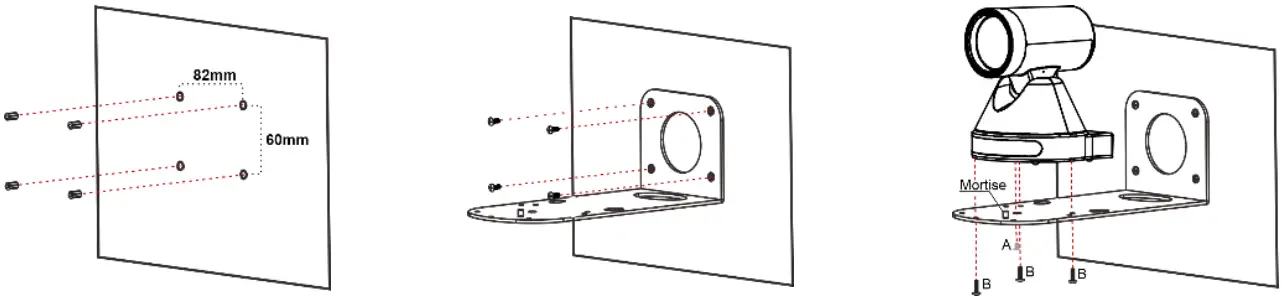
- Find the correct location on the wall.
- In the desired location, mark the hole locations, then drill 4 holes 82mm and 60mm apart (using a 6mm drill-bit) to fit the 4 holes of the wall-mounting bracket.
- Insert the four expansion-plugs into the holes.
- Attach the wall bracket to the wall, using the four wallbracket screws.
Note that you can also attach the device upside down, from under the bracket. - Attach the device to the wall bracket by fitting the mortise (on the bracket) into the tenon (on the camera).
- Fix the camera by screwing (A) Nickel screw to the center and (B) then tighten with 3 black screws.
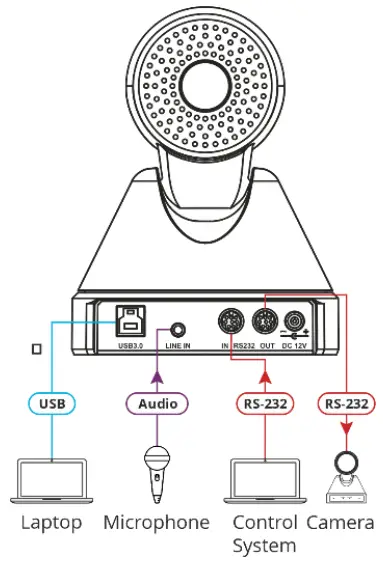
Connect inputs and outputs
Always switch OFF the power on each device before connecting it to your K-CamHD.
Control K-CamHD via the IR Remote Controller.
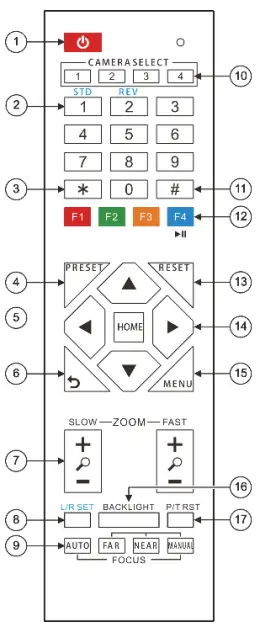
Shortcut Keys
*+#+1: OSD default (English)
*+#+3: OSD default (Chinese)
*+#+6: Quickly recover the default
*+#+8: View the camera version
*+#+9: Quickly set up inversion
*+#+MANUAL: Restore default IP address
| # | Key | Function | ||
| 1 | Power | Press once to enter standby mode. Press again to enter normal operation mode. | ||
| 2 | Number (0 to 9) | Configure or edit a preset | ||
| 3 | * | Use together with other keys for various functions. | ||
| 4 | PRESET | Press PRESET + a numerical key (0 to 9) to save the current configuration to that preset number. | ||
| 5 | HOME | Press to return K-CamHD to its default position. When in the OSD, press to enter a submenu or confirm menu. | ||
| 6 | Return | Return to previous item on the menu. | ||
| 7 | ZOOM | SLOW | Press for slow zoom in (+) or out (-). | |
| FAST | Press for quick zoom in (+) or out (-). | |||
| 8 | L/R Set | STD (1) | Press L/R + STD (1) keys to set Pan-Tilt to same direction as L/R setting. | |
| REV (2) | Press L/R + REV (2) keys to set Pan-Tilt to the direction opposite to the L/R setting. | |||
| 9 | FOCUS | AUT O | Press to automatically set the focus to the center of the image. | |
| MAN UAL | Press to enter manual focus mode. Then press FAR or NEAR. | |||
| FAR | When in MANUAL mode, press to focus on a far object | |||
| NEA R | When in MANUAL mode, press to focus on a near object. | |||
| 10 | CAMERA SELECT | Select the camera to configure and control (1 to 4). | ||
| 11 | # | Use together with other keys for various functions. | ||
| 12 | IR RC | Press * + # + (F1 to F4) to assign a camera address to the remote. For example, point the remote to a camera, press *+#+F1. The remote assigns CAMERA SELECT 1 key to this camera. To use the remote to control camera 1 press the CAMERA SELECT 1 key. Press F4 to freeze the image. | ||
| 13 | RESET | Press RESET+ a key number (0 to 9) to delete a preset configuration. Press *+#+RESET to delete all preset configurations. | ||
| 14 | PTZ Control | Control camera panning and tilting using arrow keys (left, right, up, and down). | ||
| 15 | MENU | Enter/exit OSD menu. | ||
| 16 | BACKLIGHT | Press to turn backlight compensation on or off. Available when exposure mode is set to Auto (via the OSD menu). | ||
| 17 | P/T RST | Press to self-check preset Pan/Tilt on camera. | ||
This guide helps you install and use your K-CamHD for the first time.
Go to www.kramerav.com/downloads/K-CamHD to download the latest user manual and check if firmware upgrades are available.
Scan for full manual
 Application Diagrams - Kramer Electronics