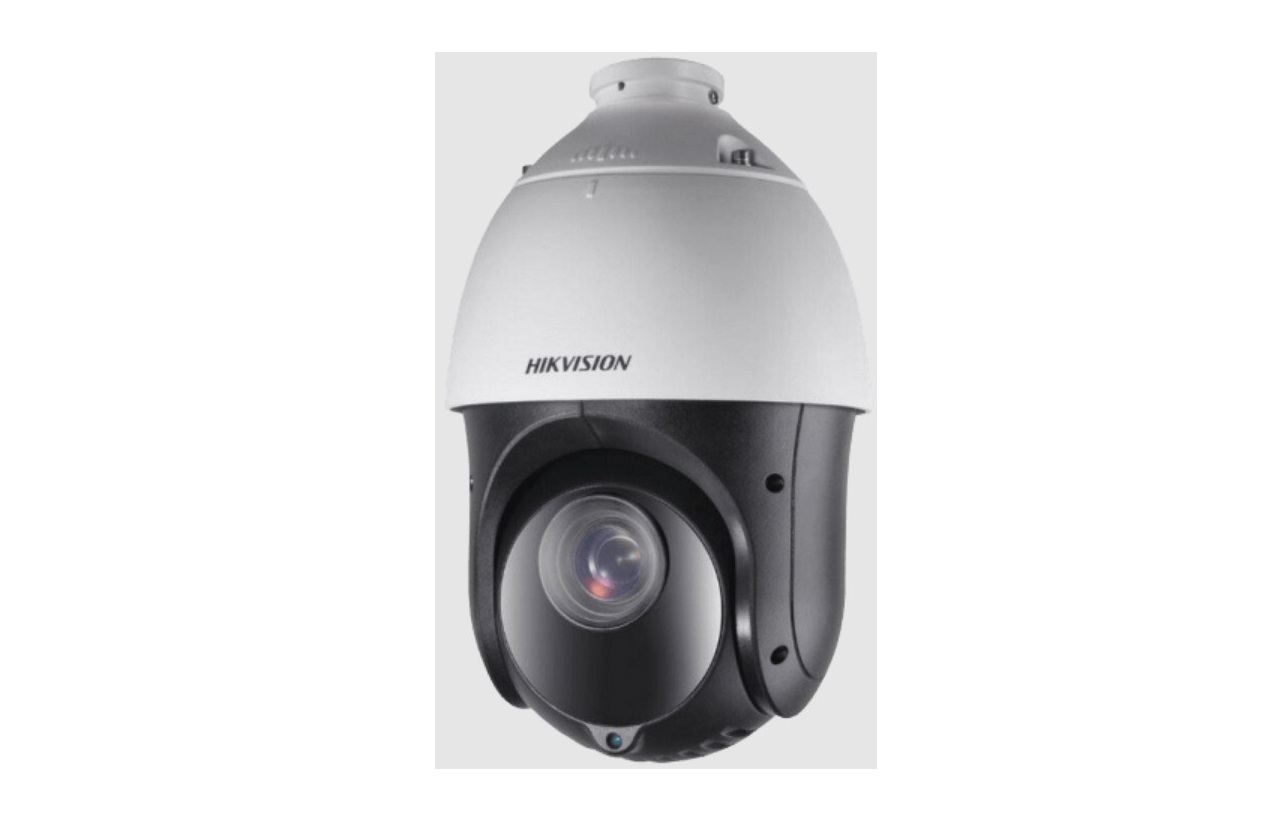
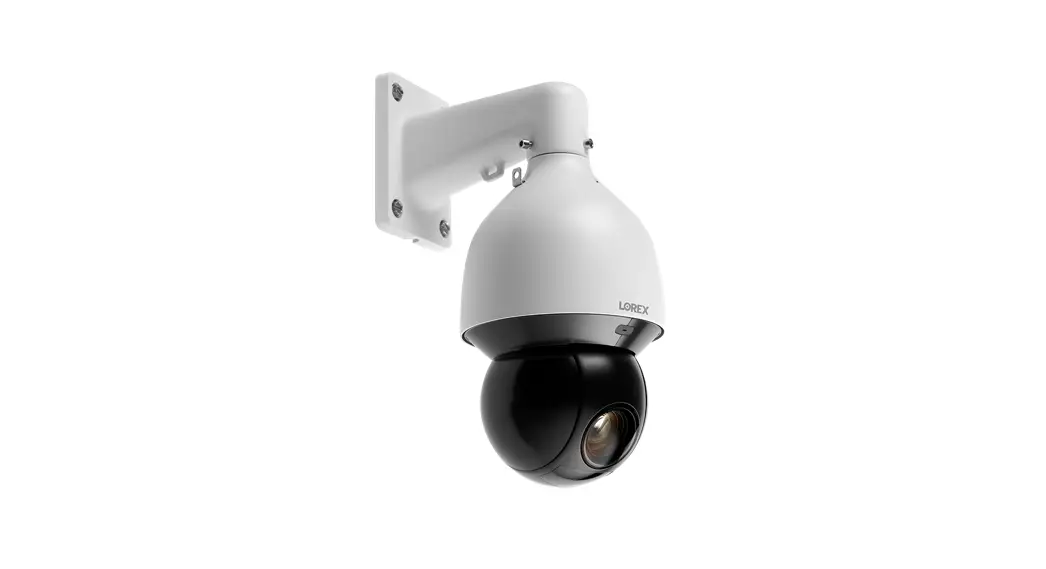
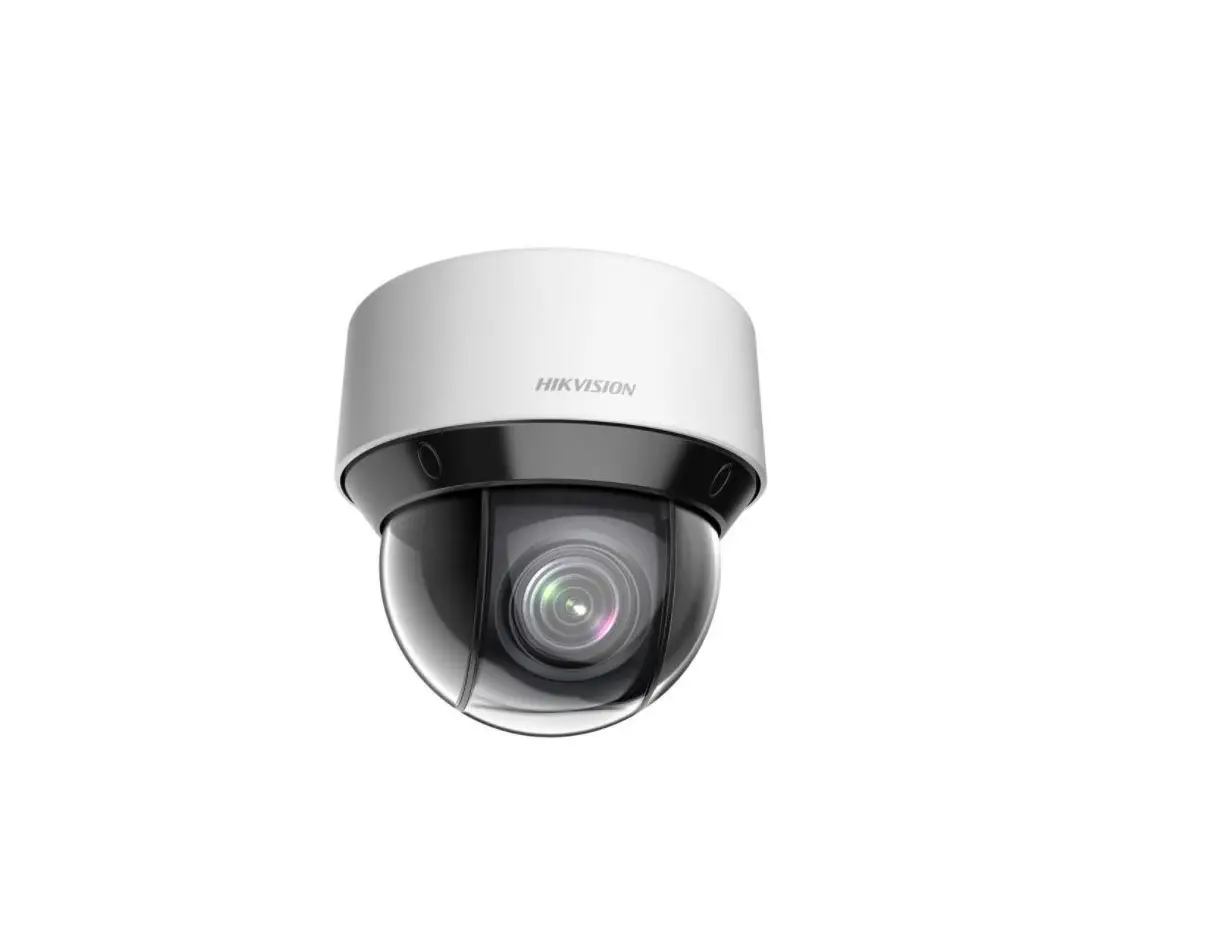
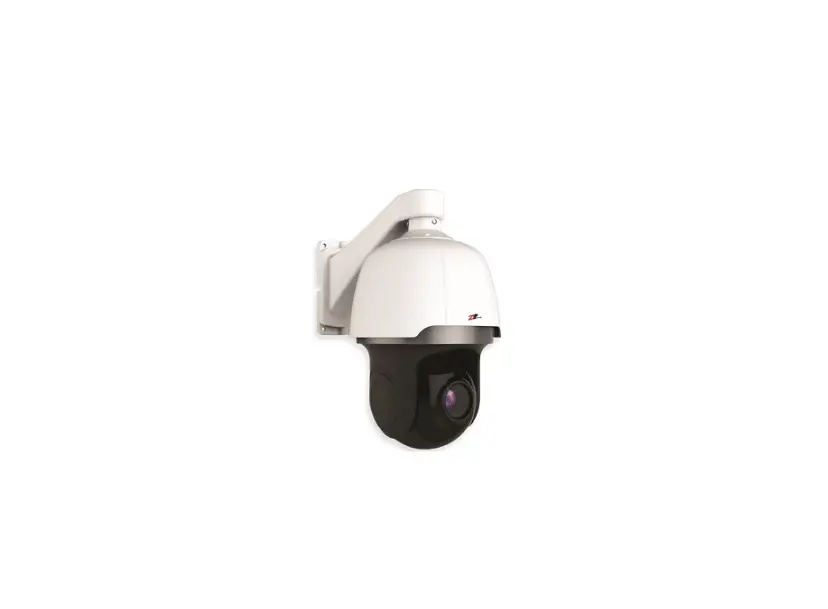
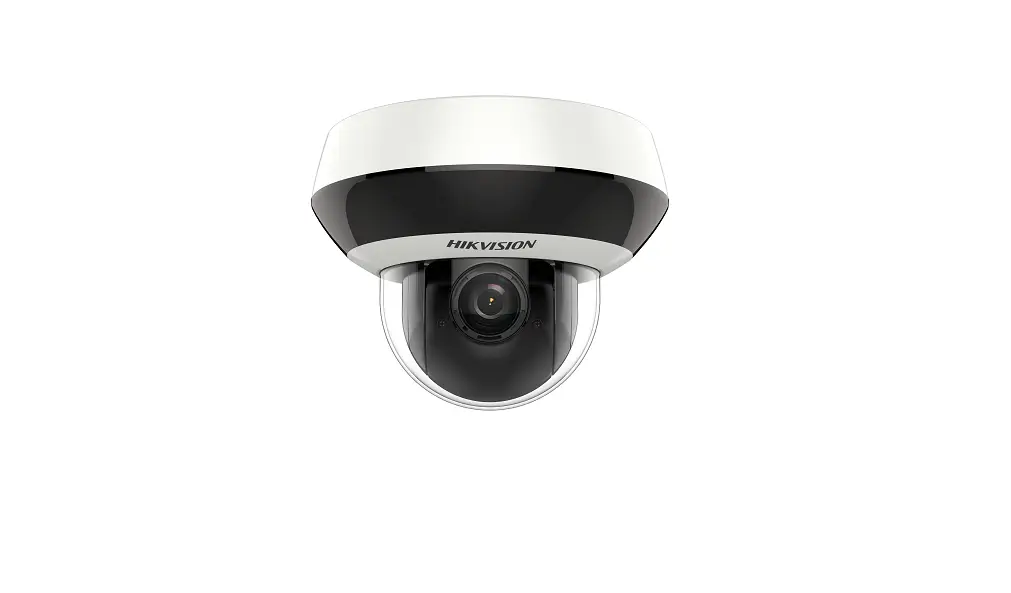
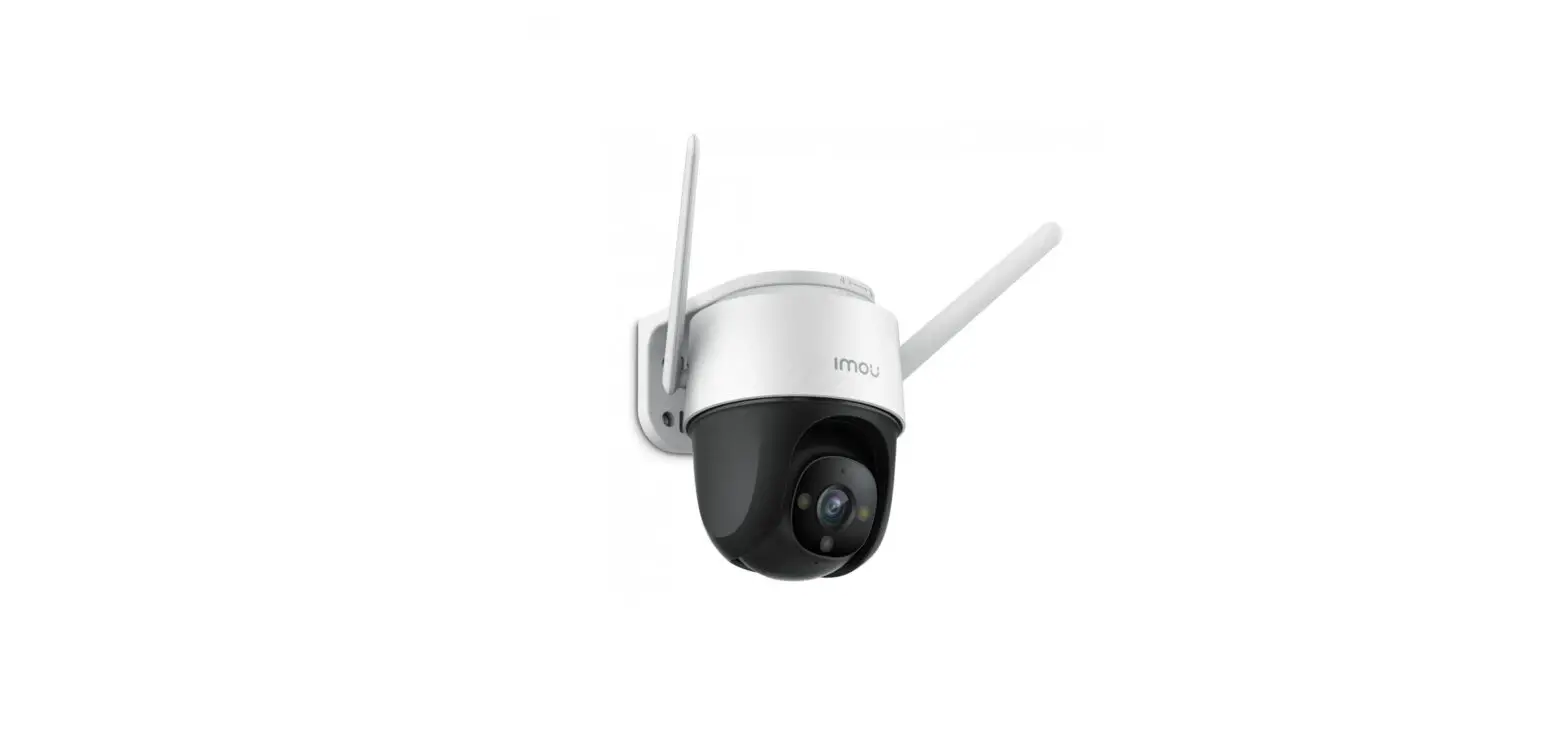
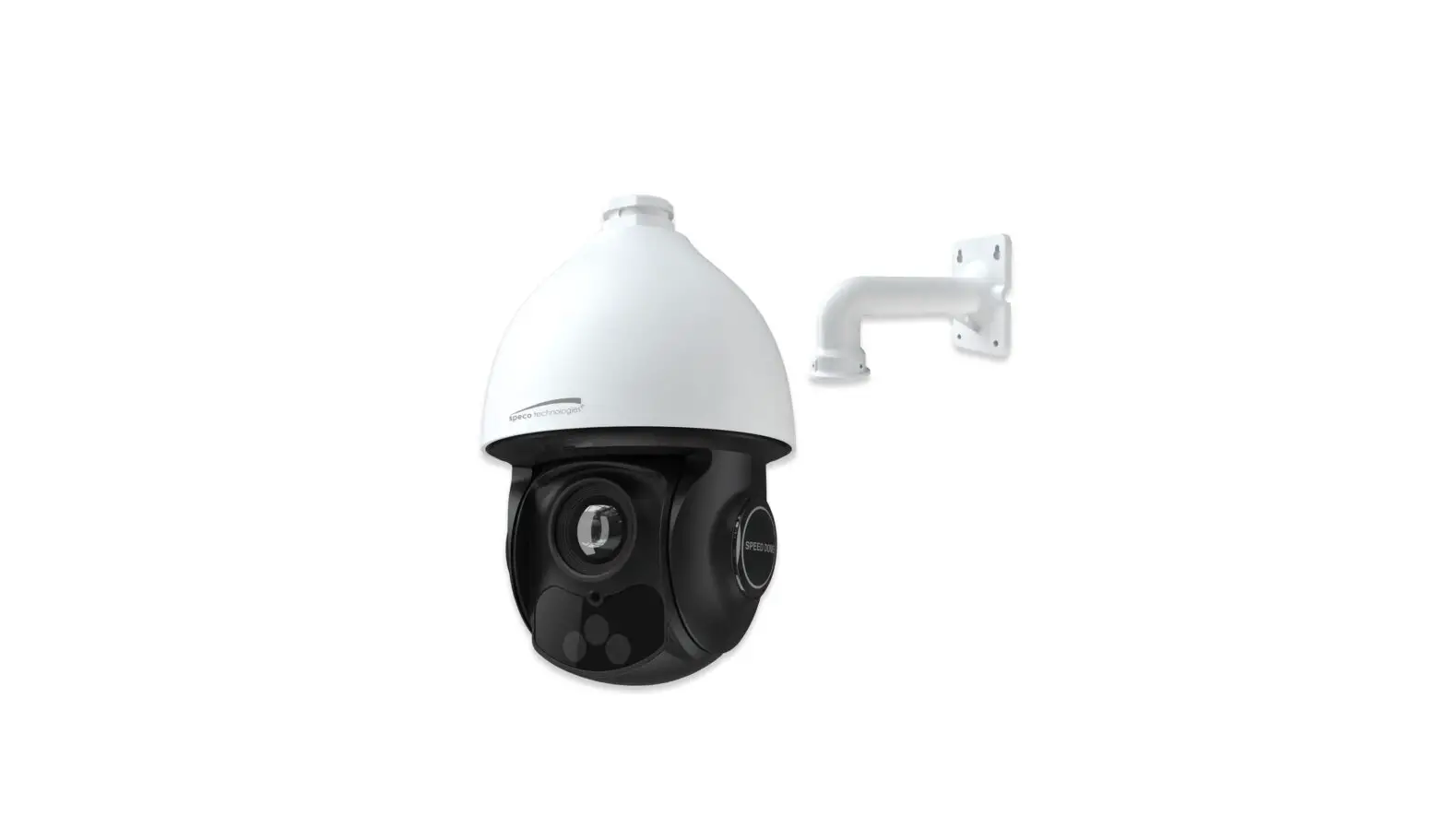
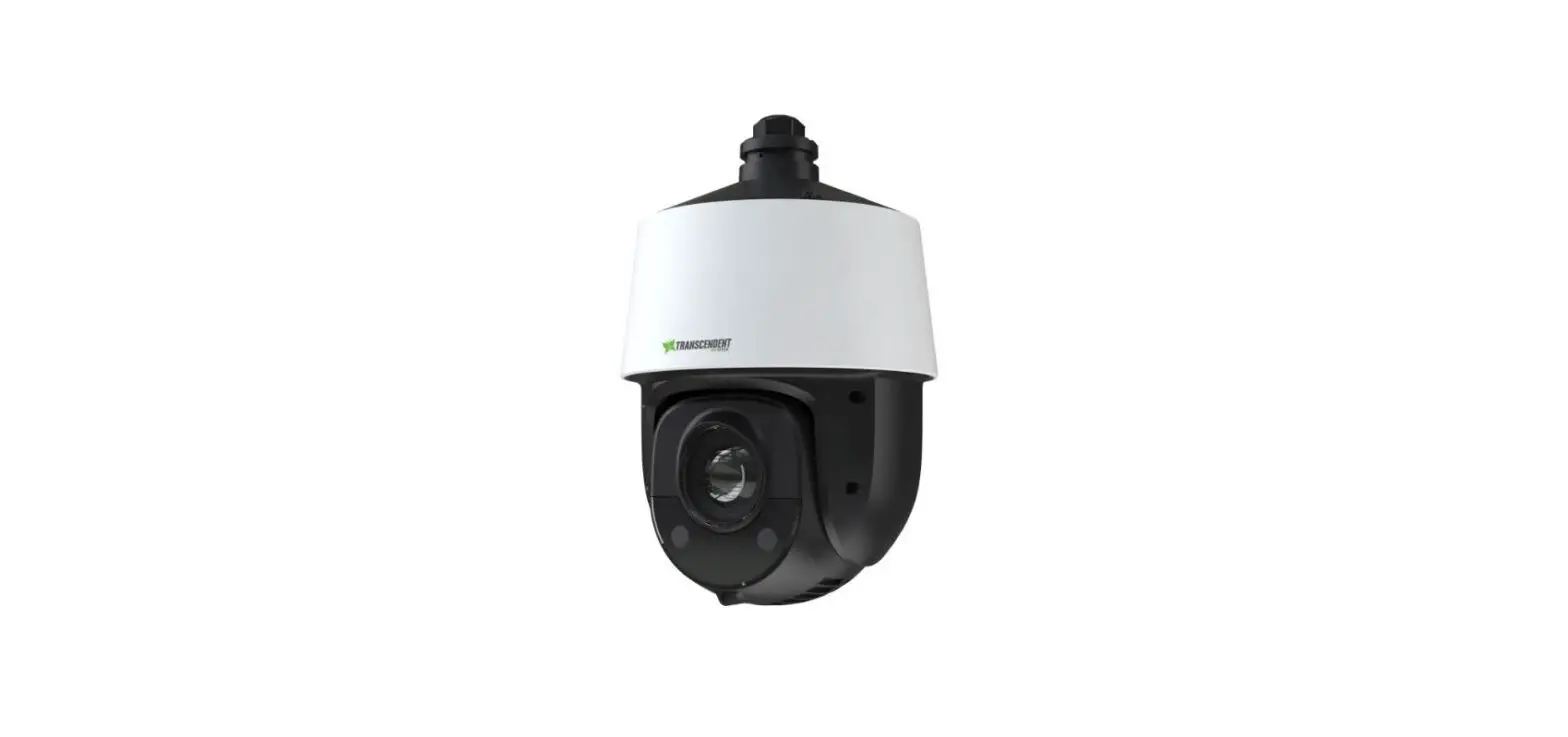
HD PTZ Camera
Quick Start Guide
- Please read this instruction carefully before using the product and keep it for further reference.
- All the examples and pictures used here are for reference only.
- The contents of this manual are subject to change without notice
1 Overview

1 Ethernet connector
2 Power connector
3 Safety wire
2 Cable Connection
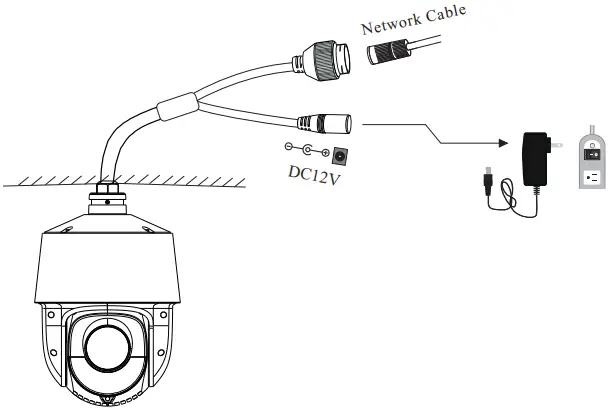
► Connecting Network Cable

(1) Loosen the nut from the main element.
(2) Run the network cable (without RJ 45 connector) through the both elements. Then crimp the cable with RJ 45 connector.
(3) Connect the cable to the hermetic connector. Then tighten the nut and the main cover.
3 Installation
 Please make sure the wall is strong enough to bear the dome camera’s weigh and the camera is powered off during installation.
This PTZ camera supports wall or ceiling mounting. Please select a way to install as needed. The following instructions are for reference only.
Micro SD Card Installation
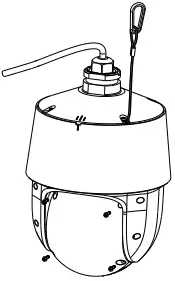
1. Loosen the four screws of the cover and then remove the cover.
Insert a micro SD card

2. Insert a micro SD card as indicated above and then install the cover back.
Wall Mounting
1. Pull the cables through the bracket.
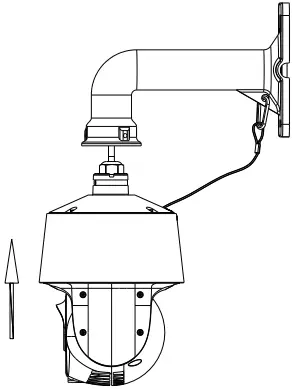
2. Secure the PTZ camera to the bracket with screws.

3. Drill the screw holes on the wall according to the drill template. Then insert the plastic plugs into the holes.

4. Insert two screws to the holes as indicated by the arrows (left) and leave 12 mm clearance.
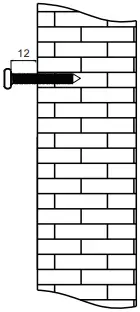
5. Connect the cables and then hang the bracket on the wall.
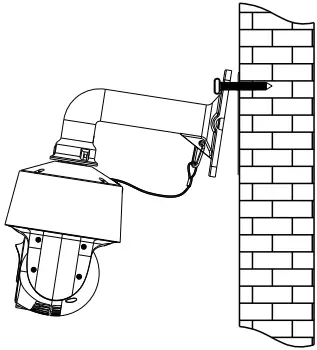
6. Attach the bracket to the wall with four screws.

Ceiling Mounting
1. Install the ceiling mounting bracket according to the following diagram.

2. Mount the adapter tube to the bracket and secure it with a screw.

- Adapter tube
3 Secure the ceiling mounting bracket to the ceiling.

4 Connect cables and then hook the safety wire to the adapter tube.

5 Fasten the PTZ camera to the adapter tube with screws firmly.

4 Network Connection
Here we take accessing IP camera via LAN for example.
Access the camera through IP-Tool

(1) Make sure that the camera and the PC are connected via LAN.
(2) Find the IP-Tool from the CD and then install it in the computer. After that, run the IP-Tool as shown below.
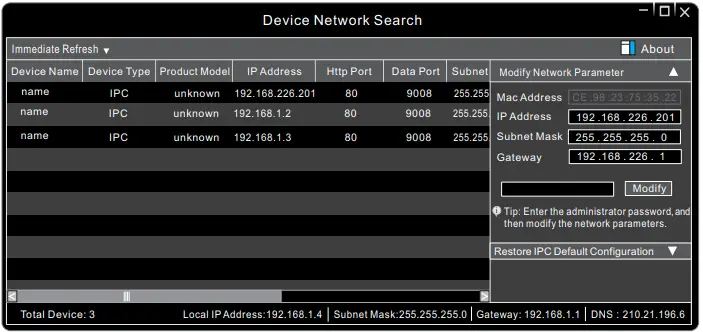
(3) Modify the IP address. The default IP address of this camera is 192.168.226.201. Click the information of the camera listed in the above table to show the network information on the right hand. Modify the IP address and gateway of the camera and make sure its network address is in the same local network segment as the computer’s. Please modify the IP address of your device according to the practical situation.
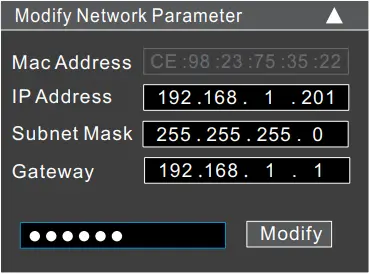
For example, the IP address of your computer is 192.168.1.4. So the IP address of the camera shall be changed to 192.168.1.X. After modification, please enter the password of the administrator and click “Modify” button to modify the setting.
 The default password of the administrator is “123456”.
(4) Double-click the PTZ camera listed in the IP-Tool or manually enter the IP address in the address bar of the web browser to connect the PTZ camera. Then follow directions to download and install the plugin.
(5) Enter the username and password in the login interface.
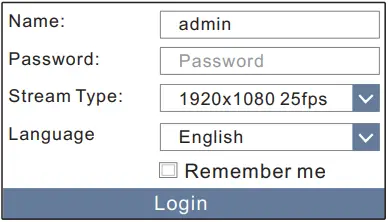
The default username is admin; the default password is 123456.
5 Preset Description
| Call Preset | Call No.90 Preset | Run trace 1 |
| Call No.91 Preset | Run cruise 1 | |
| Call No.92 Preset | Run cruise 2 | |
| Call No.93 Preset | Run cruise 3 | |
| Call No.94 Preset | Run cruise 4 | |
| Call No.95 Preset | OSD menu | |
| Call No.97 Preset | Enable random scan | |
| Call No.99 Preset | Enable auto scan | |
| Save Preset | Save No.91 Preset | Save the random scan start point |
| Save No.92 Preset | Save the left scan endpoint | |
| Save No.93 Preset | Save the right scan endpoint |