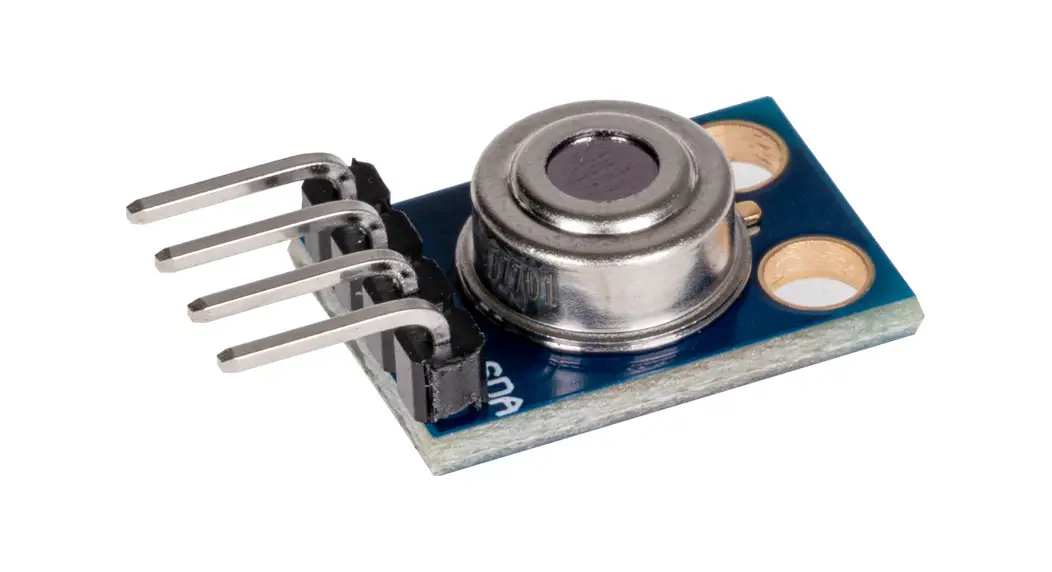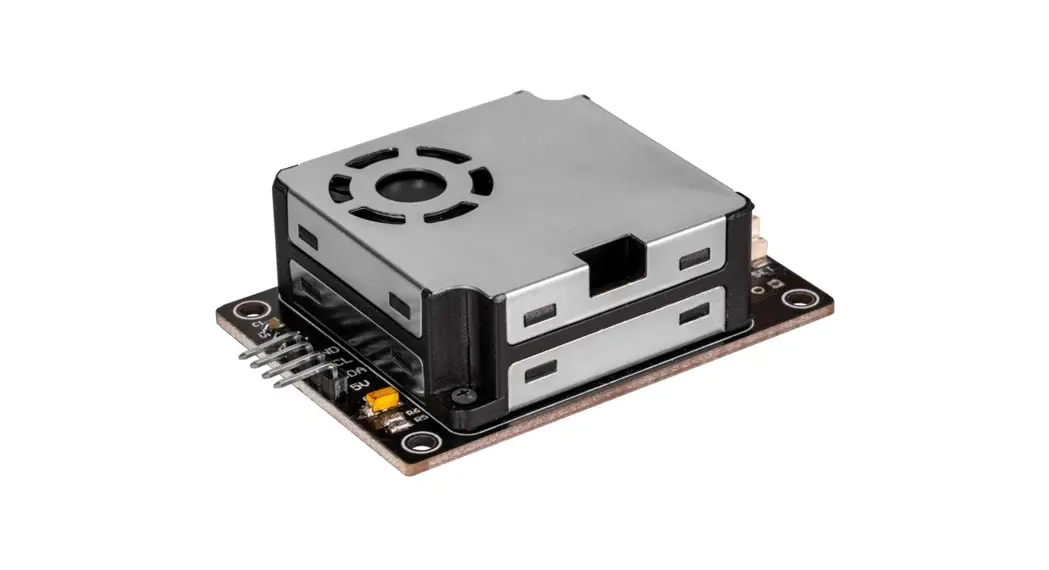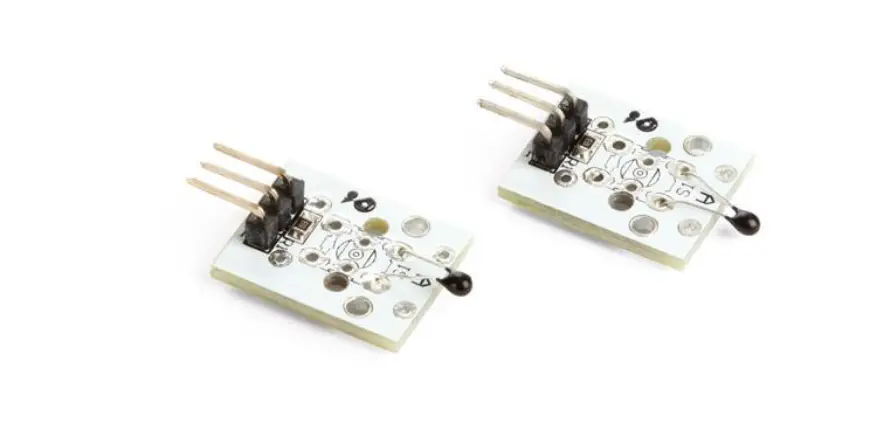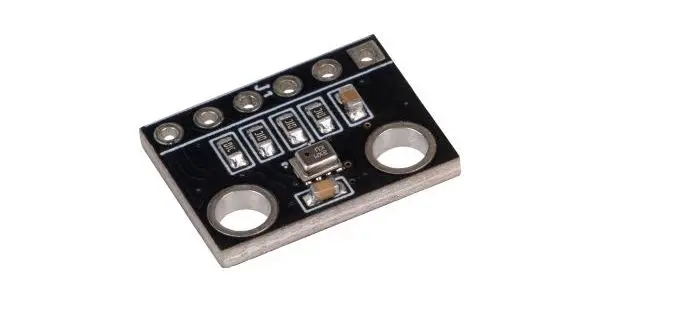

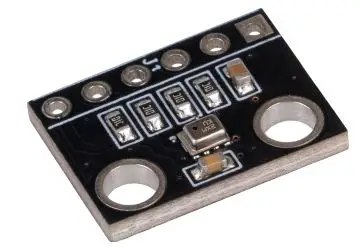
JOY-it SEN-KY052 Temperature and Air Pressure Sensor
GENERAL INFORMATION
Dear customer, Thank you very much for choosing our product. In the following we will show you what has to be observed during commissioning and use. Should you encounter any unexpected problems during use, please feel free to contact us.
USAGE WITH THE RASPBERRY PI
Installation
First, you need to install git and pip on your Raspberry Pi, this works with the following commands:
- sudo apt-get install git
- sudo apt-get install python3-pip
Now you can download and install the required libraries for the sensor as follows:
- sudo pip3 install adafruit-circuit python-bmp280
- sudo pip3 install adafruit-circuitpython-lis3dh
Installation SPI
To use the sensor with SPI, you must first activate the SPI interface. To do this, enter the following command:
- sudo raspi-config
- Now navigate to 3 Interfacing Options -> P4 SPI and enable the SPI interface.
Installation I2C
Now enter the following commands for installing the I2C interface:
- sudo apt-get install -y python-SMBus
- sudo apt-get install -y i2c-tools
Now open the configuration of the Raspberry Pi and activate I2C as follows:
- sudo raspi-config
- Now navigate to 3 Interface Options -> P5 I2C and enable the I2C interface.
Now you need to reboot your Raspberry Pi with the command:
- sudo reboot

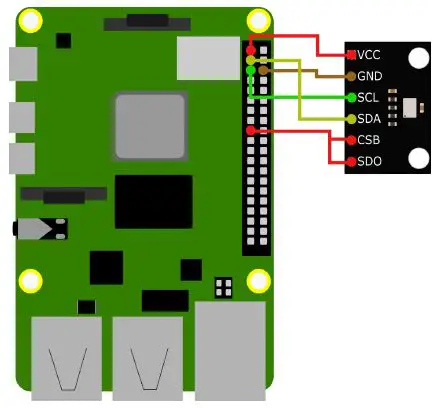
Raspberry Pi KY052 3.3 V (Pin 1, Pin 17)
VCC, SDO, CSB GND (Pin 6) GND SCL (Pin 5) SCL SDA (Pin 3) SDA 
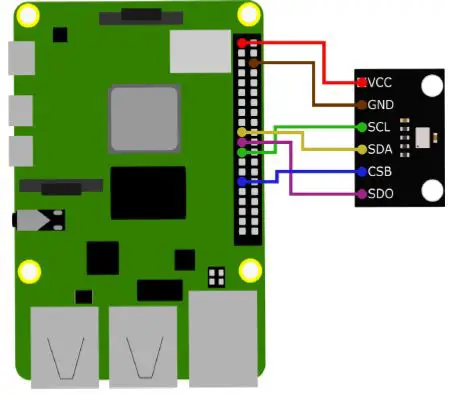
Raspberry Pi KY052 3.3 V (Pin 1, Pin 17)
VCC GND (Pin 6) GND SCLK (Pin 23) SCL MOSI (Pin 19) SDA Pin 29 CSB MISO (Pin 21) SDO
Programming example
In the following program example, the temperature, the air pressure, and the calculated altitude are shown. In order for the altitude to be calculated correctly, the following line in the program example must be adjusted:
- Sensor.sea_level_pressure = 1013.25
- Replace the 1013.25 with the QNH pressure in hPa (the pressure at sea level) at your location. Weather services can give you information on this.
2.3.1 I2C example Now test your BMP280 with the following sample code. First create a file with:
- sudo nano bmp280.py
- An empty window will now open in which you can enter the following example code.
- import board import busio import adafruit_bmp280 # i2c initialisation i2c = busio.I2C(board.SCL, board.SDA) sensor = adafruit_bmp280.Adafruit_BMP280_I2C(i2c) # Replace the 1013.25 with the QNH pressure in hPa (the pressure at sea level) # at your location. Weather services can give you information on this. sensor.sea_level_pressure = 1013.25 # output sensor data print(“\nTemperature: %0.1f *C” % sensor.temperature) print(“Air pressure: %0.1f hPa” % sensor.pressure) print(“Altitude: %0.2f m” % sensor.altitude)
2.3.1 SPI example
- import board import busio import adafruit_bmp280 import digitalio #spi initialisation spi = board.SPI() bmp_cs = digitalio.DigitalInOut(board.D5) sensor = adafruit_bmp280.Adafruit_BMP280_SPI(spi, bmp_cs) # Replace the 1013.25 with the QNH pressure in hPa (the pressure at sea level) # at your location. Weather services can give you information on this. sensor.sea_level_pressure = 1013.25 # output sensor data print(“\nTemperature: %0.1f *C” % sensor.temperature) print(“Air pressure: %0.1f hPa” % sensor.pressure) print(“Altitude: %0.2f m” % sensor.altitude)
- Save the source code with the key combination CTRL + O and confirm with entering. Exit the editor with CTRL + X.
- You execute the program example with the following command:
- sudo python3 bmp280.py
USAGE WITH THE ARDUINO
3.1 Installation In order to use the sensor with the Arduino, you must first download the required library here. Unzip the folder and save it in your Libraries folder. This is usually located under Documents → Arduino → Libraries.
3.2.1 Wiring I2C Since the sensor operates with a logic level of 3.3 V and the Arduino UNO with 5 V, you need a logic level converter to use it. In this example, the COM-KY051VT from Joy-IT is used. 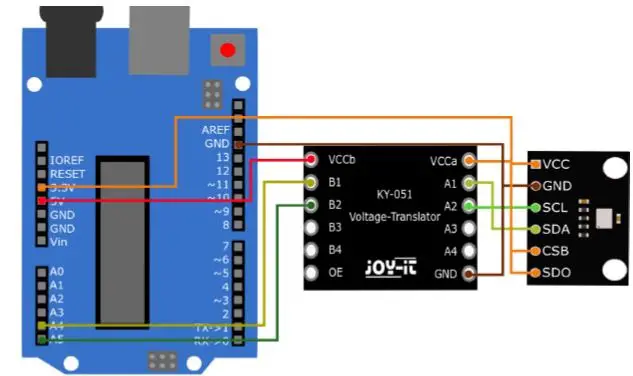
| Arduino | KY052 | Logic level converter |
| 3.3 V | VCC, SDO, CSB | VCCa |
| GND | GND | GND |
| – | SDA | A1 |
| – | SCL | A2 |
| A4 | – | B1 |
| A5 | – | B2 |
| 5 V | – | VCCb |
3.2.2 Wiring SPI Since the sensor operates with a logic level of 3.3 V and the Arduino UNO with 5 V, you need a logic level converter to use it. In this example, the COM-KY051VT from Joy-IT is used. 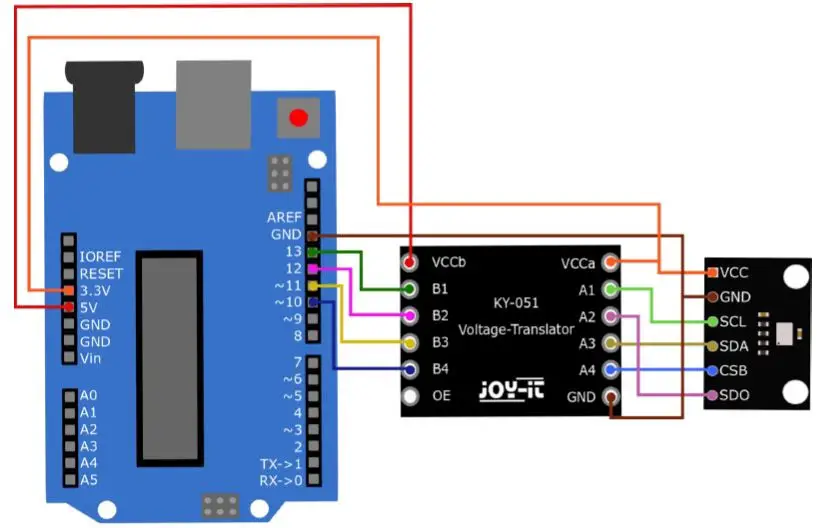
| Arduino | KY052 | Logic level converter |
| 3.3 V | VCC, SDO, CSB | VCCa |
| GND | GND | GND |
| – | SCL | A1 |
| – | SDO | A2 |
| – | SDA | A3 |
| – | CSB | A4 |
| 13 | – | B1 |
| 12 | – | B2 |
| 11 | – | B3 |
| 10 | – | B4 |
| 5 V | – | VCCb |
3.3 Programming example
In the following program example, the temperature, the air pressure, and the calculated altitude are regularly displayed in the serial console. In order for the altitude to be calculated correctly, the following line in the programme example must be adjusted:
- #define localQNH 1013.25
- Replace the 1013.25 with the QNH pressure in hPa (the pressure at sea level) at your location. Weather services can give you information on this.
3.3.1 I2C example
- /*************************************************************************** This is a library for the BMP280 humidity, temperature & pressure sensor Designed specifically to work with the Adafruit BMEP280 Breakout —-> http://www.adafruit.com/products/2651 These sensors use I2C or SPI to communicate, 2 or 4 pins are required to interface. Adafruit invests time and resources providing this open source code, please support Adafruit andopen-source hardware by purchasing products from Adafruit! Written by Limor Fried & Kevin Townsend for Adafruit Industries. BSD license, all text above must be included in any redistribution ***************************************************************************/
- #include <Wire.h> #include <Adafruit_BMP280.h> #define localQNH 1013.25 Adafruit_BMP280 bmp; // I2C
- void setup() { Serial.begin(9600);
Serial.println(F(“BMP280 test”)); if (!bmp.begin()) { Serial.println(F(“Could not find a valid BMP280 sensor, check wiring!”)); while (1); } } - void loop() { Serial.print(F(“Temperature = “)); Serial.print(bmp.readTemperature()); Serial.println(” *C”); Serial.print(F(“Pressure = “)); Serial.print(bmp.readPressure()); Serial.println(” Pa”); Serial.print(F(“Approx altitude = “)); Serial.print(bmp.readAltitude(localQNH)); Serial.println(” m”); Serial.println(); delay(2000); }
3.3.2 SPI example
- /*************************************************************************** This is a library for the BMP280 humidity, temperature & pressure sensor Designed specifically to work with the Adafruit BMEP280 Breakout —-> http://www.adafruit.com/products/2651 These sensors use I2C or SPI to communicate, 2 or 4 pins are required to interface. Adafruit invests time and resources providing this open source code, please support Adafruit andopen-source hardware by purchasing products from Adafruit! Written by Limor Fried & Kevin Townsend for Adafruit Industries. BSD license, all text above must be included in any redistribution
- #include <Wire.h> #include <SPI.h> #include <Adafruit_BMP280.h> #define BMP_SCK 13 #define BMP_MISO 12 #define BMP_MOSI 11 #define BMP_CS 10 Adafruit_BMP280 bmp(BMP_CS, BMP_MOSI, BMP_MISO, BMP_SCK);
- void setup() { Serial.begin(9600); Serial.println(F(“BMP280 test”)); if (!bmp.begin()) { Serial.println(F(“Could not find a valid BMP280 sensor, check wiring!”)); while (1); } } void loop() { Serial.print(F(“Temperature = “)); Serial.print(bmp.readTemperature()); Serial.println(” *C”); Serial.print(F(“Pressure = “)); Serial.print(bmp.readPressure()); Serial.println(” Pa”); Serial.print(F(“Approx altitude = “)); Serial.print(bmp.readAltitude(1013.25)); // this should be adjusted to y-our local forcase Serial.println(” m”); } Serial.println(); delay(2000); }
OTHER INFORMATION
Our Information and Take-back Obligations according to the Electrical and Electronic Equipment Act (ElektroG)
The symbol on Electrical and Electronic Products: This crossed-out bin means that electrical and electronic products do not belong into household waste. You must hand over your old appliance to a registration place. Before you can hand over the old appliance, you must remove used batteries and replace batteries that are not enclosed by the device.
Return Options: As the end-user, you can hand over your old appliance (which has essentially the same functions as the new one bought with us) free of charge for disposal with the purchase of a new device. Small devices, which do not have outer dimensions bigger than 25 cm can be handed in for disposal independently of the purchase of a new product in normal household quantities.
- Possibility of return at our company location during our opening hours SIMAC Electronics GmbH, Pascalstr. 8, D-47506 Neukirchen-Vluyn
- Possibility of return nearby We will send you a parcel stamp with which you can send us your old appliance free of charge. For this possibility, please contact us via email at s[email protected] or via telephone.
- Information about Package: Please package your old appliance safe for transport. Should you not have suitable packaging material or you do not want to use your own material, you can contact us and we will send you an appropriate package.
SUPPORT
If any questions remained open or problems may arise after your purchase, we are available by email, telephone and ticket support system to answer these.
- Email: [email protected]
- Ticket-system: http://support.joy-it.net
- Telephone: +49 (0)2845 98469 – 66 (10 – 17 o’clock)
- For further information visit our website: www.joy-it.net