VXIPC 770, 870B Series VXI Controller
Product Information:
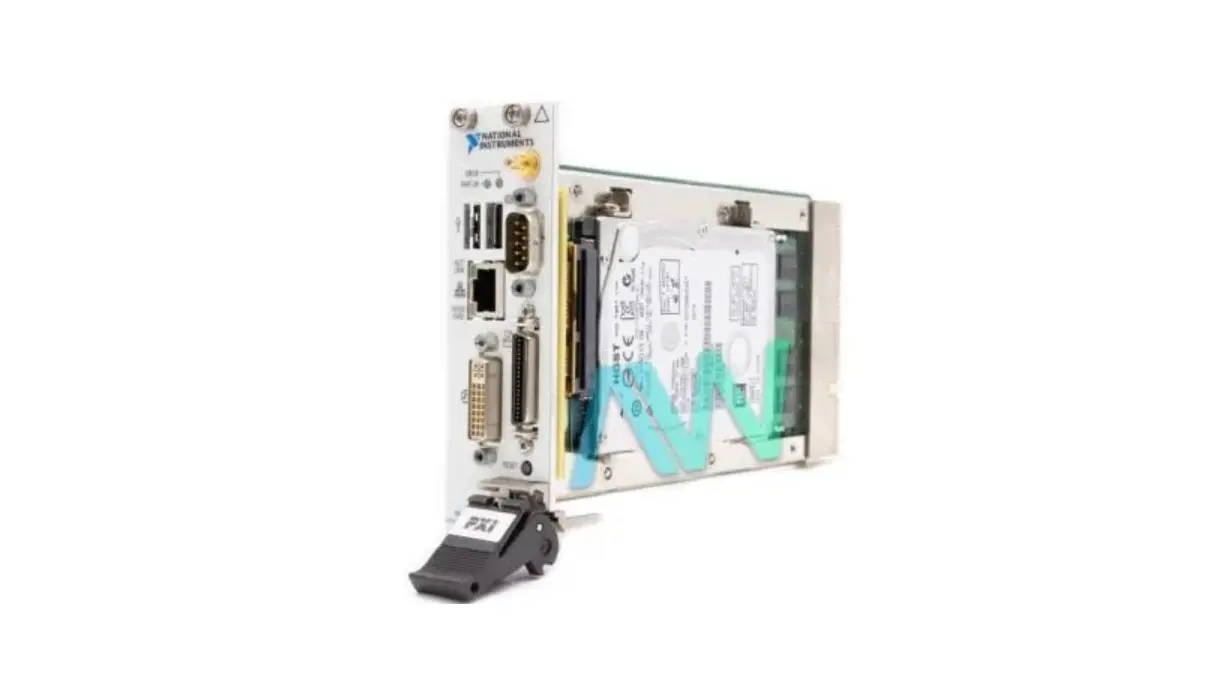
The VXIpc-872B is a controller from the VXIPCTM 770/870B Series.
It is designed for use in VXIbus chassis systems and is used to
control and manage various components and devices within the
system. The controller comes with a user manual that provides
detailed information on installation and troubleshooting.
It is important to note that electrostatic discharge can cause
damage to the controller. Therefore, it is recommended to handle
the controller only in a proper ESD-controlled environment.
Product Usage Instructions:
- Before installing the controller, ensure that the chassis is
plugged in. The power cord should be connected to ground the
chassis and protect it from electrical damage during
installation. - Remove any doors or covers that may be blocking access to the
chassis slots. - Ensure that the slot selected in the VXIbus chassis matches the
controller configuration. If the controller does not have automatic
System Controller detection, refer to the VXIpc 770/870B Series
User Manual for jumper configuration information. - Align the top and bottom of the controller with the card-edge
guides inside the chassis and slowly push it straight into the slot
until its plug connectors rest on the backplane receptacle
connectors. Apply slow, evenly distributed pressure to seat the
module in the expansion slot. The front panel of the controller
should be even with the front panel of the chassis. - Tighten the retaining screws on the top and bottom edges of the
front panel. - Check the installation to ensure proper alignment and
connection. - Connect the keyboard and mouse to the appropriate PS/2
connectors. - Connect the VGA monitor video cable to the VGA connector.
- Connect any required devices to the ports based on your system
configuration. - Replace or close any doors or covers on the chassis.
- Turn on the chassis.
- If the controller does not boot, refer to the Troubleshooting
section in the user manual for assistance. - During the first boot of the controller, a setup program will
automatically run. - Follow the prompts in the setup program to fully configure the
controller. - When prompted for the Windows serial number, enter the serial
number of the operating system from the included certificate. - After completing the setup, the controller is ready for
development.
Figure 1 in the user manual illustrates a VXIpc-872B installed
in the system controller slot of a National Instruments VXI
chassis. Other VXI devices can be placed in any other available
slot.
VXIpc-872B
VXIPCTM 770/870B SERIES INSTALLATION AND TROUBLESHOOTING
This guide contains information about installing and troubleshooting your VXIpc 770/870B Series controller and components. This guide refers to the VXIpc 770/870B Series User Manual, which you should have received in either hardcopy or PDF format with your VXI controller. The PDF version of this manual is also available online at ni.com/support.
Caution Electrostatic discharge can damage your controller. To avoid such damage, handle the controller only in a proper ESD-controlled environment.
Installing the VXIpc 770/870B Series
This section contains general installation instructions for the VXIpc 770/870B Series controller. Consult your VXIbus chassis user manual or technical reference manual for specific instructions and warnings. 1. Plug in your chassis before installing the controller. The power cord
grounds the chassis and protects it from electrical damage while you are installing the controller.
Caution To protect both yourself and the chassis from electrical hazards, the chassis should remain off until you finish installing the controller.
2. Remove or open any doors or covers blocking access to the chassis slots.
Caution If the controller is not configured for automatic System Controller detection, be certain that the slot you select in your VXIbus chassis matches the controller configuration as either a System Controller device or a Non-System Controller device. Installing the controller into a slot that does not correspond with the jumper setting can damage the controller, the VXIbus backplane, or both. See the VXIpc 770/870B Series User Manual for jumper configuration information.
National InstrumentsTM, NITM, ni.comTM, and VXIpcTM are trademarks of National Instruments Corporation. Product and company names mentioned herein are trademarks or trade names of their respective companies. For patents covering National Instruments products, refer to the appropriate location: Help»Patents in your software, the patents.txt file on your CD, or ni.com/patents.
ni.com
© 2002 National Instruments Corp. All rights reserved.
March 2002 323118A-01
3. Insert the controller in the desired slot by aligning the top and bottom of the controller with the card-edge guides inside the chassis. Slowly push the controller straight into the slot until its plug connectors are resting on the backplane receptacle connectors. Using slow, evenly distributed pressure, press the module straight in until it seats in the expansion slot. The front panel of the controller should be even with the front panel of the chassis.
4. Tighten the retaining screws on the top and bottom edges of the front panel.
5. Check the installation.
6. Connect the keyboard and mouse to the appropriate PS/2 connectors.
7. Connect the VGA monitor video cable to the VGA connector.
8. Connect devices to ports as required by your system configuration.
9. Replace or close any doors or covers on the chassis.
10. Turn on the chassis.
11. The controller should now boot. If the controller does not boot, see What if the VXIpc 770/870B Series does not boot? in the Troubleshooting section.
12. On the first boot of the controller, a setup program automatically runs.
13. Follow the prompts in the setup program to fully configure your controller.
14. When prompted for the Windows serial number, enter the serial number of the operating system from the included certificate.
15. Your controller is now ready for development.
Figure 1 shows a VXIpc-872B installed in the system controller slot of a National Instruments VXI chassis. You can place VXI devices in any other slot.
VXIpc 770/870B Series Installation and Troubleshooting
2
ni.com
2 1
1 VXIpc-872B Controller
2 VXI Chassis
Figure 1. VXIpc-872B Controller Installed in a VXI Chassis
How to Remove the Controller from the VXI Chassis
The VXIpc 770/870B Series controllers are designed for easy handling. To remove the controller from the VXI chassis: 1. Shut down all applications and the operating system. 2. Turn off power. 3. Disconnect devices from the front panel ports as your system
configuration requires. 4. Remove the retaining screws in the controller front panel. 5. Push the upper ejector handle up and the lower ejector handle down
until the controller pops out of the backplane connectors. 6. Slide the controller out of the chassis.
© National Instruments Corporation
3
VXIpc 770/870B Series Installation and Troubleshooting
Removing the VXIpc 770/870B Series Component Side Cover
The VXIpc 770/870B Series is housed in a metal enclosure comprised of a top and bottom cover to improve EMC performance and provide easy handling. To access the jumper settings or install modules such as RAM or PCI cards, you must remove the component side cover.
Remove the top cover by removing the screws that attach it to the module.
Installing and Upgrading RAM
The VXIpc 770/870B Series uses 144-pin 133 MHz SDRAM and supports 64, 128, 256, and 512 MB SO-DIMMs, for a maximum of 512 MB. There are two RAM sockets in the VXIpc 770/870B Series, and you can change the amount of installed RAM by upgrading the SO-DIMMs.
National Instruments recommends the following size SO-DIMMs for use with the VXIpc 770/870B Series controller (SDRAM):
64 MB 128 MB 256 MB
4 MB × 64 SO-DIMMs–10 ns, 1.05 in. max. 8 MB × 64 SO-DIMMs–10 ns, 1.05 in. max. 16 MB × 64 SO-DIMMs–10 ns, 1.05 in. max.
Note National Instruments has tested and verified that the SO-DIMMs we sell work with the VXIpc 770/870B Series. We recommend you purchase your SO-DIMM modules from National Instruments. Other off-the-shelf SO-DIMM modules are not guaranteed to work properly.
To add or replace RAM for the VXIpc 770/870B Series, follow these steps:
1. Remove the VXIpc 770/870B Series from the chassis. See the removal instructions in the How to Remove the Controller from the VXI Chassis section.
2. Remove the component side cover. See the removal instructions in the Removing the VXIpc 770/870B Series Component Side Cover section.
3. Add the SO-DIMM modules to the empty SO-DIMM sockets. See Figure 2.
Note To ensure proper memory operation with a single-SO-DIMM configuration, always populate slot XA2. For a two-SO-DIMM configuration, populate slot XA2 with the higher capacity SO-DIMM.
VXIpc 770/870B Series Installation and Troubleshooting
4
ni.com
3
1 SO-DIMM Socket XA1
2 1
2 SO-DIMM Module
3 SO-DIMM Socket XA2
Figure 2. Installing a SO-DIMM in a VXIpc 770/870B Series Controller
Installing and Removing the Internal Hard Drive
Follow these steps to remove the internal hard drive from your VXIpc 770/870B Series controller:
1. Remove the controller from the chassis. See the removal instructions in the How to Remove the Controller from the VXI Chassis section.
2. Remove the component side cover. See the removal instructions in the Removing the VXIpc 770/870B Series Component Side Cover section.
3. Remove the four screws under the solder side cover that hold the hard drive in place.
4. Carefully and slowly slide the hard drive toward the rear of the controller to free the pins from the IDE connector.
Caution Be careful when sliding the hard drive toward the rear of the controller. The hard drive could contact components on the motherboard, causing severe damage to both the components and motherboard.
5. When the pins are free of the connector, lift the hard drive off the motherboard.
© National Instruments Corporation
5
VXIpc 770/870B Series Installation and Troubleshooting
Note Always handle the hard drive in accordance with the handling instructions outlined by the hard drive manufacturer.
Follow these steps to install the internal hard drive in your VXIpc 770/870B Series controller: 1. Be sure the insulating pad is properly placed on the motherboard over
the hard drive ground plane. 2. Set the hard drive on the motherboard and carefully slide the drive
forward until it seats firmly in the IDE connector. The insulating pad should be between the hard drive and the motherboard.
Caution Use care when installing the hard drive. The rear of the hard drive could contact components on the motherboard, causing severe damage to both the components and motherboard.
3. Reinstall the four screws that hold the hard drive in place. 4. Reinstall the component side cover.
The controller is now ready to be reinstalled in the VXI mainframe.
Troubleshooting
What if the VXIpc 770/870B Series does not boot?
Several problems can cause a controller not to boot. Here are some things to look for and possible solutions.
Things to Notice: · Which LEDs come on? The PWR LED should stay lit. The IDE LED
should blink during boot as the disk is accessed. · What appears on the display? Does it hang at some particular point
(BIOS, Operating System, etc.)? If nothing appears on the screen, try a different monitor. Does your monitor work with a different PC? If it hangs, note the last screen output that you saw for reference when consulting National Instruments technical support. · What has changed about the system? Did you recently move the system? Was there electrical storm activity? Did you recently add a new module, memory chip, or piece of software?
Things to Try: · Make sure the chassis is plugged into a working power source. · Check any fuses or circuit breakers in the chassis or other power
supply (such as a UPS). · Make sure the controller module is firmly seated in the chassis.
VXIpc 770/870B Series Installation and Troubleshooting
6
ni.com
· Remove all other modules from the chassis. · Remove any nonessential cables or devices. · Try the controller in a different chassis. · Try a similar controller in this same chassis. · Recover the hard drive on the controller. (For more information,
see the VXIpc 770/870B Series User Manual.) · Clear the CMOS. (For more information, see the VXIpc 770/870B
Series User Manual.)
My controller boots fine until I get to Windows, at which point I cannot read the screen. This may include garbled output, white screen, black screen, or an out of sync message from the monitor.
This problem usually results from having the video card output set past the limits of the monitor. You will need to boot Windows in Safe Mode. To do this, reboot the controller. As Windows begins to boot, hold down <F8>. For Windows NT, select Windows NT (VGA MODE) from the boot manager. You should now be able to reset the video driver to lower settings. Try setting the resolution to 640 × 480 and the refresh rate to 60 Hz. Once you reboot, you can raise these values again, using the test option in Windows. These settings are accessible through the Advanced tab of the Display item in the Control Panel. Alternately, you can try a different monitor, preferably a newer and larger one.
How do I restore the operating system on my VXIpc 770/870B Series controller?
The VXIpc 770/870B Series controllers include a recovery CD. There are two methods for recovering the hard disk to its original state–recovery from a CD-ROM or from a network. For more information, see the VXIpc 770/870B Series User Manual.
My CMOS is corrupted. How do I set it back to default? 1. Enter the BIOS setup program as described in the VXIpc 770/870B
Series User Manual. 2. Press <F9> to load BIOS defaults. 3. Answer Y (Yes) to the verification prompt. 4. Select Save and Exit Setup.
I can’t change the display on the controller from 640 × 480 to 800 × 600. What’s wrong?
Be sure the video driver is installed. If it is not, see the Drivers.txt file on the hard drive or recovery CD-ROM.
© National Instruments Corporation
7
VXIpc 770/870B Series Installation and Troubleshooting
What if there is a power loss during a BIOS update?
Create a crisis recovery disk. Unzip crisis.zip on the recovery CD. Insert a blank floppy disk in the PC. Run crisis.exe (or Wincrisis.exe in Windows). Follow the instructions to create the BIOS recovery floppy disk. Insert the disk in the floppy drive and power on the controller. The controller installs the BIOS from the disk.
National Instruments Technical Support
For VXIpc 770/870B Series technical support, contact National Instruments:
Internet Support Web address: ni.com/support FTP site: ftp.ni.com/support
Telephone Support Phone: 512 795 8248 Fax: 512 683 5678
Mailing Address 11500 North Mopac Expressway Austin, TX 78759-3504 USA 512 683 0100
*323118A-01*
323118A-01
Mar02
 ftp.ni.com/support
 Engineer Ambitiously - NI
 VXIpc-872B National Instruments VXIbus Controller | Apex Waves