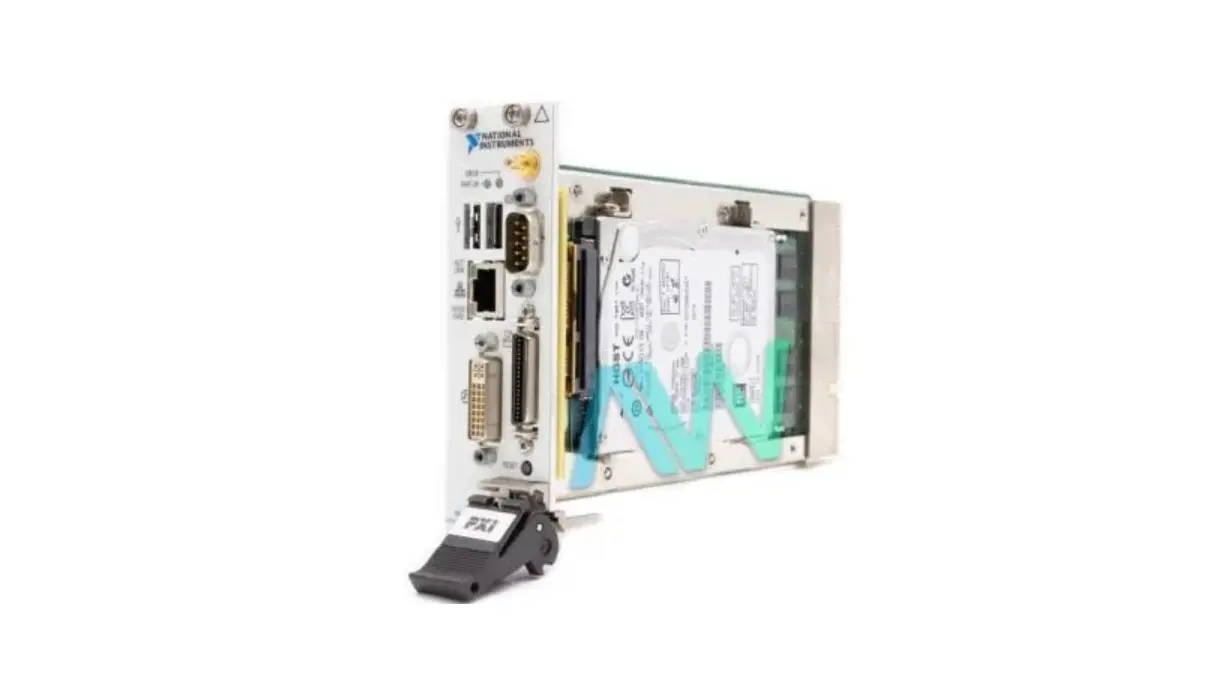
PXI-8105 Controller
Product Information: NI PXI-8105 Controller
The NI PXI-8105 is a system controller designed for installation
in a PXI chassis. It is used to control and manage PXI devices. The
controller comes with an installation guide and a user manual for
complete configuration and troubleshooting information. The manual
is available in PDF format on the recovery CD included with the
controller and on the National Instruments website.
Installation Instructions:
- Before installing the NI PXI-8105, plug in the chassis and make
sure the power switch is turned off. This grounds the chassis and
protects it from electrical damage. - Remove any panels blocking access to the system controller slot
(Slot 1) in the chassis. - Touch the metal part of the case to discharge any static
electricity on your clothes or body. - Remove the protective plastic covers from the four
bracket-retaining screws. - Ensure that the injector/ejector handle is in its downward
position. Align the NI PXI-8105 with the card guides on the top and
bottom of the system controller slot. - Hold the handle and slowly slide the module into the chassis
until it catches on the injector/ejector rail. - Raise the injector/ejector handle until the module firmly seats
into the backplane receptacle connectors. The front panel of the NI
PXI-8105 should be even with the front of the chassis. - Tighten the four bracket-retaining screws on the top and bottom
of the front panel to secure the NI PXI-8105 to the chassis. - Check the installation.
- Connect the keyboard and mouse to the USB connectors.
- Verify that the controller boots. If it does not boot, refer to
the “What If the NI PXI-8105 Does Not Boot?” section in the
guide.
Refer to Figure 2 for an illustration of the NI PXI-8105
controller installed in a PXI chassis.
Controller Removal Instructions:
- Turn off the power.
- Remove cables from the controller front panel.
- Remove the bracket-retaining screws in the front panel.
- Press the injector/ejector handle down.
- Slide the unit out of the chassis.
If you encounter any issues with the booting process of the NI
PXI-8105, refer to the troubleshooting section in the guide for
further assistance.
PXI-8105
INSTALLATION GUIDE
NI PXI-8105
This document contains information about installing the NI PXI-8105 controller in a PXI chassis. For complete configuration and troubleshooting information (including information about BIOS setup, adding RAM, etc.), refer to the NI PXI-8105 User Manual. The manual is in PDF format on the recovery CD included with the controller and on the National Instruments Web site, ni.com.
Installing the NI PXI-8105
This section contains general installation instructions for the NI PXI-8105. Consult the NI PXI-8105 User Manual for specific instructions and warnings. 1. Plug in the chassis before installing the NI PXI-8105. The power cord
grounds the chassis and protects it from electrical damage while you install the module. (Make sure the power switch is turned off.)
Caution To protect both yourself and the chassis from electrical hazards, leave the chassis off until you finish installing the NI PXI-8105 module.
2. Remove any panels blocking access to the system controller slot (Slot 1) in the chassis.
3. Touch the metal part of the case to discharge any static electricity that might be on your clothes or body.
4. Remove the protective plastic covers from the four bracket-retaining screws as shown in Figure 1.
5. Make sure the injector/ejector handle is in its downward position. Align the NI PXI-8105 with the card guides on the top and bottom of the system controller slot.
1
1 Protective Screw Cap (4X)
Figure 1. Removing Protective Screw Caps
Caution Do not raise the injector/ejector handle as you insert the NI PXI-8105. The module will not insert properly unless the handle is in its downward position so that it does not interfere with the injector rail on the chassis.
6. Hold the handle as you slowly slide the module into the chassis until the handle catches on the injector/ejector rail.
7. Raise the injector/ejector handle until the module firmly seats into the backplane receptacle connectors. The front panel of the NI PXI-8105 should be even with the front of the chassis.
8. Tighten the four bracket-retaining screws on the top and bottom of the front panel to secure the NI PXI-8105 to the chassis.
9. Check the installation. 10. Connect the keyboard and mouse to the USB connectors. If you are
using a PS/2 keyboard and a PS/2 mouse, use USB-to-PS/2 adapters to connect both to the USB connectors on the front panel. You may use a Y-splitter adapter to connect both keyboard and mouse to one USB port, leaving the other USB ports free for other peripherals, such as a CD-ROM drive, or secondary hard drive. National Instruments offers a Y-splitter adapter cable, part number 778713-02, available through the online catalog at ni.com/products. 11. Connect the DVI monitor video cable to the DVI connector. If you are using a VGA monitor, use the DVI-to-VGA adapter included with your kit. 12. Connect peripherals to ports as required by your system configuration. 13. Power on the display. Refer to the NI PXI-8105 User Manual for details. 14. Power on the chassis.
NI PXI-8105 Installation Guide
2
ni.com
15. Verify that the controller boots. If it does not boot, refer to the What If the NI PXI-8105 Does Not Boot? section later in this guide.
Figure 2 shows an NI PXI-8105 controller installed in the system controller slot of a National Instruments PXI-1042 chassis. You can place PXI devices in any other slot.
1
2
3
1 PXI-1042 Chassis 2 NI PXI-8105 Controller 3 Injector/Ejector Rail
Figure 2. NI PXI-8105 Installed in a PXI Chassis
How to Remove the Controller from the PXI Chassis
The NI PXI-8105 controllers are designed for easy handling. To remove the unit from the PXI chassis: 1. Turn off power. 2. Remove cables from the controller front panel. 3. Remove the bracket-retaining screws in the front panel. 4. Press the injector/ejector handle down. 5. Slide the unit out of the chassis.
What If the NI PXI-8105 Does Not Boot?
Things to Notice
Several problems can cause a controller not to boot. Here are some things to look for and possible solutions.
· Which LEDs come on? The Power OK LED should stay lit. The Drive LED should blink during boot as the disk is accessed.
· What appears on the display? Does it hang at some particular point (BIOS, Operating System, etc.)? If nothing appears on the screen, try a different monitor. Does your monitor work with a different PC? If it
© National Instruments Corporation
3
NI PXI-8105 Installation Guide
hangs, note the last screen output that you saw for reference when consulting National Instruments technical support.
· What has changed about the system? Did you recently move the system? Was there electrical storm activity? Did you recently add a new module, memory chip, or piece of software?
Things to Try
· Make sure the chassis is plugged in to a working power source. · Check any fuses or circuit breakers in the chassis or other power
supply (possibly an uninterruptible power supply). · Make sure the controller module is firmly seated in the chassis. · Remove all other modules from the chassis. · Remove any nonessential cables or devices. · Try the controller in a different chassis or a similar controller in this
same chassis. · Clear the CMOS. (Refer to the System CMOS section of the
NI PXI-8105 User Manual.) · Recover the hard drive on the controller. (Refer to the Hard Drive
Recovery section of the NI PXI-8105 User Manual.)
For more troubleshooting information, refer to the NI PXI-8105 User Manual. The manual is in PDF format on the recovery CD included with your controller and on the National Instruments Web site, ni.com.
What If I Can’t See The Video?
This problem usually results from having the video card output set past the limits of the monitor. You will need to boot Windows in Safe Mode. To do this, reboot the controller. As Windows begins to boot, hold down <F8>. You should now be able to reset the video driver to lower settings. Try setting the resolution to 640 × 480 and the refresh rate to 60 Hz. Once you reboot, you can raise these values again, using the test option in Windows. These settings are accessible through the Advanced tab of the Display item in the Control Panel. Alternately, you can try a different monitor, preferably a newer and larger one.
If the system has been booted to Windows without a monitor attached, the driver may have defaulted to the video output connector being disabled. Press <Ctrl-Alt-F1> to re-enable the video display in Windows. Press <Ctrl-Alt-F4> to re-enable a DVI display. For more information, refer to KnowledgeBase 3OHCFRD8 at ni.com/support.
National Instruments, NI, ni.com, and LabVIEW are trademarks of National Instruments Corporation. Refer to the Terms of Use section on ni.com/legal for more information about National Instruments trademarks. Other product and company names mentioned herein are trademarks or trade names of their respective companies. For patents covering National Instruments products, refer to the appropriate location: Help»Patents in your software, the patents.txt file on your CD, or ni.com/patents.
© 2006 National Instruments Corporation. All rights reserved.
371825A-01
Feb06
 Engineer Ambitiously - NI
 PXI-8105 National Instruments PXI Controller | Apex Waves