USB-6210 NI-DAQmx and DAQ Device
Product Information: USB-6210
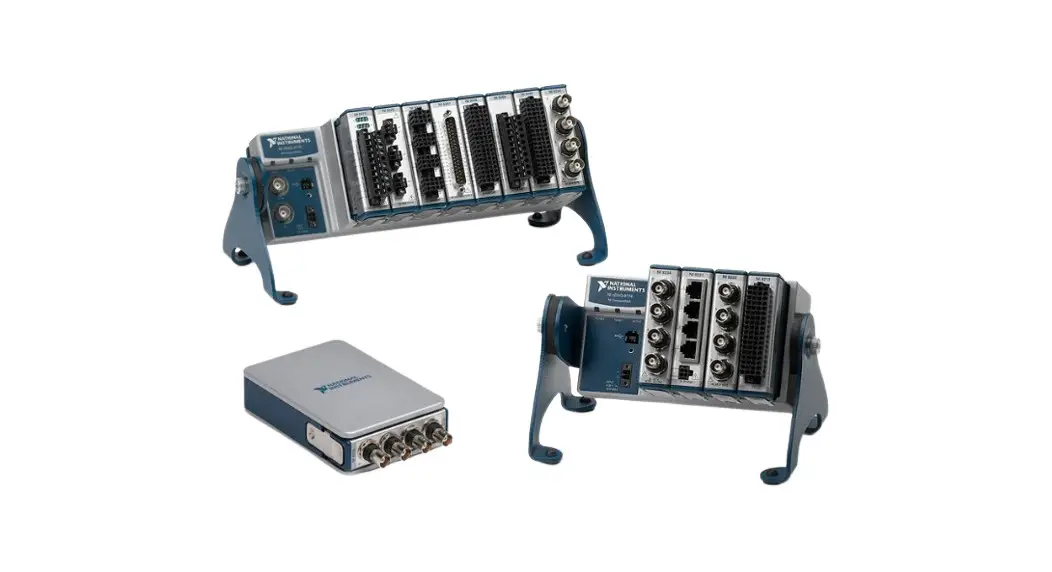
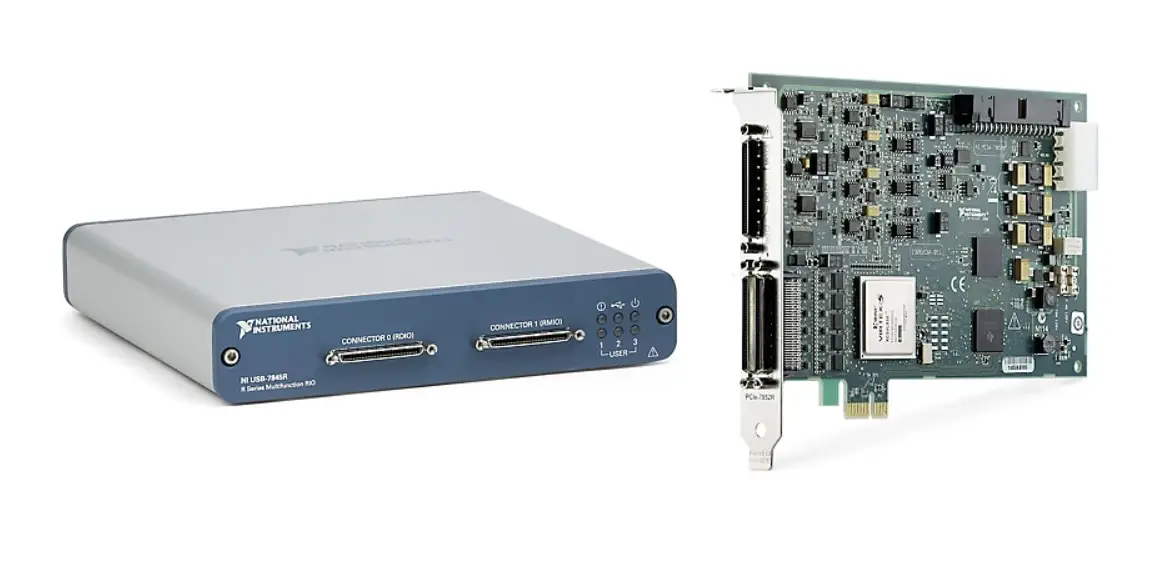
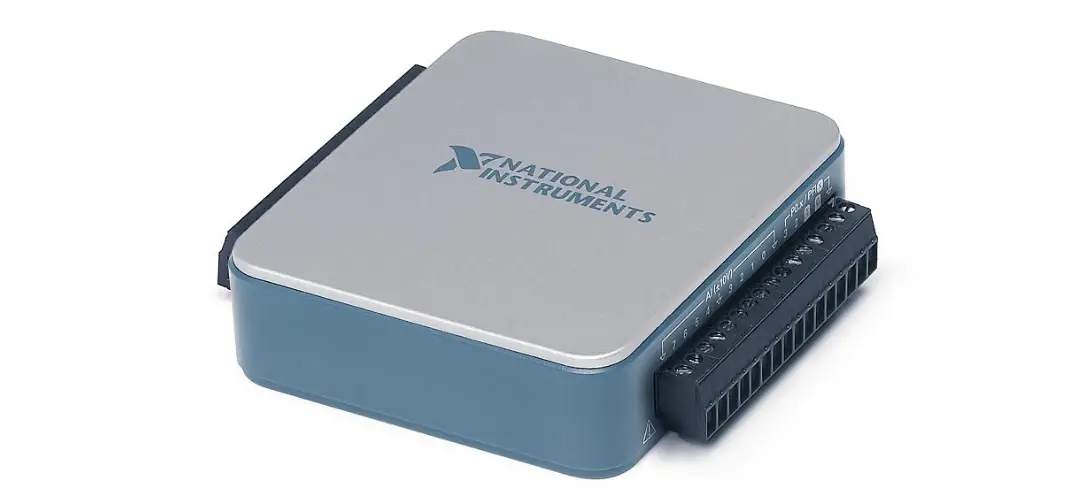
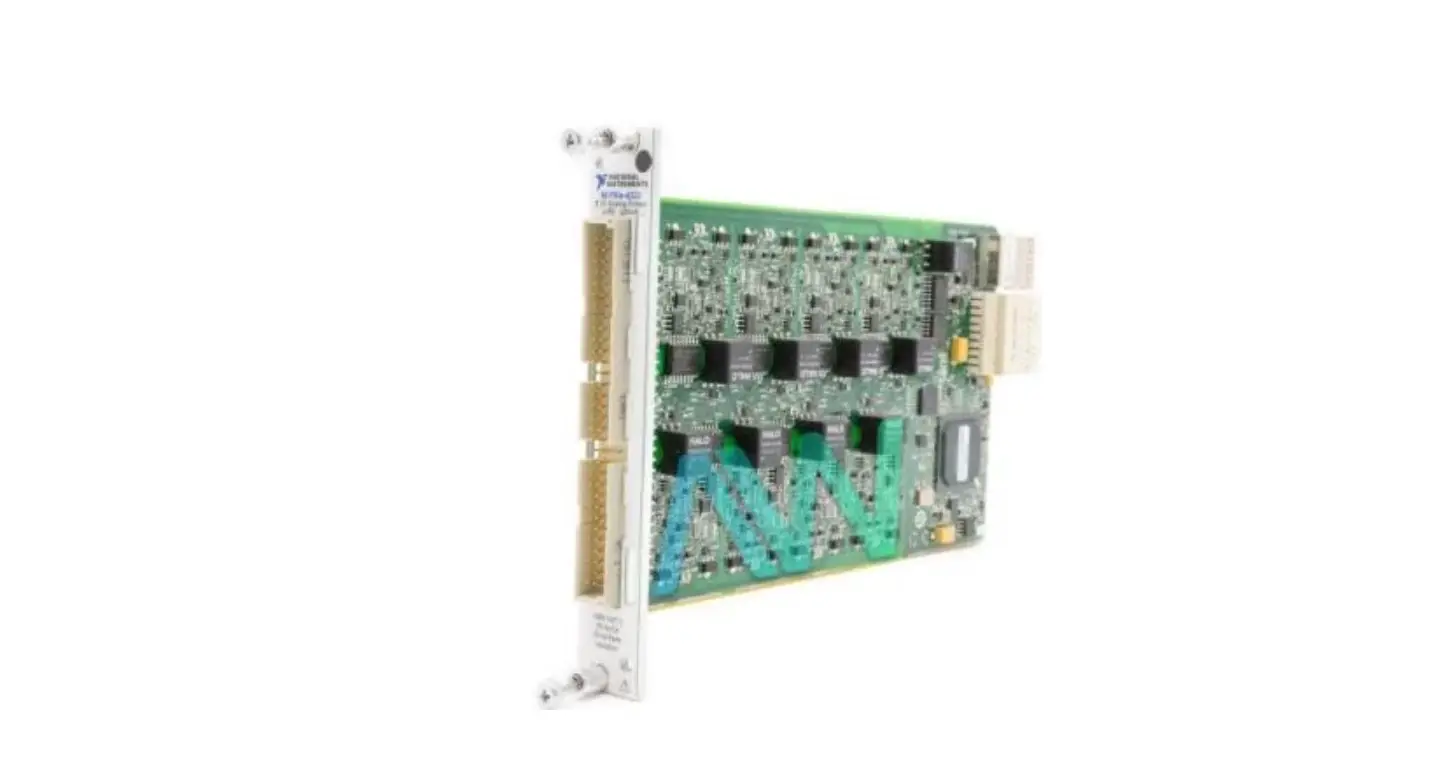
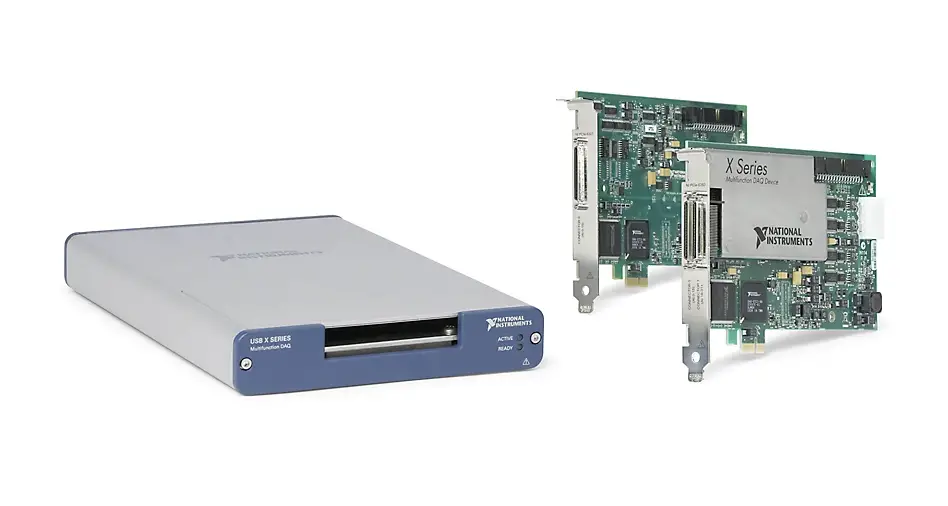
The USB-6210 is a DAQ (Data Acquisition) device manufactured by
National Instruments. It is designed to provide high-quality analog
and digital I/O for computer-based measurement and control systems.
The device is compatible with NI-DAQmx software and can be used
with various application development environments (ADE) such as NI
LabVIEW, ANSI C, or Visual Basic .NET.
The USB-6210 features a Universal Serial Bus (USB) interface,
making it easy to connect to a computer. It supports both analog
and digital I/O, allowing users to acquire and generate signals
with precision. The device is static sensitive and should be
handled and connected with proper grounding to prevent damage.
For detailed safety, compliance, and usage information, refer to
the device documentation available at ni.com/manuals or on the NI-DAQmx
software media.
Product Usage Instructions
- Install Application Software:
- Before installing new hardware, install NI application software
such as NI LabVIEW or another ADE like ANSI C or Visual Basic
.NET. - Refer to the NI-DAQmx Readme on the software media for
supported application software and ADE versions. - Back up any applications before upgrading software or modifying
the application.
- Before installing new hardware, install NI application software
- Install NI-DAQmx:
- Install NI-DAQmx driver software before installing new hardware
devices so Windows can detect them. - If the NI-DAQmx installer does not open automatically, select
it from the software media. - If you encounter problems during software installation, visit
ni.com/support/daqmx
for assistance.
- Install NI-DAQmx driver software before installing new hardware
- Unpack and Install the Devices, Accessories, and Cables:
- Remove the packaging and inspect the device. Contact NI if the
device is damaged and do not install a damaged device. - If you have multiple DAQ devices, install them all following
the procedure for your device type. If SCXI modules are included in
your system, install the DAQ components first. - Ensure proper grounding of yourself and the equipment when
handling or connecting the device due to its static
sensitivity.
- Remove the packaging and inspect the device. Contact NI if the
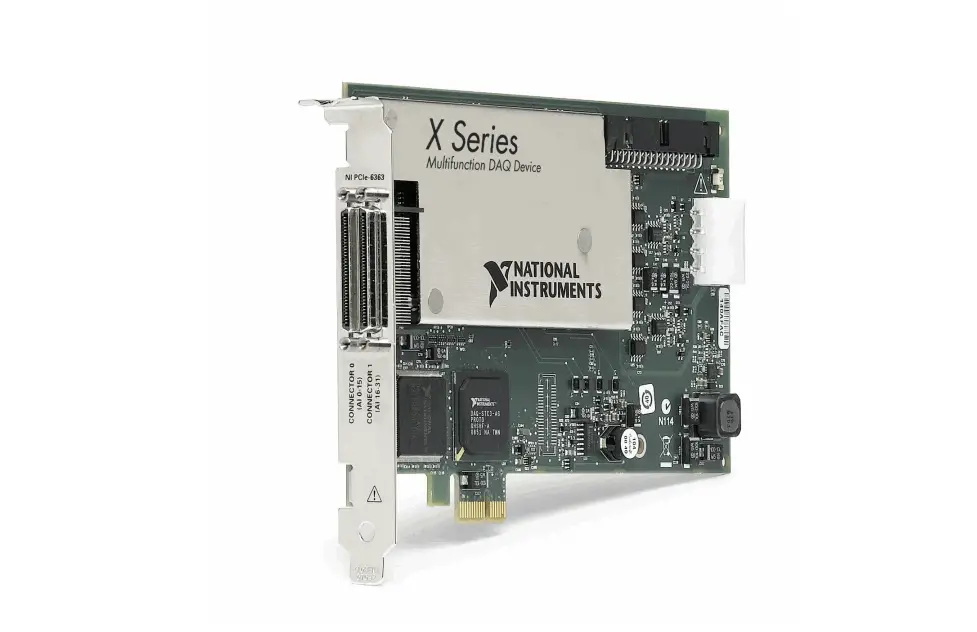
- PCI and PCI Express Devices:
- Follow these steps to install a PCI and PCI Express
device:
- Power off and unplug the computer.
- Remove the computer cover and/or the expansion slot cover.
- Touch any metal part of the computer to discharge static
electricity. - Insert the device into the applicable PCI/PCI Express system
slot gently. Do not force it into place. - Secure the device mounting bracket to the computer back panel
rail. - (Optional) Connect the PC and the device disk drive power
connectors for NI M and X Series PCI Express devices. Refer to the
device user manual for instructions on when to use the disk drive
power connector. - Replace the computer cover if applicable.
- Plug in and power on your computer.
- Follow these steps to install a PCI and PCI Express
Connecting or disconnecting the disk drive power connector may
affect the analog performance of the PCI Express device. NI
recommends self-calibrating the PCI Express DAQ device in MAX after
connecting or disconnecting the disk drive power connector. Refer
to the DAQ Getting Started Guide available online at ni.com/manuals for more
information.
USB-6210
READ ME FIRST
NI-DAQmxTM and DAQ Device Installation Guide
Install your software before installing new hardware.
Install Application Software
Install NI application software, such as NI LabVIEW, or another application development environment (ADE), such as ANSI C or Visual Basic .NET. Refer to the NI-DAQmx Readme on the software media for supported application software and ADE versions.
Back up any applications before upgrading software or modifying the application.
Install NI-DAQmx
Install NI-DAQmx driver software before installing new hardware devices so Windows can detect them. 1. Insert the software media. If the NI-DAQmx installer does not open automatically, select
Start»Run. Enter x:autorun.exe, where x is the drive letter. Complete the instructions. 2. Register your NI hardware online at ni.com/register when prompted. 3. The last dialog box opens with the following options.
· Restart Later to install more NI software or documentation. If you are using a MXI-3 link from a PC to control a PXI chassis, exit and install the MXI-3 software, available at ni.com/downloads, before using the DAQ device.
· Shut Down or Restart if you are ready to install your device. · Restart if you are using a system running the LabVIEW Real-Time Module.
Download NI-DAQmx to the target using MAX. Refer to the MAX Remote Systems Help by selecting Help»Help Topics»Remote Systems in MAX.
If you have problems installing your software, go to ni.com/support/daqmx.
Unpack and Install the Devices, Accessories, and Cables
Remove the packaging and inspect the device. Contact NI if the device is damaged. Do not install a damaged device.
If you have more than one DAQ device to install, install them all now using the procedure for your device type. If your system includes SCXI modules to connect to DAQ devices, first install the DAQ components.
Caution The device is static sensitive. Always properly ground yourself and the equipment when handling or connecting the device.
For safety and compliance information, refer to the device documentation, available at ni.com/ manuals or on the NI-DAQmx software media.
The following symbols may be on your device. This icon denotes a caution, which advises you of precautions to take to avoid injury, data loss, or a system crash. When this symbol is marked on the device, refer to the Read Me First: Safety and Electromagnetic Compatibility document for precautions to take. When this symbol is marked on a product, it denotes a warning advising you to take precautions to avoid electrical shock. When this symbol is marked on a product, it denotes a component that may be hot. Touching this component may result in bodily injury.
PCI and PCI Express Devices
Complete the following steps to install a PCI and PCI Express device: 1. Power off and unplug the computer. 2. Remove the computer cover and/or the expansion slot cover. 3. Touch any metal part of the computer to discharge any static electricity.
Figure 1. Installing a PCI/PCI Express Device
3
1 2
1. PCI/PCI Express DAQ Device 2. PCI/PCI Express System Slot
3. PC with PCI/PCI Express Slot
2 | ni.com | NI-DAQmx and DAQ Device Installation Guide Read Me First
4. Insert the device into the applicable PCI/PCI Express system slot. Gently rock the device into place. Do not force the device into place. Per the PCI standard, NI PCI DAQ devices with the Universal PCI connector are supported in PCI-compliant buses, including PCI-X. You cannot install PCI Express devices in PCI slots and vice versa. PCI Express devices support up-plugging into a PCI Express slot of higher lane width. For guidelines, refer to ni.com/pciexpress.
5. Secure the device mounting bracket to the computer back panel rail. 6. (Optional) On NI M and X Series PCI Express devices, such as the NI PCIe-625x/635x,
connect the PC and the device disk drive power connectors. Refer to the device user manual for when to use the disk drive power connector. Use a disk drive power connector that is not in the same power chain as the hard drive.
Figure 2. Attaching Disk Drive Power to the PCI Express Device
2 1
1. Device Disk Drive Power Connector
2. PC Disk Drive Power Connector
Connecting or disconnecting the disk drive power connector can affect the analog performance of your device. To compensate for this, NI recommends that you self-calibrate the PCI Express DAQ device in MAX after connecting or disconnecting the disk drive power connector; refer to the DAQ Getting Started Guide available online at ni.com/ manuals. 7. Replace the computer cover, if applicable. 8. Plug in and power on your computer.
PXI and PXI Express Devices
Complete the following steps to install a PXI and PXI Express device: 1. Power off and unplug the PXI/PXI Express chassis. Refer to your chassis manual to install
or configure the chassis.
Caution Refer to the Read Me First: Safety and Electromagnetic Compatibility with your PXI/PXI Express chassis or device before removing covers or connecting or disconnecting signal wires.
NI-DAQmx and DAQ Device Installation Guide Read Me First | © National Instruments | 3
Figure 3. Installing a PXI/PXI Express Device in the Chassis
1
2
PXI-1000B
7
3
4
1. PXI/PXI Express Chassis 2. PXI/PXI Express System Controller 3. PXI/PXI Express Module 4. Injector/Ejector Handle
6 5
5. Front-Panel Mounting Screws 6. Module Guides 7. Power Switch
2. Identify a supported PXI/PXI Express slot in the chassis. Some devices have PXI/PXI Express slot requirements; for information, refer to the device documentation.
Figure 4. Symbols for PXI Express/PXI Express Hybrid/PXI Slots
NI PXIe-1062Q
1
2
3
4
1. PXI Express System Controller Slot 2. PXI Express Peripheral Slot
3. PXI Express Hybrid Peripheral Slot 4. PXI Express System Timing Slot
If you are using a PXI Express chassis, you can place PXI devices in the PXI slots. If a PXI device is hybrid slot compatible, you can use the PXI Express Hybrid slots. PXI Express devices can be placed only in PXI Express slots and PXI Express Hybrid slots. Refer to the chassis documentation for details. 3. Remove the filler panel of an unused PXI/PXI Express slot.
4. Touch any metal part of the chassis to discharge static electricity. 5. Ensure that the PXI/PXI Express module injector/ejector handle is not latched and swings
freely. 6. Place the PXI/PXI Express module edges into the module guides at the top and bottom of
the chassis.
7. Slide the device into the PXI/PXI Express slot to the rear of the chassis. 8. When you begin to feel resistance, pull up on the injector/ejector handle to latch the device. 9. Secure the device front panel to the chassis using the front-panel mounting screws.
10. Plug in and power on your PXI/PXI Express chassis.
4 | ni.com | NI-DAQmx and DAQ Device Installation Guide Read Me First
Windows Device Recognition
Windows versions earlier than Windows Vista recognize newly installed devices when the computer restarts. Vista installs device software automatically. If the Found New Hardware wizard opens, Install the software automatically is recommended for each device.
NI Device Monitor
After Windows detects newly installed NI devices, NI Device Monitor runs automatically at startup.
Make sure the NI Device Monitor icon, shown at left, is visible in the taskbar notification area. Otherwise, the NI Device Monitor does not open. To turn the NI Device Monitor on, unplug your device, restart NI Device Monitor, and plug in your device. Launch NI Device Monitor from the Start menu, (Windows 8) from NI Launcher, or (Windows 10) from the All Apps menu.
The NI Device Monitor prompts you to select from the following options. These options may vary, depending on the devices and software installed on your system. · Begin an application with this device–Launches LabVIEW. Choose this option if you
have already configured your device in MAX. · Configure and test this device–Opens MAX. · Test this device–Launches MAX test panels for your device. · Launch Instruments & Apps for this device–Launches NI ELVISmx Instrument
Launcher. This option only appears if your device supports NI ELVISmx. · Do nothing–Recognizes your device but does not launch an application.
The following features are available by clicking the NI Device Monitor icon and then clicking the Settings icon at the top right corner of the panel: · Run at startup–Runs NI Device Monitor at system startup (default). · Prevent all notifications–Prevents future notifications for any device. · Reset Default Actions–Clears all actions set by the Always Do This option and restores
factory default settings. · Exit–Turns off NI Device Monitor. To turn on NI Device Monitor, launch NI Device
Monitor from the Start menu, (Windows 8) from NI Launcher, or (Windows 10) from the All Apps menu.
Accessories
Install accessories and/or terminal blocks according to the instructions in their installation guides. For SCXI and SCC signal conditioning systems, continue with the instructions in the DAQ Getting Started Guide.
NI-DAQmx and DAQ Device Installation Guide Read Me First | © National Instruments | 5
Troubleshooting
If you have problems installing your software, go to ni.com/support/daqmx. For hardware troubleshooting, go to ni.com/support and enter your device name, or go to ni.com/kb.
If you need to return your National Instruments hardware for repair or device calibration, go to ni.com/info and enter rdsenn to start the Return Merchandise Authorization (RMA) process.
Go to ni.com/info and enter rddq8x for a complete listing of the NI-DAQmx documents and their locations.
Next Step
To confirm your device is working properly and start your application, refer to the DAQ Getting Started Guide available online at ni.com/manuals. Additional resources are online at ni.com/gettingstarted.
You can find device terminal/pinout locations in MAX, the NI-DAQmx Help, or the device documentation. In MAX, right-click the device name under Devices and Interfaces, and select Device Pinouts.
Refer to the NI Trademarks and Logo Guidelines at ni.com/trademarks for more information on National Instruments trademarks. Other product and company names mentioned herein are trademarks or trade names of their respective companies. For patents covering National Instruments products/technology, refer to the appropriate location: Help»Patents in your software, the patents.txt file on your media, or the National Instruments Patents Notice at ni.com/patents. You can find information about end-user license agreements (EULAs) and third-party legal notices in the readme file for your NI product. Refer to the Export Compliance Information at ni.com/legal/export-compliance for the National Instruments global trade compliance policy and how to obtain relevant HTS codes, ECCNs, and other import/export data. NI MAKES NO EXPRESS OR IMPLIED WARRANTIES AS TO THE ACCURACY OF THE INFORMATION CONTAINED HEREIN AND SHALL NOT BE LIABLE FOR ANY ERRORS. U.S. Government Customers: The data contained in this manual was developed at private expense and is subject to the applicable limited rights and restricted data rights as set forth in FAR 52.227-14, DFAR 252.227-7014, and DFAR 252.227-7015.
© 20032016 National Instruments. All rights reserved.
373235AA-01
Feb16
References
 Engineer Ambitiously - NI
-
Engineer Ambitiously - NI
-
Software and Driver Downloads - NI
-
NI Learning Center - NI
-
Using Info Codes - NI
-
Search Results - NI
-
Trade Compliance - NI
-
Product Documentation - NI
-
National Instruments Patents - NI
-
Shop - NI
-
Log In - National Instruments
-
Support - NI
-
NI-DAQ™mx Download - NI
-
NI Trademarks and Logo Guidelines - NI
 USB-6210 National Instruments Multifunction I/O Device | Apex Waves
 Engineer Ambitiously - NI
 USB-6210 National Instruments Multifunction I/O Device | Apex Waves