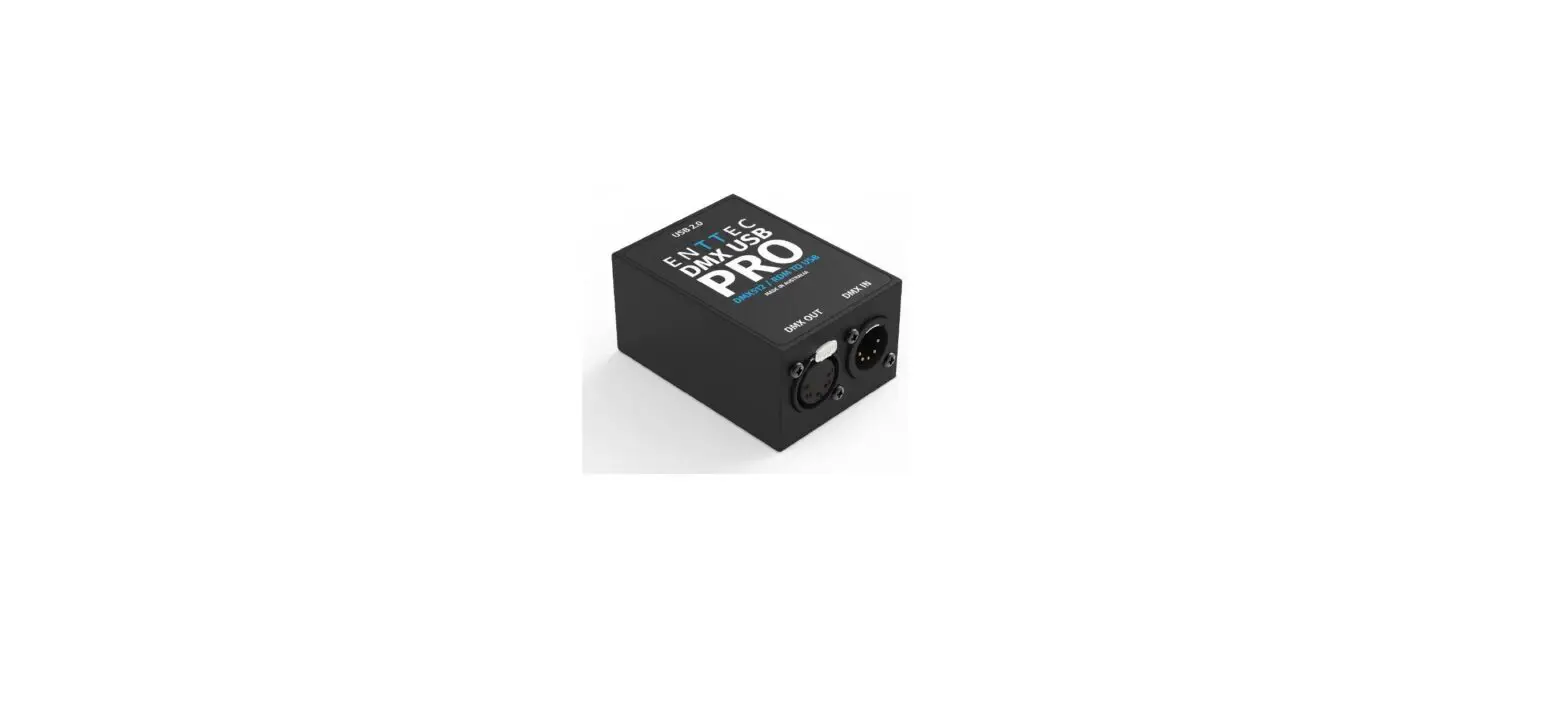
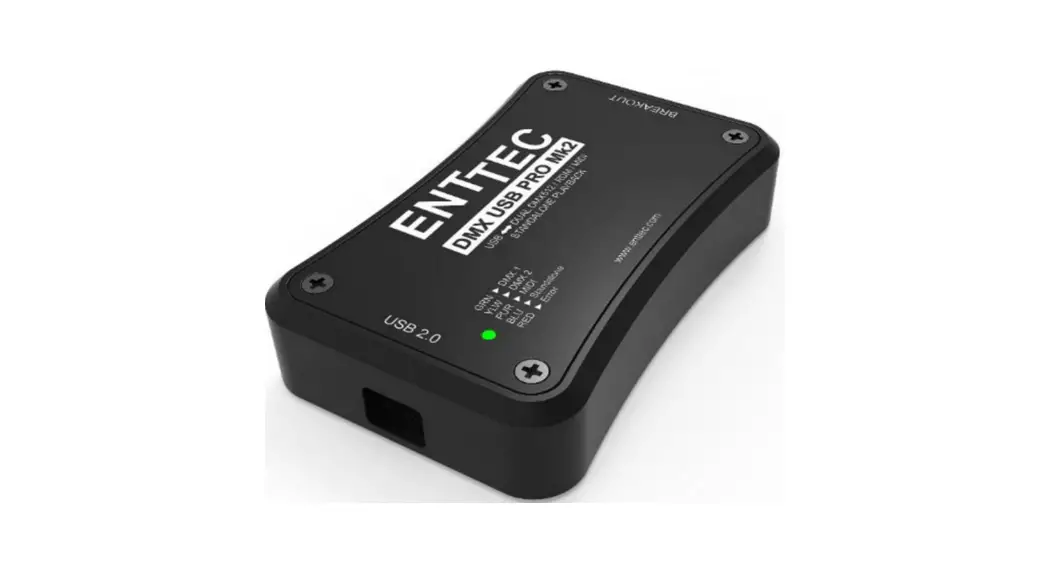
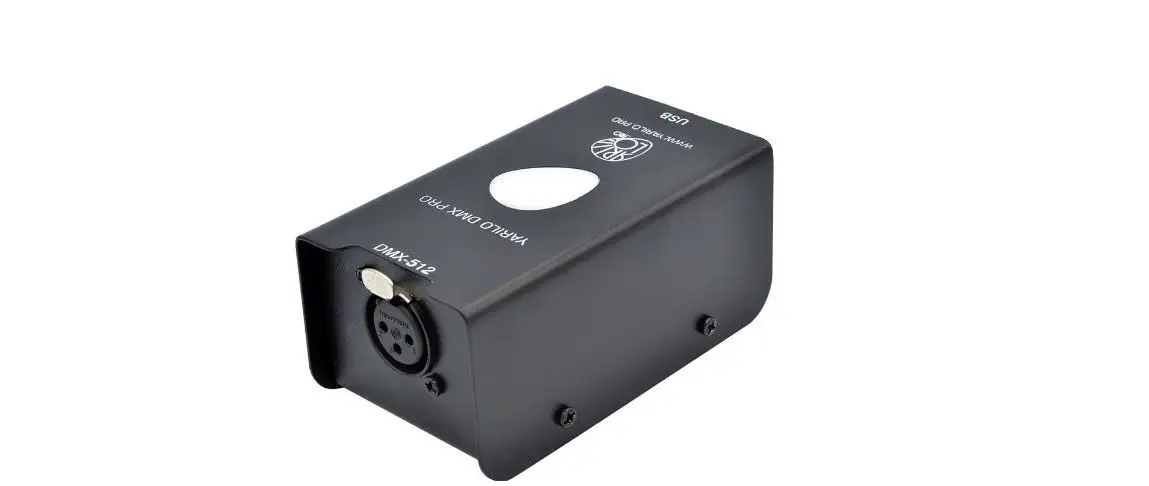
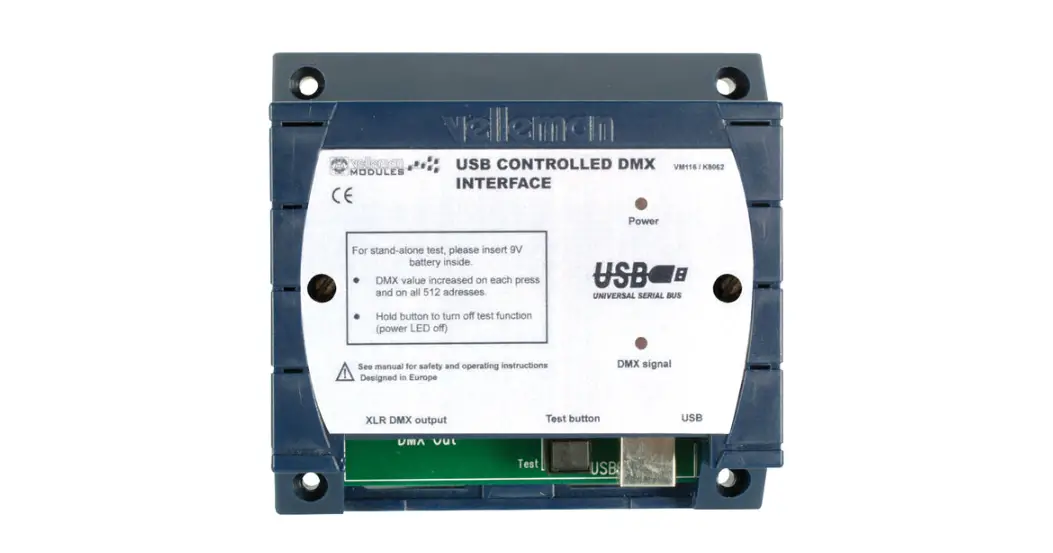
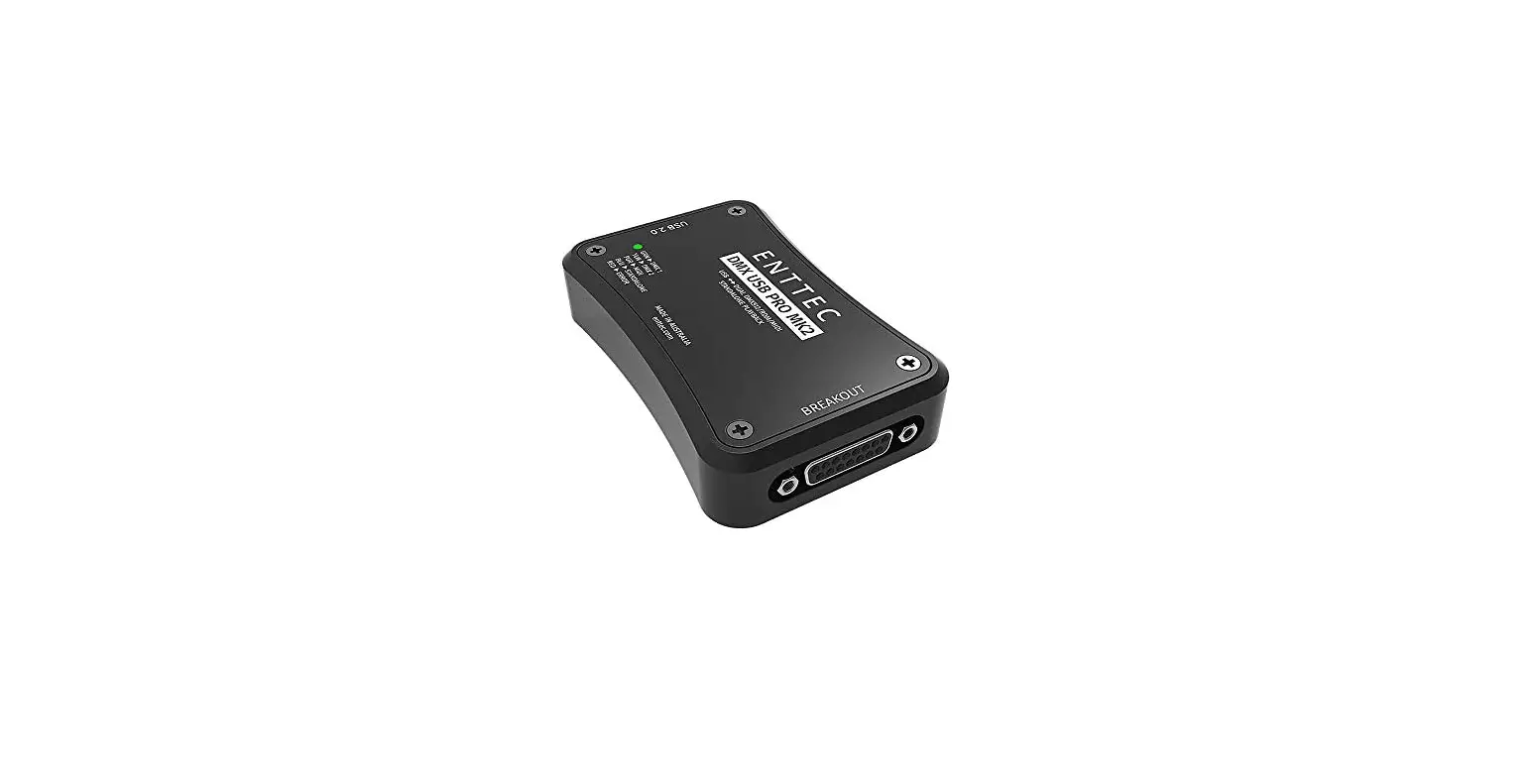
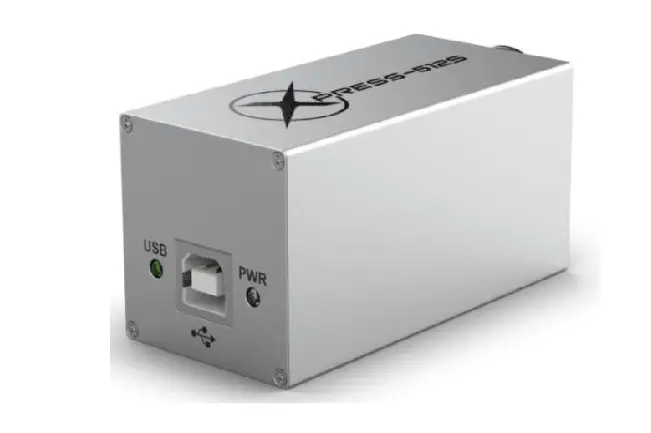
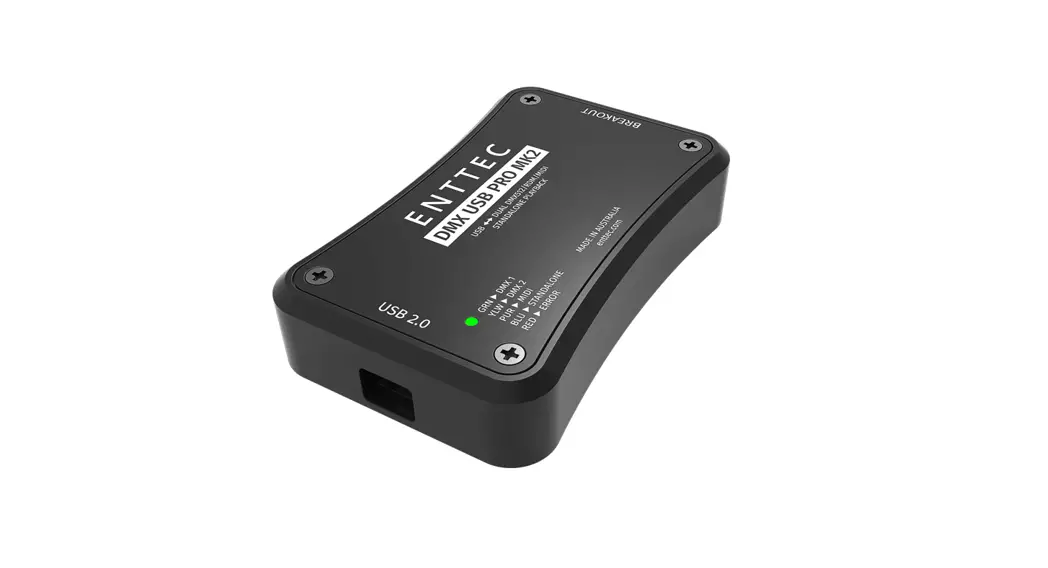
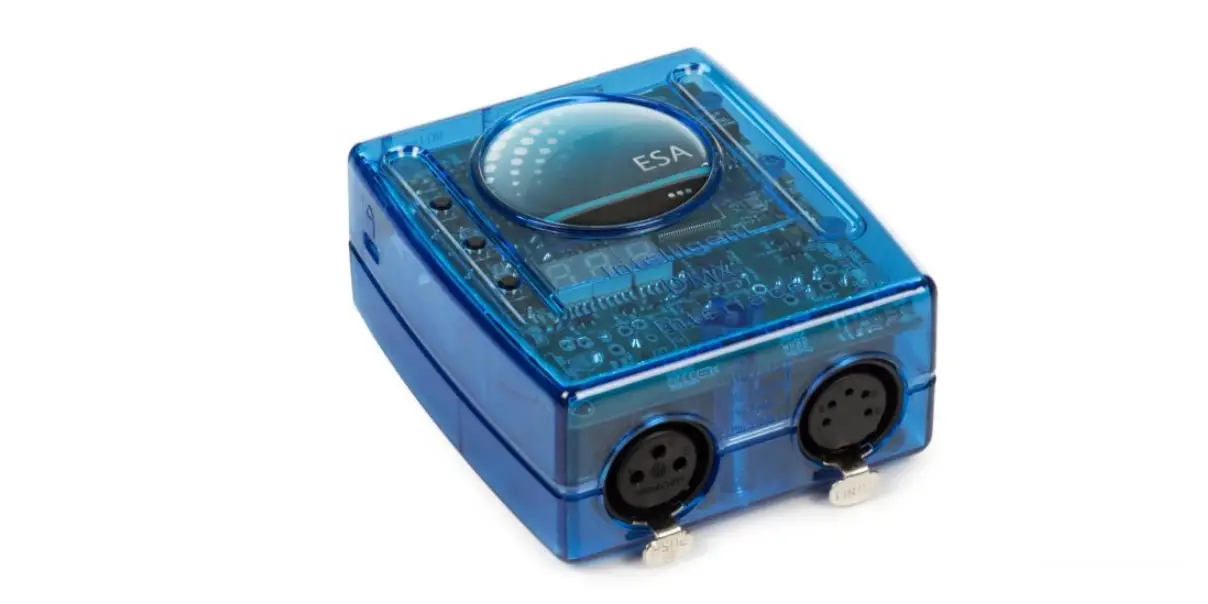
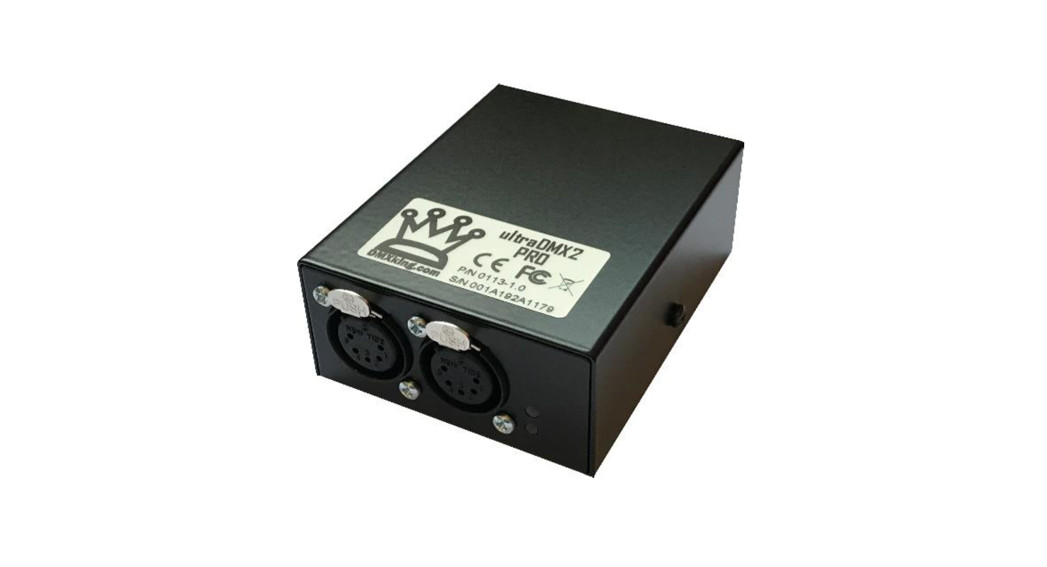
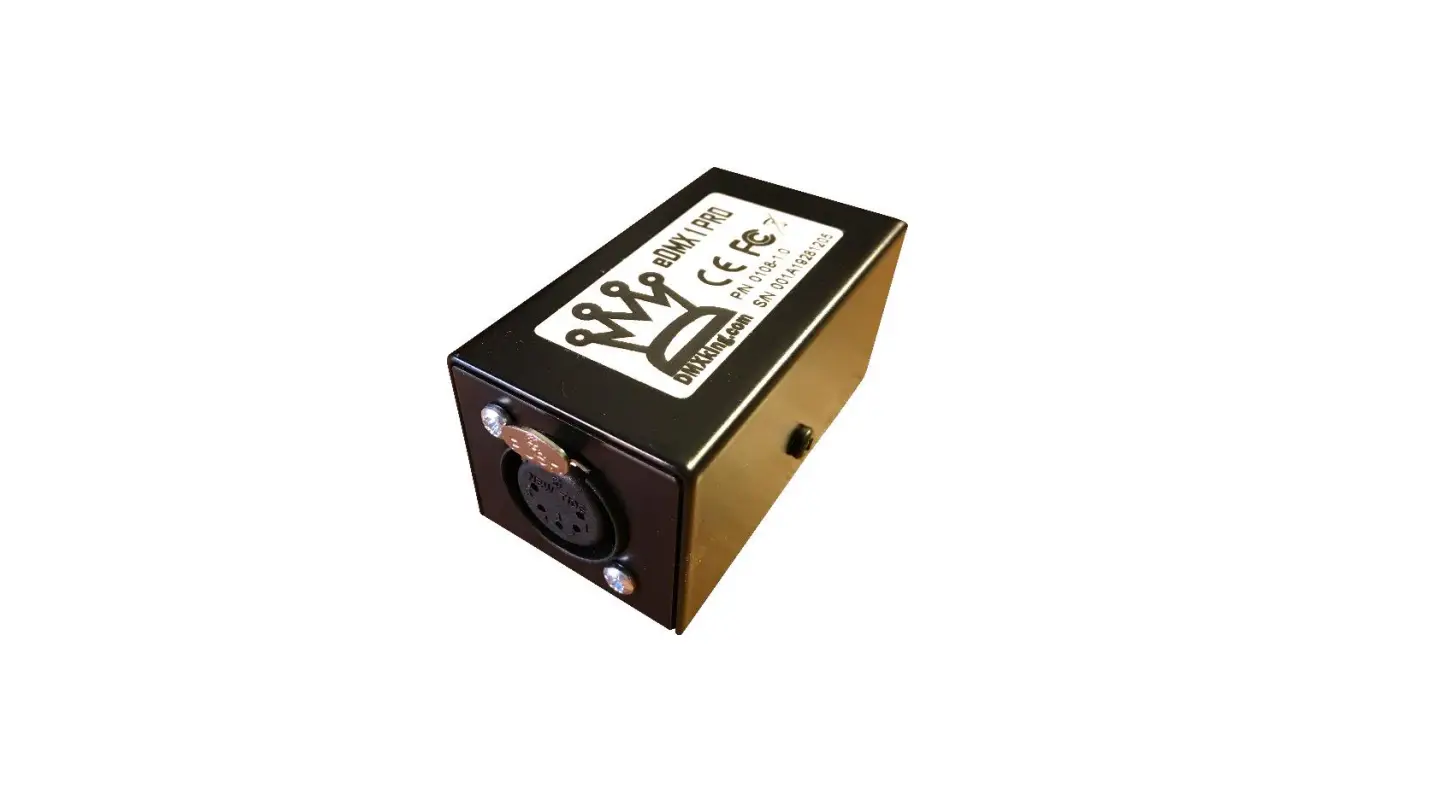
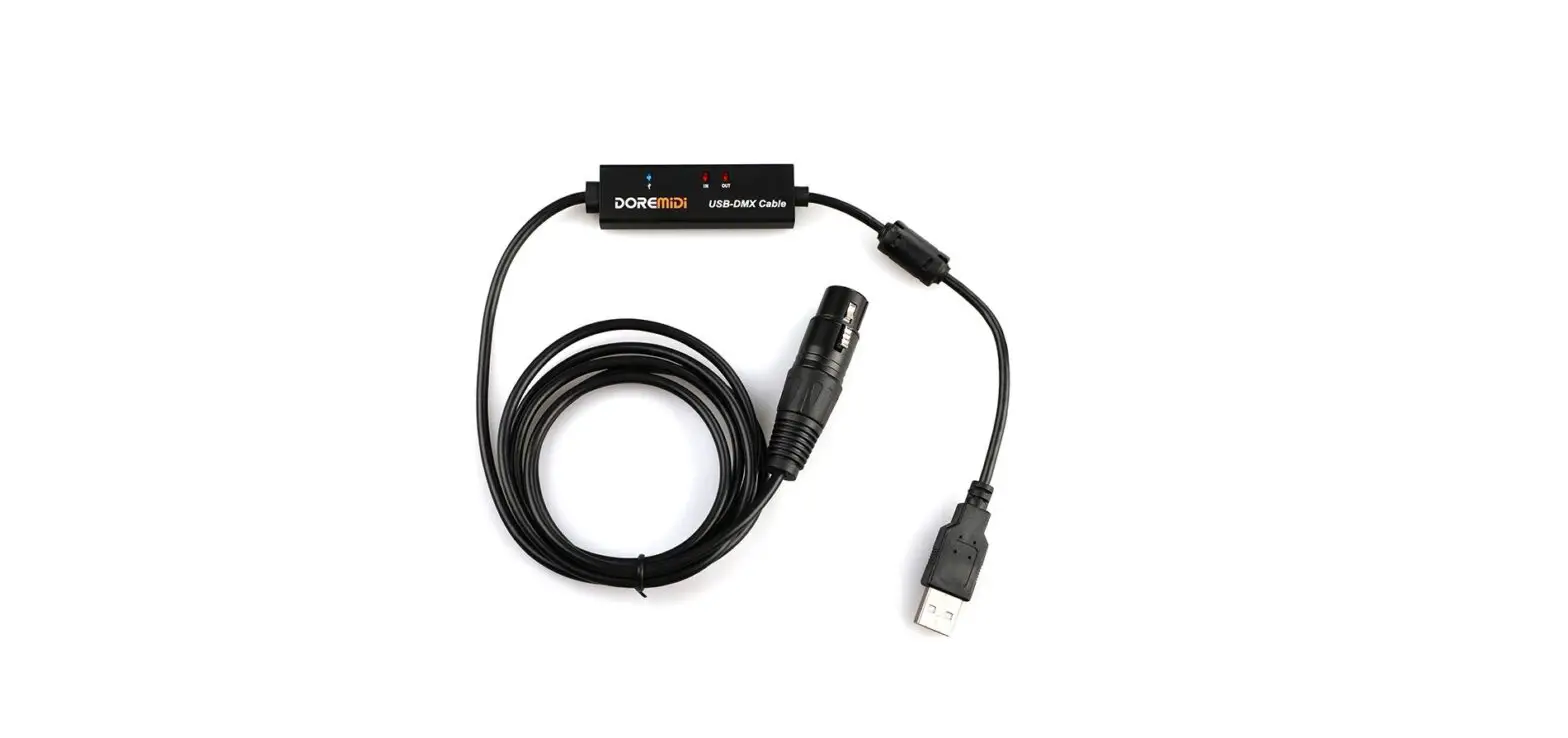
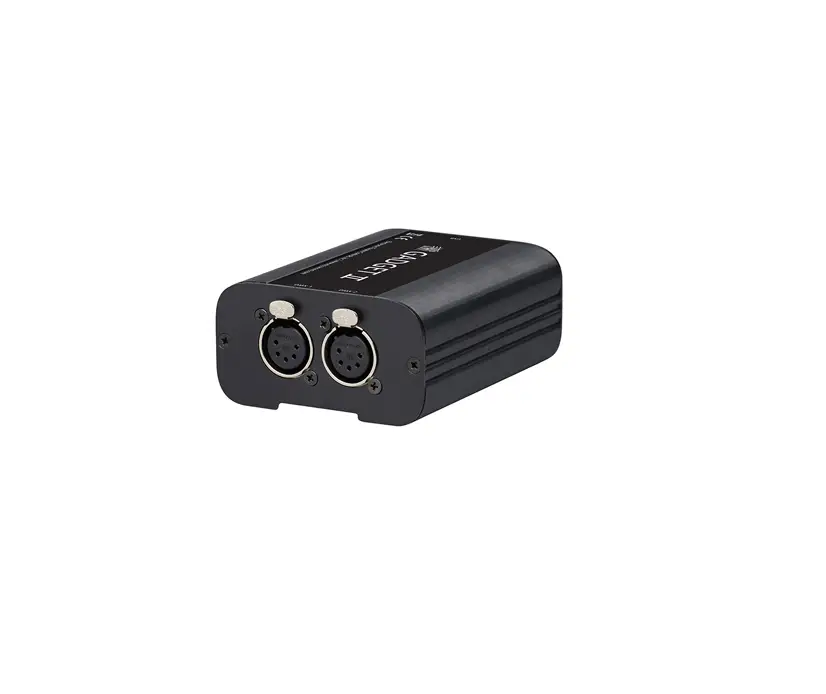
K8062 USB Controlled DMX Interface
Product Information:
- Product Name: USB Controlled DMX interface
- Model Number: H8062IP-1 / K8062
- Total Solder Points: 117
- Difficulty Level: Beginner 1-5 (1 being the easiest, 5 being
the most advanced) - Features and Specifications:
- Control DMX fixtures using a PC and USB interface
- Included test software and DMX Light Player software
- DLL provided for writing your own software
- Stand-alone test function with adjustable levels
- Connected and powered through USB
- 512 DMX channels with 256 levels each
- 3-pin XLR-DMX output connector
- Windows 98SE or higher compatible
- DLL included for writing your own software
- Optional 9V battery needed for stand-alone test mode
- Solid state – fuse protection on DMX output
- Dimensions: 106 x 101 x 44.5mm (4.2 x 4.0 x 1.75)
- Kit Includes:
- Enclosure
- USB cable
- CD with test software, DLL for own developments, free DMX light
player*
*If not included, check our website http://www.velleman.be
- FCC Compliance:
This device complies with Part 15 of the FCC Rules provided the
enclosed instructions are followed to the letter. Use of the device
is subject to the following conditions: (1) this device must not
cause harmful interference and (2) the operation of this device
should not be influenced by unwanted interference. More information
about FCC can be found at http://www.fcc.gov
Product Usage Instructions:
- Assembly Hints:
- Make sure you have the right tools:
- A good quality soldering iron (25-40W) with a small tip
- Wet sponge or cloth for cleaning the soldering iron
- Thin raisin-core solder (no flux or grease)
- Diagonal cutter for trimming excess wires
- Needle nose pliers for bending leads or holding components
- Small blade and Phillips screwdrivers
- Basic multi-meter (if required for specific projects)
- Follow the instructions carefully:
- Read and understand the entire step before performing each
operation - Perform the assembly in the correct order as stated in the
manual - Position all parts on the PCB (Printed Circuit Board) as shown
on the drawings - Values on the circuit diagram are subject to changes. Refer to
the assembly guide for correct values.
- Read and understand the entire step before performing each
- Soldering Hints:
- Mount the component against the PCB surface and carefully
solder the leads
- Mount the component against the PCB surface and carefully
Please note: Always look for possible last minute manual
updates, indicated as ‘NOTE’ on a separate leaflet. Typographical
inaccuracies are excluded.
USB Controlled DMX interface
StCcaohnnadnt-ranolelolDnseMattXeasfittxifmtuiunenrte,ceswtrifoiuatnhcseitna.hdgajtuaosPtuaCtbpaluentsdleaUvleSll5Bs1. 2
Total solder points: 117 Difficulty level: beginner 1 2 3 4 5 advanced
H8062IP-1
K8062
Features & specifications
Features : This unit can control DMX fixtures using a PC and USB interface Test software and “DMX Light Player” software is included, a DLL is provided
to write you own software Furthermore there is a stand-alone test function that outputs all 512 channels
at a time, with adjustable levels
Specifications : Connected and powered through USB 512 DMX channels with 256 levels each 3 pin XLR–DMX output connector Windows 98SE or higher compatible DLL included to write your own software Optional 9V battery needed for stand alone test mode Solid state – fuse protection on DMX output Dimensions: 106 x 101 x 44.5mm (4.2″ x 4.0″ x 1.75″) *If a DMX terminator is used, you will also need a USB hub (e.g. our PCUSB3)
Kit includes:
Enclosure USB cable CD with: test software, DLL for own developments, free DMX light player* * If not included, check our website http:\www.velleman.be
This device complies with Part 15 of the FCC Rules provided the enclosed instructions are followed to the letter. Use of the device is subject to the following conditions: (1) this device must not cause harmful interference and (2) the operation of this device should not be influenced by unwanted interference. More information about FCC can be look at http://www.fcc.gov
2
Assembly hints
1. Assembly (Skipping this can lead to troubles ! ) Ok, so we have your attention. These hints will help you to make this project successful. Read them carefully.
1.1 Make sure you have the right tools:
A good quality soldering iron (25-40W) with a small tip.
Wipe it often on a wet sponge or cloth, to keep it clean; then apply solder to the tip, to give it a wet look. This is called `thinning’ and will protect the tip, and enables you to make good connections. When solder rolls off the tip, it needs cleaning.
Thin raisin-core solder. Do not use any flux or grease.
A diagonal cutter to trim excess wires. To avoid injury when cutting excess leads, hold the lead so they cannot fly towards the eyes.
Needle nose pliers, for bending leads, or to hold components in place.
Small blade and Phillips screwdrivers. A basic range is fine.
For some projects, a basic multi-meter is required, or might 0.000 be handy
1.2 Assembly Hints :
Make sure the skill level matches your experience, to avoid disappointments. Follow the instructions carefully. Read and understand the entire step before
you perform each operation. Perform the assembly in the correct order as stated in this manual Position all parts on the PCB (Printed Circuit Board) as shown on the draw-
ings. Values on the circuit diagram are subject to changes. Values in this assembly guide are correct*
3
Assembly hints Use the check-boxes to mark your progress. Please read the included information on safety and customer service * Typographical inaccuracies excluded. Always look for possible last minute manual updates, indicated as `NOTE’ on a separate leaflet. 1.3 Soldering Hints : 1- Mount the component against the PCB surface and carefully solder the leads
2- Make sure the solder joints are cone-shaped and shiny
3- Trim excess leads as close as possible to the solder joint
AXIAL COMPONENTS ARE TAPED IN THE CORRECT MOUNTING SEQUENCE !
REMOVE THEM FROM THE TAPE ONE AT A
TIME !
You will find the colour code for the resistances on our
website: http://www.velleman.be/common/service.aspx
4
1. Diode (check the polarity)
D… CATHODE
D1 : 1N4148 2. Zener diodes (check the polarity)
ZD… CATHODE
ZD1 : 6,2V (6V2) ZD2 : 6,2V (6V2) 3. 1/4W Resistors.
R…
1.DRRi12ode:: s11(00cKKheck((11th–e00p–o33la–riBBty)) ) R3 : 1K5 (1 – 5 – 2 – B) R4 : 470 (4 – 7 – 1 – B) R5 : 1K5 (1 – 5 – 2 – B) R6 : 1K5 (1 – 5 – 2 – B) R7 : 2K2 (2 – 2 – 2 – B) R8 : 470 (4 – 7 – 1 – B)
R9 will not be mounted
4. IC sockets
Construction
IC1 : 8P IC2 : 28P
5. Capacitors
c…
C1 : 33pF C2 : 33pF C3 : 100n C4 : 100n C5 : 100n C6 : 100n C7 : 220n
(33) (33) (104, 0.1, u1) (104, 0.1, u1) (104, 0.1, u1) (104, 0.1, u1) (224)
6. Transistors
T1 : BC327 T2 : BC337
T…
7. Voltage regulator.
VR…
VR1: UA78L05 5
Construction 8. USB connector SK4 : USBB90
13. Push button * SW1
9. Polyswitch resettable fuses
FS1 : 3A /60Vdc FS2 : 3A/60Vdc
The PTC resistor resets automatically and protects your circuit permanently. 10. Electrolytic capacitor. Check the polarity ! C8 : 4,7µF
C…
11. Header SK3 : 3P
14. Battery holder *
4mm M3 BOLT
Mount the battery clip on the PCB using the 4mm M3 bolt and M3 nut.
M3 NUT
15. LEDs. Check the polarity!
LD… CATHODE
2330mmmm
0.9″
LD1 : 3mm RED LD2 : 3mm RED
16. Battery snap *
SK1 : + (Red) S2 : – (Black)
`Power ON’ `DMX’
E…
Red
12. Quartz crystal X1 : 4MHz
6
Black
X…
* Note : If stand alone funtion is not
used, do not mount these parts.
17. IC’s check the position ! IC1 : SN75176BP or MAX485
Construction
18. CE/FCC Sticker
Affix the supplied CE/FCC sticker on
the bottom of the housing, see fig.
1.0.
Velleman
SFCC
Tested to comply with FCC standards for home and office use
IC2 : VK8062 (programmed PIC18F2550)*
FIG. 1.0
19. XLR socket.
Solder the 3-pole female print connector to the XLR connector using the figure below to check the accuracy of the connections (see fig. 2.0 & 3.0).
Brown Red
Brown
Fig. 2.0
Orange
Orange
Red
Fig. 3.0
Now mount the female 3-pole XLR connector in the provided opening in the upper part of the housing, securing it with the included selftapping screws (flat head 2.9 x 6.5mm), see figure 4.0.
Fig. 4.0
* firmware rev. 3 or higher
7
Assembly
20. Assembly
Fix the PCB using 4 screws ( 2.9 x 6,5mm). Connect the wired connector to 3p header (SK3). If stand alone function is used, connect the battery to the connector and in-
sert the battery in the battery compartment as indicated in fig. 5.0.
Close the enclosure with the longest supplied screws (2.9 x 9.5mm). Affix the supplied front sticker on the top of the enclosure.
Fig. 5.0
8
Remark : Respect your national and local laws when disposing of empty batteries.
Software installation and test
21. Software installation Browse through the CD and open the K8062 folder. Check the appropriate PDF files for further information. The `light player’ software is installed in the folder by default: c:program filesDMX
This is a screen shot of the DMX_demo software, used tot test the unit or to make some simple shows.
You will find the latest version of the software on our website
22. Stand alone test mode For the stand alone DMX test mode a 9V battery must be connected between the connectors SK1 (+) and SK2 (-). Test button SW1 is used to control the operation of the test mode. Operation : Do not connect the unit to the USB cable. A short button press turns the unit on. – Power LED goes on and the unit
starts to send DMX code “0” on all the 512 DMX channels. Next button press increments the code on all the channels to ‘1’, next button
press increments to ‘2’ etc. The “DMX signal” LED starts to light periodically when the test button is
pressed for some times. The LED’s flashes are longer after pressing the button for several times. Pressing the button 256 times the internal counter rolls back to 0 and the unit
starts again to send code “0” on all the 512 DMX channels. If you use e.g. a dimmer as a test equipment you should see how the
intensity of the light increases on every button press. To turn the power off, keep pressing the button about 9 seconds until the
power LED goes off. 9
PCB 23. PCB
10
24. Diagram
Schematic diagram
11
VELLEMAN NV Legen Heirweg 33, B-9890 GAVERE
Belgium (Europe)
Modifications and typographical errors reserved © Velleman Kit nv H8062IP – 2014 – ED1 (rev 6.0)
5 410329 319106
 Velleman – Wholesaler and developer of electronics