VirtualBench Rack Mount Kit
Product Information: VirtualBench Rack Mount Kit
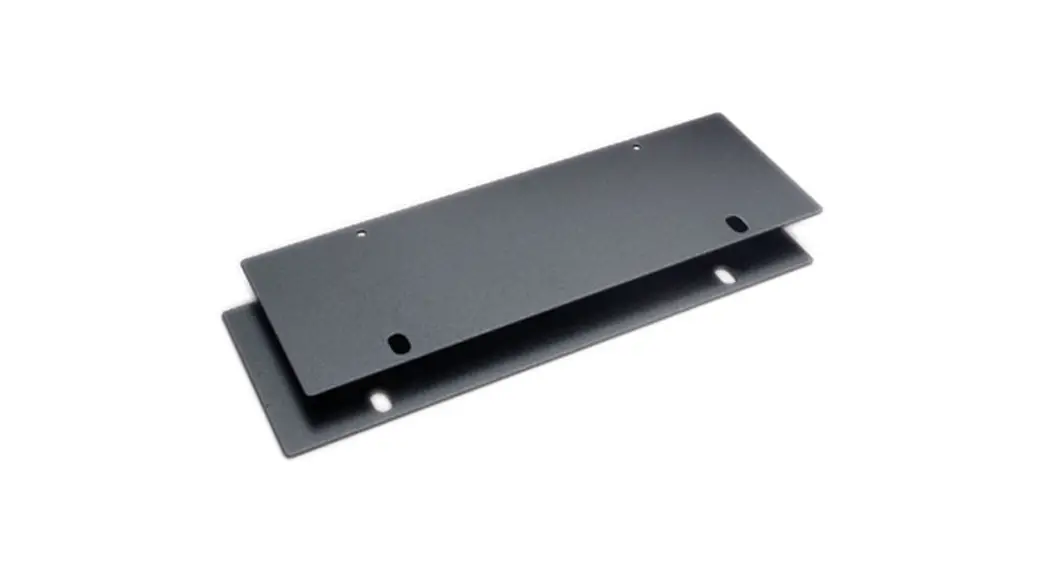
The National Instruments VirtualBench Rack Mount Kit is an
accessory that allows you to mount your VirtualBench to a rack. The
kit includes a shelf, two 6-32 screws, and an installation guide.
This kit is compatible with all VirtualBench models.
Installation Guide for VirtualBench Rack Mount Kit
Follow the steps below to install the rack mount kit on your
VirtualBench:
- Use a #2 Phillips screwdriver to remove two feet from your
VirtualBench. Refer to Figure 1 in the manual to determine which
feet to remove based on your VirtualBench model. - Lay the shelf on the inverted VirtualBench, aligning the two
remaining feet with the recesses of the shelf. Refer to Figure 2 in
the manual for a visual representation. - Use the screws from the removed feet and the screwdriver to
attach the VirtualBench to the shelf, screwing through the bottom
of the shelf into the foot recess of the VirtualBench. - Store the removed feet on the shelf with the provided screws.
Refer to Figure 3 in the manual for a visual representation. - Attach the shelf to your rack. Larger VirtualBenches, such as
the VB-8034, require an extra rack unit (1U) above the mounting
flanges.
Note: It is important to monitor the inlet air temperature of
VirtualBench in the deployed environment to ensure that the maximum
ambient operating temperature, listed in your VirtualBench
specifications document, is not breached.
VB-8012
INSTALLATION GUIDE
VirtualBenchTM Rack Mount Kit
The National Instruments VirtualBench Rack Mount Kit (part number 785079-01) is an accessory you can use to mount your VirtualBench to a rack. The rack mount kit consists of a shelf, two 6-32 screws, and this guide.
Complete the following steps to install the rack mount kit on your VirtualBench. You need a #2 Phillips screwdriver to complete the installation. 1. Use the screwdriver to remove two feet from your VirtualBench. Depending on your
VirtualBench, you must remove different feet. Figure 1 depicts the correct feet to remove for every VirtualBench model.
Figure 1. Removing Feet from VirtualBench
FGEN DIGITAL MULTIMETER
MIXED SIGNAL OSCILLOSCOPE DC POWER SUPPLY
DIGITAL MULTIMETER
MIXED SIGNAL OSCILLOSCOPE
DIGITAL I/O
DIGITAL I/O
1 1 VirtualBench with Round Rubber Feet
2 2 VirtualBench with Plastic Flip Feet
2. Lay the shelf on the inverted VirtualBench, aligning the two remaining feet with the recesses of the shelf, as shown in Figure 2.
3. Use the screwdriver and the screws from the removed feet to attach VirtualBench to the shelf, screwing through the bottom of the shelf into the foot recess of the VirtualBench.
Figure 2. Attaching the Shelf to VirtualBench
FGEN DIGITAL MULTIMETER
MIXED SIGNAL OSCILLOSCOPE DC POWER SUPPLY
DIGITAL MULTIMETER
MIXED SIGNAL OSCILLOSCOPE
DIGITAL I/O
DIGITAL I/O
1 1 VirtualBench with Round Rubber Feet
2 2 VirtualBench with Plastic Flip Feet
4. Store the removed feet on the shelf with the provided screws, as shown in Figure 3. Figure 3. Storing Your Feet
1 1 Round Rubber Feet
2 2 Plastic Flip Feet
5. Attach the shelf to your rack. Larger VirtualBenches, such as the VB-8034, require an extra rack unit (1U) above the mounting flanges.
Note Rack environments often can exceed the VirtualBench rated ambient temperature. Monitor the inlet air temperature of VirtualBench in the deployed environment to ensure that the maximum ambient operating temperature, listed in your VirtualBench specifications document, is not breached.
Refer to the NI Trademarks and Logo Guidelines at ni.com/trademarks for more information on NI trademarks. Other product and company names mentioned herein are trademarks or trade names of their respective companies. For patents covering NI products/technology, refer to the appropriate location: Help»Patents in your software, the patents.txt file on your media, or the National Instruments Patents Notice at ni.com/patents. You can find information about end-user license agreements (EULAs) and third-party legal notices in the readme file for your NI product. Refer to the Export Compliance Information at ni.com/legal/export-compliance for the NI global trade compliance policy and how to obtain relevant HTS codes, ECCNs, and other import/export data. NI MAKES NO EXPRESS OR IMPLIED WARRANTIES AS TO THE ACCURACY OF THE INFORMATION CONTAINED HEREIN AND SHALL NOT BE LIABLE FOR ANY ERRORS. U.S. Government Customers: The data contained in this manual was developed at private expense and is subject to the applicable limited rights and restricted data rights as set forth in FAR 52.227-14, DFAR 252.227-7014, and DFAR 252.227-7015.
© 2016 National Instruments. All rights reserved.
376293A-01
May16
 Trade Compliance - NI
 VB-8012 National Instruments VirtualBench All-in-One Instrument | Apex Waves