
PYROS
QUICK GUIDE
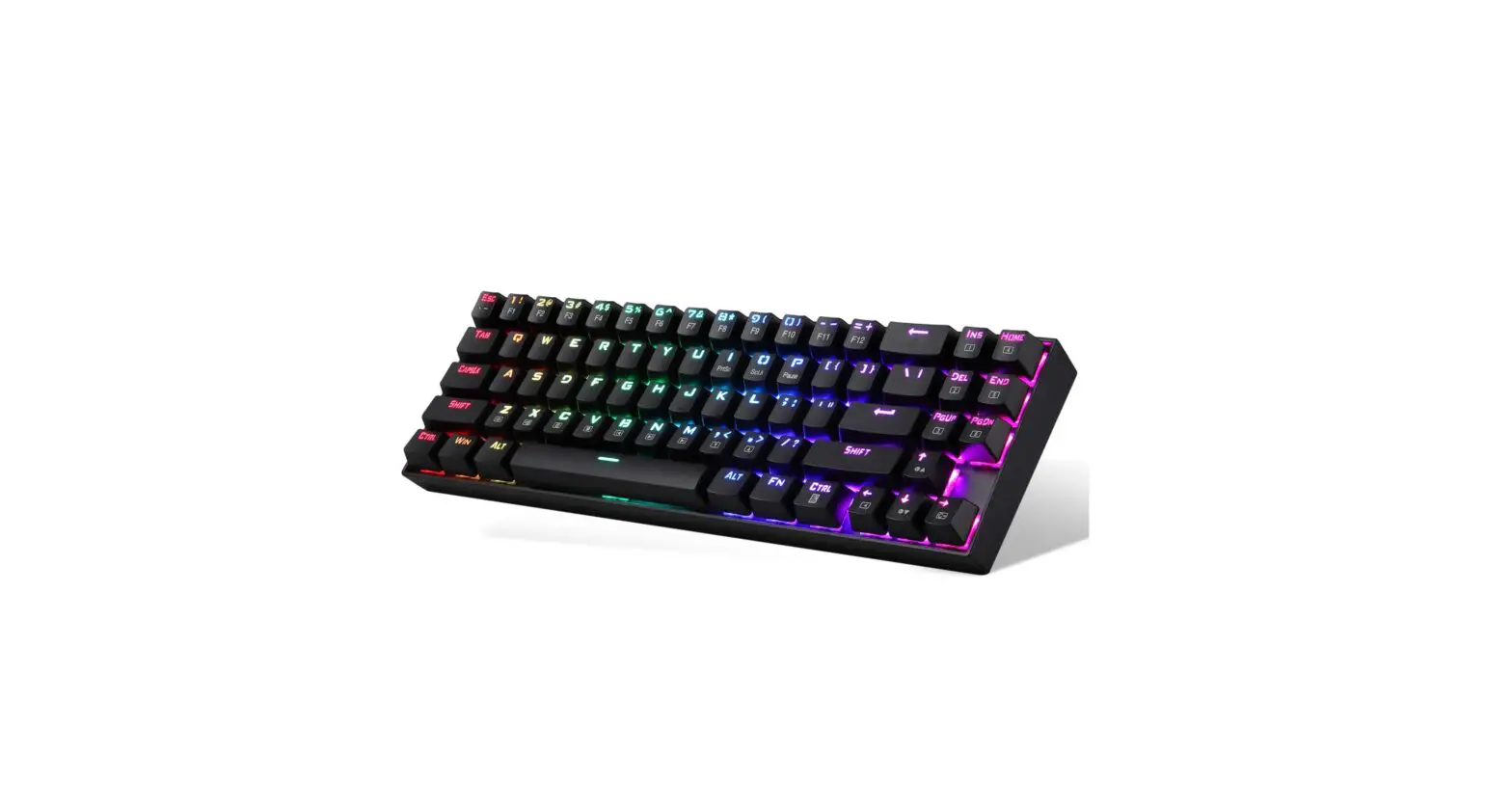
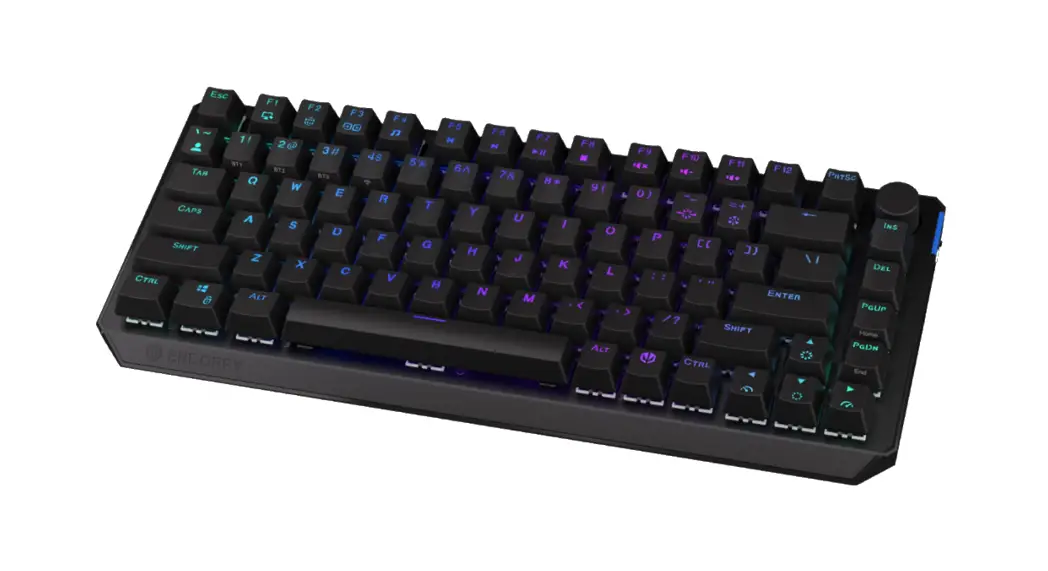
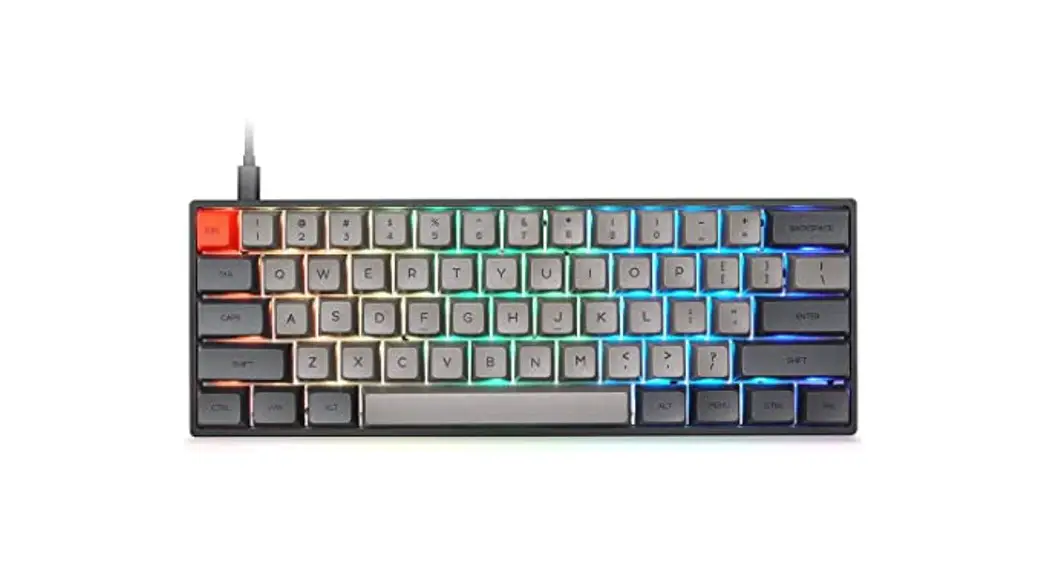
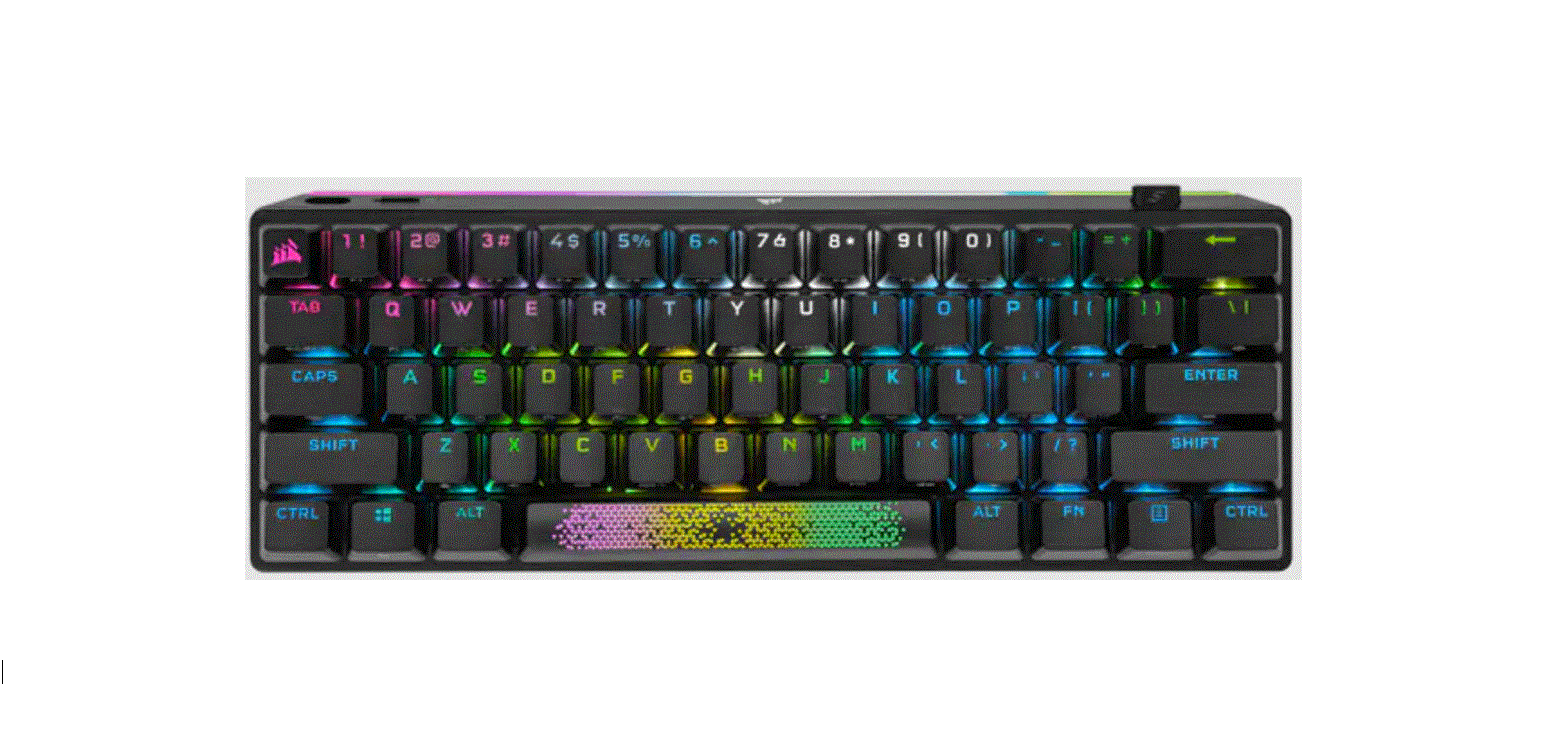
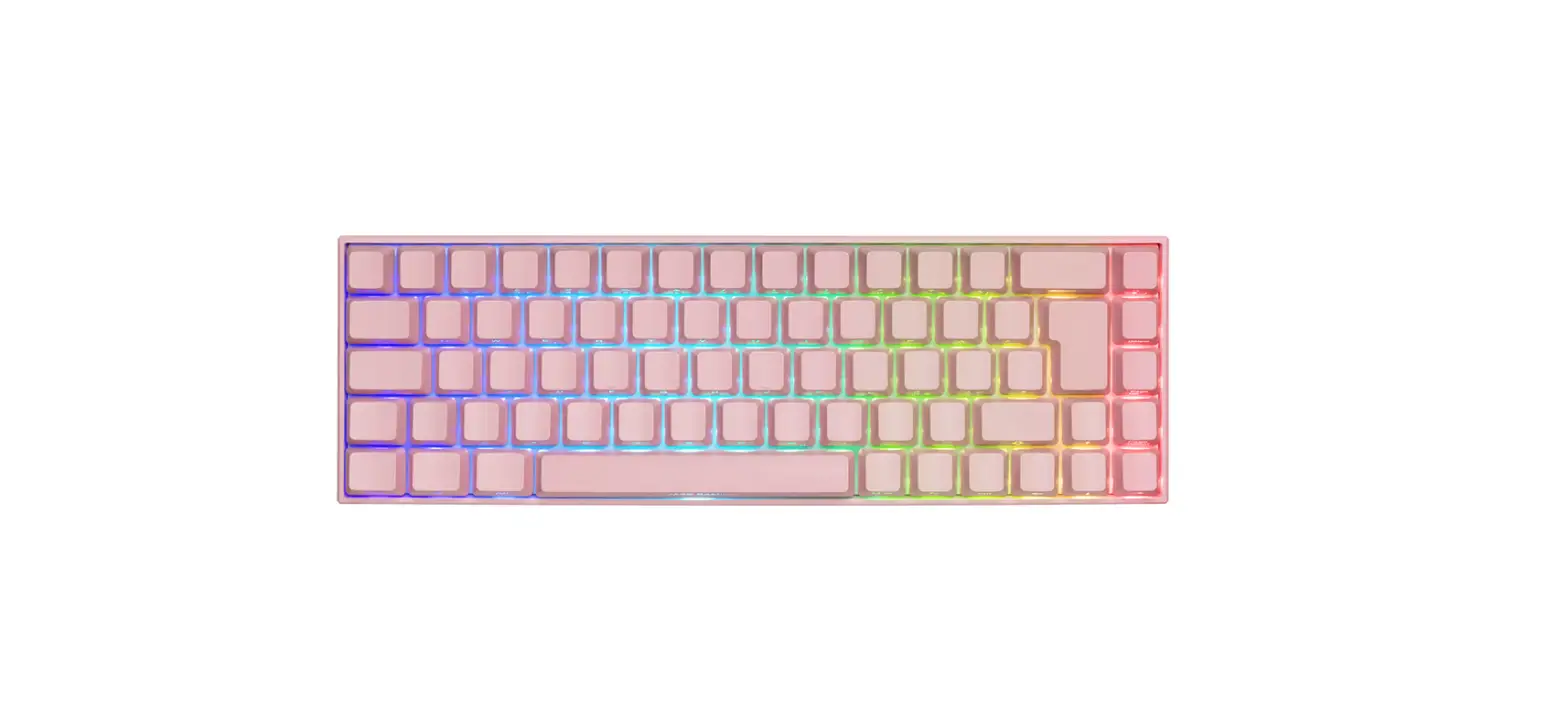
60% WIRED/WIRELESS RGB MECHANICAL GAMING KEYBOARD
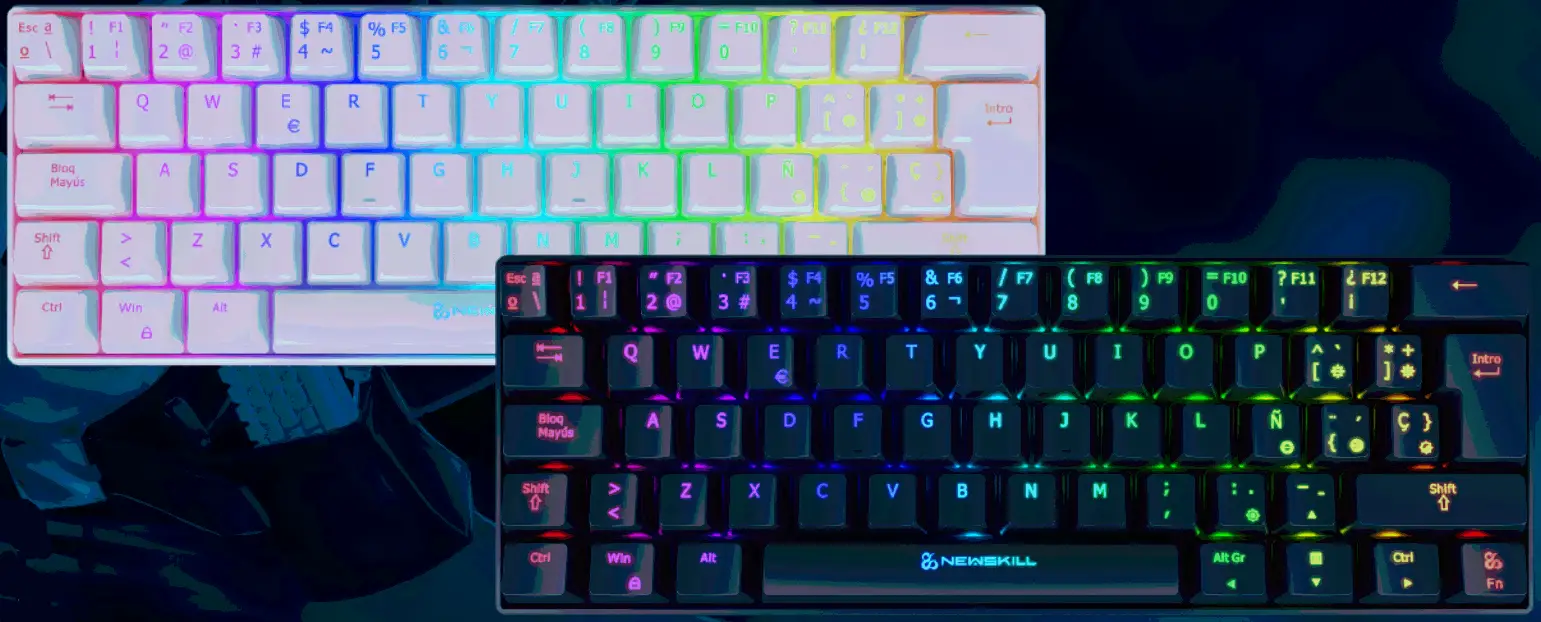
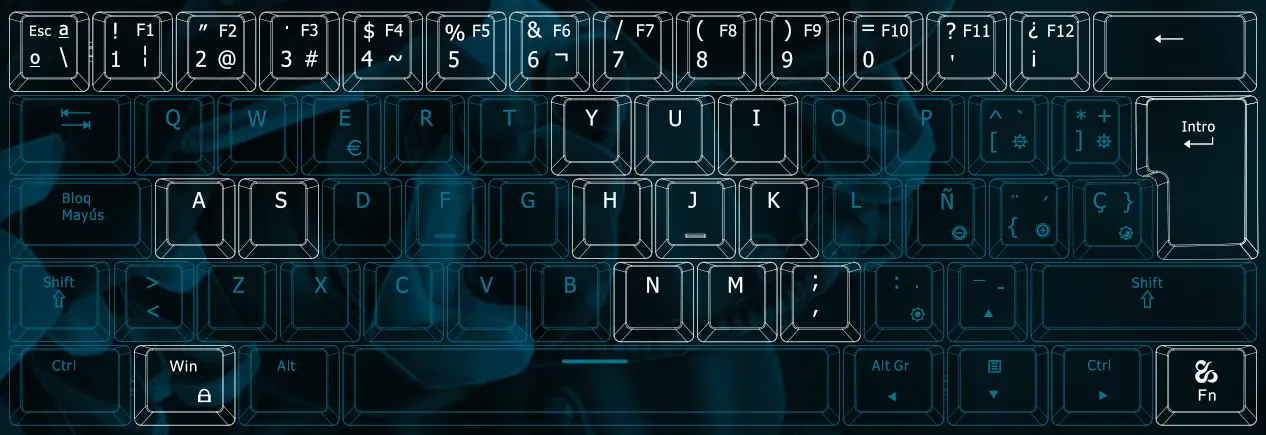
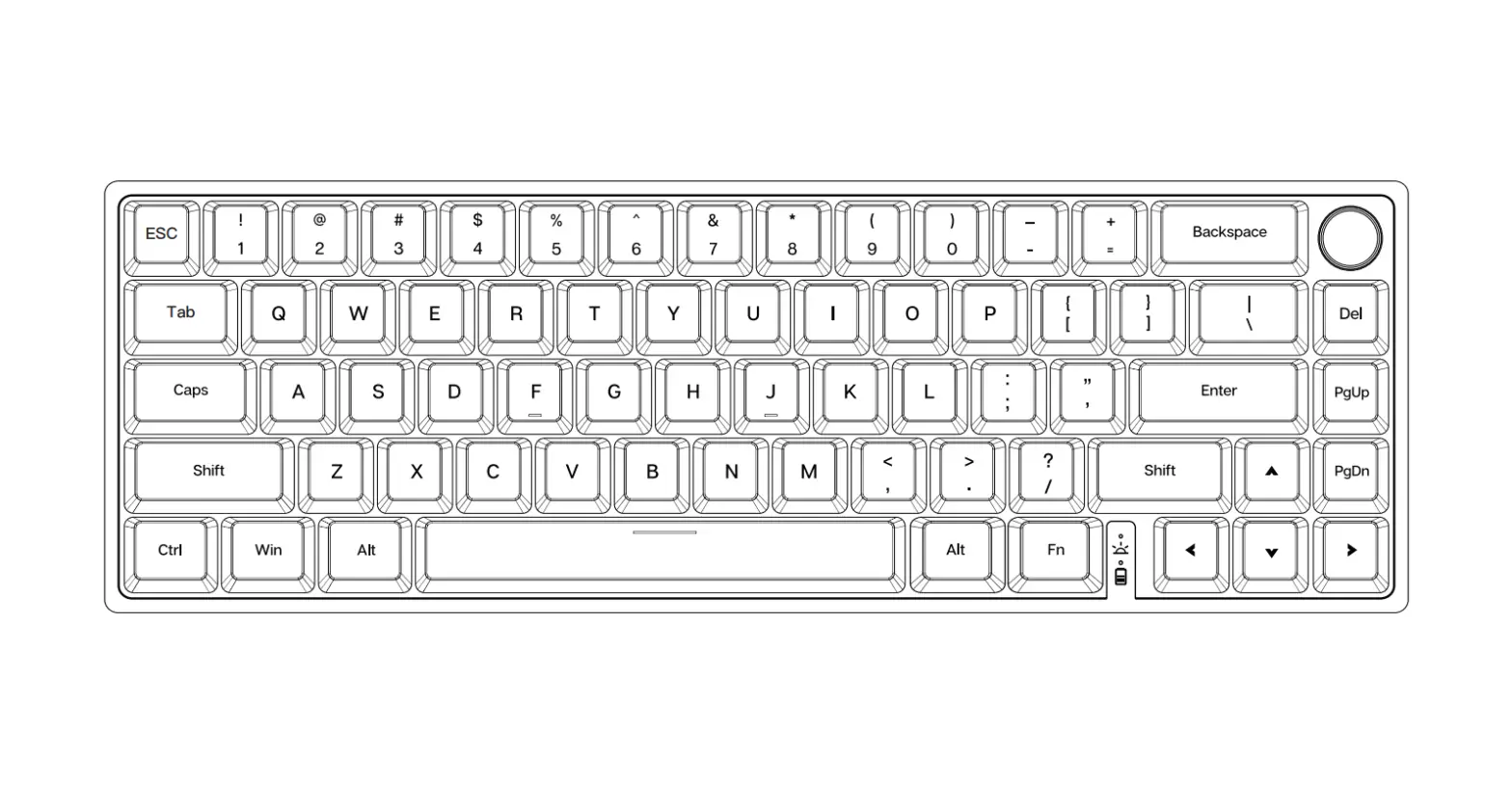
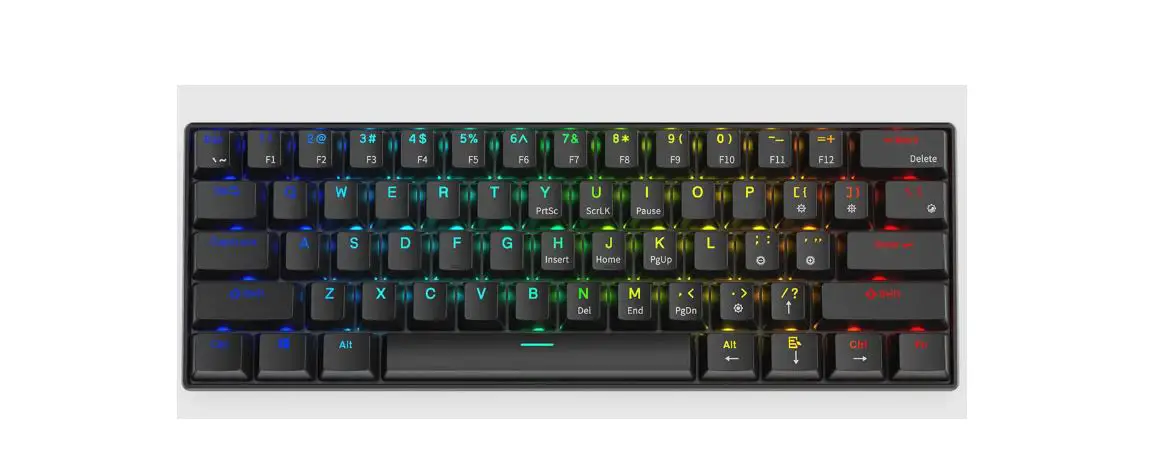
Multi-functional Key Description
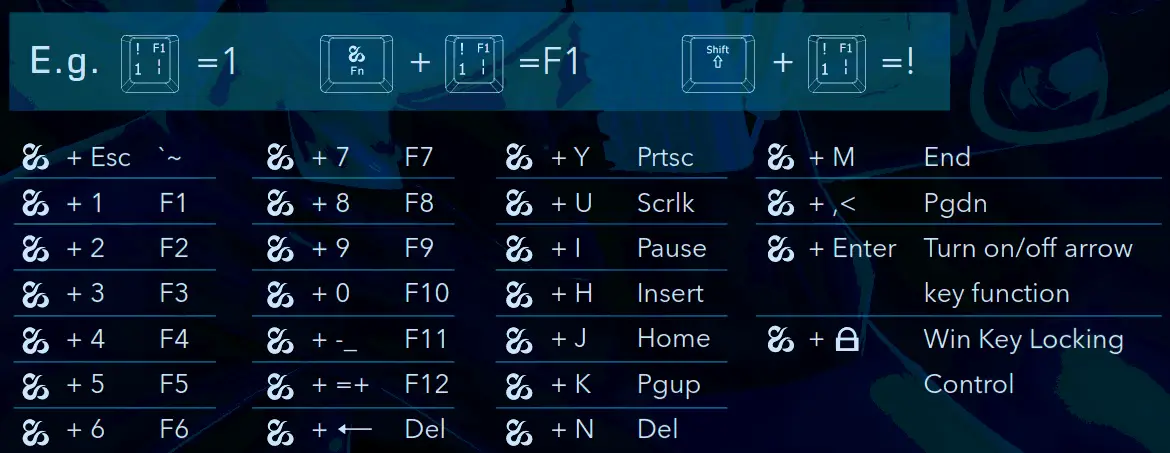
WinOS & MacOS Switch
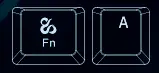 | Switching to Windows Mode |
 | Switching to Mac Mode |
Mac Multimedia Function in Mac Mode

1. Only in Mac mode, Win does not have this function.
2. The corresponding Mac multimedia function will only take effect if (F1-F12) is the first function.
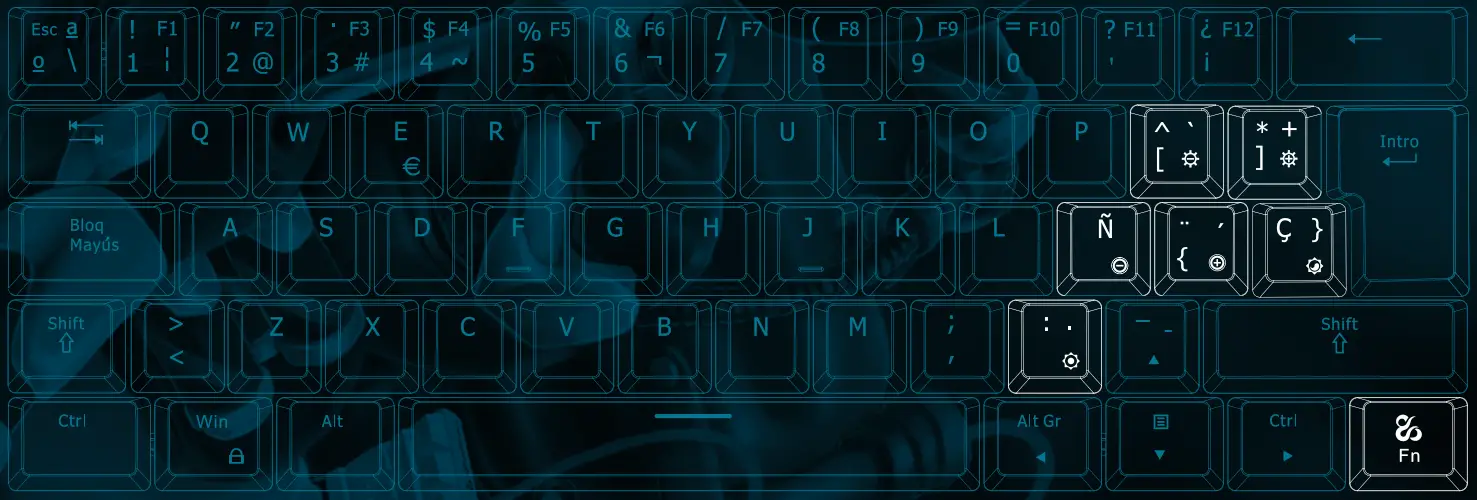
BACKLIGHT MODE
 | Switch Backlight Mode Switch cycle of 17 kinds of backlight modes |
 | Switch Backlight Colour |
 Control the brightness of the backlight
Press to increase the brightness of the backlight.
Press to reduce the brightness of the backlight to off.
There are four grades of backlight brightness and 1 grade to turn it off.
 Control the speed of the backlight
Press to increase the speed of backlight.
Press to reduces the speed of the backlight to off. There are four grades of backlight speed.
Combination keys’ function Switching and locking
Press Fn+Ctrl to switch to activating the second function of combination keys (except the arrow keys). Press Fn+Ctrl again, to restore the 9 keys main function Y/U/I/H/J/K/N/M/,<, but the other combination keys are still in the second function. Press Fn+Ctrl times, all the combination keys’ main function recovery
Charging introduction
- In order to ensure normal use, please charge before use.
- Before charging: after plugging in the power, the space key indicator light flashing 3 times and goes out.
After the full: the space key light flashes 5 times continuously and goes out.
Charging: If you unplug it, plug it in again, the space key light flashes 3 times continuously indicate not full, 5 consecutive flashes indicate full. - No operation for 3 minutes, keyboard in standby, wake-up keyboard only need to press any key.
Wired/Bluetooth mode introduction
Wired & Bluetooth Switch
1. The bottom switch is in OFF mode, and the keyboard is in wired mode. Connect the data line and use it.
2. Bottom switch in ON state, keyboard in the wireless module, the first use of wireless, must be paired before normal use.
Fn+Q/W/E short press: switch to corresponding Bluetooth
Long press: Bluetooth pairing
This product supports the storage of 3 Bluetooth devices at the same time and can switch between 3 devices at will.
Bluetooth Connection method
- Make sure that the switch on the back of the keyboard is “ON“ (that is the keyboard is in Bluetooth mode).
- Select a set of wireless nodes to be connected through Fn+Q/W/E, such as Fn+Q
- Press Fn+Q for 3 seconds, at which time the Q key flickers continuously and enters the Bluetooth matching mode.
- Open the computer/mobile Bluetooth, search and connect the device.
- Successful connection, Q key stop flickering, complete.
By analogy, repeating the above steps, Q/W/E can be stored in three wireless devices and switched