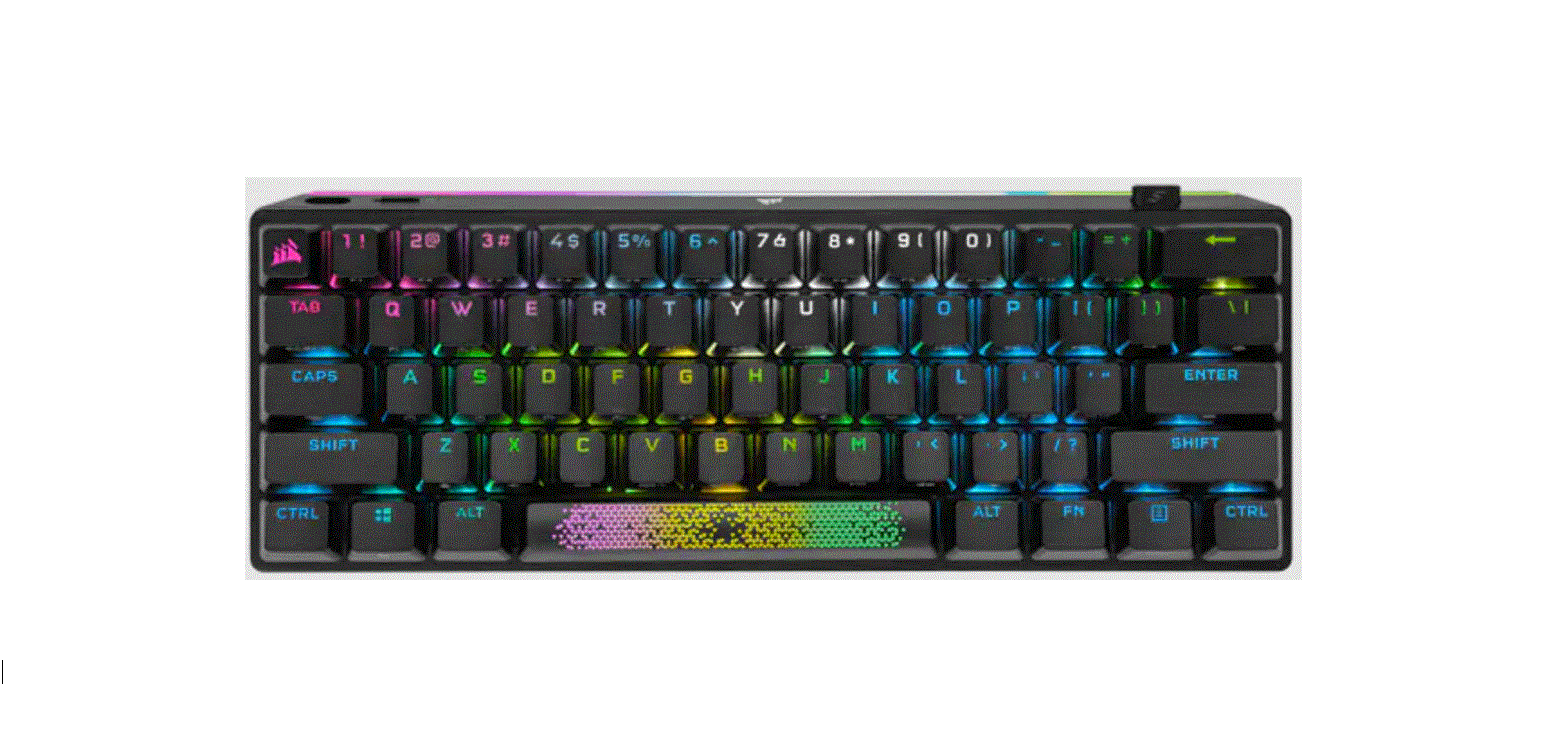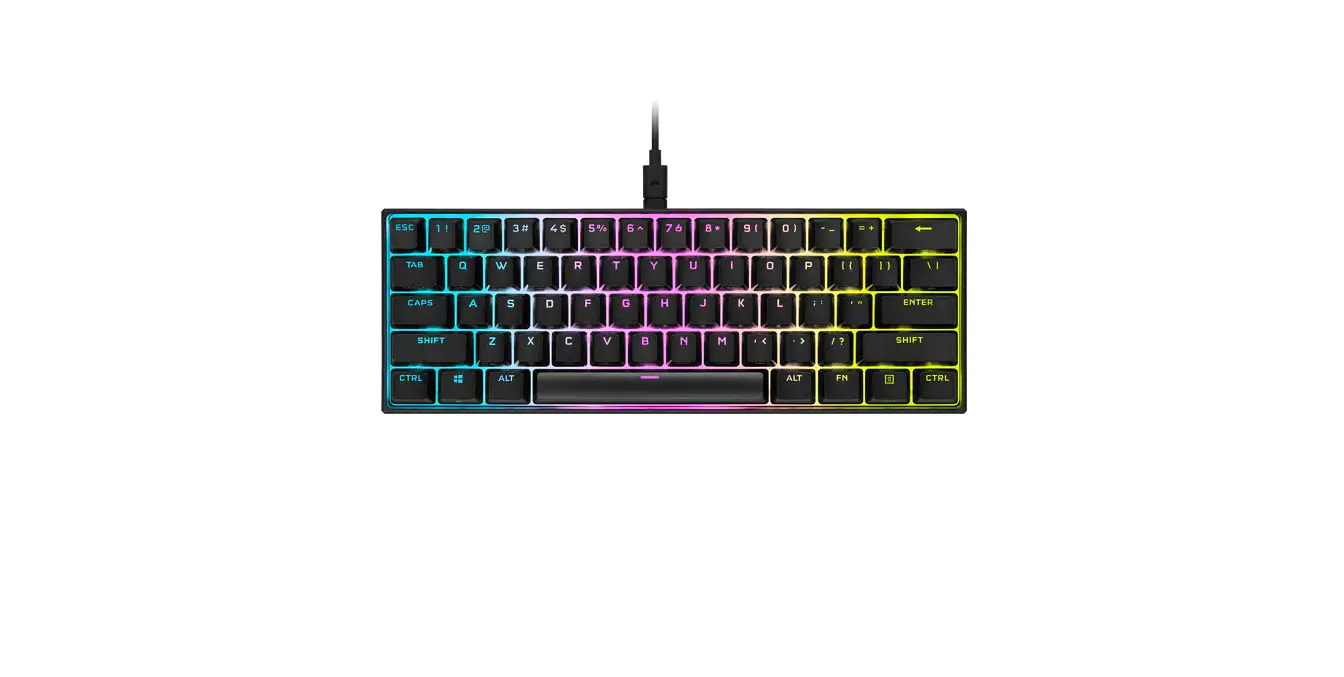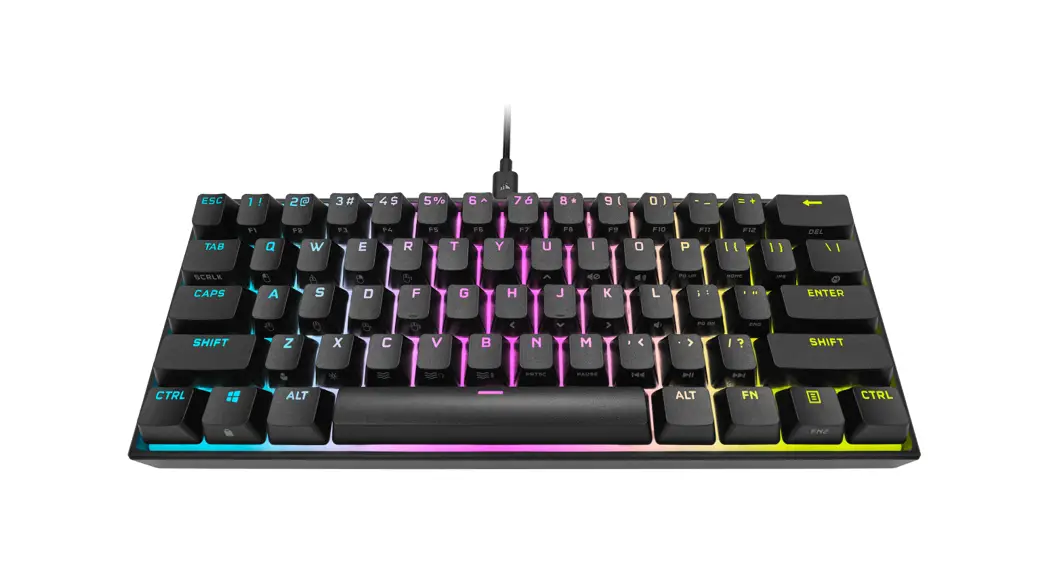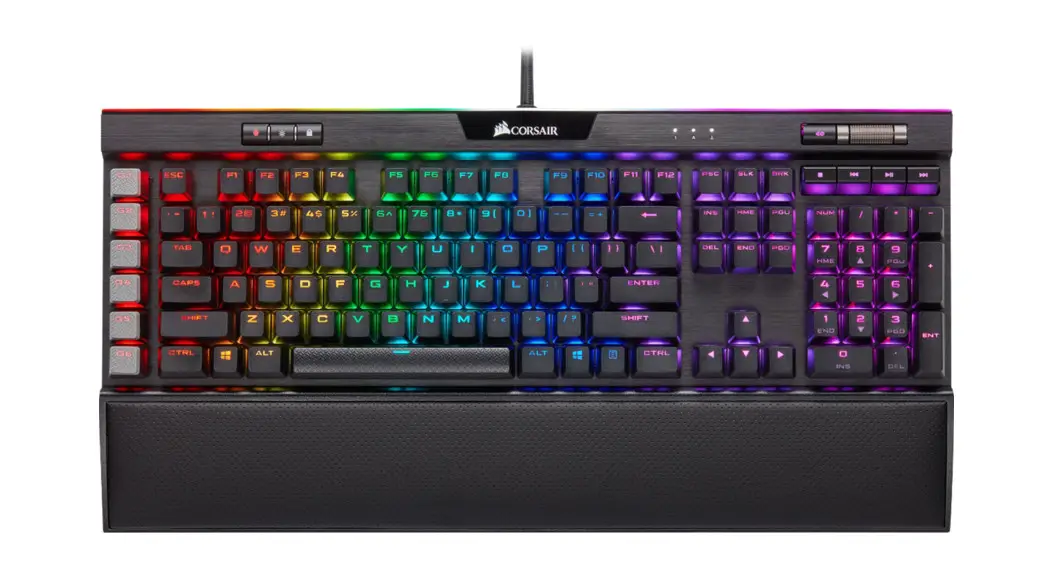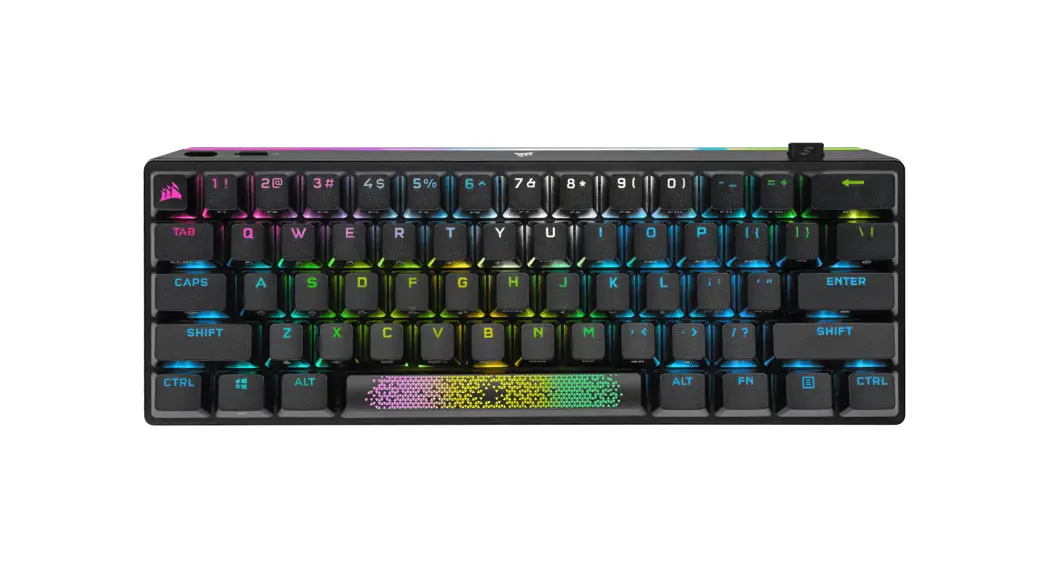


K70 Pro Mini
RGB Wireless Mechanical Gaming Keyboard
User Guide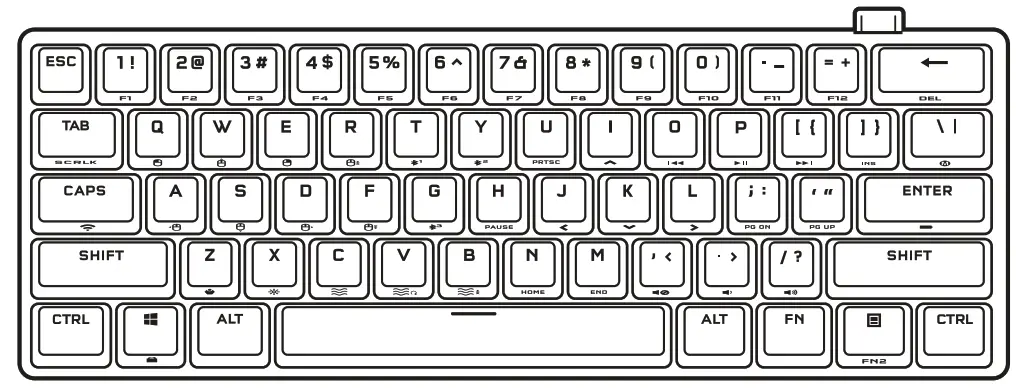
GETTING TO KNOW YOUR KEYBOARD
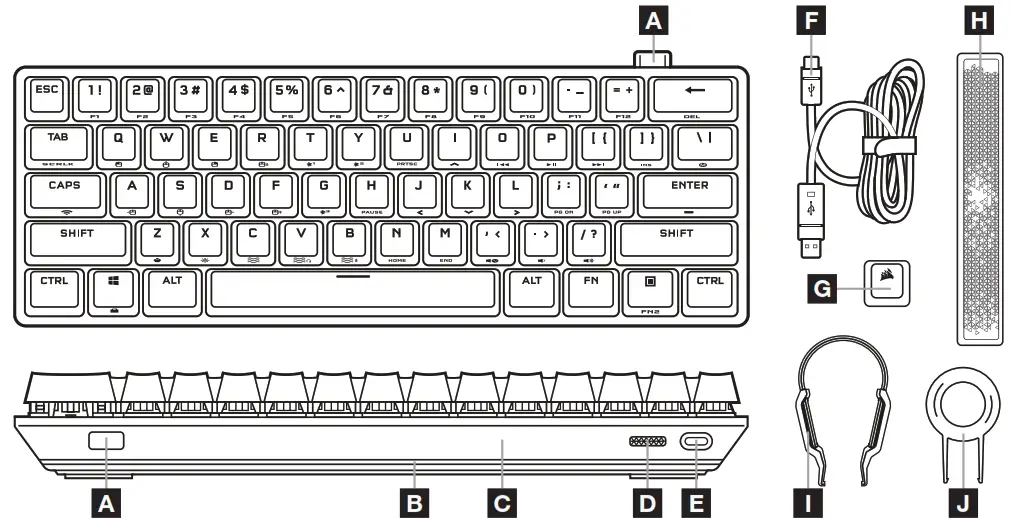
| A SLIPSTREAM WIRELESS ADAPTER B 360° LIGHT EDGE C REMOVABLE ACCENT PIECE D POWER SWITCH E USB TYPE-C PORT | F USB TYPE-C TO TYPE-A CABLE G OPTIONAL CORSAIR LOGO ESC KEY H OPTIONAL RADIANT SPACE BAR I KEY SWITCH PULLER J KEYCAP PULLER |
BEFORE FIRST USE
Charge the keyboard fully before first use by connecting the USB cable (F) to the keyboard USB Type-C port (E) and to an available USB 3.0 or better Type-A port on a compatible device including:
| Windows® PC | Apple Mac® | Microsoft Xbox One* Microsoft Xbox Series XIS’ | PlayStation 4** PlayStation 5** |
*Keyboard is compatible out of the box, see corsair.com/xbox-support for details.
**See Connecting to Sony PlayStation section.
FACTORY RESET
Hold the ESC key while turning the power switch (D) on, then release the ESC key after two seconds. The keyboard will then power on normally and be reset to factory defaults.
CHARGING & BATTERY LIFE
The keyboard will indicate charging status when plugged into a compatible device via USB cable.
| INDICATOR | INDICATION | STATUS |
| Enter Key | Solid Green | Fully Charged |
| Pulsing Green | Charging |
Upon powering on the keyboard or using the check battery life shortcut below, an indication will play to denote the current battery charge level.
| SHORTCUT | FUNCTION | ON-KEY INDICATION | STATUS |
 | Check Battery Charge Level | Solid Green | Fully charged |
| Blinking Green | High charge | ||
| Blinking Amber | Medium charge | ||
| Blinking Red | Low charge | ||
| Pulsing Red | Critically low charge |
Tips and tricks:
- If left on and idle, the keyboard will go to sleep to conserve battery (adjustable in iCUE)
- Reduce brightness or turn off backlighting to extend battery life (and increase charging speed)
- Charge as soon as possible when the battery is critically low to maximize battery health and longevity.
- Always plug into a USB 3.0 port or better to ensure adequate charging current
CONNECTING VIA SLIPSTREAM WIRELESS\
- Plug in the SLIPSTREAM wireless adapter (A) to an available USB 2.0 or better Type-A port
- Slide the keyboard power switch (D) to the on position
- Switch to SLIPSTREAM wireless mode (see below)
- After SLIPSTREAM connects automatically, the shortcut key turns solid white for 3 seconds
| SHORTCUT | FUNCTION | ON-KEY INDICATION | STATUS |
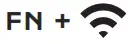 (press) (press) | Switch to SLIPSTREAM wireless mode | Solid White (3 sec) | Connected |
| Pulsing White | Disconnected | ||
| (hold) | Start SLIPSTREAM adapter pairing* | Rapidly Blinking White | Pairing |
*To complete pairing to a SLIPSTREAM wireless adapter, initiate adapter pairing in iCUE device settings.
CONNECTING VIA BLUETOOTH WIRELESS
- Initiate Bluetooth pairing on the host device such as a phone or tablet (Bluetooth 4.0 or higher)*
- Start Bluetooth host pairing on the keyboard, up to three devices can be paired (see below)
- Input the code from the Bluetooth device screen on the keyboard if requested
- When pairing completes, the Bluetooth shortcut key turns solid blue for 3 seconds
| SHORTCUT | FUNCTION | ON-KEY INDICATION | STATUS |
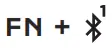 (Press) (Press) | Switch to Bluetooth host 1 mode | Solid Blue (3 sec) | Connected |
| Pulsing Blue | Disconnected | ||
| (Hold) | Start Bluetooth host 1 pairing* | Rapidly Blinking Blue | Pairing |
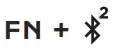 (Press) (Press) | Switch to Bluetooth host 2 mode | Solid Blue (3 sec) | Connected |
| Pulsing Blue | Disconnected | ||
| (Hold) | Start Bluetooth host 2 pairings* | Rapidly Blinking Blue | Pairing |
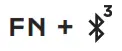 Press) Press) | Switch to Bluetooth host 3 mode | Solid Blue (3 sec) | Connected |
| Pulsing Blue | Disconnected | ||
| (Hold) | Start Bluetooth host 3 pairings* | Rapidly Blinking Blue | Pairing |
*Bluetooth host device must support standard keyboard HID input.
CONNECTING VIA USB WIRED
- Connect the keyboard via USB cable to a USB 3.0 Type-A port or better
- The keyboard will automatically switch to USB wired mode
- Go to iCUE device settings to select up to 8,000Hz hyper-polling with CORSAIR AXON*
*Up to 8,000Hz hyper-polling is supported on PC and Mac. Xbox and PlayStation consoles support up to 1,000Hz polling only.
NOTE: Wireless modes can be switched to at any time by pressing a wireless shortcut. Pressing the same shortcut again will switch back to USB wired mode.
CONNECTING TO SONY PLAYSTATION
The keyboard also has a special mode to support Sony PlayStation 4 and 5 via SLIPSTREAM wireless and USB wired modes that can be activated via shortcut.
| SHORTCUT | FUNCTION | ON-KEY INDICATION |
| (Hold for 5 sec) | Switch to PlayStation mode | Blinks White (5 sec) then Solid White |
| Switch back to standard mode | Pulses White (6 sec) |
NOTE: Available functions may be limited depending on gaming console support and application.
SOFTWARE MODE
When iCUE is running the keyboard operates in software mode and is controlled by issue.
Download iCUE from corsair.com/downloads and install it on a Windows PC or Apple Mac to connect all of your CORSAIR iCUE compatible products together in a single interface, giving you complete control of everything from lighting to powerful macros.
With iCUE and AXON Hyper-Processing Technology, you can create as many custom profiles as can fit onto the 8MB of onboard storage. Each profile can store complex backlighting effects (up to 20 layers), actions & macros, and settings.*
The number of lighting effects layers per profile and the total number of profiles that can be saved to onboard storage will vary based on complexity.
SWAPPING KEY SWITCHES
The key switches can be removed and replaced with any variety or combination of CHERRY MX RGB mechanical key switches. Other third-party mechanical key switches with a 3-pin design may be compatible. but are not guaranteed to work due to physical differences.
- Push the keycap puller (J) over the keycap, then lift to remove.

2. Position the tips of the key switch puller (I) under the key switch top and bottom tabs, then press in and lift to remove. 3. Align the new keyswitch’s pins and base with the sockets and opening.
 4. Carefully press the key switch in until it clicks into place. If you feel any resistance, remove it and try again.
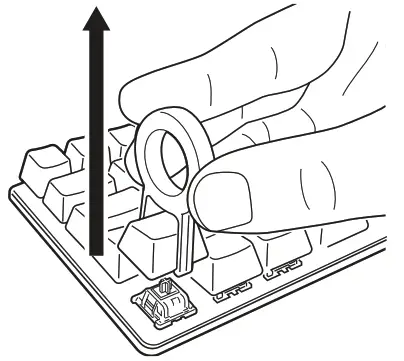
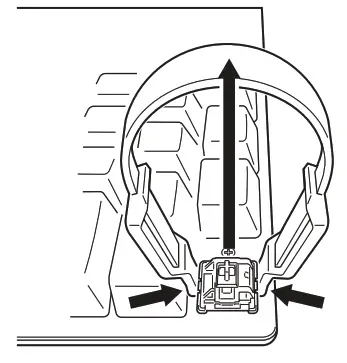 3. Align the new keyswitch’s pins and base with the sockets and opening.
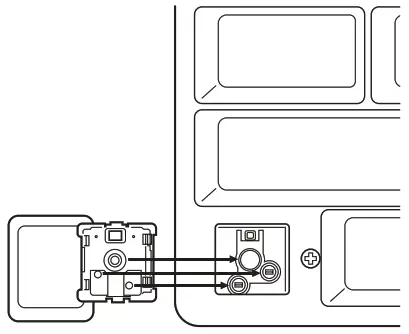 4. Carefully press the key switch in until it clicks into place. If you feel any resistance, remove it and try again.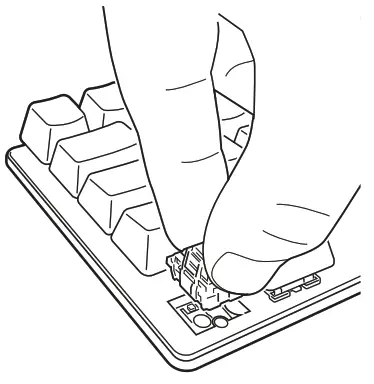
Note: Be sure to align the new key switch properly before insertion to prevent bent pins or damage.
PROFILE & LOCK FUNCTIONS
| SHORTCUT | FUNCTION | ON-KEY INDICATION |
 | Change Profile | Changes color based on the profile (3 sec) |
 | Win Lock | Solid red (when on) |
| FN + SCRLK | Scroll Lock | Solid red (when on) |
| CAPS | Caps Lock | Solid red (when on) |
With CUE you can program Win Lock to not only disable the Windows key but other key combinations that could interrupt your game. as well as create new profiles and assign unique colors.
HARDWARE LIGHTING
Basic hardware lighting effects can be controlled via the below shortcuts when iCUE is not running or the keyboard is connected to a device that does not support the issue.
| SHORTCUT | FUNCTION |
 | Adjusts backlighting brightness in 20% decrements |
 (press) (press) | Cycle through basic fighting effects |
| Water Color > Spiral Rainbow > Rain > Rainbow Wave > Visor > Type Lighting (Per-key) > Type Lighting (Ripple) > Color Shift > Color Pulse > Color Wave > Static Color (8 Colors) | |
| (HOld) | Reset fighting effect to onboard default |
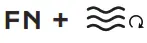 | Change lighting effect direction’* |
 | MI Change fighting effect speed’* |
*’ Functions supported on select effects.
With iCUE, you can program vivid and dynamic custom multi-layered lighting effects and then save them to onboard storage.
STANDARD SHORTCUTS
Windows
| SHORTCUT | WINDOWS FUNCTION |
| CTRL + ALT + FN + 1→ | Control + Alt + Delete |
| ALT + FN + 4 | Alt + F4 |
Full-size Keyboard Keys
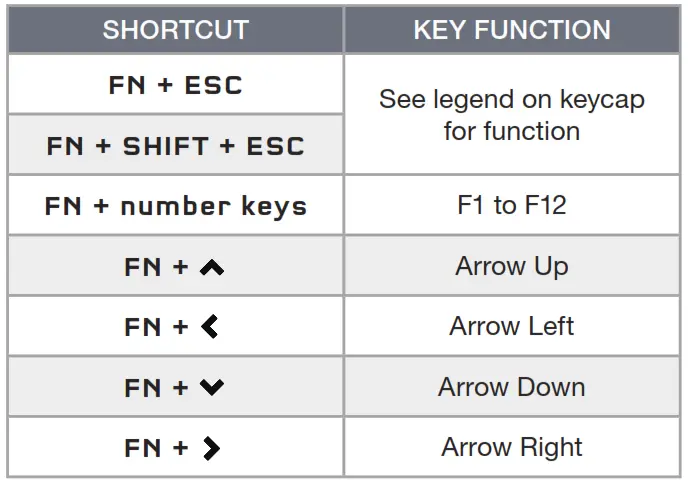 | 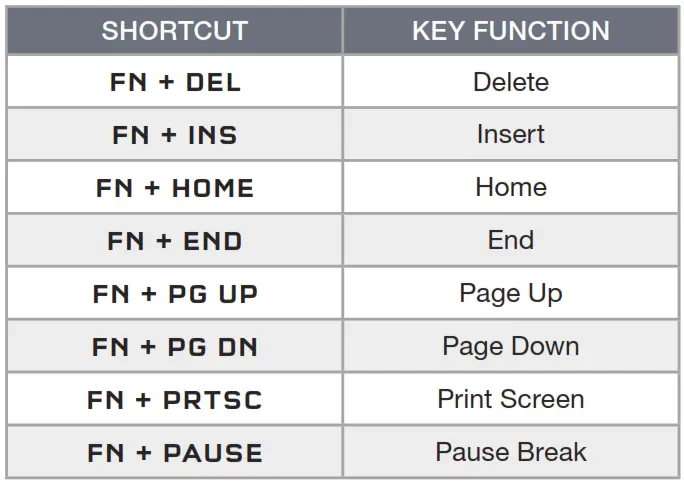 |
CONTROL SHORTCUTS
Audio and Media
| SHORTCUT | AUDIO FUNCTION |
 | Mute Audio |
 | Decrease Volume |
 | Increase Volume |
| SHORTCUT | MEDIA FUNCTION |
 | Last Track |
 | Play / Pause |
 | Next Track |
Mouse Cursor
| SHORTCUT | MOUSE FUNCTION |
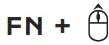 | Move Cursor Up |
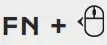 | Move Cursor Left |
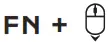 | Move Cursor Down |
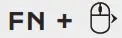 | Move Cursor Right |
| SHORTCUT | MOUSE FUNCTION |
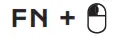 | Left Click |
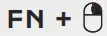 | Right Click |
 | Increase Cursor Speed* |
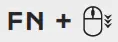 | Decrease Cursor Speed* |
*Available cursor speed settings are 125, 250, 500, 1000, and 2000 DPI.
MACRO RECORDING
Macros can be recorded at any time via the below process. In hardware mode, your macros are recorded to onboard storage and in software mode, your macros are recorded to the current iCUE profile.
| Macro Recording Process | Hold + (FN con.) 2 seds | > | 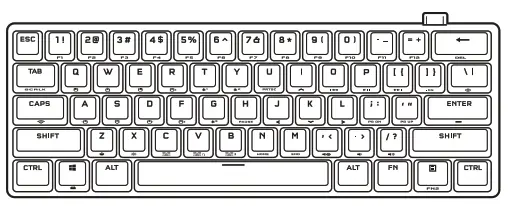 Press keys to record | > | Press ID FN + | > | Press any key or FN + key combination to save |
| Recording On-Key Indication 0 | Pulses Red | > | Blinks Red | Rapidly Blinks Red | Hold FN + ID to cancel (2 seconds) |
| Macro Clearing Process | Hold FN + ID (2 seconds) | Press FN + ID | Press any key or FN + key combination to clear | ||
| Recording On-Key Indication 0 | Pulses Red | > | Rapidly Blinks Red | Rapidly Blinks Red |
Keys that can be recorded:*
- Standard keys
- Standard shortcuts
Macros can be recorded to:
- Any key**
- FN + key**
- FN + Menu (FN2) + key
*Hardware lighting, special functions, wireless modes, and control shortcuts cannot be recorded.
**Function keys, as well as macro recording and wireless shortcuts, cannot be recorded over.
NOTE: Saving a macro to a key or existing shortcut will overwrite that function until cleared. With iCUE, you can edit recorded macros and assign additional actions to keys.
BATTERY REMOVAL INFORMATION
This product uses a rechargeable battery and safety guidelines must be followed in the event that the product is disabled for disposal and recycling. To safely remove the battery for disposal and recycling, follow the numbered steps in the below diagrams.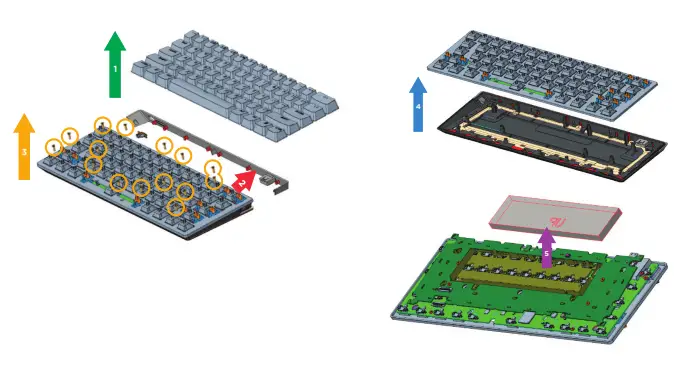 CORSAIR MEMORY, Inc. encourages customers to recycle used electronic hardware and rechargeable batteries in accordance with local laws and regulations.”
Web: corsair.com
Phone: (888) 222-4346
Warranty: corsair.com/support/warranty
Support: support.corsair.com
Blog: corsair.com/blog
Forum: forum.corsair.com
YouTube: youtube.com/corsairhowto
© 2022 CORSAIR MEMORY, Inc. All rights reserved. CORSAIR and the sails logo are registered trademarks of CORSAIR in the United States and/or other countries. All other trademarks are the property of their respective owners. Products may vary slightly from those pictured. 49-002535 AA
 PC Components | Gaming Gear | CORSAIR
 Home - Corsair Community