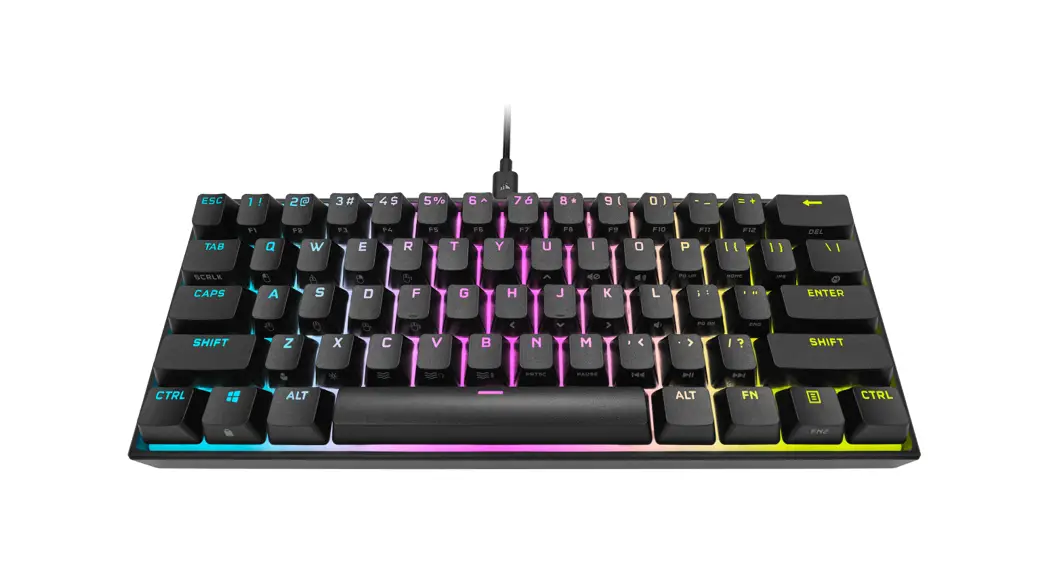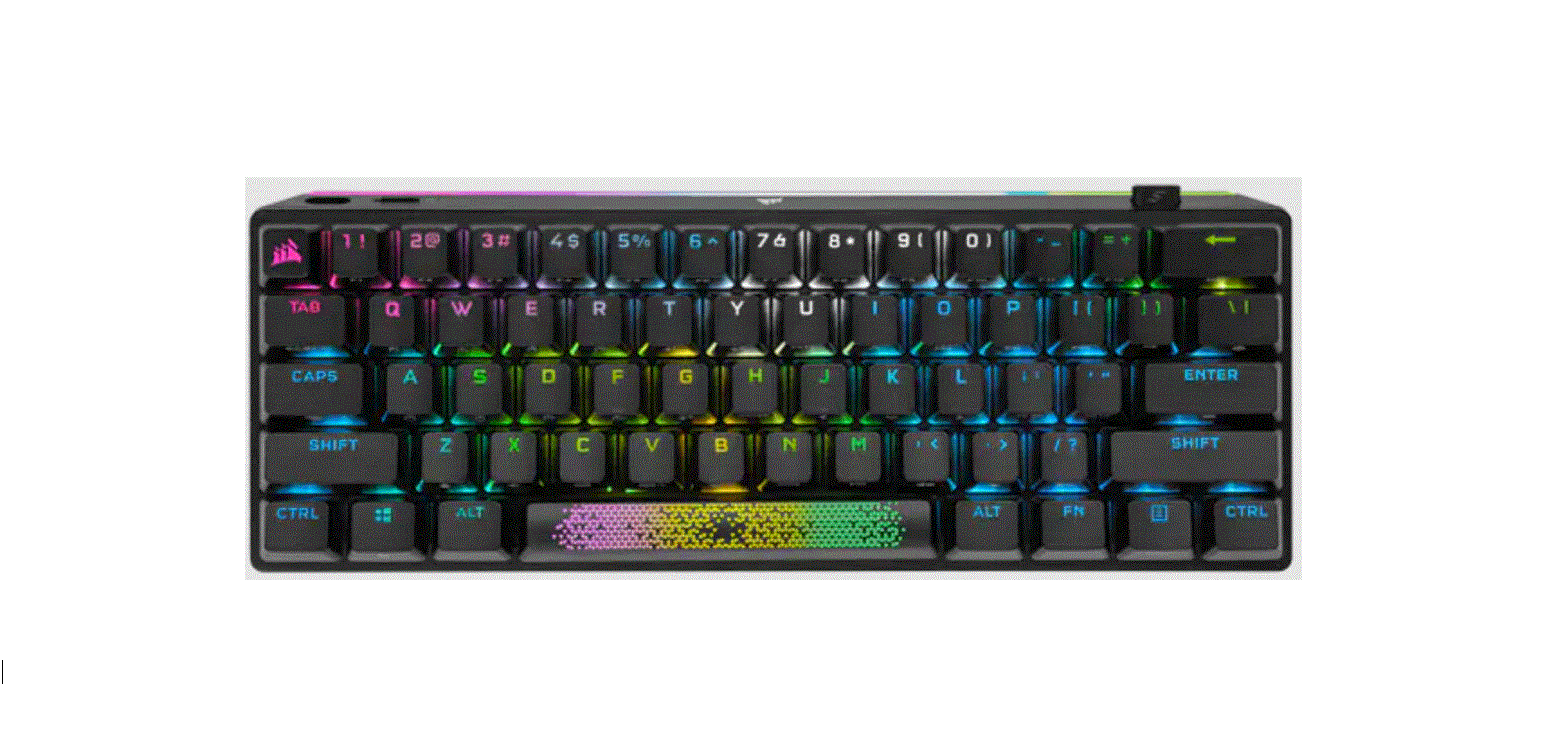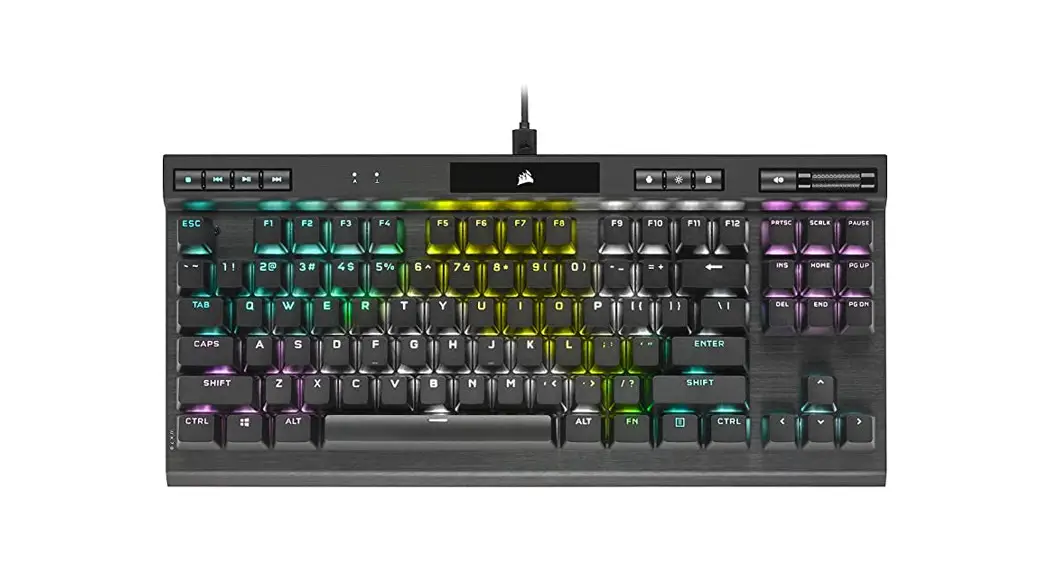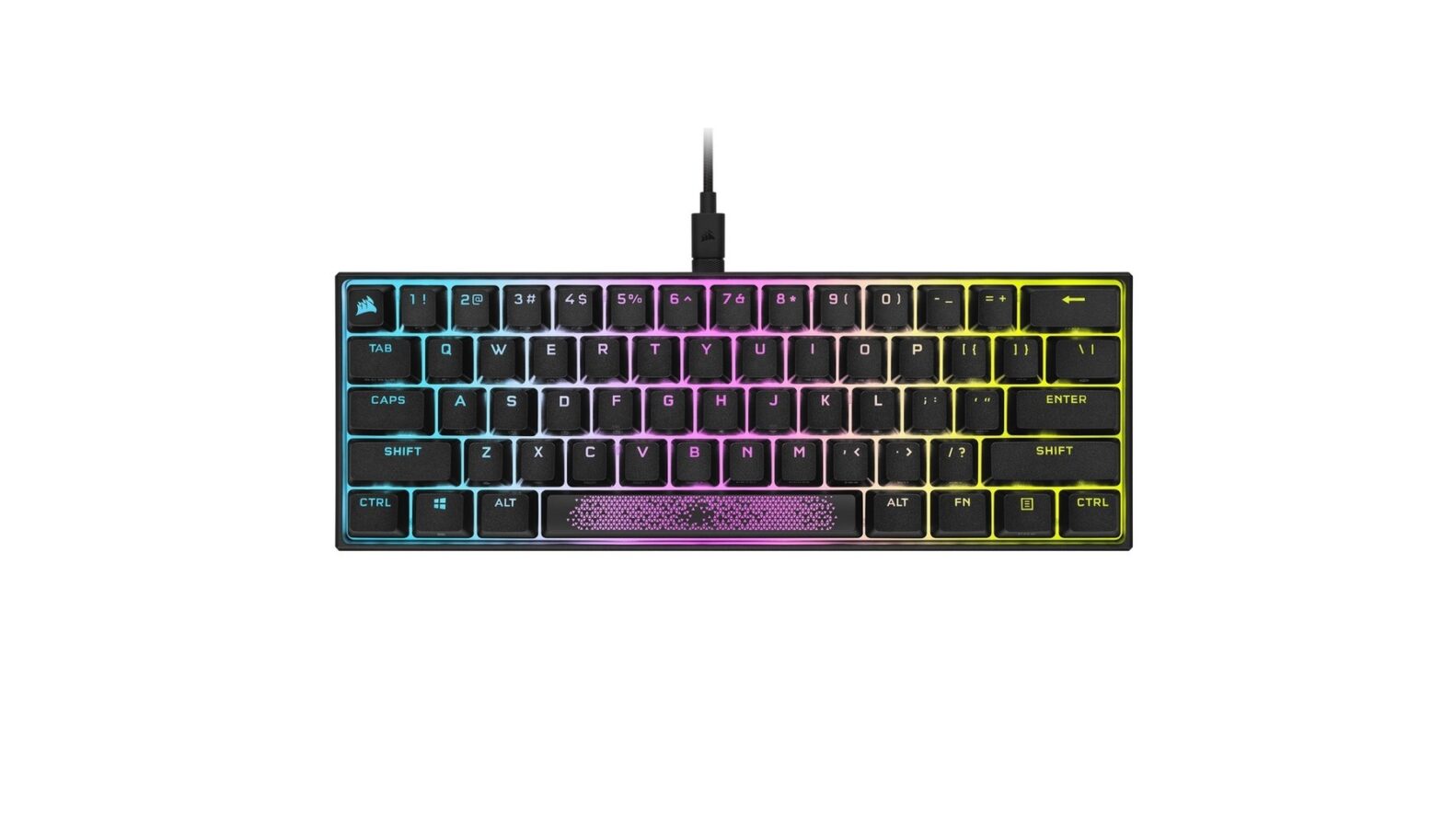
CORSAIR K65 RGB Mini 60 Percent Mechanical Gaming Keyboard User Manual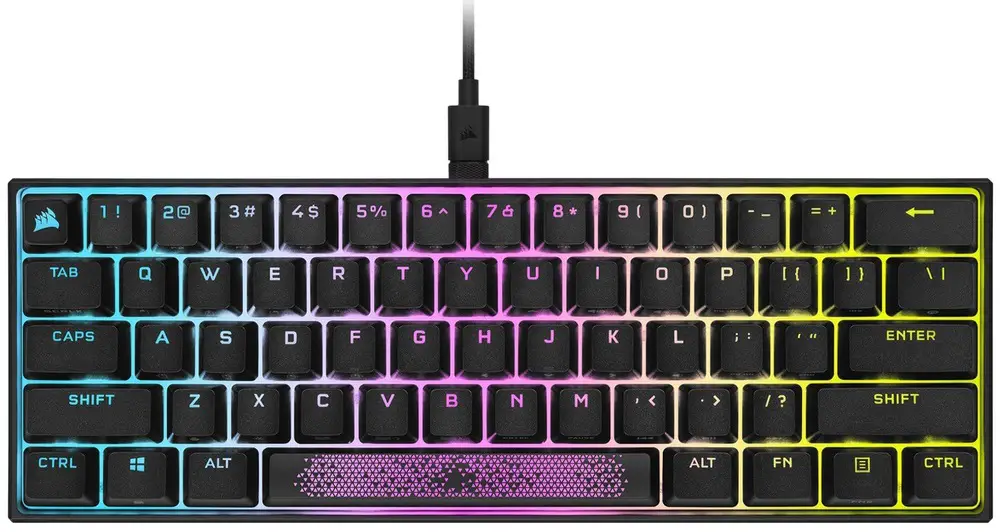
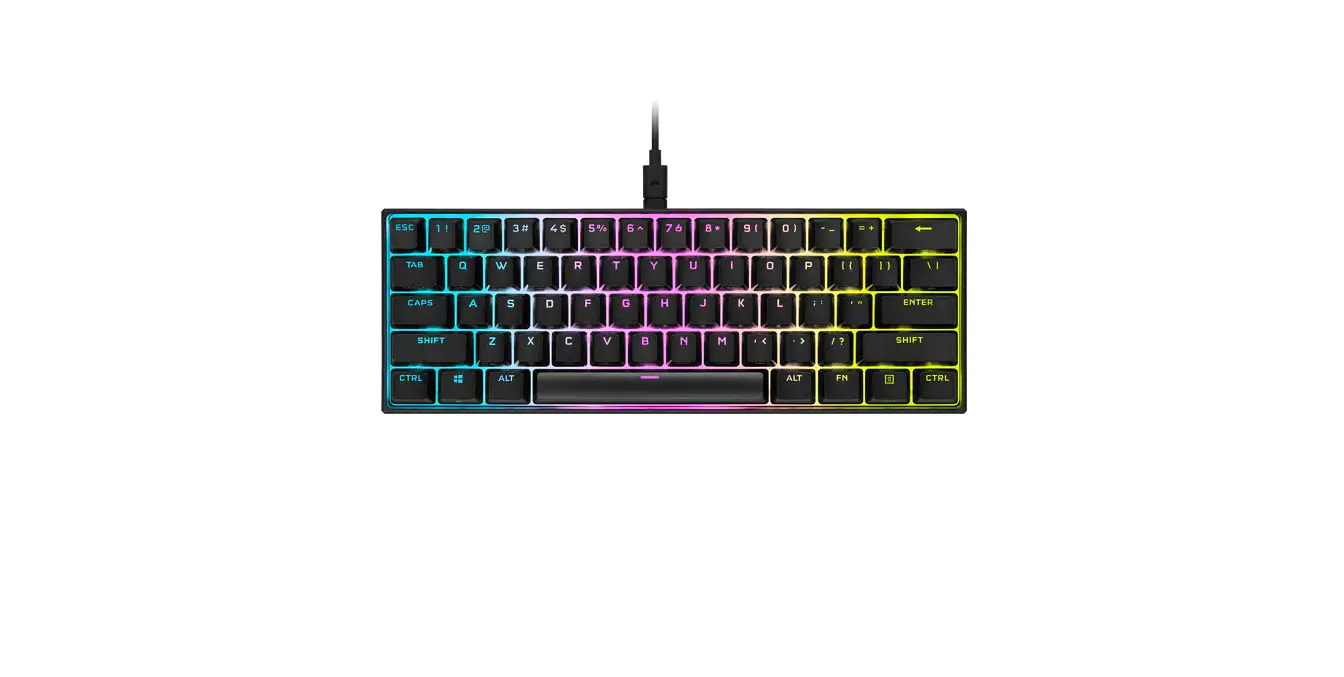
GETTING TO KNOW YOUR KEYBOARD
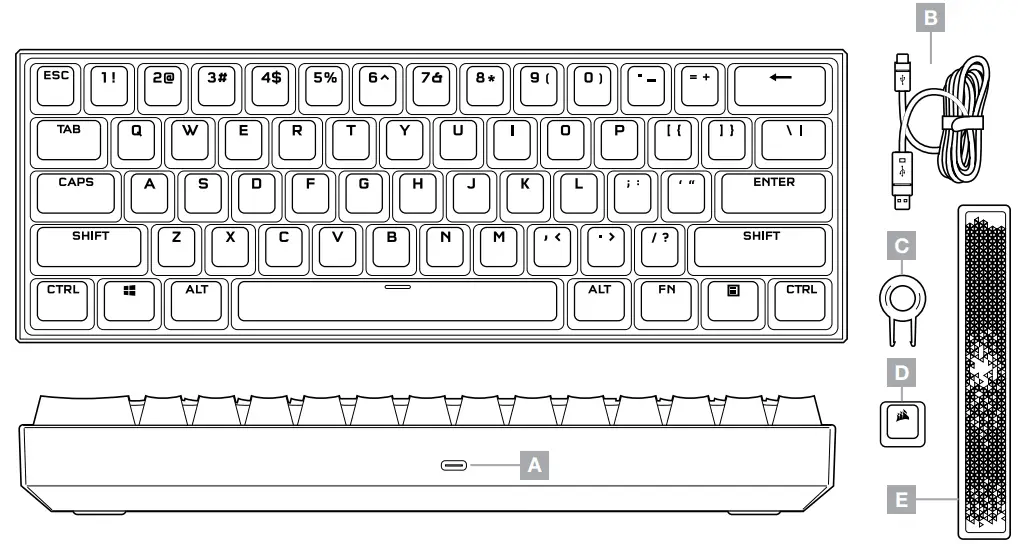
A — USB TYPE-C PORT
B — DETACHABLE USB TYPE-C TO TYPE-A CABLE
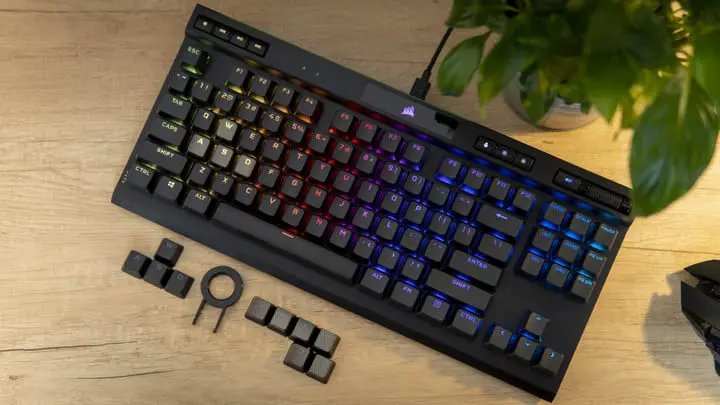
C — KEYCAP PULLER
D — CORSAIR LOGO ABS/PC ESC KEYCAP
E — RADIANT ABS/PC SPACE BAR
SETTING UP YOUR KEYBOARD
Connect the detachable USB cable (B) to the keyboard USB Type-C port (A) and to an available USB 3.0 or better Type-A port on your Windows® PC, Apple Mac®, or Microsoft Xbox One®.*
*www.corsair.com/xbox-one-support
FACTORY RESET
To clear the onboard memory at any time, hold the ESC key while plugging in the USB cable (B) to your system, then release the ESC key after two seconds. The keyboard will then power on normally and be
reset to factory defaults.
SOFTWARE MODE
When iCUE is running the keyboard operates in software mode and is controlled by iCUE.
When iCUE is running the keyboard operates in software mode and is controlled by iCUE. Install iCUE on a Windows PC or Apple Mac to connect all of your CORSAIR iCUE compatible products together in a single interface, giving you complete control of everything from lighting to powerful macros. Download iCUE from www.corsair.com/downloads
When playing iCUE-integrated games your RGB lighting dynamically reacts to in-game actions and events in real-time. Learn more at www.corsair.com/icue.
HARDWARE MODE
When iCUE is not running or the keyboard is connected to a device that does not support iCUE, the keyboard operates in hardware mode which uses lighting settings and recorded macros saved onboard.
With iCUE and the new dynamic profile system, you can create as many custom profiles as can fit onto the 8MB of onboard storage. Each profile can store complex backlighting effects (up to 20 layers), actions & macros, and settings.*
The number of lighting effects layers per profile and number of profiles that can be saved to onboard storage will vary based on complexity
HARDWARE LIGHTING
Basic hardware lighting effects can be controlled via the below shortcuts when iCUE is not running or the keyboard is connected to a device that does not support iCUE.
| SHORTCUT | FUNCTION | |
 | FN + C | CHANGE LIGHTING EFFECT |
| WATER COLOR SPIRAL RAINBOW RAIN RAINBOW WAVE VISOR TYPE LIGHTING (PER-KEY) TYPE LIGHTING (RIPPLE) COLOR SHIFT COLOR PULSE COLOR WAVE STATIC COLOR (8 COLORS) | ||
| HOLD FN + C | RESET LIGHTING EFFECT TO ONBOARD DEFAULT |
| SHORTCUT | FUNCTION | |
 | FN + V | CHANGE LIGHTING EFFECT DIRECTION* |
 | FN + B | CHANGE LIGHTING EFFECT SPEED* |
Functions supported on select effects.
SPECIAL FUNCTIONS
Special onboard functions are available via the below shortcuts.
| SHORTCUT | FUNCTION | INDICATION | |
 | FN + Z | CHANGE PROFILE | Z KEY CHANGES COLOR DEPENDING ON PROFILE |
 | FN + X | CHANGE BRIGHTNESS | ADJUSTS BACKLIGHTING BRIGHTNESS IN 20% INCREMENTS |
 | SEE BELOW | MACRO RECORDING | \ KEY PULSES OR BLINKS RED |
 | FN +  | WIN LOCK* | KEY TURNS RED |
| FN + TAB | SCROLL LOCK | TAB KEY TURNS RED | |
| CAPS | CAPS LOCK | CAPS KEY TURNS RED |
Disables the Windows key to prevent accidental keypresses that could interrupt your game. With iCUE you can program this key to also disable other contextual menu key presses.
MACRO RECORDING
Macros can be recorded at any time via the below process. In hardware mode your macros are recorded to onboard storage and in software mode your macros are recorded to the current iCUE profile.
MACRO RECORDING PROCESS
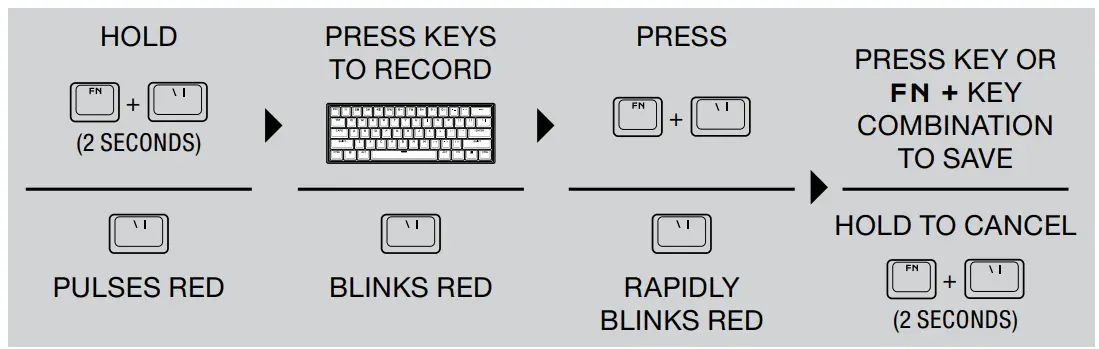
Keys that can be recorded:
- Standard keys
- Full-size keyboard key shortcuts (next page)*
Macros can be recorded to:
- Any key**
- FN + key**
- FN + Menu (FN2) + key
MACRO CLEANING PROCESS
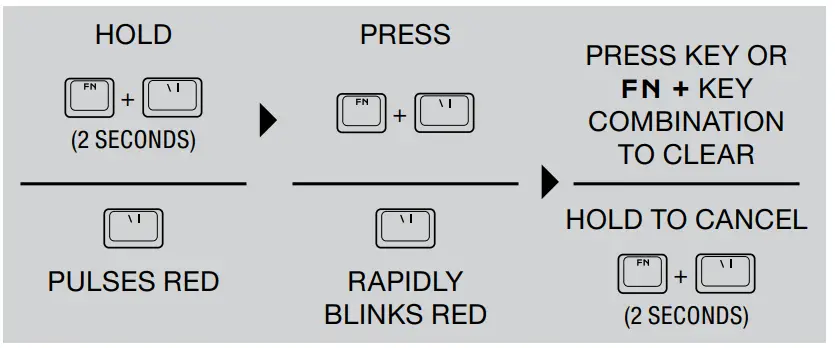
NOTE: Saving a macro to a key or existing shortcut will overwrite that function until cleared.
Hardware lighting, special functions, and control shortcuts cannot be recorded.
Function keys (FN, FN2) and the macro recording shortcut (FN + \) cannot be recorded over.
KEYBOARD SHORTCUTS
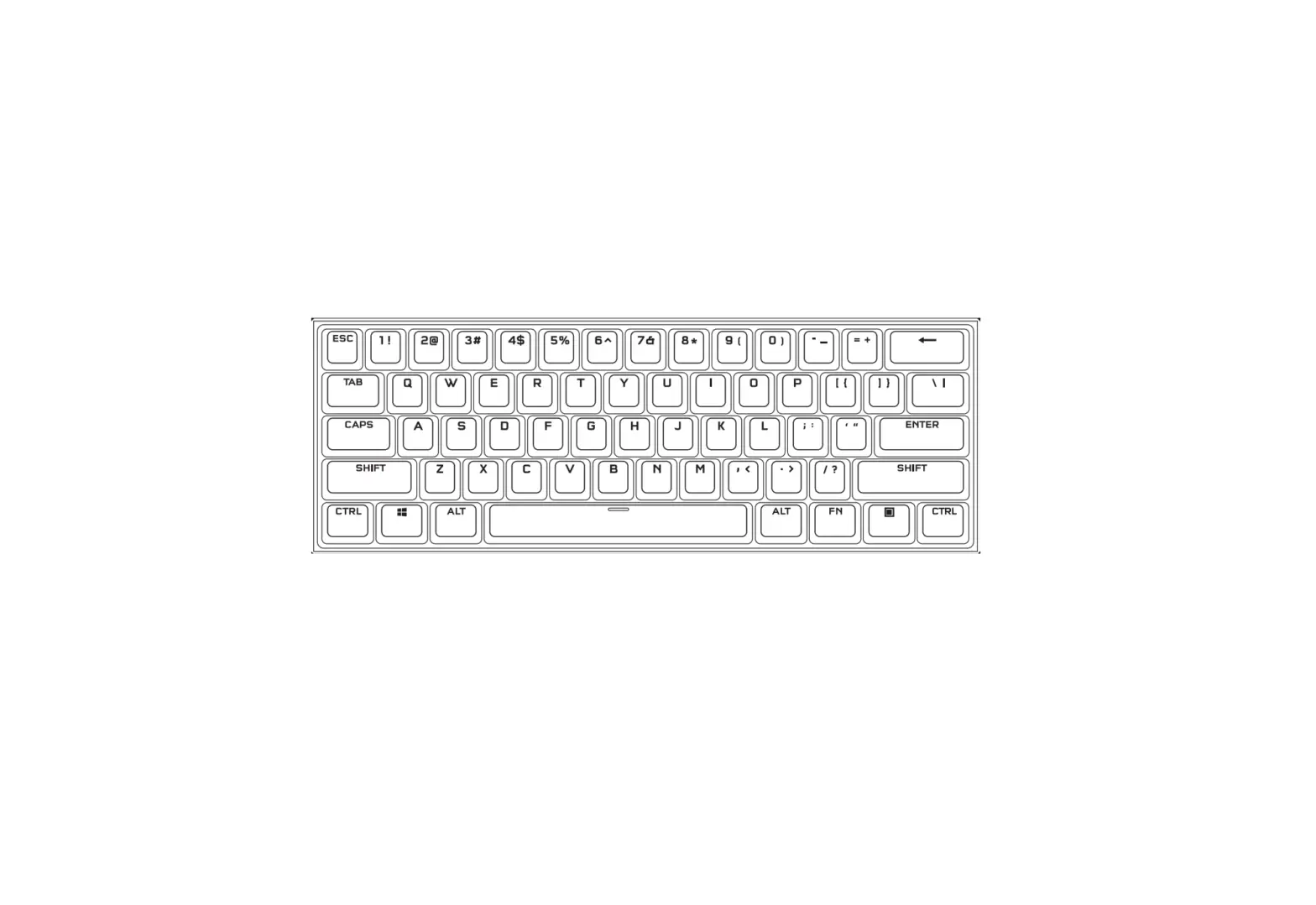
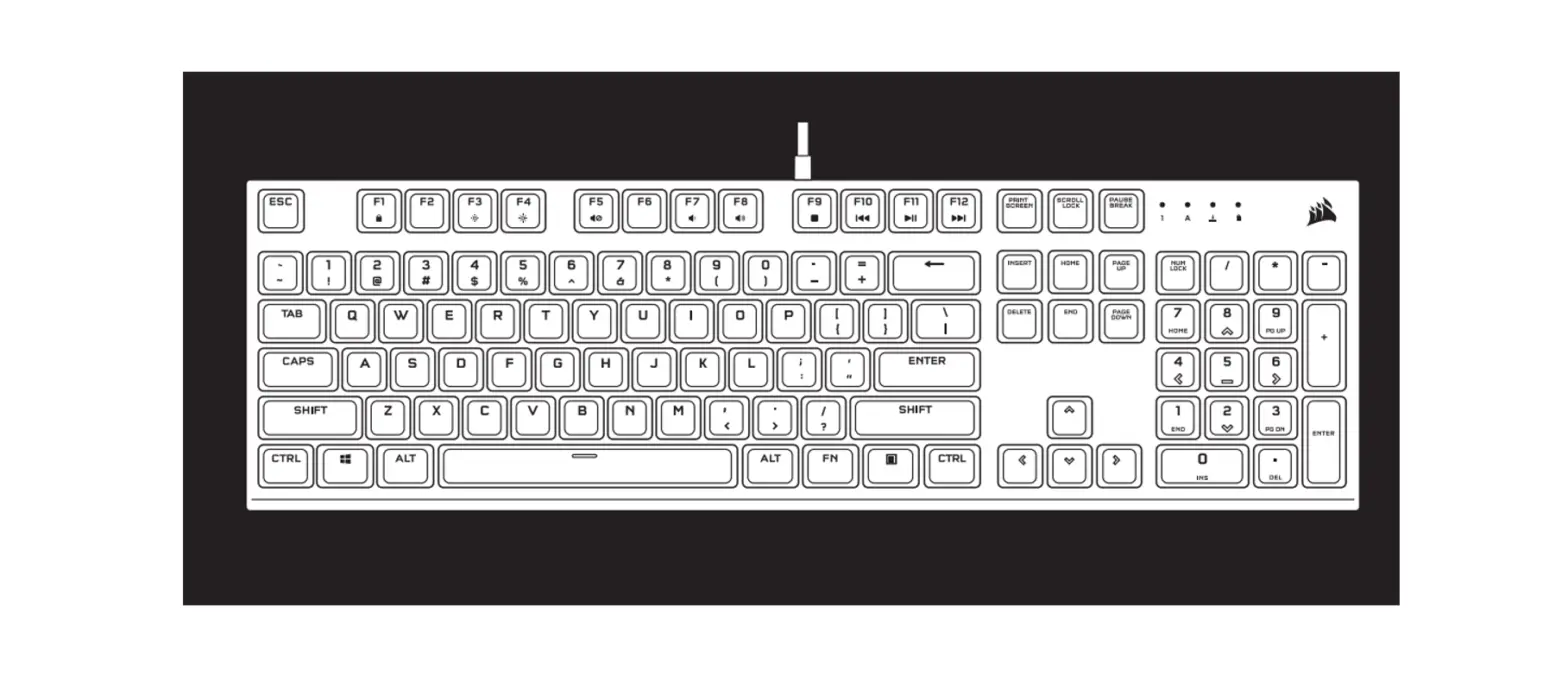
The 60% keyboard formfactor eschews many standard keys to achieve a compact size, but common Windows and keyboard functions can be accessed via the below shortcuts.
WINDOWS
| SHORTCUT | WINDOWS FUNCTION |
| CTRL + ALT + FN + BACKSPACE | CONTROL + ALT + DELETE |
| ALT + FN + 4 | ALT + F4 |
FULL-SIZE KEYBOARD KEYS
| SHORTCUT | KEY FUNCTION |
| FN + ESC | ` |
| FN + SHIFT + ESC | ~ |
| FN + NUMERIC KEY | F1-12 |
| FN + U | ARROW UP |
| FN + H | ARROW LEFT |
| FN + J | ARROW DOWN |
| FN + K | ARROW RIGHT |
| SHORTCUT | KEY FUNCTION |
| FN + BACKSPACE | DELETE |
| FN + ] | INSERT |
| FN + [ | HOME |
| FN + ‘ | END |
| FN + P | PAGE UP |
| FN + ; | PAGE DOWN |
| FN + N | PRINT SCREEN |
| FN + M | PAUSE BREAK |
CONTROL SHORTCUTS
Audio, media, and mouse cursor control is also conveniently available via the below shortcuts.
AUDIO AND MEDIA
| SHORTCUT | AUDIO FUNCTION | |
 | FN + I | MUTE AUDIO |
 | FN + O | INCREASE VOLUME |
 | FN + L | DECREASE VOLUME |
| SHORTCUT | MEDIA FUNCTION | |
 | FN + , | LAST TRACK |
 | FN + . | PLAY / PAUSE |
 | FN + / | NEXT TRACK |
MOUSE CURSOR
| SHORTCUT | MOUSE FUNCTION | |
 | FN + W | MOVE CURSOR UP |
 | FN + A | MOVE CURSOR LEFT |
 | FN + S | MOVE CURSOR DOWN |
 | FN + D | MOVE CURSOR RIGHT |
| SHORTCUT | MOUSE FUNCTION | |
 | FN + Q | LEFT CLICK |
 | FN + E | RIGHT CLICK |
 | FN + R | INCREASE CURSOR SPEED* |
 | FN + F | DECREASE CURSOR SPEED* |
Available cursor speed settings are 125, 250, 500, 1000, and 2000 DPI
 PC Components | Gaming Gear | CORSAIR
 Home - Corsair Community
 CORSAIR Downloads | CORSAIR iCUE Software