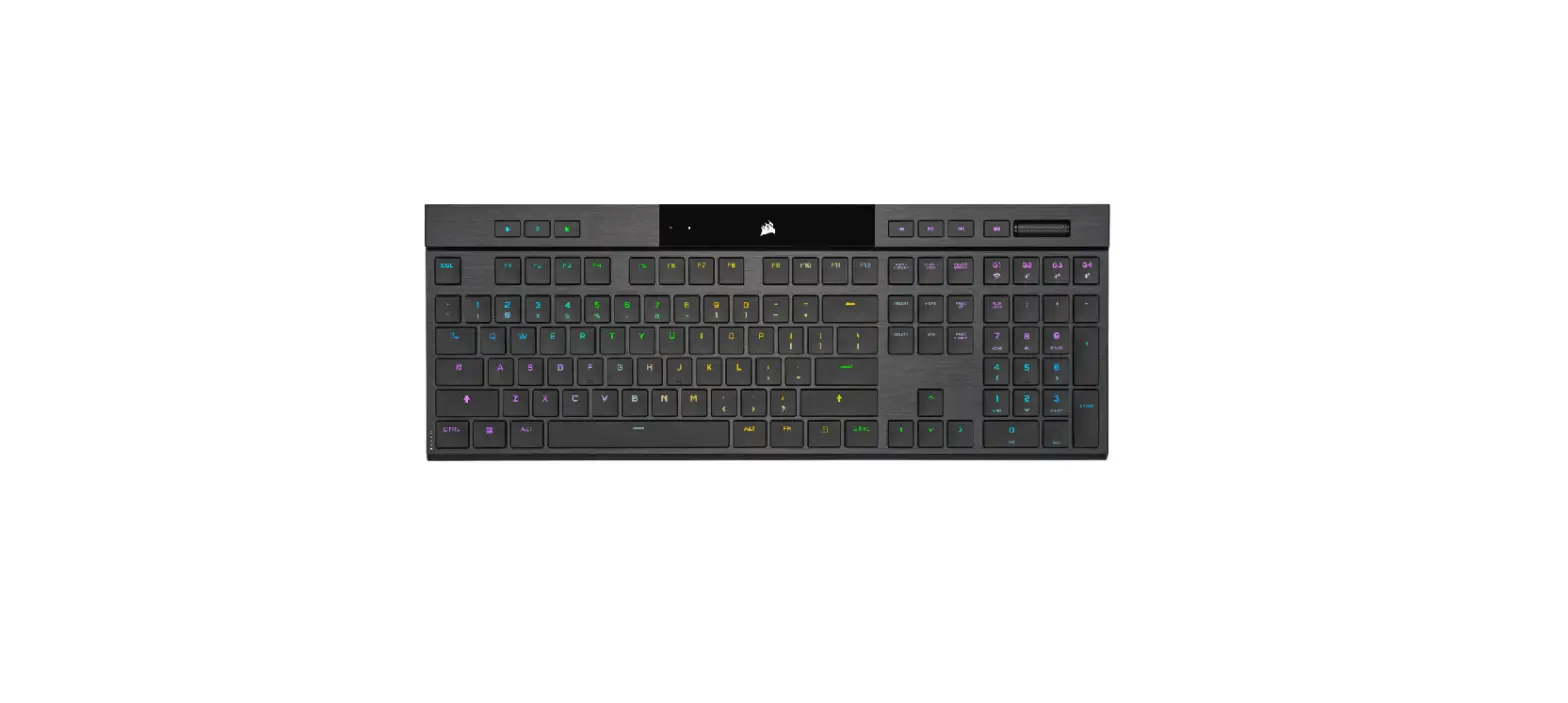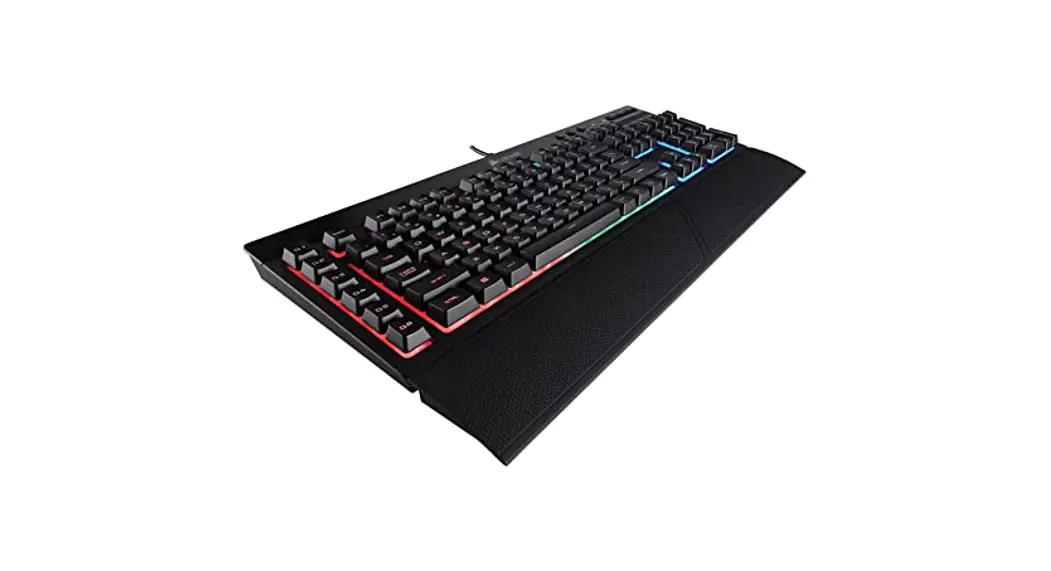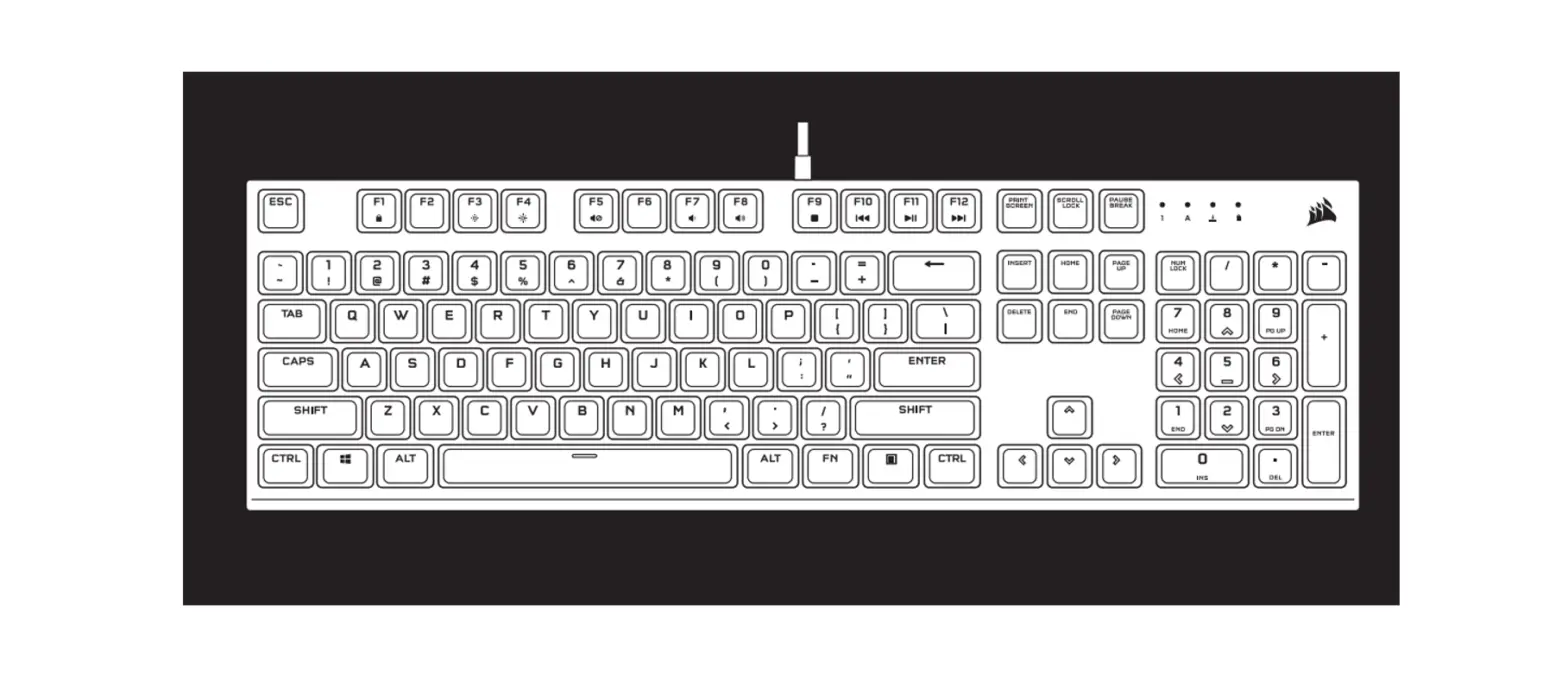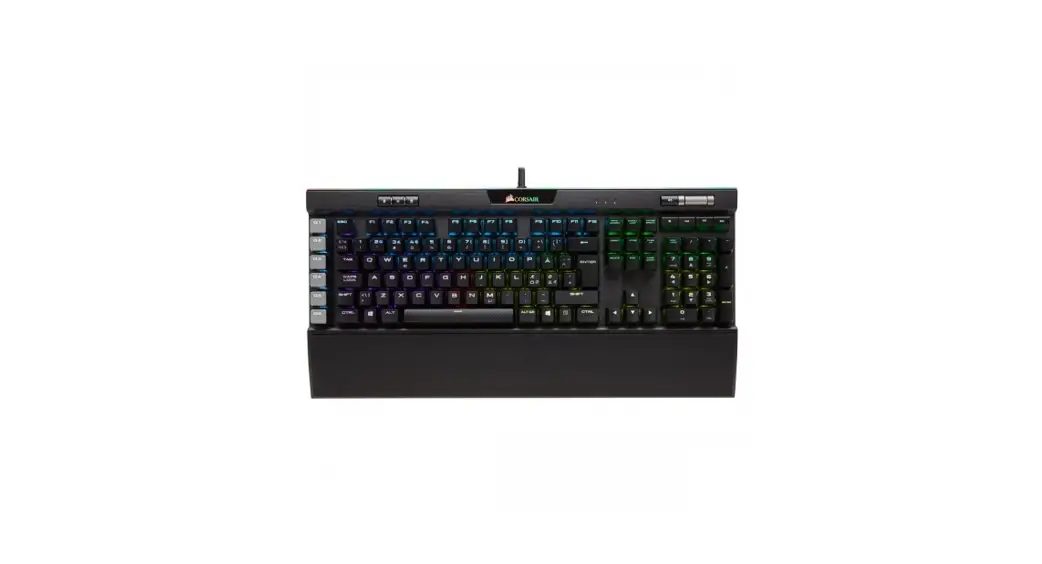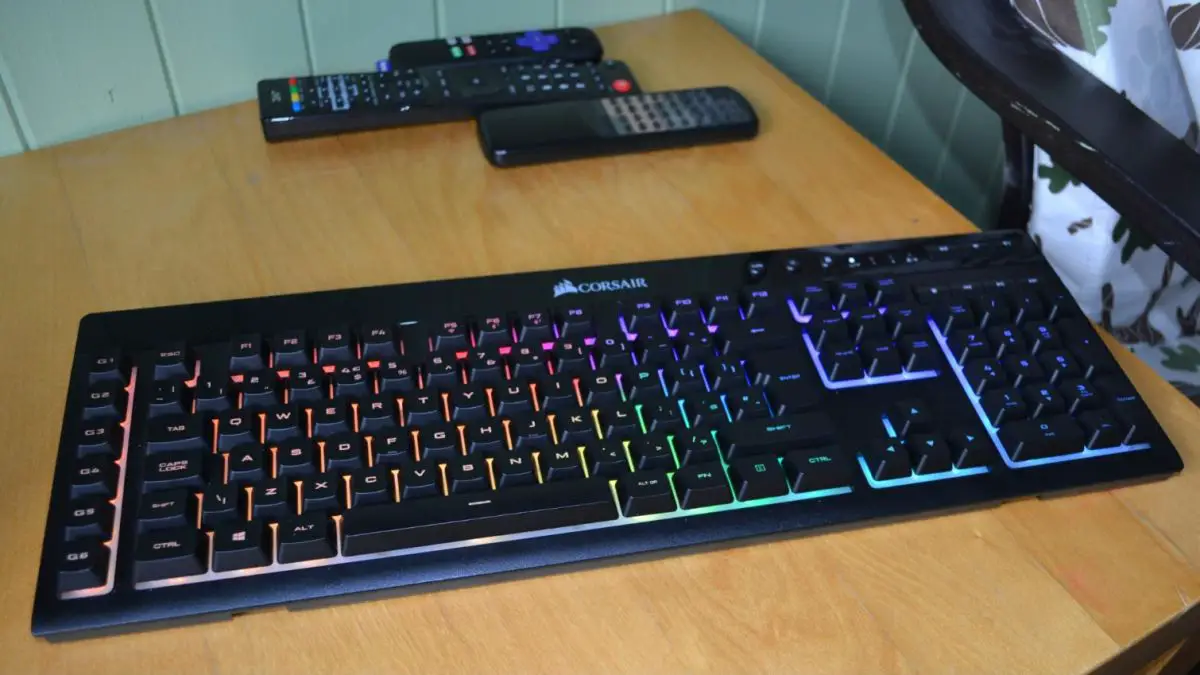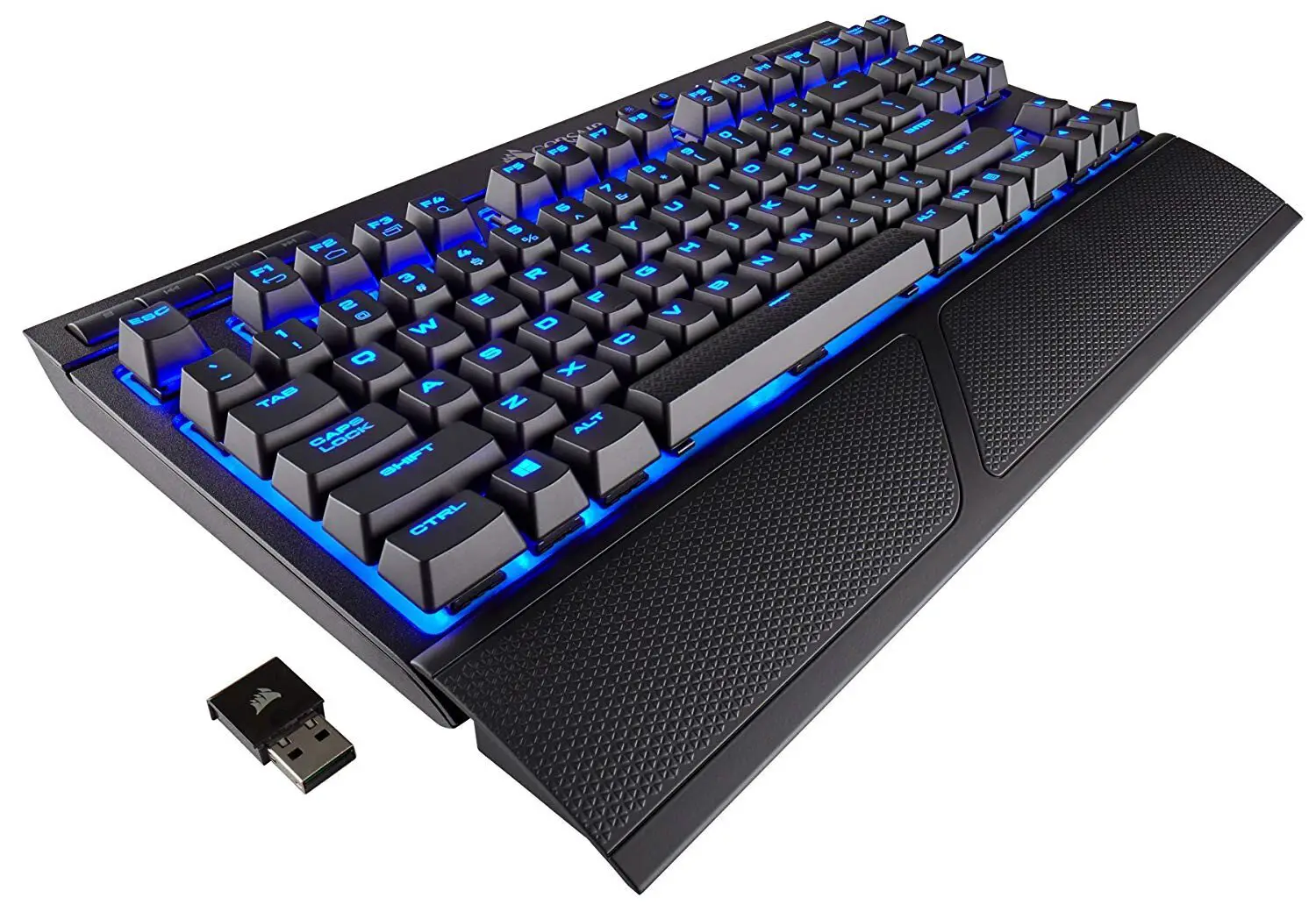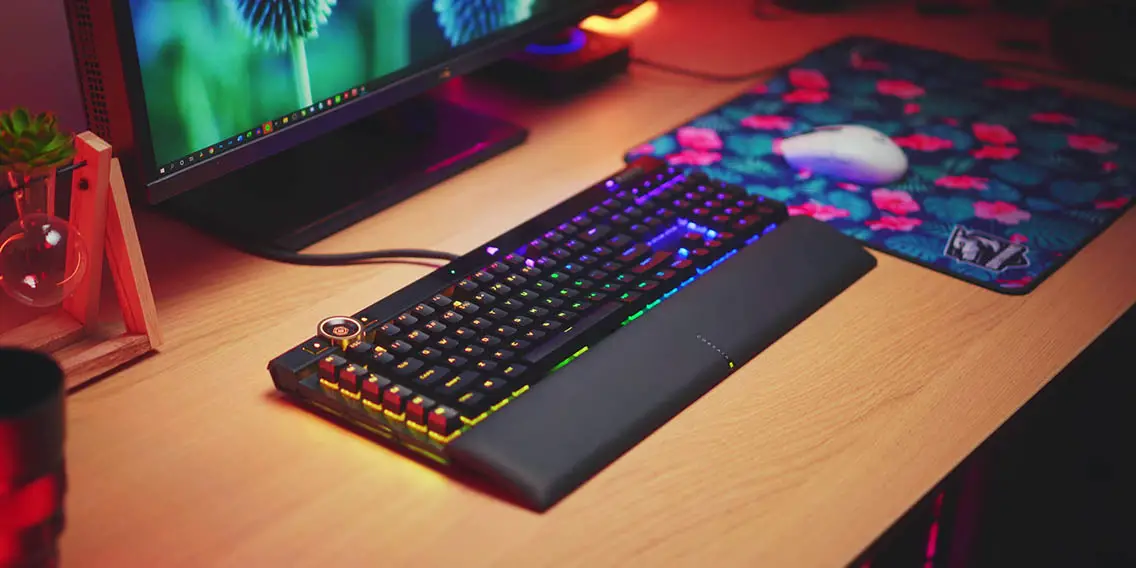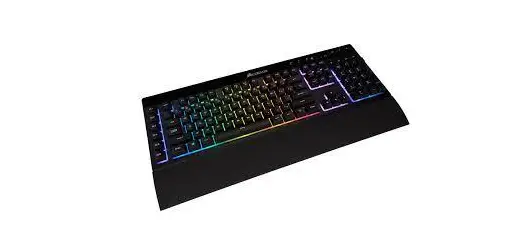

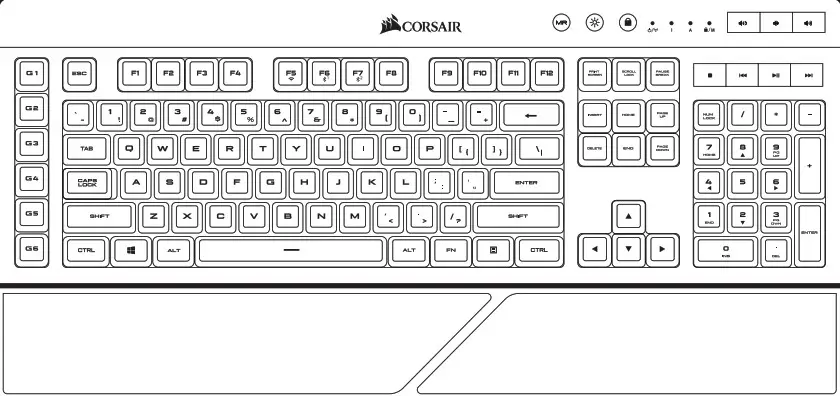
K57 RGB WIRELESS
Gaming Keyboard
with SLIPSTREAM WIRELESS Technology

CHARGING THE KEYBOARD
The K57 RGB WIRELESS keyboard must be fully charged before its first use.
- Connect the keyboard to an available USB 2.0 or USB 3.0 port on your PC with the USB charging / data cable.
- The battery / wireless status LED indicator will begin pulsing green to denote battery charging and will turn solid green when charging is complete.
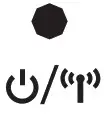 | STATUS LED INDICATOR | BATTERY STATUS |
| PULSING GREEN | CHARGING | |
| PULSING RED | CRITICAL | |
| SOLID RED | LOW | |
| BLINKING AMBER | MEDIUM | |
| BLINKING GREEN | HIGH | |
| SOLID GREEN | CHARGED |
GETTING TO KNOW THE KEYBOARD
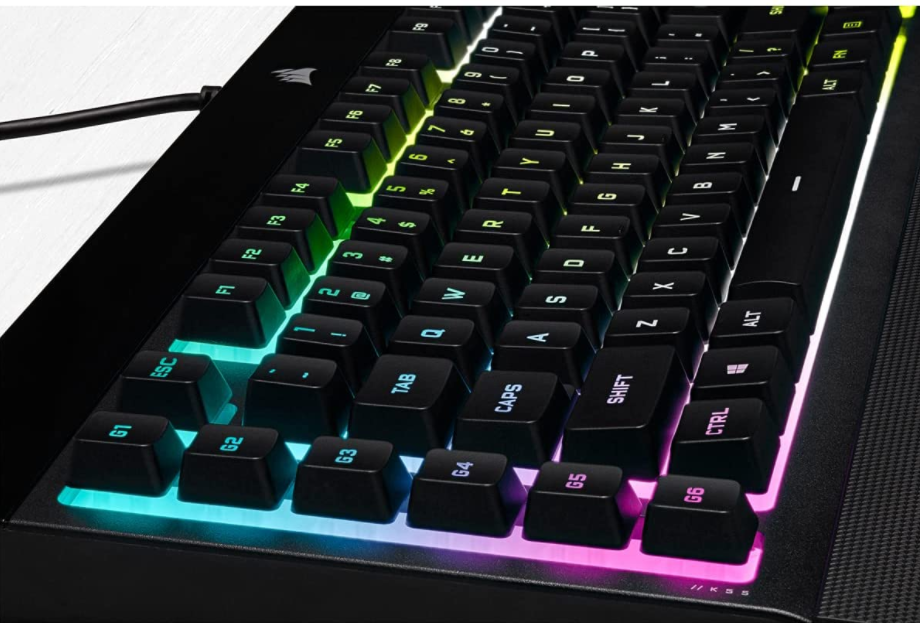
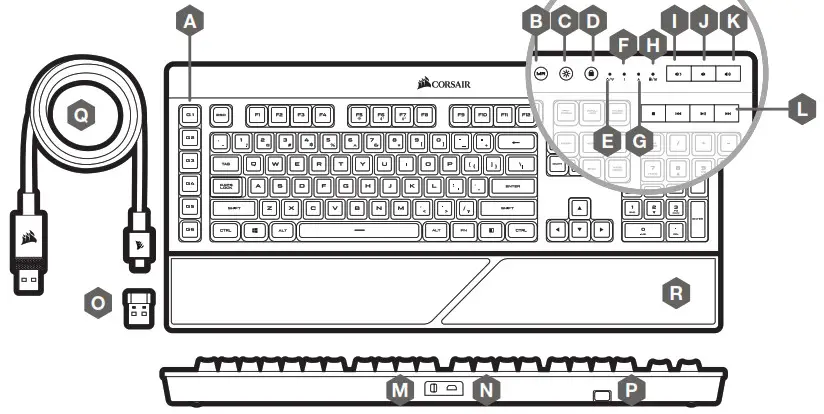 A – SIX PROGRAMMABLE MACRO KEYS
B – MACRO RECORD KEY
C – BACKLIGHT BRIGHTNESS KEY
D – WINDOWS KEY DISABLE
E – BATTERY / WIRELESS STATUS INDICATOR
F – NUM LOCK LED INDICATOR
G – CAPS LOCK LED INDICATOR
H – WINLOCK / MACRO STATUS INDICATOR
I – MUTE KEY
J – VOLUME DOWN KEY
K – VOLUME UP KEY
L – DEDICATED MULTIMEDIA KEYS
M – POWER SWITCH
N – USB CHARGING / DATA PORT
O – USB WIRELESS RECEIVER
P – USB WIRELESS RECEIVER HOLDER
Q – USB CHARGING / DATA CABLE
R – PALM REST
SETTING UP 2.4GHz SLIPSTREAM WIRELESS
Hyper-fast sub-1ms wireless connection is designed for no-compromise gaming-grade performance.
- Toggle power switch to turn on the keyboard.
- Connect the USB wireless receiver to an available USB 2.0 or 3.0 port located on the front panel of your PC.
- The status LED indicator will turn solid white when connected.
If reconnection is required, initiate USB wireless receiver pairing via the iCUE software settings menu and hold FN + F5 on the keyboard for 2 seconds.
SETTING UP BLUETOOTH® WIRELESS
Bluetooth wireless is best for everyday computing tasks, productivity, and office applications.
- Initiate Bluetooth pairing on your Bluetooth 4.0 or higher-enabled device.
- Toggle power switch to turn on the keyboard.
- Hold FN + F6 until status LED indicator blinks blue.
- Follow the instructions to successfully connect your device.
The K57 RGB WIRELESS has two Bluetooth keys (F6 and F7) allowing you to remember and easily switch between two Bluetooth host devices.
STATUS LED INDICATOR CONNECTIVITY STATUS BLINKING WHITE SLIPSTREAM WIRELESS PAIRING SOLID WHITE PAIRED PULSING WHITE PAIRING FAILED BLINKING BLUE BLUETOOTH WIRELESS #1 PAIRING SOLID BLUE PAIRED PULSING BLUE PAIRING FAILED BLINKING CYAN BLUETOOTH WIRELESS #2 PAIRING SOLID CYAN PAIRED PULSING CYAN PAIRING FAILED SOLID YELLOW USB CONNECTED
BUILT-IN LIGHTING MODES
K57 RGB WIRELESS features dynamic per-key lighting, fully programmable with iCUE software to enable virtually unlimited lighting customization. It also comes with 11 built-in onboard lighting modes for instant illumination. Those modes can be accessed by FN combo key.
LIGHTING MODE | FN + KEY COMBO | LIGHTING EFFECT | LIGHTING MODE | FN + KEY COMBO | LIGHTING EFFECT |
| 1 | FN + 1 | SPIRAL RAINBOW | 7 | FN + 7 | COLOR SHIFT |
| 2 | FN + 2 | RAIN | 8 | FN + 8 | COLOR PULSE |
| 3 | FN + 3 | RAINBOW WAVE | 9 | FN + 9 | COLOR WAVE |
| 4 | FN + 4 | VISOR | 10 | FN + 0 | STATIC |
| 5 | FN + 5 | TYPE LIGHTING (KEY) | 11 | FN + – | NO LIGHTING |
| 6 | FN + 6 | TYPE LIGHTING (RIPPLE) |
Dynamic lighting modes can be further customized for speed, duration and direction.
LIGHTING MODES | FN + KEY COMBO | FUNCTION | ||||||||
| 1 | 2 | 3 | 4 | 5 | 6 | 7 | 8 | 9 | ||
| • | • | • | • | x | x | • | • | • | ↓ | SPEED (FAST, MEDIUM, SLOW) |
| x | x | x | x | • | • | x | x | x | DURATION (LONG, MEDIUM, SHORT) | |
| • | • | • | • | x | x | • | • | • | ↑ | SPEED (SLOW, MEDIUM, FAST) |
| x | x | x | x | • | • | x | x | x | DURATION (SHORT, MEDIUM, LONG) | |
| x | x | • | x | x | x | x | x | • | ← | DIRECTION (LEFT) |
| • | x | x | x | x | x | x | x | x | DIRECTION (COUNTER-CLOCKWISE) | |
| x | x | • | x | x | x | x | x | • | → | DIRECTION (RIGHT) |
| • | x | x | x | x | x | x | x | x | DIRECTION (CLOCKWISE) | |
LIGHTING AND BATTERY LIFE
On a full charge, the K57 RGB WIRELESS keyboard lasts for up to 170 hours of continuous use and may vary depending on the usage, lighting brightness, wireless mode and other factors. Refer to the table below for the estimated, maximum battery life you may expect.
| BRIGHTNESS LEVEL | BATTERY LIFE, UP TO |
| 0 (LIGHTING OFF) | 175 HOURS | |
| 1 | 35 HOURS | |
| 2 | 20 HOURS | |
| 3 (MAX. BRIGHTNESS) | 8 HOURS |

MACRO FUNCTIONS
K57 RGB WIRELESS gaming keyboard has dedicated G1-G6 macro keys. Those keys can be assigned to perform certain single or multi-key press actions for quick access during gaming or everyday computing.
TO RECORD MACRO:
- Press MR key. The macro status LED indicator will start blinking yellow to confirm macro recording mode is now on.
- Select G-key you want the macro assigned to. The macro status LED indicator will start blinking rapidly to indicate macro recording is now in progress. Up to 50 key events can now be recorded.
- Press MR key to stop macro recording. The macro status LED indicator will stop blinking.


TO EXECUTE MACRO:
- Press any G1-G6 key to play the previously recorded macro.


SPECIAL MACRO KEY FUNCTIONS:
- Press and hold MR key for 2 seconds to enter Special Macro Key Functions mode. The macro status LED indicator will turn solid yellow to confirm the new mode of operation. While in this mode, you have access to three macro key functions.
TO ENABLE ANY G1-G6 MACRO KEY:
- Press any G1-G6 key again to enable the macro key. The macro status LED indicator will blink rapidly once to confirm selected key is now enabled.
DISABLE ANY G1-G6 MACRO KEY:
- Press any G1-G6 key to disable the macro key without deleting action (if previously assigned). The macro status LED indicator will blink rapidly twice to confirm selected key is now disabled.
TO DELETE MACRO ASSIGNED TO G1-G6 MACRO KEY:
- Press and hold any G1-G6 key for 3 seconds to delete the macro previously assigned to the key. The macro status LED indicator will blink rapidly three times to confirm macro has been deleted.
To exit Special Macro Key Functions mode, press and hold MR key for 2 seconds. The macro status LED indicator will turn off to confirm.
STATUS LED INDICATOR MACRO STATUS SOLID YELLOW MACRO CONFIGURE MODE BLINKING YELLOW MACRO RECORDING READY RAPID BLINKING YELLOW MACRO RECORDING IN PROGRESS RAPID BLINK YELLOW x1 ENABLE MACRO RAPID BLINK YELLOW x2 DISABLE MACRO RAPID BLINK YELLOW x3 DELETE MACRO

K57 RGB WIRELESS
| WEB: corsair.com PHONE: (888) 222-4346 SUPPORT: support.corsair.com | BLOG: corsair.com/blog FORUM: forum.corsair.com YOUTUBE: youtube.com/corsairhowto |

© 2019 CORSAIR COMPONENTS, INC. All rights reserved. CORSAIR and the sails logo are registered trademarks in the United States and/or other countries. All other trademarks are the property of their respective owners. Product may vary slightly from those pictured. 49-001846 AA
 PC Components | Gaming Gear | CORSAIR
 Home - Corsair Community
 CORSAIR Downloads | CORSAIR iCUE Software