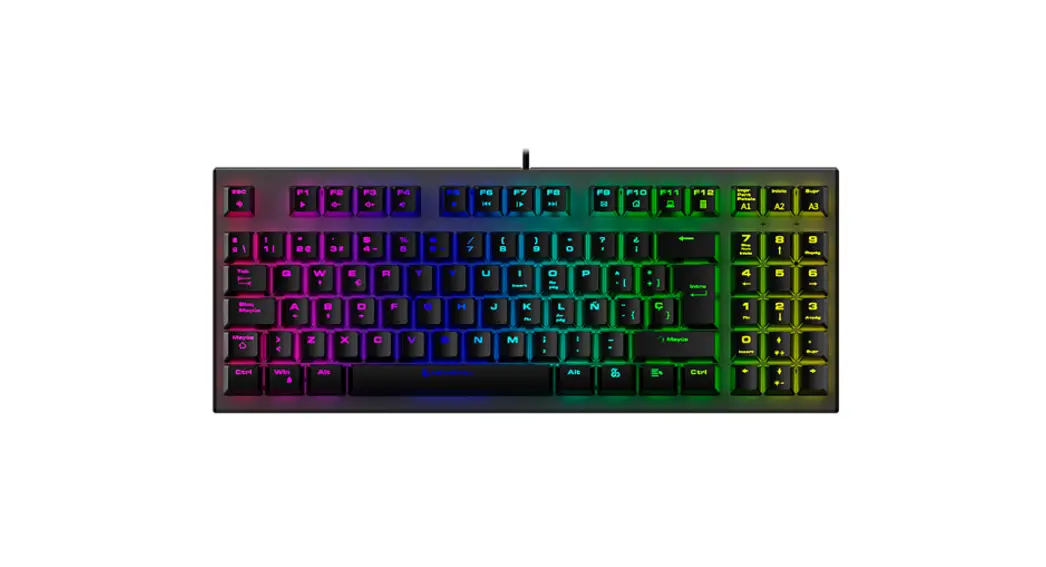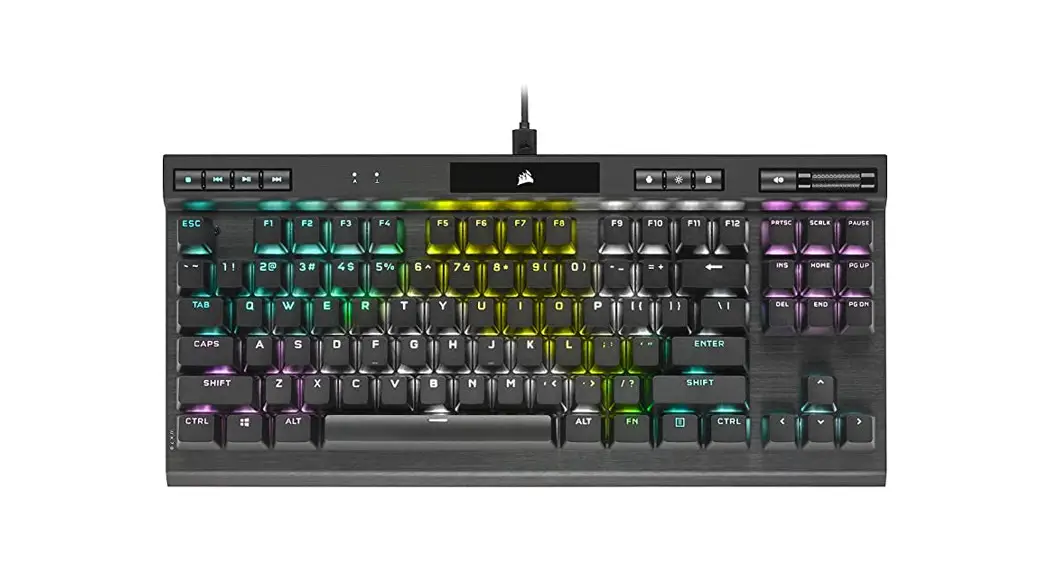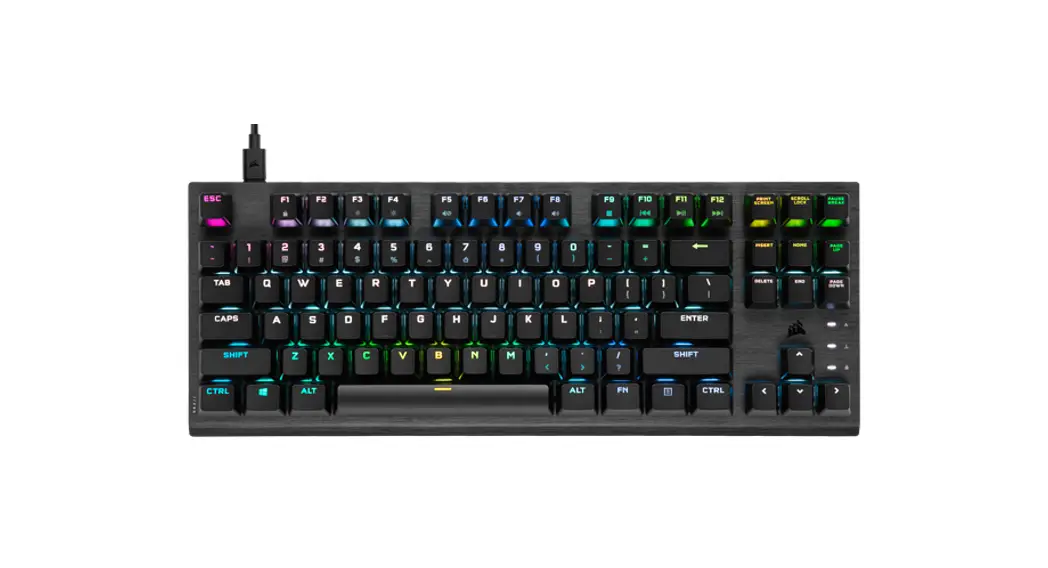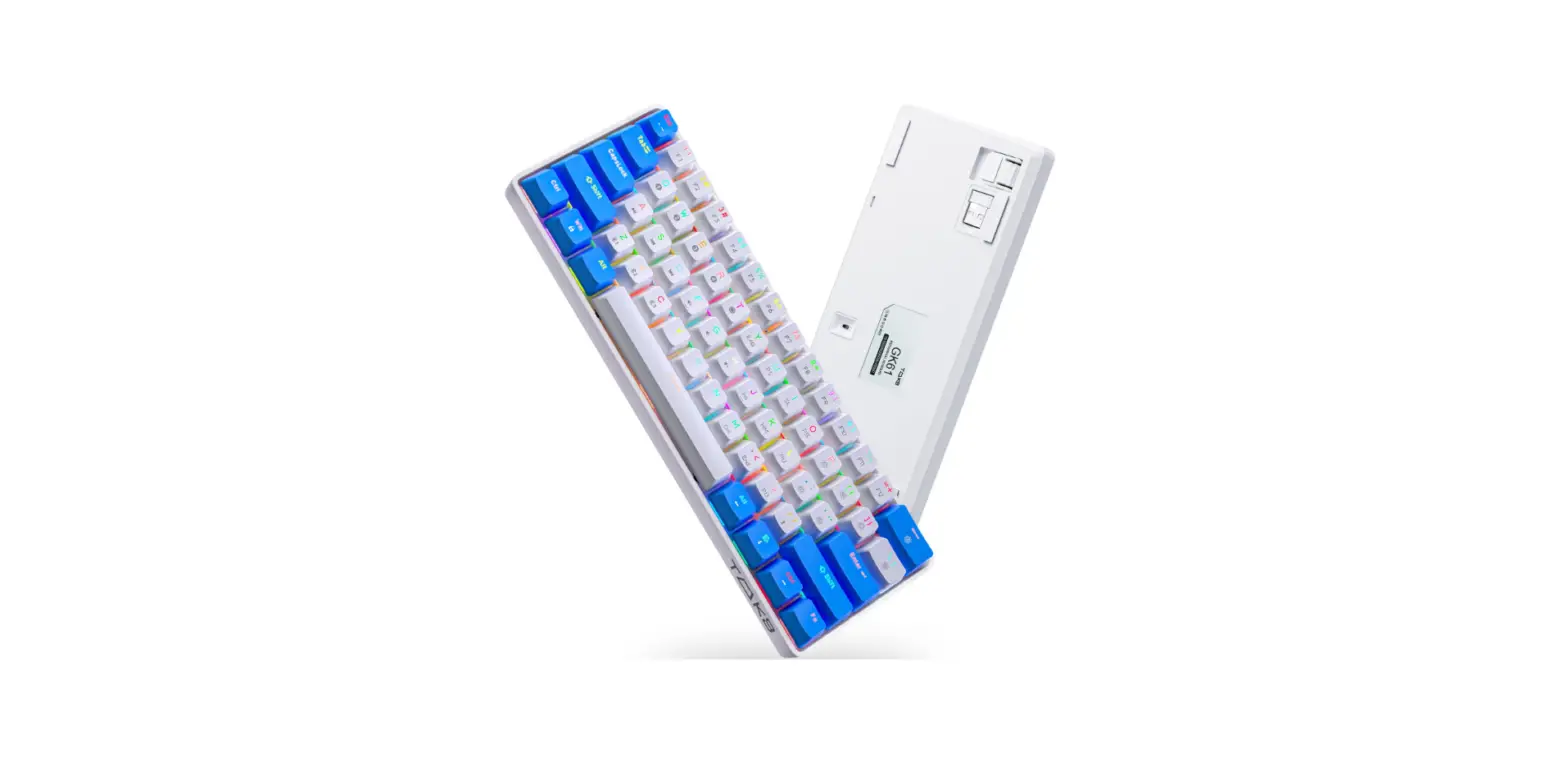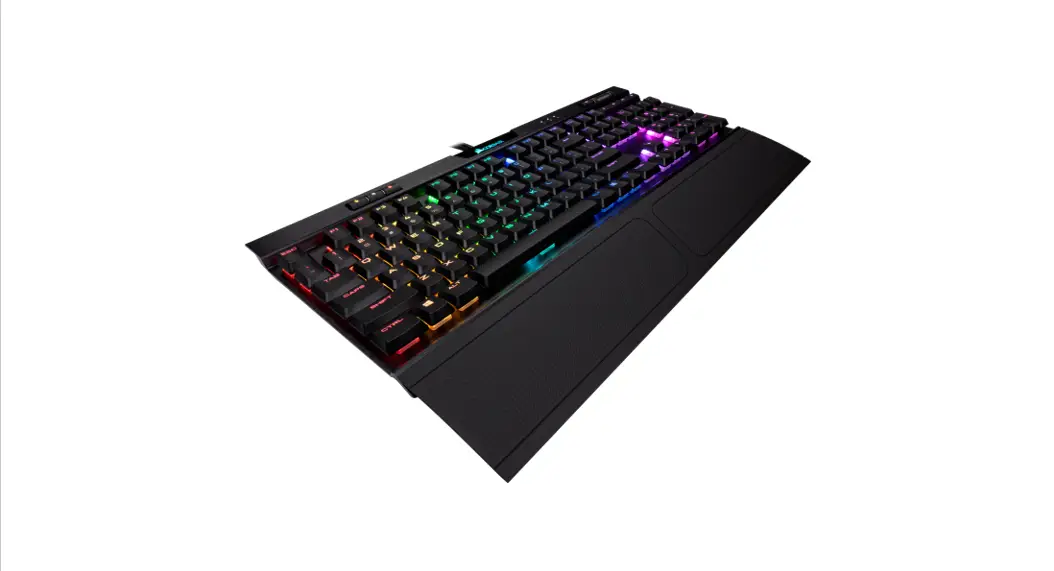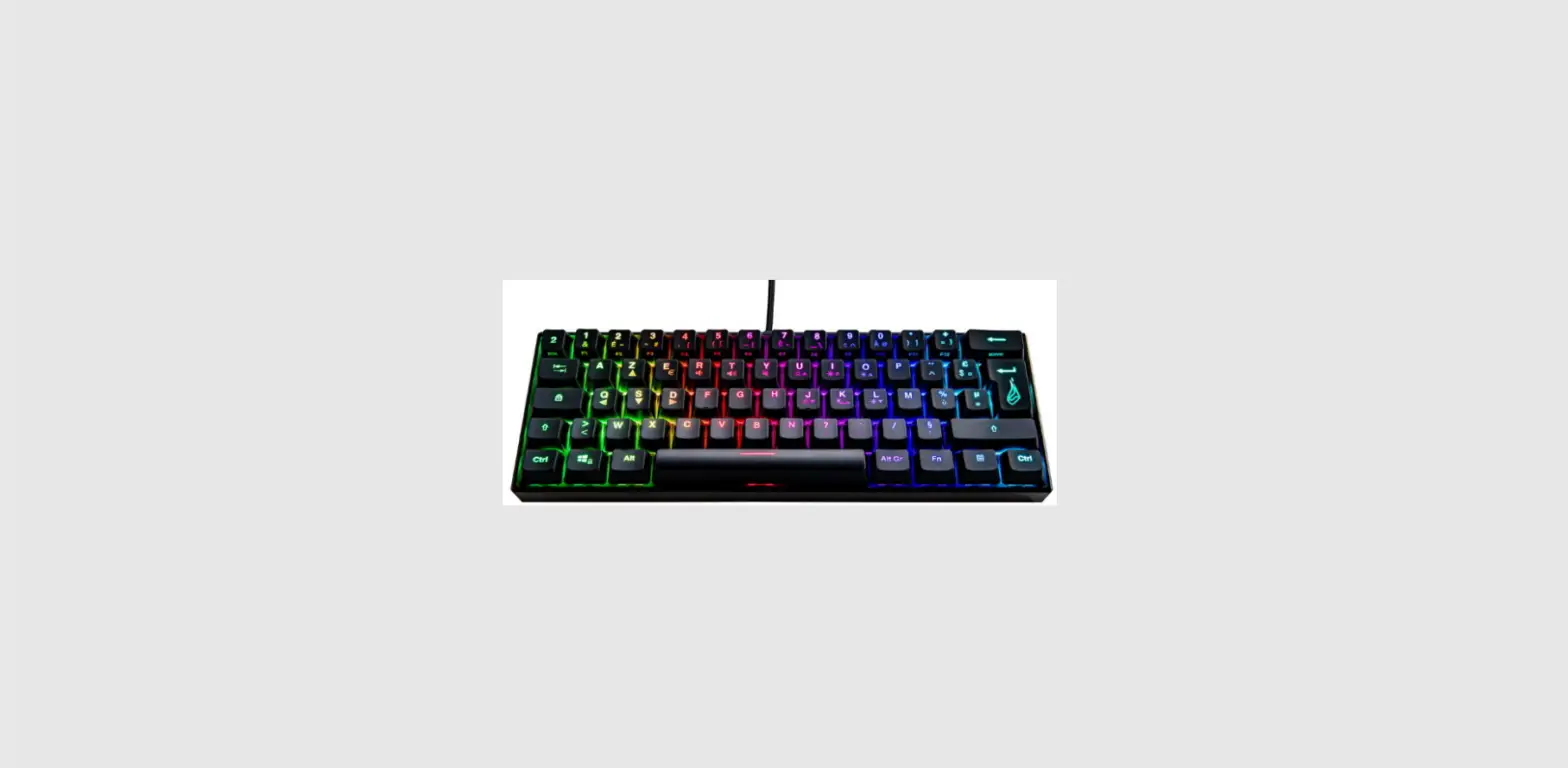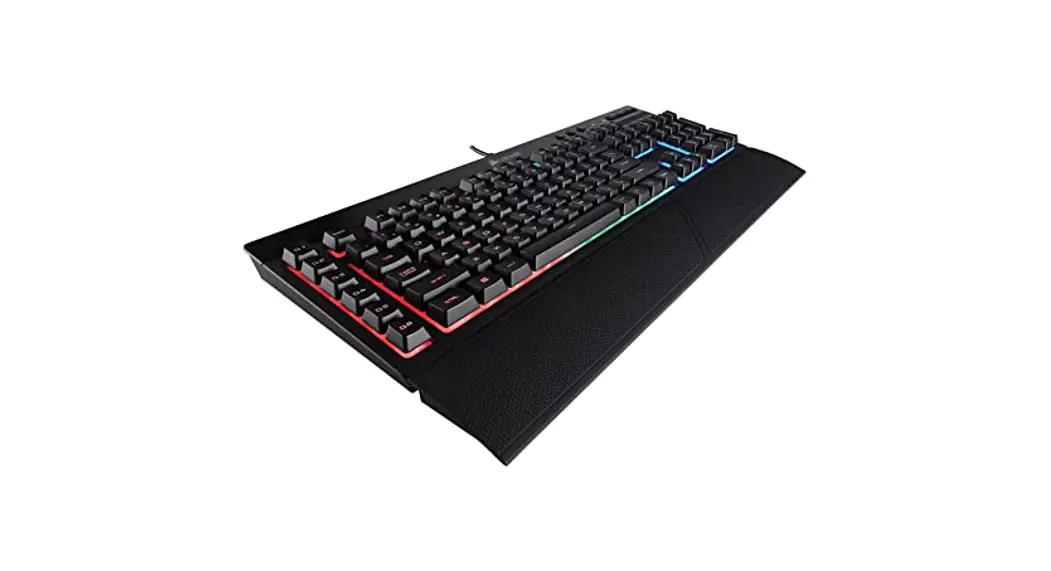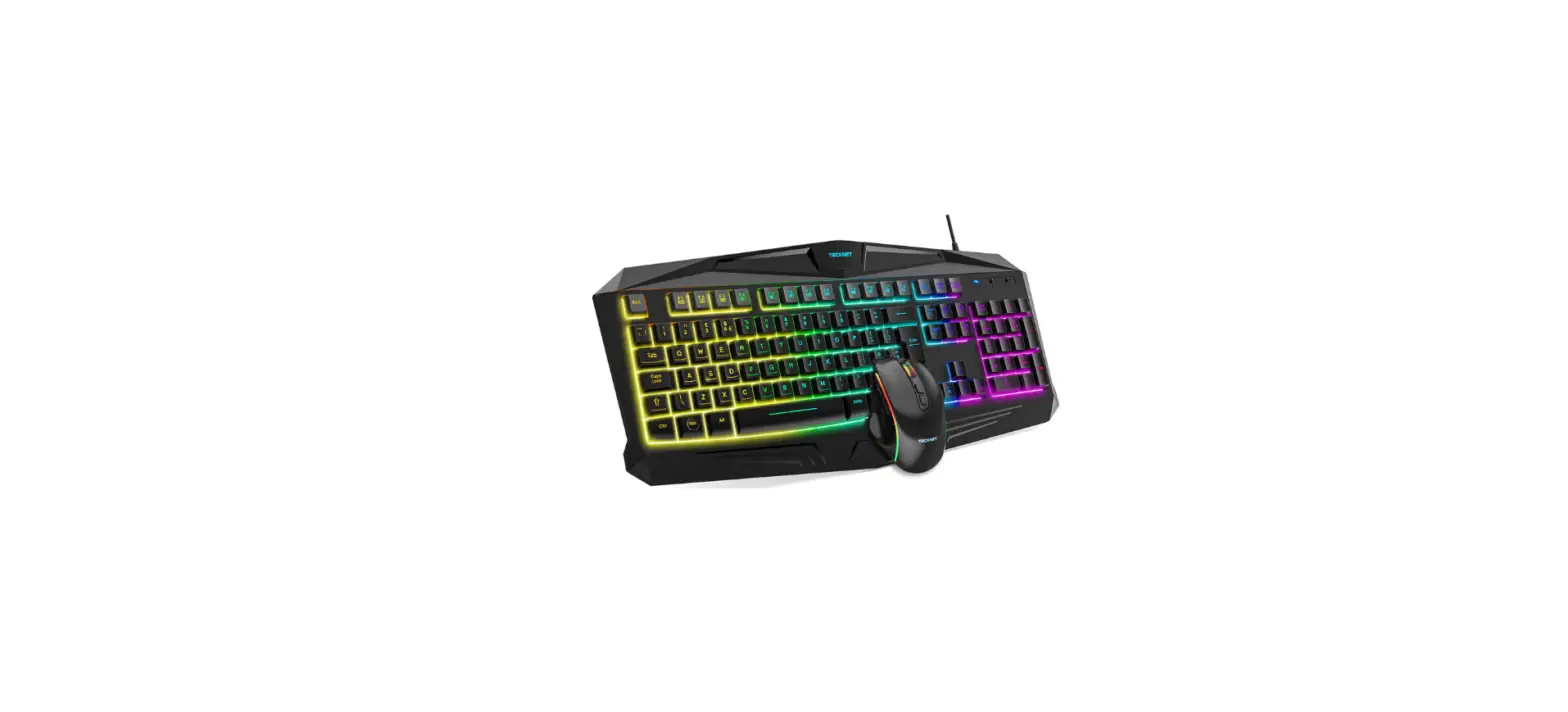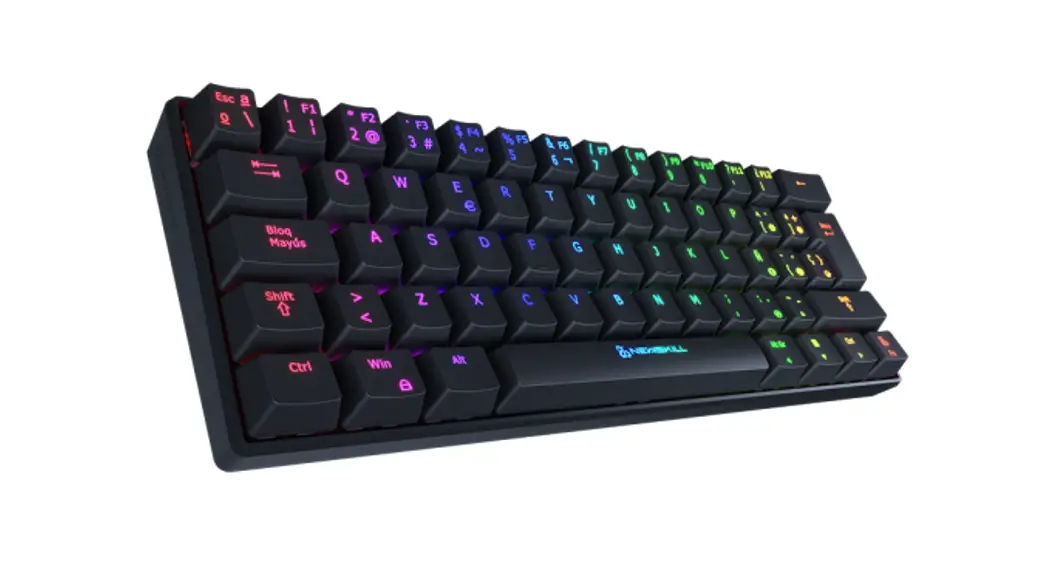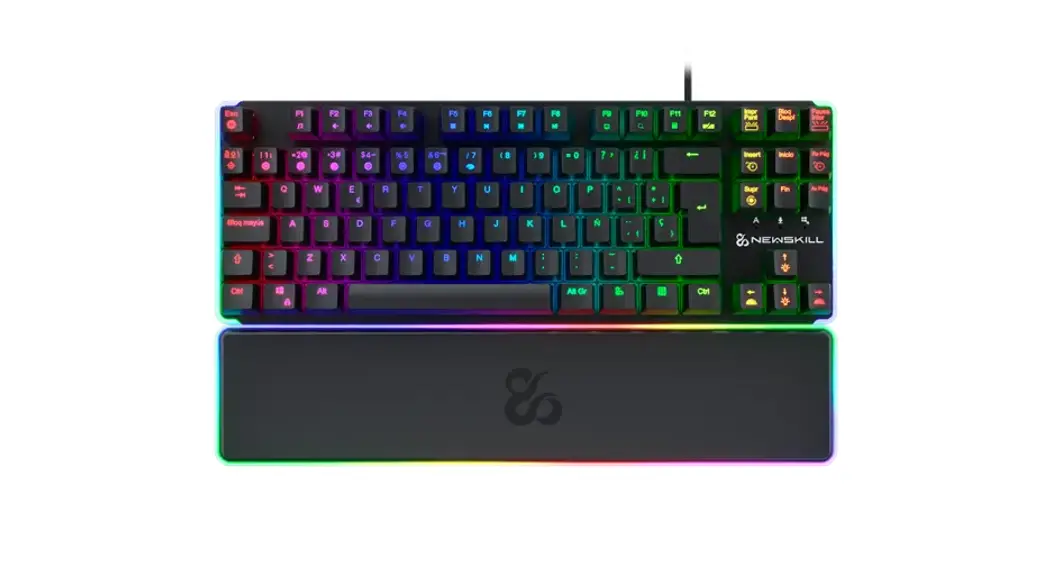

Newskill Gungnyr Tkl Pro Opto Mechanical Rgb Gaming Keyboard User Guide

Newskill Gungnyr Tkl Pro Opto Mechanical Rgb Gaming Keyboard User Guide

NEWSKILL logoGUNGNYR TKL Pro Opto Mechanical RGB Gaming Keyboard
User Guide
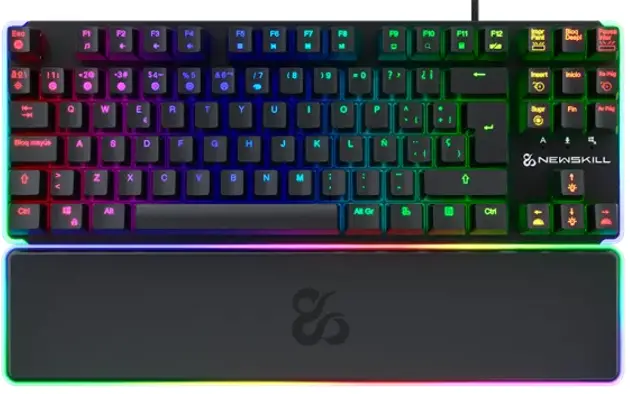
NEWSKILL GUNGNYR TKL Pro Opto Mechanical RGB Gaming Keyboard - fig 1PRO SERIES
GUNGNYR TKL PRO
QUICK GUIDE
PROFESSIONAL OPTO-MECHANICAL RGB GAMING KEYBOARD

GUNGNYR TKL Pro Opto Mechanical RGB Gaming Keyboard

GUNGNYR TKL
PRO
PROFESSIONAL OPTO-MECHANICAL
RGB GAMING KEYBOARD

How to change switch

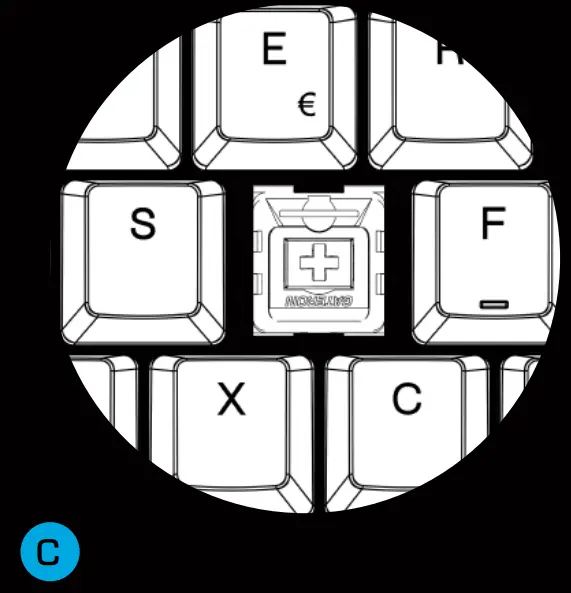
NEWSKILL GUNGNYR TKL Pro Opto Mechanical RGB Gaming Keyboard - fig 2Switch pullerNEWSKILL GUNGNYR TKL Pro Opto Mechanical RGB Gaming Keyboard - fig 3Insert the keycap puller and pull out the key capNEWSKILL GUNGNYR TKL Pro Opto Mechanical RGB Gaming Keyboard - fig 4Insert the switch puller, align the hole and pull out the switchNEWSKILL GUNGNYR TKL Pro Opto Mechanical RGB Gaming Keyboard - fig 5Insert the switch and press down until it “clicks”, please note that the word GATERON should be facing downNEWSKILL GUNGNYR TKL Pro Opto Mechanical RGB Gaming Keyboard - fig 6

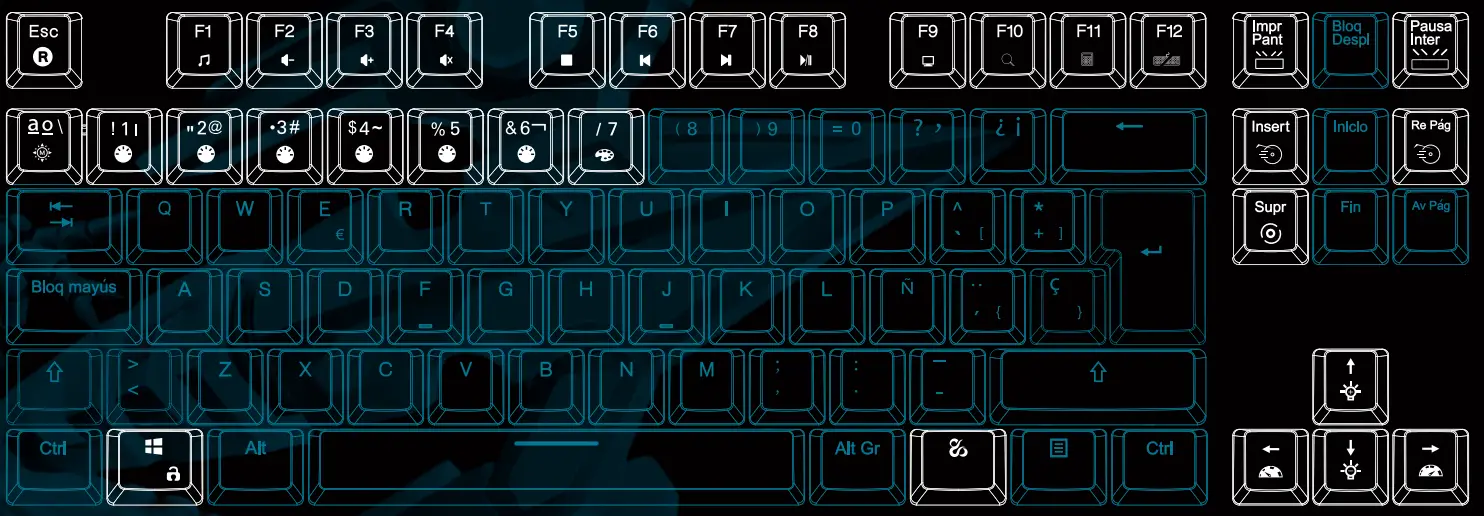
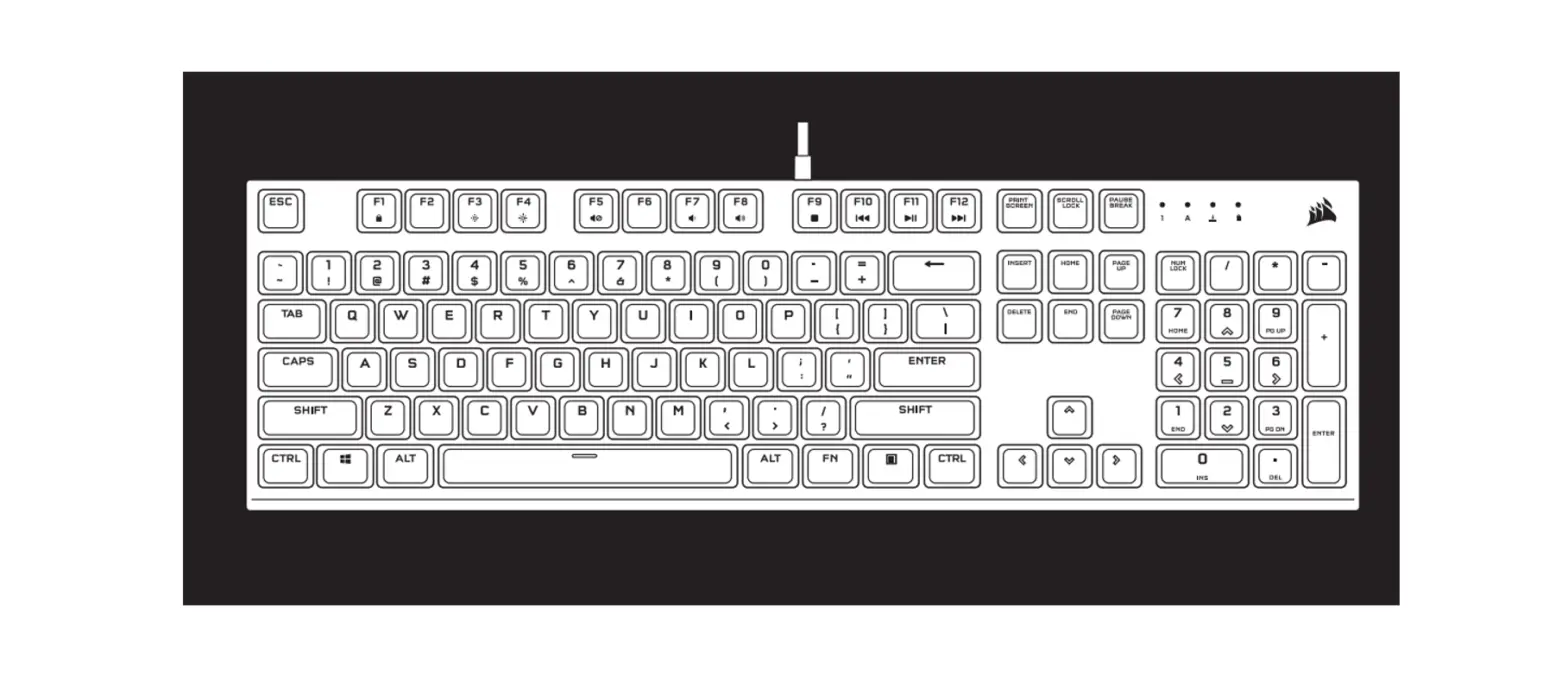
Fn combination keys NEWSKILL GUNGNYR TKL Pro Opto Mechanical RGB Gaming Keyboard - fig 7 = Open the music

NEWSKILL GUNGNYR TKL Pro Opto Mechanical RGB Gaming Keyboard - fig 8 + F1Open the music
NEWSKILL GUNGNYR TKL Pro Opto Mechanical RGB Gaming Keyboard - fig 8  + F2Volume –
NEWSKILL GUNGNYR TKL Pro Opto Mechanical RGB Gaming Keyboard - fig 8 + F3Volume +
NEWSKILL GUNGNYR TKL Pro Opto Mechanical RGB Gaming Keyboard - fig 8 + F4Mute
NEWSKILL GUNGNYR TKL Pro Opto Mechanical RGB Gaming Keyboard - fig 8 + F5Stop
NEWSKILL GUNGNYR TKL Pro Opto Mechanical RGB Gaming Keyboard - fig 8 + F6Last song
NEWSKILL GUNGNYR TKL Pro Opto Mechanical RGB Gaming Keyboard - fig 8 + F7Next song
NEWSKILL GUNGNYR TKL Pro Opto Mechanical RGB Gaming Keyboard - fig 8 + F8Play/pause
NEWSKILL GUNGNYR TKL Pro Opto Mechanical RGB Gaming Keyboard - fig 8  + F9Search
NEWSKILL GUNGNYR TKL Pro Opto Mechanical RGB Gaming Keyboard - fig 8 + F10Calculator
NEWSKILL GUNGNYR TKL Pro Opto Mechanical RGB Gaming Keyboard - fig 8+ F11Lock/open keyboard
NEWSKILL GUNGNYR TKL Pro Opto Mechanical RGB Gaming Keyboard - fig 8+ F12Restore to default(hold 3s)
NEWSKILL GUNGNYR TKL Pro Opto Mechanical RGB Gaming Keyboard - fig 8+ EscLight mode
NEWSKILL GUNGNYR TKL Pro Opto Mechanical RGB Gaming Keyboard - fig 8 + 1~6Light color switch
NEWSKILL GUNGNYR TKL Pro Opto Mechanical RGB Gaming Keyboard - fig 8+ 7Light color switch
NEWSKILL GUNGNYR TKL Pro Opto Mechanical RGB Gaming Keyboard - fig 8+ ↑/↓Increase/reduce light intesity
NEWSKILL GUNGNYR TKL Pro Opto Mechanical RGB Gaming Keyboard - fig 8+ ← / →Light speed reduce/increase
NEWSKILL GUNGNYR TKL Pro Opto Mechanical RGB Gaming Keyboard - fig 8 + PrtScSwich ambient light mode
NEWSKILL GUNGNYR TKL Pro Opto Mechanical RGB Gaming Keyboard - fig 8 + InsPeripheral light speed adjustment
NEWSKILL GUNGNYR TKL Pro Opto Mechanical RGB Gaming Keyboard - fig 8 + PauseArm rest light mode switch
NEWSKILL GUNGNYR TKL Pro Opto Mechanical RGB Gaming Keyboard - fig 8 + PgupArm rest light speed adjustment
NEWSKILL GUNGNYR TKL Pro Opto Mechanical RGB Gaming Keyboard - fig 8 + WinLockOpen/close the windows
NEWSKILL GUNGNYR TKL Pro Opto Mechanical RGB Gaming Keyboard - fig 8 + `~Key area light mode cycle switch

NEWSKILL GUNGNYR TKL Pro Opto Mechanical RGB Gaming Keyboard - fig 8+ Del
Five sets of custom lighting mode recording functions:
A. Press Fn+8*/9(/0)/-_/=+ to select any group:
B. Press Fn+Del again and the light flashes.
C. Choose your own light color.
D. Press Fn+De to save the SettingsNEWSKILL logo

Documents / Resouces

Download manual
Here you can download full pdf version of manual, it may contain additional safety instructions, warranty information, FCC rules, etc.


Related Manuals