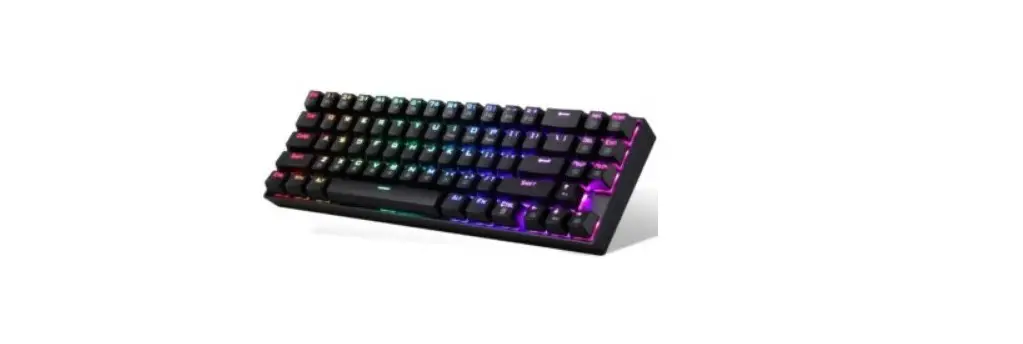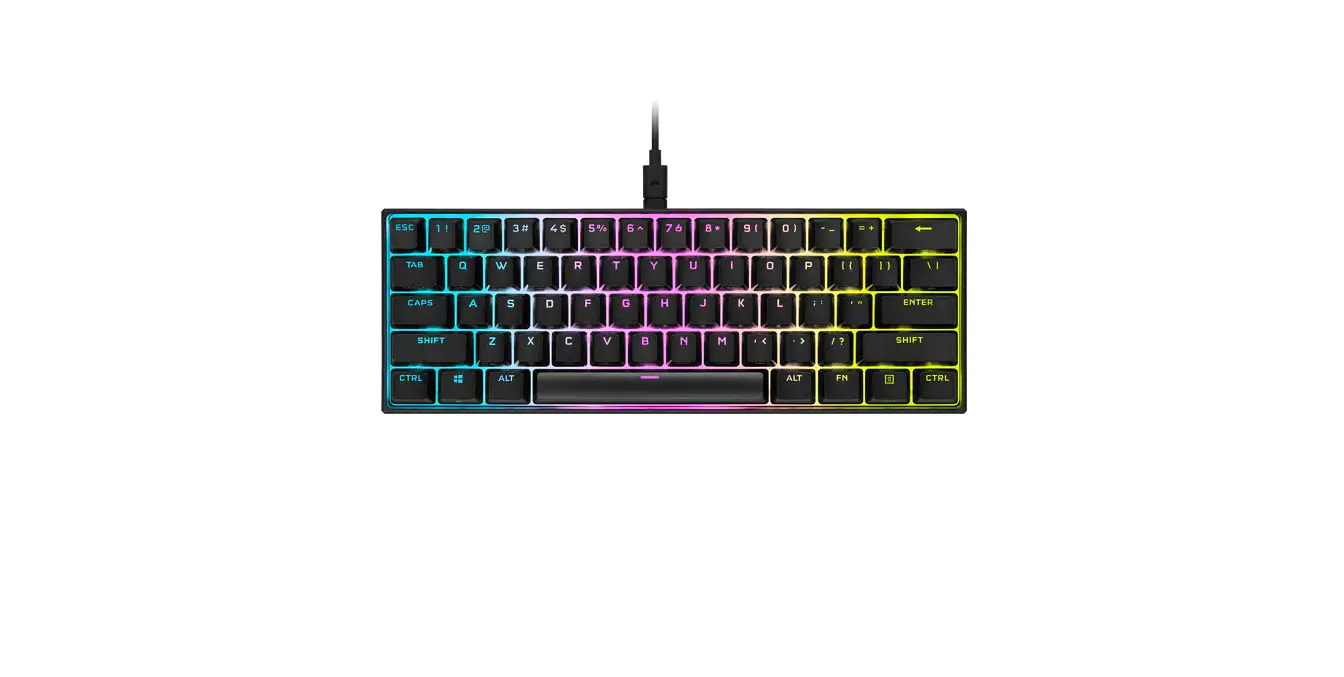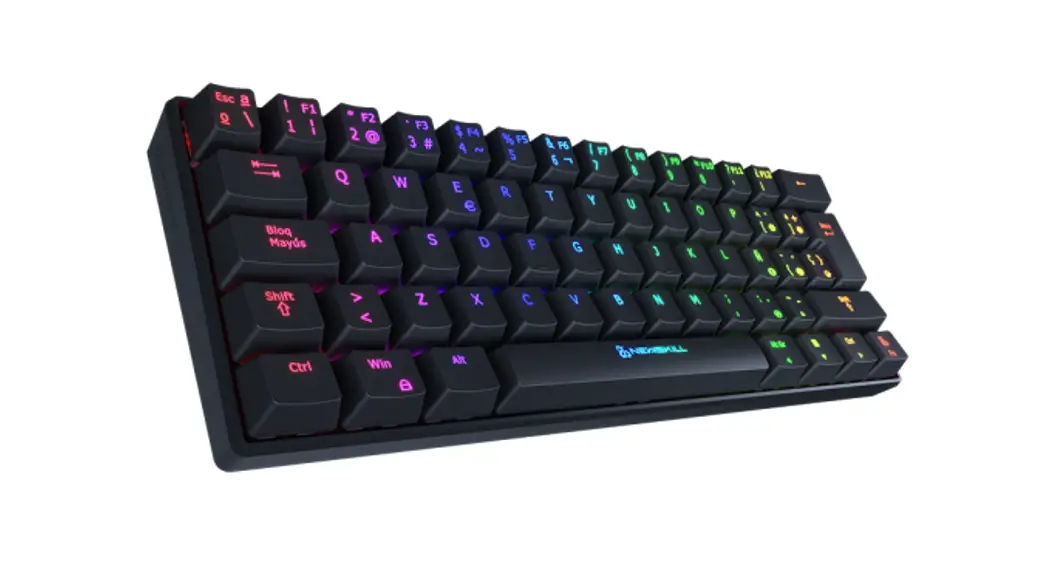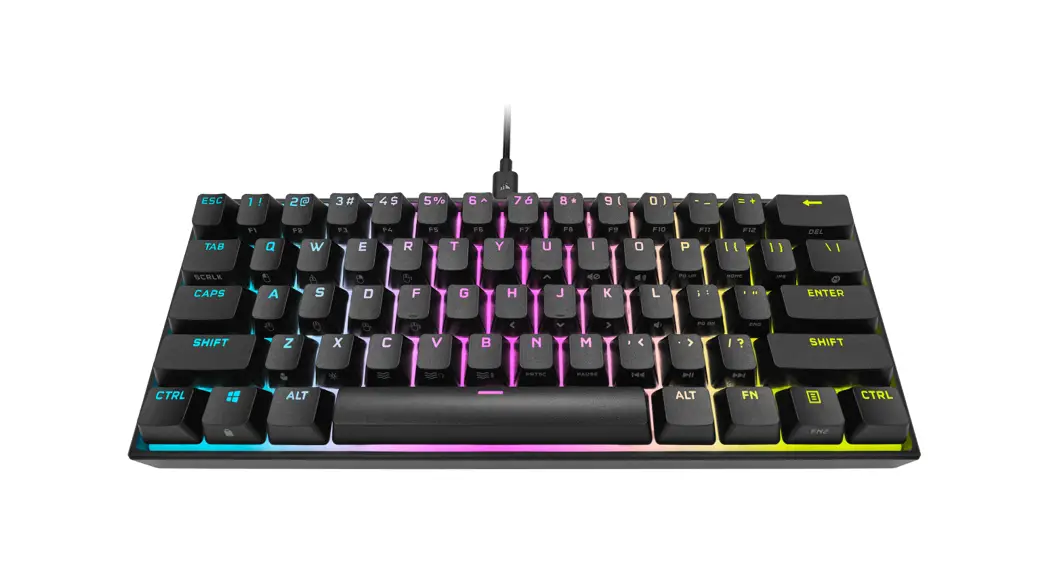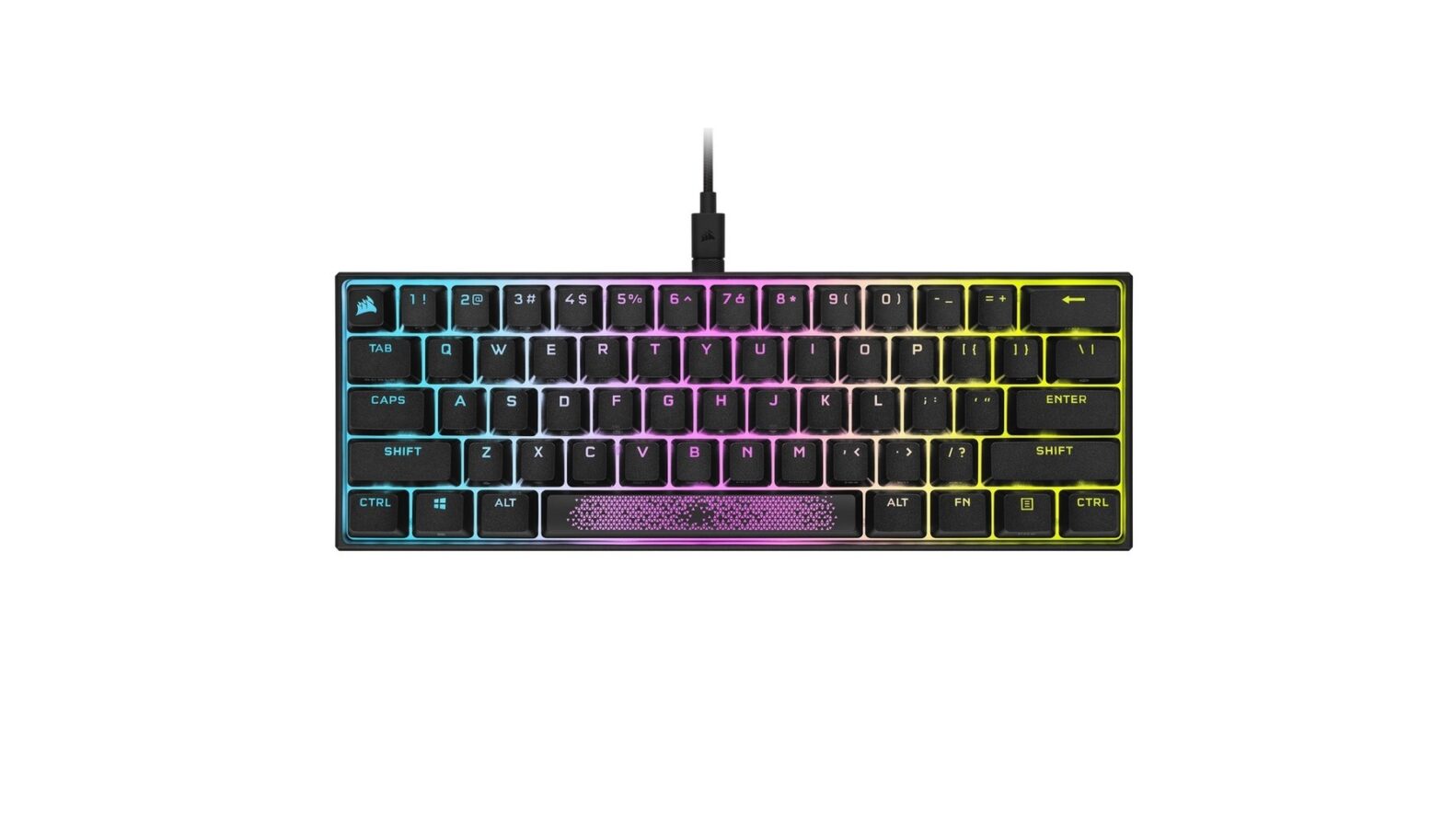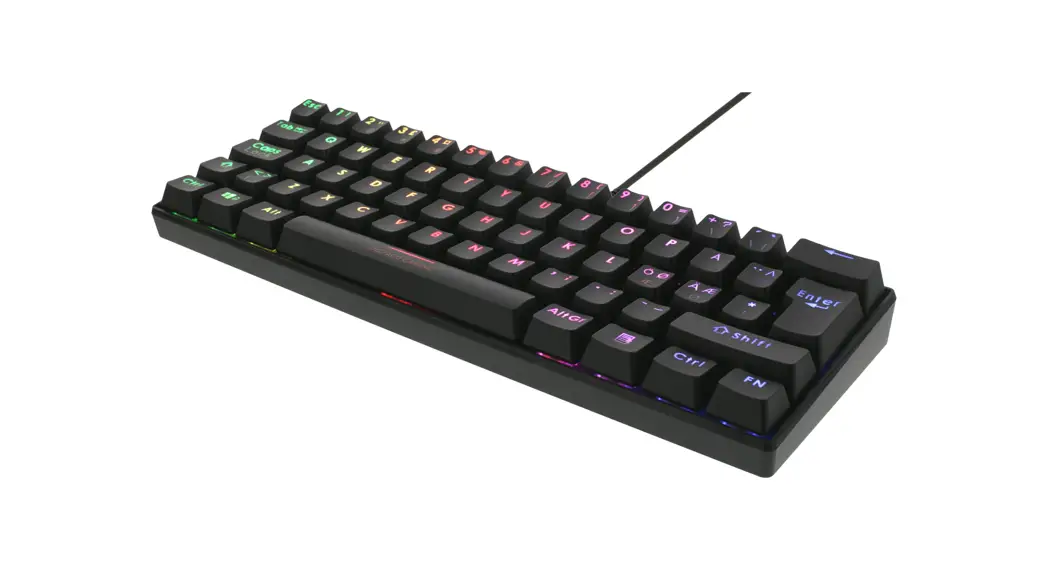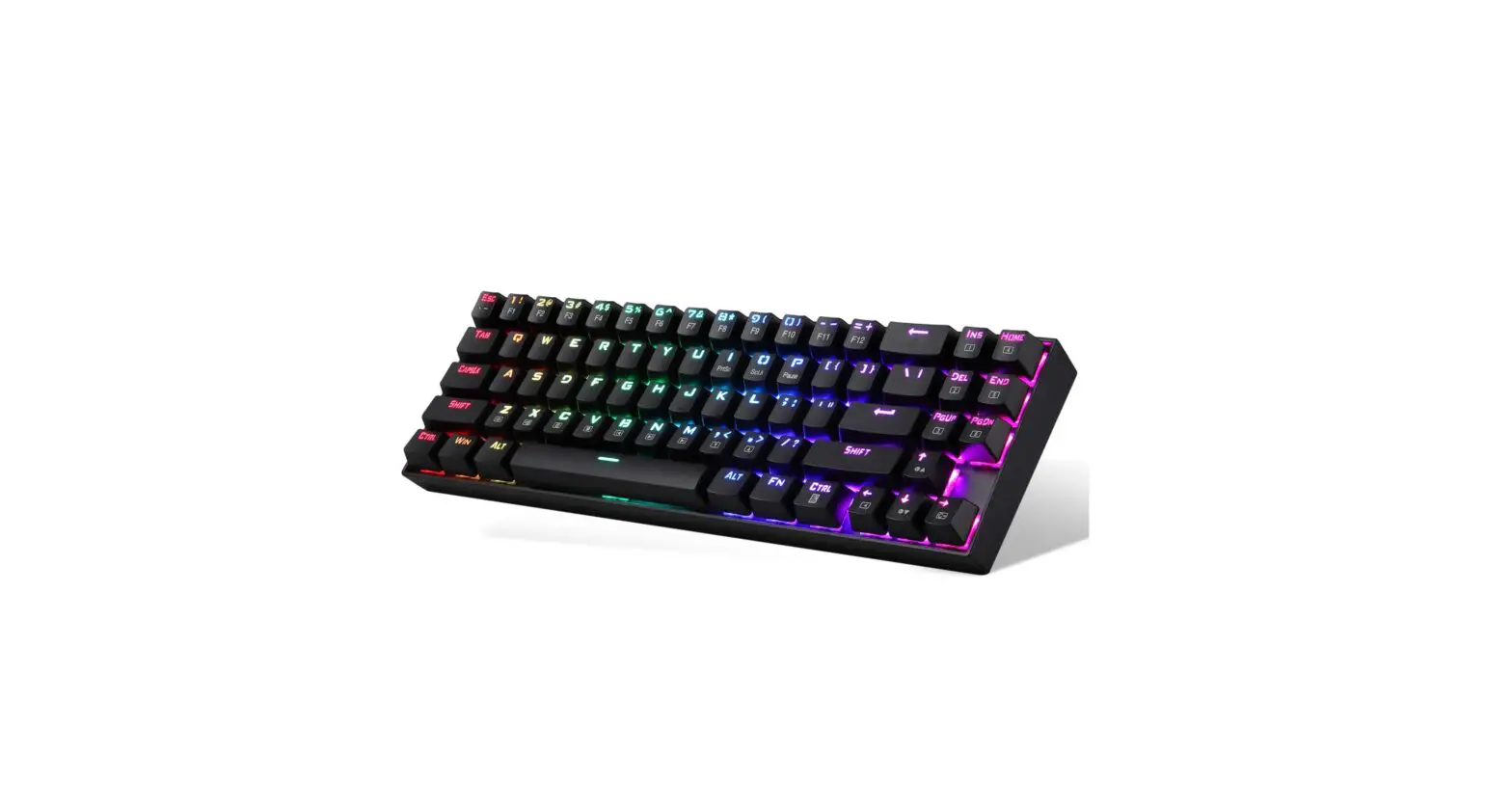

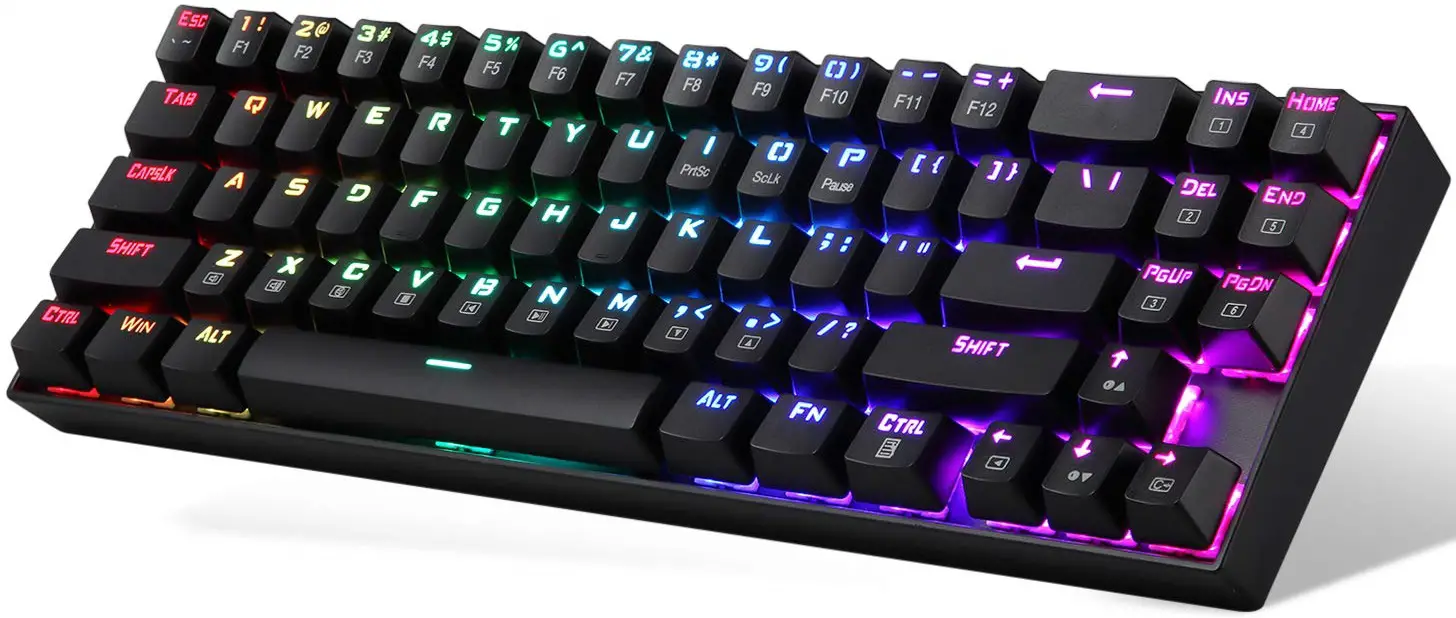
TIETI B-2 Spirit Mini 65% RGB Wireless Mechanical Gaming Keyboard
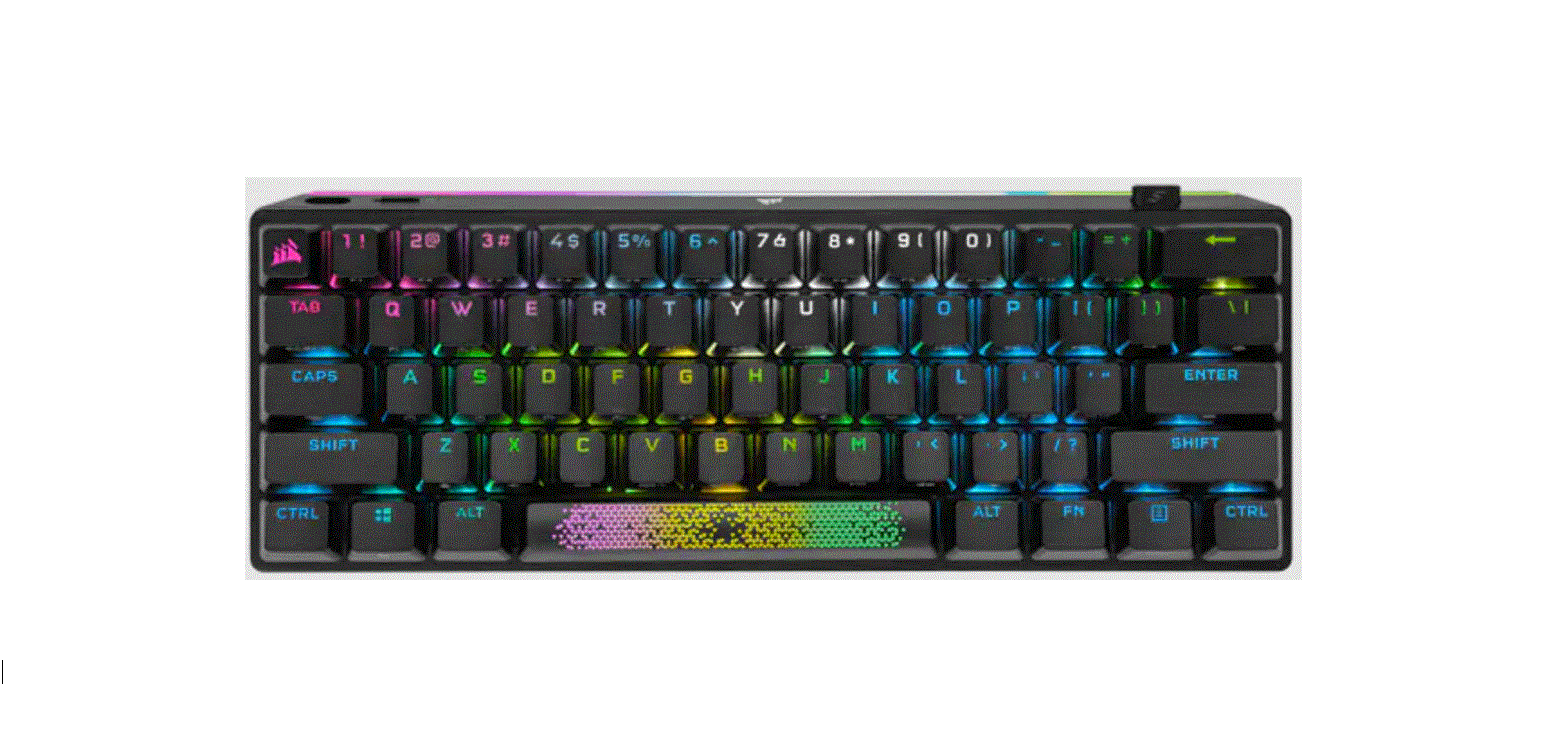
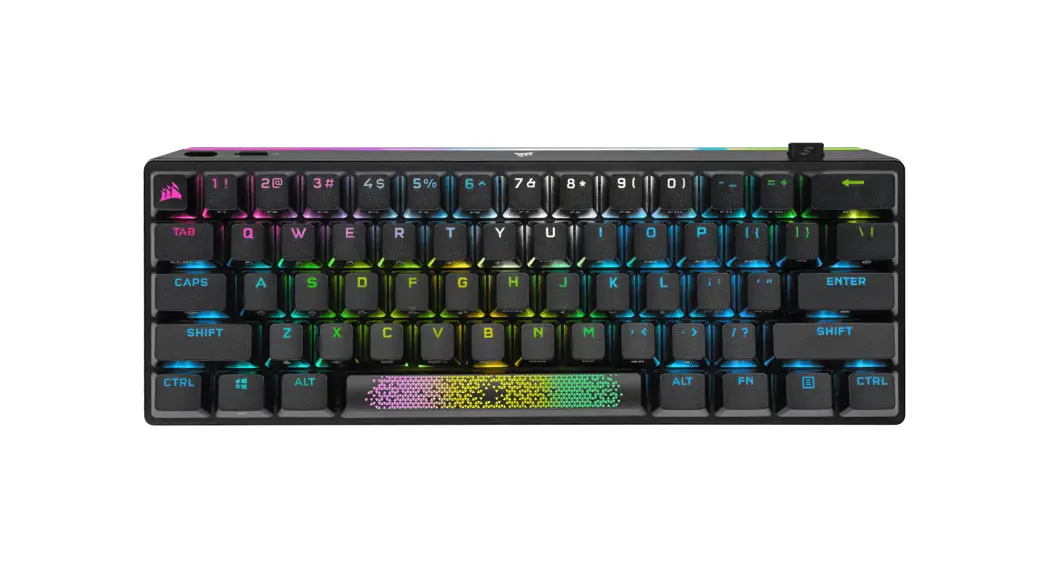
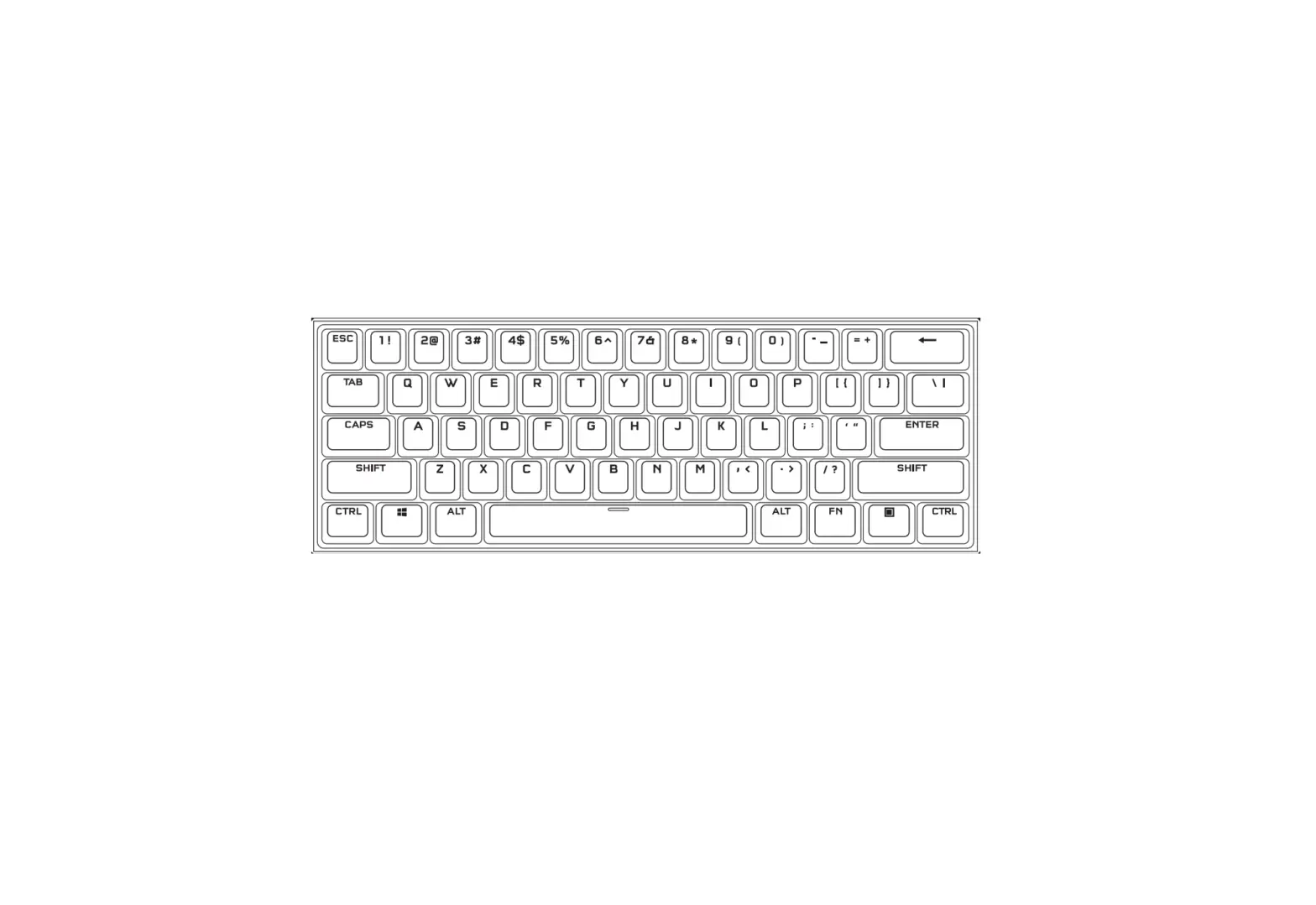
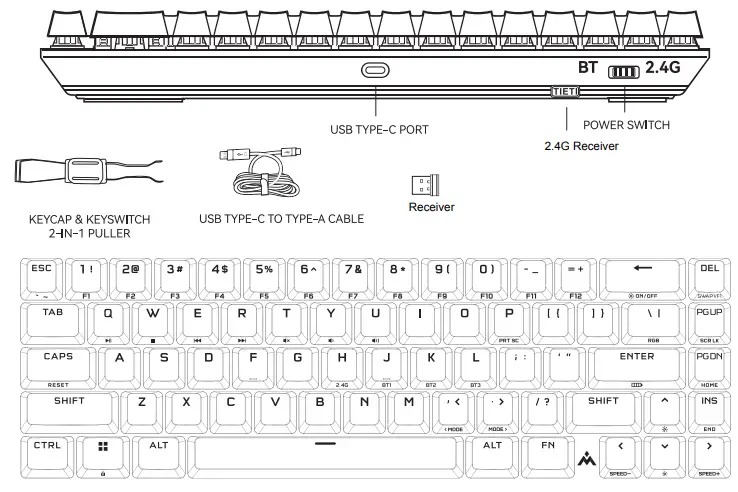
GETTING TO KNOW YOUR KEYBOARD
BEFORE FIRST USE
Charge the keyboard fully before first use by connecting the USB cable to the keyboard USB Type-C port.
CHARGING & BATTERY LIFE
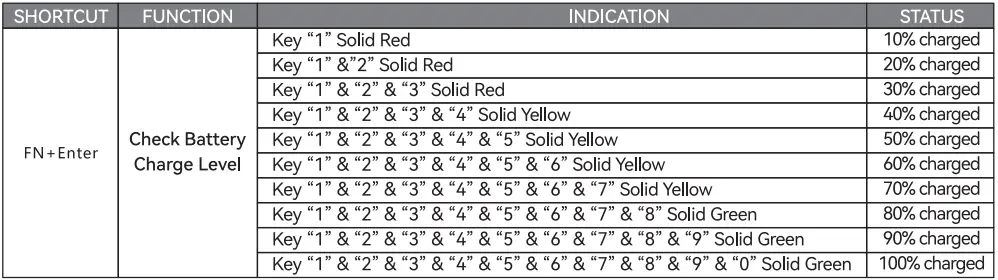
The keyboard will indicate the charging status when connected to the PC.

Using the check battery life shortcut below, an indication will play to denote the current battery charge level
RESET TO FACTORY DEFAULTS
Press and Hold the key “FN” and “CAPS” together Mr 3 seconds then release, the keyboard will be reset to factory default settings.
CONNECTING VIA 2.4G WIRELESS
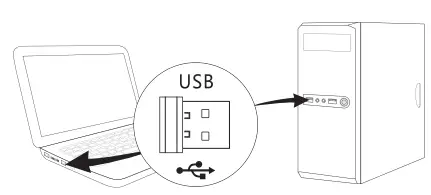
- Plug In the 2.4G receiver into its USB port
- Slide the keyboard power switch button to the 2.4G position
- The keyboard will connect to the PC automatically.
Note 1:
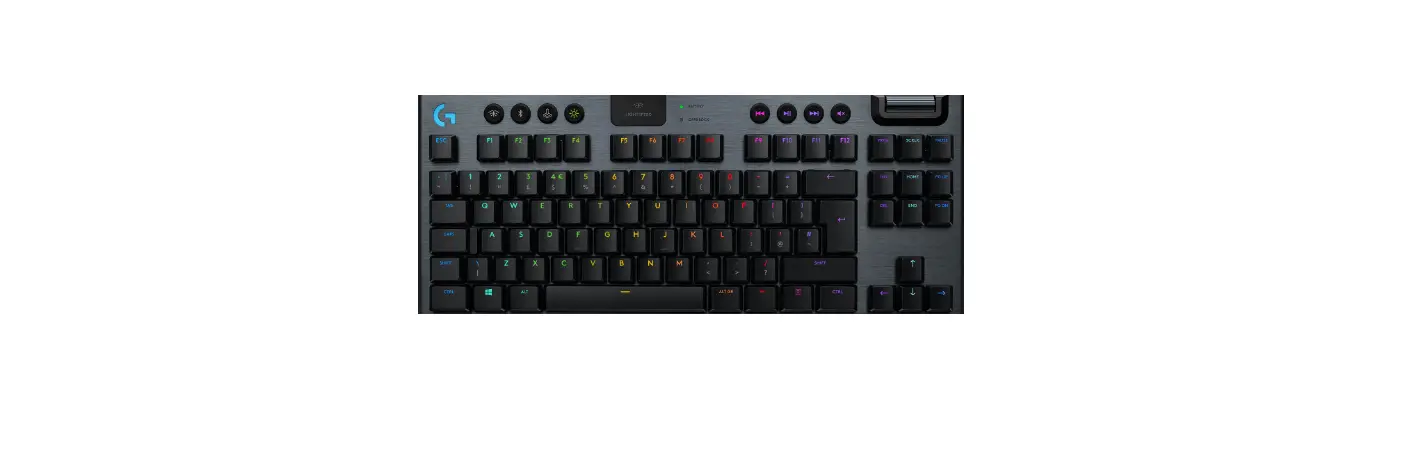
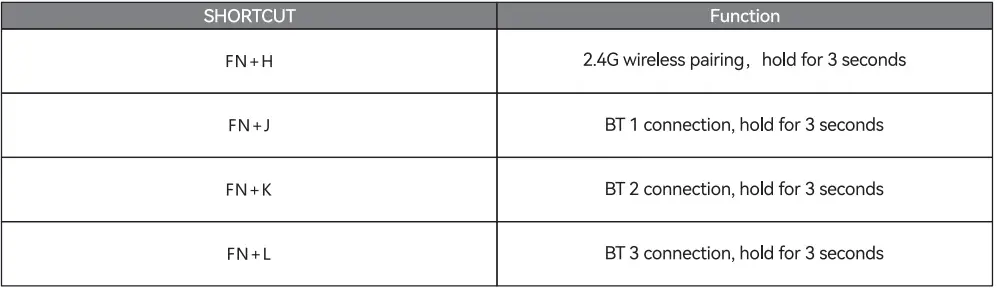
If the nano wireless adaptor lost pairing with the PC, or an unused nano wireless adaptor needs to be connected, repeat the above step 1 and 2, press and hold keys “FN’ and ‘ H” together for at least 3 seconds, key “H’ will start quick flashing green, after successfully paired, it will tum to solid green for 3 seconds then off.
Note 2:
If key “H” keeps flashing green Mr 1 minute but is still not paired, the i<eyboard will go to sleep mode, and the flashing will be off. You need to enter a random key to wake up the keyboard, then retry the steps listed in Note 1.
CONNECTING VIA BLUETOOTH WIRELESS
- Initiate Bluetooth pairing on the host device such as a PC or phone
- Slide the keyboard power switch button to the BT position
- Press and hold “FN” and “J” or “K” or “L” for at least 3 seconds, key “.J” or “K” or ” L” will start quickly flashing green, after successfully paired, it will turn to solid green for 3 seconds then off.
Note:
If key “J” or K’ or ” L” keeps flashing green for 1 minute but is still not paired, the keyboard will go to sleep mode and the flashing will be off. You need to enter a random key to wake up the I <eyboard, then retry the above steps.
CONNECTING VIA USB CABLE
- Connect the keyboard via a USB cable to a USB Type-A port on the PC
- The keyboard will automatically switch to USB-wired mode.
SOFTWARE MODE
Welcome to visit TIETI’s website www.tieti-tech.com/download and download the software TIETI Synapse for installation you can control everything on the keyboard from lighting to powerful macros.
SWAPPING KEY SWITCHES
The key switches can be removed and replaced with any variety or combination of CHERRY MX RGB mechanical key switches. Other third-party mechanical key switches with a 3- a pin design may be compatible but are not guaranteed to work due to physical differences.
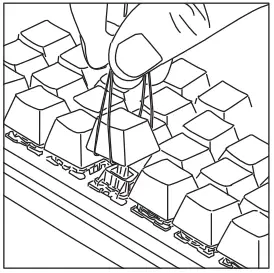
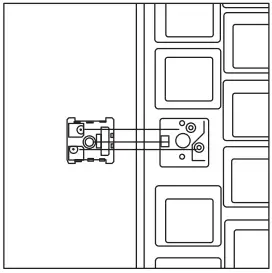
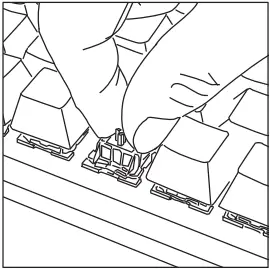
- Push the side for the keycap of the 2-IN-1 PULLER over the keycap, then lift to remove

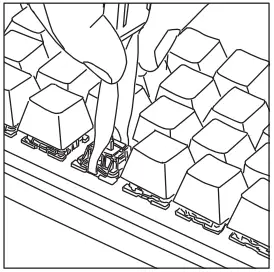
- Position the tips of the key switch puller under the key switch top and bottom tabs, then press in and lift to remove

- Align the new keyswitch’s pins and base with the sockets and opening.

- Carefully press the key switch until it ticks into place. If your feet any resistance, remove it and try again.

PROFILE & LOCK FUNCTIONS

LIGHTING SETTING
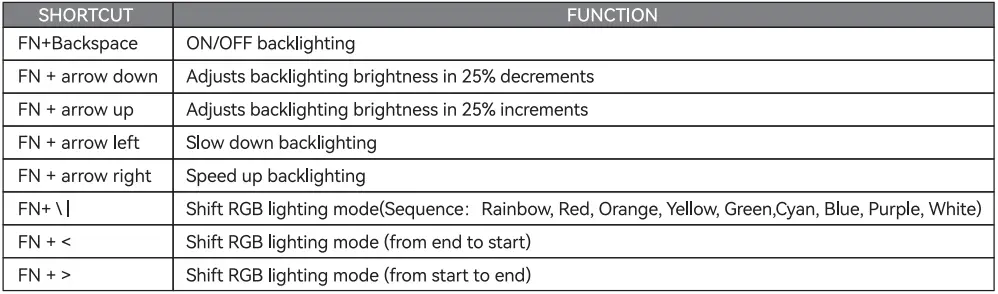
Total of 22 modes is available as below, including the last 3 modes which are provided in software mode.
- Static color
- Dynamic Breathing
- Color Shift
- Rainbow Wave
- Rainbow Ripple
- Stars Twinkling
- Streaming
- Type Lighting
- Flapping
- Sign Waving
- Surging
- Blooming
- Lasing
- Color Waterfall
- Inclined Rain
- Raining
- Streaming line
- Type pulsing
- Customization mode
- Music mode [EDM)
- Music mode [Classic)
- Soft White
Audio and Media

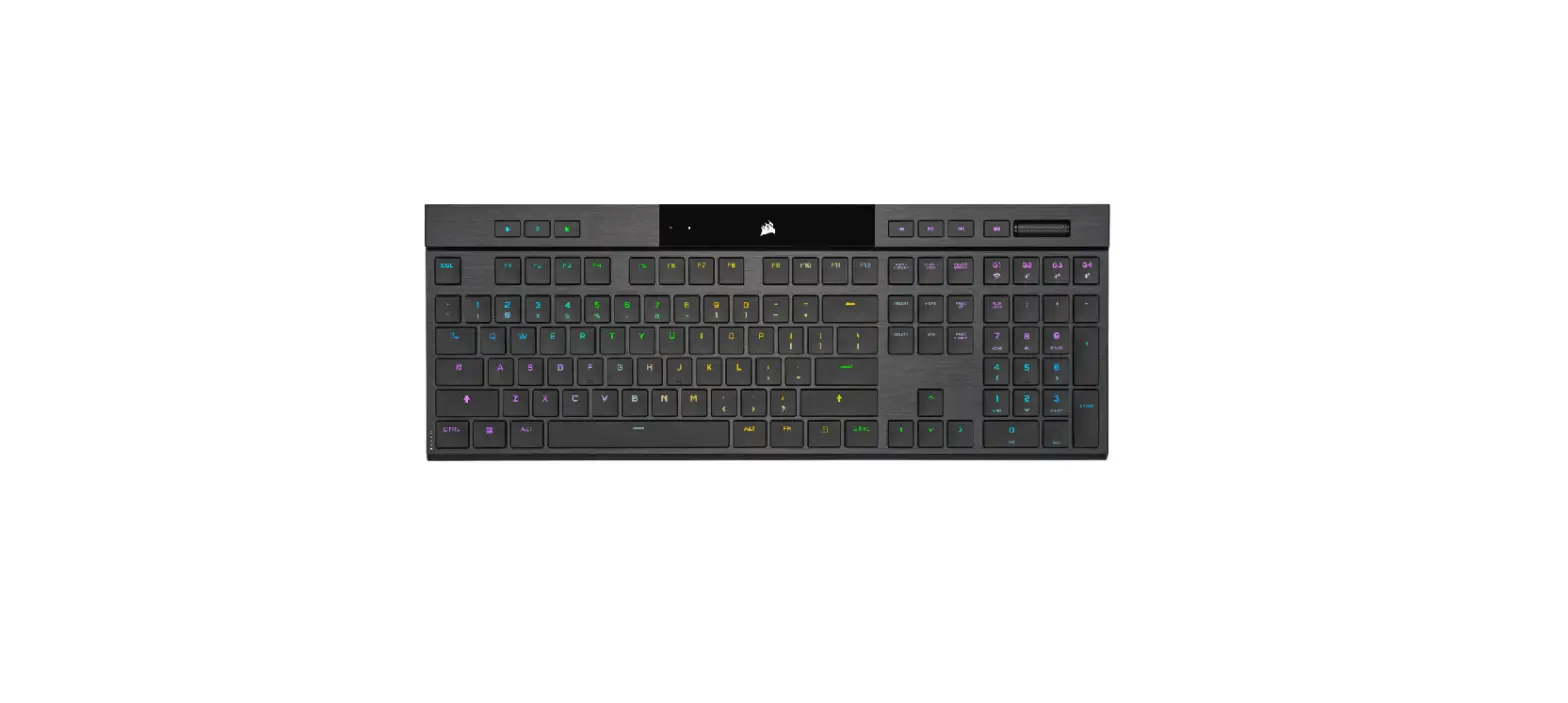
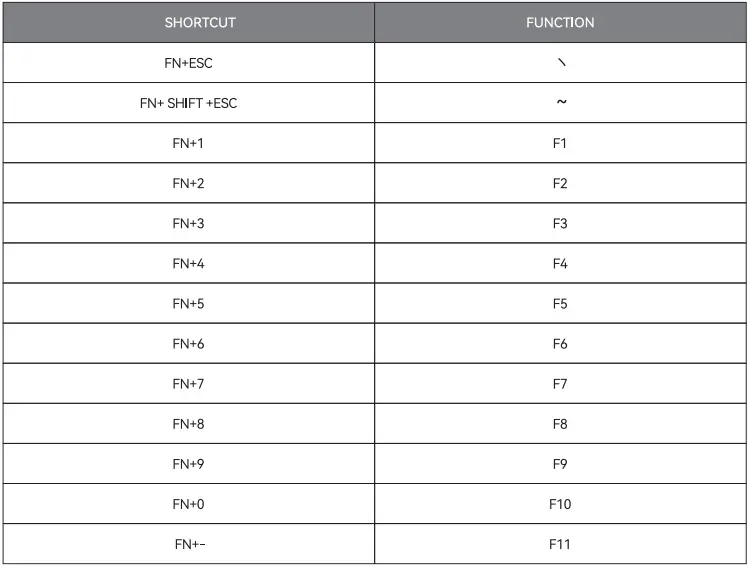
Full-size Keyboard Keys
Easy automatic cordless connection
Connect the USB nano receiver to your computer into your PC USB port, and wait until the automatic installation has been completed.