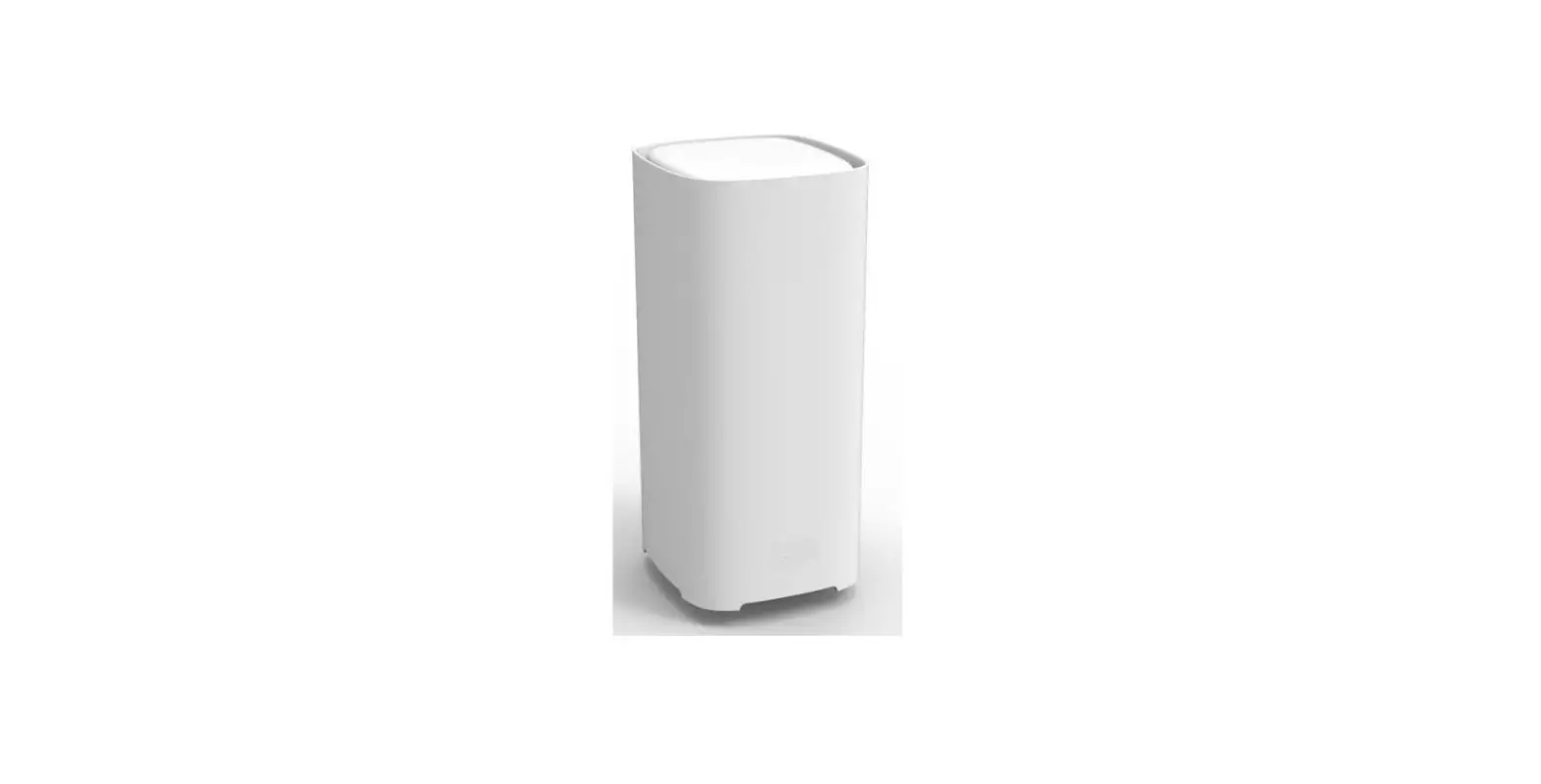
RF-LORA Wireless Expander Receiver
Transceiver RF-LORA
Installation manual
March, 2023
www.trikdis.lt UAB Trikdis Draugysts g. 17, LT-51229 Kaunas, Lietuva +370 37 408 040 [email protected]
Transceiver RF-LORA
Contents
SAFETY PRECAUTIONS …………………………………………………………………………………………………………………………………3 1 DESCRIPTION ………………………………………………………………………………………………………………………………………4
1.1 Specifications ……………………………………………………………………………………………………………………………………..4 1.2 Expander elements………………………………………………………………………………………………………………………………5 1.3 Purpose of terminals ……………………………………………………………………………………………………………………………5 1.4 LED indication of operation…………………………………………………………………………………………………………………..5 2 WIRING SCHEMATICS……………………………………………………………………………………………………………………………6 2.1 Fastening …………………………………………………………………………………………………………………………………………..6 2.2 Schematic of RF-LORA transceiver connection to “FLEXi” SP3 control panel ………………………………………………..6 2.3 Schematics for connecting LORA modules ………………………………………………………………………………………………7 3 REGISTERING THE LORA WIRELESS EXPANDER TO THE CONTROL PANEL “FLEXI” SP3 ……………………………………..7
www.trikdis.com
2
March, 2023
Transceiver RF-LORA
Safety precautions
Only qualified personnel may install and maintained the intrusion alarm module. Please read this manual carefully prior to installation in order to avoid mistakes that can lead to malfunction or even damage to the equipment. Always disconnect the power supply before making any electrical connections. Any changes, modifications or repairs not authorized by the manufacturer shall render the warranty void.
Please adhere to your local waste sorting regulations and do not dispose of this equipment or its components with other household waste.
www.trikdis.com
3
March, 2023
Transceiver RF-LORA
1 Description
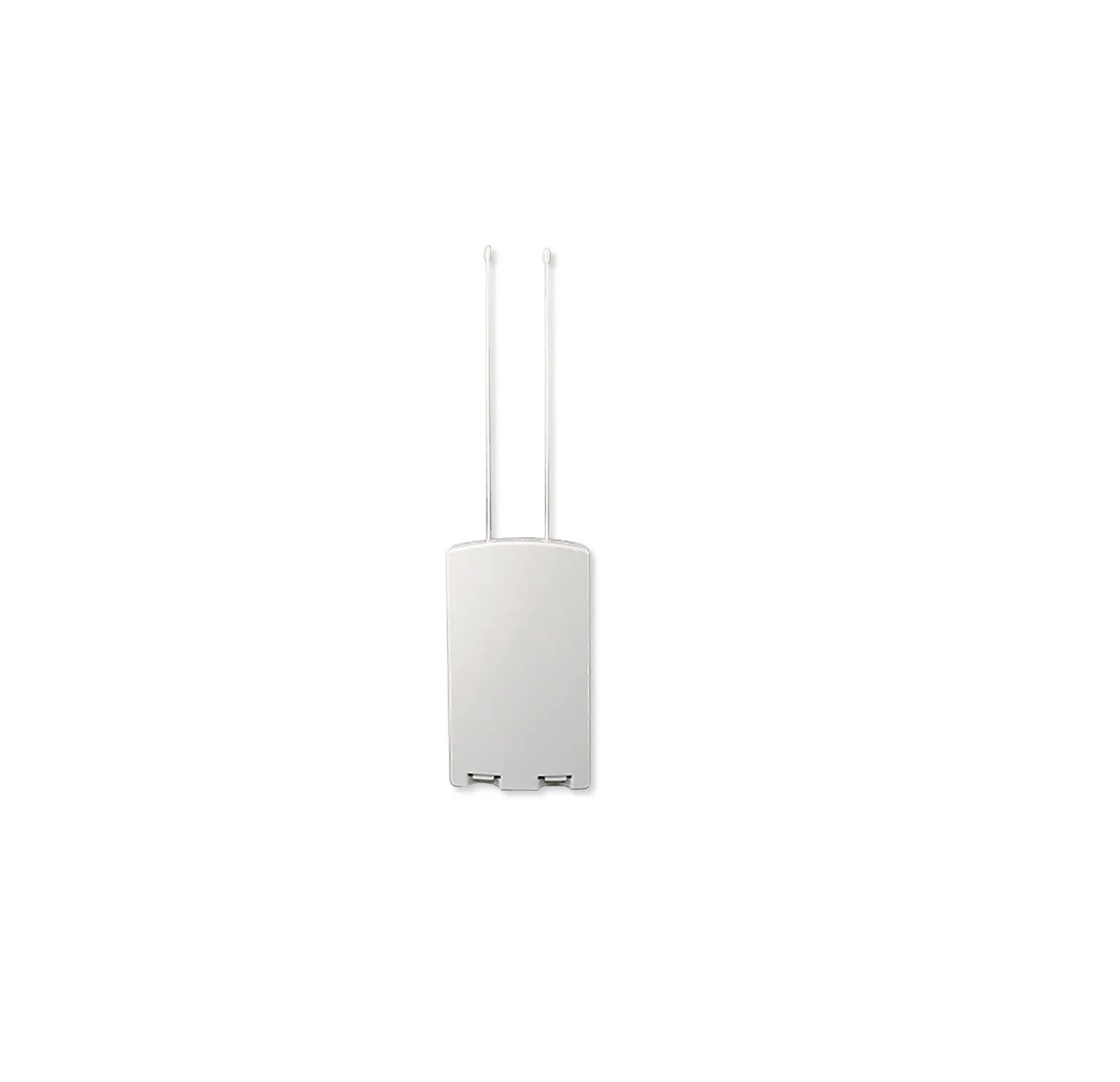
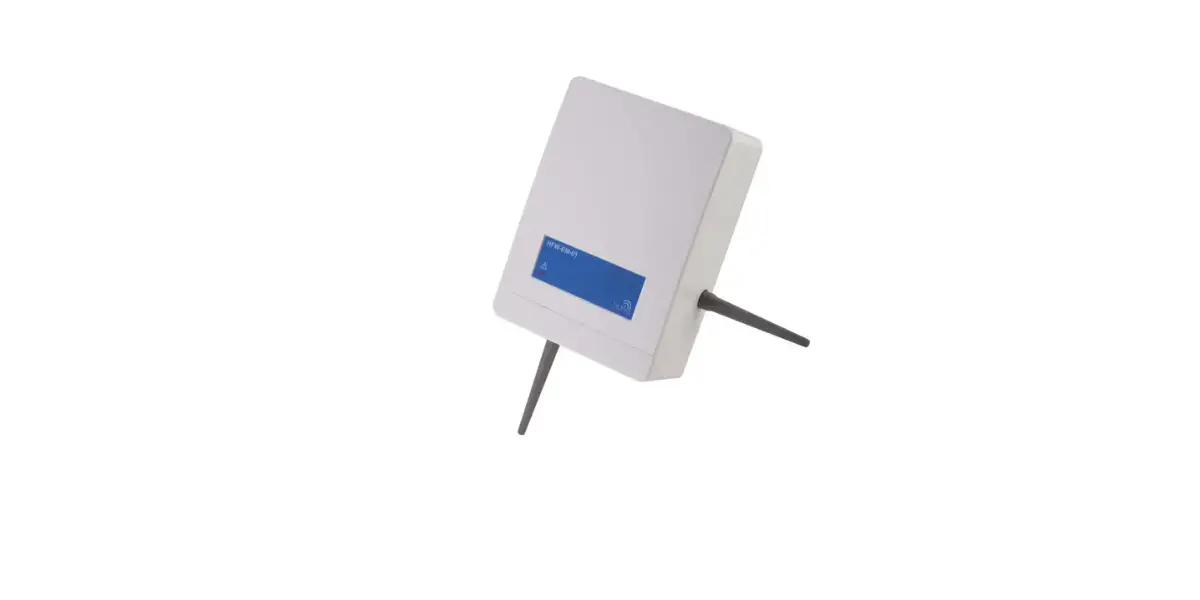
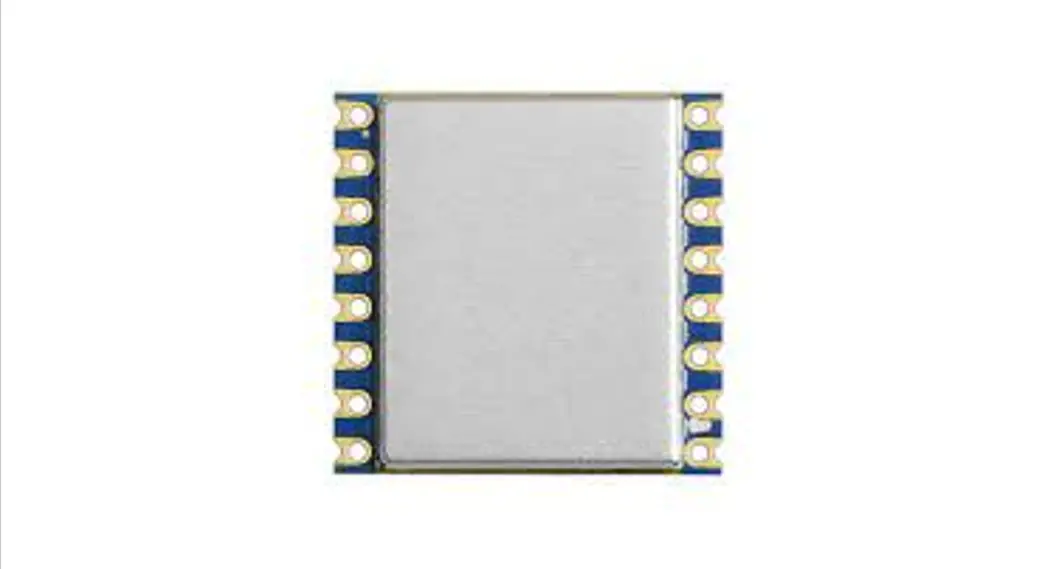
The RF-LORA transceiver with iO-LORA and iO-8-LORA wireless expanders increases the number of inputs and outputs of the “FLEXi” SP3 control panel using two-way RF communication. Up to 8 LORA modules (iO-LORA, iO-8-LORA, PB-LORA) can be connected to the “FLEXi” SP3 control panel using the RF-LORA transceiver.
Features
Communication:
Line-of-sight wireless range up to 5000 m. One RF-LORA transceiver can be connected to the “FLEXi” SP3 control
panel. The product comes with a standard antenna suitable for most
applications. In cases where it is necessary to provide high-quality communication at the maximum possible distance, an antenna (AXANT-KIT 433 MHz, AX-ANT01S_SF 868 MHz) with a higher radio signal gain should be used.
Connection:
The RF-LORA transceiver is connected to the “FLEXi” SP3 control panel via the RS485 bus.
1.1 Specifications
Parameter Transmission frequency
Modulation type Power supply voltage Current consumption
Report encryption Range in open space Operating environment Dimensions Weight
Description 8F modification: 867-869 MHz 4F modification: 433,3-434,7 MHz LORA 9-26 V DC Up to 50 mA (stand-by) Up to 150 mA (short-term, while sending) Yes Up to 5000 m Temperature from 20 °C to +50 °C, relative humidity up to 80% at +20 °C 62 x 82 x 25 mm 80 g
www.trikdis.com
4
March, 2023
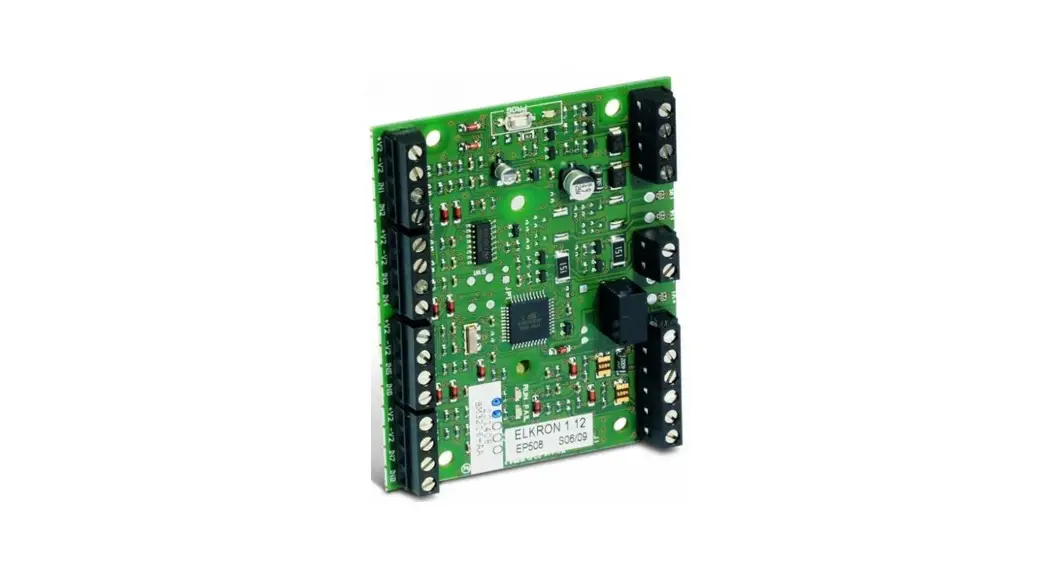
1.2 Expander elements
Transceiver RF-LORA
1. SMA connector for RF antenna.
2. Light indicators. 3. Frontal case opening slot. 4. Terminal for external
connections. 5. USB Mini-B connector is for
firmware update. 6. DIP switch “SW”. 7. “DJ1” button to
enable/disable LORA module learning mode.
Note:
DIP switch “SW” settings:
1 – Radio frequency (“OFF” – RF1; “ON” – RF2). Intended for changing the radio channel if the current channel is heavily loaded.
2 – Modulation type (“OFF” – fast; “ON” – slow). The “ON” position allows you to increase the communication distance by about 2 times (depending on the environmental conditions). But if a quality connection is ensured using the “Off” position, it is recommended to use it.
NOTE: In RF-LORA and other LORA modules, switch positions “SW” must match! Otherwise, the radio communication will not work!
1.3 Purpose of terminals
Terminal +DC -DC A 485 B 485 IO1-IO4 COM
Power terminal (9-26 V DC positive) Power terminal (9-26 V DC negative) RS485 bus A contact RS485 bus B contact Not used Not used
Description
1.4 LED indication of operation
Indicator DATA/TROUBLE
POWER
Light status Blinking/Lighting red Blinking green/red Green lights up for 3 seconds Off Green blinking
Description Communication with the module is broken LORA modules linking mode Pre-bound LORA module (in learning mode)
No supply voltage Normal supply voltage level
www.trikdis.com
5
March, 2023
Indicator
Light status Yellow blinking Yellow
2 Wiring schematics
2.1 Fastening
1. Remove the top lid.
Transceiver RF-LORA
Description Low supply voltage level (11.5 V) No communication with “FLEXi” SP3 control panel via RS485
2. Remove the PCB board. 3. Fasten the base of the case in the desired place
using screws. 4. Reinsert the PCB board. 5. Close the top lid.
2.2 Schematic of RF-LORA transceiver connection to “FLEXi” SP3 control panel
www.trikdis.com
6
March, 2023
2.3 Schematics for connecting LORA modules
Transceiver RF-LORA
3 Registering the LORA wireless expander to the control panel “FLEXi” SP3
1. An RF-LORA transceiver must be connected to the “FLEXi” SP3 control panel. 2. Turn on the power supply of the “FLEXi” SP3 control panel. 3. Turn on the power supply to the iO-LORA and/or iO-8-LORA wireless expanders. 4. Launch TrikdisConfig. 5. Connect the “FLEXi” SP3 to a computer using a USB Mini-B cable or connect to the “FLEXi” SP3 remotely. 6. Click the button Read [F4] for the program to read the parameters currently set for the “FLEXi” SP3 control panel. If a
window for entering the Administrator code opens, enter the six-symbol administrator code. 7. In the “Modules” list, select “iO-LORA expander” (“iO-8-LORA expander”). 8. In the “Serial No.” field, enter the serial number of the module iO-LORA (iO-8-LORA).
9. In the “Zones” tab, make settings for the expander’s input.
www.trikdis.com
7
March, 2023
Transceiver RF-LORA
10. In the “PGM” tab, configure the expander’s PGM output.
11. Once configuration is complete, click the Write [F5] button. 12. Wait for the updates to finish. 13. Click the “Disconnect” button and disconnect the USB cable. 14. Trigger the inputs and switch outputs to test the device.
www.trikdis.com
8
March, 2023
 Home - Trikdis
 Pagrindinis - Trikdis