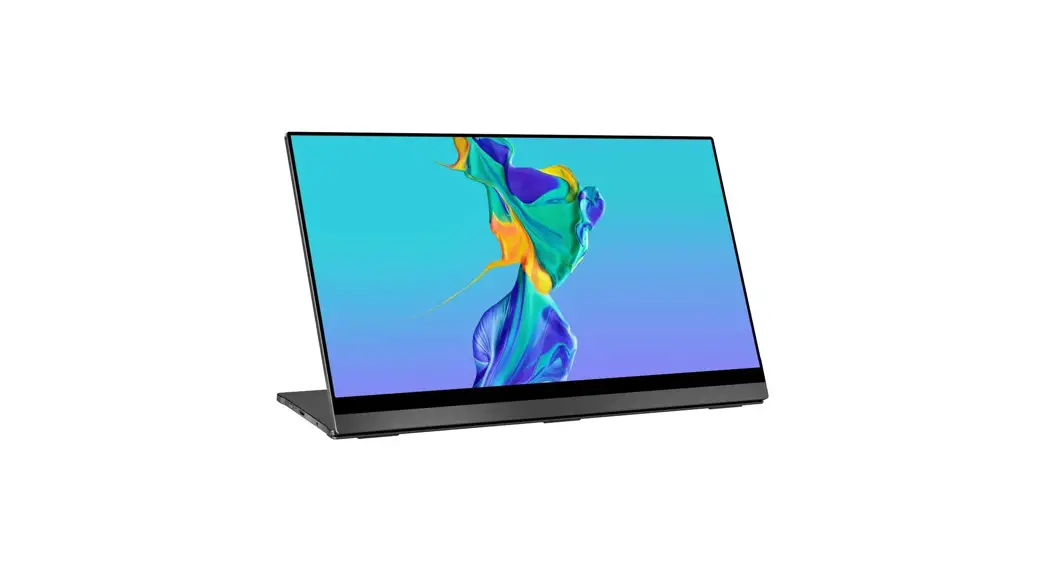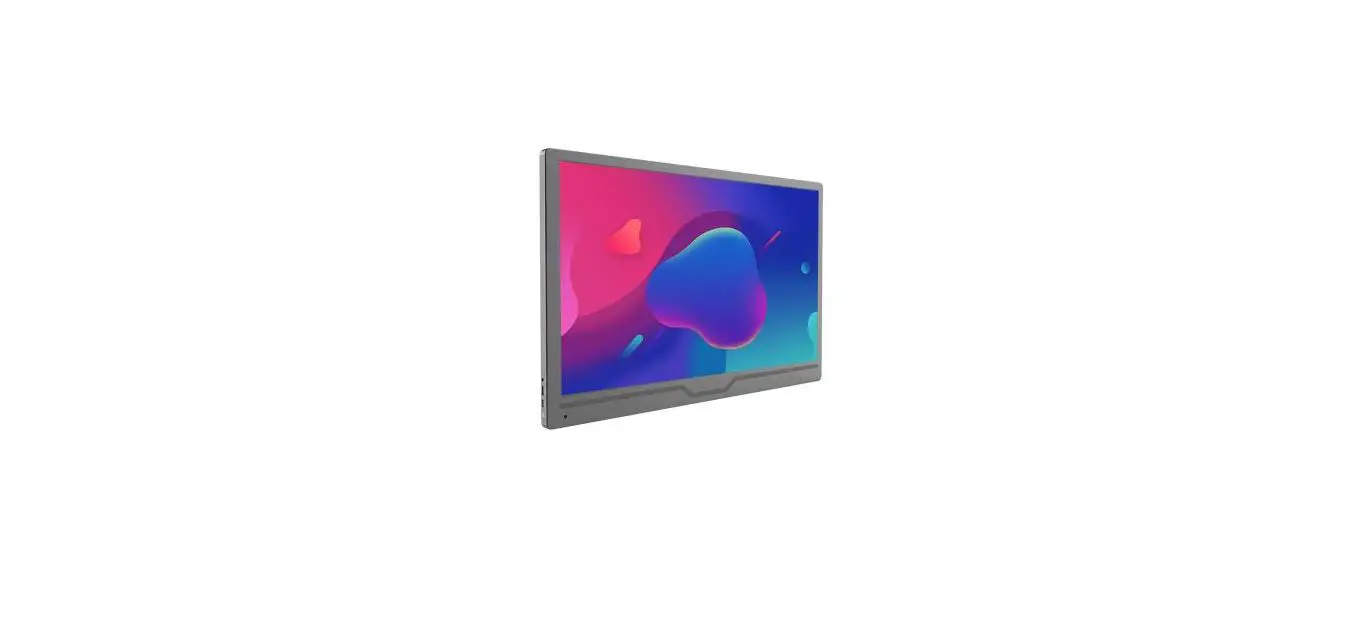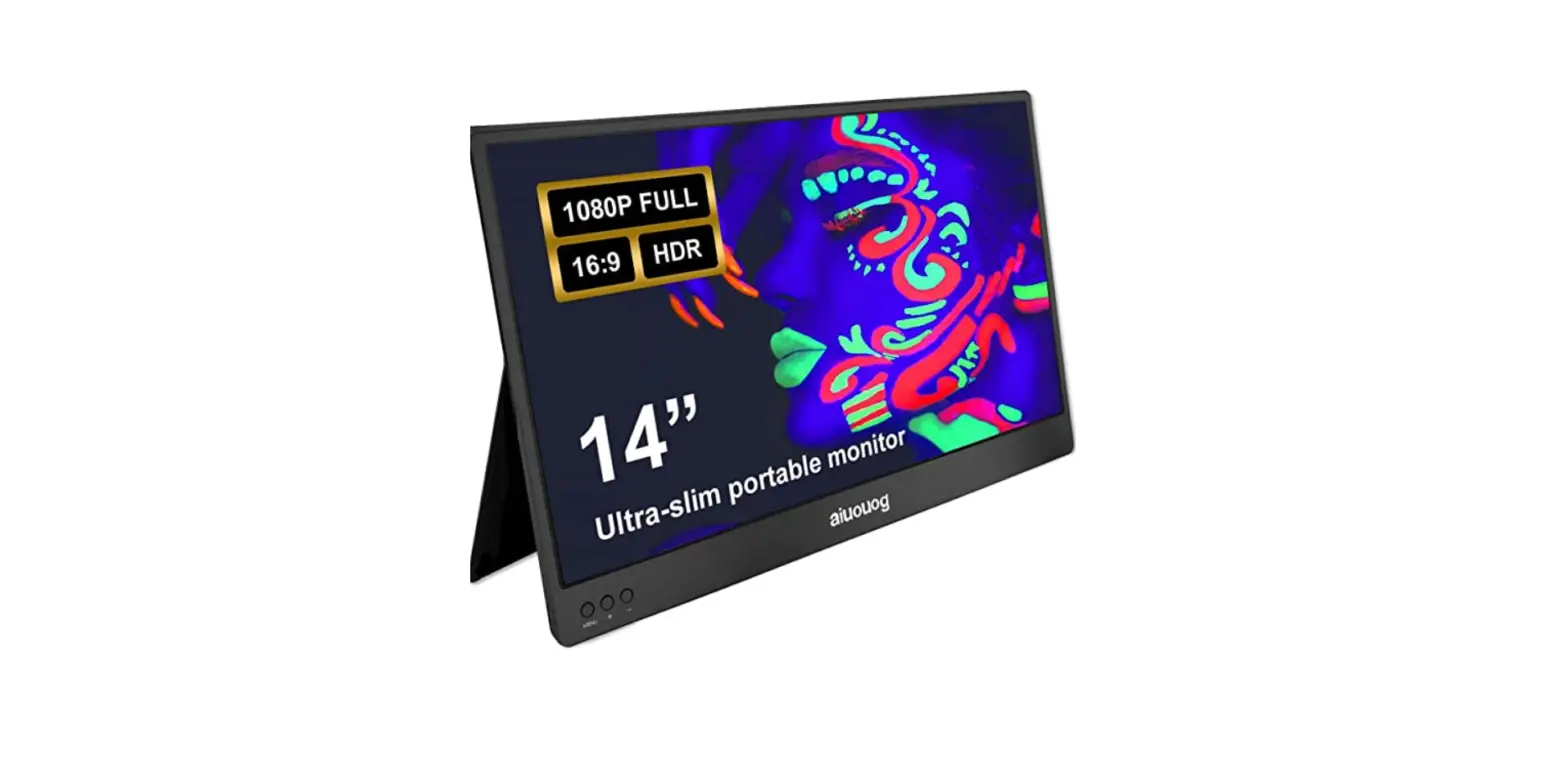
SVANTTO IPM01 Portable Monitor User Guide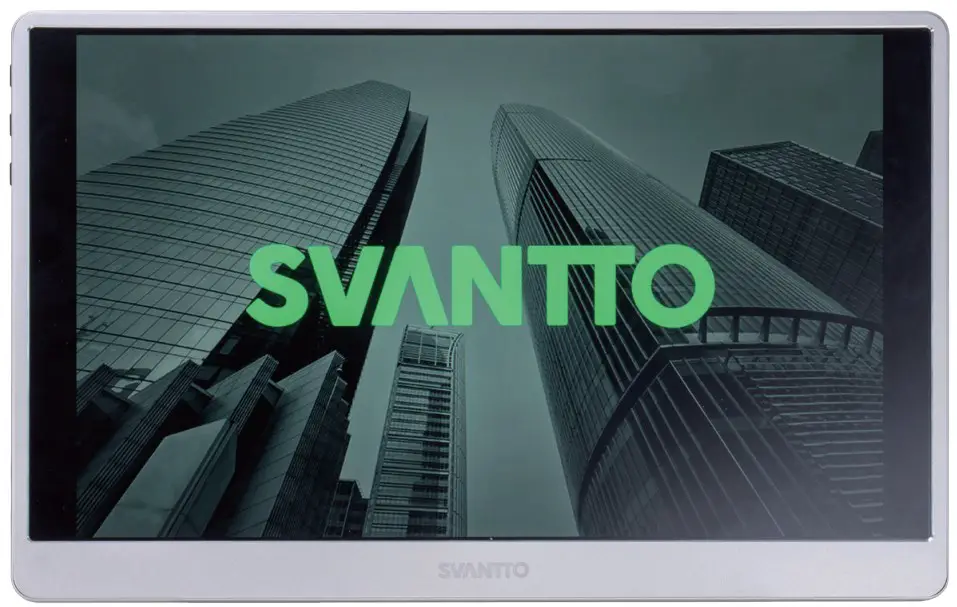
Product Introduction
What’s in the Box
After receiving the package, please open and inspect the product inside.
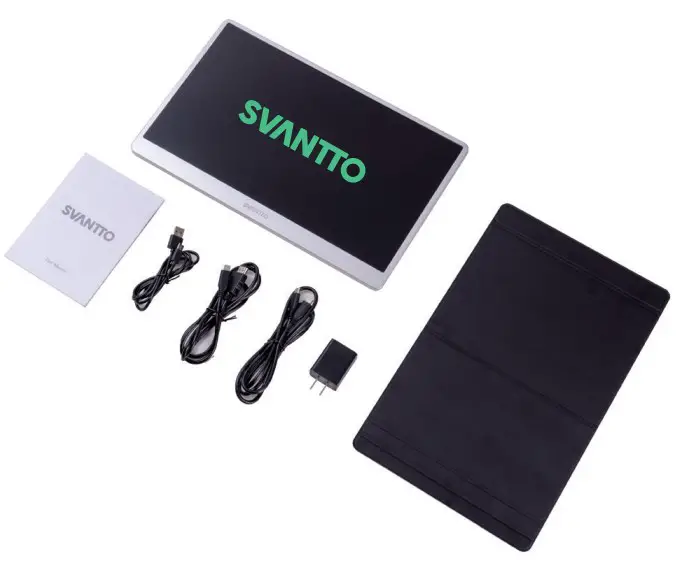
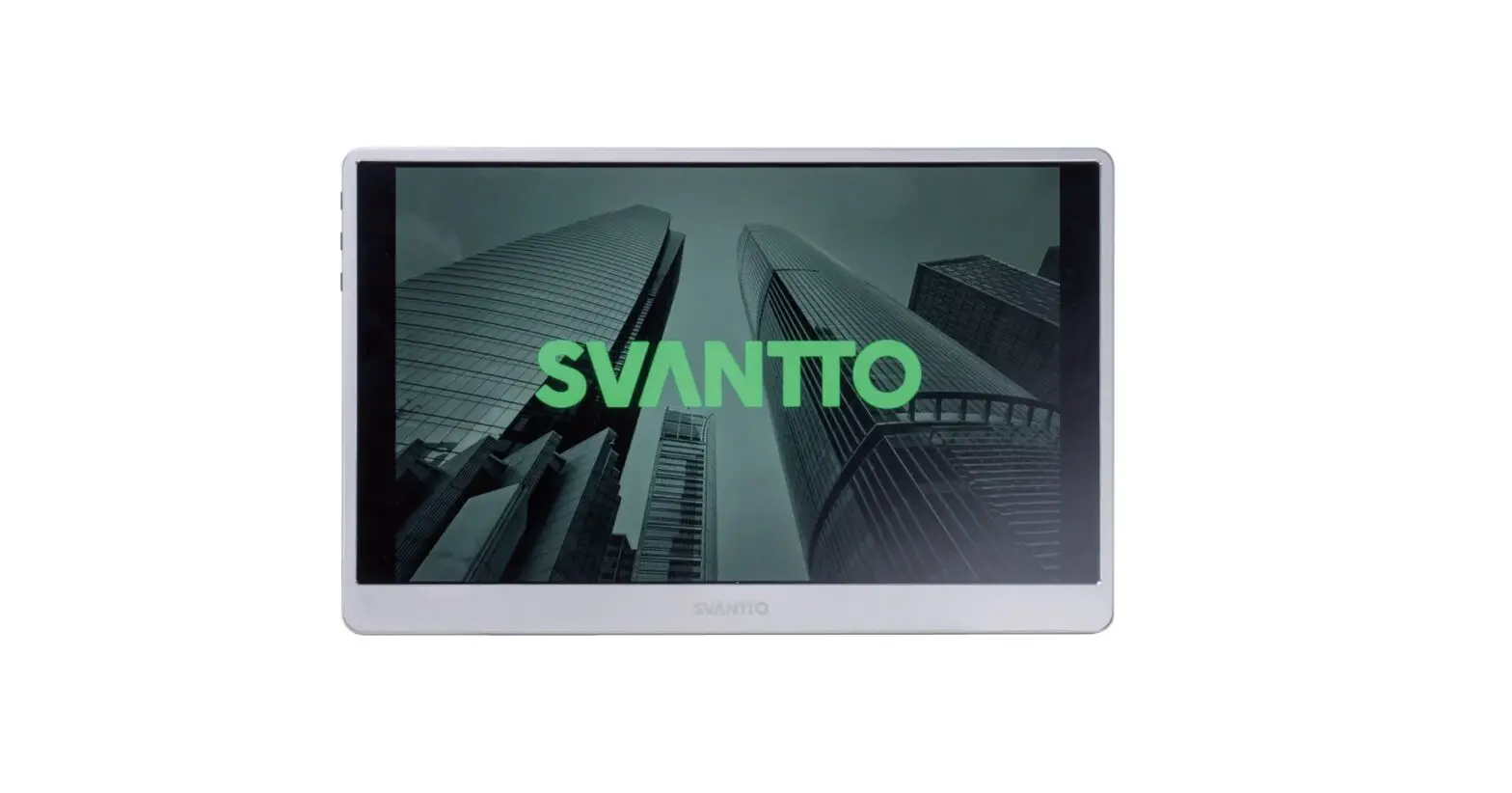
 | Svantto Portable Monitor | Svantto Portable Monitor |
 | HDMI To Type-C Cable | Used for signal transmission between device and monitor |
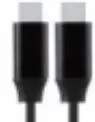 | Type-C to Type-C Cable | Used for signal transmission between device and monitor |
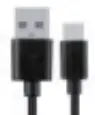 | Type-C to USB A Cable (Power Supply) | Supply) Provide power to monitor |
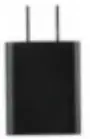 | 5V/3A Power Adapter | Connect the Type-C to USB A Cable to power the monitor |
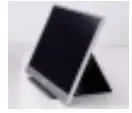 | Smart Cover | Used to support the monitor |
 | User Guide | User Guide for Svantto Portable Monitor |
Product Overview
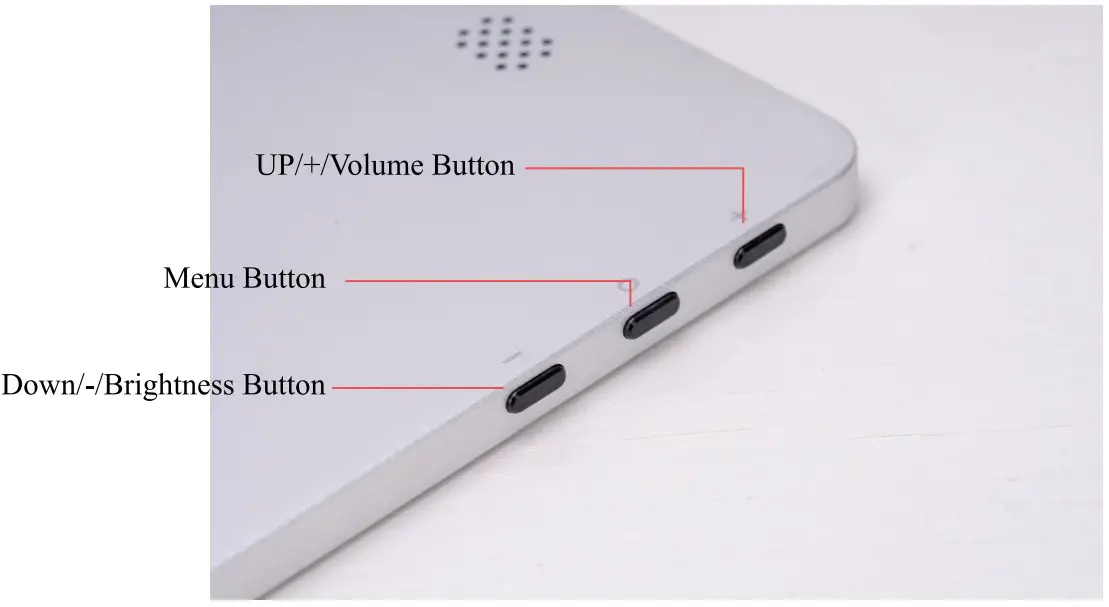
- UP/+/Volume Button
Press the UP/+ button to enter the volume setting interface, press the UP/+ and UP/- buttons to adjust the volume. - Menu Button
Press the button for 3 seconds to turn on/off the display.
Press the button to enter the OSD (On-Screen Display) menu.
Press the button to confirm. Press it for a short time to return to the previous page. - Down/-/Brightness Button
Press the button in the main interface to open the brightness menu and also used as Down/- button.

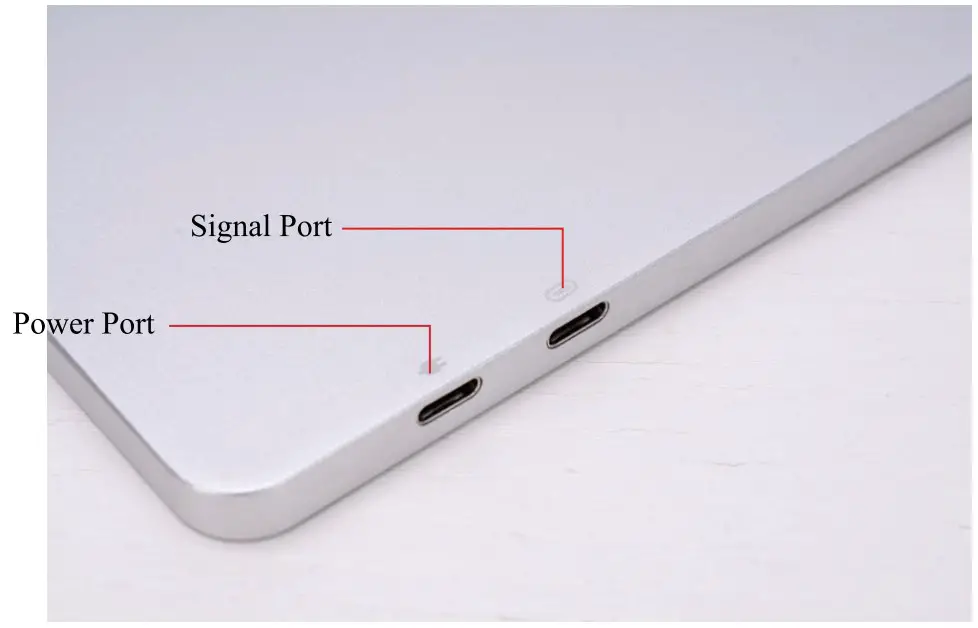
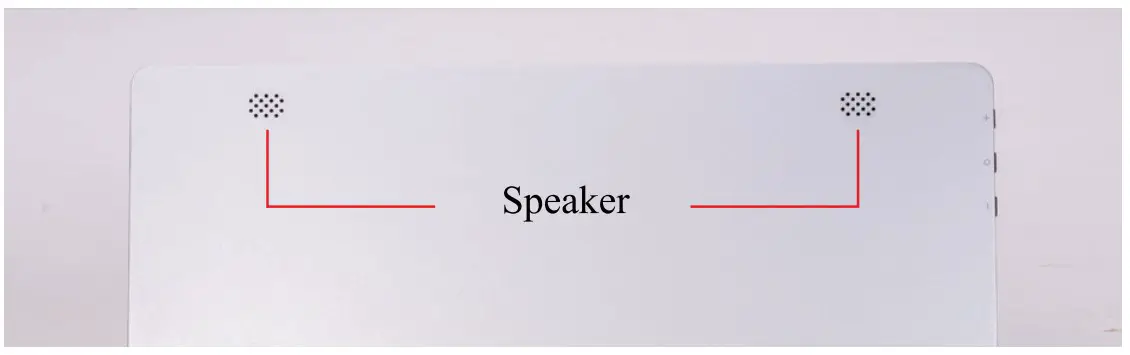
How to Connect Monitor to Your Device
This monitor does not have a built-in battery.
Connect the Type-C to Type-C cable to the laptop and the monitor, the monitor will
start to display in three seconds after the connection is complete.
Connect the Laptop with a Type-C to Type-C Cable
Note: Not all laptops with a Type-C port can work with Svantto monitor. Please
check the Type C port of your laptop if it supports audio and video signal transmission.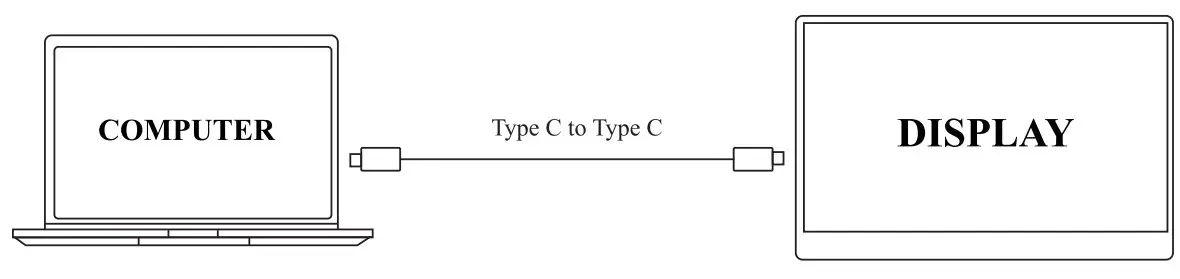
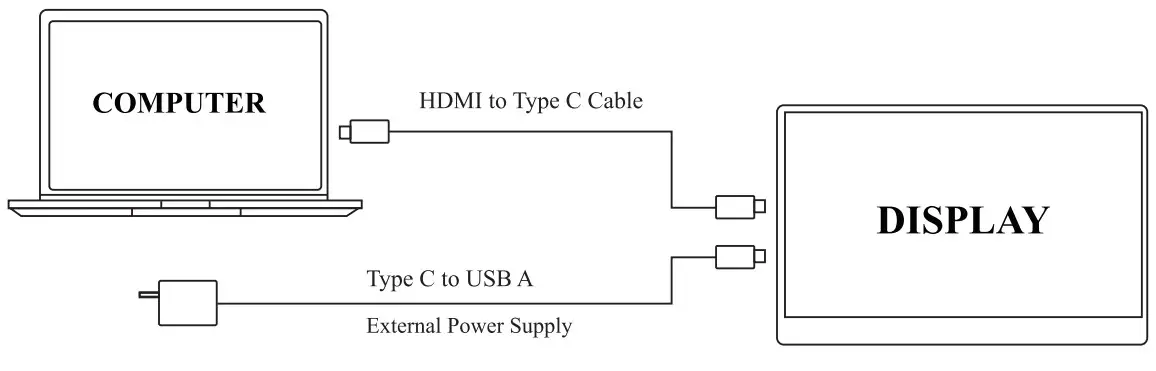
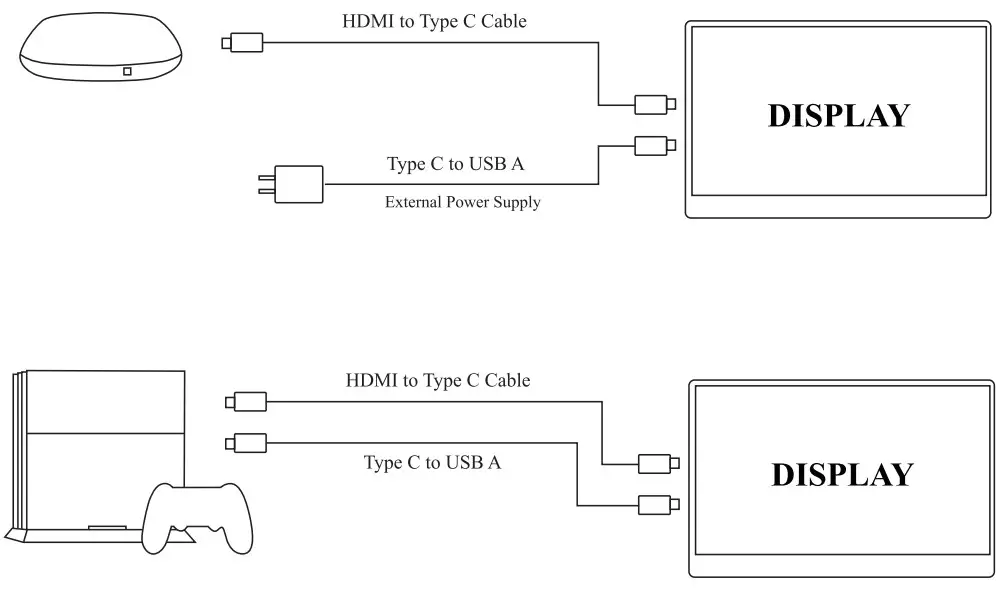
Connect Laptop/PC with a HDMI to Type-C Cable
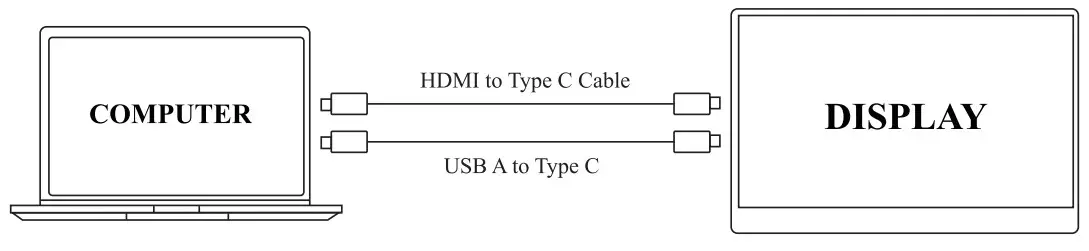
If your computer doesn’t have a spare USB type A port to power the monitor, you can use an external power supply.
Connect the Phone with a Type-C to Type-C Cable
Only works directly with cell phone through full-featured Type-C port. For iPhone you may need a lightning to HDMI adapter.
Note: Because the mobile phone cannot provide enough power to support the high-power operation of the display, when you want to increase the brightness of the display to more than 30, please connect an external power supply with or higher power.
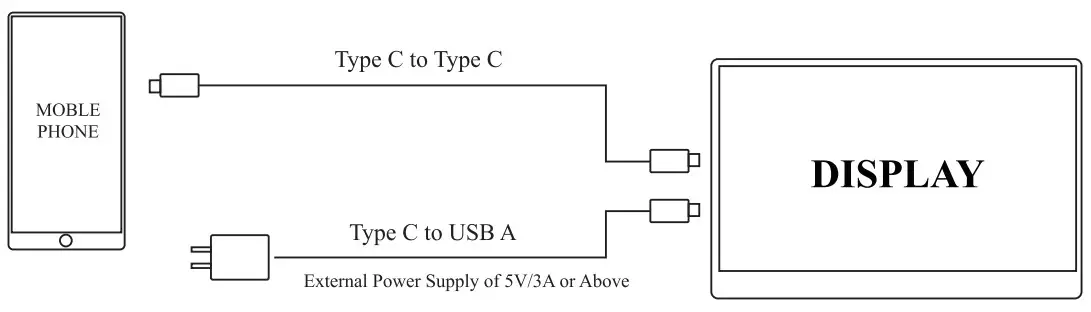
Not all mobile phones support external monitors, you can refer to the table below to see if your mobile phone supports external monitors.
| Brand | Model |
| SAMSUNG | DEX, S8/S9/SI0/S20 Series, Note 8/Note 9/Note 10 Series |
| HUAWEI | Mate 10/Mate 20/Mate 30 Series, Mate RS, P20/P30/P40 Series |
| HONOR | NOTE 10, V20/V30 Series |
| OPPO | R 17 Pro, Reno, Find |
| Razer | Razer Phone, Razer Phone 2 |
| I ITC | UUltr |
| LG | G5,G6,G7 |
| ASUS | ROG Gaming Phone |
| iPhone | Support iPhone6 and higher versions |
| iPad | Support iPad and higher versions |
| More Brands | Update Continuously |
Connect Other Devices with a HDMI to Type-C Cable
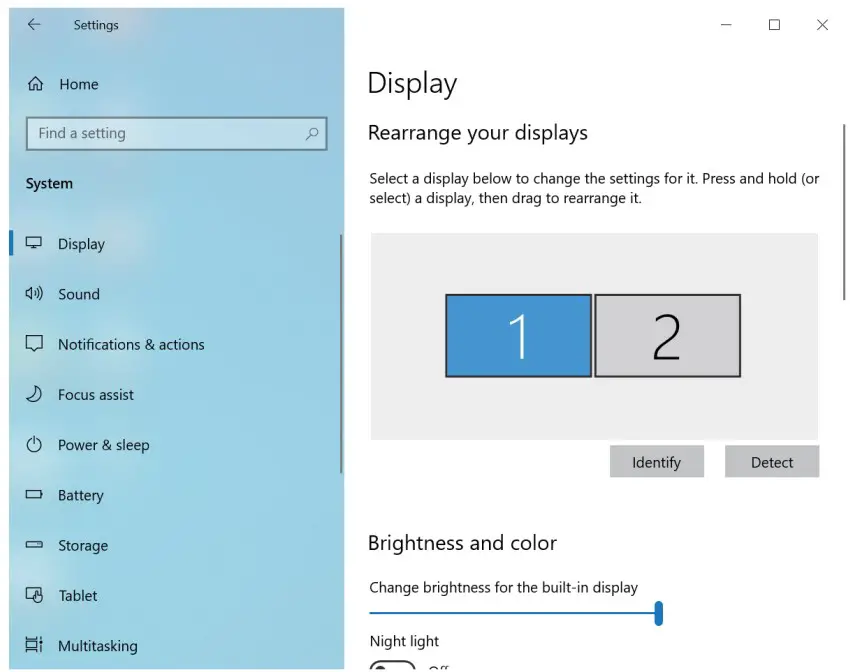
Duplicate & Extend Mode Setting for Windows
- Right click on an empty area of the desktop.
- Choose Display Settings.

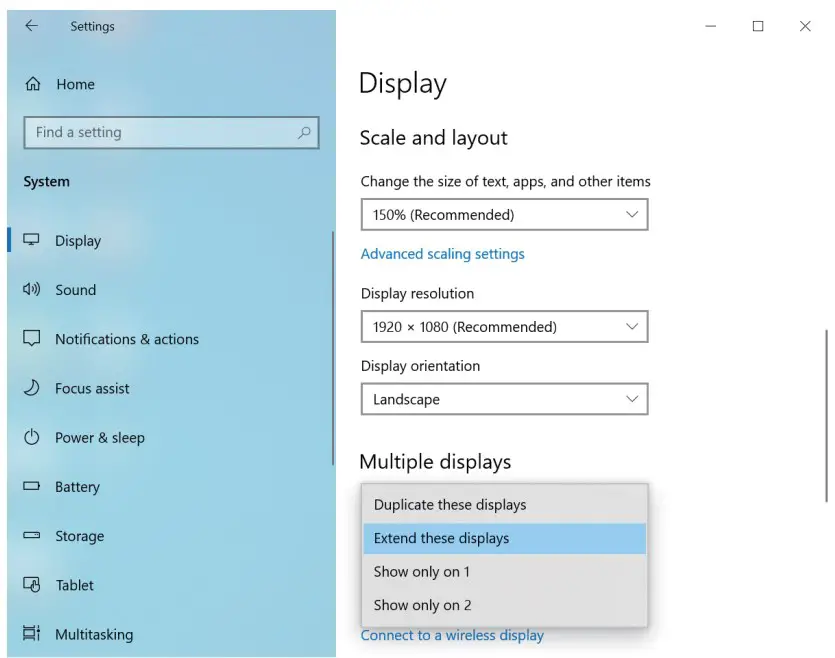
- Scroll Down to the Multiple displays area and select Duplicate these displays or
Extend these displays.
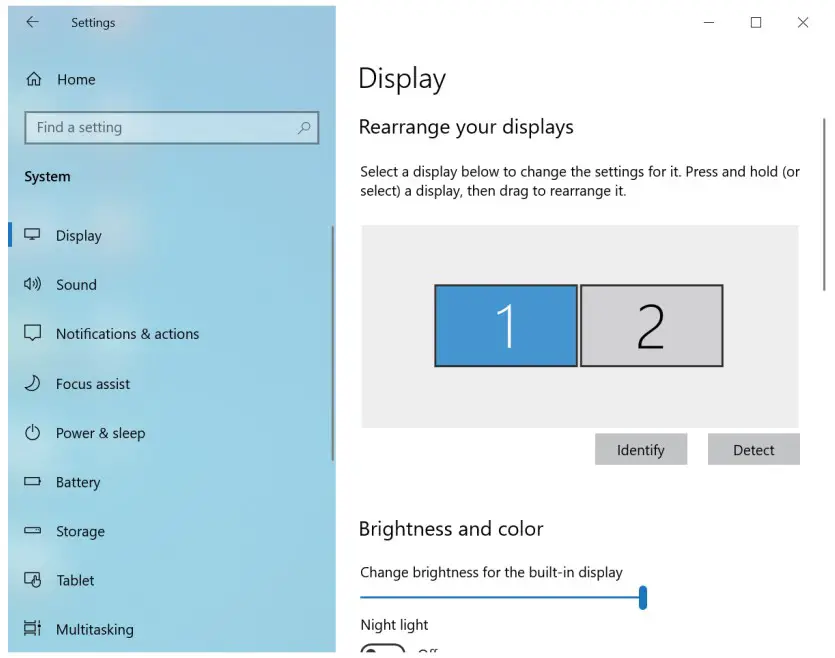
Screen Rotate Setting
- Right click on an empty area of the desktop.
- Choose Display Settings.
- Scroll Down to the Multiple displays area and select Duplicate these displays or
Extend these displays.
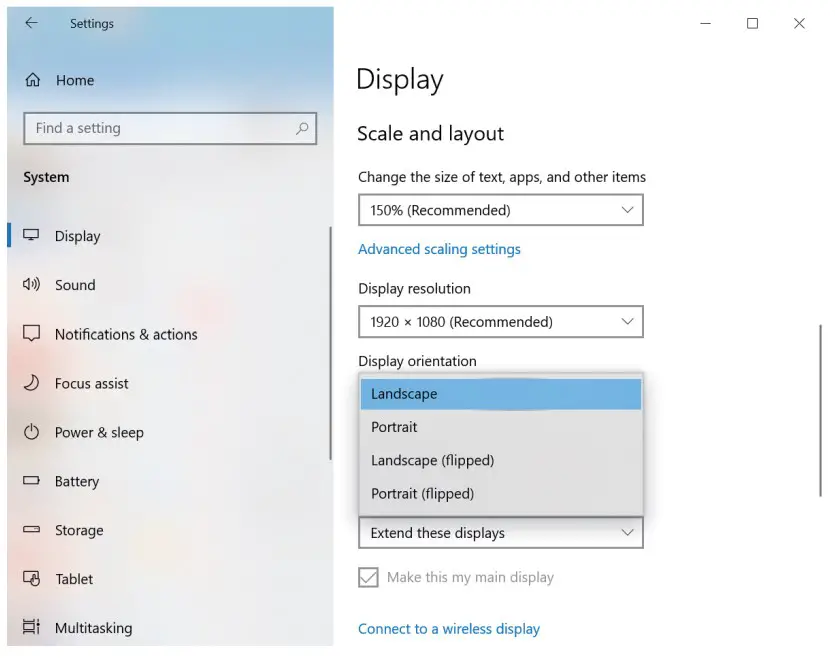
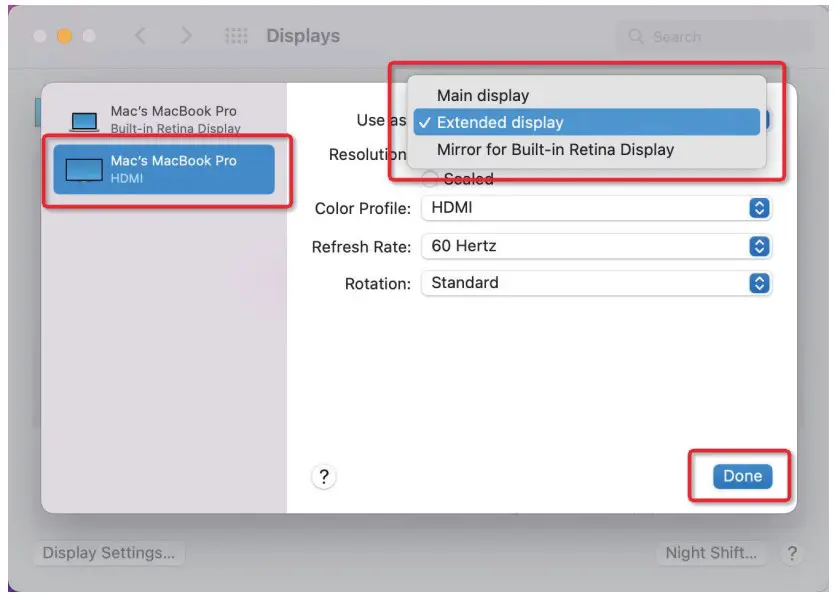
Duplicate & Extend Mode Setting for MacBook
- Choose Apple menu > System Preferences > click Displays > click Display Settings.
- Scroll Down to the Multiple displays area and select Duplicate these displays or Extend these displays.

Parameter Settings
- Press the Menu button to activate the OSD menu.
- Press the Menu button up and down to choose your settings.
- Press the Menu Button to confirm.
- Press the UP/+ button or Down/- button to adjust the value.
- Press and hold the Menu button for three seconds to return to the previous page.

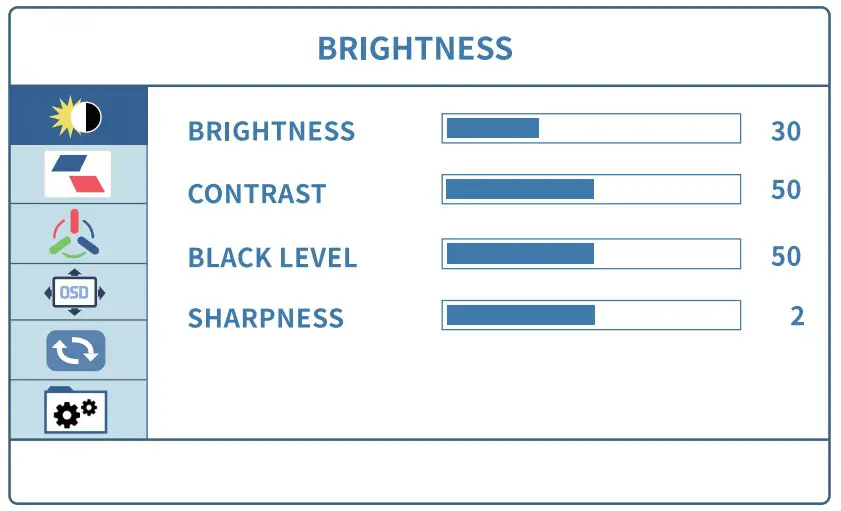
Brightness Settings
Press the Down/-/Brightness Button in the main interface to open the brightness menu.
Brightness: The adjusting range is from 0 to 100.
Contrast: The adjusting range is from 0 to 100.
Black Level: The adjusting range is from 0 to 100.
Sharpness: The adjusting range is from 0 to 4.
Image Settings
ECO: Contains Six modes( Standard/ Game/ Movie/ Text/ FPS/ RTS Modes )
DCR: Select ON or OFF to enable or disable dynamic contrast ratio function.
Aspect: Adjusts the aspect ratio to 4:3 /16:9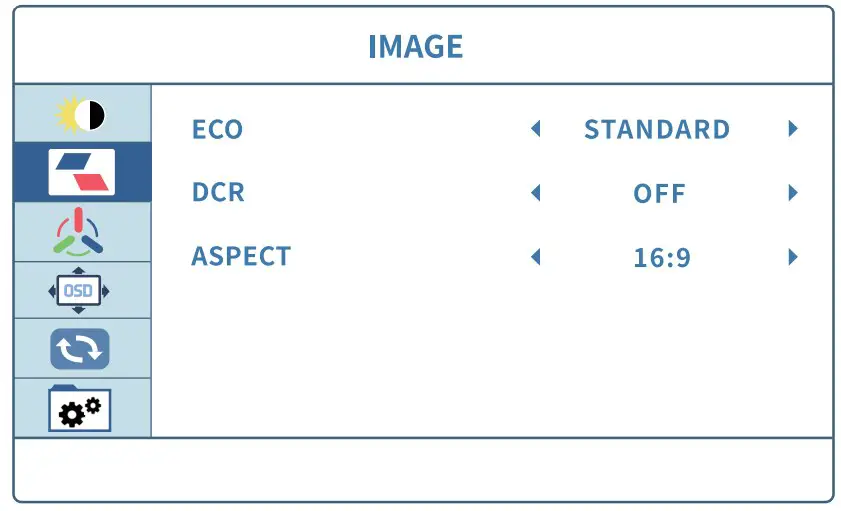
Color Temp Settings
Color Temp: Contains two preset color modes (Cool, Warm) and User Mode.
Red: The adjusting range is from 0 to 100.
Green: The adjusting range is from 0 to 100.
Blue: The adjusting range is from 0 to 100.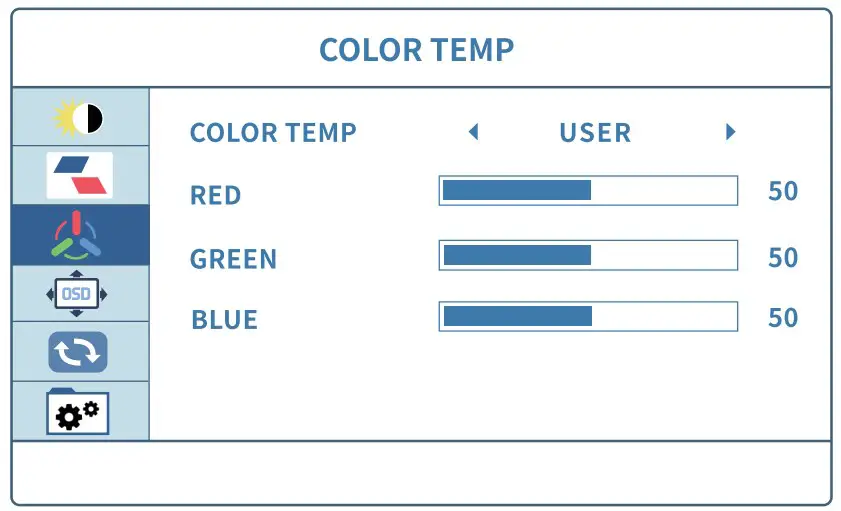
OSD Settings (Language/OSD Timer/ Transparency)
Language: Select OSD language. The selections are: English, French, German, Simplified Chinese, Italian, Spanish, Portuguese, Turkish, Polish, Netherlands, Japanese, Korean
OSD Timer: The adjusting range is from 10 to 60.
Transparency: The adjusting range is from 0 to 100.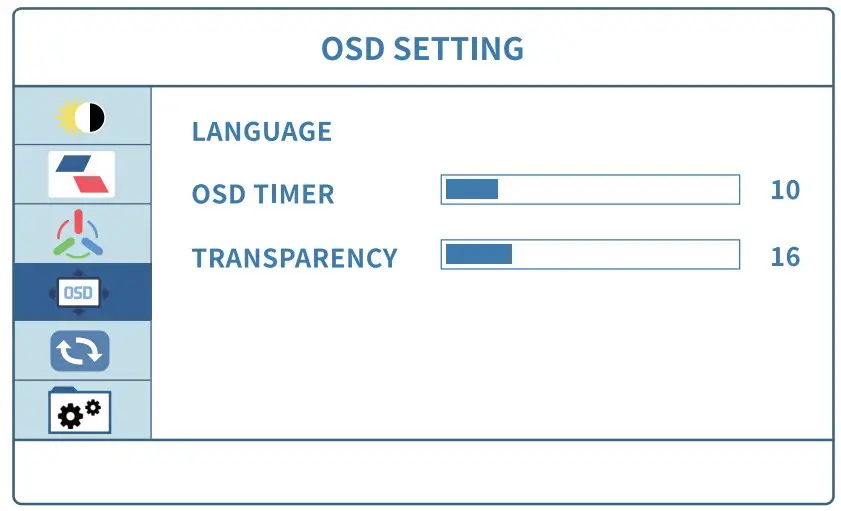
Reset Settings (Reset/Mute/Volume)
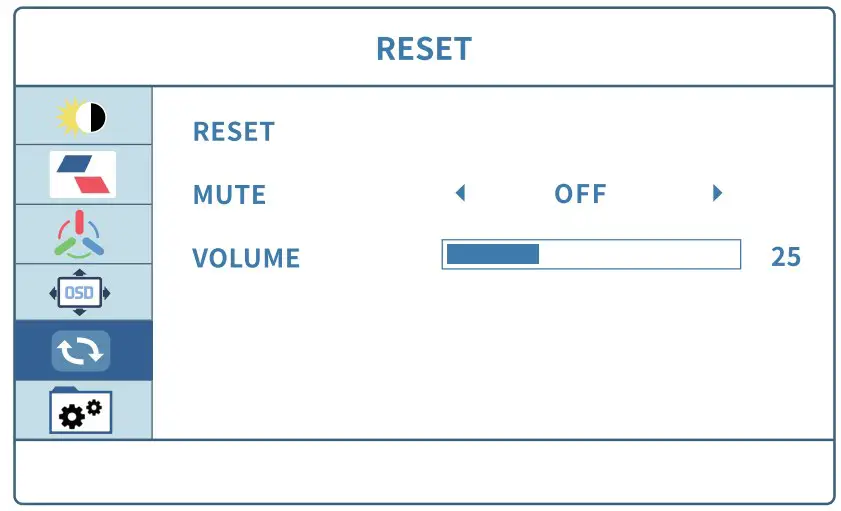
Reset: Selects RESET to revert all settings to the factory default mode.
Mute: Select ON or OFF.
Volume: The adjusting range is from 0 to 100.
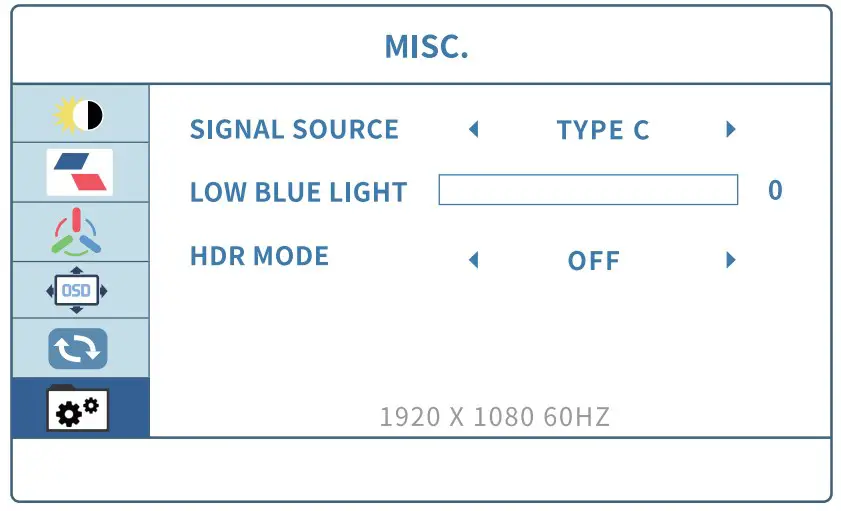
MISC Settings (Signal Source/Low Blue Light/HDR MODE)
Signal Source: Contains two signal sources Type C and HDMI.
Low Blue Light: The low blue light mode is a display mode that can reduce the exposure of blue light to the eyes, thereby reducing certain visual fatigue. The adjusting range is from 0 to 100.(0/25/50/75/100)
HDR MODE: Select ON or OFF to open HDR mode. High-Dynamic Range, or
HDR for short, can provide more dynamic range and image details than ordinary images, and can better reflect the visual effects in the real environment.
Specifications
| Product Name | Portable Display |
| Net Weight | 874g |
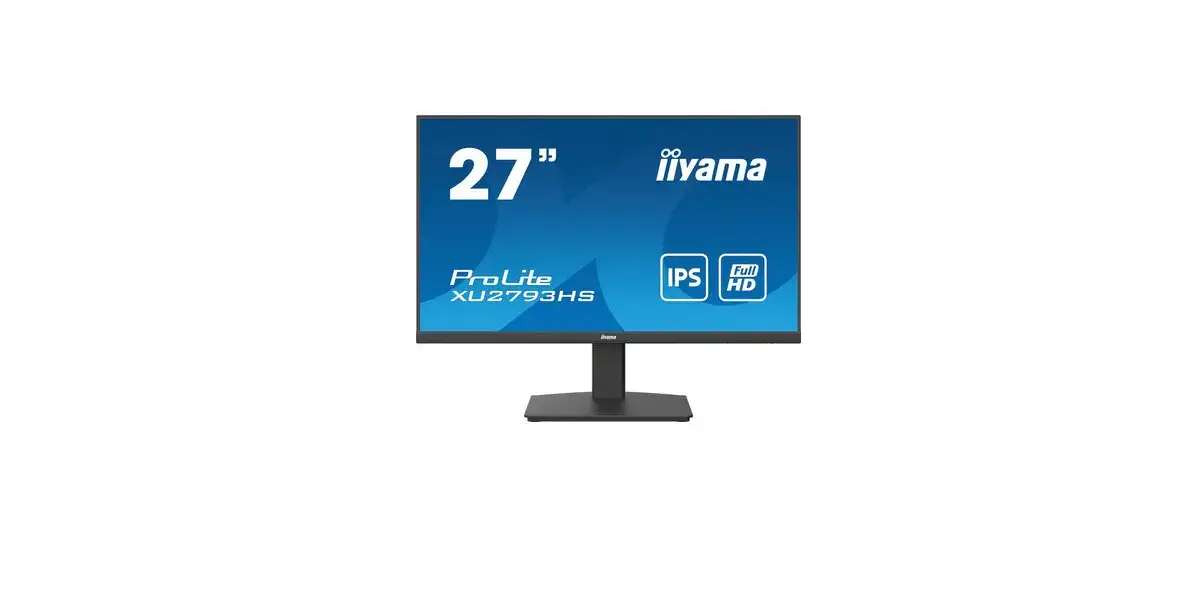
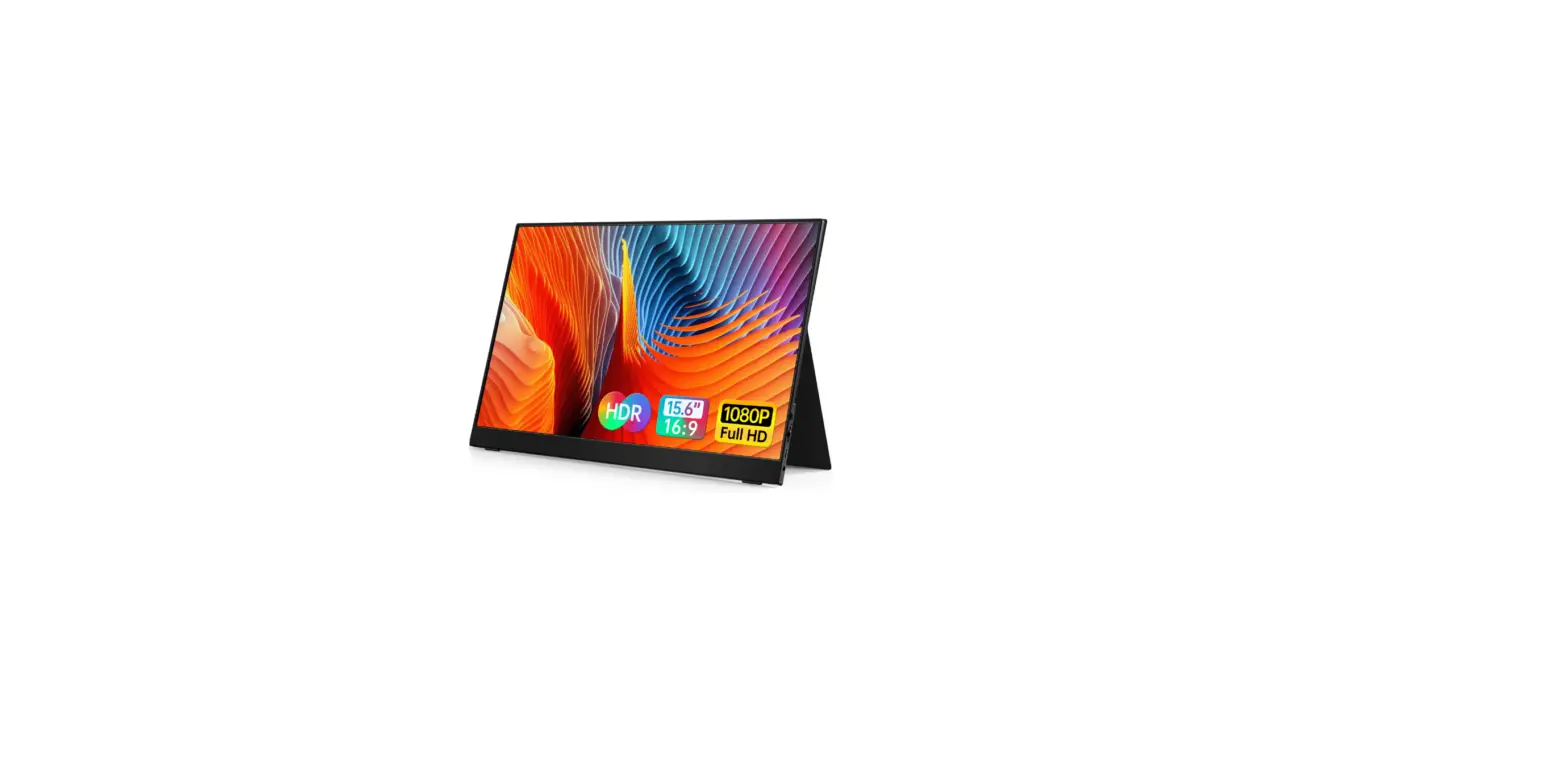
| Screen Size | 15.6inch |
| Panel type | IPS |
| Dimension | 360(L) x 224(W) x 7.62(H)mm |
| Aspect ratio | 16:9 |
| Resolution | 1920*1080 |
| Response Time | 5 ms |
| Contrast ratio | 1000:1 |
| Brightness | 400-120cd/m2 |
| Color Gamut | 76% NTSC |
| Color Display | 1.07 B |
| Input Interface | Type C full function, Type C power supply |
| Speaker | Built-in speakers(1W*2) |
| Refresh Rate | 60 Hz |
FAQ
Why is my brightness setting not being saved?
Connect the external power supply with USB A-C, besides the signal USB C-C connection. It will help save the brightness adjustment settings even you turn on/off the screen.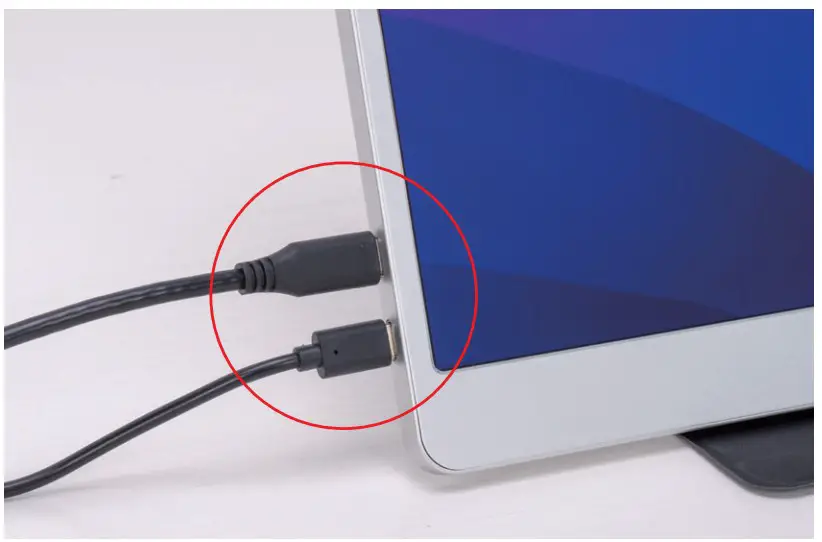
- lease check whether the Type-C port of your laptop is a full-featured Type-C port.
- Please make sure your laptop can provide 5V/3A power to the monitor, otherwise you need an external 5V/3A or higher power supply.
We need to use the Lighting to HDMI Adaptor to connect the iPhone and the monitor. In addition, because most iPhones can only provide 5V/1A power supply, you need to connect a 5V/3A or higher power supply to the Lighting to HDMI Adaptor.
- When there’s not enough power (5V/3A or above) comes in,the screen shows Power Saving Mode and No Signal.
- When the monitor is not connected with available device using supported port, the screen shows No Signal. 3.If your issue is not resolved, please contact us.
Click the Menu button to open the Parameter Settings > MISC Settings > HDR MODE ON Because HDR mode consumes more power, when you need to turn on HDR mode, please connect an external power supply of 5V/3A or higher.

WhatsApp
+8617817881067
Scan the QR code for WhatsApp online chat
Contact us
SVANTTO provides 18 months’ warranty and lifetime free service.
If you encounter any issues with the product, please contact the SVANTTO team to promptly receive troubleshooting tips or a replacement.
Email: [email protected] (24-7 online support)
Website: www.svantto.com (how-to videos, warranty details)
WhatsApp: +86 17817881067