
Version 1.0 / 202201
DPM-IP71R
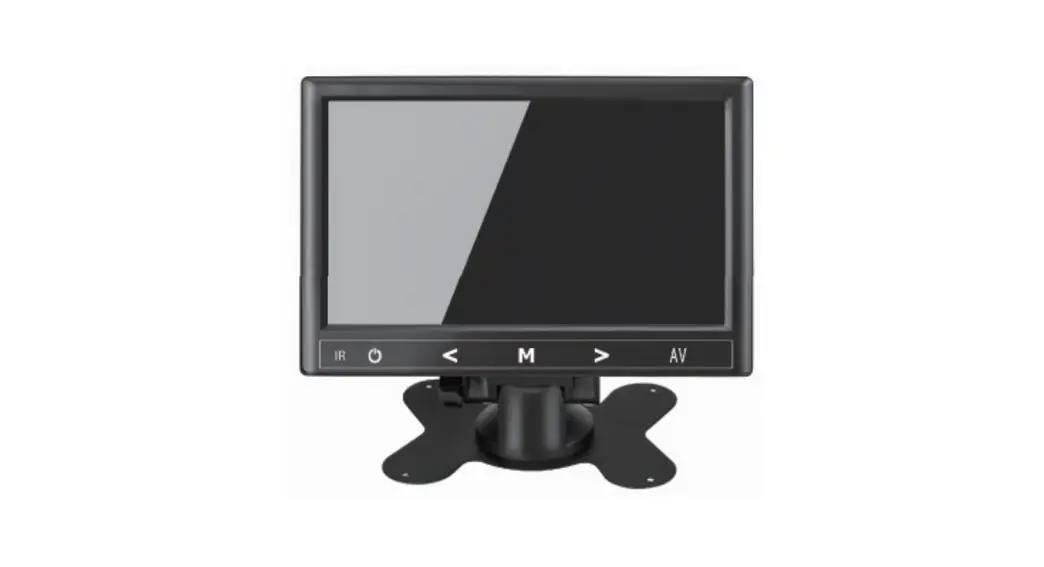
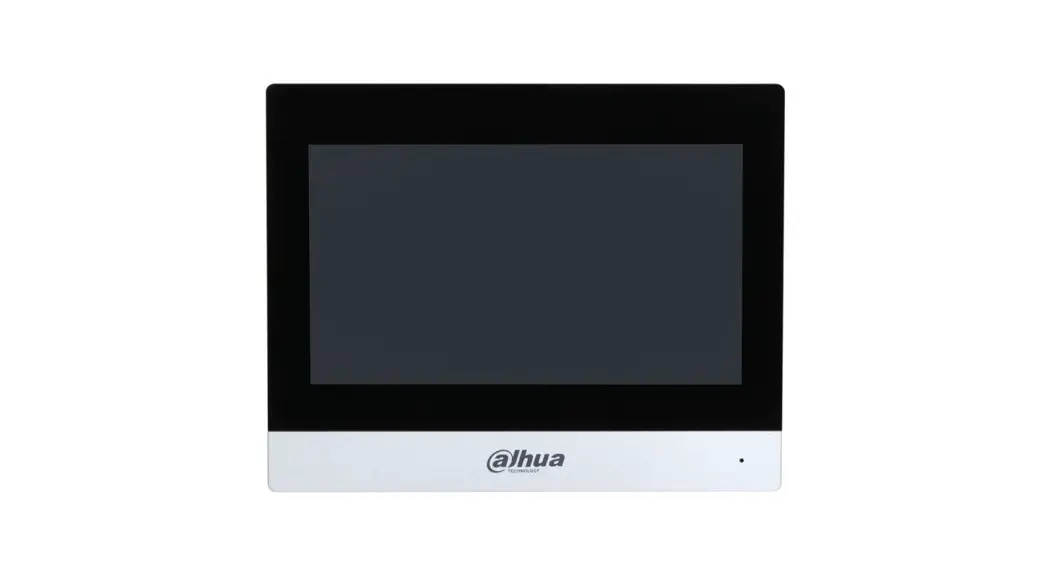
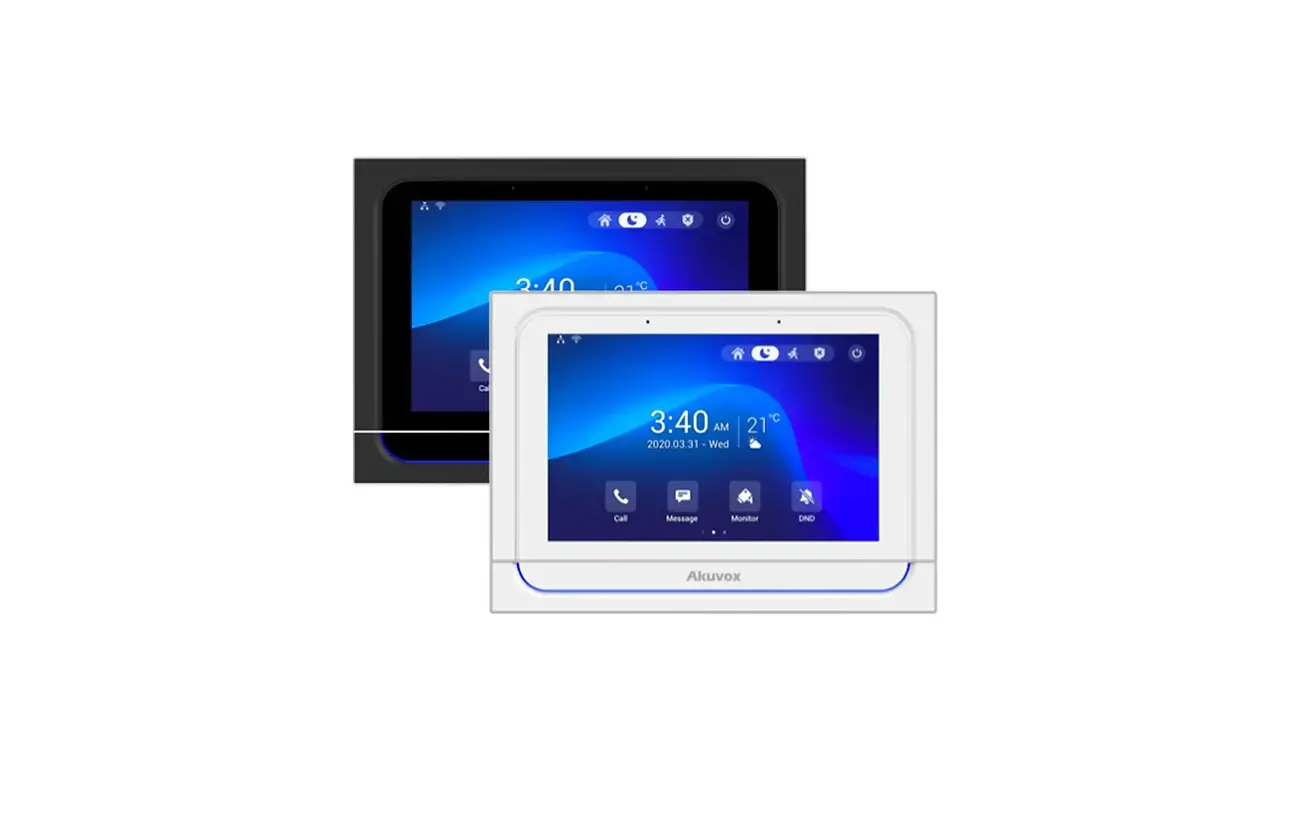
7 inch Guard Station
COLOR TFT TOUCH SCREEN WITH HANDSET
OPERATION MANUAL
- Please read this manual carefully before using the product you purchase and keep it well for future use.
- Please note that the images and sketch maps in this manual may be different from the actual product.
PRECAUTIONS
- Slots or openings in the back of the monitor, are provided for ventilation and to ensure reliable operation of the video monitor or equipment and to protect it from overheating. These openings must not be blocked or covered. The monitor should never be placed near or over a radiator or heat register and should not be placed in a built-in installation such as a bookcase unless proper ventilation is provided.
- All parts should be protected from violent vibration. And not allow being impacting, knocking, and dropping.
- For cleaning the LCD screen, using hands or a wet cloth is forbidden.
- Please do the cleanness with soft cotton cloth, please do not use the organic or chemical clean impregnate. If necessary, please use pure water or dilute soap water to clean the dust.
- Image distortion may occur if the video door phone is mounted too close to a magnetic field e. g. Microwaves, TV, computer,s, etc.
- Please keep away the video door monitor from wet, high temperature, dust, and caustic and oxidation gas in order to avoid any unpredictable damage.
- Do NOT open the device in any condition, call the administrator for help if there is any problem or malfunction happens.
PARTS AND FUNCTIONS
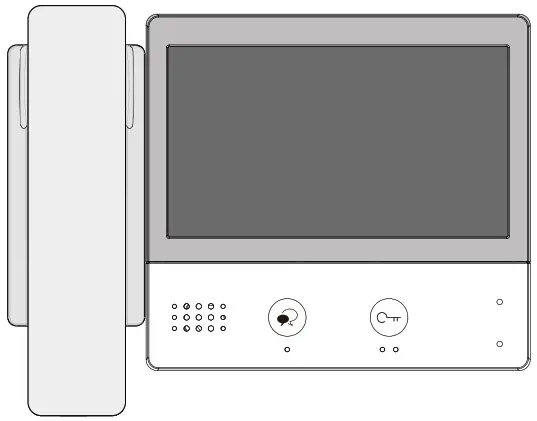
Part Names
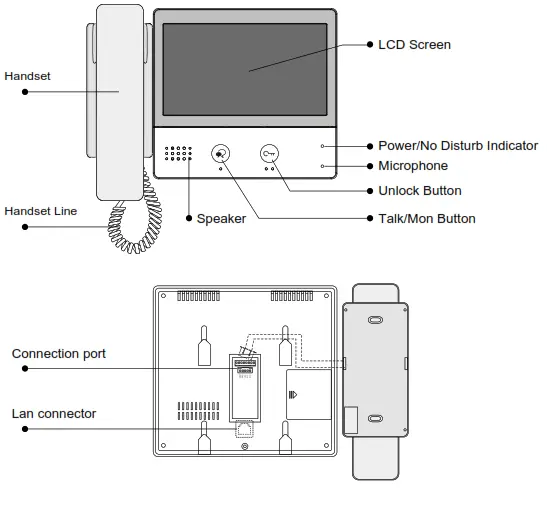
Key functions
| Item | Description |
| LCD screen | · See the menu details · Display videos and images |
| Handset | · Pick up to answer the call |
| Power/No Disturb indicator | · Show the power status of the system. · Show the no disturb status. |
| Microphone | · Transmit audio from one station to other stations. |
| Unlock button | · Press to release the door. |
| Talk/Mon button | · Press to communicate hands-free with visitors; . Press to view the outdoor condition in standby mode. |
| Speaker | · Send out the voice of the visitor. |
| Connection port | · Use to connect external devices to the indoor station. |
| Lan connector | · Use to connect the indoor station to the network. |
* Monitor/Home/Call/Manual record/Unlock button will light up when power on for the unit.
PARTS AND FUNCTIONS
Mounting
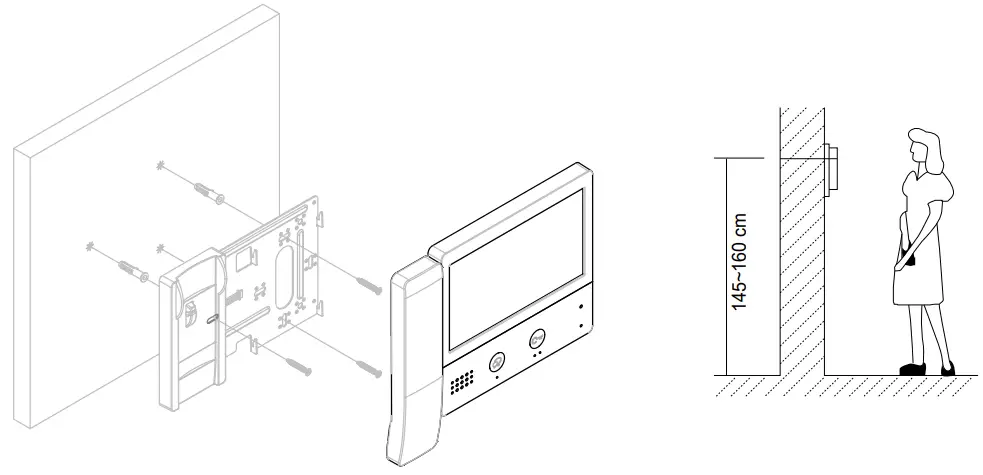
The installation height is suggested to be 145~160cm.
- Use screws to fasten the mounting bracket to the wall with the mounting box.
- Connect the 2 wire cables to the unit.
- Mount the unit to the mounting bracket, and make sure the unit is absolutely attached to the mounting bracket.
PARTS AND FUNCTIONS
Screen
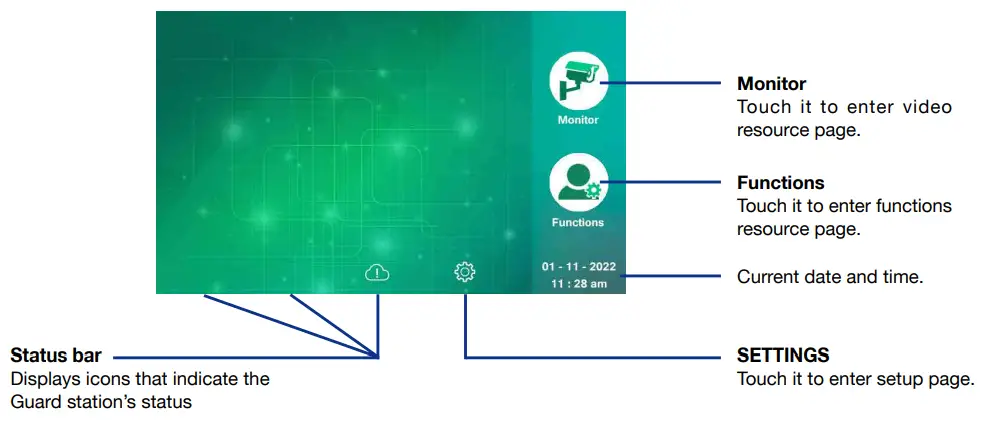
Main screen
The Main menu is your starting point for using all the applications on your monitor. Touch anywhere on the screen on a monitor in standby mode, and the Main menu will appear as follow:
Functions screen
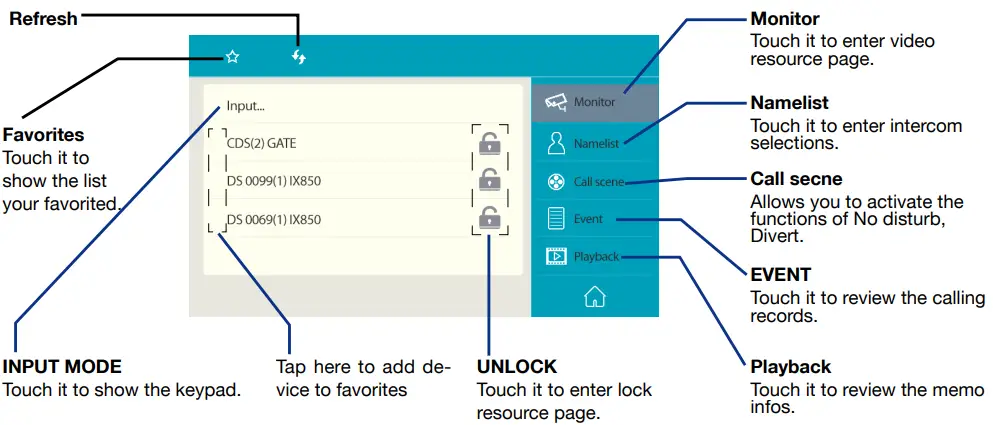
On the Main Menu page, touch  the [Functions] icon to display the Functions screen.
BASIC OPERATIONS
Communication screen
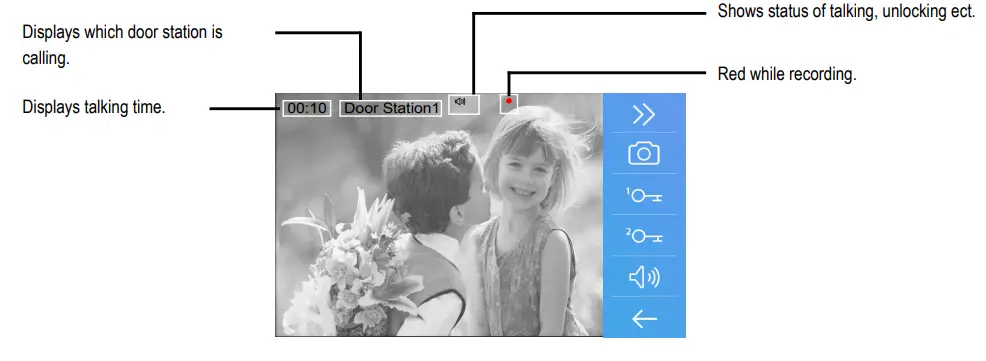
Answering a call
- When receiving a call, the call tone sounds, the video will be displayed on the screen if the source is a Video Door Station, and one video will be recorded for 10 seconds automatically if there is a video
Note: If without an SD card, the picture will be recorded; If with an SD card, the video will be recorded.
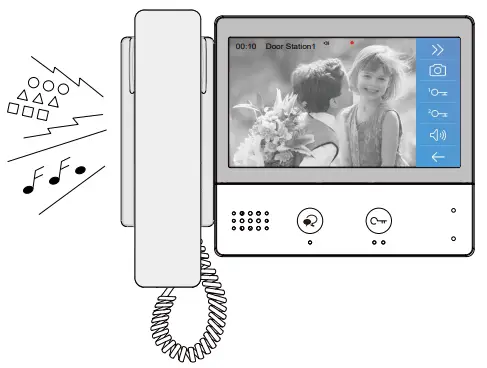
- Pick up the handset to communicate with the caller for 90 seconds.
- While communicating, press
 the [Unlock] button to release the corresponding door lock.
 - When the communication ends, hang up the handset.
 the [Unlock] button to release the corresponding door lock.
- If nobody answers the call, the screen will be turned off automatically after 30 seconds.
- The image will not be displayed when receiving a call from a User or Other Guard Station.
- Manual recording is forbidden during auto recording.
- While receiving a call, another call is forbidden.
- Communication also ends automatically after 90 seconds.
Basic operation based on Namelist
1. Namelist configured
By default, the Namelist is not included. It should be configured by Building/Guard unit number. The following instructions are available in the condition of the name list created.
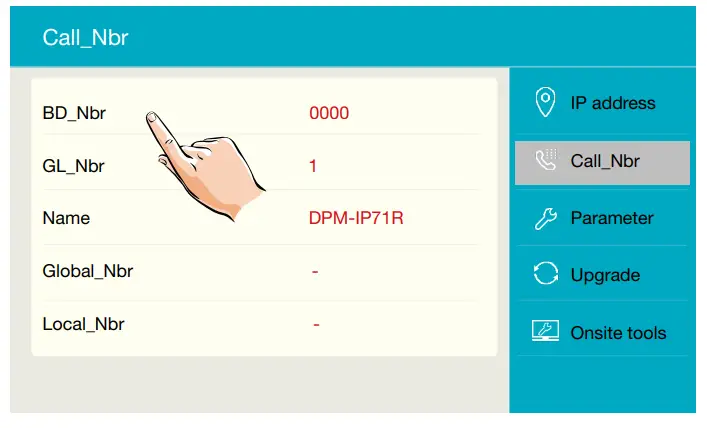
- On Main Menu, touch
 [Setting] icon ->Installer->Call_Nbr. And it will appear as follow:
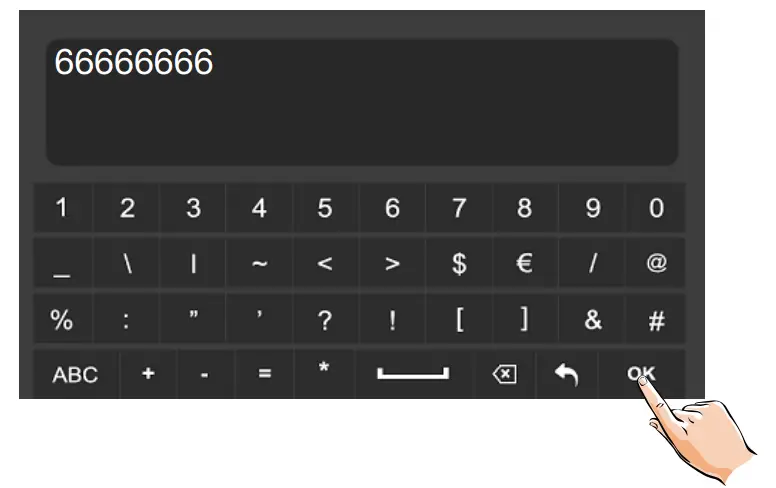
- Input the installer password(defaule:66666666), and press ‘OK’ to confirm.

- Select BD_Nbr/GL_Nbr.

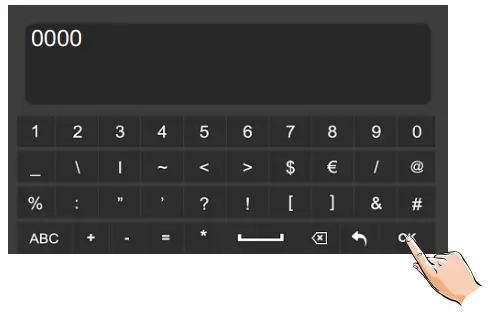
- Input the building number(ex:0000), and press ‘OK’ to confirm.
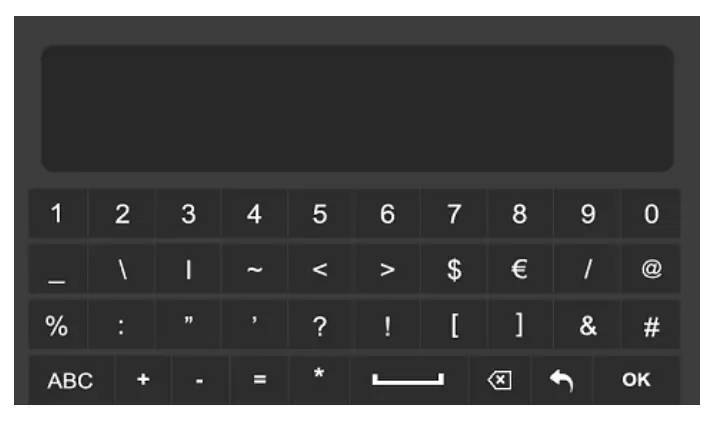
 2. Select a User or a Guard Station to be called
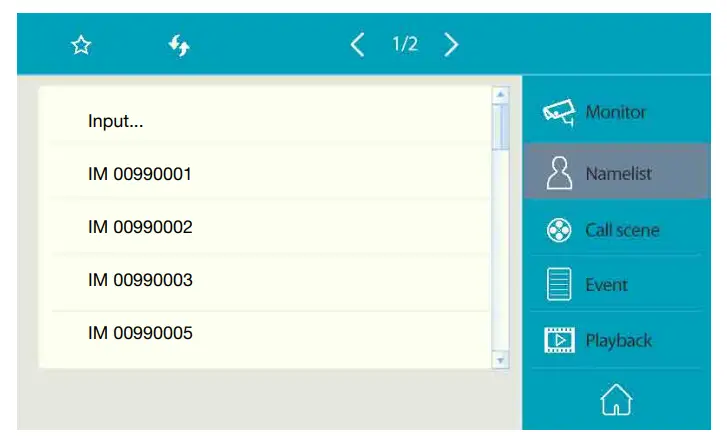
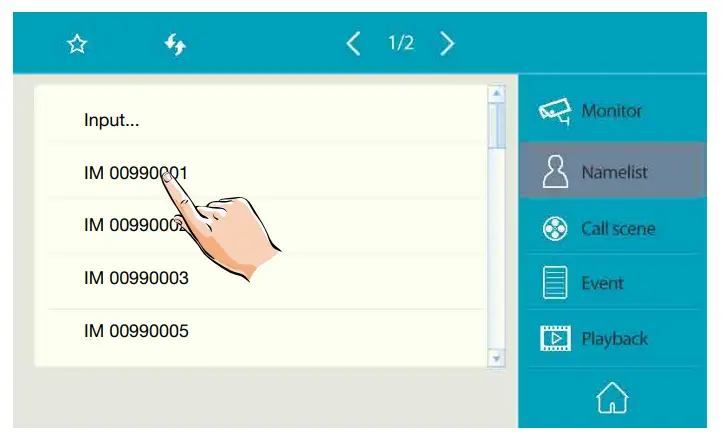
- On the Functions menu, touch the [Namelist] item to display Namelist.

- Select a Name by touching it, and calling is activated immediately.No image will be displayed on the screen.

- If nobody answers the call within 30 seconds, it will stop calling automatically and shut off the screen. Or touch
 icon to stop calling directly.
- If the call is answered, communication is starting.
- When communicating, hang up the handset or press the [Close] button.
 icon to stop calling directly.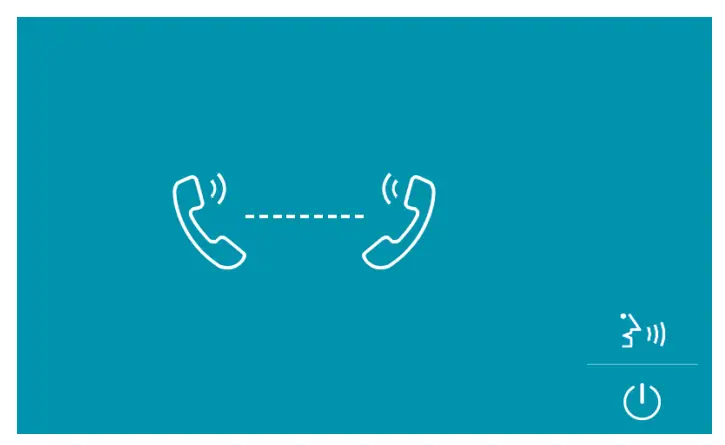
3. Select a Video Door Station to be monitored
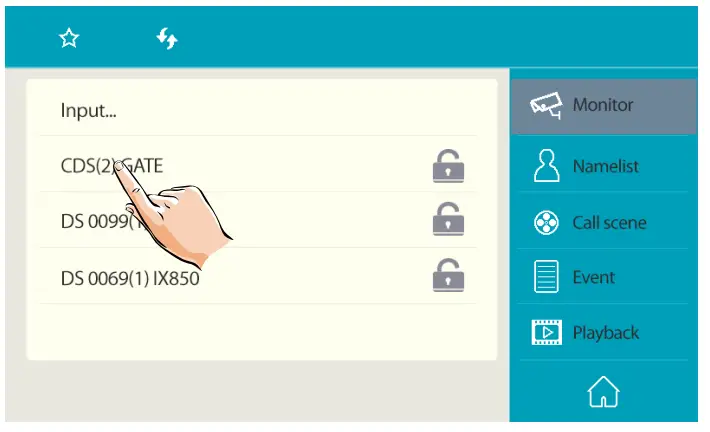
- On the Functions menu, select [Monitor] to display the Door station list.

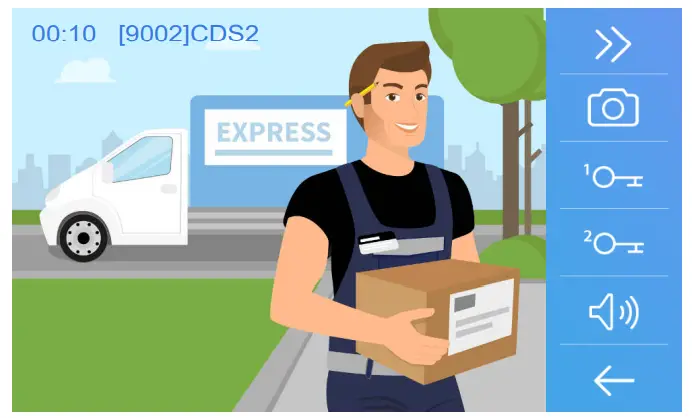
- Select a Video Door Station by touching it, monitoring is activated immediately. The monitor time is 30 seconds.
- The image of outdoor conditions will be displayed on the screen, see as follow:

- During monitoring, these operations are available:
-Pick up the handset to talk with the visitor;
-Pressthe [Unlock] button to release the door lock;
-Press the [Close] button to end monitoring.
4. Select a door station to be released the lock
- On the Functions menu, select [Monitor] to display the Door Station list.

- Select a Door Station by touching the
 [Unlock] icon to release the corresponding lock.
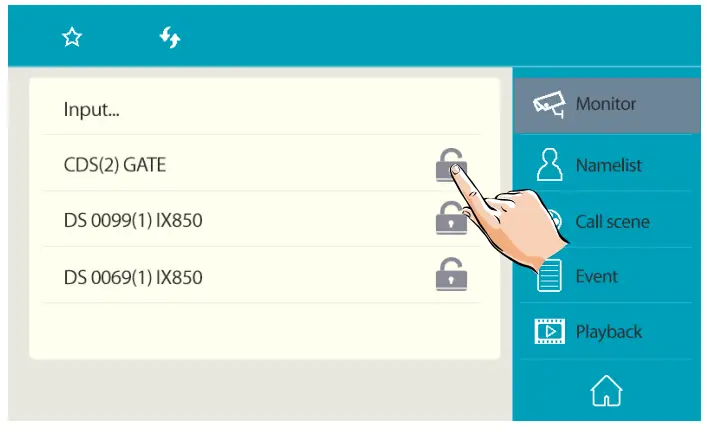
 [Unlock] icon to release the corresponding lock.
Basic operation by Input code
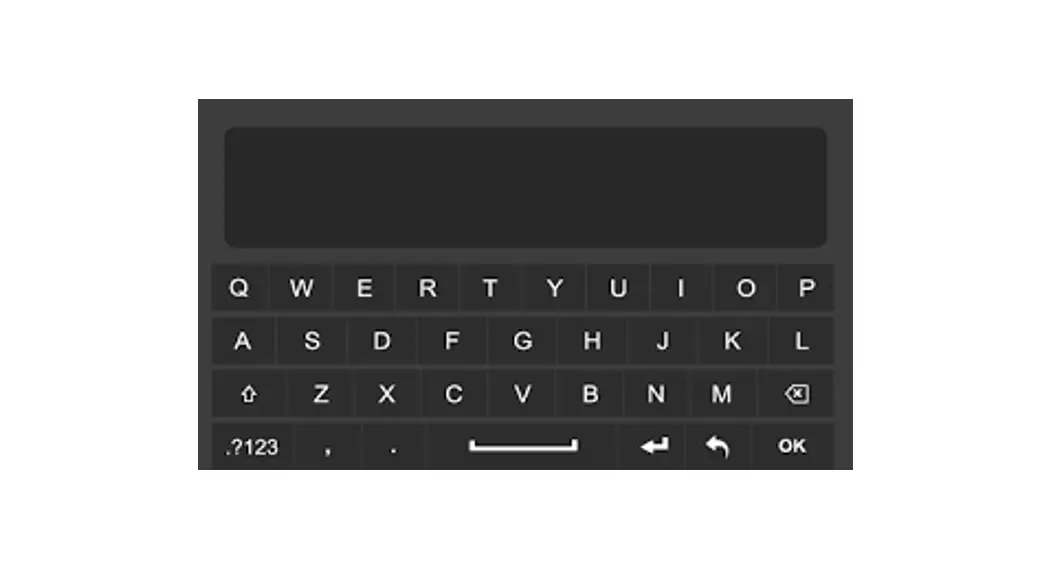
Another way to activate the functions of calling, monitoring, and unlocking is by inputting code via the keypad on the screen.
- Call a User or a Guard Station
On the Functions menu, select [Namelis], and touch [Input] to display the Search screen.
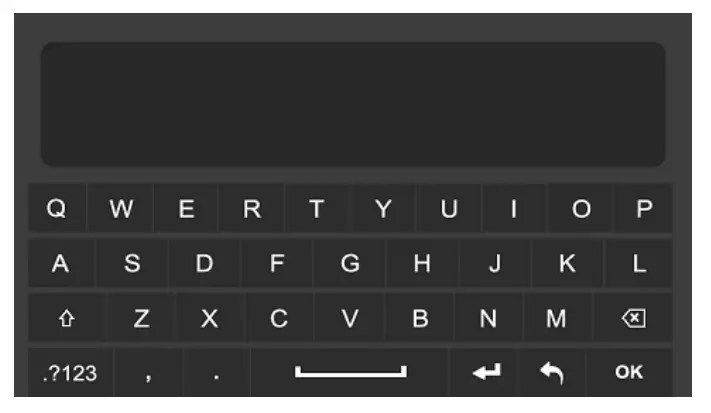
Search by digital numbers:
For example, maybe you just remember the room code including the number 32, input the code 32 on the input box, then touch the key “OK”, all Namelist which is including the code of 32 will be displayed.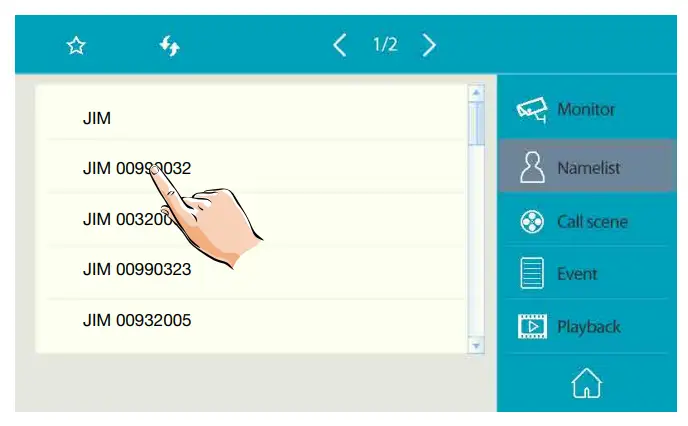
Select the target you want to activate the call.
Search by name:
Maybe you just know the name of User or Guard Station. For example, input the name “Jim” on the input box, then touch the key “OK”, and all Users or Guard Stations
called “Jim” will be displayed.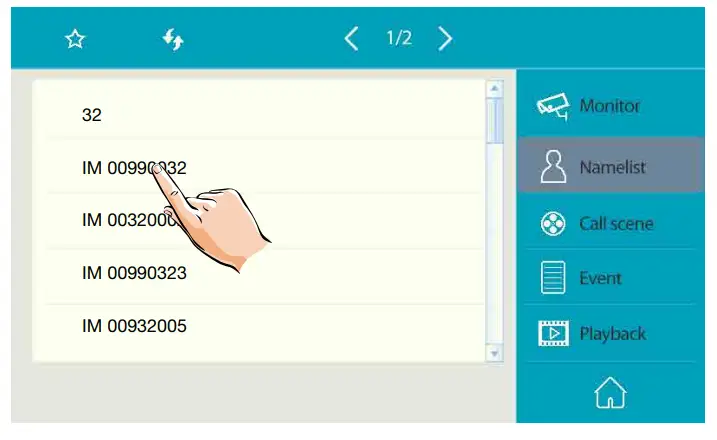 Select the target you want to activate the call.
2. Monitor a Video Door Station
- On the Functions menu, select [Monitor], and touch the [Input] icon to display the Search screen.
- The inputting method is the same as the section of Calling User or Guard Station.
- Select the Video Door Station you want to activate monitoring.
3. Release a door lock
- On the Functions menu, select [Monitor], and touch the [Input] icon to display the Search screen.
- The inputting method is the same as the section of Calling User or Guard Station.
- Select the Door Station you want, then press the[Unlock] button to open the corresponding door.
No Disturb Mode
During a certain period, if you don’t want to be disturbed, you can go to set DND mode.
- From the Functions menu, select the “Call scene” item.
- Select the desired tap.
– No disturb 8H: Set to no disturb mode 8 hours.
– No disturb always: Set to no disturb mode always.
Note:
* The no disturb indicator turns from green to red, to indicate that the no disturb function has been activated.
* This function will perform immediately if selected, and the status bar on the main menu interface will show ”  the ” icon.
Divert Calls
The calling from the door station can be diverted to your smartphone. please note that this function should be supported by the SIP network.
- From the Functions menu, select the “Call scene” item.
- Select the desired tap.
– Divert call if no answer: If nobody answers the call in the 30s when receiving calls from the door station, diverts the call to the smartphone. In this mode, the monitor will always open the screen and show an image from the door station during diverted, if the monitor answers the call at this time, diverted will conclude at once.
– Divert call always: When receiving calls from the door station, diverts the call to the smartphone directly. In this mode, the monitor will shut off the screen after diverting successfully, but you can still use it normally.
Note:
* If divert the call to a smartphone via Sip sever, need to choose one.
* This function will perform immediately if selected, and the status bar on main menu interface will show “ the ” icon.
 the ” icon.
View Call Record
The Guard Station records information about calls you have answered, missed, and made, and saves it in the call record. See the following steps to view the call record.
- From the Functions menu, select the “Event” item.
- Select the desired tap.
 Miss called: Displays calls you received but did not answer.
 Incoming called: Displays calls you answered.
 Outgoing called: Displays calls you made.
 - Browse the call record as needed.
- When finished,
 return to the previous menu.
 Miss called: Displays calls you received but did not answer.
 Incoming called: Displays calls you answered.
 Outgoing called: Displays calls you made.
 return to the previous menu.
Controlling Records
The following controls are available by tapping the screen while playing a record.
 • Plays the record.
 • Plays the next record.
 • Plays the previous record.
 • Delete record.
 • Delete confirm.
View Videos
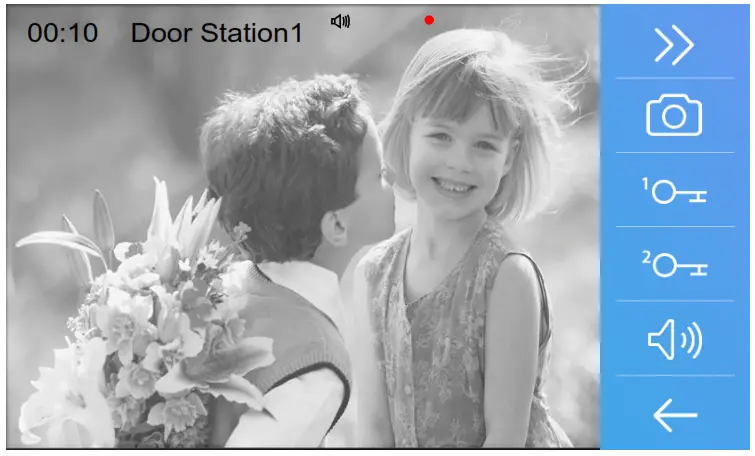
Videos are possible to be recorded, and both automatic recording and manual recording are available. To record videos, an SD card is needed.
Automatic recording
Recording starts immediately when receiving a call.
- While recording, “
 ” displays on the screen.
 - Capture one video automatically for each call.
 ” displays on the screen.
The recorded videos are stored on an SD card directly.
* Max. 32G Micro SD card is supported.
Note:
* Automatic recording function cannot be canceled.
* Automatic recording does not available while monitoring a door station. To save videos while monitoring, see manual recording below.
Manual recording
While being called, talking, or monitoring, Touch  button when an image is displayed.
Note:
* Manual recording is available at any time.
* Manual recording cannot be performed during automatic recording.
- The auto recording time limit is 10s. The videos will be saved on a micro SD card directly.
- The manual recording time is the time for ending the manual recording. max. of 10s for each manual recording.
- A brand new SD card needs to be formatted by the monitor, then it can be used for video recording.
Playback
The recorded videos can be playback on Guard Station. Follow the steps:
- On the Functions menu page, select [Playback], most recent recordings are displayed.
- Touch ” < ” or ” > ” to scroll through recordings, and touch “
 ” to delete current video.
To stop
Touch the icon on the screen during play to return to the last page.
Press the [Home] button to return to the main menu page.
SETUP INSTRUCTIONS
Setting date and time
You can correct the current date at any time by following the procedure below.
- On the main menu page, touch [Setting] icon ->[General] ->[Date&Time], to enter Clock setting page(or click on the lower right corner of the screen ).
- Touch the setting target of Date mode, Time mode, Date, and Time to adjust.
- When the setting has finished, touch
 to save the settings.

Setting monitor time
The monitor time can be changed at any time. The setting range is the 30s,60s,90s,120s,150,180s ,210s,240s,270s,300s.
* the 30s is the default monitor time.
- On the main menu page, touch [Setting] icon ->[General] ->[Monitor timing], to enter Monitor timing page.
- Select the times you want.
- When the setting has finished, touch to save the settings.

* Press the [Home] button to return to the main menu page or touch the “ Return” key to return to the last page.
Setting ring tone&ring volume
The ring call tone can be set individually to distinguish different calling sources. Total 22 tones can be selected.
- On the main menu page, touch [Setting] icon ->[Ring volume]/[DS ring]/[CDS ring]/[OS ring]/[Message ring]/[Doorbell ring]/[Intercom ring]/[Innercall ring]/[Alarm ring].
* Press the [Home] button to return to the main menu page or touch the “ Return” key to return to the last page.
Setting ring tone&ring volume
The ring call tone can be set individually to distinguish different calling sources. Total of 22 tones can be selected.
1. On the main menu page, touch  [Setting] icon ->[Ring volume]/[DS ring]/[CDS ring]/[OS ring]/[Message ring]/[Doorbell ring]/[Intercom ring]/[Innercall ring]/[Alarm ring].

* After selected the value,touch to save and perform the settings.
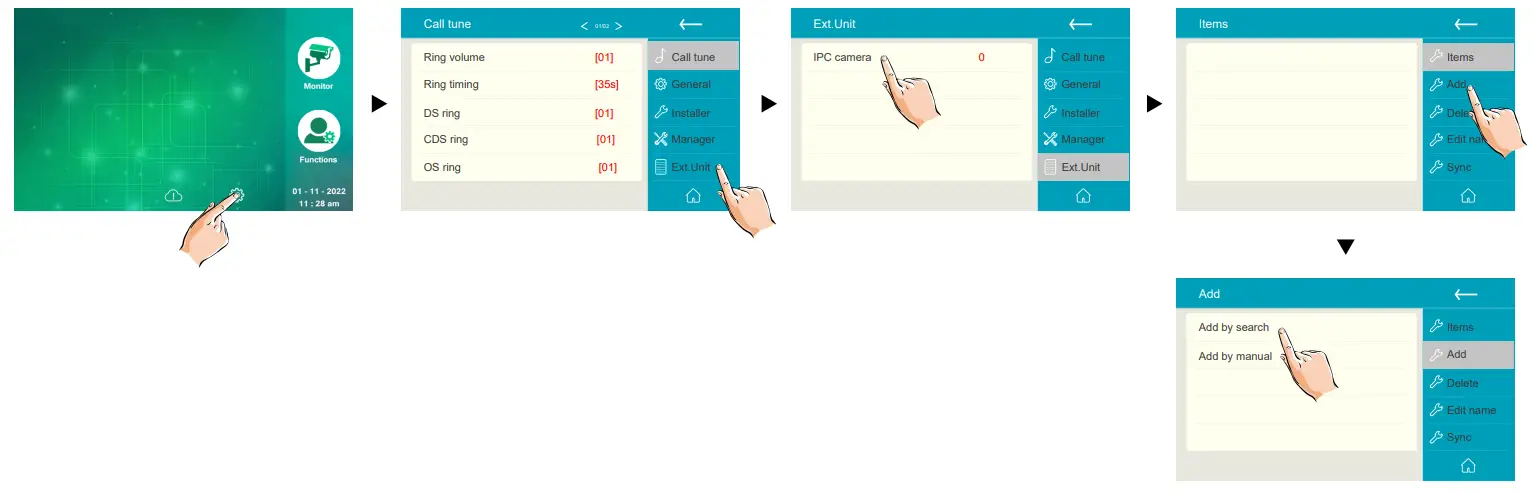
Add IP Camera
On the main menu page, touch[Setting] icon ->[Ext.Unit]->[IPC camera]->[Add]->[Add by search]/[Add by manual].
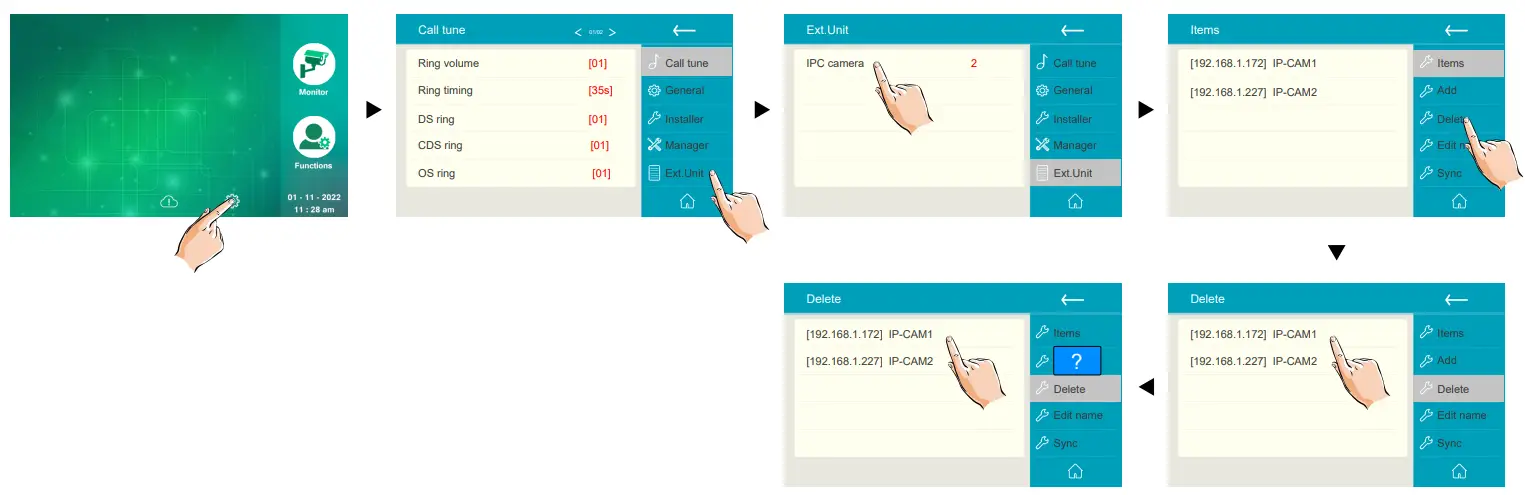
Delete IP Camera
On main menu page, touch [Setting] icon ->[Ext.Unit]->[IPC camera]->[Delete].
Specification
| Power Source: | Power-over-Ethernet (IEEE 802.3af Class 0) |
| LAN Interface: | 10 BASE-T / 100 BASE-TX Ethernet (RJ-45) |
| Monitor screen: | 7 Inch digital color TFT |
| Display Resolutions: | 800.’480 resolution |
| Wire Type: | Cat-5e or Cat-6 |
| Wiring Distance: | 100m (Approx. 330′) |
| Operating temperature: | -10 to +50 (oC) |
| Dimension: | 193(H)x235(W)x55(D)mm |
The design and specifications can be changed without notice to the user. The right to interpretation and copyright of this manual are preserved.