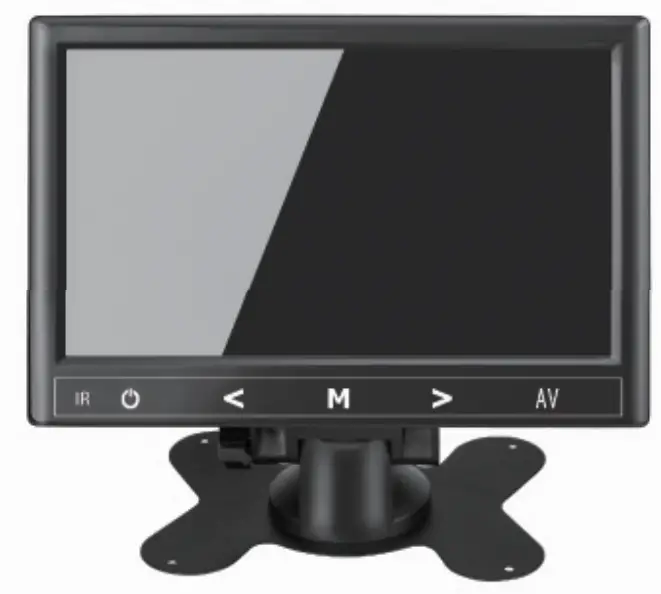
7″ Monitor
USER MANUAL
Introduction
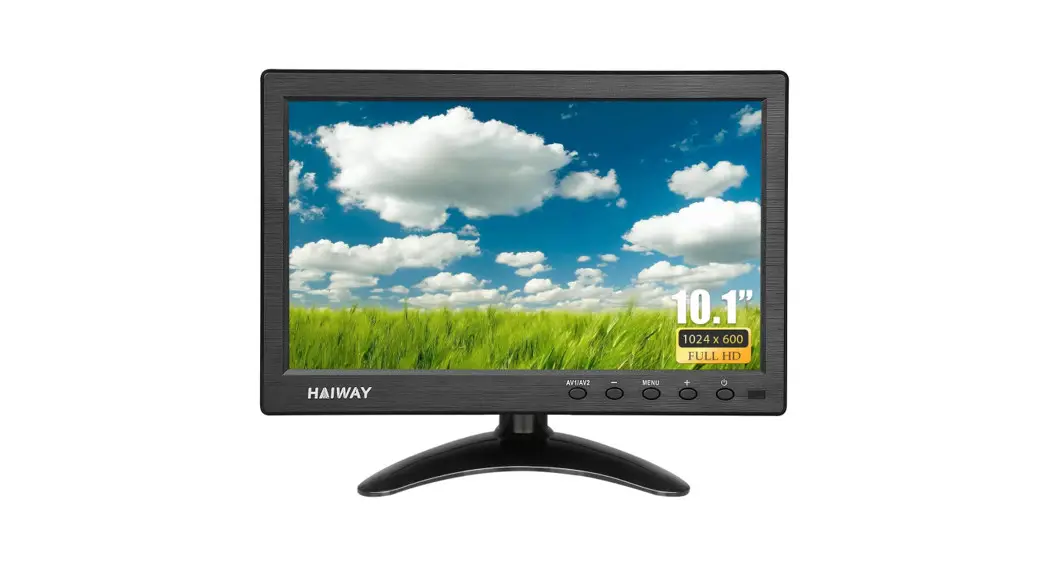
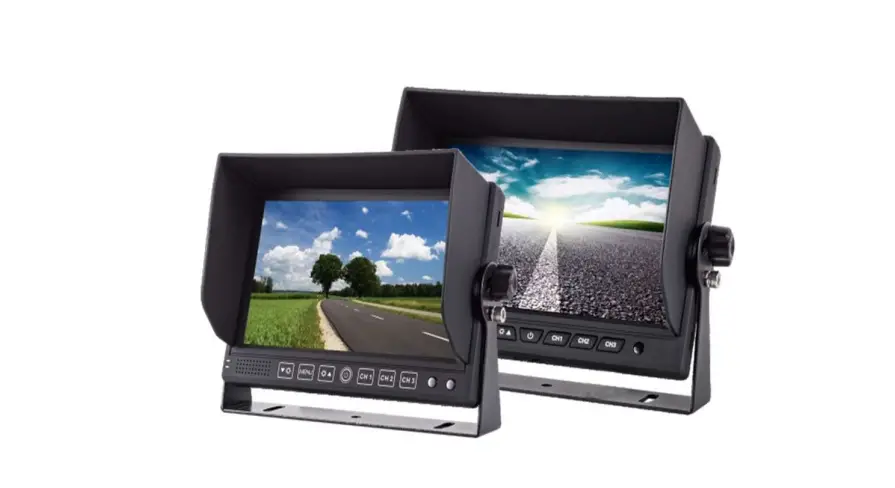
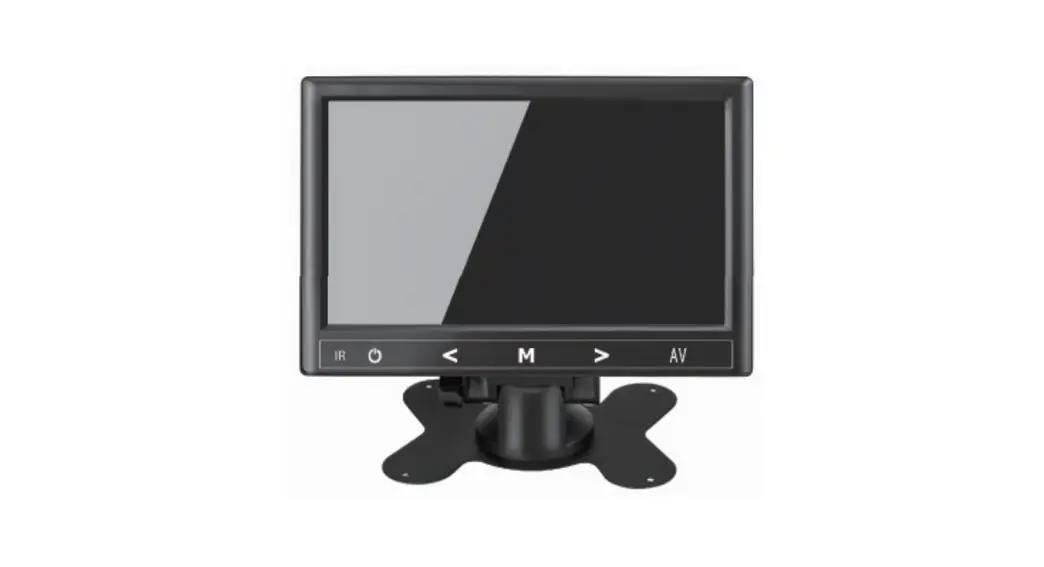
7 inch CCTV HDMI Monitor display with HDMI/VGA/AV input. This mini monitor screen offers you clear and delicate images. Suitable for CCTV security camera monitors, rearview cameras, PC mini monitors, or other devices displays that support HDMI/VGA/AV input. And also, you can use this item as one small handy screen.
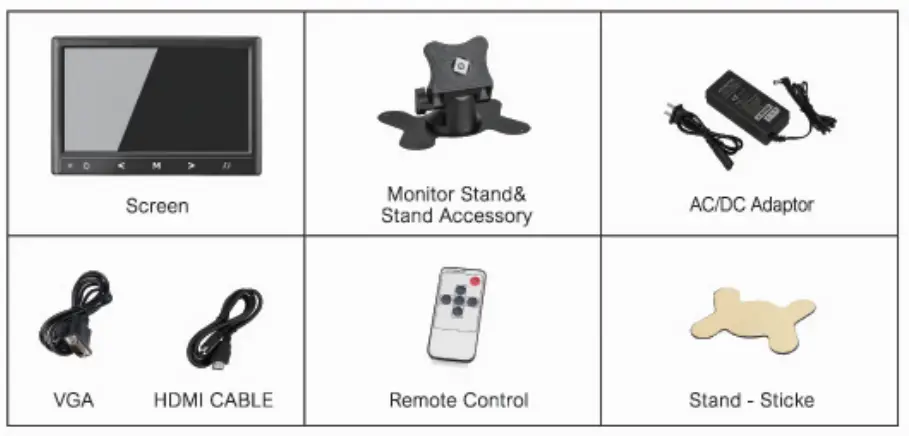
Package Included
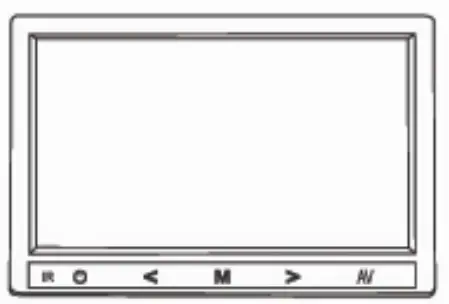
| IR | < | Confirm/Down | > | Confirm/Up | |
 | Power Switch | M | Menu/Confirm | AV | Input Signal Mode Switch |
Instruction
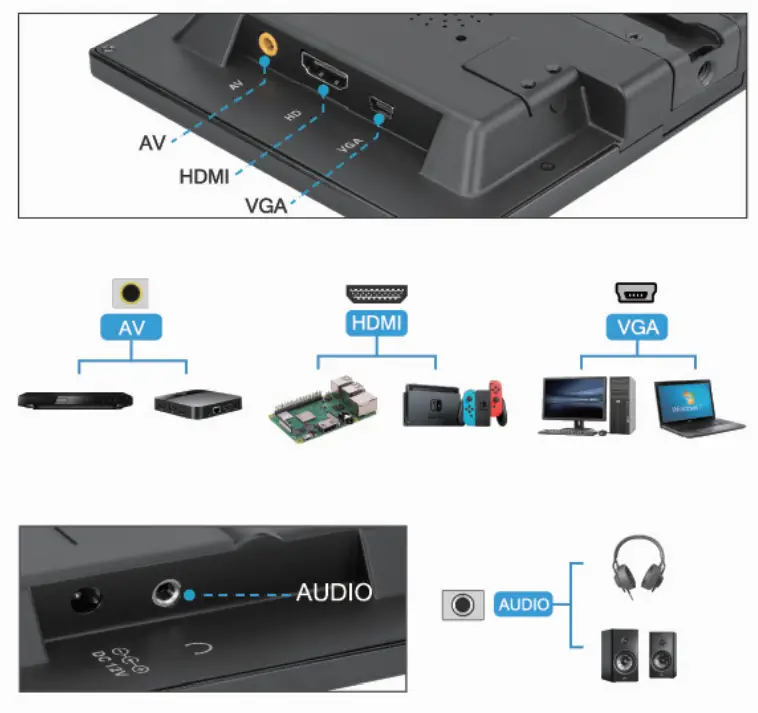
 VGA VGA | for computers or laptops. |
 HDMI HDMI | for Raspberry Pi, DSLR, PC, or other devices that use the HDMI port. (Supports all standard HDMI ports) |
 AV AV | for DVD, VCD, TV box. |
 AUDIO AUDIO | for speakers and headphones. |
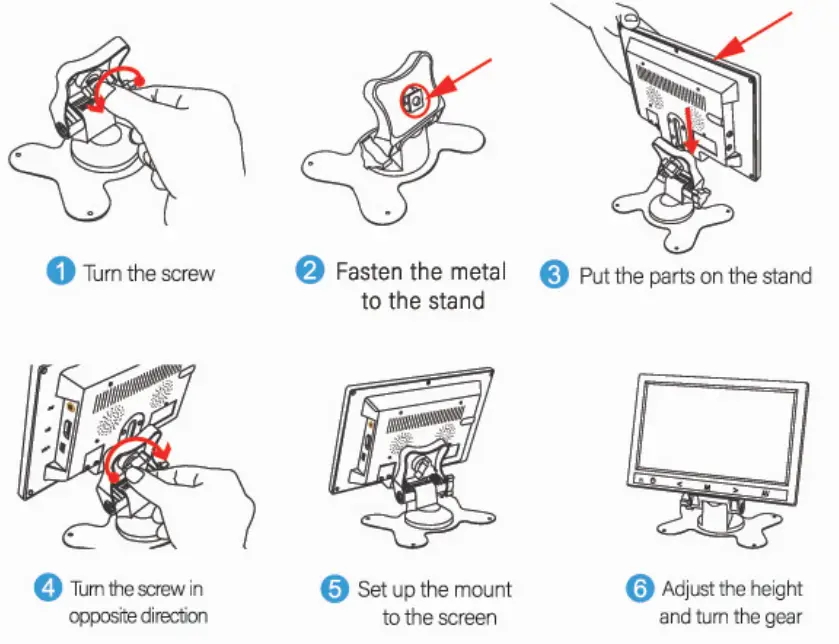
Monitor Stand Installation
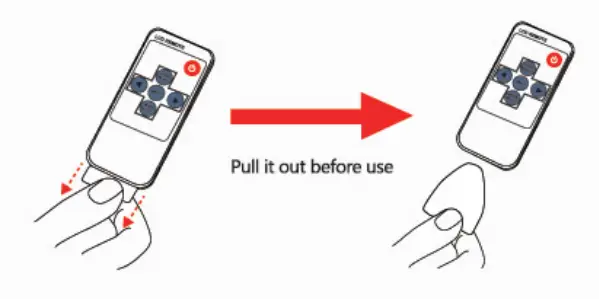
Remote Controller To Use
Operation Guide
NOTE: Make sure that you choose the elect correct signal input mode.
→ The Monitor default HDMI mode.
HDMI Mode-Button operation on the monitor panel:
- Click ‘AV’ to enter and use this button to select the corresponding input mode, wait for 2-S seconds, then the page will be displayed.
- Click ‘M’ to enter the menu page, and click the ‘AV’ key to select the page to be adjusted, including Color, OSD, Function, and Sound. Press the ‘left & right keys to enter the subpage, ‘And AV’ key selection drop-down menu, and the ‘left & right keys are used to adjust the corresponding value. When finished, click ‘M’ to confirm and exit.
HDMI Mode-Button operation of the remote control:
- Click ‘VIDEO SELECT to enter and use this button to select the corresponding input mode, wait for 2-5 seconds, then the page will be displayed.
- Click ‘MENU’ to enter the menu page, and click the ‘MODE SELECT key to select the page which needs to be adjusted, including Color, OSD, Function, and Sound. Click the ‘left & right keys to enter the subpage, the ‘MODE SELECT key selection drop-down menu, and the ‘left & right keys are used to adjust the corresponding value. When finished, click ‘MENU’ to confirm and exit.
Troubleshooting
| Power indicator does not light up. | Please check the power of the monitor. |
| No image/Blue Screen | · Ensure the monitor is powered and turned on. · Check if the connection between the video input device and monitor is OK. · Make sure that you choose to elect the correct signal input mode. It should match the signal connection type. For example, if you use an HDMI cable to link a video input device and monitor, then select ‘HMI* as the input signal mode. Otherwise, it shows No Signal. · If still no signal and image, please replace cables, a video input device, or another monitor to check |
| Remote does not work with the display | Please remove the battery saver in the remote control, or try with the buttons on the monitor. |
| Hazy Screen / Scratched Screen | There is a protective film on the monitor, the image looks a bit hazy, you could peel it off if you like. |
| Stop working after a period of time | Please email us for help or replacement. |
Specification
| Video Input Interface | VGA/HAMI/AV |
| Aspect Ratio | 4:3/16:9/Auto |
| Resolution | 1024’600 |
| Viewing Angle | Wide View Angel 178 Degree |
| Brightness | 400 cd/m2 |
| Contrast Ratio | 400:1/600:1 |
| Response Time | 10ms |
| Power Input | DC 12V-1.0A |
| Power Mode Support | Power Adapter |
| Speaker | lOw(Max)’2 |
| OSD Menu Language Options | English/Chinese/Japanese/Russian |
| VGA Interface | Support 15 PIN VGA Input Connect With PC |
| New Weight | 550g |
| Adjustable Stand | Landscape |
| TV Signal System | PAL, NTSC |
Service Support
Thank you for purchasing our product If you are having difficulty of using it, please feel free to contact us. We are always here to help. Your satisfaction is our priority!
Contact us Email: [email protected]
 Facebook: Haiway
HAIWAY Service Support