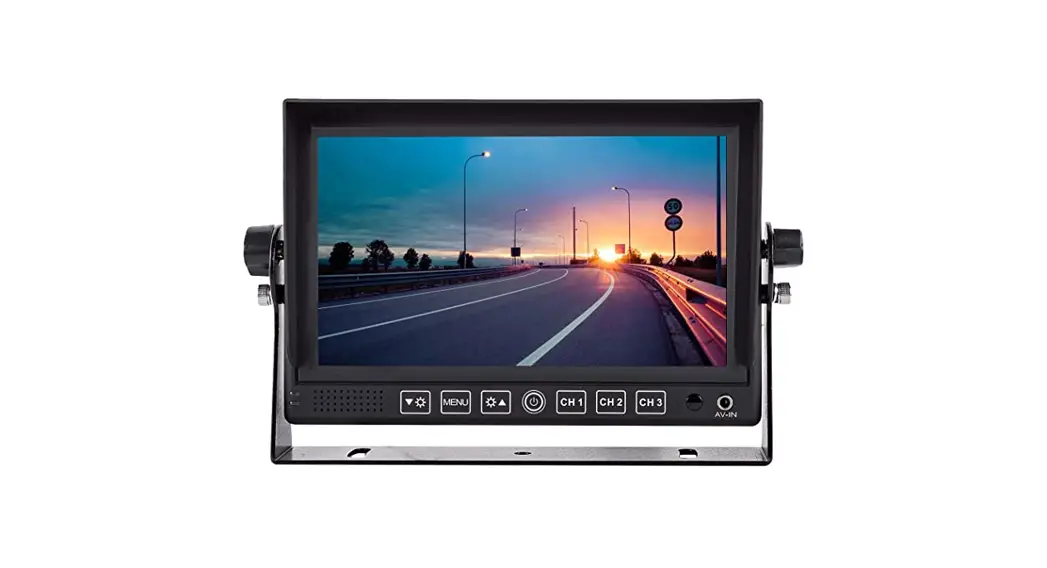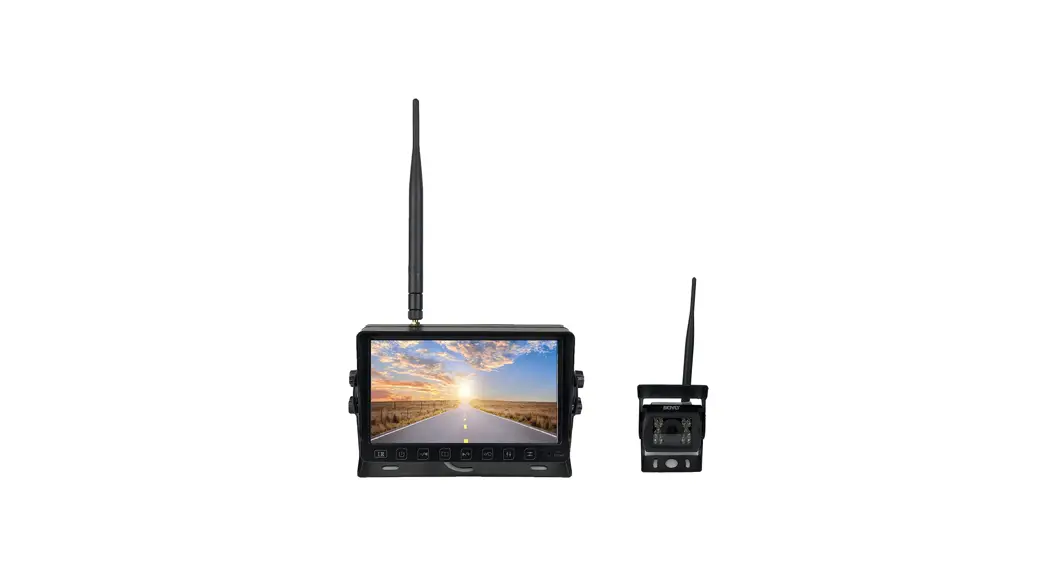
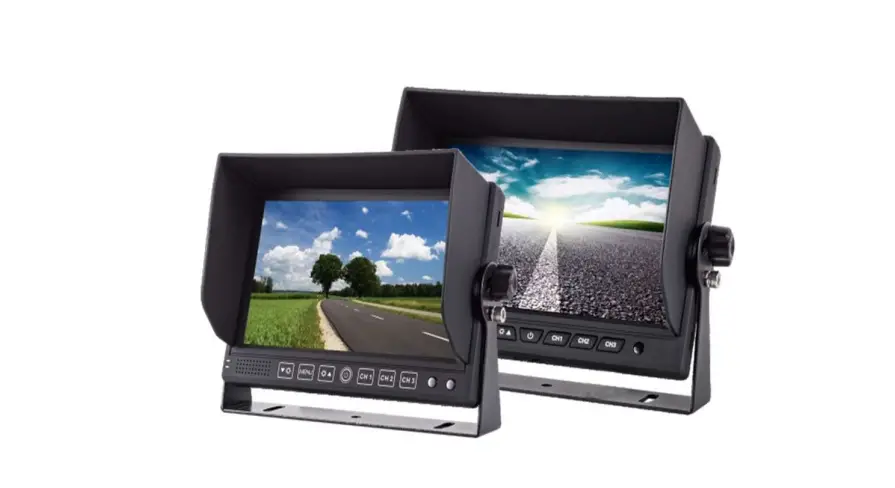
BOYO VTM7012FHD 7 Inch HD Monitor
Product Features
| Feature | VTM7012FHD | VTM9003FHD |
| Size | 7” HD LCD | 9” HD LCD |
| Resolution | 1024 x 600 | |
| Aspect Ratio | 16:9 wide screen | |
| Video Inputs | 3 (Ch1, Ch2, Ch3) | |
| Audio Inputs | 2 (Ch1, Ch2) | |
| Display Triggers | 3 (Ch1, Ch2, Ch3) | |
| Video Signal | 1080P AHD/720P AHD/CVBS – Auto Switch | |
| Video System | PAL / NTSC – Auto Switch | |
| Speaker | Built-in | |
| Mirror Image | Selectable for each channel | |
| Parking Guidelines | Selectable for each channel | |
| Trigger Delay | Configurable | |
| Screen Flip | Horizontal / Vertical Flip | |
| Auto Dimming | Yes | |
| Remote Control | Included | |
| Max. Current | < 500mA @ 12VDC | |
| Operating Power | 12 ~ 24 VDC | |
Before Installation
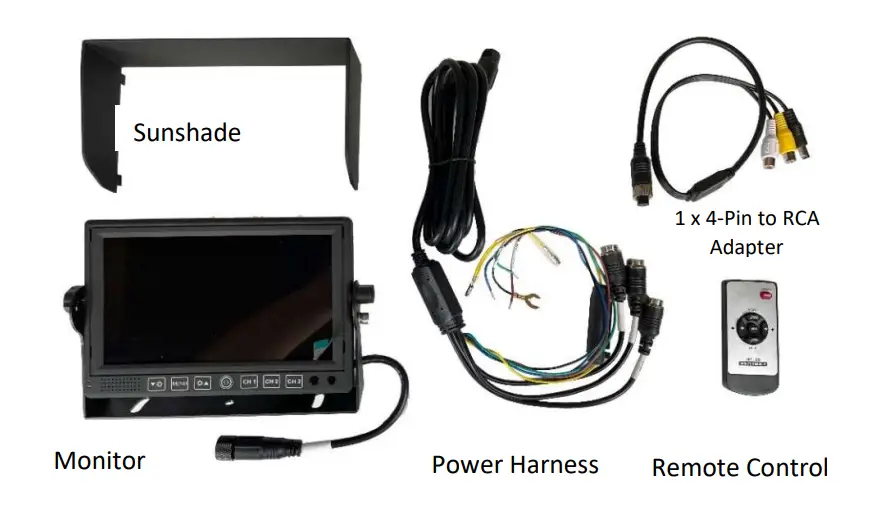
- Please check contents.
- Perform bench test. Ensure the product is working before installation by connecting the monitor and the camera to 12VDC.
- Perform pre-install test, before mounting the monitor and the camera. In very rare instances, a running engine causes interference.
- All issues should be resolved. So, when the monitor and the cameras are mounted, wires are run and the power is turned on, and a problem is encounter, it will be easy to troubleshoot the problem.
Contents
Wiring
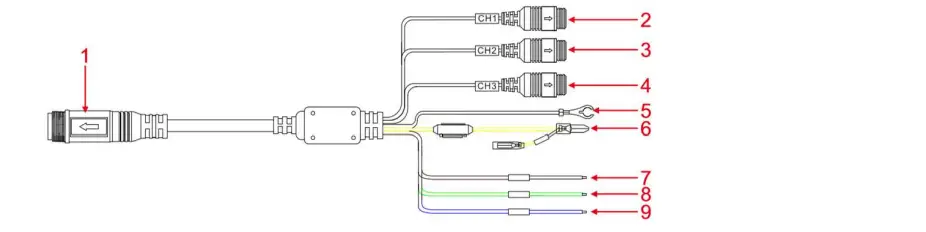
| 1 | Black | 14-PIN | power cable connector | |
| 2 | Black | 4-PIN male | AV CH1 Input | AHD 1080P, AHD 720P, or CVBS |
| 3 | Black | 4-PIN male | AV CH2 Input | AHD 1080P, AHD 720P, or CVBS |
| 4 | Black | 4-PIN male | V CH3 Input | AHD 1080P, AHD 720P, or CVBS |
| 5 | Black | Wire | GND | |
| 6 | Red | Wire | ACC | DC 12-24V positive pole |
| Yellow | Wire | Battery | DC 12-24V positive pole | |
| 7 | Brown | Wire | CH1 Trigger | DC 12-24V positive pole |
| 8 | Green | Wire | CH2 Trigger | DC 12-24V positive pole |
| 9 | Blue | Wire | CH3 Trigger | DC 12-24V positive pole |
A trigger wire is normally connected to a backup light, the left turn signal, and the right turn signal. When a trigger wire becomes hot, it will display the video input channel associated with the trigger.
Remote Control
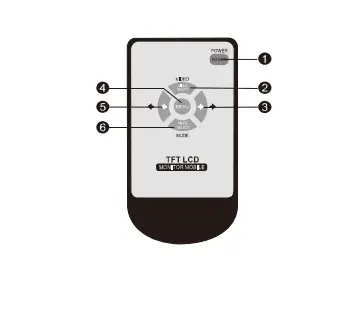
- Power key: short press to turn on or off Ë VIDEO key: CH1, CH2, CH3 video channel switching, to move up in menu setting
- Right key: increase volume, increase analog value in the menu setting
- MENU key: menu
- Left key: decrease volume, decrease analog value in the menu setting
- MODE key: image mode switching, to move
Default Mode
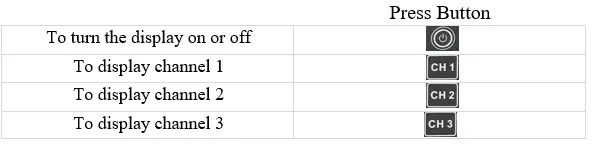
OSD Setting Mode
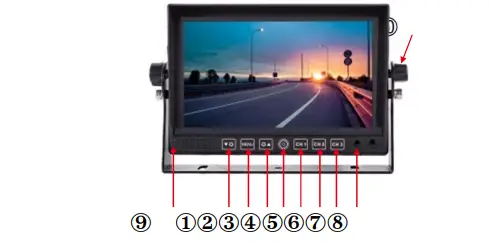
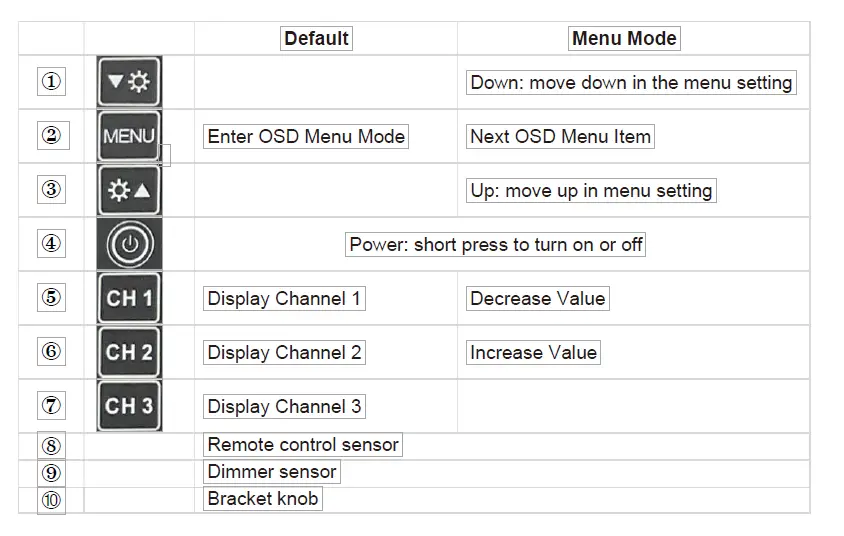
Press (menu) to enter the OSD setting mode.
Repeated pressing of “MENU” button will cycle through
Image Setting à General Setting à System Setting à Volume Setting
To change the values:
- Press (MENU) button to get to the right settings
- Press (down) or (up) button to select the rows
- Press (decrease) or (increase) to “decrease” or “increase” value or to turn “on” or “off”
- Press (MENU) button to save new settings
Image Setting
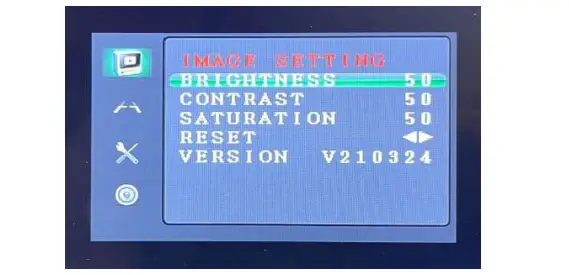
- BRIGHTNESS, CONTRAST, SATURATION
Control display brightness and color - RESET
reset the system to factory default - VERSION
The system version numberGeneral Setting

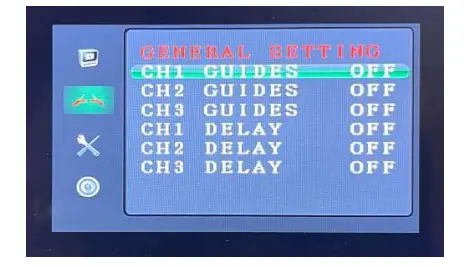
1) GUIDELINES
Turn on or off the parking assist guidelines. Normally used with the backup camera.
2) DELAY
Off or set between 1~10seconds. The delay setting determines the number of seconds the video channel will stay on after trigger line goes off. If the system is set off, then the monitor will return to the previous state immediately once the trigger is turned off. If
delay is set 2s, then the monitor will return to the previous state
2s later after finished reversing
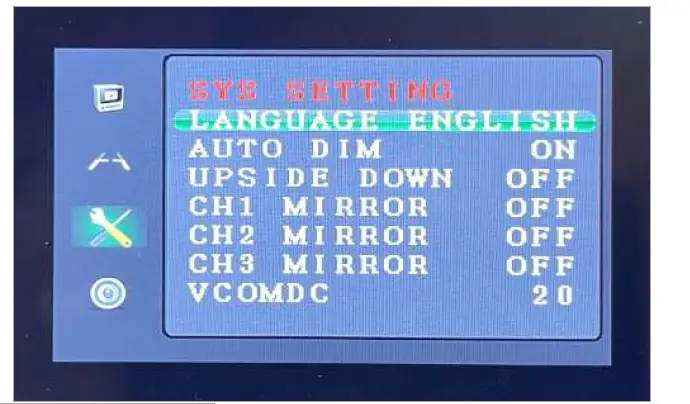
System Setting

1) LANGUAGE
English is the default. Japanese, Korean, Russian, and Chinese are available.
2) AUTO DIM
VTM9003FHD feature. When turned on, the screen brightness dims under low ambient light.
3) UPSIDE DOWN
Vertical display flip on or off
4) MIRROR
Horizontal display flip on or off. Used when a normal camera is used as a backup camera. When a ‘normal’ camera is directed toward rear, an object on the front-right side of the camera will show on the right side of the display screen. Turn the mirror ‘ON’ to display the object on the left side of the screen, like mirror.
5) VCOMDC
When too much backlight come through the LCD, the black screen with no image will look grey, not black. Decrease the value. It controls amount backlight passes through LCD.
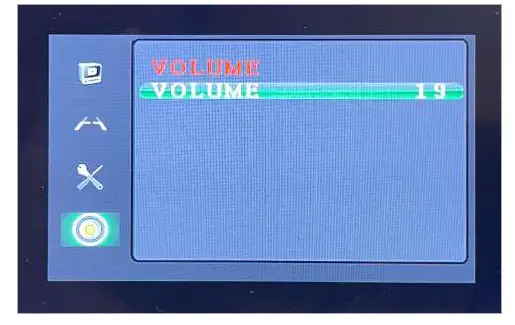
VOLUME Setting

1) VOLUME
Adjust speaker volume
Warranty Information
This one-year limited warranty is given to the end-user or the retail purchaser (referred to this warranty as “Original Purchaser”) that it will be free from defects in material and workmanship for a period of one year from the date of the purchase of the new product (excluding accessory items such as power cords, cradle, memory card, adaptor, and cables).
This limited warranty does not cover any physical damage to, or misuse of, this product, damage caused by improper installation; improper use; misuse; neglect; repair of cracked, scratched, broken or modified cosmetics; or parts that have been altered or removed; damages done by
another device used with this product resulting from use of non-BOYO®- brand parts. This warranty is VOID if you purchased this product as used, floor model sample, or
refurbished; if the product has been altered or modified in any way (including but not limited to attempted repair without authorization from BOYO®- Vision Tech America, Inc. and/or alteration/removal of the serial number).
For warranty information, visit: https://www.visiontechamerica.com/get-warranty
For technical support:
Call: (888) 941-3060
 Backup Camera and Monitor | Rear View Cameras