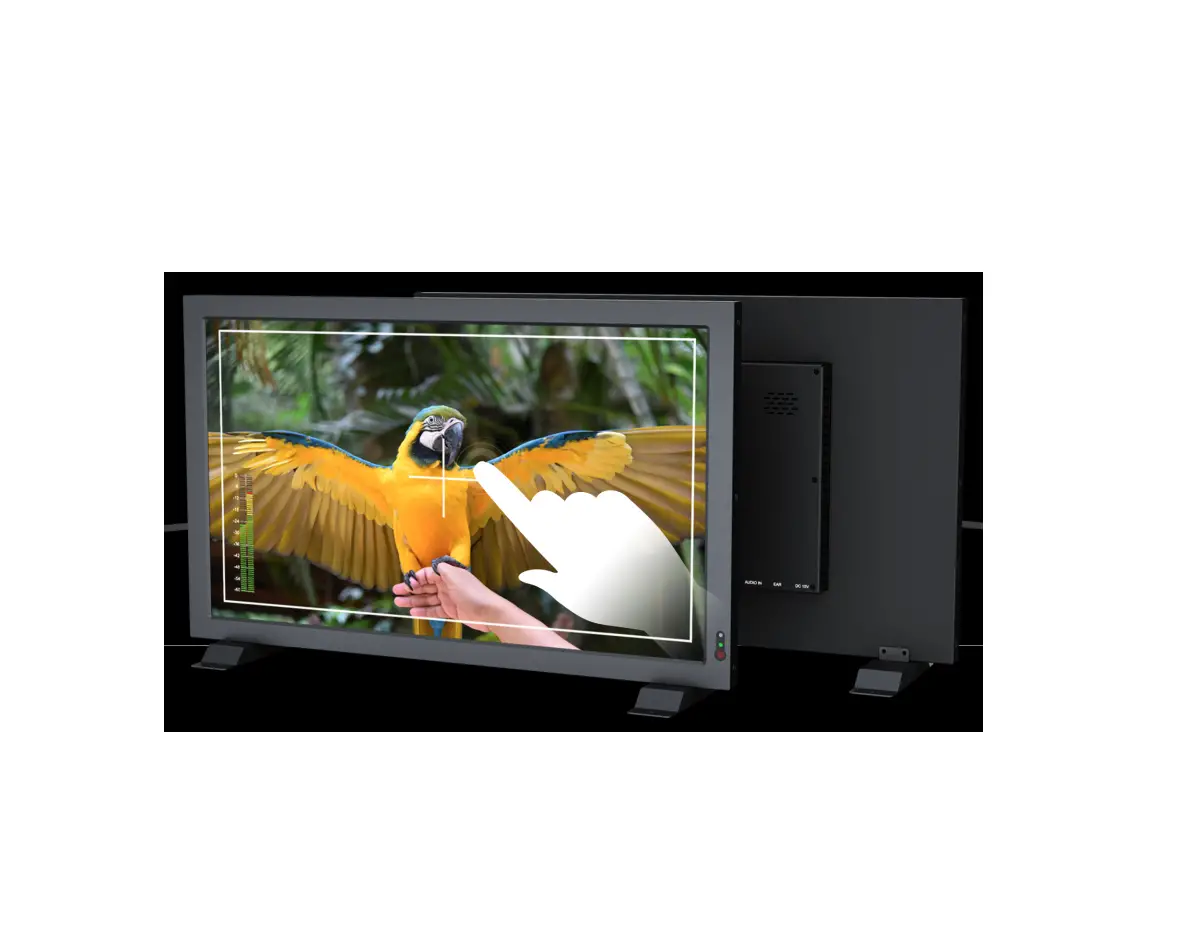
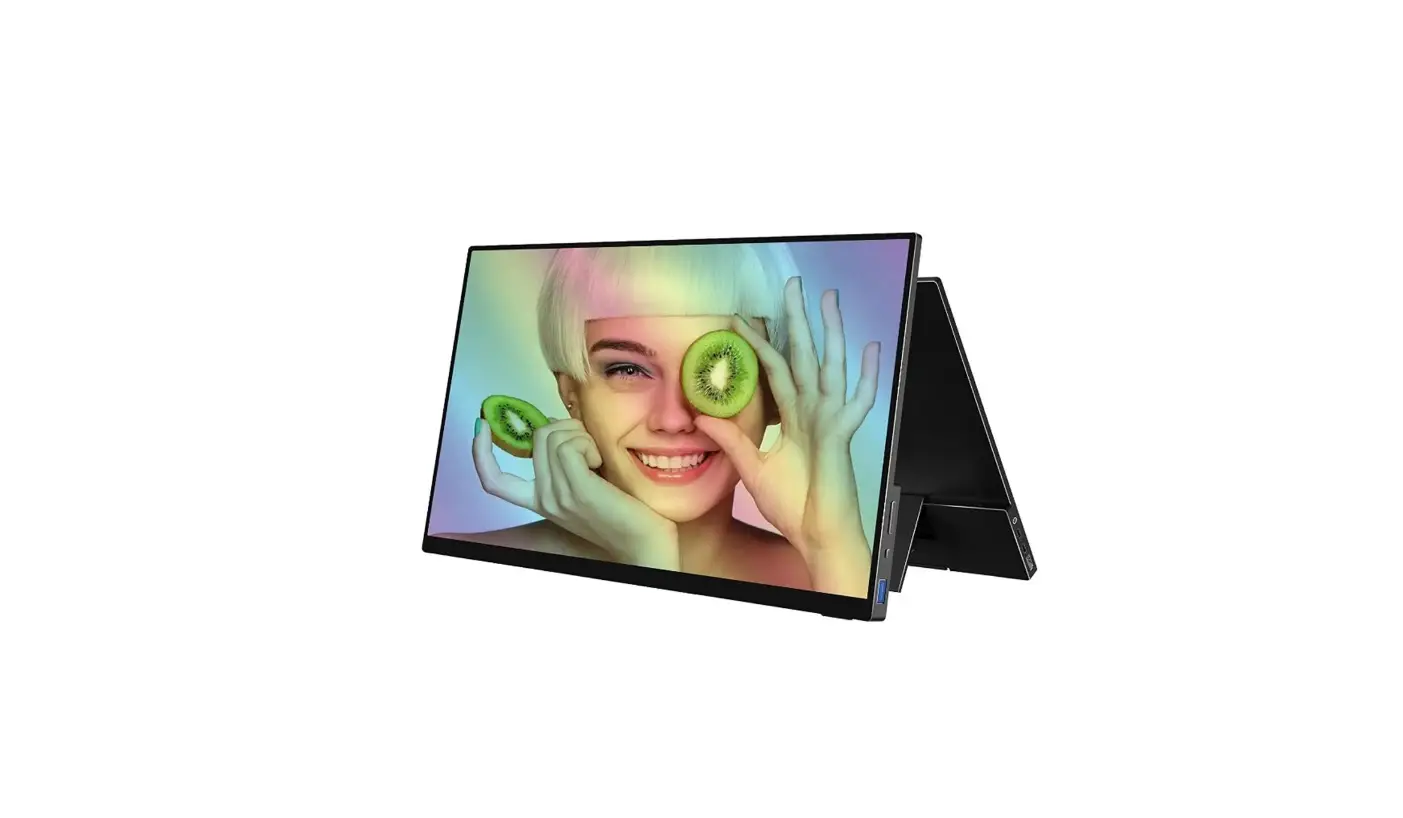
TX401-B 15.4 Inch 10bit 800nits HDR Field Studio Production Monitor
Product Information
The TX401-B/TX402-B Quad Split is a video processing device
manufactured by OSEE TECHNOLOGY LTD. It is designed to support
multiple signal inputs and outputs, providing users with various
display modes and control options.
The TX401-B model features 4CH HDMI Video Input and 4CH GPI
Input, with 1CH SDI Video Output and 1CH HDMI Video Output. On the
other hand, the TX402-B model offers 4CH SD/HD/3G-SDI Video Input
and 4CH GPI Input, with 1CH SDI Video Output and 1CH HDMI Video
Output.
Key Features:
- Supports 4 channels of signal inputs with LED indicators and
one power input indicator - Supports four kinds of output formats: 1080P50, 1080P59.94,
1080I50, 1080I59.94 - Supports four kinds of screen display modes: four uniform size
screens, one big left with three right small, one big right with
three left small, one big top with three bottom small - Supports TSL3.1/4.0, TSL5.0 protocol
- 4ch GPI interfaces, one RS-422 interface, one ETHERNET
interface - Embedded Web Server, supports web interview
Product Usage Instructions
The device has control buttons, interfaces, and indicators
located on both sides.
Inputs and Outputs:
- HDMI Input: Located on the right side, labeled as HDMI
IN1, HDMI IN2, HDMI IN3, HDMI IN4 - HDMI Output: Located on the right side, labeled as HDMI
OUT - SDI Input: Located on the right side, labeled as SDI
IN1, SDI IN2, SDI IN3, SDI IN4 - SDI Output: Located on the right side, labeled as SDI
OUT - Power Input: Located on the right side
- Configuration Ethernet: Located on the left side
- GPI/Serial Communication: Located on the left side
- MUTE: Mute button, click to enable or disable audio
play - SINGLE: Single mode button, click to display only one
picture for one signal source on the whole screen in SINGLE
mode - QUAD: Quad mode button, click to display quad split
windows with different configurations - RESET: Used to restore the factory settings. Insert a
needle tool into the reset hole to trigger the reset operation
2. Network Control
To connect the device to your control computer via Ethernet,
follow these steps:
- Ensure that the local computer and TX401/TX402 are in the same
network segment. - Connect TX401-B or TX402-B with your control computer using an
Ethernet cable. - Double click the Osee.Tx401.Client application to display the
management interface. - Select the device type as BOX or EU during the software
installation process, based on your actual device.
Note: The default IP address for TX401/TX402 is
192.168.1.70.
TX401-B TX402-B QUAD SPLIT
User Manual
V010000 2022-9-14
OSEE TECHNOLOGY LTD.
Address:
Post Code: Tel: Fax: Web: E-mail:
No.22 Building, No.68 zone, Beiqing Road, Haidian District, Beijing, China 100094 (+86) 010-62434168 (+86) 010-62434169 http://www.osee-dig.com/ [email protected]
TX401-B/TX402-B
Chapter 1 Product Overview
TX401-B/TX402-B is a professional quad split instrument. It supports high quality quad split displays for multiple environment with high quality display and swift switch for various display modes. TX401-B/TX402-B has compact and beautiful structure design, offering local control buttons and embedded web configuration functionality, and supports Ethernet loop out functionality, which is convenient for multiple TX401-B/TX402-B integration controlled by only one control computer. TX401-B/TX402-B is suitable in office work environment and cabinet mounting environment, it is widely used in the following fields: command and dispatch center, video conference center, broadcast master control, studio, broadcasting vehicle and so on.
Model Inputs
Outputs
TX401-B
4CH HDMI Video Input 4CH GPI Input
1CH SDI Video Output 1CH HDMI Video Output
TX402-B
Features
4CH SD/HD/3G-SDI Video Input 4CH GPI Input
1CH SDI Video Output 1CH HDMI Video Output
Supports 4 channels of signal inputs with LED indicators and one power input indicator
Supports four kinds of output formats: 1080P50, 1080P59.94, 1080I50, 1080I59.94
Supports four kinds of screen display modes: four uniform size screens, one big left with three right small, one big right with three left small, one big top with three bottom small
Supports TSL3.1/4.0, TSL5.0 protocol
4ch GPI interfaces, one RS-422 interface, one ETHERNET interface
Embedded Web Server, supports web interview
Chapter 2 TX401-B/TX402-B Features
2.1 Control Buttons and Interfaces
There are a series of control buttons, interfaces and indicators at the left side of the device, besides, a series of interfaces at the right side of the device.
1
TX401-B/TX402-B
Name Interfaces HDMI Input
Position Right Side
HDMI Output
Right Side
SDI Input
Right Side
SDI Output
Right Side
Power Input
Right Side
Configuration Ethernet
Left Side
GPI/Serial Communication
Left Side
Operating Buttons
Reset
Left Side
Controls
Left Side
Indicators
Power
Left Side
Input Signal
Left Side
Quantity Description
TX401-B TX402-B
4
—
Input formats: HDMI, DVI-D, Labeled as HDMI IN1, HDMI IN2, HDMI IN3, HDMI IN4
1
1
Output formats: 1080P50/P59.94, 1080I50/I59.94, Labeled as HDMI OUT
—
4
Input formats: HD/SD/3G-SDILabeled as SDI IN1, SDI IN2, SDI IN3, SDI IN4
1
1
Output formats: 1080P50/P59.94, 1080I50/I59.94, Labeled as SDI OUT
1
1
DC6~16V External Power(12V/1A)
1
1
RJ45
1
1
RJ45, RS422 Standard, only received; TTL level
1
1
Restore the factory settings
3
3
Mute, Single, Quad
1
1
Labeled as PWR
4
4
Labeled as IN1, IN2, IN3, IN4
Operating Buttons
MUTE: Mute button, click this button to enable or disable the audio play.
SINGLESingle mode button, click this button to switch to display only one picture for one signal source on whole screen in SINGLE mode.
QUADQuad mode button, click this button to switch to display quad split windows, including four uniform size screens display, one big with three small screens display. The latter including one big left with three right small, one big
2
TX401-B/TX402-B
right with three left small, one big top with three bottom small. RESET: used to restore the factory settings. Insert a needle tool into the reset
hole to trigger the reset operation.
2.2 Network Control
1. Device Connect Connect TX401-B or TX402-B with your control computer through Ethernet. Double click the Osee.Tx401.Client application to display the management interface, as shown below.
The IP address of the local computer and TX401/TX402 must be in the same network segment. The default IP for TX401/TX402 is 192.168.1.70. You should select the device type to be “BOX” or “EU” according to your actual device during the software installation process.
Add a TX401-B for example: click Add button in the tool bar to pop up the device connect dialog box, and input 192.168.1.70 in the IP address, click OK to connect with this device, and you will see the device in the Device List after successful connection. Click to select the device in the Device List, and you can configure it for general, input, display and layout settings. Besides, you can add multiple devices into the device list, import and export to share the same settings between devices.
2. General Setting Click General Setting button to set the following parameters, including device IP address and its corresponding parameters, TSL address, output format, volume
3
and mute switch.
TX401-B/TX402-B
Menu items
Default
Value Range
Description
General Setting
Firmware Version
—
—
Display FPGA/ARM version
Output Format
1080I50
1080I50/1080I60/ 1080P50/1080P60
Set the signal output format
IP Address 192.168.1.70 Network Setting Gateway 192.168.1.1
Set the network Set the network address of address of the device the device
Set baud rate
Set the gateway of the device
Mask
255.255.255.0 Set data bits
Set the mask of the device
Baud Rate 38400
Set stop bits
Set baud rate
Data bits 8 RS485 Stop bits 1
Set parity bit Set the device name
Set data bits Set stop bits
Parity bit Even
Display the version number of FPGA/MCU
Set parity bit
TSL Version v3.1/v4.0/v5.0 v3.1
TSL TSL 5.0 Port 0~65535
8900
Set the version of TSL
Set the port for the device below TSLv5.0
Mute
OFF
Volume
Audio Level 24
ON/OFF 031
Enable/disable mute Set volume
Reset to Default
Restore factory defaults
Click this button to restore the factory defaults.
3. Input Setting
Click Input Setting button to set characters for each input signals IN1IN4: designate audio channels for each of the four audio meters, TSL3.1/4.0 address, TSL5.0 address, UMD type, UMD character, left Tally source, right Tally source.
4
TX401-B/TX402-B
Menu items Default
Value Range Description
InputName
SIGNAL*
SIGNAL*
Set name for the input signal, the default name is SIGNAL*.
Audio Meter1~4
Emb 1-2
Emb 1-2 Emb 3-4 Emb 5-6 Emb 7-8 Emb 9-10 Emb 11-12 Emb 13-14 Emb 15-16
Set an audio channel group of two audio channels to the designated audio meter.
ID:TSL3.1/4.0 129
—
Set the address ID for this TSL 3.1/4.0 protocol (128~255)
ID:TSL5.0
0
—
Set the address ID for this TSL 5.0 protocol (0~65535)
UMD Type
Static
Set the type for UMD source as static or
Static/Dynamic
dynamic. If it is static, the UMD content will be the value set in UMD text; If it is dynamic, the UMD
content will be the value received from the TSL
UMD Text
VIDEO_INPUT* —
Set static UMD characters
Tally Source: L TSL
TSL/GPI
Set the left TALLY source as GPI or TSL
Tally Source: R TSL
TSL/GPI
Set the right TALLY source as GPI or TSL
4. Display Setting
Click Display Setting button to set the following display parameters: UMD and Audio Meter display position, set whether to display format, marker, border, UMD or tally lamp on the monitor window and so on.
5
TX401-B/TX402-B
Menu items UMD & AM Pos
Default
Outside Video
Value Range
Outside Video Inside Video
Description
Set the positions of UMD and audio meter relatively to the monitor frame.
Video Aspect
Keep the original: keep the
signal source originally.
Keep original
the
Follow window: the aspect ratio of the signal source will
Set the display signal source window.
area ratio of the in the monitor
be consistent with the value
of monitor window.
Display: Format Marker
OFF OFF
ON/OFF ON/OFF
Enable/Disable format display Enable/Disable Marker
Board UMD Tally Lamp Show
OFF OFF OFF
Tally on Board
None
ON/OFF
ON/OFF
ON/OFF
None Correlate Left-Tally Correlate Right-Tally
Enable/Disable video frame Enable/Disable UMD Enable/Disable Tally light
Correlate Left-Tally or Right-Tally to border display
Tally on UMD Back None
Audio Meter: L 4
Audio Meter: R UMD Character
4 White
None Correlate Left-Tally Correlate Right-Tally
0/2/4
0/2/4
White/Red/Green/Yellow
Correlate Left-Tally or Right-Tally to UMD background display
Set the audio channels displayed as left audio meter.
Set the audio channels displayed as right audio meter.
Set the color of UMD characters
6
TX401-B/TX402-B
Menu items Tally Color: L Tally Color: R
Default Red Green
Value Range Red/Green/Yellow Red/Green/Yellow
Description Set the color of left Tally light Set the color of right Tally light
5. Layout Setting Click Layout Setting button to set the display mode to be More or Single.
Menu items Default
Single
1
More
1-2
Value Range
Description
1/2/3/4
Switch to Single display mode
1-2/ 3-4/1-2-3/
Four uniform size screens display; One big left with three right small; One big right with three left small; One big top with three bottom
Switch to More display mode, you can set to display two, three or four screens.
small(including another four types)
2.3 Supported Signal Format
The supported signal format for this device is as shown in Table 2.3-1:
Table 2.3-1 Supported Signal Format
Input
HDMI SDI
480/59.94i,60i
576/50i
720/23.98p,24p
720/25p
720/29.97p,30p
720/50p
720/59.94p,60p
1080/23.98PsF,24Ps
1080/50i
1080/59.94i,60i
1080/23.98p,24p
1080/25p
DVI-D Input
HDMI SDI
1080/59.94p,60p
640×480(60Hz)
800×600(60Hz)
1024×768(60Hz)
1280×1024(60Hz)
1366×768(60Hz)
1440×900(60Hz)
1400×1050(60Hz)
1600×1200(60Hz)
1680×1050(60Hz)
1920×1080(60Hz)
1920×1200(60Hz)
DVI-D
7
Input 1080/29.97p,30p 1080/50p
HDMI SDI
TX401-B/TX402-B
DVI-D Input
HDMI SDI
2048×1152(60Hz)
DVI-D
Chapter 3 Specifications
Specification Model Video Input Interface
Video Standard
Values TX401-B Digital Video: 4*HDMI HDMI1.4
VESA
Video Output Interface 1*HDMI, 1*SDI
TX402-B Digital Video: 4*SDI SMPTE-259M;270Mbps SMPTE-292M;1.485Gps SMPTE-425M;2.97Gps 1*HDMI, 1*SDI
Video Output Format
1080P50/P59.941080I50/I59.94
Dimension(WxHxD)
128.4*113*27.9mm
128.4*113*27.9mm
Power Consumption
5.7W
5.7W
Power Supply
DC6~16VExternal Power(12V/1A
Control Interface
2* RJ45 Ethernet(10/100M adaptive RJ45)
Work Temperature(°C) 0~50
Storage Temperature(°C) -20~60
Work Humidity(%RH) 10~90
Storage Humidity(%RH) 10~90
Specifications are subject to change without notice.
8
 Disney - Leadership, History, Corporate Social Responsibility
 Osee Official Website: Camera Monitor, Field Monitor and Studio Monitor