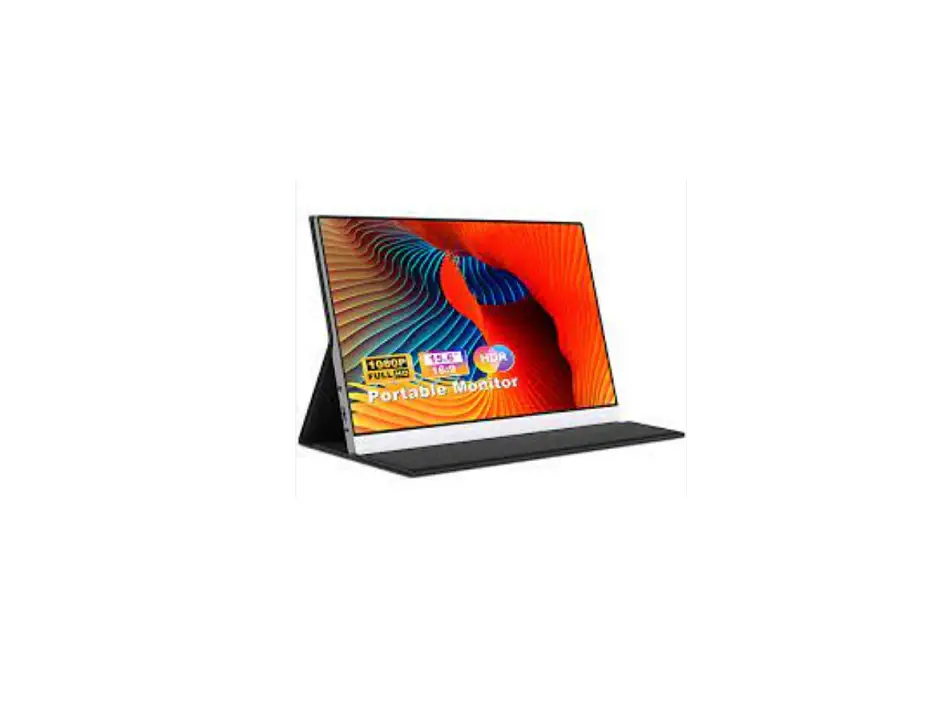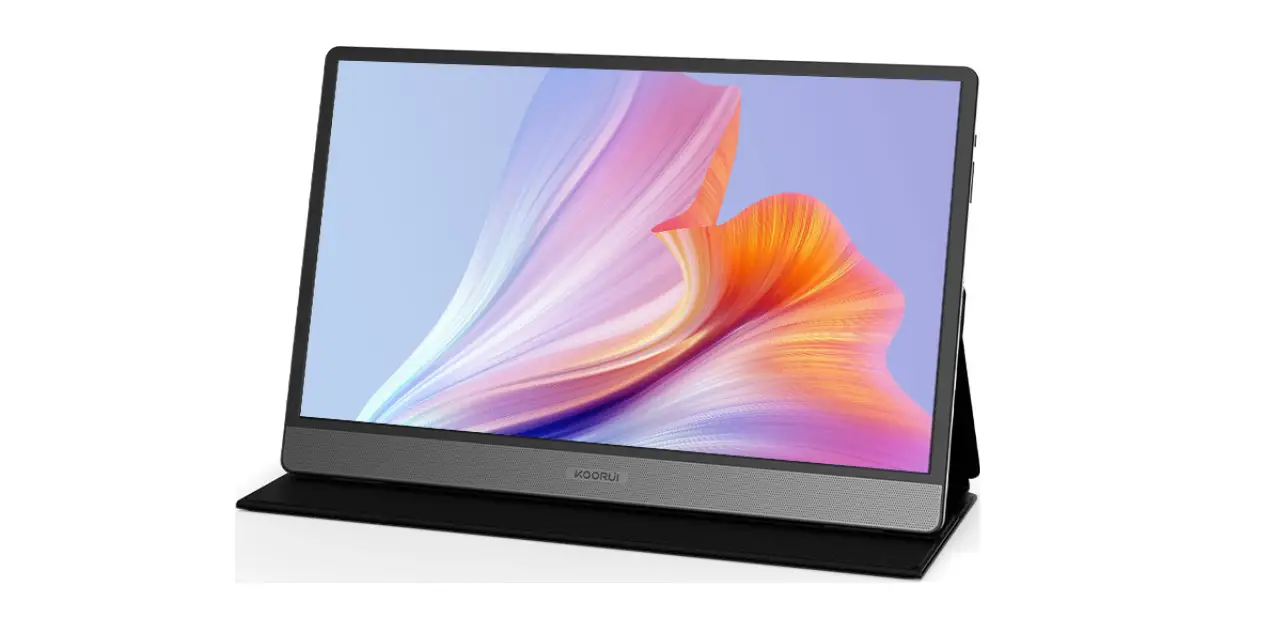
KOORUI 15B1 15.6 Inch 1080P FHD Portable Laptop Monitor User Manual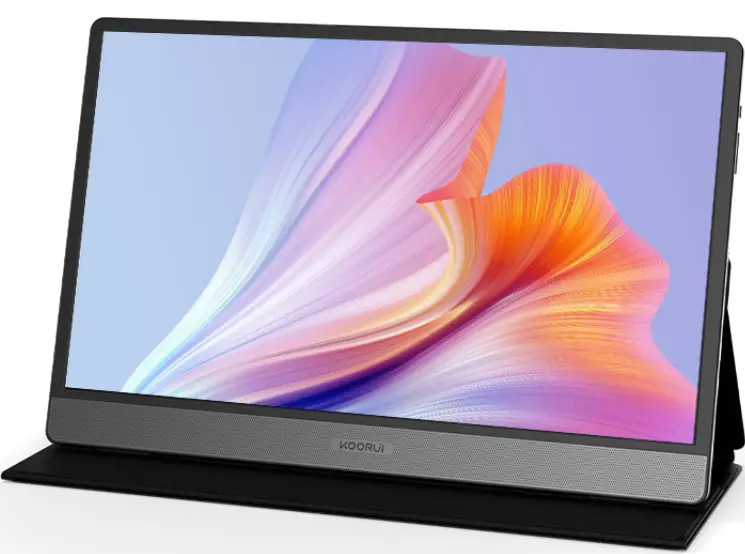
Product Parameters
| Product Parameters | Physical Properties | |||||
| MODEL NO. | 15B1 | Signal Cable Type | Separable | |||
| Display | Power Type | Built-in power supply | ||||
| LCD Technologie | IPS | Input Voltage | 5-12V | |||
| Screen Size | 15.6 Inches | Input Current | 3Amax | |||
| Screen Shape | FLAS | Power Consumption | Boot30W | |||
| Reaction Time(G/G) | 5ms | Sleep 0.3W | ||||
| Pixel Spacing | 0.17925×0.17925mm (Wx1-1) | VESA Mount Supported | Unsupported | |||
| Display Color | 16.7M colors | Product Height | 236.23mmActivate Wi | |||
| Image Ratio | 16 : 9 | Product Width | bo to settings t362.54mm | |||
| Perspective(typ.) | 200cd / m2 | Product Depth | 16.23mm | |||
| Resolution | 1920×1080 | Product Weight | 1.05kg | |||
| Maximum Refresh Rate | 60Hz | FCL Weight | 1.3kg | |||
| Betra chtung swin kel(H/V) | 178°/178° | Output Port | ||||
| Static Contrast | 1000: 1 | Type-C | 2 | |||
| Dynamic Contrast | 20000000: 1 | Mini-HDMI 1.4 | 1 | |||
| NCSI Solor Gamut | 45% | Audio | 0 | |||
| Model Type | Digital signal | Use Environment | ||||
| Language | English, Chinese, German, Japanese, Italian, French optional | Working Temperature | 0-40°CActivate Wi | |||
| Storage Temperature | co to Scttinys t-20-60°C | |||||
Chapter I Attention
Safety precautions
Warning A serious or fatal injury may result if instructions are not followed. Caution Personal injury or damage to properties may result if instructions are not followed.
RISK OF ELECTRIC SHOCK. DO NOT OPEN
CAUTION: TO REDUCE RISK OF ELECTRIC SHOCK, DO NOT REMOVE COVER (OR BACK).THERE ARE NO USER SERVICEABLE PARTS INSIDE. REFER ALL SERVICING TO PROFESSIONAL.
This symbol indicates that high voltage is present inside. It is dangerous to make any kind of contact with any internal part of this product.
This symbol indicates that this product has included important literature concerning operation and maintenance.
Class II product:
This symbol indicates that a safety connection to electrical earth (ground) is not required. If this symbol is not present on a product with a mains lead, the product MUST have a reliable connection to protective earth (ground).
AC voltage: Rated voltage marked with this symbol is AC voltage.
DC voltage: Rated voltage marked with this symbol is DC voltage.
Caution. Consult instructions for use: This symbol instructs the user to consult the user manual for further safety related information.
Storage precautions
- Keep away from water sources or damp places, such as bathrooms, kitchens, basements, swimming pools, etc.
- Ensure that the equipment is installed and placed smoothly. If it falls, it may cause human injury or equipment damage.
- Store in a cool, dry and ventilated place, and do not approach radiation sources and heat sources.
- Do not cover or plug the ventilation holes in the back shell, and do not use them on beds, sofas, blankets or similar surfaces.
- is indicated on the
label of the back shell. If the supplied voltage cannot be determined, consult
the local power company. - When the monitor is not used for a long time, please cut off the power supply
to prevent the damage of the motor and abnormal power supply voltage in thunderstorm days. - Do not overload the socket, which may cause fire and electric shock.
- Please do not put foreign bodies into the machine, which may cause short circuit or cause fire and electric shock.
- Please do not disassemble or repair this product by yourself. If there is any fault, please contact the after-sales service personnel directly.
- Please do not pull or twist the power cord excessively.
Securing the installation space
Make sure to have enough space for ventilation when placing the product.
An internal temperature rise may cause fire and damage the product.
Maintain enough space around the product as shown in the diagram when
installing the product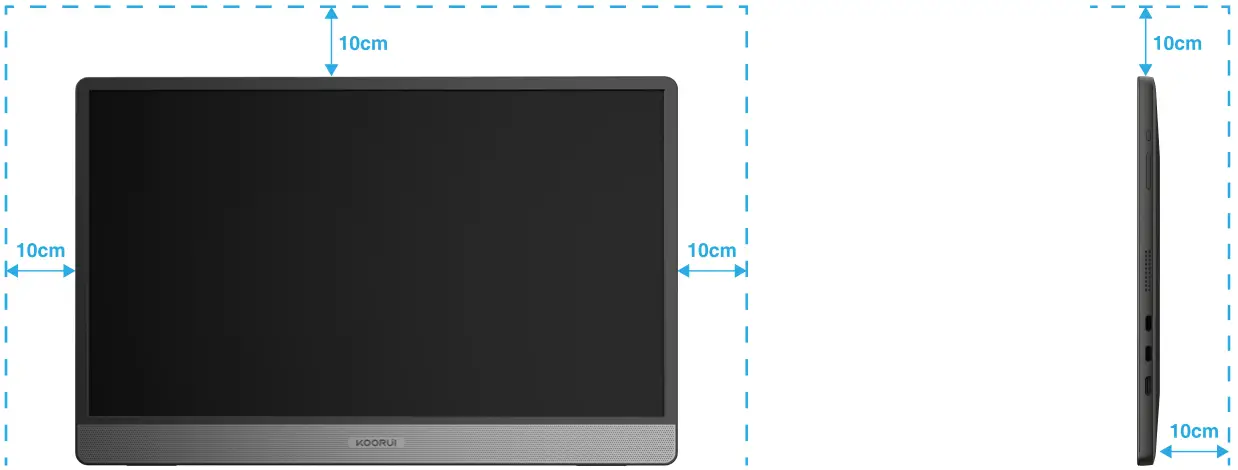
Protection recommendations
Suggestions for eyes
In order to avoid eye fatigue and pain in neck, arms, back and shoulders caused by long-term use of the monitor, please pay attention to the following points:
- Place the monitor 20-28 inches away from both eyes (about 50-70cm).
- Use the monitor to keep the eyes moist or increase the blinking frequency.
- After using the monitor for 2 hours, please rest for 20 minutes.
- When resting, leave your eyes away from the monitor and look at the distance for 20 seconds.
- When resting, stretch or relieve your neck, arms, back and shoulders.
Low blue light description
The blue light wavelength is in the blue light band, and the display has the function of reducing blue light emission. Can select “eye protection mode” in the menu to protect your eyes.
Cleaning your monitor
To clean your screen, lightly dampen a soft, clean cloth with water. If possible, use a special screen-cleaning tissue or solution suitable for the anti static coating. Do not use benzene, thinner, ammonia, abrasive cleaners or compressed air.
Precautions for moving the product
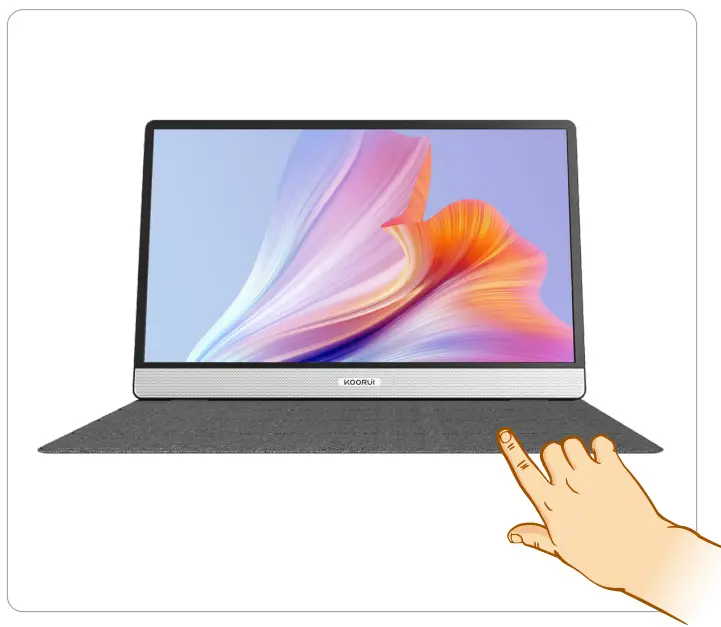
- Do not directly apply pressure on the screen.
- Do not hold the screen when moving the product.

Chapter II Preparation before use
Accessories
Your monitor is equipped with the following components. Please check whether all parts have been received. If there are any omissions, please contact Koorui.
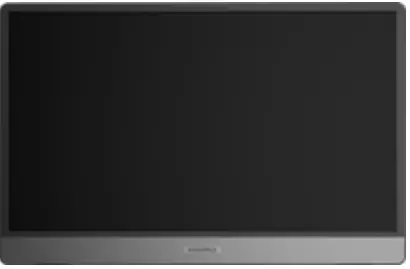
- Monitor

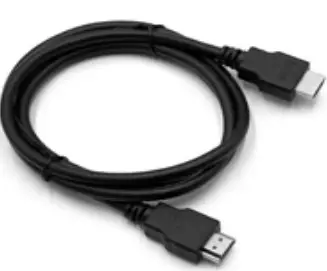
- HDMI Cable

- Tpye-C cable

- User Manual

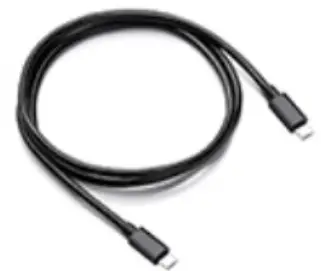
Interface and data line connection
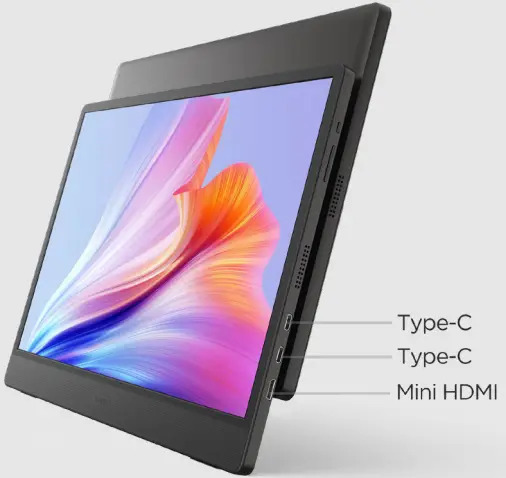
| Port | Interface Name | Port description |
| Type-C | Connects to a PC using a Type-C cable. Connects to DC using a Type-C cable |
 | MINI HDMI PORT | Connects to a PC using a HDMI cable. |

Warm Tips:
- Does not support Type-C headphones.
- Use Mini HDMI to connect the display, and additional power supply is required to display normally.
- When there is only one Type-C connection, the maximum brightness is 50%; when you need to increase the brightness to 100%, you need to increase the power input.
Connecting and using a PC
- Choose the connection method that suits your PC.
- Connecting parts may vary from product to product.
Connecting and using source devices
Read below before installing the product.
- Before installing the product, check the shapes of both ports of the supplied
signal cables and the shapes and locations of the ports on the product and
external device. - Before connecting signal cable, make sure you remove the power cables from both the product and the external device to prevent damage to the product due to a short circuit or over current.
- After all signal cables have been properly connected, connect the power cables back to the product and the external device.
- After installation is completed, make sure you read the user guide to acquaint yourself with the product functions, precautions and other information required to use the product properly.
Please read the user guide provided by the source device for the operation mode of the source device. The original device signal is abnormal. It is recommended to contact the source device manufacturer first.
If you need assistance, please contact Koorui after-sales staff.
Adjusting the product tilt
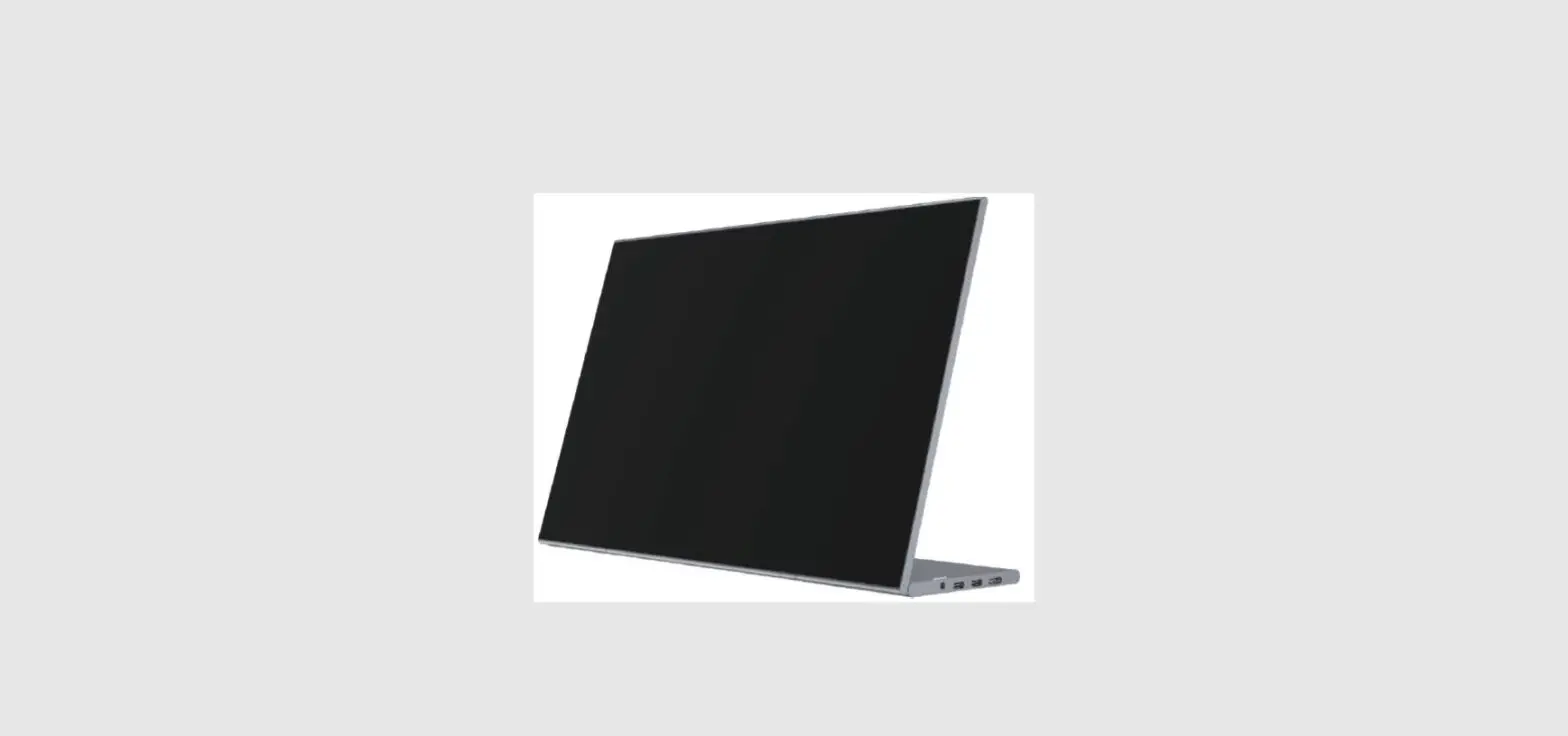
The monitor supports five angle applications.
Placement 1: Adjustable 67.423°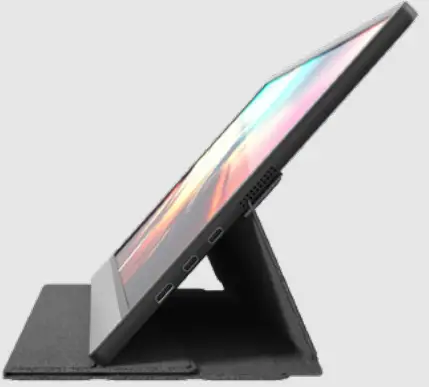
Placement 2: Adjustable 80.1513° with the horizontal plane with the horizontal plane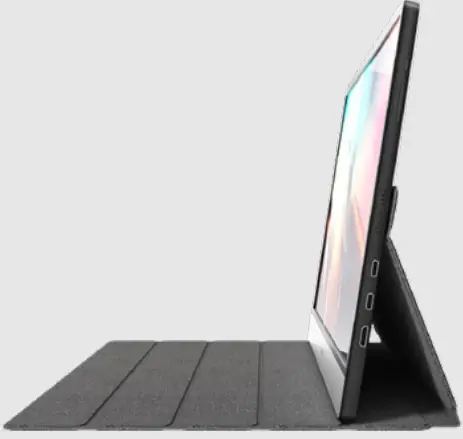
Placement 3: Adjustable 69.35+3°
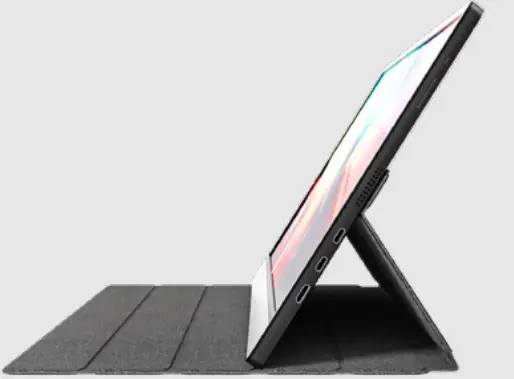
Placement 4: Adjustable 58.5+3° with the horizontal plane with the horizontal plane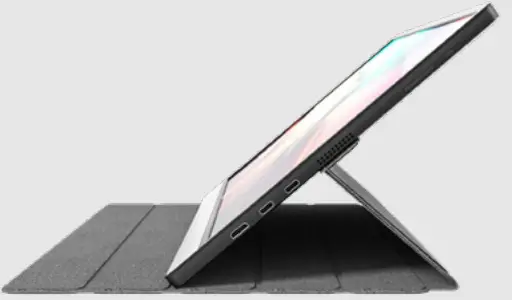
Placement 5: Adjustable 45.00+3° with the horizontal plane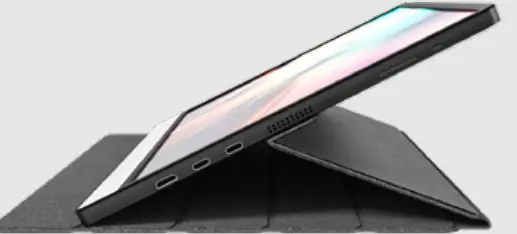
Chapter II OSD function
The OSD function information table of this product is as follows. If there is any doubt about the operation process, please consult Koorui after-sales staff.
- When you are not watching movies or games, it is best to set the response time and mode to standard.
- Under dynamic contrast, brightness and contrast cannot be adjusted.
- Standard mode, get the clearest display effect, and adjust it according to your preference.
- Cinema mode, eye protection mode, FPS mode and RTS mode cannot adjust brightness and contrast.
- Eye protection mode cannot adjust color temperature.
- |f you have any other questions, you can consult Koorui customer service staff.
Chapter IV Common Applications
(In the case of Windows 10)
Resolution, and refresh rate settings
Resolution settings
Windows Settings > System -> Screen -> Display Resolution
Refresh rate setting
Windows Settings > System -> Screen > Advanced Display Settings ~> Refresh Rate
In Multiple Screen Control, in Advanced Display Settings, select the display you want to set.